Tailscale: Full Tutorial for Beginners
A complete beginner's Tailscale tutorial on real machines: install Tailscale on Linux, join a tailnet with tailscale up, reach a home server from a cafe by name with MagicDNS, see why a connection is direct or relayed, limit a second user with an access policy, log in with Tailscale SSH, send a file with Taildrop, reach a camera with a subnet router, and route a laptop's traffic through an exit node. No port is opened on any router.
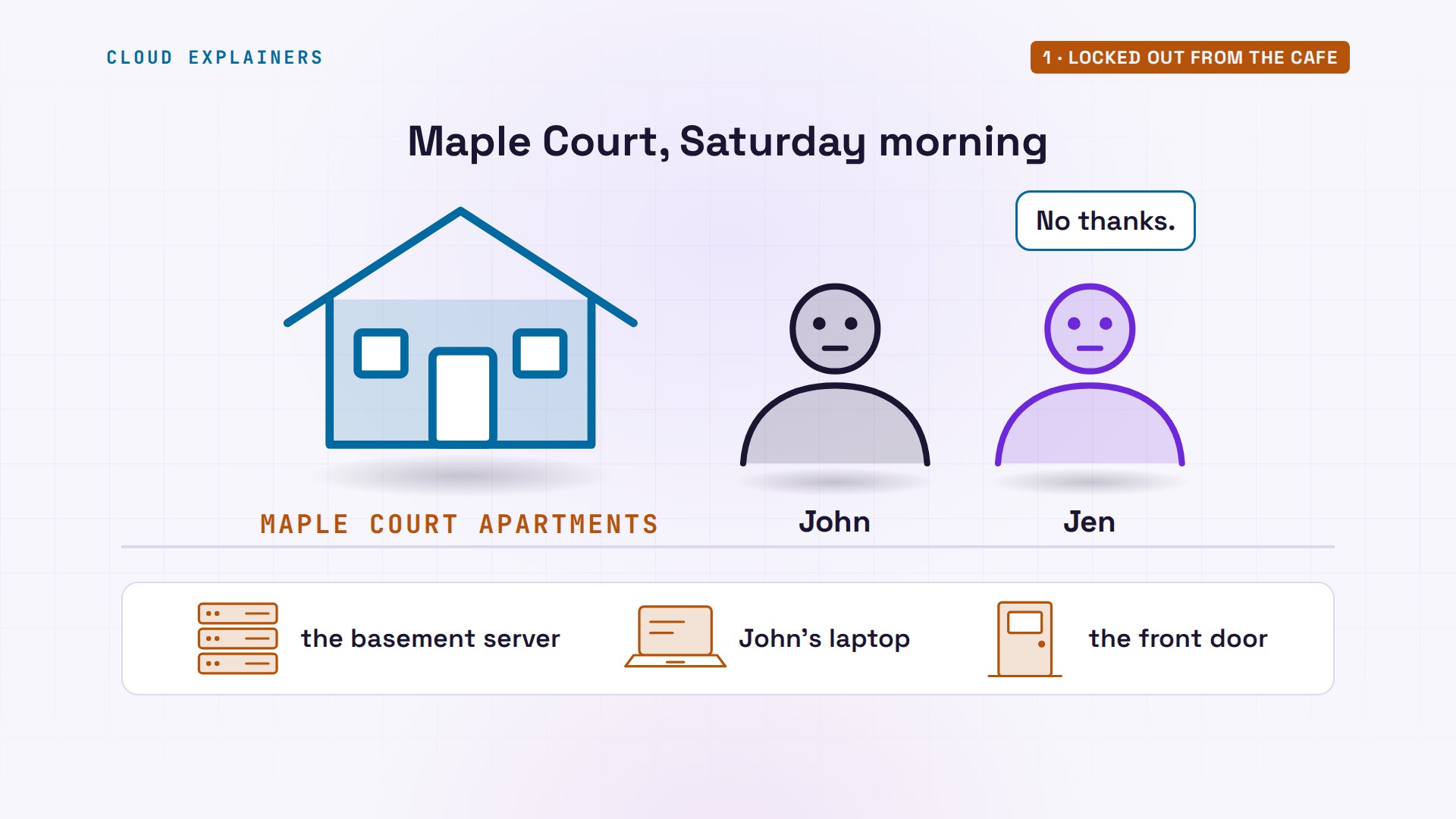
Locked out from the cafe
You're away, and your server at home won't answer. It times out. Open a port to the whole internet, or open nothing at all?
curl -sS -m 5 http://192.168.50.10:8080curl: (28) Connection timed out after 5002 milliseconds
By the end, this laptop opens it by name, through Tailscale, with no port opened. And every address starts with 100: a block set aside for internet providers' own networks.
curl -s http://basement:8080<!doctype html><title>Laundry room bookings</title>
<h1>Maple Court laundry room</h1>
<p>Saturday bookings</p>
<ul><li>Washer 1, 9:00 - Apartment 2B</li><li>Washer 2, 10:00 - Apartment 4A</li><li>Dryer 1, 11:00 - Apartment 3C</li></ul>
tailscale status100.64.0.2  laptop      john  linux  -
100.64.0.1  basement    john  linux  active; offers exit node; direct 198.51.100.10:41641, tx 8048 rx 7752
100.64.0.3  jen-laptop  jen   linux  idle, tx 516 rx 756
John looks after Maple Court, a small apartment building. He could open a port on its router. He could also prop the front door open.
Why it times out
So why does it time out? The server's address, 192.168.50.10, only exists inside the building.
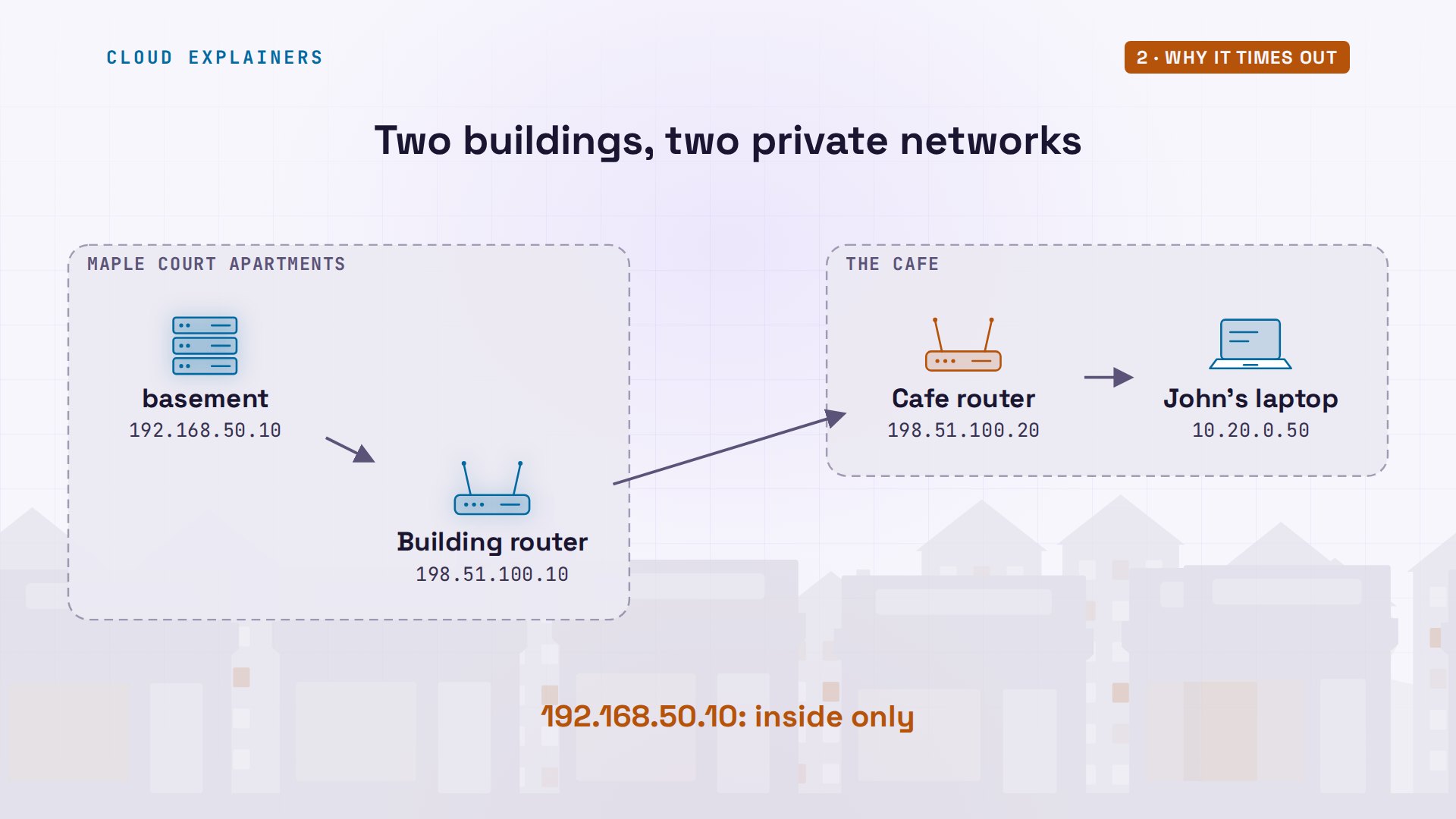
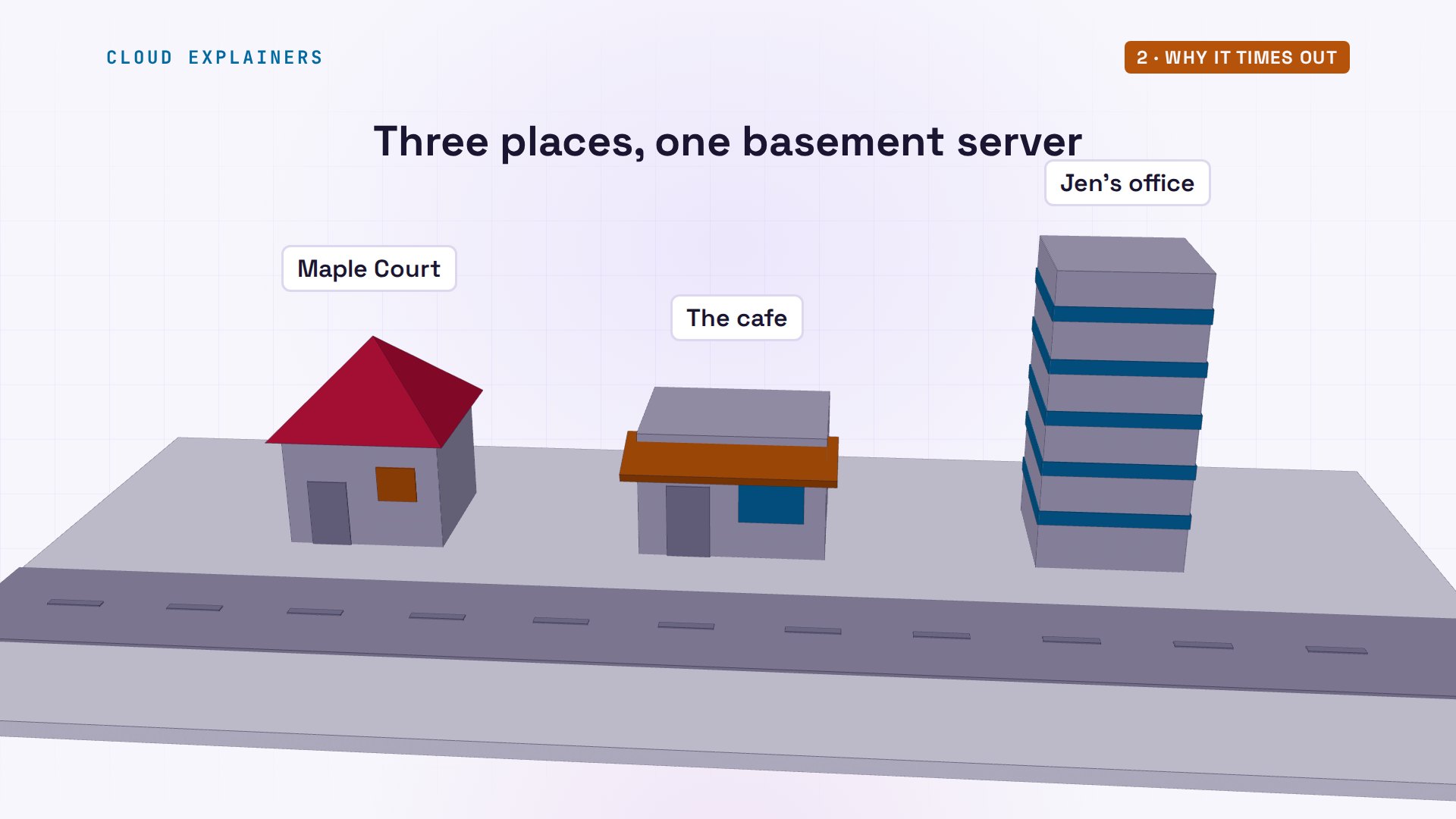
To the internet, the whole building is one address: its router's, 198.51.100.10. The cafe works the same way, with an inside address for John's laptop and one outside address for the whole cafe. Swapping inside and outside addresses at the door is called NAT, network address translation, and almost every home and cafe router does it.
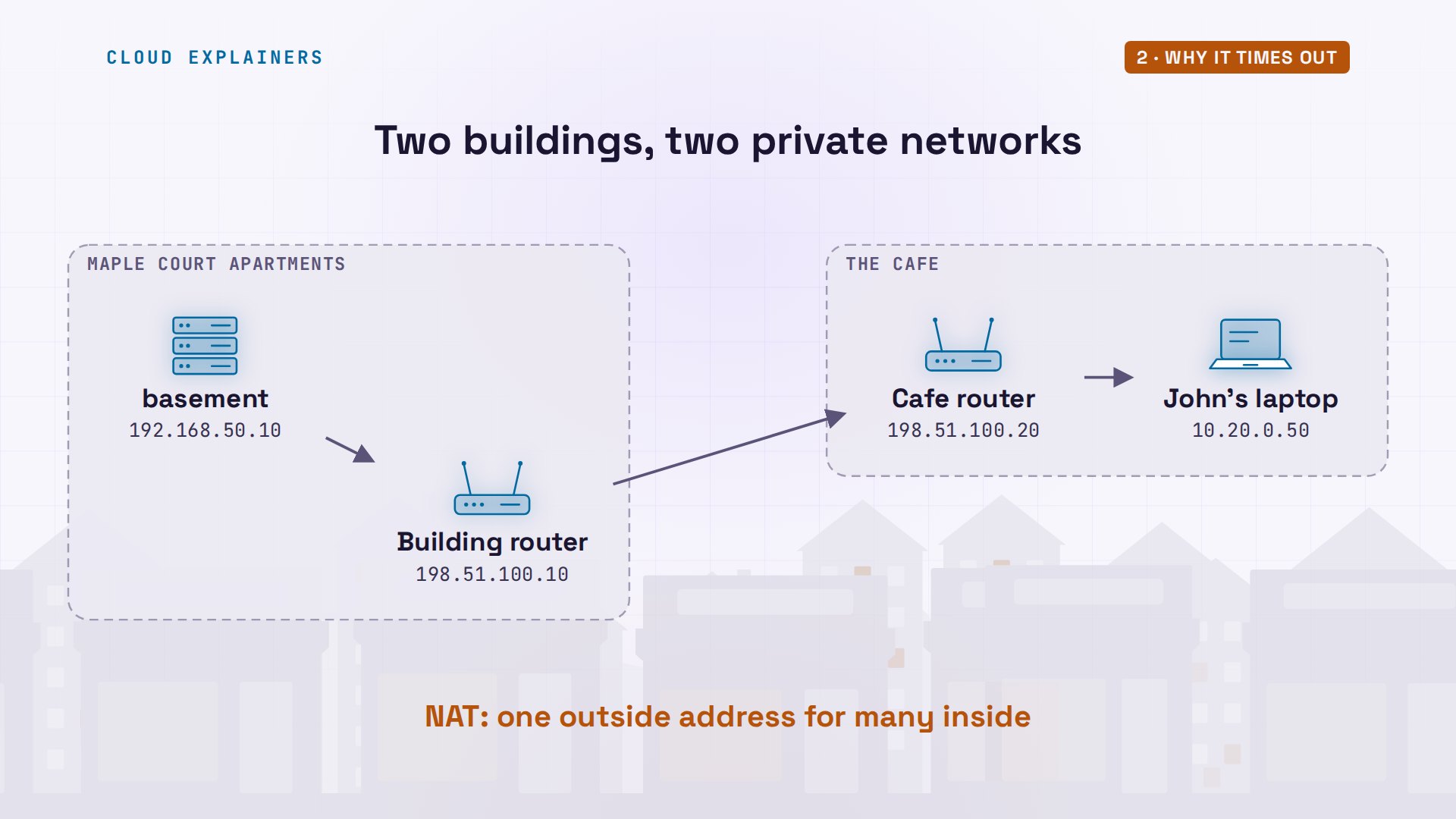
And when the laptop knocks on the building's public address, the router drops it. Nobody inside asked for that packet, so it never goes in. That's a good thing: it's what keeps strangers off your network.
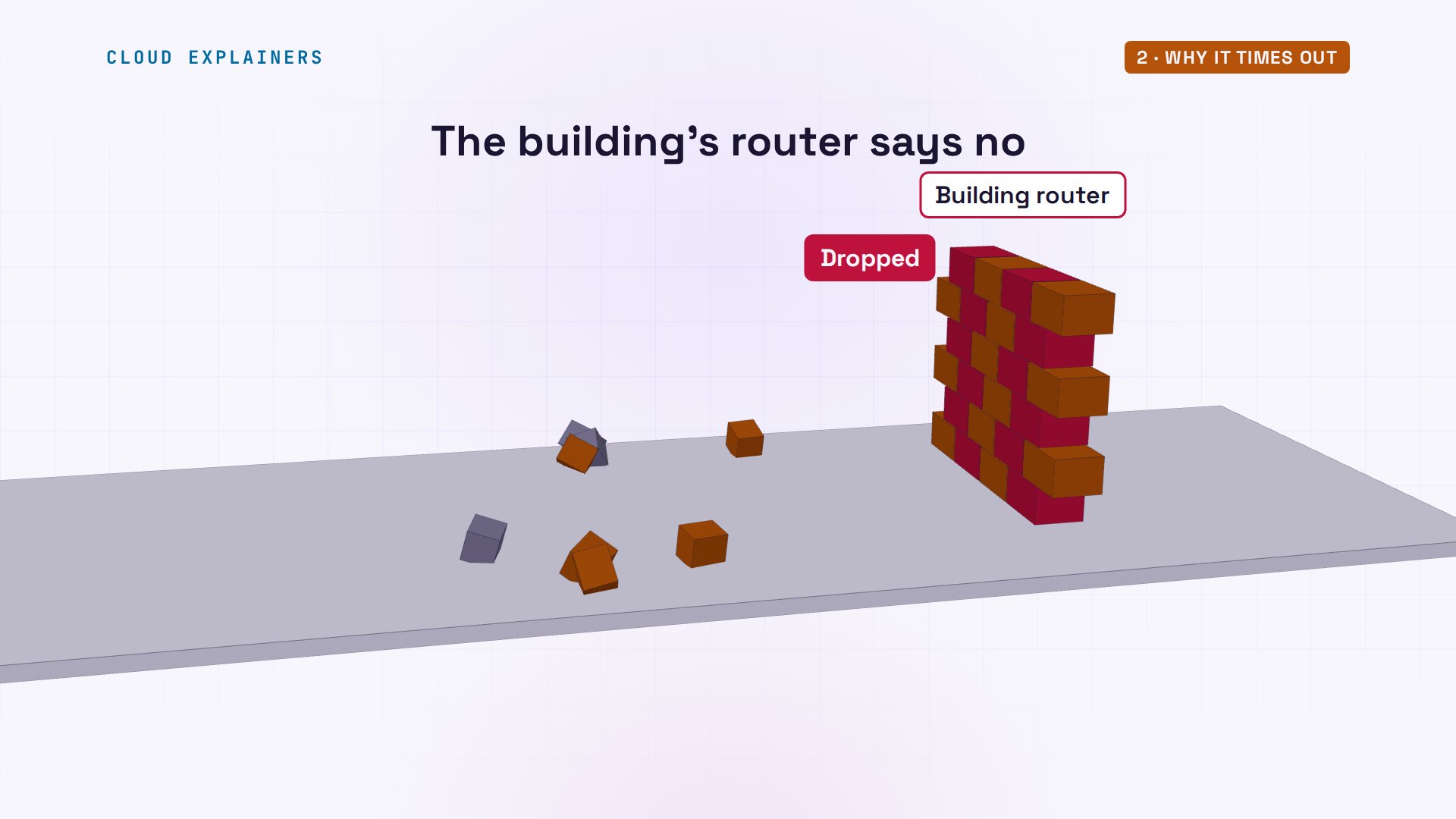
But it leaves John stuck. The basement runs two things people need: the laundry bookings the tenants use every day, and the recorder for the front door camera. John wants both from anywhere. And Jen, one of the tenants, wants to book a washer from her office. But once she's in, what stops her from reaching everything else? We'll come back to that.
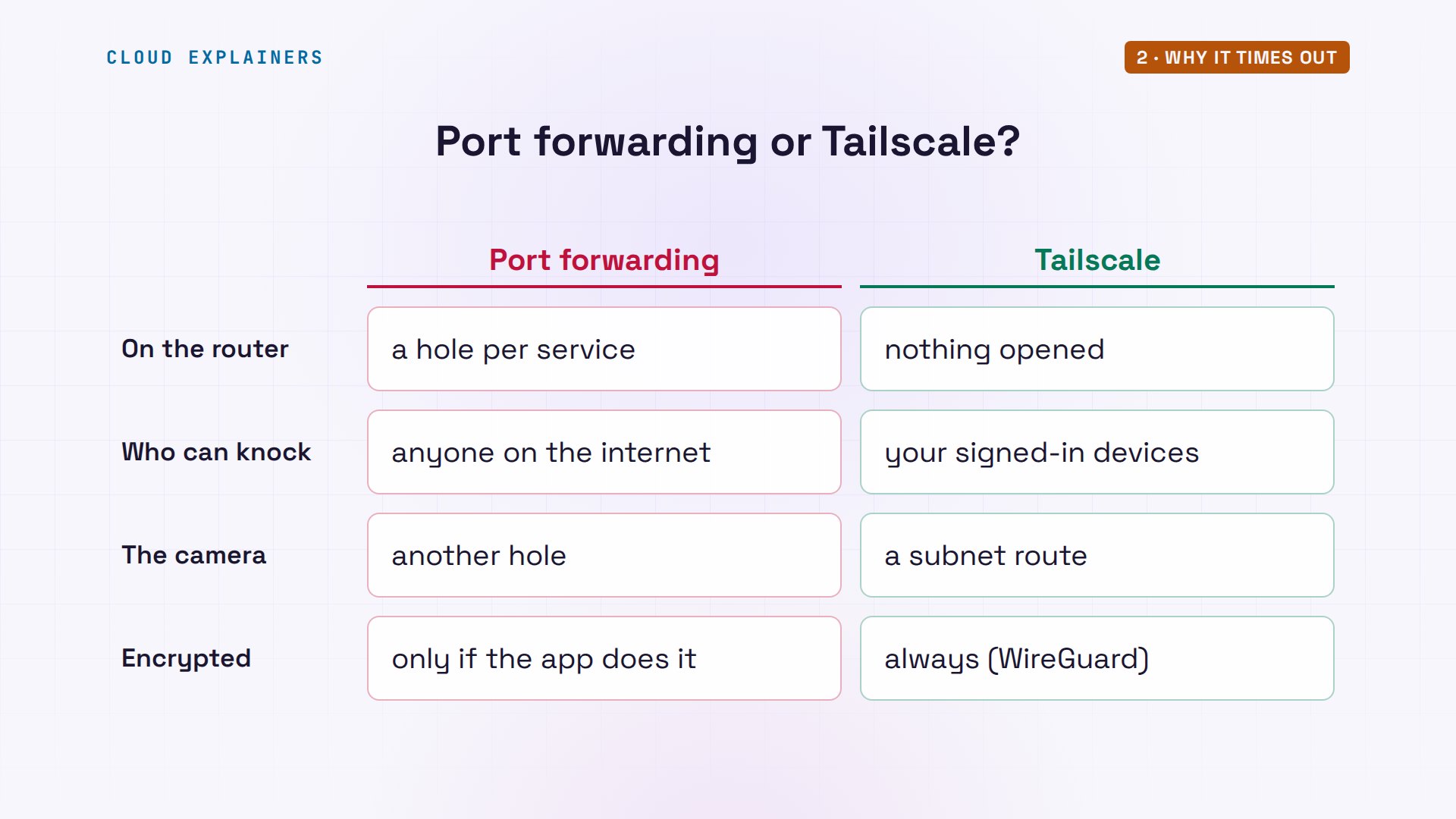
The usual answer is port forwarding: a rule on the building's router that sends one port straight to the server. It works, but that port then answers anyone on the internet, and the camera would need a hole of its own. Tailscale takes the other road: nothing gets opened, and only devices you signed in can reach each other.
What Tailscale is
So what is Tailscale? It puts every device you sign in onto one private network, called a tailnet. It's a kind of VPN, a virtual private network: it makes faraway machines act as if they were on one network. Each device gets an address that starts with 100, and talks to the others directly, through an encrypted tunnel made with WireGuard, the VPN protocol Tailscale is built on. Unlike an office VPN, there's no central box all the traffic has to squeeze through: each pair of devices gets its own tunnel.
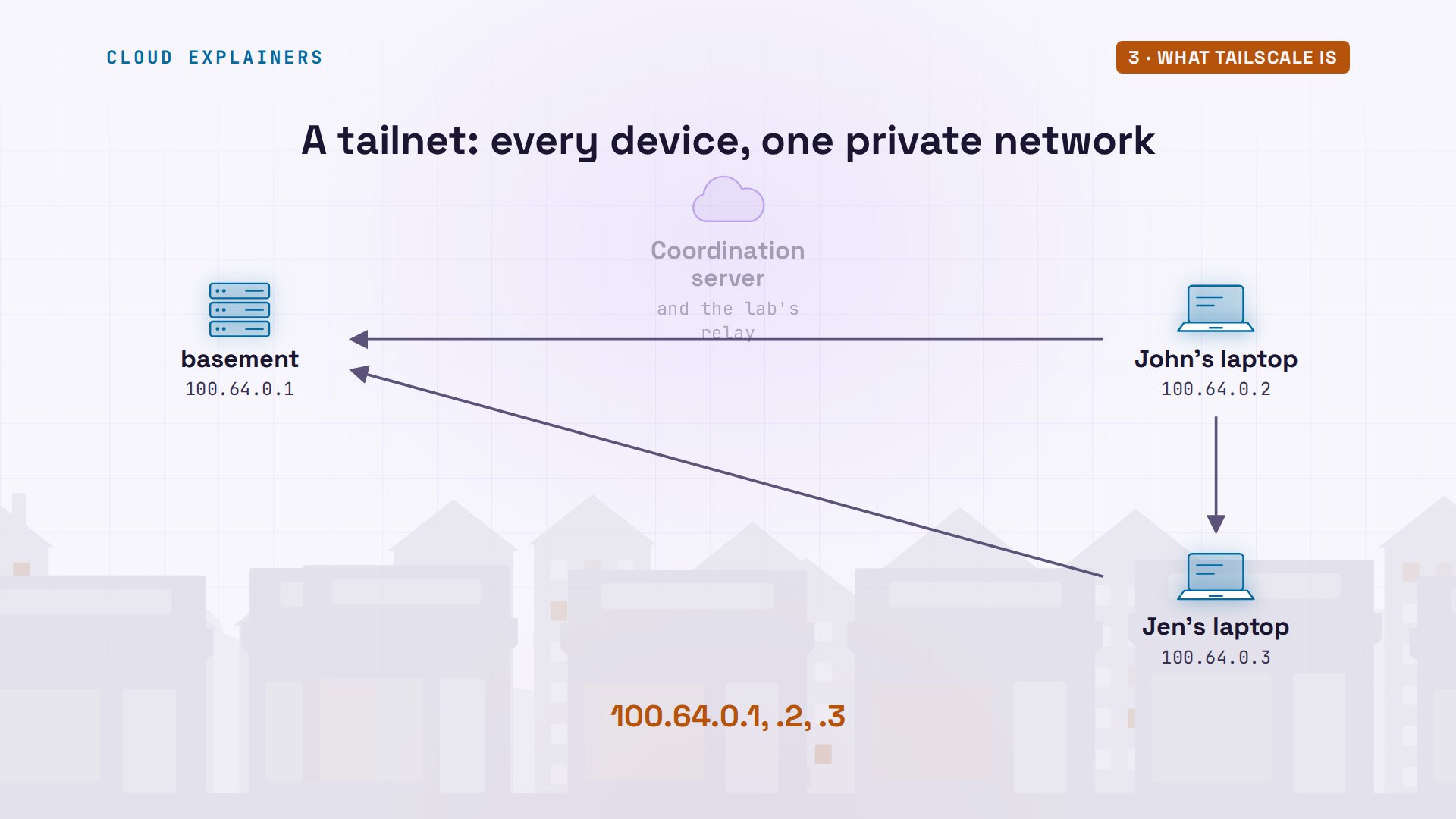
Then how do the devices find each other? Through a coordination server. Guess first: does John's data pass through it? No. Think of the front desk of an apartment building: it hands out the keys and tells each tenant which door is whose, but it never carries anyone's packages. Tailscale's own write-up calls it a shared drop box for public keys.
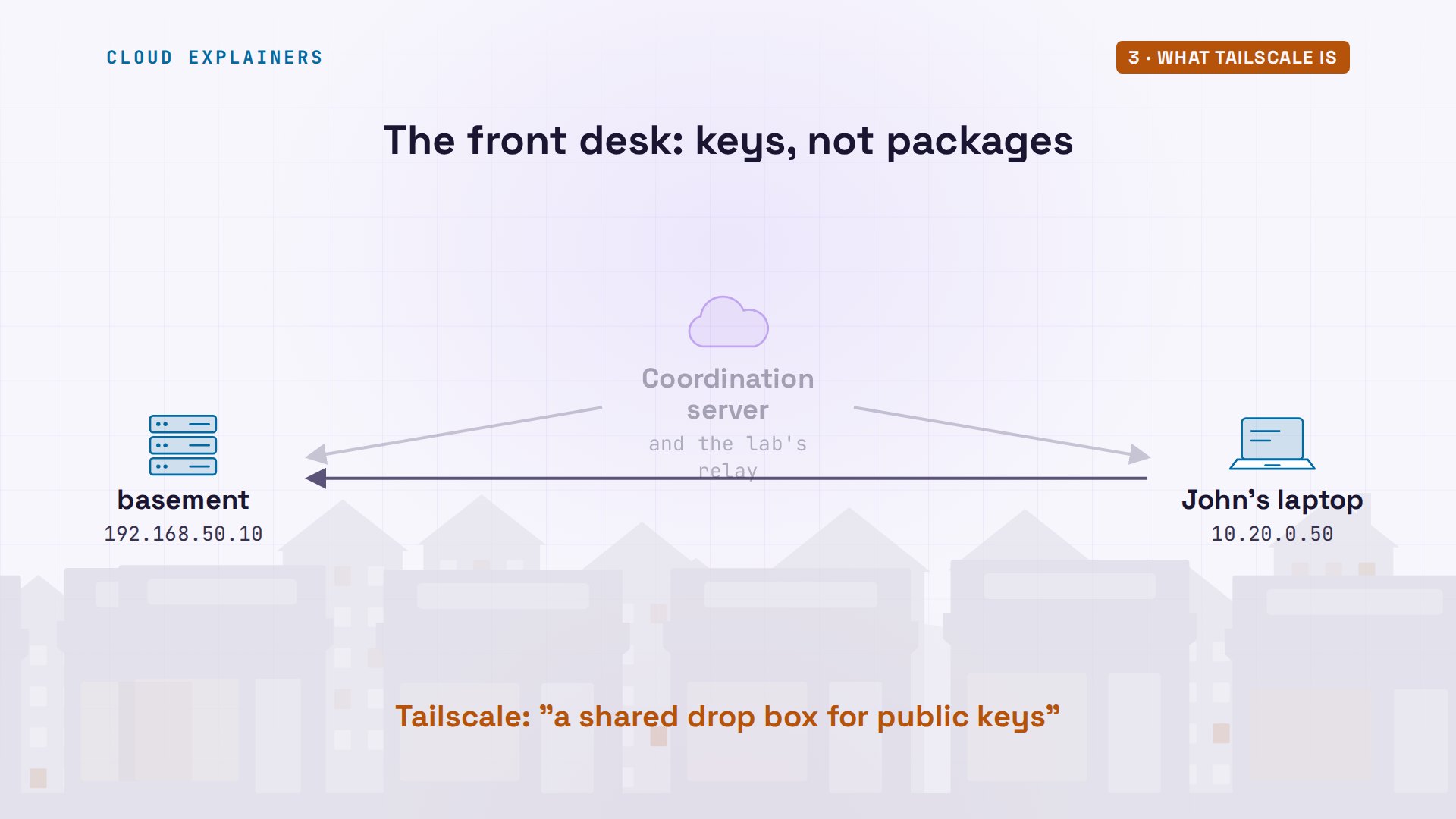
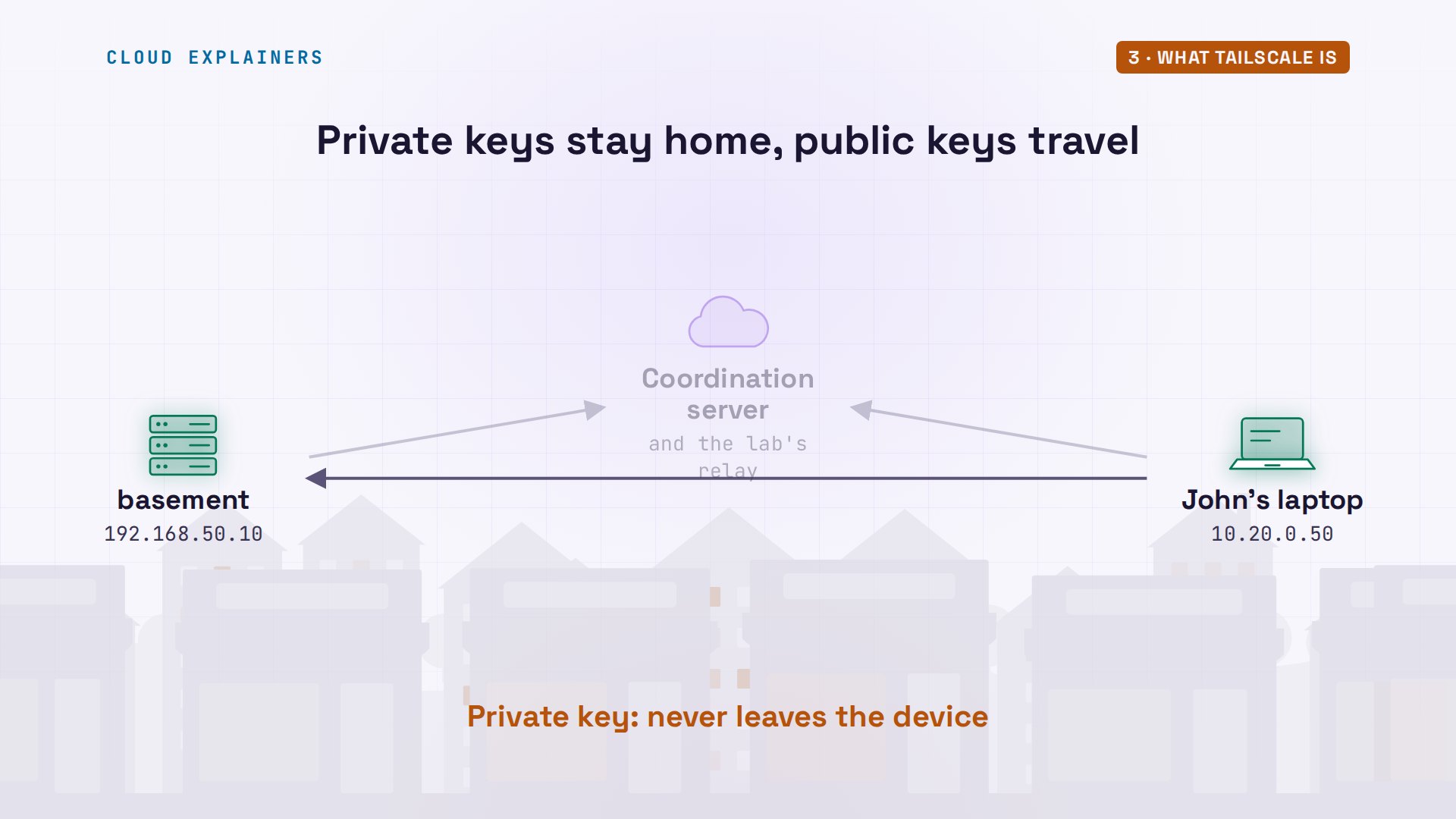
What does the front desk hand out? Keys. When a device joins, it makes its own pair: a private key that never leaves the device, and a public key it gives to the coordination server. The server passes the public keys to the devices that may talk to each other. With its own private key and the other's public key, two devices build a tunnel nobody else can read, not even Tailscale.
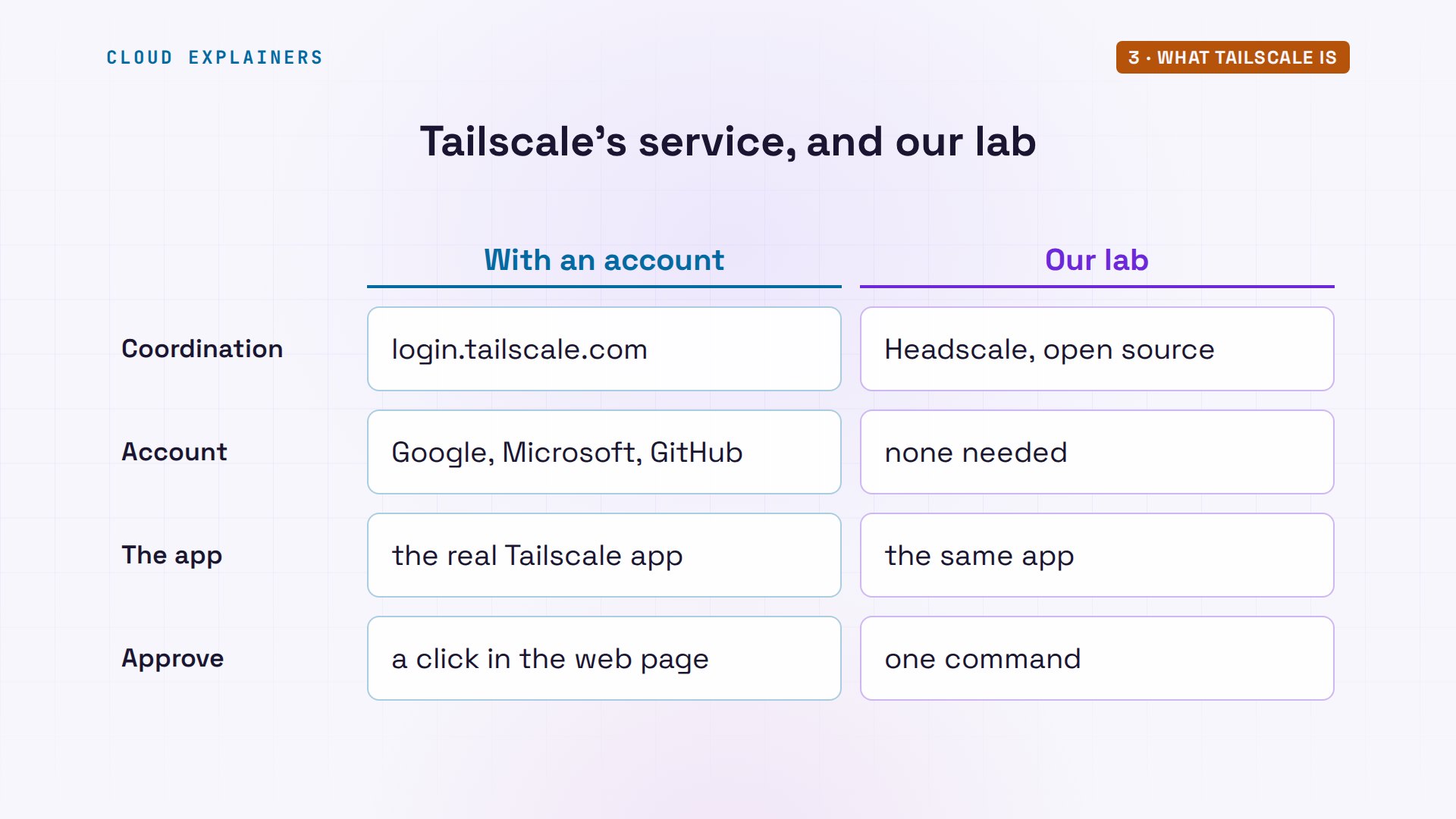
With a Tailscale account, that server is Tailscale's own, at login.tailscale.com. In this lab we run Headscale instead: an open-source version of that server, on our own machine, so every step you see is real and needs no account. The Tailscale app on every machine is the real one, installed with Tailscale's own script. Where you'd click approve in Tailscale's web page, John types one command.
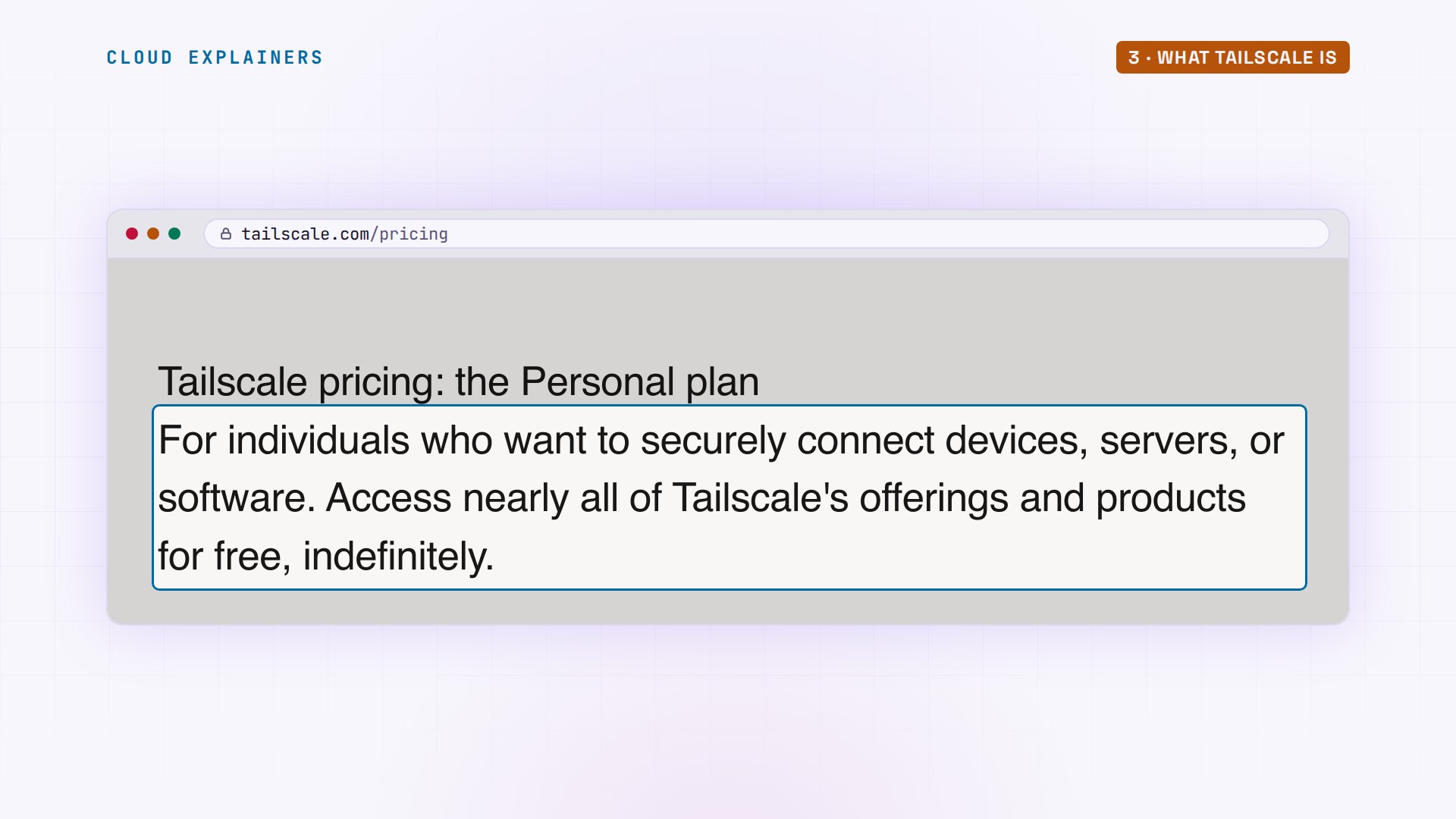
Is it free? For personal use, yes. Tailscale's Personal plan gives one person nearly everything it offers, free, indefinitely. Paid plans are for teams and companies. Headscale is free as well, but then the server, its updates and its backups are your job.
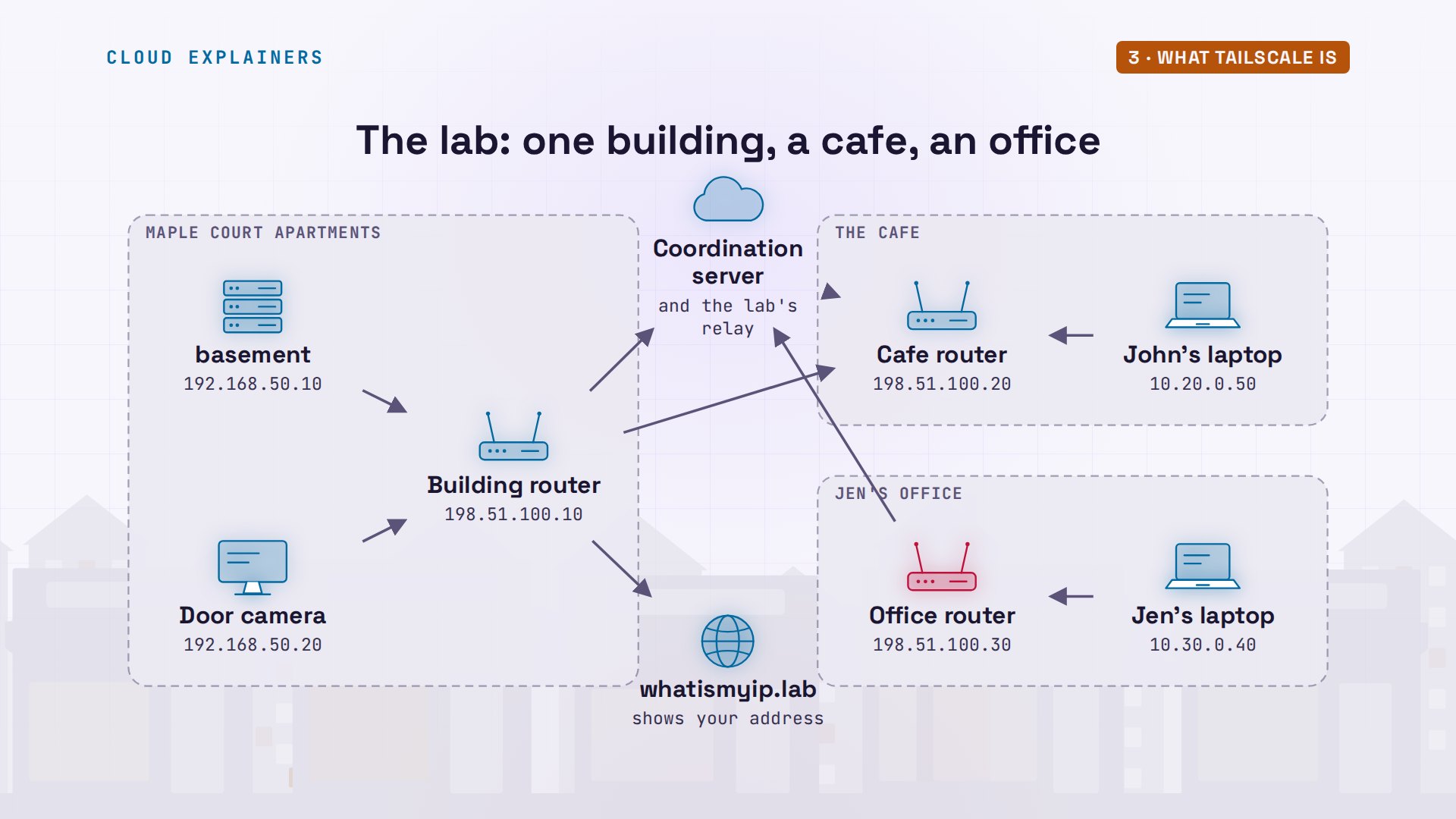
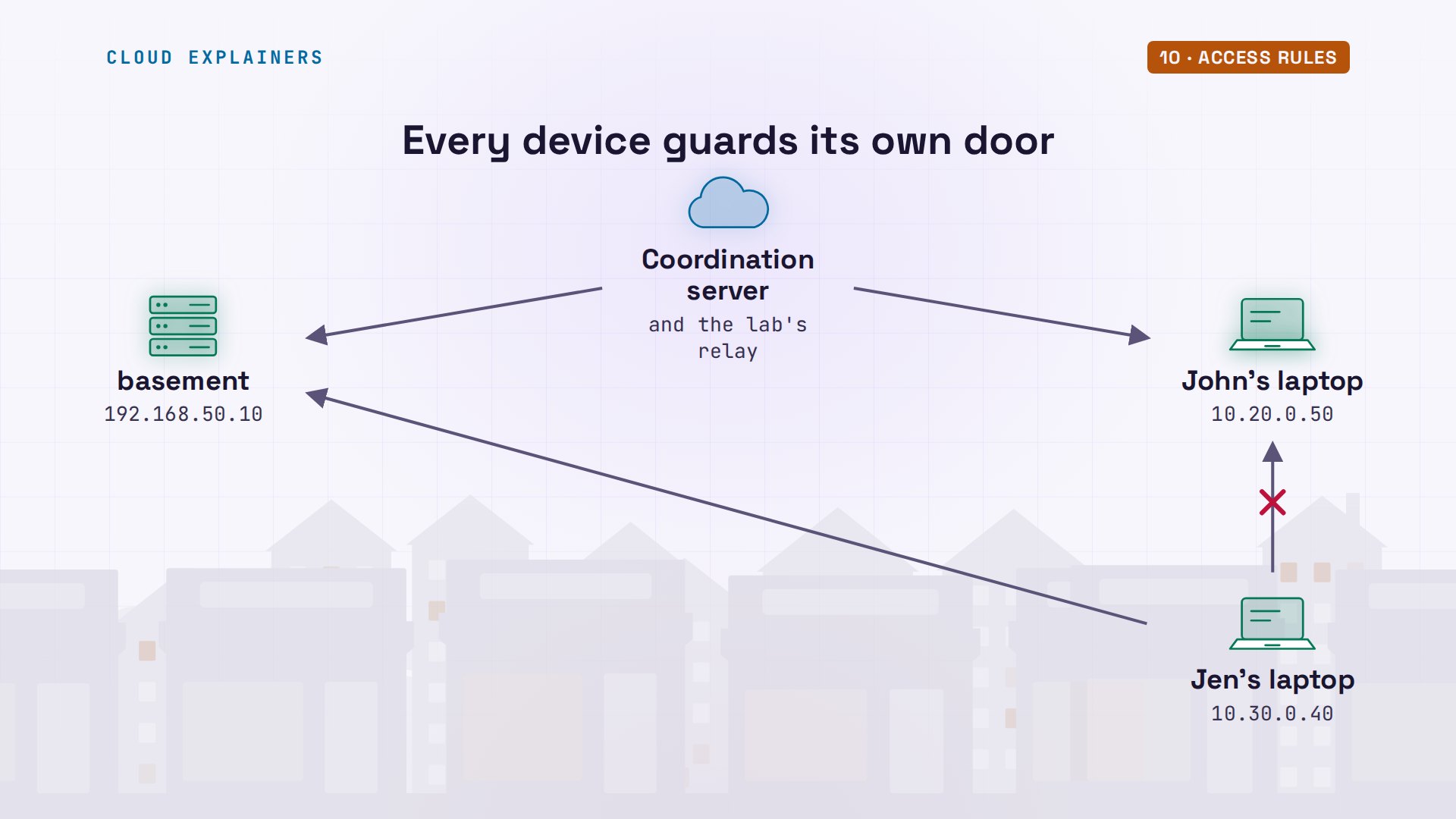
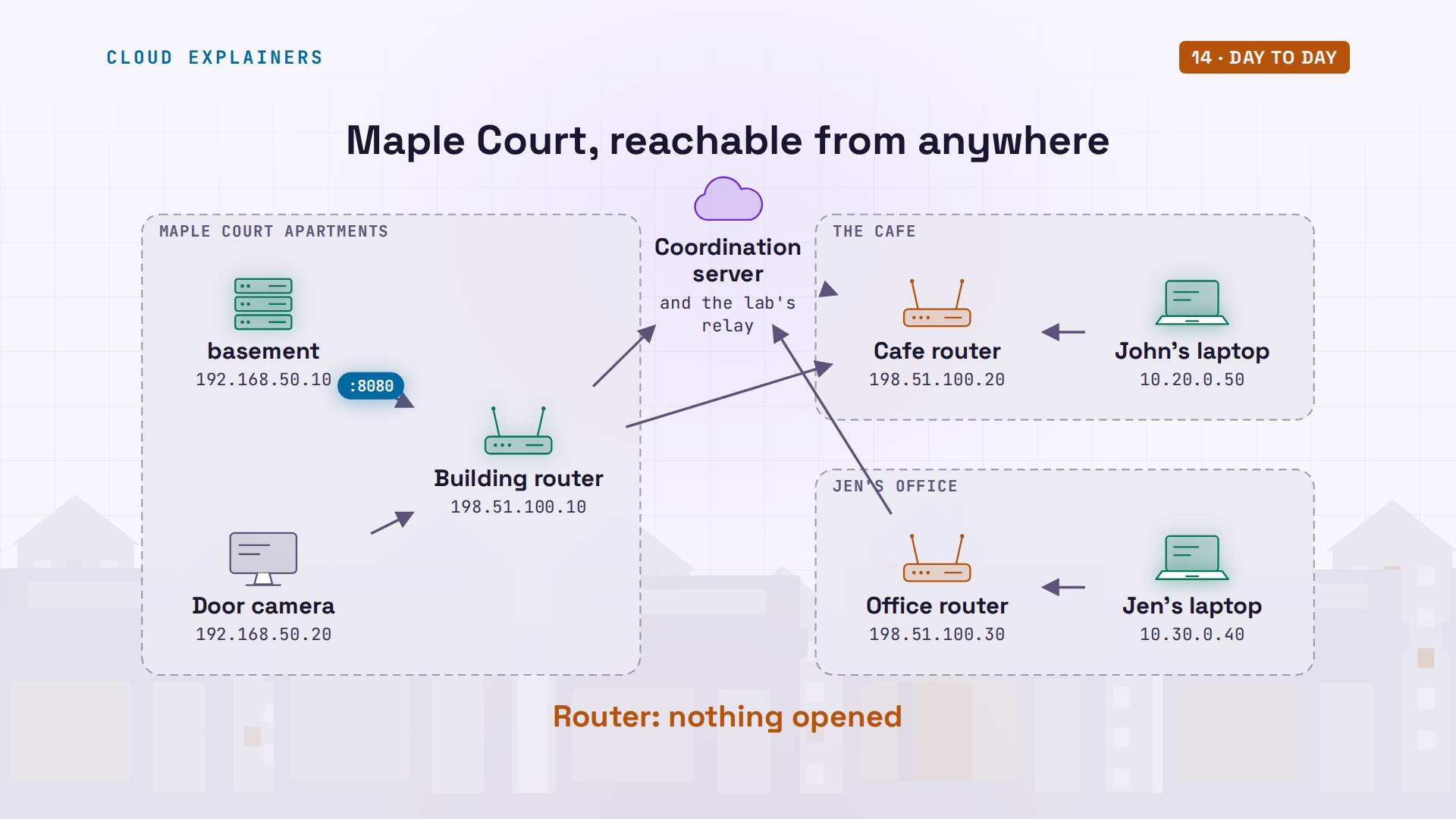
Here's the whole lab. The basement server and the door camera sit behind the building's router. John's laptop is at the cafe, and Jen's is at her office, behind a stricter router. Out on the internet: the coordination server, and a tiny site that tells you the address you're coming from.
Install on Linux
Step one: install it. On Linux, Tailscale's download page gives you one command. curl downloads their install script and hands it to sh, the shell. The script sees this is Ubuntu 24.04, called noble. It adds Tailscale's package repository. Then apt, Ubuntu's package manager, installs the tailscale package. Piping a script into sh runs whatever it says, so if you'd rather read it first, download it, read it, then run it.
curl -fsSL https://tailscale.com/install.sh | shInstalling Tailscale for ubuntu noble, using method apt
+ sudo mkdir -p --mode=0755 /usr/share/keyrings
+ curl -fsSL https://pkgs.tailscale.com/stable/ubuntu/noble.noarmor.gpg
+ sudo tee /usr/share/keyrings/tailscale-archive-keyring.gpg
+ sudo chmod 0644 /usr/share/keyrings/tailscale-archive-keyring.gpg
+ curl -fsSL https://pkgs.tailscale.com/stable/ubuntu/noble.tailscale-keyring.list
+ sudo tee /etc/apt/sources.list.d/tailscale.list
# Tailscale packages for ubuntu noble
deb [signed-by=/usr/share/keyrings/tailscale-archive-keyring.gpg] https://pkgs.tailscale.com/stable/ubuntu noble main
+ sudo chmod 0644 /etc/apt/sources.list.d/tailscale.list
+ sudo apt-get update
Get:1 https://pkgs.tailscale.com/stable/ubuntu noble InRelease
Get:2 https://pkgs.tailscale.com/stable/ubuntu noble/main amd64 Packages [17.1 kB]
Get:3 https://pkgs.tailscale.com/stable/ubuntu noble/main all Packages [351 B]
Get:4 http://archive.ubuntu.com/ubuntu noble InRelease [256 kB]
Get:5 http://security.ubuntu.com/ubuntu noble-security InRelease [126 kB]
Get:6 http://security.ubuntu.com/ubuntu noble-security/universe amd64 Packages [1563 kB]
Get:7 http://archive.ubuntu.com/ubuntu noble-updates InRelease [126 kB]
Get:8 http://archive.ubuntu.com/ubuntu noble-backports InRelease [126 kB]
Get:9 http://archive.ubuntu.com/ubuntu noble/main amd64 Packages [1808 kB]
Get:10 http://security.ubuntu.com/ubuntu noble-security/restricted amd64 Packages [2277 kB]
Get:11 http://archive.ubuntu.com/ubuntu noble/restricted amd64 Packages [117 kB]
Get:12 http://archive.ubuntu.com/ubuntu noble/universe amd64 Packages [19.3 MB]
Get:13 http://security.ubuntu.com/ubuntu noble-security/main amd64 Packages [1514 kB]
Get:14 http://security.ubuntu.com/ubuntu noble-security/multiverse amd64 Packages [55.6 kB]
Get:15 http://archive.ubuntu.com/ubuntu noble/multiverse amd64 Packages [331 kB]
Get:16 http://archive.ubuntu.com/ubuntu noble-updates/multiverse amd64 Packages [61.7 kB]
Get:17 http://archive.ubuntu.com/ubuntu noble-updates/universe amd64 Packages [2184 kB]
Get:18 http://archive.ubuntu.com/ubuntu noble-updates/restricted amd64 Packages [2403 kB]
Get:19 http://archive.ubuntu.com/ubuntu noble-updates/main amd64 Packages [1843 kB]
Get:20 http://archive.ubuntu.com/ubuntu noble-backports/universe amd64 Packages [36.0 kB]
Get:21 http://archive.ubuntu.com/ubuntu noble-backports/multiverse amd64 Packages [669 B]
Get:22 http://archive.ubuntu.com/ubuntu noble-backports/main amd64 Packages [49.0 kB]
Fetched 34.2 MB in 3s (12.3 MB/s)
Reading package lists... Done
+ [ -n  ]
+ sudo apt-get install -y tailscale tailscale-archive-keyring
Reading package lists... Done
Building dependency tree... Done
Reading state information... Done
The following additional packages will be installed:
  iptables libip4tc2 libip6tc2 libjansson4 libnetfilter-conntrack3
  libnfnetlink0 libnftables1 libnftnl11 nftables
Suggested packages:
  firewalld kmod
The following NEW packages will be installed:
  iptables libip4tc2 libip6tc2 libjansson4 libnetfilter-conntrack3
  libnfnetlink0 libnftables1 libnftnl11 nftables tailscale
  tailscale-archive-keyring
0 upgraded, 11 newly installed, 0 to remove and 8 not upgraded.
Need to get 41.8 MB of archives.
After this operation, 82.7 MB of additional disk space will be used.
Get:1 https://pkgs.tailscale.com/stable/ubuntu noble/main amd64 tailscale amd64 1.104.7 [40.8 MB]
Get:2 http://archive.ubuntu.com/ubuntu noble/main amd64 libip4tc2 amd64 1.8.10-3ubuntu2 [23.3 kB]
Get:3 http://archive.ubuntu.com/ubuntu noble/main amd64 libip6tc2 amd64 1.8.10-3ubuntu2 [23.7 kB]
Get:4 http://archive.ubuntu.com/ubuntu noble/main amd64 libnfnetlink0 amd64 1.0.2-2build1 [14.8 kB]
Get:5 http://archive.ubuntu.com/ubuntu noble/main amd64 libnetfilter-conntrack3 amd64 1.0.9-6build1 [45.2 kB]
Get:6 http://archive.ubuntu.com/ubuntu noble/main amd64 libnftnl11 amd64 1.2.6-2build1 [66.0 kB]
Get:7 http://archive.ubuntu.com/ubuntu noble/main amd64 iptables amd64 1.8.10-3ubuntu2 [381 kB]
Get:8 https://pkgs.tailscale.com/stable/ubuntu noble/main all tailscale-archive-keyring all 1.35.181 [3082 B]
Get:9 http://archive.ubuntu.com/ubuntu noble/main amd64 libjansson4 amd64 2.14-2build2 [32.8 kB]
Get:10 http://archive.ubuntu.com/ubuntu noble-updates/main amd64 libnftables1 amd64 1.0.9-1ubuntu0.1 [359 kB]
Get:11 http://archive.ubuntu.com/ubuntu noble-updates/main amd64 nftables amd64 1.0.9-1ubuntu0.1 [69.8 kB]
Fetched 41.8 MB in 1s (39.8 MB/s)
debconf: delaying package configuration, since apt-utils is not installed
Selecting previously unselected package libip4tc2:amd64.
(Reading database ... 8029 files and directories currently installed.)
Preparing to unpack .../00-libip4tc2_1.8.10-3ubuntu2_amd64.deb ...
Unpacking libip4tc2:amd64 (1.8.10-3ubuntu2) ...
Selecting previously unselected package libip6tc2:amd64.
Preparing to unpack .../01-libip6tc2_1.8.10-3ubuntu2_amd64.deb ...
Unpacking libip6tc2:amd64 (1.8.10-3ubuntu2) ...
Selecting previously unselected package libnfnetlink0:amd64.
Preparing to unpack .../02-libnfnetlink0_1.0.2-2build1_amd64.deb ...
Unpacking libnfnetlink0:amd64 (1.0.2-2build1) ...
Selecting previously unselected package libnetfilter-conntrack3:amd64.
Preparing to unpack .../03-libnetfilter-conntrack3_1.0.9-6build1_amd64.deb ...
Unpacking libnetfilter-conntrack3:amd64 (1.0.9-6build1) ...
Selecting previously unselected package libnftnl11:amd64.
Preparing to unpack .../04-libnftnl11_1.2.6-2build1_amd64.deb ...
Unpacking libnftnl11:amd64 (1.2.6-2build1) ...
Selecting previously unselected package iptables.
Preparing to unpack .../05-iptables_1.8.10-3ubuntu2_amd64.deb ...
Unpacking iptables (1.8.10-3ubuntu2) ...
Selecting previously unselected package libjansson4:amd64.
Preparing to unpack .../06-libjansson4_2.14-2build2_amd64.deb ...
Unpacking libjansson4:amd64 (2.14-2build2) ...
Selecting previously unselected package libnftables1:amd64.
Preparing to unpack .../07-libnftables1_1.0.9-1ubuntu0.1_amd64.deb ...
Unpacking libnftables1:amd64 (1.0.9-1ubuntu0.1) ...
Selecting previously unselected package nftables.
Preparing to unpack .../08-nftables_1.0.9-1ubuntu0.1_amd64.deb ...
Unpacking nftables (1.0.9-1ubuntu0.1) ...
Selecting previously unselected package tailscale.
Preparing to unpack .../09-tailscale_1.104.7_amd64.deb ...
Unpacking tailscale (1.104.7) ...
Selecting previously unselected package tailscale-archive-keyring.
Preparing to unpack .../10-tailscale-archive-keyring_1.35.181_all.deb ...
Unpacking tailscale-archive-keyring (1.35.181) ...
Setting up libip4tc2:amd64 (1.8.10-3ubuntu2) ...
Setting up tailscale-archive-keyring (1.35.181) ...
Setting up libip6tc2:amd64 (1.8.10-3ubuntu2) ...
Setting up libnftnl11:amd64 (1.2.6-2build1) ...
Setting up libjansson4:amd64 (2.14-2build2) ...
Setting up libnfnetlink0:amd64 (1.0.2-2build1) ...
Setting up libnftables1:amd64 (1.0.9-1ubuntu0.1) ...
Setting up nftables (1.0.9-1ubuntu0.1) ...
Setting up libnetfilter-conntrack3:amd64 (1.0.9-6build1) ...
Setting up iptables (1.8.10-3ubuntu2) ...
update-alternatives: using /usr/sbin/iptables-legacy to provide /usr/sbin/iptables (iptables) in auto mode
update-alternatives: using /usr/sbin/ip6tables-legacy to provide /usr/sbin/ip6tables (ip6tables) in auto mode
update-alternatives: using /usr/sbin/iptables-nft to provide /usr/sbin/iptables (iptables) in auto mode
update-alternatives: using /usr/sbin/ip6tables-nft to provide /usr/sbin/ip6tables (ip6tables) in auto mode
update-alternatives: using /usr/sbin/arptables-nft to provide /usr/sbin/arptables (arptables) in auto mode
update-alternatives: using /usr/sbin/ebtables-nft to provide /usr/sbin/ebtables (ebtables) in auto mode
Setting up tailscale (1.104.7) ...
Created symlink /etc/systemd/system/multi-user.target.wants/tailscaled.service → /usr/lib/systemd/system/tailscaled.service.
Processing triggers for libc-bin (2.39-0ubuntu8.9) ...
+ [ false = true ]
+ set +x
Installation complete! Log in to start using Tailscale by running:

sudo tailscale up
Two programs arrived. tailscale is the command you type, and tailscaled is the background service that does the work. The install started it and set it to start at every boot. And tailscale status says: logged out. This machine isn't on any tailnet yet. On Windows, macOS, iPhone and Android you install the app from the same download page, and everything after this step works the same way.
tailscale version1.104.7
  tailscale commit: fb3b9b2964ace04490fbd65d4f26a0eaf362131f
  long version: 1.104.7-tfb3b9b296-g0651cc45e
  other commit: 0651cc45e79e308b0b3b808f4b42e7f3a1a8c221
  go version: go1.27.4 (tailscale/go 1635316a95)
systemctl status tailscaled --no-pager● tailscaled.service - Tailscale node agent
     Loaded: loaded (/usr/lib/systemd/system/tailscaled.service; enabled; preset: enabled)
     Active: active (running) since Sat 2026-11-28 02:27:18 UTC; 114ms ago
       Docs: https://tailscale.com/docs/
   Main PID: 1375 (tailscaled)
     Status: "Needs login: "
      Tasks: 16 (limit: 1782)
     Memory: 11.7M (peak: 12.6M)
        CPU: 98ms
     CGroup: /system.slice/tailscaled.service
             └─1375 /usr/sbin/tailscaled --state=/var/lib/tailscale/tailscaled.…
tailscale statusLogged out.
Log in
Signing up with Tailscale creates your tailnet and your user. On our coordination server, John does the same with one command: headscale users create john. The list now has one user.
sudo headscale users create johnUser created
sudo headscale users listID | Name | Username | Email | Created
1  |      | john     |       | 2026-11-28 02:27:18
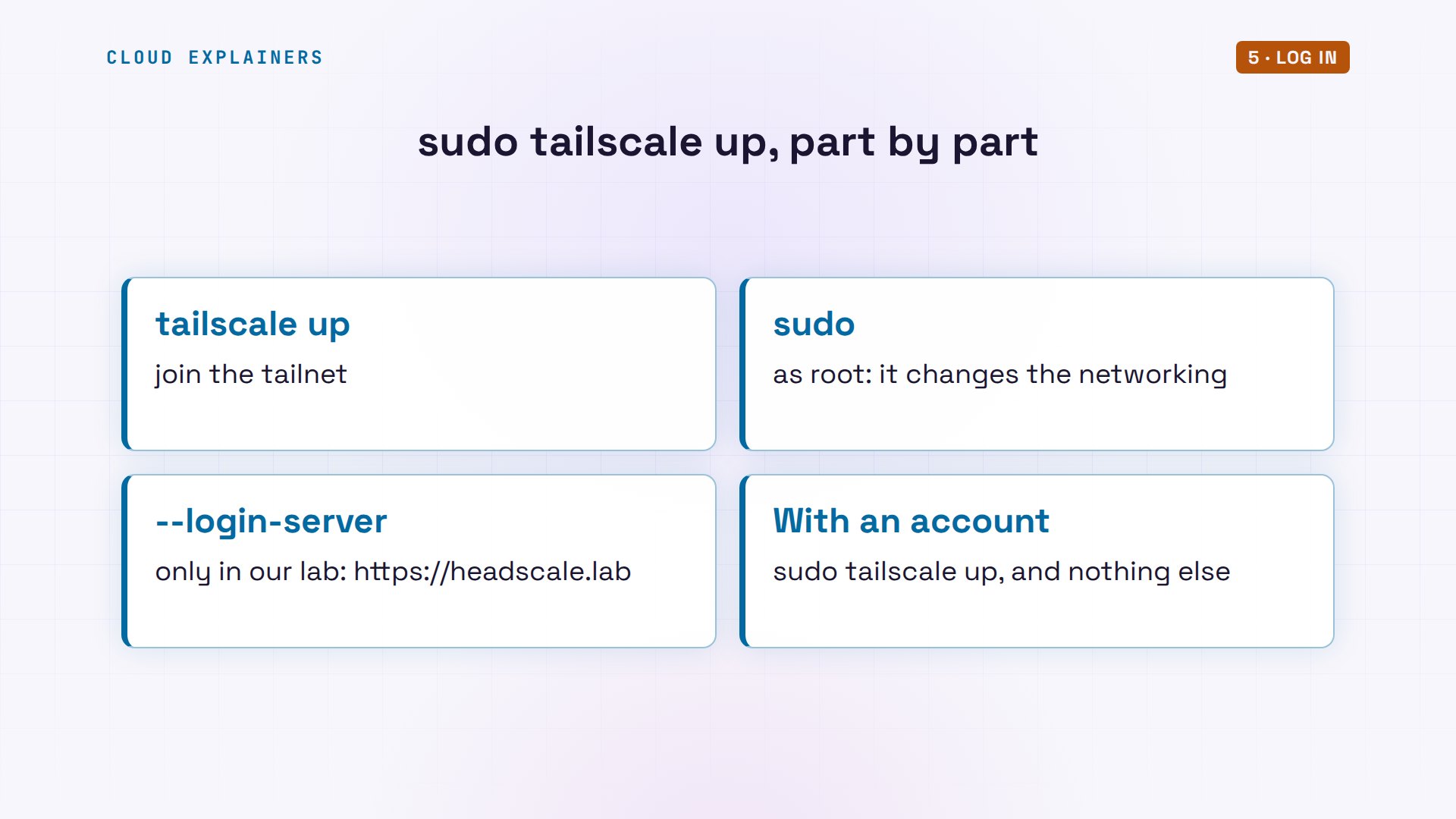
Now the command you'll use most: tailscale up. It needs sudo, because it changes the machine's networking. The login server flag points it at our lab's coordination server. With a Tailscale account you leave that flag off, and it goes to Tailscale's own.
tailscale up prints a link, and waits. With Tailscale's service you'd open that link, sign in with a Google, Microsoft, GitHub or Apple account, and approve the device. Here, John approves it on the coordination server with the code from the link. The moment he does, the waiting command says: success.
sudo tailscale up --login-server https://headscale.labTo authenticate, visit:

	https://headscale.lab:443/register/hskey-authreq-AmvwO2H7_ZkJ5oV3RsdlA89-
sudo headscale auth register --auth-id hskey-authreq-AmvwO2H7_ZkJ5oV3RsdlA89- --user johnNode basement registered
Success.
Guess first: which address does the basement server have now? 100.64.0.1. It sits on a new network interface, tailscale0, next to the server's real network card, whose address, 192.168.50.10, hasn't changed. It got an IPv6 address too, starting with fd7a. The 100 address is the one John will use from anywhere.
tailscale ip -4100.64.0.1
ip -br addr show tailscale0tailscale0 UNKNOWN 100.64.0.1/32 fd7a:115c:a1e0::1/128 fe80::b750:7c10:2323:b061/64
ip -br -4 addr show eth0eth0@if374 UP 192.168.50.10/24
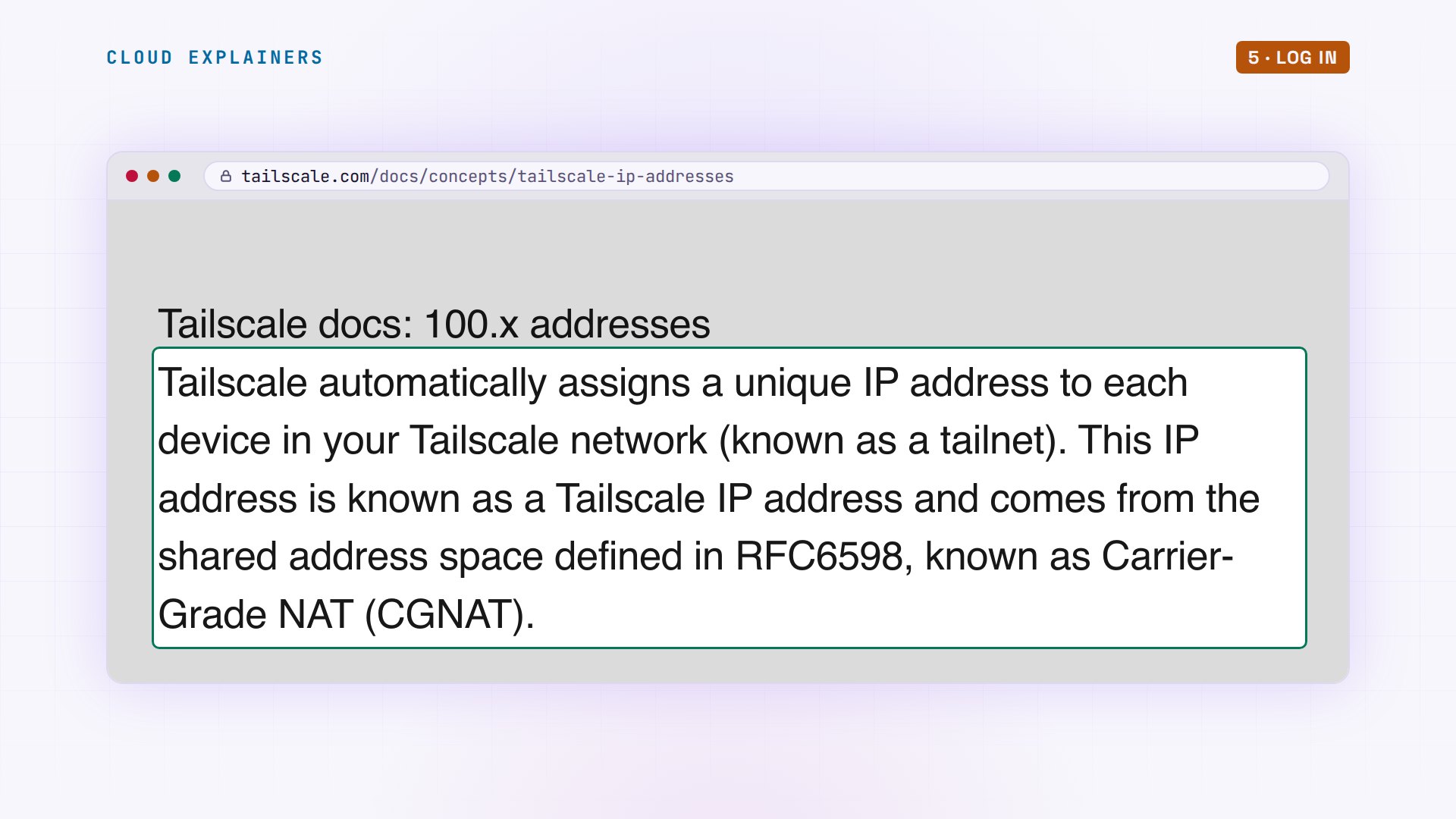
Why 100? Tailscale's docs say it comes from a shared address space, defined in RFC 6598 for carrier-grade NAT, the networks internet providers run themselves. It's almost never used on a home network, so it won't clash with the 192.168 addresses you already have.
A second device
A tailnet of one isn't much use. So John does the same on his laptop at the cafe: the same install script, tailscale up, an approval on the coordination server, and success again.
curl -fsSL https://tailscale.com/install.sh | shInstalling Tailscale for ubuntu noble, using method apt
+ sudo mkdir -p --mode=0755 /usr/share/keyrings
+ curl -fsSL https://pkgs.tailscale.com/stable/ubuntu/noble.noarmor.gpg
+ sudo tee /usr/share/keyrings/tailscale-archive-keyring.gpg
+ sudo chmod 0644 /usr/share/keyrings/tailscale-archive-keyring.gpg
+ curl -fsSL https://pkgs.tailscale.com/stable/ubuntu/noble.tailscale-keyring.list
+ sudo tee /etc/apt/sources.list.d/tailscale.list
# Tailscale packages for ubuntu noble
deb [signed-by=/usr/share/keyrings/tailscale-archive-keyring.gpg] https://pkgs.tailscale.com/stable/ubuntu noble main
+ sudo chmod 0644 /etc/apt/sources.list.d/tailscale.list
+ sudo apt-get update
Get:1 http://archive.ubuntu.com/ubuntu noble InRelease [256 kB]
Get:2 http://archive.ubuntu.com/ubuntu noble-updates InRelease [126 kB]
Get:3 https://pkgs.tailscale.com/stable/ubuntu noble InRelease
Get:4 http://archive.ubuntu.com/ubuntu noble-backports InRelease [126 kB]
Get:5 http://archive.ubuntu.com/ubuntu noble/universe amd64 Packages [19.3 MB]
Get:6 http://security.ubuntu.com/ubuntu noble-security InRelease [126 kB]
Get:7 https://pkgs.tailscale.com/stable/ubuntu noble/main all Packages [351 B]
Get:8 https://pkgs.tailscale.com/stable/ubuntu noble/main amd64 Packages [17.1 kB]
Get:9 http://archive.ubuntu.com/ubuntu noble/main amd64 Packages [1808 kB]
Get:10 http://archive.ubuntu.com/ubuntu noble/multiverse amd64 Packages [331 kB]
Get:11 http://archive.ubuntu.com/ubuntu noble/restricted amd64 Packages [117 kB]
Get:12 http://archive.ubuntu.com/ubuntu noble-updates/restricted amd64 Packages [2403 kB]
Get:13 http://archive.ubuntu.com/ubuntu noble-updates/multiverse amd64 Packages [61.7 kB]
Get:14 http://archive.ubuntu.com/ubuntu noble-updates/universe amd64 Packages [2184 kB]
Get:15 http://archive.ubuntu.com/ubuntu noble-updates/main amd64 Packages [1843 kB]
Get:16 http://archive.ubuntu.com/ubuntu noble-backports/main amd64 Packages [49.0 kB]
Get:17 http://archive.ubuntu.com/ubuntu noble-backports/multiverse amd64 Packages [669 B]
Get:18 http://archive.ubuntu.com/ubuntu noble-backports/universe amd64 Packages [36.0 kB]
Get:19 http://security.ubuntu.com/ubuntu noble-security/multiverse amd64 Packages [55.6 kB]
Get:20 http://security.ubuntu.com/ubuntu noble-security/main amd64 Packages [1514 kB]
Get:21 http://security.ubuntu.com/ubuntu noble-security/restricted amd64 Packages [2277 kB]
Get:22 http://security.ubuntu.com/ubuntu noble-security/universe amd64 Packages [1563 kB]
Fetched 34.2 MB in 2s (20.5 MB/s)
Reading package lists... Done
+ [ -n  ]
+ sudo apt-get install -y tailscale tailscale-archive-keyring
Reading package lists... Done
Building dependency tree... Done
Reading state information... Done
The following additional packages will be installed:
  iptables libip4tc2 libip6tc2 libjansson4 libnetfilter-conntrack3
  libnfnetlink0 libnftables1 libnftnl11 nftables
Suggested packages:
  firewalld kmod
The following NEW packages will be installed:
  iptables libip4tc2 libip6tc2 libjansson4 libnetfilter-conntrack3
  libnfnetlink0 libnftables1 libnftnl11 nftables tailscale
  tailscale-archive-keyring
0 upgraded, 11 newly installed, 0 to remove and 8 not upgraded.
Need to get 41.8 MB of archives.
After this operation, 82.7 MB of additional disk space will be used.
Get:1 http://archive.ubuntu.com/ubuntu noble/main amd64 libip4tc2 amd64 1.8.10-3ubuntu2 [23.3 kB]
Get:2 http://archive.ubuntu.com/ubuntu noble/main amd64 libip6tc2 amd64 1.8.10-3ubuntu2 [23.7 kB]
Get:3 http://archive.ubuntu.com/ubuntu noble/main amd64 libnfnetlink0 amd64 1.0.2-2build1 [14.8 kB]
Get:4 http://archive.ubuntu.com/ubuntu noble/main amd64 libnetfilter-conntrack3 amd64 1.0.9-6build1 [45.2 kB]
Get:5 https://pkgs.tailscale.com/stable/ubuntu noble/main amd64 tailscale amd64 1.104.7 [40.8 MB]
Get:6 http://archive.ubuntu.com/ubuntu noble/main amd64 libnftnl11 amd64 1.2.6-2build1 [66.0 kB]
Get:7 http://archive.ubuntu.com/ubuntu noble/main amd64 iptables amd64 1.8.10-3ubuntu2 [381 kB]
Get:8 http://archive.ubuntu.com/ubuntu noble/main amd64 libjansson4 amd64 2.14-2build2 [32.8 kB]
Get:9 http://archive.ubuntu.com/ubuntu noble-updates/main amd64 libnftables1 amd64 1.0.9-1ubuntu0.1 [359 kB]
Get:10 http://archive.ubuntu.com/ubuntu noble-updates/main amd64 nftables amd64 1.0.9-1ubuntu0.1 [69.8 kB]
Get:11 https://pkgs.tailscale.com/stable/ubuntu noble/main all tailscale-archive-keyring all 1.35.181 [3082 B]
Fetched 41.8 MB in 1s (49.4 MB/s)
debconf: delaying package configuration, since apt-utils is not installed
Selecting previously unselected package libip4tc2:amd64.
(Reading database ... 8029 files and directories currently installed.)
Preparing to unpack .../00-libip4tc2_1.8.10-3ubuntu2_amd64.deb ...
Unpacking libip4tc2:amd64 (1.8.10-3ubuntu2) ...
Selecting previously unselected package libip6tc2:amd64.
Preparing to unpack .../01-libip6tc2_1.8.10-3ubuntu2_amd64.deb ...
Unpacking libip6tc2:amd64 (1.8.10-3ubuntu2) ...
Selecting previously unselected package libnfnetlink0:amd64.
Preparing to unpack .../02-libnfnetlink0_1.0.2-2build1_amd64.deb ...
Unpacking libnfnetlink0:amd64 (1.0.2-2build1) ...
Selecting previously unselected package libnetfilter-conntrack3:amd64.
Preparing to unpack .../03-libnetfilter-conntrack3_1.0.9-6build1_amd64.deb ...
Unpacking libnetfilter-conntrack3:amd64 (1.0.9-6build1) ...
Selecting previously unselected package libnftnl11:amd64.
Preparing to unpack .../04-libnftnl11_1.2.6-2build1_amd64.deb ...
Unpacking libnftnl11:amd64 (1.2.6-2build1) ...
Selecting previously unselected package iptables.
Preparing to unpack .../05-iptables_1.8.10-3ubuntu2_amd64.deb ...
Unpacking iptables (1.8.10-3ubuntu2) ...
Selecting previously unselected package libjansson4:amd64.
Preparing to unpack .../06-libjansson4_2.14-2build2_amd64.deb ...
Unpacking libjansson4:amd64 (2.14-2build2) ...
Selecting previously unselected package libnftables1:amd64.
Preparing to unpack .../07-libnftables1_1.0.9-1ubuntu0.1_amd64.deb ...
Unpacking libnftables1:amd64 (1.0.9-1ubuntu0.1) ...
Selecting previously unselected package nftables.
Preparing to unpack .../08-nftables_1.0.9-1ubuntu0.1_amd64.deb ...
Unpacking nftables (1.0.9-1ubuntu0.1) ...
Selecting previously unselected package tailscale.
Preparing to unpack .../09-tailscale_1.104.7_amd64.deb ...
Unpacking tailscale (1.104.7) ...
Selecting previously unselected package tailscale-archive-keyring.
Preparing to unpack .../10-tailscale-archive-keyring_1.35.181_all.deb ...
Unpacking tailscale-archive-keyring (1.35.181) ...
Setting up libip4tc2:amd64 (1.8.10-3ubuntu2) ...
Setting up tailscale-archive-keyring (1.35.181) ...
Setting up libip6tc2:amd64 (1.8.10-3ubuntu2) ...
Setting up libnftnl11:amd64 (1.2.6-2build1) ...
Setting up libjansson4:amd64 (2.14-2build2) ...
Setting up libnfnetlink0:amd64 (1.0.2-2build1) ...
Setting up libnftables1:amd64 (1.0.9-1ubuntu0.1) ...
Setting up nftables (1.0.9-1ubuntu0.1) ...
Setting up libnetfilter-conntrack3:amd64 (1.0.9-6build1) ...
Setting up iptables (1.8.10-3ubuntu2) ...
update-alternatives: using /usr/sbin/iptables-legacy to provide /usr/sbin/iptables (iptables) in auto mode
update-alternatives: using /usr/sbin/ip6tables-legacy to provide /usr/sbin/ip6tables (ip6tables) in auto mode
update-alternatives: using /usr/sbin/iptables-nft to provide /usr/sbin/iptables (iptables) in auto mode
update-alternatives: using /usr/sbin/ip6tables-nft to provide /usr/sbin/ip6tables (ip6tables) in auto mode
update-alternatives: using /usr/sbin/arptables-nft to provide /usr/sbin/arptables (arptables) in auto mode
update-alternatives: using /usr/sbin/ebtables-nft to provide /usr/sbin/ebtables (ebtables) in auto mode
Setting up tailscale (1.104.7) ...
Created symlink /etc/systemd/system/multi-user.target.wants/tailscaled.service → /usr/lib/systemd/system/tailscaled.service.
Processing triggers for libc-bin (2.39-0ubuntu8.9) ...
+ [ false = true ]
+ set +x
Installation complete! Log in to start using Tailscale by running:

sudo tailscale up
sudo tailscale up --login-server https://headscale.labTo authenticate, visit:

	https://headscale.lab:443/register/hskey-authreq--t3WTU0Vep8cVa1knYtMqu6M
sudo headscale auth register --auth-id hskey-authreq--t3WTU0Vep8cVa1knYtMqu6M --user johnNode laptop registered
Success.
tailscale status lists every device on the tailnet: its 100 address, its name, its owner, and its system. The laptop is first, because the list starts with the machine you're on. The dash at the end means the two haven't talked yet; once they do, it shows whether the link is direct or relayed.
tailscale status100.64.0.2  laptop    john  linux  -
100.64.0.1  basement  john  linux  -
Now the moment the cafe couldn't manage at the start. Ping the server's 100 address: three replies, about a millisecond each. And the booking page, the same page that timed out, loads. On a phone, the Tailscale app signs in the same way, so John could check this from his pocket too.
ping -c 3 100.64.0.1PING 100.64.0.1 (100.64.0.1) 56(84) bytes of data.
64 bytes from 100.64.0.1: icmp_seq=1 ttl=64 time=2.16 ms
64 bytes from 100.64.0.1: icmp_seq=2 ttl=64 time=0.756 ms
64 bytes from 100.64.0.1: icmp_seq=3 ttl=64 time=0.421 ms

--- 100.64.0.1 ping statistics ---
3 packets transmitted, 3 received, 0% packet loss, time 2066ms
rtt min/avg/max/mdev = 0.421/1.112/2.159/0.752 ms
curl -s http://100.64.0.1:8080<!doctype html><title>Laundry room bookings</title>
<h1>Maple Court laundry room</h1>
<p>Saturday bookings</p>
<ul><li>Washer 1, 9:00 - Apartment 2B</li><li>Washer 2, 10:00 - Apartment 4A</li><li>Dryer 1, 11:00 - Apartment 3C</li></ul>
Names with MagicDNS
Nobody wants to remember 100.64.0.1. MagicDNS, which Tailscale turns on for you, gives every device a name. So John types basement, port 8080, and the page loads. Here's how. A DNS server turns names into addresses. Linux keeps the one it uses in resolv dot conf, and Tailscale set it to 100.100.100.100, a small resolver running on the laptop itself. Ask it for basement, and getent shows the answer: basement dot tail.lab, the full name on this tailnet, at 100.64.0.1.
curl -s http://basement:8080<!doctype html><title>Laundry room bookings</title>
<h1>Maple Court laundry room</h1>
<p>Saturday bookings</p>
<ul><li>Washer 1, 9:00 - Apartment 2B</li><li>Washer 2, 10:00 - Apartment 4A</li><li>Dryer 1, 11:00 - Apartment 3C</li></ul>
cat /etc/resolv.conf# resolv.conf(5) file generated by tailscale
# For more info, see https://tailscale.com/s/resolvconf-overwrite
# DO NOT EDIT THIS FILE BY HAND -- CHANGES WILL BE OVERWRITTEN

nameserver 100.100.100.100
nameserver fd7a:115c:a1e0::53
search tail.lab
getent hosts basement100.64.0.1 basement.tail.lab
Direct or relayed
Here's the part that surprises people. Both machines sit behind routers that drop packets nobody asked for. So how did they connect at all? Guess first: who opened the door?
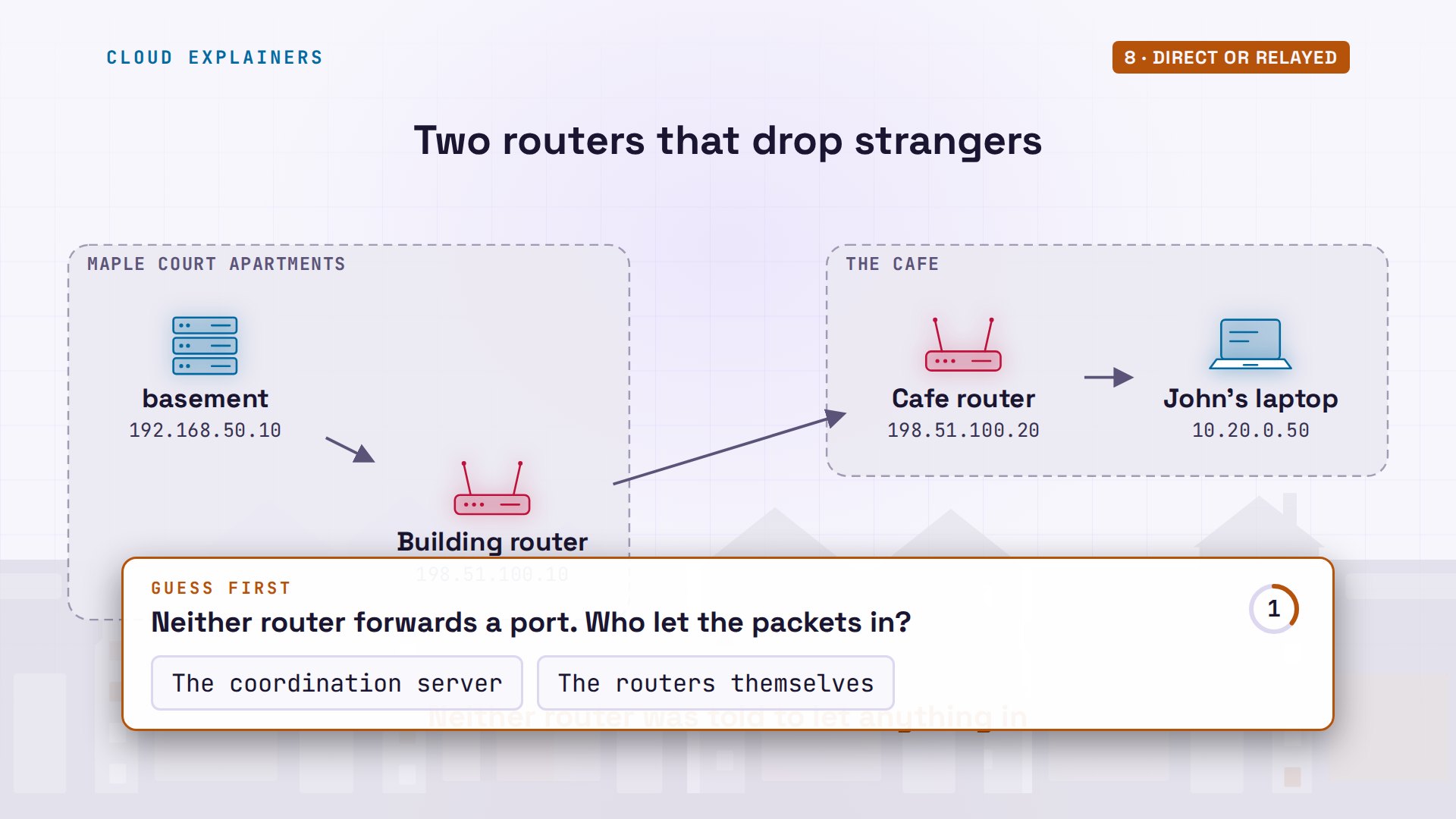
The routers did, without knowing it. Each machine asks the internet what its own outside address looks like, and sends its key and that address to the coordination server. The server hands each one the other's. Then both send a packet to each other at the same moment. Each router sees its own machine's packet go out first, so when the other side's packet arrives, it looks like a reply, and it lets it in. That's called NAT traversal, or hole punching.
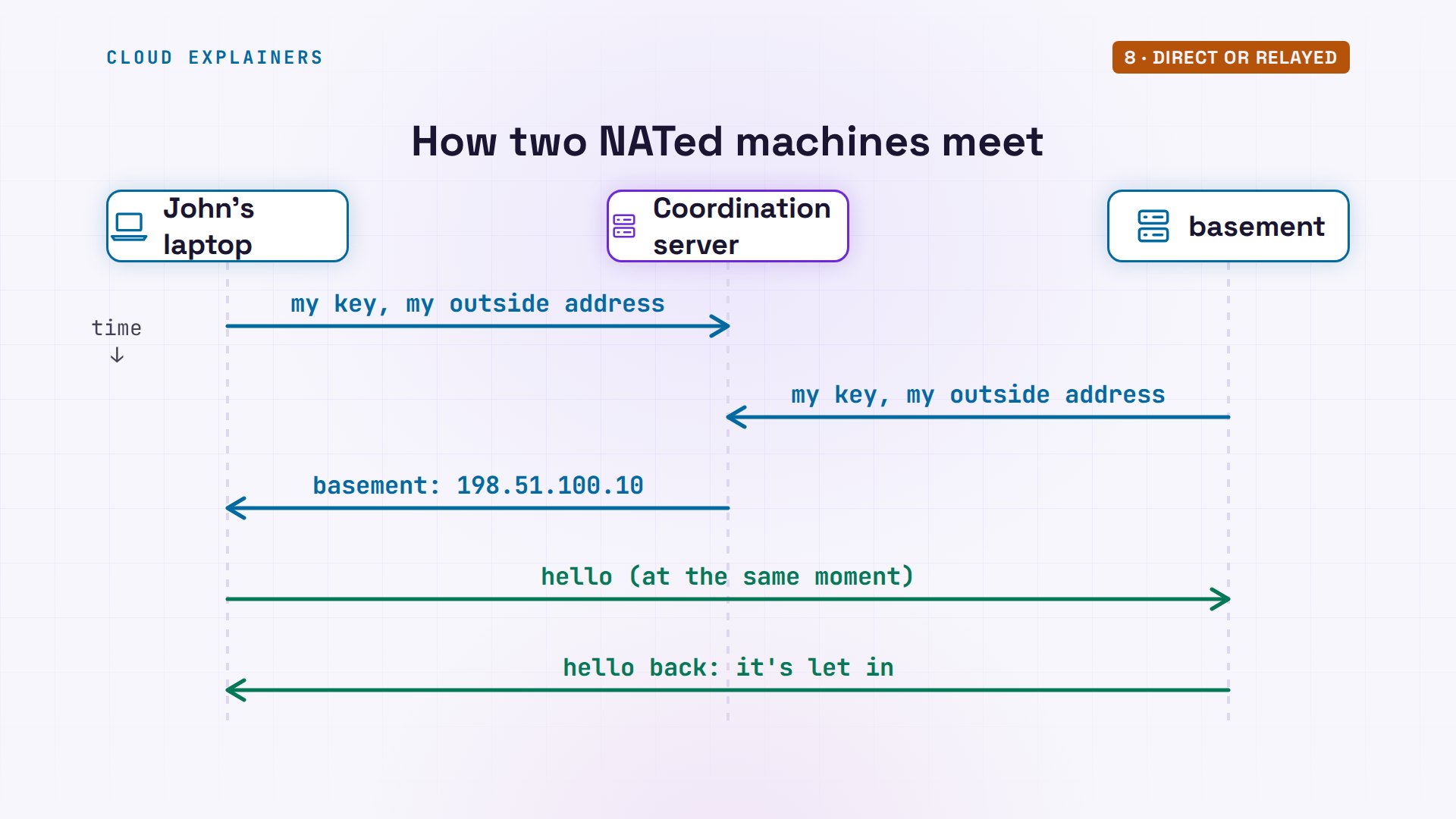
tailscale ping shows which path it took. Pong, via 198.51.100.10, the building router's own outside address. That's a direct connection. And netcheck shows the laptop's own outside address, 198.51.100.20, the cafe's, plus the nearest relay, which we'll need in a moment. The line that matters most is UDP true: UDP is the quick, no-handshake way to send packets, and WireGuard's tunnels travel in it.
tailscale ping -c 10 basementpong from basement (100.64.0.1) via 198.51.100.10:41641 in 1ms
tailscale netcheck2026/11/28 02:27:36 portmap: monitor: gateway and self IP changed: gw=10.20.0.1 self=10.20.0.50

Report:
	* Time: 2026-11-28 02:27:36.891783779Z
	* UDP: true
	* IPv4: yes, 198.51.100.20:54077
	* IPv6: no, but OS has support
	* MappingVariesByDestIP:
	* PortMapping:
	* Nearest DERP: Lab relay
	* DERP latency:
		- lab: 200µs   (Lab relay)
You can see the punched hole on the building's router itself. Its table of remembered connections has one entry for it: the basement server's port 41641, Tailscale's usual port, talking to the cafe's outside address. While packets keep flowing, the entry stays, and the router lets the cafe in, but only from that one address and port.
conntrack -L -p udp 2>/dev/null | grep 'dport=41641'udp      17 119 src=192.168.50.10 dst=198.51.100.5 sport=41641 dport=3478 src=198.51.100.5 dst=198.51.100.10 sport=3478 dport=41641 [ASSURED] mark=0 use=1
udp      17 26 src=192.168.50.10 dst=10.20.0.50 sport=41641 dport=41641 [UNREPLIED] src=10.20.0.50 dst=198.51.100.10 sport=41641 dport=41641 mark=0 use=1
udp      17 119 src=192.168.50.10 dst=198.51.100.20 sport=41641 dport=41641 src=198.51.100.20 dst=198.51.100.10 sport=41641 dport=41641 [ASSURED] mark=0 use=1
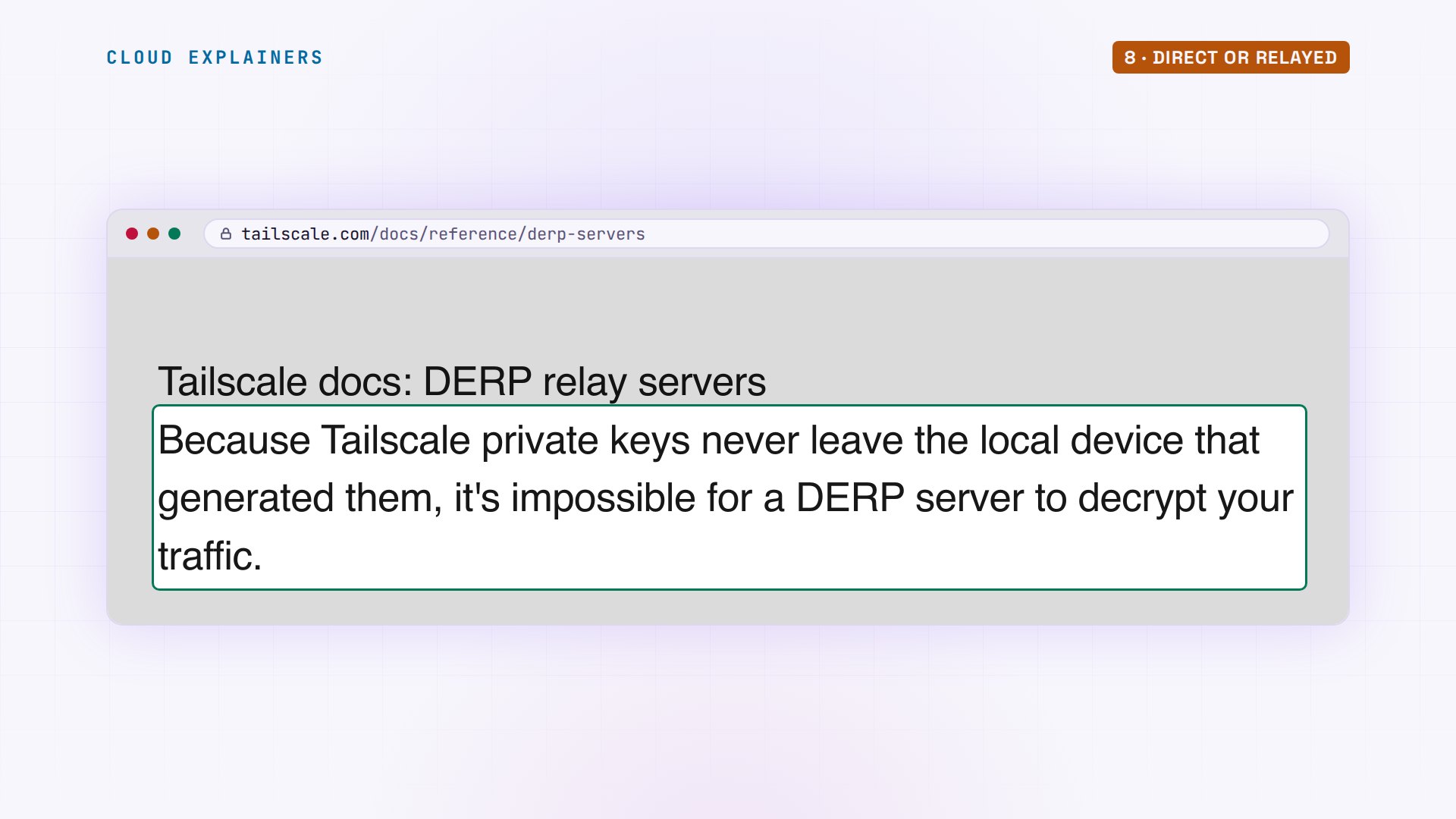
When no direct path can be found, Tailscale falls back to a relay, called DERP. Both devices send their packets to it, and it passes them along. It's a little slower, but still encrypted end to end: the relay never has the keys, so it can't read a thing. With Tailscale's service, the relays are Tailscale's own, in cities around the world. In our lab, the coordination server runs one.
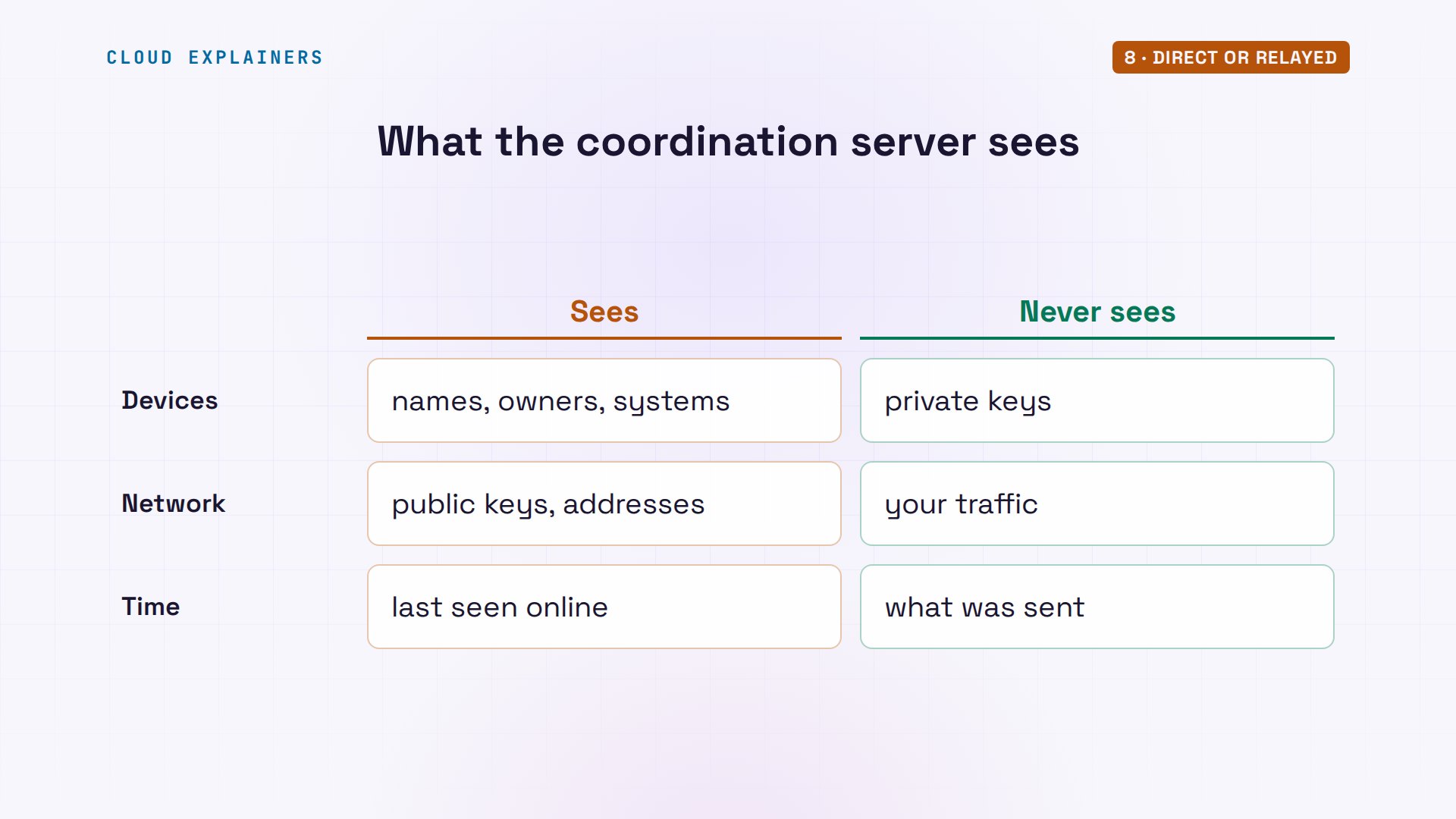
So what does the coordination server know about you? Which devices you have, their public keys and addresses, and when each was last online. It never sees private keys, and it never sees what your devices send each other. That list of devices is the reason some people run Headscale: they'd rather keep even that at home.
Adding a second person
Time to let Jen in. She gets her own user, number two. And instead of the link and the approval, John makes a pre-auth key: a code that signs one device in without a browser, here good for one hour. Keys can also be reusable, for many machines, or ephemeral, for devices that should vanish from the list once they go offline. In Tailscale's admin page, you generate the same kind of key under Settings, Keys.
sudo headscale users create jenUser created
sudo headscale users listID | Name | Username | Email | Created
1  |      | john     |       | 2026-11-28 02:27:18
2  |      | jen      |       | 2026-11-28 02:27:47
sudo headscale preauthkeys create --user 2 --expiration 1hhskey-auth-PawaGVb3Oap6-35J5-iGn63HCUhIfgKRUhcgghQ0fIXU0kQ1GthE7zvQvXSbQhDI8xR_s71ep-S1t
On her laptop, Jen passes that key to tailscale up. No link, no waiting. And from her office, the booking page loads.
sudo tailscale up --login-server https://headscale.lab --auth-key hskey-auth-PawaGVb…
curl -s http://basement:8080<!doctype html><title>Laundry room bookings</title>
<h1>Maple Court laundry room</h1>
<p>Saturday bookings</p>
<ul><li>Washer 1, 9:00 - Apartment 2B</li><li>Washer 2, 10:00 - Apartment 4A</li><li>Dryer 1, 11:00 - Apartment 3C</li></ul>
Jen's office router picks a random outside port for every connection. So is her connection direct, or relayed? Relayed. Every pong says via DERP, and after 8 tries: direct connection not established. The random port means the hole punch has nothing to aim at. Status says relay. It still works; it just takes the long way.
tailscale ping -c 8 basementpong from basement (100.64.0.1) via DERP(lab) in 0s
pong from basement (100.64.0.1) via DERP(lab) in 0s
pong from basement (100.64.0.1) via DERP(lab) in 0s
pong from basement (100.64.0.1) via DERP(lab) in 0s
pong from basement (100.64.0.1) via DERP(lab) in 0s
pong from basement (100.64.0.1) via DERP(lab) in 0s
pong from basement (100.64.0.1) via DERP(lab) in 0s
pong from basement (100.64.0.1) via DERP(lab) in 0s
direct connection not established
tailscale status100.64.0.3  jen-laptop  jen   linux  -
100.64.0.1  basement    john  linux  active; relay "lab", tx 844 rx 1020
100.64.0.2  laptop      john  linux  -
Back on the server, John wonders who 100.64.0.3 is. tailscale whois answers: jen-laptop, owned by jen. Handy when a log shows a 100 address you don't recognise.
tailscale whois 100.64.0.3Machine:
  Name:          jen-laptop.tail.lab
  ID:            3
  Addresses:     [100.64.0.3/32 fd7a:115c:a1e0::3/128]
User:
  Name:     jen
  ID:       2
Access rules
Jen books Saturday's washer from her desk. Then, out of curiosity, she tries a few more doors.
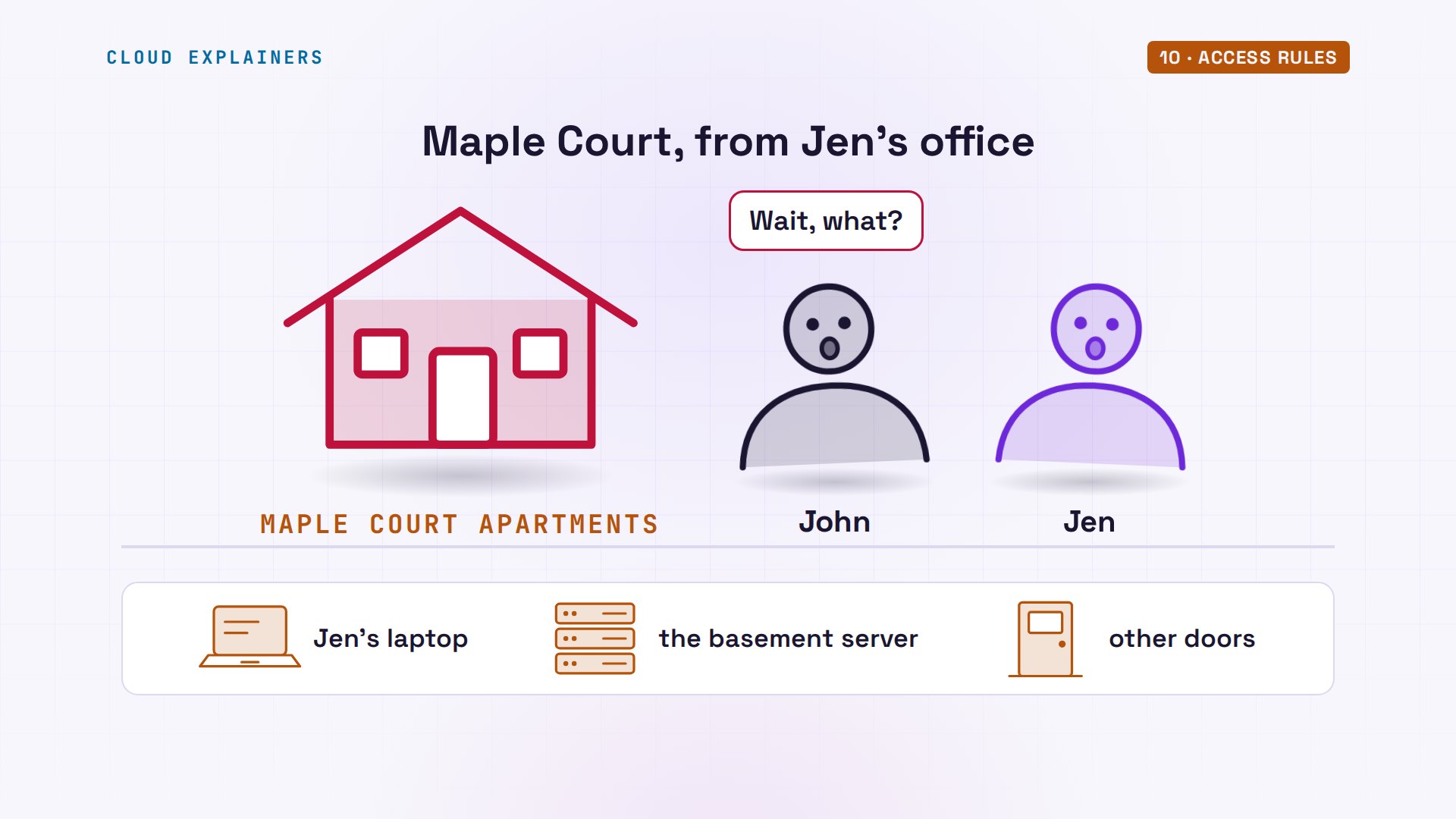
But look what else Jen can reach. nc is a tool that just tries to connect to a port. Port 22 on the basement server, its SSH login: open. And John's own laptop answers her pings. Out of the box, every device on a tailnet can reach every other one.
nc -zv -w 3 basement 22Connection to basement (100.64.0.1) 22 port [tcp/ssh] succeeded!
ping -c 2 laptopPING laptop.tail.lab (100.64.0.2) 56(84) bytes of data.
64 bytes from laptop.tail.lab (100.64.0.2): icmp_seq=1 ttl=64 time=2.54 ms
64 bytes from laptop.tail.lab (100.64.0.2): icmp_seq=2 ttl=64 time=0.666 ms

--- laptop.tail.lab ping statistics ---
2 packets transmitted, 2 received, 0% packet loss, time 1002ms
rtt min/avg/max/mdev = 0.666/1.600/2.535/0.934 ms
An access policy fixes that. John writes one: a small file written in HuJSON: JSON that allows comments. Rules only ever allow; anything a rule doesn't allow is blocked. The hosts section gives the server's address a name. Rule one: John can reach everything. Rule two: Jen can reach the basement server on port 8080, and nothing else. The at sign after a name means: that user's devices. On Tailscale's own service, a user is written as their email address.
cat policy.hujson{
  // Names for the machines the rules talk about.
  "hosts": {
    "basement": "100.64.0.1",
  },
  "acls": [
    // John can reach everything.
    {"action": "accept", "src": ["john@"], "dst": ["*:*"]},
    // Jen can reach the laundry booking page, and nothing else.
    {"action": "accept", "src": ["jen@"], "dst": ["basement:8080"]},
  ],
}
John loads it on the coordination server. Policy updated. Can Jen still ping John's laptop? No. The booking page still loads for her, SSH times out, and the laptop: zero replies. From the cafe, John still reaches everything. In Tailscale's admin page, this same file lives under Access controls.
sudo headscale policy set -f policy.hujsonPolicy updated.
curl -s http://basement:8080<!doctype html><title>Laundry room bookings</title>
<h1>Maple Court laundry room</h1>
<p>Saturday bookings</p>
<ul><li>Washer 1, 9:00 - Apartment 2B</li><li>Washer 2, 10:00 - Apartment 4A</li><li>Dryer 1, 11:00 - Apartment 3C</li></ul>
nc -zv -w 3 basement 22nc: connect to basement (100.64.0.1) port 22 (tcp) timed out: Operation now in progress
ping -c 2 -W 2 laptopPING laptop.tail.lab (100.64.0.2) 56(84) bytes of data.

--- laptop.tail.lab ping statistics ---
2 packets transmitted, 0 received, 100% packet loss, time 1061ms
nc -zv -w 3 basement 22Connection to basement (100.64.0.1) 22 port [tcp/ssh] succeeded!
Where is that rule actually checked? Not on the coordination server, and not on a relay. The coordination server sends each device its share of the rules, and the device that receives a packet checks it before letting it in. So the basement server itself turned Jen's SSH attempt away, and John's laptop ignored her ping.
Tailscale SSH and files
Logging in to the basement server still means copying SSH keys to every laptop John owns, and remembering to remove them later. The policy file can take that job over. Tailscale SSH lets the tailnet itself decide who may log in, so there are no SSH keys to copy around. John adds an ssh section: he may log in to his own devices, as john. Autogroup self means: whatever devices the same person owns. He loads it, and turns Tailscale SSH on for the basement server with tailscale set, dash dash ssh.
cat policy.hujson{
  // Names for the machines the rules talk about.
  "hosts": {
    "basement": "100.64.0.1",
  },
  "acls": [
    // John can reach everything.
    {"action": "accept", "src": ["john@"], "dst": ["*:*"]},
    // Jen can reach the laundry booking page, and nothing else.
    {"action": "accept", "src": ["jen@"], "dst": ["basement:8080"]},
  ],
  "ssh": [
    // John can log in to his own devices as john, with no SSH keys.
    {"action": "accept", "src": ["john@"], "dst": ["autogroup:self"], "users": ["john"]},
  ],
}
sudo headscale policy set -f policy.hujsonPolicy updated.
sudo tailscale set --ssh
From the cafe, tailscale ssh john at basement runs a command on the server, with no password and no key file: the tailnet already knows it's John's laptop. Jen tries the same. Her rules block port 22, so nothing ever answers, and after fifteen seconds the timeout we put in front of it gives up.
tailscale ssh john@basement 'hostname; whoami'basement
john
timeout 15 tailscale ssh john@basement hostname
One more everyday tool: Taildrop, for sending files between your own devices. John writes a notice for the laundry room, and tailscale file cp sends it to basement. The colon after the name means: to that device. On the server, tailscale file get picks it up from Tailscale's inbox, and there it is. Tired of typing sudo? Run sudo tailscale set, dash dash operator equals your user name, once, and these commands work without it.
echo 'Washer 2 is out of order until Monday.' > notice.txt && cat notice.txtWasher 2 is out of order until Monday.
sudo tailscale file cp notice.txt basement:notice.txt 39.00B 5.41B/s 100.00% ETA 00:00:00
sudo tailscale file get .
cat notice.txtWasher 2 is out of order until Monday.
Subnet routers
Now the door camera. Its recorder can't run Tailscale; it's a small box with its own software. From the cafe, its address, 192.168.50.20, times out.
curl -sS -m 5 http://192.168.50.20curl: (28) Connection timed out after 5002 milliseconds
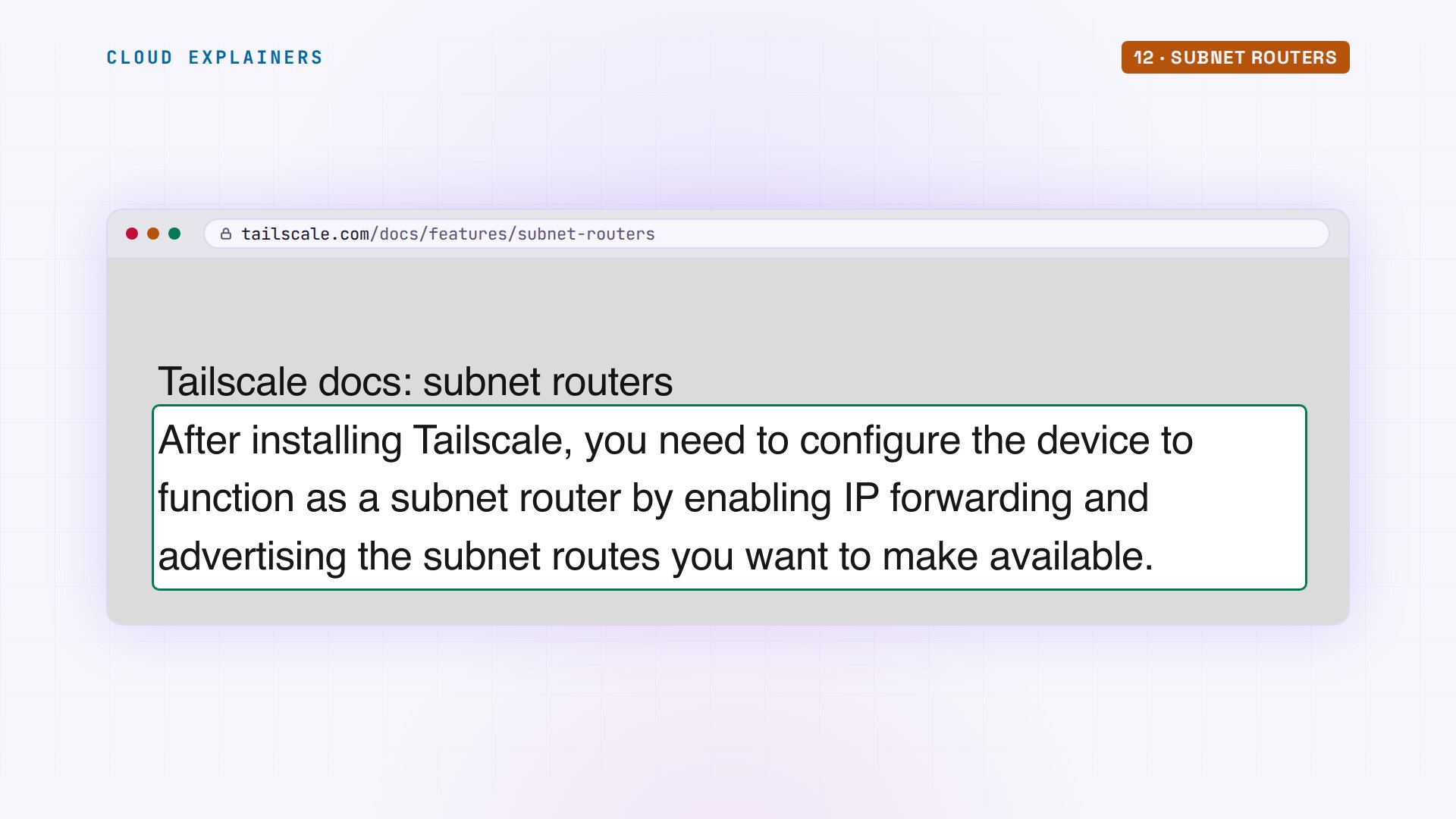
The answer is a subnet router: one Tailscale device that passes traffic on to the network around it. Tailscale's docs give the two steps on Linux: turn on IP forwarding, and advertise the routes.
Here's the plan. The laptop sends a packet for 192.168.50.20 into its tunnel to the basement server. The basement server takes it out of the tunnel and passes it on to the camera, on the building's own network, and the camera's answer goes back the same way. The camera never knows Tailscale was involved.
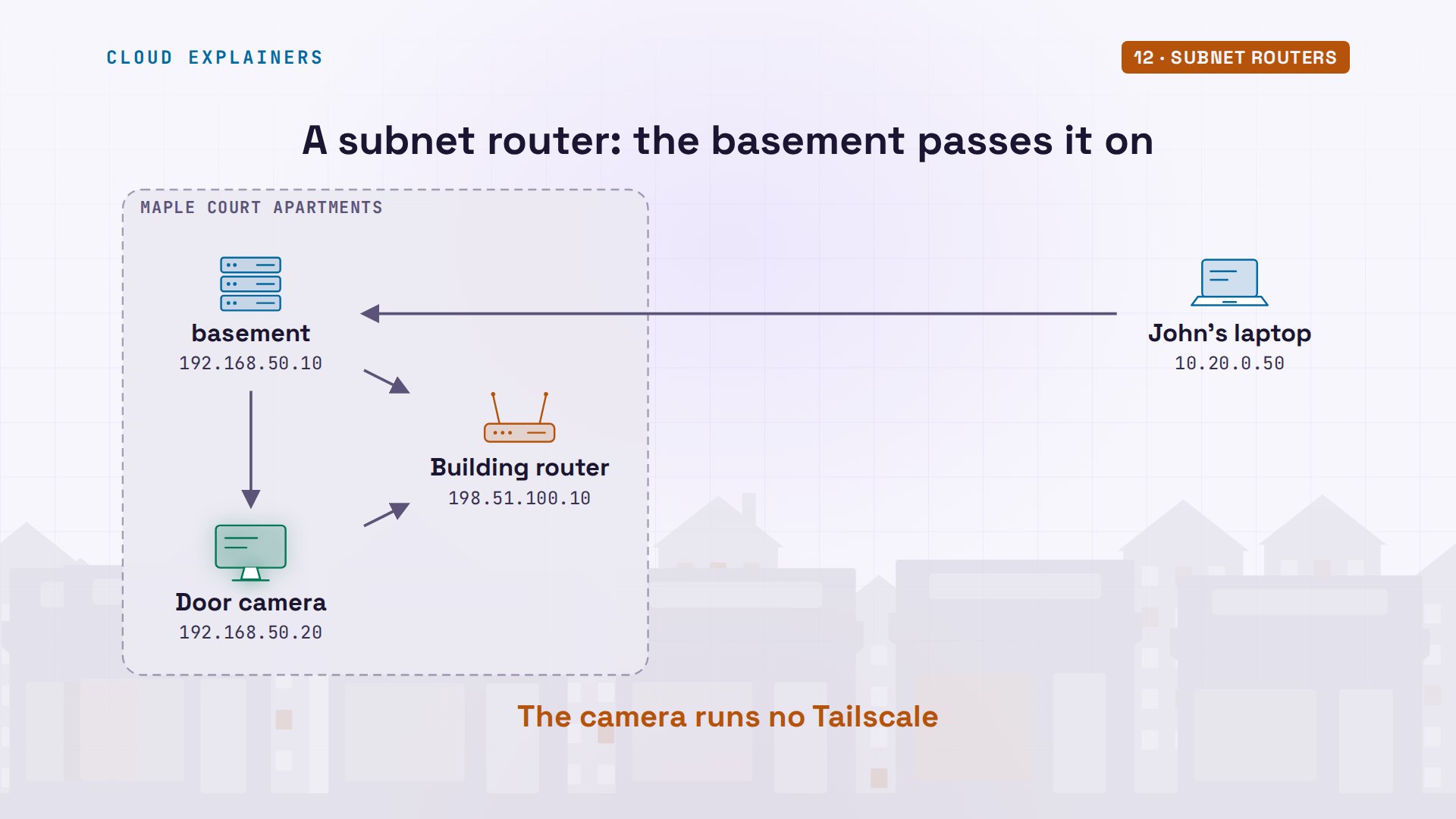
IP forwarding lets Linux pass packets from one network to another; it's off by default. John turns it on and makes it stick across reboots. Tailscale's docs turn on the IPv6 setting too; our lab only uses IPv4. Then he advertises the building's network, 192.168.50.0/24: all 256 addresses that start with 192.168.50. The door camera, at 192.168.50.20, is inside that range.
echo 'net.ipv4.ip_forward = 1' | sudo tee /etc/sysctl.d/99-tailscale.conf && sudo sysctl -p /etc/sysctl.d/99-tailscale.confnet.ipv4.ip_forward = 1
net.ipv4.ip_forward = 1
sudo tailscale set --advertise-routes=192.168.50.0/24
An advertised route does nothing until someone approves it, so no device can claim a network on its own. The coordination server lists it as available, not approved. John approves it, using the server's ID from that list: 1.
sudo headscale nodes list-routesID | Hostname | Approved | Available       | Serving (Primary)
1  | basement |          | 192.168.50.0/24 |
sudo headscale nodes approve-routes --identifier 1 --routes 192.168.50.0/24Node updated
Does the camera load from the cafe now? Not yet. On Linux, a device only uses other devices' routes when you tell it to, with accept routes. John sets that on the laptop, and the camera's page loads, passed on by the basement server. The same trick reaches printers, storage boxes, and anything else on that network that can't run Tailscale.
curl -sS -m 5 http://192.168.50.20curl: (28) Connection timed out after 5002 milliseconds
sudo tailscale set --accept-routes
curl -s -m 5 http://192.168.50.20<!doctype html><title>Door camera</title>
<h1>Front door camera</h1>
<p>Recording: yes. Last motion: 08:42.</p>
Exit nodes
Who can see where John goes on the cafe's Wi-Fi? He doesn't trust it, and every website sees him coming from the cafe's address. The little site on our lab internet says so: 198.51.100.20.
curl -s http://whatismyip.labYour address: 198.51.100.20
An exit node sends all of a device's internet traffic through another device on the tailnet. The basement server offers itself with advertise exit node. To the coordination server that's two more routes: one meaning every IPv4 address there is, and one for every IPv6 address. Like any route, they need approving, so a device can't make itself everyone's exit on its own. John approves them. The approval replaces the old list, so he names the building's network again. Now the laptop lists basement as an exit node.
sudo tailscale set --advertise-exit-node
sudo headscale nodes list-routesID | Hostname | Approved        | Available       | Serving (Primary)
1  | basement | 192.168.50.0/24 | 0.0.0.0/0       | 192.168.50.0/24
   |          |                 | 192.168.50.0/24 |
   |          |                 | ::/0            |
sudo headscale nodes approve-routes --identifier 1 --routes 192.168.50.0/24,0.0.0.0/0,::/0Node updated
tailscale exit-node listIP HOSTNAME COUNTRY CITY STATUS 100.64.0.1 basement.tail.lab - - - # To view the complete list of exit nodes for a country, use `tailscale exit-node list --filter=` followed by the country name. # To use an exit node, use `tailscale set --exit-node=` followed by the IP or hostname. # To have Tailscale suggest an exit node, use `tailscale exit-node suggest`.
With an exit node picked, the laptop sends everything, not just tailnet traffic, through its tunnel to the basement. The basement server sends it out through the building's router, so websites see the building, and the cafe's network sees only encrypted packets to one address.
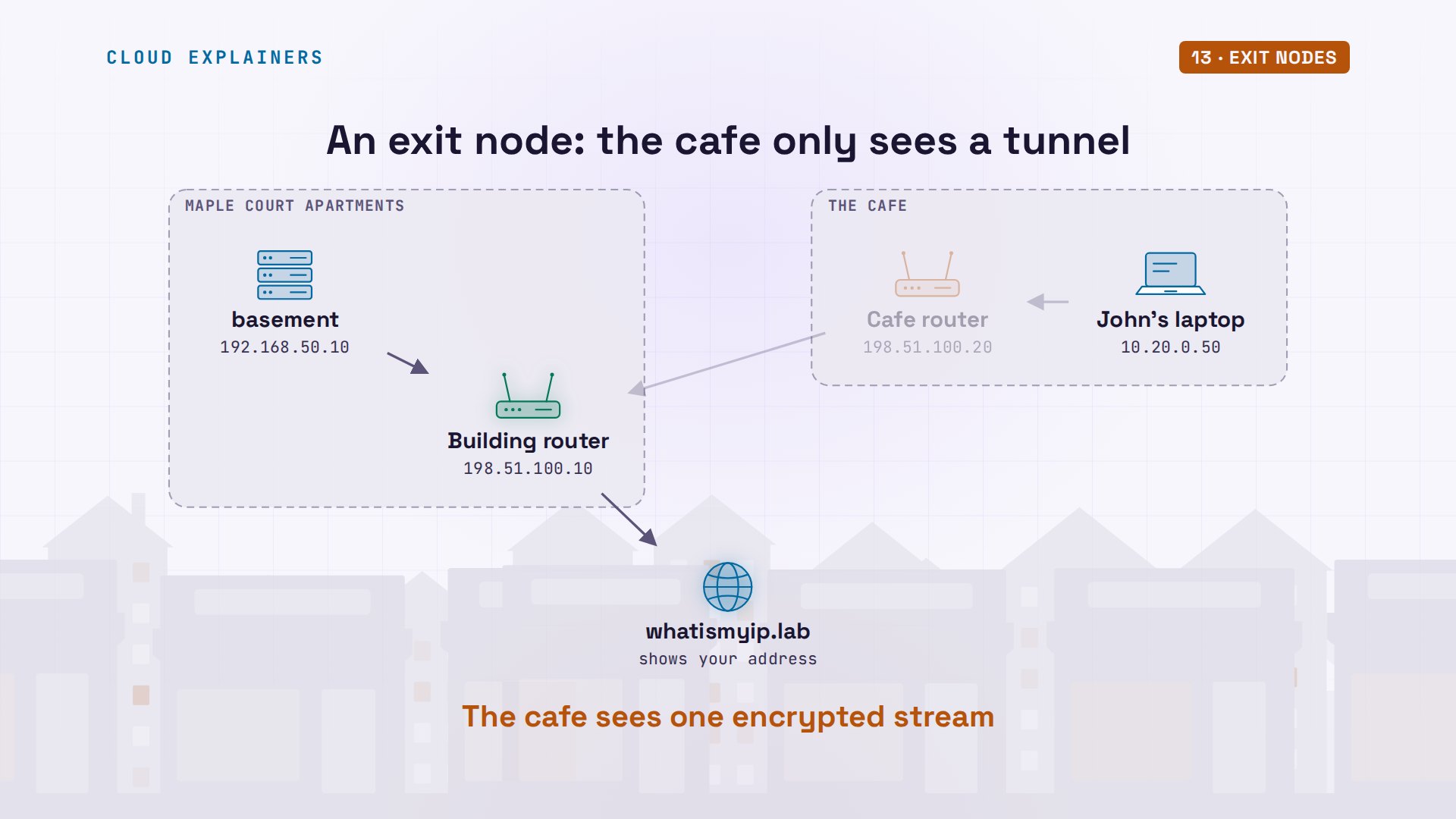
He picks it. Now the site says 198.51.100.10: the building's address. Status marks basement as the exit node. Setting exit node to nothing turns it off, and he's back to the cafe's address. It's also how people use their home connection while they travel.
sudo tailscale set --exit-node=basement
curl -s http://whatismyip.labYour address: 198.51.100.10
tailscale status100.64.0.2  laptop      john  linux  -
100.64.0.1  basement    john  linux  active; exit node; direct 198.51.100.10:41641, tx 7100 rx 6636
100.64.0.3  jen-laptop  jen   linux  active; relay "lab", tx 516 rx 756
sudo tailscale set --exit-node=
curl -s http://whatismyip.labYour address: 198.51.100.20
Day to day
Day to day, you'll mostly use two commands. tailscale down disconnects: now the name basement doesn't even resolve. tailscale up connects again, with no new login, because the device is still signed in, and the page is back. The service also starts at boot and reconnects by itself, so after a power cut the basement server rejoins the tailnet with nobody touching it.
sudo tailscale down
curl -sS -m 5 http://basement:8080curl: (6) Could not resolve host: basement
sudo tailscale up
curl -s http://basement:8080<!doctype html><title>Laundry room bookings</title>
<h1>Maple Court laundry room</h1>
<p>Saturday bookings</p>
<ul><li>Washer 1, 9:00 - Apartment 2B</li><li>Washer 2, 10:00 - Apartment 4A</li><li>Dryer 1, 11:00 - Apartment 3C</li></ul>
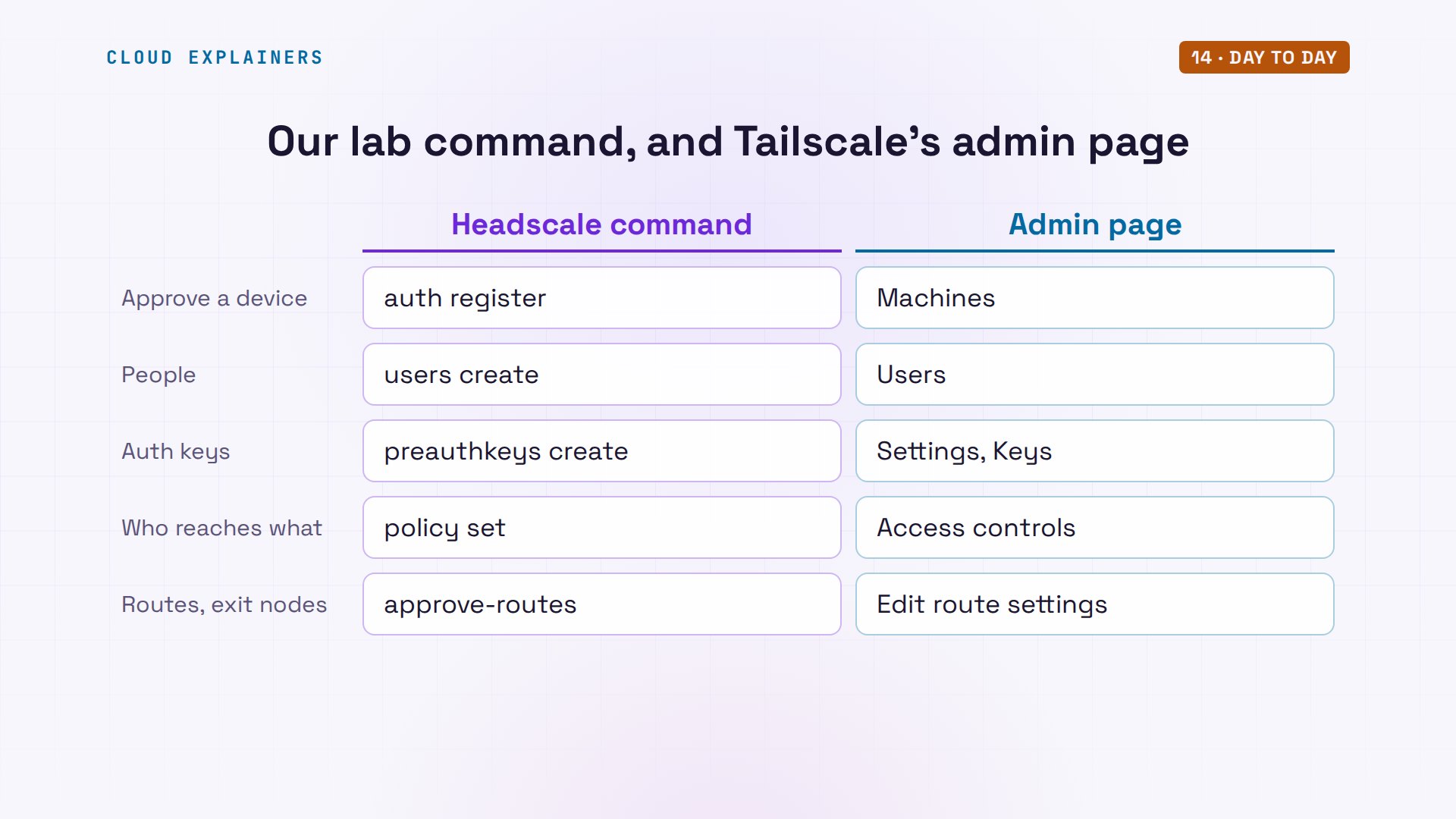
If you use Tailscale's own service, every command John typed on the coordination server is a click in Tailscale's admin page. Approving a device: the Machines page. Users: Users. Auth keys: Settings, Keys. The policy file: Access controls. And approving routes and exit nodes: each machine's Edit route settings.
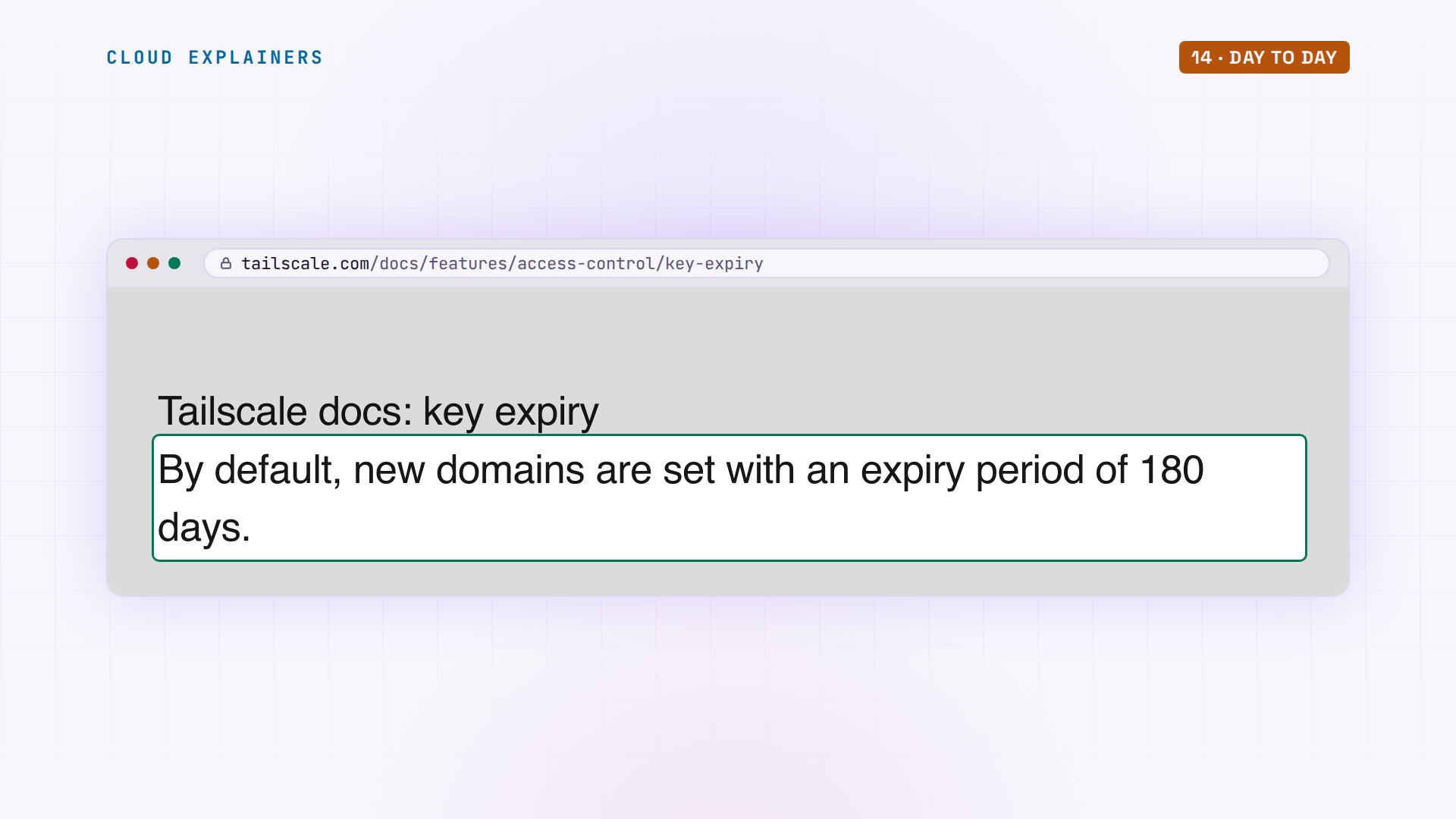
One thing that catches people out. On Tailscale's service, each device has to sign in again after a while: by default, every 180 days. When that runs out, the device drops off the tailnet until someone logs in. For a server like John's, the admin page lets you turn key expiry off for that one machine, so its sign-in never runs out.
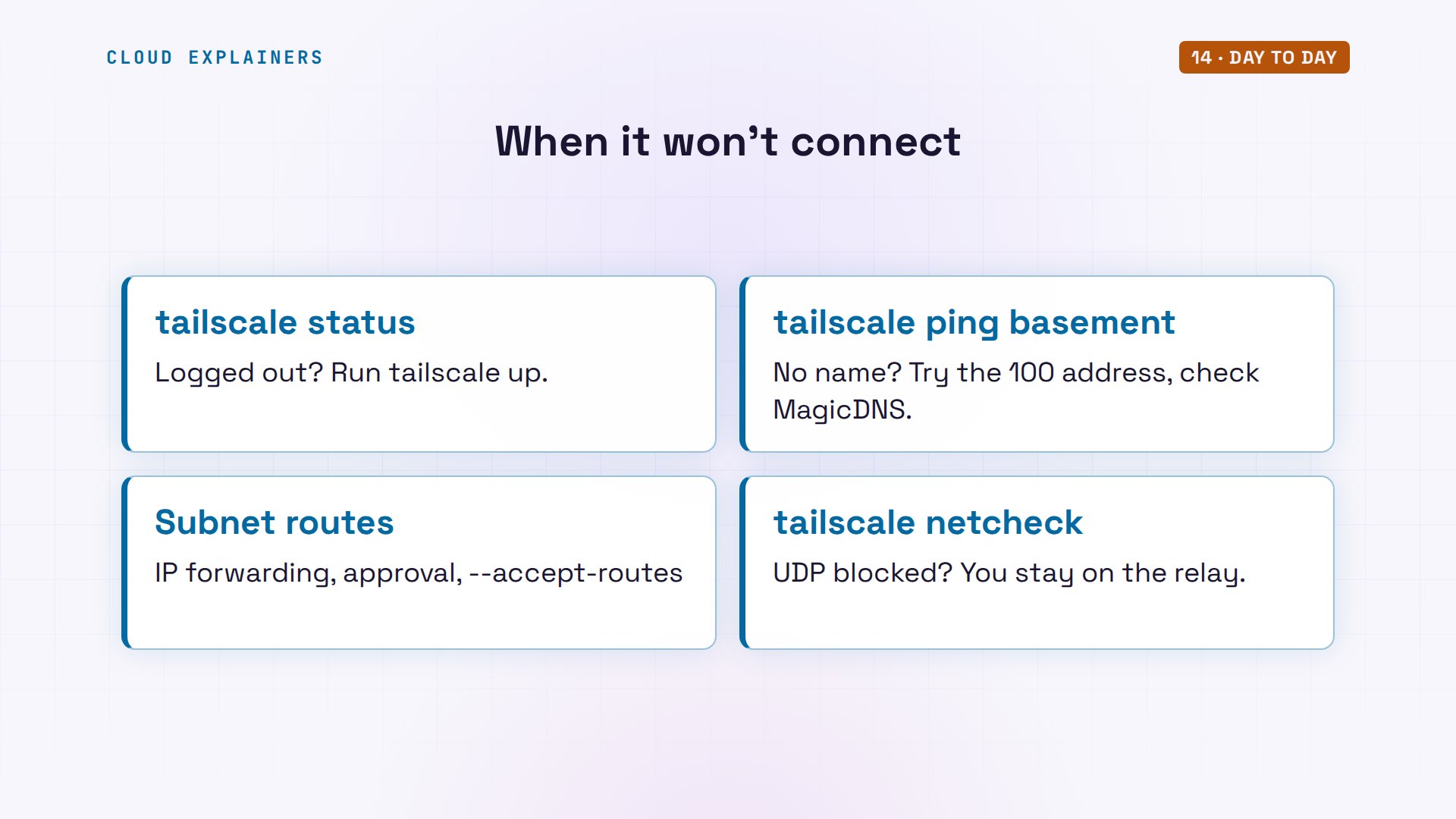
And when something won't connect, four checks cover most of it. One: tailscale status. If it says logged out, run tailscale up. Two: tailscale ping, by name. If the name doesn't resolve, try the 100 address, and check that MagicDNS is on. Three: a subnet route needs all three steps: IP forwarding, approval, and accept routes on Linux. Four: if everything is relayed and slow, run netcheck. Direct connections use UDP, so a network that blocks UDP keeps you on the relay.
So, back at the cafe. The laptop, the basement server and Jen's laptop, on one tailnet. The booking page, by name. The camera, through the subnet router. Jen, only the bookings. And not one port opened on the building's router.
Recap
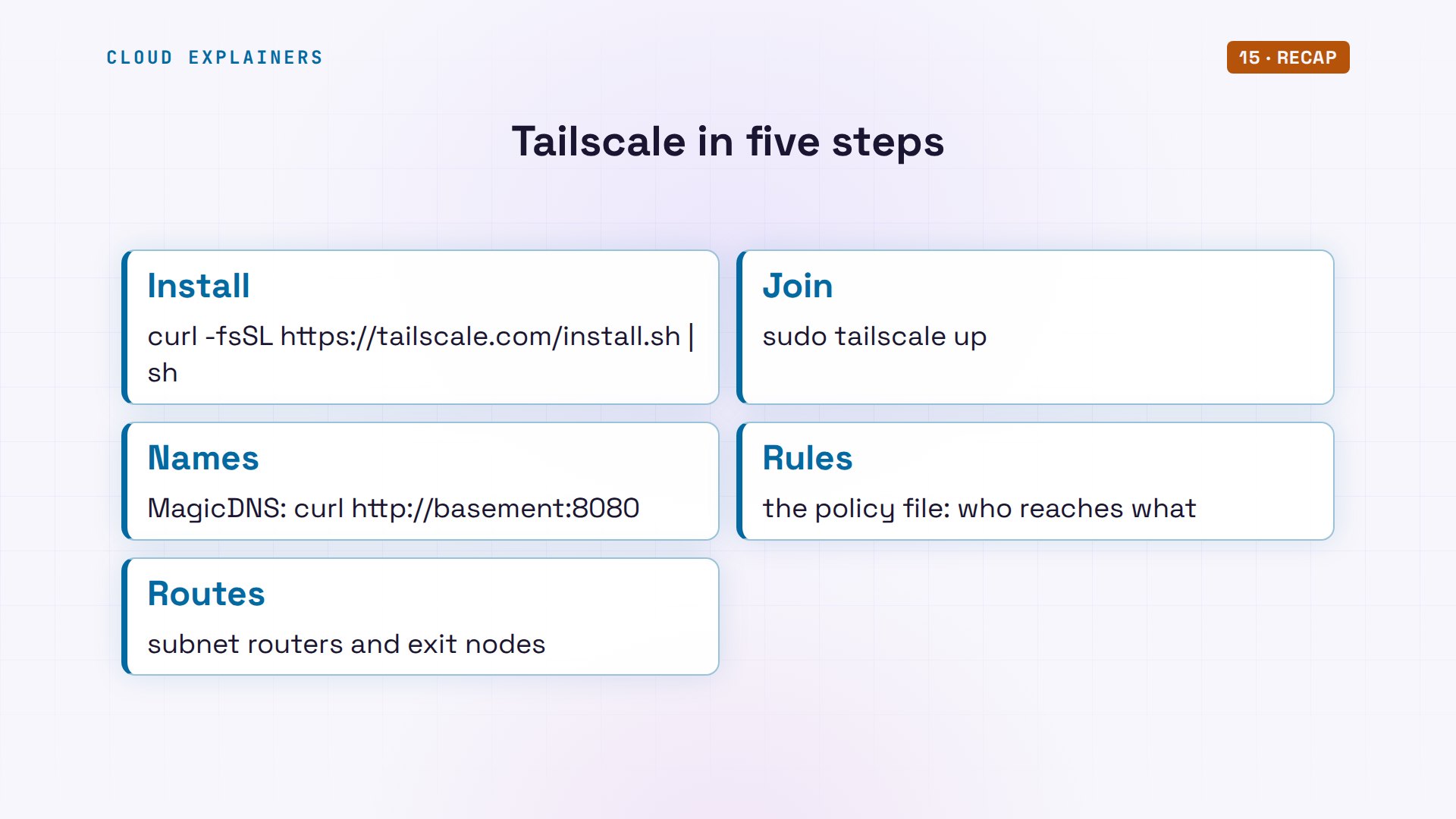
To recap: install with one script, join with tailscale up, reach devices by name, let the policy file decide who reaches what, and use subnet routers and exit nodes for the rest.
If you've got a machine you'd like to reach from anywhere, a like helps YouTube show this to more beginners, and subscribing brings the next tutorial, built on real machines too.
Every command and line of output here came from real machines in our lab, and the lab files are linked in the description. Thanks for watching Cloud Explainers.
Sources
- Tailscale, How Tailscale works (the coordination server, keys, NAT traversal)
- Tailscale docs, 100.x addresses (RFC 6598 shared address space)
- Tailscale docs, DERP servers (relays can't decrypt traffic)
- Tailscale docs, Subnet routers (IP forwarding, advertise, approve, accept routes)
- Tailscale docs, Exit nodes
- Tailscale docs, MagicDNS
- Headscale, an open source, self-hosted implementation of the Tailscale control server
- Tailscale docs, Key expiry (180 days by default)
- Tailscale pricing (the free Personal plan)
Demos: Docker containers on our own lab server standing in for an apartment building, a cafe and an office, each behind its own NAT router. The coordination server is Headscale, the open-source server the real Tailscale app can log in to, so no Tailscale account was used; with a Tailscale account you approve devices, routes and the policy in Tailscale's admin page instead. The building and its people are made up. Every command and line of output was real. Watch the full video on YouTube.
More videos
Amazon Bedrock vs OpenRouter: Which One Should You Use?
Golang Channels (chan) in 5 Minutes
How RAG Works

Every Git Setting to Change on Day One
WSL vs a Linux Virtual Machine: Which One Should You Use?
Every PostgreSQL Setting to Change After You Install It
What Happens When You Install Docker on Ubuntu
How to Fix Python 'Address Already in Use' Errors
Golang Interfaces and Mocks in 5 Minutes
How to Fix Git 'Detached HEAD' State
Linux Firewall with ufw: Full Tutorial for Beginners
Golang defer Statements in 5 Minutes
How to Fix OAuth 'invalid_grant' Errors

The SQL Roadmap for Beginners
Golang make() for Slices and Maps in 5 Minutes
How to Fix Network 'No Route to Host' Errors on Linux
How to Fix Linux 'Too Many Open Files' Errors

Every Django Concept a Beginner Needs to Know
SSH on Linux: Full Tutorial for Beginners

Golang for range Loops in 5 Minutes
SQL Databases: SQLite vs PostgreSQL
The Django Roadmap for Beginners
Golang Structs in 5 Minutes
Redis: Full Tutorial for Beginners
Golang context.Context in 5 Minutes
How to Fix MySQL Database Error 1045: Access Denied for User
Golang Method Receivers in 5 Minutes
How to Fix Python SSL: CERTIFICATE_VERIFY_FAILED Errors
How to Fix Django Static Files Not Loading in Production
OpenRouter vs Direct API Keys: Which One Should You Use?
Golang if err != nil Checks in 5 Minutes

How to Fix Golang 'go.mod File Not Found' Errors
MCP Servers: Full Tutorial for Beginners

Golang Error Return Values in 5 Minutes
How to Fix Python ModuleNotFoundError: No Module Named
Golang Pointers in 5 Minutes
How to Fix a Kubernetes Pod Stuck in CrashLoopBackOff
How to Fix a Homelab ESXi Host Not Responding
PostgreSQL: Full Tutorial for Beginners
How a Load Balancer Works with HAProxy

How Python Virtual Environments Work
How to Fix Cloudflare Tunnel Errors in a Homelab
How to Fix API CORS Errors: No 'Access-Control-Allow-Origin'
How Authenticator App Login Codes Work (TOTP)
Git and GitHub: Full Tutorial for Beginners
How a Homelab Hypervisor Works (VMware ESXi)
How to Fix Kubernetes ImagePullBackOff Errors
How to Fix DNS 'Temporary Failure in Name Resolution' on Linux
How to Fix AWS CLI 'Unable to Locate Credentials'
Proxmox vs ESXi for Your Homelab: When Each One Wins
PostgreSQL UUID vs Auto Increment: Which Primary Key Should You Use?
Kubernetes: Full Tutorial for Beginners

How TCP Sockets Work

How to Fix PostgreSQL 'Could Not Connect to Server'
Claude Code Hooks Will Finally Make Sense After This
DevOps with Ansible Will Finally Make Sense After This
How SNMP Network Monitoring Works
How to Fix GitHub 'Permission Denied (publickey)' Errors
Docker: Full Tutorial for Beginners
How to Fix PostgreSQL 'Password Authentication Failed'
Why One Linux Server Handles More Users Than You Think
How to Fix Network 'Connection Refused' Errors
DevOps Pipelines: Jenkins vs GitHub Actions
Linux Nginx Reverse Proxy: Full Tutorial for Beginners
Every Networking Term a Beginner Needs in 12 Minutes
How to Fix Docker 'Permission Denied' on docker.sock
How to Fix Git 'Updates Were Rejected' When You Push
How to Fix nginx 502 Bad Gateway Errors on Linux
How to Fix Linux apt 'Could Not Get Lock' Errors (Ubuntu)

How Email Works on the Internet (SMTP) in 10 Minutes
The Python Roadmap for Beginners

Golang REST API with Gin: Full Tutorial for Beginners
How a WireGuard VPN Network Works
Linux Makefiles Will Finally Make Sense After This

SAML vs OAuth vs OpenID Connect: What's the Difference?
How to Fix Python cron Jobs That Never Run
Linux Bash Scripting: Full Tutorial for Beginners
How PXE Network Boot Works
How Active Directory Works
How to Fix a Linux systemd Service That Won't Start
Linux Logs: syslog vs journald
JWT vs Session Cookies: Which One Should You Use?
Docker vs Docker Compose: Which One Should You Use?
How to Fix Docker Compose Containers That Can't Talk to Each Other
Django Full Tutorial for Beginners
How Linux systemd Works

How to Fix 'Windows Cannot Access' Network Share Errors (SMB)
REST vs gRPC: Which One Should You Use?
How to Fix SSL Certificate Chain Errors (Missing Intermediate)
Every Python Concept for Beginners in 10 Minutes
Every SQL Join Type in 10 Minutes
Why OpenRouter Free Models Hit Their Limit So Fast
Why Your Gemini API Free Tier Runs Out So Fast
OpenRouter Will Finally Make Sense After This
How Redis Caching Works
Gemini API vs Vertex AI: Which One Should You Use?
How to Fix a Leaked Gemini API Key
Why Golang Uses Goroutines Instead of Threads
How to Fix Gemini API Error 429: Resource Exhausted
Claude Token Pricing Will Finally Make Sense After This
Why Python Web Scraping Returns Nothing (and the Fix)
Python Automation: Full Tutorial for Beginners
How OAuth Login Works

Python uv vs pip: Which One Should You Use?

Google AI Studio Will Finally Make Sense After This
What Happens When You Run a Docker Container
How to Fix Claude Code Billing Your API Key Instead of Your Plan
Why Passkeys Can't Be Phished Like Passwords
PowerShell vs Bash: Which One Should You Learn?
The Linux Roadmap for Beginners
Django vs FastAPI: Which One Should You Use?
Why SQLite Is the Most Used Database in the World
How a NoSQL Database Like MongoDB Works
How to Fix Python pip error: externally-managed-environment
How to Fix MySQL Too Many Connections Database Errors
Golang Concurrency Will Finally Make Sense After This
How Amazon S3 Works
How Kubernetes Works
How Git Works
How to Fix Docker Port Already Allocated Errors
How PostgreSQL Works
How to Fix Git Merge Conflicts
How to Fix No Space Left on Device in Linux
How the Internet Works
SQL vs NoSQL: When Each One Wins
How to Fix JWT Token Expired Errors (401 Unauthorized)
Claude API vs Claude Pro: Why Your Subscription Doesn't Include It
Why AI Agent Skills Beat Giant Prompts

Linux Cron Jobs Will Finally Make Sense After This
Security Logs Will Finally Make Sense After This
How to Fix a Security Leak: An API Key Pushed to GitHub
DNS Will Finally Make Sense After This
Never Ignore a Security Update
Two-Factor Authentication Will Finally Make Sense
Never Expose a Database to the Internet
SSH Keys vs Passwords: Which Is Safer for Security?
The 5 Levels of Linux Boot: From Power On to Login
The 5 Levels of Network Firewalls
Password Security: Why Hackers Crack Weak Passwords
Why Your Linux Server Runs Out of Memory
HTTP vs HTTPS: What Actually Changes on Your Network
Every Linux File Permission You Need to Know
Linux Processes vs Threads: When Each One Wins
The OSI Model Will Finally Make Sense After This
The 7 Levels of Git
Every Network Troubleshooting Command You Need
Hashing vs Encryption in Cybersecurity: When Each One Wins
Why the Internet Ran Out of IP Addresses
Linux Package Managers: apt vs Snap vs Flatpak
Why Python Is Slow (and When It Doesn't Matter)
TCP vs UDP: When Each One Wins
Stop Running Linux as Root (Do This Instead)
Linux Users and Groups Will Finally Make Sense
Why Phishing Beats Good Security (and How to Spot It)
The 7 Levels of Docker
AI Agents Will Finally Make Sense After This
Stop Using git push --force (Use This Instead)
Agent Skills vs MCP: When Each One Wins
Networking Will Finally Make Sense After This
Every Linux Command You Actually Need
The 7 Levels of Cybersecurity
Every System Design Concept You Need, in One Diagram