Linux Firewall with ufw: Full Tutorial for Beginners
ufw, Ubuntu's firewall, for complete beginners, on a real Ubuntu server: the lockout that happens when you enable it over SSH before allowing SSH, the default policies, ss to see what listens, application profiles, allowing a port from one network only, deny versus reject, why the first matching rule wins and how ufw insert fixes a block that doesn't block, deleting rules safely, limit for SSH, reading /var/log/ufw.log, why Docker's published ports skip ufw and how to publish on one address, the iptables rules underneath, and the safe order to set it all up.
Locked out by one command
You turn on the firewall on your Linux server, and the next time you log in, you can't. Beth runs a tire shop. From home, she logs in to its server and turns on ufw, Ubuntu's firewall. It warns her about SSH; she says yes. Her session keeps working. The firewall did exactly what it was told. She logs out and back in: connection timed out. Her customers' booking page: the same. Here, you'll set up ufw without locking anyone out, and see why that first session kept working.
ssh shop
sudo ufw enableCommand may disrupt existing ssh connections. Proceed with operation (y|n)? y
Firewall is active and enabled on system startup
hostnameshop
exitlogout
Connection to shop closed.
ssh shopssh: connect to host shop port 22: Connection timed out
curl -sS -m 10 -o /dev/null -w '%{http_code}\n' shopcurl: (28) Connection timed out after 10002 milliseconds
000
What a firewall does
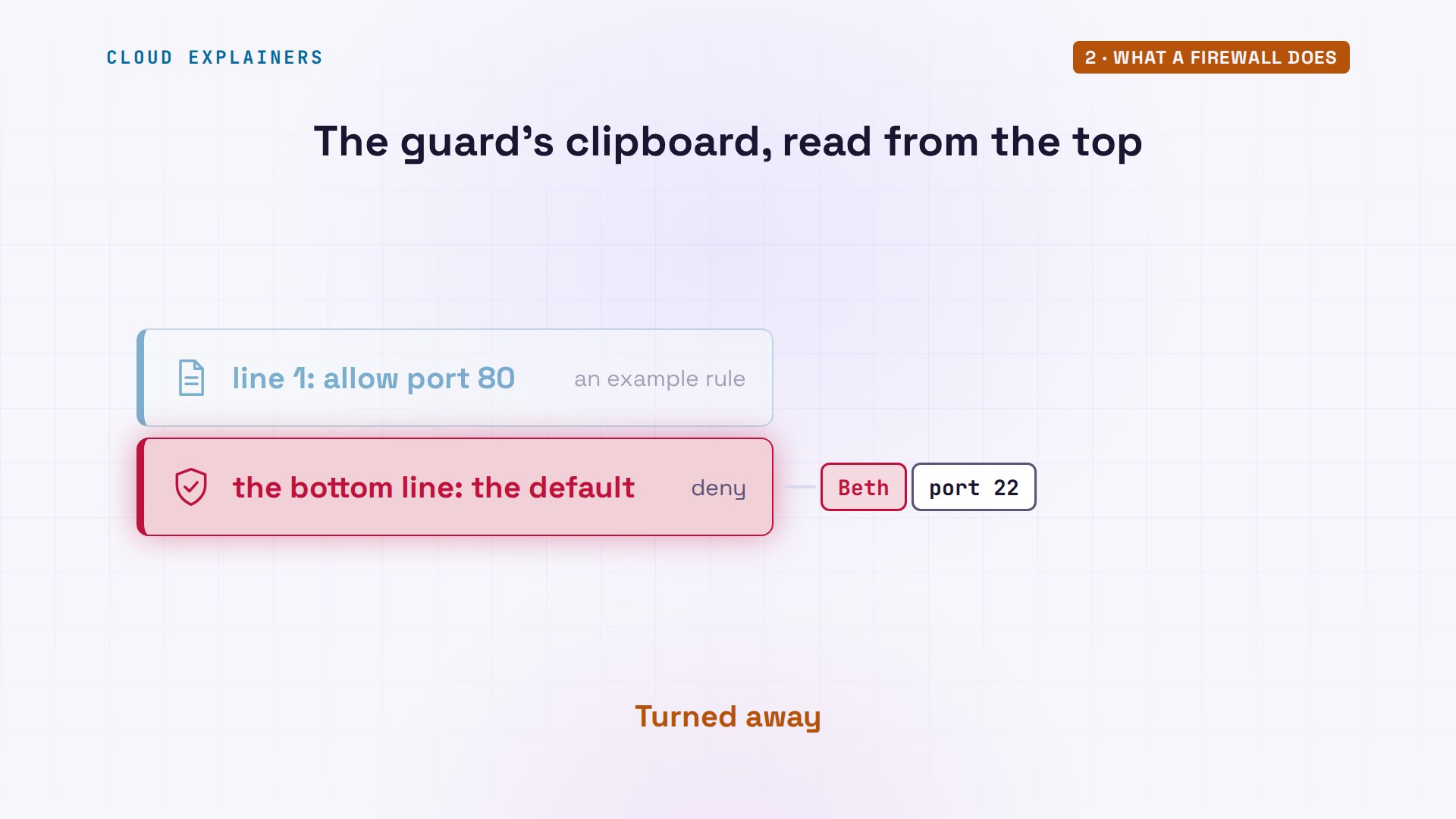
A firewall is a list of rules a computer checks before it lets a new connection in. Picture a guard at the gate of Beth's yard, with a clipboard. Each car that pulls up, the guard reads the list from the top, and the first line that matches decides: in, or turned away. A car that matches no line gets the rule at the bottom of the clipboard: the default. Beth's default said deny, and her list was empty. So every new connection, hers included, fell through to that bottom line.
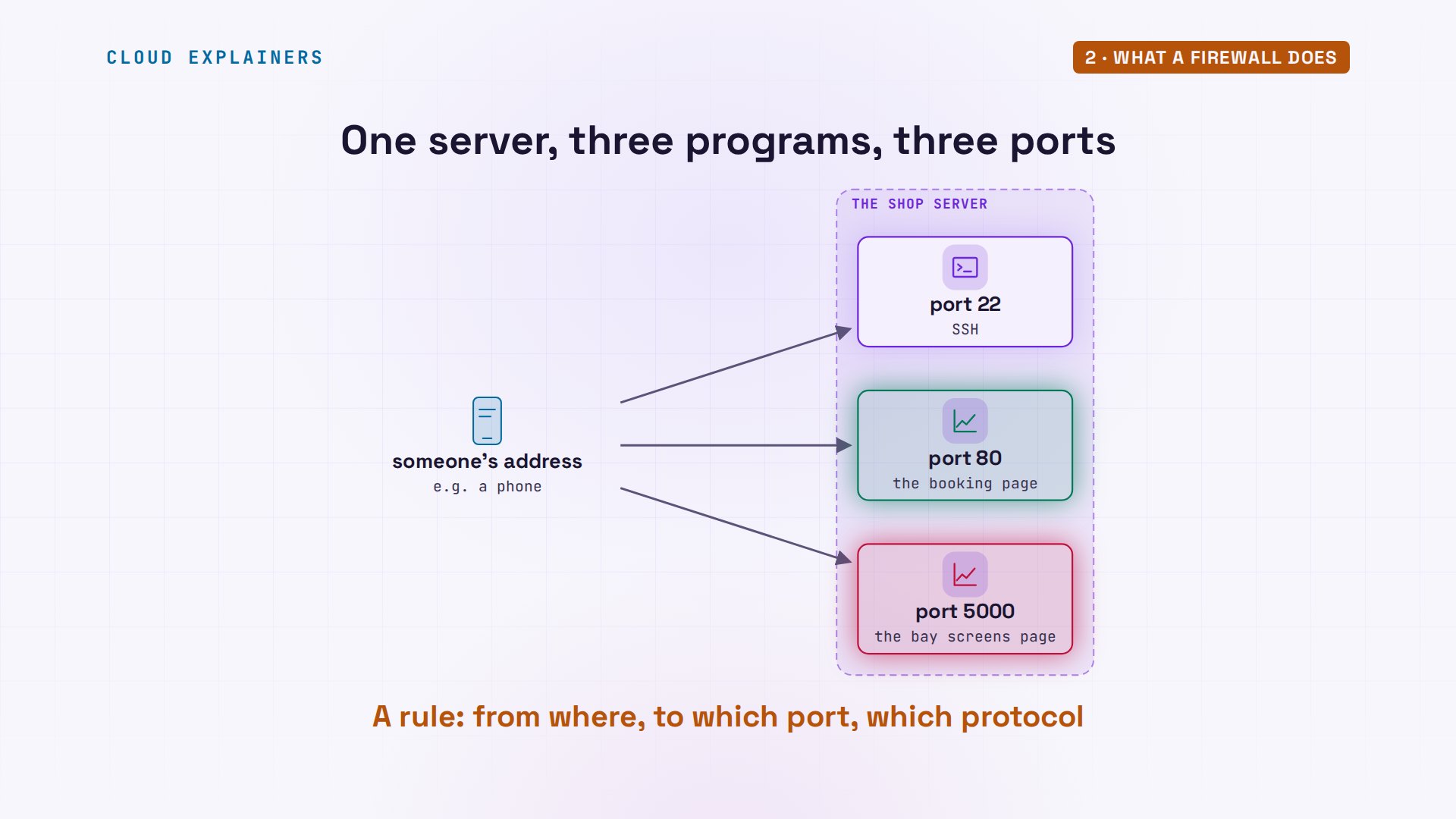
What does a rule look at? Mostly a port. One server runs several programs, and each one waits on its own numbered port. SSH waits on port 22, the booking page on port 80, and on port 5000, the bay screens: a page that shows which car is in which repair bay. A connection arrives from someone's address, to one of those ports, over TCP or UDP: two ways programs send data. Everything we open today uses TCP. A rule can name the address, the port, the protocol, or any mix of them, and then says allow or deny.
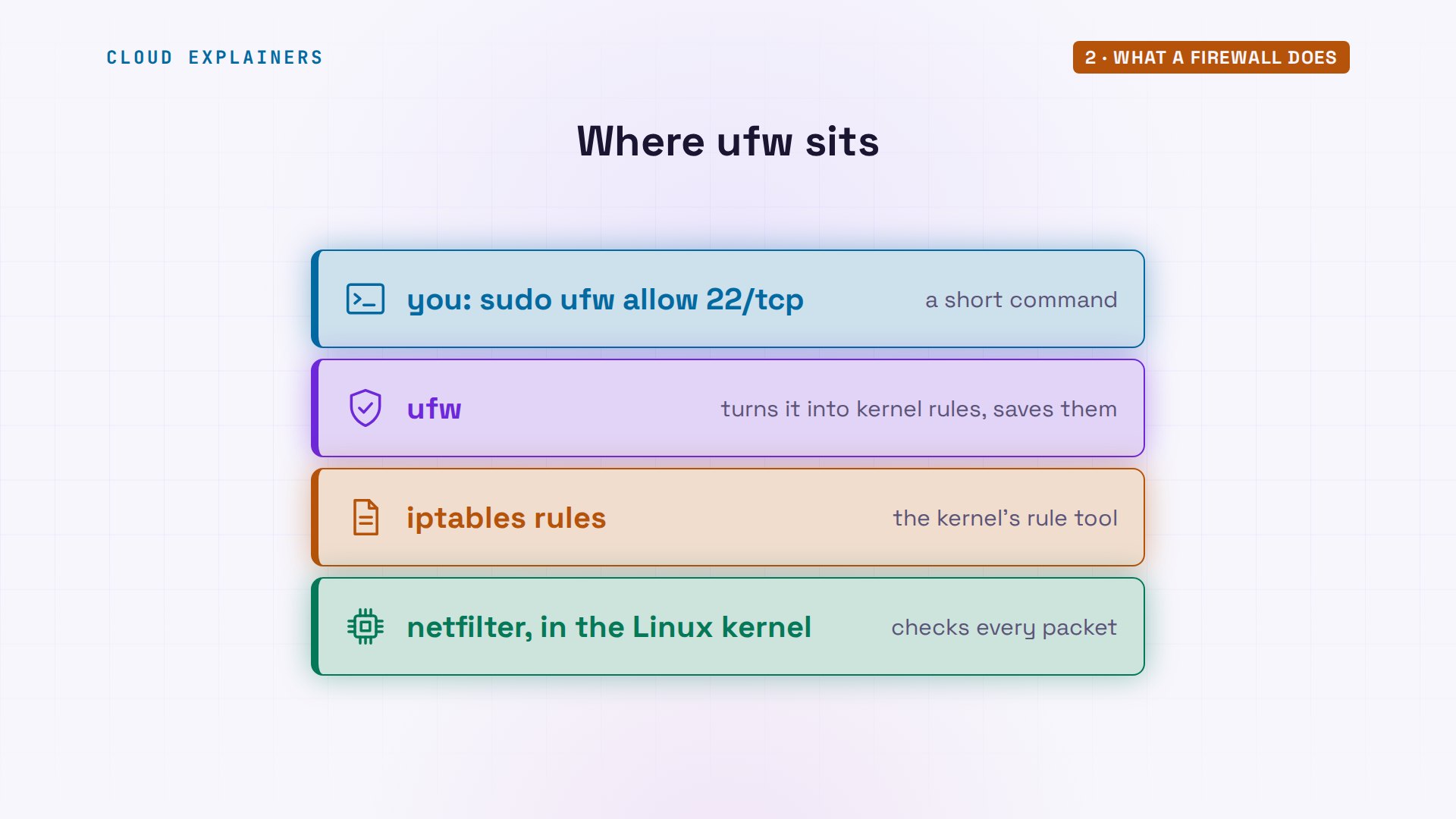
ufw stands for uncomplicated firewall, and it doesn't filter anything itself. The filtering happens inside the Linux kernel, the core of the system, in a part called netfilter. You type a short command. ufw turns it into the kernel's own rules, using a tool called iptables. It saves them in files, and loads them again at every boot. Ubuntu installs it, and leaves it switched off.
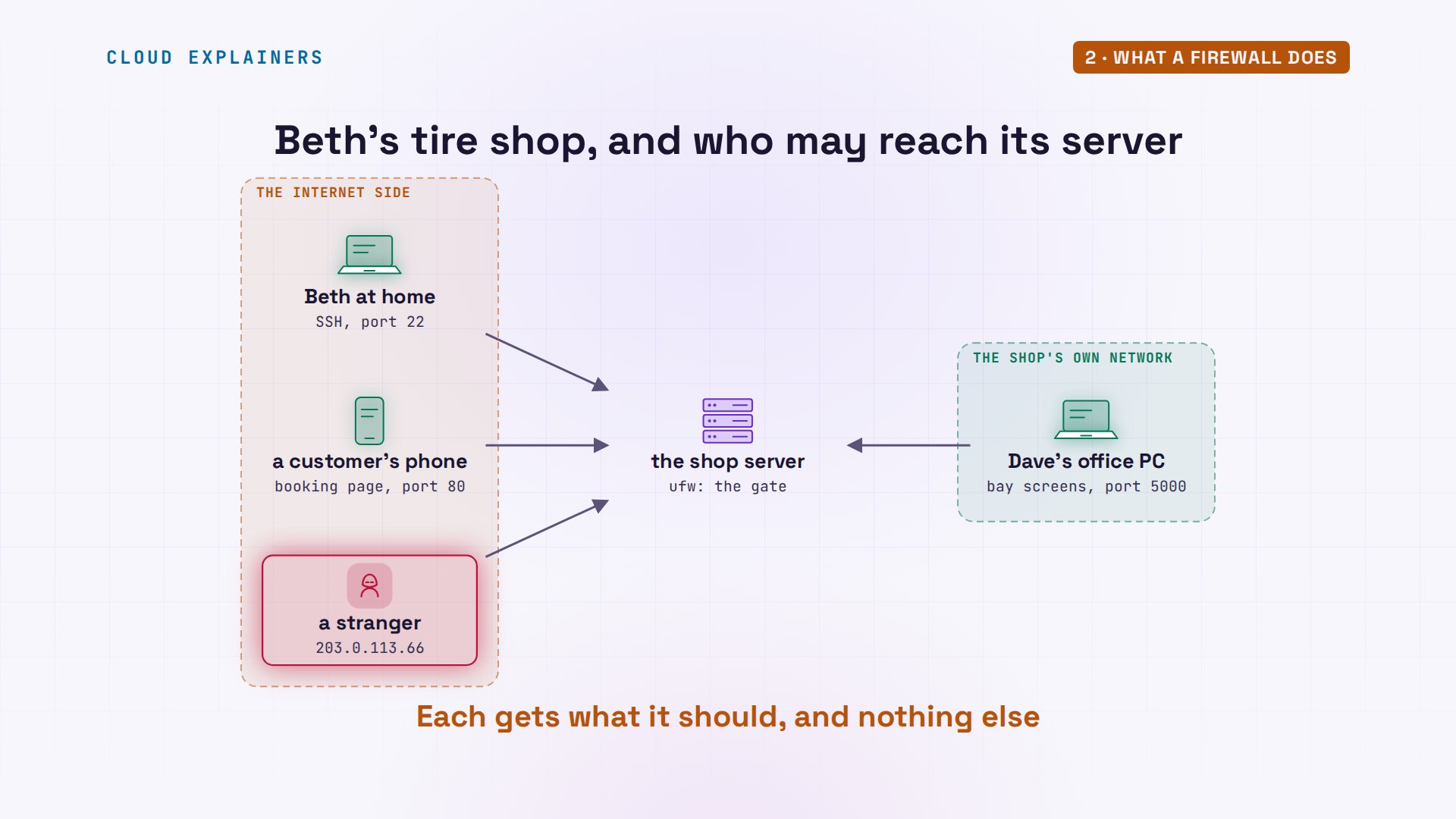
Here's the shop we'll protect for the rest of this video. The server has two network cards: one on the internet side, one on the shop's own network. Out on the internet: Beth's laptop at home, a customer's phone, and a stranger's address. Inside the shop, Dave's PC in the office, where he checks the bay screens. By the end, each of them gets exactly what it should, and nothing else.
Back in, from the server's own screen
Beth drives to the shop and sits at the server's own screen and keyboard. On a cloud server, that's the provider's web console. sudo ufw status verbose, the long form: active, logging on, and the three defaults. Deny incoming. Allow outgoing, so the server can still fetch updates. And deny routed: traffic passing through the server on its way somewhere else. Remember that one; it comes back with Docker.
sudo ufw status verboseStatus: active
Logging: on (low)
Default: deny (incoming), allow (outgoing), deny (routed)
New profiles: skip
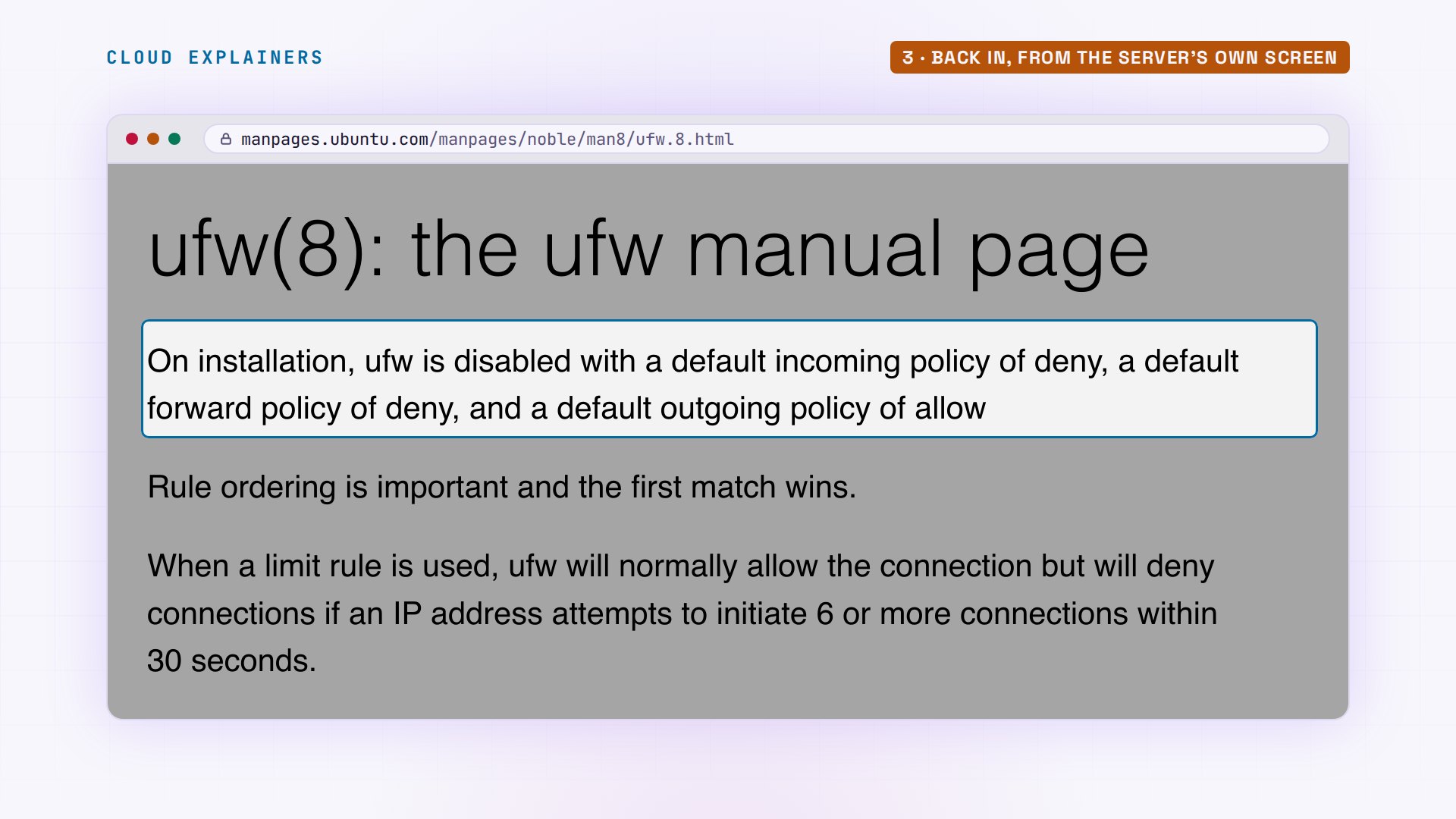
Those are the defaults the manual describes: incoming, deny; forward, the routed traffic, deny; outgoing, allow. Nothing gets in until a rule says so: a safe start, as long as your first rule is the door you're using.
Before writing rules, see what's listening. ss with t, l and n lists the TCP ports where a program is listening. grep hides the ones only this machine can use. Port 5000, the bay screens. Port 22, SSH. Port 80, the booking page. 0.0.0.0 means every address the server has. The lines in square brackets are the same ports on IPv6, the newer kind of address. Three programs, all behind the gate now.
sudo ss -tln | grep -v 127.0.0State  Recv-Q Send-Q Local Address:Port  Peer Address:PortProcess
LISTEN 0      511          0.0.0.0:80         0.0.0.0:*
LISTEN 0      4096         0.0.0.0:22         0.0.0.0:*
LISTEN 0      128          0.0.0.0:5000       0.0.0.0:*
LISTEN 0      511             [::]:80            [::]:*
LISTEN 0      4096            [::]:22            [::]:*
First, the door she came in by: sudo ufw allow OpenSSH. OpenSSH is an application profile, which we'll open in a minute; it means TCP port 22. Rule added, and a second copy of the rule for IPv6. Back home that evening, Beth tries again: ssh shop, and she's in.
sudo ufw allow OpenSSHRule added
Rule added (v6)
ssh shop
hostnameshop
Opening ports for programs
Beth can log in again, but her customers still can't book: port 80 is behind the gate too. First, where does a name like OpenSSH come from? When a package installs a server program, it can drop a small profile file into ufw's folder. sudo ufw app list shows them: three from nginx, the booking page's web server, and one from SSH. ufw app info Nginx HTTP, in quotes because the name has a space, says what's inside: port 80, TCP.
sudo ufw app listAvailable applications:
  Nginx Full
  Nginx HTTP
  Nginx HTTPS
  OpenSSH
sudo ufw app info 'Nginx HTTP'Profile: Nginx HTTP
Title: Web Server (Nginx, HTTP)
Description: Small, but very powerful and efficient web server

Port:
  80/tcp
So Beth allows Nginx HTTP. On a customer's phone, curl asks for the booking page and prints only the status code: 200, OK. When nothing answers at all, it prints 000 instead. That's what the phone got at the start. The other options just keep the page itself off the screen. ufw allow 80 slash tcp would have done the same. Leave off the slash tcp, and ufw opens the port for TCP and UDP both. Open only what the program uses.
sudo ufw allow 'Nginx HTTP'Rule added
Rule added (v6)
curl -sS -m 10 -o /dev/null -w '%{http_code}\n' shop200
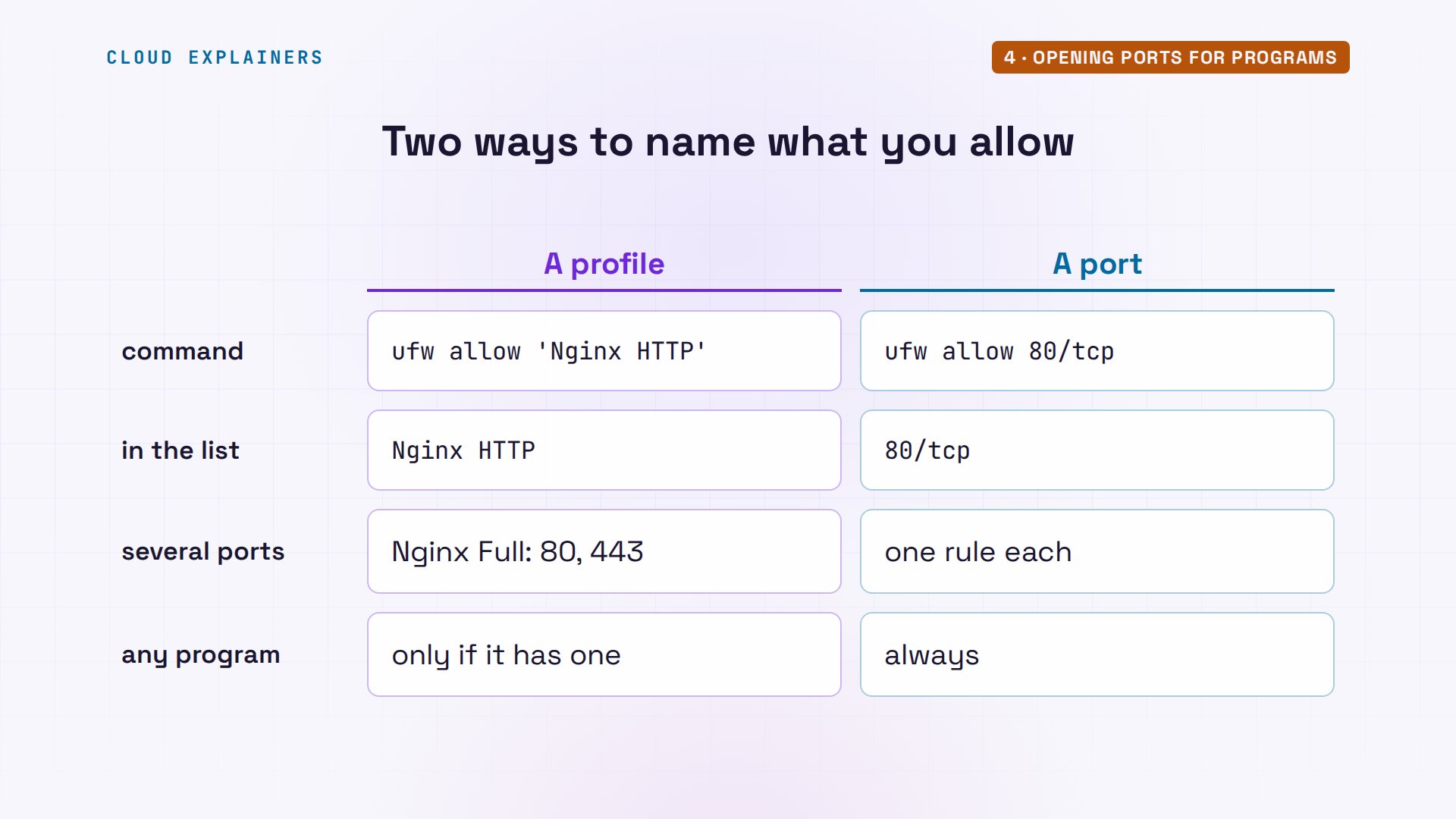
Profiles or port numbers? Either works. A profile reads like plain words in the status list, and covers a program that uses more than one port, like Nginx Full: 80 and 443 together. A port number works for anything, including programs that never installed a profile, like the bay screens page.
And you can write a profile for your own program. Beth saves a small file in ufw's applications folder: a name in square brackets, a title, a description, and the port, 5000 slash tcp. ufw app list now shows Bays, and app info reads it back. Rules can now say Bays instead of a number.
cat /etc/ufw/applications.d/bays[Bays]
title=Bay screens
description=Which car is in which bay
ports=5000/tcp
sudo ufw app listAvailable applications:
  Bays
  Nginx Full
  Nginx HTTP
  Nginx HTTPS
  OpenSSH
sudo ufw app info BaysProfile: Bays
Title: Bay screens
Description: Which car is in which bay

Port:
  5000/tcp
Only from the shop's network
The bay screens page, port 5000, is still closed to everyone. From the phone, nc tries the port, waits, and gives up after ten seconds: timed out. From Dave's PC inside the shop: the same. But Dave's screens need that page, and customers never should.
nc -zv -w 10 shop 5000nc: connect to shop (203.0.113.10) port 5000 (tcp) timed out: Operation now in progress
nc -zv -w 10 shop 5000nc: connect to shop (192.168.50.10) port 5000 (tcp) timed out: Operation now in progress
So the rule needs to say where from. ip addr on the server shows its two cards: eth0, on the shop's network, address 192.168.50.10, and eth1, on the internet side. Every machine inside the shop has an address that starts 192.168.50.
ip -br -4 addr | grep etheth0@if292       UP             192.168.50.10/24
eth1@if293       UP             203.0.113.10/24
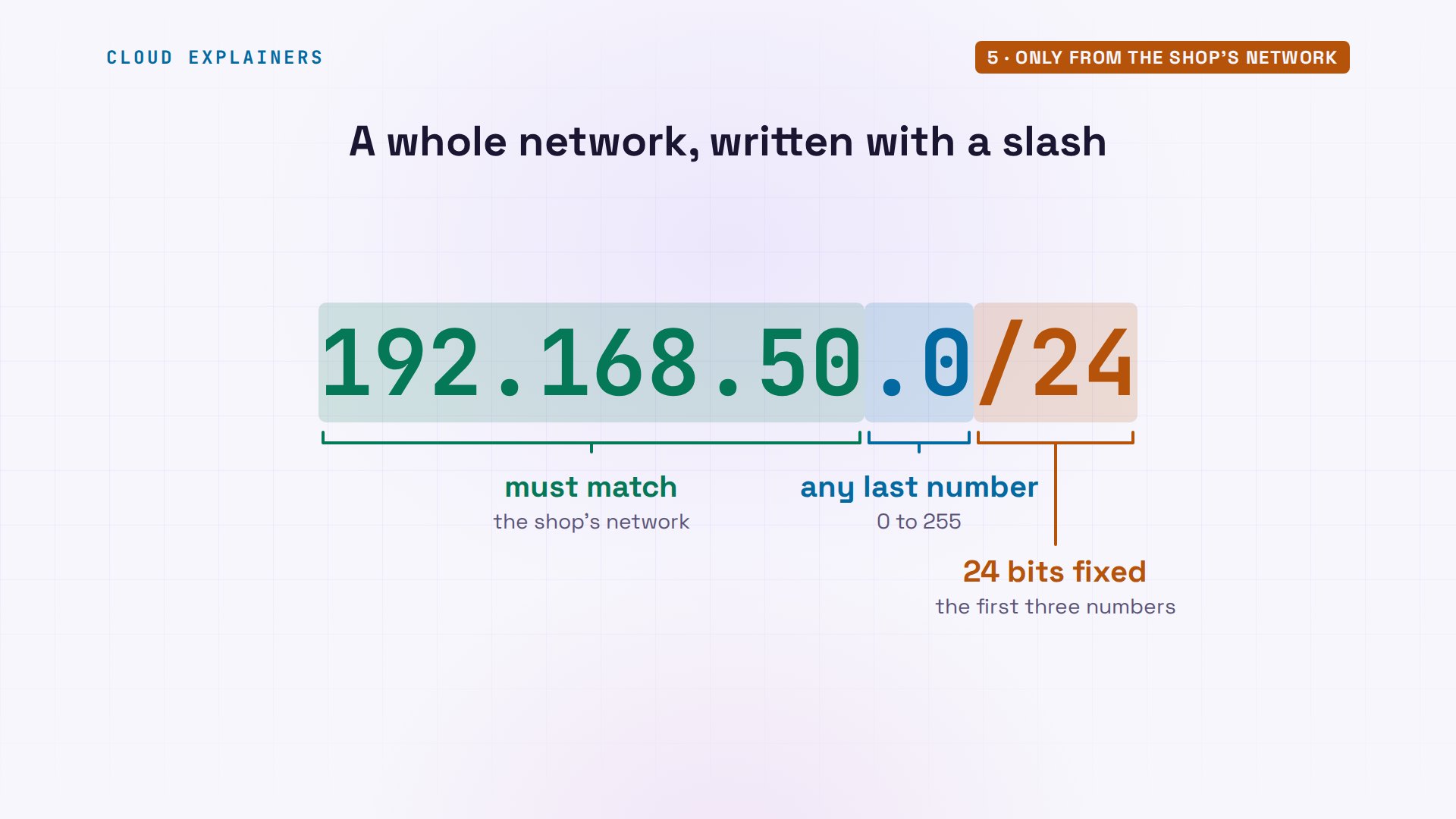
To name the whole shop network in one rule, write it with a slash. 192.168.50.0/24: each of the four numbers is 8 bits, three of them make 24, so slash 24 means the first three numbers must match. The last number can be anything from 0 to 255. So that's every address inside the shop, and nothing outside it.
Now a rule with a source. Read it left to right: allow, from the shop's network, to any address on this server, port 5000, TCP only. Dave's PC gets the bay list. The phone still times out.
sudo ufw allow from 192.168.50.0/24 to any port 5000 proto tcpRule added
curl -sS -m 10 shop:5000Bay 1: Corolla, 4 winter tires (Dave)
Bay 2: Transit van, puncture repair (Beth)
Bay 3: Civic, wheel balance (Dave)
nc -zv -w 10 shop 5000nc: connect to shop (203.0.113.10) port 5000 (tcp) timed out: Operation now in progress
ufw status numbered shows the clipboard as the guard reads it: top to bottom, a number on each line. OpenSSH, Nginx HTTP, port 5000 from the shop's network, then the IPv6 copies. The 5000 rule has no IPv6 copy, because its source is an IPv4 network. ufw writes the copy only when a rule makes sense for both.
sudo ufw status numberedStatus: active

     To                         Action      From
     --                         ------      ----
[ 1] OpenSSH                    ALLOW IN    Anywhere
[ 2] Nginx HTTP                 ALLOW IN    Anywhere
[ 3] 5000/tcp                   ALLOW IN    192.168.50.0/24
[ 4] OpenSSH (v6)               ALLOW IN    Anywhere (v6)
[ 5] Nginx HTTP (v6)            ALLOW IN    Anywhere (v6)
Deny or reject
Every closed port so far has said nothing at all, so the phone sat waiting ten seconds every time. That's deny: the knock is dropped, and the sender waits until it gives up. ufw has a second way to say no: reject. It sends an answer back, and the sender knows at once that this door is shut.
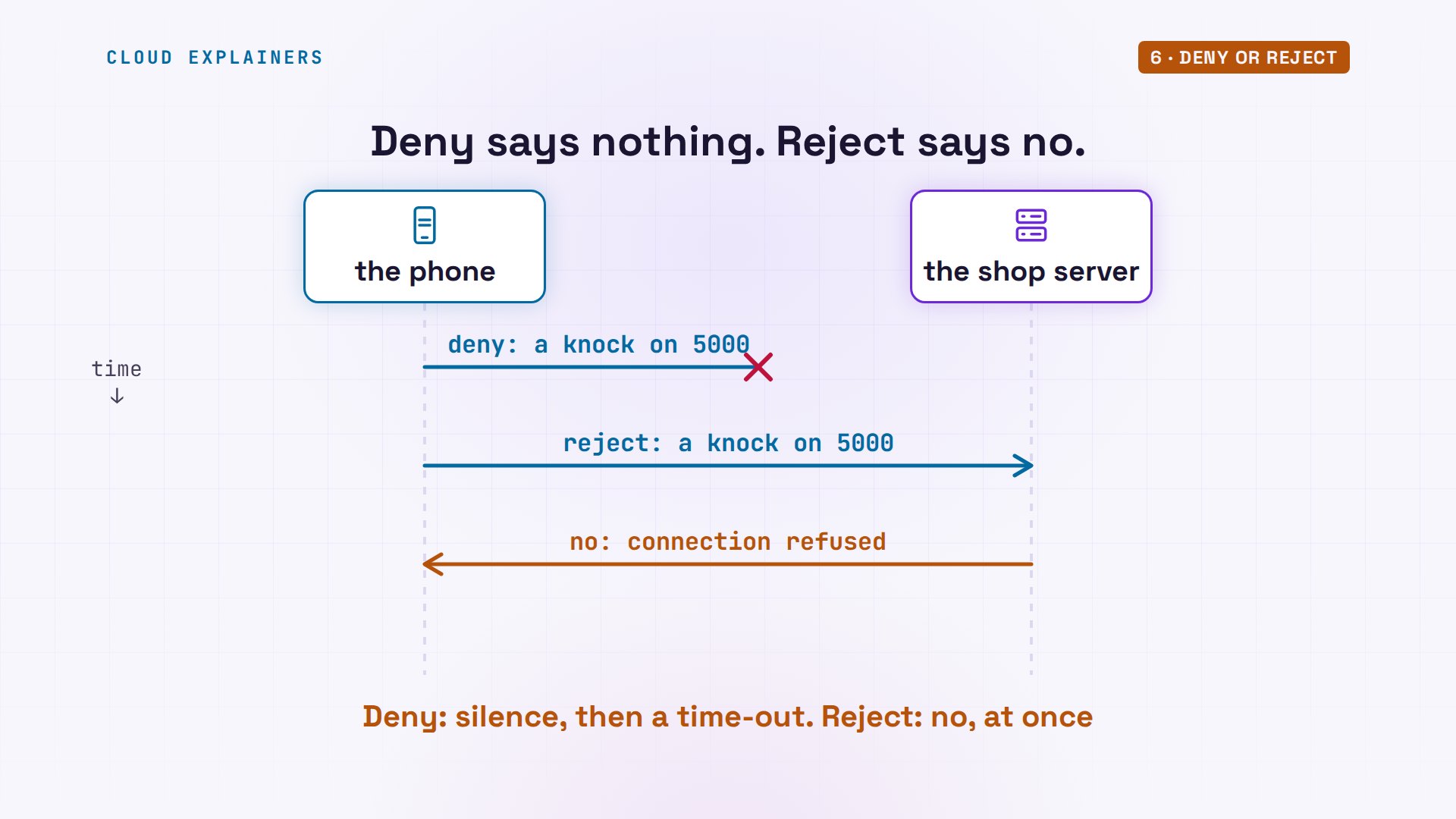
Beth rejects port 5000 for everyone else. The phone now gets connection refused, in no time at all. Dave's PC still gets the bay list, because his rule sits higher on the list and matches first. The new reject went in below it, line four. For the bay screens, Beth prefers a quick no. ufw's default is still deny, because a dropped knock tells a stranger nothing, not even that the port exists. Reject is kinder to your own people and scripts: they fail at once instead of hanging.
sudo ufw reject 5000/tcpRule added
Rule added (v6)
nc -zv -w 10 shop 5000nc: connect to shop (203.0.113.10) port 5000 (tcp) failed: Connection refused
curl -sS -m 10 shop:5000Bay 1: Corolla, 4 winter tires (Dave)
Bay 2: Transit van, puncture repair (Beth)
Bay 3: Civic, wheel balance (Dave)
sudo ufw status numberedStatus: active

     To                         Action      From
     --                         ------      ----
[ 1] OpenSSH                    ALLOW IN    Anywhere
[ 2] Nginx HTTP                 ALLOW IN    Anywhere
[ 3] 5000/tcp                   ALLOW IN    192.168.50.0/24
[ 4] 5000/tcp                   REJECT IN   Anywhere
[ 5] OpenSSH (v6)               ALLOW IN    Anywhere (v6)
[ 6] Nginx HTTP (v6)            ALLOW IN    Anywhere (v6)
[ 7] 5000/tcp (v6)              REJECT IN   Anywhere (v6)
Rule order: the first match wins
Now a stranger. One address on the internet, 203.0.113.66, keeps loading the booking page, thousands of times a day. Beth wants it gone. sudo ufw deny from 203.0.113.66. Rule added. So does the stranger still get the page? Guess first.
curl -sS -m 10 -o /dev/null -w '%{http_code}\n' shop200
sudo ufw deny from 203.0.113.66Rule added
Yes. 200. The page still loads. ufw status numbered shows why. The new rule went to the bottom of the list, line five. The guard reads from the top: line two, allow Nginx HTTP from anywhere, matches first, and he never gets as far as line five.
curl -sS -m 10 -o /dev/null -w '%{http_code}\n' shop200
sudo ufw status numberedStatus: active

     To                         Action      From
     --                         ------      ----
[ 1] OpenSSH                    ALLOW IN    Anywhere
[ 2] Nginx HTTP                 ALLOW IN    Anywhere
[ 3] 5000/tcp                   ALLOW IN    192.168.50.0/24
[ 4] 5000/tcp                   REJECT IN   Anywhere
[ 5] Anywhere                   DENY IN     203.0.113.66
[ 6] OpenSSH (v6)               ALLOW IN    Anywhere (v6)
[ 7] Nginx HTTP (v6)            ALLOW IN    Anywhere (v6)
[ 8] 5000/tcp (v6)              REJECT IN   Anywhere (v6)
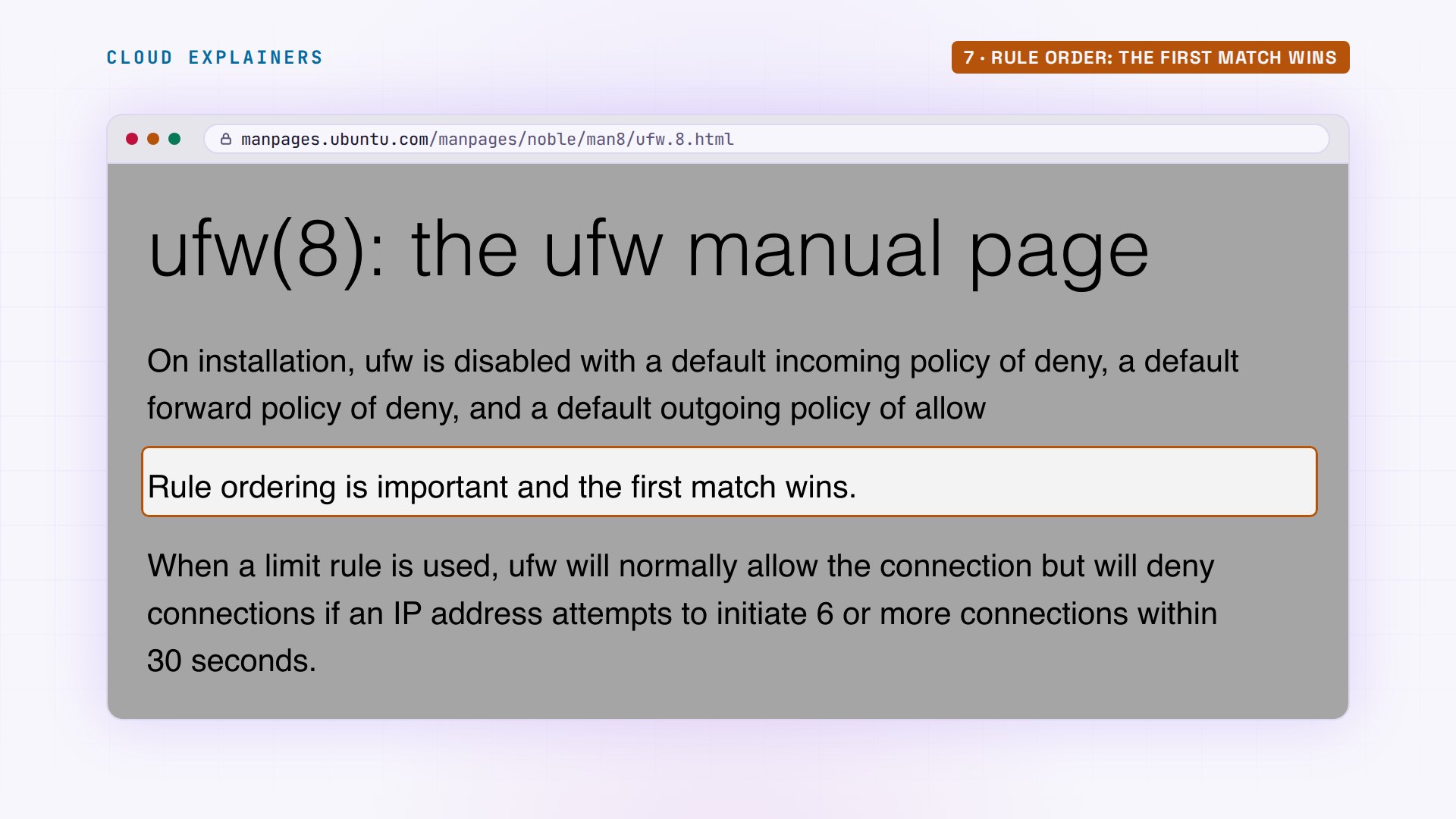
Ubuntu's manual says it in one line: rule ordering is important, and the first match wins. Specific rules, like one address, go above general ones, like anyone on port 80.
So Beth deletes line five. ufw shows the rule it's about to remove, and asks first. Then insert 1 puts the deny at the very top. The stranger's next request waits ten seconds, and gets nothing back. And the customer's phone? Still 200. In the list, the stranger's deny is now line one.
sudo ufw delete 5Deleting:
 deny from 203.0.113.66
Proceed with operation (y|n)? y
Rule deleted
sudo ufw insert 1 deny from 203.0.113.66Rule inserted
curl -sS -m 10 -o /dev/null -w '%{http_code}\n' shopcurl: (28) Connection timed out after 10003 milliseconds
000
curl -sS -m 10 -o /dev/null -w '%{http_code}\n' shop200
sudo ufw status numberedStatus: active

     To                         Action      From
     --                         ------      ----
[ 1] Anywhere                   DENY IN     203.0.113.66
[ 2] OpenSSH                    ALLOW IN    Anywhere
[ 3] Nginx HTTP                 ALLOW IN    Anywhere
[ 4] 5000/tcp                   ALLOW IN    192.168.50.0/24
[ 5] 5000/tcp                   REJECT IN   Anywhere
[ 6] OpenSSH (v6)               ALLOW IN    Anywhere (v6)
[ 7] Nginx HTTP (v6)            ALLOW IN    Anywhere (v6)
[ 8] 5000/tcp (v6)              REJECT IN   Anywhere (v6)
Deleting rules
There are two ways to delete a rule. By its number, as Beth just did. Or by typing the rule again after the word delete. The number way has a trap that can remove the wrong rule, even the one that lets you in: after each delete, every rule below it moves up one. Delete line three, then line four, and the second delete removes the rule that used to be line five.
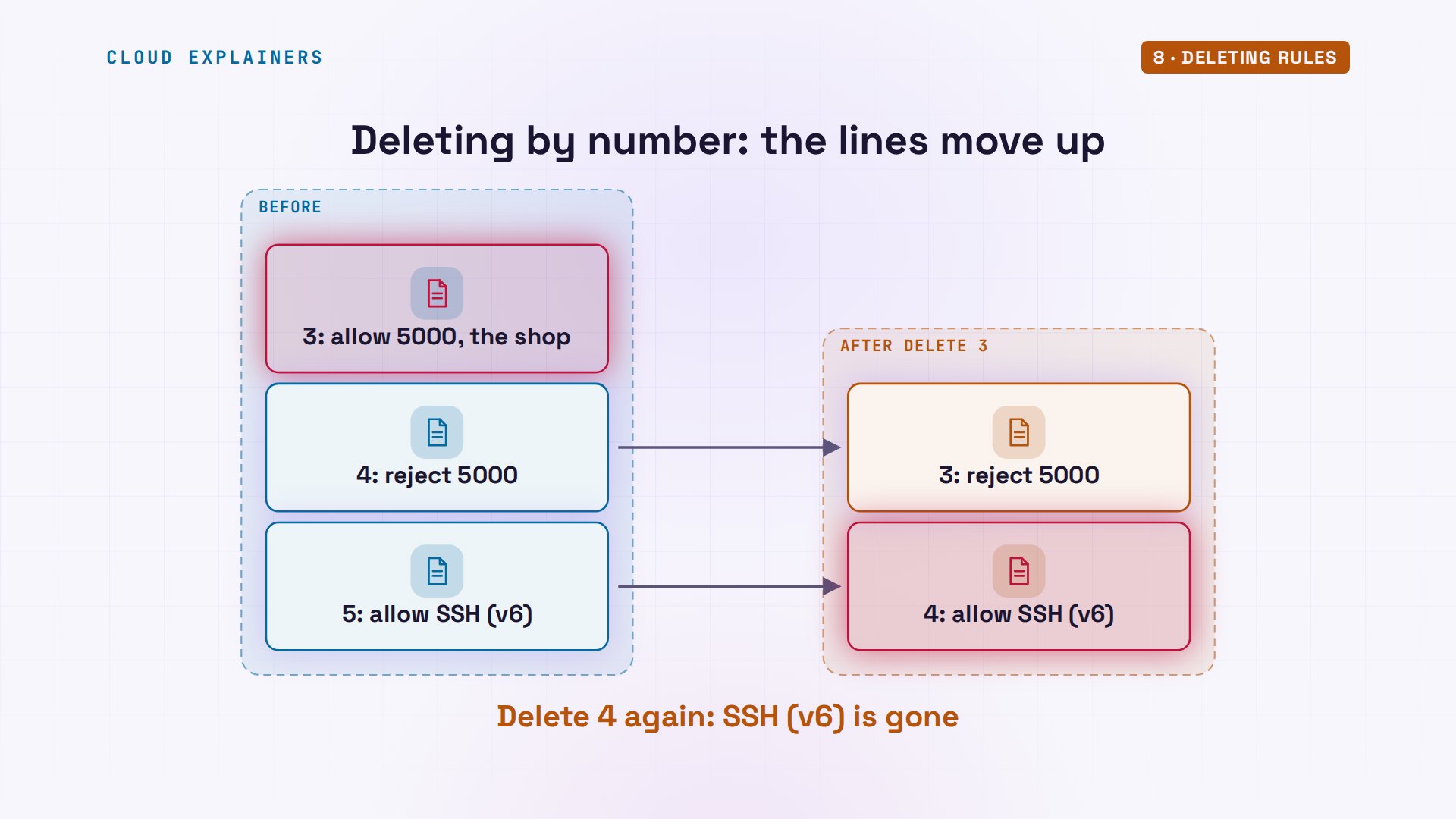
Days later the stranger has gone quiet, so Beth removes the block. This time she types the rule itself, which can never hit the wrong line. If you do delete by number, delete one, list again, then delete the next.
sudo ufw delete deny from 203.0.113.66Rule deleted
sudo ufw status numberedStatus: active

     To                         Action      From
     --                         ------      ----
[ 1] OpenSSH                    ALLOW IN    Anywhere
[ 2] Nginx HTTP                 ALLOW IN    Anywhere
[ 3] 5000/tcp                   ALLOW IN    192.168.50.0/24
[ 4] 5000/tcp                   REJECT IN   Anywhere
[ 5] OpenSSH (v6)               ALLOW IN    Anywhere (v6)
[ 6] Nginx HTTP (v6)            ALLOW IN    Anywhere (v6)
[ 7] 5000/tcp (v6)              REJECT IN   Anywhere (v6)
Limit: too many tries in a row
SSH is the door attackers knock on most. Scripts on the internet try password after password, as fast as the server will answer. ufw has a rule made for that: limit. Let's see what it does before reading the rule.
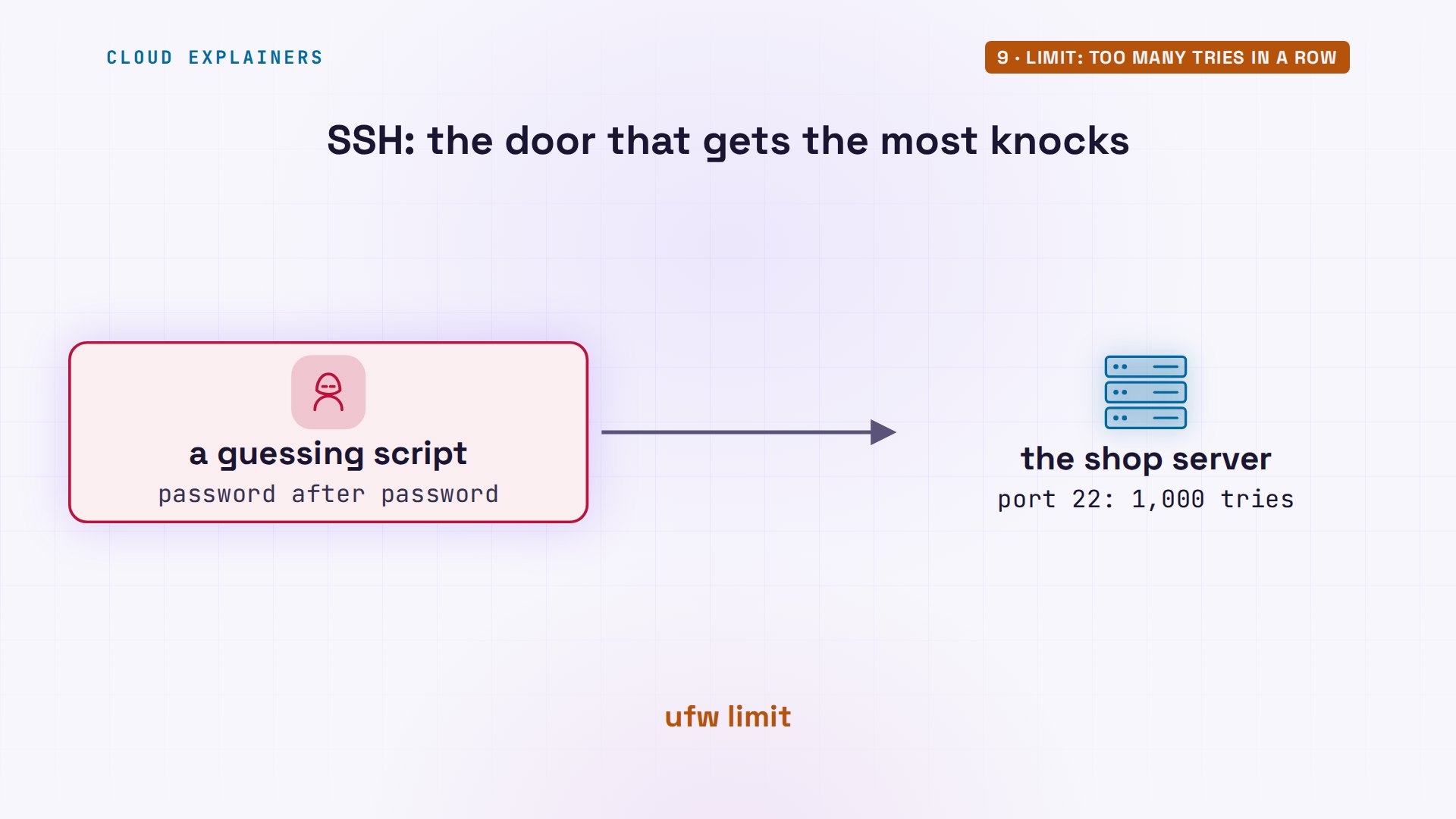
From the stranger's address, a small loop opens eight connections to port 22 in a row. All eight open. Beth changes the SSH rule: sudo ufw limit OpenSSH. Rule updated: the OpenSSH line changed in place, so its spot in the list stays. Half a minute later, once those first tries are too old to count, the same loop. Five open. From the sixth on: blocked. And Beth's own login from home still works, because her address hasn't been knocking.
for i in 1 2 3 4 5 6 7 8; do nc -z -w 3 shop 22 2>/dev/null && echo "try $i: open" || echo "try $i: blocked"; donetry 1: open
try 2: open
try 3: open
try 4: open
try 5: open
try 6: open
try 7: open
try 8: open
sudo ufw limit OpenSSHRule updated
Rule updated (v6)
for i in 1 2 3 4 5 6 7 8; do nc -z -w 3 shop 22 2>/dev/null && echo "try $i: open" || echo "try $i: blocked"; donetry 1: open
try 2: open
try 3: open
try 4: open
try 5: open
try 6: blocked
try 7: blocked
try 8: blocked
ssh shop
hostnameshop
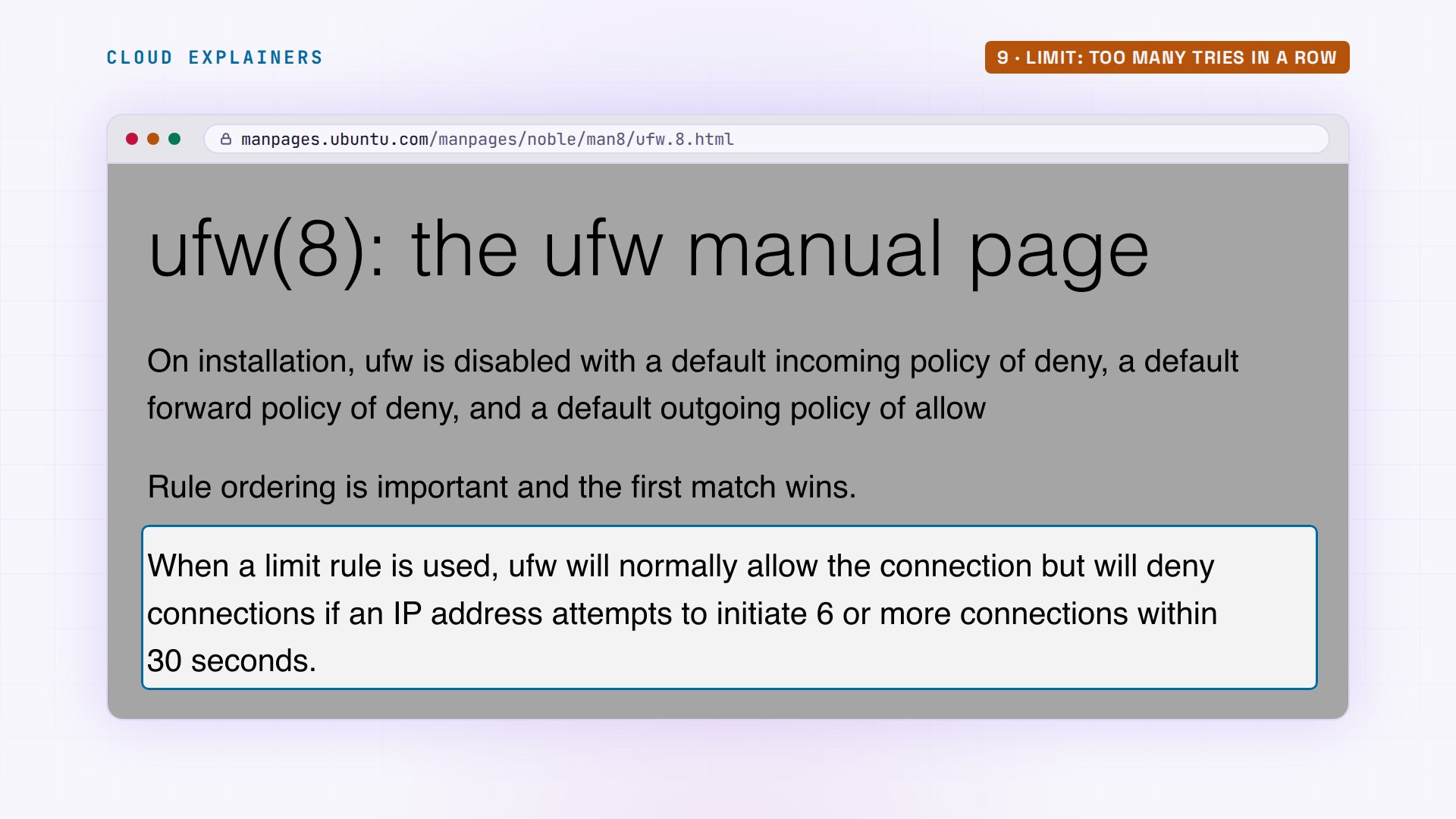
The manual's wording: a limit rule allows the connection, but denies an address that tries to start 6 or more connections within 30 seconds. That's exactly what the loop showed. It won't stop a patient attacker, but it turns thousands of guesses a minute into a handful.
Reading the firewall's log
What has the firewall turned away? The phone tries a port nothing allows, 8443. On the server, the status said logging: on, low. At that level, every new connection it blocks becomes a line in a file called ufw dot log, in the folder slash var slash log. Beth reads the last line, picked apart by grep.
nc -zv -w 3 shop 8443nc: connect to shop (203.0.113.10) port 8443 (tcp) timed out: Operation now in progress
sudo ufw status verbose | head -3Status: active
Logging: on (low)
Default: deny (incoming), allow (outgoing), deny (routed)
sudo tail -n 1 /var/log/ufw.log | grep -oE 'UFW BLOCK|IN=\S+|SRC=\S+|DST=\S+|PROTO=\S+|DPT=\S+'UFW BLOCK
IN=eth1
SRC=203.0.113.50
DST=203.0.113.10
PROTO=TCP
DPT=8443
UFW BLOCK: the firewall said no. IN equals eth1: it arrived on eth1, the server's internet-side card. SRC, the source: the phone's address. DST, the destination: the server. TCP, and DPT, the port it wanted: 8443. So far this log holds 15 blocked attempts.
sudo grep -c 'UFW BLOCK' /var/log/ufw.log15
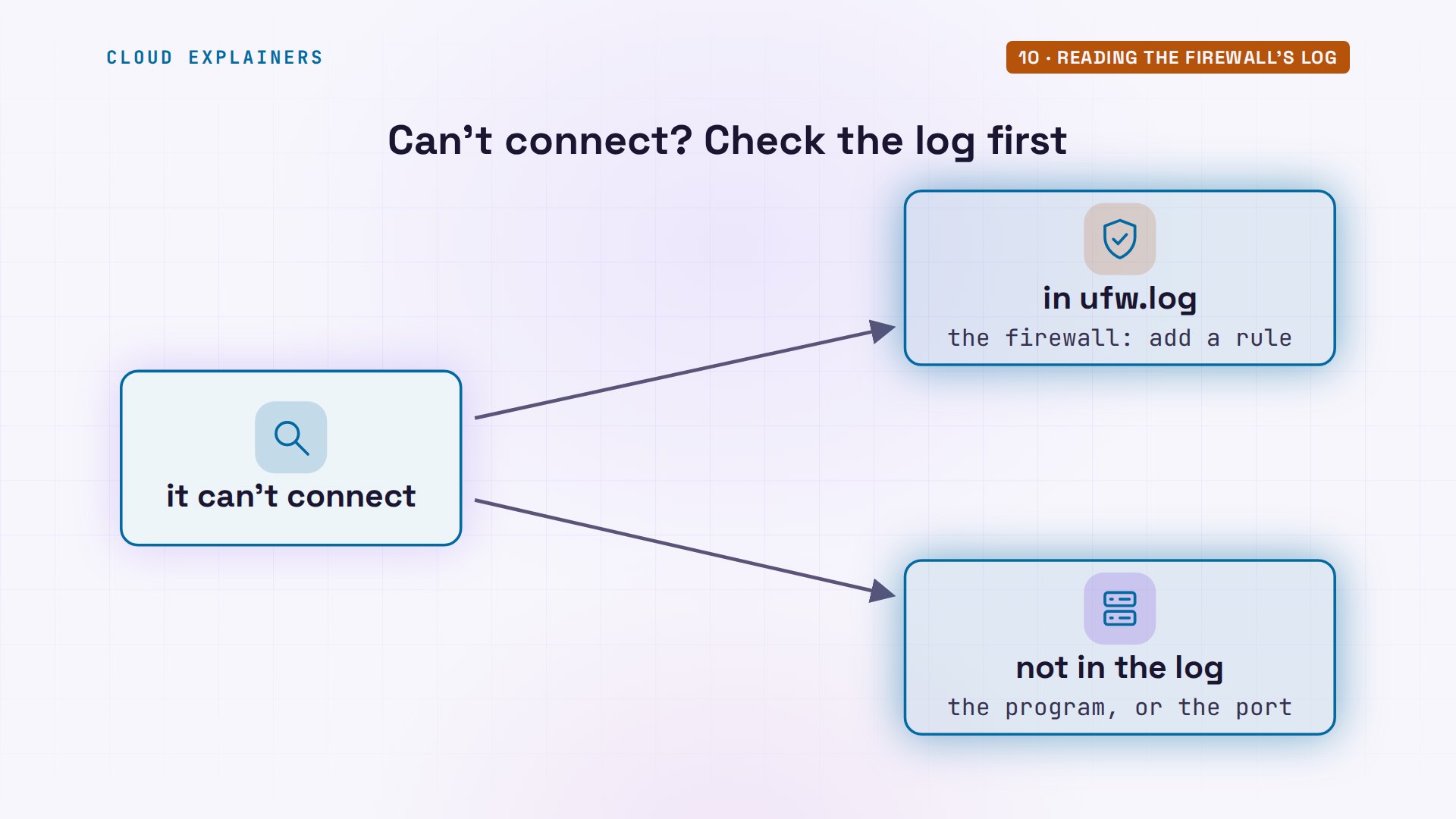
When something can't connect, look here first. If its address and port are in this log, the firewall turned it away, and you need a rule. If they're not, the problem is somewhere else: the program isn't running, or it listens on a different port.
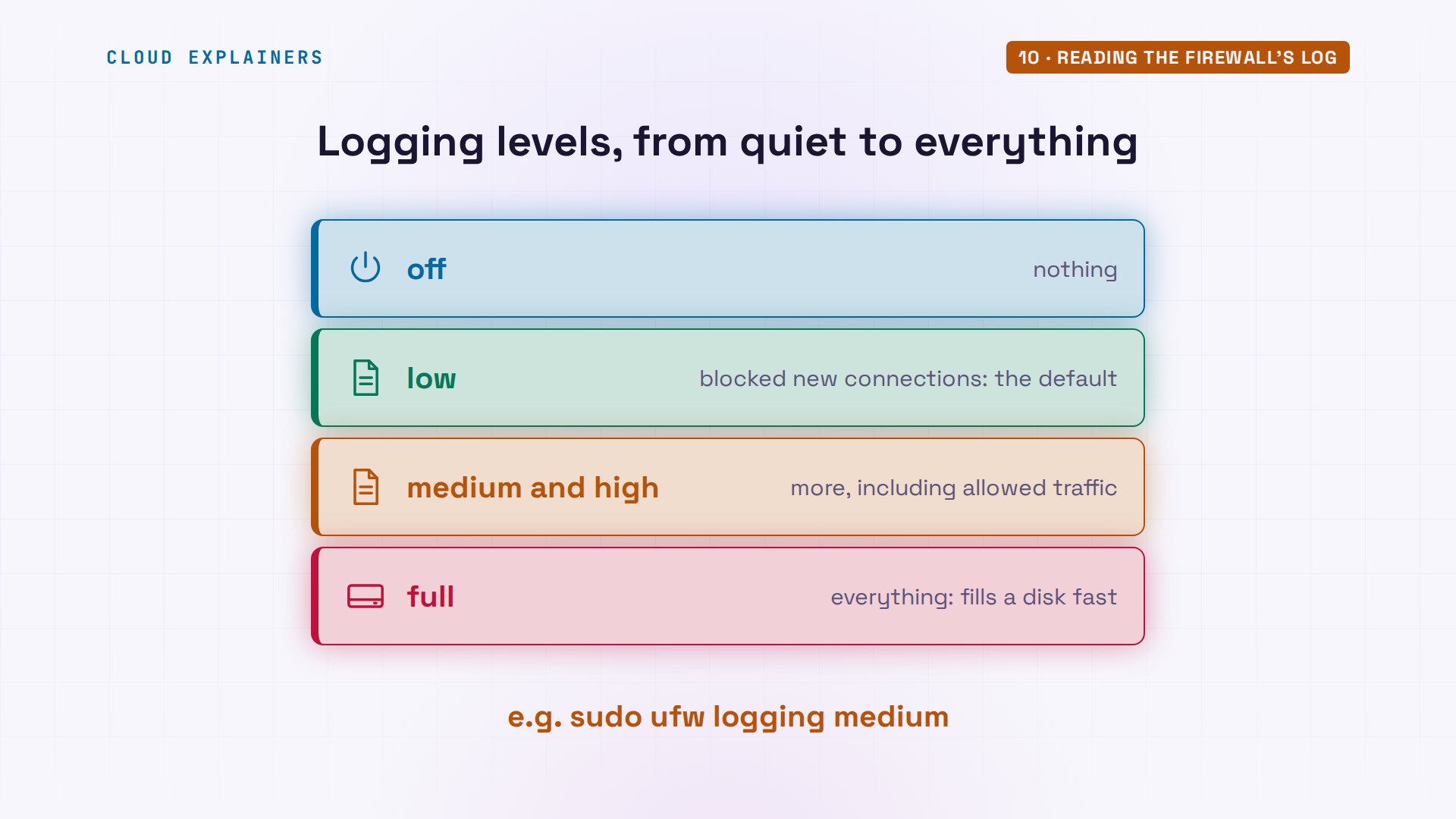
How much should it log? Low, the default, is usually enough. The higher levels add allowed traffic too, and on a busy server they fill the disk quickly. Change it with sudo ufw logging and a level.
Why every rule shows up twice
Why does nearly every rule show up twice, once with v6? A server can have two kinds of address: IPv4, like 203.0.113.10, and the newer IPv6. They're two separate roads in, and the kernel keeps a separate rule list for each. On Ubuntu, ufw covers both: its settings file says IPV6 equals yes. So one rule covers both roads: a deny or a limit protects the IPv6 road too, without a second command.
grep IPV6 /etc/default/ufwIPV6=yes
Outgoing rules
So far we've guarded the way in. But if a bad program ever ran on this server, what stops it sending data out? On a default setup, nothing. From the server, fetching a page from Ubuntu's package server works: 200. A locked-down server can deny outgoing too. Watch what that does. Default deny outgoing. The same request now times out. Now each place the server talks to needs its own rule. Beth allows out port 80 slash tcp, the port plain web addresses use, and it works again. That suits a server that talks to only a few places. Beth's talks to more than she can list, so she sets outgoing back to allow.
curl -sS -m 5 -o /dev/null -w '%{http_code}\n' http://archive.ubuntu.com/ubuntu/200
sudo ufw default deny outgoingDefault outgoing policy changed to 'deny'
(be sure to update your rules accordingly)
curl -sS -m 5 -o /dev/null -w '%{http_code}\n' http://archive.ubuntu.com/ubuntu/curl: (28) Connection timed out after 5010 milliseconds
000
sudo ufw allow out 80/tcpRule added
Rule added (v6)
curl -sS -m 5 -o /dev/null -w '%{http_code}\n' http://archive.ubuntu.com/ubuntu/200
sudo ufw default allow outgoingDefault outgoing policy changed to 'allow'
(be sure to update your rules accordingly)
Docker's published ports
Dave wants a parts catalog on the same server, and it comes as a Docker container: a packaged program with its own little network inside the server. Beth starts it, and dash p publishes the container's port 80 on the server's port 8080. There's no ufw rule for 8080: grep counts zero lines. So the phone should time out. It gets 200.
sudo docker run -d --name parts -p 8080:80 nginx:alpine56f8c6526c52d9d6e9f9cd5ef28da4817155ad4293382a599a9e571b55786d5f
sudo ufw status | grep -c 80800
curl -sS -m 10 -o /dev/null -w '%{http_code}\n' shop:8080200
Fine, then. If ufw doesn't know about 8080, tell it: sudo ufw deny 8080 slash tcp. Rule added, for IPv4 and IPv6. Now the list says no to 8080, in so many words. The phone asks again. What does it get? Guess first.
sudo ufw deny 8080/tcpRule added
Rule added (v6)
200 again. The deny rule is in the list, and the page loads anyway. docker ps shows how the port was published: on 0.0.0.0, every address the server has, internet side included.
curl -sS -m 10 -o /dev/null -w '%{http_code}\n' shop:8080200
sudo docker ps --format '{{.Names}} {{.Ports}}'parts 0.0.0.0:8080->80/tcp, [::]:8080->80/tcp
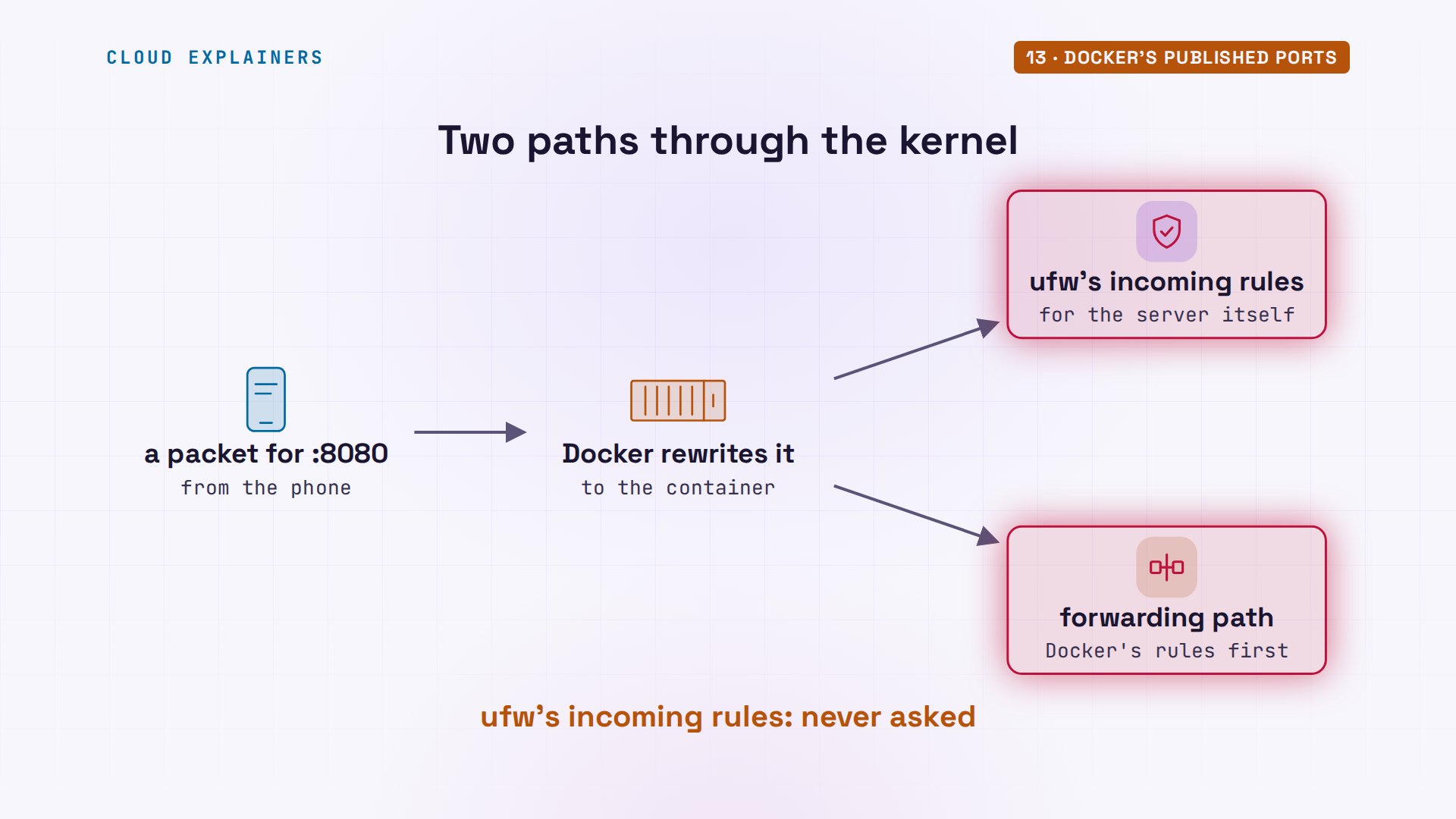
Why? A packet for a container isn't really for the server. As it arrives, Docker rewrites its destination to the container's own address, so the kernel sends it down a different path: forwarding, the routed traffic from the defaults. On that path, Docker's own rules come first, ahead of ufw's, and they let it through. ufw's incoming rules never see it.
You can see the order. iptables dash S FORWARD lists that path's rules from the top. Each named group of rules is called a chain: first Docker's two, DOCKER-USER and DOCKER-FORWARD, then ufw's.
sudo iptables -S FORWARD | head -4-P FORWARD DROP
-A FORWARD -j DOCKER-USER
-A FORWARD -j DOCKER-FORWARD
-A FORWARD -j ufw-before-logging-forward
Docker's own documentation is blunt about it: Docker and ufw are incompatible, and a published port's traffic is diverted before it reaches ufw's settings.
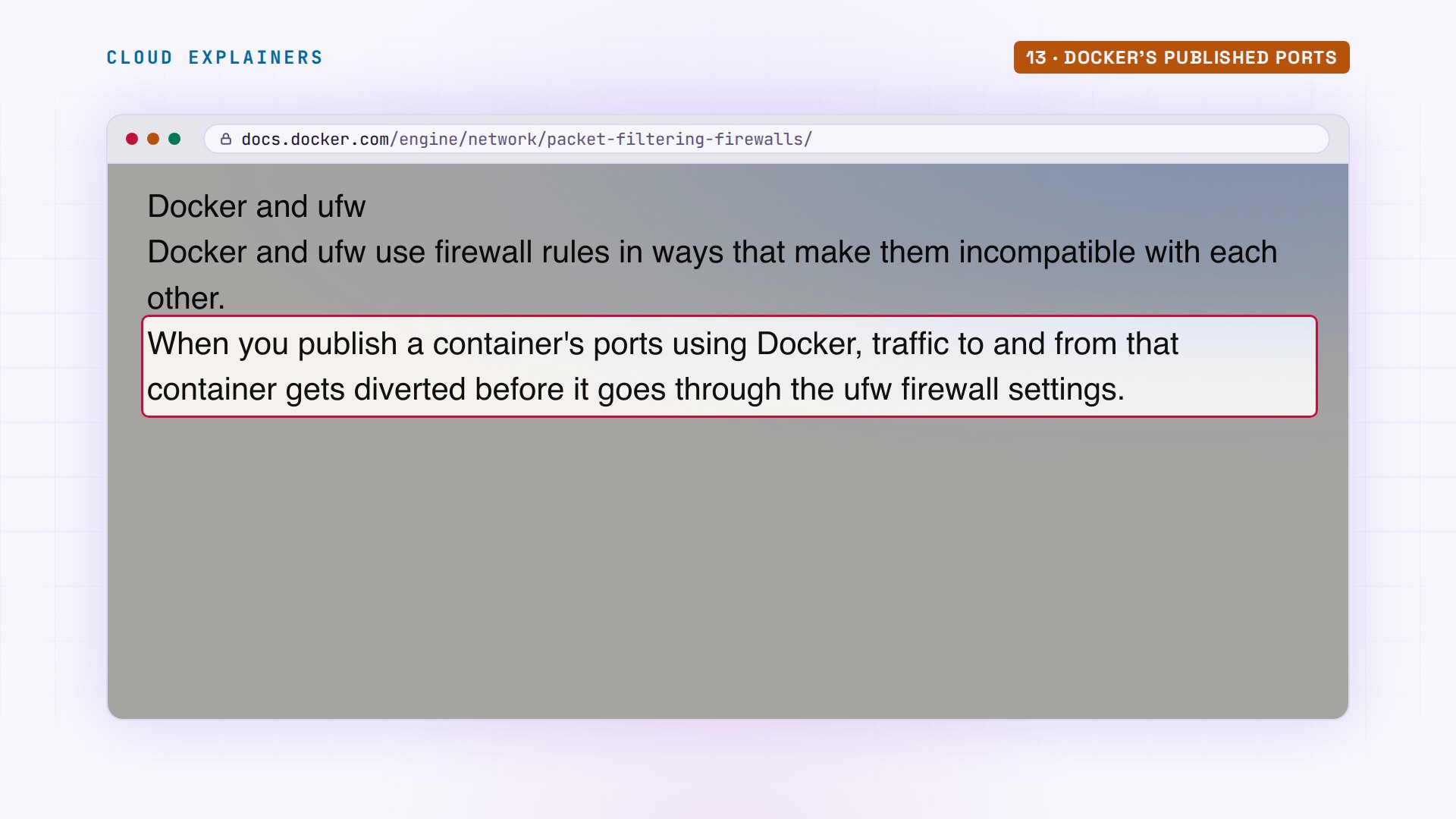
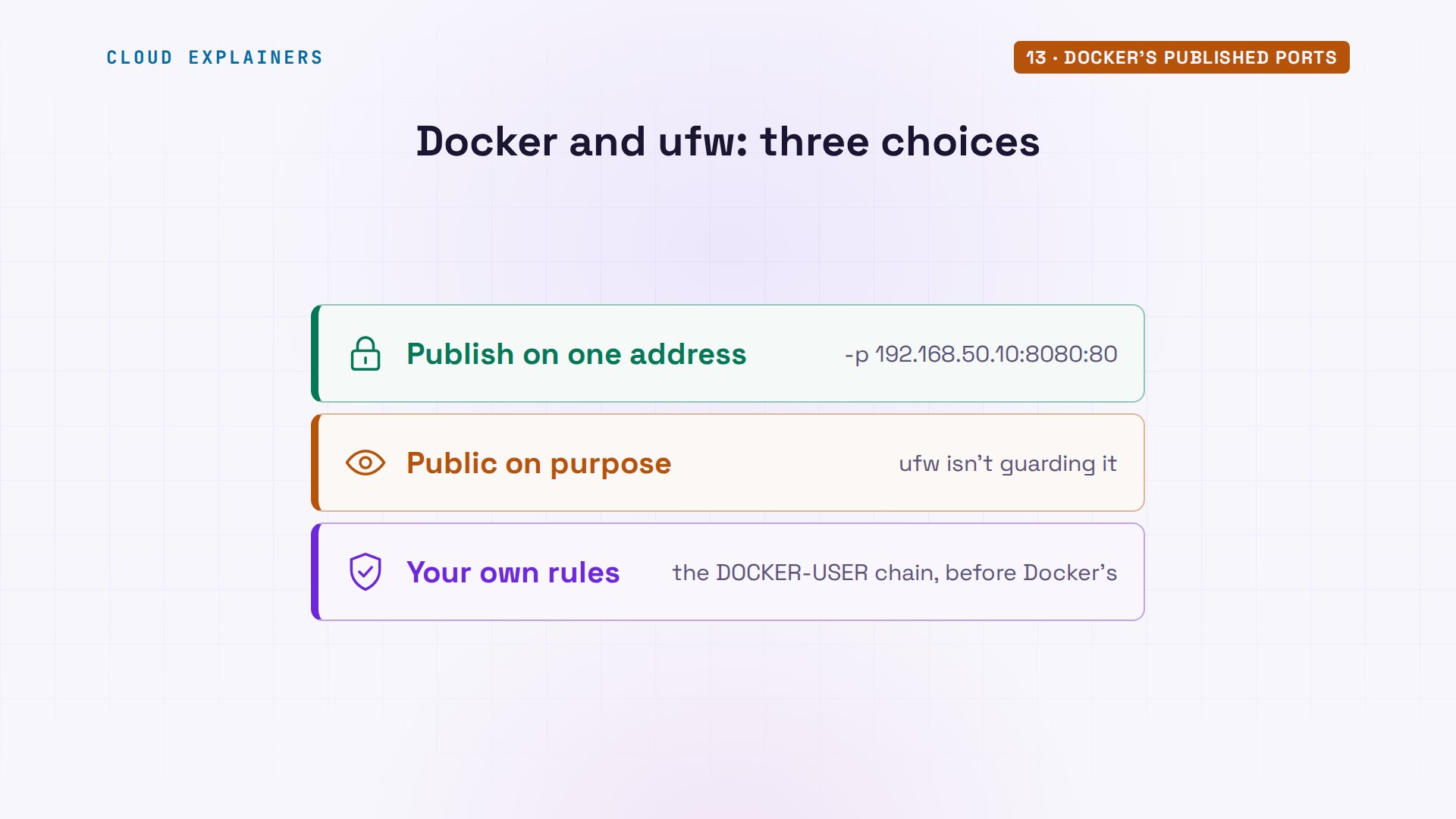
The fix most people need: publish the port only on the address that should reach it. Beth starts the catalog again on the shop network's address, 192.168.50.10. Dave's PC gets 200. The phone gets nothing, because nothing listens on 8080 on the internet side, and ufw's default deny drops the knock.
sudo docker rm -f partsparts
sudo docker run -d --name parts -p 192.168.50.10:8080:80 nginx:alpined5b62f5e5d72c7cd2023f61f73bddf736a6a3eaff05701c7708921603f5154ed
curl -sS -m 10 -o /dev/null -w '%{http_code}\n' shop:8080200
curl -sS -m 10 -o /dev/null -w '%{http_code}\n' shop:8080curl: (28) Connection timed out after 10012 milliseconds
000
That fix is the first of three choices. A port everyone may reach can stay published on every address: just remember ufw isn't guarding it. And for finer control, Docker reads rules you add yourself in its DOCKER-USER chain, which runs before its own.
Under the hood, and after a restart
Before we answer the question from the start, look at what ufw actually wrote into the kernel. Beth's own list: iptables dash S ufw-user-input. Port 22, with a counter of recent tries: that's limit. Port 80, accept. Port 5000, from the shop's network only, accept. Your short commands, in the kernel's own language.
sudo iptables -S ufw-user-input | head -6-N ufw-user-input
-A ufw-user-input -p tcp -m tcp --dport 22 -m conntrack --ctstate NEW -m recent --set --name DEFAULT --mask 255.255.255.255 --rsource -m comment --comment "\'dapp_OpenSSH\'"
-A ufw-user-input -p tcp -m tcp --dport 22 -m conntrack --ctstate NEW -m recent --update --seconds 30 --hitcount 6 --name DEFAULT --mask 255.255.255.255 --rsource -m comment --comment "\'dapp_OpenSSH\'" -j ufw-user-limit
-A ufw-user-input -p tcp -m tcp --dport 22 -m comment --comment "\'dapp_OpenSSH\'" -j ufw-user-limit-accept
-A ufw-user-input -p tcp -m tcp --dport 80 -m comment --comment "\'dapp_Nginx%20HTTP\'" -j ACCEPT
-A ufw-user-input -s 192.168.50.0/24 -p tcp -m tcp --dport 5000 -j ACCEPT
So, why did Beth's open session survive the moment the firewall came on? Before any of your rules, ufw adds this one: accept any connection that's already established. The guard only checks new arrivals. Her session was already inside the gate. Her next login was new, and met an empty list.
sudo iptables -S ufw-before-input | grep ESTABLISHED-A ufw-before-input -m conntrack --ctstate RELATED,ESTABLISHED -j ACCEPT
Do the rules survive a restart? They're saved in files under /etc/ufw. Change rules with the ufw command, not by editing those rule files, since one typo there can stop the firewall loading. And ufw.conf says enabled, yes. The server restarts. systemctl status shows ufw's service ran at boot, five seconds ago. Active, exited, is normal: it loads the rules into the kernel and finishes. And the whole list is back, limit included. The booking page answers 200.
grep ENABLED /etc/ufw/ufw.confENABLED=yes
systemctl status ufw --no-pager | head -4● ufw.service - Uncomplicated firewall
     Loaded: loaded (/usr/lib/systemd/system/ufw.service; enabled; preset: enabled)
     Active: active (exited) since Thu 2026-11-26 14:05:00 UTC; 5s ago
       Docs: man:ufw(8)
sudo ufw statusStatus: active

To                         Action      From
--                         ------      ----
OpenSSH                    LIMIT       Anywhere
Nginx HTTP                 ALLOW       Anywhere
5000/tcp                   ALLOW       192.168.50.0/24
5000/tcp                   REJECT      Anywhere
OpenSSH (v6)               LIMIT       Anywhere (v6)
Nginx HTTP (v6)            ALLOW       Anywhere (v6)
5000/tcp (v6)              REJECT      Anywhere (v6)
curl -sS -m 10 -o /dev/null -w '%{http_code}\n' shop200
Starting over, the safe way round
What if you got it wrong and want a clean start? sudo ufw reset turns the firewall off and removes every rule, after saving copies of the old files. Status: inactive.
sudo ufw resetResetting all rules to installed defaults. Proceed with operation (y|n)? y
Backing up 'user.rules' to '/etc/ufw/user.rules.20261126_140506'
Backing up 'before.rules' to '/etc/ufw/before.rules.20261126_140506'
Backing up 'after.rules' to '/etc/ufw/after.rules.20261126_140506'
Backing up 'user6.rules' to '/etc/ufw/user6.rules.20261126_140506'
Backing up 'before6.rules' to '/etc/ufw/before6.rules.20261126_140506'
Backing up 'after6.rules' to '/etc/ufw/after6.rules.20261126_140506'
sudo ufw statusStatus: inactive
This time Beth works from home, over SSH, like most of us do. With the firewall still off, she sets the default, then allows SSH, the booking page, and the bay screens from the shop's network. Rules updated, not added: the firewall is off, so they wait. Before switching it on, she checks: sudo ufw show added lists every rule that will load. The limit on SSH can go back on afterwards, the same way as before.
ssh shop
sudo ufw default deny incomingDefault incoming policy changed to 'deny'
(be sure to update your rules accordingly)
sudo ufw allow OpenSSHRules updated
Rules updated (v6)
sudo ufw allow 'Nginx HTTP'Rules updated
Rules updated (v6)
sudo ufw allow from 192.168.50.0/24 to any port 5000 proto tcpRules updated
sudo ufw show addedAdded user rules (see 'ufw status' for running firewall):
ufw allow OpenSSH
ufw allow 'Nginx HTTP'
ufw allow from 192.168.50.0/24 to any port 5000 proto tcp
Only now: sudo ufw enable. The same warning, the same yes. And this time she keeps that session open, and tests a new login from a second window. If the new login failed, the open session would still work, thanks to that established-connection rule, so she could fix it. It works: she's in. On the phone, the booking page: 200.
sudo ufw enableCommand may disrupt existing ssh connections. Proceed with operation (y|n)? y
Firewall is active and enabled on system startup
ssh shop
hostnameshop
curl -sS -m 10 -o /dev/null -w '%{http_code}\n' shop200
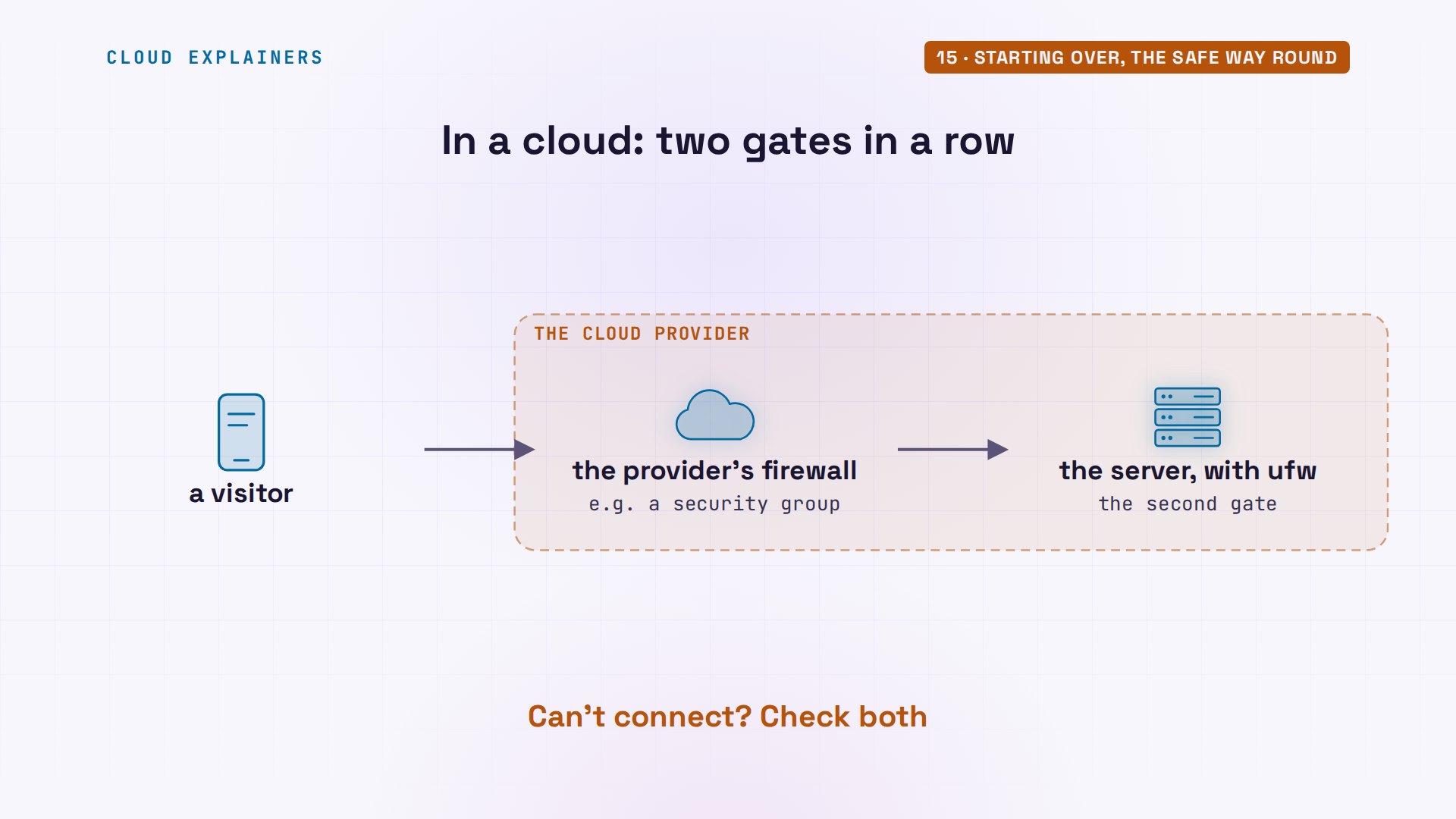
One more layer, if your server lives in a cloud. Most providers have a firewall of their own, in front of the server, often called a security group. A connection has to pass both. So when something can't connect, check the provider's rules as well as ufw's.
Recap
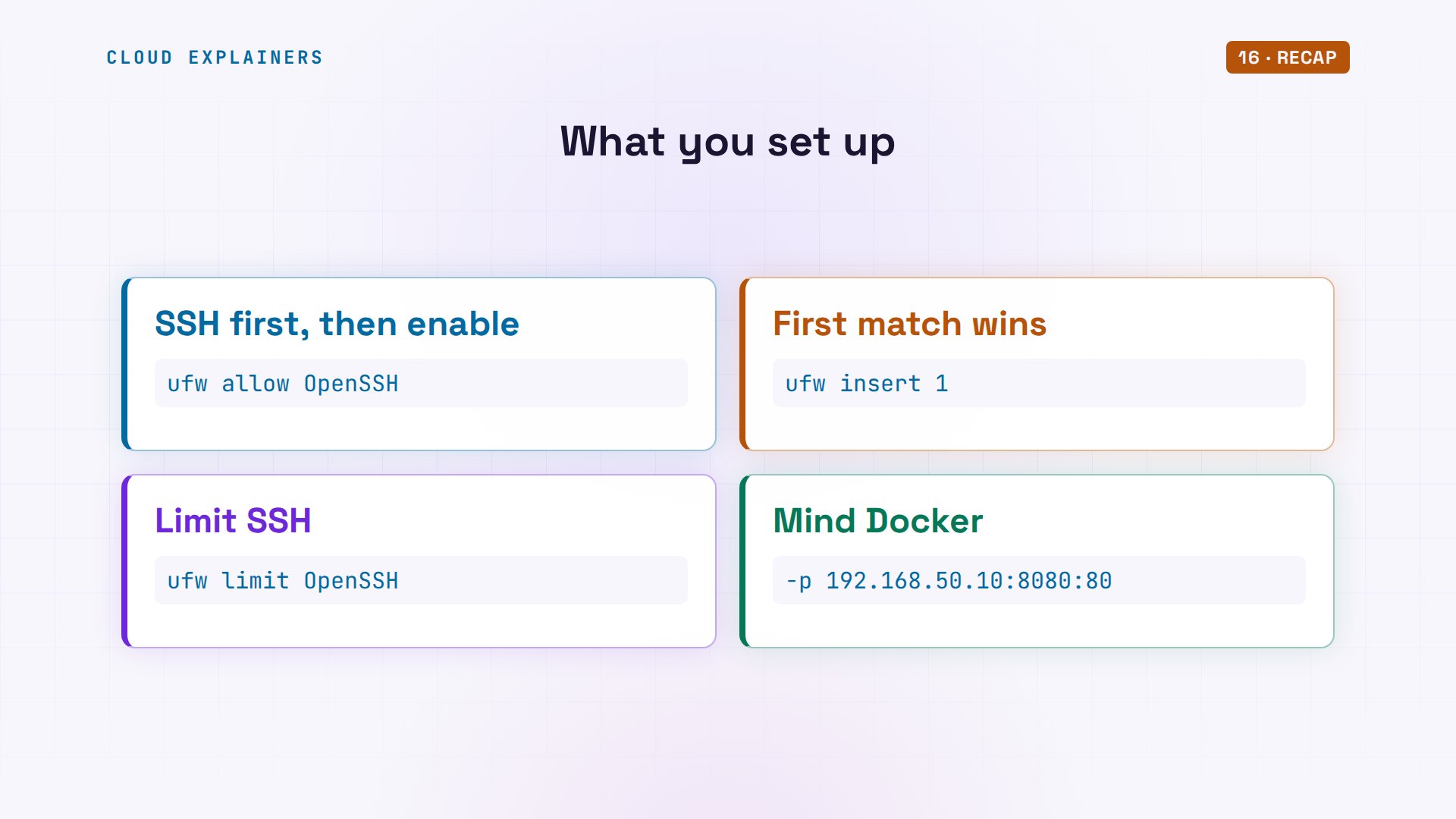
So: SSH first, then enable. First match wins. Limit SSH, and mind Docker.
If this saved you a drive to the server, subscribing brings the next tutorial, and a like helps YouTube show it to more beginners.
Every command from this video is linked in the description. Thanks for watching Cloud Explainers.
Sources
Demos: five containers on our own Mac standing in for a small shop's server, an office PC and machines on the internet; the shop, its people and addresses are made up (documentation address ranges). Every command, rule and result was real. Watch the full video on YouTube.
More videos

Every PostgreSQL Setting to Change After You Install It

What Happens When You Install Docker on Ubuntu

How to Fix Python 'Address Already in Use' Errors
Golang Interfaces and Mocks in 5 Minutes

How to Fix Git 'Detached HEAD' State
Golang defer Statements in 5 Minutes
How to Fix OAuth 'invalid_grant' Errors

The SQL Roadmap for Beginners
Golang make() for Slices and Maps in 5 Minutes
How to Fix Network 'No Route to Host' Errors on Linux

How to Fix Linux 'Too Many Open Files' Errors

Every Django Concept a Beginner Needs to Know
SSH on Linux: Full Tutorial for Beginners

Golang for range Loops in 5 Minutes

SQL Databases: SQLite vs PostgreSQL
The Django Roadmap for Beginners

Golang Structs in 5 Minutes

Redis: Full Tutorial for Beginners

Golang context.Context in 5 Minutes
How to Fix MySQL Database Error 1045: Access Denied for User

Golang Method Receivers in 5 Minutes
How to Fix Python SSL: CERTIFICATE_VERIFY_FAILED Errors

How to Fix Django Static Files Not Loading in Production

OpenRouter vs Direct API Keys: Which One Should You Use?
Golang if err != nil Checks in 5 Minutes

How to Fix Golang 'go.mod File Not Found' Errors

MCP Servers: Full Tutorial for Beginners

Golang Error Return Values in 5 Minutes

How to Fix Python ModuleNotFoundError: No Module Named
Golang Pointers in 5 Minutes
How to Fix a Kubernetes Pod Stuck in CrashLoopBackOff
How to Fix a Homelab ESXi Host Not Responding
PostgreSQL: Full Tutorial for Beginners
How a Load Balancer Works with HAProxy

How Python Virtual Environments Work
How to Fix Cloudflare Tunnel Errors in a Homelab
How to Fix API CORS Errors: No 'Access-Control-Allow-Origin'
How Authenticator App Login Codes Work (TOTP)

Git and GitHub: Full Tutorial for Beginners
How a Homelab Hypervisor Works (VMware ESXi)
How to Fix Kubernetes ImagePullBackOff Errors

How to Fix DNS 'Temporary Failure in Name Resolution' on Linux
How to Fix AWS CLI 'Unable to Locate Credentials'
Proxmox vs ESXi for Your Homelab: When Each One Wins
PostgreSQL UUID vs Auto Increment: Which Primary Key Should You Use?
Kubernetes: Full Tutorial for Beginners

How TCP Sockets Work

How to Fix PostgreSQL 'Could Not Connect to Server'
Claude Code Hooks Will Finally Make Sense After This
DevOps with Ansible Will Finally Make Sense After This
How SNMP Network Monitoring Works
How to Fix GitHub 'Permission Denied (publickey)' Errors

Docker: Full Tutorial for Beginners
How to Fix PostgreSQL 'Password Authentication Failed'
Why One Linux Server Handles More Users Than You Think

How to Fix Network 'Connection Refused' Errors
DevOps Pipelines: Jenkins vs GitHub Actions
Linux Nginx Reverse Proxy: Full Tutorial for Beginners
Every Networking Term a Beginner Needs in 12 Minutes
How to Fix Docker 'Permission Denied' on docker.sock

How to Fix Git 'Updates Were Rejected' When You Push
How to Fix nginx 502 Bad Gateway Errors on Linux

How to Fix Linux apt 'Could Not Get Lock' Errors (Ubuntu)

How Email Works on the Internet (SMTP) in 10 Minutes

The Python Roadmap for Beginners

Golang REST API with Gin: Full Tutorial for Beginners
How a WireGuard VPN Network Works

Linux Makefiles Will Finally Make Sense After This

SAML vs OAuth vs OpenID Connect: What's the Difference?

How to Fix Python cron Jobs That Never Run
Linux Bash Scripting: Full Tutorial for Beginners
How PXE Network Boot Works

How Active Directory Works

How to Fix a Linux systemd Service That Won't Start
Linux Logs: syslog vs journald
JWT vs Session Cookies: Which One Should You Use?
Docker vs Docker Compose: Which One Should You Use?
How to Fix Docker Compose Containers That Can't Talk to Each Other

Django Full Tutorial for Beginners

How Linux systemd Works

How to Fix 'Windows Cannot Access' Network Share Errors (SMB)
REST vs gRPC: Which One Should You Use?
How to Fix SSL Certificate Chain Errors (Missing Intermediate)

Every Python Concept for Beginners in 10 Minutes
Every SQL Join Type in 10 Minutes

Why OpenRouter Free Models Hit Their Limit So Fast
Why Your Gemini API Free Tier Runs Out So Fast

OpenRouter Will Finally Make Sense After This
How Redis Caching Works
Gemini API vs Vertex AI: Which One Should You Use?
How to Fix a Leaked Gemini API Key
Why Golang Uses Goroutines Instead of Threads

How to Fix Gemini API Error 429: Resource Exhausted

Claude Token Pricing Will Finally Make Sense After This
Why Python Web Scraping Returns Nothing (and the Fix)
Python uv vs pip: Which One Should You Use?

Python Automation: Full Tutorial for Beginners
How OAuth Login Works

Google AI Studio Will Finally Make Sense After This
What Happens When You Run a Docker Container
How to Fix Claude Code Billing Your API Key Instead of Your Plan
Why Passkeys Can't Be Phished Like Passwords
PowerShell vs Bash: Which One Should You Learn?

The Linux Roadmap for Beginners
Django vs FastAPI: Which One Should You Use?

Why SQLite Is the Most Used Database in the World
How a NoSQL Database Like MongoDB Works

How to Fix Python pip error: externally-managed-environment
How to Fix MySQL Too Many Connections Database Errors
Golang Concurrency Will Finally Make Sense After This
How Amazon S3 Works
How Kubernetes Works

How Git Works
How to Fix Docker Port Already Allocated Errors
How PostgreSQL Works
How to Fix Git Merge Conflicts

How to Fix No Space Left on Device in Linux
How the Internet Works
SQL vs NoSQL: When Each One Wins
How to Fix JWT Token Expired Errors (401 Unauthorized)
Claude API vs Claude Pro: Why Your Subscription Doesn't Include It

Why AI Agent Skills Beat Giant Prompts

Linux Cron Jobs Will Finally Make Sense After This

Security Logs Will Finally Make Sense After This

How to Fix a Security Leak: An API Key Pushed to GitHub
DNS Will Finally Make Sense After This
Never Ignore a Security Update
Two-Factor Authentication Will Finally Make Sense
Never Expose a Database to the Internet
SSH Keys vs Passwords: Which Is Safer for Security?

The 5 Levels of Linux Boot: From Power On to Login
The 5 Levels of Network Firewalls
Password Security: Why Hackers Crack Weak Passwords
Why Your Linux Server Runs Out of Memory
HTTP vs HTTPS: What Actually Changes on Your Network

Every Linux File Permission You Need to Know
Linux Processes vs Threads: When Each One Wins

The OSI Model Will Finally Make Sense After This

The 7 Levels of Git
Every Network Troubleshooting Command You Need
Hashing vs Encryption in Cybersecurity: When Each One Wins
Why the Internet Ran Out of IP Addresses
Linux Package Managers: apt vs Snap vs Flatpak

Why Python Is Slow (and When It Doesn't Matter)
TCP vs UDP: When Each One Wins
Stop Running Linux as Root (Do This Instead)
Linux Users and Groups Will Finally Make Sense

Why Phishing Beats Good Security (and How to Spot It)

The 7 Levels of Docker

AI Agents Will Finally Make Sense After This

Stop Using git push --force (Use This Instead)
Agent Skills vs MCP: When Each One Wins

Networking Will Finally Make Sense After This

Every Linux Command You Actually Need
The 7 Levels of Cybersecurity
Every System Design Concept You Need, in One Diagram