How to Fix a Homelab ESXi Host Not Responding
Your ESXi host answers ping but its web page won't load, or it stops answering altogether. We broke a real ESXi 8 host five ways and fixed each: a frozen host agent (status still says running; restarting hostd brought the page back in about 17 seconds while the VMs kept running), a stopped agent ('no healthy upstream'), a new DHCP address after a power cut, an unplugged management cable, and a purple screen that took the VMs down with it.
Ping works, the page doesn't
Your ESXi host answers every ping, but its web page just keeps loading, or vCenter marks it Not Responding. Here's Ana's host, at a small architecture firm: ten pings, ten answers. Then she asks for the host's page with curl, a command that fetches web pages. After 200 seconds: still nothing.
ping -c 10 192.168.1.71PING 192.168.1.71 (192.168.1.71) 56(84) bytes of data.
64 bytes from 192.168.1.71: icmp_seq=1 ttl=63 time=8.23 ms
64 bytes from 192.168.1.71: icmp_seq=2 ttl=63 time=8.66 ms
64 bytes from 192.168.1.71: icmp_seq=3 ttl=63 time=8.81 ms
64 bytes from 192.168.1.71: icmp_seq=4 ttl=63 time=10.1 ms
64 bytes from 192.168.1.71: icmp_seq=5 ttl=63 time=12.8 ms
64 bytes from 192.168.1.71: icmp_seq=6 ttl=63 time=6.95 ms
64 bytes from 192.168.1.71: icmp_seq=7 ttl=63 time=11.8 ms
64 bytes from 192.168.1.71: icmp_seq=8 ttl=63 time=12.8 ms
64 bytes from 192.168.1.71: icmp_seq=9 ttl=63 time=9.03 ms
64 bytes from 192.168.1.71: icmp_seq=10 ttl=63 time=12.5 ms

--- 192.168.1.71 ping statistics ---
10 packets transmitted, 10 received, 0% packet loss, time 9084ms
rtt min/avg/max/mdev = 6.947/10.167/12.821/2.036 ms
curl -skS -o /dev/null -w '%{http_code} after %{time_total}s\n' https://192.168.1.71/ui/ --max-time 200000 after 200.001316s
curl: (28) Operation timed out after 200001 milliseconds with 0 bytes received
But the firm's website, a VM on that same host, answers at once. Everything on the host is working, except the part that would tell you so. One command fixes it. And if ping fails too, or your VMs go down, we cover those after.
curl -s http://192.168.1.73/ | grep -o '<h1>.*</h1>'<h1>Linden Architects</h1>
The host agent
Ana signs in to the host with SSH, a remote command line, which doesn't need the web page. Then she checks hostd, the host agent: the service behind that page, and behind every management command. What do you think its status says? Running. hostd isn't stopped; it's frozen. The process is there; it just answers nothing. Even vim-cmd and esxcli, ESXi's own commands, ask hostd, so they hang too.
[root@office-esxi:~] /etc/init.d/hostd statushostd is running.
The usual fix is one command: restart hostd. It stops the frozen process and starts a fresh one. About 17 seconds later, the page answers again, and the website never noticed. No SSH? Plug a monitor and keyboard into the host, press F2 and sign in. Under Troubleshooting Options, choose Restart Management Agents: it restarts hostd and the agents around it.
[root@office-esxi:~] /etc/init.d/hostd restarthostd stopped.
hostd started.
curl -skS -o /dev/null -w '%{http_code} after %{time_total}s\n' https://192.168.1.71/ui/200 after 0.041166s
curl -s http://192.168.1.73/ | grep -o '<h1>.*</h1>'<h1>Linden Architects</h1>
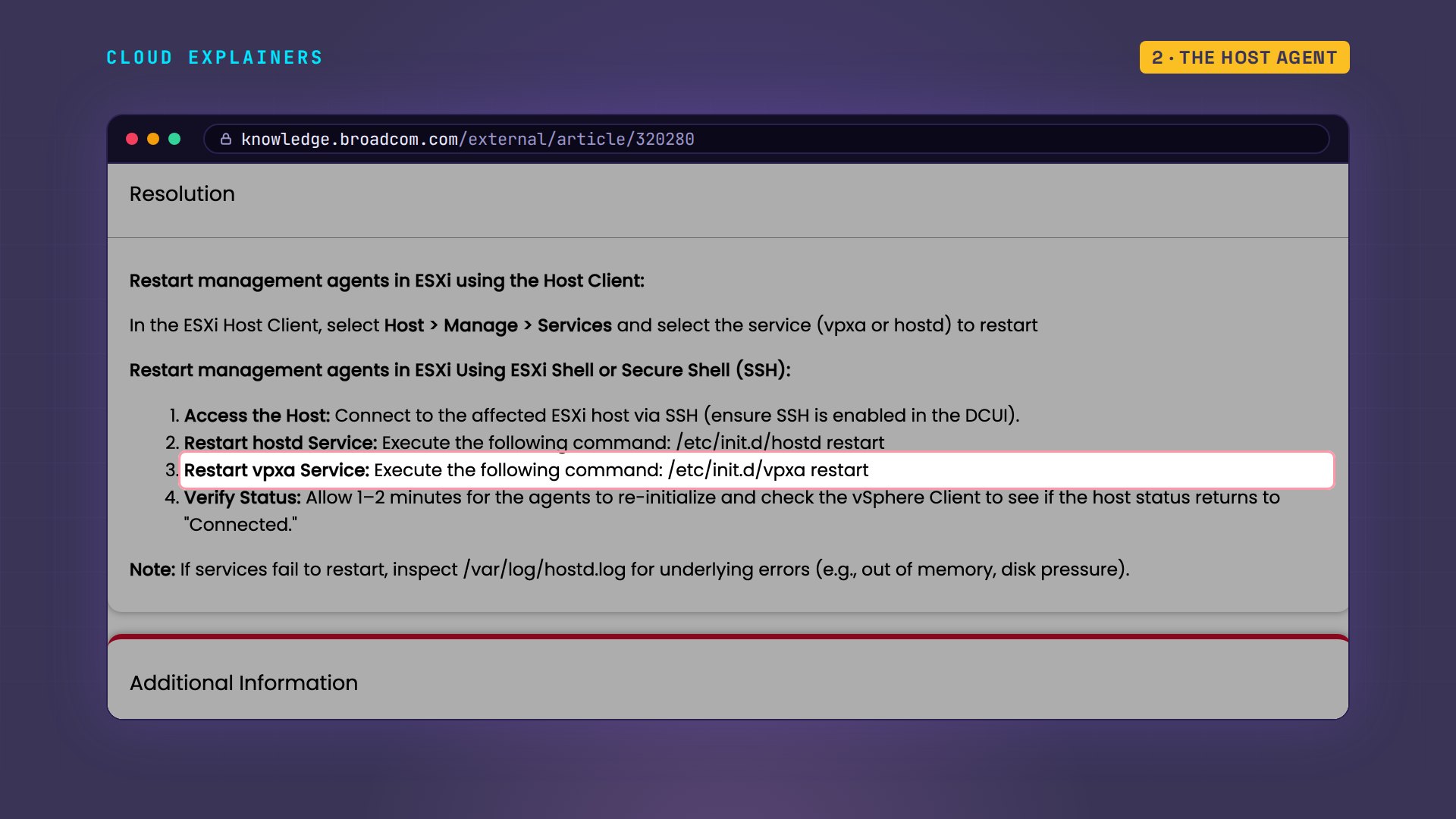
That's the procedure in Broadcom's knowledge base; Broadcom owns VMware now. Restart hostd. If you use vCenter, VMware's tool for managing many hosts, it talks to each host through a second agent, called vpxa. When vCenter shows your host as Not Responding, it stopped hearing from vpxa, so restart that one too: the same command, with vpxa in place of hostd.
What answers you
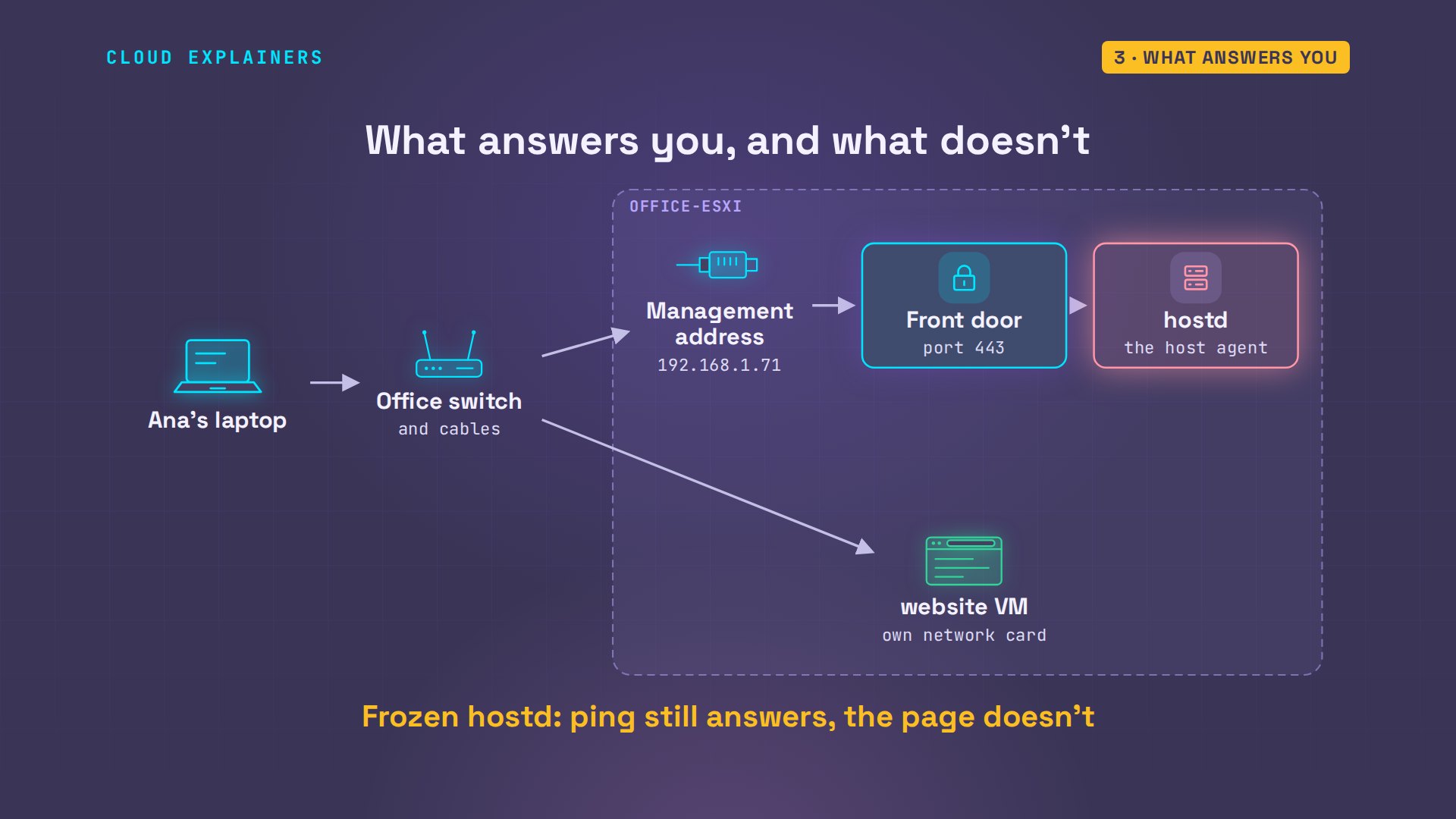
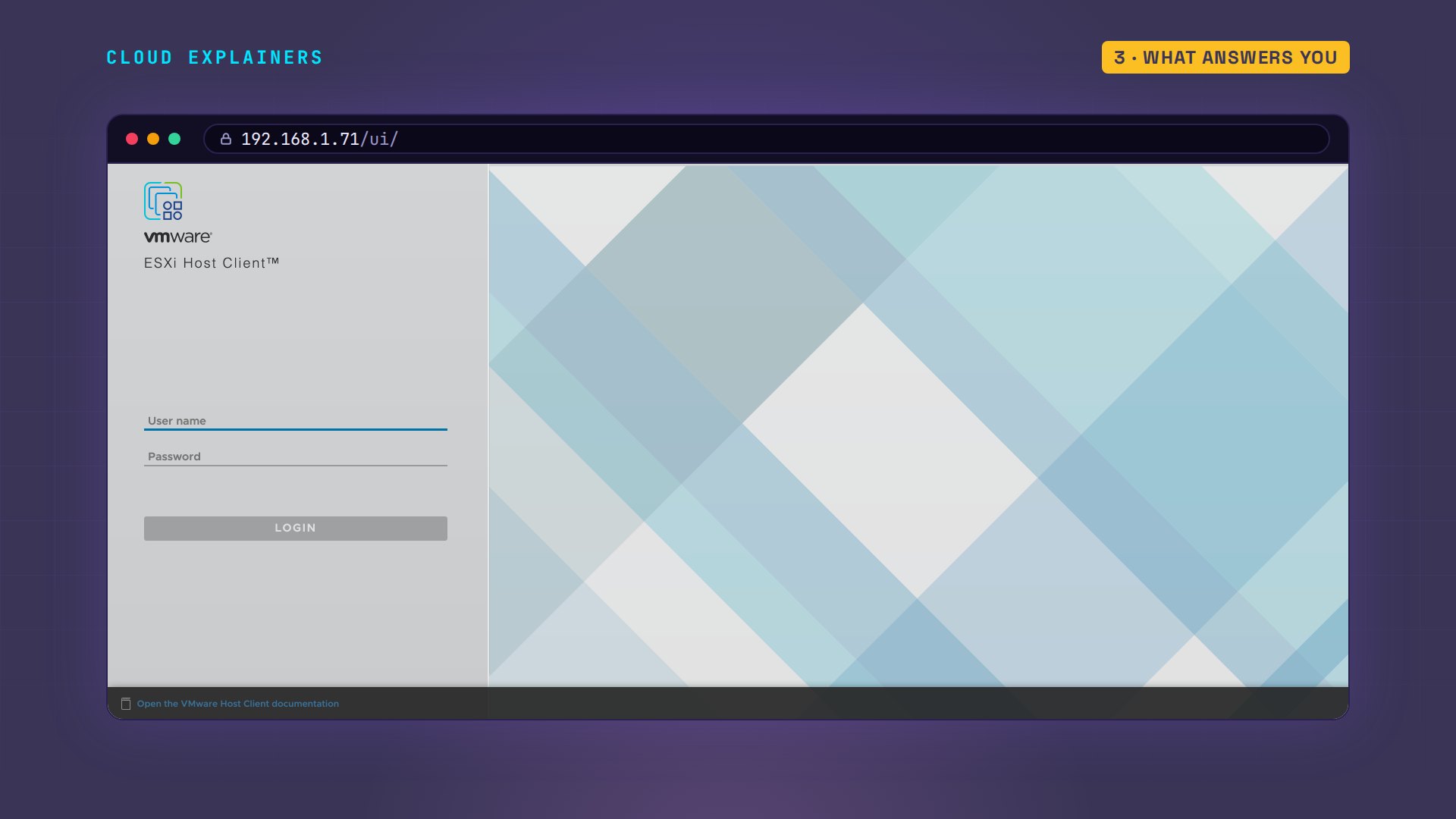
So why did ping still answer? Follow the path from Ana's laptop: the office switch, then the host's management address. A ping stops there: the ESXi kernel, the core that runs everything else, answers it itself. The page goes further, through a front door that takes web traffic on port 443, to hostd, which builds every page and runs every command. When hostd froze, only that last step broke. And the VMs need none of it: the kernel runs them, and in Ana's host they even have their own network card.
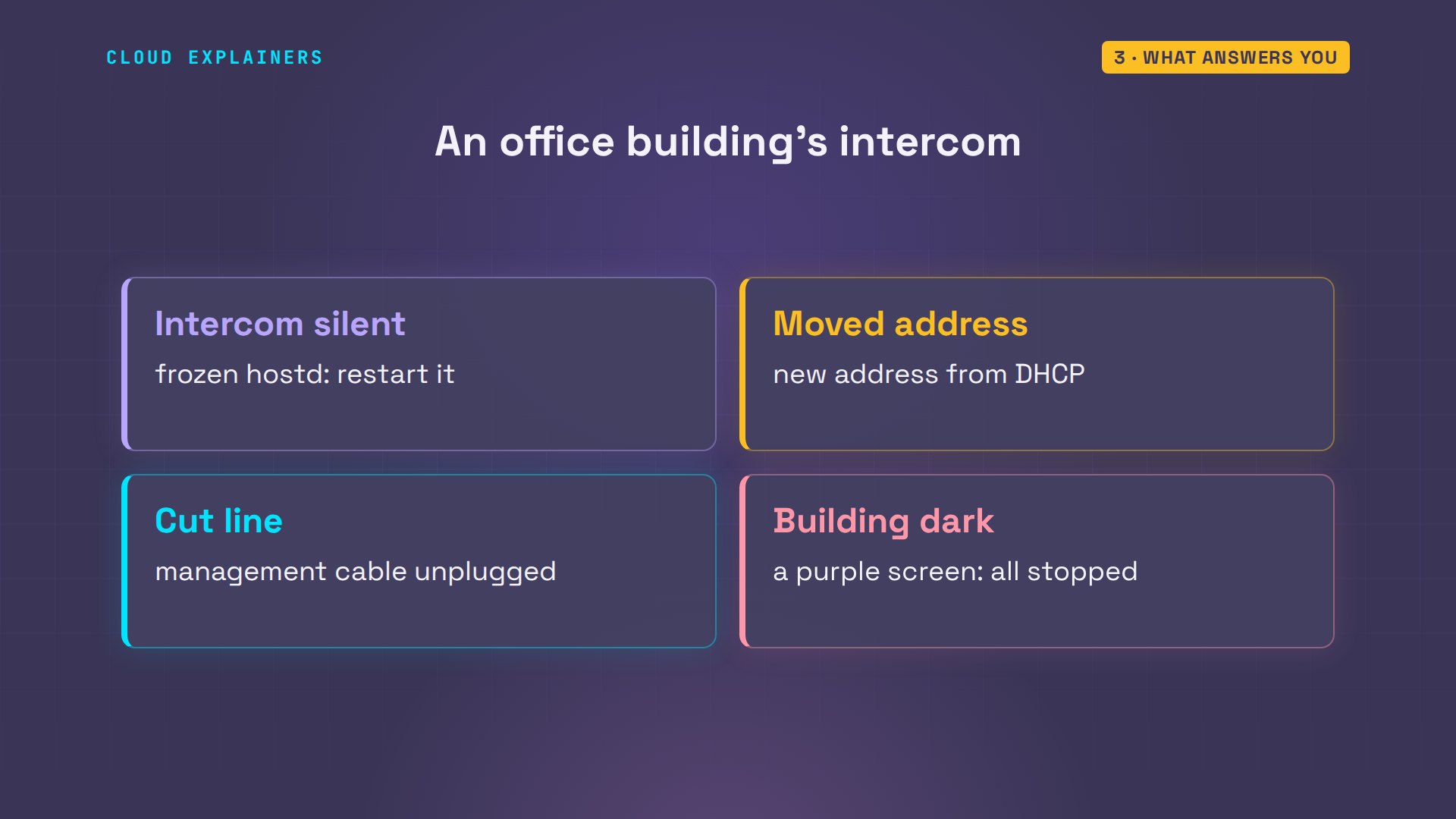
Picture an office building's intercom. You press the buzzer, and nobody answers. The lights are on, and people are working inside. The building is fine; the intercom isn't. The other three failures are different: the office moved to a new address, the line to the intercom was cut, or, rarely, the whole building went dark.
If hostd isn't running at all, the page fails fast, with an error that says: no healthy upstream. That means the front door answered, but nobody was behind it. A crash usually fixes itself. ESXi has a watchdog, a helper that restarts services that die. When Ana killed hostd on purpose, to test it, the watchdog started a new one in under a second. A freeze lasts, because the process is still there: Ana's was still frozen four minutes later, until she restarted it.
No ping: a new address
What if ping fails too? After a power cut at the firm, Ana's ping gets nothing back, and the page can't even connect. But the website answers, so the host itself is up.
ping -c 3 192.168.1.71PING 192.168.1.71 (192.168.1.71) 56(84) bytes of data.

--- 192.168.1.71 ping statistics ---
3 packets transmitted, 0 received, 100% packet loss, time 2061ms
curl -skS -o /dev/null -w '%{http_code} after %{time_total}s\n' https://192.168.1.71/ui/ --max-time 20000 after 12.243387s
curl: (7) Failed to connect to 192.168.1.71 port 443 after 12243 ms: Could not connect to server
curl -s http://192.168.1.73/ | grep -o '<h1>.*</h1>'<h1>Linden Architects</h1>
When the network can't tell you, plug a monitor into the host and look at its own screen. It shows the host's management address: 192.168.1.247. A fresh ESXi install gets its address from DHCP, which means the router hands one out automatically. After the power cut, the router handed out a different one. Like an office that moved, its intercom has a new number, and Ana's bookmark still points at the old one.
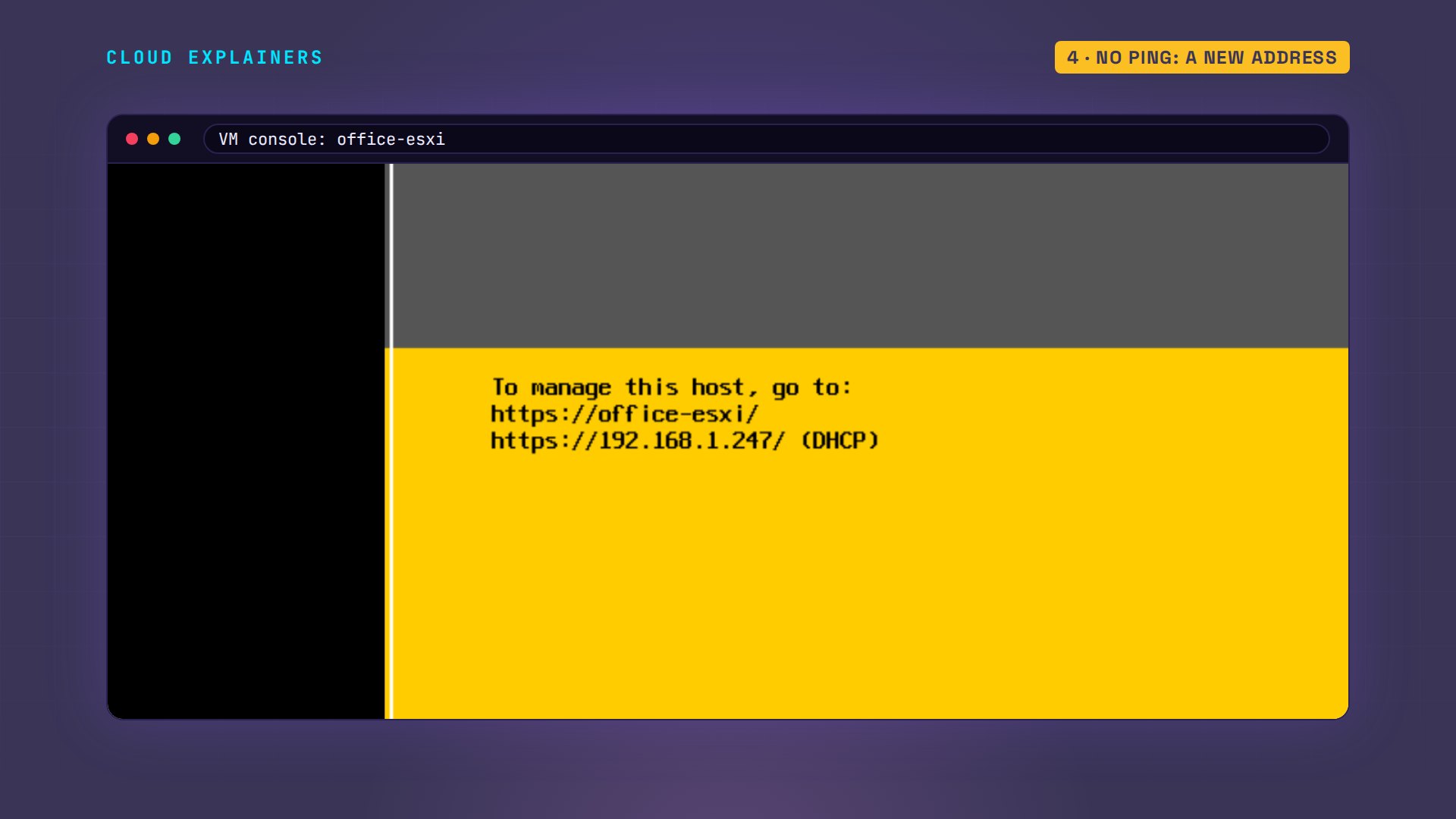
So Ana connects with SSH to the new address, and runs one esxcli command: set the management address back to 192.168.1.71, as a fixed, static address. It prints nothing, and the host moves at once, so her SSH connection to the new address stops working. That's expected. She reconnects at the old address: it now says static, and the page loads. The console menu can do the same, or you keep DHCP and tell your router to always give the host this address. Either way, save the change with auto-backup.sh; we'll see why near the end.
[root@office-esxi:~] esxcli network ip interface ipv4 set -i vmk0 -t static -I 192.168.1.71 -N 255.255.255.0 -g 192.168.1.1
[root@office-esxi:~] esxcli network ip interface ipv4 getName  IPv4 Address  IPv4 Netmask   IPv4 Broadcast  Address Type  Gateway      DHCP DNS
----  ------------  -------------  --------------  ------------  -----------  --------
vmk0  192.168.1.71  255.255.255.0  192.168.1.255   STATIC        192.168.1.1     false
curl -skS -o /dev/null -w '%{http_code} after %{time_total}s\n' https://192.168.1.71/ui/200 after 0.026613s
Right address, still silent
Another day, ping fails again. But this time the host's screen shows the right address, static, just as Ana set it. So what's broken now?
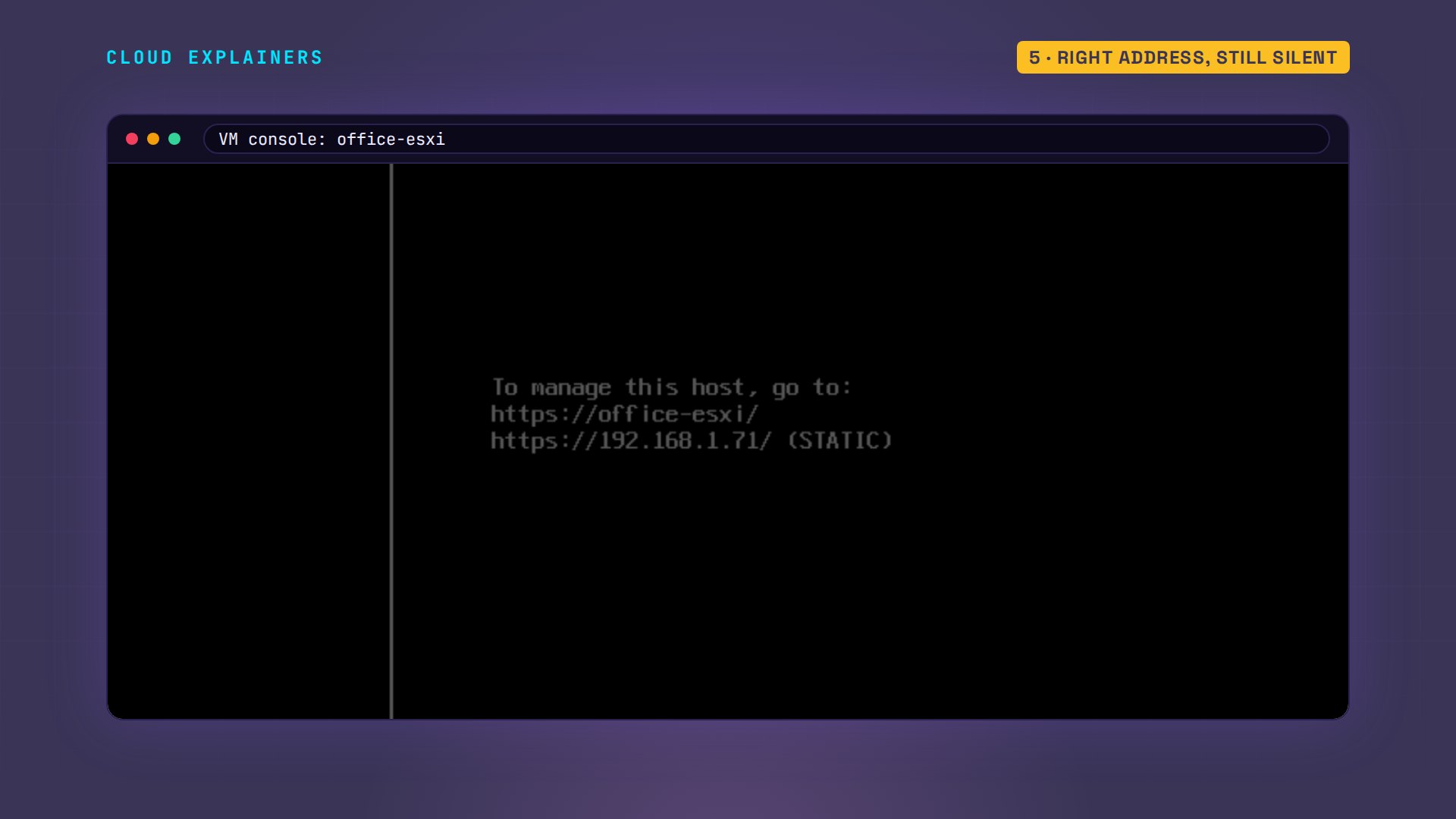
The website still answers. So the host is up and the address is right: the path to it is broken. Ana's host has two network cards, one for managing ESXi and one for the VMs, and only the management one lost its link.
ping -c 3 192.168.1.71PING 192.168.1.71 (192.168.1.71) 56(84) bytes of data.

--- 192.168.1.71 ping statistics ---
3 packets transmitted, 0 received, 100% packet loss, time 2078ms
curl -s http://192.168.1.73/ | grep -o '<h1>.*</h1>'<h1>Linden Architects</h1>
So check the cable and the switch port. Ana finds the management cable pulled out of the switch, and plugs it back in. To confirm, she checks the host's event log, vobd.log. vmnic0, its first network port, went down. The host lost its management network. Then the link came back up when she plugged it in. Give management a second cable on a second port, and one pulled cable can't lock you out.
[root@office-esxi:~] grep -E 'linkstate|connectivity' /var/log/vobd.log | tail -42026-11-21T14:35:03.520Z [vob.net.vmnic.linkstate.down] vmnic vmnic0 linkstate down
2026-11-21T14:35:05.001Z [esx.problem.net.connectivity.lost] Lost network connectivity on virtual switch "vSwitch0". Physical NIC vmnic0 is down. Affected port groups: "Management Network"
2026-11-21T14:35:43.753Z [vob.net.vmnic.linkstate.up] vmnic vmnic0 linkstate up
2026-11-21T14:35:45.000Z [esx.clear.net.connectivity.restored] Network connectivity restored on virtual switch "vSwitch0", portgroups: "Management Network". Physical NIC vmnic0 is up
The rare one
Now the rare one. Ping fails. Does the website still answer this time? No. The VMs are down too, so it isn't just the management side.
ping -c 3 192.168.1.71PING 192.168.1.71 (192.168.1.71) 56(84) bytes of data.

--- 192.168.1.71 ping statistics ---
3 packets transmitted, 0 received, 100% packet loss, time 2076ms
curl -sS --max-time 10 http://192.168.1.73/ | grep -o '<h1>.*</h1>'curl: (28) Connection timed out after 10007 milliseconds
The host's screen is purple. We caused this one on purpose, with a test command. Broadcom calls it a purple diagnostic screen: the kernel hit an error and stopped everything. The first lines name the error, so take a photo before you restart, because a restart clears the screen. A host stuck like this won't shut down: hold its power button. And if purple screens keep coming back, look up that first line, and test the hardware, starting with the memory.
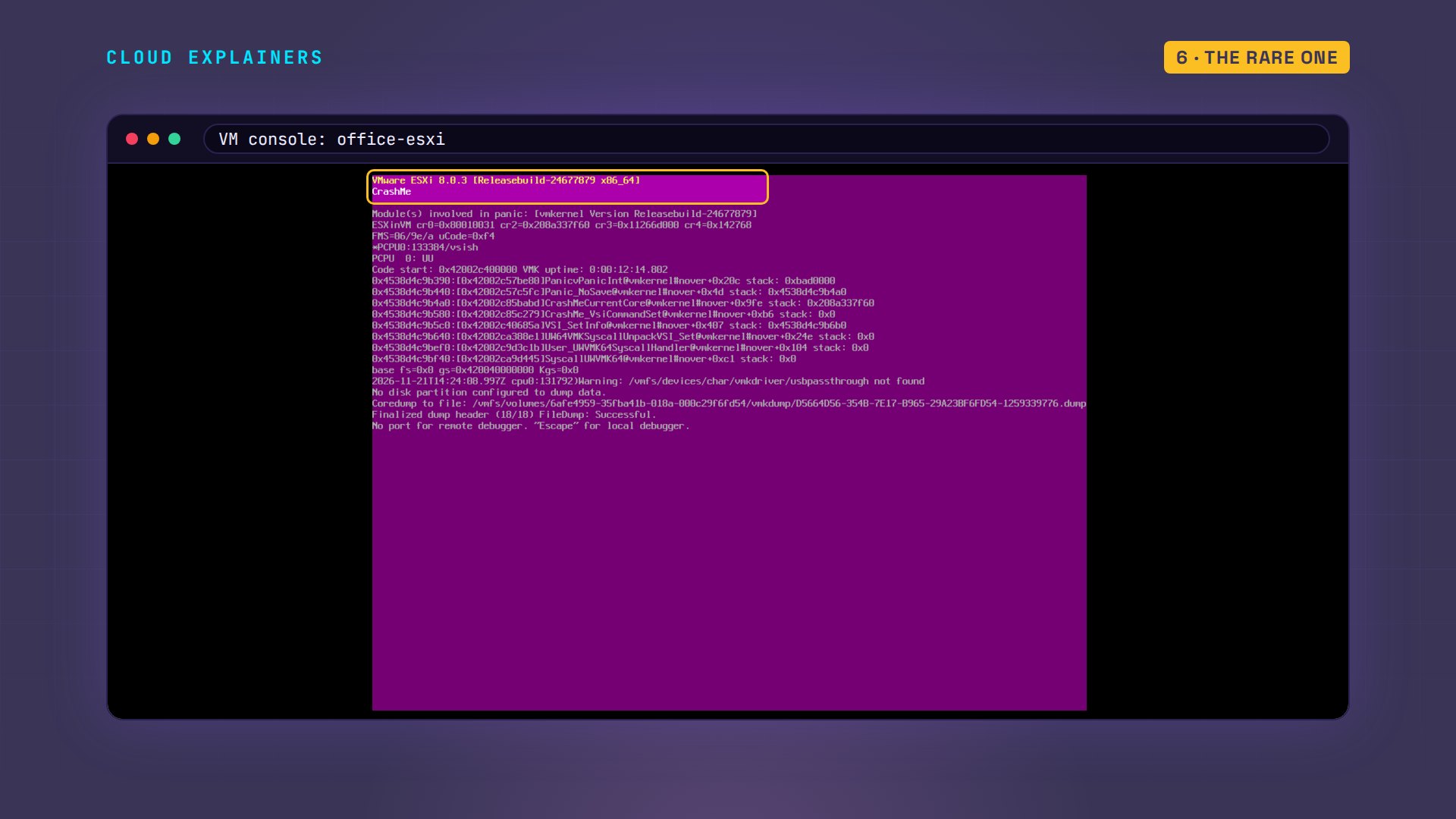
After the restart, the event log shows an unread core dump: a record of the crash that support will ask for. Then Ana lists her VMs with vim-cmd, ESXi's command for VMs. The website is number 15, and it's powered off. A host that comes back doesn't start its VMs unless you tell it to.
[root@office-esxi:~] grep -E 'coredump|crash' /var/log/vobd.log | tail -22026-11-21T14:37:19.926Z [esx.problem.host.coredump] An unread host kernel core dump has been found.
2026-11-21T14:37:19.937Z [esx.audit.host.crash.reason.unavailable] Host experienced a crash. More details will be available in the generated vmkernel-zdump.
[root@office-esxi:~] vim-cmd vmsvc/getallvmsVmid    Name                   File                      Guest OS         Version   Annotation
15     website   [datastore1] website/website.vmx   other5xLinux64Guest   vmx-21
[root@office-esxi:~] vim-cmd vmsvc/power.getstate 15Retrieved runtime info
Powered off
So Ana turns on autostart, and puts the website VM first in line. The 10 is how long ESXi waits after starting it, before it starts the next VM. The rest of that command keeps ESXi's default settings.
[root@office-esxi:~] vim-cmd hostsvc/autostartmanager/enable_autostart trueEnabled AutoStart
[root@office-esxi:~] vim-cmd hostsvc/autostartmanager/update_autostartentry 15 powerOn 10 1 systemDefault systemDefault systemDefault1Updated AutoStart order.
Then the step that catches people out. ESXi copies its settings to the boot disk once an hour, at one minute past. On her first try, the power went out before that save, and when the host came back, the autostart setting was gone. So this time she runs auto-backup.sh, which saves them right away. The fixed address from earlier waited for this save too, so run it after every change.
[root@office-esxi:~] grep auto-backup /var/spool/cron/crontabs/root1 * * * * /sbin/auto-backup.sh ++group=host/vim/vmvisor/auto-backup.sh
[root@office-esxi:~] /sbin/auto-backup.sh >/dev/null 2>&1; ls -l /bootbank/state.tgz-rwx------ 1 root root 266971 Nov 21 14:37 /bootbank/state.tgz
Then she pulls the power once more. Her laptop asks for the website's page again: it's back on its own, 46 seconds later.
curl -s http://192.168.1.73/ | grep -o '<h1>.*</h1>'<h1>Linden Architects</h1>
Recap
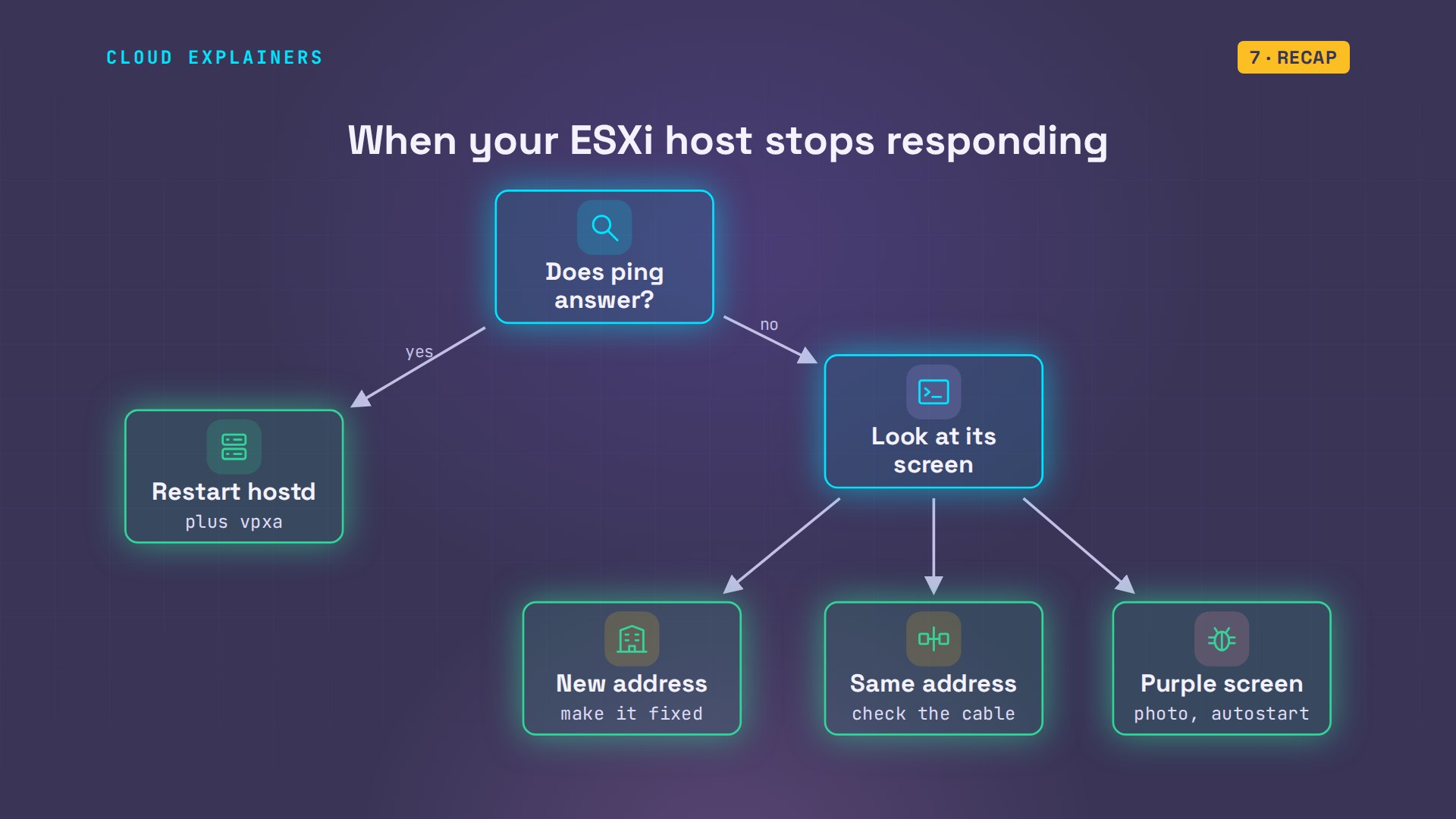
So: ping answers and the page doesn't? Restart hostd, and vpxa for vCenter. No ping? Look at the host's screen. A new address: make it fixed. The same address: check the cable. A purple screen? Take a photo, restart, then turn on autostart. And save every change.
If this got your host answering again, subscribing gets you the next homelab fix.
Everything you saw ran for real, on an ESXi host in our lab. The lab files and every command are linked in the description. Thanks for watching Cloud Explainers.
Sources
Demos: ESXi 8.0 Update 3e runs as a nested virtual machine on our own lab server, with one Alpine Linux VM; the purple screen was caused on purpose with a test command. Ana's architecture firm is made up. Watch the full video on YouTube.
More videos

How to Fix Python ModuleNotFoundError: No Module Named
Golang Pointers in 5 Minutes
How to Fix a Kubernetes Pod Stuck in CrashLoopBackOff
PostgreSQL: Full Tutorial for Beginners
How a Load Balancer Works with HAProxy

How Python Virtual Environments Work
How to Fix Cloudflare Tunnel Errors in a Homelab
How to Fix API CORS Errors: No 'Access-Control-Allow-Origin'

How Authenticator App Login Codes Work (TOTP)

Git and GitHub: Full Tutorial for Beginners

How a Homelab Hypervisor Works (VMware ESXi)

How to Fix Kubernetes ImagePullBackOff Errors

How to Fix DNS 'Temporary Failure in Name Resolution' on Linux
How to Fix AWS CLI 'Unable to Locate Credentials'
Proxmox vs ESXi for Your Homelab: When Each One Wins
PostgreSQL UUID vs Auto Increment: Which Primary Key Should You Use?
Kubernetes: Full Tutorial for Beginners

How TCP Sockets Work

How to Fix PostgreSQL 'Could Not Connect to Server'
Claude Code Hooks Will Finally Make Sense After This

DevOps with Ansible Will Finally Make Sense After This
How SNMP Network Monitoring Works
How to Fix GitHub 'Permission Denied (publickey)' Errors

Docker: Full Tutorial for Beginners
How to Fix PostgreSQL 'Password Authentication Failed'

Why One Linux Server Handles More Users Than You Think

How to Fix Network 'Connection Refused' Errors
DevOps Pipelines: Jenkins vs GitHub Actions
Linux Nginx Reverse Proxy: Full Tutorial for Beginners
Every Networking Term a Beginner Needs in 12 Minutes
How to Fix Docker 'Permission Denied' on docker.sock
How to Fix Git 'Updates Were Rejected' When You Push
How to Fix nginx 502 Bad Gateway Errors on Linux
How to Fix Linux apt 'Could Not Get Lock' Errors (Ubuntu)

How Email Works on the Internet (SMTP) in 10 Minutes

The Python Roadmap for Beginners

Golang REST API with Gin: Full Tutorial for Beginners
How a WireGuard VPN Network Works

Linux Makefiles Will Finally Make Sense After This

SAML vs OAuth vs OpenID Connect: What's the Difference?
How to Fix Python cron Jobs That Never Run

Linux Bash Scripting: Full Tutorial for Beginners
How PXE Network Boot Works

How Active Directory Works

How to Fix a Linux systemd Service That Won't Start

Linux Logs: syslog vs journald
JWT vs Session Cookies: Which One Should You Use?
Docker vs Docker Compose: Which One Should You Use?
How to Fix Docker Compose Containers That Can't Talk to Each Other

Django Full Tutorial for Beginners

How Linux systemd Works

How to Fix 'Windows Cannot Access' Network Share Errors (SMB)
REST vs gRPC: Which One Should You Use?

How to Fix SSL Certificate Chain Errors (Missing Intermediate)

Every Python Concept for Beginners in 10 Minutes

Every SQL Join Type in 10 Minutes

Why OpenRouter Free Models Hit Their Limit So Fast
Why Your Gemini API Free Tier Runs Out So Fast

OpenRouter Will Finally Make Sense After This
How Redis Caching Works
Gemini API vs Vertex AI: Which One Should You Use?
How to Fix a Leaked Gemini API Key

Why Golang Uses Goroutines Instead of Threads
How to Fix Gemini API Error 429: Resource Exhausted

Claude Token Pricing Will Finally Make Sense After This
Why Python Web Scraping Returns Nothing (and the Fix)

Python uv vs pip: Which One Should You Use?

Python Automation: Full Tutorial for Beginners

How OAuth Login Works

Google AI Studio Will Finally Make Sense After This
What Happens When You Run a Docker Container
How to Fix Claude Code Billing Your API Key Instead of Your Plan
Why Passkeys Can't Be Phished Like Passwords
PowerShell vs Bash: Which One Should You Learn?
The Linux Roadmap for Beginners
Django vs FastAPI: Which One Should You Use?

Why SQLite Is the Most Used Database in the World
How a NoSQL Database Like MongoDB Works

How to Fix Python pip error: externally-managed-environment
How to Fix MySQL Too Many Connections Database Errors
Golang Concurrency Will Finally Make Sense After This
How Amazon S3 Works
How Kubernetes Works

How Git Works
How to Fix Docker Port Already Allocated Errors
How PostgreSQL Works
How to Fix Git Merge Conflicts

How to Fix No Space Left on Device in Linux
How the Internet Works
SQL vs NoSQL: When Each One Wins
How to Fix JWT Token Expired Errors (401 Unauthorized)

Claude API vs Claude Pro: Why Your Subscription Doesn't Include It

Why AI Agent Skills Beat Giant Prompts

Linux Cron Jobs Will Finally Make Sense After This

Security Logs Will Finally Make Sense After This

How to Fix a Security Leak: An API Key Pushed to GitHub
DNS Will Finally Make Sense After This
Never Ignore a Security Update
Two-Factor Authentication Will Finally Make Sense
Never Expose a Database to the Internet
SSH Keys vs Passwords: Which Is Safer for Security?

The 5 Levels of Linux Boot: From Power On to Login
The 5 Levels of Network Firewalls
Password Security: Why Hackers Crack Weak Passwords

Why Your Linux Server Runs Out of Memory
HTTP vs HTTPS: What Actually Changes on Your Network

Every Linux File Permission You Need to Know
Linux Processes vs Threads: When Each One Wins
The OSI Model Will Finally Make Sense After This

The 7 Levels of Git
Every Network Troubleshooting Command You Need
Hashing vs Encryption in Cybersecurity: When Each One Wins
Why the Internet Ran Out of IP Addresses

Linux Package Managers: apt vs Snap vs Flatpak

Why Python Is Slow (and When It Doesn't Matter)
TCP vs UDP: When Each One Wins
Stop Running Linux as Root (Do This Instead)
Linux Users and Groups Will Finally Make Sense

Why Phishing Beats Good Security (and How to Spot It)

The 7 Levels of Docker

AI Agents Will Finally Make Sense After This

Stop Using git push --force (Use This Instead)
Agent Skills vs MCP: When Each One Wins

Networking Will Finally Make Sense After This

Every Linux Command You Actually Need

The 7 Levels of Cybersecurity

Every System Design Concept You Need, in One Diagram