Why Phishing Beats Good Security (and How to Spot It)
Why phishing gets past strong passwords, the padlock and six-digit codes, how to read any web address and sender to spot a fake, and the tools that stop phishing even when you don't notice it: password managers and passkeys. Episode 2 of Cybersecurity for Beginners.
The problem
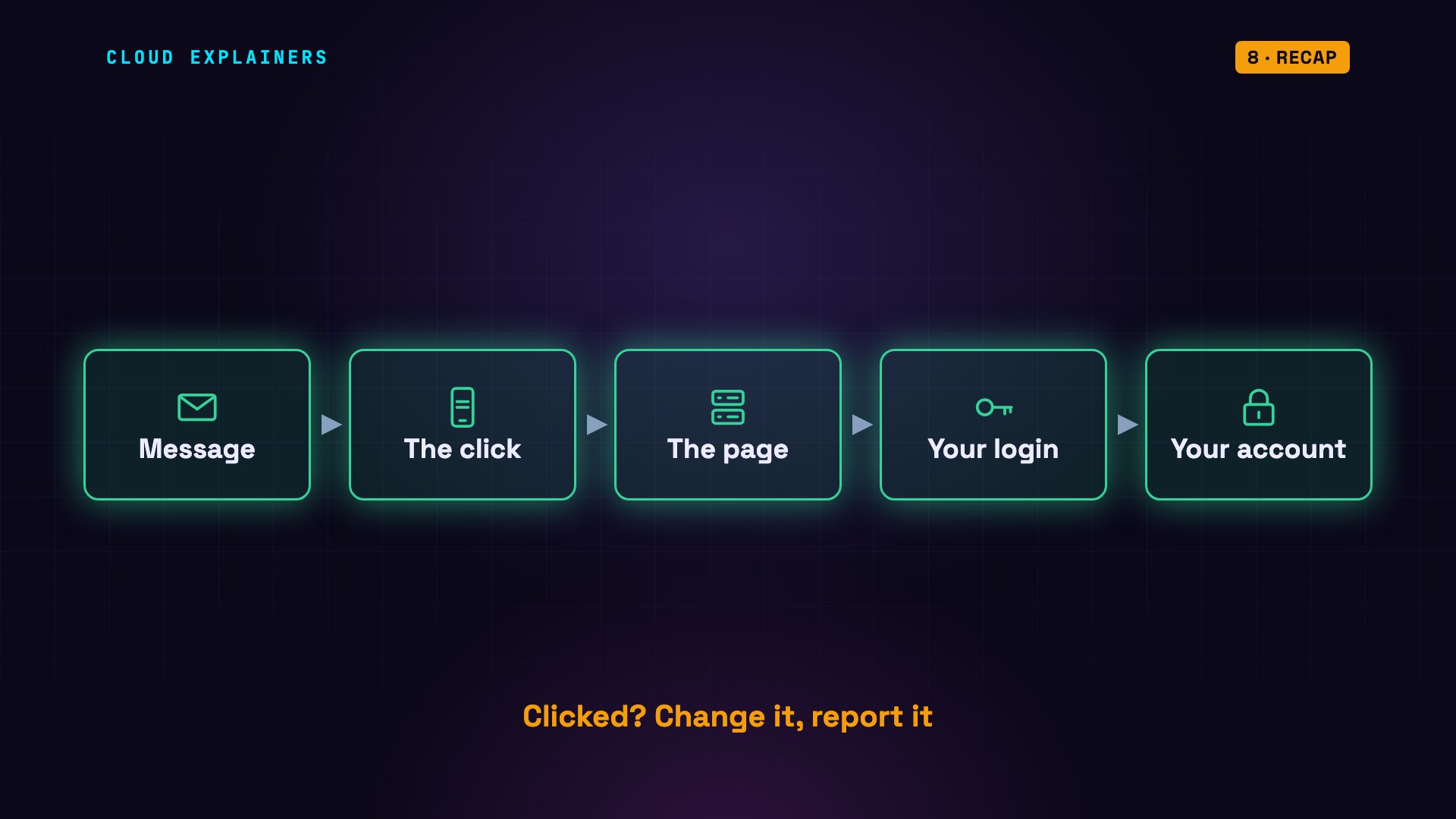
You can do everything right. A long password. A site with the padlock. Six-digit codes turned on. And one convincing message can still get past all of it.
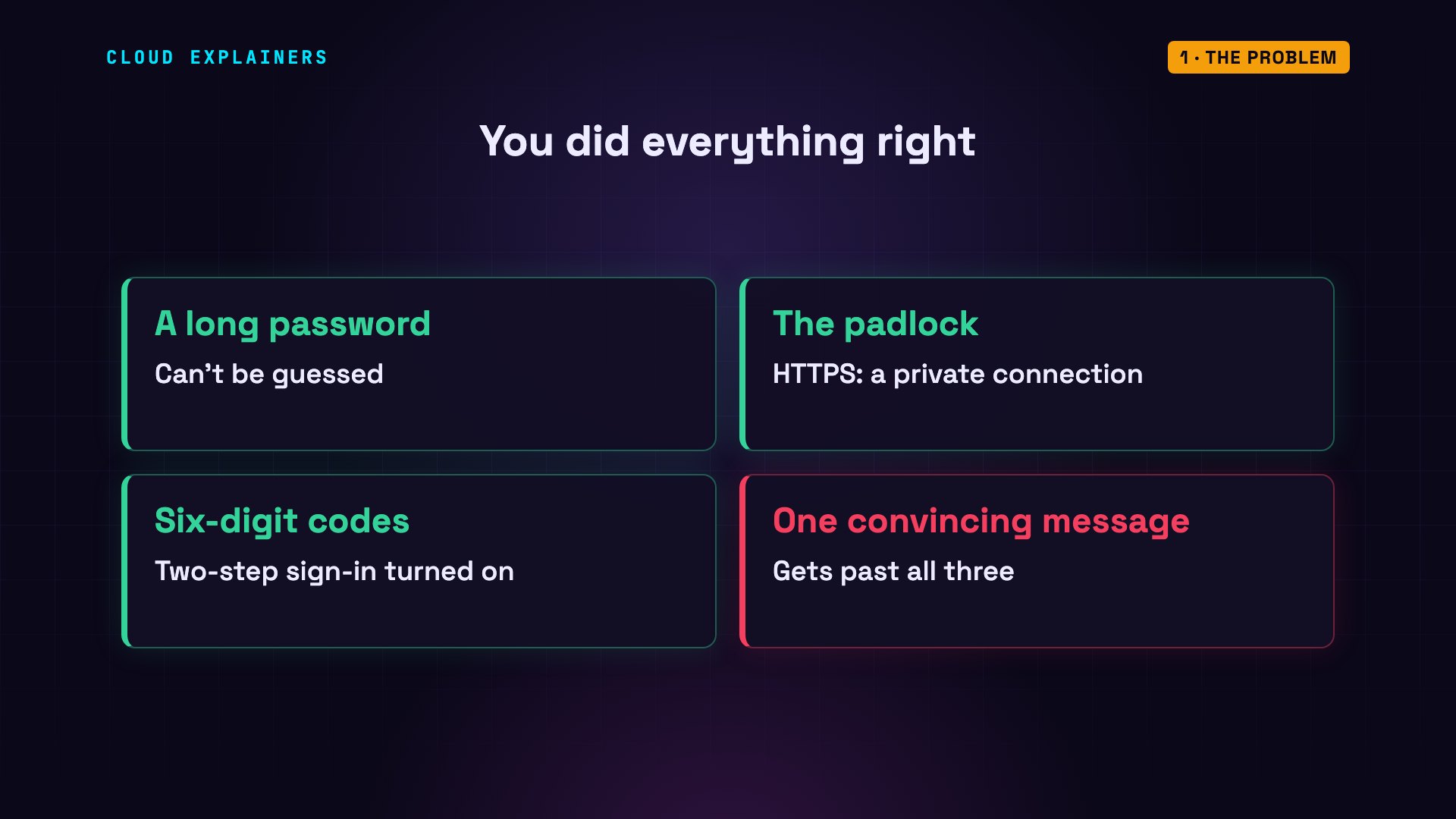
It happens a lot. In 2025, phishing was the crime reported most often to the FBI: 191,561 complaints, more than twice the next one.
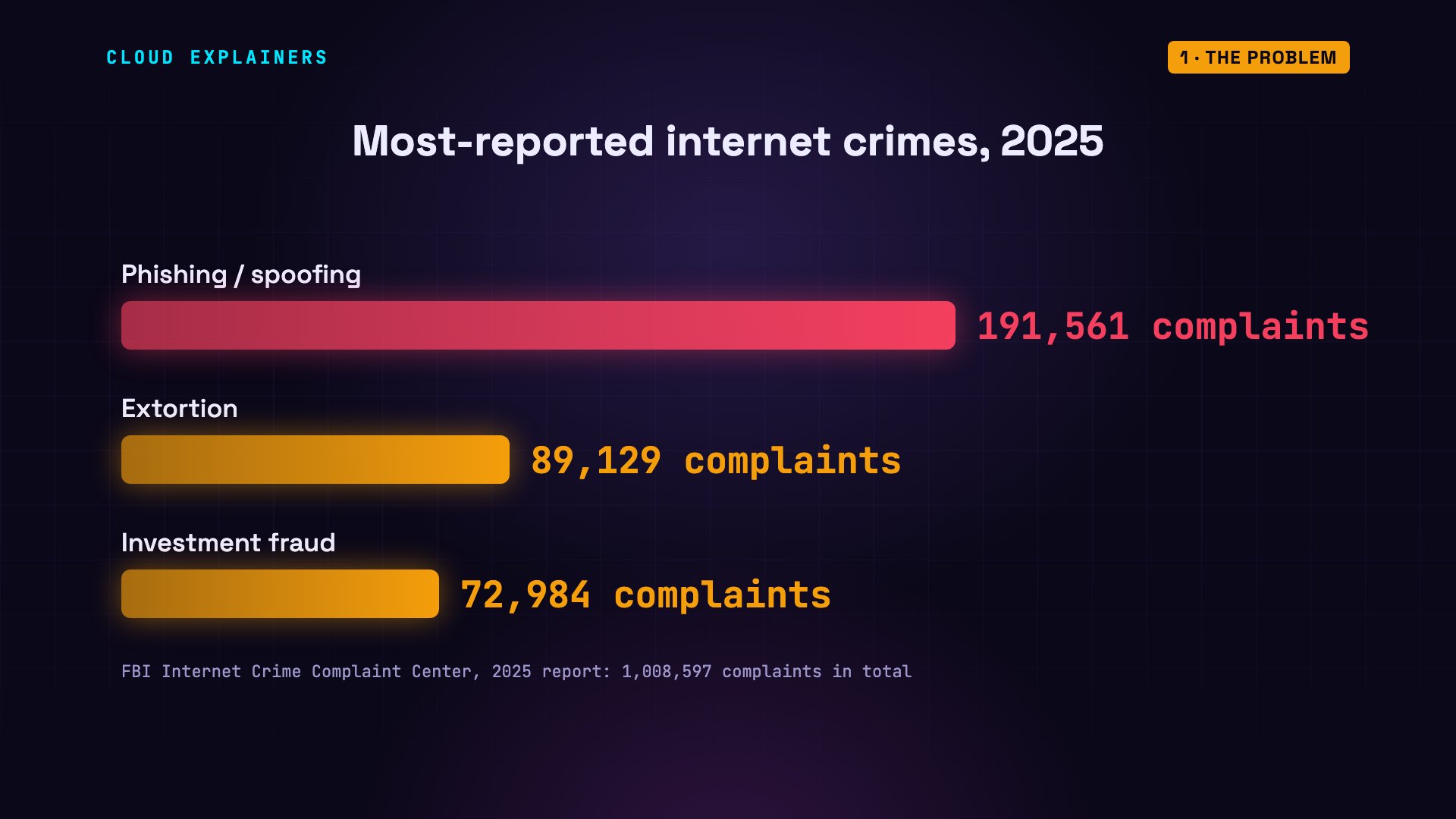
Phishing is a message that pretends to come from someone you trust, so that you hand over something: a password, a code, or money. Here's the path of one message. It arrives. You click a link. A page opens. You type your login, and someone else gets into your account. In this video: why it works, how to spot it, and the tools that stop it, even when you don't spot it.
Why it works
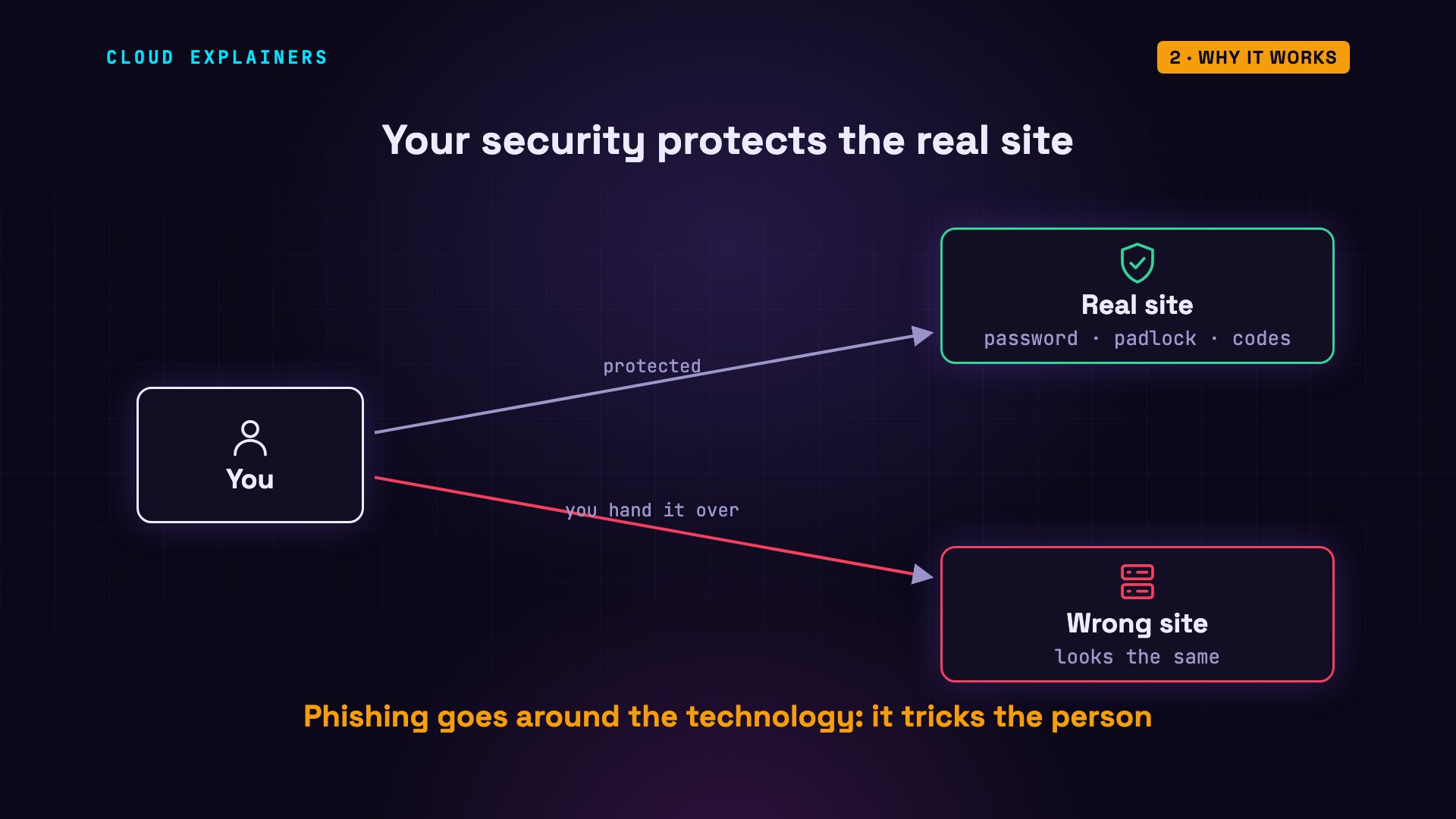
Here's the key idea. Phishing doesn't break the technology. It goes around it, by tricking the person. Your password, the padlock, and your codes all protect you while you're talking to the real site. None of them can stop you from handing your login to the wrong one.
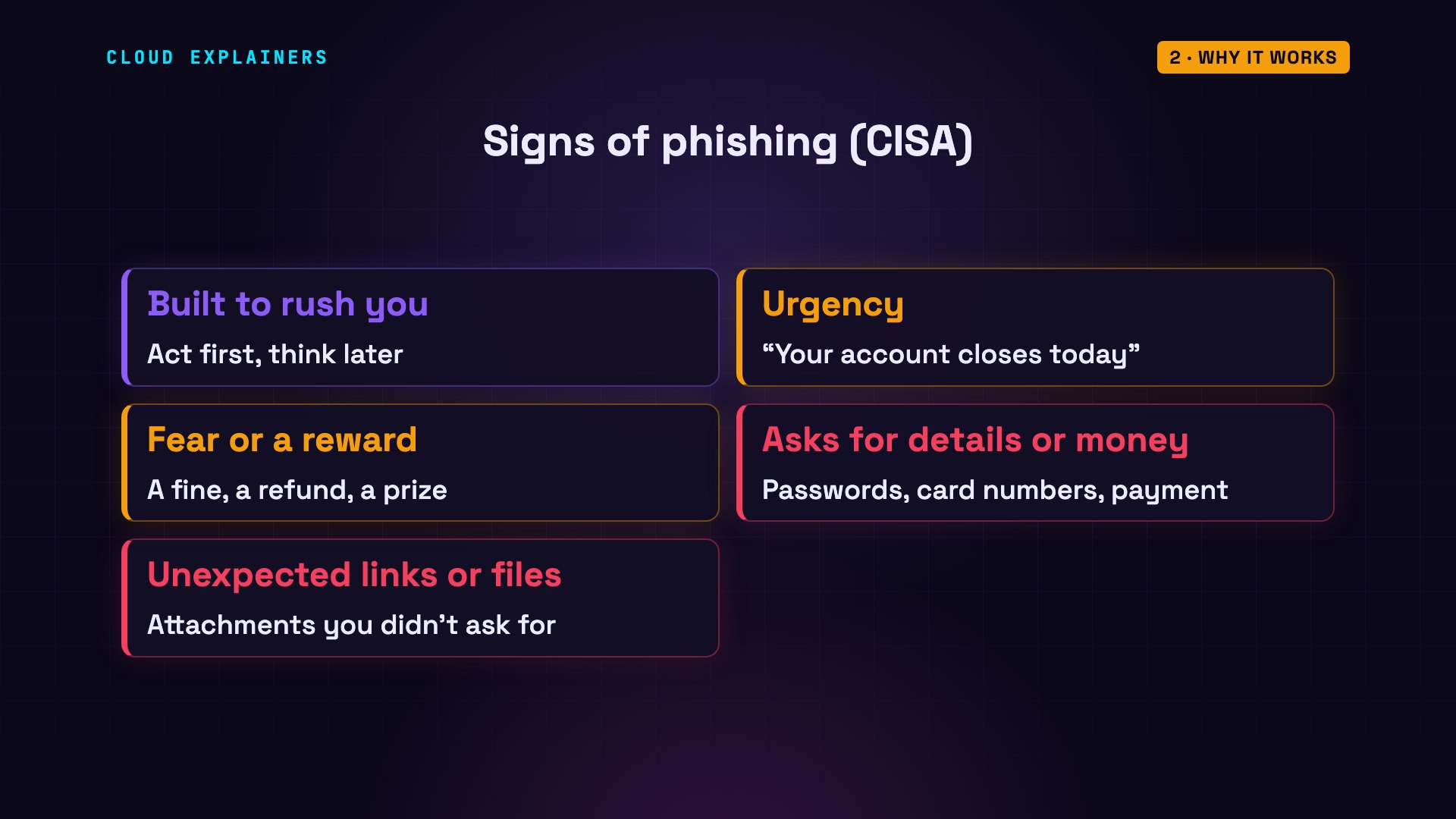
So the message is built to make you act before you think. The US cybersecurity agency, CISA, lists the signs. Urgency: your account closes today. Fear, or a reward: a fine, a refund, a prize. A request for personal details, or for money. And links or attachments you weren't expecting.
And the click itself? Opening a link is usually just the start. The damage comes from the next step: typing your password into the page, or opening a file it gives you. The click takes you somewhere that looks safe, so that next step feels normal. Keeping your browser and phone updated helps protect you from the rare page that attacks the browser itself.
Why good security doesn't help
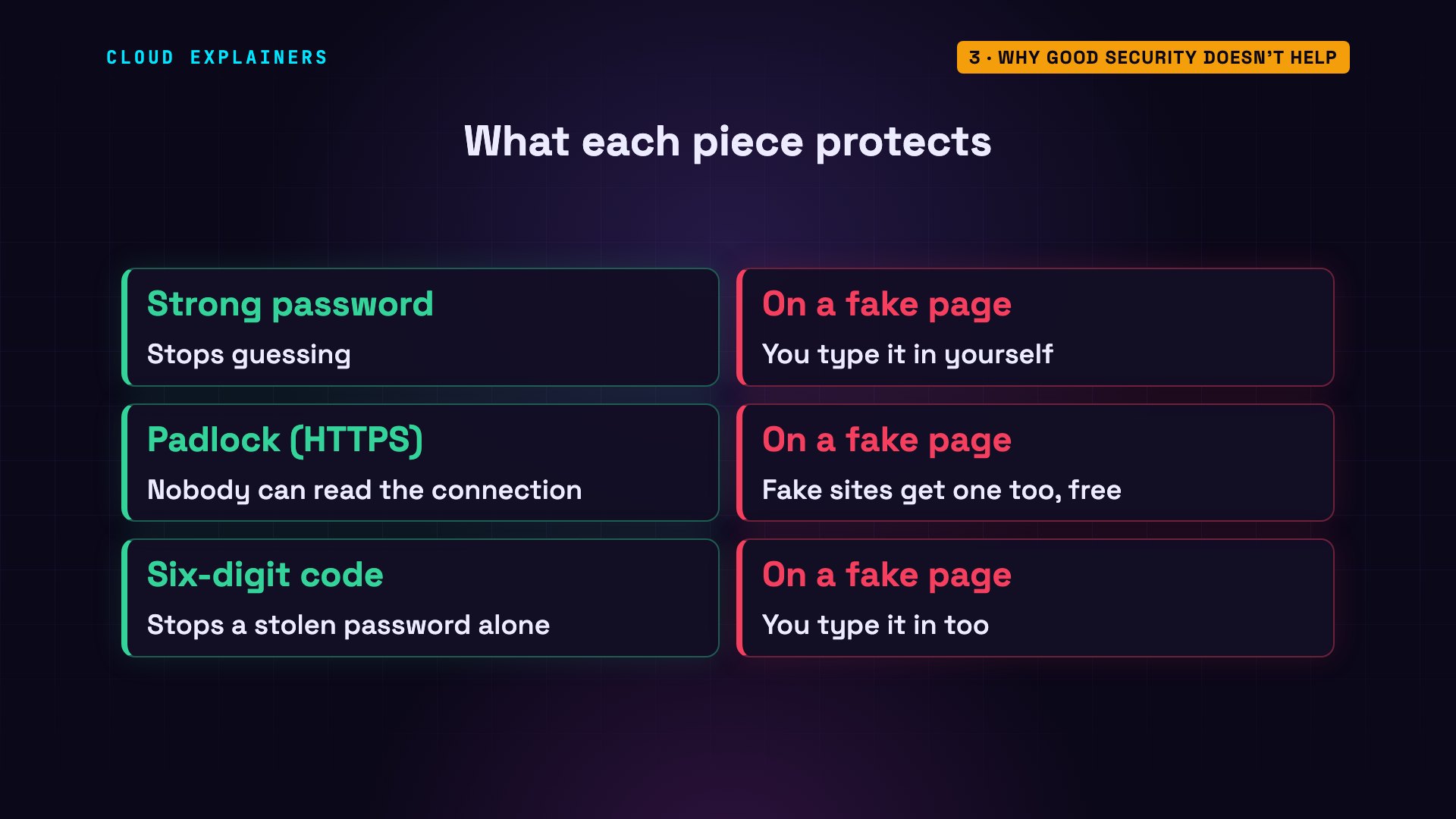
Let's take your security one piece at a time. A strong password can't be guessed. But on a fake page, you type it in yourself, so its strength doesn't matter. The padlock means nobody can read your connection. It doesn't mean the site is honest: anyone can get a padlock for a site they own, for free, including the owner of a fake one. And the six-digit code, you type in too.
Here's a six-digit code, made the same way an authenticator app, the app that shows you sign-in codes, makes it. Look at what the login form sends: just the six digits. The server, the bank's computer, checks them: valid. But nothing in that data says which site you typed them into. So a code typed into a fake page is just as valid, for the thirty seconds or so it lasts.
python3 code_check.pyphone shows:   213598
form sends:    {"code": "213598"}
server check:  VALID
which site was it typed into? not in the data
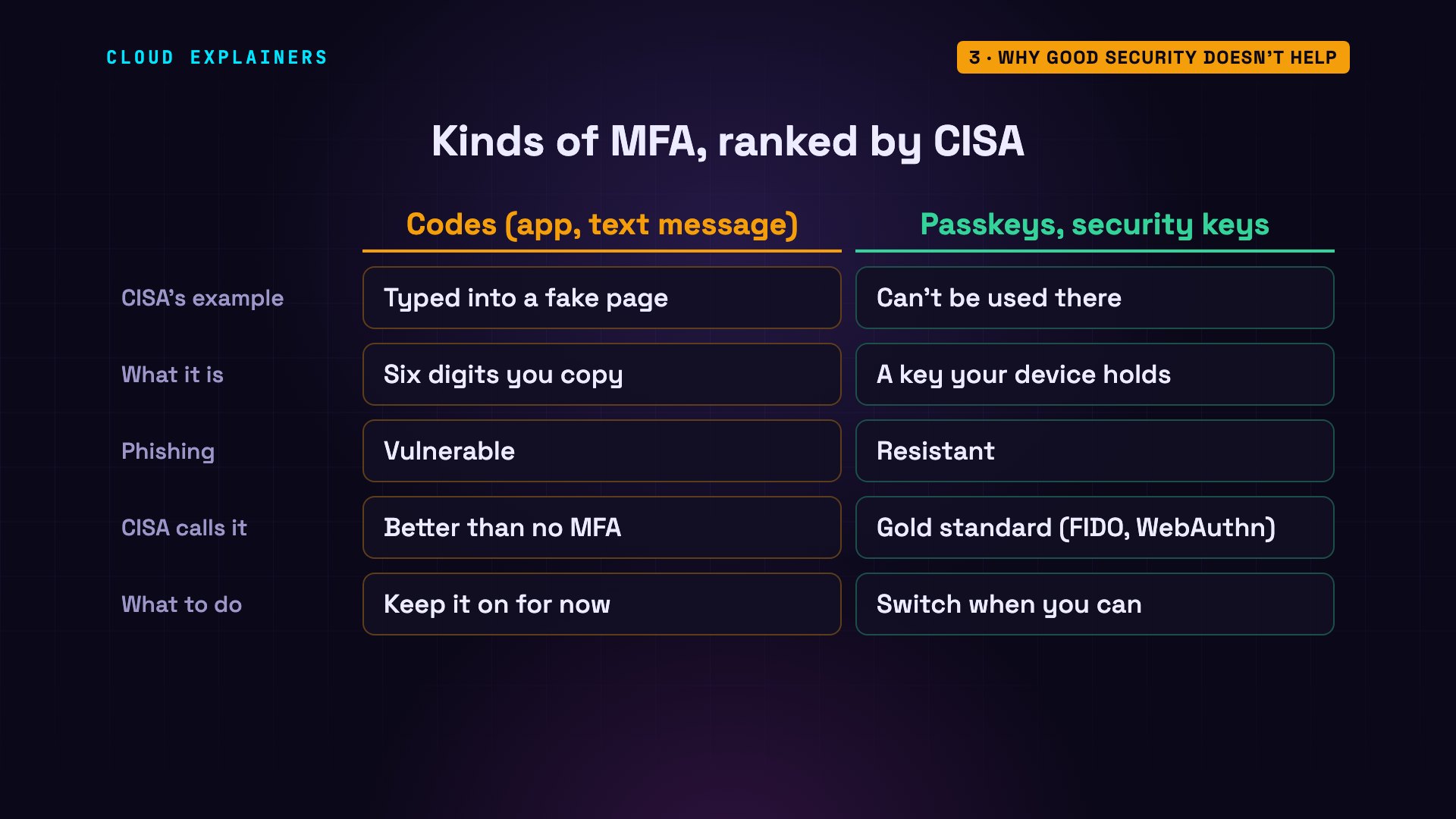
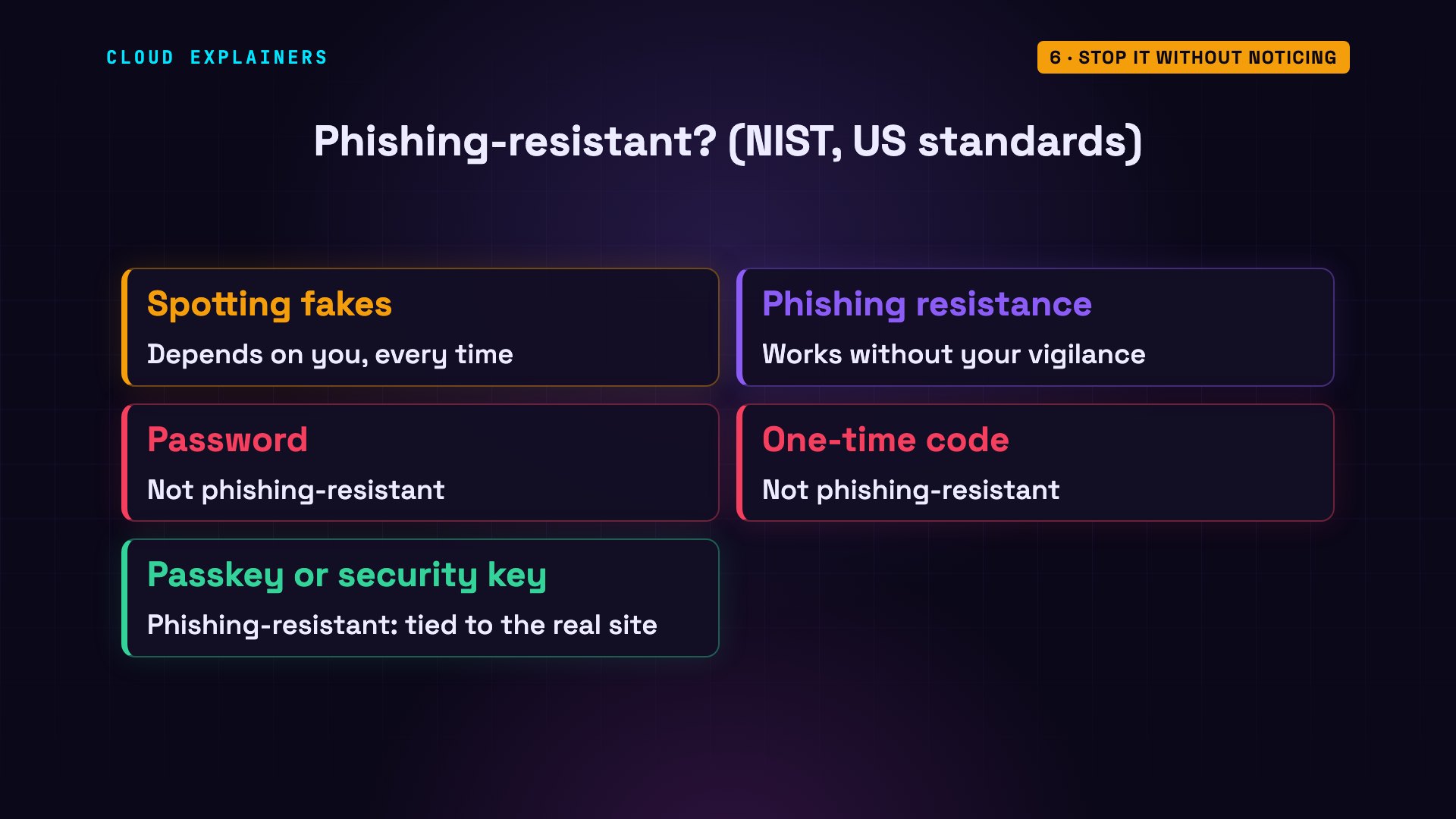
That's the exact case CISA describes: people typing their password, and the code from their app, into a fake login page. So CISA ranks the kinds of multi-factor authentication, or MFA: signing in with a second proof, beyond your password. Codes from an app or a text message: vulnerable to phishing. Passkeys and security keys, built on the standards FIDO and WebAuthn: phishing-resistant, the gold standard. And any MFA is still better than none, so keep your codes on until you can switch.
Spot it: the address
To catch a fake, read the address. One part of every web address says who owns the page: the host. It starts right after the two slashes, and ends at the next single slash. If there's an at sign, an old way to add a user name to an address, everything before it is not the site at all. Then read the host from right to left: the last two parts, like bank dot example, are the owner.
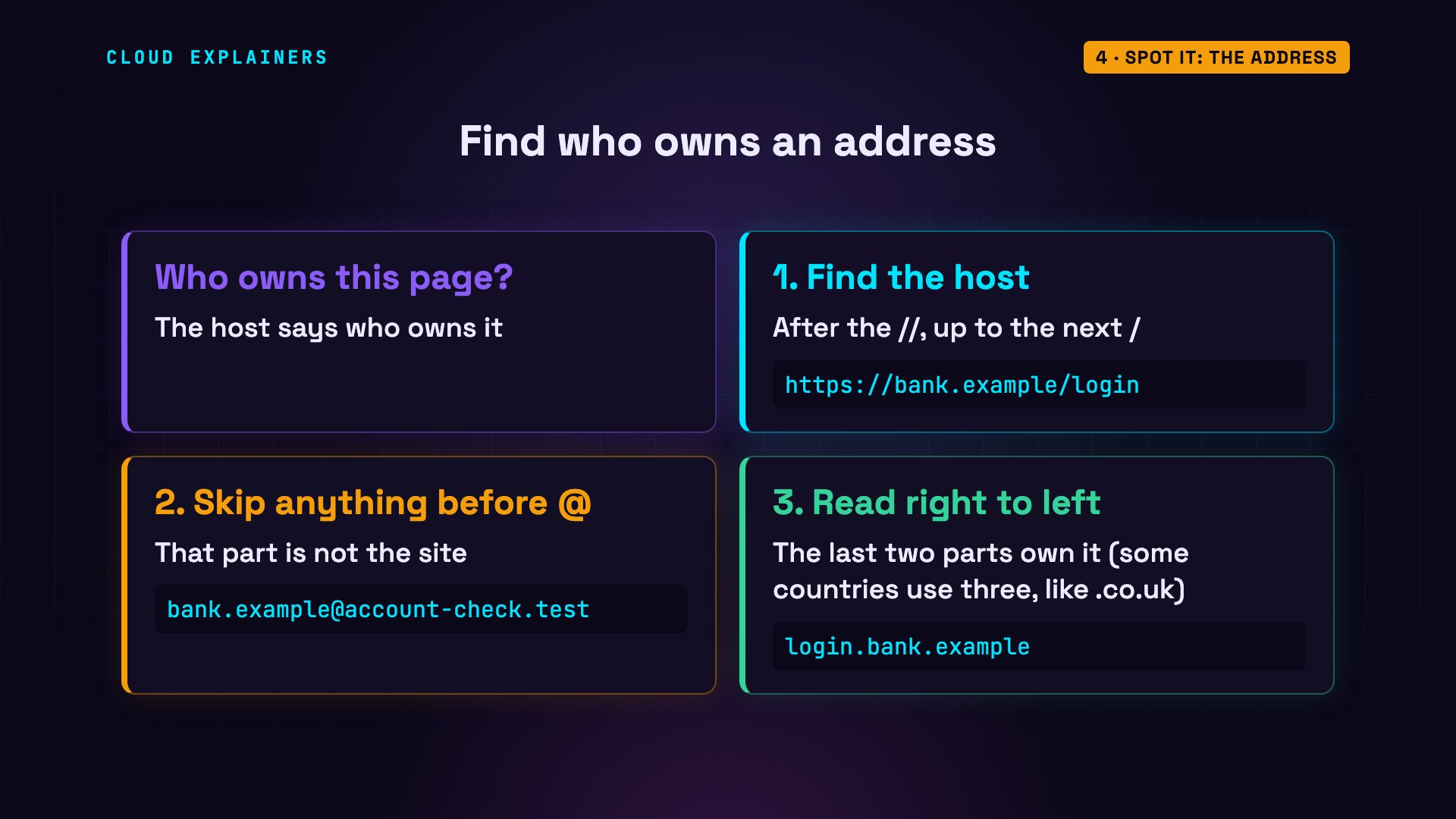
We wrote a tiny script that does exactly this, with Python's own address reader. Our test bank lives at bank dot example. The real login page: the owner is bank dot example. Now this one. It starts with bank dot example, but read it right to left, and the owner is account-check dot test. The bank's name is just a label at the front.
python3 url_check.py https://bank.example/loginhost:  bank.example
owner: bank.example
your bank? YES
python3 url_check.py https://bank.example.account-check.test/loginhost:  bank.example.account-check.test
owner: account-check.test
your bank? NO
With an at sign, everything before it is treated as a user name, so the host is account-check dot test. A hyphen makes a different name entirely: bank-example dot test is not the bank. And the bank's name after the single slash, in the path, the part that names a page on the site, means nothing at all. Five addresses that all mention the bank. Only one belongs to it.
python3 url_check.py https://bank.example@account-check.test/loginhost:  account-check.test
owner: account-check.test
your bank? NO
python3 url_check.py https://bank-example.test/loginhost:  bank-example.test
owner: bank-example.test
your bank? NO
python3 url_check.py https://account-check.test/bank.example/loginhost:  account-check.test
owner: account-check.test
your bank? NO
Spot it: the sender
The sender works the same way. An email shows a display name, which anyone can set to anything, and an address. This message says Bank Security, but the address is at bank-example dot test: not the bank. The real one comes from bank dot example. Mail services also check whether a message really came from the address it claims, and filter out many fakes. So a matching address is a good sign, not proof.
python3 sender_check.py 'Bank Security <alerts@bank-example.test>'name shown:   Bank Security
real address: alerts@bank-example.test
from your bank? NO
python3 sender_check.py 'Bank <alerts@bank.example>'name shown:   Bank
real address: alerts@bank.example
from your bank? YES
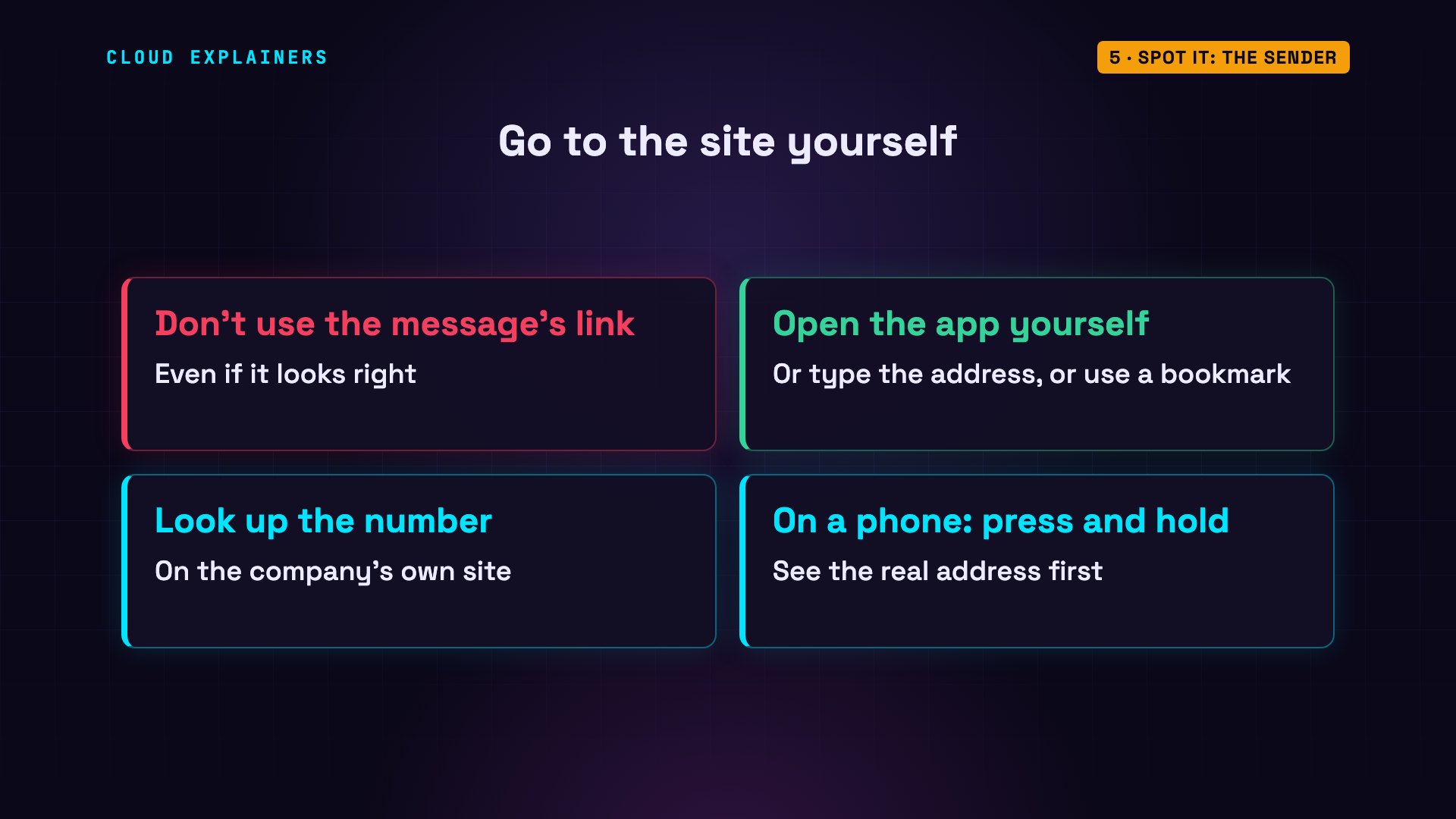
So when a message asks you to act, don't use its link. Open the app, type the address yourself, or use a bookmark. If it gives you a phone number, look the number up on the company's own site. And on a phone, press and hold a link to see where it really goes, before you open it.
Stop it without noticing
Spotting fakes depends on you being careful every single time. The best defences don't depend on you. NIST, the US standards agency, calls this phishing resistance: protection that works without relying on the user's vigilance. Its rules say plainly that passwords and one-time codes don't have it.
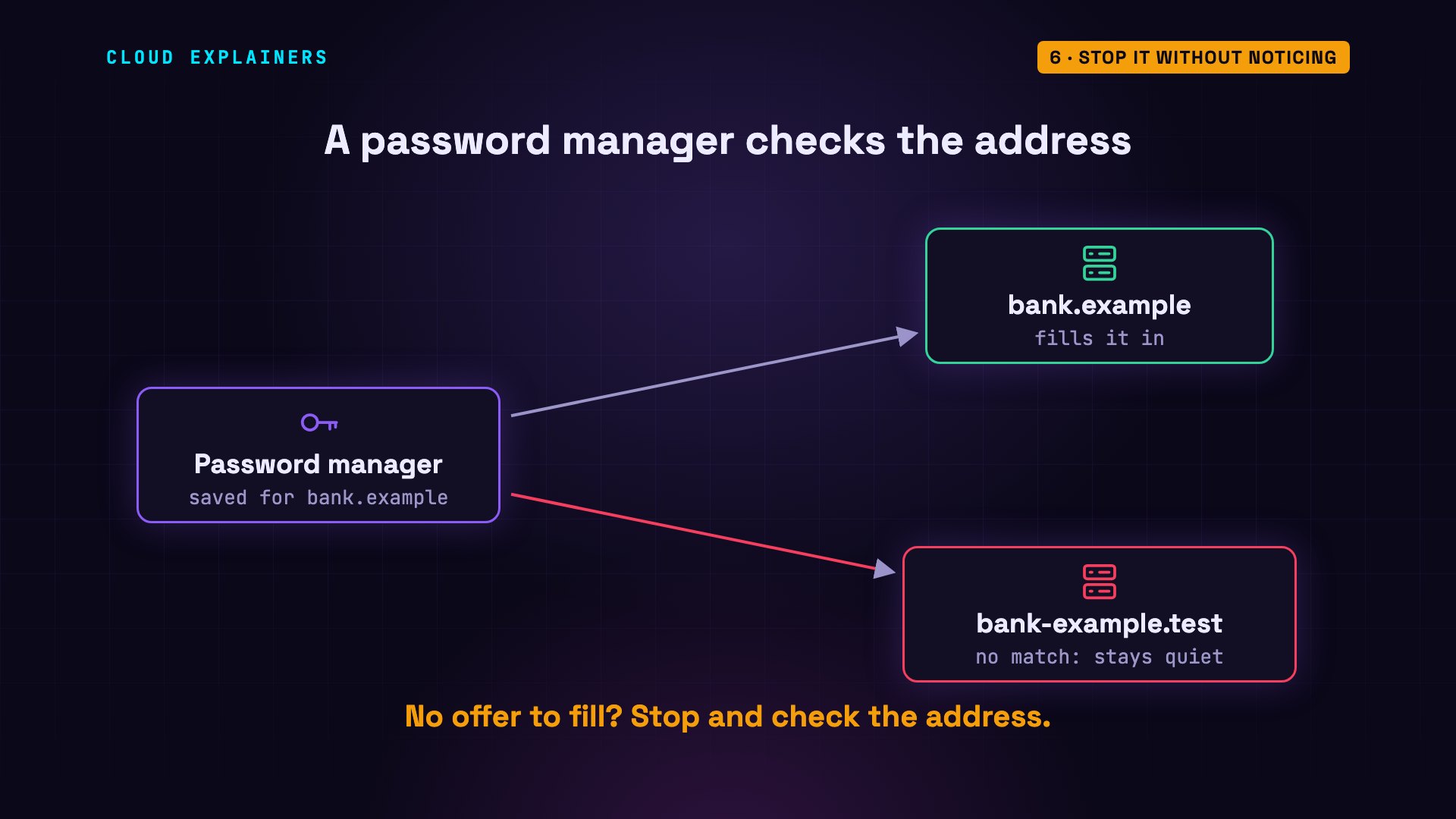
A good first step is a password manager. It saves each password together with the site it belongs to, and offers to fill it in only on that site. On bank-example dot test, it stays quiet. So if your password manager doesn't offer your password, stop, and check the address.
The strongest tool is a passkey. A passkey is a secret key stored on your phone or computer, made for one site only. To sign in, the site sends a one-time challenge. The browser adds the address of the page you're really on, and your device signs both, automatically. The page can't change that address, because the browser writes it, not the page.
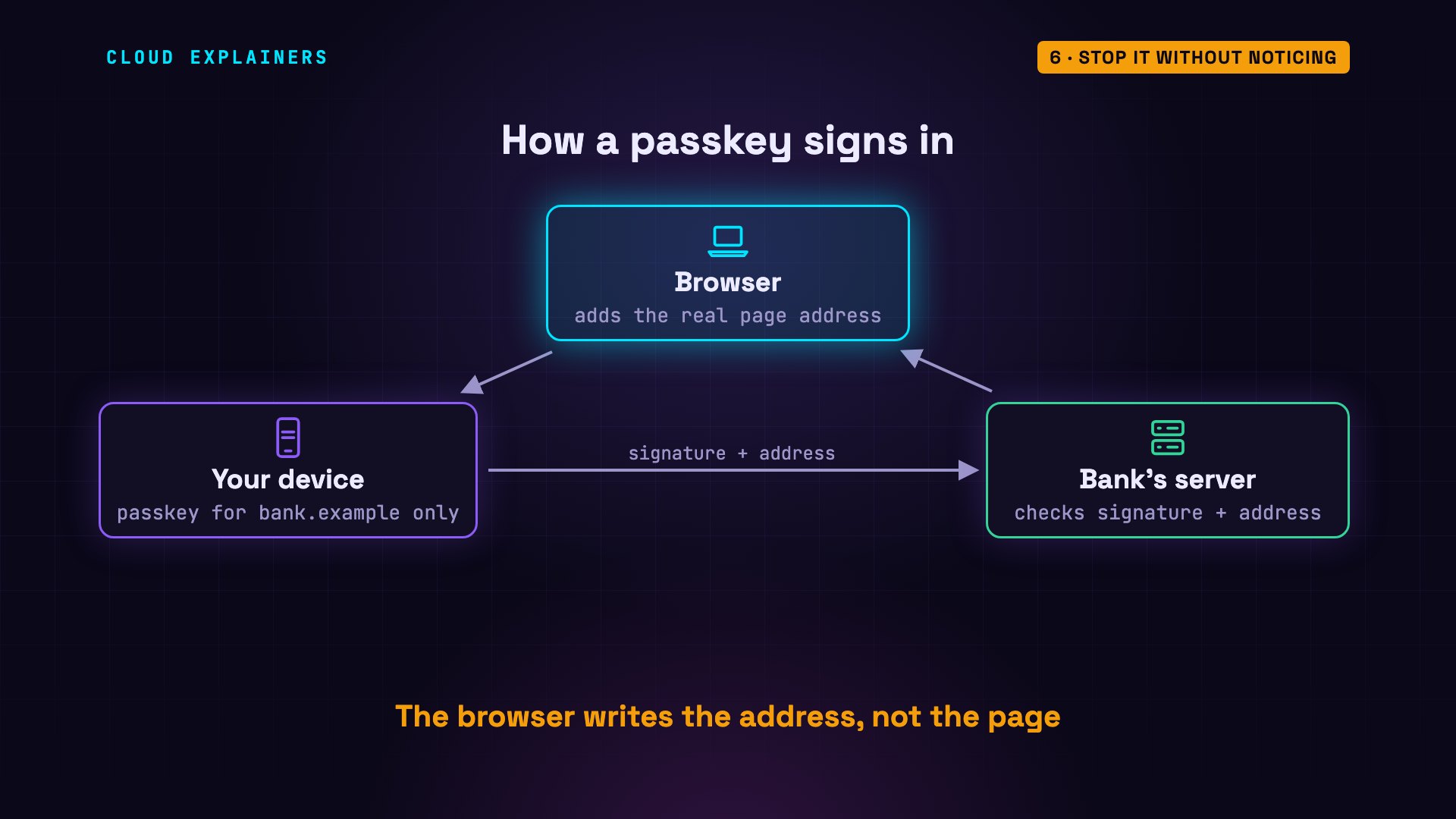
Here's a real check. The bank's side uses a real passkey server library: the code websites use to check passkeys. We save a passkey for bank dot example, then sign in from the real page. The signed address is the bank's own, so the bank's server accepts it.
python3 passkey_demo.py registerpasskey saved for: bank.example
python3 passkey_demo.py https://bank.example/loginbrowser is on:  bank.example
signed address: https://bank.example
bank's server:  ACCEPTED
Now the same sign-in, from the lookalike page. There's no passkey for bank-example dot test, so there's nothing to sign, and nothing to send. And if a signature were made there anyway? No real browser does this: we forced it, to test the bank's side. The signed address is the fake one, so the bank's server rejects it. Nobody had to notice anything.
python3 passkey_demo.py https://bank-example.test/loginbrowser is on:  bank-example.test
passkeys for bank-example.test: none
nothing to sign, nothing to send
python3 passkey_demo.py https://bank-example.test/login --sign-anywaybrowser is on:  bank-example.test
signed address: https://bank-example.test
bank's server:  REJECTED
reason: Unexpected client data origin "https://bank-example.test", expected "https://bank.example"
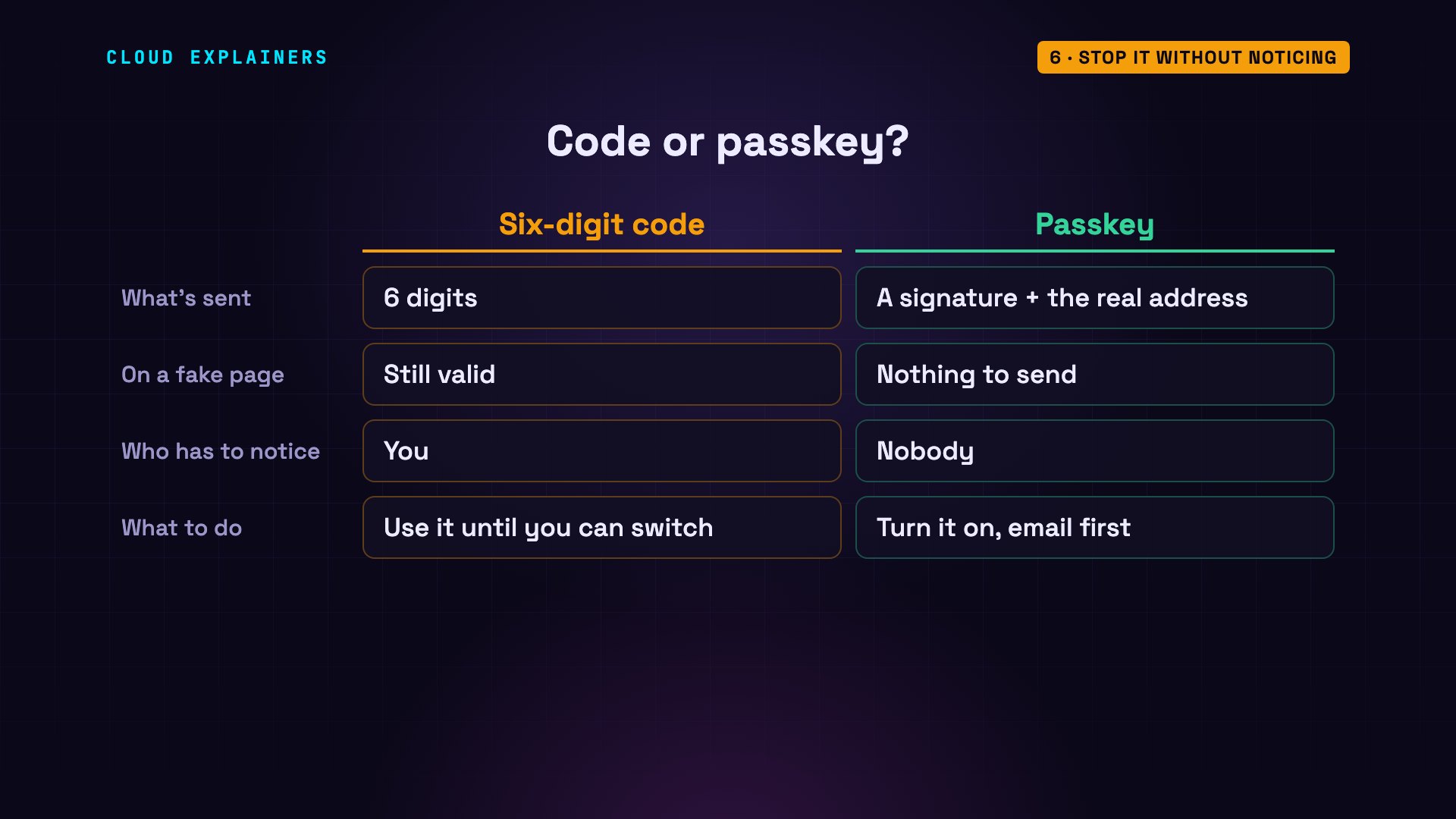
Compare the two. A code is six digits, valid wherever you type it. A passkey's signature carries the real address, and works only for its own site. Turn on passkeys wherever your accounts offer them, starting with your email, because your email can reset most of your other passwords.
If you clicked
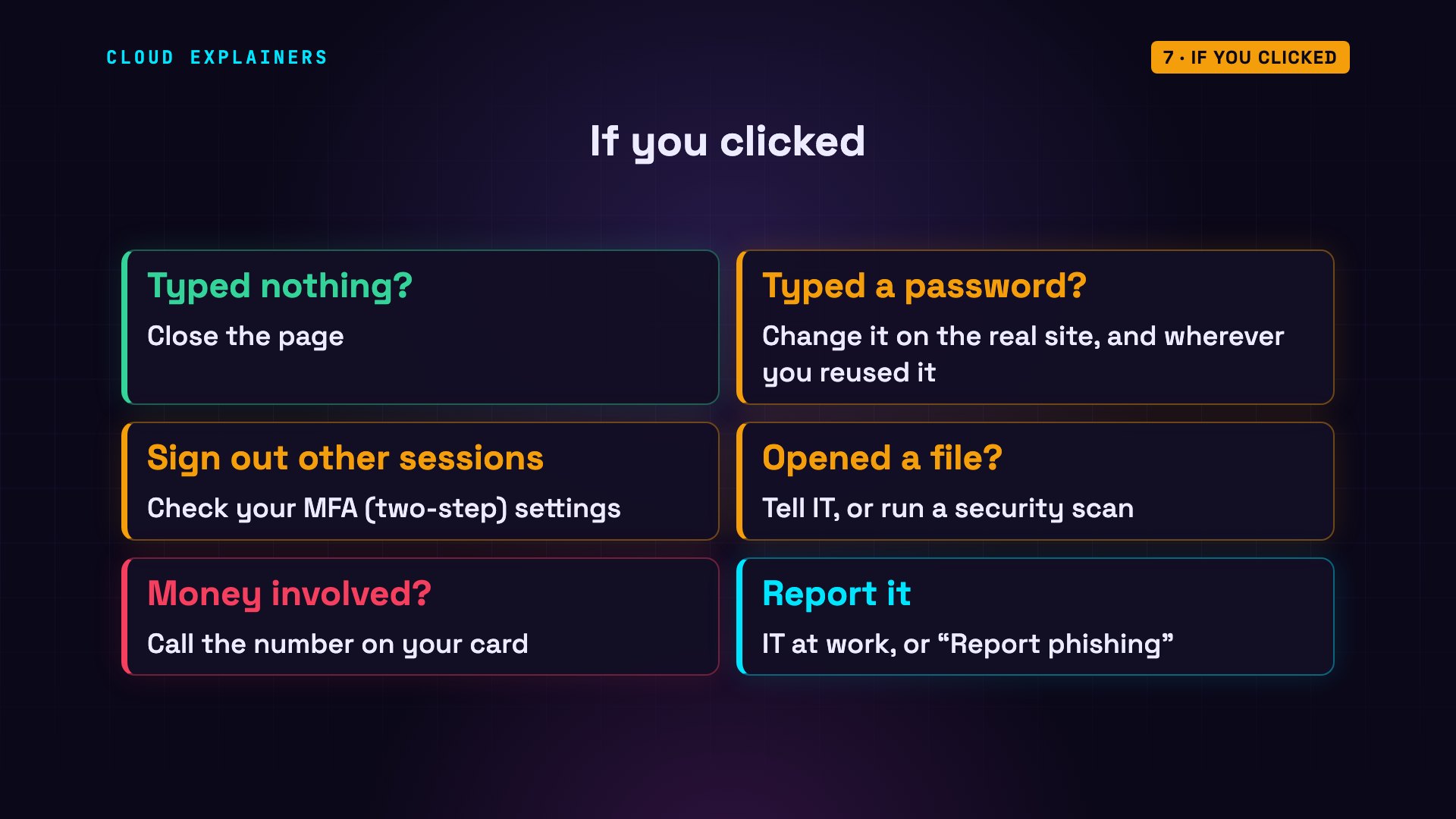
And if you already clicked? If you didn't type or open anything, close the page. If you typed a password, change it now on the real site, by typing the address yourself, and anywhere else you used it. Then sign out of other sessions, and check that nobody changed your MFA settings. If you opened a file, tell your IT team, or run your security scan. If money is involved, call your bank, using the number on your card. And report it: at work to IT, otherwise with your email's report phishing button.
Recap
One message, five steps. Phishing works by tricking you, not your technology. Spot it in the address: find the host, and read it right to left. Don't use links in messages; go to the site yourself. Let tools check for you: a password manager, and passkeys. And if you clicked, change the password, and report it.
This was episode two of Cybersecurity for Beginners. Every demo ran on our own test machine, with test addresses only. Next: every cybersecurity term you need to know.
Sources
- FBI IC3, 2025 Internet Crime Report
- CISA, Implementing Phishing-Resistant MFA (fact sheet)
- CISA, Recognize and Report Phishing
- NIST SP 800-63B-4, Authentication and Authenticator Management (phishing resistance, §3.2.5)
- W3C, Web Authentication Level 3
- Bitwarden help, URI match detection
- Let's Encrypt, free HTTPS certificates for any domain you control
- RFC 2606 / RFC 6761, reserved test domain names
Demos: real runs on one test machine with no network access, using reserved test addresses only; no real site, account or person was involved. Watch the full video on YouTube.
More videos
Stop Running Linux as Root (Do This Instead)
Linux Users and Groups Will Finally Make Sense

The 7 Levels of Docker

AI Agents Will Finally Make Sense After This
Stop Using git push --force (Use This Instead)
Agent Skills vs MCP: When Each One Wins
Networking Will Finally Make Sense After This
Every Linux Command You Actually Need
The 7 Levels of Cybersecurity
Every System Design Concept You Need, in One Diagram