Linux Users and Groups Will Finally Make Sense
How Linux users and groups really work, for complete beginners: what a user is (a name and a number), what /etc/passwd and /etc/group hold, primary and extra groups, creating users and groups with useradd, passwd, groupadd and usermod, file owners and permissions, the owner, group, others check, and why a user you just added to a group still gets 'Permission denied'. Every command runs for real on Ubuntu 24.04.
Permission denied
Ana made a folder for her team, and added Ben to the team group. Linux agrees: Ben is in the group. But when Ben tries to save a file there: permission denied.
id benuid=1001(ben) gid=1001(ben) groups=1001(ben),1002(team)
touch /srv/team/plan.txttouch: cannot touch '/srv/team/plan.txt': Permission denied
Nothing is broken. By the end of this video, you'll know exactly why, and how Linux decides who can touch every file. Here's the path. Who you are, to Linux. What a group is. How to create both. Who owns a file. The check Linux runs every time a file is opened. And finally, Ben's mystery. Every command runs for real, on Ubuntu 24.04. This is episode two of Linux for Beginners.
Users: a name and a number
Part one: who you are, to Linux.
Ana opens a terminal. whoami prints her user name: ana. But inside, Linux doesn't use names. id shows what it really uses: numbers. Ana is user 1000. That number is her UID, her user ID.
whoamiana
iduid=1000(ana) gid=1000(ana) groups=1000(ana),27(sudo)
Where does that number come from? A plain text file that lists every account: /etc/passwd. tail shows its last line, the newest account: the one for Ana.
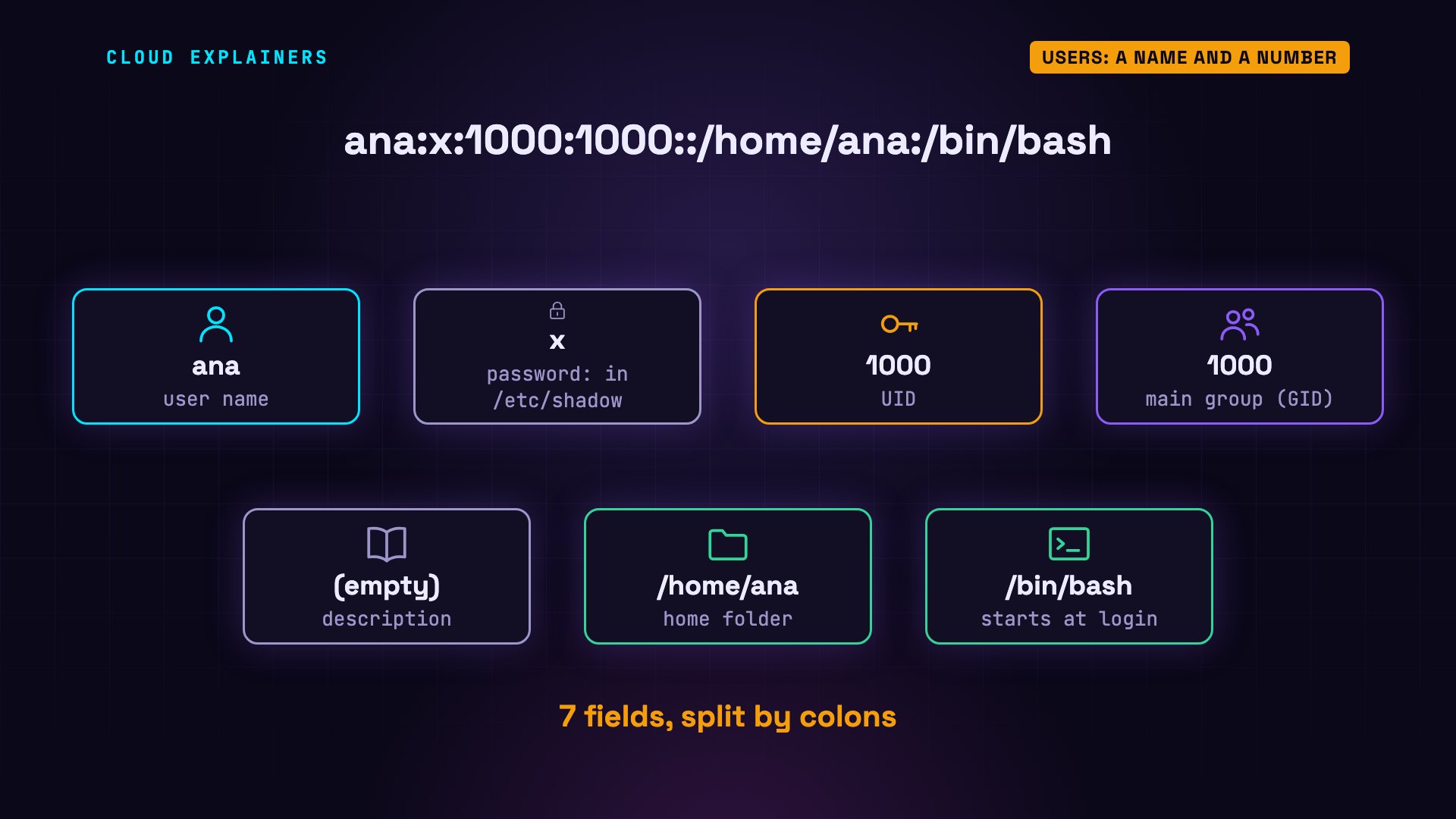
tail -n 1 /etc/passwdana:x:1000:1000::/home/ana:/bin/bash
Colons split the line into seven fields. Her user name. An x: her password isn't here. A scrambled copy lives in a protected file, /etc/shadow. Her UID, 1000. The number of her main group, also 1000: more on that soon. A description, empty here. Her home folder. And the program that starts when she logs in: bash.
The first line is root: user zero. Root is the administrator account. Its home folder is /root, and we'll come back to its powers in part five.
head -n 1 /etc/passwdroot:x:0:0:root:/root:/bin/bash
And most accounts aren't people at all. This machine has 19, and only one is a person: Ana. The rest belong to programs. www-data is the user a web server runs as. Its shell, nologin, means nobody can log in as it. So if a web server is hacked, the attacker can only act as user 33, and touch only what user 33 is allowed to.
wc -l /etc/passwd19 /etc/passwd
grep www-data /etc/passwdwww-data:x:33:33:www-data:/var/www:/usr/sbin/nologin
Groups
Part two: groups.
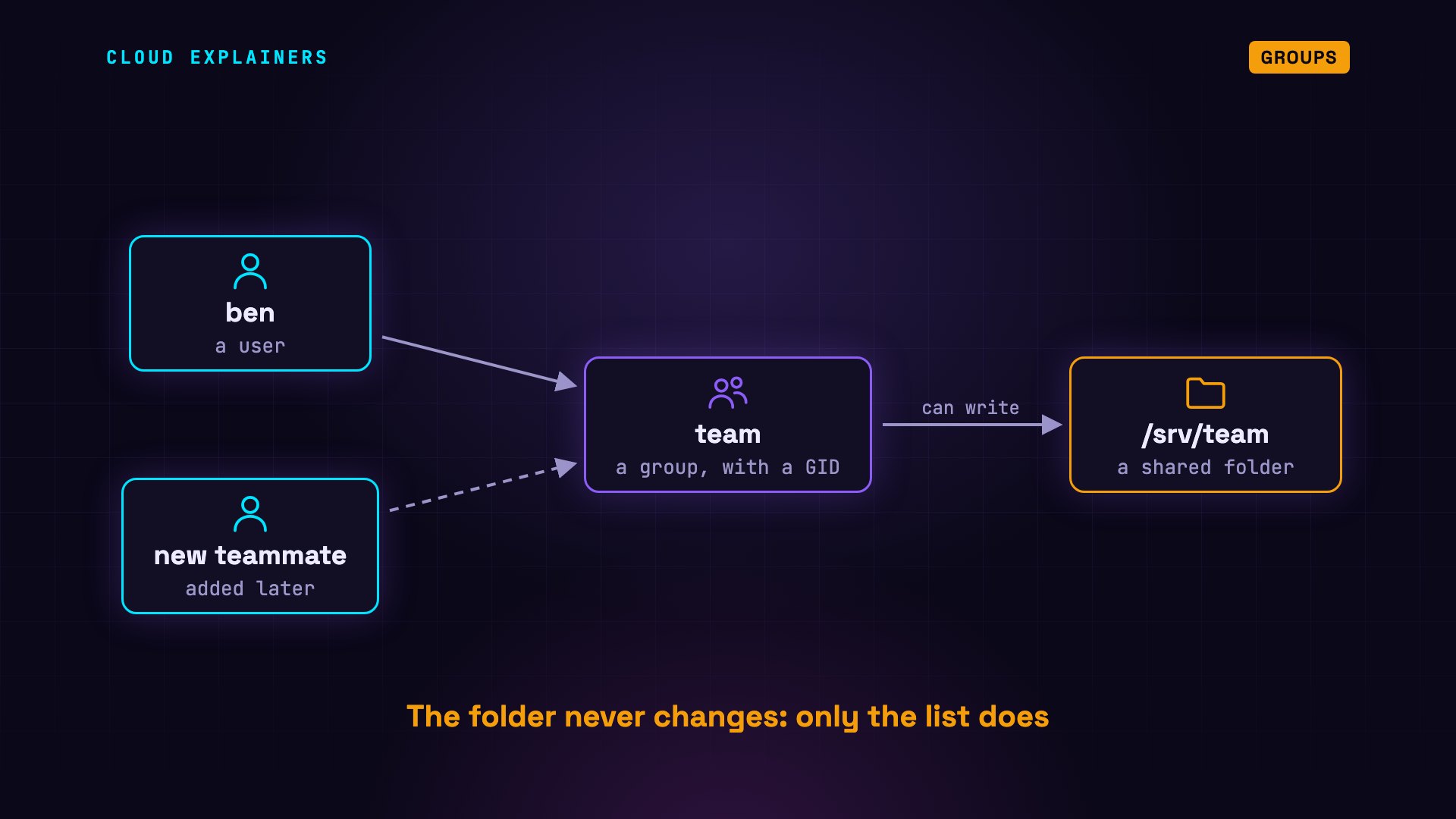
A group is a named list of users, with its own number: a GID, a group ID. Give a group access to a folder, and everyone on the list gets it. Add a person to the group, and they get it too. Nobody has to change the folder for each person.
Groups live in a second file, /etc/group. Ana appears twice. First, in the sudo group, number 27: its members may use sudo. Second, a group called ana, here with the same number as her account. Its member list is empty: Ana belongs to it through /etc/passwd. Ubuntu makes a group like this for every new user.
grep ana /etc/groupsudo:x:27:ana
ana:x:1000:
So every user has exactly one main group, called the primary group. Its number is in /etc/passwd, and new files get it. On top of that, a user can be in any number of extra groups, called supplementary groups. They're listed in /etc/group, and they're for sharing: like sudo, for Ana.
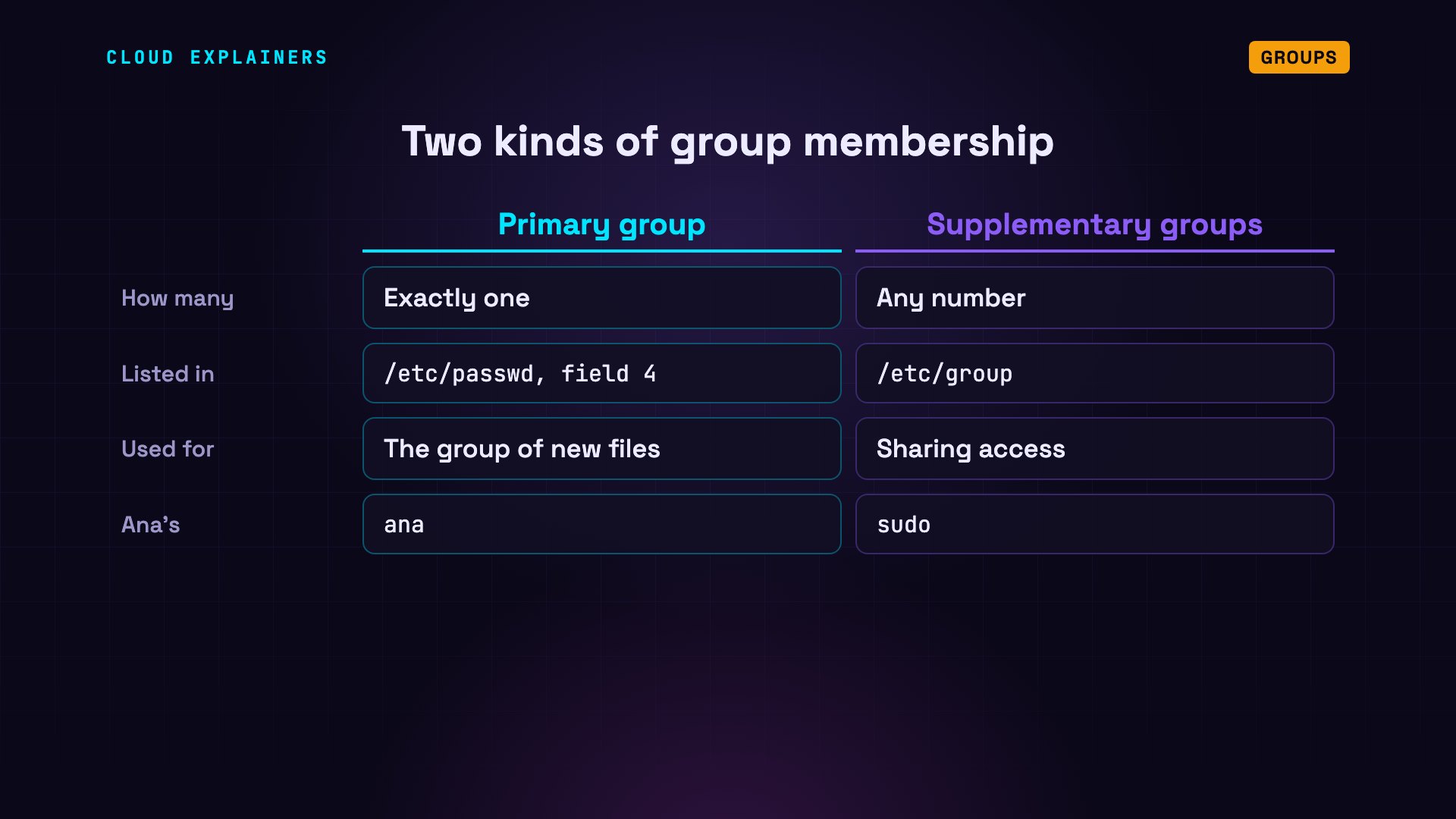
The groups command lists them all. For Ana: ana, her primary group, and sudo, an extra one.
groupsana sudo
Creating users and groups
Part three: creating accounts.
Ana's company hires Ben, so Ana creates his account. sudo comes first, because only root may change the account files. useradd makes the account. -m creates his home folder. -s picks his shell, bash. And last, the new user's name: ben.
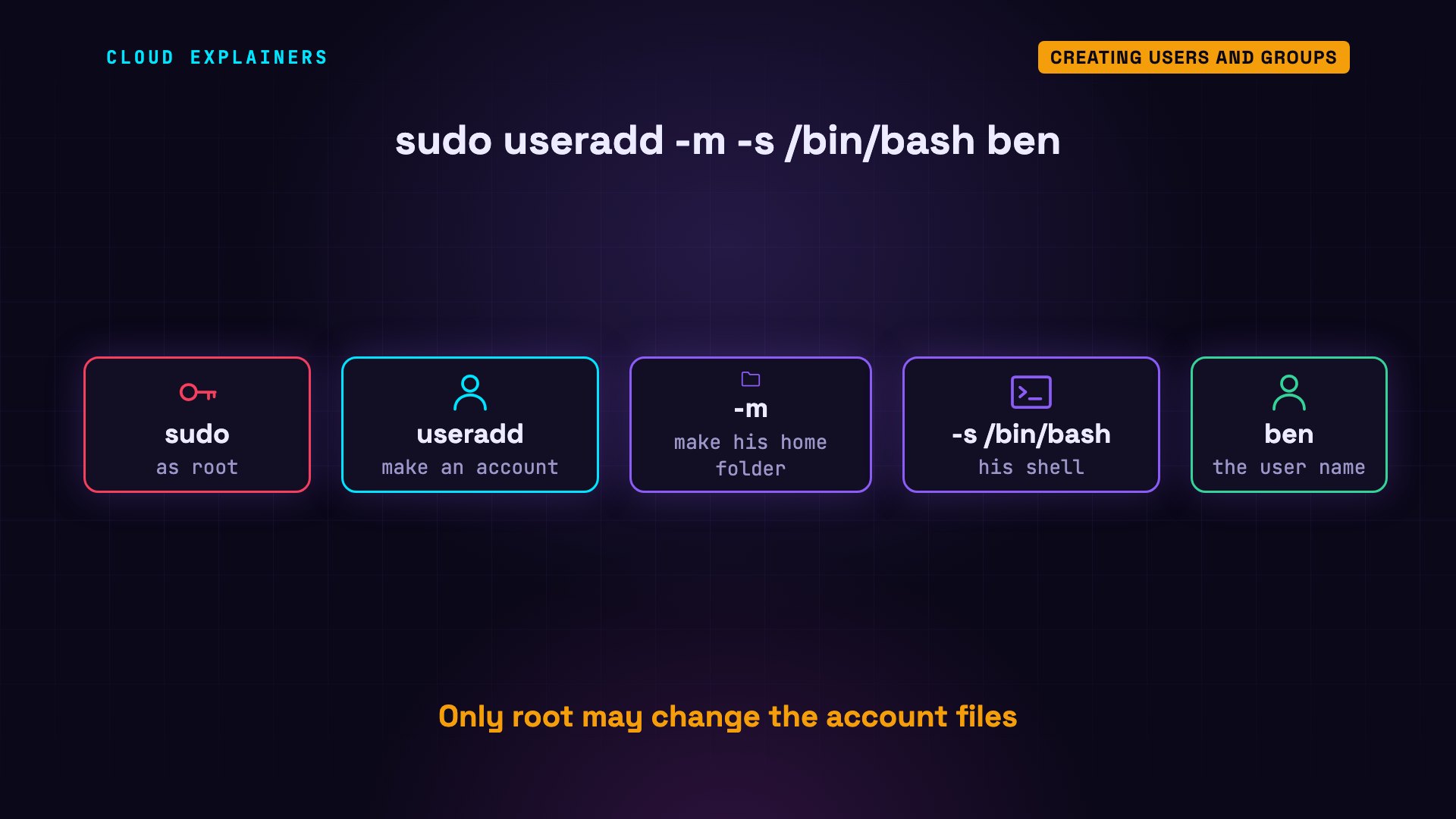
sudo asks for Ana's own password, and shows nothing while she types: that's normal. Then useradd prints nothing at all. On Linux, silence usually means success.
sudo useradd -m -s /bin/bash ben[sudo] password for ana:
Then sudo passwd ben sets his first password. It asks twice, to catch typos. And id ben shows the result: user 1001, with a new group of his own, also 1001.
sudo passwd benNew password:
Retype new password:
passwd: password updated successfully
id benuid=1001(ben) gid=1001(ben) groups=1001(ben)
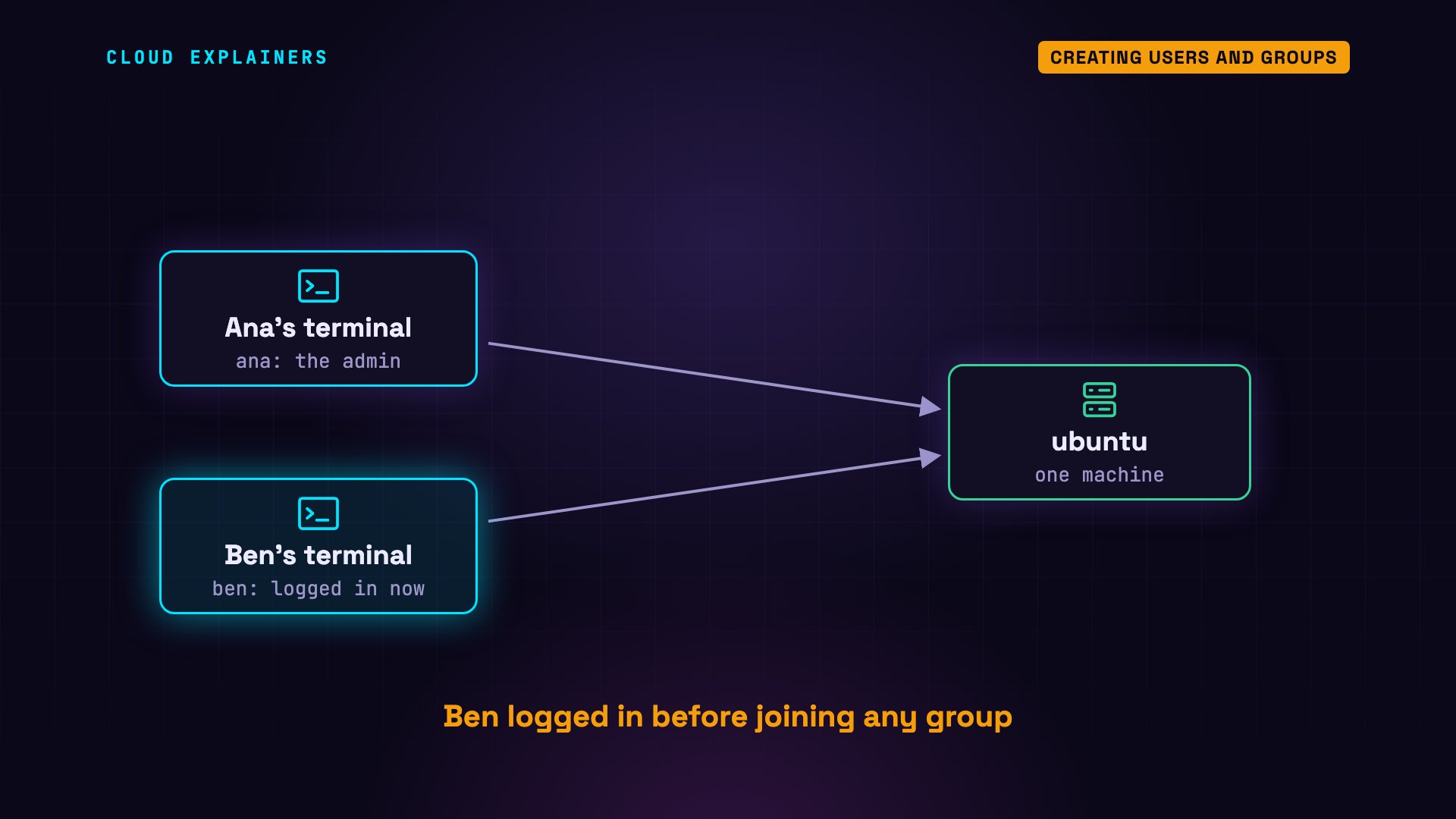
Then Ben logs in, in his own terminal, on the same machine. Keep that moment in mind: it's the key to the mystery.
Now the team folder. groupadd creates a group called team. mkdir, short for make directory, creates the folder, inside /srv: the standard place for data a machine serves to others.
sudo groupadd team
sudo mkdir /srv/team
Then usermod, short for modify user, adds Ben to the group. -G sets his extra groups: team. -a means add to the list, and keep the groups he's already in. Remember that a. It matters later.
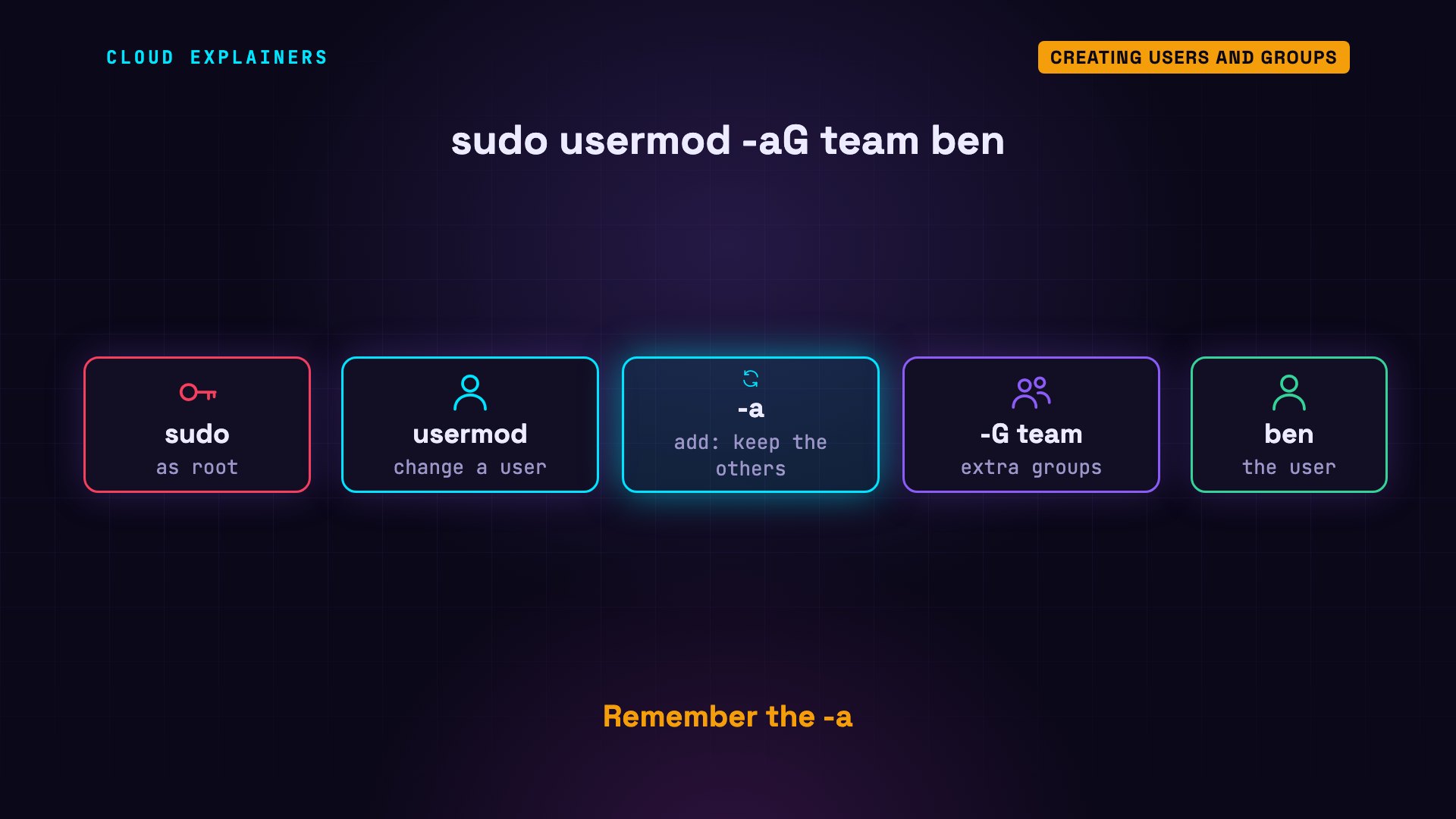
Ana runs it. Now, id ben lists team, and Ben is on the team line in /etc/group.
sudo usermod -aG team ben
grep team /etc/groupteam:x:1002:ben
Owners and permissions
Part four: who owns a file.
Every file and folder has two owners: a user, and a group. ls -ld shows the folder itself, not what's inside. Right now it belongs to the user root, and to the group root.
ls -ld /srv/teamdrwxr-xr-x 2 root root 4096 Oct 26 19:41 /srv/team
chgrp, change group, hands the folder to team. chmod changes permissions: g+w means group, add, write. Now the group column says team, and the middle three letters read r, w, x.
sudo chgrp team /srv/team
sudo chmod g+w /srv/team
ls -ld /srv/teamdrwxrwxr-x 2 root team 4096 Oct 26 19:41 /srv/team
Those letters are three sets of permissions, after a d for directory. r, w, x for the owner, root. r, w, x for the group, team. And r, dash, x for everyone else: they can open the folder and list it, but not add files. On a folder, w is what lets you create or delete files inside.
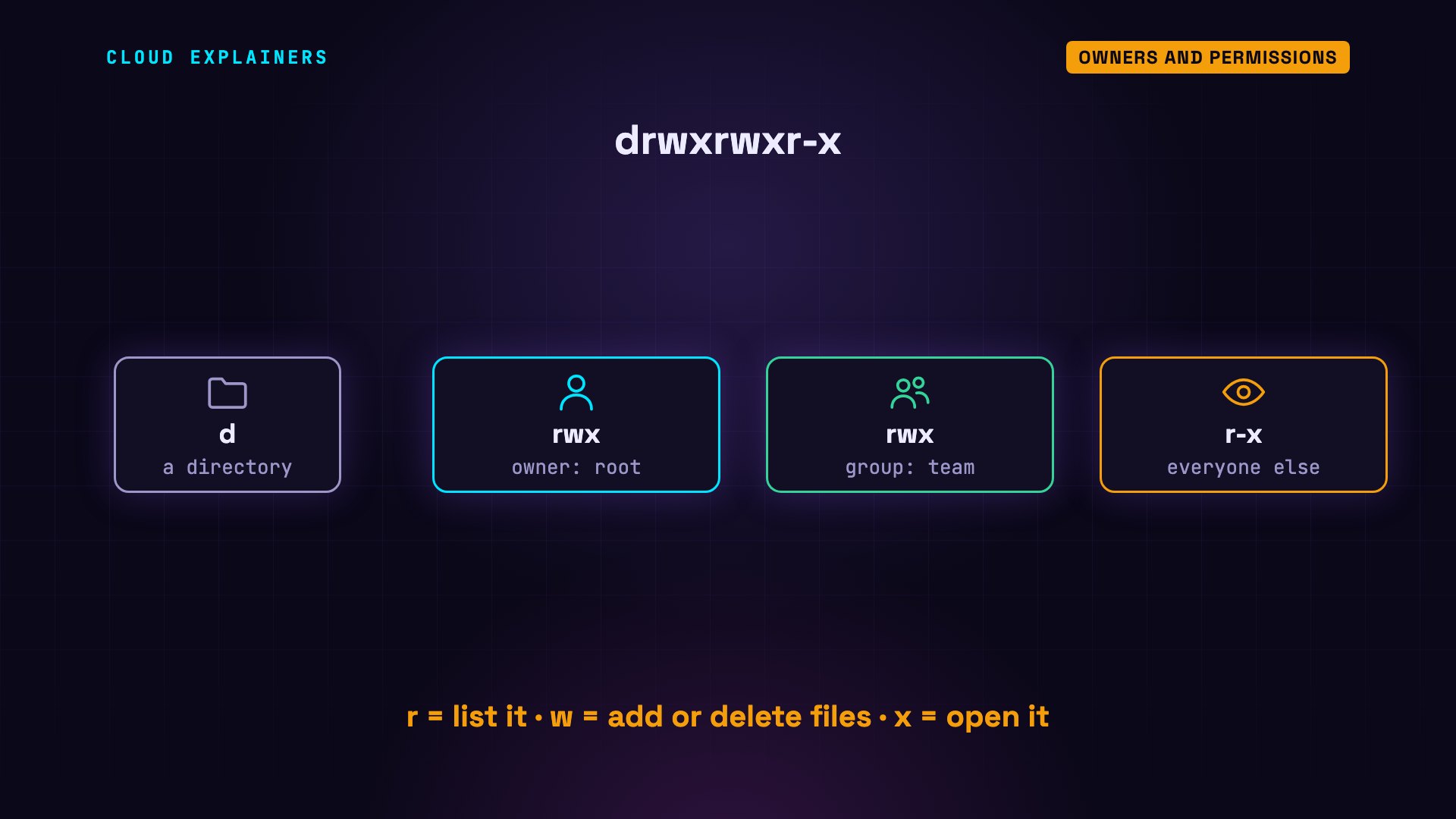
And behind those names? Only numbers. The n in ls -lnd stands for numbers. It shows what is really stored: owner 0, root, and group 1002, team. The names are looked up in /etc/passwd and /etc/group each time you list.
ls -lnd /srv/teamdrwxrwxr-x 2 0 1002 4096 Oct 26 19:41 /srv/team
The check
Part five: the check.
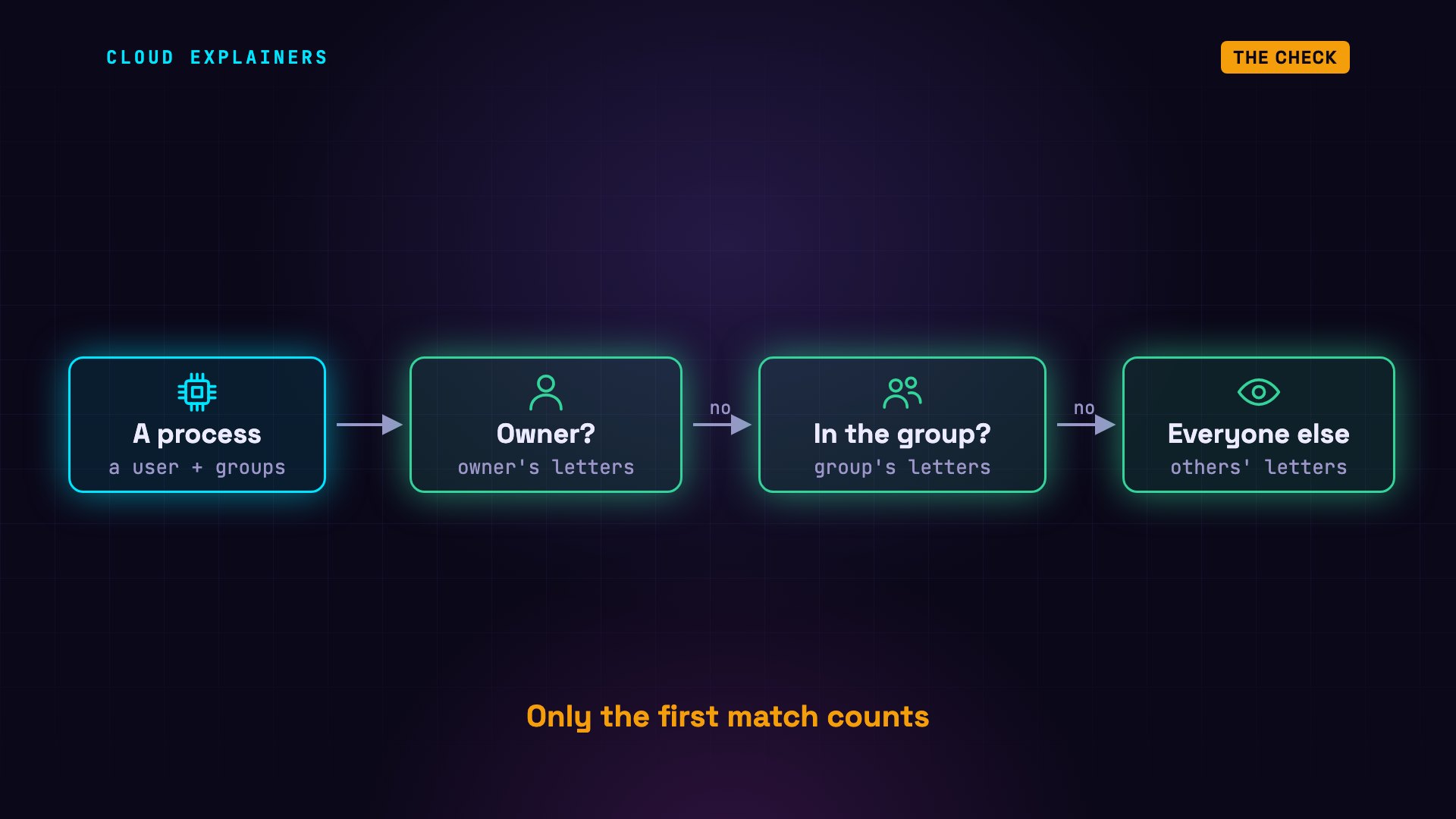
A running program is called a process, and every process carries a user and a list of groups. When a process opens a file, Linux asks three questions, in order. Is the process's user the owner? Then the owner's letters decide. If not, is one of the process's groups the file's group? Then the group's letters decide. If neither, everyone else's letters decide. Only the first match counts.
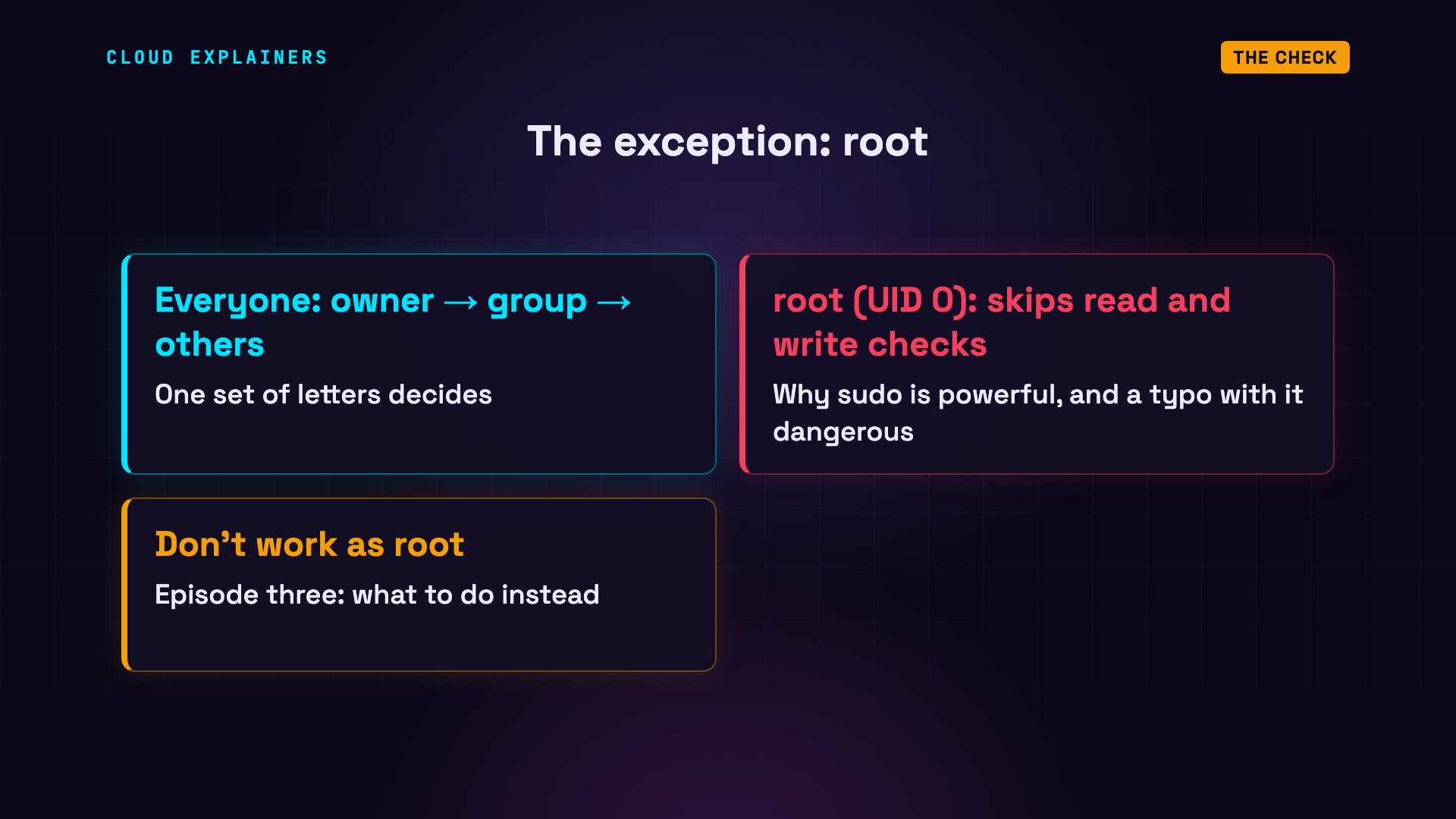
One exception: root, user zero, skips the read and write checks entirely. That's what makes sudo powerful, and a typo with sudo dangerous. It's also why you shouldn't work as root day to day: episode three is about that.
Why Ben was denied
Now, Ben's mystery.
Let's run the check for Ben. He tries to create a file in the team folder: permission denied. Owner? The folder belongs to root, not Ben. Group? Look at what id says in his terminal: no team. So Ben counts as everyone else, and everyone else can't write.
iduid=1001(ben) gid=1001(ben) groups=1001(ben)
Here's why. When you log in, Linux reads your groups once, from /etc/group, and gives them to your shell. Every program you start from it inherits that same list. usermod changed the file, but not the processes already running. Ben's shell still carries the list from before he joined.
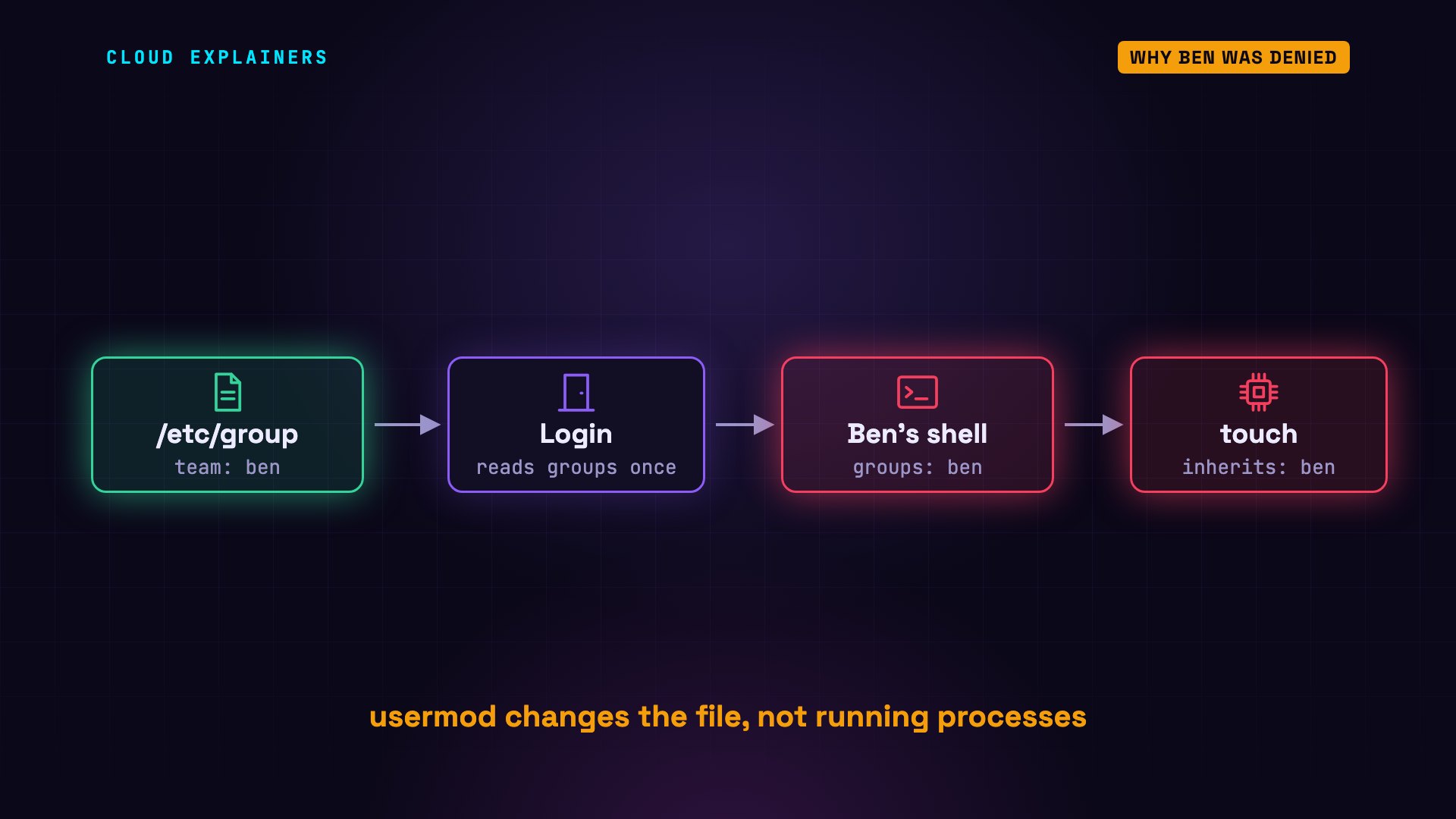
So the fix is to log in again. In the same terminal, su - ben starts a fresh login, and asks for Ben's password. This time, id shows team. The same touch works, and the new file, plan.txt, belongs to Ben and to his primary group, ben, not team: new files get the primary group of whoever creates them.
su - benPassword:
iduid=1001(ben) gid=1001(ben) groups=1001(ben),1002(team)
touch /srv/team/plan.txt
ls -l /srv/teamtotal 0
-rw-rw-r-- 1 ben ben 0 Oct 26 19:41 plan.txt
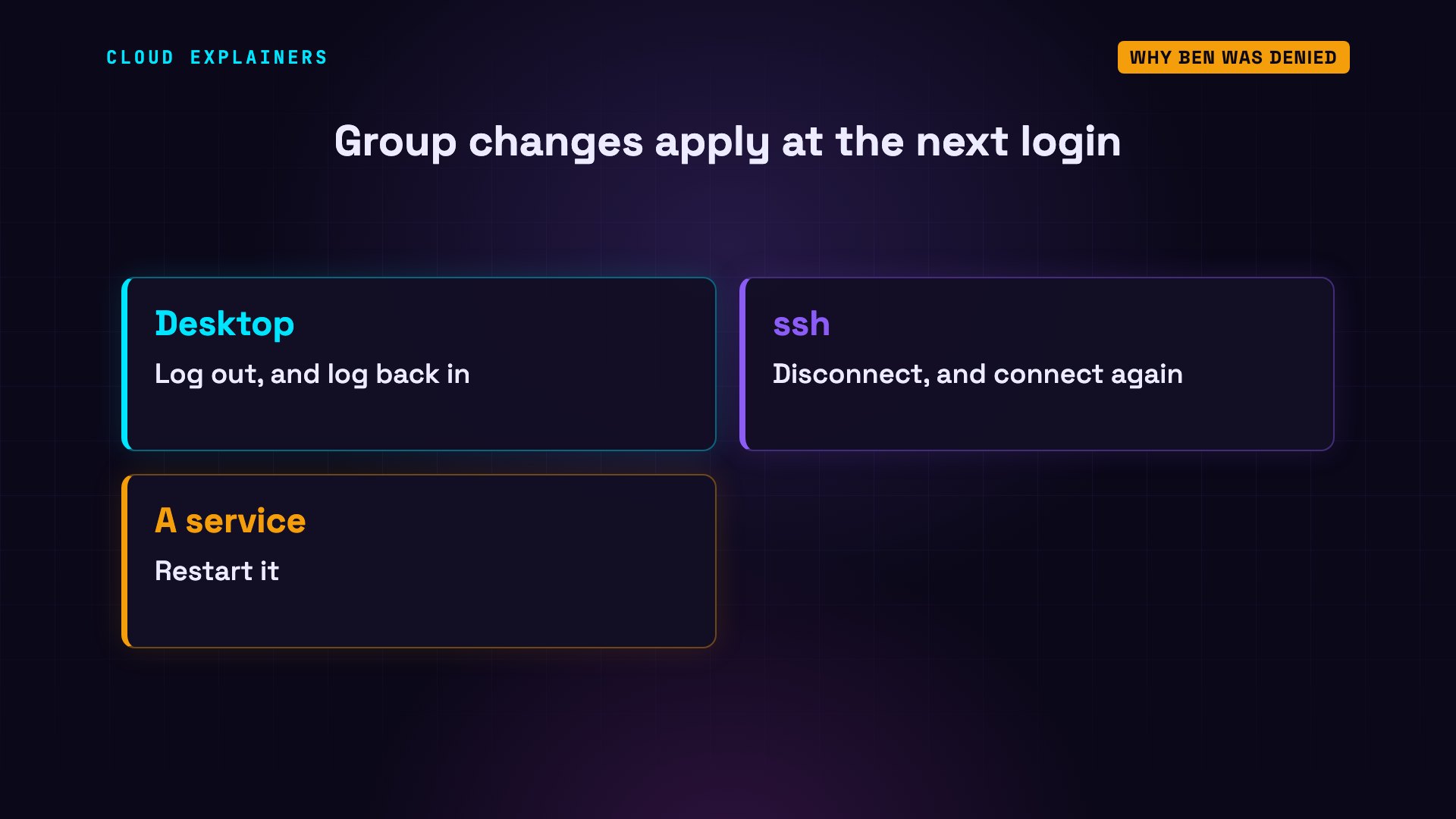
Group changes apply at the next login, and that catches everyone. Added yourself to the docker group, and docker still says permission denied? Log out and back in. Connected with ssh? Disconnect and connect again. A program running as a service? Restart it.
The -a trap
One last trap, from part three: the missing a.
Later, Ana adds Ben to the users group too, and forgets the a. Without a, -G doesn't add: it replaces Ben's whole list of extra groups. team is gone. Ben loses the folder the next time he logs in.
sudo usermod -G users ben
id benuid=1001(ben) gid=1001(ben) groups=1001(ben),100(users)
Put it back with -aG team, and make it a habit: -G always travels with -a.
sudo usermod -aG team ben
id benuid=1001(ben) gid=1001(ben) groups=1001(ben),100(users),1002(team)
Recap
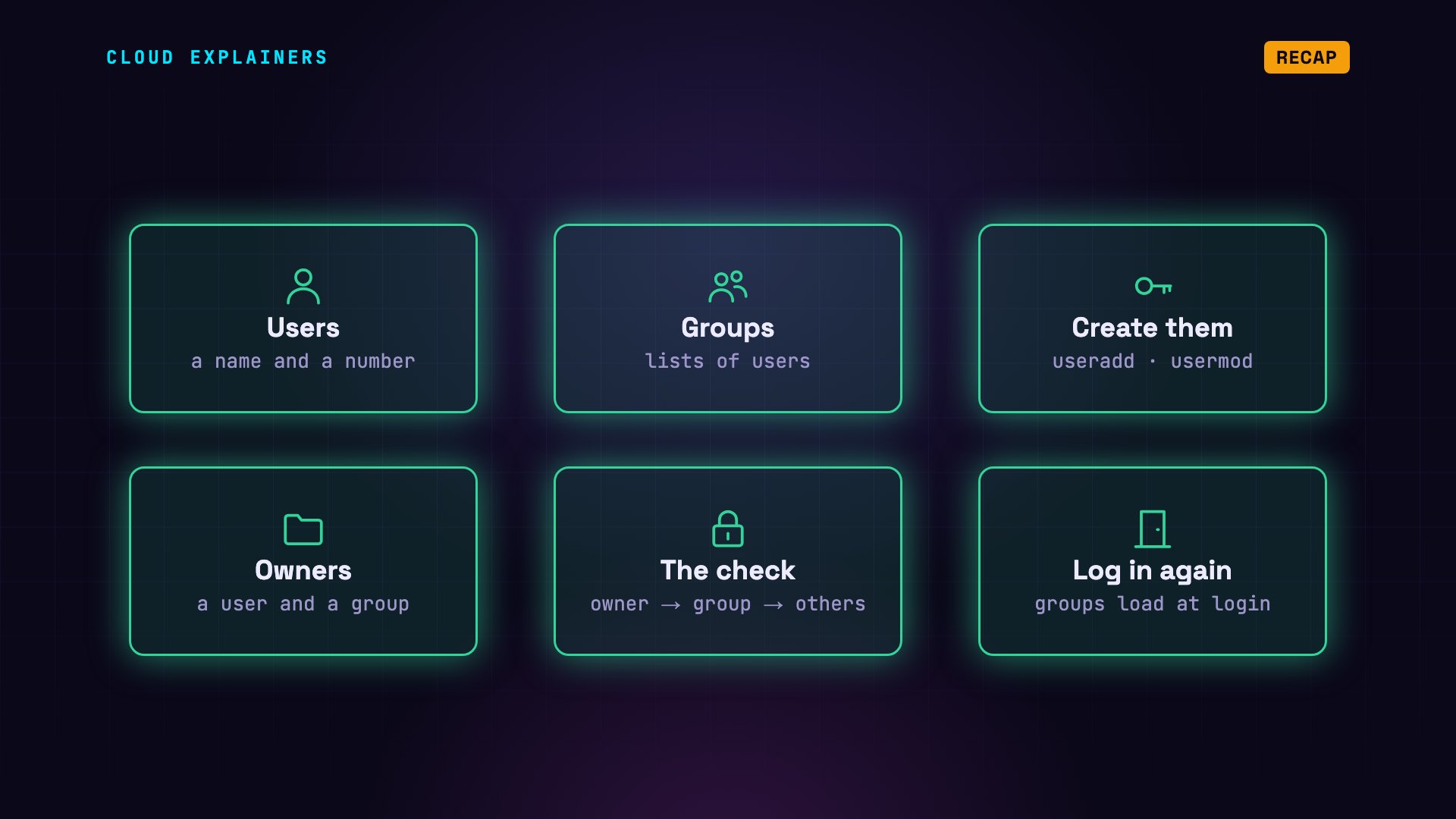
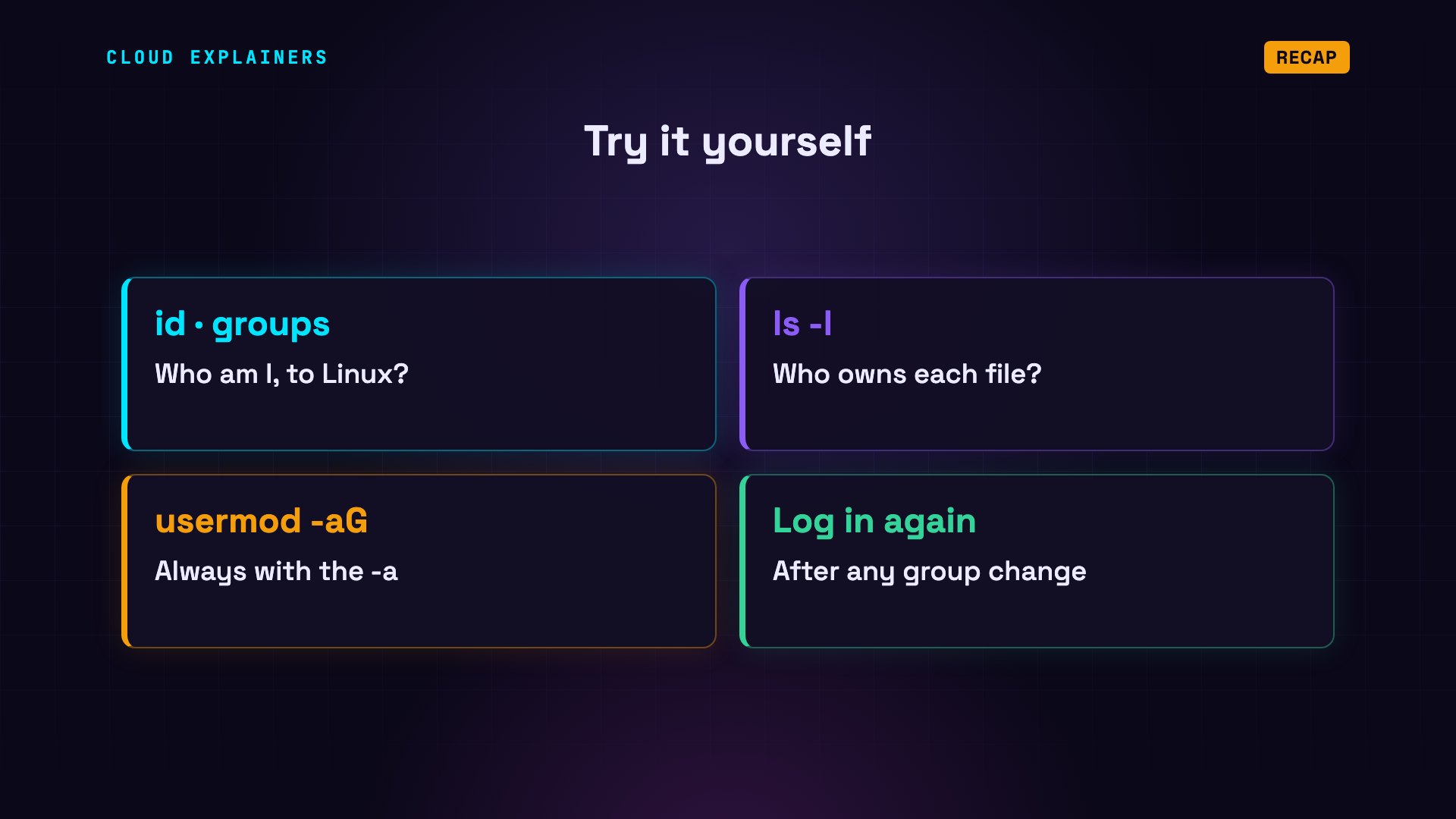
So: a user is a name and a number. A group is a named list of users. useradd, passwd and usermod -aG create them. Every file has an owner and a group. Linux checks the owner, then the group, then everyone else. And your groups load when you log in.
Try it on your own machine: id and groups show who you are to Linux, and ls -l shows who owns every file in a folder. Before changing accounts, keep the a in usermod -aG, and log in again after any group change.
This was episode two of Linux for Beginners. Next: why you shouldn't do everything as root, and what to do instead.
Sources
- passwd(5), the account file
- group(5), the group file
- useradd(8)
- usermod(8), -G and -a
- groupadd(8)
- login.defs(5), UID_MIN and USERGROUPS_ENAB
- credentials(7), a process's user and groups
- path_resolution(7), the owner, group, other check
- capabilities(7), CAP_DAC_OVERRIDE (root)
- su(1)
- Filesystem Hierarchy Standard 3.0, /srv
- Docker, Linux post-installation steps (log out and back in after joining the docker group)
Demos: real output from two terminal sessions (ana and ben) on one Ubuntu 24.04 test machine. The accounts, passwords and the team folder were created for the demo; every command and its output is real. Watch the full video on YouTube.
More videos
Stop Running Linux as Root (Do This Instead)

Why Phishing Beats Good Security (and How to Spot It)

The 7 Levels of Docker

AI Agents Will Finally Make Sense After This
Stop Using git push --force (Use This Instead)
Agent Skills vs MCP: When Each One Wins

Networking Will Finally Make Sense After This

Every Linux Command You Actually Need
The 7 Levels of Cybersecurity

Every System Design Concept You Need, in One Diagram