How a Homelab Hypervisor Works (VMware ESXi)
How does ESXi run 12 GB of virtual machines on an 8 GB server? We ran three VMs on a real ESXi 8 host and looked inside: a VM is a folder of files, a running VM is a process that takes turns on the real cores (three busy VMs on two cores each waited about 35% of the time), memory is handed out only when it's touched, and a memory reservation is the setting that makes ESXi say no.
Three VMs, one small box
You've got one spare computer, and you want it to run several servers at once. Ana's animal shelter has an ESXi server with 8 GB of memory. On it she's made three virtual machines: one for the adoption website, one for the kennel cameras, one for shared files. Each one asks for 4 GB. That's 12 GB on an 8 GB box. Most people guess the third one won't start.
[root@shelter-esxi:~] esxcli hardware memory get | grep PhysicalPhysical Memory: 8584671232 Bytes
[root@shelter-esxi:~] grep memSize /vmfs/volumes/datastore1/*/*.vmx/vmfs/volumes/datastore1/cameras/cameras.vmx:memSize = "4096"
/vmfs/volumes/datastore1/files/files.vmx:memSize = "4096"
/vmfs/volumes/datastore1/website/website.vmx:memSize = "4096"
Here's what happens. Ana powers them on, and all three are running. By the end, you'll know how, and the one setting that makes ESXi say no.
[root@shelter-esxi:~] for id in 12 13 14; do vim-cmd vmsvc/power.on $id; donePowering on VM:
Powering on VM:
Powering on VM:
[root@shelter-esxi:~] esxcli vm process list | grep 'Display Name'Display Name: website Display Name: cameras Display Name: files
What ESXi is
So what is ESXi? It's a hypervisor: software that splits one real computer into several virtual ones, called virtual machines, or VMs. Each VM gets its own share of the processor, memory, disk and network, and runs its own operating system. VirtualBox, which you may have used, is a type 2 hypervisor: a program that runs on top of Windows or macOS. ESXi is type 1: it goes straight onto the bare computer, with nothing underneath.
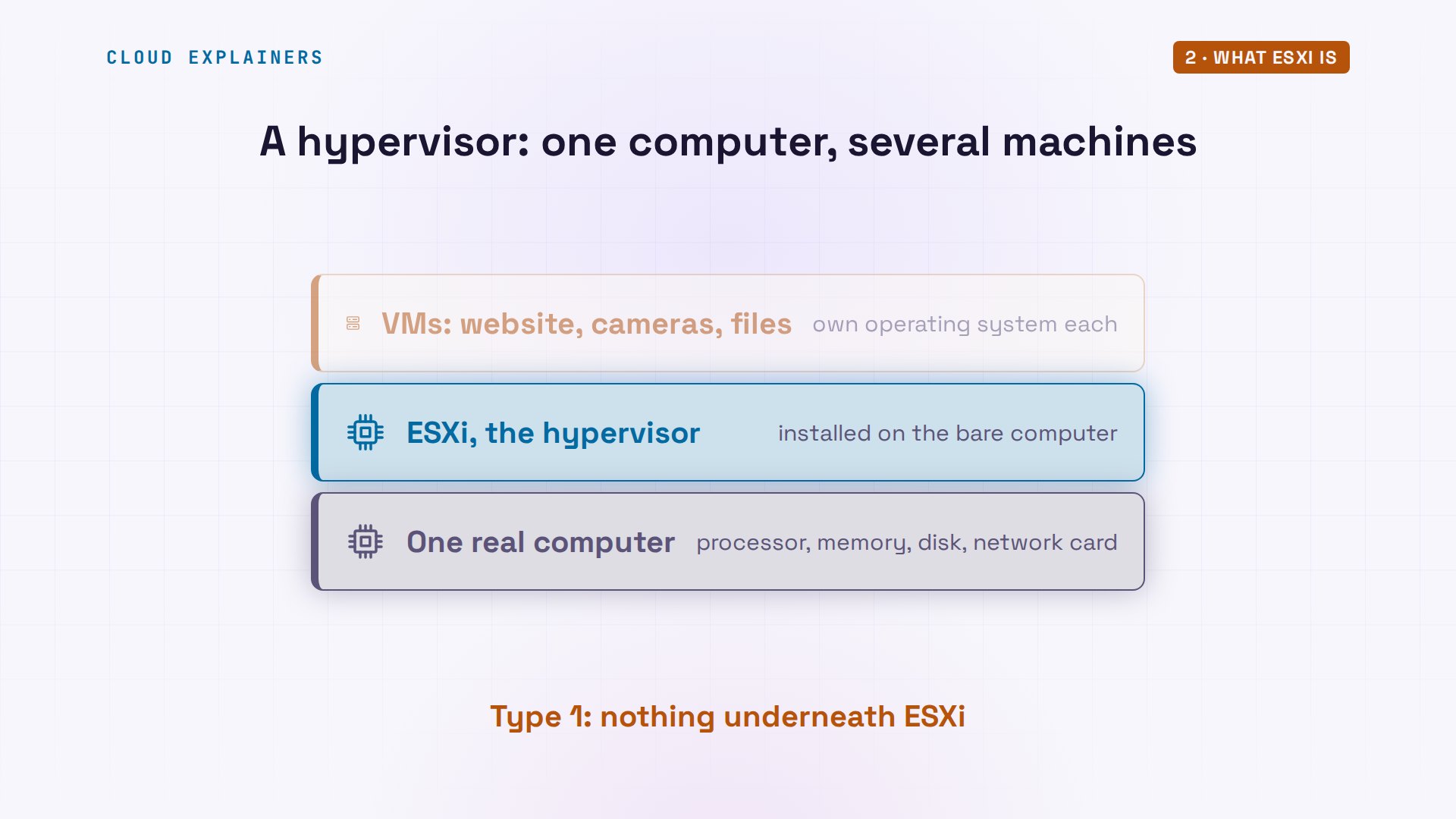
And it isn't Linux, which surprises a lot of people. Ask it what it is, and it says VMkernel, VMware's own small operating system. It boots from a small part of the disk called the boot bank: about 255.5 MB of files, and then it runs from memory. Even its system folders, like the one called etc, spelled E T C, are ramdisks: disks made of memory. Keep that in mind; it matters at the end.
[root@shelter-esxi:~] uname -aVMkernel shelter-esxi 8.0.3 #1 SMP Release build-24677879 Apr 2 2025 23:57:40 x86_64 x86_64 x86_64 ESXi
[root@shelter-esxi:~] du -sh /bootbank/255.5M /bootbank/
[root@shelter-esxi:~] vdf -h | grep -A2 RamdiskRamdisk                   Size      Used Available Use% Mounted on
root                       32M        6M       25M  20% --
etc                        28M        2M       25M   7% --
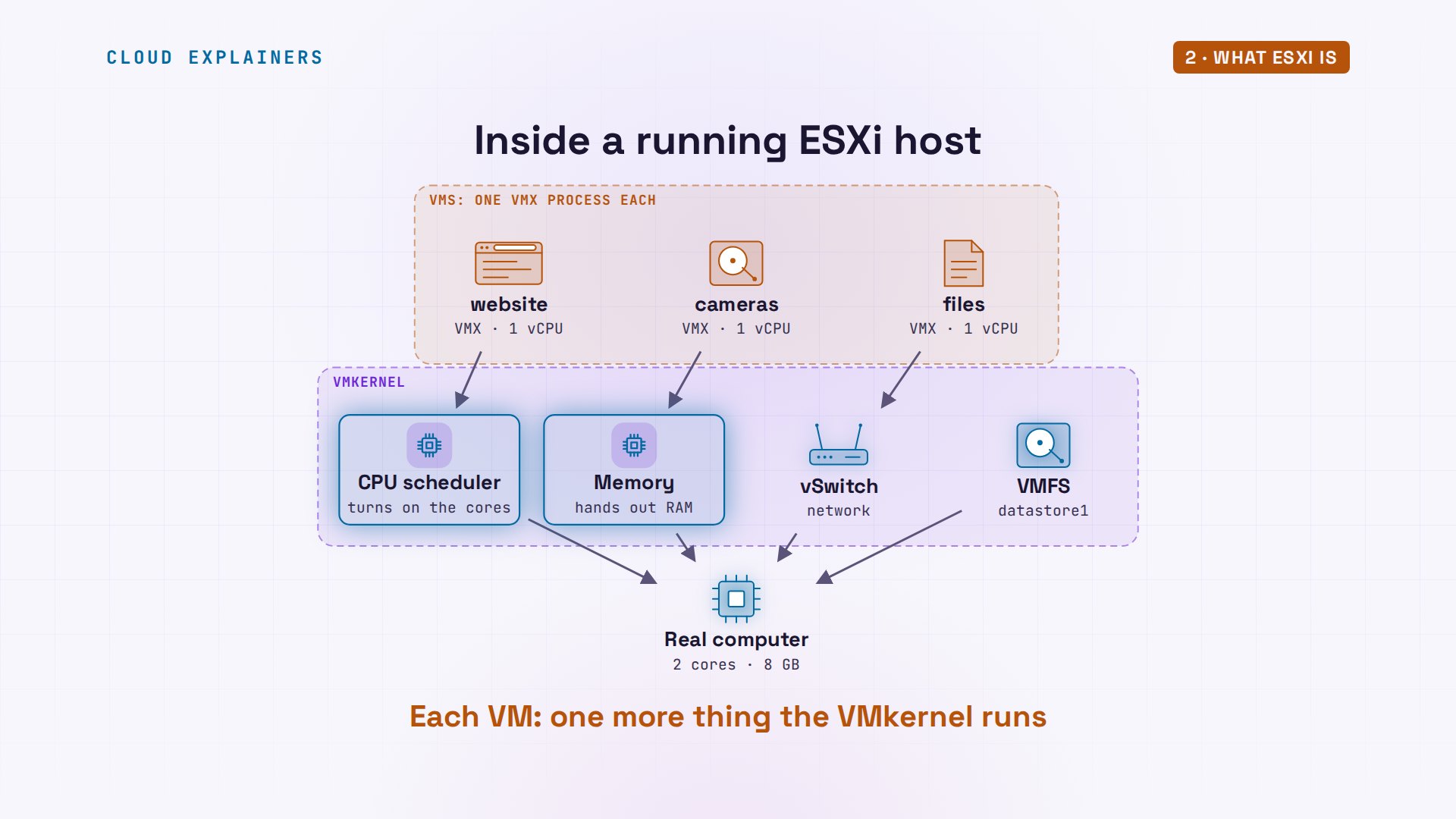
Here's the whole picture, from the bottom. The real computer. On it, the VMkernel: a scheduler that hands out turns on the cores, a memory manager, a virtual switch that connects VMs to the network, and VMFS, its file system for datastores. The VMkernel hands out everything a VM uses: every turn on the processor, every page of memory, which is just a small chunk of RAM, and every network packet. Each VM is just one more thing it runs, on the same hardware.
A VM is a folder
So where does a virtual machine actually live? In a folder. This is the website VM's folder, on datastore1, ESXi's storage for VMs. The vmx file holds its settings. The vmdk files are its hard disk. vmware.log is its diary, every event in the VM's life. And this 4 GB swap file is space on disk that ESXi can use as emergency memory. We'll come back to it.
[root@shelter-esxi:~] ls -lh /vmfs/volumes/datastore1/website/total 4277392
-rw-r--r--    1 root     root        1.1K Nov 19 19:53 console.log
-rw-------    1 root     root        8.5K Nov 19 19:53 nvram
-rw-r--r--    1 root     root      115.2K Nov 19 19:53 vmware.log
-rw-------    1 root     root       80.0M Nov 19 19:52 vmx-website-9ce3c7dc5e4888a23606c95eb7825288f833141fd9a0072bcef97628817e32f5-1.vswp
-rw-------    1 root     root        4.0G Nov 19 19:52 website-1f58baa1.vswp
-rw-------    1 root     root       16.0G Nov 19 19:52 website-flat.vmdk
-rw-r--r--    1 root     root        7.1K Nov 19 19:53 website.scoreboard
-rw-------    1 root     root         473 Nov 19 19:52 website.vmdk
-rw-r--r--    1 root     root           0 Nov 19 19:52 website.vmsd
-rw-r--r--    1 root     root        2.1K Nov 19 19:52 website.vmx
-rw-------    1 root     root           0 Nov 19 19:52 website.vmx.lck
-rw-r--r--    1 root     root        2.1K Nov 19 19:52 website.vmx~
The vmx is plain text. memSize, 4096: that's the 4 GB. One virtual processor. A disk called website.vmdk. And a network card with its own MAC address. That's the hardware ID every network card has. It's plugged into VM Network, a group of ports on ESXi's built-in switch. Copy this folder to another ESXi host, and the VM comes with it.
[root@shelter-esxi:~] grep -E '^(memSize|numvcpus|scsi0:0.fileName|ethernet0.address|ethernet0.networkName)' /vmfs/volumes/datastore1/website/website.vmxmemSize = "4096"
numvcpus = "1"
scsi0:0.fileName = "website.vmdk"
ethernet0.networkName = "VM Network"
ethernet0.addressType = "static"
ethernet0.address = "00:50:56:00:00:01"
Its disk says 16 GB. But du, a command that counts the space really used, says zero. The disk is thin: ESXi only takes space on the datastore when the VM writes something. And remember this trick, because ESXi does the same thing with memory.
[root@shelter-esxi:~] du -h /vmfs/volumes/datastore1/website/website-flat.vmdk0 /vmfs/volumes/datastore1/website/website-flat.vmdk
And from inside? This VM runs Alpine Linux, and when it starts, it prints a short report, which ESXi saves in the VM's folder. It sees 3,926 MB of memory, one processor, and a hypervisor: VMware. To the operating system, it's just a computer, one made by VMware.
[root@shelter-esxi:~] sed -n '/== website/,/== done/p' /vmfs/volumes/datastore1/website/console.log== website: inside the VM
# free -m
              total        used        free      shared  buff/cache   available
Mem:           3926         105        3759          11          62        3667
Swap:             0           0           0
# grep -c ^processor /proc/cpuinfo
1
# dmesg | grep -i hypervisor
[    0.000000] Hypervisor detected: VMware
[    0.000000] vmware: TSC freq read from hypervisor : 3791.999 MHz
[    0.000000] vmware: Host bus clock speed read from hypervisor : 66000000 Hz
[    0.034068] Booting paravirtualized kernel on VMware hypervisor
[    0.115146] SRBDS: Unknown: Dependent on hypervisor status
[    0.115316] GDS: Unknown: Dependent on hypervisor status
# cat /sys/class/dmi/id/sys_vendor /sys/class/dmi/id/product_name
VMware, Inc.
VMware Virtual Platform
# ip link show eth0
2: eth0: <BROADCAST,MULTICAST,UP,LOWER_UP> mtu 1500 qdisc pfifo_fast state UP qlen 1000
    link/ether 00:50:56:00:00:01 brd ff:ff:ff:ff:ff:ff
== done
Sharing the processor
Three VMs each want a processor, but this box has only two real cores. So who waits? When a VM runs, ESXi starts a process for it. Inside that process, each virtual processor gets its own world. A world is ESXi's word for anything that takes turns on a core. Here's one for the website, one for cameras, and one for files.
[root@shelter-esxi:~] esxcli hardware cpu global get | grep -E 'Cores|Threads'CPU Cores: 2 CPU Threads: 2
[root@shelter-esxi:~] ps | grep vmx-vcpu134093  134085  vmx-vcpu-0:website
134112  134104  vmx-vcpu-0:cameras
134133  134125  vmx-vcpu-0:files
Here's a way to picture the processor part. Think of a chess master playing three boards at once. She makes a move on one board, then walks to the next. When the players are slow, nobody waits. When all three are ready at the same moment, two of them wait for her.
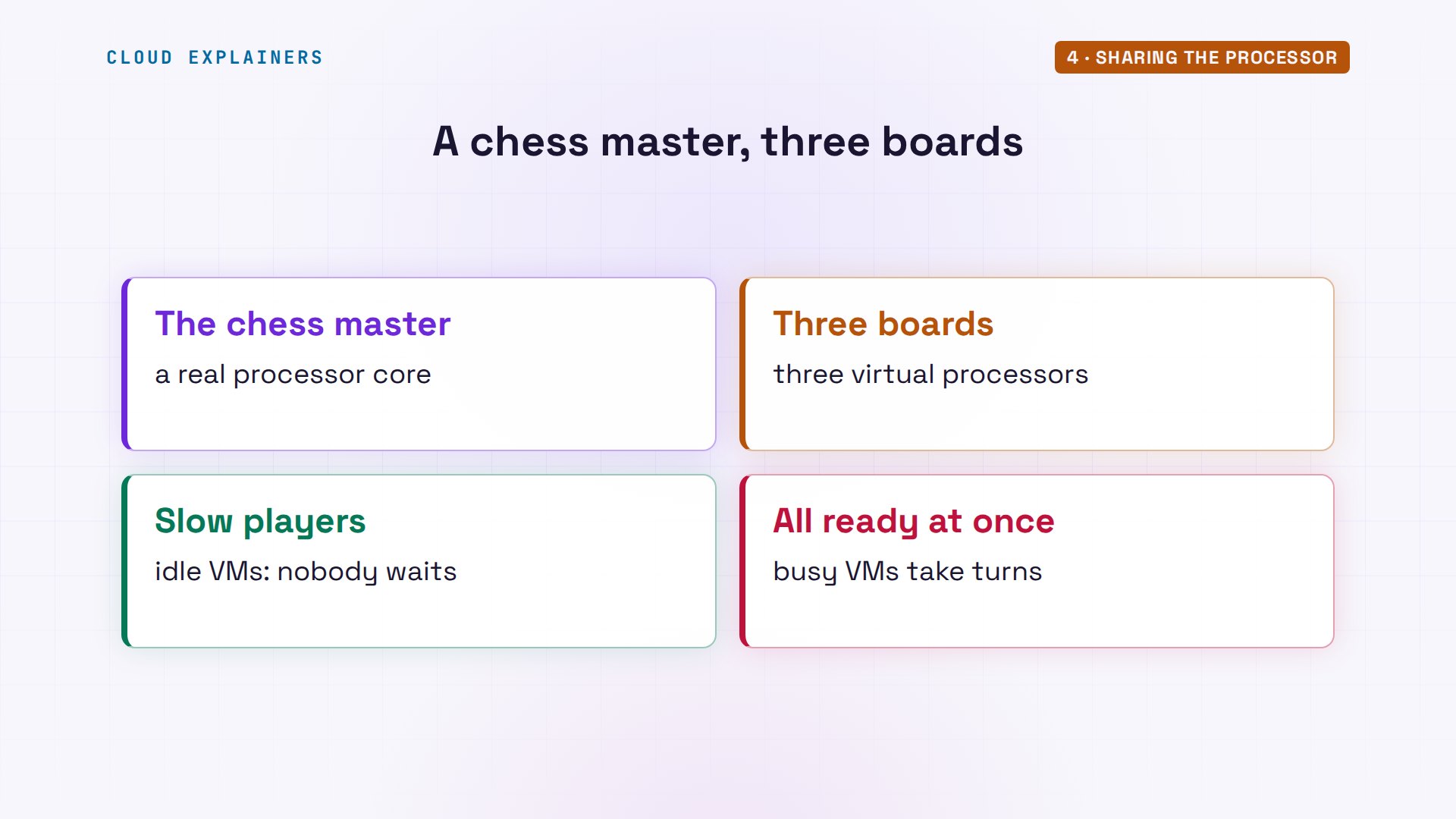
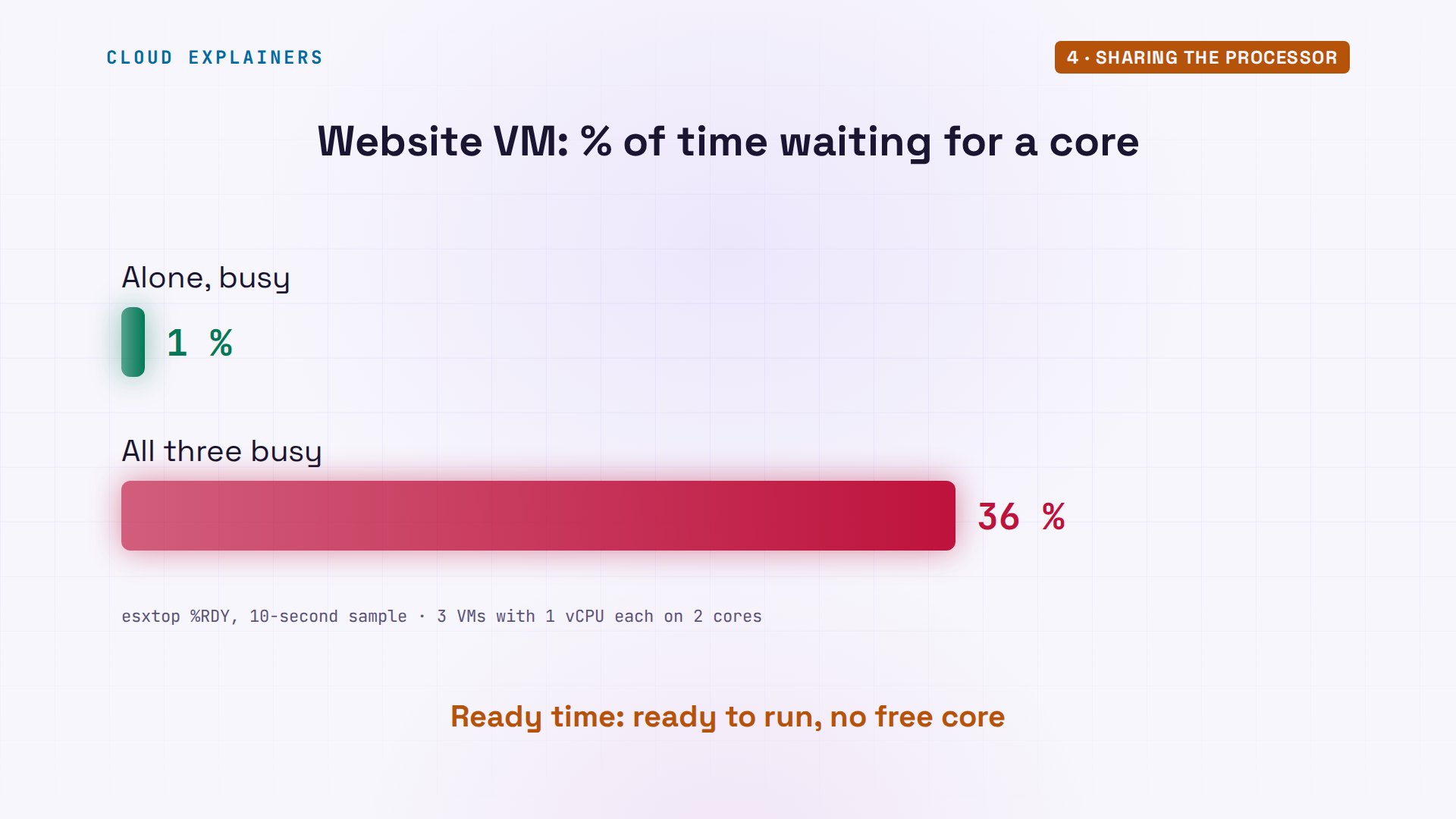
Ana makes the VMs busy. First only the website, alone on two cores: it runs flat out and almost never waits. Then all three, on the same two cores. How much of the time is each one waiting? Take a guess. About a third. Three busy VMs share two cores, so each gets about two thirds of a core. Each one ran about 66% of the time, and waited about 35%. Just like the chess players, whoever is ready waits for a free core. ESXi calls that waiting ready time, and it's the number to watch when VMs feel slow.
Sharing the memory
Now, back to the opening. Each VM was promised 4 GB, but look at what each one really uses on the host: about 415 MB. Inside, the VM sees nearly 4 GB. But ESXi only hands it real memory when the VM first touches it. So all three together, plus ESXi itself, use about 2.9 GB of the 8.
[root@shelter-esxi:~] for id in 12 13 14; do vim-cmd vmsvc/get.summary $id | grep -E ' name =|hostMemoryUsage'; donename = "website", hostMemoryUsage = 418, name = "cameras", hostMemoryUsage = 414, name = "files", hostMemoryUsage = 412,
[root@shelter-esxi:~] vim-cmd hostsvc/hostsummary | grep overallMemoryUsageoverallMemoryUsage = 2969,
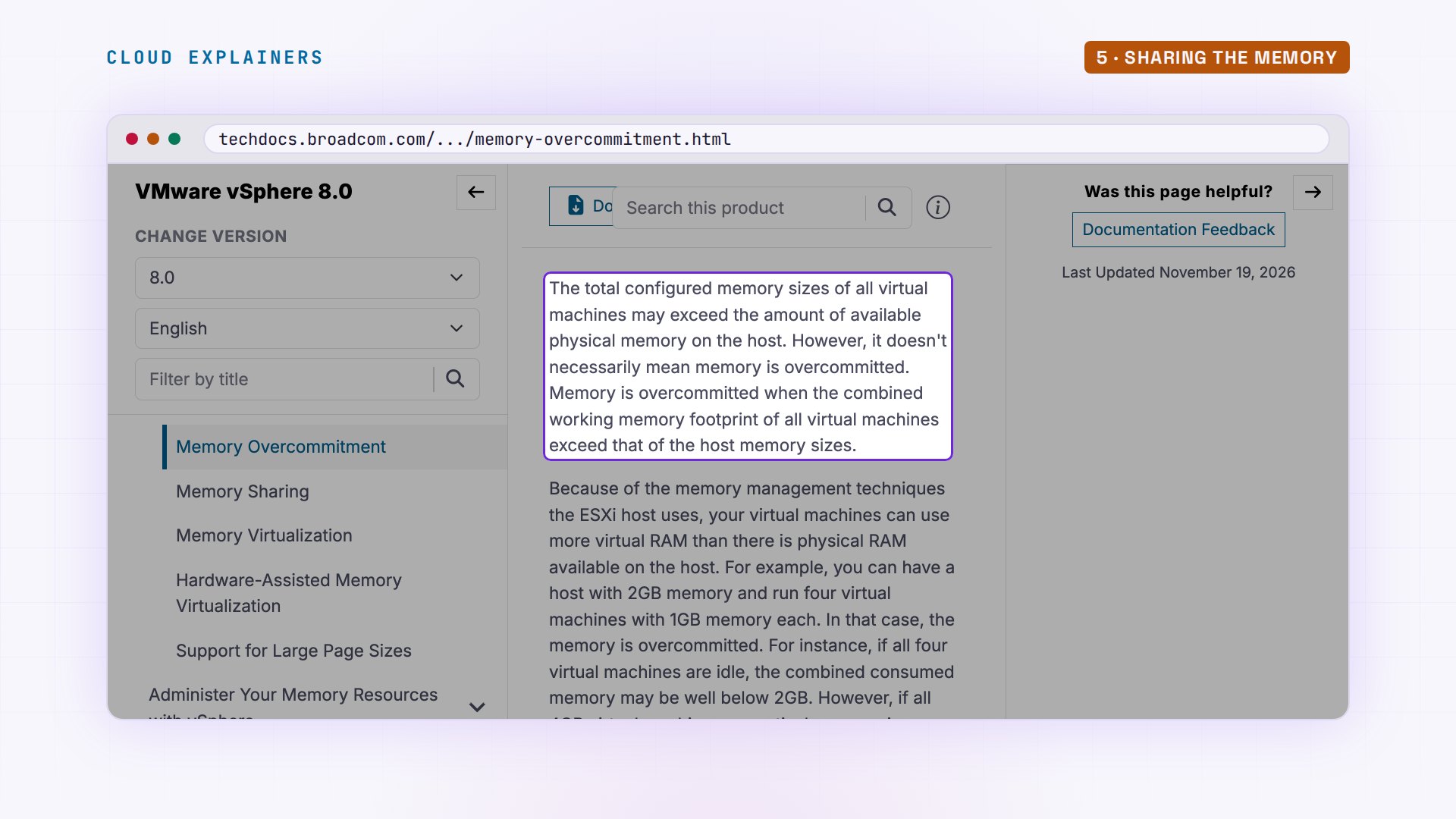
VMware's documentation says it plainly: the memory set for all the VMs together may be more than the host has. It's called overcommitting memory, and it works as long as the VMs don't all need their memory at the same time. If they do, ESXi has backup plans, like that swap file on disk: slow, but nothing crashes.
But some VMs must never wait for memory. The camera recorder can't drop video, so Ana gives it a reservation: 3 GB that are always real memory, never swapped to disk. It's one line in its vmx: sched dot mem dot min, the minimum it's guaranteed.
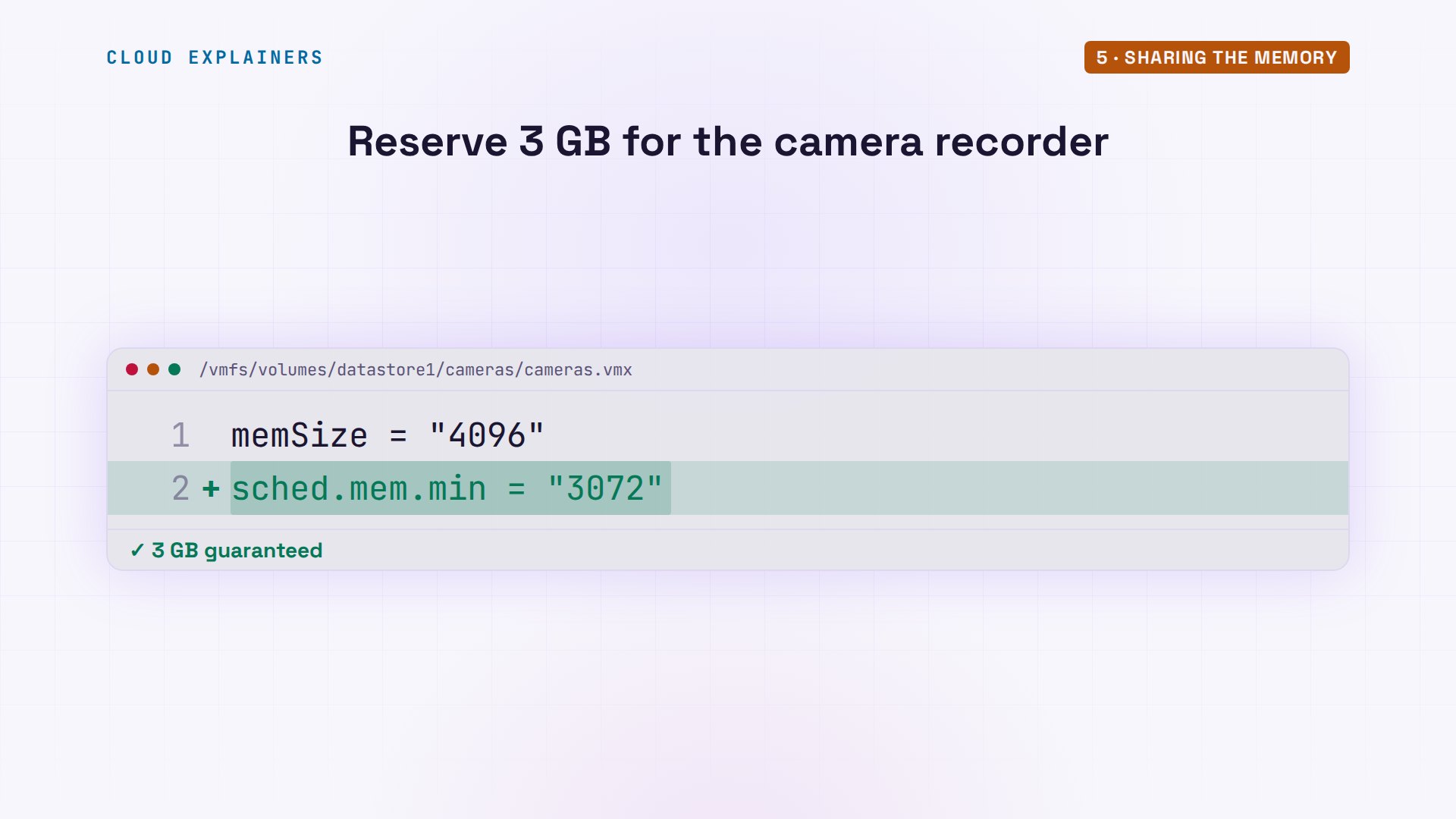
Ana shuts the VMs down, adds the line, and starts just the cameras and files VMs. We'll try the website in a moment. Look at their swap files now. The files VM's swap file is still 4 GB, but the cameras swap file shrank to 1 GB: 4 GB, minus the 3 that are promised. ESXi only needs disk to back the part it didn't promise.
[root@shelter-esxi:~] vim-cmd vmsvc/power.on 13Powering on VM:
[root@shelter-esxi:~] vim-cmd vmsvc/power.on 14Powering on VM:
[root@shelter-esxi:~] ls -lh /vmfs/volumes/datastore1/cameras/*.vswp /vmfs/volumes/datastore1/files/*.vswp-rw-------    1 root     root        1.0G Nov 19 19:59 /vmfs/volumes/datastore1/cameras/cameras-1336dd2a.vswp
-rw-------    1 root     root       80.0M Nov 19 19:59 /vmfs/volumes/datastore1/cameras/vmx-cameras-21e7ab0580d366e1290b22efe423a610838598fba47c8582a8d3855abd4c0957-1.vswp
-rw-------    1 root     root        4.0G Nov 19 19:59 /vmfs/volumes/datastore1/files/files-3ff3f301.vswp
-rw-------    1 root     root       80.0M Nov 19 19:59 /vmfs/volumes/datastore1/files/vmx-files-aa659d99a16883ebd948935f95df22fa633cd06f5321584398e5e441d5ba42dc-1.vswp
Now Ana gives the website a reservation too, just 1 GB, and powers it on. ESXi says no: the available memory resources are insufficient. The website only ever used about 400 MB. But a reservation is a promise. Before it promises anything, ESXi sets aside a good chunk of the 8 GB for itself and for running each VM. Take away that, and cameras' 3 GB, and only 944 MB was left to promise. A 1 GB promise doesn't fit. That's the setting that makes ESXi say no.
[root@shelter-esxi:~] grep -E '^(memSize|sched.mem.min)' /vmfs/volumes/datastore1/website/website.vmxmemSize = "4096"
sched.mem.min = "1024"
[root@shelter-esxi:~] vim-cmd vmsvc/power.on 12Powering on VM:
   msg = "The available Memory resources in the parent resource pool are insufficient for the operation."
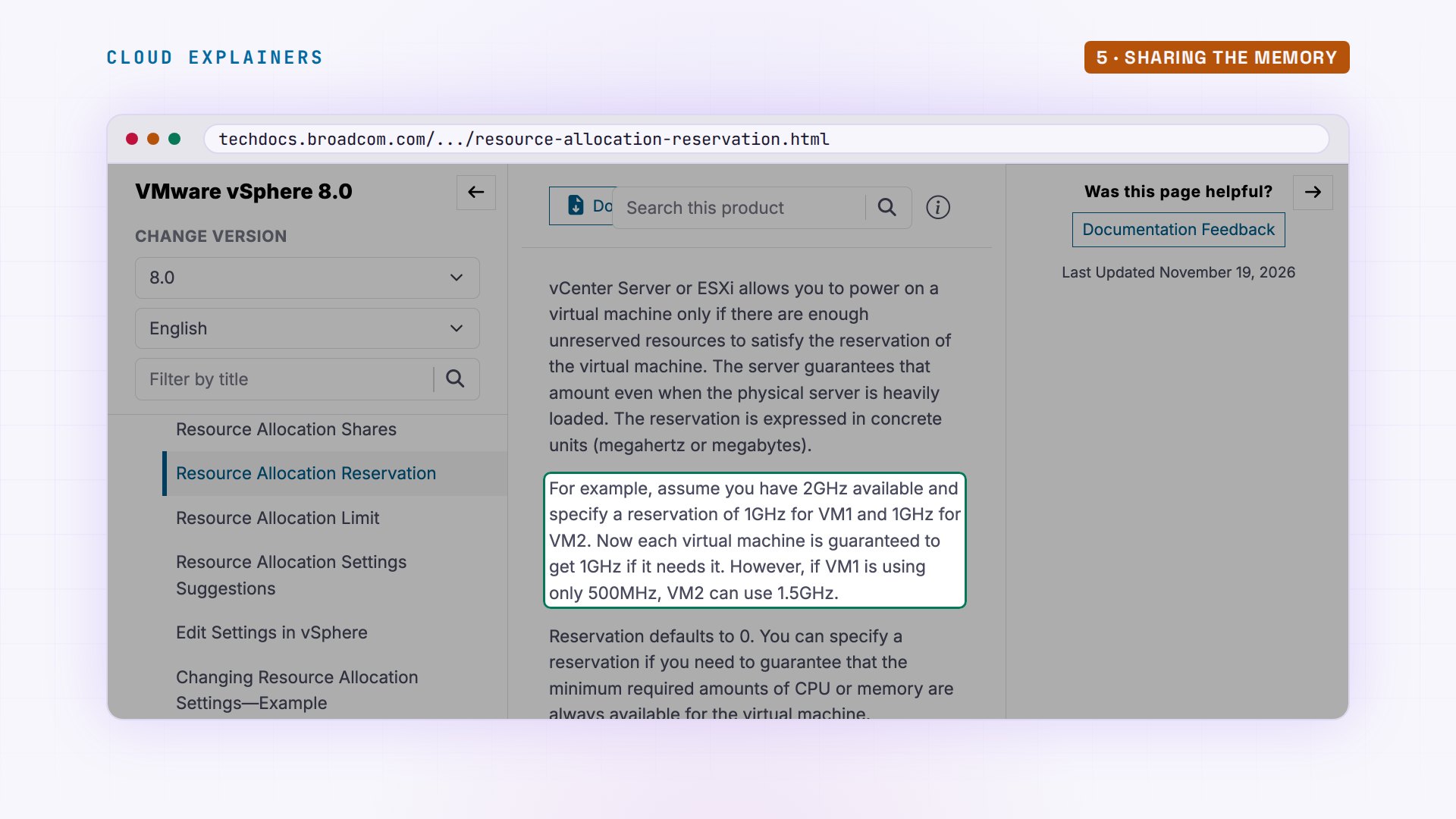
VMware's own rule: a VM powers on only if there's enough unreserved memory to cover its reservation. So use reservations for the one or two VMs that really need them, not for everything.
The virtual switch
Three VMs, but one network cable. So how does each one get onto the shelter's network? ESXi has a switch built in, made of software: vSwitch0. It connects to the real network card, vmnic0. ESXi calls that connection the uplink. Each VM gets a port on it, with the MAC address from its vmx. ESXi itself plugs in too, on a port called vmk0. That port has the address you type into your browser to manage ESXi. Traffic between two VMs on this host never leaves the box. Traffic to the rest of the shelter goes out through the real card.
[root@shelter-esxi:~] esxcli network vswitch standard list | grep -E 'Name:|Uplinks|Portgroups'Name: vSwitch0 Uplinks: vmnic0 Portgroups: VM Network, Management Network
[root@shelter-esxi:~] net-stats -lPortNum          Type SubType SwitchName       MACAddress         ClientName
2214592516          4       0 vSwitch0         00:0c:29:f6:fd:54  vmnic0
67108870            3       0 vSwitch0         00:0c:29:f6:fd:54  vmk0
67108874            5       9 vSwitch0         00:50:56:00:00:01  website
67108875            5       9 vSwitch0         00:50:56:00:00:02  cameras
67108876            5       9 vSwitch0         00:50:56:00:00:03  files
Runs from memory
One last thing that catches people out. Remember, ESXi runs from memory. Ana writes a note into a file in /etc, then reboots. After the reboot, the file is gone. ESXi saves only the settings you change with its own tools. It packs them into one file, called state.tgz, on the boot disk. So change ESXi with its own tools, not by editing its files.
[root@shelter-esxi:~] echo 'printer: 192.168.1.40' > /etc/shelter-note && cat /etc/shelter-noteprinter: 192.168.1.40
[root@shelter-esxi:~] uptime20:01:08 up 00:01:10, load average: 0.35, 0.00, 0.00
[root@shelter-esxi:~] cat /etc/shelter-notecat: can't open '/etc/shelter-note': No such file or directory
[root@shelter-esxi:~] ls -lh /bootbank/state.tgz-rwx------ 1 root root 260.7K Nov 19 19:59 /bootbank/state.tgz
Sizing your server
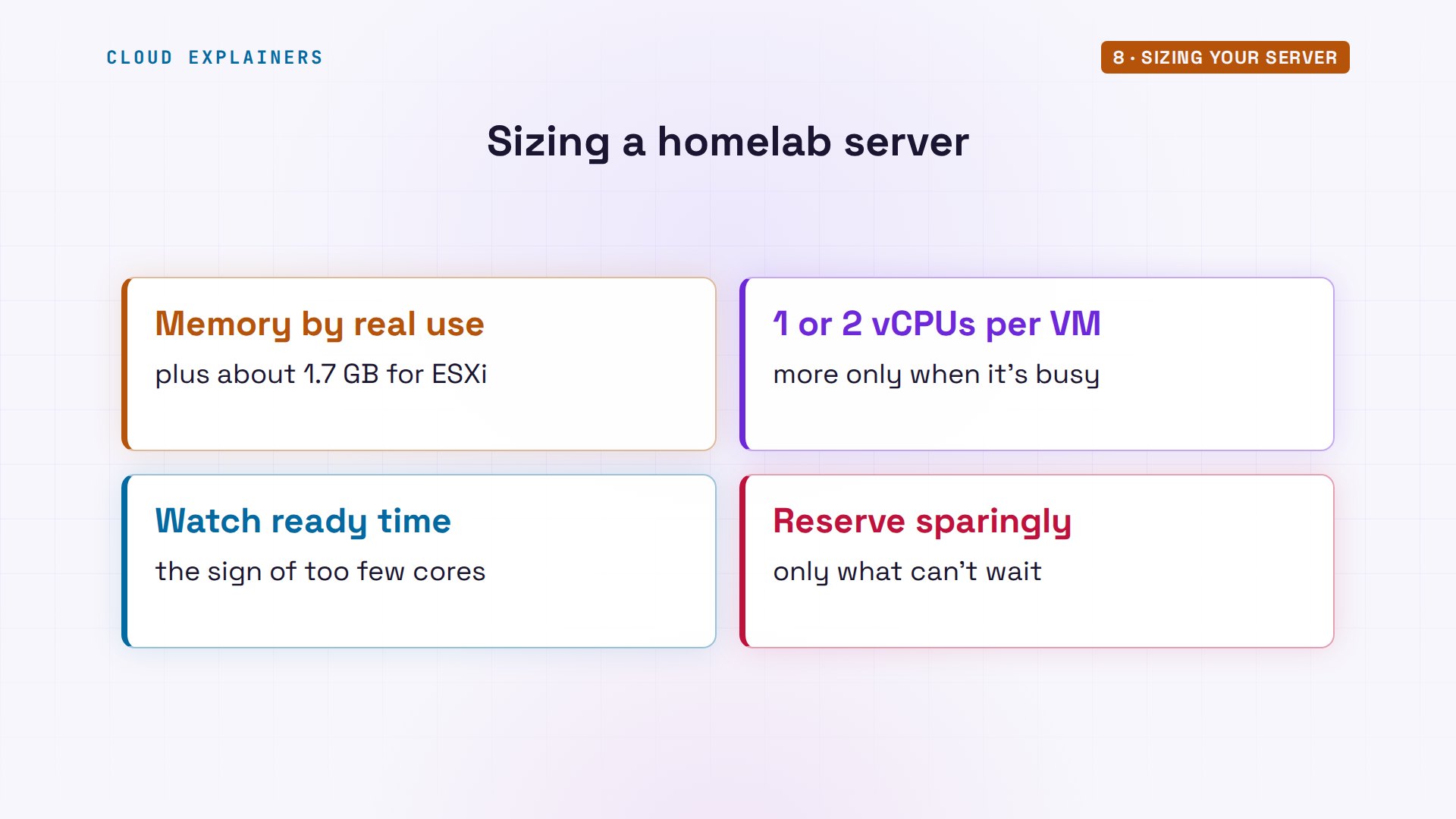
So how do you size a homelab server? Add up what your VMs really use, not what they ask for, and leave room for ESXi itself: here, about 1.7 GB of the 2.9 GB we saw in use. Give each VM one or two virtual processors, and add more only if it's busy. Watch ready time. And save reservations for the VMs that really can't wait.
Recap
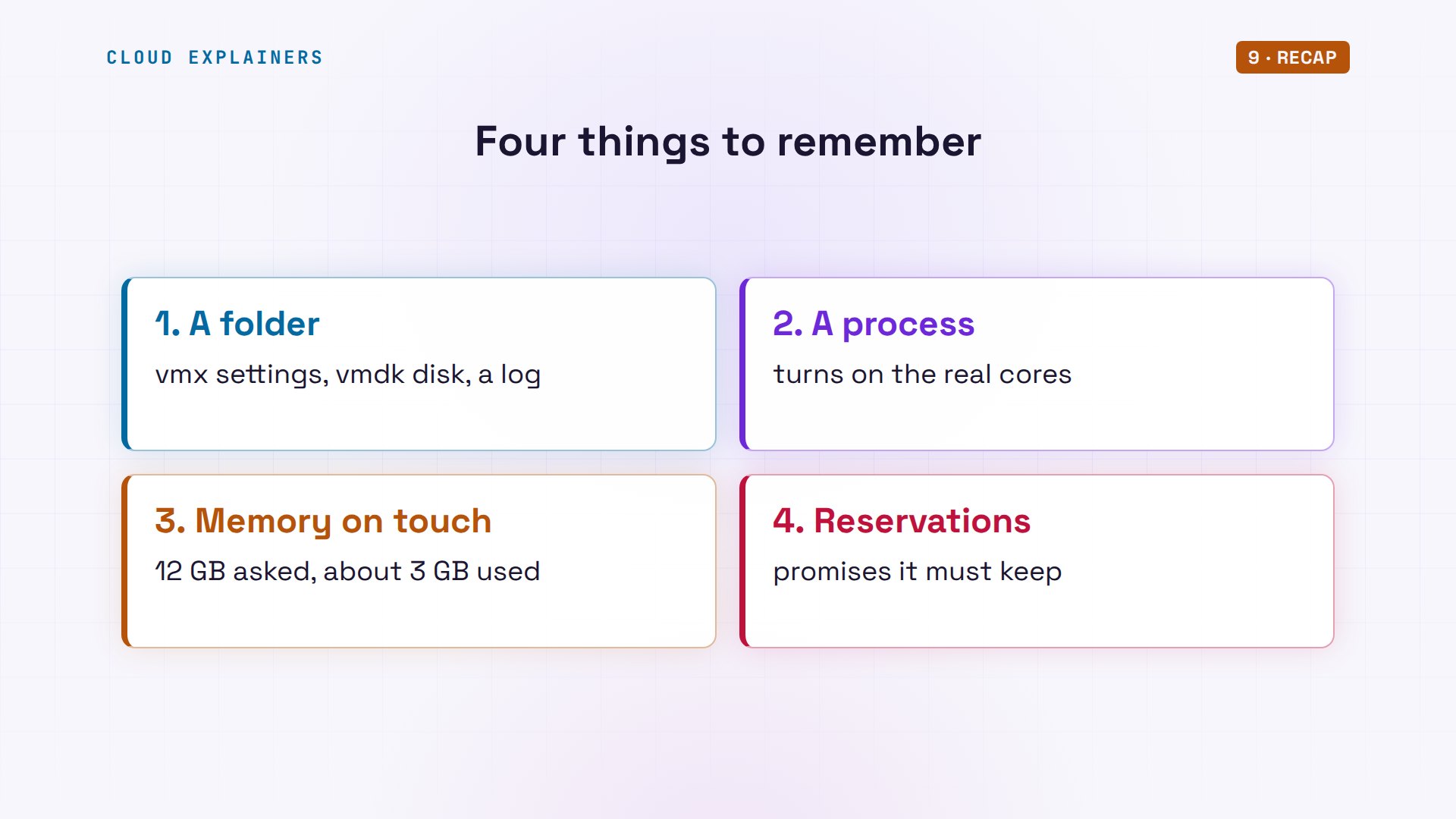
So: a VM is a folder of files. A running VM is a process that takes turns on real cores. Memory is handed out when it's touched, and a reservation is a promise ESXi has to be able to keep.
If this made your hypervisor less of a black box, a like helps YouTube show it to more beginners, and subscribing gets you the next homelab video.
Everything you saw ran for real, on an ESXi host in our lab. The lab files and every command are linked in the description. Thanks for watching Cloud Explainers.
Sources
Demos: ESXi 8.0 Update 3e runs as a nested virtual machine on our own lab server, with three Alpine Linux VMs; Ana's animal shelter is made up. Watch the full video on YouTube.
More videos

How to Fix Python ModuleNotFoundError: No Module Named
Golang Pointers in 5 Minutes
How to Fix a Kubernetes Pod Stuck in CrashLoopBackOff
How to Fix a Homelab ESXi Host Not Responding
PostgreSQL: Full Tutorial for Beginners
How a Load Balancer Works with HAProxy

How Python Virtual Environments Work
How to Fix Cloudflare Tunnel Errors in a Homelab
How to Fix API CORS Errors: No 'Access-Control-Allow-Origin'
How Authenticator App Login Codes Work (TOTP)
Git and GitHub: Full Tutorial for Beginners
How to Fix Kubernetes ImagePullBackOff Errors

How to Fix DNS 'Temporary Failure in Name Resolution' on Linux
How to Fix AWS CLI 'Unable to Locate Credentials'
Proxmox vs ESXi for Your Homelab: When Each One Wins
PostgreSQL UUID vs Auto Increment: Which Primary Key Should You Use?
Kubernetes: Full Tutorial for Beginners

How TCP Sockets Work

How to Fix PostgreSQL 'Could Not Connect to Server'
Claude Code Hooks Will Finally Make Sense After This
DevOps with Ansible Will Finally Make Sense After This
How SNMP Network Monitoring Works
How to Fix GitHub 'Permission Denied (publickey)' Errors
Docker: Full Tutorial for Beginners
How to Fix PostgreSQL 'Password Authentication Failed'
Why One Linux Server Handles More Users Than You Think

How to Fix Network 'Connection Refused' Errors
DevOps Pipelines: Jenkins vs GitHub Actions
Linux Nginx Reverse Proxy: Full Tutorial for Beginners
Every Networking Term a Beginner Needs in 12 Minutes
How to Fix Docker 'Permission Denied' on docker.sock
How to Fix Git 'Updates Were Rejected' When You Push
How to Fix nginx 502 Bad Gateway Errors on Linux
How to Fix Linux apt 'Could Not Get Lock' Errors (Ubuntu)

How Email Works on the Internet (SMTP) in 10 Minutes
The Python Roadmap for Beginners

Golang REST API with Gin: Full Tutorial for Beginners
How a WireGuard VPN Network Works
Linux Makefiles Will Finally Make Sense After This

SAML vs OAuth vs OpenID Connect: What's the Difference?
How to Fix Python cron Jobs That Never Run
Linux Bash Scripting: Full Tutorial for Beginners
How PXE Network Boot Works
How Active Directory Works

How to Fix a Linux systemd Service That Won't Start
Linux Logs: syslog vs journald
JWT vs Session Cookies: Which One Should You Use?
Docker vs Docker Compose: Which One Should You Use?
How to Fix Docker Compose Containers That Can't Talk to Each Other

Django Full Tutorial for Beginners
How Linux systemd Works

How to Fix 'Windows Cannot Access' Network Share Errors (SMB)
REST vs gRPC: Which One Should You Use?
How to Fix SSL Certificate Chain Errors (Missing Intermediate)
Every Python Concept for Beginners in 10 Minutes
Every SQL Join Type in 10 Minutes
Why OpenRouter Free Models Hit Their Limit So Fast
Why Your Gemini API Free Tier Runs Out So Fast
OpenRouter Will Finally Make Sense After This
How Redis Caching Works
Gemini API vs Vertex AI: Which One Should You Use?
How to Fix a Leaked Gemini API Key
Why Golang Uses Goroutines Instead of Threads
How to Fix Gemini API Error 429: Resource Exhausted

Claude Token Pricing Will Finally Make Sense After This
Why Python Web Scraping Returns Nothing (and the Fix)
Python uv vs pip: Which One Should You Use?

Python Automation: Full Tutorial for Beginners

How OAuth Login Works

Google AI Studio Will Finally Make Sense After This
What Happens When You Run a Docker Container

How to Fix Claude Code Billing Your API Key Instead of Your Plan
Why Passkeys Can't Be Phished Like Passwords
PowerShell vs Bash: Which One Should You Learn?
The Linux Roadmap for Beginners
Django vs FastAPI: Which One Should You Use?
Why SQLite Is the Most Used Database in the World
How a NoSQL Database Like MongoDB Works
How to Fix Python pip error: externally-managed-environment
How to Fix MySQL Too Many Connections Database Errors
Golang Concurrency Will Finally Make Sense After This
How Amazon S3 Works
How Kubernetes Works

How Git Works
How to Fix Docker Port Already Allocated Errors
How PostgreSQL Works
How to Fix Git Merge Conflicts
How to Fix No Space Left on Device in Linux
How the Internet Works
SQL vs NoSQL: When Each One Wins
How to Fix JWT Token Expired Errors (401 Unauthorized)
Claude API vs Claude Pro: Why Your Subscription Doesn't Include It

Why AI Agent Skills Beat Giant Prompts

Linux Cron Jobs Will Finally Make Sense After This

Security Logs Will Finally Make Sense After This
How to Fix a Security Leak: An API Key Pushed to GitHub
DNS Will Finally Make Sense After This
Never Ignore a Security Update
Two-Factor Authentication Will Finally Make Sense
Never Expose a Database to the Internet
SSH Keys vs Passwords: Which Is Safer for Security?
The 5 Levels of Linux Boot: From Power On to Login
The 5 Levels of Network Firewalls
Password Security: Why Hackers Crack Weak Passwords
Why Your Linux Server Runs Out of Memory
HTTP vs HTTPS: What Actually Changes on Your Network

Every Linux File Permission You Need to Know
Linux Processes vs Threads: When Each One Wins
The OSI Model Will Finally Make Sense After This

The 7 Levels of Git
Every Network Troubleshooting Command You Need
Hashing vs Encryption in Cybersecurity: When Each One Wins
Why the Internet Ran Out of IP Addresses
Linux Package Managers: apt vs Snap vs Flatpak
Why Python Is Slow (and When It Doesn't Matter)
TCP vs UDP: When Each One Wins
Stop Running Linux as Root (Do This Instead)
Linux Users and Groups Will Finally Make Sense

Why Phishing Beats Good Security (and How to Spot It)
The 7 Levels of Docker

AI Agents Will Finally Make Sense After This
Stop Using git push --force (Use This Instead)
Agent Skills vs MCP: When Each One Wins

Networking Will Finally Make Sense After This
Every Linux Command You Actually Need
The 7 Levels of Cybersecurity

Every System Design Concept You Need, in One Diagram