The 5 Levels of Linux Boot: From Power On to Login
What happens between pressing the power button and seeing a Linux login prompt, in five levels, each shown on a real boot: the firmware (UEFI) checks the hardware and starts a bootloader from the EFI system partition, GRUB loads the kernel and the initramfs, the kernel takes charge of the hardware, the initramfs finds the real disk by its UUID, and systemd starts every service and the login prompt. For each level you see what it looks like when it breaks, so you can tell where a machine that won't start has stopped.
Ana's server won't start
Ana restarts her shop's server after an update, and it never comes back. No website, and no login prompt. Between the power button and that login prompt, Linux climbs five levels, one after another, and each level fails in its own way. Learn the five, and the last thing on the screen tells you which one stopped.
Here's that climb on a lab copy of Ana's server, recorded from its console. The firmware starts the boot entry, the kernel prints its version, it runs the initramfs, systemd welcomes us to Ubuntu, and 51.9 seconds after power on, a login prompt. The lab machine is emulated in software, so each step is several times slower than on real hardware.
BdsDxe: loading Boot0008 "Ubuntu" from HD(15,GPT,6EC49856-0BD6-4FC8-891C-2AB8F712B077,0x2800,0x35000)/\EFI\ubuntu\shimx64.efi
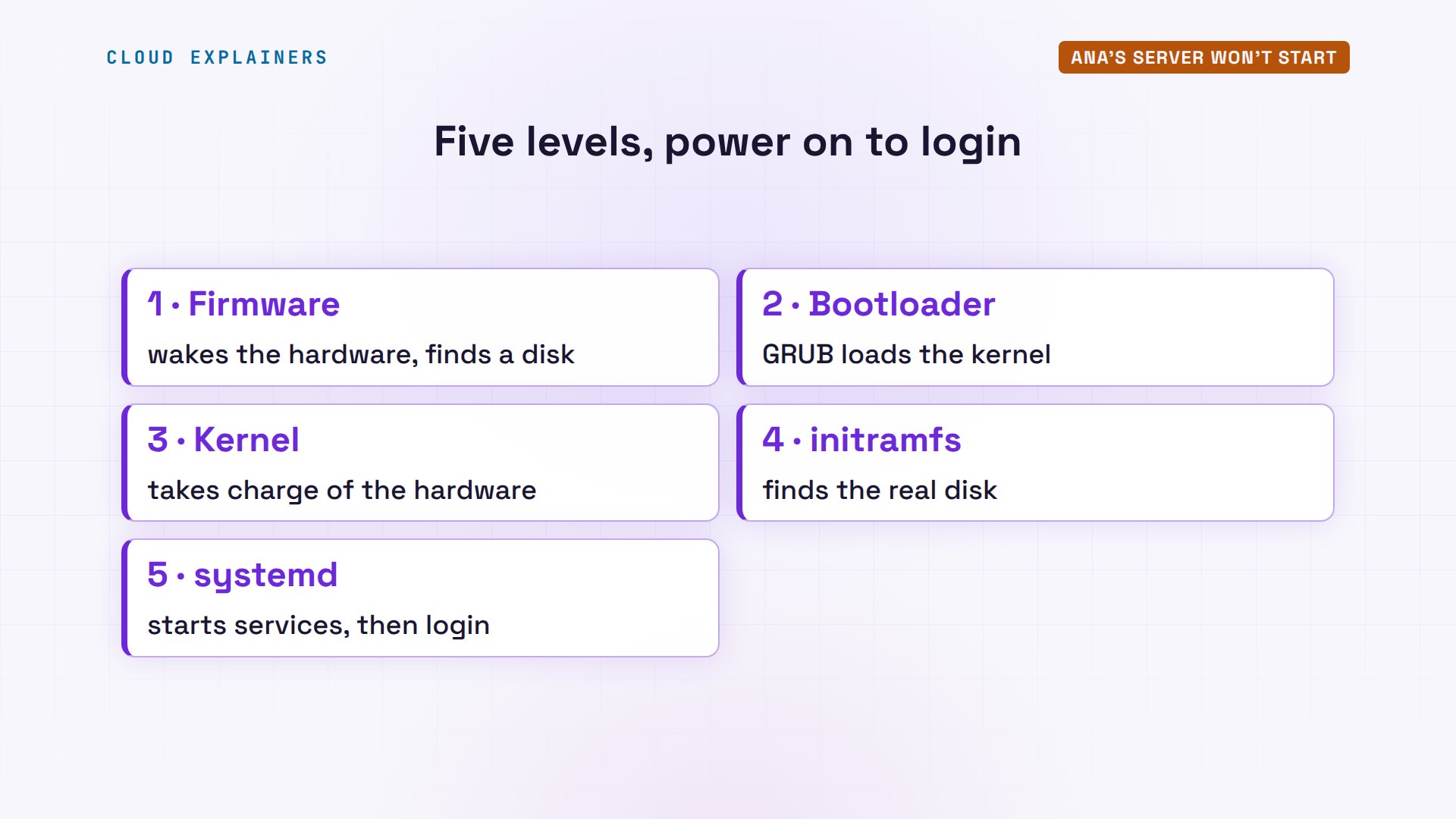
Here are the five. One: the firmware wakes the hardware and finds a disk. Two: the bootloader, GRUB, loads the kernel. Three: the kernel takes charge of the hardware. Four: the initramfs finds the real disk. And five: systemd starts every service, and the login prompt last.
Level 1: Firmware
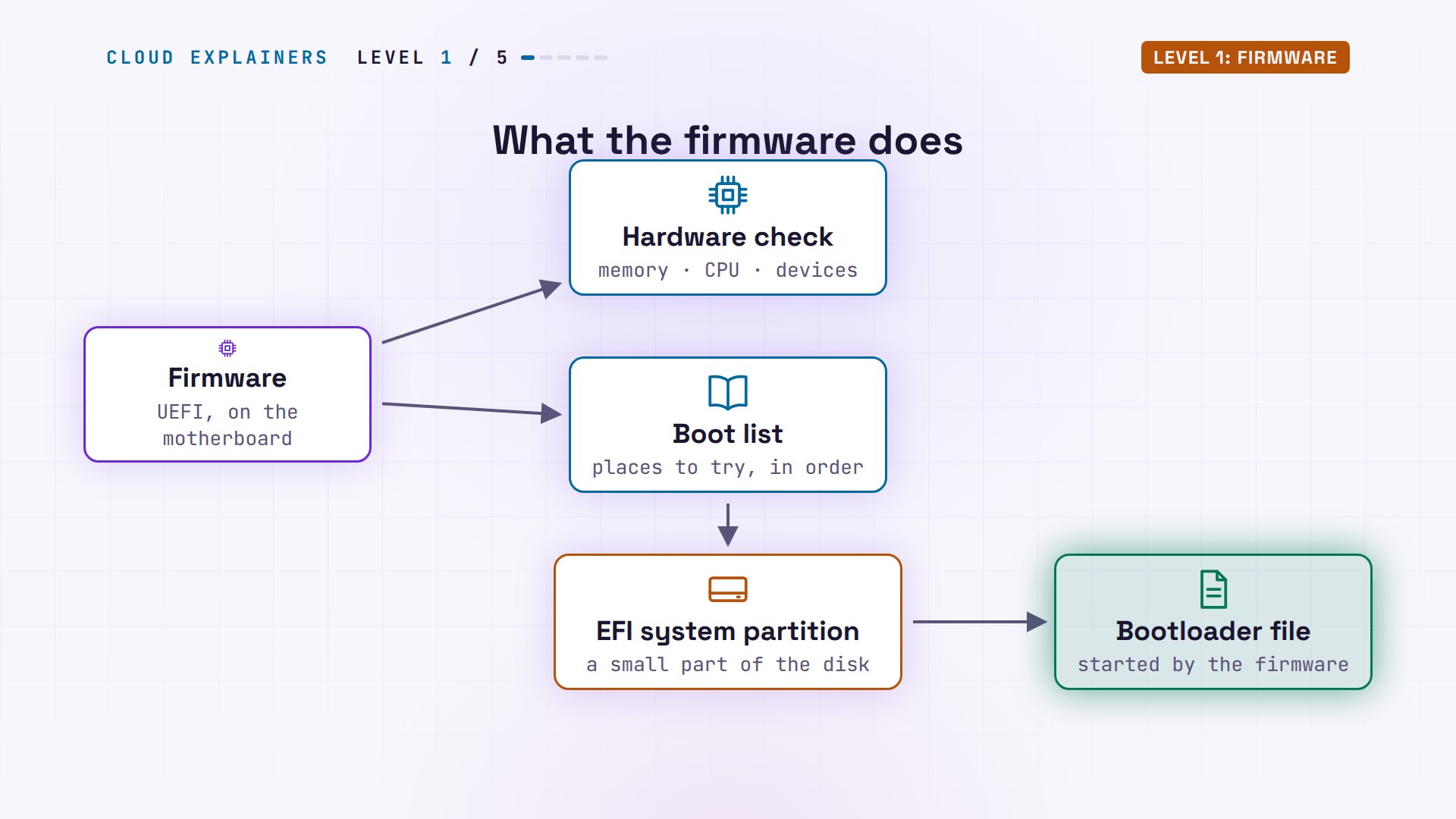
Level one starts the moment you press the power button. The processor runs a program stored in a chip on the motherboard: the firmware. On today's PCs and servers it's called UEFI. Older ones had a BIOS.
First it checks the hardware: memory, processor, and devices. Then it reads its boot list, a short list of places to try, in order. On Ana's server, the first entry points to a small partition on the disk, the EFI system partition, and to one file on it, the bootloader. The firmware starts that file, and its job is done.
Once the server is up, we can check each piece. If this folder exists, the machine started with UEFI. efibootmgr prints the boot list: this boot used entry 0008, Ubuntu, a file called shimx64.efi on partition 15. And there it is on the EFI partition, next to GRUB. Shim is a small first step for Secure Boot, a firmware check that only starts signed, trusted code. Shim checks GRUB, then starts it.
ls /sys/firmware/eficonfig_table  fw_platform_size	mok-variables  runtime-map
efivars       fw_vendor		runtime        systab
sudo efibootmgrBootCurrent: 0008
Timeout: 0 seconds
BootOrder: 0008,0000,0001,0002,0003,0004,0005,0006,0007
Boot0000* UiApp	FvVol(7cb8bdc9-f8eb-4f34-aaea-3ee4af6516a1)/FvFile(462caa21-7614-4503-836e-8ab6f4662331)
Boot0001* UEFI Misc Device	PciRoot(0x0)/Pci(0x3,0x0){auto_created_boot_option}
Boot0002* UEFI Misc Device 2	PciRoot(0x0)/Pci(0x4,0x0){auto_created_boot_option}
Boot0003* UEFI PXEv4 (MAC:525400123456)	PciRoot(0x0)/Pci(0x2,0x0)/MAC(525400123456,1)/IPv4(0.0.0.00.0.0.0,0,0){auto_created_boot_option}
Boot0004* UEFI PXEv6 (MAC:525400123456)	PciRoot(0x0)/Pci(0x2,0x0)/MAC(525400123456,1)/IPv6([::]:<->[::]:,0,0){auto_created_boot_option}
Boot0005* UEFI HTTPv4 (MAC:525400123456)	PciRoot(0x0)/Pci(0x2,0x0)/MAC(525400123456,1)/IPv4(0.0.0.00.0.0.0,0,0)/Uri(){auto_created_boot_option}
Boot0006* UEFI HTTPv6 (MAC:525400123456)	PciRoot(0x0)/Pci(0x2,0x0)/MAC(525400123456,1)/IPv6([::]:<->[::]:,0,0)/Uri(){auto_created_boot_option}
Boot0007* EFI Internal Shell	FvVol(7cb8bdc9-f8eb-4f34-aaea-3ee4af6516a1)/FvFile(7c04a583-9e3e-4f1c-ad65-e05268d0b4d1)
Boot0008* Ubuntu	HD(15,GPT,6ec49856-0bd6-4fc8-891c-2ab8f712b077,0x2800,0x35000)/File(\EFI\ubuntu\shimx64.efi)
sudo ls /boot/efi/EFI/ubuntuBOOTX64.CSV grub.cfg grubx64.efi mmx64.efi shimx64.efi
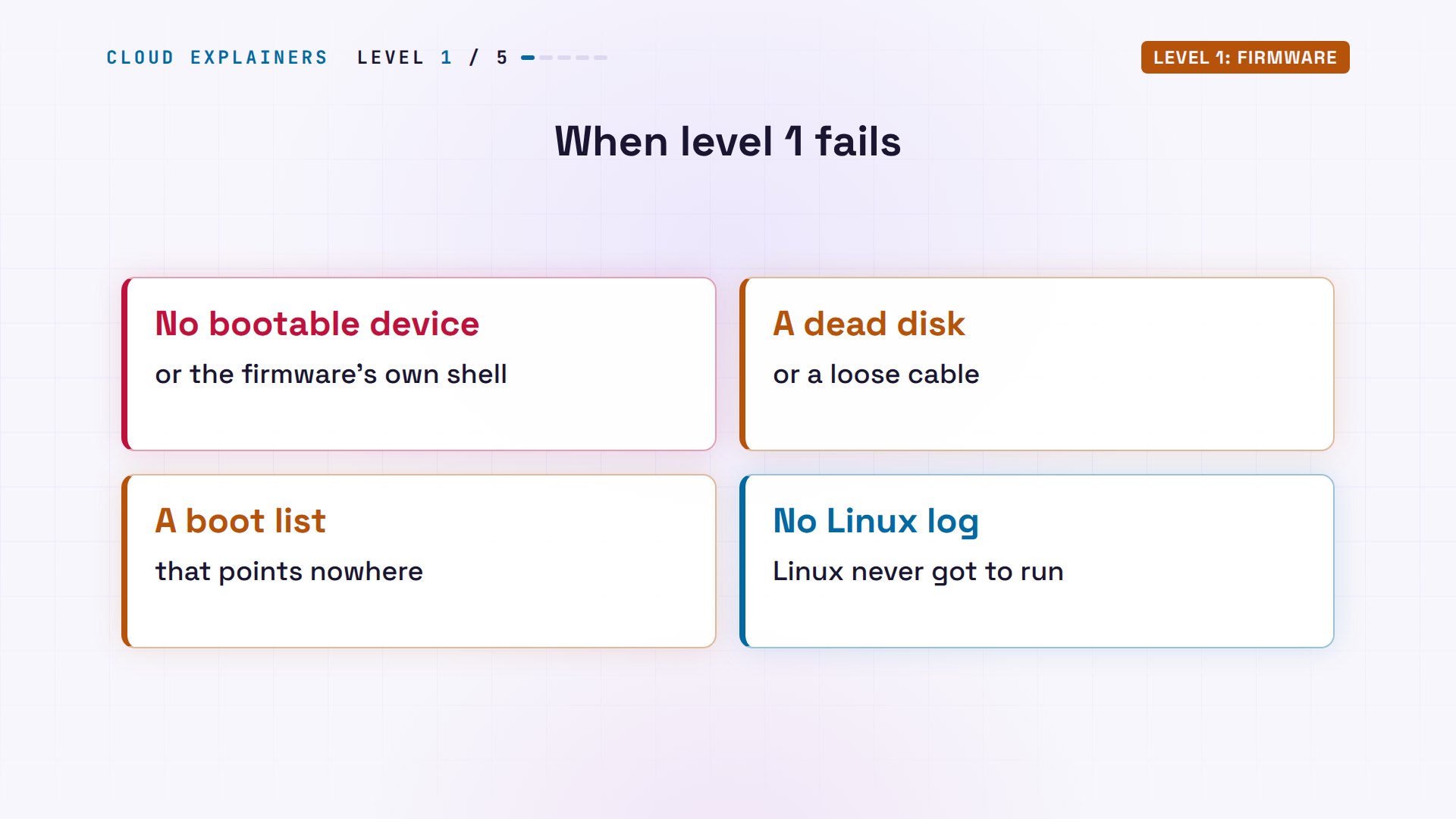
If level one breaks, you see the firmware's own screen. This is a lab PC just like it, with no disk at all and a fresh boot list. The firmware tries its boot list, finds nothing to start, and falls back to a tool built into it, the UEFI shell.
BdsDxe: loading Boot0001 "EFI Internal Shell"
On many PCs the message simply reads: no bootable device. It means a dead disk, a loose cable, or a boot list that points nowhere. Linux never got to run, so no Linux log will mention it.
Level 2: Bootloader
Level two is the bootloader, and on Ubuntu that's GRUB. GRUB has one job: put the kernel into memory and start it. It reads its menu, loads two files from the disk, the kernel and the initramfs, adds a line of settings for the kernel, called the kernel command line: not a terminal, just settings. Then it hands over.
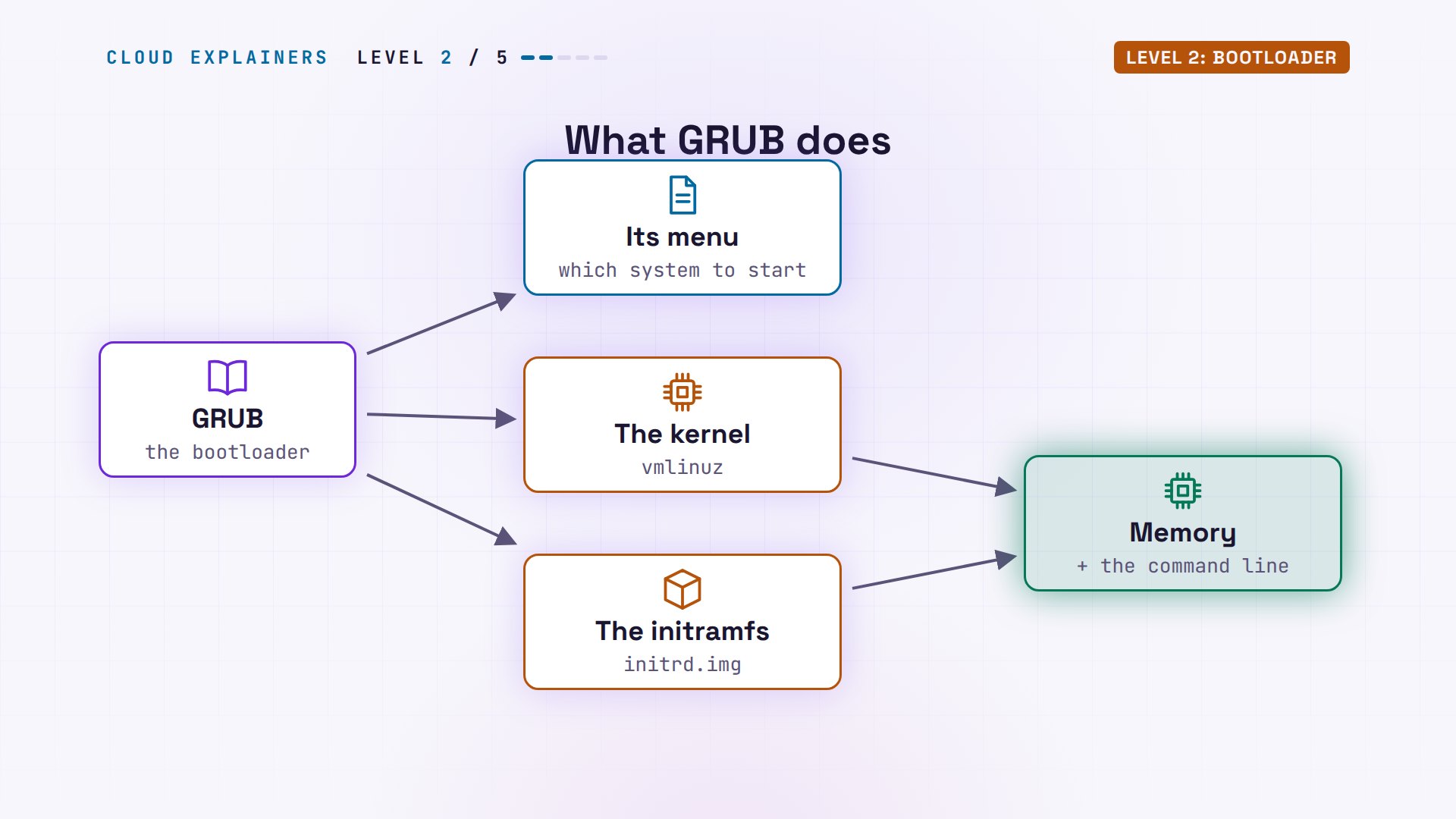
Here's GRUB's menu on Ana's server. Ubuntu servers usually hide it and boot straight through; we turned it on for this video. The first entry starts Ubuntu. Advanced options holds a recovery mode, and older kernels once there are any: a way back when a new kernel won't start.
                             GNU GRUB  version 2.12
 +----------------------------------------------------------------------------+
 |*Ubuntu                                                                     |
 | Advanced options for Ubuntu                                                |
 | UEFI Firmware Settings                                                     |
 +----------------------------------------------------------------------------+
      Use the ^ and v keys to select which entry is highlighted.
      Press enter to boot the selected OS, `e' to edit the commands
      before booting or `c' for a command-line. ESC to return
      previous menu.
   The highlighted entry will be executed automatically in 29s.
Back on the running server, both files are in /boot: vmlinuz is the kernel, and initrd.img is the initramfs. The command line GRUB passed is still there to read. root= names the disk that holds the real system, by its UUID, a unique ID. And ro means: open it read-only at first.
ls /bootSystem.map-6.8.0-147-generic  initrd.img.old
config-6.8.0-147-generic      lost+found
efi			      vmlinuz
grub			      vmlinuz-6.8.0-147-generic
initrd.img		      vmlinuz.old
initrd.img-6.8.0-147-generic
cat /proc/cmdlineBOOT_IMAGE=/vmlinuz-6.8.0-147-generic root=UUID=59134bd0-a76f-4ea0-8e4a-770b2e1eafc2 ro console=tty1 console=ttyS0
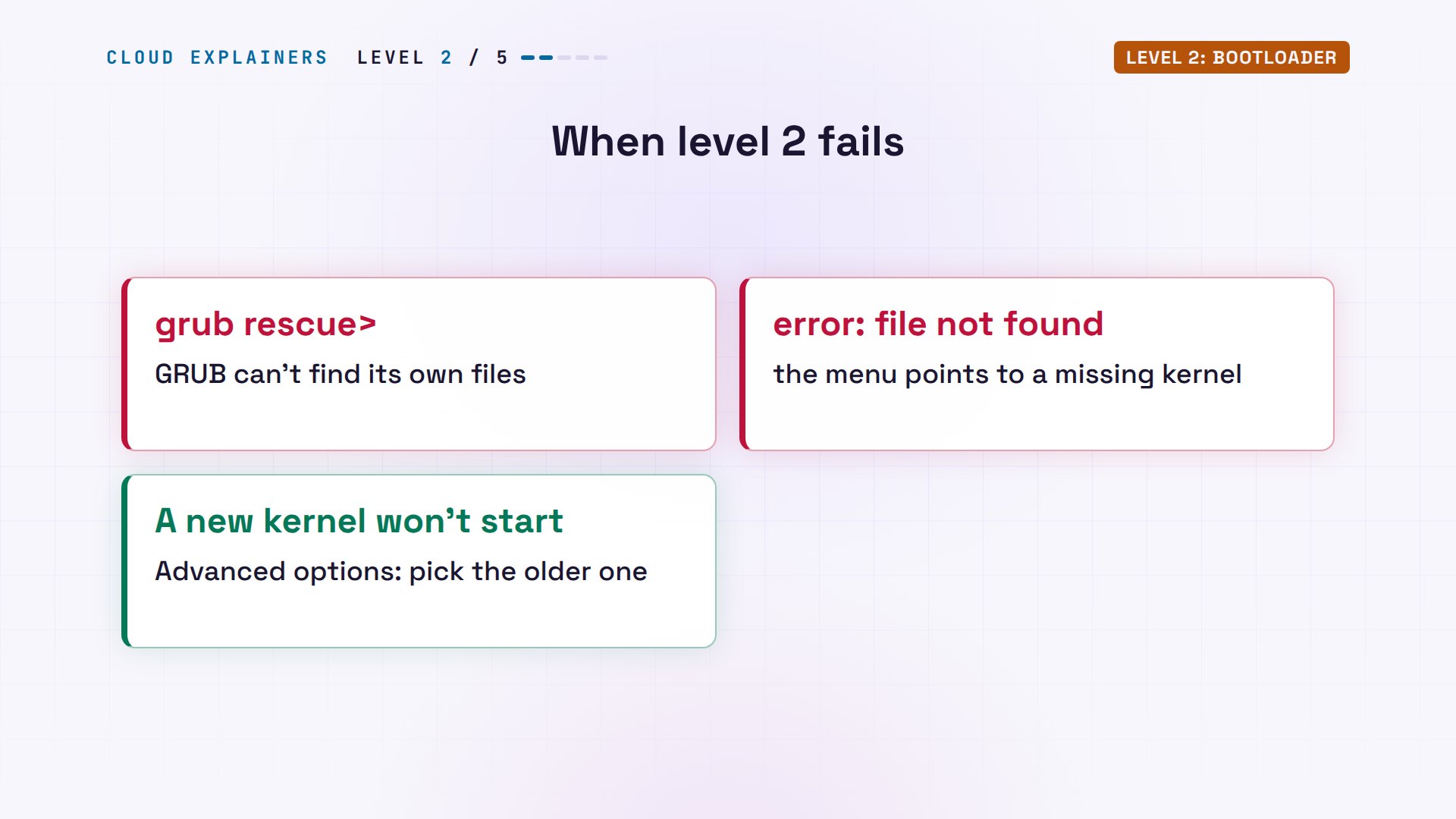
When GRUB fails, you see GRUB's own messages. A prompt that says grub rescue means it can't even find its menu. An error like file not found means the menu points to a kernel that isn't there. And if a new kernel won't start, the menu is your fix: pick the older one under Advanced options.
Level 3: Kernel
Level three: the kernel, the core of Linux. It takes charge of the hardware. It counts the processors, maps the memory, and starts drivers, the code that talks to each device. Then it unpacks the initramfs into memory, and runs the first program inside it, /init.
The kernel keeps a log of everything it did, and dmesg reads it. At zero seconds: Linux, version 6.8. Then the memory: about 1.8 gigabytes free to use. Four processors. And at 3.9 seconds, it runs /init. The kernel has 40 modules loaded, mostly drivers.
sudo dmesg | grep -E 'Linux version|Memory: |smpboot: Total|Run /init' | cut -c1-70[    0.000000] Linux version 6.8.0-147-generic (buildd@lcy02-amd64-081
[    0.167482] Memory: 1923680K/2090684K available (22528K kernel code
[    1.042923] smpboot: Total of 4 processors activated (30329.85 Bogo
[    3.860304] Run /init as init process
lsmod | wc -l41
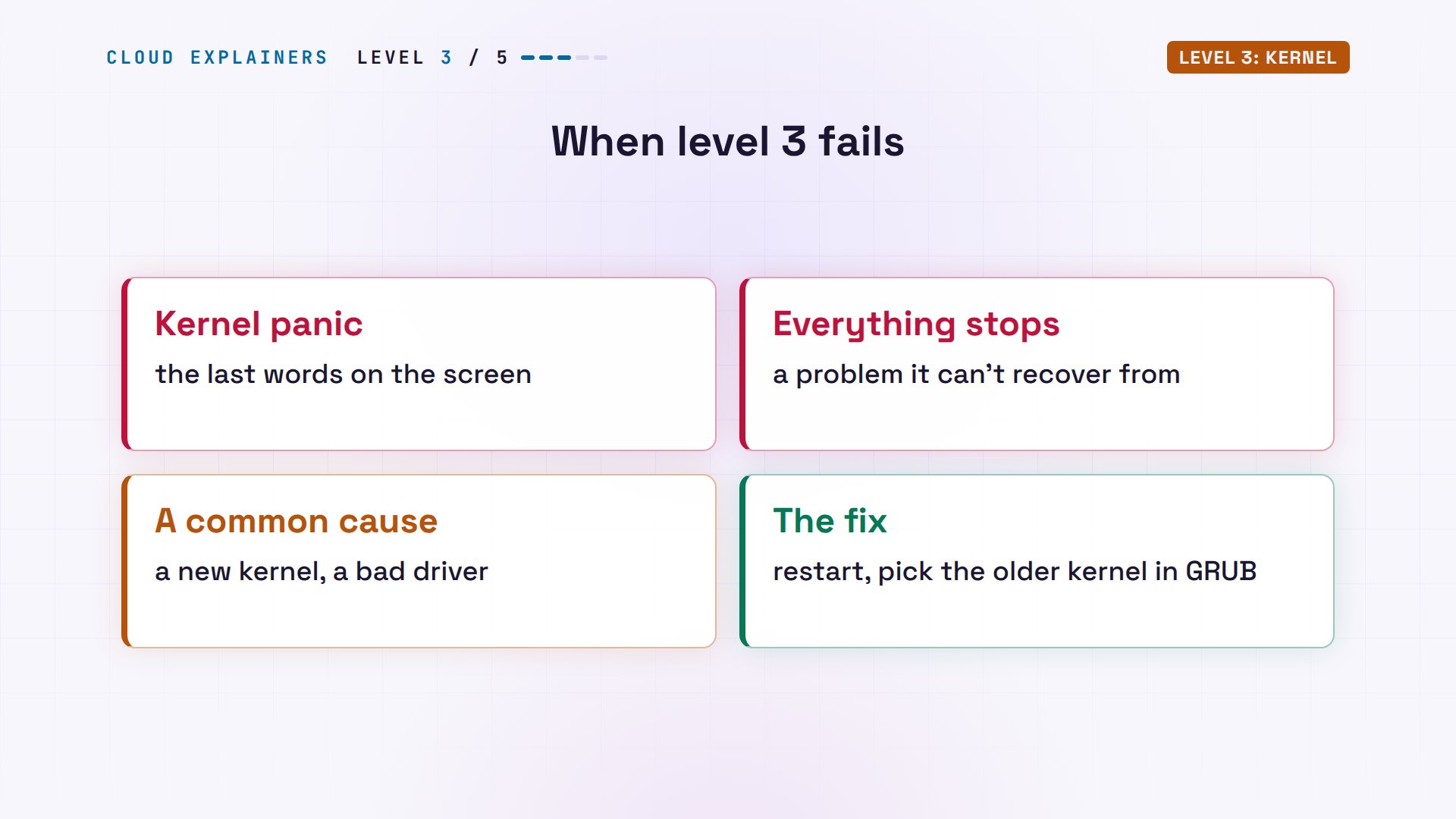
When the kernel fails, the screen ends in two words: kernel panic. The kernel hit a problem it can't recover from, and stops everything. A new kernel with a bad driver is a common cause, and the fix is level two again: restart, pick the older kernel in GRUB's Advanced options, then fix or remove the new one.
Level 4: initramfs
Level four solves a chicken-and-egg problem. To read the disk, the kernel needs the disk's drivers, but the drivers are stored on the disk. So GRUB also loaded the initramfs, a small, temporary system in memory, with just enough drivers and scripts to find the real disk. It looks for the disk with the UUID from root=, mounts it, switches over to it, and starts the real system.
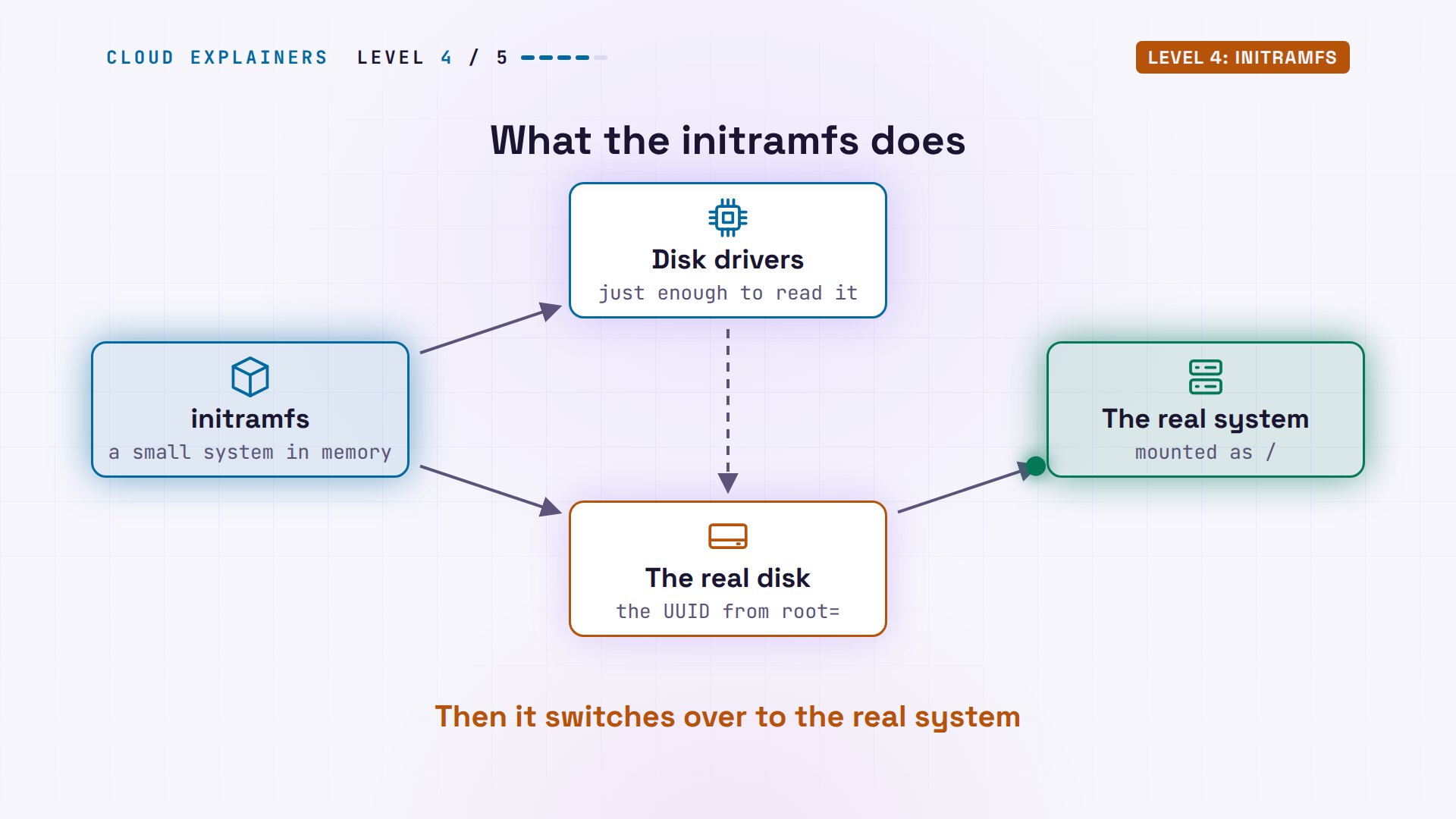
On Ana's server, the initramfs is 30 megabytes, with 879 files inside. And lsblk shows the disk it went looking for: partition vda1, with exactly the UUID from root=, mounted as slash, the top of the real system.
ls -lh /boot/initrd.img-* /boot/vmlinuz-*-rw-r--r-- 1 root root 30M Oct 17 12:57 /boot/initrd.img-6.8.0-147-generic
-rw------- 1 root root 15M Sep 24 10:28 /boot/vmlinuz-6.8.0-147-generic
sudo lsinitramfs /boot/initrd.img | wc -l879
lsblk -o NAME,FSTYPE,SIZE,UUID,MOUNTPOINTS /dev/vdaNAME    FSTYPE  SIZE UUID                                 MOUNTPOINTS
vda               8G
├─vda1  ext4      7G 59134bd0-a76f-4ea0-8e4a-770b2e1eafc2 /
├─vda14           4M
├─vda15 vfat    106M 0E9D-3FD8                            /boot/efi
└─vda16 ext4    913M b4f0deba-ce7d-45dc-9999-0427f2720320 /boot
Now let's break level four on purpose, with one character. We keep everything the same, except the disk's UUID in root=, where we delete the last character. The firmware, GRUB and the kernel never look at that ID. Only the initramfs searches the disks for it.
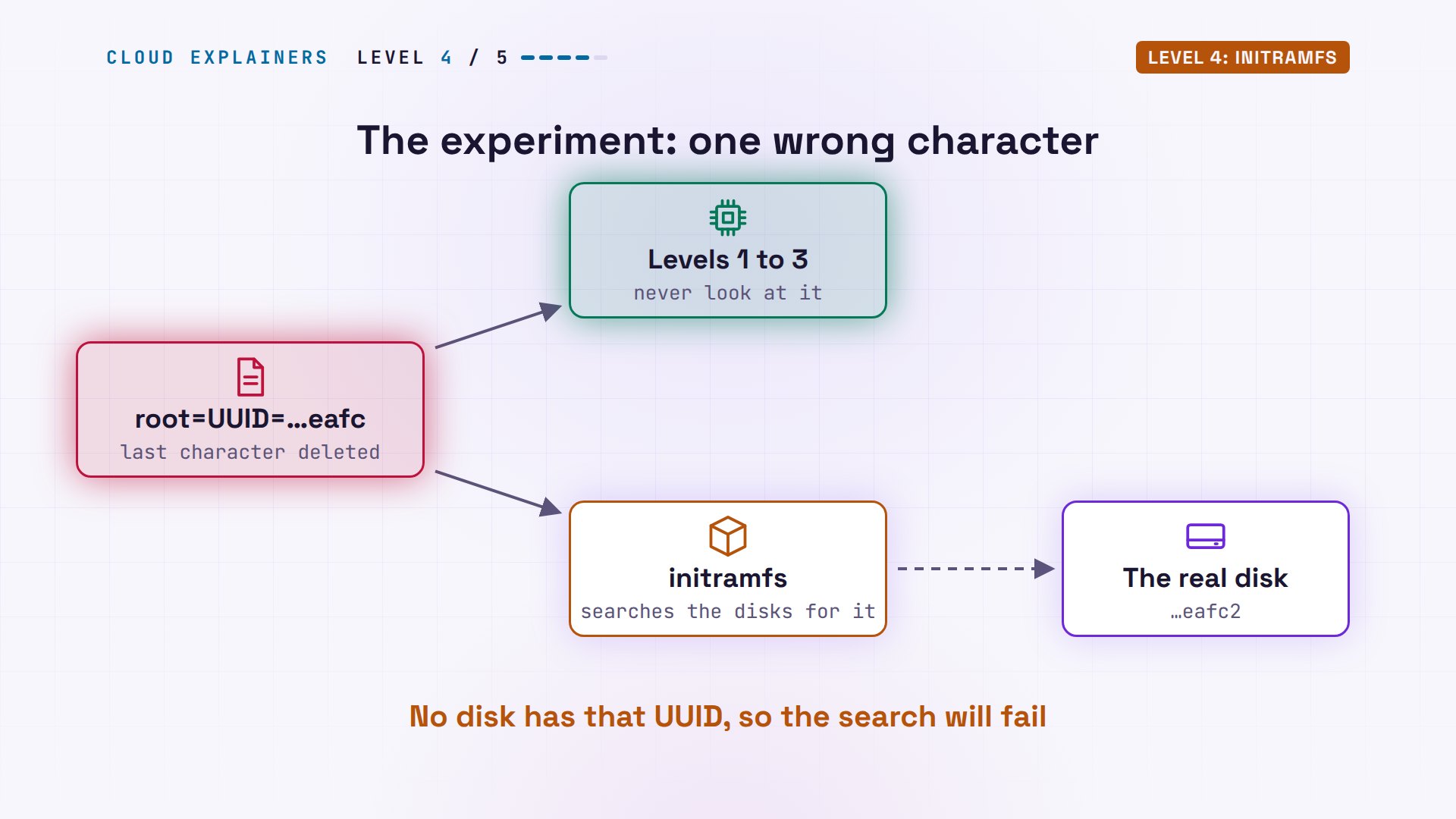
At the GRUB menu, pressing e lets you edit the entry, for this one boot only. On the linux line, the UUID now ends in e a f c, and Ctrl X boots it.
                             GNU GRUB  version 2.12
 +----------------------------------------------------------------------------+
 |        recordfail                                                          |
 |        load_video                                                          |
 |        gfxmode $linux_gfx_mode                                             |
 |        insmod gzio                                                         |
 |        if [ x$grub_platform = xxen ]; then insmod xzio; insmod lzopio; fi  |
 |        insmod part_gpt                                                     |
 |        insmod ext2                                                         |
 |        search --no-floppy --fs-uuid --set=root b4f0deba-ce7d-45dc-9999-042\|
 |7f2720320                                                                   |
 |        linux        /vmlinuz-6.8.0-147-generic root=UUID=59134bd0-a76f-4ea\|
 |0-8e4a-770b2e1eafc ro  console=tty1 console=ttyS0                           |v
 +----------------------------------------------------------------------------+
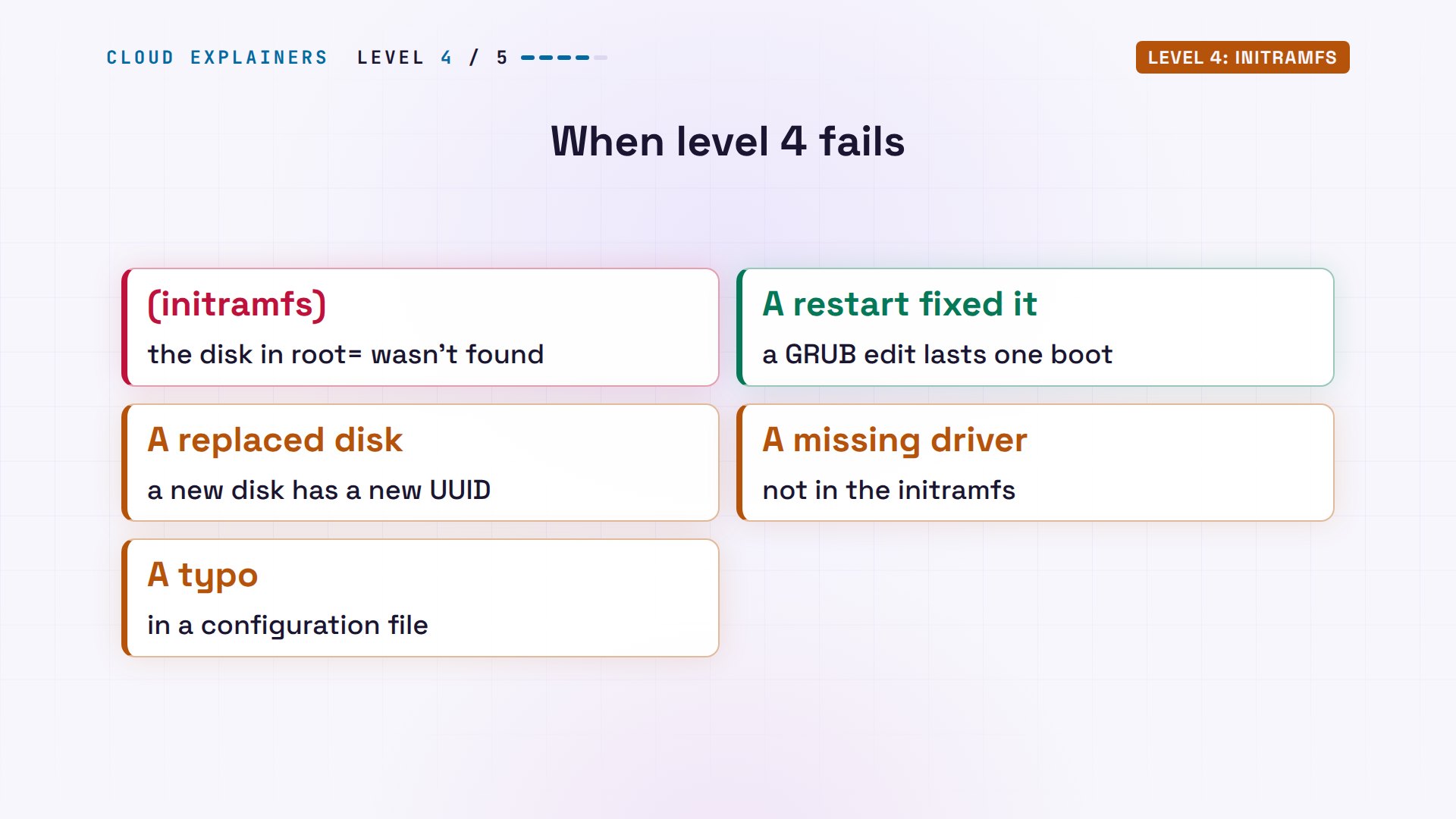
The boot gets through levels one to three. But the initramfs waits for a disk with that ID, gives up, says the disk does not exist, and drops to its own small shell, called initramfs.
Gave up waiting for root file system device. Common problems:
From that shell you can look around. The kernel command line asks for the ID with a character missing. The disks that do exist are listed by their IDs, and the right one is there, one character longer.
(initramfs) cat /proc/cmdlineBOOT_IMAGE=/vmlinuz-6.8.0-147-generic root=UUID=59134bd0-a76f-4ea0-8e4a-770b2e1eafc ro console=tty1 console=ttyS0
(initramfs) ls /dev/disk/by-uuid2026-10-30-10-23-17-00                59134bd0-a76f-4ea0-8e4a-770b2e1eafc2
b4f0deba-ce7d-45dc-9999-0427f2720320  0E9D-3FD8
A GRUB edit lasts one boot, so a restart brought the server back. On a real server, the usual causes are a replaced disk, a missing disk driver in the initramfs, or a typo in a configuration file.
Level 5: systemd
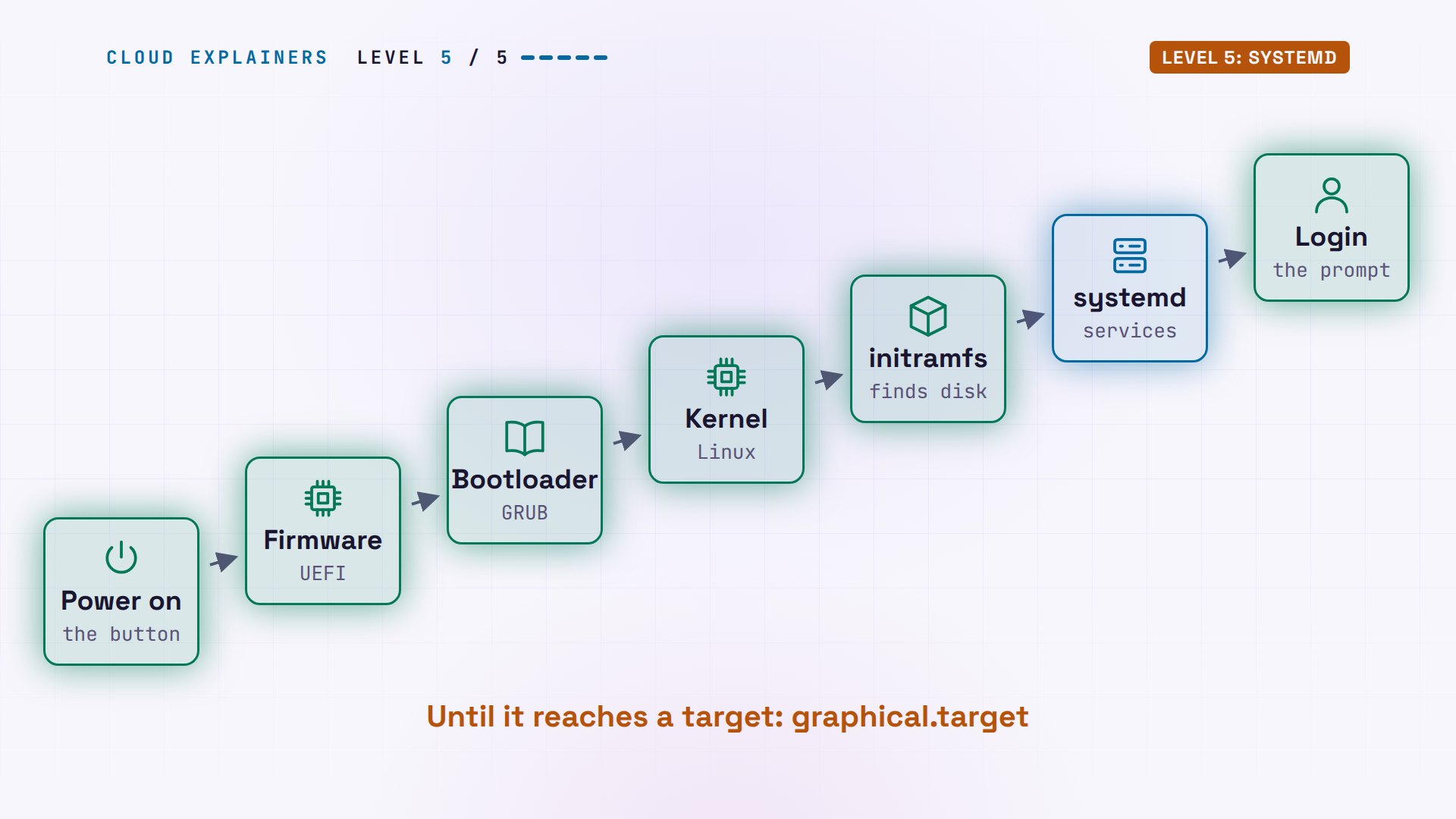
Level five: the real system takes over. The initramfs hands control to systemd, the first process of the real system. systemd starts every service, the network, the clock, the logs, many at the same time, in the order they depend on each other, until it reaches a target, a named goal, like graphical.target. The login prompt is one of the last things it starts.
Process number one is systemd. Its goal on this server is graphical.target. And systemd-analyze times the whole start: 10.4 seconds in the kernel, levels three and four here, and 41.3 seconds in user space, systemd's level five. blame lists the slowest steps: waiting for the disk itself, then snapd and cloud-init, the setup tools of this cloud image.
ps -p 1 -o pid,commPID COMMAND 1 systemd
systemctl get-defaultgraphical.target
systemd-analyzeStartup finished in 10.414s (kernel) + 41.253s (userspace) = 51.667s
graphical.target reached after 37.383s in userspace.
systemd-analyze blame | head -n 57.969s dev-vda1.device
7.662s snapd.seeded.service
6.895s cloud-init-local.service
6.891s snapd.service
6.728s cloud-config.service
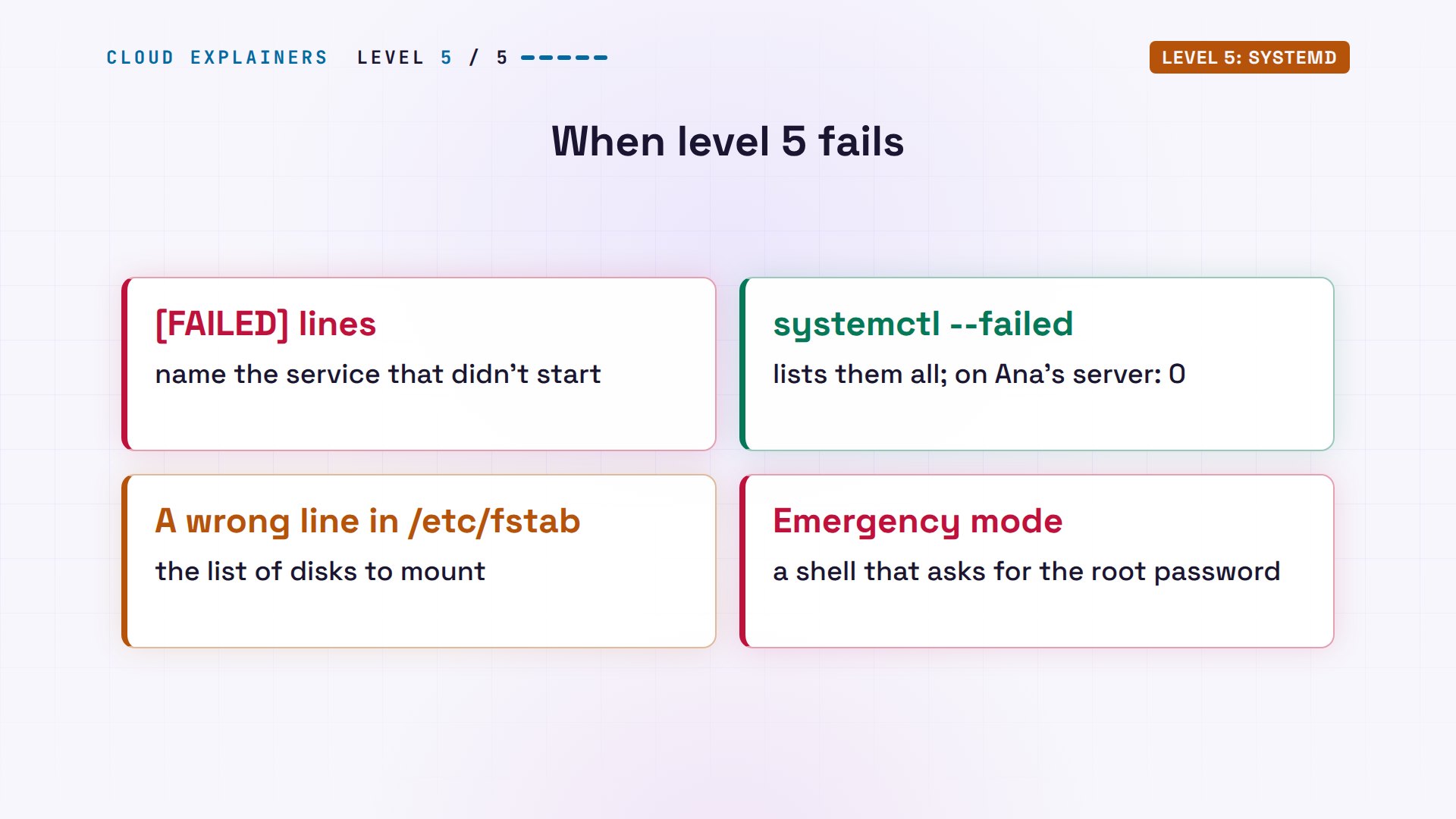
When systemd has trouble, its messages say which service. A red FAILED line names a service that didn't start, and systemctl --failed lists them all; here, none. A bigger problem, like a wrong line in fstab, the list of disks to mount, can stop the start in emergency mode, a shell that asks for the root password.
Recap
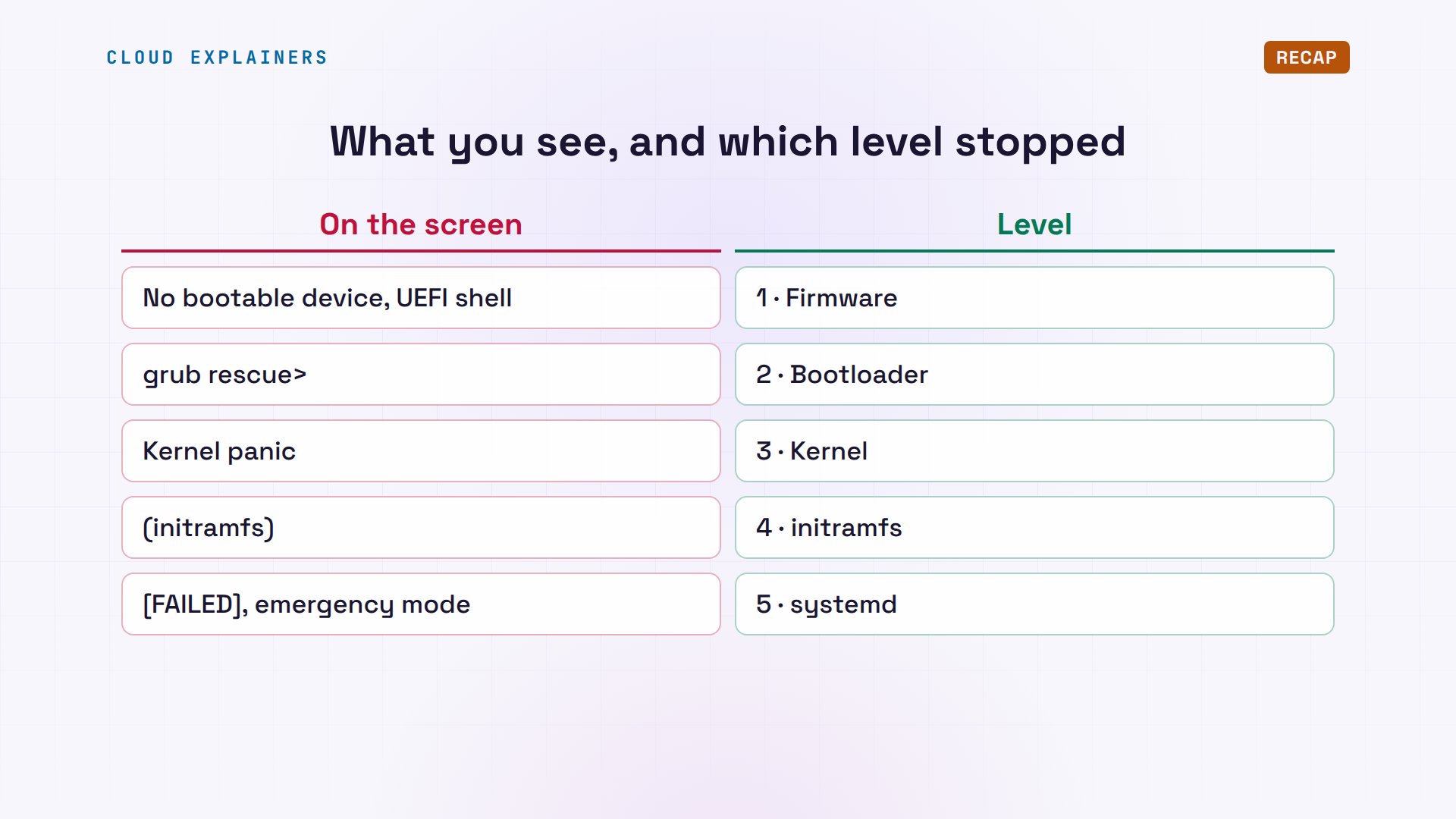
So when Ana's server doesn't come back, the last thing on the screen says where it stopped. No bootable device: level one, the firmware. A grub prompt: level two. Kernel panic: level three. The initramfs prompt: level four, a disk it can't find. FAILED lines or emergency mode: level five, systemd.
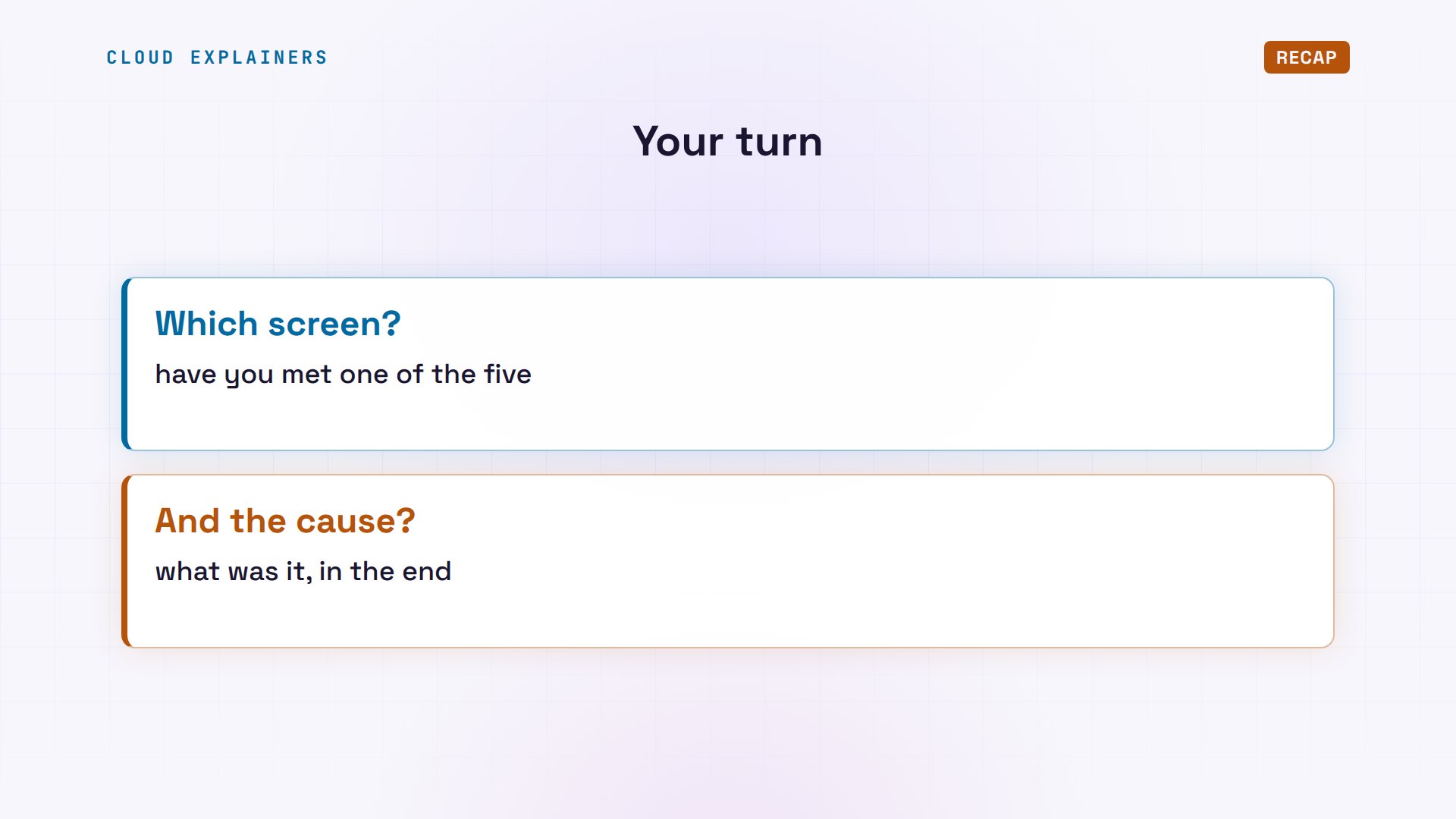
A question for the comments: which of these five screens have you met on your own computer, and what turned out to be the cause? Tell me in the comments.
Every result in this video came from a real boot of a lab machine. This was episode eight of Linux for Beginners.
Sources
- UEFI Specification 2.10, boot manager and EFI system partition
- efibootmgr(8)
- GNU GRUB manual
- Linux kernel docs, kernel parameters (root=, ro)
- Linux kernel docs, ramfs, rootfs and initramfs
- initramfs-tools(7)
- bootup(7), the systemd boot process
- systemd-analyze(1)
- systemd.special(7), targets
- Ubuntu, UEFI Secure Boot (shim)
Demos: real output from a lab machine built for this video: QEMU with UEFI firmware (OVMF) running Ubuntu 24.04's official cloud image, its console recorded as it booted. The CPU was emulated in software, so every step ran several times slower than on real hardware. Watch the full video on YouTube.
More videos
The 5 Levels of Network Firewalls
Password Security: Why Hackers Crack Weak Passwords
Why Your Linux Server Runs Out of Memory
HTTP vs HTTPS: What Actually Changes on Your Network

Every Linux File Permission You Need to Know
Linux Processes vs Threads: When Each One Wins
The OSI Model Will Finally Make Sense After This

The 7 Levels of Git
Every Network Troubleshooting Command You Need
Hashing vs Encryption in Cybersecurity: When Each One Wins
Why the Internet Ran Out of IP Addresses
Linux Package Managers: apt vs Snap vs Flatpak
Why Python Is Slow (and When It Doesn't Matter)
TCP vs UDP: When Each One Wins
Stop Running Linux as Root (Do This Instead)
Linux Users and Groups Will Finally Make Sense

Why Phishing Beats Good Security (and How to Spot It)
The 7 Levels of Docker

AI Agents Will Finally Make Sense After This
Stop Using git push --force (Use This Instead)
Agent Skills vs MCP: When Each One Wins

Networking Will Finally Make Sense After This
Every Linux Command You Actually Need
The 7 Levels of Cybersecurity
Every System Design Concept You Need, in One Diagram