SSH on Linux: Full Tutorial for Beginners
SSH for complete beginners, on real Ubuntu machines: installing openssh-server, the first connection and its fingerprint question, known_hosts, running one command remotely, making an ed25519 key with a passphrase, ssh-copy-id and authorized_keys, ssh -v, the 'unprotected private key' error, ssh-agent, ~/.ssh/config, scp and rsync, the 'remote host identification has changed' warning, turning password logins off safely, a local port forward to a page that listens on 127.0.0.1, and a jump host with -J and ProxyJump.
One line, no password
You need to work on a computer that isn't in front of you, and every guide just says: SSH into it. Kari looks after the computers at a small airfield. The server sits in the control tower, a ten-minute walk away. She has stopped making that walk. From her laptop, one line runs commands on the tower, and nothing asks for a password.
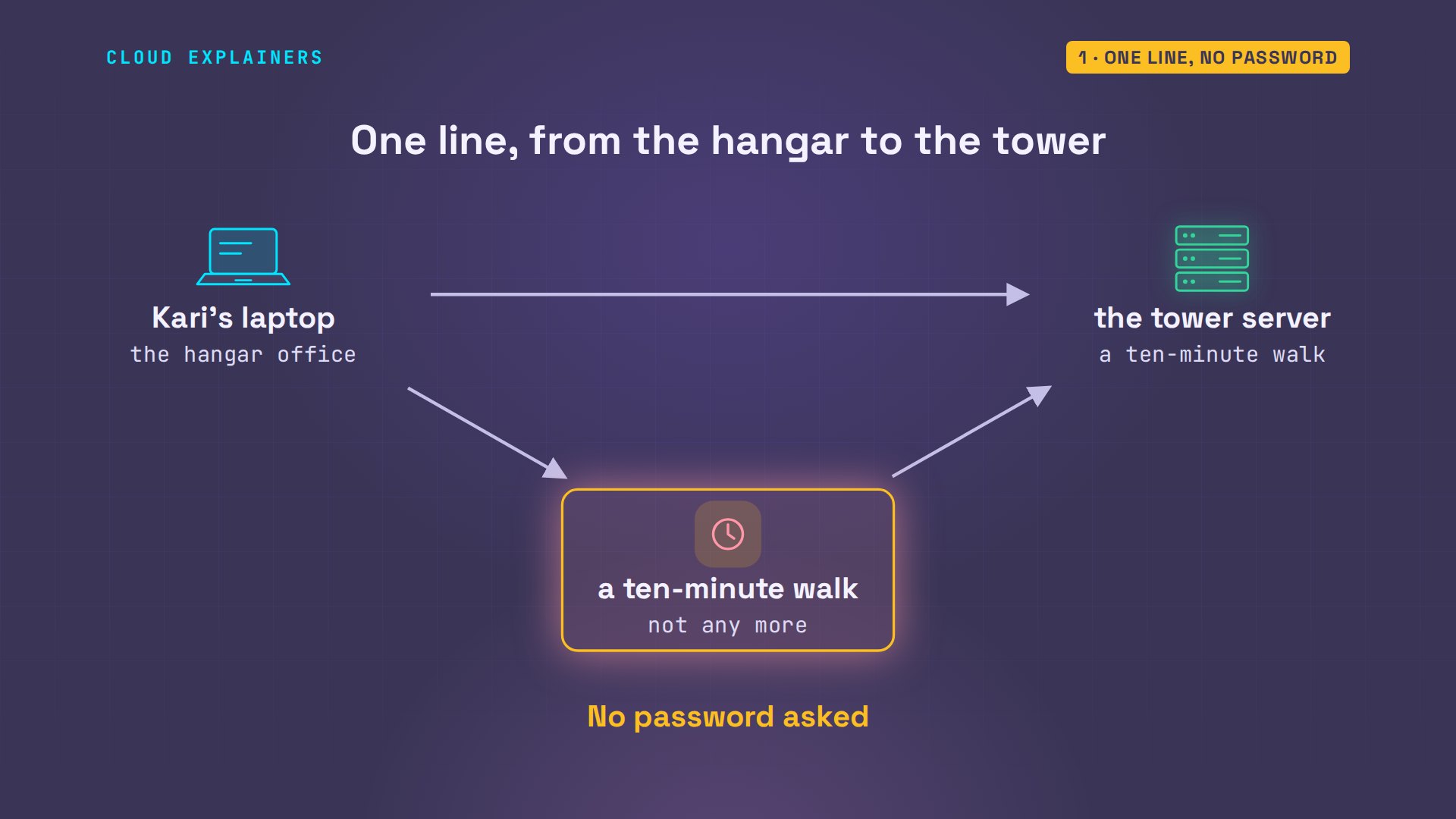
Her one line asked the tower for its name and the last booking. So what did her laptop send to get in? Guess first. Not a password, and not the key itself: a signature, made fresh by a key that never left the laptop. The tower's log just says: accepted publickey. Don't worry about the commands yet: you'll build every one of them. By the end, you'll also reach a PC her laptop can't even find.
ssh tower 'hostname; tail -1 /srv/board/www/today.txt'tower
11:00  Robin DR400  F-GLID  runway 09
sudo journalctl -u ssh --no-pager -o cat | grep Accepted | tail -1
Accepted publickey for kari from 172.18.0.2 port 45272 ssh2: ED25519 SHA256:7+/oPUOcK38Q/jbTAITjRIw+npNQRZECcy143xPCniM
What SSH is
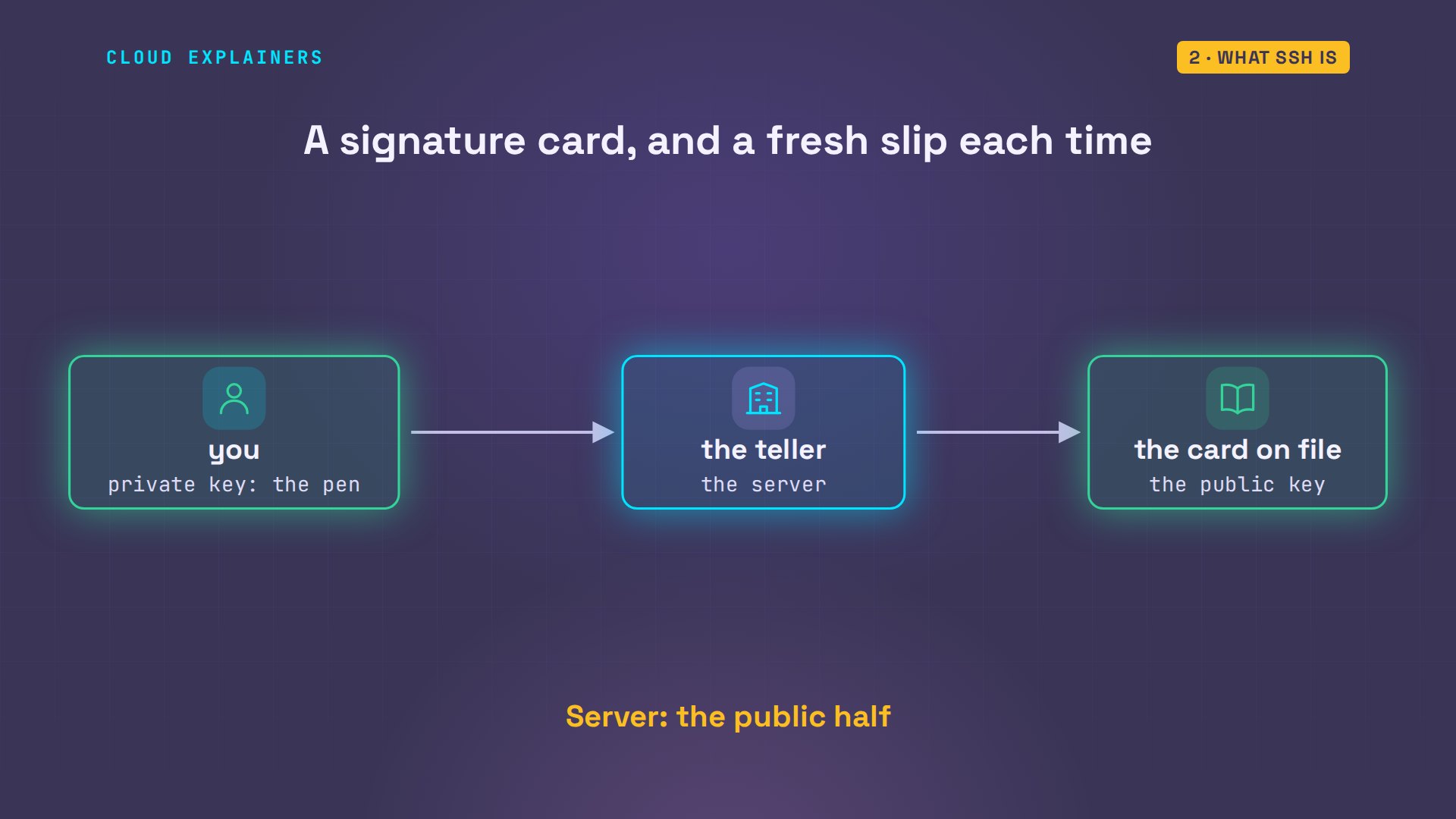
Here's the idea behind that key. Your bank keeps a card with a sample of your signature. When you withdraw money, you sign a fresh slip in front of the teller, who compares it with the card. You never hand over your pen, only the slip, and a slip you signed yesterday is no good today. An SSH key works the same way. The server keeps the public half, like the card. Each time you log in, it hands you something new to sign, and only your private key can sign it.
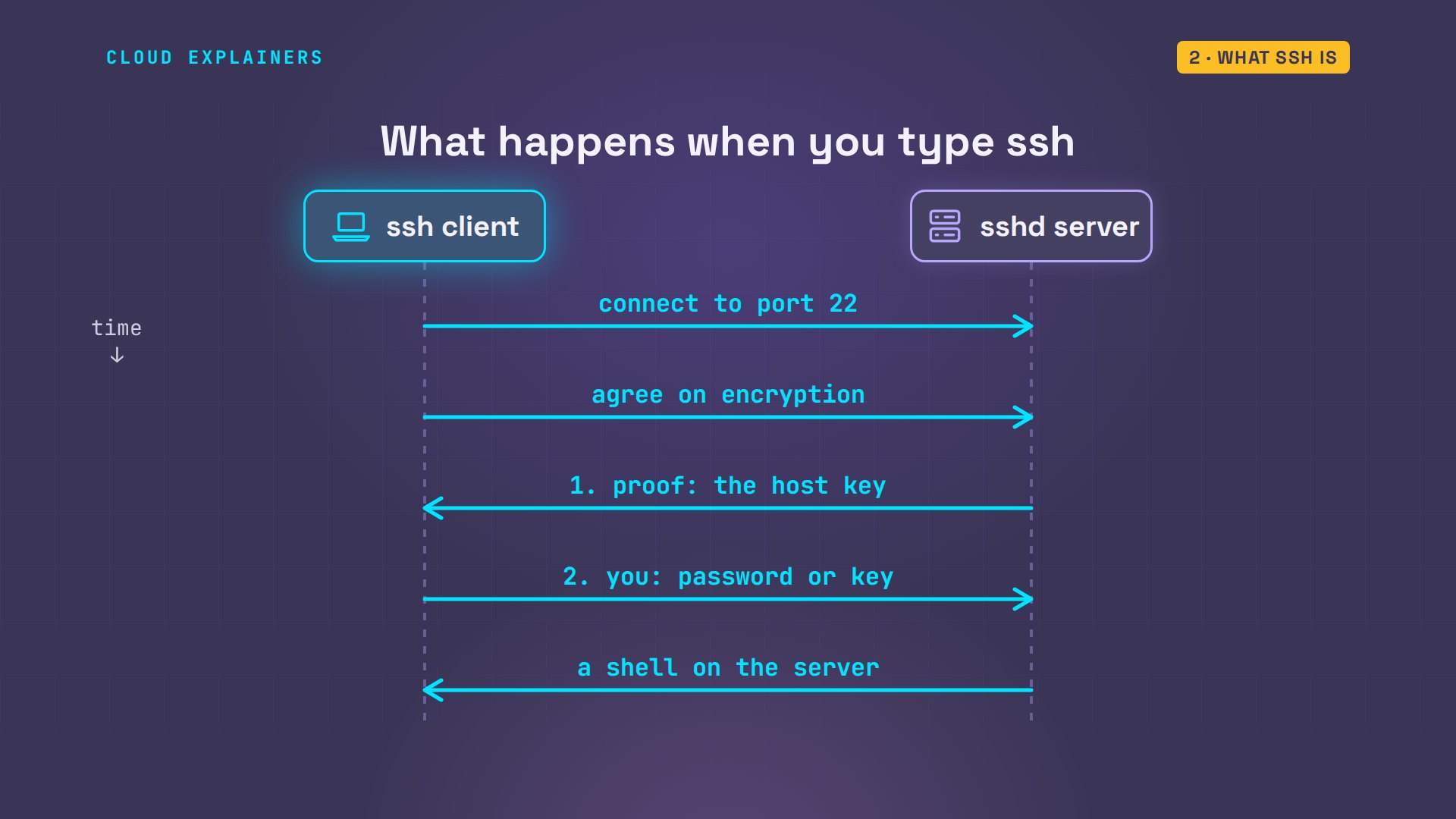
SSH stands for secure shell: a shell is the prompt where you type commands, and this one travels safely. It's two programs. The client, ssh, runs on your machine. The server, sshd, runs on the other one and listens on port 22: a port is a numbered door on a machine, and 22 is SSH's. When they connect, they first agree on encryption, so everything after is scrambled: your commands, their output, even a password. Then two checks. The server proves it's the real server, with its host key. Then you prove it's really you, with a password or a key. Only then do you get a shell.
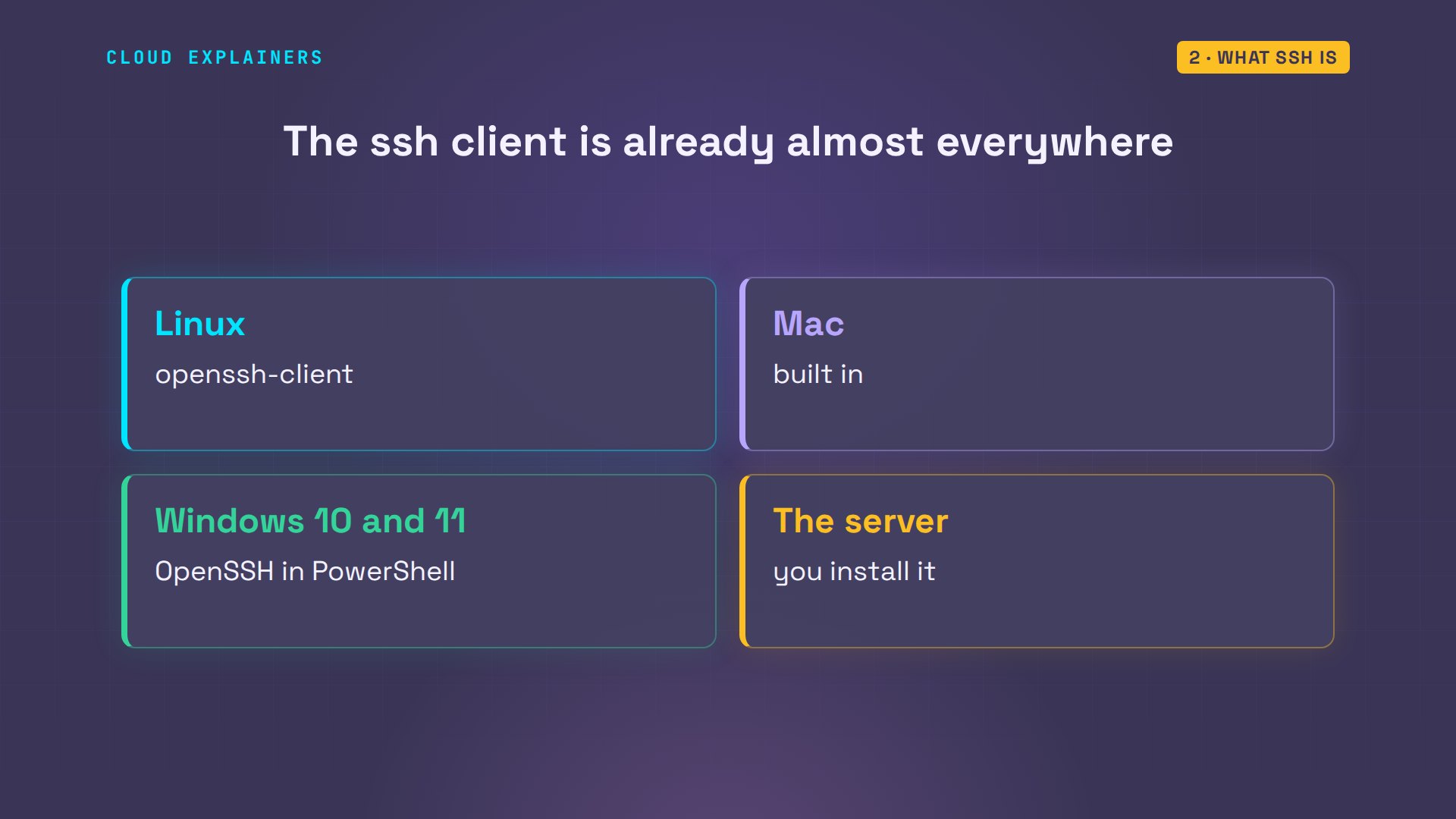
Where does the client come from? On Linux it's usually installed, or one package away. On a Mac it's built in. Windows 10 and 11 ship the same OpenSSH client, so every ssh command in this video works in PowerShell too. The server side is the part you install, on the machine you want to reach.
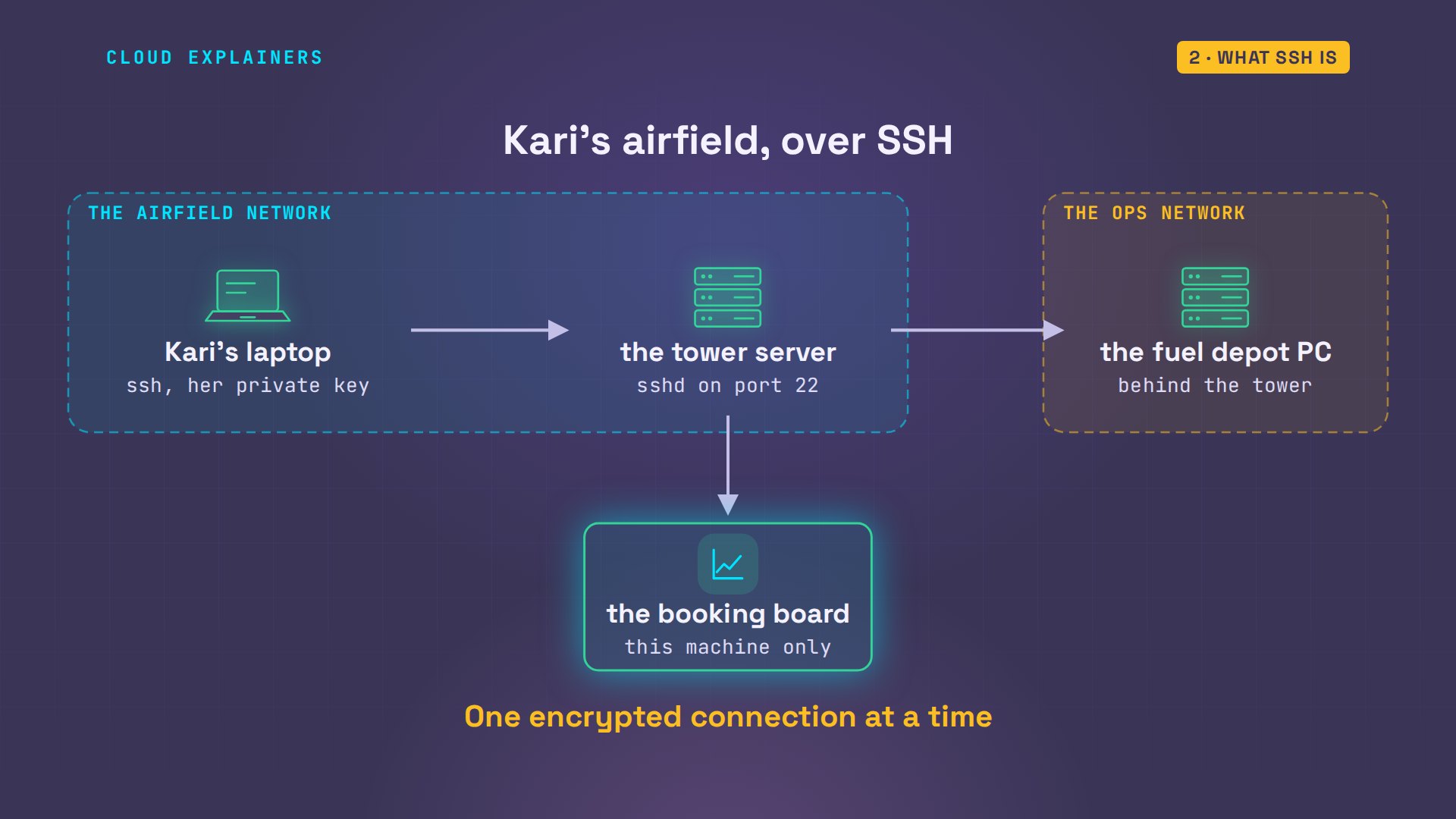
Here's what you'll build in the next twenty minutes, from a server with no SSH at all. Kari's laptop, and the tower, which runs the SSH server. The tower also runs the runway booking board, a page that only answers on the tower itself. And the fuel depot's PC sits on a second network, which Kari will reach by going through the tower. One encrypted connection, every time.
Installing the SSH server
The tower is a fresh Ubuntu 24.04. Kari tries to connect from her laptop: ssh, her user name on the tower, an at sign, and the machine's name. Her laptop finds tower by name on the airfield's network; an address works too. The answer: connection refused. Nothing is listening on port 22. On the tower's own screen, systemctl status, which reports on background services, has never heard of an SSH service. So she installs Ubuntu's package, openssh-server, with dash y to answer apt's question for her.
ssh kari@towerssh: connect to host tower port 22: Connection refused
systemctl status ssh --no-pagerUnit ssh.service could not be found.
sudo apt install -y openssh-serverReading package lists... Done
Building dependency tree... Done
Reading state information... Done
The following additional packages will be installed:
  dbus-user-session libbsd0 libcbor0.10 libedit2 libfido2-1 libpam-systemd
  libwrap0 libx11-6 libx11-data libxau6 libxcb1 libxdmcp6 libxext6 libxmuu1
  lsb-release ncurses-term openssh-client openssh-sftp-server python3-blinker
  python3-cffi-backend python3-cryptography python3-distro python3-httplib2
  python3-jwt python3-launchpadlib python3-lazr.restfulclient python3-lazr.uri
  python3-oauthlib python3-pkg-resources python3-pyparsing python3-six
  python3-wadllib ssh-import-id wget xauth
Suggested packages:
  keychain libpam-ssh monkeysphere ssh-askpass molly-guard python-blinker-doc
  python-cryptography-doc python3-cryptography-vectors python3-crypto
  python3-keyring python3-testresources python3-setuptools
  python-pyparsing-doc
The following NEW packages will be installed:
  dbus-user-session libbsd0 libcbor0.10 libedit2 libfido2-1 libpam-systemd
  libwrap0 libx11-6 libx11-data libxau6 libxcb1 libxdmcp6 libxext6 libxmuu1
  lsb-release ncurses-term openssh-client openssh-server openssh-sftp-server
  python3-blinker python3-cffi-backend python3-cryptography python3-distro
  python3-httplib2 python3-jwt python3-launchpadlib python3-lazr.restfulclient
  python3-lazr.uri python3-oauthlib python3-pkg-resources python3-pyparsing
  python3-six python3-wadllib ssh-import-id wget xauth
0 upgraded, 36 newly installed, 0 to remove and 2 not upgraded.
Need to get 0 B/5021 kB of archives.
After this operation, 25.1 MB of additional disk space will be used.
debconf: delaying package configuration, since apt-utils is not installed

Selecting previously unselected package libbsd0:arm64.
(Reading database ... 8274 files and directories currently installed.)
Preparing to unpack .../00-libbsd0_0.12.1-1build1.1_arm64.deb ...
Unpacking libbsd0:arm64 (0.12.1-1build1.1) ...
Selecting previously unselected package libedit2:arm64.
Preparing to unpack .../01-libedit2_3.1-20230828-1build1_arm64.deb ...
Unpacking libedit2:arm64 (3.1-20230828-1build1) ...
Selecting previously unselected package libcbor0.10:arm64.
Preparing to unpack .../02-libcbor0.10_0.10.2-1.2ubuntu2_arm64.deb ...
Unpacking libcbor0.10:arm64 (0.10.2-1.2ubuntu2) ...
Selecting previously unselected package libfido2-1:arm64.
Preparing to unpack .../03-libfido2-1_1.14.0-1build3_arm64.deb ...
Unpacking libfido2-1:arm64 (1.14.0-1build3) ...
Selecting previously unselected package openssh-client.
Preparing to unpack .../04-openssh-client_1%3a9.6p1-3ubuntu13.20_arm64.deb ...
Unpacking openssh-client (1:9.6p1-3ubuntu13.20) ...
Selecting previously unselected package openssh-sftp-server.
Preparing to unpack .../05-openssh-sftp-server_1%3a9.6p1-3ubuntu13.20_arm64.deb ...
Unpacking openssh-sftp-server (1:9.6p1-3ubuntu13.20) ...
Selecting previously unselected package libwrap0:arm64.
Preparing to unpack .../06-libwrap0_7.6.q-33_arm64.deb ...
Unpacking libwrap0:arm64 (7.6.q-33) ...
Selecting previously unselected package openssh-server.
Preparing to unpack .../07-openssh-server_1%3a9.6p1-3ubuntu13.20_arm64.deb ...
Unpacking openssh-server (1:9.6p1-3ubuntu13.20) ...
Selecting previously unselected package libpam-systemd:arm64.
Preparing to unpack .../08-libpam-systemd_255.4-1ubuntu8.19_arm64.deb ...
Unpacking libpam-systemd:arm64 (255.4-1ubuntu8.19) ...
Selecting previously unselected package dbus-user-session.
Preparing to unpack .../09-dbus-user-session_1.14.10-4ubuntu4.1_arm64.deb ...
Unpacking dbus-user-session (1.14.10-4ubuntu4.1) ...
Selecting previously unselected package lsb-release.
Preparing to unpack .../10-lsb-release_12.0-2_all.deb ...
Unpacking lsb-release (12.0-2) ...
Selecting previously unselected package python3-cffi-backend:arm64.
Preparing to unpack .../11-python3-cffi-backend_1.16.0-2build1_arm64.deb ...
Unpacking python3-cffi-backend:arm64 (1.16.0-2build1) ...
Selecting previously unselected package python3-pkg-resources.
Preparing to unpack .../12-python3-pkg-resources_68.1.2-2ubuntu1.2_all.deb ...
Unpacking python3-pkg-resources (68.1.2-2ubuntu1.2) ...
Selecting previously unselected package libxau6:arm64.
Preparing to unpack .../13-libxau6_1%3a1.0.9-1build6_arm64.deb ...
Unpacking libxau6:arm64 (1:1.0.9-1build6) ...
Selecting previously unselected package libxdmcp6:arm64.
Preparing to unpack .../14-libxdmcp6_1%3a1.1.3-0ubuntu6_arm64.deb ...
Unpacking libxdmcp6:arm64 (1:1.1.3-0ubuntu6) ...
Selecting previously unselected package libxcb1:arm64.
Preparing to unpack .../15-libxcb1_1.15-1ubuntu2_arm64.deb ...
Unpacking libxcb1:arm64 (1.15-1ubuntu2) ...
Selecting previously unselected package libx11-data.
Preparing to unpack .../16-libx11-data_2%3a1.8.7-1ubuntu0.1_all.deb ...
Unpacking libx11-data (2:1.8.7-1ubuntu0.1) ...
Selecting previously unselected package libx11-6:arm64.
Preparing to unpack .../17-libx11-6_2%3a1.8.7-1ubuntu0.1_arm64.deb ...
Unpacking libx11-6:arm64 (2:1.8.7-1ubuntu0.1) ...
Selecting previously unselected package libxext6:arm64.
Preparing to unpack .../18-libxext6_2%3a1.3.4-1build2_arm64.deb ...
Unpacking libxext6:arm64 (2:1.3.4-1build2) ...
Selecting previously unselected package libxmuu1:arm64.
Preparing to unpack .../19-libxmuu1_2%3a1.1.3-3build2_arm64.deb ...
Unpacking libxmuu1:arm64 (2:1.1.3-3build2) ...
Selecting previously unselected package wget.
Preparing to unpack .../20-wget_1.21.4-1ubuntu4.5_arm64.deb ...
Unpacking wget (1.21.4-1ubuntu4.5) ...
Selecting previously unselected package xauth.
Preparing to unpack .../21-xauth_1%3a1.1.2-1build1_arm64.deb ...
Unpacking xauth (1:1.1.2-1build1) ...
Selecting previously unselected package ncurses-term.
Preparing to unpack .../22-ncurses-term_6.4+20240113-1ubuntu2.2_all.deb ...
Unpacking ncurses-term (6.4+20240113-1ubuntu2.2) ...
Selecting previously unselected package python3-blinker.
Preparing to unpack .../23-python3-blinker_1.7.0-1_all.deb ...
Unpacking python3-blinker (1.7.0-1) ...
Selecting previously unselected package python3-cryptography.
Preparing to unpack .../24-python3-cryptography_41.0.7-4ubuntu0.4_arm64.deb ...
Unpacking python3-cryptography (41.0.7-4ubuntu0.4) ...
Selecting previously unselected package python3-pyparsing.
Preparing to unpack .../25-python3-pyparsing_3.1.1-1_all.deb ...
Unpacking python3-pyparsing (3.1.1-1) ...
Selecting previously unselected package python3-httplib2.
Preparing to unpack .../26-python3-httplib2_0.20.4-3ubuntu0.1_all.deb ...
Unpacking python3-httplib2 (0.20.4-3ubuntu0.1) ...
Selecting previously unselected package python3-jwt.
Preparing to unpack .../27-python3-jwt_2.7.0-1ubuntu0.5_all.deb ...
Unpacking python3-jwt (2.7.0-1ubuntu0.5) ...
Selecting previously unselected package python3-lazr.uri.
Preparing to unpack .../28-python3-lazr.uri_1.0.6-3_all.deb ...
Unpacking python3-lazr.uri (1.0.6-3) ...
Selecting previously unselected package python3-wadllib.
Preparing to unpack .../29-python3-wadllib_1.3.6-5_all.deb ...
Unpacking python3-wadllib (1.3.6-5) ...
Selecting previously unselected package python3-distro.
Preparing to unpack .../30-python3-distro_1.9.0-1_all.deb ...
Unpacking python3-distro (1.9.0-1) ...
Selecting previously unselected package python3-oauthlib.
Preparing to unpack .../31-python3-oauthlib_3.2.2-1ubuntu0.1_all.deb ...
Unpacking python3-oauthlib (3.2.2-1ubuntu0.1) ...
Selecting previously unselected package python3-lazr.restfulclient.
Preparing to unpack .../32-python3-lazr.restfulclient_0.14.6-1_all.deb ...
Unpacking python3-lazr.restfulclient (0.14.6-1) ...
Selecting previously unselected package python3-six.
Preparing to unpack .../33-python3-six_1.16.0-4_all.deb ...
Unpacking python3-six (1.16.0-4) ...
Selecting previously unselected package python3-launchpadlib.
Preparing to unpack .../34-python3-launchpadlib_1.11.0-6_all.deb ...
Unpacking python3-launchpadlib (1.11.0-6) ...
Selecting previously unselected package ssh-import-id.
Preparing to unpack .../35-ssh-import-id_5.11-0ubuntu2.24.04.1_all.deb ...
Unpacking ssh-import-id (5.11-0ubuntu2.24.04.1) ...
Setting up python3-pkg-resources (68.1.2-2ubuntu1.2) ...
Setting up libxau6:arm64 (1:1.0.9-1build6) ...
Setting up wget (1.21.4-1ubuntu4.5) ...
Setting up python3-jwt (2.7.0-1ubuntu0.5) ...
Setting up libcbor0.10:arm64 (0.10.2-1.2ubuntu2) ...
Setting up python3-lazr.uri (1.0.6-3) ...
Setting up python3-six (1.16.0-4) ...
Setting up python3-pyparsing (3.1.1-1) ...
Setting up libwrap0:arm64 (7.6.q-33) ...
Setting up libx11-data (2:1.8.7-1ubuntu0.1) ...
Setting up python3-wadllib (1.3.6-5) ...
Setting up python3-httplib2 (0.20.4-3ubuntu0.1) ...
Setting up libpam-systemd:arm64 (255.4-1ubuntu8.19) ...
debconf: unable to initialize frontend: Dialog
debconf: (No usable dialog-like program is installed, so the dialog based frontend cannot be used. at /usr/share/perl5/Debconf/FrontEnd/Dialog.pm line 79.)
debconf: falling back to frontend: Readline
debconf: unable to initialize frontend: Readline
debconf: (Can't locate Term/ReadLine.pm in @INC (you may need to install the Term::ReadLine module) (@INC entries checked: /etc/perl /usr/local/lib/aarch64-linux-gnu/perl/5.38.2 /usr/local/share/perl/5.38.2 /usr/lib/aarch64-linux-gnu/perl5/5.38 /usr/share/perl5 /usr/lib/aarch64-linux-gnu/perl-base /usr/lib/aarch64-linux-gnu/perl/5.38 /usr/share/perl/5.38 /usr/local/lib/site_perl) at /usr/share/perl5/Debconf/FrontEnd/Readline.pm line 8.)
debconf: falling back to frontend: Teletype
Setting up lsb-release (12.0-2) ...
Setting up libfido2-1:arm64 (1.14.0-1build3) ...
Setting up libbsd0:arm64 (0.12.1-1build1.1) ...
Setting up python3-cffi-backend:arm64 (1.16.0-2build1) ...
Setting up ncurses-term (6.4+20240113-1ubuntu2.2) ...
Setting up python3-blinker (1.7.0-1) ...
Setting up libxdmcp6:arm64 (1:1.1.3-0ubuntu6) ...
Setting up libxcb1:arm64 (1.15-1ubuntu2) ...
Setting up python3-distro (1.9.0-1) ...
Setting up libedit2:arm64 (3.1-20230828-1build1) ...
Setting up dbus-user-session (1.14.10-4ubuntu4.1) ...
Setting up python3-cryptography (41.0.7-4ubuntu0.4) ...
Setting up libx11-6:arm64 (2:1.8.7-1ubuntu0.1) ...
Setting up libxmuu1:arm64 (2:1.1.3-3build2) ...
Setting up openssh-client (1:9.6p1-3ubuntu13.20) ...
Setting up libxext6:arm64 (2:1.3.4-1build2) ...
Setting up python3-oauthlib (3.2.2-1ubuntu0.1) ...
Setting up xauth (1:1.1.2-1build1) ...
Setting up python3-lazr.restfulclient (0.14.6-1) ...
Setting up openssh-sftp-server (1:9.6p1-3ubuntu13.20) ...
Setting up openssh-server (1:9.6p1-3ubuntu13.20) ...
debconf: unable to initialize frontend: Dialog
debconf: (No usable dialog-like program is installed, so the dialog based frontend cannot be used. at /usr/share/perl5/Debconf/FrontEnd/Dialog.pm line 79.)
debconf: falling back to frontend: Readline
debconf: unable to initialize frontend: Readline
debconf: (Can't locate Term/ReadLine.pm in @INC (you may need to install the Term::ReadLine module) (@INC entries checked: /etc/perl /usr/local/lib/aarch64-linux-gnu/perl/5.38.2 /usr/local/share/perl/5.38.2 /usr/lib/aarch64-linux-gnu/perl5/5.38 /usr/share/perl5 /usr/lib/aarch64-linux-gnu/perl-base /usr/lib/aarch64-linux-gnu/perl/5.38 /usr/share/perl/5.38 /usr/local/lib/site_perl) at /usr/share/perl5/Debconf/FrontEnd/Readline.pm line 8.)
debconf: falling back to frontend: Teletype

Creating config file /etc/ssh/sshd_config with new version
Creating SSH2 RSA key; this may take some time ...
3072 SHA256:faK0oIrGifJ7BpkssnL7D9/0iCZtuXW7lbSl6WSI+lU root@tower (RSA)
Creating SSH2 ECDSA key; this may take some time ...
256 SHA256:h6S0fP9XuyA5g2e9oqwE9IVnMkuH5prHRKTVulknPio root@tower (ECDSA)
Creating SSH2 ED25519 key; this may take some time ...
256 SHA256:FsWfnLK7gqFrTFcjZCWPR3LrP6hjjOiDpNe23qWefik root@tower (ED25519)
Created symlink /etc/systemd/system/sockets.target.wants/ssh.socket → /usr/lib/systemd/system/ssh.socket.
Created symlink /etc/systemd/system/ssh.service.requires/ssh.socket → /usr/lib/systemd/system/ssh.socket.
Setting up python3-launchpadlib (1.11.0-6) ...
Created symlink /etc/systemd/user/timers.target.wants/launchpadlib-cache-clean.timer → /usr/lib/systemd/user/launchpadlib-cache-clean.timer.
Setting up ssh-import-id (5.11-0ubuntu2.24.04.1) ...
Processing triggers for ufw (0.36.2-6) ...
Processing triggers for libc-bin (2.39-0ubuntu8.9) ...
While it installs, it creates the tower's host keys: the tower's own identity, which you'll meet in a minute. Now port 22 is open: ss lists the programs listening for connections, and grep keeps port 22. On Ubuntu 24.04, the port is held by systemd, the service manager. It starts the SSH server, sshd, the moment someone connects.
sudo ss -tlnp | grep ':22 'LISTEN 0      4096         0.0.0.0:22         0.0.0.0:*    users:(("systemd",pid=1,fd=45))
LISTEN 0      4096            [::]:22            [::]:*    users:(("systemd",pid=1,fd=51))
The first connection
The first time you connect, SSH asks a question most people answer without reading. To answer it properly, you need one word: fingerprint. A key is long, so SSH shows a short summary of it, like the last digits of a card number. This line is the tower's host key, shortened here: its size in bits, the fingerprint itself, the part you compare, and the key's type.
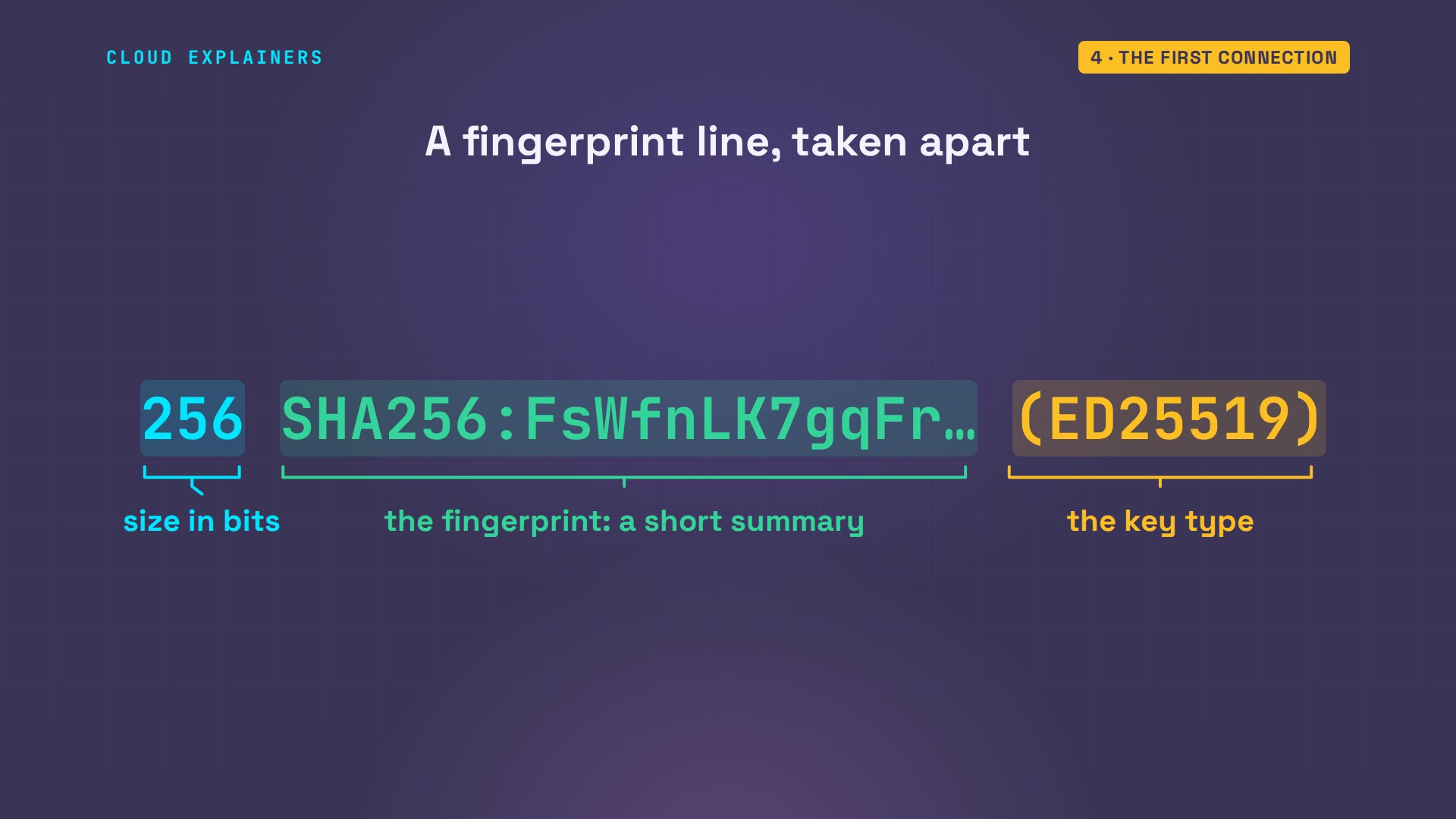
Kari connects again. This time it answers with a question. Her laptop has never seen this server, so it shows the server's fingerprint and asks: is this really the tower? How would she know? On the tower's own screen, ssh-keygen dash l f, pointed at the tower's public host key file, prints its fingerprint; it reads the file, and creates nothing. The same characters. So she answers yes, and her laptop saves it.
ssh kari@towerThe authenticity of host 'tower (172.18.0.3)' can't be established.
ED25519 key fingerprint is SHA256:FsWfnLK7gqFrTFcjZCWPR3LrP6hjjOiDpNe23qWefik.
This key is not known by any other names.
Are you sure you want to continue connecting (yes/no/[fingerprint])?
ssh-keygen -lf /etc/ssh/ssh_host_ed25519_key.pub256 SHA256:FsWfnLK7gqFrTFcjZCWPR3LrP6hjjOiDpNe23qWefik root@tower (ED25519)
yes
Warning: Permanently added 'tower' (ED25519) to the list of known hosts.
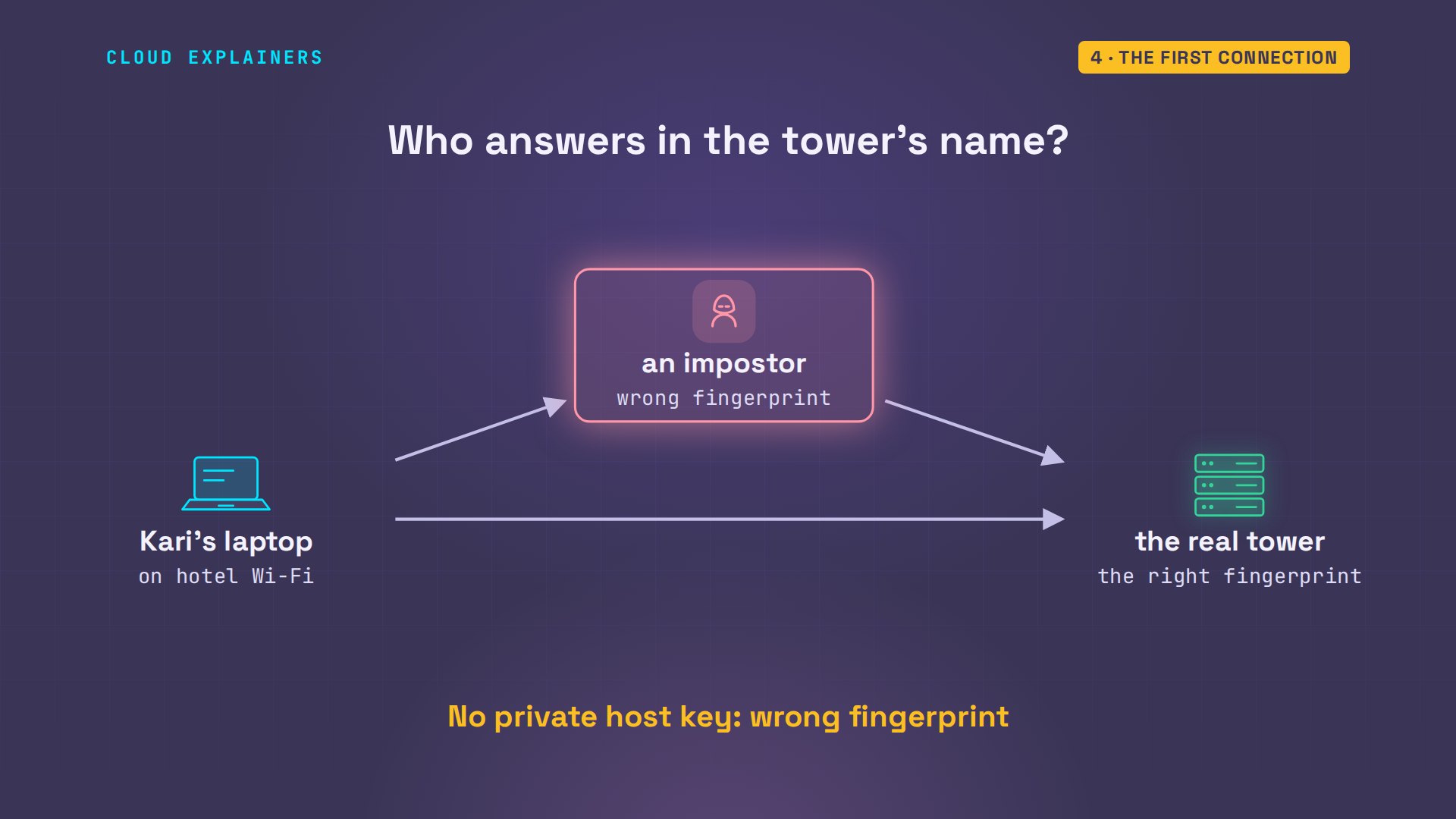
Why ask at all? Picture Kari on a hotel's Wi-Fi. A machine on that network could answer in the tower's name, collect her password, and pass everything along. Even with a copy of the tower's public key, it can't sign for the tower: that takes the tower's private host key, which never leaves the tower. So it shows its own, different fingerprint. That's why checking it once matters, and why her laptop remembers it for every connection after.
Then the second check: the server wants to know it's her. It asks for her password on the tower, and the prompt changes: every command now runs on the tower. hostname says tower. who shows her logged in, from the laptop's address. exit closes the connection, and she's back on her laptop.
kari@tower's password:
hostnametower
whokari pts/1 2026-11-24 21:08 (172.18.0.2)
exitlogout
Connection to tower closed.
Where did her yes go? Into a file called known_hosts in the dot ssh folder. cut trims each line to its first two columns, so it fits here. Three lines, one for each kind of key the tower offered: servers keep several types, for older clients. Ubuntu scrambles the name at the start of each line, so the file doesn't list where she's been. One more thing, and it has nothing to do with known_hosts: you don't have to log in to run one command. Put it after the machine's name. df shows the tower's disk, and she's back on her laptop at once.
cut -d' ' -f1,2 ~/.ssh/known_hosts|1|Pbzp3ME/H/xz1PhJzIygoXkXnoA=|YkW+LpdKuGcMVmg6RrGdqroEecY= ssh-ed25519
|1|uaUPbZd62zwtpdFkUHMRgAQW8zE=|nZx9tGyuzxKqfQUi5TJNcz3hO4s= ssh-rsa
|1|wqGf6hPZUs0vpdf+BePtIHvW6DI=|9mFoG4Lv3d4No8x5ukyy2rN6eAQ= ecdsa-sha2-nistp256
ssh kari@tower df -h /kari@tower's password:
Filesystem      Size  Used Avail Use% Mounted on
overlay         453G   25G  405G   6% /
SSH keys
Typing a password every time gets old, and passwords can be guessed. A key fixes both. On her laptop, ssh-keygen dash t ed25519 makes one. It's the modern type to pick: the keys are short, it's fast, and every current version of SSH understands it. Enter keeps the usual file name. Then a passphrase: a password that protects the key file itself, in case the laptop is ever stolen. It prints the key's fingerprint, and saves two files.
ssh-keygen -t ed25519Generating public/private ed25519 key pair.
Enter file in which to save the key (/home/kari/.ssh/id_ed25519):
Enter passphrase (empty for no passphrase):
Enter same passphrase again:
Your identification has been saved in /home/kari/.ssh/id_ed25519
Your public key has been saved in /home/kari/.ssh/id_ed25519.pub
The key fingerprint is:
SHA256:7+/oPUOcK38Q/jbTAITjRIw+npNQRZECcy143xPCniM kari@laptop
The key's randomart image is:
+--[ED25519 256]--+
|      oo.O=+     |
|      .o* X o    |
|       + B * .   |
|      . E * =    |
|       oS= + =   |
|        =.  * .  |
|         ... + o |
|         ..o+ * .|
|         .+=== o |
+----[SHA256]-----+
Two files, and the difference matters. Only Kari can read the private key: you see r and w for her, then dashes for everyone else. Never copy it to a server, never paste it anywhere. The dot pub file is the public half, one line of text that's safe to hand out. It's the signature card from the bank.
ls -l ~/.ssh/id_*-rw------- 1 kari kari 444 Nov 24 21:08 /home/kari/.ssh/id_ed25519
-rw-r--r-- 1 kari kari  93 Nov 24 21:08 /home/kari/.ssh/id_ed25519.pub
cat ~/.ssh/id_ed25519.pubssh-ed25519 AAAAC3NzaC1lZDI1NTE5AAAAIGnISmEBPZbOFyz1maGqRyqDzjR4LzGLUx18UKvzhzdZ kari@laptop
How does the card get to the tower? ssh-copy-id. It logs in with her password one last time, and adds her public key to a file on the tower called authorized_keys. On the tower's screen, that file holds exactly the line from her laptop. And notice the permissions: the folder and the file belong to her alone. The SSH server checks that, and ignores keys in a file other people could change. On Windows, which has no ssh-copy-id, you paste that one line into the file yourself.
ssh-copy-id kari@tower/usr/bin/ssh-copy-id: INFO: Source of key(s) to be installed: "/home/kari/.ssh/id_ed25519.pub"
/usr/bin/ssh-copy-id: INFO: attempting to log in with the new key(s), to filter out any that are already installed
/usr/bin/ssh-copy-id: INFO: 1 key(s) remain to be installed -- if you are prompted now it is to install the new keys
kari@tower's password:

Number of key(s) added: 1

Now try logging into the machine, with:   "ssh 'kari@tower'"
and check to make sure that only the key(s) you wanted were added.
cat ~/.ssh/authorized_keysssh-ed25519 AAAAC3NzaC1lZDI1NTE5AAAAIGnISmEBPZbOFyz1maGqRyqDzjR4LzGLUx18UKvzhzdZ kari@laptop
ls -ld ~/.ssh ~/.ssh/authorized_keysdrwx------ 2 kari kari 4096 Nov 24 21:08 /home/kari/.ssh
-rw------- 1 kari kari   93 Nov 24 21:08 /home/kari/.ssh/authorized_keys
Now ssh to the tower again. It asks for a passphrase, not the tower's password: that's her laptop unlocking her own key file. Add dash v, for verbose, and ssh tells you what happened. true is an empty command, so it connects and leaves, and grep keeps three of the messages. It offered the public key. The server accepted it, because it matches the card on file. The server then sent a one-time challenge, her laptop signed it with the private key, and she's authenticated using publickey.
ssh kari@tower hostnameEnter passphrase for key '/home/kari/.ssh/id_ed25519':
tower
ssh -v kari@tower true 2>&1 | grep -E 'Offering|accepts|Authenticated to'debug1: Offering public key: /home/kari/.ssh/id_ed25519 ED25519 SHA256:7+/oPUOcK38Q/jbTAITjRIw+npNQRZECcy143xPCniM
debug1: Server accepts key: /home/kari/.ssh/id_ed25519 ED25519 SHA256:7+/oPUOcK38Q/jbTAITjRIw+npNQRZECcy143xPCniM
Enter passphrase for key '/home/kari/.ssh/id_ed25519':
Authenticated to tower ([172.18.0.3]:22) using "publickey".
On the tower, journalctl reads the SSH server's log, and grep keeps the lines that say accepted. Three logins with a password, then publickey. And the fingerprint in the log matches the one ssh-keygen prints for her key on the laptop: the server knows which key it was, without ever holding the private half.
sudo journalctl -u ssh --no-pager -o cat | grep AcceptedAccepted password for kari from 172.18.0.2 port 39140 ssh2
Accepted password for kari from 172.18.0.2 port 39148 ssh2
Accepted password for kari from 172.18.0.2 port 39168 ssh2
Accepted publickey for kari from 172.18.0.2 port 39182 ssh2: ED25519 SHA256:7+/oPUOcK38Q/jbTAITjRIw+npNQRZECcy143xPCniM
Accepted publickey for kari from 172.18.0.2 port 39394 ssh2: ED25519 SHA256:7+/oPUOcK38Q/jbTAITjRIw+npNQRZECcy143xPCniM
ssh-keygen -lf ~/.ssh/id_ed25519.pub256 SHA256:7+/oPUOcK38Q/jbTAITjRIw+npNQRZECcy143xPCniM kari@laptop (ED25519)
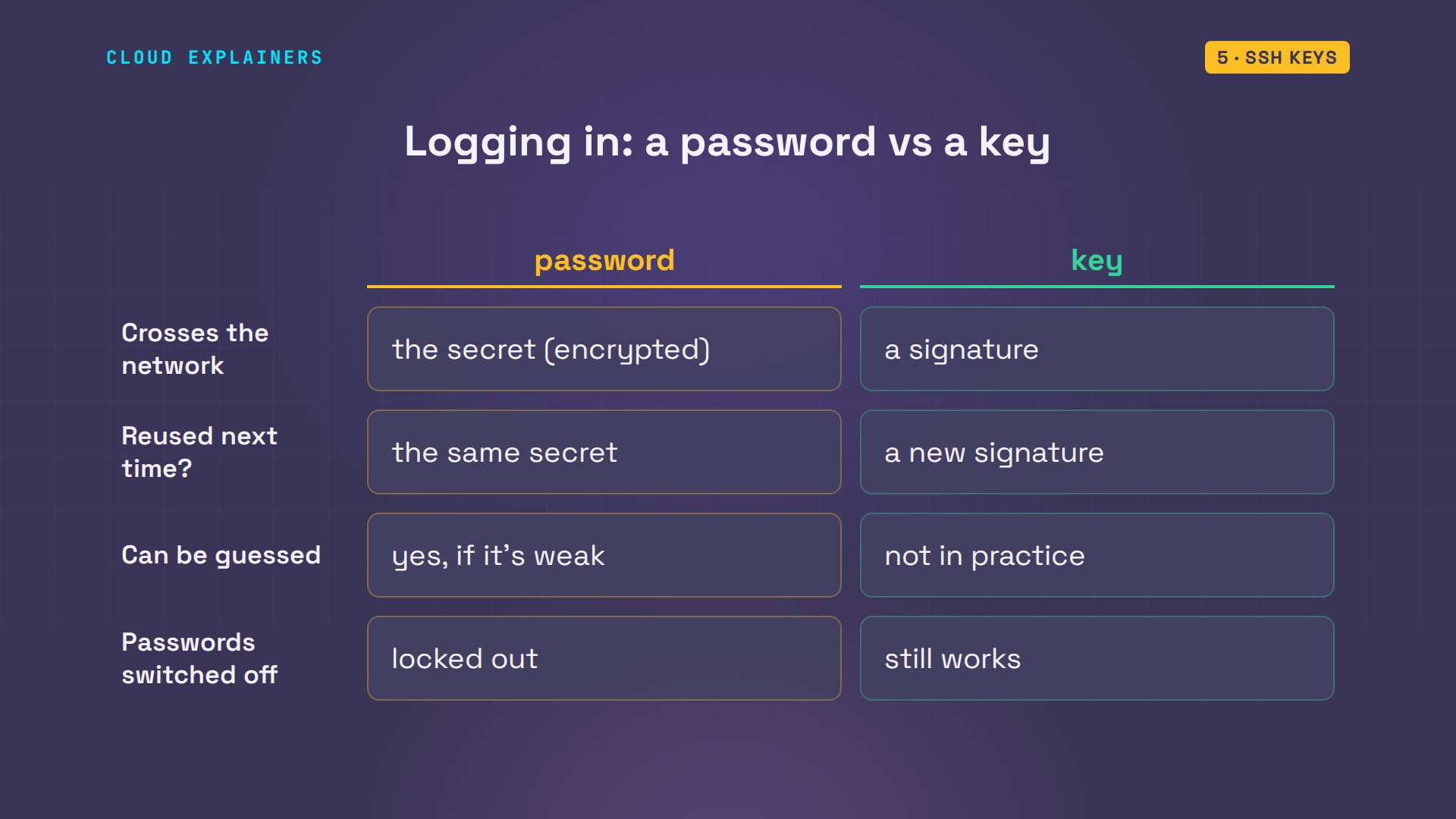
So what changed? A password can be guessed; a key is a huge random number, and can't be, in any practical time. With a password, the secret itself crosses the network, encrypted. With a key, only a signature crosses, and it's useless for the next login. And a key keeps working after passwords are switched off, which you'll do later.
One mistake catches people. chmod changes a file's permissions. Kari runs chmod 644 on her private key, which makes it readable by everyone on the laptop. What does ssh do now? Guess first. It refuses the key. A private key others can read might already be copied, so ssh ignores it, and falls back to asking for the tower's password. chmod 600 puts it back: read and write for Kari, nothing at all for anyone else.
chmod 644 ~/.ssh/id_ed25519
ssh kari@tower hostname
@@@@@@@@@@@@@@@@@@@@@@@@@@@@@@@@@@@@@@@@@@@@@@@@@@@@@@@@@@@
@         WARNING: UNPROTECTED PRIVATE KEY FILE!          @
@@@@@@@@@@@@@@@@@@@@@@@@@@@@@@@@@@@@@@@@@@@@@@@@@@@@@@@@@@@
Permissions 0644 for '/home/kari/.ssh/id_ed25519' are too open.
It is required that your private key files are NOT accessible by others.
This private key will be ignored.
Load key "/home/kari/.ssh/id_ed25519": bad permissions
kari@tower's password:
chmod 600 ~/.ssh/id_ed25519
Typing the passphrase once
Now she types that passphrase on every login. ssh-agent fixes that. It's a small program that holds her unlocked key in memory, until she logs out. The eval line starts the agent and tells this terminal where to find it. ssh-add asks for the passphrase once, ssh-add dash l lists the key it holds, and from then on ssh asks the agent instead of her: uptime on the tower, no question. The agent never hands the key out; it only signs when ssh asks. On an Ubuntu desktop or a Mac, an agent usually runs already.
eval "$(ssh-agent)"Agent pid 202
ssh-addEnter passphrase for /home/kari/.ssh/id_ed25519:
Identity added: /home/kari/.ssh/id_ed25519 (kari@laptop)
ssh-add -l256 SHA256:7+/oPUOcK38Q/jbTAITjRIw+npNQRZECcy143xPCniM kari@laptop (ED25519)
ssh kari@tower uptime21:08:38 up 0 min, 1 user, load average: 0.08, 0.02, 0.01
Shortcuts in ~/.ssh/config
And she still types kari at tower every time. So she creates a file called config in her dot ssh folder, with any text editor. Host tower names the shortcut. HostName is the real name or address: here it happens to be tower too, but an address works. User is her account there, and IdentityFile points at her private key on the laptop, which ssh uses to sign and never sends. Now ssh tower is all she types.
cat ~/.ssh/configHost tower
    HostName tower
    User kari
    IdentityFile ~/.ssh/id_ed25519
ssh tower
hostnametower
exitlogout
Connection to tower closed.
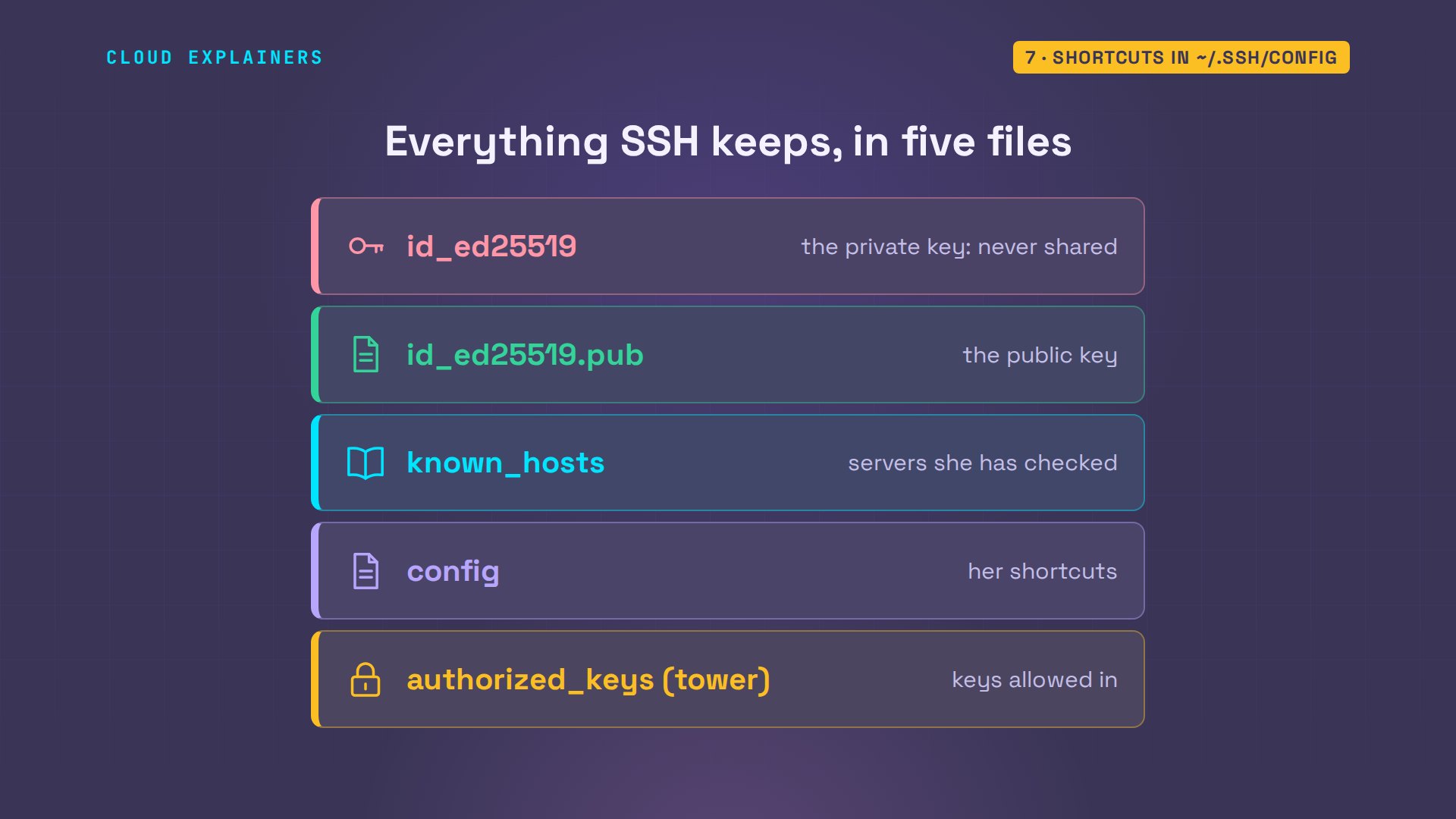
That makes four files in her dot ssh folder, and one on the tower. On the laptop: the private key and the public key. known_hosts, which holds the servers she has checked. And config, which holds her shortcuts. On the tower: authorized_keys, the keys allowed to log in as her. Almost every SSH problem is one of these five files.
One trap with running a command on another machine. Two commands joined by a semicolon, without quotes: the first runs on the tower, but your own shell runs the second one, here on the laptop. Put the whole thing in single quotes, and all of it runs on the tower.
ssh tower hostname; hostnametower
laptop
ssh tower 'hostname; uptime -p'tower
up 0 minutes
When a key stops working
Sometimes a key that worked yesterday stops working. Here Kari's home folder on the tower is made writable by everyone: chmod o plus w. Her key is still in authorized_keys, yet ssh falls back to asking for a password. The client can't tell you why; the server's log can. Authentication refused: bad ownership or modes. Modes is the log's word for permissions. Anyone could have swapped her authorized_keys, so the server won't trust it. chmod o minus w puts it back, and the key works again.
chmod o+w ~
ssh tower hostnamekari@tower's password:
sudo journalctl -u ssh --no-pager -o cat | grep 'bad ownership' | tail -1Authentication refused: bad ownership or modes for directory /home/kari
chmod o-w ~
ssh tower hostnametower
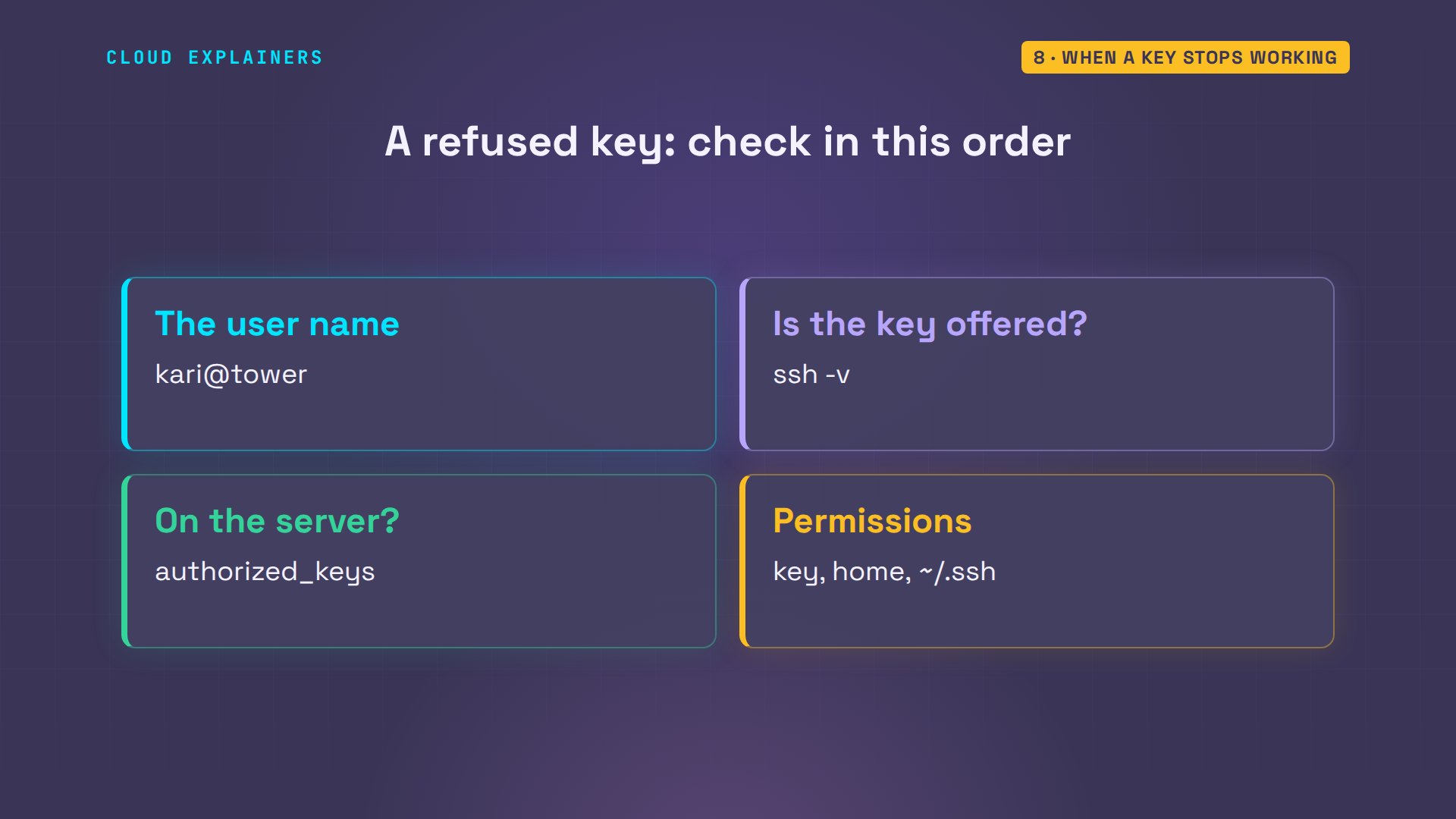
When a key is refused, check these in order. The user name: kari at tower, not whatever your user name is on the laptop. Whether the key is offered at all: ssh dash v says. Whether the public key really is in authorized_keys on the server. And the permissions: the private key, the home folder, the dot ssh folder. The server's log names the problem every time.
Copying files
Kari wants today's runway bookings on her laptop, without the walk to the tower. scp copies files over SSH, like cp, with a machine's name and a colon in front of the path there. The dot at the end means this folder on her laptop. 137 bytes, done. To send a file the other way, swap them: the laptop's file first, then tower and a colon.
scp tower:/srv/board/www/today.txt .today.txt 100% 137 247.0KB/s 00:00
cat today.txtRunway bookings, today
09:30  Cessna 172   G-KARI  runway 27
10:15  Piper Cub    N-TOM1  runway 27
11:00  Robin DR400  F-GLID  runway 09
For a whole folder that changes, use rsync. Her logbook folder has 30 flight logs. Dash a copies the folder and keeps its file details, and tower and a colon, with nothing after it, means her home folder there. The grep only trims rsync's report to two lines. The first run sends all 30 files, about 27 thousand bytes. Run it again: zero files sent, because nothing changed. She adds one flight to one log, and the next run sends just that one file. On a real server with gigabytes of files, that's minutes against hours.
du -sh logbook && ls logbook | wc -l124K	logbook
30
rsync -a --stats logbook tower: | grep -E 'transferred:|^sent'Number of regular files transferred: 30
sent 26,517 bytes  received 590 bytes  54,214.00 bytes/sec
rsync -a --stats logbook tower: | grep -E 'transferred:|^sent'Number of regular files transferred: 0
sent 620 bytes  received 17 bytes  1,274.00 bytes/sec
rsync -a --stats logbook tower: | grep -E 'transferred:|^sent'Number of regular files transferred: 1
sent 839 bytes  received 48 bytes  1,774.00 bytes/sec
Jobs that outlive the connection
Start a long backup over SSH, close your laptop lid, and the backup dies with the connection. Here's Kari doing exactly that. She logs in and starts the tower's backup script; the ampersand runs it in the background, but it still belongs to this session. It copies one part a second. Then her connection drops. When she checks from the laptop, the log stopped at part 6, the clock shows it's now much later, and pgrep finds zero backups still running. Everything started from an SSH session ends when the session does.
./backup.sh &[1] 1070
tail -1 backup.log21:08:45 copied part 5
ssh tower 'tail -1 backup.log; date +%T; pgrep -c backup.sh'21:08:46 copied part 6
21:09:04
0
The fix is tmux, already on Ubuntu servers. It keeps a session running on the server, whether or not anyone is connected. Kari starts the backup inside a tmux session named backup; dash d starts it detached, in the background. Same dropped connection. This time the log is still being written, and tmux ls shows the session alive. If you're working inside tmux yourself, press Control-b, then d, to detach. tmux attach dash t backup takes you back in.
tmux new -d -s backup ./backup.sh
tmux lsbackup: 1 windows (created Tue Nov 24 21:09:04 2026)
ssh tower 'tail -1 backup.log; date +%T; tmux ls'21:09:26 copied part 23
21:09:27
backup: 1 windows (created Tue Nov 24 21:09:04 2026)
When the host key changes
A week later, Tom, who runs the tower, reinstalls its SSH server. That gives the tower a new host key: on the tower's screen, a new fingerprint. Kari's next ssh stops with the loudest warning SSH has. Remote host identification has changed. Her laptop remembers a different key for this name, and someone could be pretending to be the tower. So ssh refuses to connect at all.
ssh-keygen -lf /etc/ssh/ssh_host_ed25519_key.pub256 SHA256:29vgRBaFjyHNGwRz68jwJKTYAqVMVhrnY9NVQQvzF2c root@tower (ED25519)
ssh tower hostname@@@@@@@@@@@@@@@@@@@@@@@@@@@@@@@@@@@@@@@@@@@@@@@@@@@@@@@@@@@
@    WARNING: REMOTE HOST IDENTIFICATION HAS CHANGED!     @
@@@@@@@@@@@@@@@@@@@@@@@@@@@@@@@@@@@@@@@@@@@@@@@@@@@@@@@@@@@
IT IS POSSIBLE THAT SOMEONE IS DOING SOMETHING NASTY!
Someone could be eavesdropping on you right now (man-in-the-middle attack)!
It is also possible that a host key has just been changed.
The fingerprint for the ED25519 key sent by the remote host is
SHA256:29vgRBaFjyHNGwRz68jwJKTYAqVMVhrnY9NVQQvzF2c.
Please contact your system administrator.
Add correct host key in /home/kari/.ssh/known_hosts to get rid of this message.
Offending ECDSA key in /home/kari/.ssh/known_hosts:3
  remove with:
  ssh-keygen -f '/home/kari/.ssh/known_hosts' -R 'tower'
Host key for tower has changed and you have requested strict checking.
Host key verification failed.
Never just make the warning go away. Ask whoever runs the server first. A reinstall, or a new machine taking over the name, are good reasons; if nobody can explain it, stop, and don't type a password. Tom confirms the reinstall, and the fingerprint in the warning matches the one on the tower's screen. Only then does Kari run ssh-keygen dash R tower, which removes the old lines, and connects again. Same question as the first day: she checks it, and answers yes.
ssh-keygen -R tower# Host tower found: line 1
# Host tower found: line 2
# Host tower found: line 3
/home/kari/.ssh/known_hosts updated.
Original contents retained as /home/kari/.ssh/known_hosts.old
ssh tower hostnameThe authenticity of host 'tower (172.18.0.3)' can't be established.
ED25519 key fingerprint is SHA256:29vgRBaFjyHNGwRz68jwJKTYAqVMVhrnY9NVQQvzF2c.
This key is not known by any other names.
Are you sure you want to continue connecting (yes/no/[fingerprint])? yes
Warning: Permanently added 'tower' (ED25519) to the list of known hosts.
tower
Keys only: passwords off
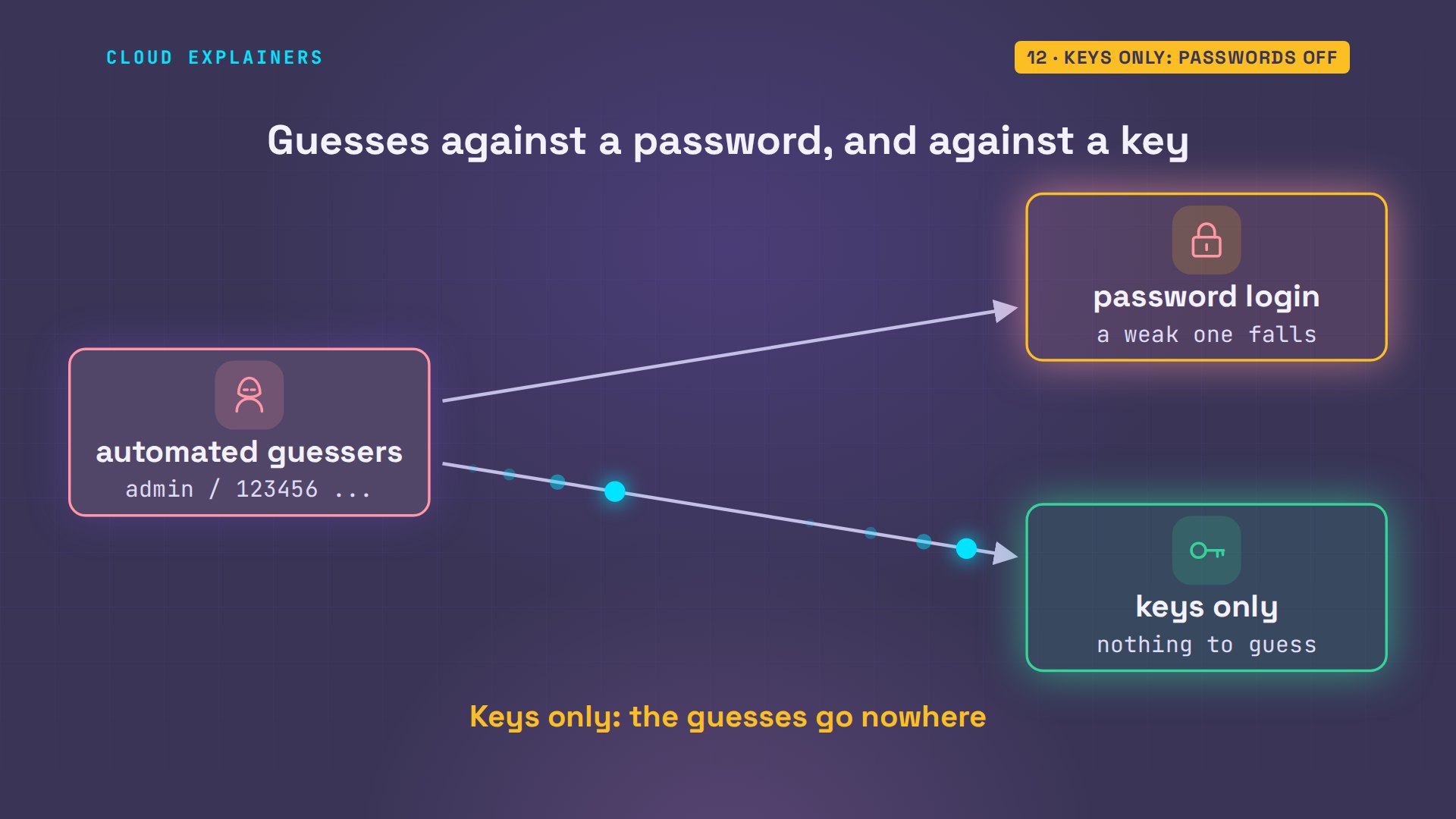
Why turn passwords off? Any server with port 22 open to the internet gets password guesses from automated programs all day long, trying common names and common passwords. A weak password eventually falls. A key can't be guessed that way, so on a server that only accepts keys, those guesses go nowhere.
Right now the tower still takes passwords: Tom's account asks for one. Kari adds a small file in the SSH server's settings folder, with sudo and an editor. The 10 at the front of its name makes it load early, and early matters: the first value SSH reads wins. Two lines: password authentication no, and permit root login no, which blocks logging in straight to root, the all-powerful admin account. Before reloading anything, she runs sshd dash t: sshd is the server program, and dash t tests its settings. It found a typo: authentification, one syllable too many. A broken setting can stop the server from starting. So test first, and keep a second session open while you change it: if the new setting locks you out, you're still inside to undo it.
ssh tom@towertom@tower's password:
cat /etc/ssh/sshd_config.d/10-airfield.confPasswordAuthentification no
PermitRootLogin no
sudo sshd -t/etc/ssh/sshd_config.d/10-airfield.conf: line 1: Bad configuration option: PasswordAuthentification
/etc/ssh/sshd_config.d/10-airfield.conf: terminating, 1 bad configuration options
Why a separate file? OpenSSH's own manual says that for each setting, the first value it finds is the one used. Ubuntu's main settings file reads the folder's files before its own lines, so Kari's file wins. And password authentication's default is yes: until you say no, passwords work.
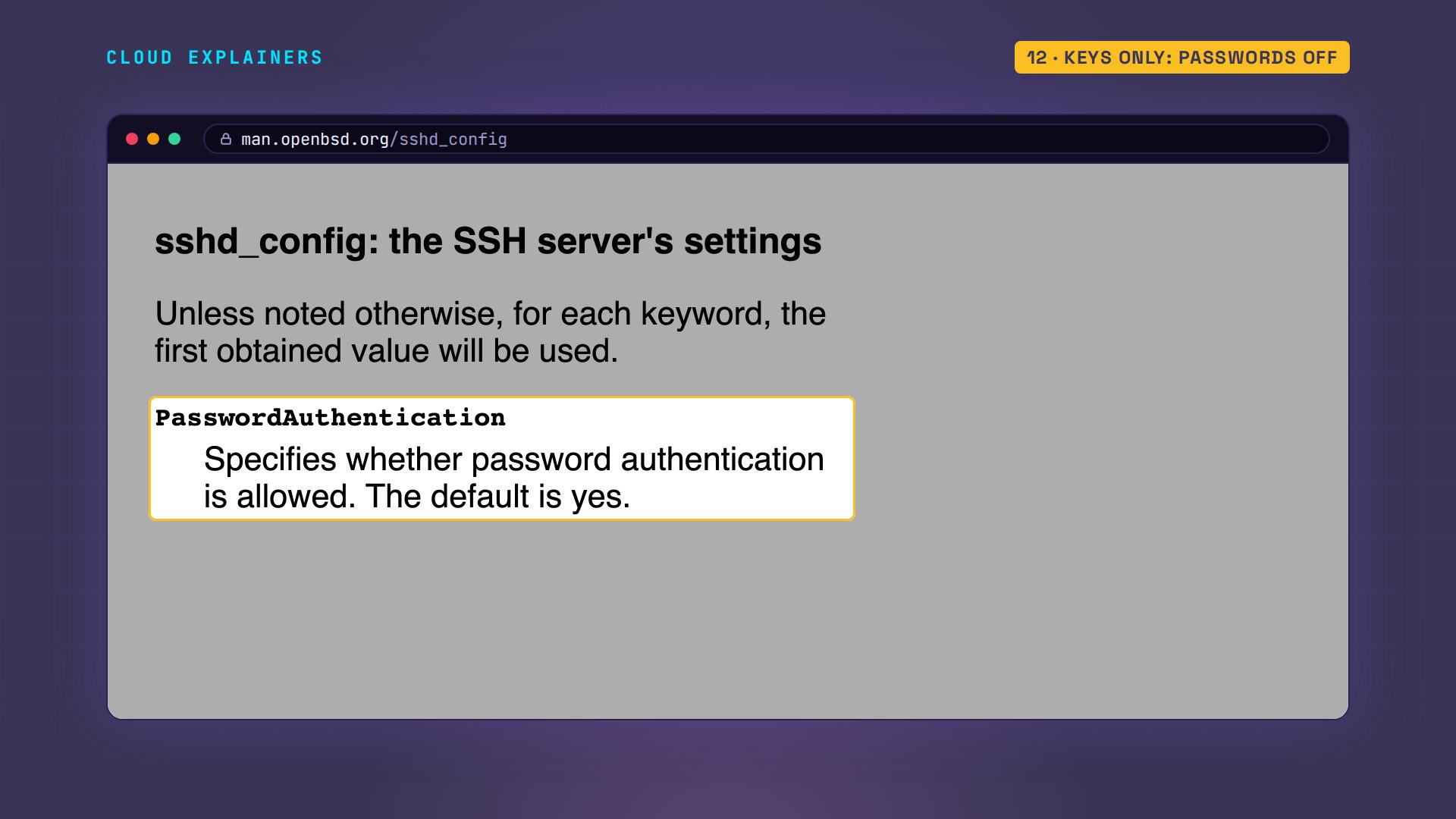
She fixes the spelling. sshd dash t prints nothing when all is well, so the echo after it only runs if the test passes. systemctl reload ssh applies it without dropping anyone already connected. sshd dash capital T prints every setting the server is really using, and grep keeps three: password authentication no, permit root login no, keys yes. With root logins off, admins log in as themselves and use sudo, so every change has a name next to it in the log.
sudo sshd -t && echo config OKconfig OK
sudo systemctl reload ssh
sudo sshd -T | grep -E '^(passwordauthentication|permitrootlogin|pubkeyauthentication) 'permitrootlogin no
pubkeyauthentication yes
passwordauthentication no
Now Tom's account, from Kari's laptop, again. No password question at all: permission denied, publickey, the only way in now. Kari's key still works. Tom is locked out until someone puts his key on the tower another way. That's why, on your own servers, you copy every key over first, and only then switch passwords off. In that order, or you lock yourself out.
ssh tom@towertom@tower: Permission denied (publickey).
ssh tower hostnametower
Reaching a page through the tunnel
Remember the runway booking board? On the tower, Kari fetches it with curl, a tool that loads web pages in the terminal, and the board answers. ss shows it listens only on 127.0.0.1, port 8080. That address has a name, localhost, and both mean: this machine itself. So from Kari's laptop, the same page gets no connection at all. That's on purpose: admin pages and databases are often kept off the network like this.
curl -s localhost:8080/today.txtRunway bookings, today
09:30  Cessna 172   G-KARI  runway 27
10:15  Piper Cub    N-TOM1  runway 27
11:00  Robin DR400  F-GLID  runway 09
sudo ss -tlnp | grep 8080LISTEN 0 5 127.0.0.1:8080 0.0.0.0:* users:(("python3",pid=79,fd=3))
curl -sS tower:8080/today.txtcurl: (7) Failed to connect to tower port 8080 after 0 ms: Couldn't connect to server
SSH can carry that connection for her. Dash L means local forward: port 8080 on her laptop goes through the SSH connection to localhost port 8080, as the tower sees it. That localhost is read on the tower's side, so here it means the tower itself. Dash N means run no command, just the tunnel, and dash f sends it to the background.
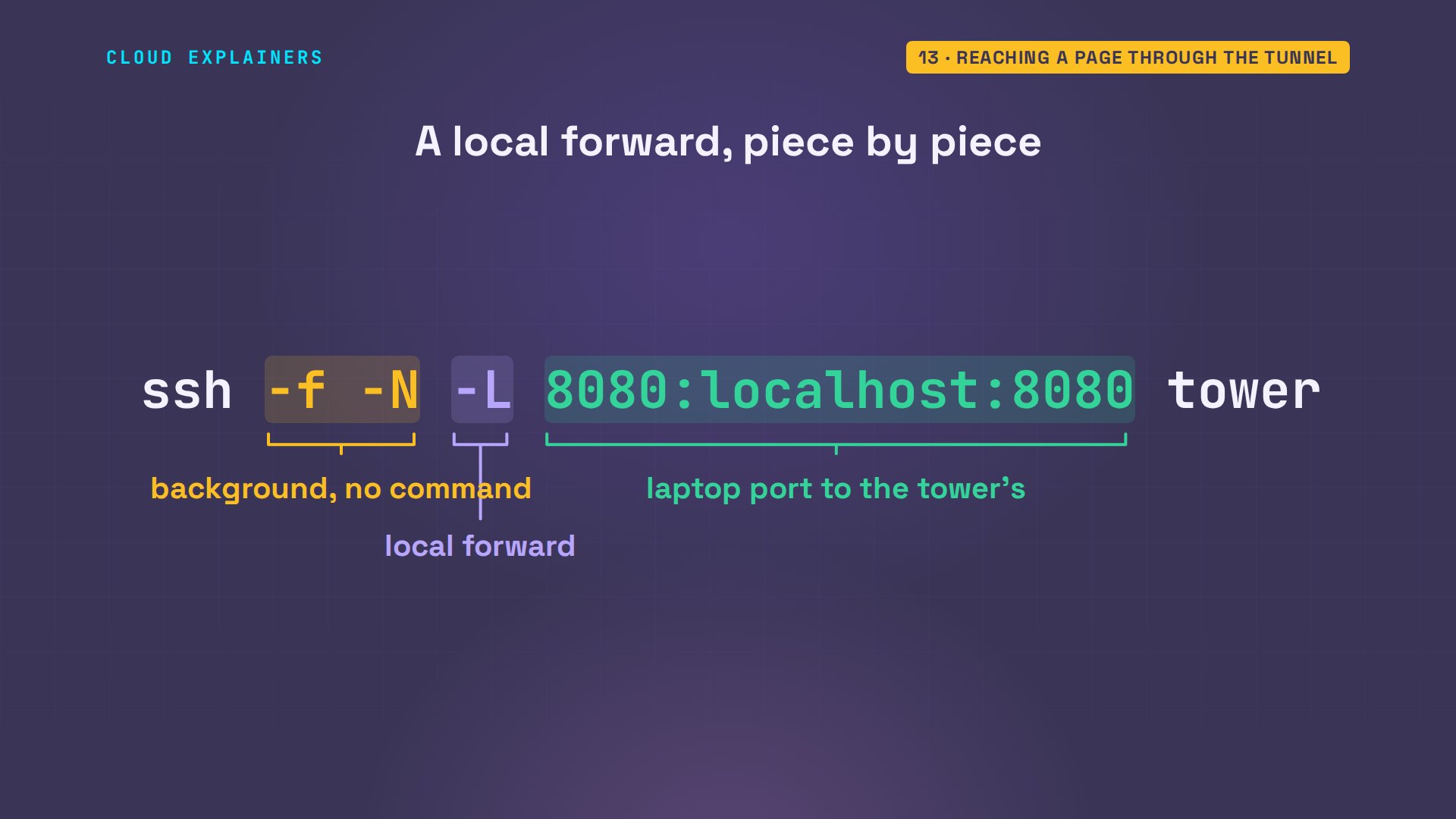
She runs it, and it returns at once. Now she asks her own laptop for port 8080, and the tower's booking board answers. ps with dash C ssh lists just the ssh programs, with their process numbers: the tunnel is still there in the background, until she ends it. She runs kill with that number, the tunnel closes, and the page is gone again. The booking board never opened to the network. The same trick reaches a database that only listens on its own server, like PostgreSQL on port 5432.
ssh -f -N -L 8080:localhost:8080 tower
curl -s localhost:8080/today.txtRunway bookings, today
09:30  Cessna 172   G-KARI  runway 27
10:15  Piper Cub    N-TOM1  runway 27
11:00  Robin DR400  F-GLID  runway 09
ps -o pid,args -C sshPID COMMAND 273 ssh -f -N -L 8080:localhost:8080 tower
kill 273
curl -sS localhost:8080/today.txtcurl: (7) Failed to connect to localhost port 8080 after 0 ms: Couldn't connect to server
Jumping through the tower
Now the fuel depot's PC. It's on a separate network that only the tower can reach, so her laptop can't even find a machine called fuel. Dash J jumps through the tower: ssh connects to the tower first, then on from there to fuel. Her config has no fuel entry yet, so she types kari at fuel in full. It's a new machine, so the same yes question, then fuel's password. hostname says fuel.
ssh fuel hostnamessh: Could not resolve hostname fuel: Name or service not known
ssh -J tower kari@fuelThe authenticity of host 'fuel (<no hostip for proxy command>)' can't be established.
ED25519 key fingerprint is SHA256:N3sg/TWVX03uHgcJZQS7bYdaTP0oCXNG+tib5IB6LBM.
This key is not known by any other names.
Are you sure you want to continue connecting (yes/no/[fingerprint])? yes
Warning: Permanently added 'fuel' (ED25519) to the list of known hosts.
kari@fuel's password:
hostnamefuel
exitlogout
Connection to fuel closed.
This shape has a name: a jump host, sometimes called a bastion. Many companies leave exactly one machine reachable from outside, and keep every other server on a private network behind it. One door to watch and lock down, instead of dozens.
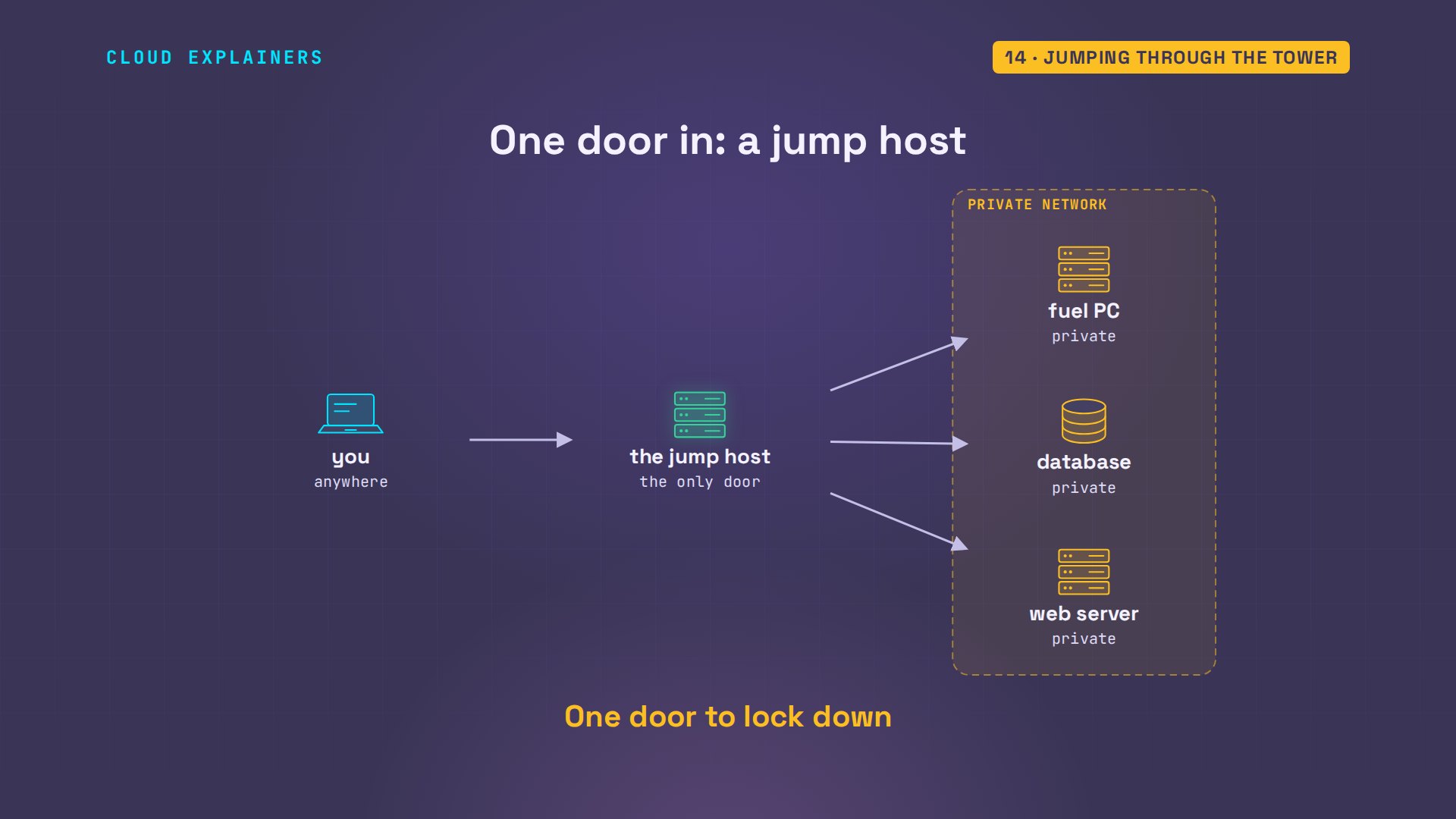
In the config file, the same thing is called ProxyJump. The manual's wording: one or more jump proxies, visited one after another.
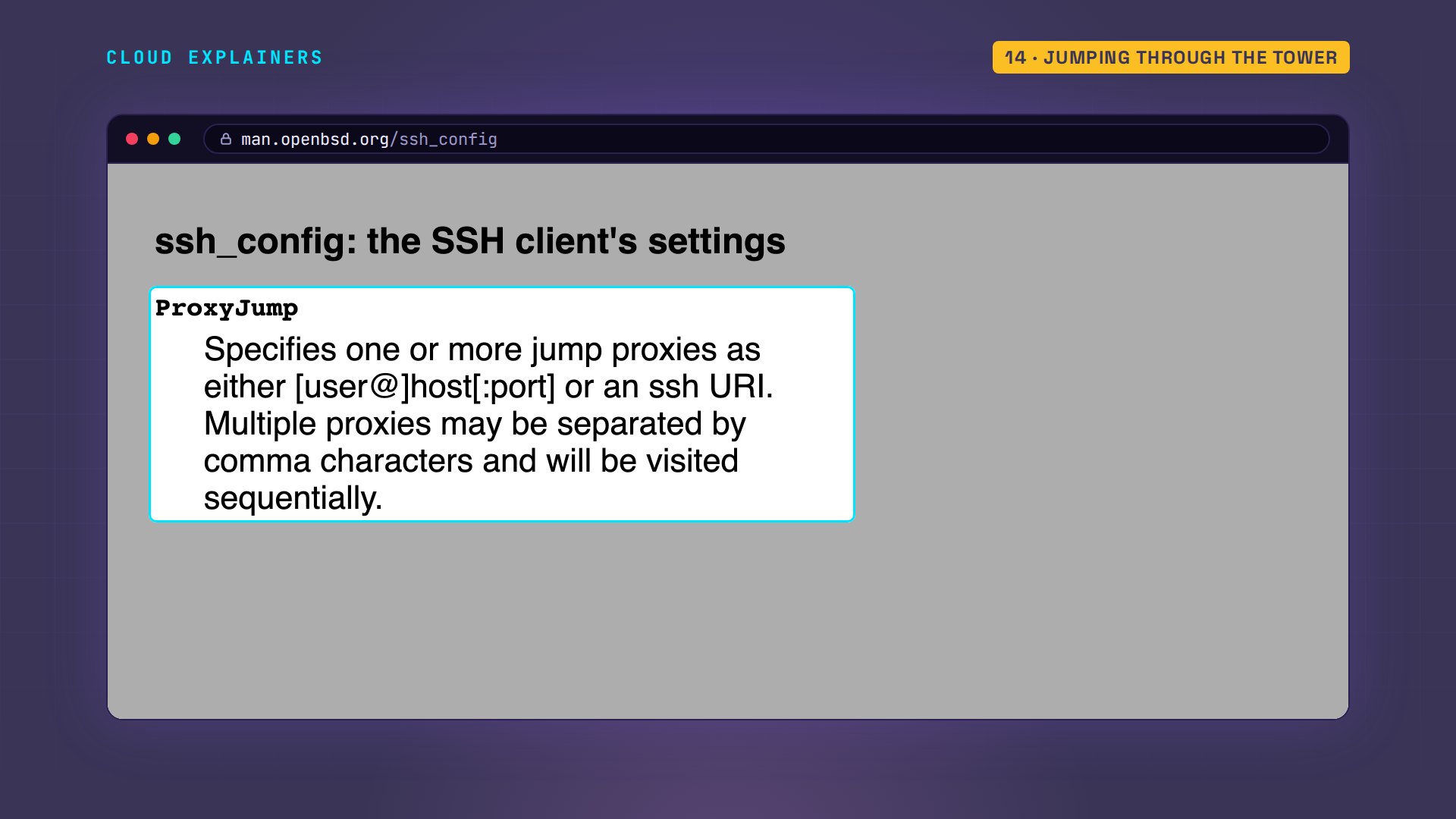
So Kari adds a block to her config: Host fuel, User kari, and ProxyJump tower. ssh-copy-id fuel puts her key on the fuel PC, through the tower, with fuel's password one last time. And ssh fuel now runs with no password at all: a machine her laptop can't even find, one hop away. scp and rsync read the same config file, so they jump through the tower too.
cat ~/.ssh/configHost tower
    HostName tower
    User kari
    IdentityFile ~/.ssh/id_ed25519

Host fuel
    HostName fuel
    User kari
    ProxyJump tower
ssh-copy-id fuel/usr/bin/ssh-copy-id: INFO: attempting to log in with the new key(s), to filter out any that are already installed
/usr/bin/ssh-copy-id: INFO: 1 key(s) remain to be installed -- if you are prompted now it is to install the new keys
kari@fuel's password:

Number of key(s) added: 1

Now try logging into the machine, with:   "ssh 'fuel'"
and check to make sure that only the key(s) you wanted were added.
ssh fuel hostnamefuel
A firewall that keeps SSH open
Last, a firewall. It shuts every door you didn't mean to open, and switched on in the wrong order, it shuts the one you're standing in. Ubuntu's ufw, once switched on, blocks every incoming connection unless a rule lets it in. So first allow OpenSSH, a ready-made rule for SSH's port 22, then turn the firewall on. ufw even warns that this may cut existing SSH connections. ufw status shows SSH allowed. With the rule checked, she logs out, and her next login works. On a server far away, keep that first session open until a new login from a second window works.
sudo ufw allow OpenSSHRules updated
Rules updated (v6)
sudo ufw enableCommand may disrupt existing ssh connections. Proceed with operation (y|n)? y
Firewall is active and enabled on system startup
sudo ufw statusStatus: active

To                         Action      From
--                         ------      ----
OpenSSH                    ALLOW       Anywhere
OpenSSH (v6)               ALLOW       Anywhere (v6)
exitlogout
Connection to tower closed.
ssh tower hostnametower
Recap
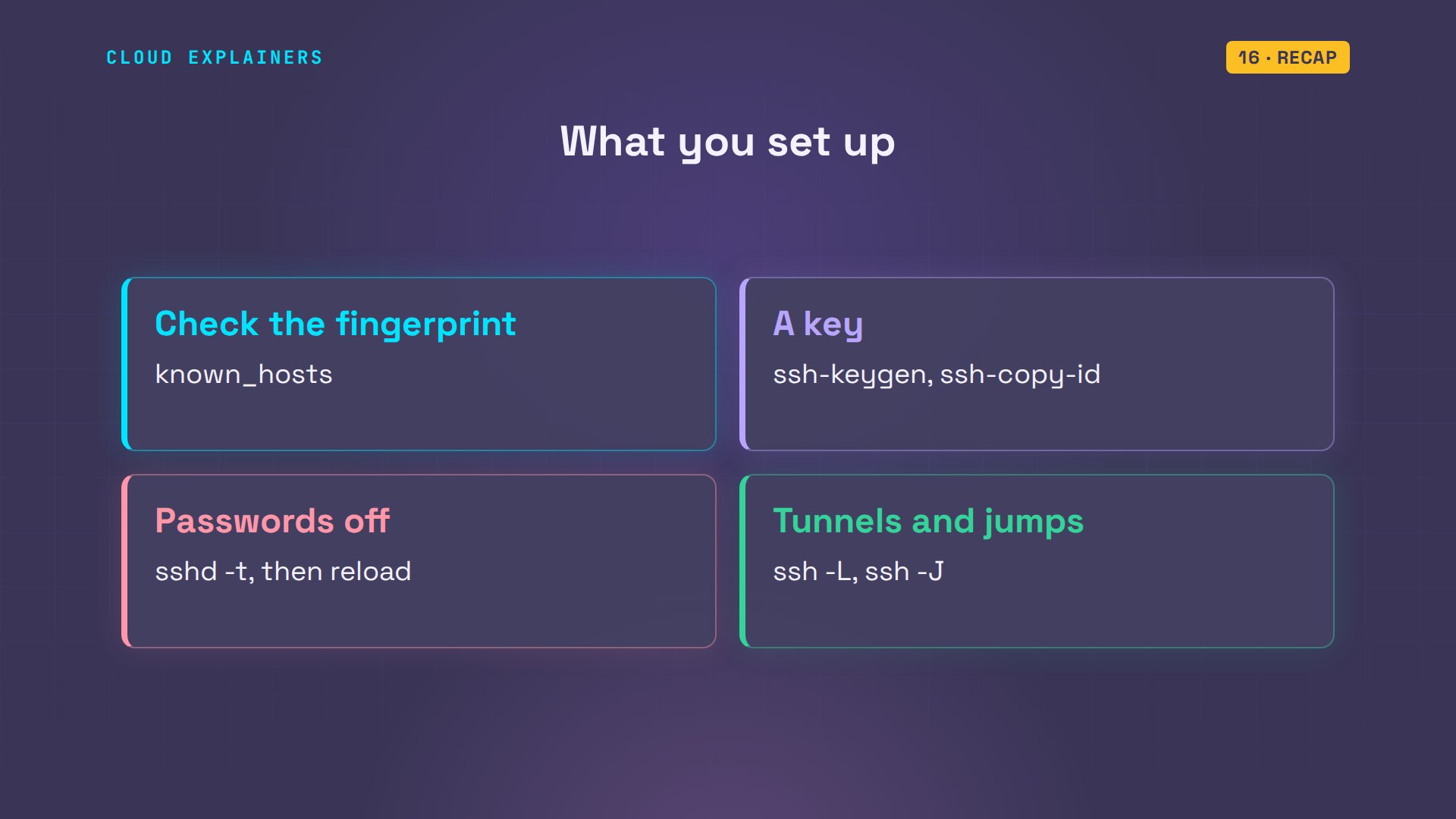
So: check the fingerprint once, log in with a key, turn passwords off carefully, and reach hidden places with a tunnel and a jump.
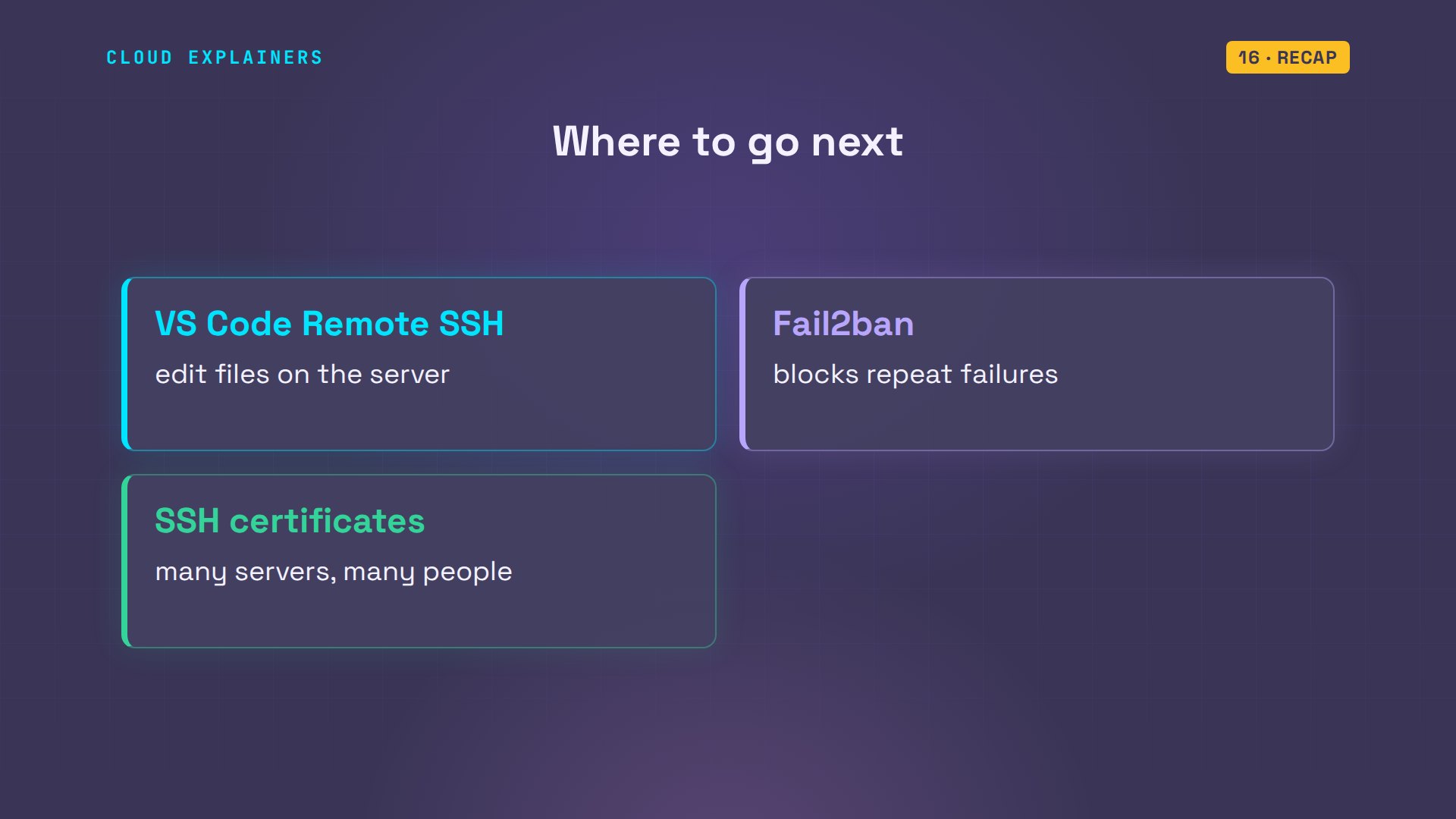
Where next? The VS Code editor's Remote SSH extension, to edit files on a server as if they were local. Fail2ban, which blocks addresses that keep failing to log in. And SSH certificates, which let a team manage access in one place instead of copying keys to every server.
If this saved you a walk across your own airfield, subscribing brings the next tutorial.
All the lab files and commands are linked in the description. Thanks for watching Cloud Explainers.
Sources
Demos: three containers on our own Mac standing in for a laptop, a server and a second PC at a small airfield; the airfield, its people and bookings are made up. Every command, prompt and number was real. Watch the full video on YouTube.
More videos

Every PostgreSQL Setting to Change After You Install It

What Happens When You Install Docker on Ubuntu

How to Fix Python 'Address Already in Use' Errors
Golang Interfaces and Mocks in 5 Minutes

How to Fix Git 'Detached HEAD' State
Linux Firewall with ufw: Full Tutorial for Beginners
Golang defer Statements in 5 Minutes
How to Fix OAuth 'invalid_grant' Errors

The SQL Roadmap for Beginners
Golang make() for Slices and Maps in 5 Minutes
How to Fix Network 'No Route to Host' Errors on Linux

How to Fix Linux 'Too Many Open Files' Errors

Every Django Concept a Beginner Needs to Know

Golang for range Loops in 5 Minutes

SQL Databases: SQLite vs PostgreSQL
The Django Roadmap for Beginners

Golang Structs in 5 Minutes

Redis: Full Tutorial for Beginners

Golang context.Context in 5 Minutes
How to Fix MySQL Database Error 1045: Access Denied for User

Golang Method Receivers in 5 Minutes
How to Fix Python SSL: CERTIFICATE_VERIFY_FAILED Errors

How to Fix Django Static Files Not Loading in Production

OpenRouter vs Direct API Keys: Which One Should You Use?
Golang if err != nil Checks in 5 Minutes

How to Fix Golang 'go.mod File Not Found' Errors

MCP Servers: Full Tutorial for Beginners

Golang Error Return Values in 5 Minutes

How to Fix Python ModuleNotFoundError: No Module Named
Golang Pointers in 5 Minutes
How to Fix a Kubernetes Pod Stuck in CrashLoopBackOff
How to Fix a Homelab ESXi Host Not Responding
PostgreSQL: Full Tutorial for Beginners
How a Load Balancer Works with HAProxy

How Python Virtual Environments Work
How to Fix Cloudflare Tunnel Errors in a Homelab
How to Fix API CORS Errors: No 'Access-Control-Allow-Origin'
How Authenticator App Login Codes Work (TOTP)

Git and GitHub: Full Tutorial for Beginners
How a Homelab Hypervisor Works (VMware ESXi)
How to Fix Kubernetes ImagePullBackOff Errors

How to Fix DNS 'Temporary Failure in Name Resolution' on Linux
How to Fix AWS CLI 'Unable to Locate Credentials'

Proxmox vs ESXi for Your Homelab: When Each One Wins
PostgreSQL UUID vs Auto Increment: Which Primary Key Should You Use?
Kubernetes: Full Tutorial for Beginners

How TCP Sockets Work

How to Fix PostgreSQL 'Could Not Connect to Server'
Claude Code Hooks Will Finally Make Sense After This

DevOps with Ansible Will Finally Make Sense After This
How SNMP Network Monitoring Works
How to Fix GitHub 'Permission Denied (publickey)' Errors

Docker: Full Tutorial for Beginners
How to Fix PostgreSQL 'Password Authentication Failed'
Why One Linux Server Handles More Users Than You Think

How to Fix Network 'Connection Refused' Errors
DevOps Pipelines: Jenkins vs GitHub Actions

Linux Nginx Reverse Proxy: Full Tutorial for Beginners
Every Networking Term a Beginner Needs in 12 Minutes
How to Fix Docker 'Permission Denied' on docker.sock
How to Fix Git 'Updates Were Rejected' When You Push
How to Fix nginx 502 Bad Gateway Errors on Linux
How to Fix Linux apt 'Could Not Get Lock' Errors (Ubuntu)

How Email Works on the Internet (SMTP) in 10 Minutes

The Python Roadmap for Beginners

Golang REST API with Gin: Full Tutorial for Beginners
How a WireGuard VPN Network Works

Linux Makefiles Will Finally Make Sense After This

SAML vs OAuth vs OpenID Connect: What's the Difference?

How to Fix Python cron Jobs That Never Run
Linux Bash Scripting: Full Tutorial for Beginners
How PXE Network Boot Works
How Active Directory Works

How to Fix a Linux systemd Service That Won't Start
Linux Logs: syslog vs journald
JWT vs Session Cookies: Which One Should You Use?
Docker vs Docker Compose: Which One Should You Use?
How to Fix Docker Compose Containers That Can't Talk to Each Other

Django Full Tutorial for Beginners

How Linux systemd Works

How to Fix 'Windows Cannot Access' Network Share Errors (SMB)
REST vs gRPC: Which One Should You Use?
How to Fix SSL Certificate Chain Errors (Missing Intermediate)

Every Python Concept for Beginners in 10 Minutes

Every SQL Join Type in 10 Minutes

Why OpenRouter Free Models Hit Their Limit So Fast
Why Your Gemini API Free Tier Runs Out So Fast

OpenRouter Will Finally Make Sense After This
How Redis Caching Works
Gemini API vs Vertex AI: Which One Should You Use?
How to Fix a Leaked Gemini API Key
Why Golang Uses Goroutines Instead of Threads

How to Fix Gemini API Error 429: Resource Exhausted

Claude Token Pricing Will Finally Make Sense After This
Why Python Web Scraping Returns Nothing (and the Fix)

Python uv vs pip: Which One Should You Use?

Python Automation: Full Tutorial for Beginners
How OAuth Login Works

Google AI Studio Will Finally Make Sense After This
What Happens When You Run a Docker Container
How to Fix Claude Code Billing Your API Key Instead of Your Plan
Why Passkeys Can't Be Phished Like Passwords
PowerShell vs Bash: Which One Should You Learn?
The Linux Roadmap for Beginners
Django vs FastAPI: Which One Should You Use?

Why SQLite Is the Most Used Database in the World
How a NoSQL Database Like MongoDB Works

How to Fix Python pip error: externally-managed-environment
How to Fix MySQL Too Many Connections Database Errors

Golang Concurrency Will Finally Make Sense After This
How Amazon S3 Works
How Kubernetes Works

How Git Works
How to Fix Docker Port Already Allocated Errors
How PostgreSQL Works
How to Fix Git Merge Conflicts

How to Fix No Space Left on Device in Linux
How the Internet Works
SQL vs NoSQL: When Each One Wins
How to Fix JWT Token Expired Errors (401 Unauthorized)
Claude API vs Claude Pro: Why Your Subscription Doesn't Include It

Why AI Agent Skills Beat Giant Prompts

Linux Cron Jobs Will Finally Make Sense After This

Security Logs Will Finally Make Sense After This
How to Fix a Security Leak: An API Key Pushed to GitHub
DNS Will Finally Make Sense After This
Never Ignore a Security Update
Two-Factor Authentication Will Finally Make Sense
Never Expose a Database to the Internet
SSH Keys vs Passwords: Which Is Safer for Security?
The 5 Levels of Linux Boot: From Power On to Login
The 5 Levels of Network Firewalls
Password Security: Why Hackers Crack Weak Passwords
Why Your Linux Server Runs Out of Memory
HTTP vs HTTPS: What Actually Changes on Your Network

Every Linux File Permission You Need to Know
Linux Processes vs Threads: When Each One Wins

The OSI Model Will Finally Make Sense After This
The 7 Levels of Git
Every Network Troubleshooting Command You Need
Hashing vs Encryption in Cybersecurity: When Each One Wins
Why the Internet Ran Out of IP Addresses
Linux Package Managers: apt vs Snap vs Flatpak

Why Python Is Slow (and When It Doesn't Matter)
TCP vs UDP: When Each One Wins
Stop Running Linux as Root (Do This Instead)
Linux Users and Groups Will Finally Make Sense

Why Phishing Beats Good Security (and How to Spot It)

The 7 Levels of Docker

AI Agents Will Finally Make Sense After This
Stop Using git push --force (Use This Instead)

Agent Skills vs MCP: When Each One Wins

Networking Will Finally Make Sense After This

Every Linux Command You Actually Need
The 7 Levels of Cybersecurity

Every System Design Concept You Need, in One Diagram