Every Network Troubleshooting Command You Need
The eight network troubleshooting commands a beginner needs, in the order to use them: start at your own laptop and walk outward. ip address (is the network card up?), ip route (is there a way out?), ping (can I reach it?), traceroute (where does the path stop?), dig (does the name work?), nc (is the port open?), ss (who is listening, on the server?) and curl (what does the website say?), with the Windows and Mac equivalent of each. Proven on a real lab network: we broke it six different ways, and three of those faults gave the exact same error message.
The page won't load
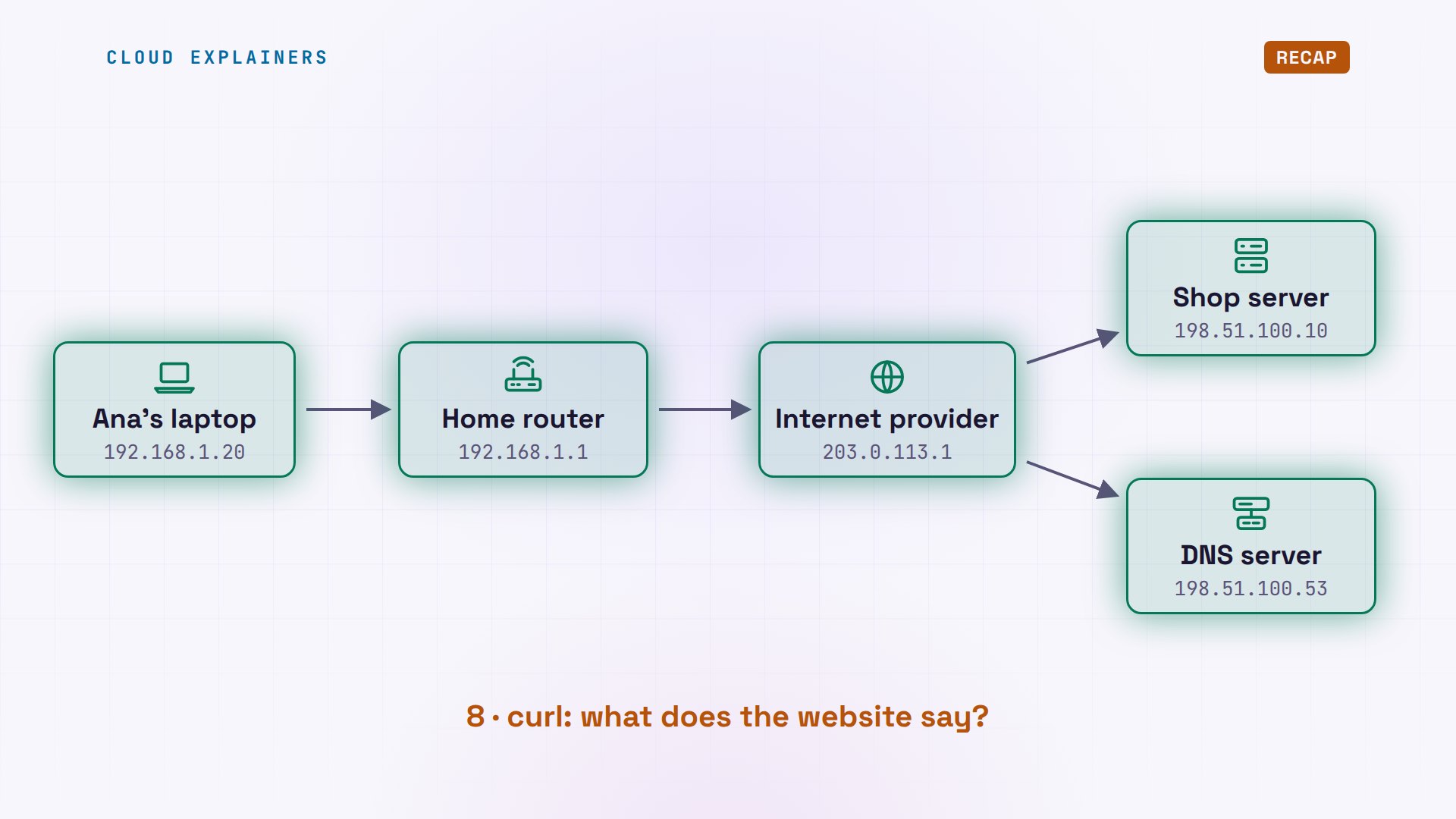
Ana's laptop can't open the shop's website, and the error says it can't find the shop. We broke Ana's network three different ways, on purpose. All three times, the same message: could not resolve host. It sounds like a problem with the name, but only one of those three faults had anything to do with names.
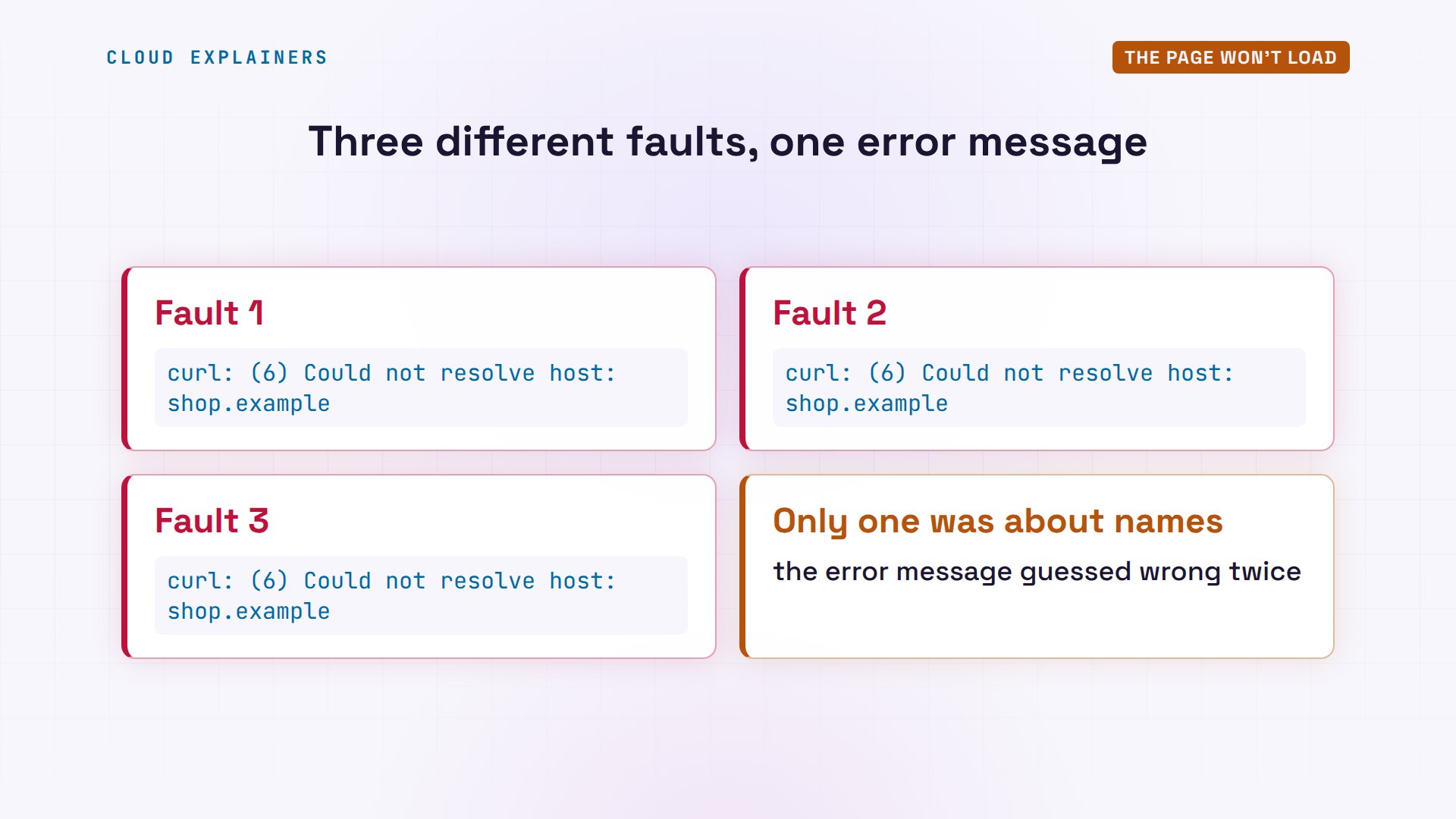
Error messages guess. Commands check. In this video: eight commands, and each one checks one piece of the trip from Ana's laptop to the shop. We start closest to Ana and move outward, one step at a time. This is the lab network from episode one, built with Docker inside one computer: Ana's laptop, her home router, her internet provider, a DNS server, and the shop's server. Every address comes from ranges set aside for testing.
Is the network card up?
First, the laptop itself. Is its network card connected, and does it have an address? If not, nothing else can work. On Linux, the command is ip address, and brief gives one line per card. On Windows, it's ipconfig; on a Mac, ifconfig.
Here's Ana's laptop when everything works. lo is loopback, the computer talking to itself; UNKNOWN is normal for it. eth0 is the real network card: it's UP, with the address 192.168.1.20. Now we disconnect it, like a Wi-Fi drop. The website fails: could not resolve host. Ask again, and ip address shows the real reason: eth0 is DOWN.
ip -brief addresslo               UNKNOWN        127.0.0.1/8
eth0@if287       UP             192.168.1.20/24
curl -sS -m 5 shop.examplecurl: (6) Could not resolve host: shop.example
ip -brief addresslo               UNKNOWN        127.0.0.1/8
eth0@if287       DOWN           192.168.1.20/24
A card that's down sends nothing at all, so the laptop couldn't even ask for the shop's address. That's why the message blamed the name. Reconnect, and the page loads again. One more sign to know: on Windows and Macs, an address starting with 169.254 means the laptop never got a proper address from the router.
Is there a way out?
Next: does the laptop know the way out? Anything outside Ana's home network goes to one place, the default gateway: her home router. ip route shows the laptop's routes. On Windows, it's route print; on a Mac, netstat -rn.
When it works, the first line says it: default via 192.168.1.1, the home router. The second line says the home network itself is right there, on eth0. Now the default route is lost. Same error: could not resolve host. ip route now has only the home network line, and ping, which sends a tiny test message to the shop's address, says it plainly: Network is unreachable.
ip routedefault via 192.168.1.1 dev eth0
192.168.1.0/24 dev eth0 proto kernel scope link src 192.168.1.20
curl -sS -m 5 shop.examplecurl: (6) Could not resolve host: shop.example
ip route192.168.1.0/24 dev eth0 proto kernel scope link src 192.168.1.20
ping -c 2 198.51.100.10ping: connect: Network is unreachable
Can I reach it?
With an address and a way out, the next question: can we reach things? ping sends a tiny echo request and waits for the echo reply. Ping the home router first, then the shop server, step by step outward. It works the same on Windows, Mac and Linux.
Both answer. Each line is one reply, and time is how long the round trip took: under a tenth of a millisecond here, because the whole lab is inside one computer. Across real networks it's more like tens of milliseconds. And 0% packet loss: every echo came back.
ping -c 3 192.168.1.1PING 192.168.1.1 (192.168.1.1) 56(84) bytes of data.
64 bytes from 192.168.1.1: icmp_seq=1 ttl=64 time=0.071 ms
64 bytes from 192.168.1.1: icmp_seq=2 ttl=64 time=0.037 ms
64 bytes from 192.168.1.1: icmp_seq=3 ttl=64 time=0.038 ms

--- 192.168.1.1 ping statistics ---
3 packets transmitted, 3 received, 0% packet loss, time 2046ms
rtt min/avg/max/mdev = 0.037/0.048/0.071/0.015 ms
ping -c 3 198.51.100.10PING 198.51.100.10 (198.51.100.10) 56(84) bytes of data.
64 bytes from 198.51.100.10: icmp_seq=1 ttl=62 time=0.055 ms
64 bytes from 198.51.100.10: icmp_seq=2 ttl=62 time=0.064 ms
64 bytes from 198.51.100.10: icmp_seq=3 ttl=62 time=0.057 ms

--- 198.51.100.10 ping statistics ---
3 packets transmitted, 3 received, 0% packet loss, time 2046ms
rtt min/avg/max/mdev = 0.055/0.058/0.064/0.003 ms
Now something breaks further out. The website just hangs, and this time curl gives up with a different error: connection timed out. Then we ping the shop server. Three packets sent, none received: 100% packet loss. Something between Ana and the shop is dropping packets. But where?
curl -sS -m 5 shop.examplecurl: (28) Connection timed out after 5003 milliseconds
ping -c 3 198.51.100.10PING 198.51.100.10 (198.51.100.10) 56(84) bytes of data.

--- 198.51.100.10 ping statistics ---
3 packets transmitted, 0 received, 100% packet loss, time 2058ms
Where does the path stop?
traceroute finds out. Every packet carries a counter called time to live. Each router lowers it by one, and when it reaches zero, that router drops the packet and sends back a note: time exceeded, from me. traceroute sends packets with a counter of one, then two, then three, so each router on the way names itself in turn. On Windows, it's tracert.
When everything works: hop 1, the home router, with three timed tries. Hop 2, the provider's router. Hop 3, the shop server. With the fault: hops 1 and 2 still answer, then only stars, no reply. So the path breaks after the provider's router. It's not Ana's laptop, and it's not her home.
traceroute -n 198.51.100.10traceroute to 198.51.100.10 (198.51.100.10), 30 hops max, 60 byte packets
 1  192.168.1.1  0.035 ms  0.028 ms  0.011 ms
 2  203.0.113.1  0.026 ms  0.013 ms  0.013 ms
 3  198.51.100.10  0.024 ms  0.018 ms  0.018 ms
traceroute -n -m 5 198.51.100.10traceroute to 198.51.100.10 (198.51.100.10), 5 hops max, 60 byte packets
 1  192.168.1.1  0.041 ms  0.010 ms  0.008 ms
 2  203.0.113.1  0.026 ms  0.014 ms  0.013 ms
 3  * * *
 4  * * *
 5  * * *
The provider's router was dropping everything going to the shop. That's a call to the provider, not a reason to restart your own router. Two cautions. Some routers never answer traceroute, so look for where the stars start and never stop. And many servers ignore ping on purpose: no reply proves nothing on its own, but a reply proves the path works.
Does the name work?
Now names. Before it can connect, the laptop turns shop.example into an address by asking a DNS server. dig asks a DNS server directly, and shows the answer. On Windows, use nslookup; Macs have dig too.
Healthy: dig +short prints just the address, 198.51.100.10. Now the third fault. The website: could not resolve host, again. But ping the shop's address directly, and it answers. The network is fine. dig shows why: no servers could be reached. The DNS server's machine is up, but nothing on it is answering name questions.
dig +short shop.example198.51.100.10
curl -sS -m 5 shop.examplecurl: (6) Could not resolve host: shop.example
ping -c 2 198.51.100.10PING 198.51.100.10 (198.51.100.10) 56(84) bytes of data.
64 bytes from 198.51.100.10: icmp_seq=1 ttl=62 time=0.063 ms
64 bytes from 198.51.100.10: icmp_seq=2 ttl=62 time=0.064 ms

--- 198.51.100.10 ping statistics ---
2 packets transmitted, 2 received, 0% packet loss, time 1011ms
rtt min/avg/max/mdev = 0.063/0.063/0.064/0.000 ms
dig shop.example;; communications error to 198.51.100.53#53: connection refused
;; communications error to 198.51.100.53#53: connection refused
;; communications error to 198.51.100.53#53: connection refused

; <<>> DiG 9.18.39-0ubuntu0.24.04.8-Ubuntu <<>> shop.example
;; global options: +cmd
;; no servers could be reached
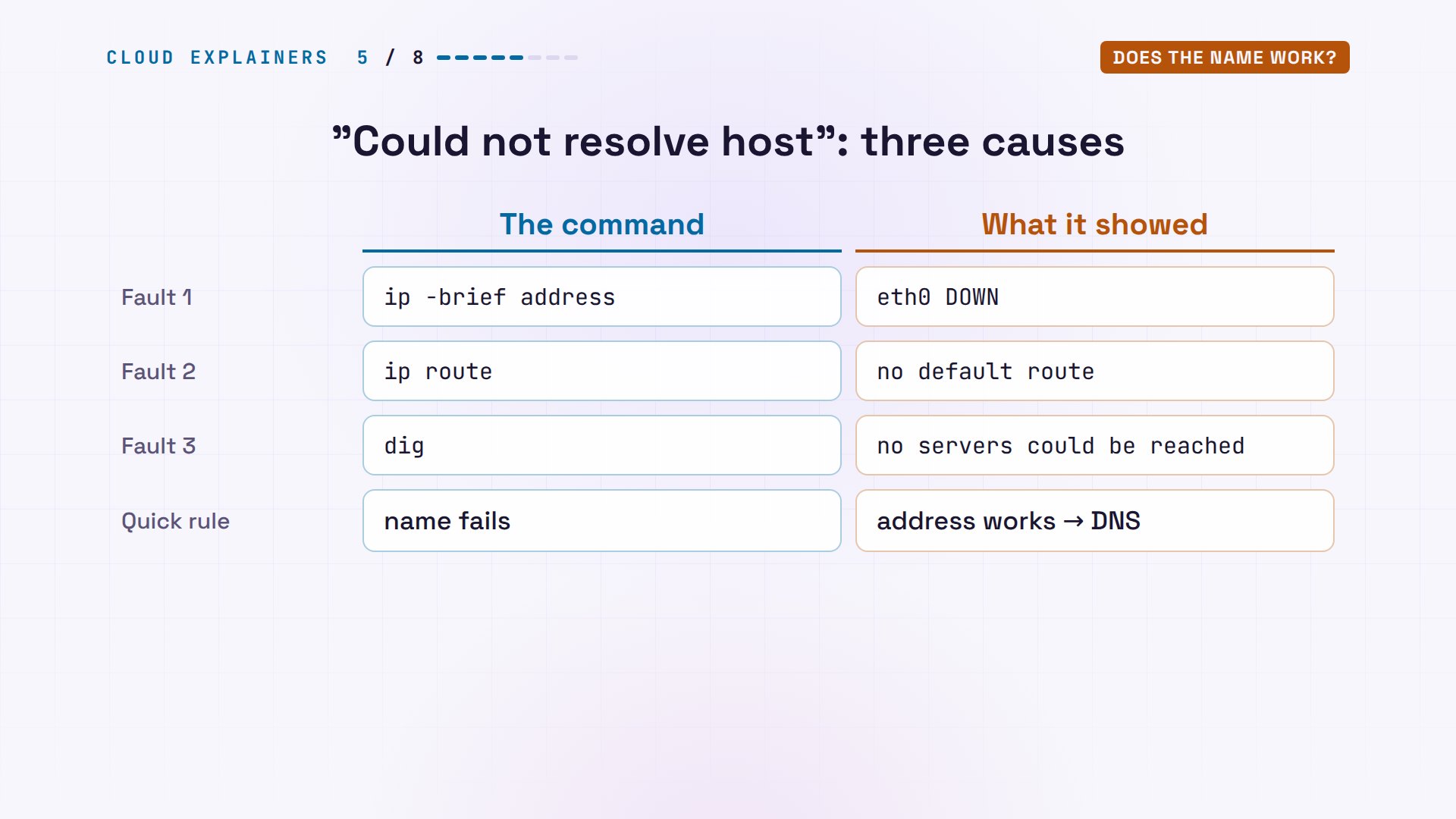
So the same message had three causes, and three commands told them apart. ip address found the card down. ip route found no way out. And dig found the DNS server silent. A quick rule: if the name fails but the address works, it's DNS.
Is the door open?
The name works, and the shop's server answers ping. But a website lives behind a door on that server, called a port: port 80 for plain web pages, port 443 for secure ones. nc, short for netcat, knocks on one port and reports whether it opened. On Windows, PowerShell's Test-NetConnection with -Port does the same; Macs have nc.
When it works: succeeded. Then the shop's web server is restarted after a settings change. The website: couldn't connect to server, after 0 ms. ping still answers, so the machine is there. And the answer from netcat is connection refused.
nc -zv shop.example 80Connection to shop.example (198.51.100.10) 80 port [tcp/http] succeeded!
curl -sS -m 5 shop.examplecurl: (7) Failed to connect to shop.example port 80 after 0 ms: Couldn't connect to server
ping -c 2 shop.examplePING shop.example (198.51.100.10) 56(84) bytes of data.
64 bytes from 198.51.100.10: icmp_seq=1 ttl=62 time=0.041 ms
64 bytes from 198.51.100.10: icmp_seq=2 ttl=62 time=0.061 ms

--- shop.example ping statistics ---
2 packets transmitted, 2 received, 0% packet loss, time 1005ms
rtt min/avg/max/mdev = 0.041/0.051/0.061/0.010 ms
nc -zv shop.example 80nc: connect to shop.example (198.51.100.10) port 80 (tcp) failed: Connection refused
Refused and timed out are different answers. Refused comes back at once: the machine is there, and it said no: no program was listening on that door. Timed out, like the provider fault earlier, means nothing came back at all.
Who is listening?
To see why, log in to the shop server itself, over SSH or at its own screen. ss lists the server's connections, and with these options it shows the ports that are listening, as numbers, with the program behind each one. On Windows, netstat -ano; on a Mac, lsof -i -P.
There's the web server, python3, on port 80, but listening on 127.0.0.1, the server's own loopback address. It only accepts connections from the server itself. And from the server, the page loads fine: the classic "but it works on my machine". So we restart it, listening on 0.0.0.0, meaning every address, and Ana's knock succeeds again.
ss -tlnpState   Recv-Q   Send-Q     Local Address:Port      Peer Address:Port  Process
LISTEN  0        4096          127.0.0.11:38481          0.0.0.0:*
LISTEN  0        5              127.0.0.1:80             0.0.0.0:*      users:(("python3",pid=52,fd=3))
curl -s localhost<h1>Welcome to the shop</h1>
ss -tlnpState     Recv-Q    Send-Q       Local Address:Port        Peer Address:Port    Process
LISTEN    0         5                  0.0.0.0:80               0.0.0.0:*        users:(("python3",pid=67,fd=3))
LISTEN    0         4096            127.0.0.11:38481            0.0.0.0:*
nc -zv shop.example 80Connection to shop.example (198.51.100.10) 80 port [tcp/http] succeeded!
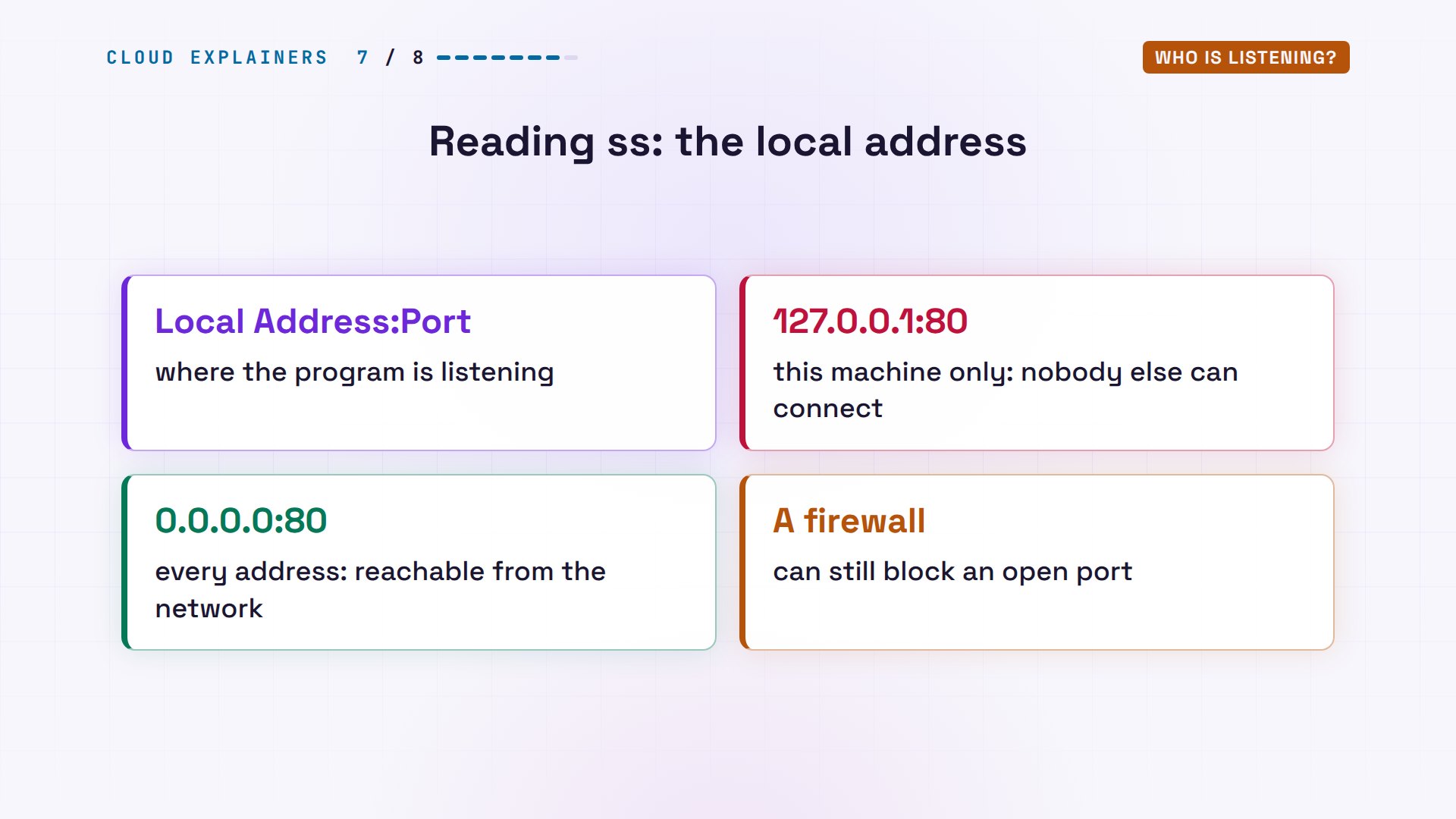
So read the local address column. 127.0.0.1 means this machine only. 0.0.0.0 means every address, reachable from the network. A firewall can still block it, but at least the door is there.
What does the website say?
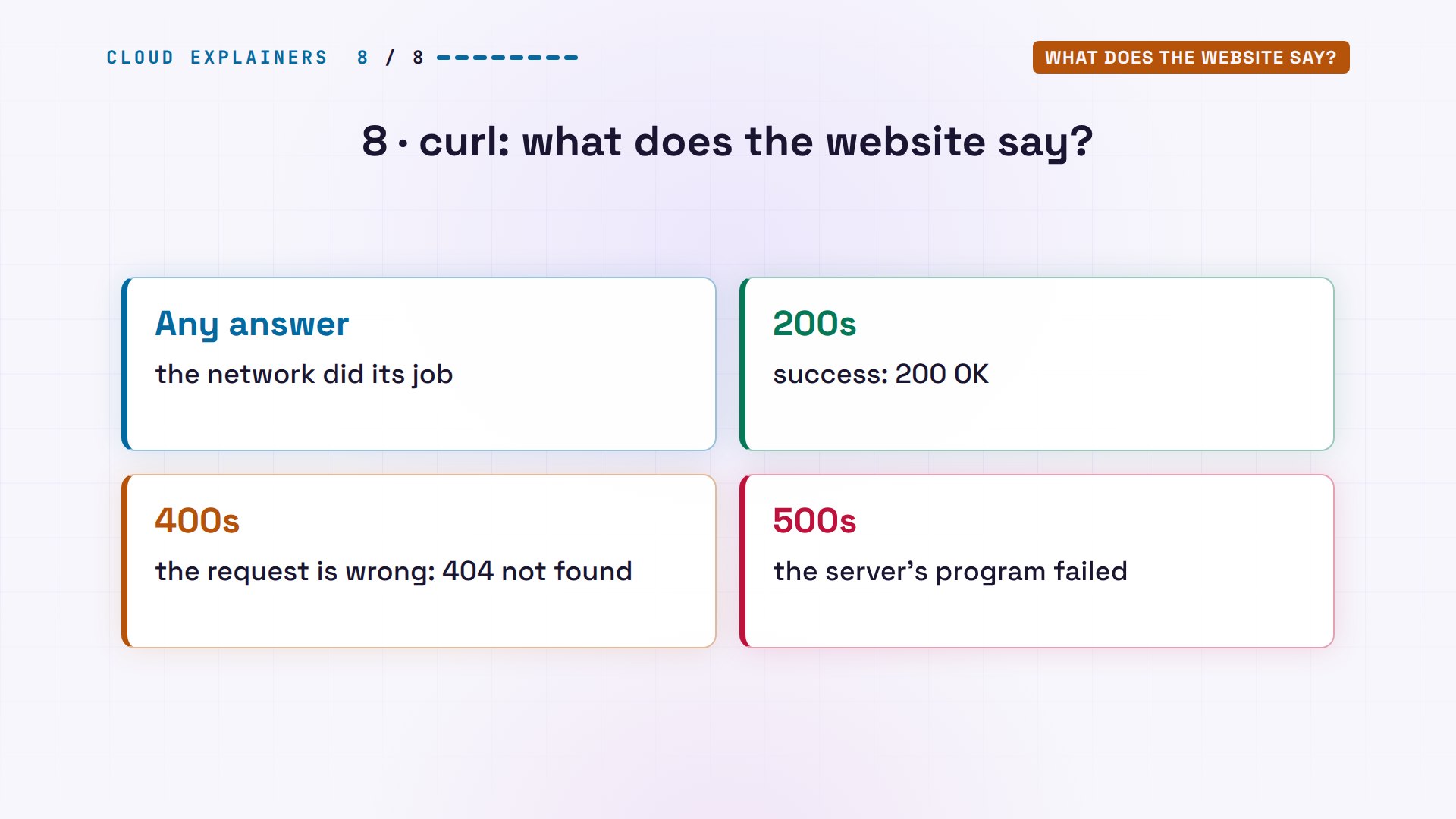
The last command checks the website itself. Once curl gets any answer back, the network has done its job, and the first line of that answer is a status code. 200s mean success. 400s mean something's wrong with the request, like a page that doesn't exist. 500s mean the server's program failed.
Ana follows a link to shop.example/sale. curl -I fetches just the headers. 404, file not found: the network is fine, the page is missing. The real page is sales.html: 200 OK. On Windows, type curl.exe, because in Windows PowerShell, plain curl is a different command.
curl -I shop.example/saleHTTP/1.0 404 File not found
Server: SimpleHTTP/0.6 Python/3.12.3
Date: Wed, 28 Oct 2026 14:24:29 GMT
Connection: close
Content-Type: text/html;charset=utf-8
Content-Length: 335
curl -I shop.example/sales.htmlHTTP/1.0 200 OK
Server: SimpleHTTP/0.6 Python/3.12.3
Date: Wed, 28 Oct 2026 14:24:29 GMT
Content-type: text/html
Content-Length: 21
Last-Modified: Wed, 28 Oct 2026 14:23:45 GMT
And curl -v shows every step in one go: the name turned into an address, the connection to port 80, the request Ana's laptop sent, and the answer, 200 OK, with the page. It's the whole trip in one command.
curl -v shop.example/sales.html* Host shop.example:80 was resolved.
* IPv6: (none)
* IPv4: 198.51.100.10
*   Trying 198.51.100.10:80...
* Connected to shop.example (198.51.100.10) port 80
> GET /sales.html HTTP/1.1
> Host: shop.example
> User-Agent: curl/8.5.0
> Accept: */*
>
* HTTP 1.0, assume close after body
< HTTP/1.0 200 OK
< Server: SimpleHTTP/0.6 Python/3.12.3
< Date: Wed, 28 Oct 2026 14:24:29 GMT
< Content-type: text/html
< Content-Length: 21
< Last-Modified: Wed, 28 Oct 2026 14:23:45 GMT
<
<h1>Autumn sale</h1>
* Closing connection
Recap
So when a page won't load, don't trust the error message. Walk outward. ip address: is the card up? ip route: is there a way out? ping: can you reach the router, then the server? traceroute: where does the path stop? dig: does the name work? nc: is the door open? ss, on the server: who's listening? And curl: what does the website say?
A question for the comments: which error message has fooled you, and which of these eight commands would have found the real cause? Tell me in the comments.
Every result in this video came from a real run of this small lab. This was episode four of Networking for Beginners.
Sources
- ip-address(8) and ip-route(8), iproute2
- ss(8)
- ping(8), iputils
- traceroute(8)
- RFC 792, ICMP (time exceeded)
- dig, BIND 9 documentation
- nc(1), OpenBSD netcat
- curl man page
- RFC 9110, HTTP semantics (status code classes)
- RFC 3927, 169.254/16 link-local addresses
- Microsoft Learn, Windows commands (ipconfig, route, tracert, nslookup, netstat)
- Microsoft Learn, Test-NetConnection
- Microsoft Learn, curl alias in Windows PowerShell
Demos: real output from a small lab network built with Docker containers on one machine, using only private and reserved test addresses (192.168.1.x, 203.0.113.x and 198.51.100.x). The lab has no route to the real internet. Each fault was made on purpose, one at a time: a disconnected network card, a deleted default route, a router dropping traffic, a stopped DNS server, a web server listening only on itself, and a wrong page address. Watch the full video on YouTube.
More videos
Hashing vs Encryption in Cybersecurity: When Each One Wins
Why the Internet Ran Out of IP Addresses

Linux Package Managers: apt vs Snap vs Flatpak

Why Python Is Slow (and When It Doesn't Matter)
TCP vs UDP: When Each One Wins
Stop Running Linux as Root (Do This Instead)

Linux Users and Groups Will Finally Make Sense

Why Phishing Beats Good Security (and How to Spot It)

The 7 Levels of Docker

AI Agents Will Finally Make Sense After This

Stop Using git push --force (Use This Instead)
Agent Skills vs MCP: When Each One Wins

Networking Will Finally Make Sense After This

Every Linux Command You Actually Need
The 7 Levels of Cybersecurity

Every System Design Concept You Need, in One Diagram