The Linux Roadmap for Beginners
A Linux roadmap for beginners in seven stages, each proven on a real Ubuntu 24.04 server: the shell, files and text, users and permissions, installing software, processes and services, networking and SSH, and scripts with cron. Ana takes a fresh server to a web page that comes back by itself after a crash and checks itself every minute, and each stage points to the episode that goes deeper.
Where to start
You want to learn Linux, so you open a roadmap, and it lists two hundred commands. Where do you actually start? Ana just got her first Ubuntu server. She wants one small thing: her tea shop's web page, online, and staying online. What she gets is a blinking prompt, and a list of folders she's never seen.
ls /bin		   dev	 lib		    mnt   root	sbin.usr-is-merged  tmp
bin.usr-is-merged  etc	 lib.usr-is-merged  opt   run	srv		    usr
boot		   home  media		    proc  sbin	sys		    var
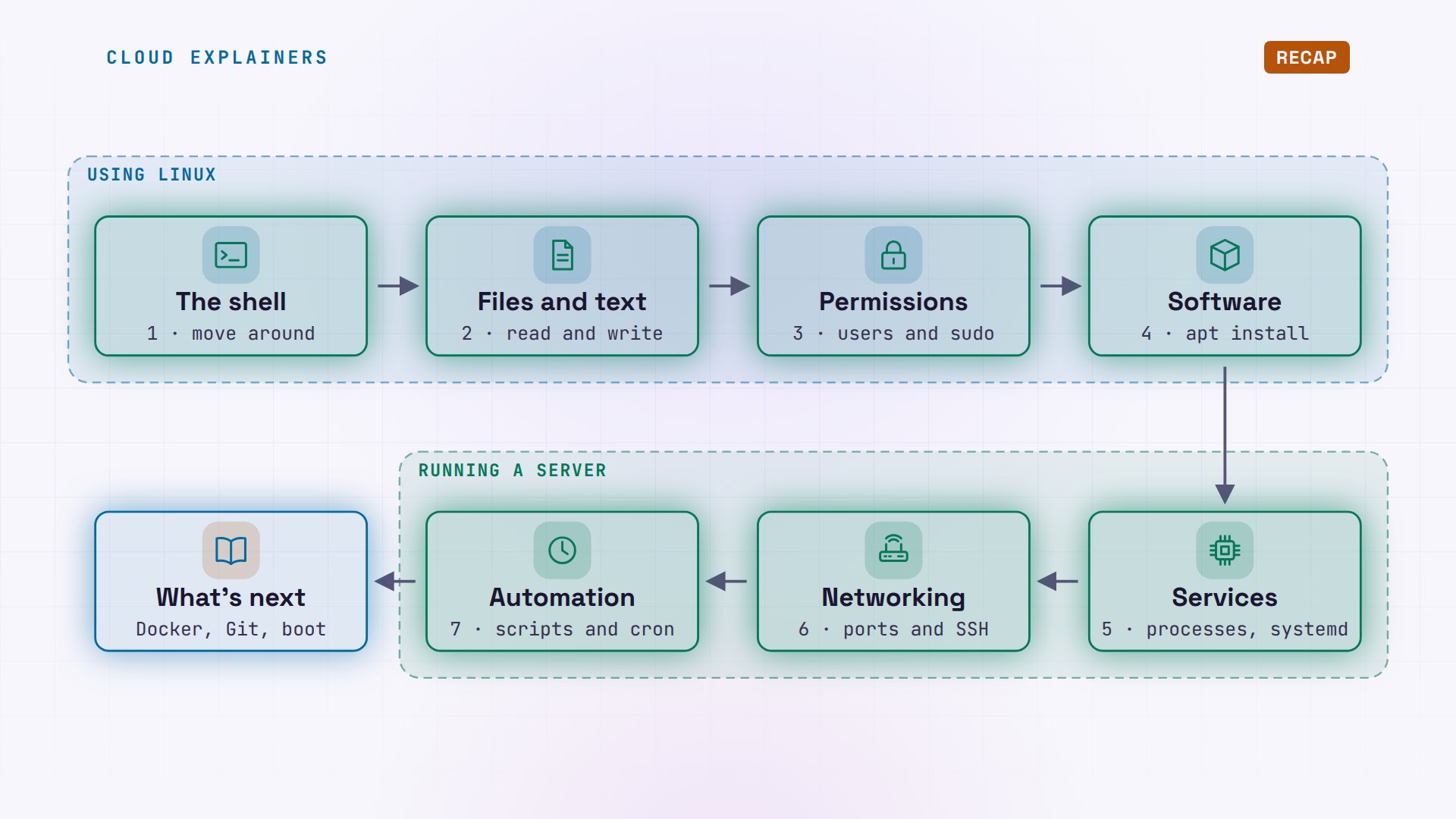
By the end, Ana will kill her own web server, on purpose, and it will come back by itself with nobody at the keyboard. Take a guess which skill makes that happen. Hold on to your guess.
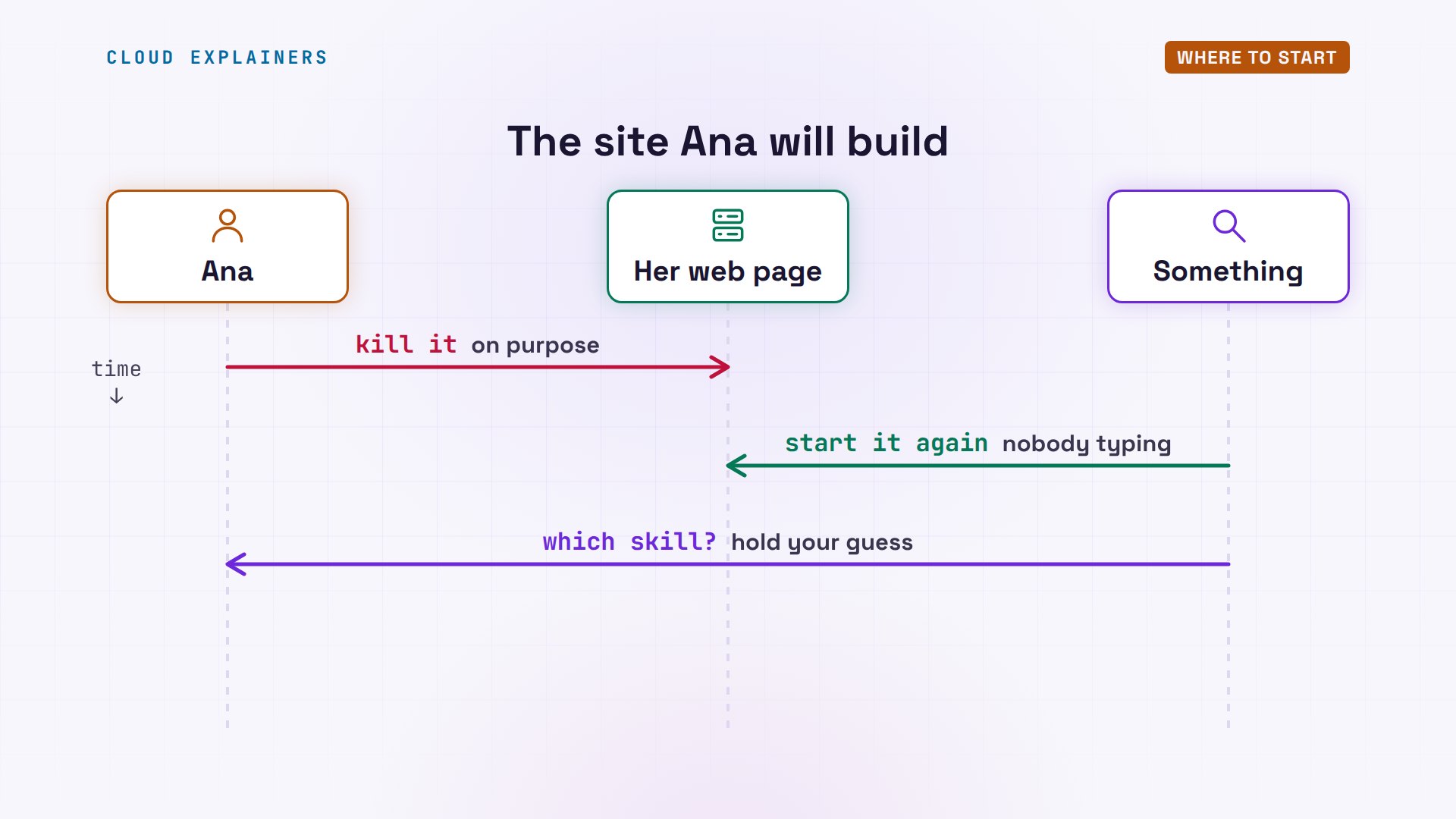
Someone asked exactly this on Ask Ubuntu. They wanted their own server, public and always on, and didn't know what to learn first. The first reply asked: are you ready to learn server administration? That's a fair question, but it's not a plan.
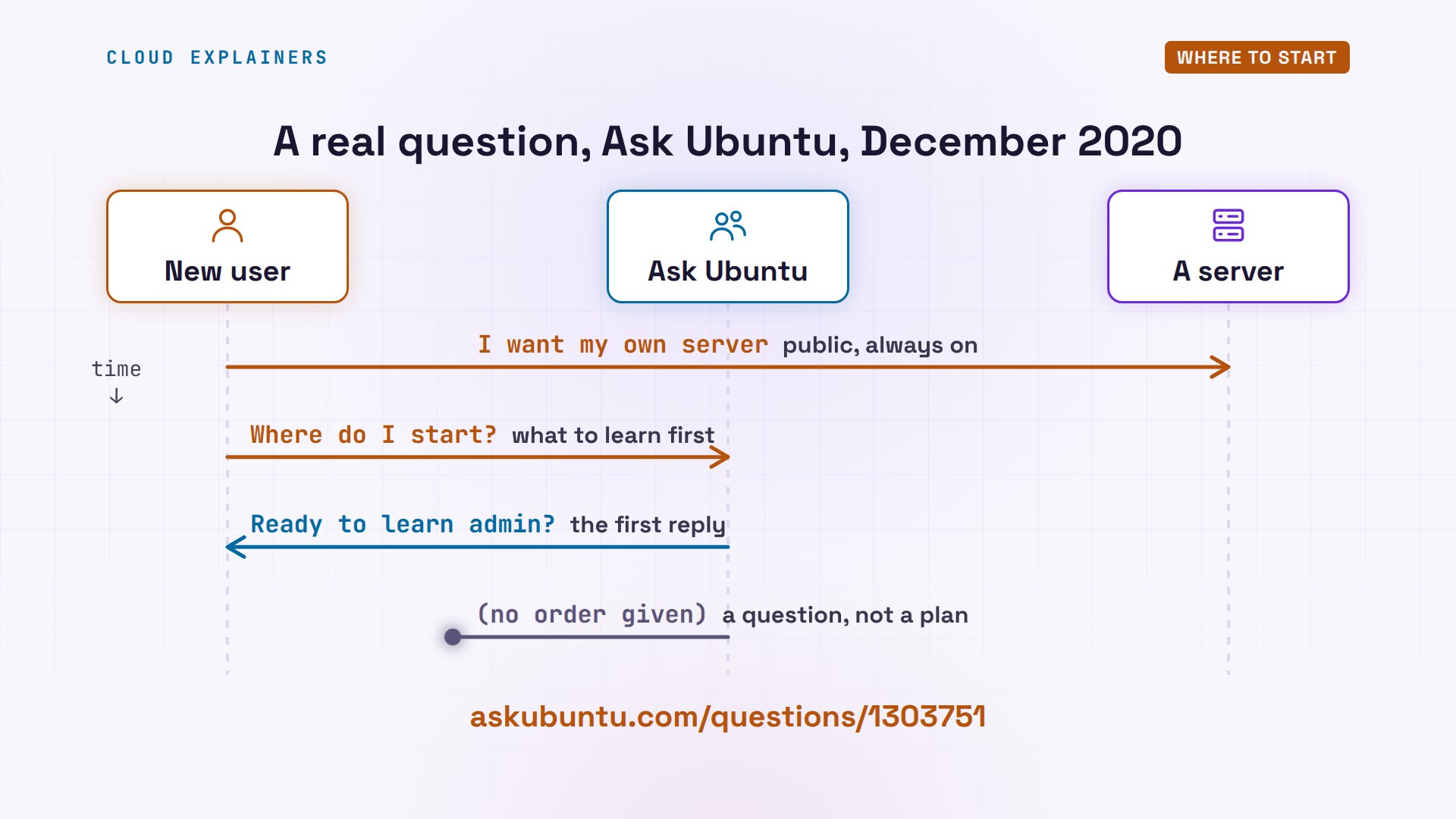
So here's an order that works, in seven stages. Each one is a skill Ana needed before the next made sense. The first four are about using Linux; the last three are about running a server. This isn't just for hobby servers: the Wikimedia Foundation, which runs Wikipedia, says its production servers run Debian Linux, Ubuntu's close relative.
The shell
Why can't you skip straight to installing things? Because everything on a server happens through the shell. Stage one is just moving around.
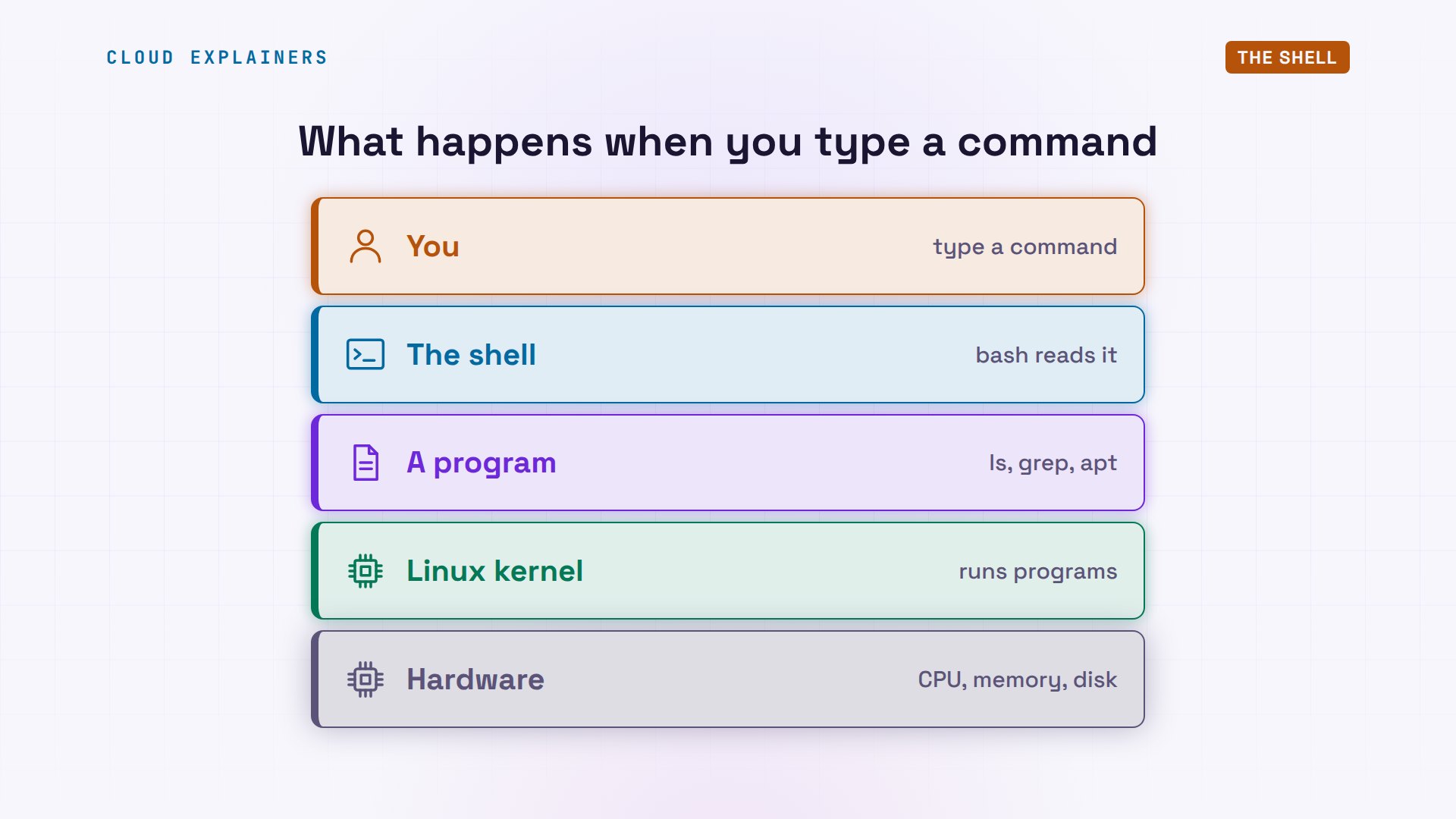
The shell is the program that reads what you type. On Ubuntu, it's called bash. It finds the program you named, and the Linux kernel, the core of the system, runs it on the machine's hardware. Every command in this video goes down these layers.
Ana asks who she is: ana. pwd prints where she is: her home folder. cd moves her into the log folder, ls lists it, and cd with a tilde, short for her home folder, takes her home again. Watch the prompt change with her.
whoamiana
pwd/home/ana
cd /var/log
lsREADME		  apt		 btmp	   faillog  lastlog  wtmp
alternatives.log  bootstrap.log  dpkg.log  journal  private
cd ~
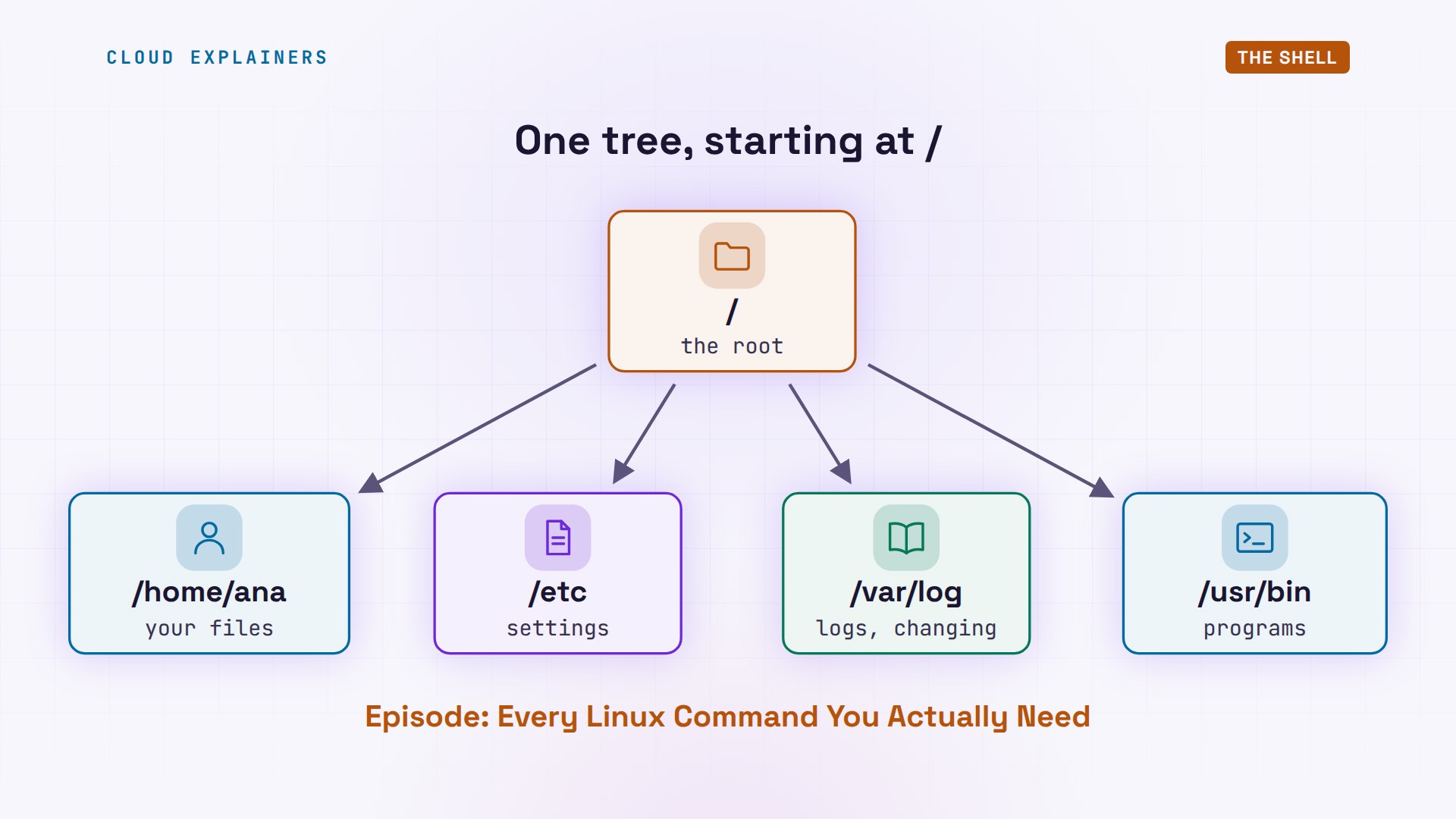
That folder list from the start is one tree. It begins at a single slash, the root. Home holds your files, etc holds settings, var holds things that change, like logs, and usr holds programs. Our episode, Every Linux Command You Actually Need, walks this whole stage.
Files and text
On Linux, settings and logs are plain text files, so reading and writing text is stage two.
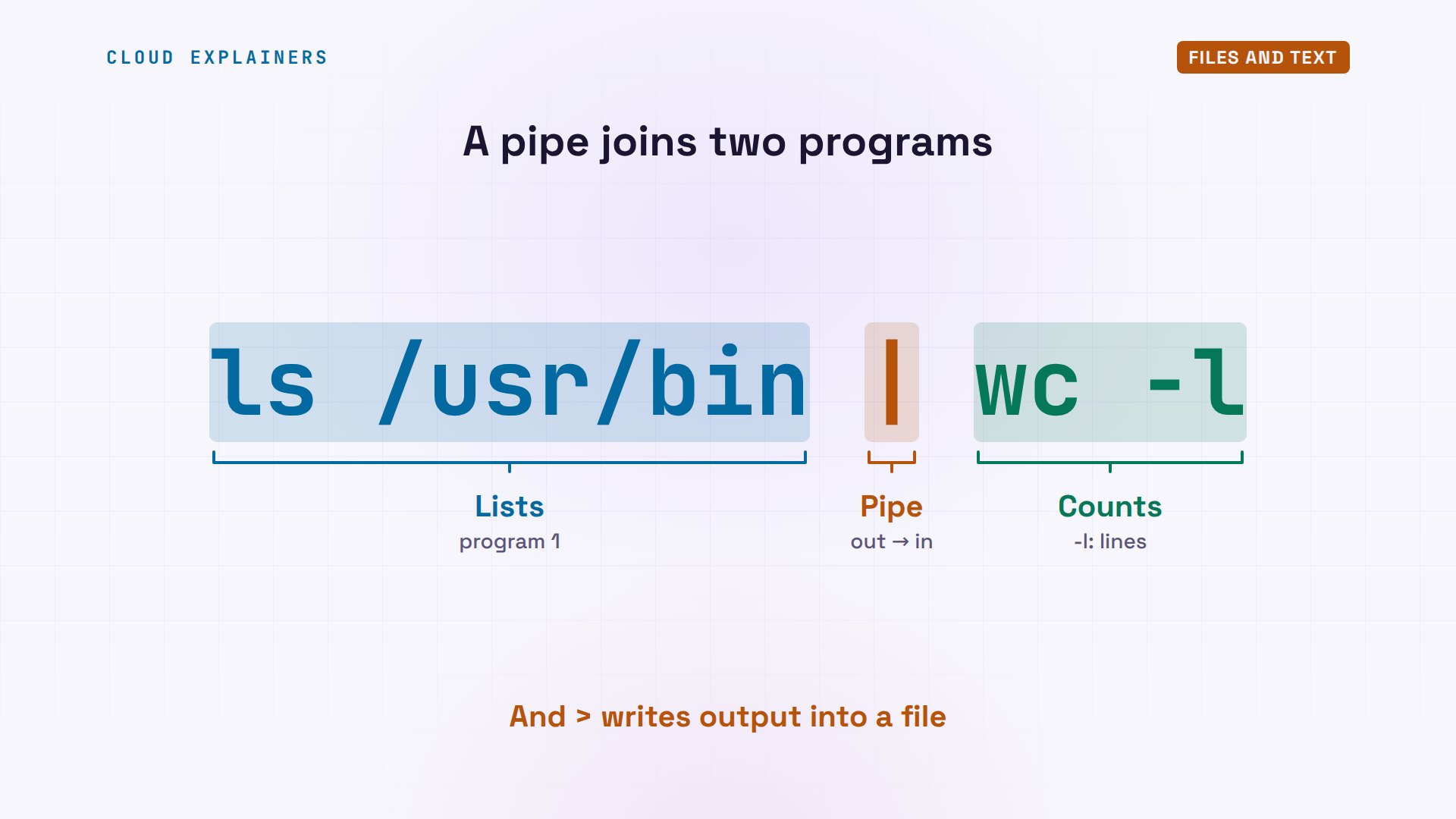
grep finds the line that names the system: Ubuntu 24.04. A pipe sends one program's output into the next: ls lists the programs folder, and wc counts the lines: 384. Then Ana writes her web page into a file with echo, and reads it back with cat.
grep PRETTY /etc/os-releasePRETTY_NAME="Ubuntu 24.04.5 LTS"
ls /usr/bin | wc -l384
echo "<h1>Ana's Tea Shop</h1>" > index.html
cat index.html<h1>Ana's Tea Shop</h1>
Two symbols do most of the work here. The bar is a pipe: the output of ls becomes the input of wc. And a greater-than sign sends output into a file instead of the screen. Small programs, joined together: that's the Linux way.
Users and permissions
Why does Linux keep saying permission denied? Stage three, users and permissions, is where most beginners get stuck, so it comes early.
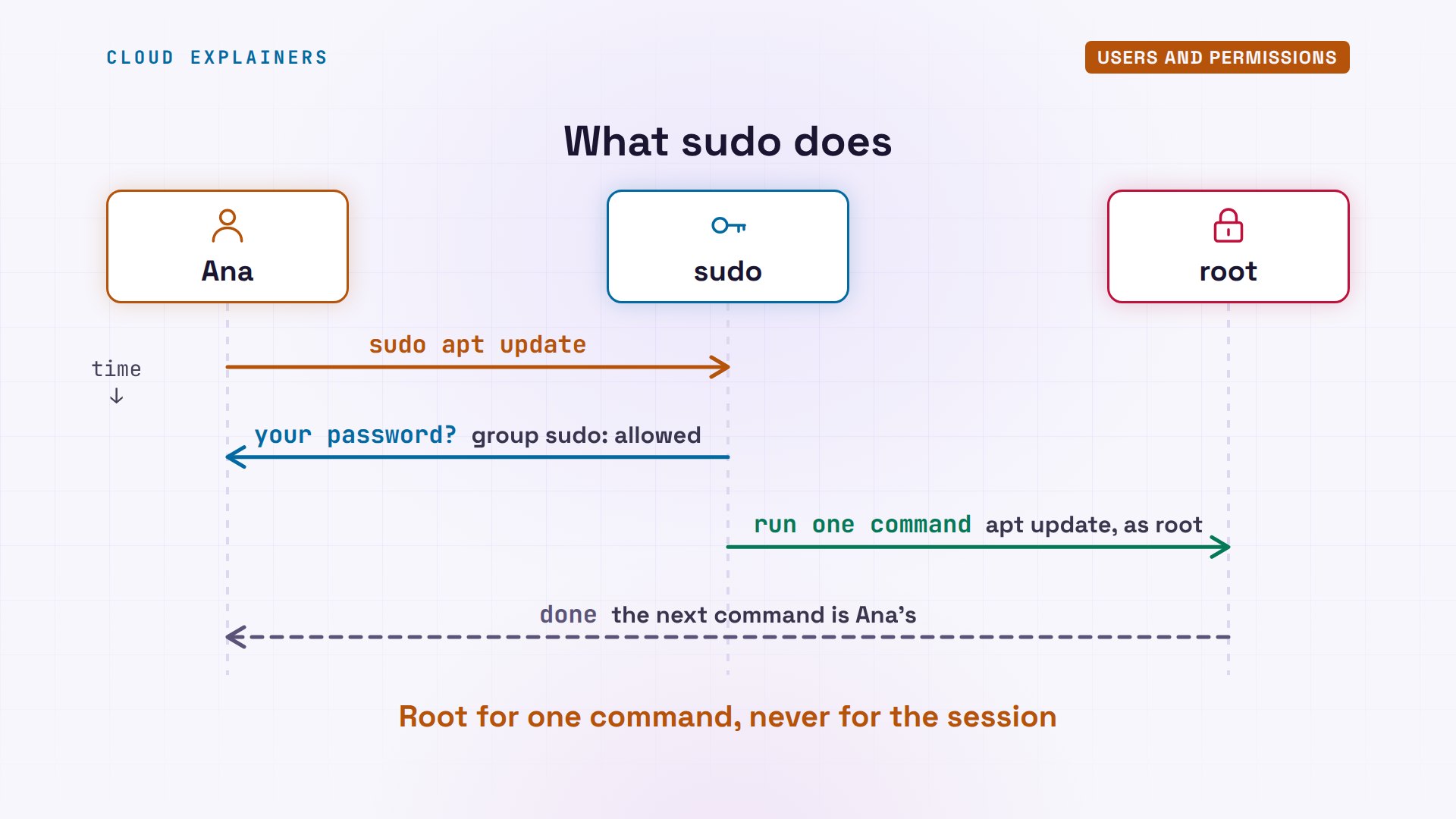
Ana's id shows her user, and one extra group: sudo. The password file belongs to root, the admin user, so reading it fails. Before she runs the next one, guess: will apt update, which refreshes the software list, work for her? It won't. Updating software is root's job too. With sudo in front, she types her own password, and it runs as root.
iduid=1000(ana) gid=1000(ana) groups=1000(ana),27(sudo)
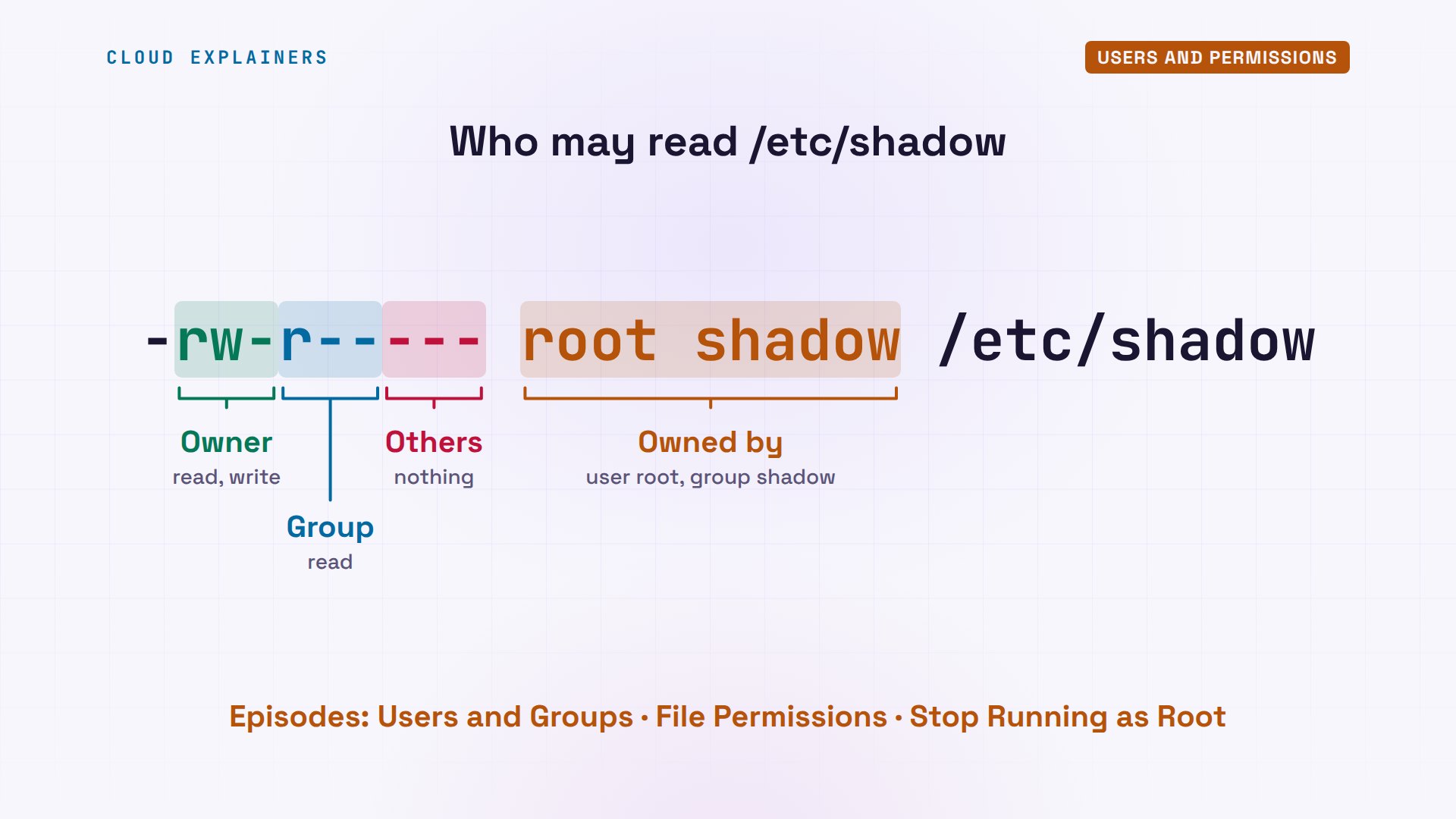
ls -l /etc/shadow-rw-r----- 1 root shadow 646 Nov 5 20:00 /etc/shadow
cat /etc/shadowcat: /etc/shadow: Permission denied
apt updateReading package lists... Done
E: Could not open lock file /var/lib/apt/lists/lock - open (13: Permission denied)
E: Unable to lock directory /var/lib/apt/lists/
sudo apt update[sudo] password for ana:
Hit:1 http://ports.ubuntu.com/ubuntu-ports noble InRelease
Hit:2 http://ports.ubuntu.com/ubuntu-ports noble-updates InRelease
Hit:3 http://ports.ubuntu.com/ubuntu-ports noble-backports InRelease
Hit:4 http://ports.ubuntu.com/ubuntu-ports noble-security InRelease
Reading package lists... Done
Building dependency tree... Done
Reading state information... Done
1 package can be upgraded. Run 'apt list --upgradable' to see it.
ls dash l explains every one of those errors. The first block is the permissions: the owner can read and write, the group can read, everyone else gets nothing. The owner is root, and the group is shadow. Ana is neither, so: denied.
So what did sudo do? It checked that Ana is in the sudo group, asked for her own password, not root's, and ran that one command as root. The next command runs as Ana again. Root for one command, never for the whole session: that habit saves beginners from deleting the wrong thing.
Installing software
Where does software on a server come from? Not from websites: stage four is the package manager.
On Ubuntu, that's apt. apt update downloads the list of what Ubuntu's archive offers. apt install fetches a package, checks its signature, and puts its files where they belong: the program, its settings, and a service to start it.
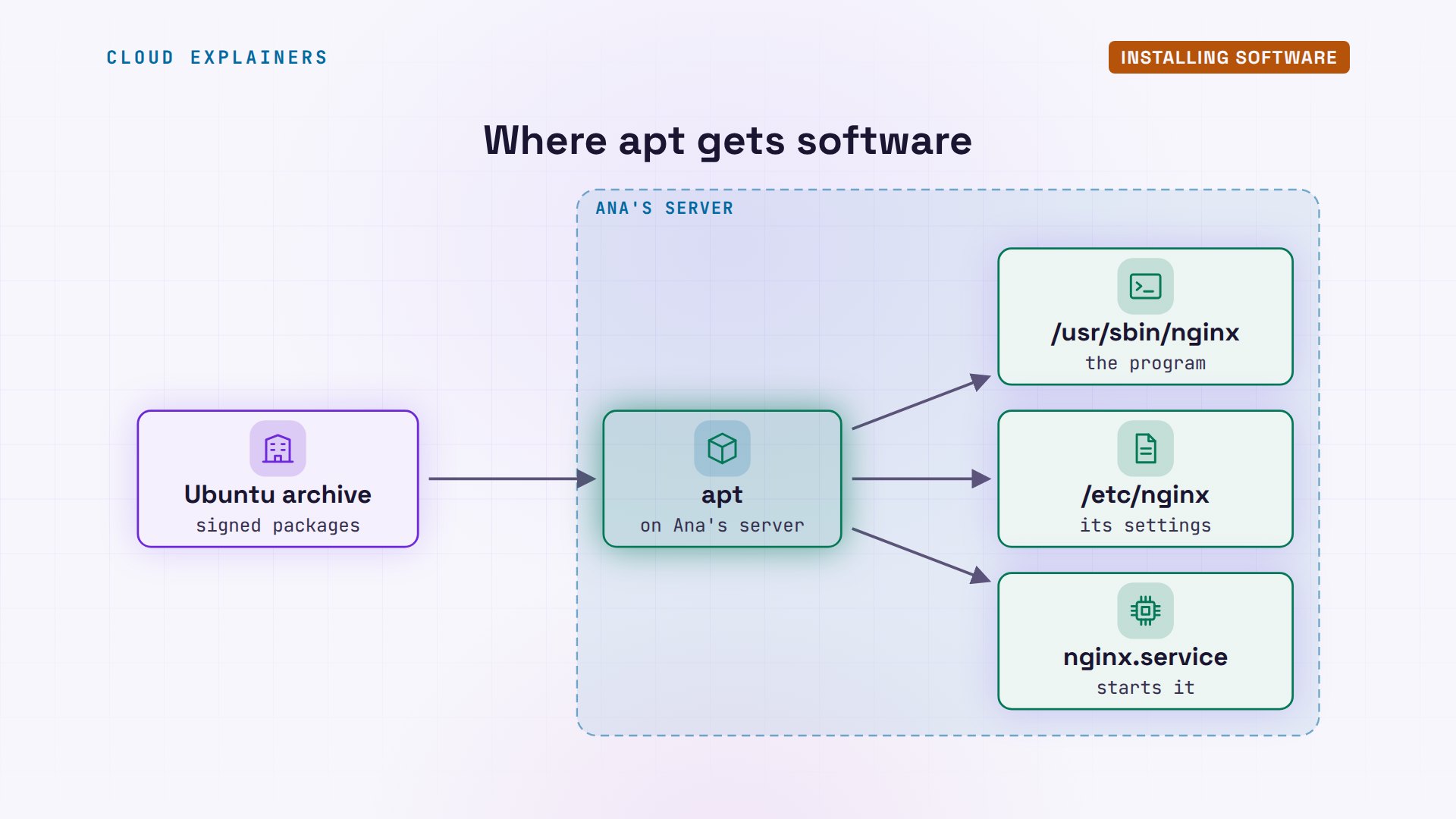
Ana installs nginx, a web server. apt adds two new packages: nginx, and the files it shares. nginx dash v prints the version, and its settings are in their own folder.
sudo apt install -y nginxReading package lists... Done
Building dependency tree... Done
Reading state information... Done
The following additional packages will be installed:
  nginx-common
Suggested packages:
  fcgiwrap nginx-doc ssl-cert
The following NEW packages will be installed:
  nginx nginx-common
0 upgraded, 2 newly installed, 0 to remove and 1 not upgraded.
Need to get 568 kB of archives.
After this operation, 1626 kB of additional disk space will be used.
Get:1 http://ports.ubuntu.com/ubuntu-ports noble-updates/main arm64 nginx-common all 1.24.0-2ubuntu7.19 [45.3 kB]
Get:2 http://ports.ubuntu.com/ubuntu-ports noble-updates/main arm64 nginx arm64 1.24.0-2ubuntu7.19 [523 kB]
Fetched 568 kB in 1s (633 kB/s)
debconf: unable to initialize frontend: Dialog
debconf: (Dialog frontend will not work on a dumb terminal, an emacs shell buffer, or without a controlling terminal.)
debconf: falling back to frontend: Readline
debconf: unable to initialize frontend: Readline
debconf: (Can't locate Term/ReadLine.pm in @INC (you may need to install the Term::ReadLine module) (@INC entries checked: /etc/perl /usr/local/lib/aarch64-linux-gnu/perl/5.38.2 /usr/local/share/perl/5.38.2 /usr/lib/aarch64-linux-gnu/perl5/5.38 /usr/share/perl5 /usr/lib/aarch64-linux-gnu/perl-base /usr/lib/aarch64-linux-gnu/perl/5.38 /usr/share/perl/5.38 /usr/local/lib/site_perl) at /usr/share/perl5/Debconf/FrontEnd/Readline.pm line 8, <STDIN> line 2.)
debconf: falling back to frontend: Teletype
Preconfiguring packages ...

Selecting previously unselected package nginx-common.
(Reading database ... 6784 files and directories currently installed.)
Preparing to unpack .../nginx-common_1.24.0-2ubuntu7.19_all.deb ...
Unpacking nginx-common (1.24.0-2ubuntu7.19) ...
Selecting previously unselected package nginx.
Preparing to unpack .../nginx_1.24.0-2ubuntu7.19_arm64.deb ...
Unpacking nginx (1.24.0-2ubuntu7.19) ...
Setting up nginx-common (1.24.0-2ubuntu7.19) ...
debconf: unable to initialize frontend: Dialog
debconf: (Dialog frontend will not work on a dumb terminal, an emacs shell buffer, or without a controlling terminal.)
debconf: falling back to frontend: Readline
debconf: unable to initialize frontend: Readline
debconf: (Can't locate Term/ReadLine.pm in @INC (you may need to install the Term::ReadLine module) (@INC entries checked: /etc/perl /usr/local/lib/aarch64-linux-gnu/perl/5.38.2 /usr/local/share/perl/5.38.2 /usr/lib/aarch64-linux-gnu/perl5/5.38 /usr/share/perl5 /usr/lib/aarch64-linux-gnu/perl-base /usr/lib/aarch64-linux-gnu/perl/5.38 /usr/share/perl/5.38 /usr/local/lib/site_perl) at /usr/share/perl5/Debconf/FrontEnd/Readline.pm line 8.)
debconf: falling back to frontend: Teletype
Created symlink /etc/systemd/system/multi-user.target.wants/nginx.service → /usr/lib/systemd/system/nginx.service.
Setting up nginx (1.24.0-2ubuntu7.19) ...
 * Upgrading binary nginx
   ...done.
nginx -vnginx version: nginx/1.24.0 (Ubuntu)
ls /etc/nginxconf.d		koi-utf     modules-available  proxy_params	sites-enabled  win-utf
fastcgi.conf	koi-win     modules-enabled    scgi_params	snippets
fastcgi_params	mime.types  nginx.conf	       sites-available	uwsgi_params
Processes and services
Installed is not the same as running. Stage five is processes and services: the first stage about running a server.
systemctl status shows the service is active and running. ps lists its processes: one master, running as root, and 10 workers, running as www-data. Ana copies her page into place, and curl fetches it.
systemctl status nginx --no-pager | head -3● nginx.service - A high performance web server and a reverse proxy server
     Loaded: loaded (/usr/lib/systemd/system/nginx.service; enabled; preset: enabled)
     Active: active (running) since Thu 2026-11-05 20:03:18 UTC; 1s ago
ps -C nginx -o user,pid,cmdUSER         PID CMD
root         415 nginx: master process /usr/sbin/nginx -g daemon on; master_process on;
www-data     418 nginx: worker process
www-data     419 nginx: worker process
www-data     420 nginx: worker process
www-data     421 nginx: worker process
www-data     422 nginx: worker process
www-data     423 nginx: worker process
www-data     424 nginx: worker process
www-data     425 nginx: worker process
www-data     426 nginx: worker process
www-data     427 nginx: worker process
sudo cp index.html /var/www/html/index.html
curl -s localhost<h1>Ana's Tea Shop</h1>
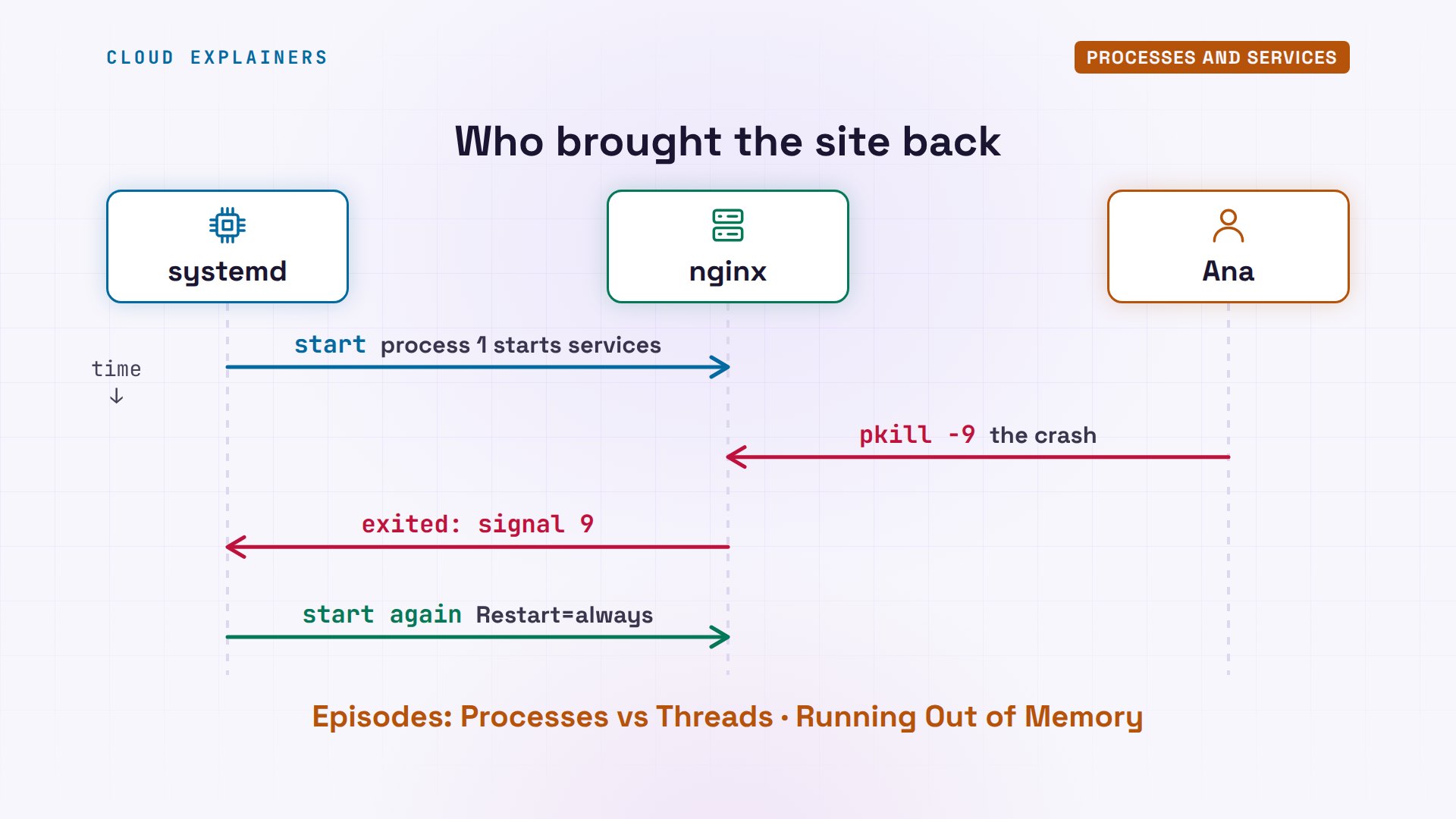
Now the crash. pkill dash 9 kills every nginx process at once, the way a crash would. The site is gone: connection refused. systemctl says failed, and the journal, the system's log, shows why: killed by signal 9.
sudo pkill -9 nginx
curl -sS localhostcurl: (7) Failed to connect to localhost port 80 after 0 ms: Couldn't connect to server
systemctl is-active nginxfailed
sudo journalctl -u nginx --no-pager | tail -3Nov 05 20:03:18 server systemd[1]: Started nginx.service - A high performance web server and a reverse proxy server.
Nov 05 20:03:19 server systemd[1]: nginx.service: Main process exited, code=killed, status=9/KILL
Nov 05 20:03:19 server systemd[1]: nginx.service: Failed with result 'signal'.
One small settings file changes that. It tells systemd: restart this service, always. Then she reloads systemd and starts nginx. Then she kills it again. Guess: one second later, is the site up? It's active, and the page is back.
sudo mkdir -p /etc/systemd/system/nginx.service.d
printf '[Service]\nRestart=always\n' | sudo tee /etc/systemd/system/nginx.service.d/restart.conf[Service]
Restart=always
sudo systemctl daemon-reload
sudo systemctl start nginx
sudo pkill -9 nginx
sleep 1; systemctl is-active nginxactive
curl -s localhost<h1>Ana's Tea Shop</h1>
So that's the answer from the start: the services stage. systemd is the first process on the server, and it starts every service. When nginx died, systemd saw it exit, and with restart always, it started it again, in a fraction of a second. Our episodes on processes, and on servers running out of memory, go deeper here.
Networking and SSH
The page works on the server itself. But can anyone else reach it? Stage six is networking.
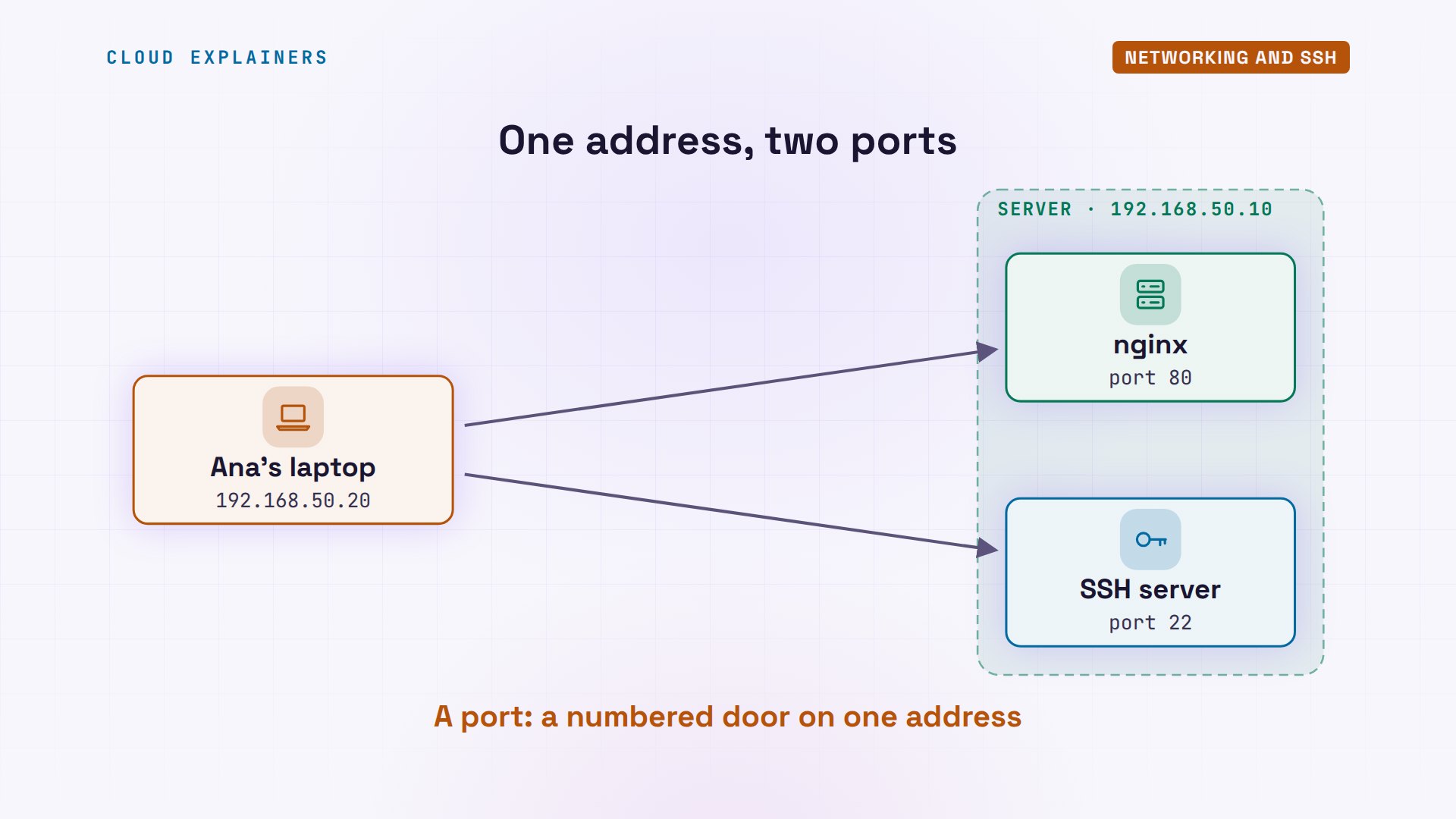
ip shows the server's address: 192.168.50.10. ss lists the ports that programs listen on: 80 for the web, and 22 for SSH, remote logins.
ip -br address show eth0eth0@if45 UP 192.168.50.10/24
ss -tlnState     Recv-Q     Send-Q         Local Address:Port          Peer Address:Port    Process
LISTEN    0          4096              127.0.0.11:40829              0.0.0.0:*
LISTEN    0          511                  0.0.0.0:80                 0.0.0.0:*
LISTEN    0          4096                 0.0.0.0:22                 0.0.0.0:*
LISTEN    0          511                     [::]:80                    [::]:*
LISTEN    0          4096                    [::]:22                    [::]:*
Here's the picture. Ana's laptop and her server sit on one network. A request to port 80 reaches nginx. A login on port 22 reaches the SSH server. Same address, different doors.
From her laptop, curl gets the page. Then she makes an SSH key, and copies its public half to the server: her password is asked once, and one key is added. Now she can run commands on the server with no password at all. Our episode, SSH Keys versus Passwords, shows why that's safer.
curl -s http://server<h1>Ana's Tea Shop</h1>
ssh-keygen -t ed25519 -N '' -q -f ~/.ssh/id_ed25519
ssh-copy-id -o StrictHostKeyChecking=accept-new ana@server/usr/bin/ssh-copy-id: INFO: Source of key(s) to be installed: "/home/ana/.ssh/id_ed25519.pub"
/usr/bin/ssh-copy-id: INFO: attempting to log in with the new key(s), to filter out any that are already installed
/usr/bin/ssh-copy-id: INFO: 1 key(s) remain to be installed -- if you are prompted now it is to install the new keys
ana@server's password:

Number of key(s) added: 1

Now try logging into the machine, with:   "ssh -o 'StrictHostKeyChecking=accept-new' 'ana@server'"
and check to make sure that only the key(s) you wanted were added.
ssh ana@server hostnameserver
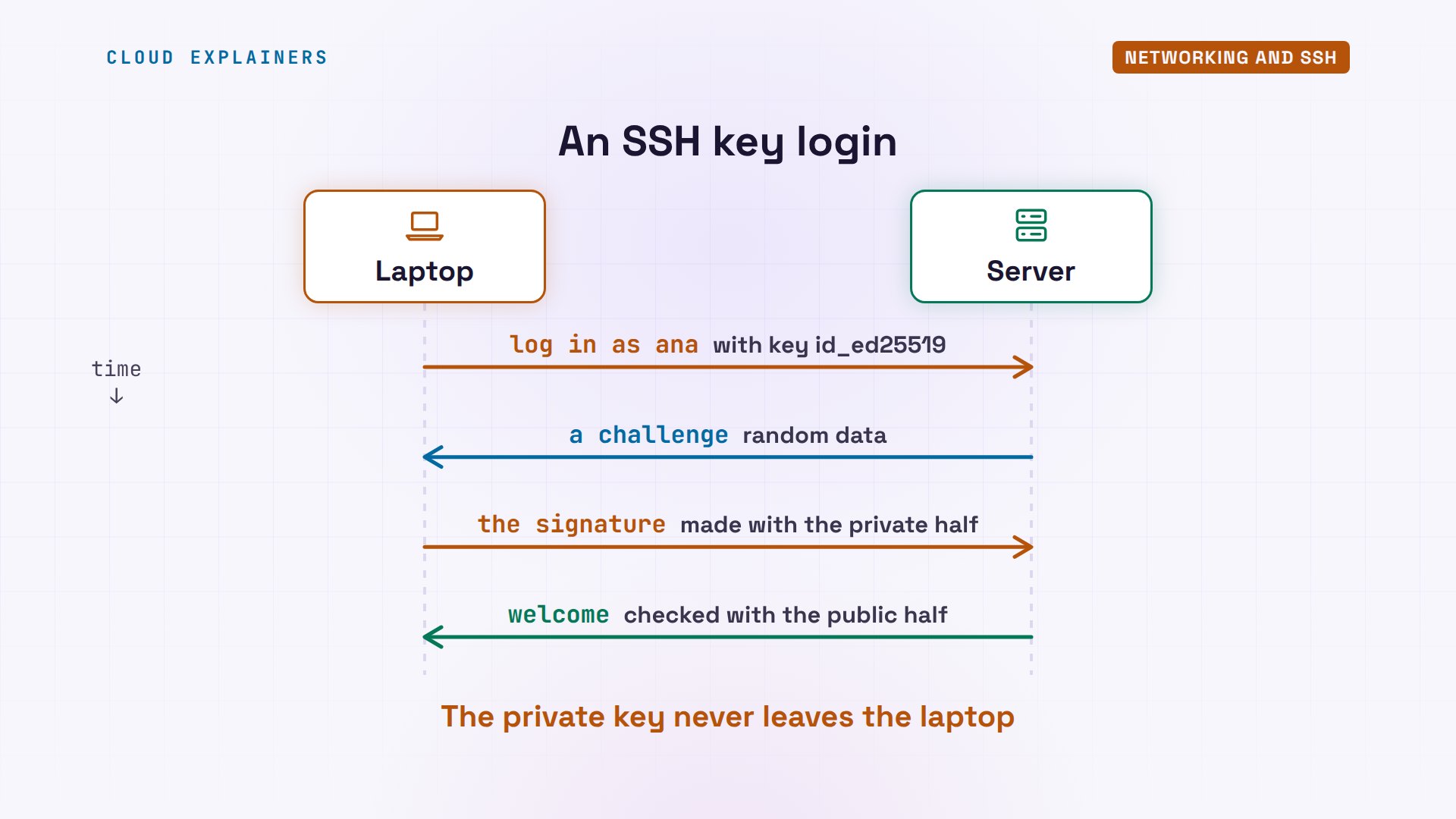
Why no password? The key has two halves. The public half now sits on the server. When Ana logs in, the server sends a challenge, her laptop signs it with the private half, which never leaves the laptop, and the server checks the signature with the public half. Nothing secret crosses the network.
Scripts and schedules
Nobody watches a server all day. So the last stage is making it check itself: scripts and schedules.
df shows how full the disk is: 6 percent. Ana puts what she's learned into a script: curl checks the page, df reads the disk, and echo prints one line. She runs it once by hand.
df -h /Filesystem      Size  Used Avail Use% Mounted on
overlay         453G   22G  408G   6% /
cat check-site.sh#!/bin/bash
# Is Ana's site answering? How full is the disk?
if curl -sf http://localhost > /dev/null; then site=up; else site=DOWN; fi
disk=$(df --output=pcent / | tail -1 | tr -d ' ')
echo "$(date +%H:%M:%S) site $site, disk $disk used"
./check-site.sh20:03:23 site up, disk 6% used
Then she hands it to cron, the scheduler. A cron line starts with five time fields: minute, hour, day, month, and weekday. A star means every. So five stars mean: every minute, run this script, and add its line to a log file.
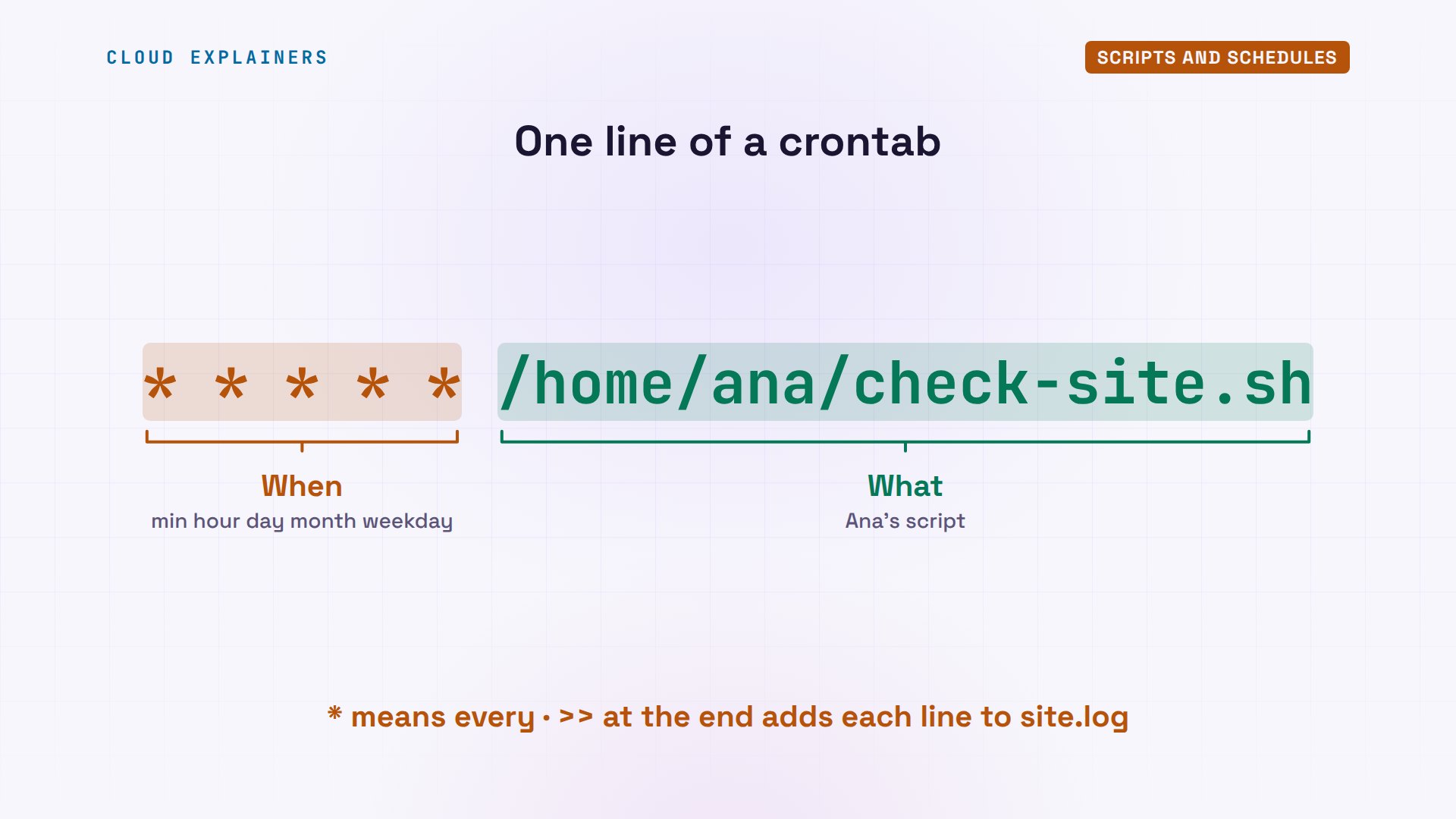
She loads the line with crontab, and to test it, kills nginx once more. Two minutes later, the log has two lines, one per minute, and both say the site is up: systemd brought it back before cron even looked. The journal shows cron ran it.
cat cron.txt* * * * * /home/ana/check-site.sh >> /home/ana/site.log
crontab cron.txt
sudo pkill -9 nginx
cat site.log20:04:01 site up, disk 6% used
20:05:01 site up, disk 6% used
sudo journalctl -u cron --no-pager | grep CMD | tail -2Nov 05 20:04:01 server CRON[711]: (ana) CMD (/home/ana/check-site.sh >> /home/ana/site.log)
Nov 05 20:05:01 server CRON[923]: (ana) CMD (/home/ana/check-site.sh >> /home/ana/site.log)
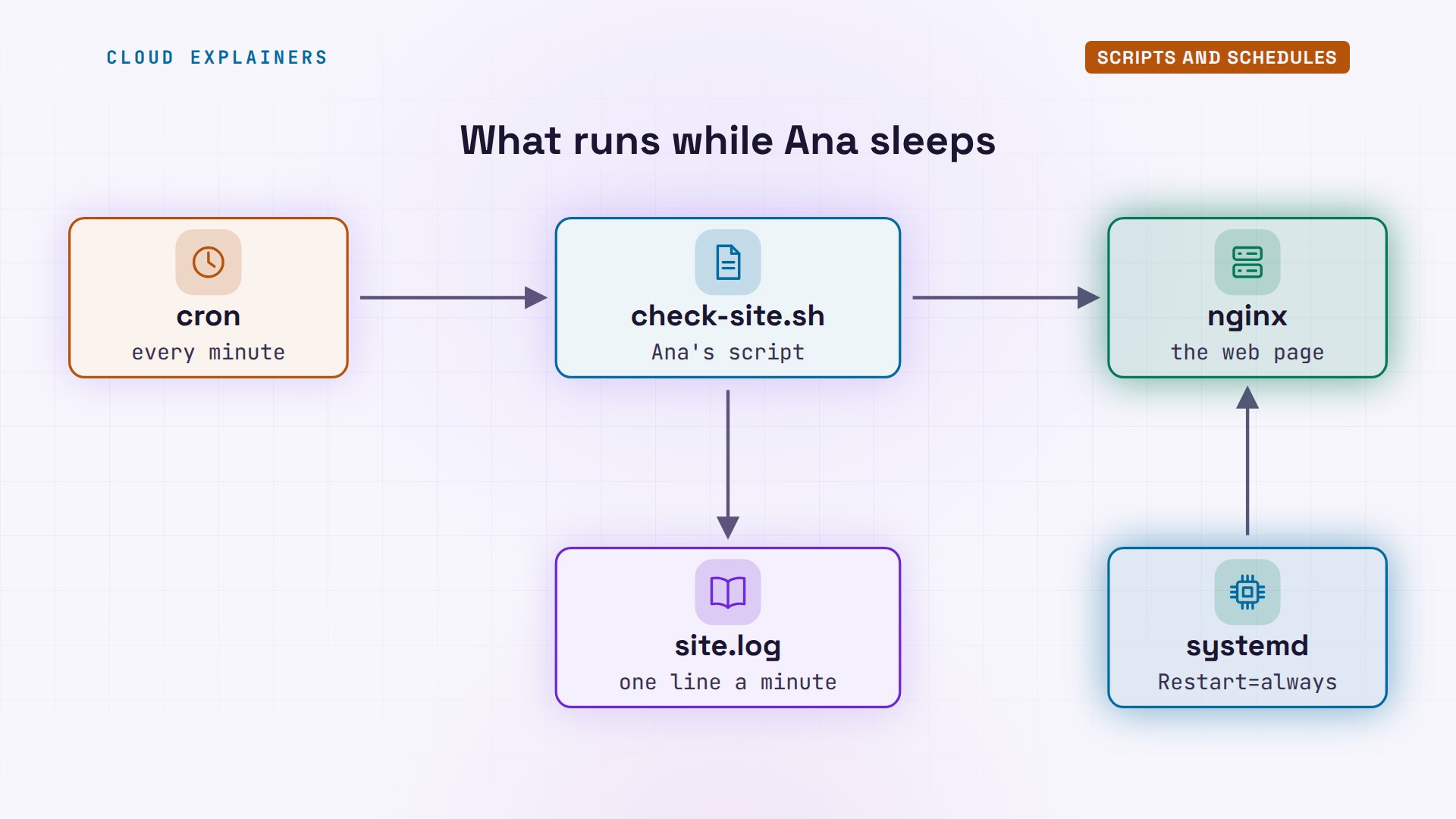
Here's the whole setup Ana built. Every minute, cron starts her script. The script asks nginx for the page, and checks the disk. One line goes into the log. And if nginx ever dies, systemd starts it again. Two programs, watching so Ana doesn't have to.
What comes next
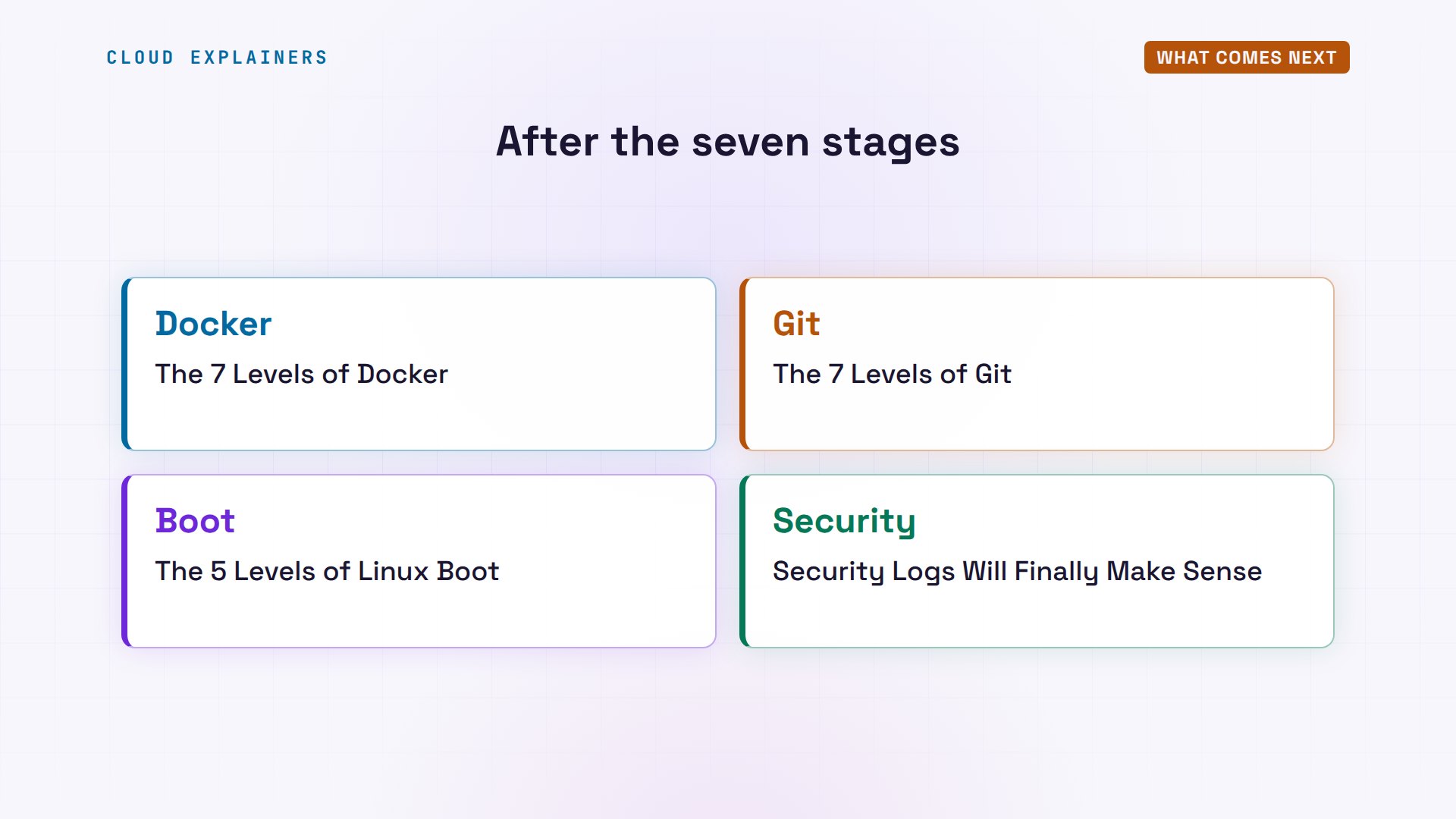
Where do you go after stage seven? Four directions, and each builds on this map. Docker packs a service and its files into a container. Git tracks every change to your scripts. The boot process explains what happens before your prompt appears. And security logs show who's knocking on port 22.
Can you change the order? A little. Networking can come before services. But don't skip the first three: almost every error a beginner searches for, from permission denied to command not found, comes from the shell, files or permissions.
Recap
So: the shell, files, and permissions to use Linux; software, services, networking and scripts to run a server. Each stage needs the one before it.
If this map helped, a like helps YouTube show it to more beginners, and subscribing brings you each stage's episode as it comes out.
Every command and output in this video came from a real run, on Ubuntu 24.04.5 LTS. Thanks for watching Cloud Explainers.
Sources
Demos: two Ubuntu 24.04 containers on our own lab machine, standing in for a new server and a laptop; the tea shop is made up. Watch the full video on YouTube.
More videos
Django vs FastAPI: Which One Should You Use?

Why SQLite Is the Most Used Database in the World
How a NoSQL Database Like MongoDB Works

How to Fix Python pip error: externally-managed-environment
How to Fix MySQL Too Many Connections Database Errors
Golang Concurrency Will Finally Make Sense After This
How Amazon S3 Works
How Kubernetes Works
How Git Works
How to Fix Docker Port Already Allocated Errors
How PostgreSQL Works
How to Fix Git Merge Conflicts

How to Fix No Space Left on Device in Linux
How the Internet Works
SQL vs NoSQL: When Each One Wins
How to Fix JWT Token Expired Errors (401 Unauthorized)
Claude API vs Claude Pro: Why Your Subscription Doesn't Include It

Why AI Agent Skills Beat Giant Prompts

Linux Cron Jobs Will Finally Make Sense After This

Security Logs Will Finally Make Sense After This
How to Fix a Security Leak: An API Key Pushed to GitHub
DNS Will Finally Make Sense After This
Never Ignore a Security Update
Two-Factor Authentication Will Finally Make Sense
Never Expose a Database to the Internet
SSH Keys vs Passwords: Which Is Safer for Security?
The 5 Levels of Linux Boot: From Power On to Login
The 5 Levels of Network Firewalls
Password Security: Why Hackers Crack Weak Passwords
Why Your Linux Server Runs Out of Memory
HTTP vs HTTPS: What Actually Changes on Your Network

Every Linux File Permission You Need to Know
Linux Processes vs Threads: When Each One Wins

The OSI Model Will Finally Make Sense After This

The 7 Levels of Git
Every Network Troubleshooting Command You Need
Hashing vs Encryption in Cybersecurity: When Each One Wins
Why the Internet Ran Out of IP Addresses

Linux Package Managers: apt vs Snap vs Flatpak

Why Python Is Slow (and When It Doesn't Matter)
TCP vs UDP: When Each One Wins
Stop Running Linux as Root (Do This Instead)
Linux Users and Groups Will Finally Make Sense

Why Phishing Beats Good Security (and How to Spot It)

The 7 Levels of Docker

AI Agents Will Finally Make Sense After This
Stop Using git push --force (Use This Instead)
Agent Skills vs MCP: When Each One Wins

Networking Will Finally Make Sense After This

Every Linux Command You Actually Need
The 7 Levels of Cybersecurity

Every System Design Concept You Need, in One Diagram