How to Fix Docker Compose Containers That Can't Talk to Each Other
Your app container can't reach your database container in Docker Compose: connection refused, or name not known. In our own lab (Docker 29 and Compose 2.40 on Ubuntu 24.04, a Python app and PostgreSQL 18) we break and fix the four usual causes: localhost inside a container, the published port instead of the container port, two Compose projects on separate networks, and a database that isn't ready yet, which is why it works on the second try.
Running, but not talking
Your app container can't reach your database container in Docker Compose: connection refused. Compose started both containers. The database is still running, the app quit, and yet you can reach the database from your own laptop. Ana's tea shop has exactly that.
docker compose logs --no-log-prefix webweb: connecting to the database at localhost:5432
web: connection failed: connection to server at "127.0.0.1", port 5432 failed: Connection refused
docker compose ps -a --format 'table {{.Service}}\t{{.Status}}'SERVICE   STATUS
db        Up 1 second
web       Exited (1) Less than a second ago
psql -h localhost -p 5433 -U postgres -c 'SELECT count(*) FROM teas'count ------- 5 (1 row)
Her compose file has two services: db, running PostgreSQL on its usual port, 5432, and web, her shop's app. Web is told to find the database at localhost.
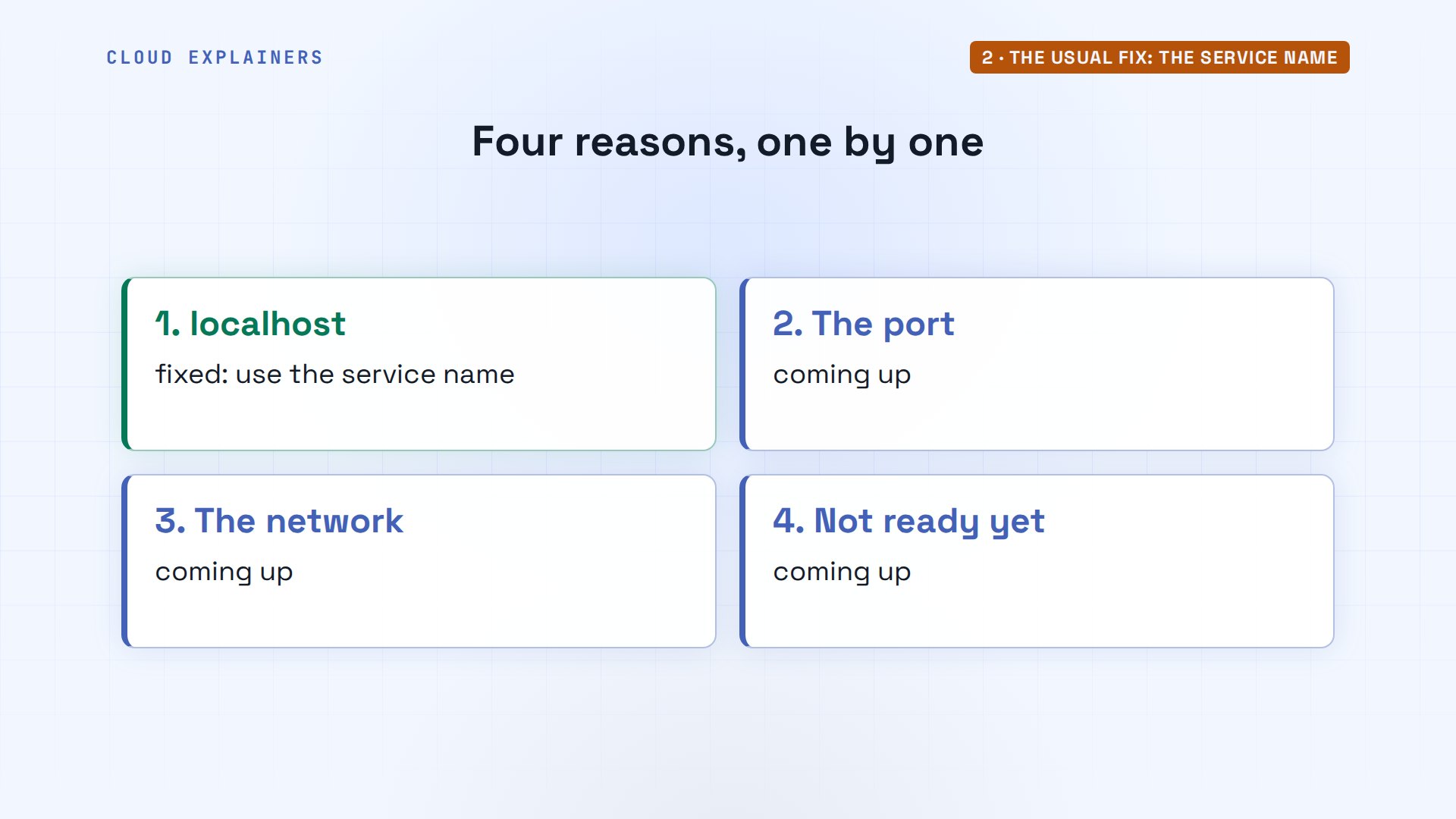
Nothing is broken in Docker here. There are four usual reasons containers can't reach each other, and one of them is strange: it fails the first time you start, then works when you run the very same command again. By the end you'll know all four, and why the second try works.
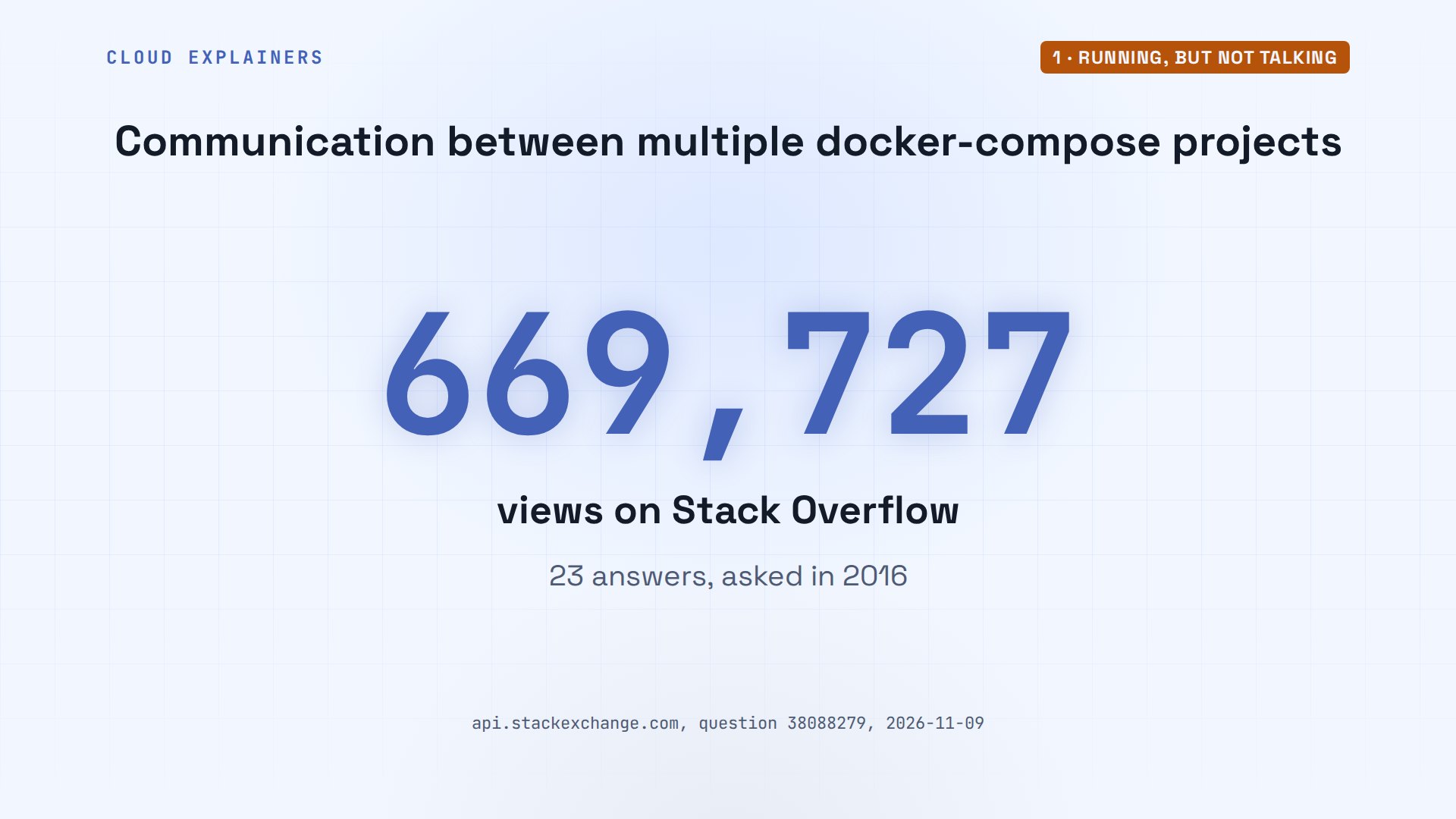
You're far from alone. On Stack Overflow, the question about containers in two Compose projects that can't reach each other has over six hundred thousand views and 23 answers. That's one of the four, and its fix is three lines.
The usual fix: the service name
If your app's settings say localhost for the database, start here. grep finds the line: line 14, localhost. Replace it with the database's service name, db. sed swaps the text right in the file.
grep -n DB_HOST compose.yaml14: DB_HOST: localhost
sed -i 's/DB_HOST: localhost/DB_HOST: db/' compose.yaml
grep -n DB_HOST compose.yaml14: DB_HOST: db
Then docker compose up -d again. Compose sees that web's settings changed, so it recreates only web, while the database keeps running. Web's log: connected. And the shop answers with its five teas.
docker compose up -dContainer shop-db-1 Running Container shop-web-1 Recreate Container shop-web-1 Recreated Container shop-web-1 Starting Container shop-web-1 Started
docker compose logs --no-log-prefix webweb: connecting to the database at db:5432
web: connected, serving the shop on port 8000
curl localhost:8000chai: $5.75
earl grey: $7.00
green tea: $6.50
jasmine: $6.90
oolong: $8.25
So the usual fix is the service name. If yours already says db and still fails, one of the other three is waiting for you, and each one fails in its own way.
Why localhost fails
Why did localhost fail, when it works on Ana's laptop? Inside a container, localhost means that container itself. Docker gives each container its own little network setup: its own address, and its own localhost. So when web asked localhost for port 5432, it asked itself, and nothing in web listens there.
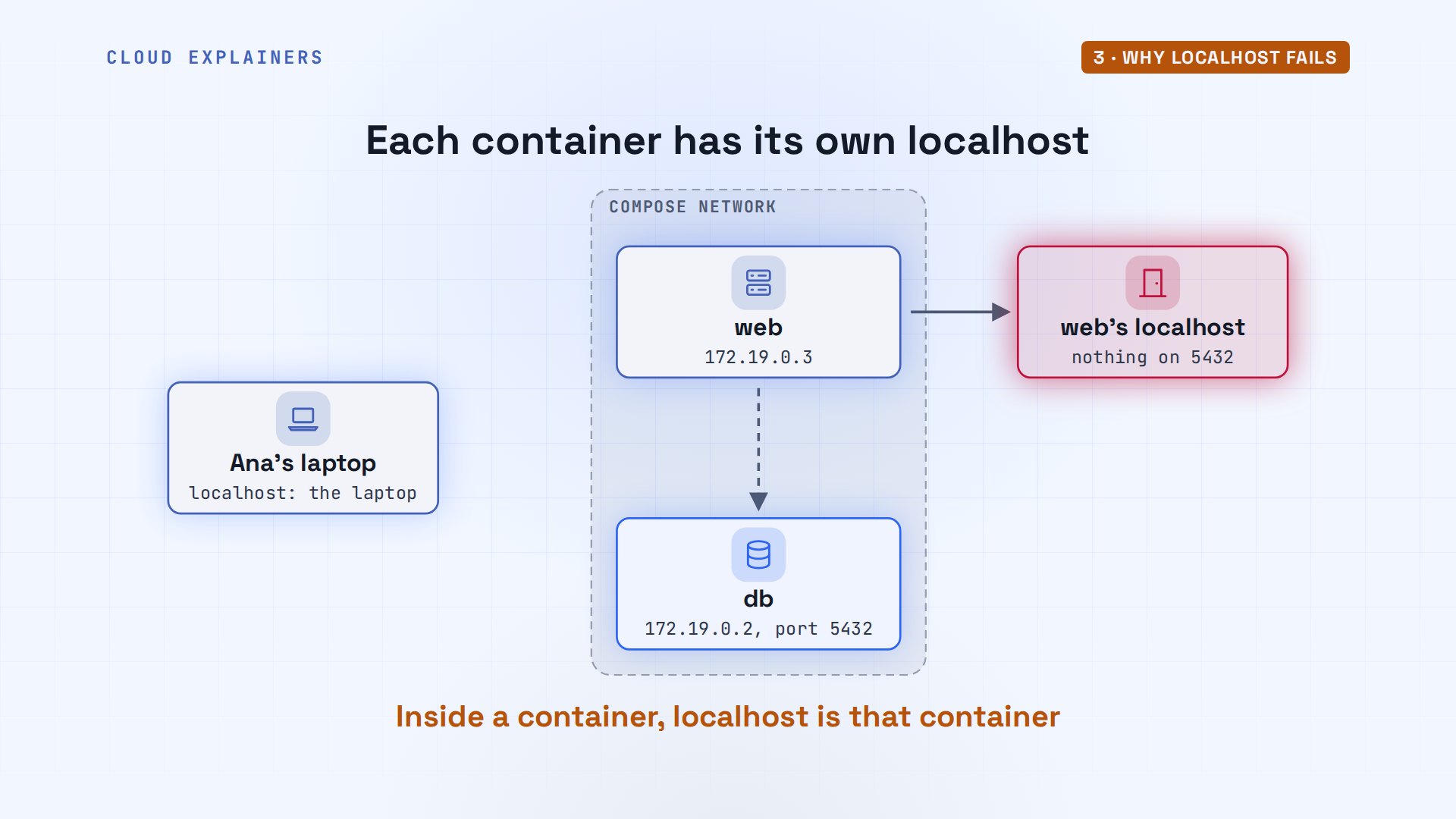
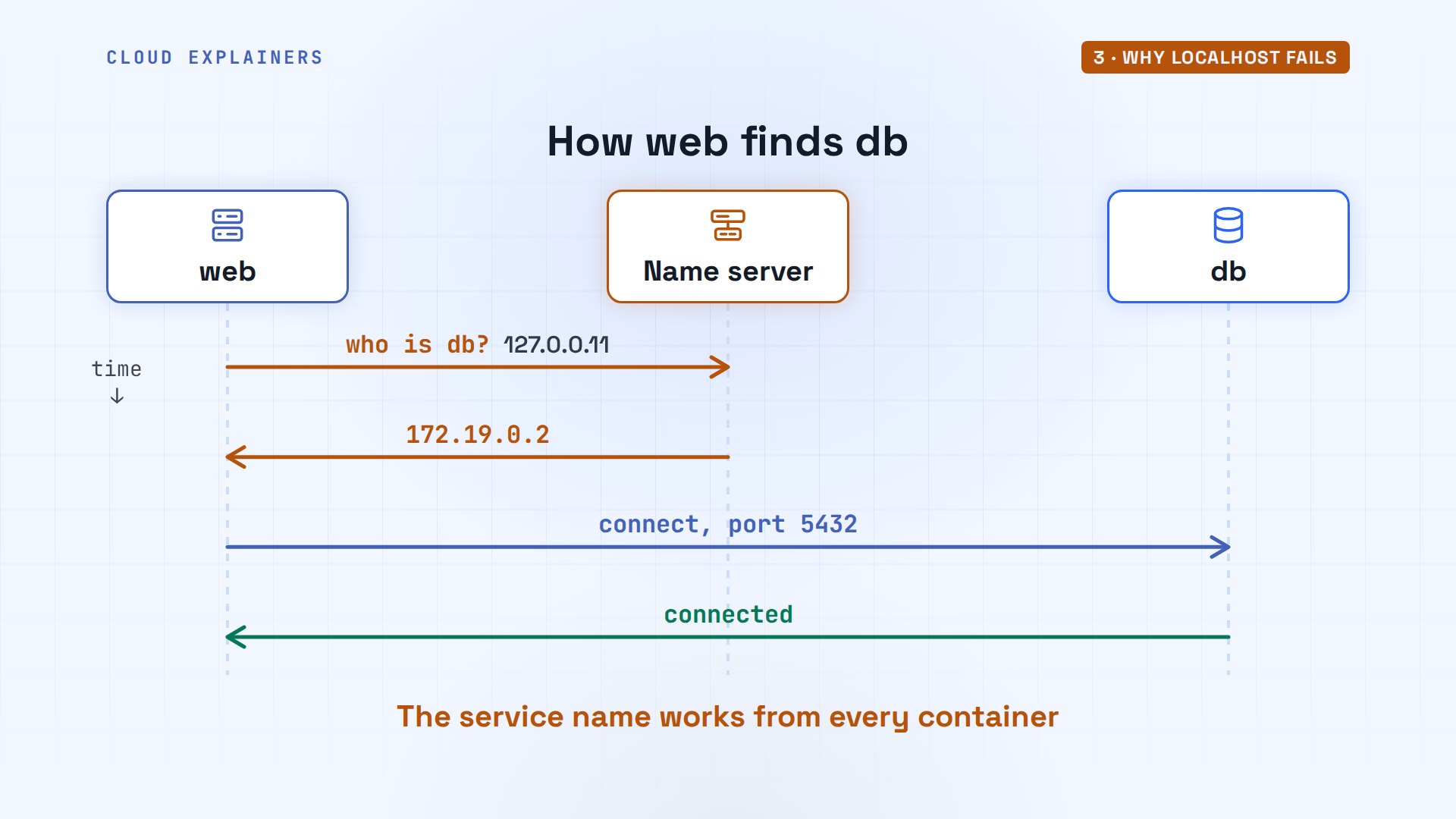
So how does the name db work? Compose made one network for this project, shop_default, with web and db on it, each at its own address. Every container there gets a name server at 127.0.0.11, run by Docker. Ask it for db, and it answers with db's address. Docker's docs put it simply: each service is discoverable by its service name.
docker network inspect shop_default --format '{{range .Containers}}{{.Name}} {{.IPv4Address}}{{println}}{{end}}'shop-web-1 172.19.0.3/16
shop-db-1 172.19.0.2/16
docker compose exec web grep nameserver /etc/resolv.confnameserver 127.0.0.11
docker compose exec web getent hosts db172.19.0.2 db
Here's the working request, step by step. Web asks Docker's name server: who is db? The answer comes back: its address. Web connects there, on port 5432, and the database answers. The service name is the one address that works from every container on the network.
The port that only works outside
The second reason looks like a fix, and fails anyway. Ana's db has a ports line, 5433 to 5432. It opens a door on the laptop, port 5433, that leads to port 5432 inside db. That door is how she reached the database from her laptop at the start. Web doesn't go through the laptop at all: it reaches db directly, on the network.
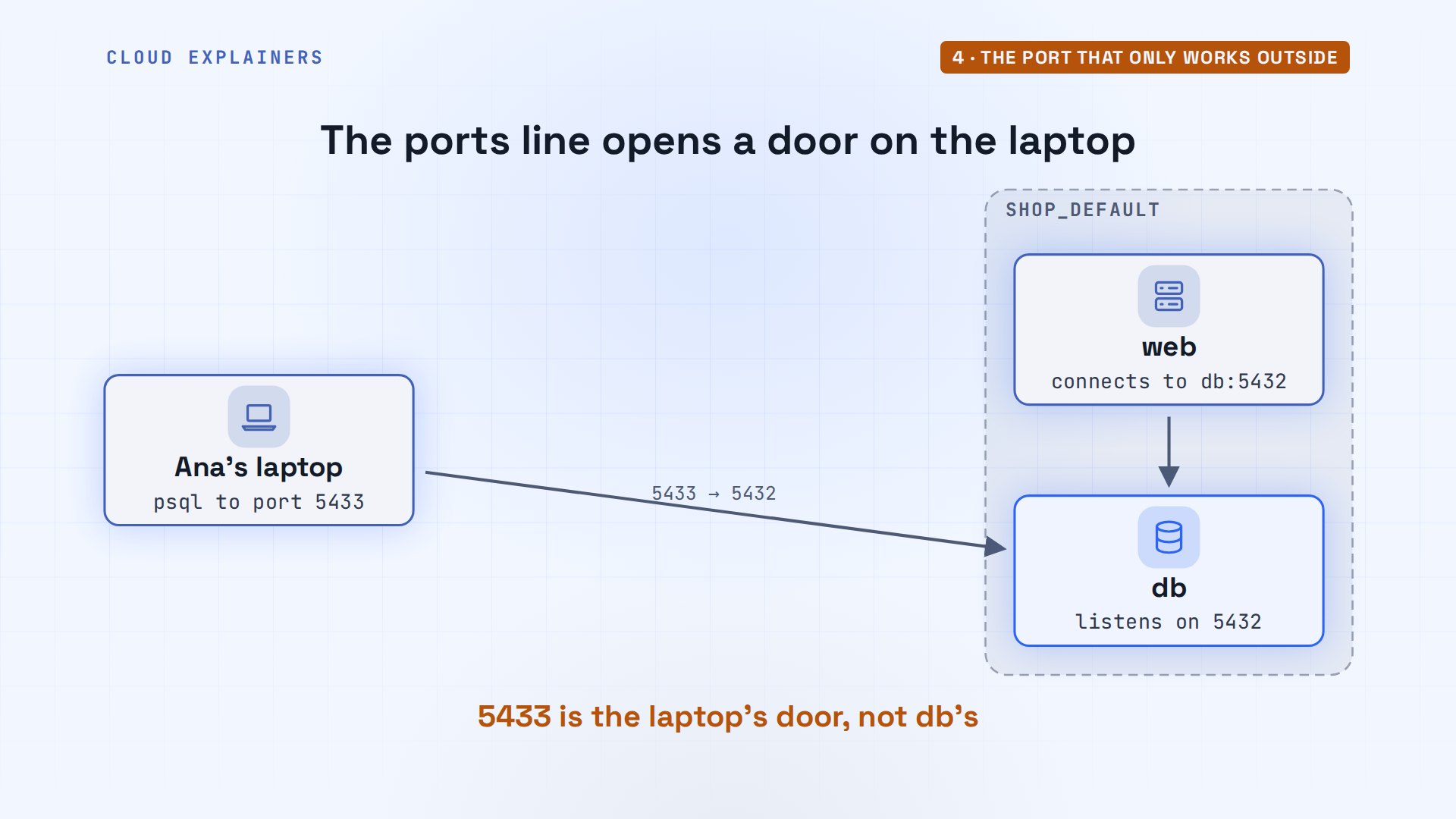
So a teammate looks at that line and thinks: the database is on 5433, and changes web's port setting to match. Guess first: does web connect now? No. Connection refused, at db's own address, port 5433.
docker compose ps --format 'table {{.Service}}\t{{.Ports}}'SERVICE   PORTS
db        0.0.0.0:5433->5432/tcp, [::]:5433->5432/tcp
web       0.0.0.0:8000->8000/tcp, [::]:8000->8000/tcp
sed -i 's/DB_PORT: "5432"/DB_PORT: "5433"/' compose.yaml
grep -n DB_ compose.yaml14:      DB_HOST: db
15:      DB_PORT: "5433"
16:      DB_PASSWORD: kettle-lab
docker compose logs --no-log-prefix webweb: connecting to the database at db:5433
web: connection failed: connection to server at "172.19.0.2", port 5433 failed: Connection refused
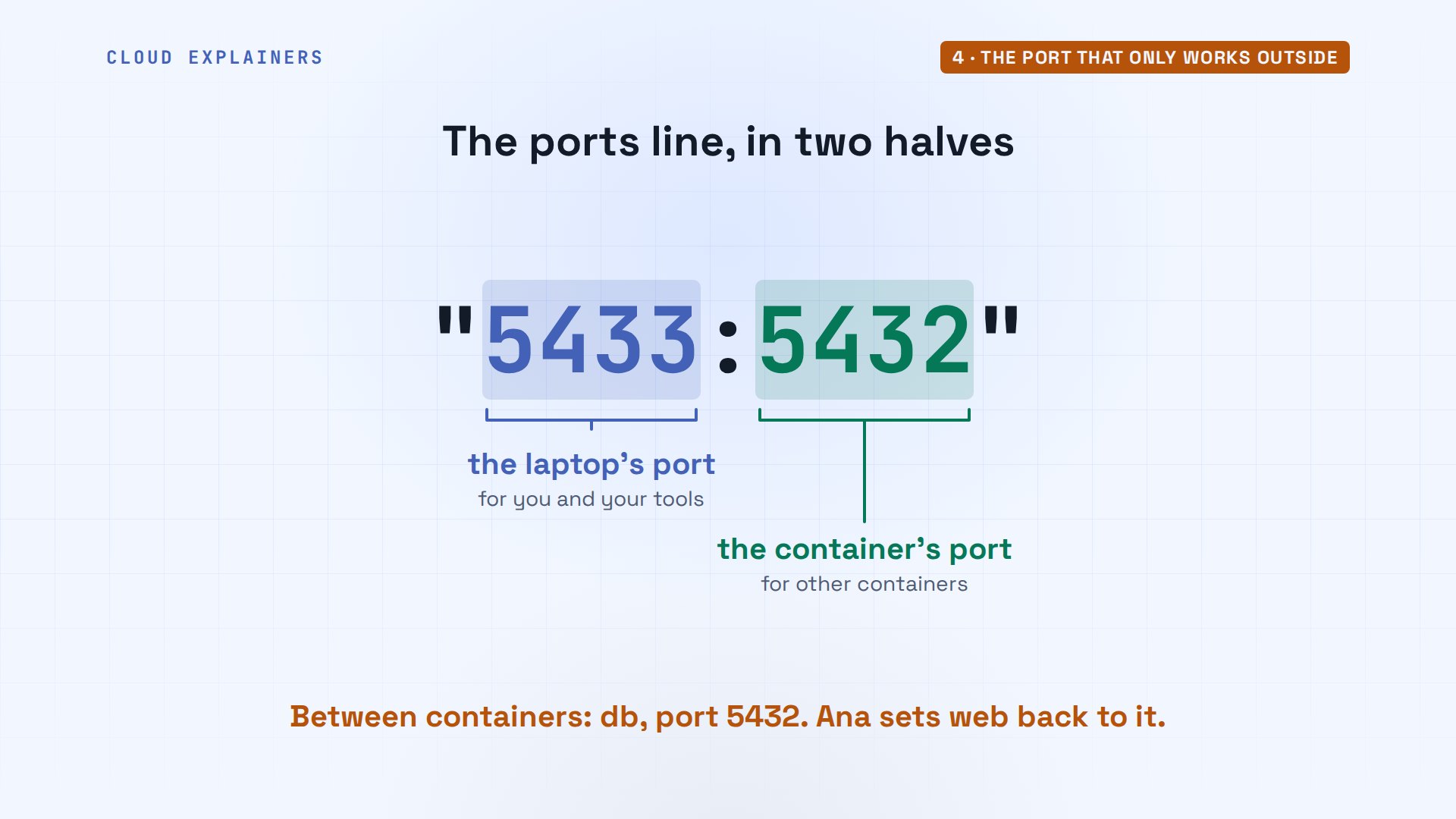
Read the ports line as two halves. The left number is a door on the laptop, for you and your tools. The right number is the port inside the container. Docker's docs say it directly: service-to-service traffic uses the container port. So Ana sets web back to 5432, and the shop works again.
Two projects, two networks
The third reason is the Stack Overflow one. Ana's nightly report lives in its own folder, with its own compose file, and it looks for the database by name: db. She runs it: Name or service not known. And the networks show why: Compose names each project's network after its folder, so the report got its own, reports_default.
cat compose.yamlservices:
  report:
    image: teashop:1
    command: python report.py
    environment:
      DB_HOST: db
      DB_PASSWORD: kettle-lab
docker compose run --rm reportNetwork reports_default Creating Network reports_default Created report: [Errno -2] Name or service not known
docker network ls --filter name=_defaultNETWORK ID     NAME              DRIVER    SCOPE
41ce94915d2c   reports_default   bridge    local
dfac6c384b7c   shop_default      bridge    local
On the map: web and db share the shop's network. The report sits alone on its own. Its question, who is db, goes to a name server that only knows the containers on that network, and has never heard of db.
The fix: put the report on the shop's network. Three lines at the bottom of its compose file: its default network is named shop_default, and external true means it already exists, so Compose uses it instead of making a new one. Run it again: five teas, 34 dollars 40 for one of each.
cat compose.yamlservices:
  report:
    image: teashop:1
    command: python report.py
    environment:
      DB_HOST: db
      DB_PASSWORD: kettle-lab
networks:
  default:
    name: shop_default
    external: true
docker compose run --rm reportreport: 5 teas, $34.40 for one of each
Now the report's container joins shop_default. Same name server as web and db, so who is db gets an answer, and it connects on port 5432. That's the fix the six hundred thousand visitors were looking for.
Works on the second try
And now the strange one: it fails only the first time. Ana deletes everything with down -v, where -v also deletes the database's data, like a new teammate's laptop, or a fresh test server. Same compose file that just worked. Guess first: does web come up? No. Connection refused, at db's right address and port.
docker compose down -vContainer shop-web-1 Stopping Container shop-web-1 Stopped Container shop-web-1 Removing Container shop-web-1 Removed Container shop-db-1 Stopping Container shop-db-1 Stopped Container shop-db-1 Removing Container shop-db-1 Removed Volume shop_data Removing Network shop_default Removing Volume shop_data Removed Network shop_default Removed
docker compose up -dNetwork shop_default Creating Network shop_default Created Volume shop_data Creating Volume shop_data Created Container shop-db-1 Creating Container shop-db-1 Created Container shop-web-1 Creating Container shop-web-1 Created Container shop-db-1 Starting Container shop-db-1 Started Container shop-web-1 Starting Container shop-web-1 Started
docker compose logs --no-log-prefix webweb: connecting to the database at db:5432
web: connection failed: connection to server at "172.19.0.2", port 5432 failed: Connection refused
Same address, same port, so what changed? Only the timing. Compose started db, then started web right away. Web connected while the database was still setting up: refused, and web quit. Docker's docs say it plainly: Compose waits until a container is running, not until it's ready.
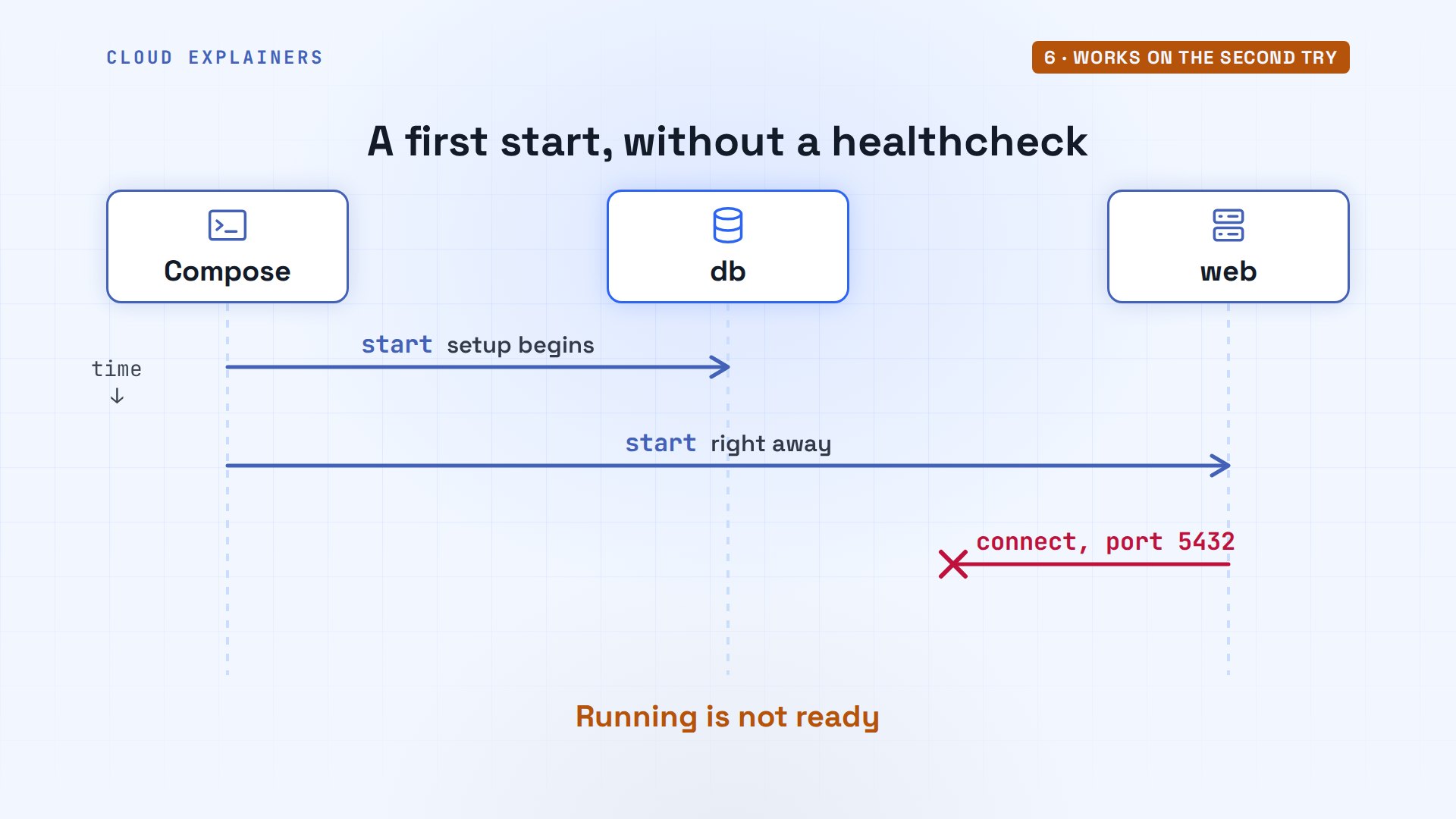
The database's own log shows the gap. Ready, setup complete, and ready again, a third of a second later.
docker compose logs --no-log-prefix db | grep -E 'init process complete|ready to accept'2026-11-09 12:23:27.257 UTC [46] LOG:  database system is ready to accept connections
PostgreSQL init process complete; ready for start up.
2026-11-09 12:23:27.603 UTC [1] LOG:  database system is ready to accept connections
Why ready twice? On a first start, with no data yet, PostgreSQL creates its database using a setup server, which takes no network connections at all. It loads Ana's tea list, stops, and only then starts the real server, the one that listens on port 5432. Web knocked before the real server was up, and found nobody listening.
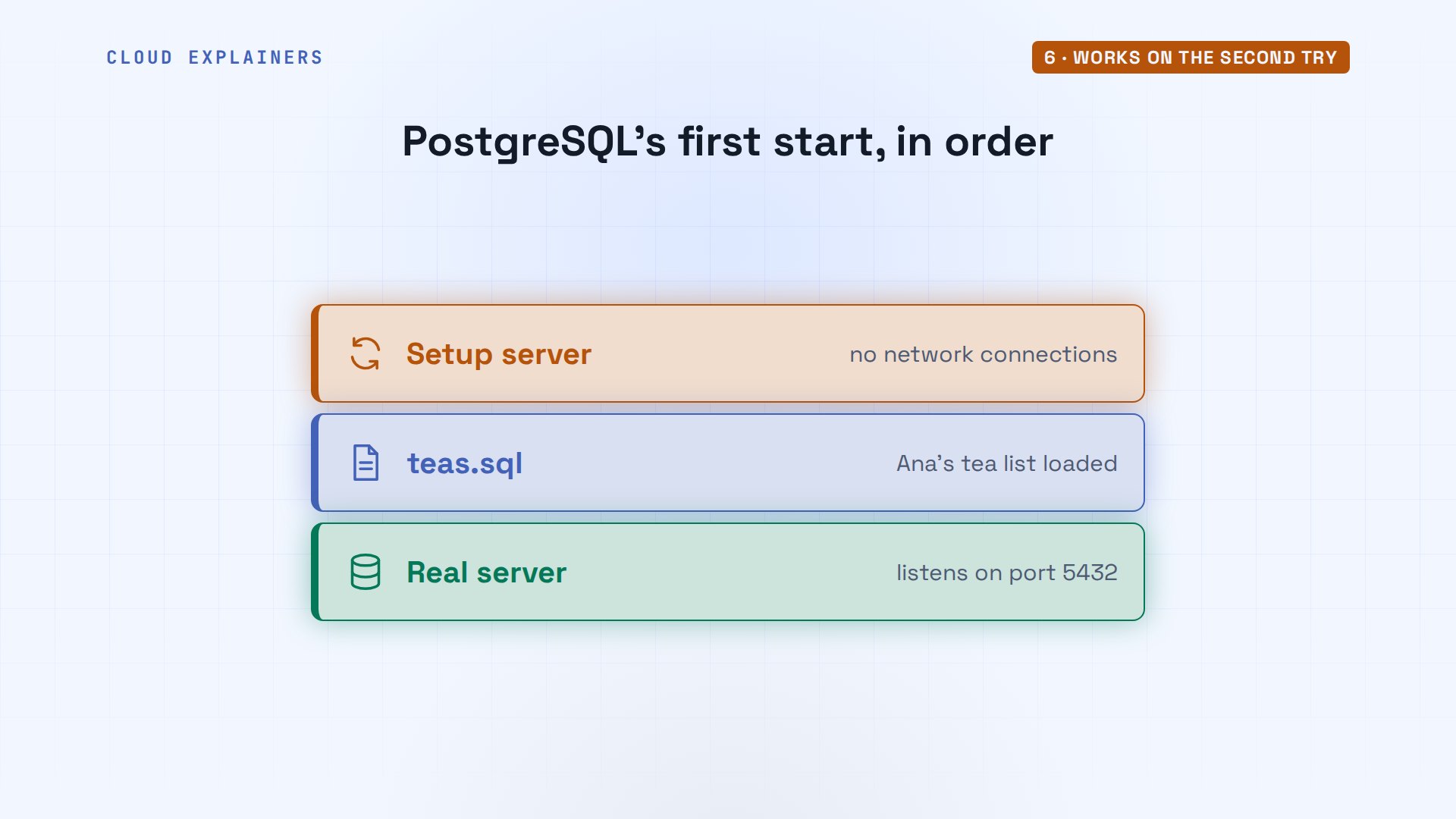
Now Ana just runs up again, and changes nothing. Web's log has both tries: refused, then connected. That's the second-try mystery. Nothing was fixed. By the second try, the database was simply ready.
docker compose up -dContainer shop-db-1 Running Container shop-web-1 Starting Container shop-web-1 Started
docker compose logs --no-log-prefix webweb: connecting to the database at db:5432
web: connection failed: connection to server at "172.19.0.2", port 5432 failed: Connection refused
web: connecting to the database at db:5432
web: connected, serving the shop on port 8000
The fix has two parts. First, a healthcheck on db: every second, Docker runs pg_isready, PostgreSQL's own is-it-ready tool, up to 30 times. Second, in web, depends_on db, with condition service_healthy: don't start web until that check passes.
grep -A 4 healthcheck compose.yamlhealthcheck: test: ["CMD-SHELL", "pg_isready -U postgres"] interval: 1s retries: 30 web:
grep -A 2 depends_on compose.yamldepends_on: db: condition: service_healthy
With both parts in place, the first start goes like this. Compose starts db, and Docker runs the check until db reports healthy. Only then does Compose start web, and its first connection works.
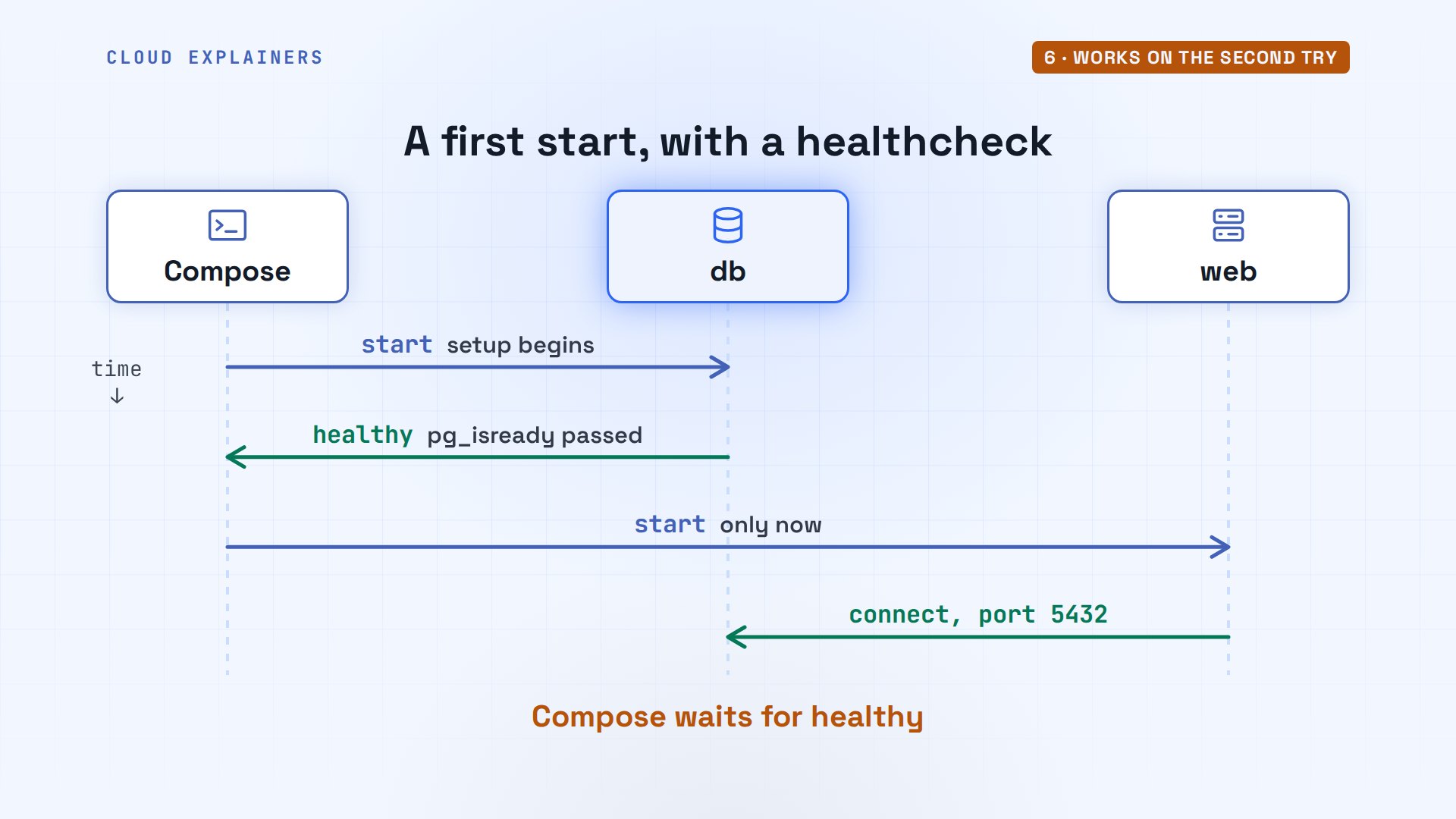
Fresh start again, data deleted. This time Compose waits for db, healthy, and only then starts web. Connected on the first try.
docker compose up -dNetwork shop_default Creating Network shop_default Created Volume shop_data Creating Volume shop_data Created Container shop-db-1 Creating Container shop-db-1 Created Container shop-web-1 Creating Container shop-web-1 Created Container shop-db-1 Starting Container shop-db-1 Started Container shop-db-1 Waiting Container shop-db-1 Healthy Container shop-web-1 Starting Container shop-web-1 Started
docker compose logs --no-log-prefix webweb: connecting to the database at db:5432
web: connected, serving the shop on port 8000
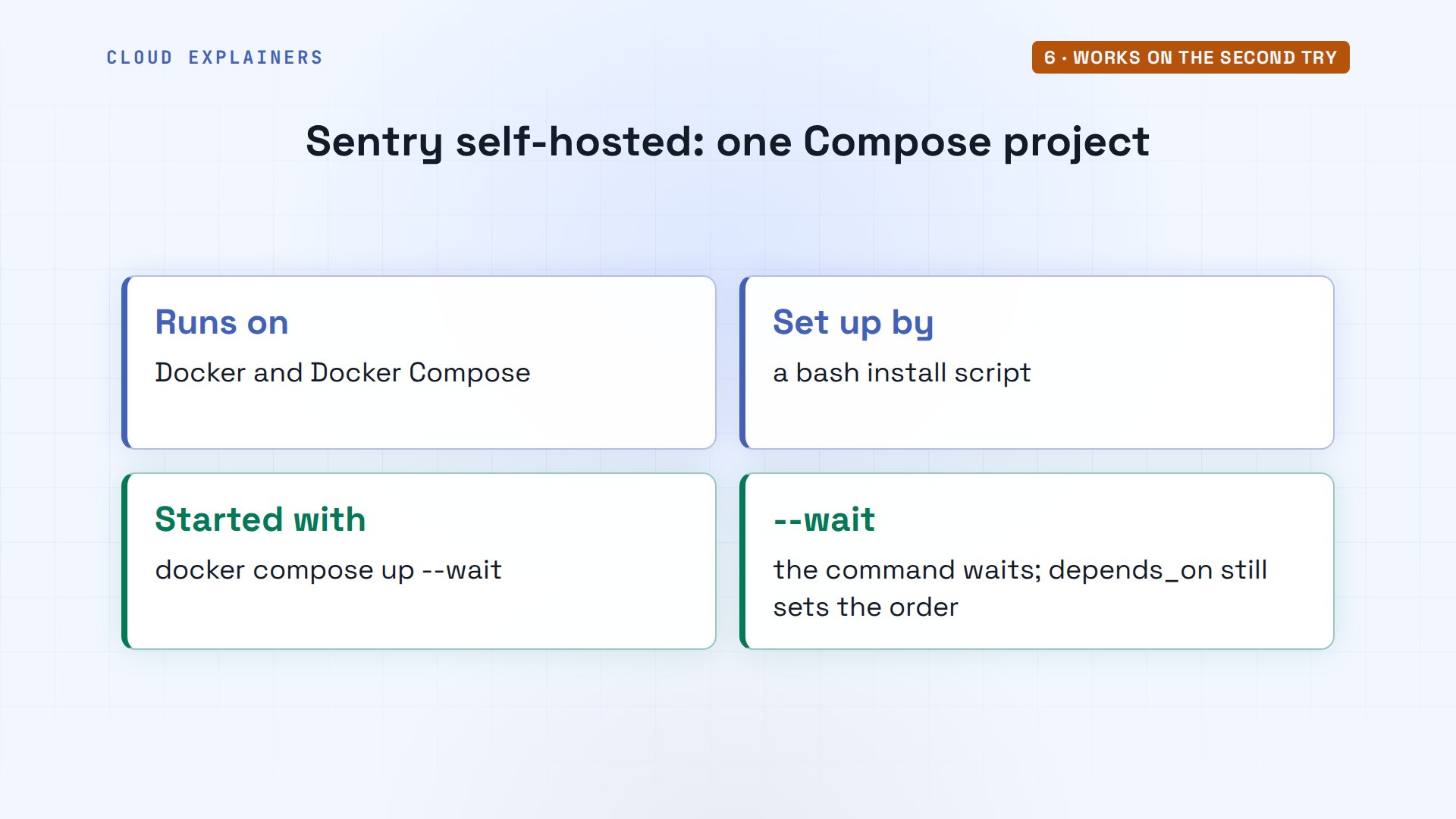
Real projects lean on the same idea. Sentry, the error-tracking company, ships its self-hosted version as one Docker Compose project, set up by an install script, and its docs start it with docker compose up --wait, which waits until services with a healthcheck report healthy.
Check these four
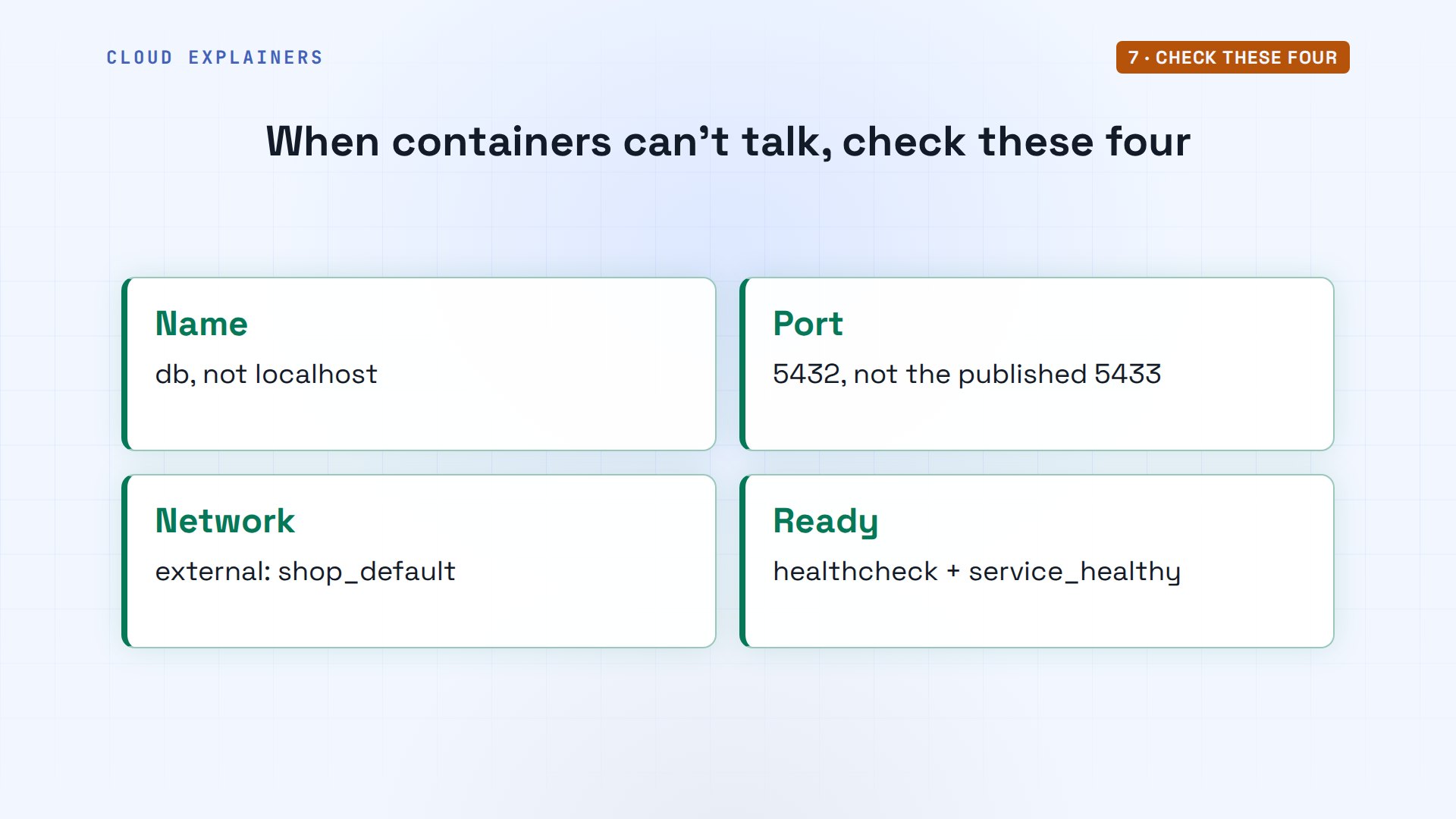
So when containers can't talk, check these four. The name: the service name, never localhost. The port: the container's port, not the published one. The network: another project joins with external. And readiness: a healthcheck, plus service_healthy. Every command and the lab files are linked in the description, so you can break and fix this shop yourself.
Recap
So: inside a container, localhost is that container. Containers find each other by service name, on a shared network, at the container's port, once the other one is ready.
If this got your containers talking again, subscribing helps other beginners find it too.
Every command here ran for real, in our own lab. Thanks for watching Cloud Explainers.
Sources
- Docker docs, Networking in Compose (each service is discoverable by its service name; service-to-service traffic uses the container port)
- Docker docs, Control startup order in Compose (Compose waits until a container is running, not ready; healthcheck with pg_isready and condition: service_healthy)
- Sentry, self-hosted Sentry (Docker Compose, started with docker compose up --wait)
- Stack Overflow, 'Communication between multiple docker-compose projects' (question 38088279, over 600,000 views on 2026-11-09)
Demos: one Ubuntu laptop container on our own lab server, running Docker and Compose inside it; the tea shop is made up. Watch the full video on YouTube.
More videos

Linux Makefiles Will Finally Make Sense After This

SAML vs OAuth vs OpenID Connect: What's the Difference?
How to Fix Python cron Jobs That Never Run

Linux Bash Scripting: Full Tutorial for Beginners
How PXE Network Boot Works
How Active Directory Works

How to Fix a Linux systemd Service That Won't Start
Linux Logs: syslog vs journald
JWT vs Session Cookies: Which One Should You Use?
Docker vs Docker Compose: Which One Should You Use?

Django Full Tutorial for Beginners

How Linux systemd Works

How to Fix 'Windows Cannot Access' Network Share Errors (SMB)
REST vs gRPC: Which One Should You Use?

How to Fix SSL Certificate Chain Errors (Missing Intermediate)

Every Python Concept for Beginners in 10 Minutes

Every SQL Join Type in 10 Minutes

Why OpenRouter Free Models Hit Their Limit So Fast
Why Your Gemini API Free Tier Runs Out So Fast
OpenRouter Will Finally Make Sense After This
How Redis Caching Works
Gemini API vs Vertex AI: Which One Should You Use?
How to Fix a Leaked Gemini API Key
Why Golang Uses Goroutines Instead of Threads
How to Fix Gemini API Error 429: Resource Exhausted

Claude Token Pricing Will Finally Make Sense After This
Why Python Web Scraping Returns Nothing (and the Fix)

Python uv vs pip: Which One Should You Use?

Python Automation: Full Tutorial for Beginners

How OAuth Login Works

Google AI Studio Will Finally Make Sense After This
What Happens When You Run a Docker Container
How to Fix Claude Code Billing Your API Key Instead of Your Plan
Why Passkeys Can't Be Phished Like Passwords
PowerShell vs Bash: Which One Should You Learn?
The Linux Roadmap for Beginners
Django vs FastAPI: Which One Should You Use?

Why SQLite Is the Most Used Database in the World
How a NoSQL Database Like MongoDB Works

How to Fix Python pip error: externally-managed-environment
How to Fix MySQL Too Many Connections Database Errors
Golang Concurrency Will Finally Make Sense After This
How Amazon S3 Works
How Kubernetes Works

How Git Works
How to Fix Docker Port Already Allocated Errors
How PostgreSQL Works
How to Fix Git Merge Conflicts

How to Fix No Space Left on Device in Linux
How the Internet Works
SQL vs NoSQL: When Each One Wins
How to Fix JWT Token Expired Errors (401 Unauthorized)
Claude API vs Claude Pro: Why Your Subscription Doesn't Include It

Why AI Agent Skills Beat Giant Prompts

Linux Cron Jobs Will Finally Make Sense After This

Security Logs Will Finally Make Sense After This

How to Fix a Security Leak: An API Key Pushed to GitHub
DNS Will Finally Make Sense After This
Never Ignore a Security Update
Two-Factor Authentication Will Finally Make Sense
Never Expose a Database to the Internet
SSH Keys vs Passwords: Which Is Safer for Security?

The 5 Levels of Linux Boot: From Power On to Login
The 5 Levels of Network Firewalls
Password Security: Why Hackers Crack Weak Passwords
Why Your Linux Server Runs Out of Memory
HTTP vs HTTPS: What Actually Changes on Your Network

Every Linux File Permission You Need to Know
Linux Processes vs Threads: When Each One Wins
The OSI Model Will Finally Make Sense After This

The 7 Levels of Git
Every Network Troubleshooting Command You Need
Hashing vs Encryption in Cybersecurity: When Each One Wins
Why the Internet Ran Out of IP Addresses
Linux Package Managers: apt vs Snap vs Flatpak

Why Python Is Slow (and When It Doesn't Matter)
TCP vs UDP: When Each One Wins
Stop Running Linux as Root (Do This Instead)
Linux Users and Groups Will Finally Make Sense

Why Phishing Beats Good Security (and How to Spot It)
The 7 Levels of Docker

AI Agents Will Finally Make Sense After This

Stop Using git push --force (Use This Instead)
Agent Skills vs MCP: When Each One Wins
Networking Will Finally Make Sense After This

Every Linux Command You Actually Need
The 7 Levels of Cybersecurity
Every System Design Concept You Need, in One Diagram