The 7 Levels of Docker
Docker for beginners, in 7 levels: containers, images, ports, building your own image, volumes, Docker Compose, and small, safe images with multi-stage builds and a non-root user. Every step is a real run on a fresh Linux machine.
The 7 levels
One command, and nginx, a web server, is running on this machine. We never installed it, and we didn't configure anything. That's Docker.
docker run -d -p 8080:80 --name web nginx:1.31-alpine147dbbb8a6a2c25d0df479014bf21cb5047eb09f02faf58a1017fa515d345fa1
curl -s localhost:8080 | grep title<title>Welcome to nginx!</title>
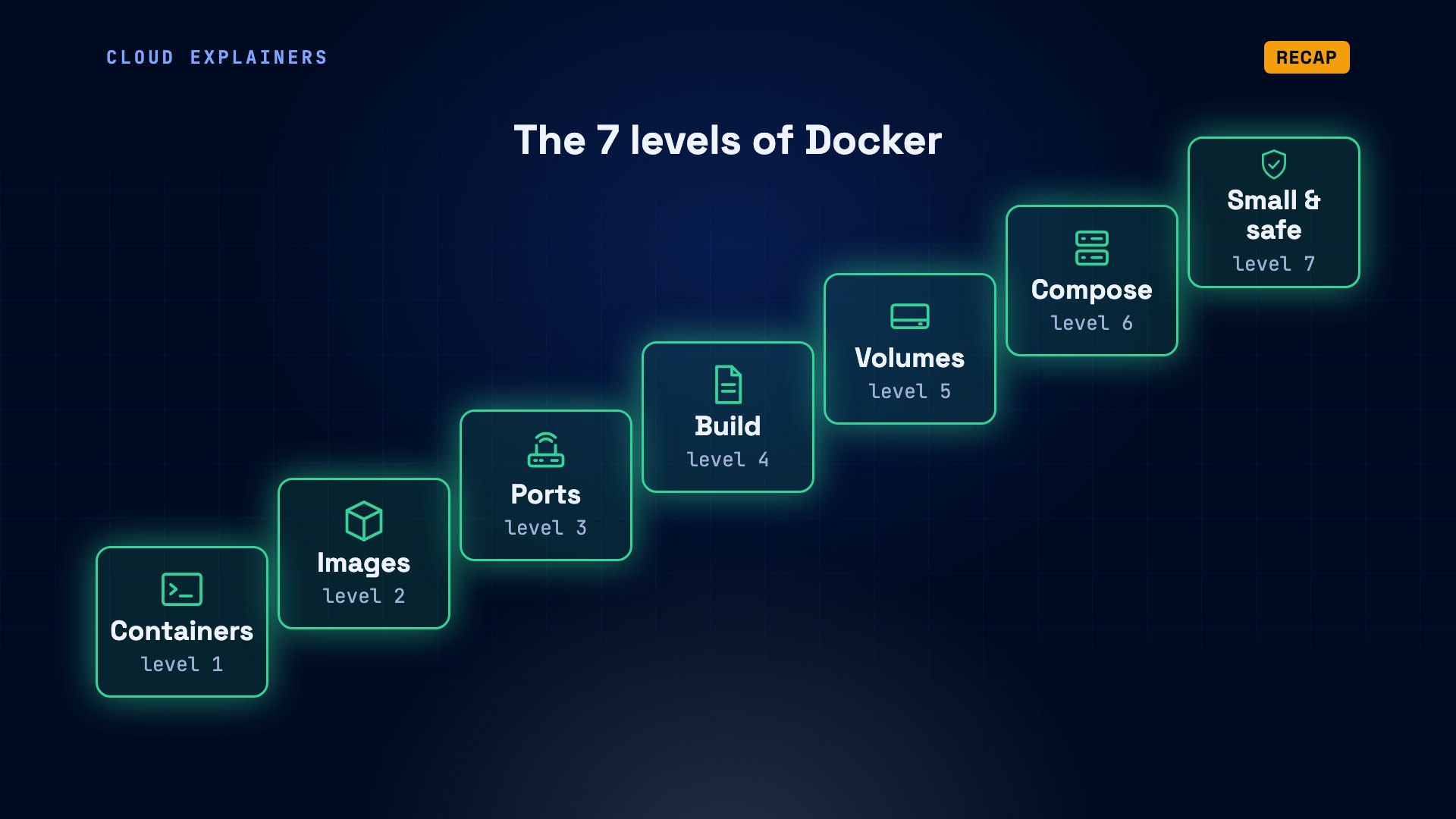
We'll climb from there to small, safe apps, in seven levels: containers, images, ports, building your own, volumes, Compose, and small, safe images. Every command is a real run, on a fresh machine with Docker installed, and no images yet.
Level 1: Containers
Level one: containers. Here's the problem Docker solves. Your app works on your computer, but on another machine it breaks: a different version of Python, a missing library, a different setting. A container packages the app with everything it needs, so it runs the same everywhere.
The classic first command is docker run hello-world. Docker didn't have that image yet, so it downloaded it. Then the container printed what Docker just did, in four steps. The Docker client, the command you type, contacted the Docker daemon: a background service that does the real work. The daemon pulled the image, created a container from it, and streamed its output back to your terminal.
docker run hello-worldUnable to find image 'hello-world:latest' locally
latest: Pulling from library/hello-world
4f55086f7dd0: Pull complete
d5e71e642bf5: Download complete
Digest: sha256:11a3eb1597e864c51b3f56733cb2e8a90bf0c284bfc05f9444d81c558bc848aa
Status: Downloaded newer image for hello-world:latest

Hello from Docker!
This message shows that your installation appears to be working correctly.

To generate this message, Docker took the following steps:
 1. The Docker client contacted the Docker daemon.
 2. The Docker daemon pulled the "hello-world" image from the Docker Hub.
    (amd64)
 3. The Docker daemon created a new container from that image which runs the
    executable that produces the output you are currently reading.
 4. The Docker daemon streamed that output to the Docker client, which sent it
    to your terminal.

To try something more ambitious, you can run an Ubuntu container with:
 $ docker run -it ubuntu bash

Share images, automate workflows, and more with a free Docker ID:
 https://hub.docker.com/

For more examples and ideas, visit:
 https://docs.docker.com/get-started/
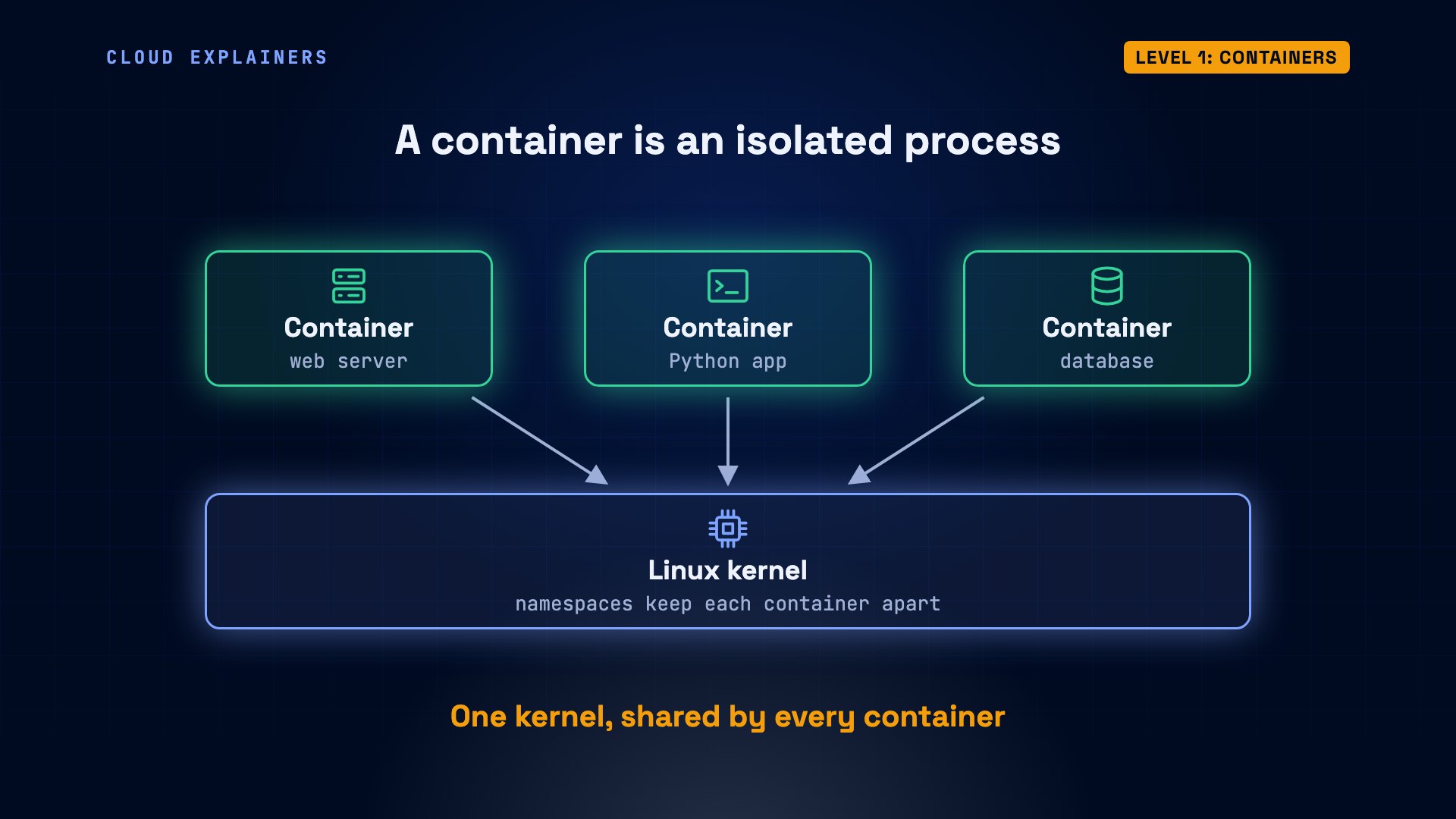
So what is a container? Docker's own answer: an isolated process. A process is just a running program. Isolated means it gets its own files, its own network, and its own view of the other processes. Linux makes this possible with a kernel feature called namespaces. The kernel is the core of the operating system, and every container on the machine shares it.
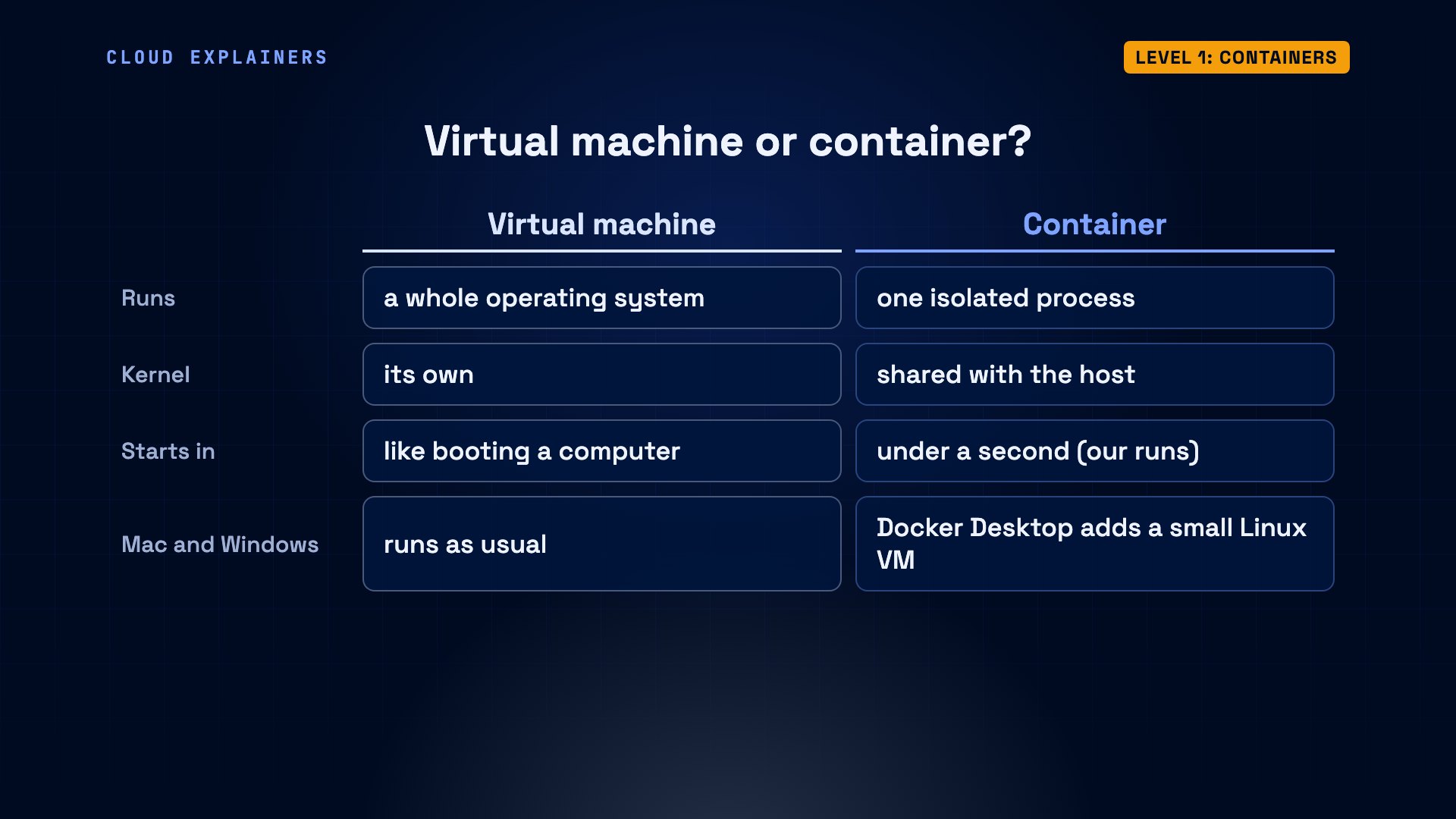
That's the difference from a virtual machine. A virtual machine runs a whole operating system of its own, kernel included. A container is just a process on the host's kernel, so it's much lighter, and it starts in under a second. On a Mac or on Windows, Docker Desktop runs a small Linux virtual machine, to give containers a Linux kernel.
Let's prove it. Our lab laptop runs Alpine Linux, a small version of Linux. This container runs Ubuntu: it has Ubuntu's files. Now ask both for their kernel version, with uname dash r, and the answer is the same. One kernel, shared.
head -2 /etc/os-releaseNAME="Alpine Linux"
ID=alpine
docker run --rm ubuntu:24.04 head -2 /etc/os-releaseUnable to find image 'ubuntu:24.04' locally
24.04: Pulling from library/ubuntu
f2b4ef06ff01: Pull complete
5486761bbbdb: Download complete
Digest: sha256:68ee22004a9109b44973313b02ff7b1de250f1de0f5ecb628d73f579aaff33ac
Status: Downloaded newer image for ubuntu:24.04
PRETTY_NAME="Ubuntu 24.04.5 LTS"
NAME="Ubuntu"
uname -r6.8.0-147-generic
docker run --rm ubuntu:24.04 uname -r6.8.0-147-generic
And here's the isolation. ps lists the running processes. Inside a container, it sees exactly one: itself, as process number one. The rest of the machine is invisible. The dash dash rm option deletes the container when it finishes.
docker run --rm alpine:3.24 psUnable to find image 'alpine:3.24' locally
3.24: Pulling from library/alpine
7b229517ed22: Pull complete
3ec36f3670df: Download complete
3da1513d2124: Download complete
Digest: sha256:be2656061b536c1883c4034790e21d0a09c5aaaf51968b89368a3c0371ea2c9a
Status: Downloaded newer image for alpine:3.24
PID   USER     TIME  COMMAND
    1 root      0:00 ps
Level 2: Images
Level two: images. Every container starts from an image: a package of all the files, libraries and settings an app needs. Images are read-only. Once built, they never change. A container is a running copy of an image, with a thin layer on top that it can write to.
Images live in a registry. The default one is Docker Hub, which is public. docker pull downloads an image. This one is nginx, a popular web server. After the colon comes the tag: which version you want. Each pull complete line is a layer: a set of file changes, stacked to make the image. One layer already existed: it's Alpine's, from the Alpine container we ran earlier. Images share layers.
docker pull nginx:1.31-alpine1.31-alpine: Pulling from library/nginx
7b229517ed22: Already exists
b9b388a21ecf: Pull complete
7cc330898115: Pull complete
26185d08a3ec: Pull complete
2ec5fb117ffa: Pull complete
9b0f7dfe35b2: Pull complete
12b85cff06fd: Pull complete
657023555a2a: Pull complete
a4d5b1f57abc: Download complete
acc2d54c3743: Download complete
Digest: sha256:a3554c0d0b48177b1413c26e01f695334428020d9df01243fbae3e11cfd17417
Status: Downloaded newer image for nginx:1.31-alpine
docker.io/library/nginx:1.31-alpine
One image can start many containers. Here we start two from the same nginx image, named web1 and web2. Dash d runs them in the background. docker ps lists the running containers; the format option just picks three columns, to fit the screen. Two containers, one image. And they're independent: deleting one won't affect the other.
docker run -d --name web1 nginx:1.31-alpine9adff1bb8159166a75f0f8c41cc6e12c7ff8118b52666151129f0e71ce868d5e
docker run -d --name web2 nginx:1.31-alpinefccff6d226706cb9f0c9c0488aafbac142f9b370f3066a0523765762e636800f
docker ps --format "table {{.Names}}\t{{.Image}}\t{{.Ports}}"NAMES     IMAGE               PORTS
web2      nginx:1.31-alpine   80/tcp
web1      nginx:1.31-alpine   80/tcp
Level 3: Ports
Level three: ports. Our two web servers are running. But can we reach them? A port is a numbered door that a program listens on. Each container gets its own address, on a private network inside Docker, and its ports are not the laptop's ports, so by default, nothing outside the laptop can get in.
curl fetches a web page. localhost means this machine. Port 8080 on our laptop: nothing there. So we start a third container, named web, and publish a port with dash p. This time, the page comes back.
curl localhost:8080curl: (7) Failed to connect to localhost:8080 after 0 ms: Could not connect to server
Dash p 8080 colon 80 means: port 8080 on the laptop leads to port 80 inside the container, where nginx listens. The request arrives at port 8080. Docker forwards it into the container, to port 80. web1 and web2 have no published port, so nothing outside the laptop can reach them.
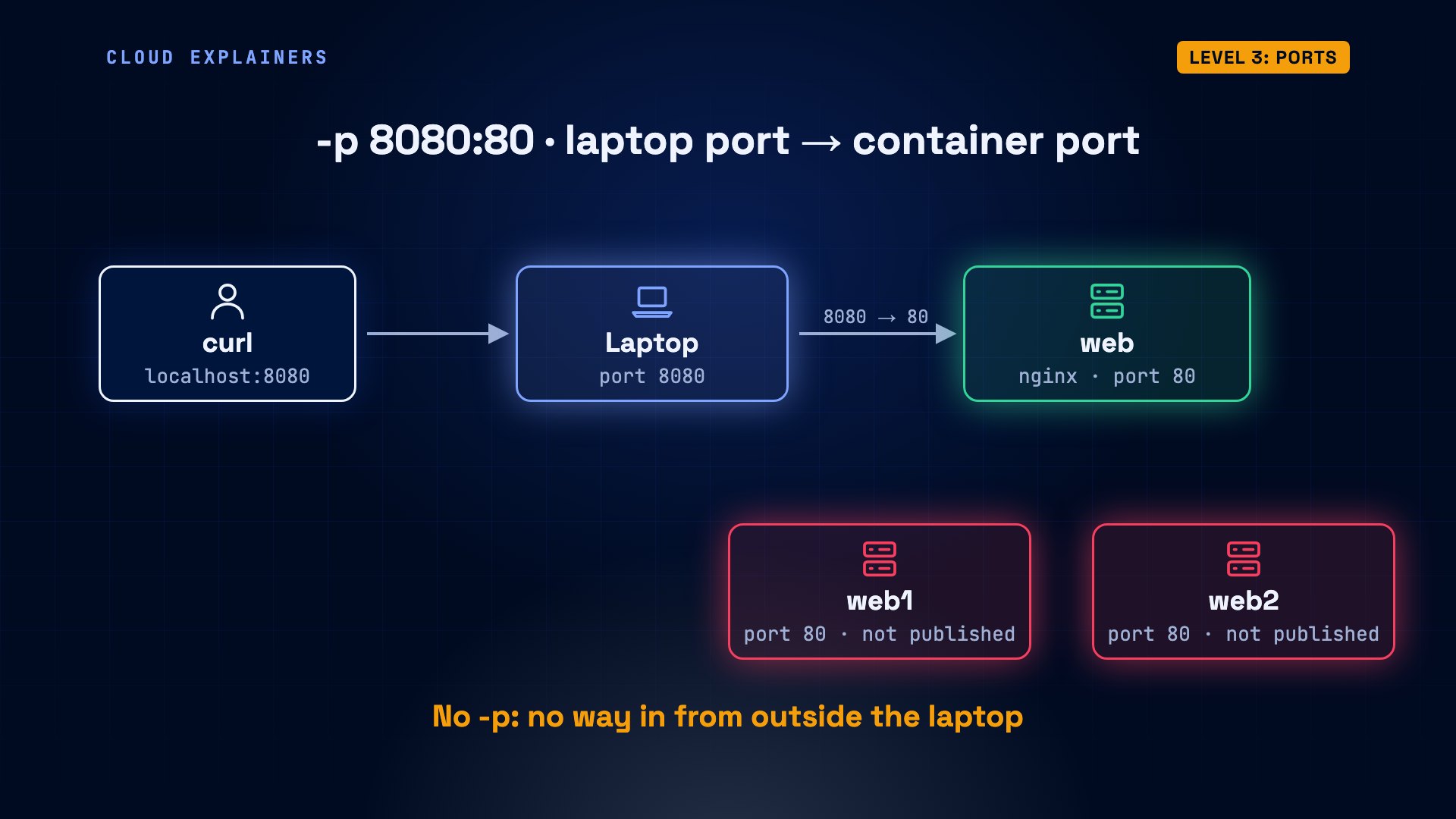
docker ps shows the mapping. One warning, from Docker's documentation: 0.0.0.0 means every network address, so other machines on your network can reach the port too. To keep it on your own machine, publish it on 127.0.0.1 instead.
docker ps --format "table {{.Names}}\t{{.Image}}\t{{.Ports}}"NAMES     IMAGE               PORTS
web       nginx:1.31-alpine   0.0.0.0:8080->80/tcp, [::]:8080->80/tcp
web2      nginx:1.31-alpine   80/tcp
web1      nginx:1.31-alpine   80/tcp
Level 4: Build your own
Level four: build your own image. So far we've used other people's images. To package your own app, you write a Dockerfile: a recipe, with one instruction per line.
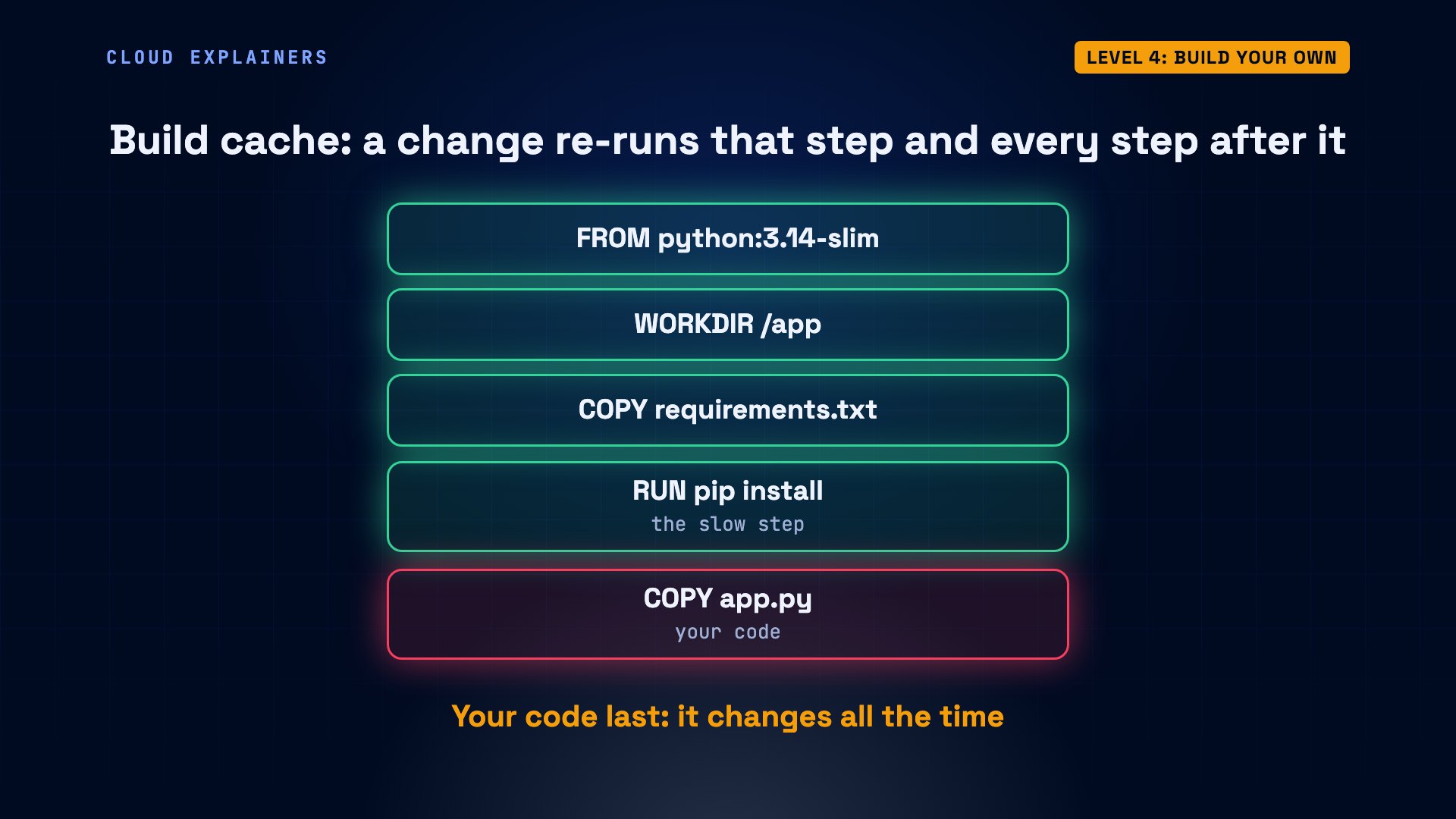
Here's ours, for a tiny Python web app. FROM: start from the official Python image. WORKDIR: work in a folder called app. COPY the list of libraries the app needs, and RUN pip, Python's installer, to install them. Then COPY our code. CMD is the command the container runs when it starts.
cat DockerfileFROM python:3.14-slim
WORKDIR /app
COPY requirements.txt .
RUN pip install --no-cache-dir -r requirements.txt
COPY app.py .
CMD ["flask", "run", "--host=0.0.0.0", "--port=8000"]
docker build turns the recipe into an image. Dash t names it hello-app, and the dot at the end means: build from this folder. Each instruction becomes a step, and each step that changes files becomes a layer. The whole build took 8.3 seconds.
docker build -t hello-app .[+] Building 8.3s (10/10) FINISHED                               docker:default
 => [internal] load build definition from Dockerfile                       0.1s
 => => transferring dockerfile: 217B                                       0.0s
 => [internal] load metadata for docker.io/library/python:3.14-slim        0.2s
 => [internal] load .dockerignore                                          0.0s
 => => transferring context: 2B                                            0.0s
 => [1/5] FROM docker.io/library/python:3.14-slim@sha256:35caba83af2fe6da  1.6s
 => => resolve docker.io/library/python:3.14-slim@sha256:35caba83af2fe6da  0.0s
 => => sha256:1484fb1dde9f1e72e81c3217b4081dbca2ff3cd75d9f7a4 250B / 250B  0.1s
 => => sha256:c8c008b474ac76c5b59e7ad8bf45f234e69d9d618d8 1.29MB / 1.29MB  0.0s
 => => sha256:2cb672340c81d54eae68bd73635134ad5ede9da36 12.39MB / 12.39MB  0.3s
 => => sha256:f2be67225471500c788ce88c597eb5ea8336e912a 29.84MB / 29.84MB  0.3s
 => => extracting sha256:f2be67225471500c788ce88c597eb5ea8336e912ad1ca481  0.5s
 => => extracting sha256:c8c008b474ac76c5b59e7ad8bf45f234e69d9d618d800de5  0.1s
 => => extracting sha256:2cb672340c81d54eae68bd73635134ad5ede9da3664d3d63  0.3s
 => => extracting sha256:1484fb1dde9f1e72e81c3217b4081dbca2ff3cd75d9f7a4d  0.0s
 => [internal] load build context                                          0.1s
 => => transferring context: 205B                                          0.0s
 => [2/5] WORKDIR /app                                                     1.2s
 => [3/5] COPY requirements.txt .                                          0.1s
 => [4/5] RUN pip install --no-cache-dir -r requirements.txt               2.5s
 => [5/5] COPY app.py .                                                    0.1s
 => exporting to image                                                     2.3s
 => => exporting layers                                                    0.8s
 => => exporting manifest sha256:8a0601521003c1c325039c1782777ddc1b251565  0.0s
 => => exporting config sha256:fc70afffc177e9c04d869b99bbe705b83d84d1a71c  0.0s
 => => exporting attestation manifest sha256:066ed049c0f3321ed746a3a8170c  0.1s
 => => exporting manifest list sha256:4cd4ee6728cdd23e6586440dd0c49d7bd1e  0.0s
 => => naming to docker.io/library/hello-app:latest                        0.0s
 => => unpacking to docker.io/library/hello-app:latest                     1.3s
Now we change one line of our code, the greeting, with sed, a tool that edits text, and build again. This time it took 2.1 seconds. Look at the word CACHED. Docker reused every step before our code, including installing the libraries. Only the last COPY ran again.
sed -i 's/from a container/from my own image/' app.py
docker build -t hello-app .[+] Building 2.1s (10/10) FINISHED                               docker:default
 => [internal] load build definition from Dockerfile                       0.0s
 => => transferring dockerfile: 217B                                       0.0s
 => [internal] load metadata for docker.io/library/python:3.14-slim        0.2s
 => [internal] load .dockerignore                                          0.0s
 => => transferring context: 2B                                            0.0s
 => [1/5] FROM docker.io/library/python:3.14-slim@sha256:35caba83af2fe6da  0.0s
 => => resolve docker.io/library/python:3.14-slim@sha256:35caba83af2fe6da  0.0s
 => [internal] load build context                                          0.0s
 => => transferring context: 183B                                          0.0s
 => CACHED [2/5] WORKDIR /app                                              0.0s
 => CACHED [3/5] COPY requirements.txt .                                   0.0s
 => CACHED [4/5] RUN pip install --no-cache-dir -r requirements.txt        0.0s
 => [5/5] COPY app.py .                                                    1.3s
 => exporting to image                                                     0.3s
 => => exporting layers                                                    0.1s
 => => exporting manifest sha256:bb9dbbb79b97eb1fadc061fa40e49af43862884b  0.0s
 => => exporting config sha256:9b664c8d14e63a6174fbd25202ca9f23d1e1a5772e  0.0s
 => => exporting attestation manifest sha256:b06621f39311e3f8d342bcc11dbf  0.0s
 => => exporting manifest list sha256:02af1b664307173b8806e5d2c066d9b4ea1  0.0s
 => => naming to docker.io/library/hello-app:latest                        0.0s
 => => unpacking to docker.io/library/hello-app:latest                     0.0s
That's the build cache, and it's why the order of the lines matters. When a step changes, that step, and every step after it, runs again. So copy the list of libraries and install them first, and copy your code, which changes all the time, last.
And it runs like any other image. Publish the app's port, 8000, and our new greeting comes back.
docker run -d -p 8000:8000 --name hello hello-appb71b061eb08f97ab637b014f9bf043aaa1d64d64f7ceb6a5a9cd22c04ee2004e
curl localhost:8000Hello from my own image!
Level 5: Volumes
Level five: volumes. Remember the thin layer a container can write to? When you remove the container, that layer is deleted with it.
Watch. A container named box writes a note to a file. We remove the container. A new container, from the same image: no such file. The note is gone.
docker run --name box alpine:3.24 sh -c 'echo first note > /note.txt'
docker rm boxbox
docker run --rm alpine:3.24 cat /note.txtcat: can't open '/note.txt': No such file or directory
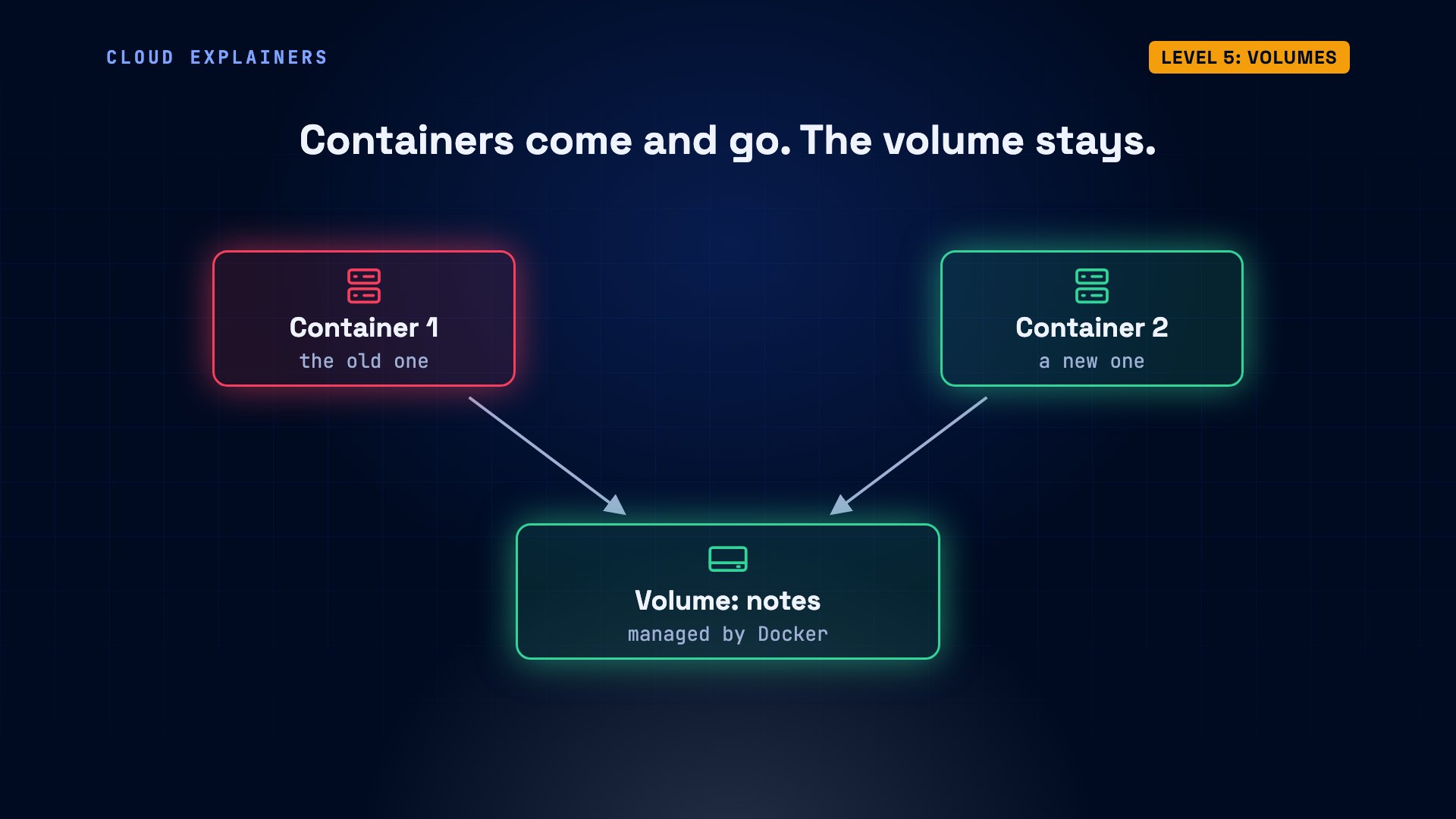
A volume is storage that Docker manages, outside any container. We create one called notes, and attach it with dash v: the volume's name before the colon, the folder inside the container after it. One container writes the note there, and is deleted. A brand new container reads it back. The note outlived both containers.
docker volume create notesnotes
docker run --rm -v notes:/data alpine:3.24 sh -c 'echo first note > /data/note.txt'
docker run --rm -v notes:/data alpine:3.24 cat /data/note.txtfirst note
This is how you run a database in Docker. The container can be stopped, replaced, or upgraded to a new image. The data stays in the volume, and the next container picks it up.
Level 6: Compose
Level six: Compose. Real apps are usually several containers: a web app, a database, a cache. Docker Compose describes them all in one file.
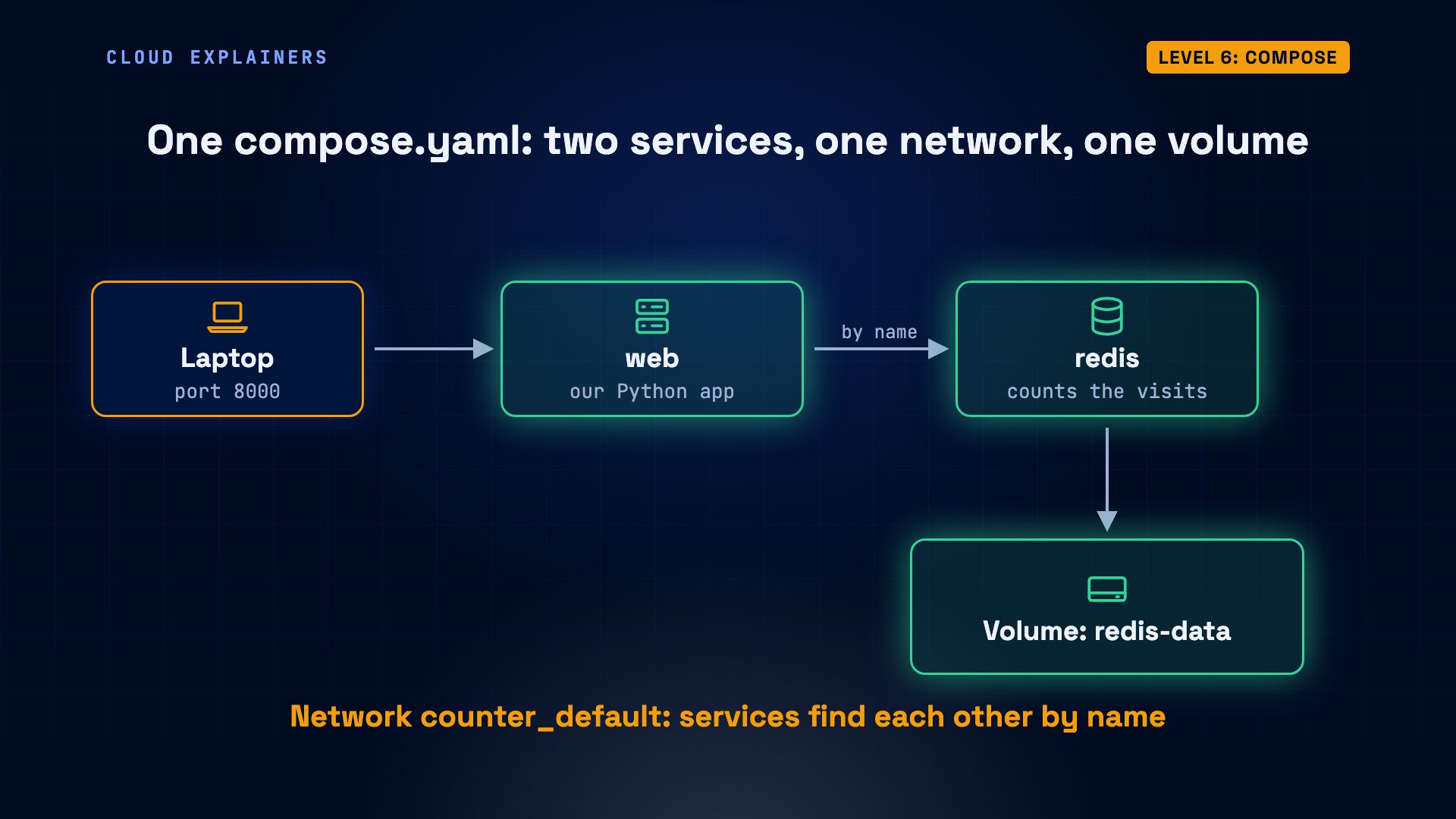
This is compose.yaml, written in YAML, a simple text format for settings. It has two services. web is built from the Dockerfile in this folder, with port 8000 published. redis uses the official image of Redis, a small, fast database. Its data goes in a volume, named redis-data.
cat compose.yamlservices:
  web:
    build: .
    ports:
      - "8000:8000"
  redis:
    image: redis:8.10-alpine
    volumes:
      - redis-data:/data

volumes:
  redis-data:
A visit comes in on port 8000, to web. Our app connects to a machine called redis: just the service name. Compose put both containers on one network, where each service can be found by its name. redis adds one to the count, and keeps its data in the volume.
One command starts everything: docker compose up, dash d. Compose pulled Redis, built our image, created the network and the volume, and started both containers. Visit once: one. Again: two.
docker compose up -d[+] up 8/10
 ⠦ Image redis:8.10-alpine [⣿⣿⣿⣿⣿⣿⣿⣿⣿]  39.4MB / 39.4MB  Pulling            1.7s
[+] Building 5.9s (12/12) FINISHED
 => [internal] load local bake definitions                                 0.0s
 => => reading from stdin 474B                                             0.0s
 => [internal] load build definition from Dockerfile                       0.0s
 => => transferring dockerfile: 217B                                       0.0s
 => [internal] load metadata for docker.io/library/python:3.14-slim        0.2s
 => [internal] load .dockerignore                                          0.0s
 => => transferring context: 2B                                            0.0s
 => [1/5] FROM docker.io/library/python:3.14-slim@sha256:35caba83af2fe6da  0.0s
 => => resolve docker.io/library/python:3.14-slim@sha256:35caba83af2fe6da  0.0s
 => [internal] load build context                                          0.1s
 => => transferring context: 316B                                          0.0s
 => CACHED [2/5] WORKDIR /app                                              0.0s
 => [3/5] COPY requirements.txt .                                          0.9s
 => [4/5] RUN pip install --no-cache-dir -r requirements.txt               3.0s
 => [5/5] COPY app.py .                                                    0.1s
 => exporting to image                                                     1.3s
 => => exporting layers                                                    0.8s
 => => exporting manifest sha256:c384881a4bf11f6e561dc3b0a1e4ba993fc10674  0.0s
 => => exporting config sha256:ef20afa240eb89d86cb99058f482dfdc2c1526432d  0.0s
 => => exporting attestation manifest sha256:90524e6774ac23f0ddae6a643217  0.0s
 => => exporting manifest list sha256:b6ed656ab1bf846beb311b21768199f7245  0.0s
 => => naming to docker.io/library/counter-web:latest                      0.0s
 => => unpacking to docker.io/library/counter-web:latest                   0.3s
 => resolving provenance for metadata file                                 0.0s
[+] up 15/15
 ✔ Image redis:8.10-alpine   Pulled                                         1.8s
 ✔ Image counter-web         Built                                          5.9s
 ✔ Network counter_default   Created                                        0.0s
 ✔ Volume counter_redis-data Created                                        0.0s
 ✔ Container counter-web-1   Started                                        0.5s
 ✔ Container counter-redis-1 Started                                        0.7s
curl localhost:8000Visits so far: 1
curl localhost:8000Visits so far: 2
docker compose down removes the containers and the network, but not the volume. Up again: brand new containers. Visit: three. The count survived, because Redis keeps it in the volume.
docker compose down[+] down 3/3
 ✔ Container counter-redis-1 Removed                                        0.2s
 ✔ Container counter-web-1   Removed                                       10.2s
 ✔ Network counter_default   Removed                                        0.1s
docker compose up -d[+] up 3/3
 ✔ Network counter_default   Created                                        0.0s
 ✔ Container counter-web-1   Started                                        0.4s
 ✔ Container counter-redis-1 Started                                        0.3s
curl localhost:8000Visits so far: 3
Level 7: Small, safe images
Level seven: small, safe images. Here's a tiny program in Go that prints one line. Go turns code into a single program file, called a binary. The simple Dockerfile builds it on the official Go image, and ships that.
cat Dockerfile.bigFROM golang:1.27
WORKDIR /src
COPY main.go .
RUN go build -o /hello main.go
CMD ["/hello"]
A multi-stage build does better. Two FROM lines: two stages. Stage one, named build, compiles the binary with Go, with a setting that makes it self-contained. Stage two starts fresh from Alpine, a tiny Linux, and COPY dash dash from build takes only the finished binary. The Go tools are left behind.
cat DockerfileFROM golang:1.27 AS build
WORKDIR /src
COPY main.go .
RUN CGO_ENABLED=0 go build -o /hello main.go

FROM alpine:3.24
RUN adduser -D -u 10001 app
USER app
COPY --from=build /hello /hello
CMD ["/hello"]
We build both. The simple image is 1.35 gigabytes, for one line of text. The multi-stage image is 16.8 megabytes: about 80 times smaller. Smaller images download faster, and carry fewer programs that could have security holes.
docker image ls hello-goi Info → U In Use IMAGE ID DISK USAGE CONTENT SIZE EXTRA hello-go:big bd5b04cec1f0 1.35GB 326MB hello-go:small 89ccdf8fdefd 16.8MB 5.29MB
docker run --rm hello-go:bigHello from Go!
docker run --rm hello-go:smallHello from Go!
The second fix is in the same file: the USER line. By default, a container runs as root, the administrator. The whoami command prints the user's name. The simple image says root. Ours says app: an ordinary user, created by the RUN adduser line, and switched to by the USER line. Docker's advice: if a service can run without privileges, switch to a non-root user. Then anyone who breaks into the app gets far less power.
docker run --rm hello-go:big whoamiroot
docker run --rm hello-go:small whoamiapp
Recap
So, the seven levels. One: containers, isolated processes that share the host's kernel. Two: images, read-only packages made of layers. Three: publish ports to reach them. Four: build your own images, and install libraries before copying code. Five: keep data in volumes. Six: run whole apps with Compose. Seven: ship small images that don't run as root.
Every command in this video was a real run, listed in the description. Thanks for watching.
Sources
- Docker docs, What is a container?
- Docker docs, What is an image?
- Docker docs, What is a registry?
- Docker docs, Docker overview
- Docker docs, Port publishing
- Docker docs, Build cache
- Docker docs, Optimize cache usage
- Docker docs, Volumes
- Docker docs, Compose application model
- Docker docs, Networking in Compose
- Docker docs, Multi-stage builds
- Docker docs, Building best practices
Demos: real runs on one Linux machine (Docker-in-Docker), images pulled from Docker Hub through a local cache. Docker is a trademark of Docker, Inc.; this video is not made or endorsed by Docker. Watch the full video on YouTube.
More videos

AI Agents Will Finally Make Sense After This

Stop Using git push --force (Use This Instead)
Agent Skills vs MCP: When Each One Wins
Networking Will Finally Make Sense After This

Every Linux Command You Actually Need
The 7 Levels of Cybersecurity
Every System Design Concept You Need, in One Diagram