Every Linux File Permission You Need to Know
Every Linux file permission a beginner needs, each one tested on a real Ubuntu 24.04 machine: reading ls -l, r w x on files and on folders, chmod with letters and numbers, chown and chgrp, umask, and the three special bits: setuid, setgid and the sticky bit.
Permission denied
Ana wrote a backup script, and Linux won't run it: permission denied. It's her own file, in her own folder. The reason is in ten characters at the start of every line that ls -l prints. They decide who can read a file, change it, or run it.
./backup.sh-bash: ./backup.sh: Permission denied
ls -ltotal 16
-rw-rw-r-- 1 ana ana  143 Oct 29 09:00 backup.sh
-r--r--r-- 1 ana ana   11 Oct 29 09:00 old.txt
drwxrwxr-x 2 ana ana 4096 Oct 29 09:00 photos
-rw-rw-r-- 1 ana ana   21 Oct 29 09:00 prices.txt
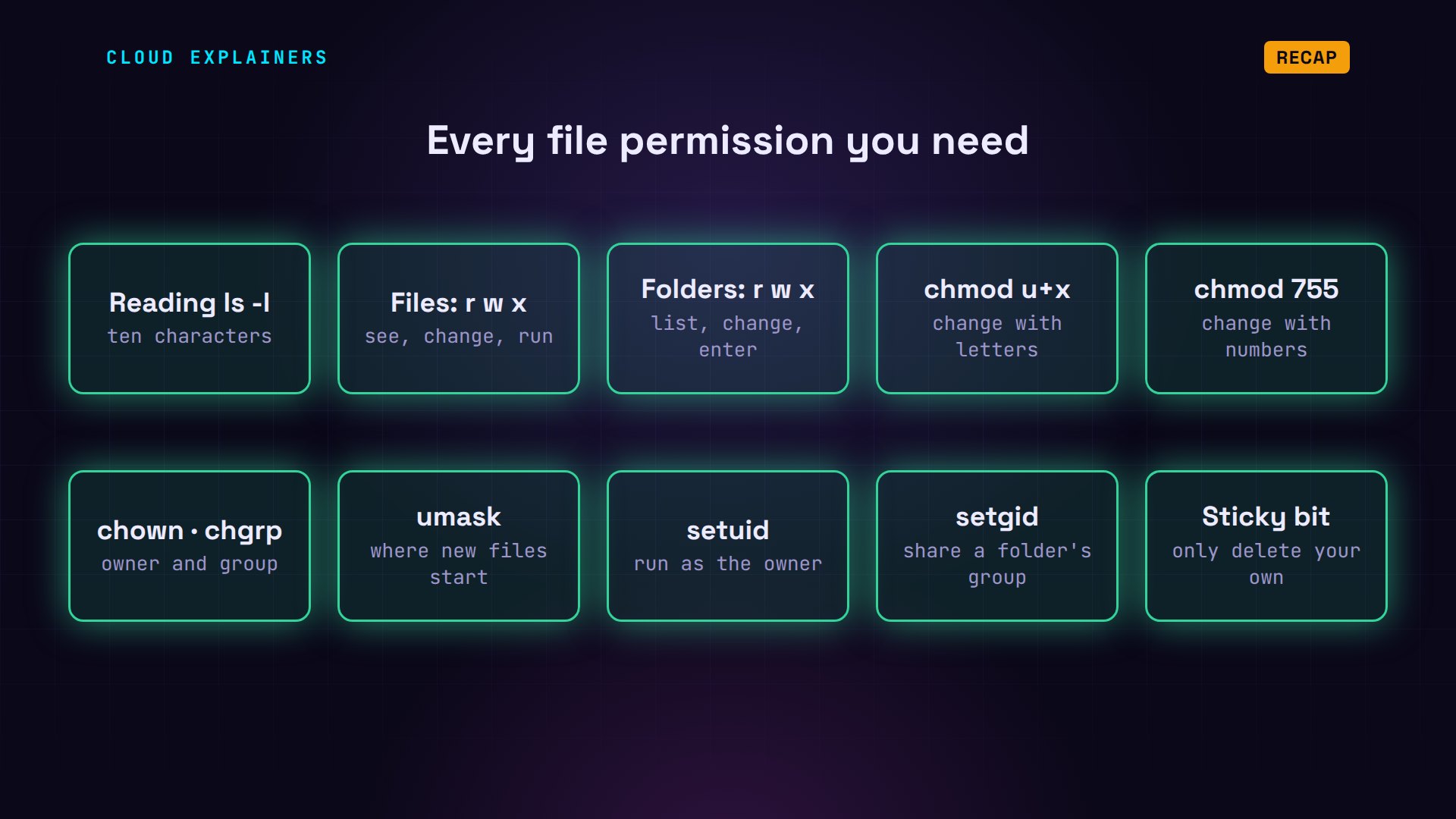
In this video: every file permission you need, ten of them, each tested on a real Ubuntu machine. How to read them, what they mean on files and on folders, and how to change them. Where new files get theirs. And the three special ones: setuid, setgid and the sticky bit. By the end, Ana's script runs, and she shares a folder with her colleague Ben, without either of them deleting the other's work.
Reading ls -l
Number one: reading them. The first character says what it is: a dash for a file, or d for a directory, which is another word for folder. Then come three sets of three letters. The first set is for the file's owner, called the user. The second, for the file's group. The third, for everyone else, called others. r means read, w means write, x means execute, and a dash means no.
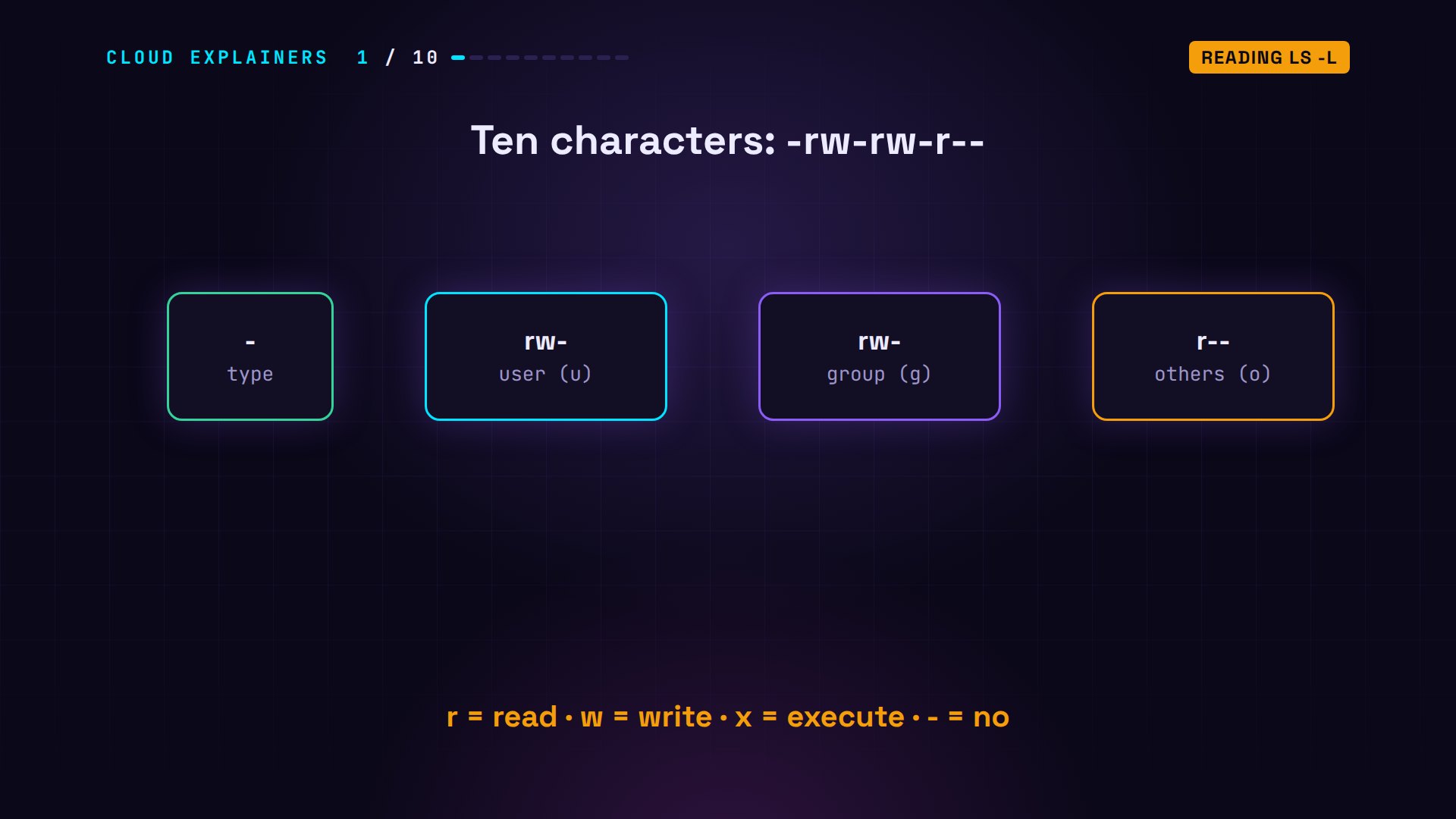
Here's the shop folder Ana keeps. backup.sh and prices.txt are files: they start with a dash. photos is a folder: d. After the letters come the owner, ana, and the group, also called ana: on Ubuntu, every user gets a group of their own. And old.txt has only r's: nobody may change it.
Files: read, write, run
Number two: what the letters mean on a file. r, read: you may open it and see what's inside. w, write: you may change it. x, execute: you may run it as a program. Ana's script is r w dash for her: she can read it and change it, but not run it. That's the permission denied. Owning a file isn't enough.
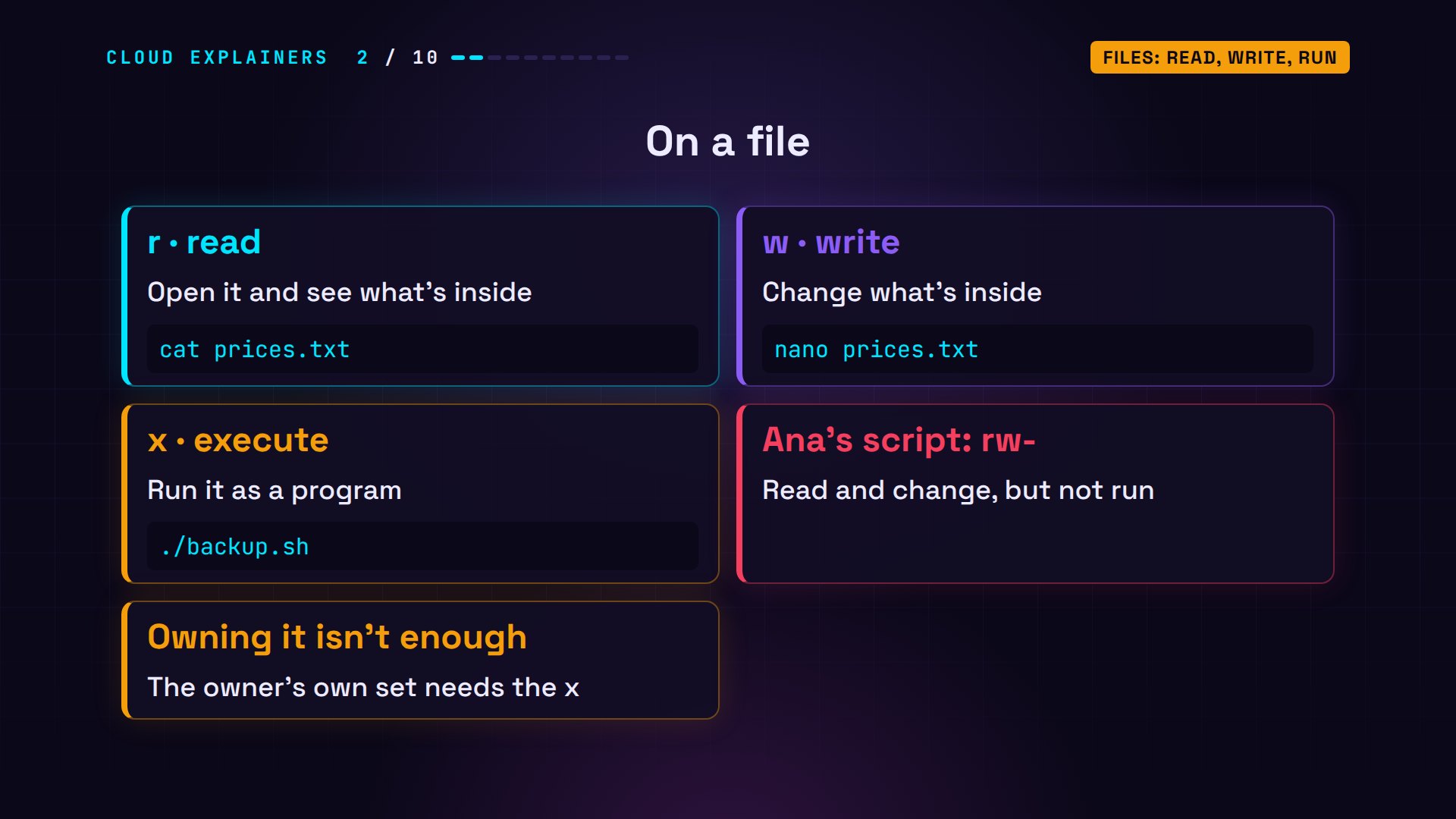
So Ana adds the x. chmod changes permissions, and u+x means: for the user who owns it, add execute. Now her set says rwx, and the script runs. It backed up two files.
chmod u+x backup.sh
ls -l backup.sh-rwxrw-r-- 1 ana ana 143 Oct 29 09:00 backup.sh
./backup.shBacked up 2 files
Folders: list, change, enter
Number three: on a folder, the same letters mean something else, and this one surprises people. r lets you list the names inside. w lets you create, rename and delete the files in it. And x lets you enter it: cd into it, and reach anything inside. Without x on a folder, you can't open any file in it, even one you may read.
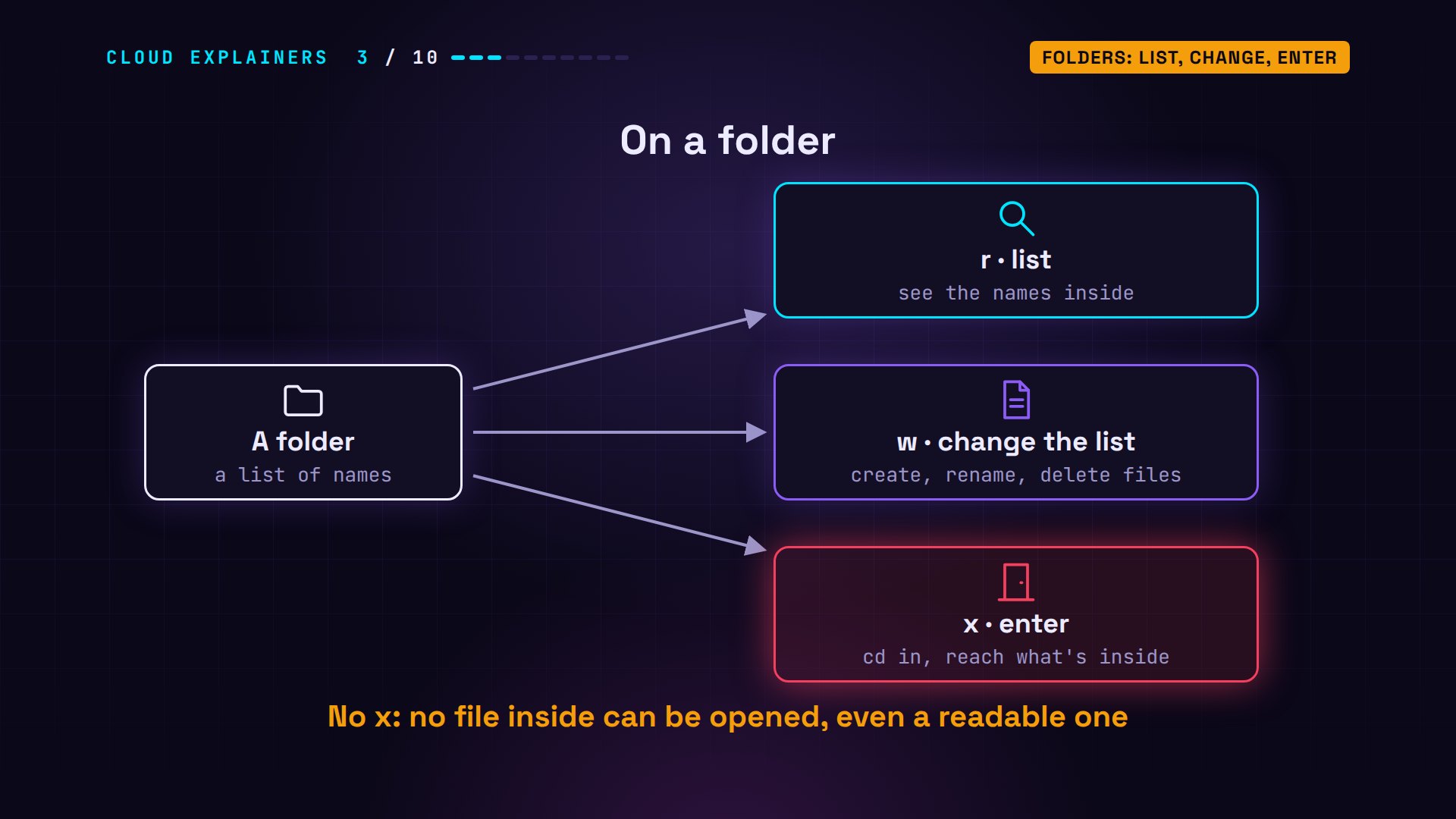
Ben, a colleague of Ana's, logs in to the same machine, and looks in her home folder. ls: permission denied. cd: denied too. Back in her terminal, Ana runs ls -ld: the d shows the folder itself, not what's inside. Others get three dashes: no r, so no list, and no x, so no way in. Ubuntu makes every new home folder like this.
ls /home/anals: cannot open directory '/home/ana': Permission denied
cd /home/ana-bash: cd: /home/ana: Permission denied
ls -ld /home/anadrwxr-x--- 4 ana ana 4096 Oct 29 10:30 /home/ana
And here's the surprise. old.txt is read only: r, r, r. Ana can't add a line to it: permission denied. But rm, with -f to skip its are-you-sure question, deletes it. Deleting a file changes the folder's list of names, not the file, so the folder's w decides.
ls -l old.txt-r--r--r-- 1 ana ana 11 Oct 29 09:00 old.txt
echo 'new prices' >> old.txt-bash: old.txt: Permission denied
rm -f old.txt
lsbackup.sh photos prices.txt
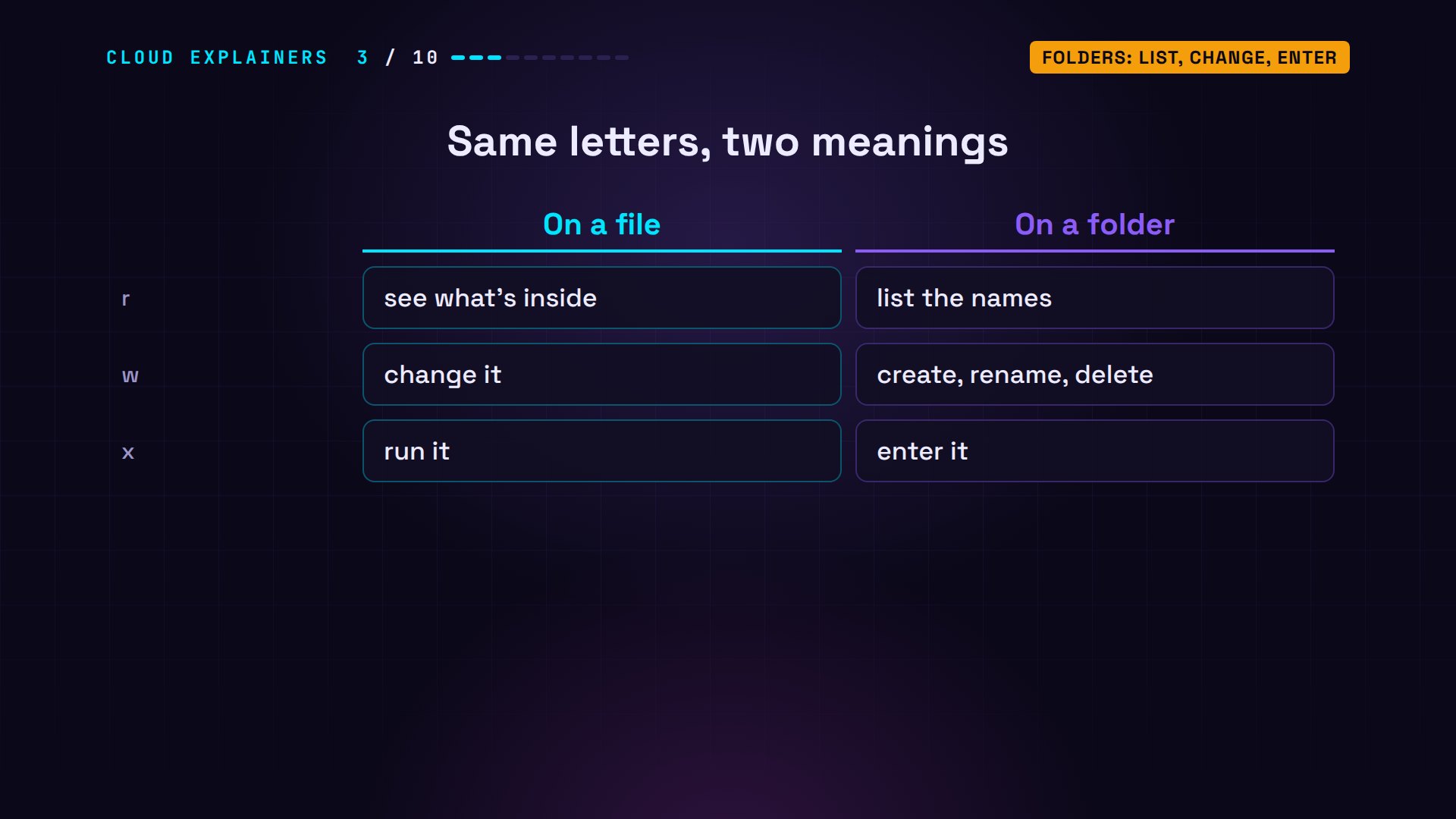
So, the same three letters, two meanings. On a file: see it, change it, run it. On a folder: list it, change what's in it, and enter it.
chmod with letters
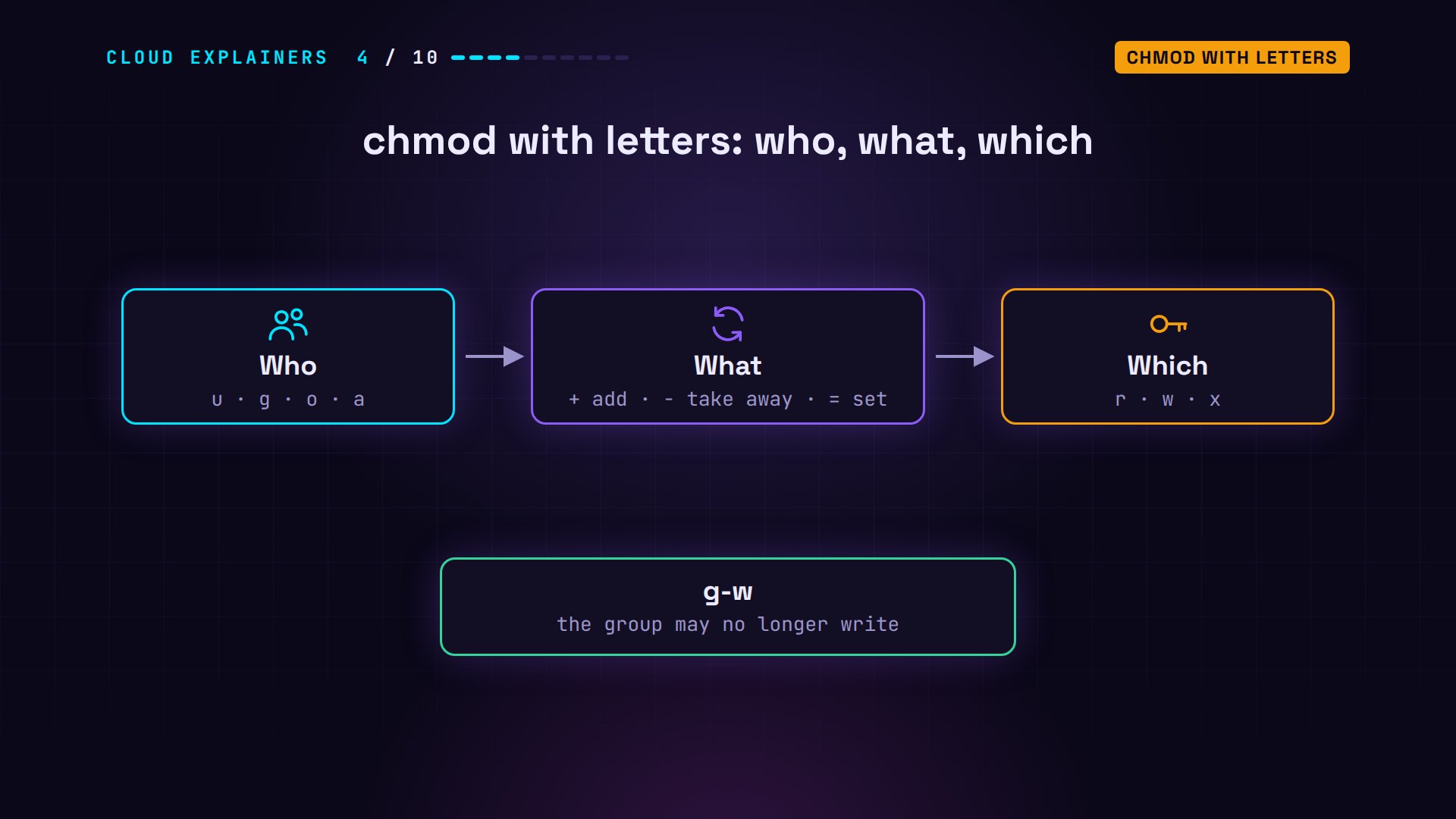
Number four: chmod with letters, in three parts. First, who: u for the owner, g for the group, o for others, or a for all three. Then what to do: plus adds, minus takes away, and equals sets exactly. Then which letters: r, w or x. So g-w means: the group may no longer write.
Ana tidies up her price list. g-w,o-r: the group can't change it any more, and others can't read it. ls shows the result: rw-, r--, and three dashes. Equals sets a whole set at once. u=rwx, and go=rx for the group and others: the script is now rwx, r-x, r-x.
chmod g-w,o-r prices.txt
ls -l prices.txt-rw-r----- 1 ana ana 21 Oct 29 09:00 prices.txt
chmod u=rwx,go=rx backup.sh
ls -l backup.sh-rwxr-xr-x 1 ana ana 143 Oct 29 09:00 backup.sh
chmod with numbers
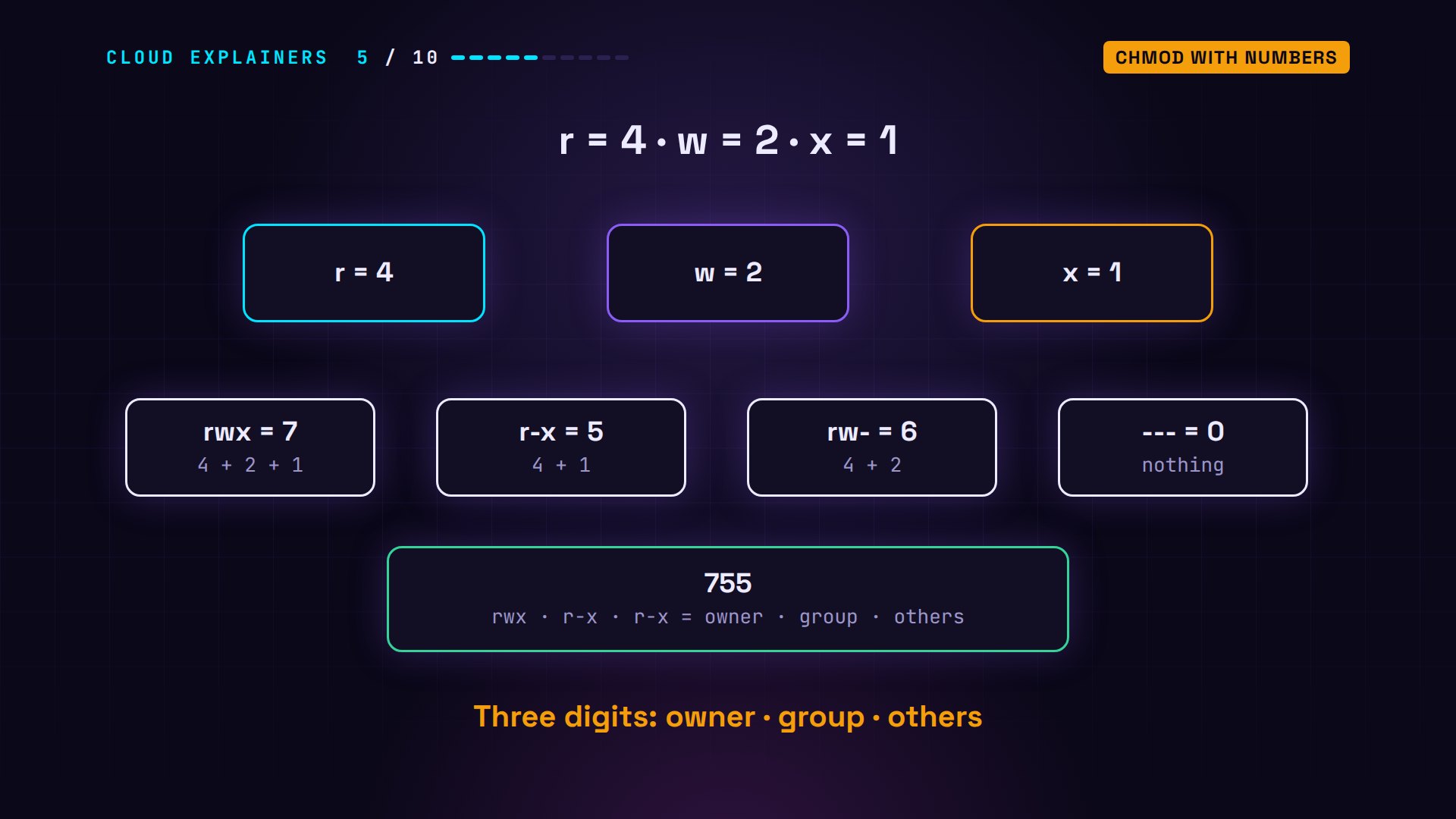
Number five: the same thing with numbers. Each letter has a value: r is 4, w is 2, x is 1. Add them up for each set. rwx is 7, r-x is 5, rw- is 6, and nothing is 0. So three digits describe a file: owner, group, others. 755 means rwx, r-x, r-x.
chmod 600 makes the price list readable and writable by Ana only. stat shows details about files, and here it prints both forms side by side: 755 for the script, 775 for the photos folder, and 600 for the prices.
chmod 600 prices.txt
stat -c '%a %A %n' *755 -rwxr-xr-x backup.sh
775 drwxrwxr-x photos
600 -rw------- prices.txt
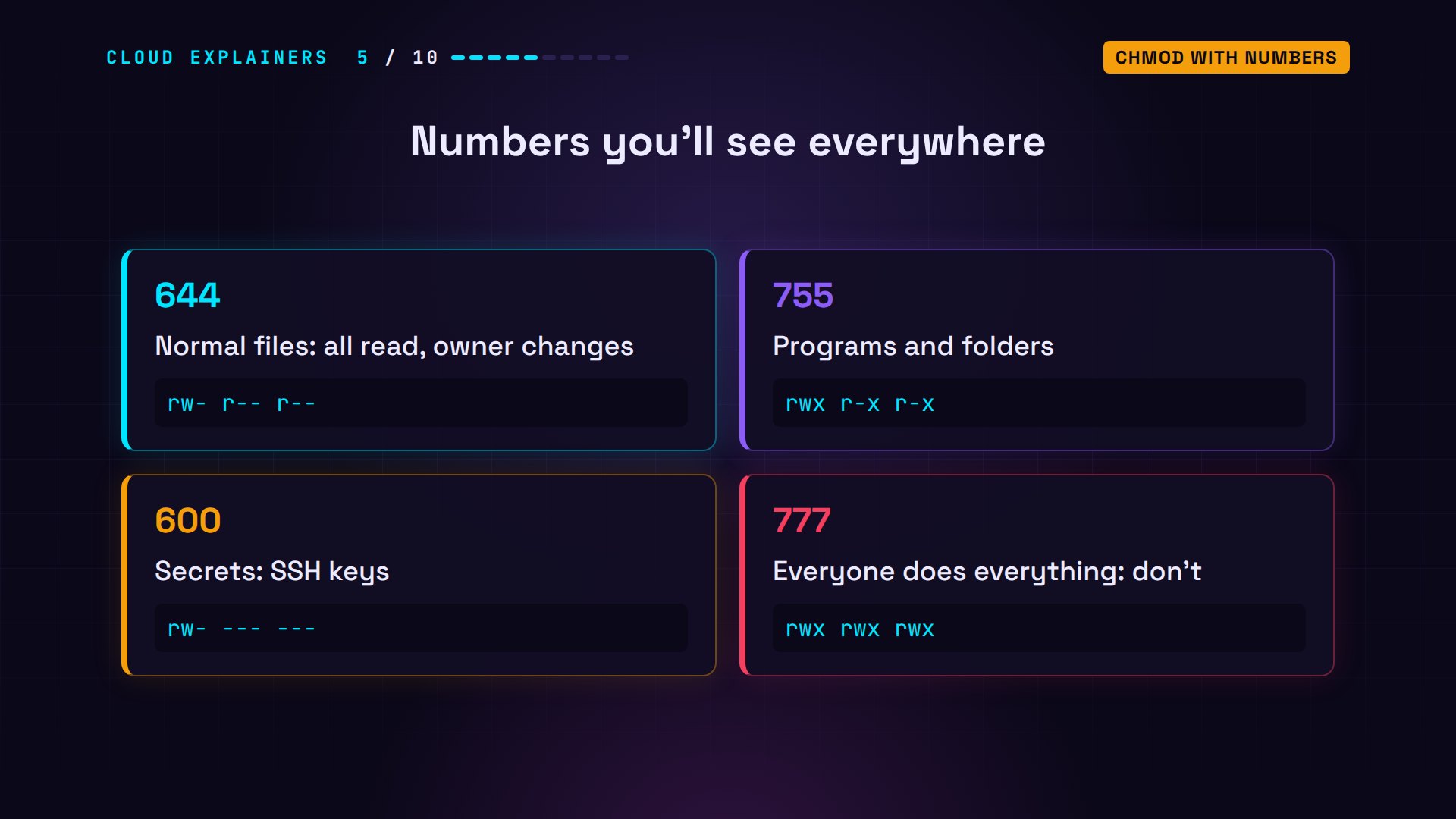
A few numbers come up again and again. 644, for normal files: everyone may read, only the owner may change. 755, the same plus x, for programs and folders. 600, for secrets like SSH keys: ssh ignores a private key that others can read. And if a guide says chmod 777, everyone may do everything. Stop, and find the real fix.
chown and chgrp
Number six: chown, short for change owner, changes who owns a file, and chgrp changes its group. One rule: only root may give a file to another user. But an owner may move their file to any group they belong to.
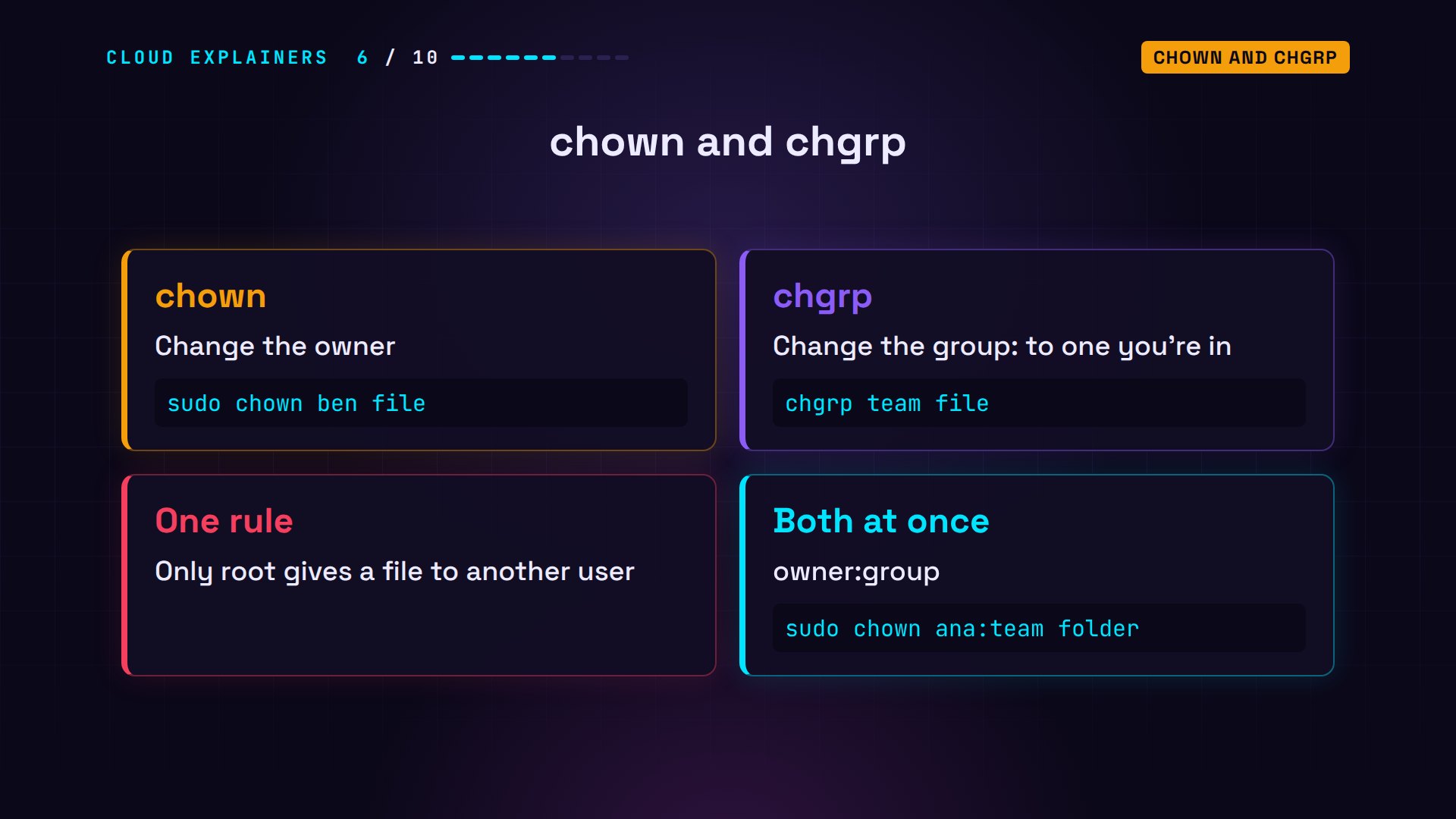
Ana tries to give her price list to Ben: operation not permitted. chgrp team works without sudo, because Ana is in the team group, and the group column now says team.
chown ben prices.txtchown: changing ownership of 'prices.txt': Operation not permitted
chgrp team prices.txt
ls -l prices.txt-rw------- 1 ana team 21 Oct 29 09:00 prices.txt
Next, a folder the team will share, in /srv, the usual place for files a machine serves. sudo mkdir creates it, so root owns it. sudo chown ana:team gives it to Ana and the team group in one go.
sudo mkdir /srv/shop[sudo] password for ana:
ls -ld /srv/shopdrwxr-xr-x 2 root root 4096 Oct 29 10:30 /srv/shop
sudo chown ana:team /srv/shop
ls -ld /srv/shopdrwxr-xr-x 2 ana team 4096 Oct 29 10:30 /srv/shop
umask: where files start
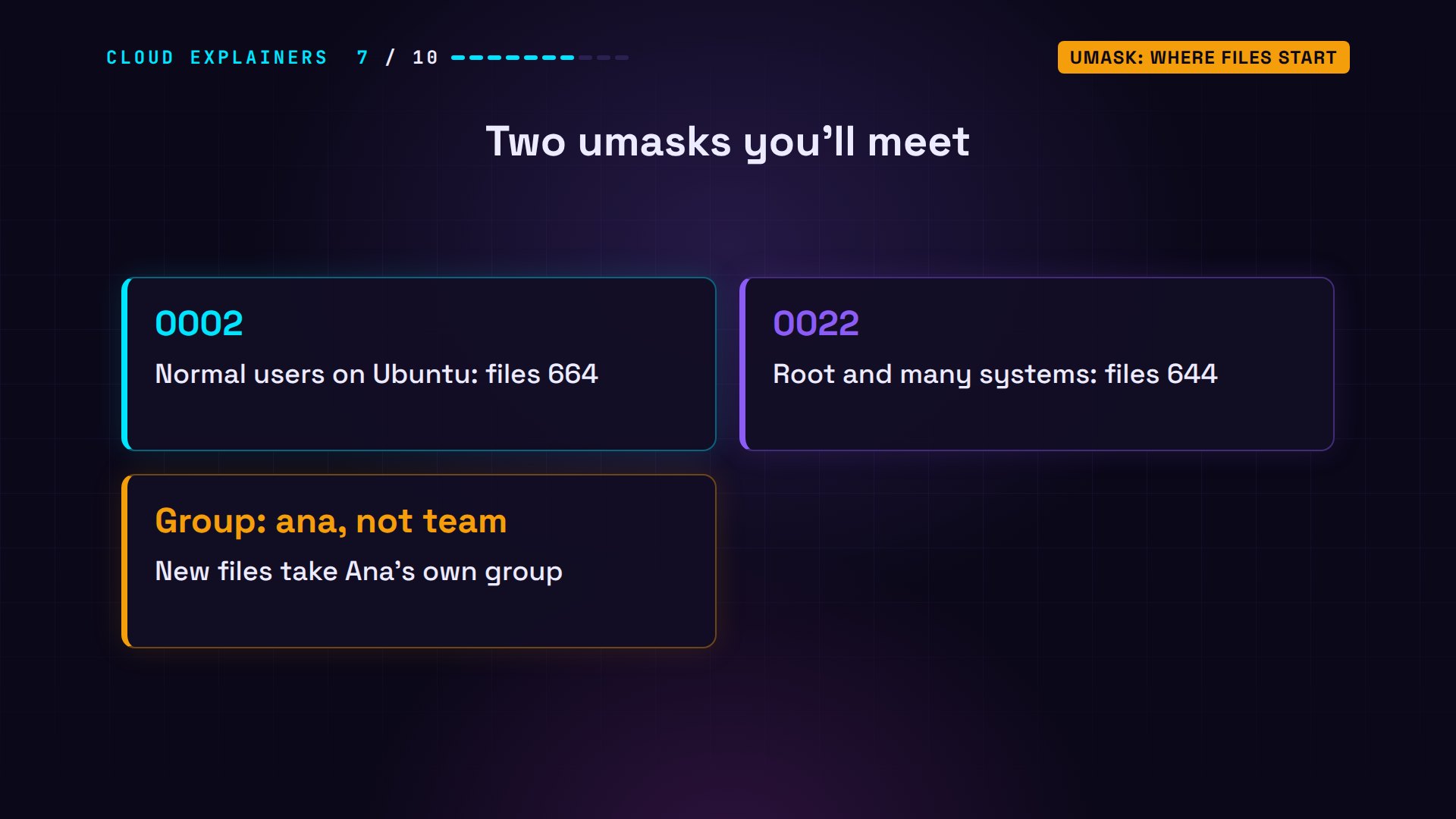
Number seven: where new files get their permissions. A program that creates a file usually asks for 666, read and write for everyone, and 777 for a folder. Then Linux takes away the bits in your umask, a mask of permissions to remove. For Ana, the umask is 0002: take away w for others. So her new files start at 664, and her folders at 775.
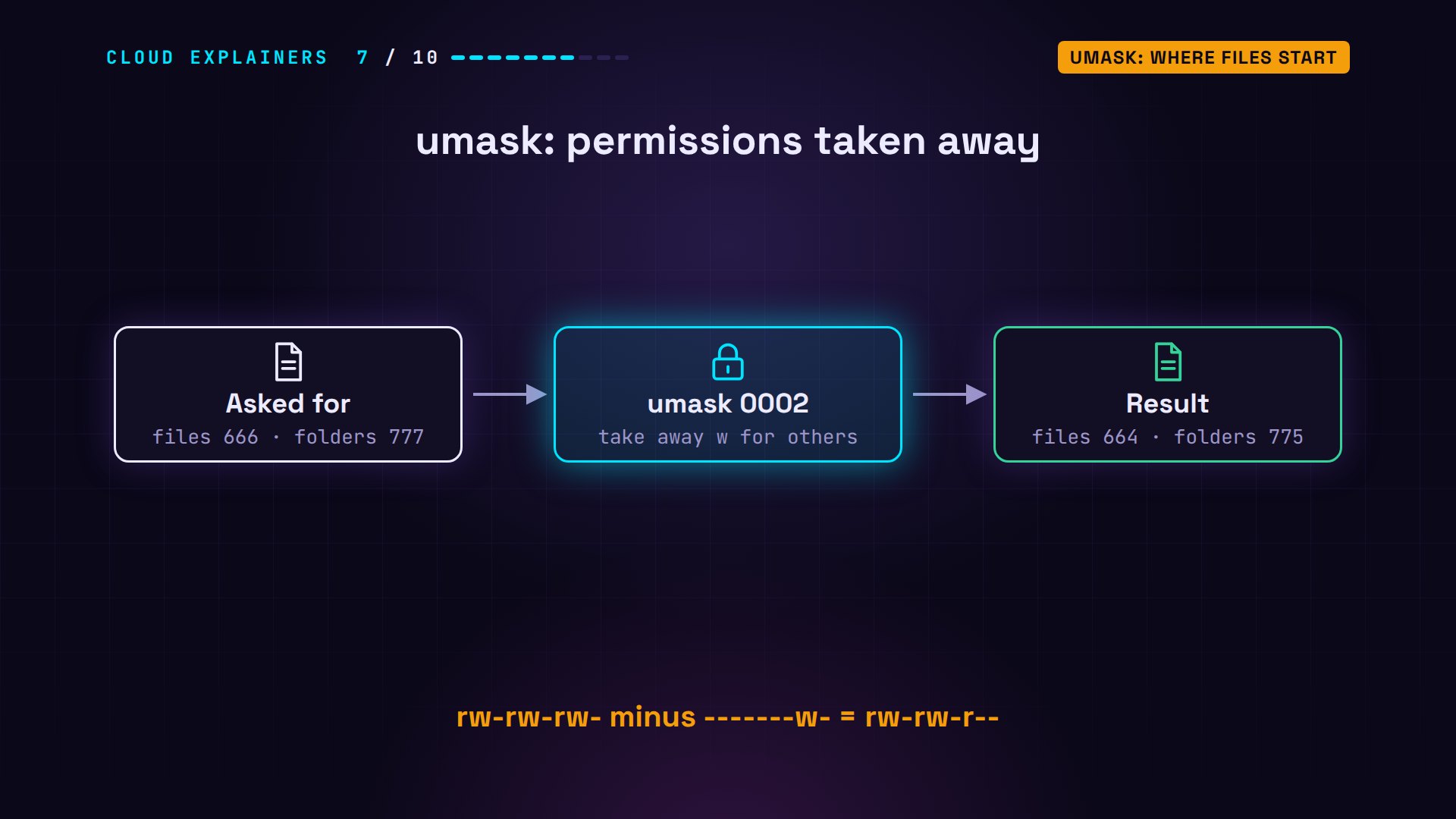
In the shared folder, umask prints 0002. touch makes two empty files, and mkdir makes a folder. The files are rw-rw-r--, 664, and the folder is rwxrwxr-x, 775. That's exactly what the umask predicted.
cd /srv/shop
umask0002
touch todo.txt price-list.txt
mkdir orders
ls -ltotal 4
drwxrwxr-x 2 ana ana 4096 Oct 29 10:30 orders
-rw-rw-r-- 1 ana ana    0 Oct 29 10:30 price-list.txt
-rw-rw-r-- 1 ana ana    0 Oct 29 10:30 todo.txt
Ubuntu gives normal users 0002 because each user has a private group, so the group bits can match the owner's. Root, and many other systems, use 0022, which also takes w from the group. And look at the group column: ana, not team. Remember that: it's the problem number nine solves.
setuid: run as the owner
Number eight. Passwords are stored, scrambled, in a file called /etc/shadow. Ben can't even read it, and only root may write to it. So how can Ben change his own password?
cat /etc/shadowcat: /etc/shadow: Permission denied
ls -l /etc/shadow-rw-r----- 1 root shadow 668 Oct 29 10:30 /etc/shadow
With a special permission called setuid, for set user ID. Normally a program runs as whoever starts it. A setuid program runs as its owner instead. The passwd program belongs to root, so when Ben runs it, it runs as root, and can update the file. It only lets him change his own password, and setuid programs are rare, because a bug in one runs as root.
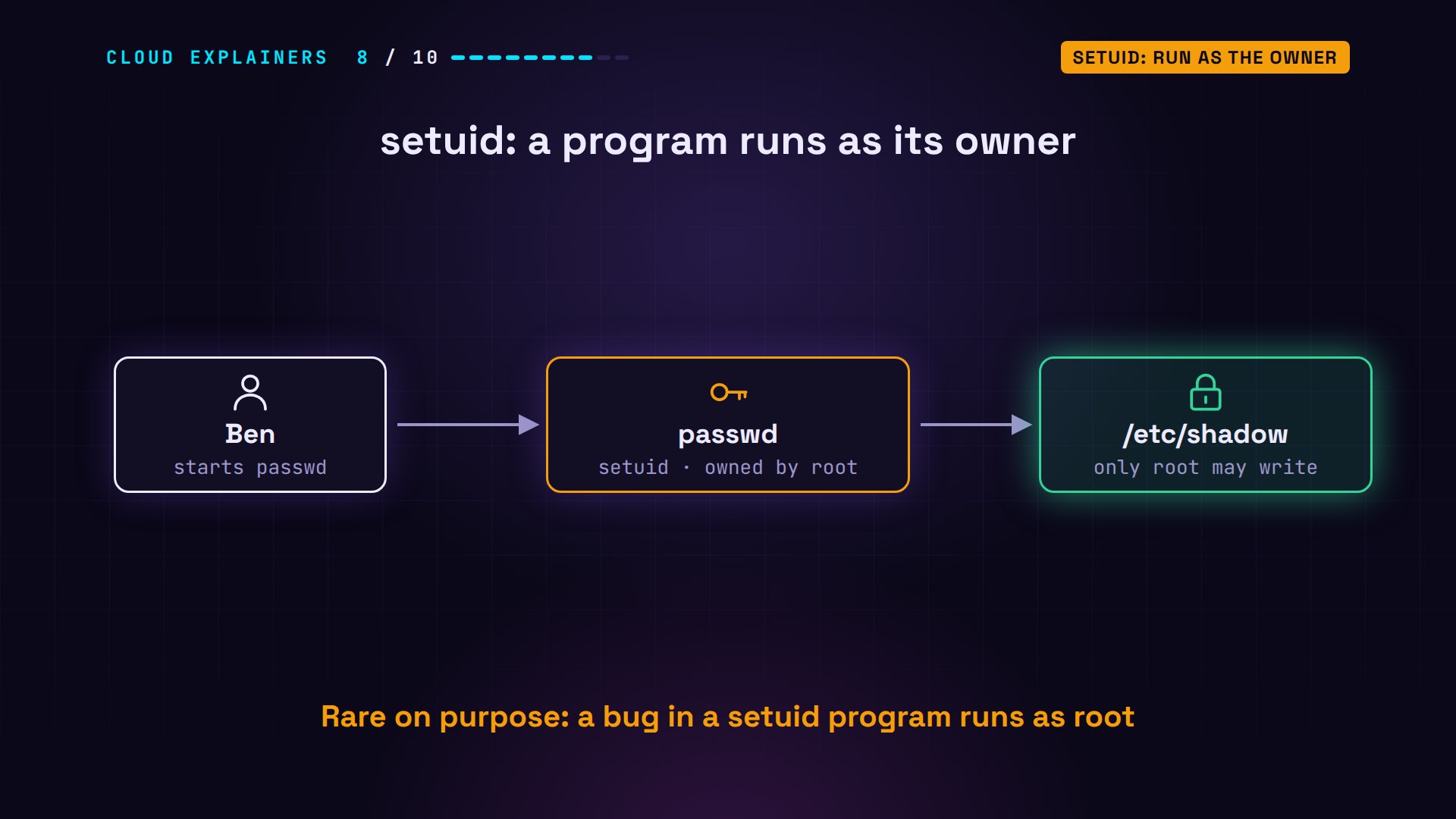
There it is: an s where the owner's x would be. A small s means the x is still there too. Ben runs passwd. It asks for his current password, then a new one, twice, and shows nothing while he types. Password updated.
ls -l /usr/bin/passwd-rwsr-xr-x 1 root root 64152 May 30 2024 /usr/bin/passwd
passwdChanging password for ben.
Current password:
New password:
Retype new password:
passwd: password updated successfully
setgid: share a folder
Number nine. Ben tries to save a file in the shared folder: permission denied. The team has r-x there, no w. So Ana runs chmod 2775. 775 adds w for the group, and the 2 in front sets a special bit called setgid. ls shows it as an s in the group's set.
touch /srv/shop/ben.txttouch: cannot touch '/srv/shop/ben.txt': Permission denied
chmod 2775 /srv/shop
ls -ld /srv/shopdrwxrwsr-x 3 ana team 4096 Oct 29 10:30 /srv/shop
On a folder, setgid means: every new file inside gets the folder's group, not the group of the person who made it. Without it, files Ana makes are in her own group, ana, and the ones Ben makes in his. With it, they're all in team, so the whole team gets the group's permissions. That extra digit in front holds all three special bits: 4 for setuid, 2 for setgid, and 1 for the sticky bit, coming next.
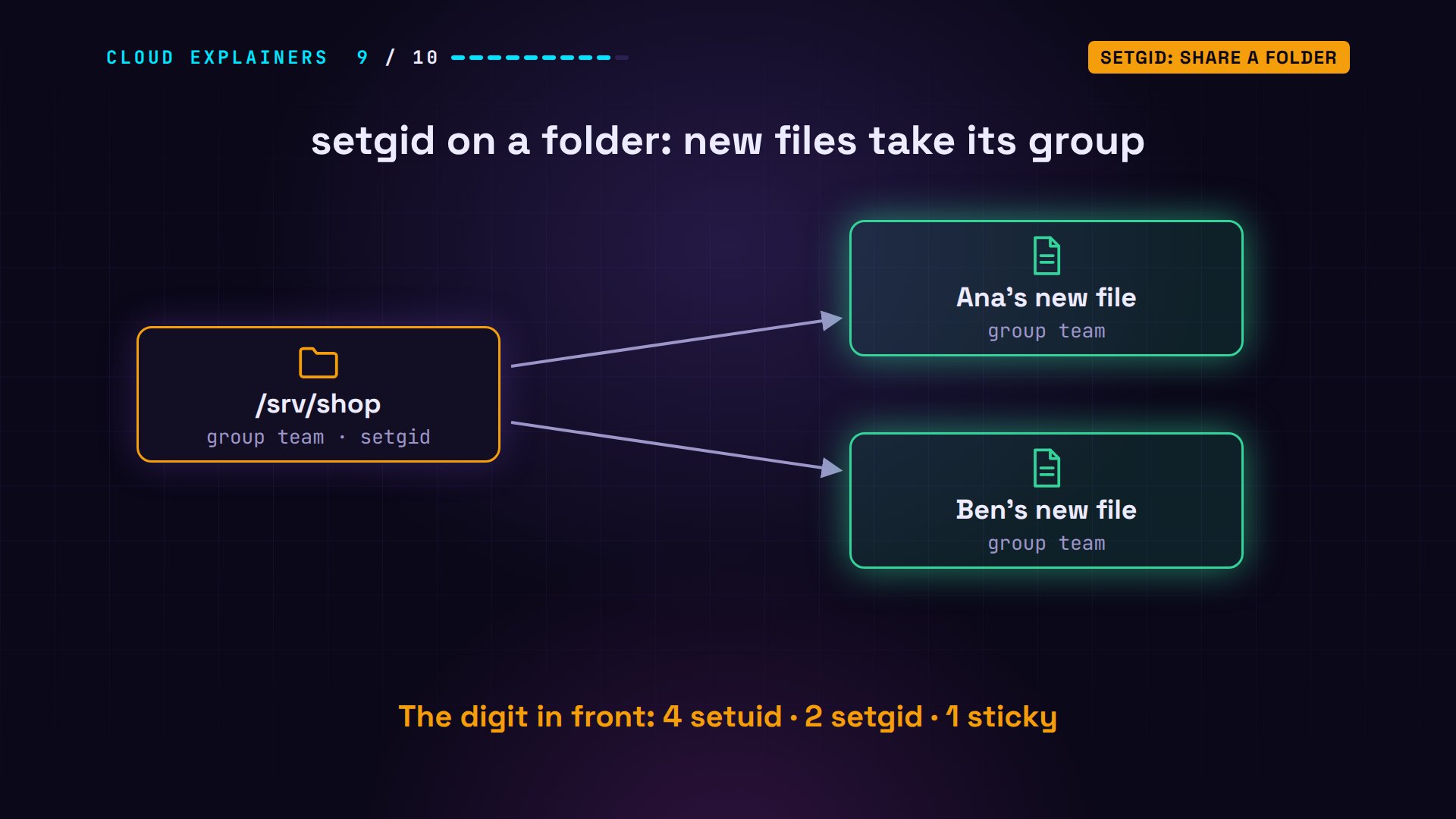
Now Ben's touch works, and ben.txt belongs to the group team. Ana's two files, made before, still say ana: setgid only affects new files. From now on, everything anyone saves here belongs to the team.
touch /srv/shop/ben.txt
ls -ltotal 4
-rw-rw-r-- 1 ben team    0 Oct 29 10:30 ben.txt
drwxrwxr-x 2 ana ana  4096 Oct 29 10:30 orders
-rw-rw-r-- 1 ana ana     0 Oct 29 10:30 price-list.txt
-rw-rw-r-- 1 ana ana     0 Oct 29 10:30 todo.txt
The sticky bit
Number ten. A shared folder has one more danger. Then Ben deletes todo.txt, a file of Ana's. Linux allows it: deleting is the folder's w, and the team has it. When Ana looks, todo.txt is gone.
rm -f /srv/shop/todo.txt
lsben.txt orders price-list.txt
The fix is the sticky bit. In a folder with the sticky bit, you may delete or rename only your own files, unless you own the folder, or you're root. It shows as a t, at the very end. /tmp, where every user keeps temporary files, has had it for decades.
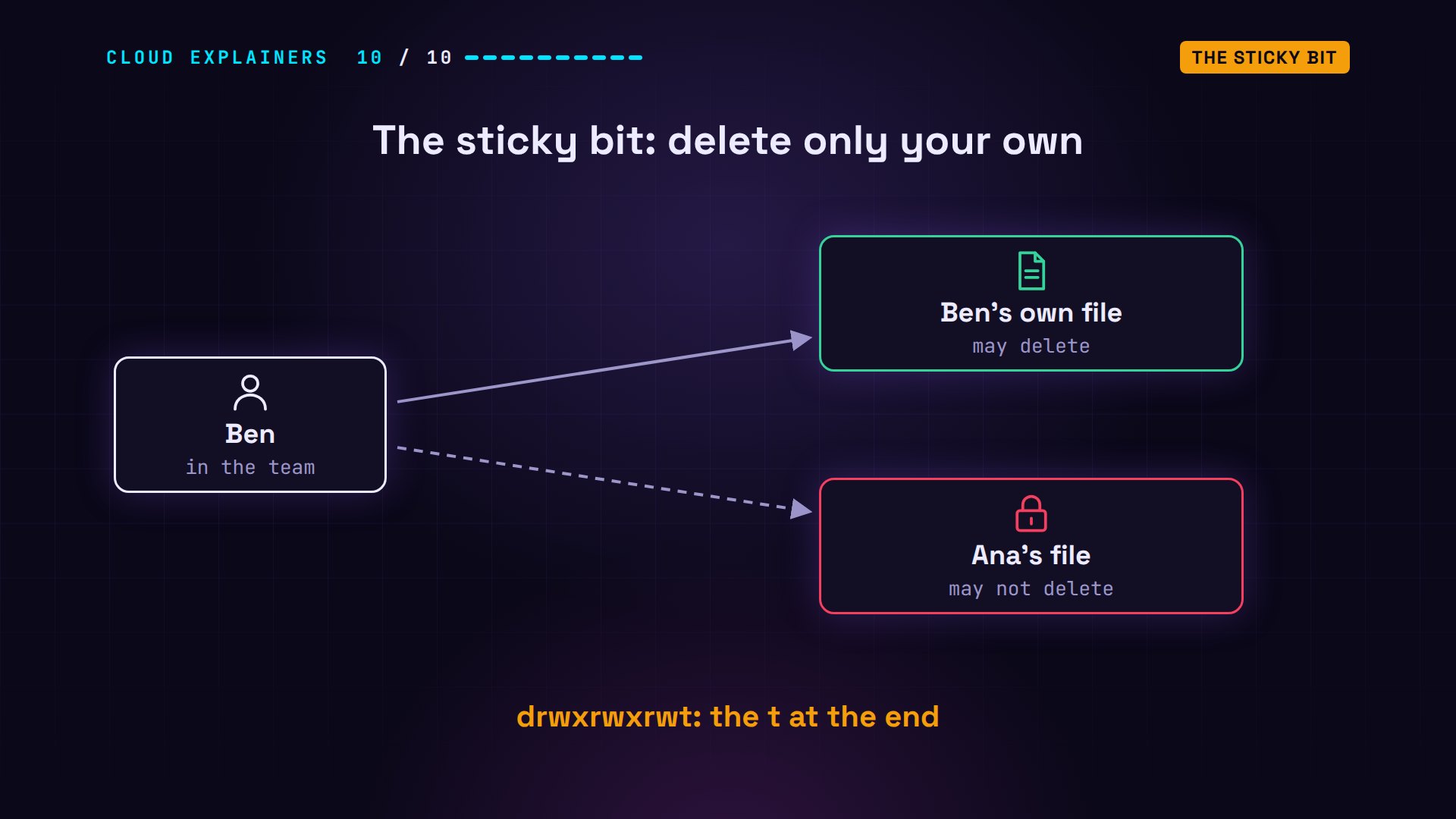
There it is on /tmp: rwx for everyone, and a t at the end. Ana sets it on the shop folder, with chmod +t. Its line now ends in t, next to the s from number nine. Now Ben tries to delete her price list: operation not permitted. His own file? Deleted, no problem.
ls -ld /tmpdrwxrwxrwt 2 root root 4096 Sep 30 14:12 /tmp
chmod +t /srv/shop
ls -ld /srv/shopdrwxrwsr-t 3 ana team 4096 Oct 29 10:30 /srv/shop
rm -f /srv/shop/price-list.txtrm: cannot remove '/srv/shop/price-list.txt': Operation not permitted
rm -f /srv/shop/ben.txt
Recap
So, every permission you need. ls -l shows ten characters: a type, then three sets, for the owner, the group and others. On a file, r, w and x mean see, change and run. On a folder: list, change what's inside, and enter. chmod changes them, with letters or numbers. chown and chgrp change the owner and the group, and umask sets where new files start. setuid runs a program as its owner, setgid gives a folder's group to new files, and the sticky bit lets each person delete only their own.
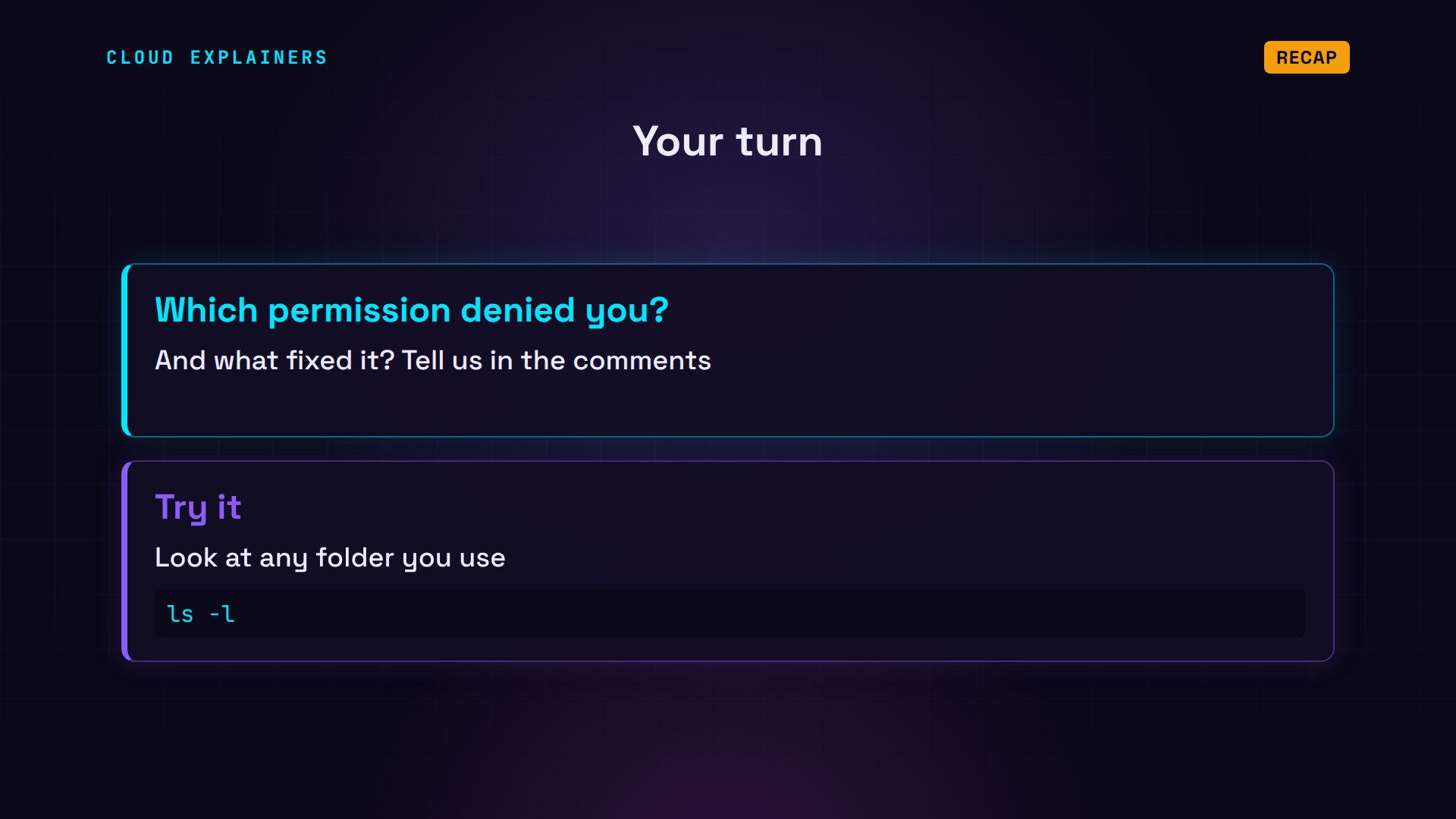
A question for the comments: which permission has given you a permission denied, and what fixed it?
This was episode six of Linux for Beginners. Next: why your Linux server runs out of memory.
Sources
Demos: two users on one test machine (an Ubuntu 24.04 container); throwaway lab passwords. Watch the full video on YouTube.
More videos
Linux Processes vs Threads: When Each One Wins

The OSI Model Will Finally Make Sense After This
The 7 Levels of Git
Every Network Troubleshooting Command You Need
Hashing vs Encryption in Cybersecurity: When Each One Wins
Why the Internet Ran Out of IP Addresses
Linux Package Managers: apt vs Snap vs Flatpak

Why Python Is Slow (and When It Doesn't Matter)
TCP vs UDP: When Each One Wins
Stop Running Linux as Root (Do This Instead)
Linux Users and Groups Will Finally Make Sense

Why Phishing Beats Good Security (and How to Spot It)

The 7 Levels of Docker

AI Agents Will Finally Make Sense After This
Stop Using git push --force (Use This Instead)
Agent Skills vs MCP: When Each One Wins

Networking Will Finally Make Sense After This

Every Linux Command You Actually Need
The 7 Levels of Cybersecurity

Every System Design Concept You Need, in One Diagram