The OSI Model Will Finally Make Sense After This
The OSI model's seven layers, shown on one real web request instead of a list to memorize. We capture the same request leaving a laptop and arriving at a server, and take it apart with tshark: what each layer adds (physical signals, MAC addresses, IP addresses, ports, the HTTP request), which parts change on the way (hardware addresses at every hop, the sender address at NAT, the hop counter) and which arrive untouched. Then OSI vs the 4-layer TCP/IP model, and how to find a fault by working up the layers, with five real faults at five layers.
Seven layers, one page
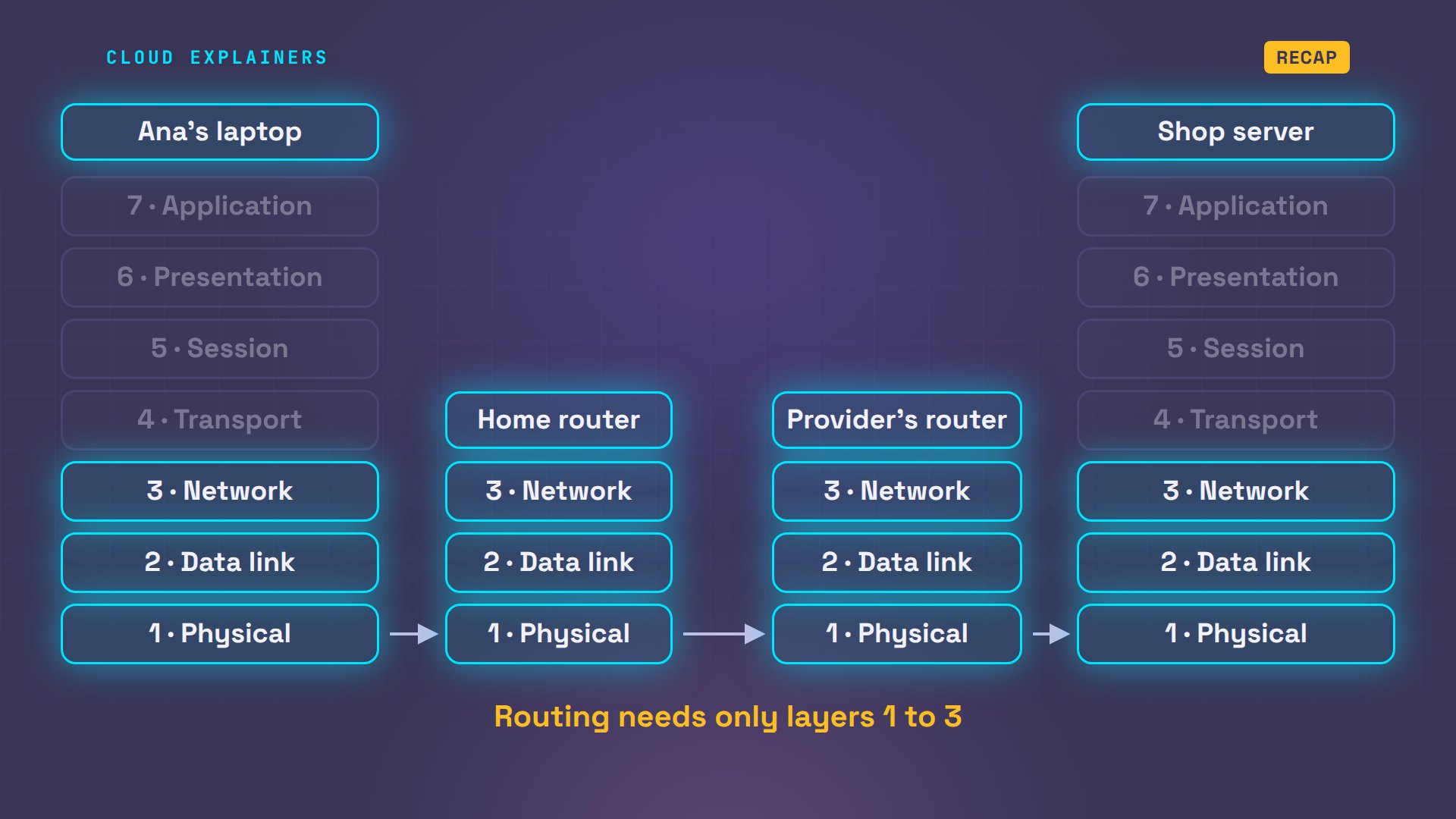
The OSI model has seven layers, and most people memorize the list without ever seeing a layer do anything. So let's watch them work. Ana opens the shop's website, once. We catch that one request as it leaves her laptop, and again as it arrives at the shop, and take it apart, layer by layer.
By the end, you'll know what each layer adds, which parts change on the way and which never do, and how to use the layers to find what's broken. Everything here comes from a real run of the lab network from episode one, built with Docker inside one computer.
What a layer is
First, what is a layer? Sending a web page means solving several separate problems: what to say, which program on the other end should get it, which computer it's for, which device is next on this cable, and how to turn it all into signals. A layer is one of those jobs. Each layer does its job and trusts the layers below it to do theirs.
Think of envelopes inside envelopes. Ana's request is a letter. The transport layer puts it in an envelope with a door number on the shop's server, called a port. The network layer adds an envelope with the shop's address. The data link layer adds one for the next device on the cable. Then the physical layer sends it all as signals. At the other end, each layer opens its own envelope, in reverse.
OSI stands for Open Systems Interconnection. The model was published by the standards body ISO in 1984, to give every vendor the same words for these jobs. People count from the bottom: layer 1, physical, up to layer 7, application. A common way to remember them, bottom up: Please Do Not Throw Sausage Pizza Away.
Catching one request
Now the real request. On the shop server, tcpdump starts recording everything on port 80, the web port, into a file. On Ana's laptop, a second window does the same. Then Ana asks for the page with curl, and it arrives. We stop both recordings: 13 packets at each end, for one small page.
sudo tcpdump -i eth0 -w shop.pcap tcp port 80tcpdump: listening on eth0, link-type EN10MB (Ethernet), snapshot length 262144 bytes
13 packets captured
13 packets received by filter
0 packets dropped by kernel
sudo tcpdump -i eth0 -w ana.pcap tcp port 80tcpdump: listening on eth0, link-type EN10MB (Ethernet), snapshot length 262144 bytes
13 packets captured
13 packets received by filter
0 packets dropped by kernel
curl shop.example<h1>Welcome to the shop</h1>
So we have two recordings of the same trip: one where it left Ana's laptop, and one where it reached the shop's server, after both routers. Same request, two snapshots, and we can compare every layer.
tshark, the command-line version of Wireshark, lists those 13 packets, one per line. The first three are a handshake: SYN, SYN-ACK, ACK. The fourth carries Ana's request, a GET request. Then comes the page, 200 OK, and the last ones say goodbye: FIN.
tshark -r ana.pcap1 0.000000 192.168.1.20 → 198.51.100.10 TCP 74 44252 → 80 [SYN] Seq=0 Win=64240 Len=0 MSS=1460 SACK_PERM TSval=2161215558 TSecr=0 WS=128 2 0.000039 198.51.100.10 → 192.168.1.20 TCP 74 80 → 44252 [SYN, ACK] Seq=0 Ack=1 Win=65160 Len=0 MSS=1460 SACK_PERM TSval=1266112500 TSecr=2161215558 WS=128 3 0.000047 192.168.1.20 → 198.51.100.10 TCP 66 44252 → 80 [ACK] Seq=1 Ack=1 Win=64256 Len=0 TSval=2161215558 TSecr=1266112500 4 0.000092 192.168.1.20 → 198.51.100.10 HTTP 141 GET / HTTP/1.1 5 0.000106 198.51.100.10 → 192.168.1.20 TCP 66 80 → 44252 [ACK] Seq=1 Ack=76 Win=65152 Len=0 TSval=1266112500 TSecr=2161215558 6 0.002610 198.51.100.10 → 192.168.1.20 TCP 251 HTTP/1.0 200 OK [TCP segment of a reassembled PDU] 7 0.002620 192.168.1.20 → 198.51.100.10 TCP 66 44252 → 80 [ACK] Seq=76 Ack=186 Win=64128 Len=0 TSval=2161215560 TSecr=1266112502 8 0.002658 198.51.100.10 → 192.168.1.20 HTTP 95 HTTP/1.0 200 OK (text/html) 9 0.002664 192.168.1.20 → 198.51.100.10 TCP 66 44252 → 80 [ACK] Seq=76 Ack=215 Win=64128 Len=0 TSval=2161215560 TSecr=1266112502 10 0.002692 192.168.1.20 → 198.51.100.10 TCP 66 44252 → 80 [FIN, ACK] Seq=76 Ack=215 Win=64128 Len=0 TSval=2161215560 TSecr=1266112502 11 0.002704 198.51.100.10 → 192.168.1.20 TCP 66 80 → 44252 [FIN, ACK] Seq=215 Ack=76 Win=65152 Len=0 TSval=1266112502 TSecr=2161215560 12 0.002706 192.168.1.20 → 198.51.100.10 TCP 66 44252 → 80 [ACK] Seq=77 Ack=216 Win=64128 Len=0 TSval=2161215560 TSecr=1266112502 13 0.002719 198.51.100.10 → 192.168.1.20 TCP 66 80 → 44252 [ACK] Seq=216 Ack=77 Win=65152 Len=0 TSval=1266112502 TSecr=2161215560
Now take packet four apart: tshark shows it one layer per line, and there they are. The frame: 141 bytes on the wire. Ethernet, with hardware addresses. Internet Protocol, with IP addresses. Transmission Control Protocol, with ports. And the Hypertext Transfer Protocol: the web request itself.
tshark -r ana.pcap -Y http.request -V | grep -v '^ 'Frame 4: 141 bytes on wire (1128 bits), 141 bytes captured (1128 bits)
Ethernet II, Src: 5e:ed:2f:f5:57:ab (5e:ed:2f:f5:57:ab), Dst: 82:9e:ce:78:dd:58 (82:9e:ce:78:dd:58)
Internet Protocol Version 4, Src: 192.168.1.20, Dst: 198.51.100.10
Transmission Control Protocol, Src Port: 44252, Dst Port: 80, Seq: 1, Ack: 1, Len: 75
Hypertext Transfer Protocol
Five lines, five layers you can see: physical, data link, network, transport and application. Layers 5 and 6 have no line of their own. We'll come back to why. Let's go through them from the bottom, the way the bits travel.
Layer 1: Physical
Layer 1, physical, is the signal itself: voltage on a copper cable, light in a fiber, or radio waves for Wi-Fi. It only knows ones and zeros. It has no idea what a page or an address is. Ana's request crosses three cables: laptop to home router, to the provider, to the shop.
Our cables are virtual, inside one computer, but the laptop's card still reports a link: 10,000 megabits a second, and link detected, yes. And packet four was 141 bytes, which is 1,128 ones and zeros on that cable.
sudo ethtool eth0 | grep -E 'Speed|Link detected'Speed: 10000Mb/s Link detected: yes
tshark -r ana.pcap -Y http.request -V | grep -v '^ 'Frame 4: 141 bytes on wire (1128 bits), 141 bytes captured (1128 bits)
Layer 2: Data link
Layer 2, data link, gets the frame to the next device on the same cable or Wi-Fi, and only that far. Every network card has a hardware address, called a MAC address, written as six pairs of characters. A basic network switch works at this layer: it reads these addresses, and nothing above.
Here's Ana's laptop. ip link shows its card's MAC address. ip neigh shows the one other MAC it knows: the home router's. Now packet four's data link layer: from the laptop, to the router. Not to the shop. Layer 2 only ever reaches the next hop.
ip -brief linklo               UNKNOWN        00:00:00:00:00:00 <LOOPBACK,UP,LOWER_UP>
eth0@if382       UP             5e:ed:2f:f5:57:ab <BROADCAST,MULTICAST,UP,LOWER_UP>
ip neigh192.168.1.1 dev eth0 lladdr 82:9e:ce:78:dd:58 REACHABLE
tshark -r ana.pcap -Y http.request -T fields -E header=y -e eth.src -e eth.dst | column -teth.src            eth.dst
5e:ed:2f:f5:57:ab  82:9e:ce:78:dd:58
And the same request, as it arrived at the shop server. Both MAC addresses are different. It came from the provider's router, the last router on the way, to the shop server's own card.
tshark -r shop.pcap -Y http.request -T fields -E header=y -e eth.src -e eth.dst | column -teth.src            eth.dst
d2:2f:61:5e:84:40  86:e9:61:f7:e9:4c
So every router takes the frame off, and puts a new one on for the next cable. Three cables, three different frames. The hardware addresses only ever describe one hop.
Layer 3: Network
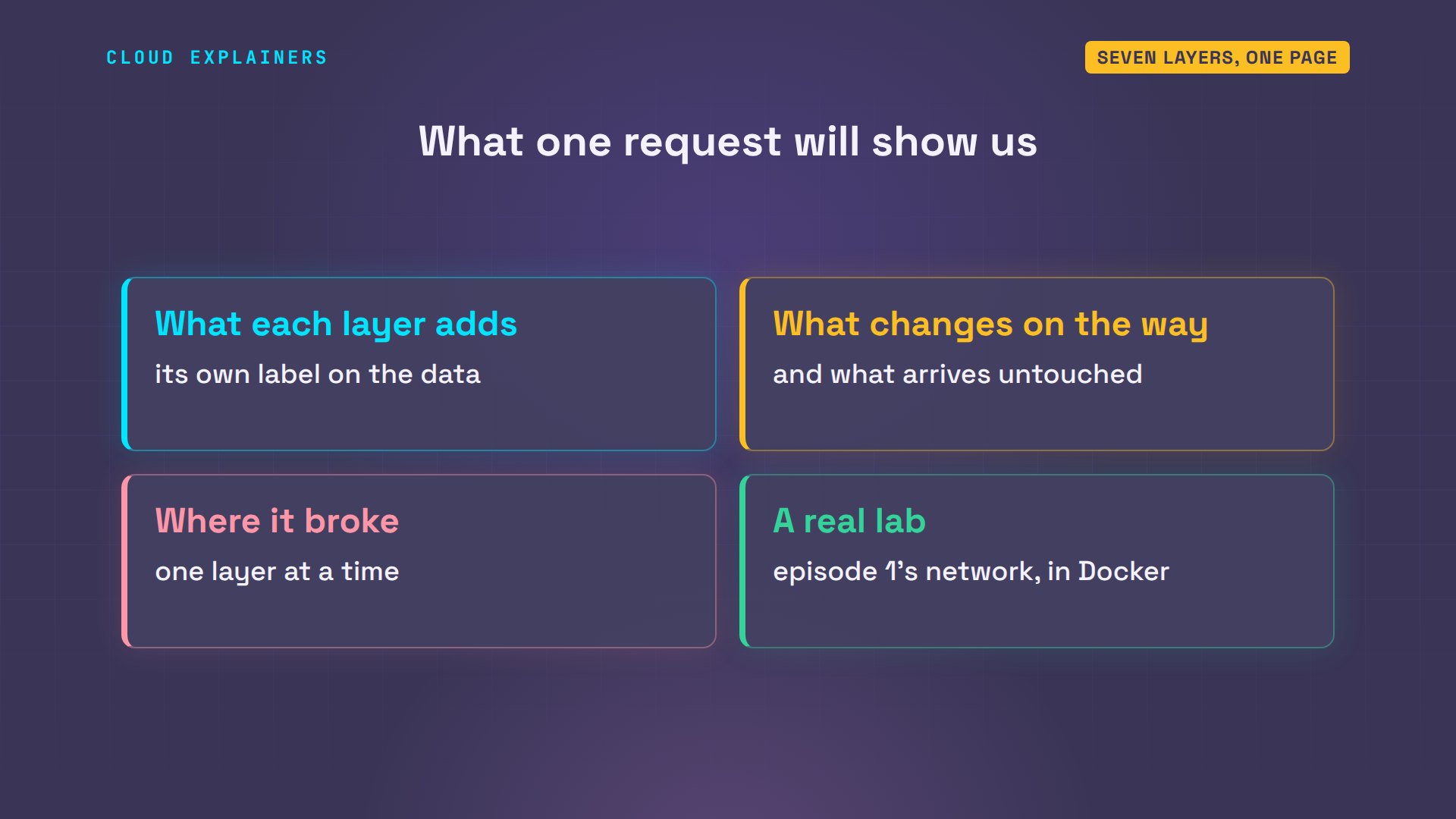
Layer 3, network, is the whole trip. IP addresses name the first sender and the final destination, and routers read them to choose the next hop, like a sorting office reading a postcode. To route, a router only needs to open the envelopes up to layer 3.
Packet four, leaving Ana's laptop: from 192.168.1.20, to 198.51.100.10, the shop. TTL is a hop counter, at 64. And at the shop: the destination is the same. But the sender is now 203.0.113.7, the home router's public address, swapped in by NAT, from episode three. And the counter is 62: each router took one off.
tshark -r ana.pcap -Y http.request -T fields -E header=y -e ip.src -e ip.dst -e ip.ttl | column -tip.src        ip.dst         ip.ttl
192.168.1.20  198.51.100.10  64
tshark -r shop.pcap -Y http.request -T fields -E header=y -e ip.src -e ip.dst -e ip.ttl | column -tip.src       ip.dst         ip.ttl
203.0.113.7  198.51.100.10  62
So the destination address never changed across the whole trip. That's what layer 3 is for. The hop counter went from 64 to 62, one per router. If it ever reaches zero, a router throws the packet away, so a packet stuck in a loop can't circle forever. Each piece has a name at this layer: a packet.
Layer 4: Transport
Layer 4, transport, is about programs, not computers. One server runs many programs, so a port number says which one: 80 for the web server. Ana's laptop picked a random port for its side, so the reply finds her browser. TCP, from episode two, adds the handshake, numbers every piece, and resends what gets lost. UDP skips all that.
Leaving Ana's laptop: from Ana's random port, to port 80. Arriving at the shop: the same two ports. The ports arrived unchanged. At this layer, a piece of TCP data is called a segment.
tshark -r ana.pcap -Y http.request -T fields -E header=y -e tcp.srcport -e tcp.dstport | column -ttcp.srcport  tcp.dstport
44252        80
tshark -r shop.pcap -Y http.request -T fields -E header=y -e tcp.srcport -e tcp.dstport | column -ttcp.srcport  tcp.dstport
44252        80
Layers 5, 6 and 7
Layer 7, application, is the conversation the programs actually have. Here it's HTTP: the method, GET, and the site Ana asked for, shop.example. At the shop it's exactly the same: nothing on the way changed it.
tshark -r ana.pcap -Y http.request -T fields -E header=y -e http.request.method -e http.host | column -thttp.request.method  http.host
GET                  shop.example
tshark -r shop.pcap -Y http.request -T fields -E header=y -e http.request.method -e http.host | column -thttp.request.method  http.host
GET                  shop.example
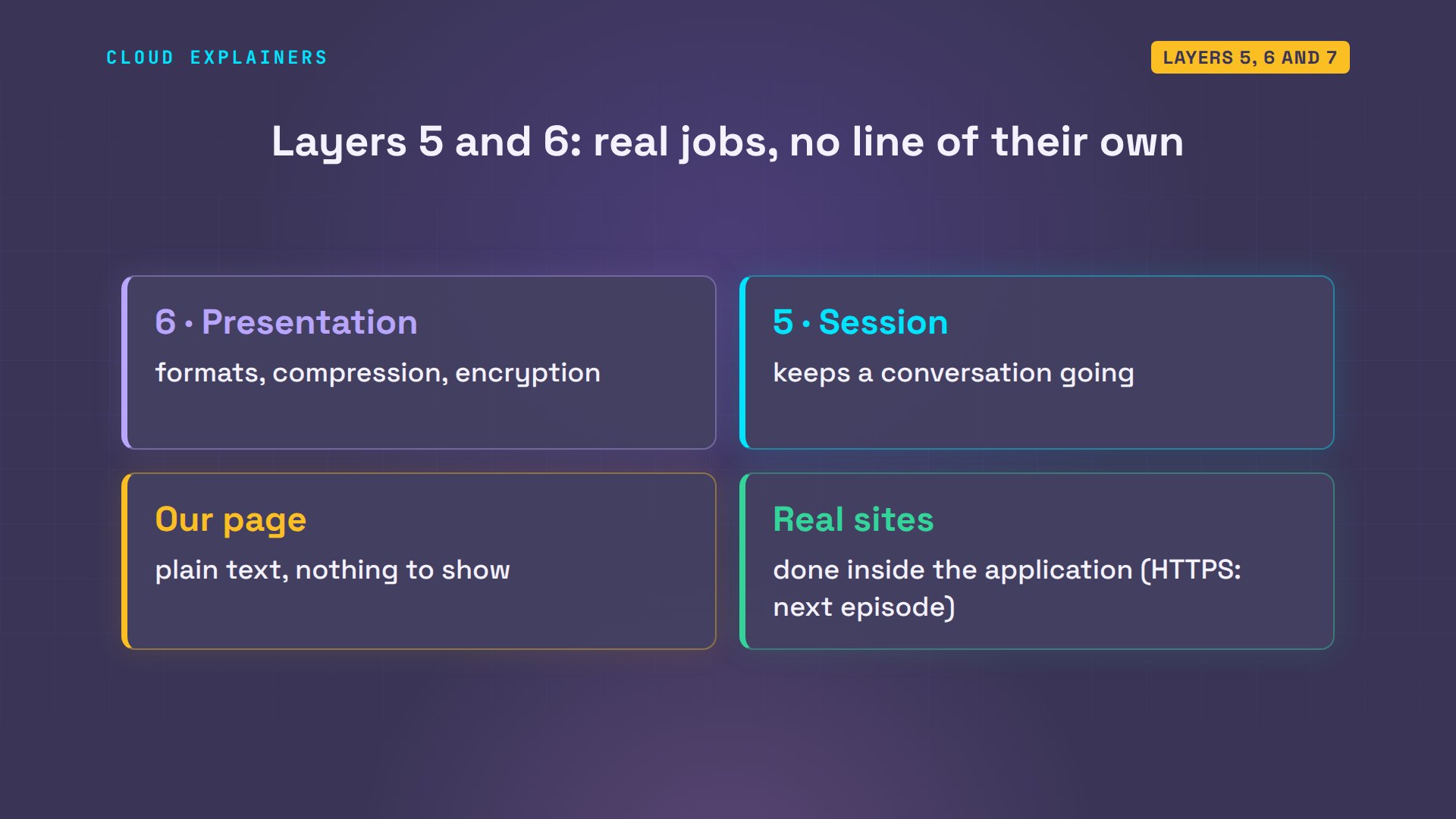
Layers 5 and 6 sit between. Presentation, layer 6, is how the data is written down: formats, compression, and encryption. Session, layer 5, keeps a conversation going across many requests. Our page was plain and unencrypted, so tshark had nothing to show there. And on real sites, that work is done inside the application itself. The encryption behind HTTPS is the next episode.
What changed on the way
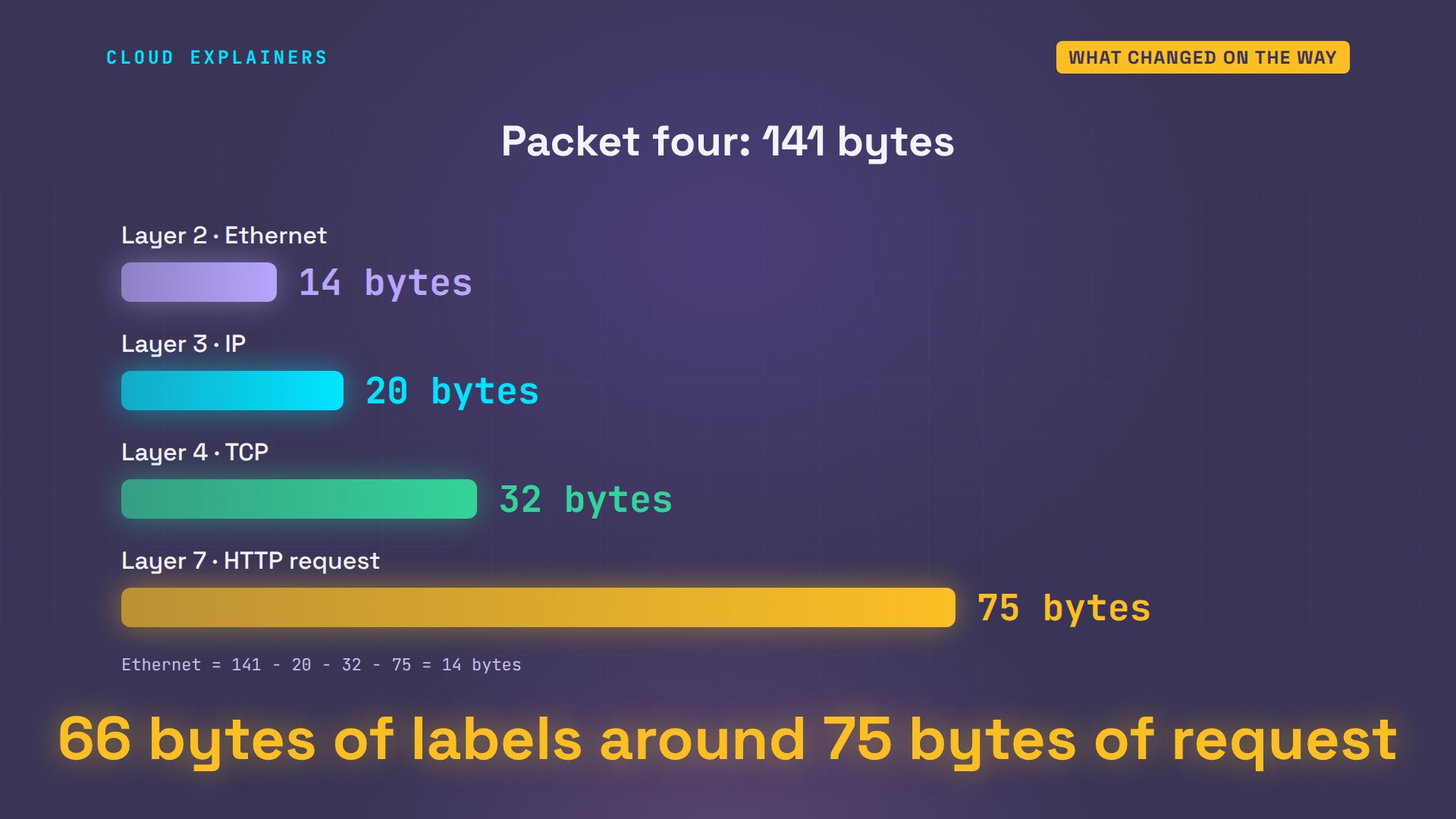
Now count the envelopes. Packet four is 141 bytes. The IP label is 20 bytes, the TCP label 32, and Ana's actual request just 75. The 14 bytes left over are the Ethernet label.
tshark -r ana.pcap -Y http.request -T fields -E header=y -e frame.len -e ip.hdr_len -e tcp.hdr_len -e tcp.len | column -tframe.len  ip.hdr_len  tcp.hdr_len  tcp.len
141        20          32           75
So 66 of the 141 bytes are labels: the envelopes around Ana's 75 byte letter. For a big download, each packet carries much more data, and the labels are a small share.
Here's the whole comparison, same request, both ends. Layer 2: both MAC addresses changed, at every hop. Layer 3: the destination stayed, the sender was replaced by NAT, the counter went down by two. Layer 4: the ports, untouched. Layer 7: the request, untouched.
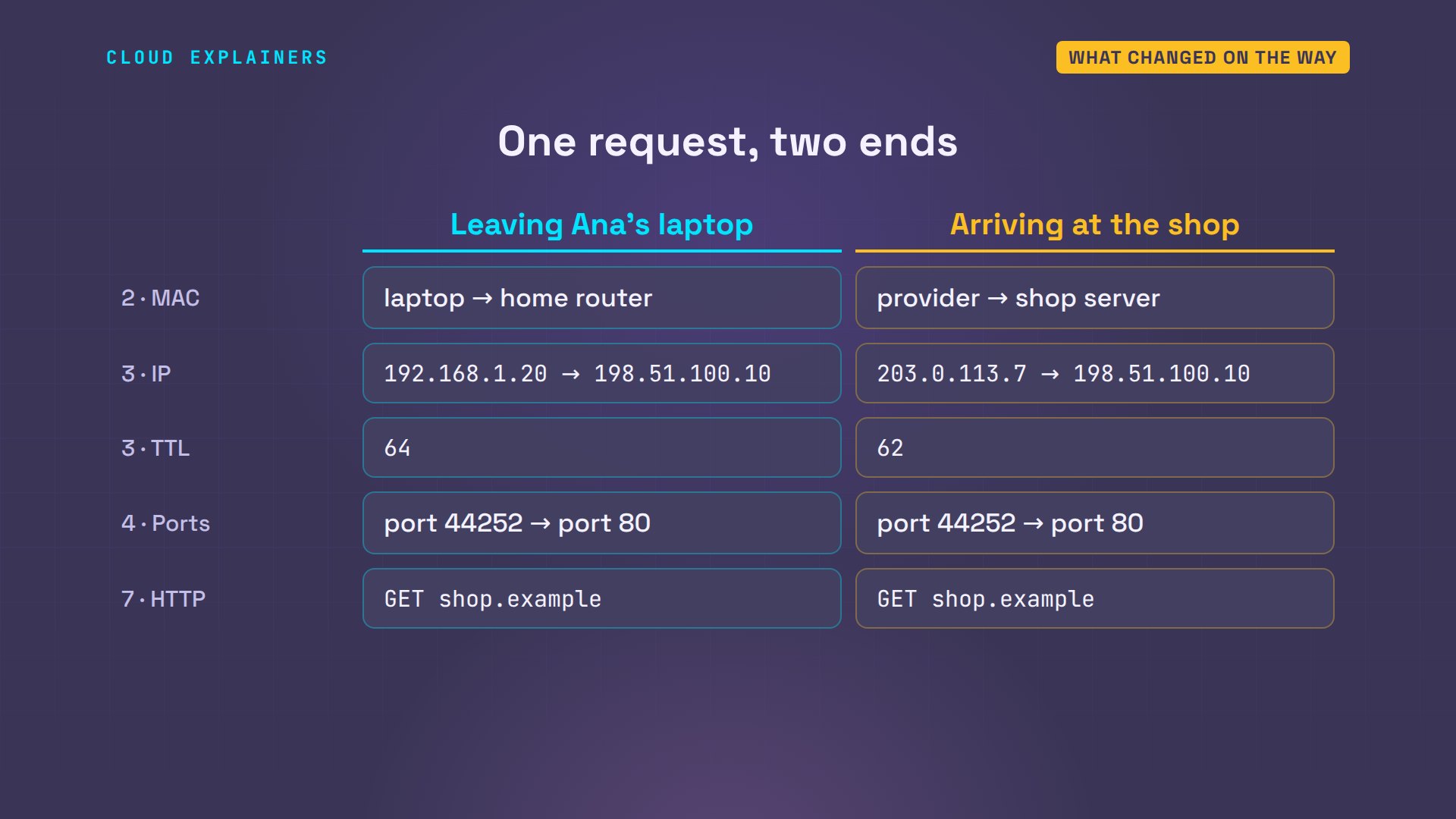
That's the pattern. The lower a layer, the shorter the distance it covers. Layer 2 covers one cable. Layer 3 covers the trip, with routers in between. And layers 4 to 7 only mean something at the two ends: Ana's laptop and the shop's server.
OSI vs TCP/IP
The internet itself is built on a simpler model, TCP/IP, with four layers. Its application layer covers OSI's layers 5, 6 and 7. Transport is the same. Its internet layer is OSI's network layer. And its link layer covers data link and physical.
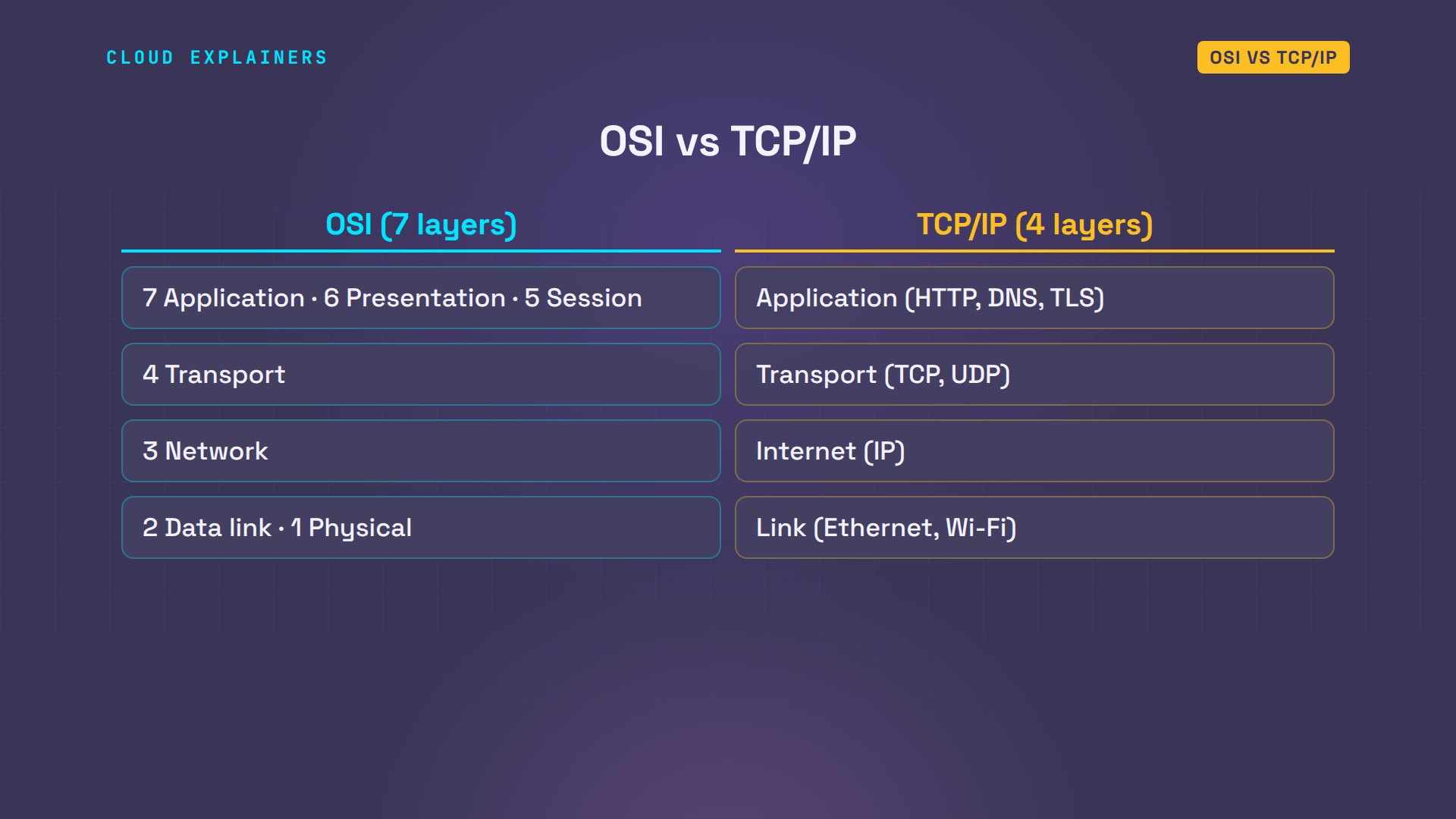
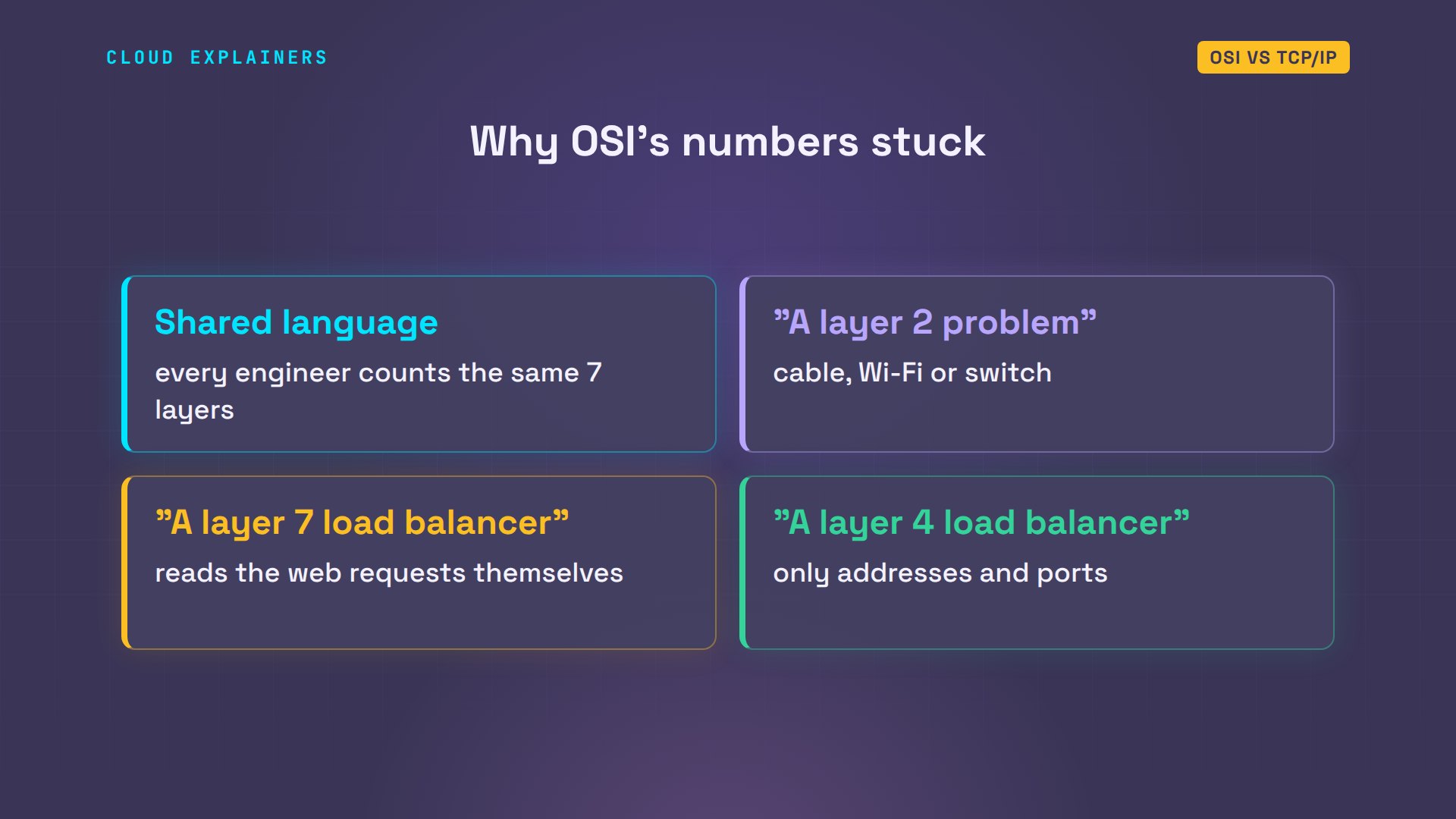
So why learn OSI at all? Because its numbers became the language engineers use. "A layer 2 problem" means a cable, Wi-Fi or switch problem. "A layer 7 load balancer" reads web requests, and a layer 4 one only looks at addresses and ports. That language is also the best way to find what's broken.
Troubleshooting by layer
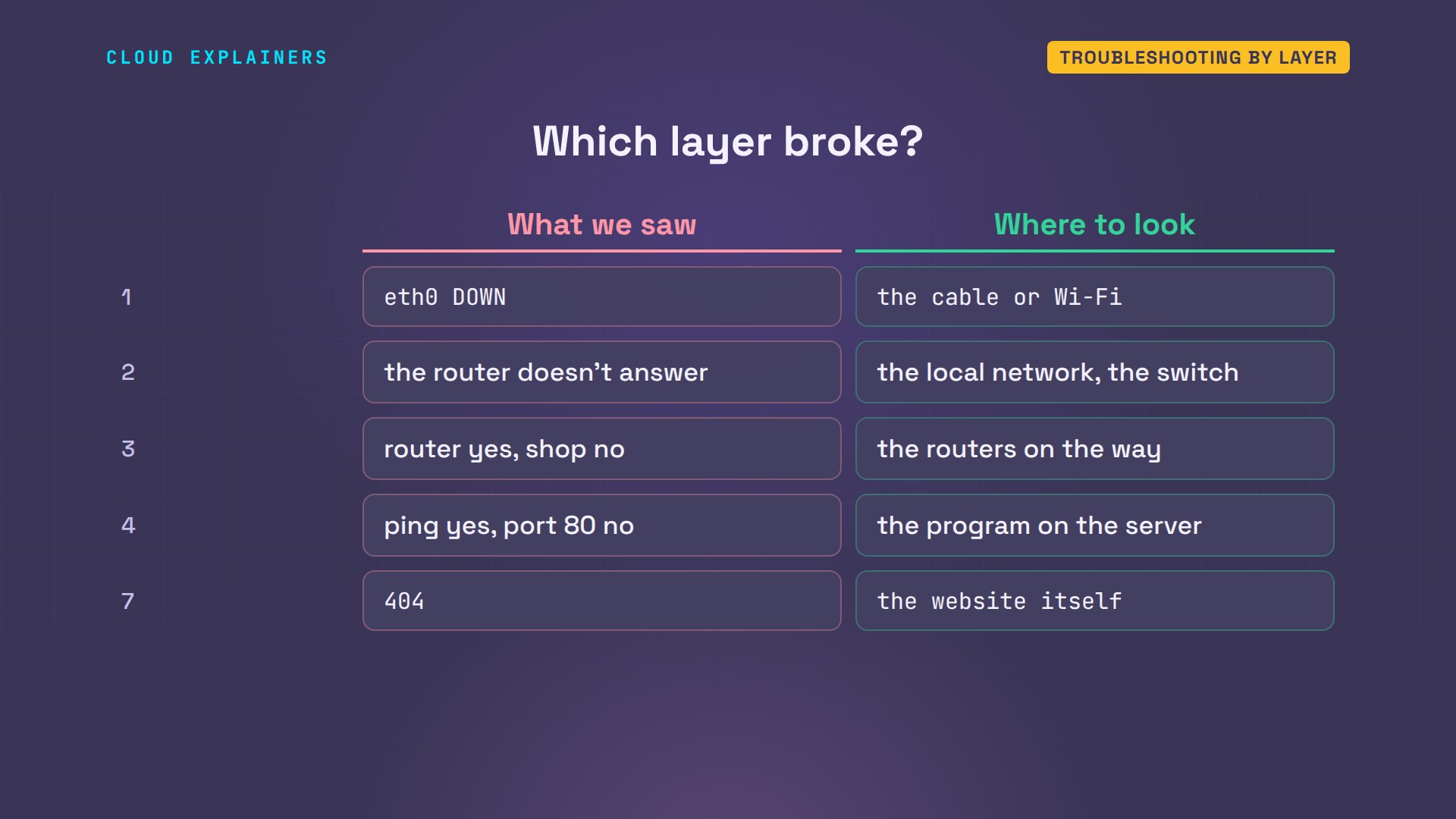
When a page won't load, start at the bottom and work up. Each layer depends on the ones below it. We broke Ana's network four ways, on purpose, one layer at a time, then asked for one page that doesn't exist.
Layer 1: the card is DOWN, nothing gets out. Layer 2: the laptop saved a wrong MAC address for its router, so even the router, one cable away, doesn't answer. Layer 3: the router answers, but the provider's router stopped passing packets on, so the shop gets nothing.
ip -brief link show eth0eth0@if382 DOWN 5e:ed:2f:f5:57:ab <BROADCAST,MULTICAST>
ip neigh192.168.1.1 dev eth0 lladdr 02:00:00:00:00:01 PERMANENT
ping -c 2 -W 1 192.168.1.1PING 192.168.1.1 (192.168.1.1) 56(84) bytes of data.

--- 192.168.1.1 ping statistics ---
2 packets transmitted, 0 received, 100% packet loss, time 1057ms
ping -c 2 -W 1 192.168.1.1PING 192.168.1.1 (192.168.1.1) 56(84) bytes of data.
64 bytes from 192.168.1.1: icmp_seq=1 ttl=64 time=0.216 ms
64 bytes from 192.168.1.1: icmp_seq=2 ttl=64 time=0.054 ms

--- 192.168.1.1 ping statistics ---
2 packets transmitted, 2 received, 0% packet loss, time 1038ms
rtt min/avg/max/mdev = 0.054/0.135/0.216/0.081 ms
ping -c 2 -W 1 198.51.100.10PING 198.51.100.10 (198.51.100.10) 56(84) bytes of data.

--- 198.51.100.10 ping statistics ---
2 packets transmitted, 0 received, 100% packet loss, time 1022ms
Layer 4: the shop server answers ping, so layers 1 to 3 are fine, but its web server was stopped, so nothing is listening on port 80: couldn't connect. And layer 7: everything below works, and the web server itself answers, 404: that page doesn't exist.
ping -c 2 198.51.100.10PING 198.51.100.10 (198.51.100.10) 56(84) bytes of data.
64 bytes from 198.51.100.10: icmp_seq=1 ttl=62 time=0.104 ms
64 bytes from 198.51.100.10: icmp_seq=2 ttl=62 time=0.063 ms

--- 198.51.100.10 ping statistics ---
2 packets transmitted, 2 received, 0% packet loss, time 1029ms
rtt min/avg/max/mdev = 0.063/0.083/0.104/0.020 ms
curl -sS shop.examplecurl: (7) Failed to connect to shop.example port 80 after 0 ms: Couldn't connect to server
curl -I shop.example/saleHTTP/1.0 404 File not found
Server: SimpleHTTP/0.6 Python/3.12.3
Date: Wed, 28 Oct 2026 23:02:50 GMT
Connection: close
Content-Type: text/html;charset=utf-8
Content-Length: 335
Five faults, five different layers, and each test tells you where to look. The command to check each one is in episode four, every network troubleshooting command you need.
Recap
So: layer 1 carries the bits. Layer 2 gets them across one cable, by MAC address. Layer 3 gets them across the whole trip, by IP address. Layer 4 picks the program, by port. Layers 5 to 7 are the conversation itself. Each adds its own envelope, and routing only needs the bottom three.
A question for the comments: which layer have you had to fix most often, and what was broken? Tell me in the comments.
Every result in this video came from a real run of this small lab. This was episode five of Networking for Beginners.
Sources
- ISO/IEC 7498-1, OSI Basic Reference Model
- RFC 1122, Requirements for Internet Hosts (the Internet's four layers)
- RFC 791, Internet Protocol (header, time to live)
- RFC 9293, Transmission Control Protocol
- RFC 3022, Traditional NAT
- IEEE 802.3, Ethernet
- tshark manual
- tcpdump manual
- ip-link(8) and ip-neighbour(8), iproute2
- ethtool(8)
Demos: real output from a small lab network built with Docker containers on one machine, using only private and reserved test addresses (192.168.1.x, 203.0.113.x and 198.51.100.x). The lab has no route to the real internet. Each fault was made on purpose, one at a time. Watch the full video on YouTube.
More videos
Linux Processes vs Threads: When Each One Wins

The 7 Levels of Git
Every Network Troubleshooting Command You Need
Hashing vs Encryption in Cybersecurity: When Each One Wins
Why the Internet Ran Out of IP Addresses
Linux Package Managers: apt vs Snap vs Flatpak
Why Python Is Slow (and When It Doesn't Matter)
TCP vs UDP: When Each One Wins
Stop Running Linux as Root (Do This Instead)
Linux Users and Groups Will Finally Make Sense

Why Phishing Beats Good Security (and How to Spot It)
The 7 Levels of Docker

AI Agents Will Finally Make Sense After This
Stop Using git push --force (Use This Instead)
Agent Skills vs MCP: When Each One Wins
Networking Will Finally Make Sense After This

Every Linux Command You Actually Need
The 7 Levels of Cybersecurity
Every System Design Concept You Need, in One Diagram