
Linux Bash Scripting: Full Tutorial for Beginners
A full Bash scripting tutorial for beginners, on a real Linux box. Ana looks after a small weather station and turns the commands she types every evening into one script: from a three-line file that Linux refuses to run (Permission denied), through variables, quoting, arguments, exit codes, if, loops, functions, pipes and redirection, to a finished script that reads every sensor file, writes a report page and makes a backup. Along the way: why a file name with a space breaks scripts, why a backup script can print 'Backup done' after failing, what set -euo pipefail really changes, and how ShellCheck finds the bugs for you.
One command instead of five
Your backup script hits an error, and still prints Backup done. No warning, and no backup. Why would bash do that?
./backup.sh./backup.sh: line 3: cd: /home/ana/backup: No such file or directory
Backup done
ls /home/ana/backups
By the end, you'll know, and you'll fix it with one line. We start from an empty file, and finish with the script that wrote this page: it reads every sensor file, flags missing data, and makes a backup that really is one.
A script is a file
A script is a plain text file with commands in it, one per line. This is the first one Ana writes, for the small weather station she looks after. cat prints a file, so we can read it. Line one names the program that should read the rest: bash. Line two prints some text with echo. Line three prints today's date, and the +%F part asks for year, month, day. Think of it as a checklist, and of bash as the person reading it out: from the top, one line at a time.
cat report.sh#!/bin/bash
echo "Station report"
date +%F
She typed it in a text editor and saved it as report.sh; ls shows it in her folder. The ending is only a habit; Linux doesn't need it. To run a file in the folder you're in, type a dot, a slash, and its name. What do you think happens? Permission denied. Linux refuses to run it.
lsbackups readings report.sh sensors.txt style.css
./report.shbash: ./report.sh: Permission denied
A new file may be opened and changed, nothing more. ls lists files, and with -l it adds details, starting with the permissions: r for read, w for write, and no x. The x stands for execute: permission to run the file as a program. chmod +x adds it. Look again, and the x is there. Now./report.sh runs, and bash prints the heading and the date.
ls -l report.sh-rw-r--r-- 1 ana ana 43 Nov 10 00:29 report.sh
chmod +x report.sh
ls -l report.sh-rwxr-xr-x 1 ana ana 43 Nov 10 00:29 report.sh
./report.shStation report
2026-11-10
Why the dot and the slash? Type the name alone, and bash says command not found, although the file is right here. For a bare name, bash only searches a fixed list of system folders, kept in a setting called PATH. The folder you're in is not on that list, on purpose. A dot means this folder, so./report.sh says exactly which file you mean.
report.shbash: report.sh: command not found
echo $PATH/usr/local/sbin:/usr/local/bin:/usr/sbin:/usr/bin:/sbin:/bin
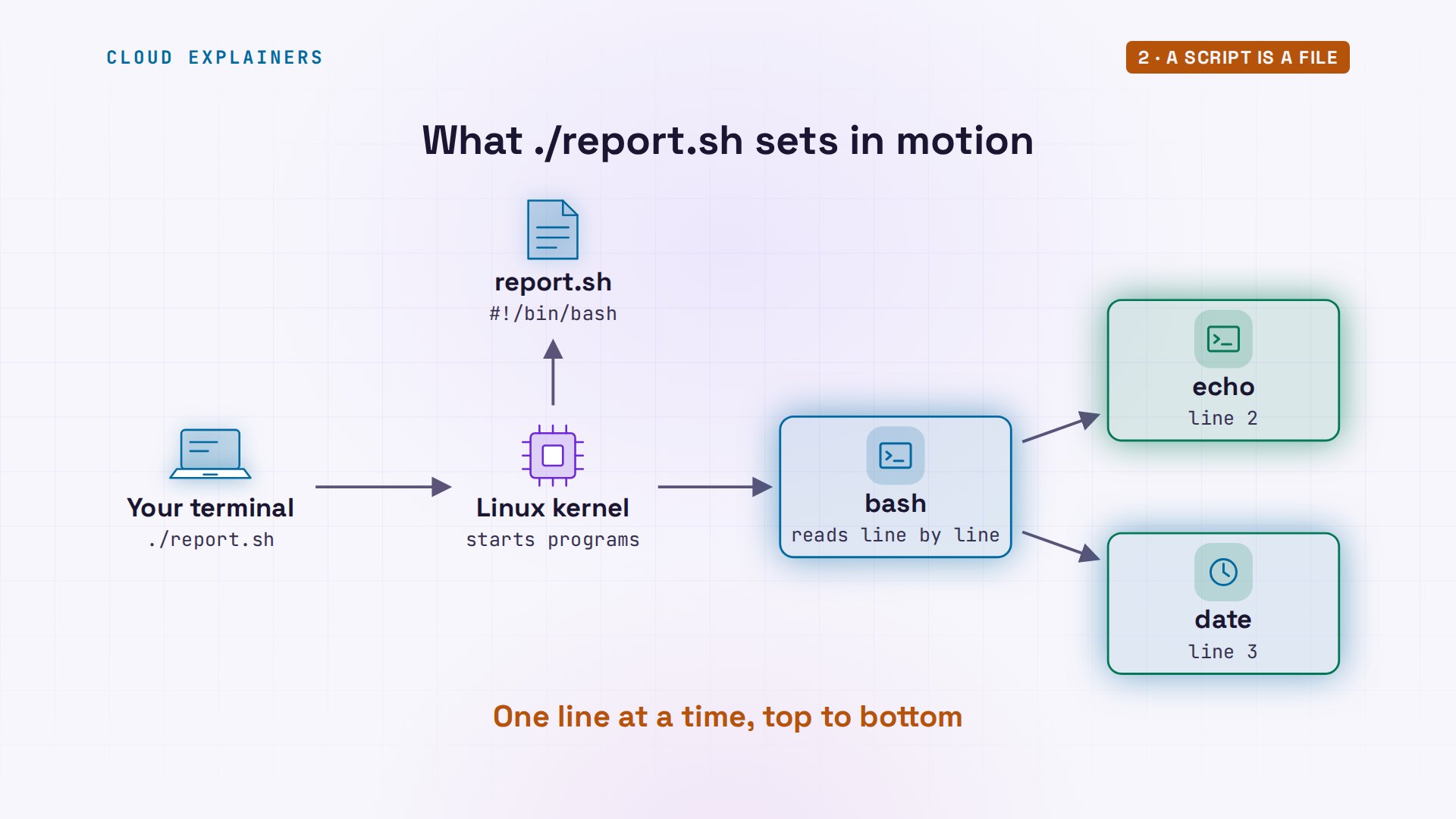
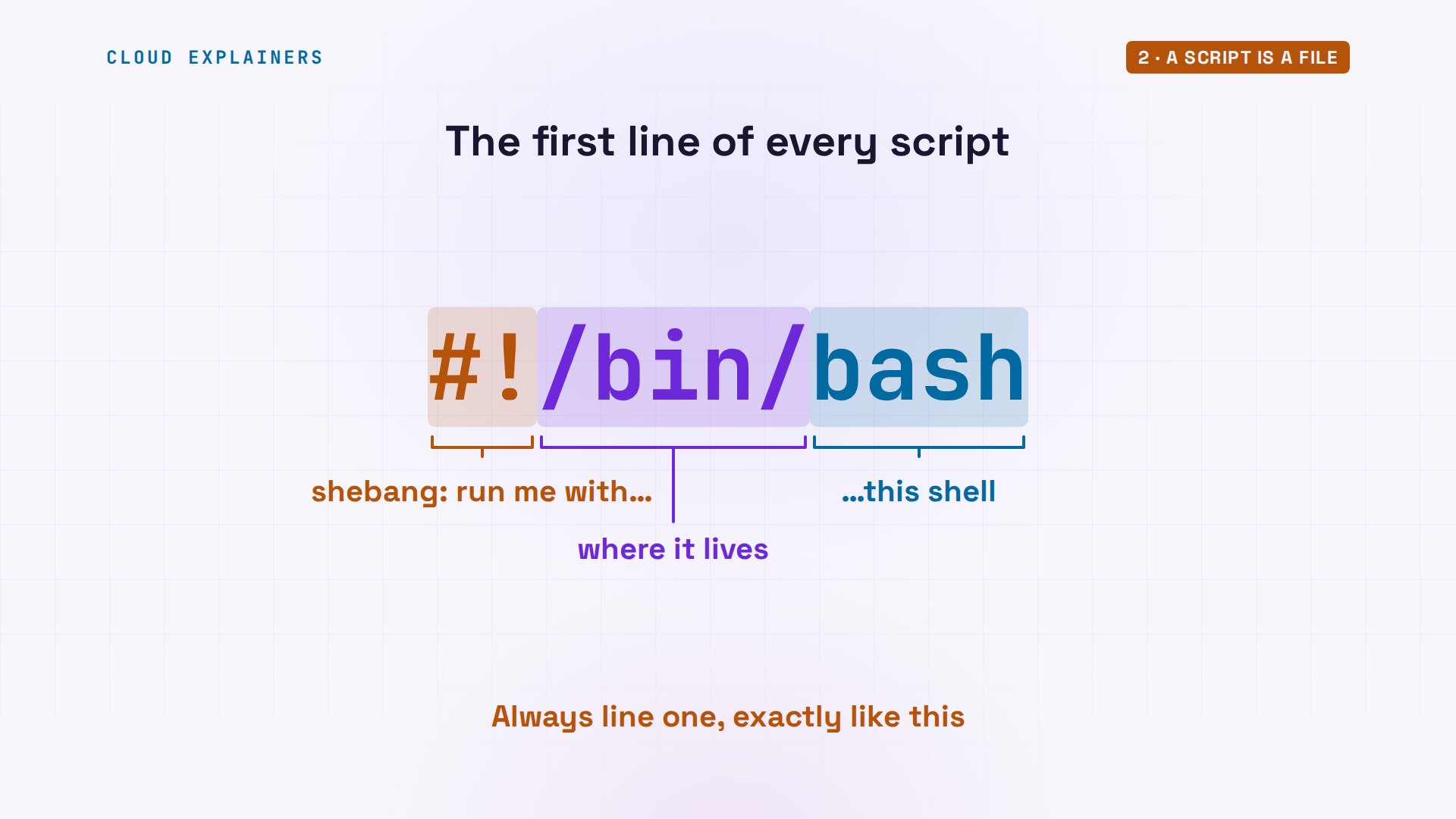
So what happens when you press Enter? Your terminal asks the Linux kernel, the core of the system, to run the file. The kernel checks the x permission, then reads the file's first two characters: a hash and an exclamation mark, together called a shebang. They tell the kernel: start the program named on this line, here /bin/bash, and hand it the file. Bash then works through the checklist: each line starts a command, waits for it to finish, and moves on to the next.
That first line matters more than it looks. A shell is the program that reads your commands, and bash is one of several. Leave the line out, or name another shell there, and your script may be read by one that doesn't understand everything in this tutorial. So every script here starts the same way.
Variables and quotes
A variable is a name for a value, so you write the value once. Ana tries it the way most languages do, with spaces around the equals sign. Bash answers: sensor, command not found. It split the line at the spaces, took the first word as a command, and went looking for a program called sensor. In Bash, an assignment has no spaces: name, equals, value. To read the value back, put a dollar sign in front of the name.
sensor = roofbash: sensor: command not found
sensor=roof
echo "Sensor: $sensor"Sensor: roof
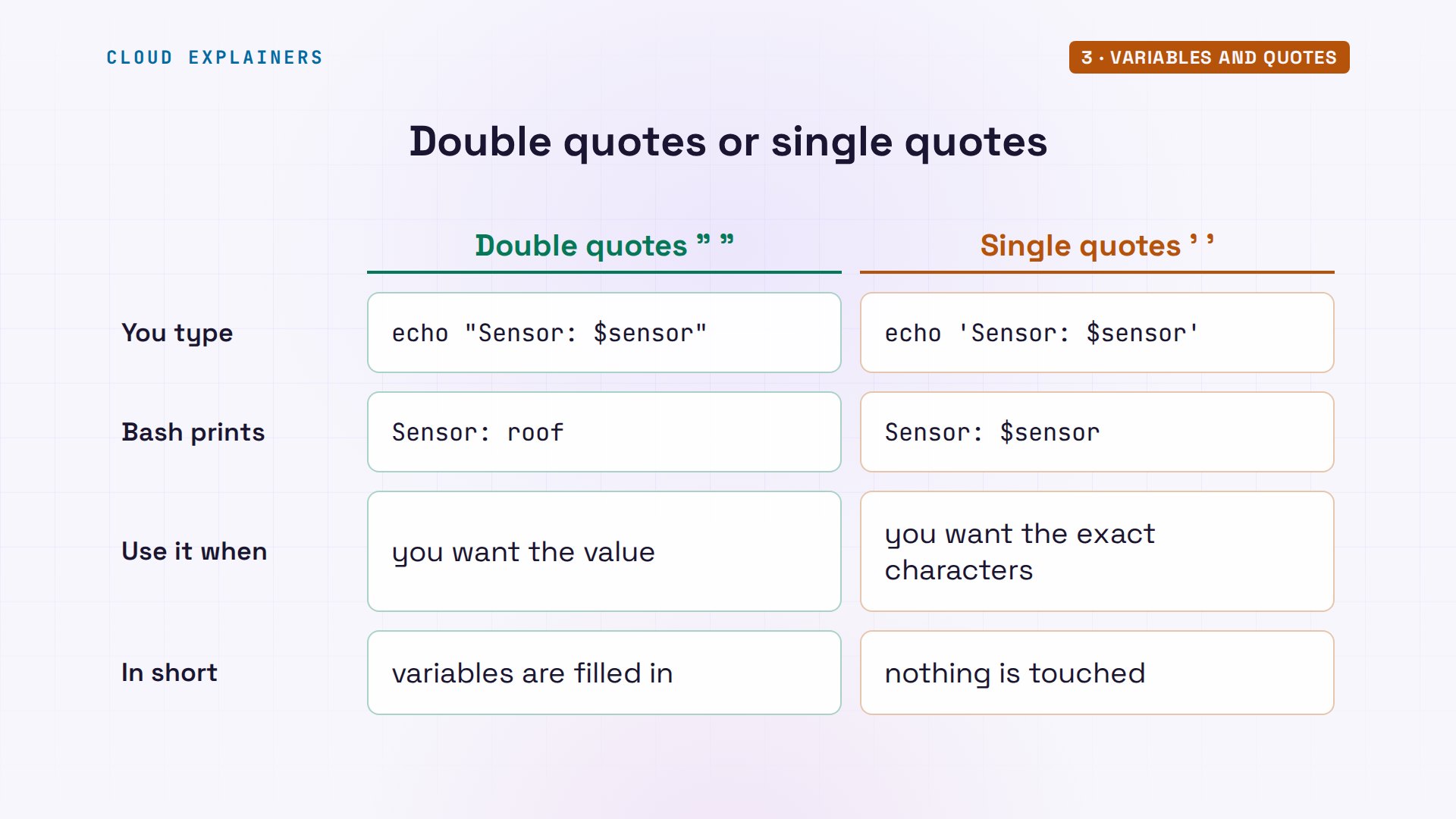
Quotes decide whether that dollar sign works. Inside double quotes, bash swaps the variable for its value. Inside single quotes, it leaves every character alone, and you get the dollar sign and the name, exactly as typed. Double quotes: fill in. Single quotes: hands off.
A variable can also hold the output of a command. A dollar sign and parentheses run the command inside, and hand back what it printed. So today now holds the date. And count holds the number of lines in the roof sensor's file: wc -l counts lines, and the less-than sign feeds it the file, so it prints only the number. One reading an hour makes 24 lines a day. A dollar sign with double parentheses does whole-number math: 24 minus count, zero missing.
today=$(date +%F)
echo "Report for $today"Report for 2026-11-10
count=$(wc -l < readings/roof.csv)
echo "$count readings, $((24 - count)) missing"24 readings, 0 missing
Now the mistake that breaks more scripts than any other. One sensor is called north field, with a space, so its file name has a space too. Ana puts the name in a variable, and counts the file's lines. wc complains twice: it can't find readings/north, and it can't find field.csv.
file="north field.csv"
wc -l readings/$filewc: readings/north: No such file or directory
wc: field.csv: No such file or directory
0 total
Here is the line as wc received it. The command; an option, which changes what the command does; and then two file names, where Ana meant one. Bash swapped in the value, and then split it at the space. Without quotes, a variable's value is cut at every space. That is called word splitting.
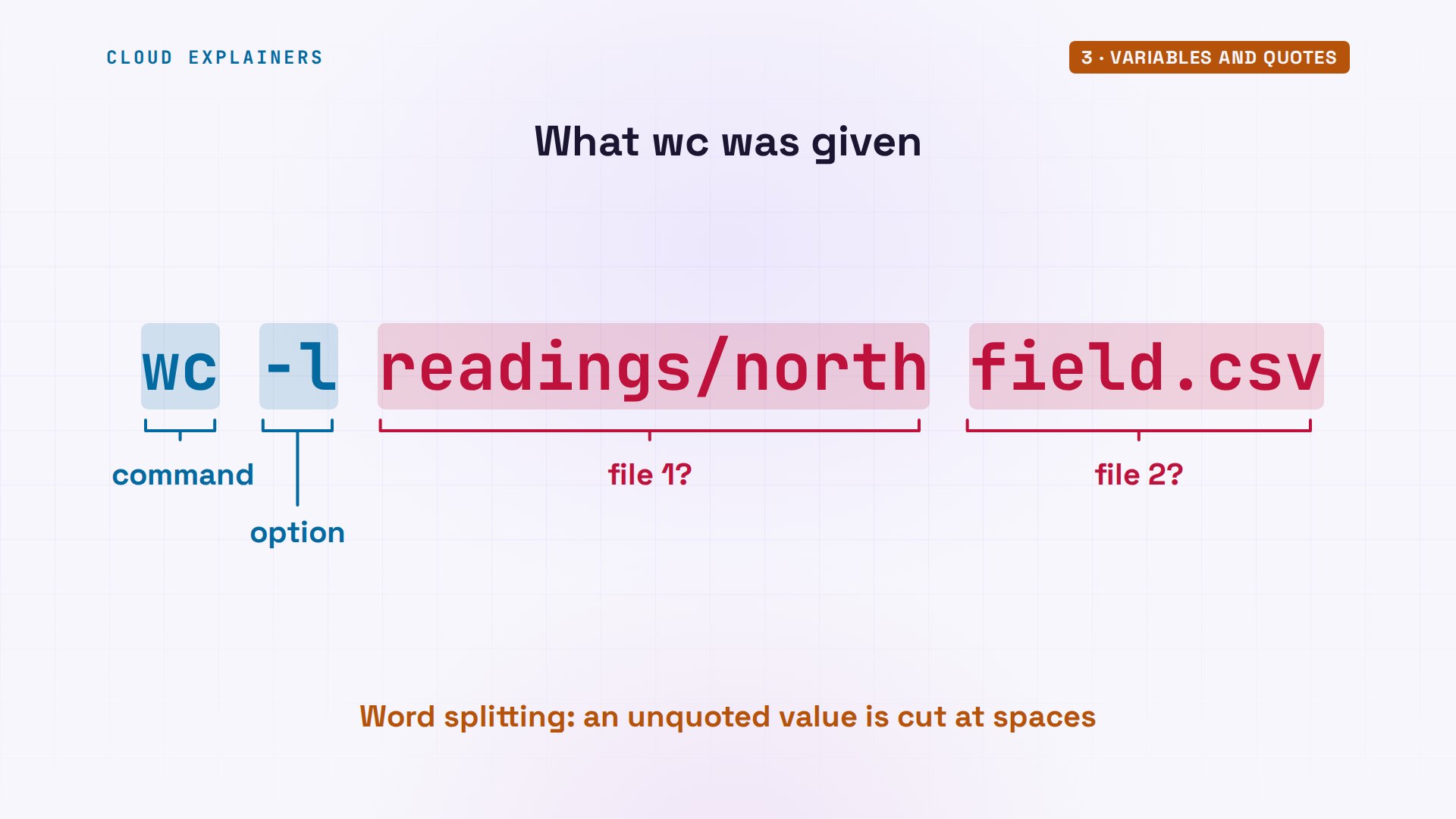
The fix is two characters: double quotes around it. Now the value stays one word, whatever it holds: 21 lines. Make it a habit. Every time you use a variable, wrap it in double quotes. Later, a free tool will find the places you forgot.
wc -l "readings/$file"21 readings/north field.csv
Arguments and exit codes
Editing the script for every sensor would miss the point. Arguments let you pass values in when you run it. This is count.sh. A line that starts with a hash is a comment: a note for people, which bash skips. Dollar one is the first word typed after the script's name. So sensor becomes whatever you typed, the file's path is built from it, inside quotes, the next line counts that file's lines, as before, and the last line prints the result.
cat count.sh#!/bin/bash
# count.sh: how many readings did a sensor send?
sensor=$1
file="readings/$sensor.csv"
count=$(wc -l < "$file")
echo "$sensor: $count readings"
It's a new file, so it needs chmod +x once more. From here on, that step happens off screen. Run it with roof: 24 readings. Change the word, and the same script counts any sensor. But run it with no argument at all, and it carries on with an empty name, complains about a file called.csv, and still prints a line. A good script checks what it was given.
chmod +x count.sh
./count.sh roofroof: 24 readings
./count.sh./count.sh: line 5: readings/.csv: No such file or directory
:  readings
To check anything, you first need to know how commands report success. Every command, when it ends, hands back a number: its exit code. Zero means it worked. Anything else means it failed. Bash keeps the latest one in a special variable: a dollar sign and a question mark. ls on a file that exists: zero. ls on the cellar sensor, which has no file: an error message, and exit code two.
ls readings/roof.csvreadings/roof.csv
echo $?0
ls readings/cellar.csvls: cannot access 'readings/cellar.csv': No such file or directory
echo $?2
So count.sh gets a check at the top, wrapped in an if, which we'll take apart in a moment. head shows the first lines of a file: here, six. Dollar hash is the number of arguments, and -ne means not equal. If that number isn't one, the script prints how to use it, where dollar zero is the script's own name. Then exit one ends the script right there, with a failing exit code of its own. Run it empty-handed now: a usage line, and exit code one.
head -n 6 count.sh#!/bin/bash
# count.sh: how many readings did a sensor send?
if [[ $# -ne 1 ]]; then
  echo "Usage: $0 SENSOR" >&2
  exit 1
fi
./count.shUsage: ./count.sh SENSOR
echo $?1
Decisions with if
That check used the most important word in scripting: if. Here is its shape, with a different test. The word if, a test inside double square brackets, with a space on each side, and the word then. Here, -f asks: does this file exist? Everything from then down to the closing word, fi, which is if spelled backwards, runs only when the test passes. And passing means one thing: the test's exit code is zero.
![The shape of an if: diagram of if [[ -f "$name" ]]; then … fi, if = run the test, [[ = test starts, -f = a file that exists?, "$name" = the name to test, then = if it passed…, fi = the end, Passed means: exit code 0](/img/linux-bash-scripting-full-tutorial-for-beginners/if_anatomy.jpg)
A test is a command like any other, so you can try one at the prompt. Two ampersands mean and: run the next command only if this one succeeded. The roof file exists, so the message appears. The cellar file doesn't: no message, and the test's exit code is one.
[[ -f readings/roof.csv ]] && echo "the file is there"the file is there
[[ -f readings/cellar.csv ]] && echo "the file is there"
echo $?1
A few more tests worth knowing. -d: a folder exists. -z: a piece of text is empty. For whole numbers, short words instead of symbols: equal, not equal, less than, greater than. And an exclamation mark in front turns any test around: not.
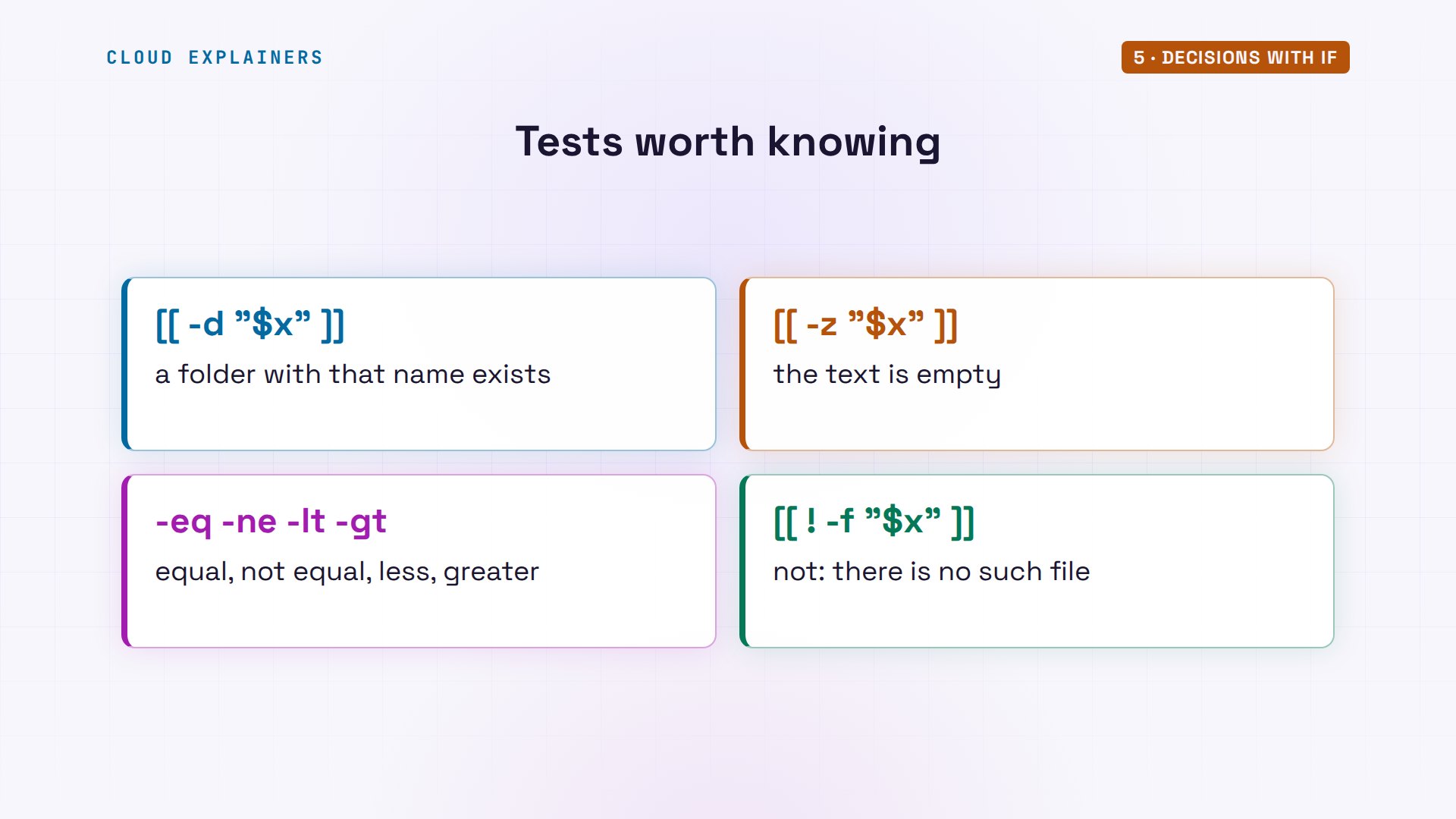
You will also meet tests in single brackets, the older form. It has a trap: with an empty variable and no quotes, the test is left with nothing in front of its equals sign, and it falls over: unary operator expected. Double brackets cope. The same test just fails quietly, so nothing is printed. In a bash script, prefer double brackets.
name=""
[ $name = roof ] && echo yesbash: [: =: unary operator expected
[[ $name = roof ]] && echo yes
The script now makes two more decisions. tail shows the last lines of a file. If the sensor's file is not there, say so, and exit with code two. After counting, double parentheses compare whole numbers. Inside them you can use the ordinary less-than sign, and a variable needs no dollar sign: if count is less than 24, print a warning with how many are missing.
tail -n 10 count.shfile="readings/$sensor.csv"
if [[ ! -f "$file" ]]; then
  echo "No readings for $sensor" >&2
  exit 2
fi
count=$(wc -l < "$file")
echo "$sensor: $count readings"
if (( count < 24 )); then
  echo "WARNING: $((24 - count)) missing" >&2
fi
The cellar sensor: no readings, exit code two. North field, inside quotes so the space survives: 21 readings, and a warning that three are missing. Yet its exit code is zero, because a warning isn't a failure: the script did its job. You choose what your exit codes mean, and other scripts will rely on them.
./count.sh cellarNo readings for cellar
echo $?2
./count.sh "north field"north field: 21 readings
WARNING: 3 missing
echo $?0
Loops
Three sensors today, maybe thirty next year. A for loop runs the same lines once for each item in a list. Here the list is a pattern: the star matches anything, so this means every file in readings that ends in.csv. Each time around, f holds the next name, and the words do and done mark the lines to repeat. Three files, three lines, and the name with the space arrives in one piece.
for f in readings/*.csv; do echo "$f"; donereadings/garden.csv
readings/north field.csv
readings/roof.csv
Many guides build the list another way: by running ls inside a dollar sign and parentheses. Here is that version, as a script. The readings folder holds three files. How many times does this loop go around? Four times. The output of ls went through word splitting, so north and field.csv arrived as two separate items, and neither is a real file.
cat list.sh#!/bin/bash
# list.sh: count the lines of every file
for f in $(ls readings); do
  echo "Checking $f"
  wc -l readings/$f
done
./list.shChecking garden.csv
24 readings/garden.csv
Checking north
wc: readings/north: No such file or directory
Checking field.csv
wc: readings/field.csv: No such file or directory
Checking roof.csv
24 readings/roof.csv
Let the pattern do the listing: it never splits a name. Sometimes, though, the list lives in a file. Ana keeps the sensors she expects in sensors.txt, one per line, including a cellar sensor that was never installed. A while loop with read takes one line at a time into a variable, here sensor, until the file runs out. The less-than sign after done feeds the file to the loop, and -r tells read to leave backslashes alone.
cat sensors.txtroof
garden
north field
cellar
cat all.sh#!/bin/bash
# all.sh: check every sensor on the list
while read -r sensor; do
  ./count.sh "$sensor" || echo "  -> check the $sensor sensor"
done < sensors.txt
Inside the loop sits one more piece: two vertical bars. They mean or: run the right side only if the left side failed. So whenever count.sh exits with anything but zero, the loop adds a line telling Ana which sensor to check. Roof, garden, north field with its warning, and then the cellar: no readings, check the cellar sensor. That is exit codes paying off: one script deciding from another script's answer.
./all.shroof: 24 readings
garden: 24 readings
north field: 21 readings
WARNING: 3 missing
No readings for cellar
  -> check the cellar sensor
Functions and pipes
Ana also wants each day's highest temperature. Bash itself only does whole-number math, so for decimals it leans on other programs, joined by pipes. A pipe, the vertical bar, sends one command's output into the next command's input. sort puts the file's lines in order: split the columns at commas, sort by column two, as numbers. The highest reading is now the last line, and tail -n 1 keeps only that. Then cut splits that line at the comma, and takes field two, the temperature: 17.8.
echo $((11.4 + 1))bash: 11.4 + 1: syntax error: invalid arithmetic operator (error token is ".4 + 1")
sort -t, -k2 -n readings/roof.csv | tail -n 114:00,17.8
sort -t, -k2 -n readings/roof.csv | tail -n 1 | cut -d, -f217.8
That pipeline deserves a name. A function is a named block of commands inside a script: the name, a pair of parentheses, and the commands between curly braces. You call it like any command, and inside it, dollar one is the function's own first argument, not the script's. The second function builds one line of the report, with a dollar sign and parentheses capturing what highest prints. The word local keeps its variables inside the function, so they can't overwrite a variable of the same name elsewhere in the script.
head -n 14 report.sh#!/bin/bash
# report.sh: one line for every sensor

highest() {
  sort -t, -k2 -n "$1" | tail -n 1 | cut -d, -f2
}

report_line() {
  local file=$1
  local name count
  name=$(basename "$file" .csv)
  count=$(wc -l < "$file")
  echo "$name: $count readings, highest $(highest "$file") C"
}
At the bottom, a loop calls that function for every file. Three sensors, three lines, each with its count and its highest reading. And the main part of the script is now three lines you can read out loud: for each file, write a report line. Every command and the lab files are linked in the description, so you can run all of it yourself.
tail -n 3 report.shfor file in readings/*.csv; do
  report_line "$file"
done
./report.shgarden: 24 readings, highest 19.2 C
north field: 21 readings, highest 16.4 C
roof: 24 readings, highest 17.8 C
Output and errors
One thing we skipped. Every program has two output channels. Standard output, channel one, is for results. Standard error, channel two, is for warnings and errors. Both normally land on your screen, but each can be sent somewhere else.
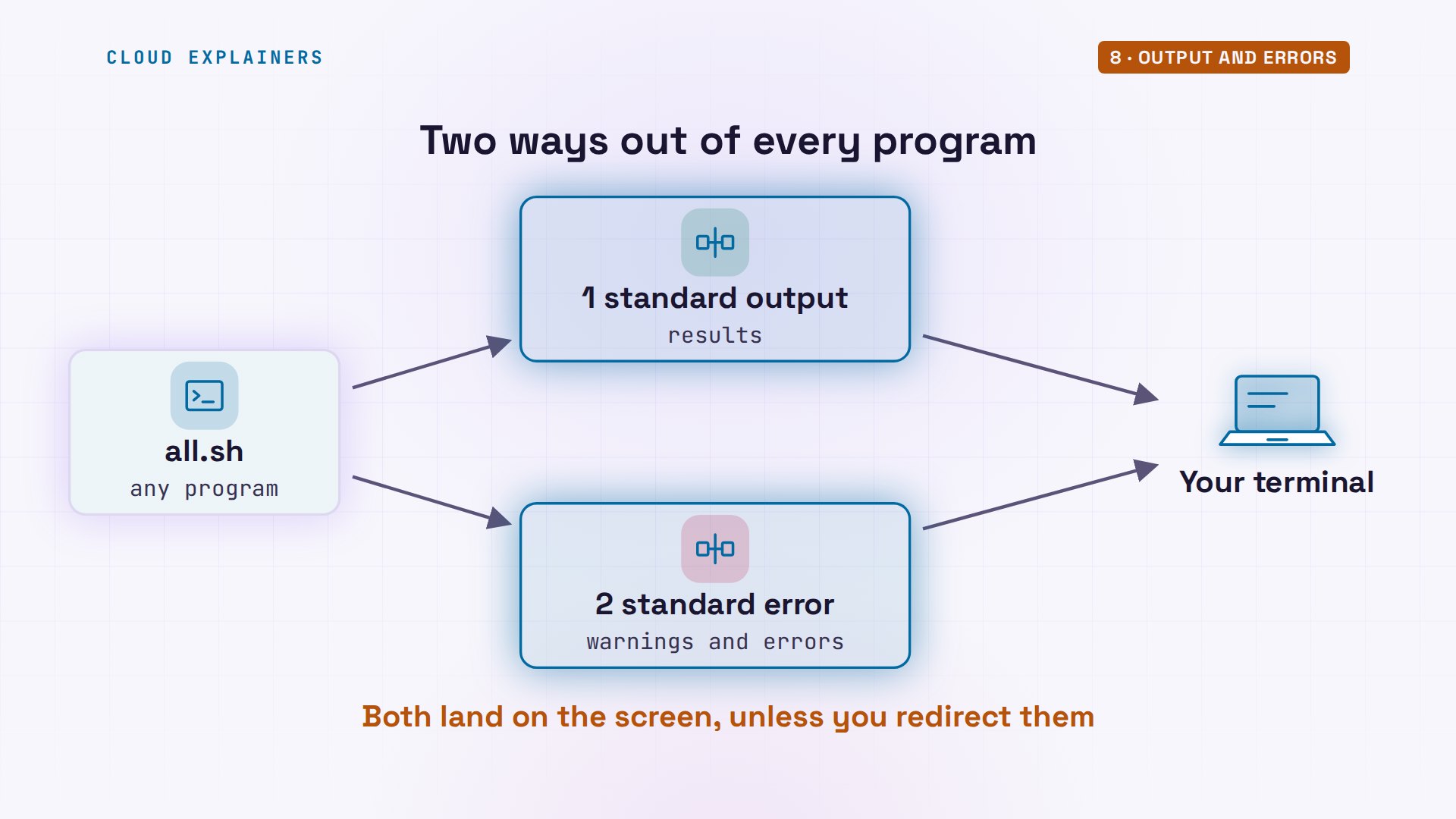
A greater-than sign sends standard output into a file instead of the screen. Run all.sh that way, and the results go to report.txt. Two lines still appear, though: the warning and the error. They travel on channel two, which we didn't redirect. And this is how they got there: in count.sh, those echo lines end in greater-than, ampersand, two, which means send this message to standard error.
./all.sh > report.txtWARNING: 3 missing
No readings for cellar
cat report.txtroof: 24 readings
garden: 24 readings
north field: 21 readings
  -> check the cellar sensor
Put the number two in front of the greater-than sign, and channel two goes to a file of its own. Now the screen stays empty: results in one file, problems in another. One greater-than sign replaces the file each time. Two of them append to its end, so after a second run, each file is twice as long: eight lines and four.
./all.sh > report.txt 2> errors.log
cat errors.logWARNING: 3 missing
No readings for cellar
./all.sh >> report.txt 2>> errors.log
wc -l report.txt errors.log8 report.txt 4 errors.log 12 total
And when you want no output at all, send it to /dev/null: a special file that throws away whatever is written to it. The ending, two, greater-than, ampersand, one, means: channel two goes wherever channel one is going. Nothing is printed, and the exit code still tells you what happened: two.
./count.sh cellar > /dev/null 2>&1
echo $?2
When a step fails
Now the backup, and the mistake from the start of this video. backup.sh has three steps. cd, change directory, moves into the backup folder. tar packs the readings folder into one compressed file, with today's date in its name: c for create, z for compress, f for the file to write. And echo reports success. One problem. Listing only the folders in Ana's home shows that the real one is called backups, with an s. The script says backup.
cat backup.sh#!/bin/bash
# backup.sh: save today's readings in the backup folder
cd /home/ana/backup
tar -czf "readings-$(date +%F).tar.gz" -C /home/ana readings
echo "Backup done"
ls -d /home/ana/*//home/ana/backups/ /home/ana/readings/
Run it. Line three, the cd, fails: no such file or directory. And then bash carries on. tar runs anyway, in the wrong place, and the script prints Backup done. Its exit code: zero, success. The backups folder is empty, and the archive sits in Ana's home folder, next to the scripts.
echo $?0
ls *.gzreadings-2026-11-10.tar.gz
Here is the answer to the question from the beginning. By default, bash is a reader who ticks off every line of the checklist, whatever happens. A failed command sets its exit code, and bash simply moves on. And a script's own exit code is the exit code of its last command: echo, which worked.
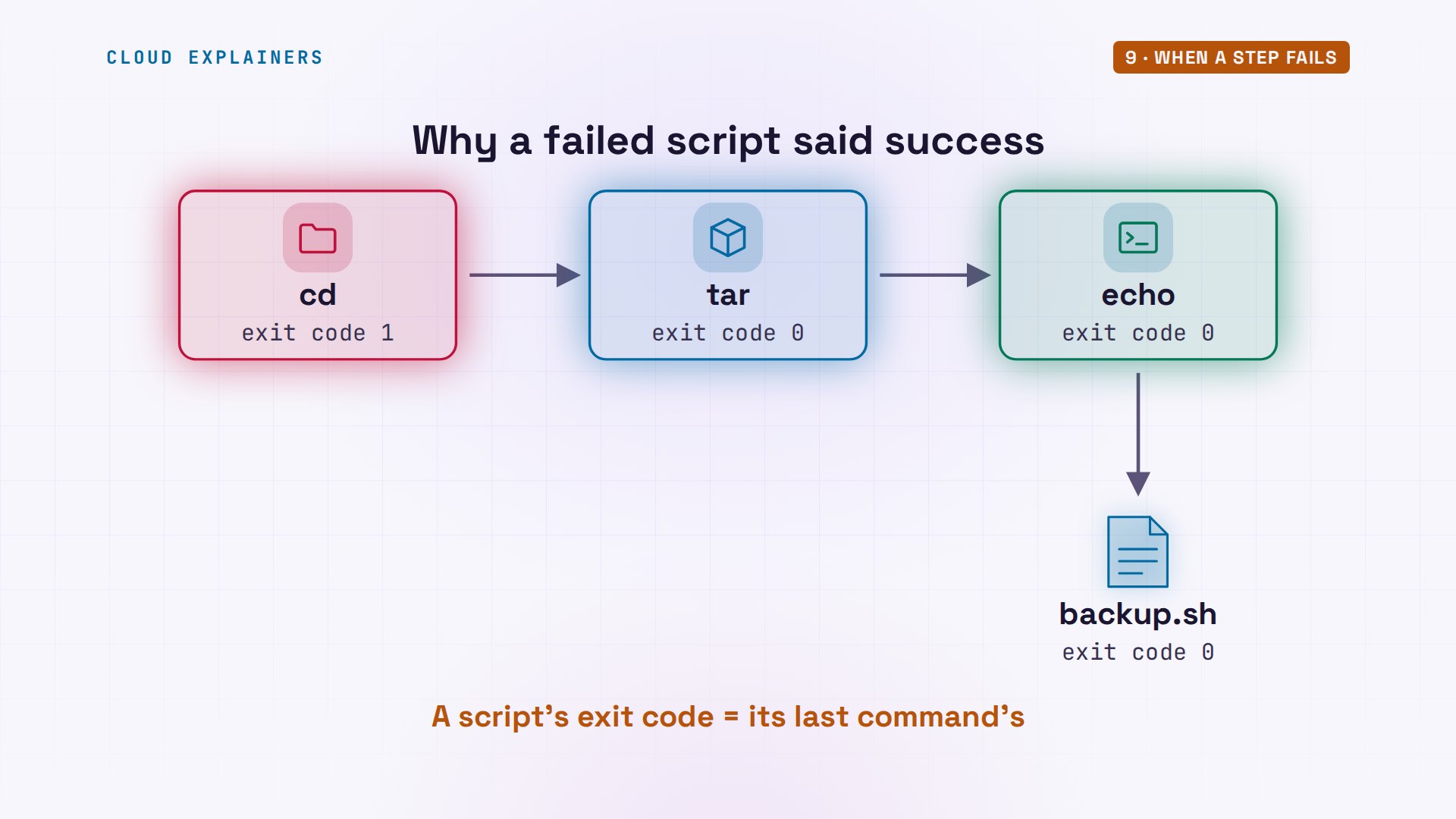
One line changes that: set -e, near the top. It tells bash: if any command fails, stop the script right there. Same mistake, same error message, but nothing after it runs. No stray archive, no Backup done, and an exit code of one.
head -n 4 backup.sh#!/bin/bash
# backup.sh: save today's readings in the backup folder
set -e
cd /home/ana/backup
./backup.sh./backup.sh: line 4: cd: /home/ana/backup: No such file or directory
echo $?1
It isn't enough, though. Ana moves the folder name into a variable, dest, and mistypes it on the very next line: dset. The sed command here just prints lines three to five. No variable is called dset. Run it: Backup done. No error at all. To bash, a variable that was never set is simply empty, and cd with an empty name quietly stays where it is. The archive landed in the home folder again, with set -e switched on.
sed -n 3,5p backup.shset -e
dest="/home/ana/backups"
cd "$dset"
./backup.shBackup done
ls *.gzreadings-2026-11-10.tar.gz
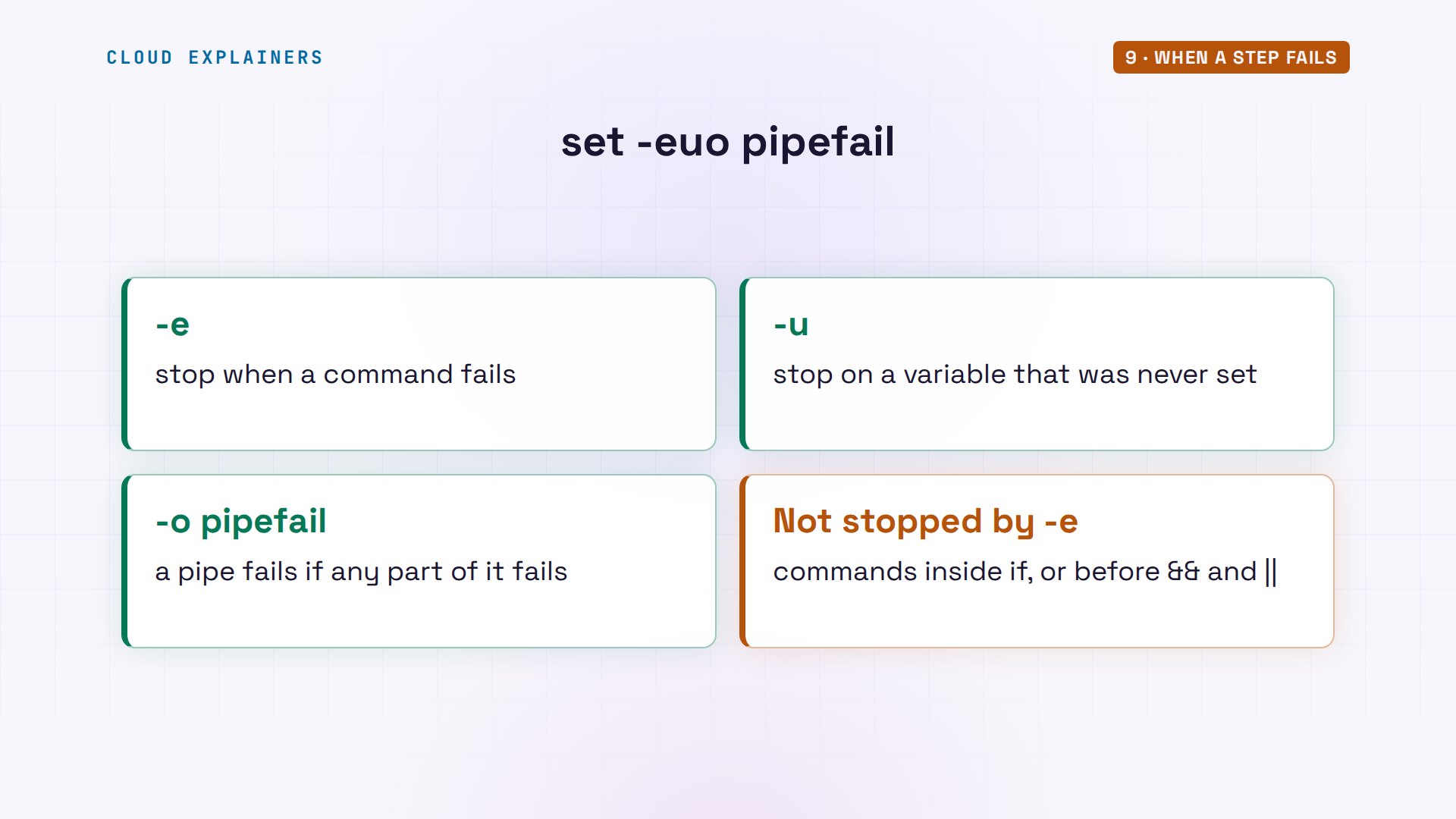
So the safety line in every script of hers grows: set -euo pipefail. The u makes an unset variable an error. The o introduces an option that has a name, pipefail; more on it in a moment. Run it again, and bash stops at line five: dset, unbound variable, exit code one. A typo is now a loud failure instead of a silent one.
sed -n 3p backup.shset -euo pipefail
./backup.sh./backup.sh: line 5: dset: unbound variable
echo $?1
That last part, pipefail, covers pipes. Normally a pipeline's exit code comes from its last command only. Here cat fails, because the cellar file doesn't exist, but wc at the end happily counts zero lines, so the whole pipeline reports zero: success. Switch pipefail on, and a failure anywhere in the pipe fails the pipeline: exit code one.
cat readings/cellar.csv | wc -lcat: readings/cellar.csv: No such file or directory
0
echo $?0
set -o pipefail
cat readings/cellar.csv | wc -lcat: readings/cellar.csv: No such file or directory
0
echo $?1
Three switches, three kinds of silent failure closed. One honest warning: a command tested by if, or followed by two ampersands or two bars, may still fail without stopping the script, because there you are handling the failure yourself.
Finding bugs
When a script does something you didn't expect, ask bash to show its work. Run it with bash -x, and every line is printed with a plus sign just before it runs, with the variables already filled in. You can follow the test, the file name with its space intact, the count becoming 21, and the comparison that led to the warning.
bash -x count.sh "north field"+ [[ 1 -ne 1 ]]
+ sensor='north field'
+ file='readings/north field.csv'
+ [[ ! -f readings/north field.csv ]]
++ wc -l
+ count=21
+ echo 'north field: 21 readings'
north field: 21 readings
+ ((  count < 24  ))
+ echo 'WARNING: 3 missing'
WARNING: 3 missing
And then there is the tool promised earlier: ShellCheck. It's free, it reads a script without running it, and on Ubuntu, apt installs it under that name. Point it at list.sh, the loop that broke on a space. It names both bugs. Line three: looping over the output of ls is fragile; use a glob, its word for a pattern like *.csv. Line five: double quote, to prevent word splitting. It even prints the corrected line.
shellcheck list.shIn list.sh line 3:
for f in $(ls readings); do
         ^------------^ SC2045 (error): Iterating over ls output is fragile. Use globs.


In list.sh line 5:
  wc -l readings/$f
                 ^-- SC2086 (info): Double quote to prevent globbing and word splitting.

Did you mean:
  wc -l readings/"$f"

For more information:
  https://www.shellcheck.net/wiki/SC2045 -- Iterating over ls output is fragi...
  https://www.shellcheck.net/wiki/SC2086 -- Double quote to prevent globbing ...
Every code has a page on ShellCheck's own website, with the problem, the corrected code, and the reason: the same word splitting you watched happen to north field.
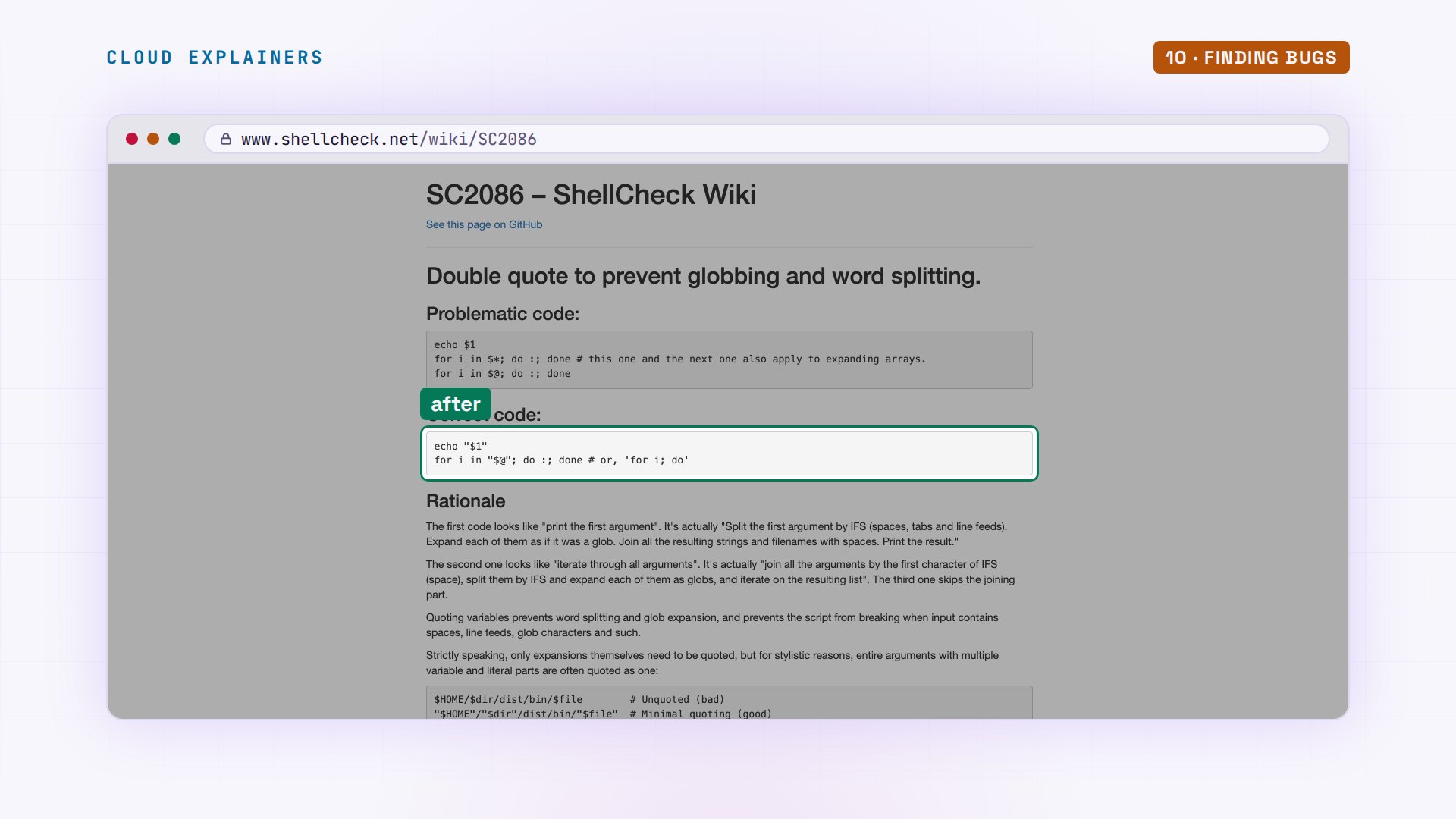
Ana applies both fixes: a pattern for the list, and quotes around the variable. Now ShellCheck prints nothing and exits with zero, which is how a checker says: no complaints. And the loop goes around three times, one file each.
cat list.sh#!/bin/bash
# list.sh: count the lines of every file
for f in readings/*.csv; do
  echo "Checking $f"
  wc -l "$f"
done
shellcheck list.sh
echo $?0
./list.shChecking readings/garden.csv
24 readings/garden.csv
Checking readings/north field.csv
21 readings/north field.csv
Checking readings/roof.csv
24 readings/roof.csv
The finished script
Time to put every piece into the real report.sh. The top: the shebang, a comment, and the safety line. Then three variables. dir is the first argument, or, thanks to the colon and the dash, the word readings if none was given. dest is the backups folder inside HOME, a variable Linux sets to your home folder. And today is the date. Below them, the highest function, unchanged.
head -n 11 report.sh#!/bin/bash
# report.sh: tonight's station report, then a backup
set -euo pipefail

dir=${1:-readings}
dest="$HOME/backups"
today=$(date +%F)

highest() {
  sort -t, -k2 -n "$1" | tail -n 1 | cut -d, -f2
}
The middle is the loop over every.csv file. For each one: the name, where basename strips the folder and the ending; the count; the highest reading; and an if that sets status to missing or ok. One line goes to the screen. And plus-equals adds a table row to a variable called rows, for the page that comes next.
sed -n 13,26p report.shrows=""
for file in "$dir"/*.csv; do
  name=$(basename "$file" .csv)
  count=$(wc -l < "$file")
  top=$(highest "$file")
  if (( count < 24 )); then
    status="missing"
  else
    status="ok"
  fi
  echo "$name: $count readings, highest $top C, $status"
  rows+="<tr><td>$name</td><td>$count of 24</td>"
  rows+="<td>$top C</td><td class=\"$status\">$status</td></tr>"
done
The end writes the page. cat with two less-than signs and a marker word, here EOF, is called a here-document: every line up to the marker becomes cat's input, with the variables filled in, and the greater-than sign sends it all into report.html. Last, the backup. mkdir -p creates the folder if it's missing. And tar writes the archive straight to its full path, so there is no cd to go wrong.
tail -n 14 report.shcat > report.html <<EOF
<link rel="stylesheet" href="style.css">
<title>Station report</title>
<h1>Station report</h1>
<p class="sub">$today, written by report.sh</p>
<table>
<tr><th>Sensor</th><th>Readings</th><th>Highest</th><th>Status</th></tr>
$rows
</table>
EOF

mkdir -p "$dest"
tar -czf "$dest/readings-$today.tar.gz" "$dir"
echo "Backup saved: $dest/readings-$today.tar.gz"
ShellCheck first: nothing to report. Then run it. Three lines, north field marked missing, and the backup saved. Exit code zero, and this time it is earned: with the safety line, reaching the last line means none of the steps above it failed. The backups folder holds today's archive, and tar -t lists what's inside: all three files.
shellcheck report.sh
./report.shgarden: 24 readings, highest 19.2 C, ok
north field: 21 readings, highest 16.4 C, missing
roof: 24 readings, highest 17.8 C, ok
Backup saved: /home/ana/backups/readings-2026-11-10.tar.gz
echo $?0
ls /home/ana/backupsreadings-2026-11-10.tar.gz
tar -tzf /home/ana/backups/readings-*.tar.gzreadings/
readings/garden.csv
readings/roof.csv
readings/north field.csv
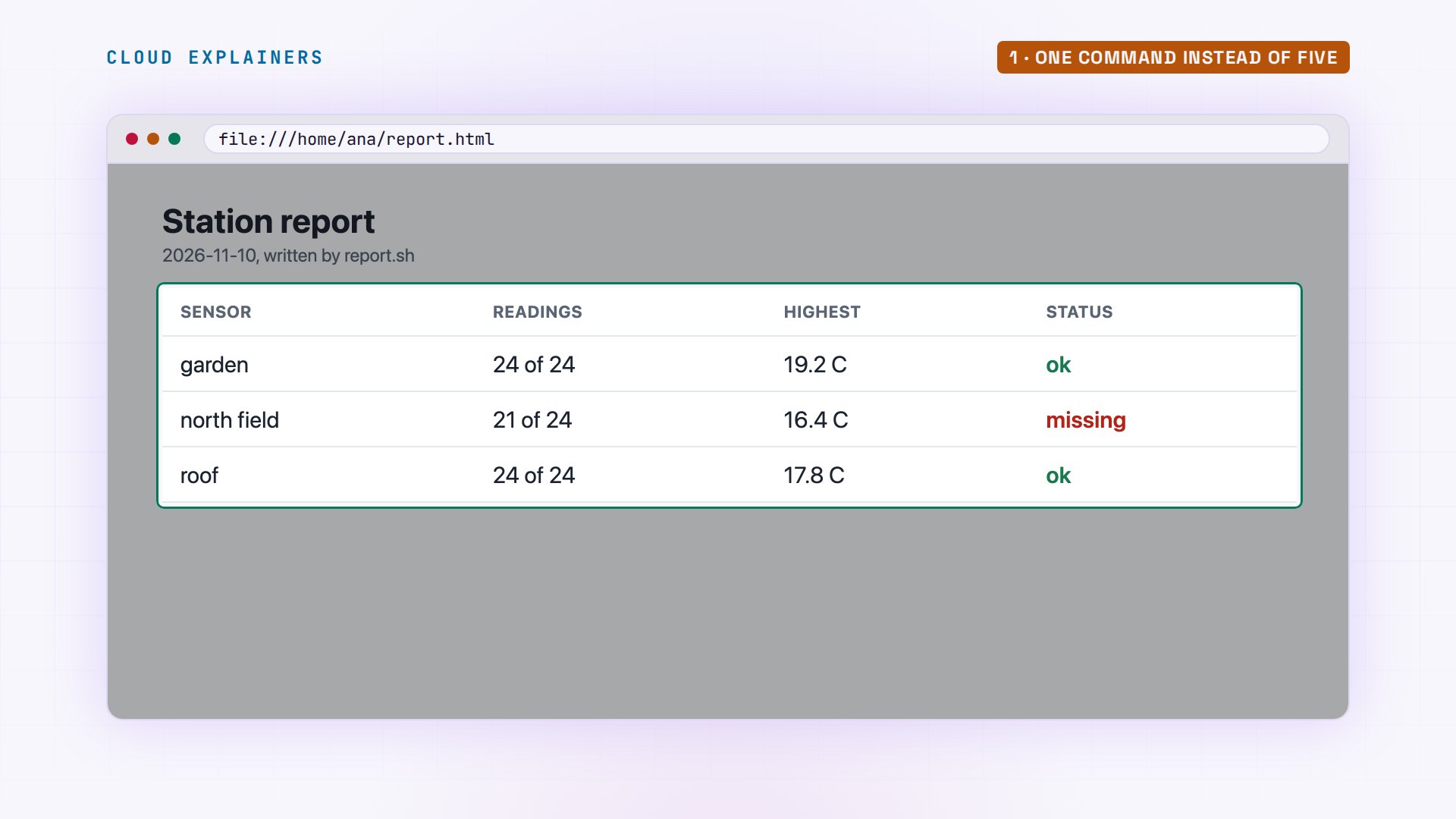
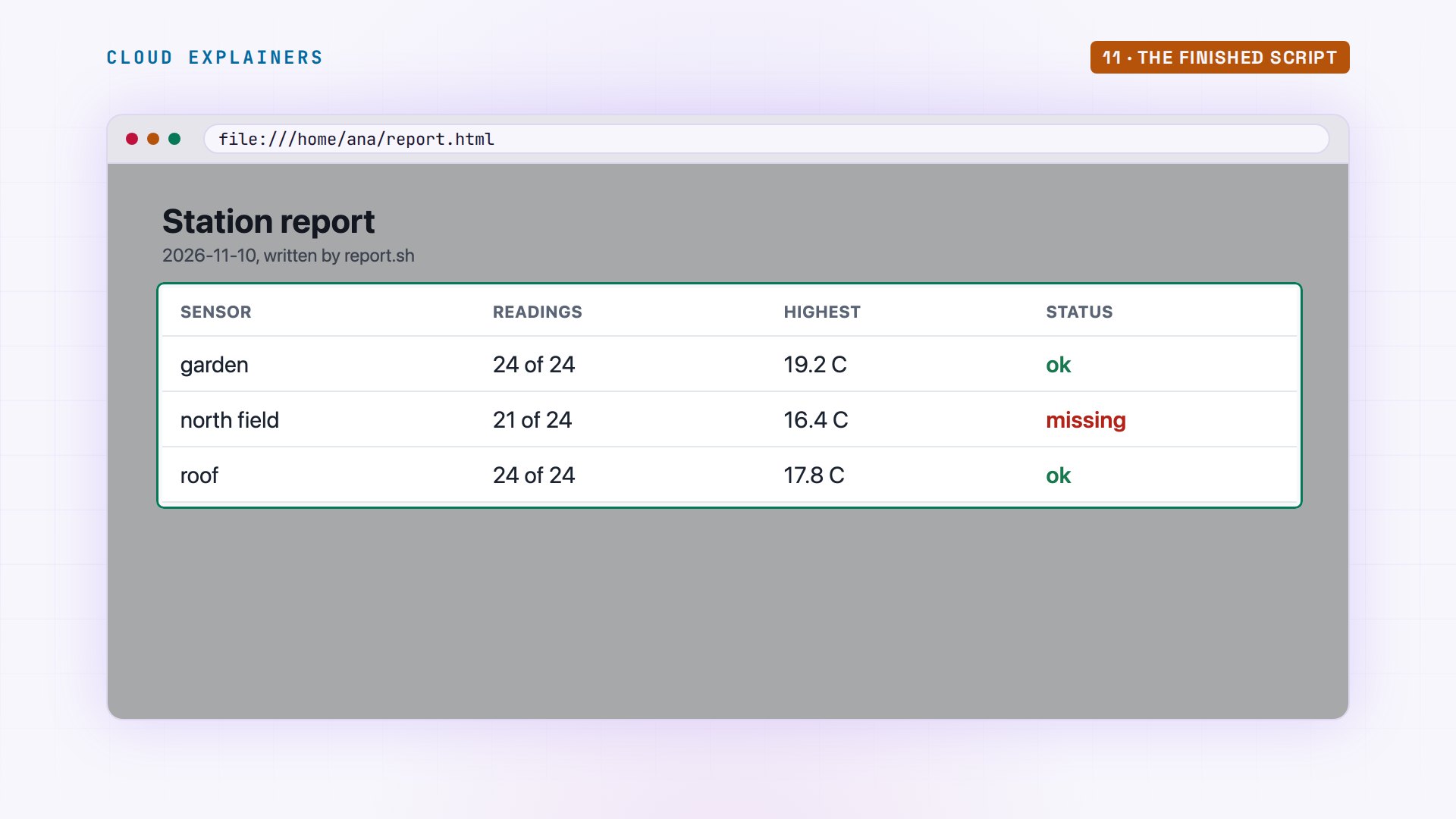
And this is the page it wrote, opened in a real browser: one row per sensor, the count out of 24, the highest reading, and north field flagged in red. One command instead of five, and it never forgets a step. To run it every evening without you, hand that command to cron, Linux's scheduler.
Recap
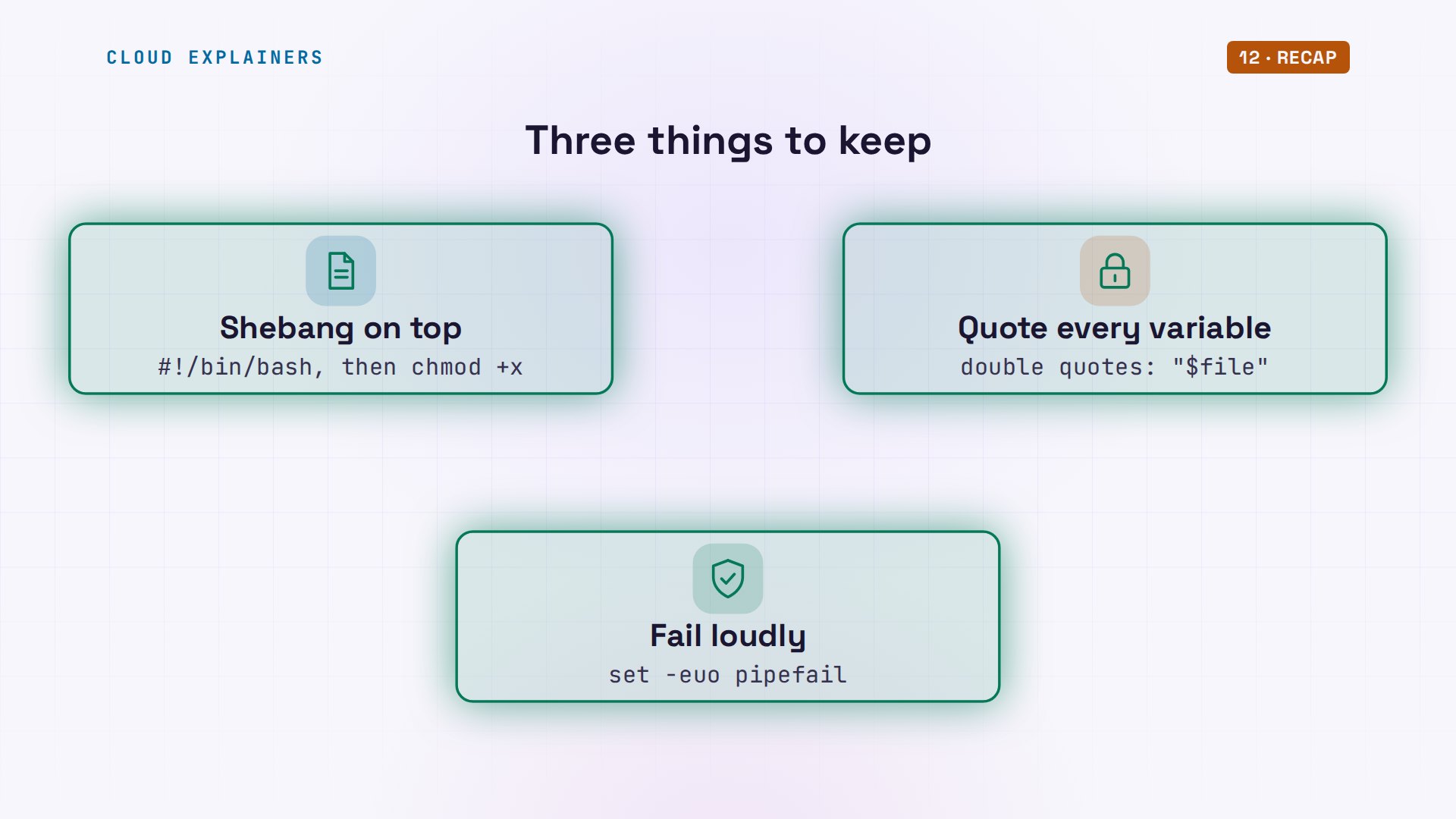
Three things to keep. A script is a checklist in a file: a shebang on top, and chmod +x to run it. Quote every variable. And start with set -euo pipefail, so one failed step halts the script instead of hiding it.
If the tutorial saved you some typing, a like helps YouTube show it to more beginners, and subscribing brings you the next one.
Sources
- GNU Bash Reference Manual (shell parameters, quoting, shell expansions and word splitting, conditional constructs, looping constructs, shell functions, redirections, pipelines, the set builtin, exit status)
- ShellCheck wiki, SC2086 (double quote to prevent globbing and word splitting)
- ShellCheck wiki, SC2045 (iterating over ls output is fragile)
- Linux man page execve(2), interpreter scripts (the #! line)
Demos: a stock Ubuntu 24.04 container on our own lab machine, standing in for the station's Linux box; the weather station, its sensors and readings are made up. Watch the full video on YouTube.
More videos
Linux Makefiles Will Finally Make Sense After This

SAML vs OAuth vs OpenID Connect: What's the Difference?
How to Fix Python cron Jobs That Never Run
How PXE Network Boot Works
How Active Directory Works

How to Fix a Linux systemd Service That Won't Start
Linux Logs: syslog vs journald
JWT vs Session Cookies: Which One Should You Use?
Docker vs Docker Compose: Which One Should You Use?
How to Fix Docker Compose Containers That Can't Talk to Each Other

Django Full Tutorial for Beginners
How Linux systemd Works

How to Fix 'Windows Cannot Access' Network Share Errors (SMB)
REST vs gRPC: Which One Should You Use?

How to Fix SSL Certificate Chain Errors (Missing Intermediate)
Every Python Concept for Beginners in 10 Minutes
Every SQL Join Type in 10 Minutes
Why OpenRouter Free Models Hit Their Limit So Fast
Why Your Gemini API Free Tier Runs Out So Fast

OpenRouter Will Finally Make Sense After This
How Redis Caching Works
Gemini API vs Vertex AI: Which One Should You Use?
How to Fix a Leaked Gemini API Key
Why Golang Uses Goroutines Instead of Threads
How to Fix Gemini API Error 429: Resource Exhausted

Claude Token Pricing Will Finally Make Sense After This
Why Python Web Scraping Returns Nothing (and the Fix)

Python uv vs pip: Which One Should You Use?

Python Automation: Full Tutorial for Beginners

How OAuth Login Works

Google AI Studio Will Finally Make Sense After This
What Happens When You Run a Docker Container
How to Fix Claude Code Billing Your API Key Instead of Your Plan
Why Passkeys Can't Be Phished Like Passwords
PowerShell vs Bash: Which One Should You Learn?
The Linux Roadmap for Beginners
Django vs FastAPI: Which One Should You Use?

Why SQLite Is the Most Used Database in the World
How a NoSQL Database Like MongoDB Works
How to Fix Python pip error: externally-managed-environment
How to Fix MySQL Too Many Connections Database Errors
Golang Concurrency Will Finally Make Sense After This
How Amazon S3 Works
How Kubernetes Works

How Git Works
How to Fix Docker Port Already Allocated Errors
How PostgreSQL Works
How to Fix Git Merge Conflicts
How to Fix No Space Left on Device in Linux
How the Internet Works
SQL vs NoSQL: When Each One Wins
How to Fix JWT Token Expired Errors (401 Unauthorized)

Claude API vs Claude Pro: Why Your Subscription Doesn't Include It

Why AI Agent Skills Beat Giant Prompts

Linux Cron Jobs Will Finally Make Sense After This

Security Logs Will Finally Make Sense After This
How to Fix a Security Leak: An API Key Pushed to GitHub
DNS Will Finally Make Sense After This
Never Ignore a Security Update
Two-Factor Authentication Will Finally Make Sense
Never Expose a Database to the Internet
SSH Keys vs Passwords: Which Is Safer for Security?
The 5 Levels of Linux Boot: From Power On to Login
The 5 Levels of Network Firewalls
Password Security: Why Hackers Crack Weak Passwords
Why Your Linux Server Runs Out of Memory
HTTP vs HTTPS: What Actually Changes on Your Network

Every Linux File Permission You Need to Know
Linux Processes vs Threads: When Each One Wins

The OSI Model Will Finally Make Sense After This

The 7 Levels of Git
Every Network Troubleshooting Command You Need
Hashing vs Encryption in Cybersecurity: When Each One Wins

Why the Internet Ran Out of IP Addresses

Linux Package Managers: apt vs Snap vs Flatpak
Why Python Is Slow (and When It Doesn't Matter)

TCP vs UDP: When Each One Wins
Stop Running Linux as Root (Do This Instead)
Linux Users and Groups Will Finally Make Sense

Why Phishing Beats Good Security (and How to Spot It)

The 7 Levels of Docker

AI Agents Will Finally Make Sense After This
Stop Using git push --force (Use This Instead)
Agent Skills vs MCP: When Each One Wins

Networking Will Finally Make Sense After This

Every Linux Command You Actually Need
The 7 Levels of Cybersecurity

Every System Design Concept You Need, in One Diagram