Never Expose a Database to the Internet
Why you should never expose a database to the internet, for complete beginners, on three real Linux machines in our lab: Ana's shop server, her laptop, and a stranger's computer standing in for anyone on the internet. Ana turns on ufw (deny incoming) and starts PostgreSQL in Docker the way many tutorials do (-p 5432:5432, password postgres). The stranger's nmap scan finds port 5432 open, his fourth password guess logs in, and he reads 1,200 customers and runs a program inside the database's container. We see why the firewall didn't help (Docker's own rules redirect the packet before ufw sees it), then fix it: publish the port on 127.0.0.1 only, change the password, and reach the database through an SSH tunnel. Last, the same rule for bigger shops and for AWS RDS.
An open door
Ana's shop database answered a stranger on the internet, and four password guesses later, he was reading her customer list. She even had a firewall turned on. Today we replay it on real machines, see why the firewall didn't help, and fix it the right way.
Three small Linux machines in our lab play the parts: Ana's shop server, her laptop, and a stranger's computer, standing in for anyone on the internet. They share a private lab network, so nothing outside it is touched. In episode seven, a scan found Ana's database open. Today we see what that costs.
What exposed means
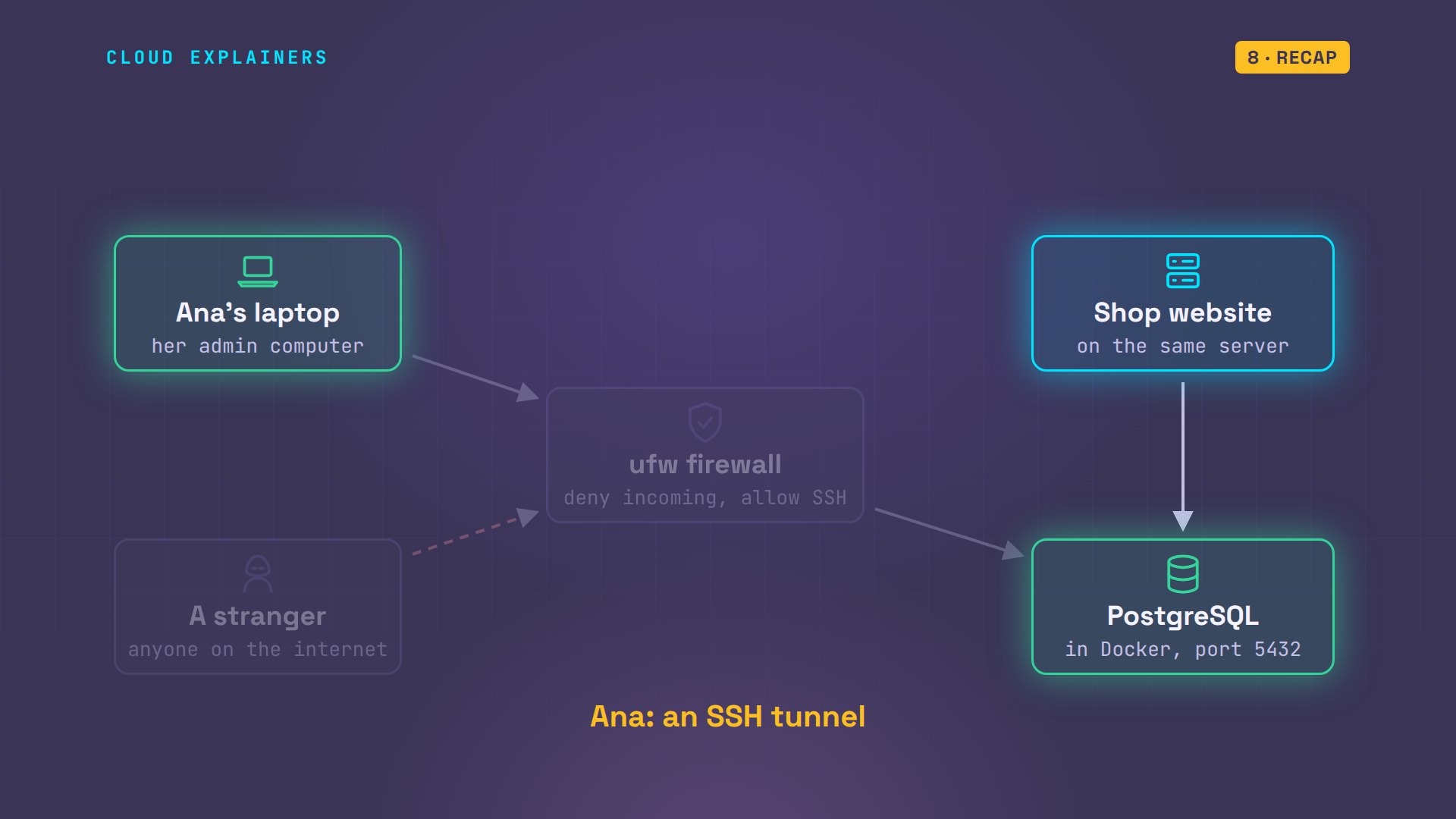
First, what exposed means. A database is a program that waits for connections on a numbered door, called a port. PostgreSQL uses port 5432. Ana's website connects to that port to read products and orders. Exposed means anyone on the internet can reach that port too, not just her website.
Here's how Ana set up her server. She turned on ufw, Ubuntu's simple firewall: deny everything coming in, allow only SSH. Then she started PostgreSQL with Docker, a tool that runs programs in sealed boxes called containers, the way many tutorials show it. The password is postgres, and -p 5432:5432 publishes the port: port 5432 on the server leads to port 5432 in the container. With no address in front, Docker uses every address: 0.0.0.0.
sudo ufw status verbose[sudo] password for ana:
Status: active
Logging: on (low)
Default: deny (incoming), allow (outgoing), deny (routed)
New profiles: skip

To                         Action      From
--                         ------      ----
22/tcp (OpenSSH)           ALLOW IN    Anywhere
22/tcp (OpenSSH (v6))      ALLOW IN    Anywhere (v6)
docker run -d --name shop-db -e POSTGRES_PASSWORD=postgres -p 5432:5432 -v shop-data:/var/lib/postgresql postgres:18a06b1c9bdfa3bffd7cd940e21b78e0df5bb8da2fcf7be1a4ed5878e2a9a0caba
docker ps --format 'table {{.Names}}\t{{.Ports}}'NAMES     PORTS
shop-db   0.0.0.0:5432->5432/tcp, [::]:5432->5432/tcp
0.0.0.0 means every network address this server has, including its public one, and the [::] next to it is the same for the newer IPv6 addresses. So the door is open to the whole internet. And the firewall says deny incoming. Which one wins?
A stranger gets in
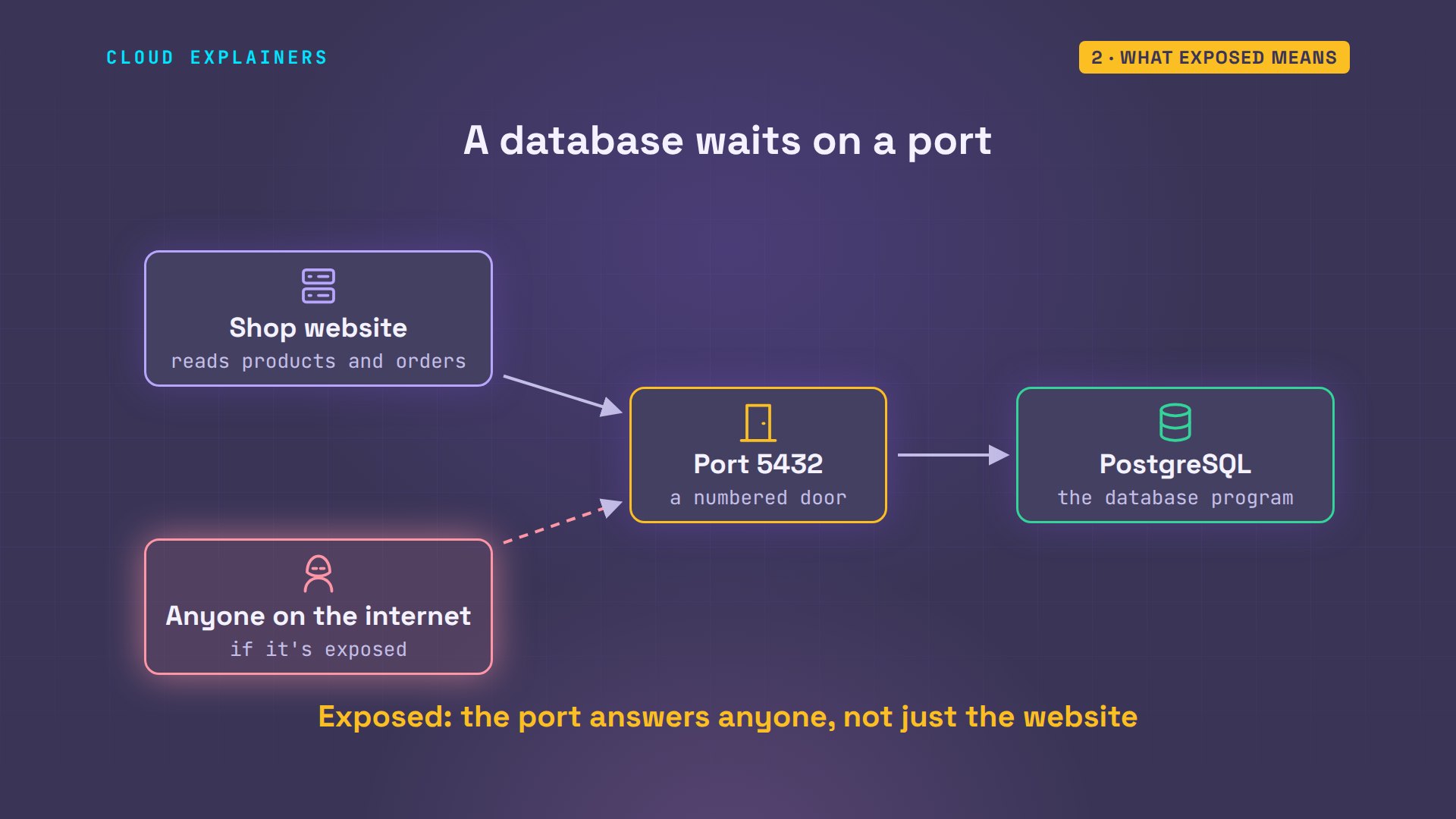
Out on the internet, automated bots scan every address, all day. A tool like masscan can sweep all of IPv4 in under five minutes, so a new server gets found fast.
Our stranger runs nmap against Ana's server, checking SSH and four common database ports. MySQL, Redis and MongoDB are filtered: the firewall drops them. But PostgreSQL is open.
nmap -Pn -p 22,3306,5432,6379,27017 shop | grep -E 'report|/tcp'Nmap scan report for shop (10.236.135.4)
22/tcp    open     ssh
3306/tcp  filtered mysql
5432/tcp  open     postgresql
6379/tcp  filtered redis
27017/tcp filtered mongod
Open means it answers, so the next step is guessing. The stranger's list has four common passwords for postgres, the database's built-in admin user, and a small script of ours tries each one, the way bots do. Three are wrong. The fourth, postgres, the password from the tutorial, logs in.
cat common-db-logins.txtpostgres 123456
postgres admin
postgres password
postgres postgres
guess shop common-db-logins.txtpostgres  123456    wrong password
postgres  admin     wrong password
postgres  password  wrong password
postgres  postgres  LOGGED IN
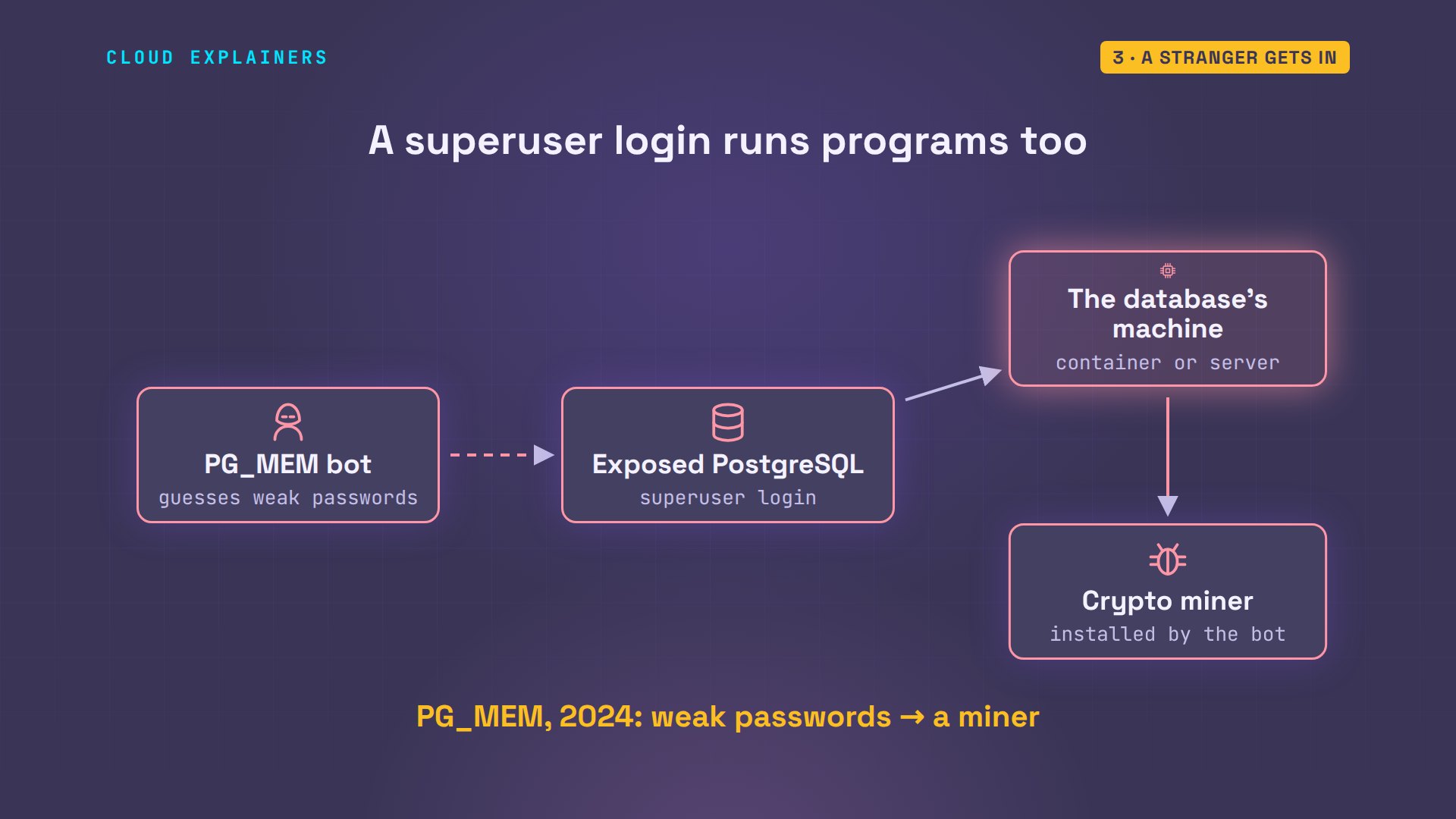
He's in, as the superuser: the account that may do anything. He lists the databases, and one is called shop. It holds 1,200 customers, with names and email addresses. Ours are made up; on a real shop, this is a data breach. And then he asks PostgreSQL to run a program, the id command, and it does: inside the database's container, on Ana's server.
export PGHOST=shop PGUSER=postgres PGPASSWORD=postgres
psql -Atc 'select datname from pg_database'postgres
shop
template1
template0
psql -d shop -c 'select count(*) from customers'count ------- 1200 (1 row)
psql -d shop -c 'select name, email from customers limit 3'name | email ------------+------------------------- Leo Silva | leo.silva1@example.com Iris Novak | iris.novak2@example.com Omar Reyes | omar.reyes3@example.com (3 rows)
psql -Atc "create temp table o (t text); copy o from program 'id'; select * from o"CREATE TABLE
COPY 1
uid=999(postgres) gid=999(postgres) groups=999(postgres),101(ssl-cert)
That's the worst part. PostgreSQL has a built-in command, COPY FROM PROGRAM, that lets a superuser run programs on the machine the database runs on: here its container, and on a normal install, the server itself. In 2024, security researchers found malware doing exactly this. Its name is PG_MEM. It guessed weak passwords on exposed PostgreSQL servers, then used this feature to install a cryptocurrency miner.
On Ana's server, the database's log shows 3 failed passwords. The login that worked left no line at all, because PostgreSQL doesn't log connections unless you ask it to. Ana would never know.
docker logs shop-db 2>&1 | grep -o 'FATAL.*'FATAL:  password authentication failed for user "postgres"
FATAL:  password authentication failed for user "postgres"
FATAL:  password authentication failed for user "postgres"
Why the firewall missed it
So why didn't the firewall stop him? ufw guards traffic that arrives for the server itself. But Docker writes its own rules, earlier on the packet's path. A packet for port 5432 is redirected to the container before ufw's rules for incoming traffic ever see it, and Docker's next rule lets it through. Docker's own documentation warns about this.
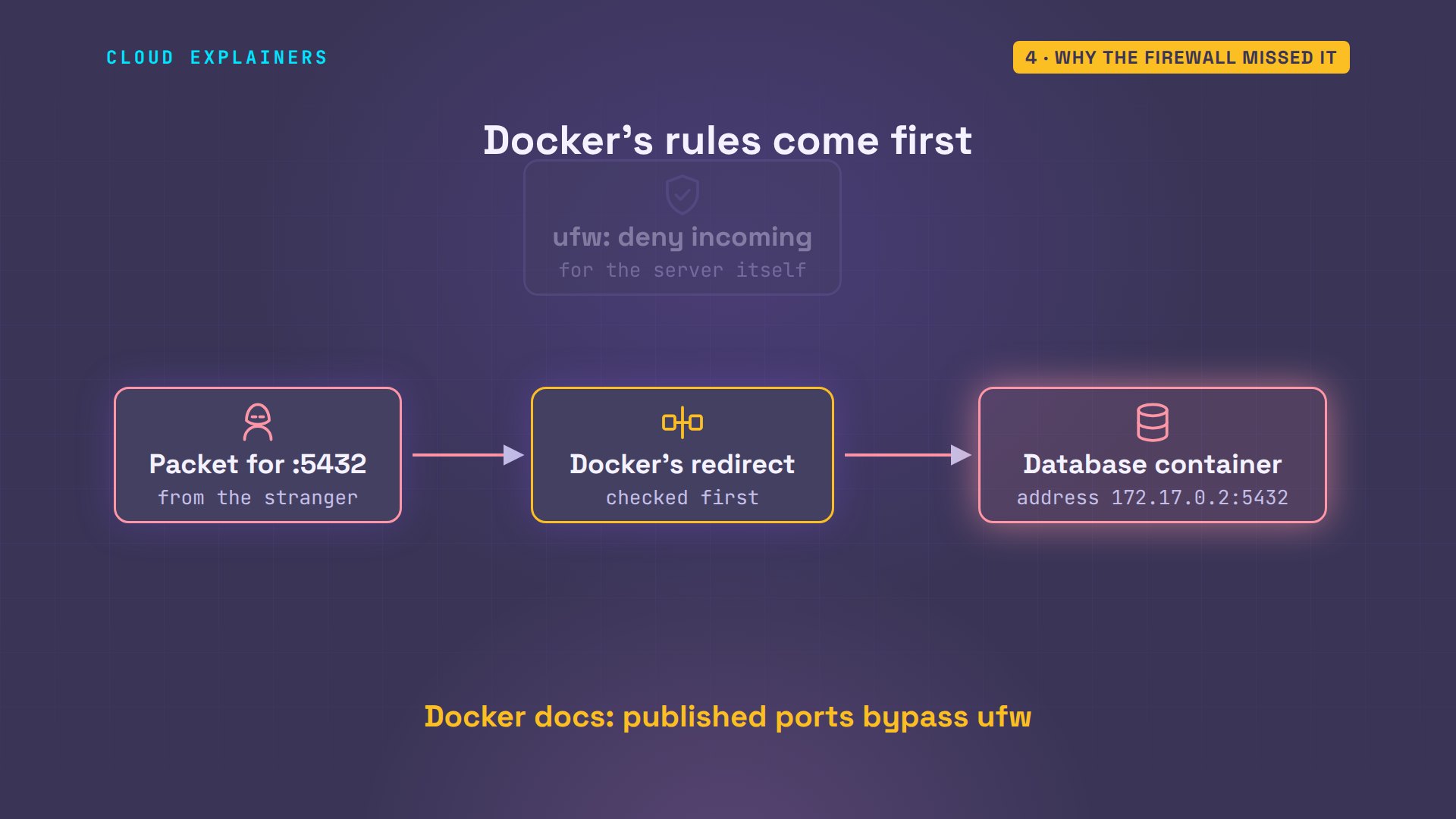
Here is that rule on Ana's server, listed with iptables, the Linux tool that shows the firewall rules both ufw and Docker write. Any packet for port 5432 goes to the container's own address. It's not a ufw rule, so ufw status never showed it, and her firewall looked safe.
sudo iptables -t nat -S DOCKER | grep 5432-A DOCKER ! -i docker0 -p tcp -m tcp --dport 5432 -j DNAT --to-destination 172.17.0.2:5432
Listen on this machine only
The fix is to choose where the database listens. Her website runs on the same server, so the database only has to answer that one machine. The address for that is 127.0.0.1, called localhost: it never leaves the server.
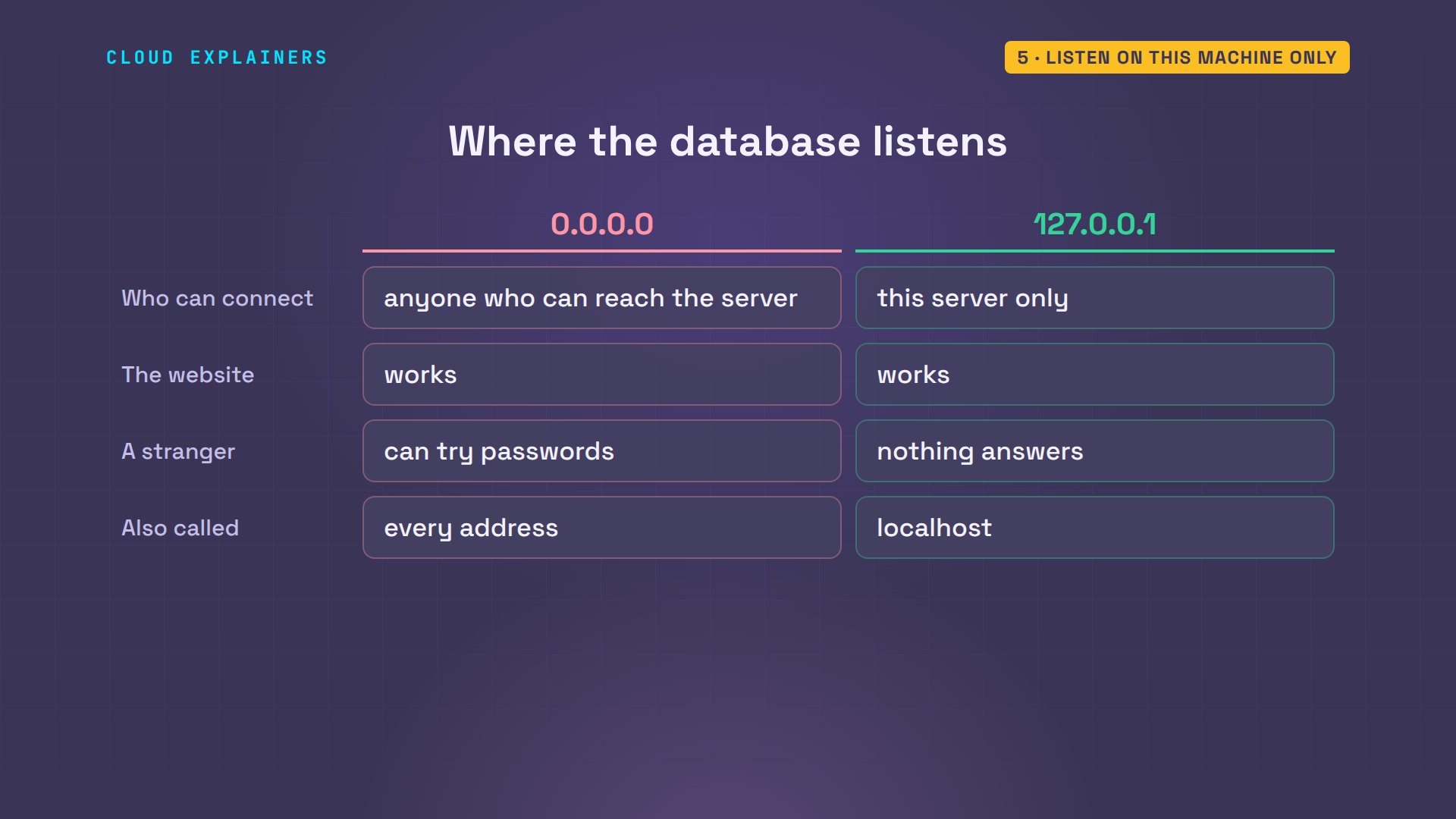
Ana removes the container. The data stays in its volume, a folder Docker keeps. She starts it again with one change: 127.0.0.1 before the port. Now Docker lists localhost only. And since postgres was guessed, she sets a long random password, typed twice and never shown.
docker rm -f shop-dbshop-db
docker run -d --name shop-db -e POSTGRES_PASSWORD=postgres -p 127.0.0.1:5432:5432 -v shop-data:/var/lib/postgresql postgres:18bd26ae854113cad275ce432d61329c4c0b55106f40952519b893bb9a465346eb
docker ps --format 'table {{.Names}}\t{{.Ports}}'NAMES     PORTS
shop-db   127.0.0.1:5432->5432/tcp
docker exec -it shop-db psql -U postgres -c '\password postgres'Enter new password for user "postgres":
Enter it again:
The stranger tries again. Port 5432 is filtered now, like the other database ports: nothing answers. Every guess times out. There's nothing left to guess against.
nmap -Pn -p 22,3306,5432,6379,27017 shop | grep -E 'report|/tcp'Nmap scan report for shop (10.236.135.4)
22/tcp    open     ssh
3306/tcp  filtered mysql
5432/tcp  filtered postgresql
6379/tcp  filtered redis
27017/tcp filtered mongod
guess shop common-db-logins.txtpostgres  123456    no answer (timed out)
postgres  admin     no answer (timed out)
postgres  password  no answer (timed out)
postgres  postgres  no answer (timed out)
On the map, the stranger's packets now stop at the server's edge, while the website still talks to the database inside the same machine.
Here's the check on the server: connecting to localhost, with the new password, the database answers. All 1,200 customers are still there.
psql -h 127.0.0.1 -U postgres -d shop -c 'select count(*) from customers'Password for user postgres:
 count
-------
  1200
(1 row)
Ana's own way in
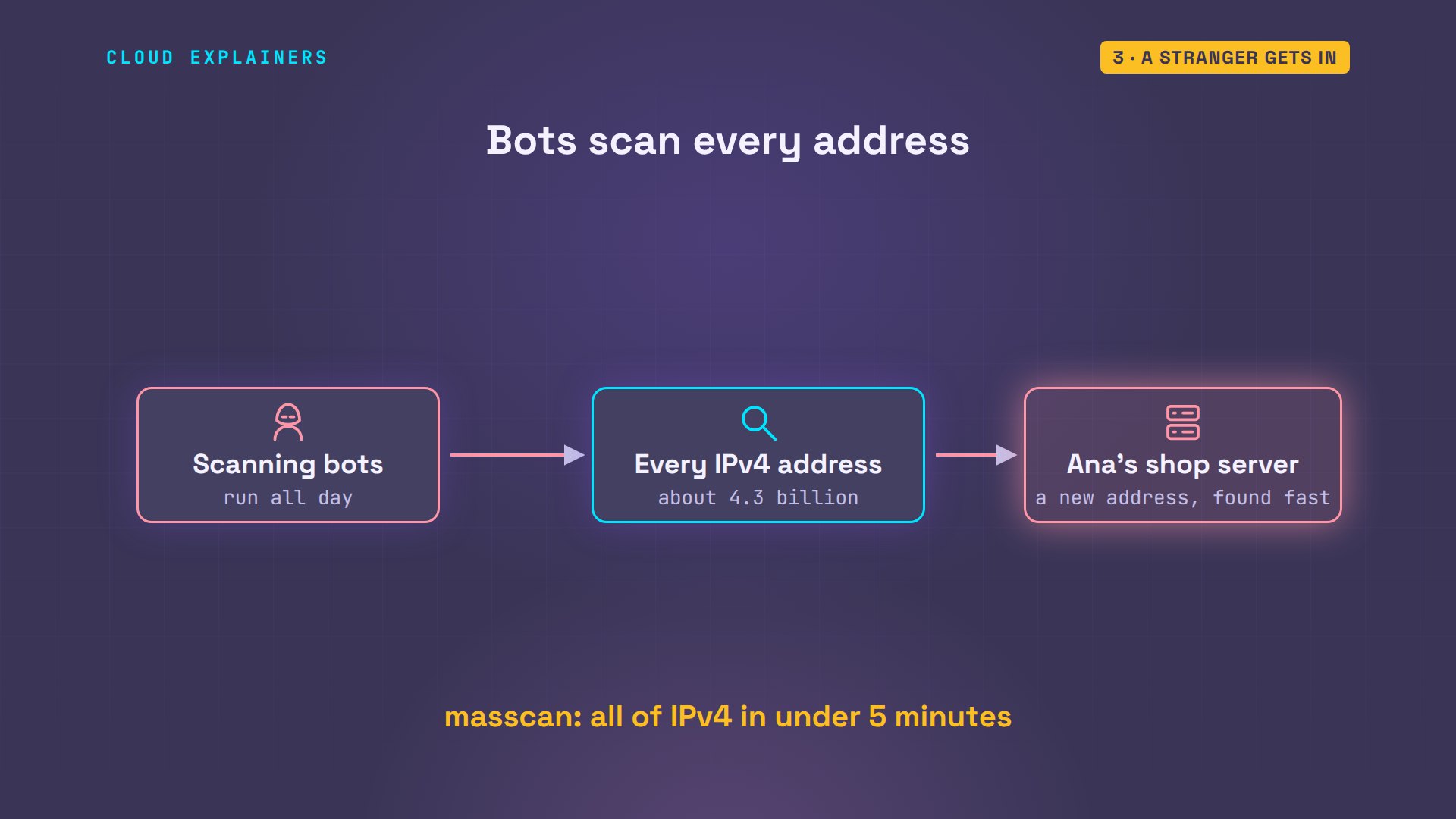
But what about Ana herself? Sometimes she wants the database from her laptop. Opening the port for her would open it for everyone. Instead, she uses an SSH tunnel: her laptop logs in over SSH with her key, and SSH carries the database connection inside, to localhost on the server.
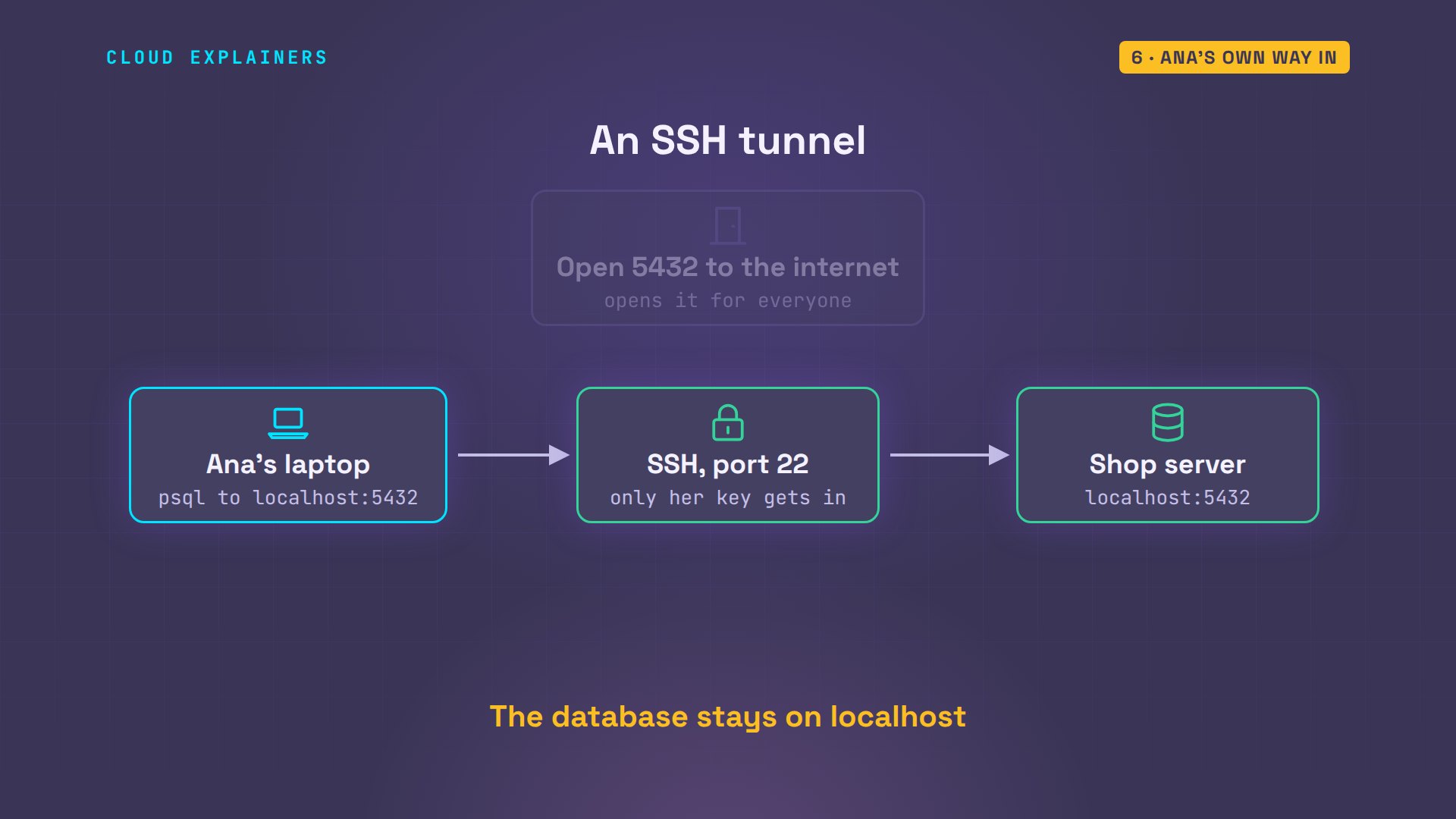
One command opens the tunnel in the background: port 5432 on her laptop now leads to port 5432 on the shop server. Then she connects to localhost on her own laptop, types the new password, and sees all 1,200 customers.
ssh -f -N -L 5432:localhost:5432 shop
psql -h localhost -U postgres -d shop -c 'select count(*) from customers'Password for user postgres:
 count
-------
  1200
(1 row)
Bigger shops and the cloud
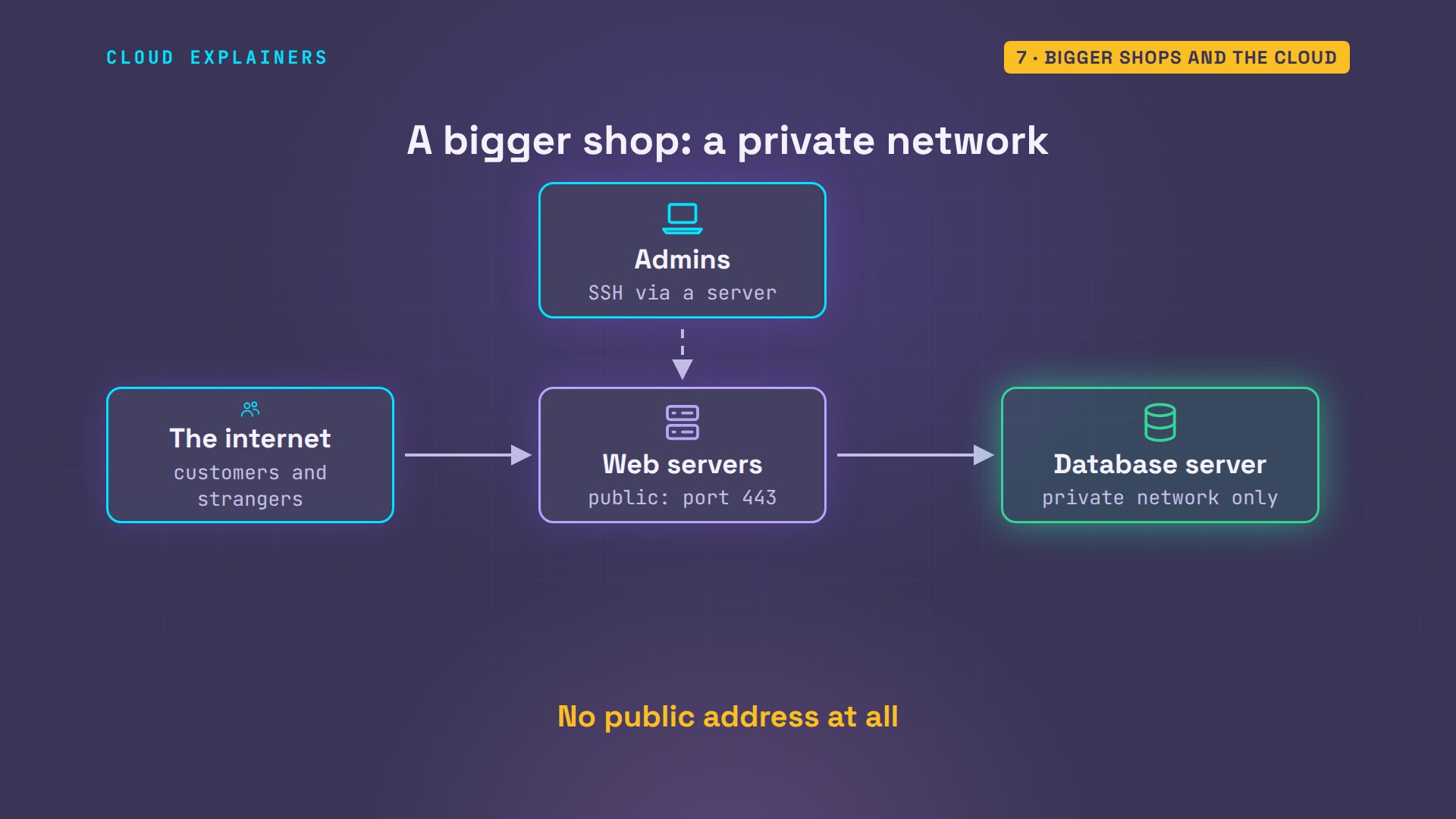
When a shop grows, the database gets its own server, and the rule stays the same. Put it on a private network, with no public address at all. Only the web servers can reach it. Admins tunnel in with SSH, through a server they're allowed to log in to, the way Ana's tunnel did.
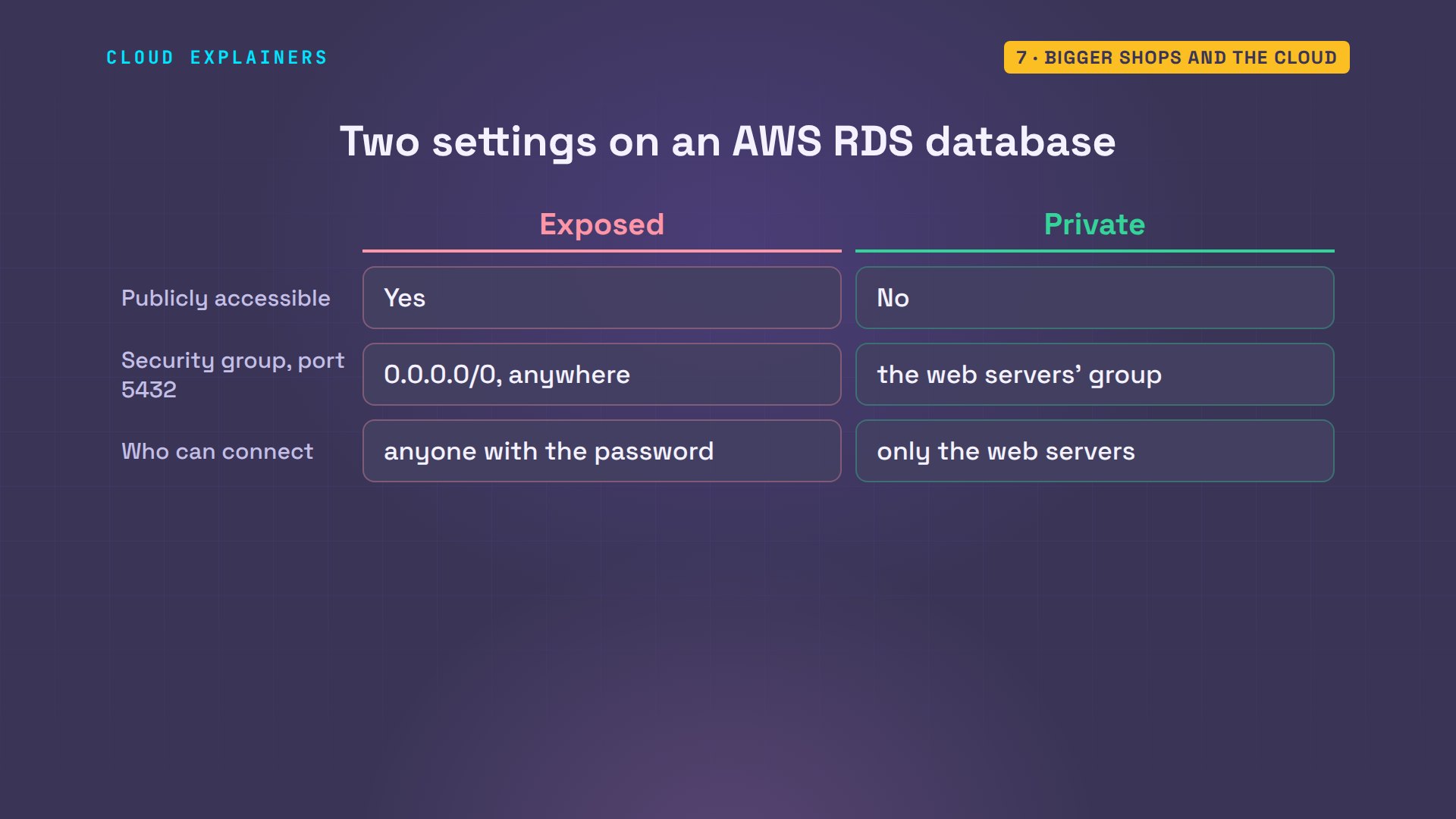
In the cloud it's the same idea, with two settings to check. On AWS, RDS, Amazon's managed database service, has an option called Publicly accessible: leave it at No. And its security group, the cloud's firewall, should allow port 5432 only from the web servers' security group, never from 0.0.0.0/0, which means anywhere.
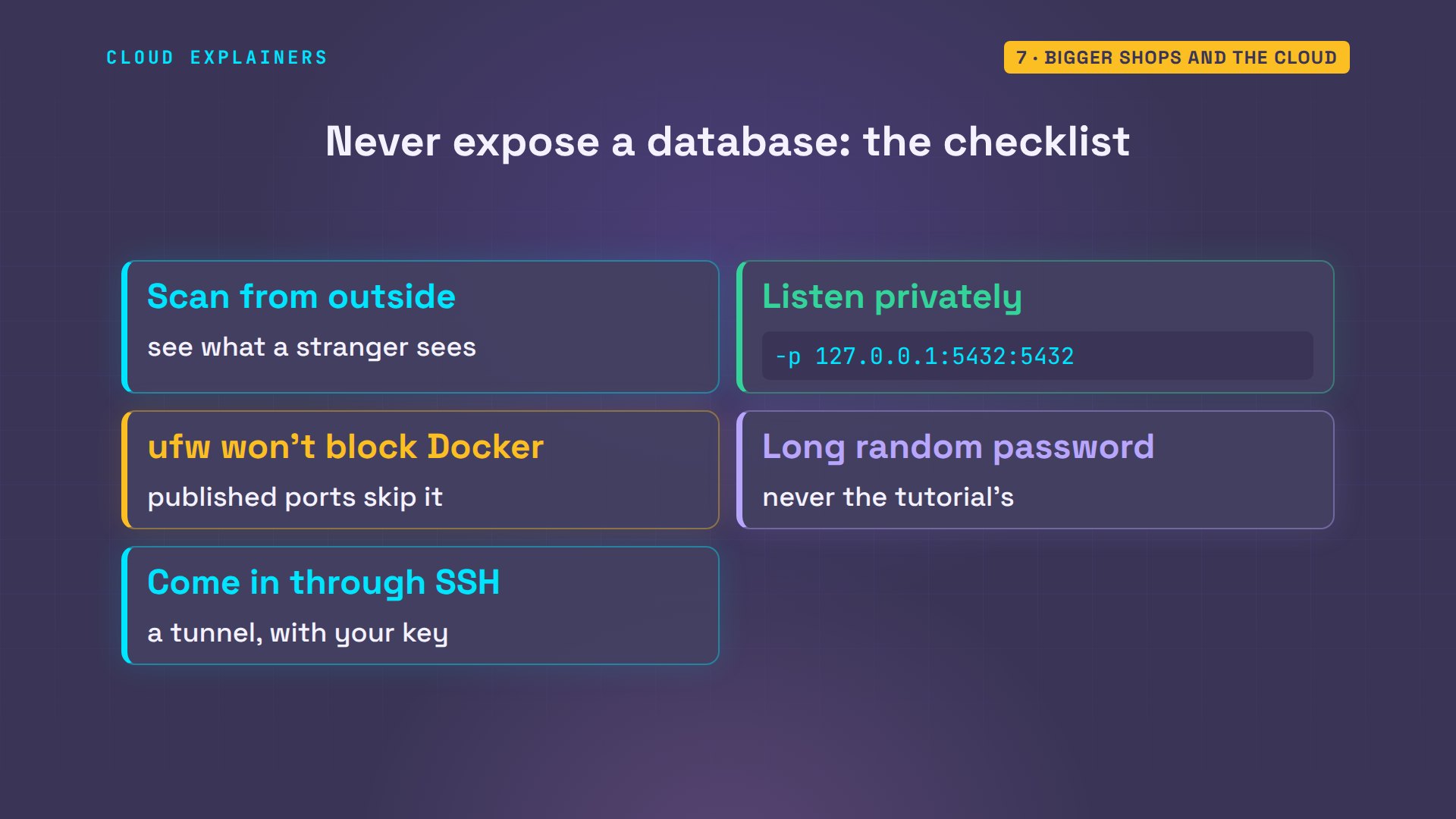
So, the checklist. Scan your own server from outside, so you see what a stranger sees. Publish database ports to localhost, or keep them on a private network. Don't count on ufw to block Docker's ports. Use a long random password anyway. And reach the database yourself through SSH.
Recap
Back to Ana's shop. One tutorial flag published her database to the internet, and Docker's rules went around her firewall. A stranger guessed the password on his fourth try, read her customers, and ran a program on her server. Listening on localhost closed the door, and an SSH tunnel kept her own way in.
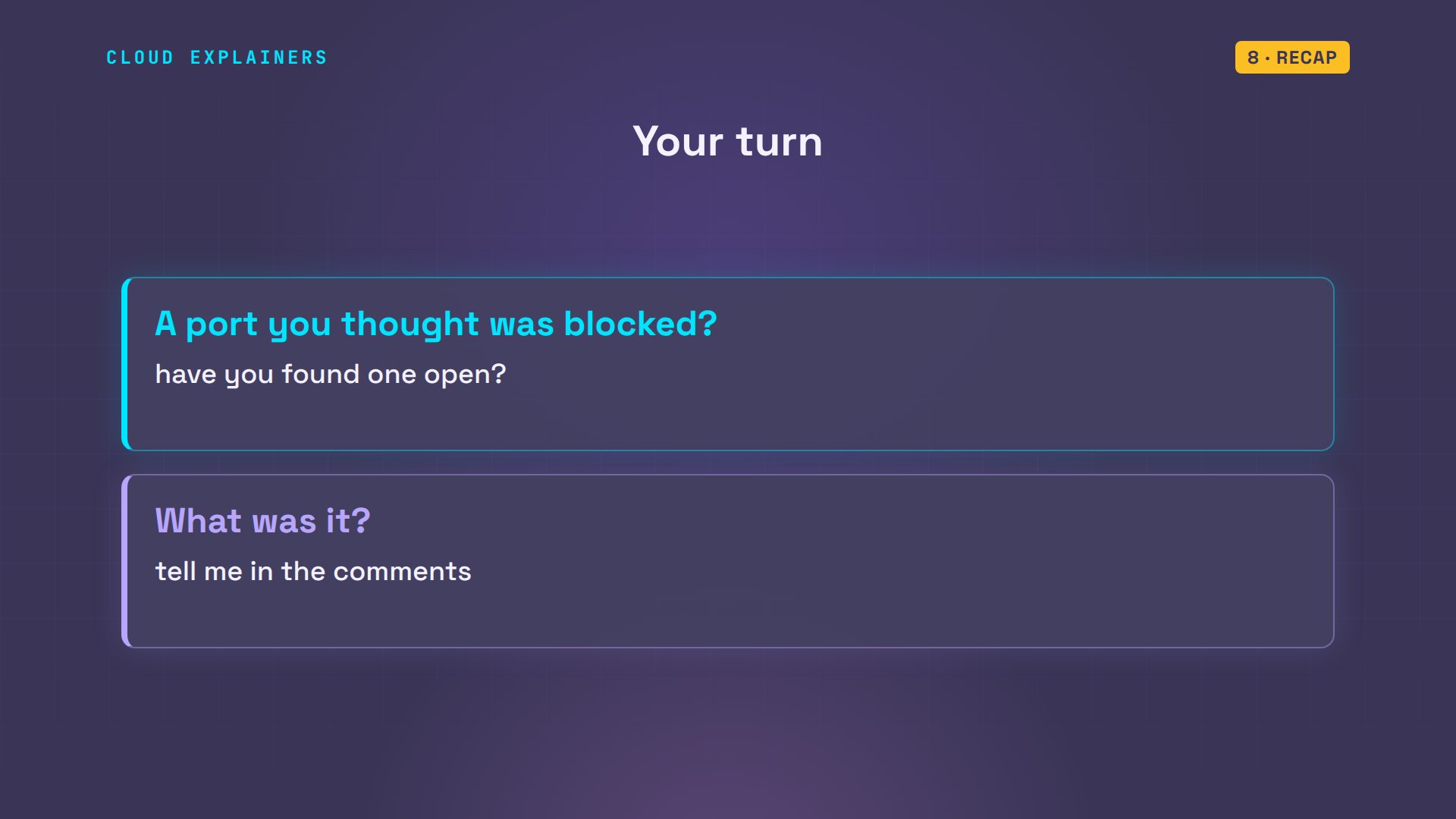
A question for the comments: have you ever found a port open that you were sure your firewall was blocking? What was it?
Every command and log line in this video came from a real run in our lab. This was episode eight of Networking for Beginners.
Sources
- Docker docs, Packet filtering and firewalls (Docker and ufw)
- Docker docs, Port publishing and mapping
- PostgreSQL docs, COPY (FROM PROGRAM)
- PostgreSQL docs, logging connections (log_connections)
- Docker Official Image, postgres
- masscan (scan the IPv4 internet in minutes)
- The Hacker News, PG_MEM malware targets PostgreSQL (Aqua Security research, August 2024)
- AWS docs, Amazon RDS DB instance in a VPC (public access)
- OpenBSD manual, ssh(1) (-L local forwarding)
Demos: real output from three Ubuntu containers on a private network on our own machine. The scan and password guessing ran only against our own lab server; the customers are made up and the passwords are throwaway lab values. Watch the full video on YouTube.
More videos
SSH Keys vs Passwords: Which Is Safer for Security?

The 5 Levels of Linux Boot: From Power On to Login
The 5 Levels of Network Firewalls
Password Security: Why Hackers Crack Weak Passwords
Why Your Linux Server Runs Out of Memory
HTTP vs HTTPS: What Actually Changes on Your Network

Every Linux File Permission You Need to Know
Linux Processes vs Threads: When Each One Wins
The OSI Model Will Finally Make Sense After This

The 7 Levels of Git
Every Network Troubleshooting Command You Need
Hashing vs Encryption in Cybersecurity: When Each One Wins
Why the Internet Ran Out of IP Addresses
Linux Package Managers: apt vs Snap vs Flatpak

Why Python Is Slow (and When It Doesn't Matter)
TCP vs UDP: When Each One Wins
Stop Running Linux as Root (Do This Instead)

Linux Users and Groups Will Finally Make Sense

Why Phishing Beats Good Security (and How to Spot It)

The 7 Levels of Docker

AI Agents Will Finally Make Sense After This

Stop Using git push --force (Use This Instead)
Agent Skills vs MCP: When Each One Wins

Networking Will Finally Make Sense After This

Every Linux Command You Actually Need
The 7 Levels of Cybersecurity

Every System Design Concept You Need, in One Diagram