How to Fix 'Windows Cannot Access' Network Share Errors (SMB)
Windows says it cannot access a shared folder: error 0x80070035, the network path was not found (net use: system error 53). That one message covers several different problems. On a real Windows file server in our lab we test port 445 first (Test-NetConnection), fix the firewall rule, read the error number (53, 67, 86/1326, 5, 1219), tell a name problem from a port problem, catch the one case where Windows' number points the wrong way, fix the folder lock behind 'access denied', get past error 1219, and see which popular fixes to avoid.
Windows cannot access the share
You open a shared folder on another computer, and Windows says it cannot access it: error 0x80070035, the network path was not found. Ben, at Ana's tea shop, gets exactly that. And the command line is no clearer: net use says system error 53, the same message.
Here's the catch: that one error covers several different problems. A blocked port, a mistyped name, a wrong password. By the end you'll check each step in order, and you'll see one place where Windows' own number points the wrong way.
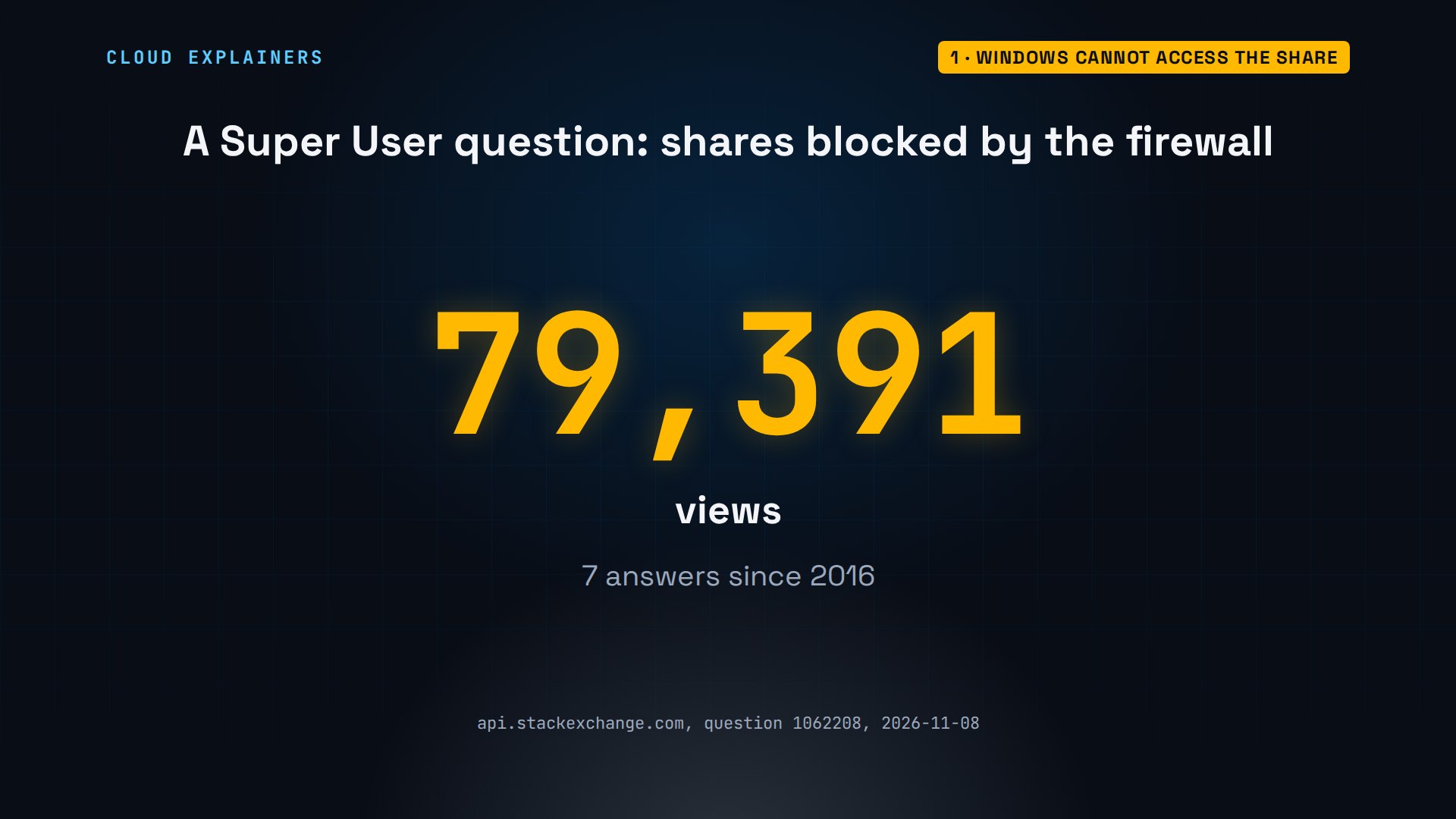
You're far from the first. On Super User, a question about shares other computers can't reach when the Windows firewall is on has over seventy-nine thousand views. So the firewall is where we start.
The usual fix: is port 445 open?
First, ask the network directly. Windows file sharing, called SMB, uses one network door: port 445. Test-NetConnection with dash port 445 tries that door. The name worked: it found the server's address. Ping, a simple are-you-there, worked too. But the TCP test, a real connection to port 445: false.
PS C:\Work> Test-NetConnection files -Port 445WARNING: TCP connect to (192.168.1.53 : 445) failed


ComputerName           : files
RemoteAddress          : 192.168.1.53
RemotePort             : 445
InterfaceAlias         : Ethernet0
SourceAddress          : 192.168.1.50
PingSucceeded          : True
PingReplyDetails (RTT) : 0 ms
TcpTestSucceeded       : False
Here's what happened. Ben's request found the server, but a firewall dropped it at port 445, so net use never got far enough to ask for a password. So when the TCP test is false, look for a firewall, on the server or on the network between.
On the file server itself, as an administrator, list the firewall rules that let port 445 in. This server has two built-in ones, and both are switched off. Turning on File and Printer Sharing takes one command. Check again: true.
PS C:\> Get-NetFirewallRule -DisplayName 'File and Printer Sharing (SMB-In)', 'File Server Remote Management (SMB-In)' | Format-Table DisplayName, Profile, EnabledDisplayName                                    Profile Enabled
-----------                                    ------- -------
File and Printer Sharing (SMB-In)      Private, Public   False
File Server Remote Management (SMB-In)             Any   False
File and Printer Sharing (SMB-In)               Domain   False
PS C:\> Enable-NetFirewallRule -DisplayName 'File and Printer Sharing (SMB-In)'
PS C:\> Get-NetFirewallRule -DisplayName 'File and Printer Sharing (SMB-In)', 'File Server Remote Management (SMB-In)' | Format-Table DisplayName, Profile, EnabledDisplayName                                    Profile Enabled
-----------                                    ------- -------
File and Printer Sharing (SMB-In)      Private, Public    True
File Server Remote Management (SMB-In)             Any   False
File and Printer Sharing (SMB-In)               Domain    True
Back on Ben's PC, the same test now says true. So net use gets further: it asks for Ben's password, and he mistypes it. Guess first: does he still get 53? No: a new number, 86, the password is not correct. That's progress: the server answered.
PS C:\Work> Test-NetConnection files -Port 445ComputerName     : files
RemoteAddress    : 192.168.1.53
RemotePort       : 445
InterfaceAlias   : Ethernet0
SourceAddress    : 192.168.1.50
TcpTestSucceeded : True
PS C:\Work> net use \\files\shop /user:files\benEnter the password for 'files\ben' to connect to 'files':
System error 86 has occurred.

The specified network password is not correct.
With the right password: completed successfully, and dir lists the shop's stock file. Then Ben disconnects, to try the other mistakes.
PS C:\Work> net use \\files\shop /user:files\benEnter the password for 'files\ben' to connect to 'files':
The command completed successfully.
PS C:\Work> dir \\files\shopDirectory: \\files\shop Mode LastWriteTime Length Name ---- ------------- ------ ---- -a---- 11/8/2026 5:10 PM 18 stock.txt
PS C:\Work> net use \\files\shop /delete\\files\shop was deleted successfully.
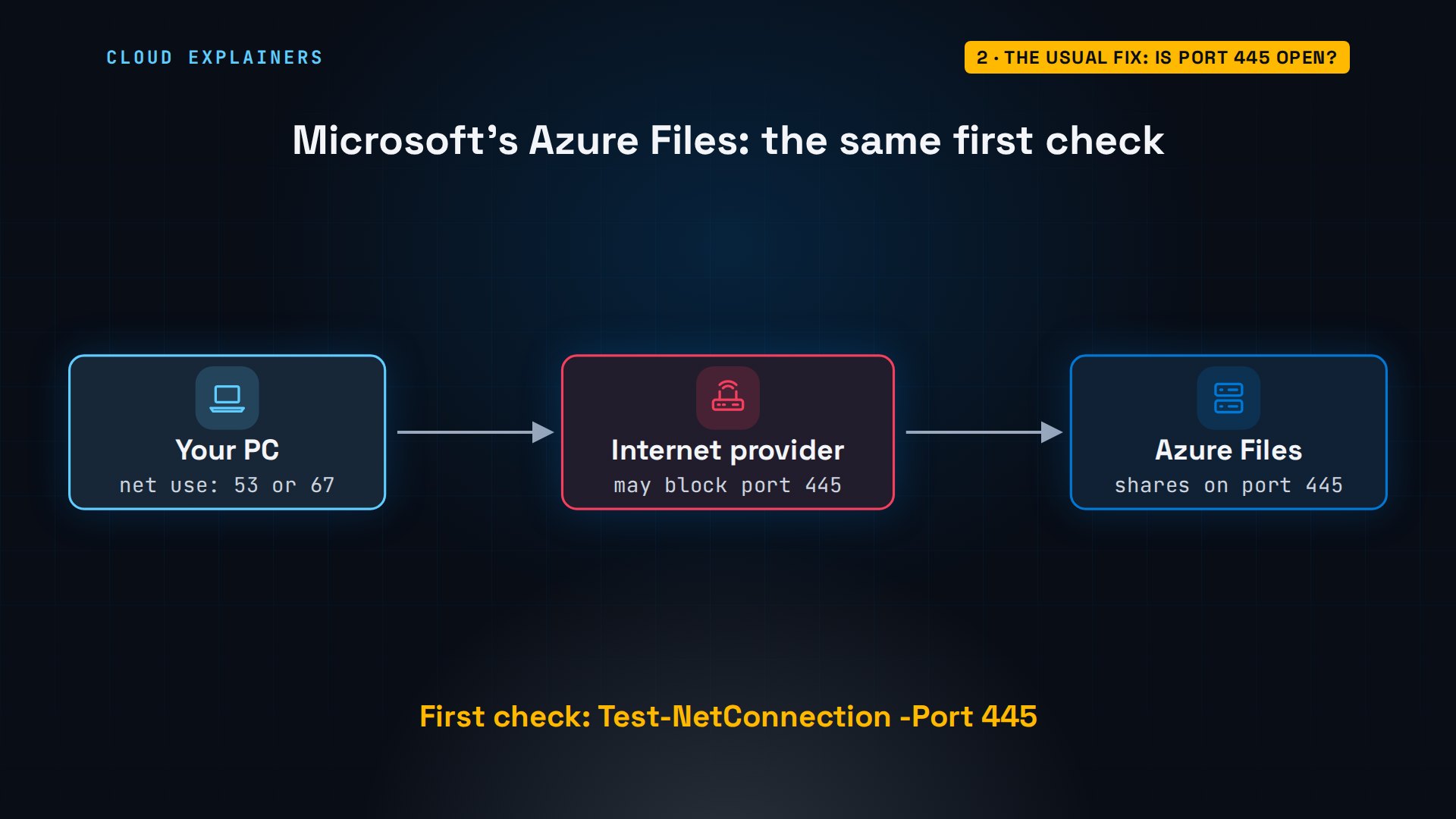
It isn't only an office problem. At Microsoft, Azure Files serves shares over the internet on port 445. Its troubleshooting guide says error 53 or 67 can mean port 445 is blocked on the way out, for example by an internet provider. And its first check is the same command.
What the error code means
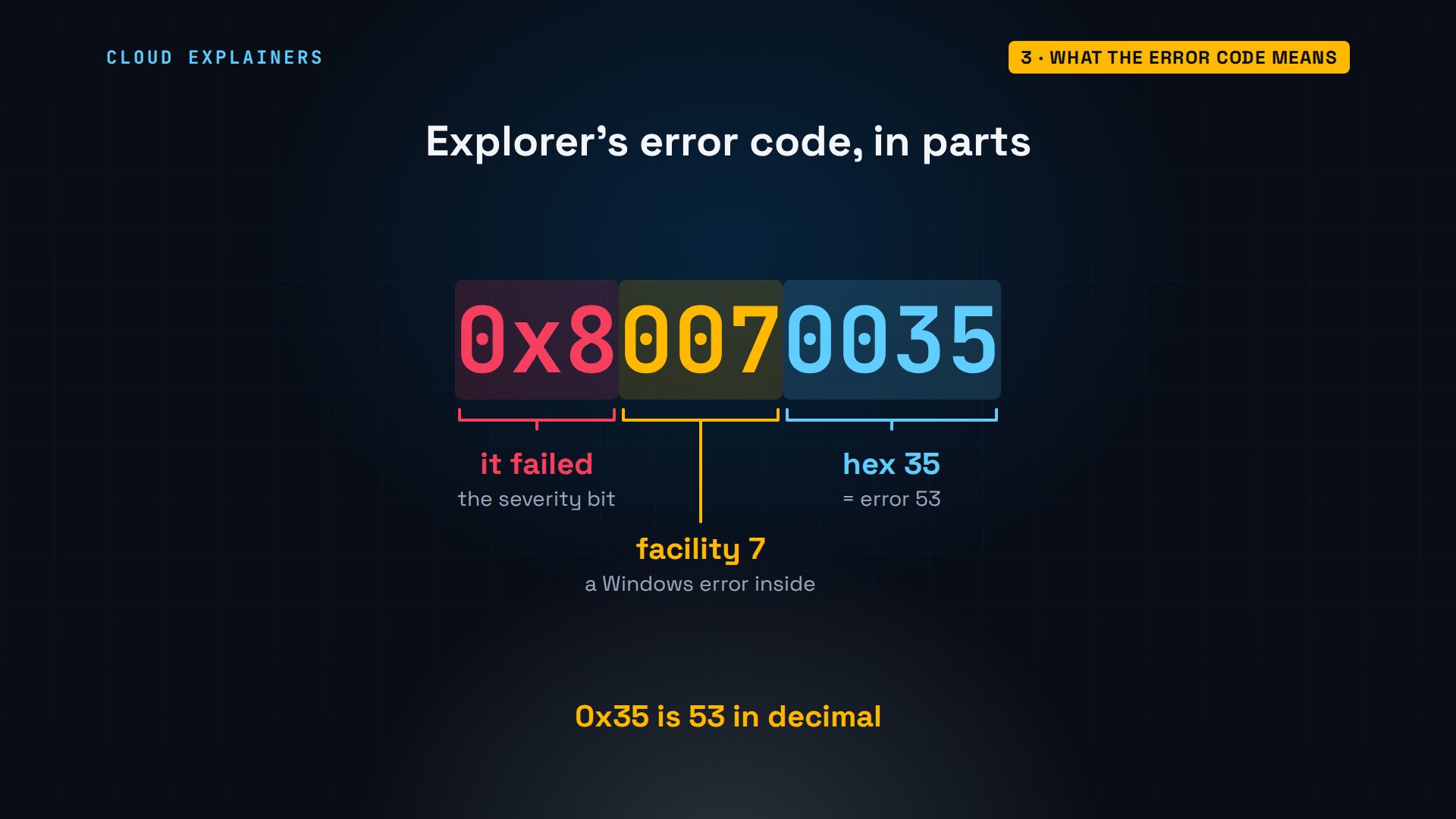
So what is 0x80070035? It's error 53, wrapped in a bigger code. The 8 at the front means: it failed. The 7 says a plain Windows error is inside. And the last digits are that error in hexadecimal, counting in sixteens: 35 is 53.
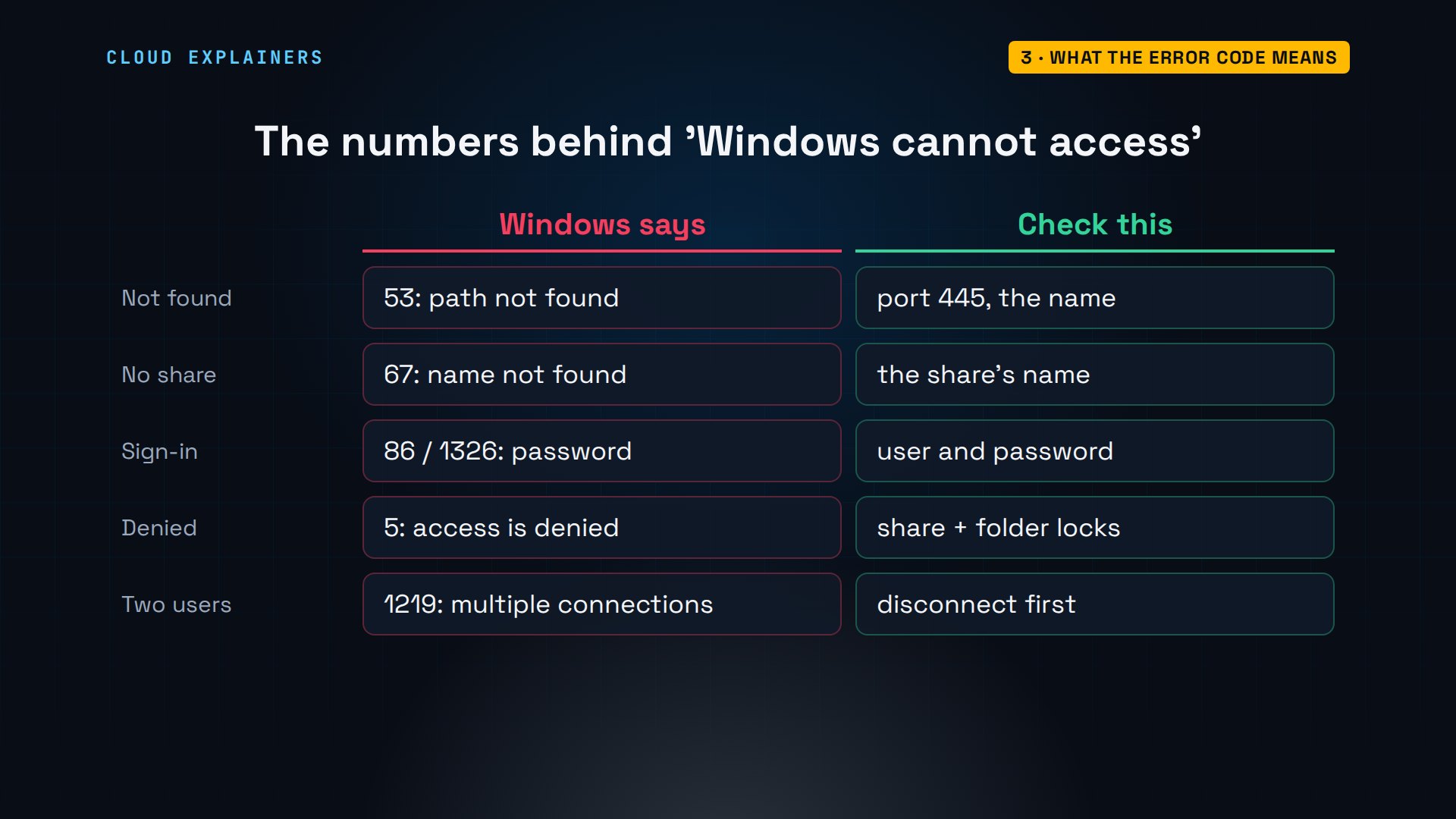
A handful of numbers cover most share problems. 53: the path wasn't found. 67: the server has no share by that name. 86 or 1326: the password or user name is wrong. 5: access is denied. And 1219: you're already connected as someone else.
Can it find the server?
What if the name is the problem? Type the server's name with one letter missing, and Test-NetConnection says so at once: name resolution failed, and no address. net use? 53 again.
PS C:\Work> Test-NetConnection fles -Port 445WARNING: Name resolution of fles failed


ComputerName   : fles
RemoteAddress  :
InterfaceAlias :
SourceAddress  :
PingSucceeded  : False
PS C:\Work> net use \\fles\shop /user:files\benSystem error 53 has occurred.

The network path was not found.
So 53 hides two different problems, and Test-NetConnection tells them apart. No address at all: the name is wrong, or your network's DNS, its list of names, doesn't know it. An address, but the TCP test false: the name is fine, and the port is closed.
Is the share name right?
Now the port is open and Ben knows his password. He types the share as shopp, with one p too many. The server has no share by that name. Guess first: which error does Windows give? 53, again. Not 67, network name not found, on our Windows PC.
net view lists the shares the server really offers: shop, and orders. One p. So that's the number that points the wrong way: when the port test passes and you still get 53, check the share's name.
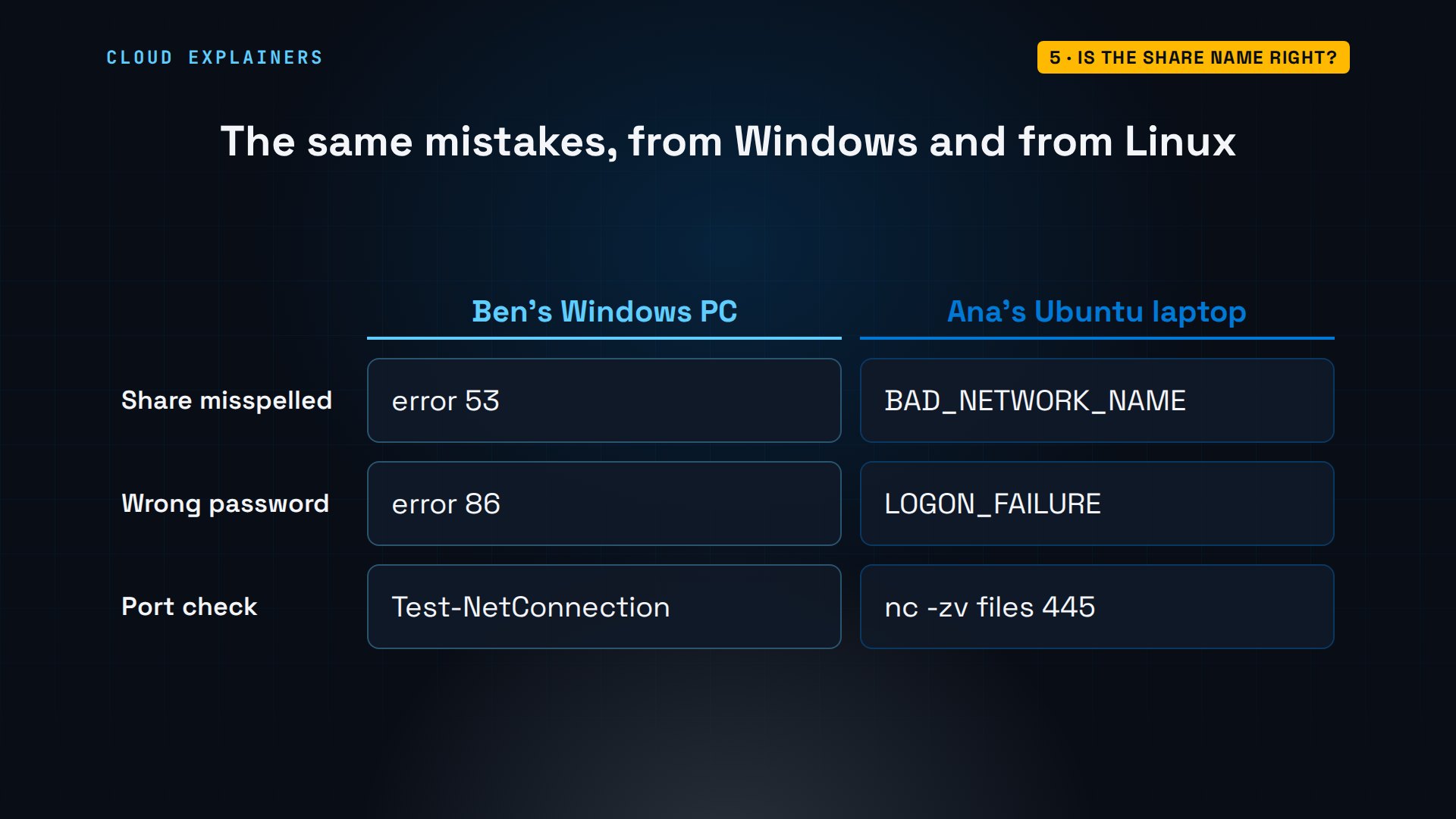
Ana's Ubuntu laptop is more direct. Netcat confirms port 445 is open, and smbclient, with the same typo, names the real problem: bad network name. A wrong password is just as plain: logon failure.
Same server, same mistakes, two ways of saying them. For a misspelled share, Windows said 53, and Linux said bad network name. For the password, 86 against logon failure. And the port check is Test-NetConnection on one, netcat on the other.
Two locks on every share
Ben connects to shop, the right way this time. Then he opens the second share, orders, and gets: access to the path is denied. His password was fine. So who said no?
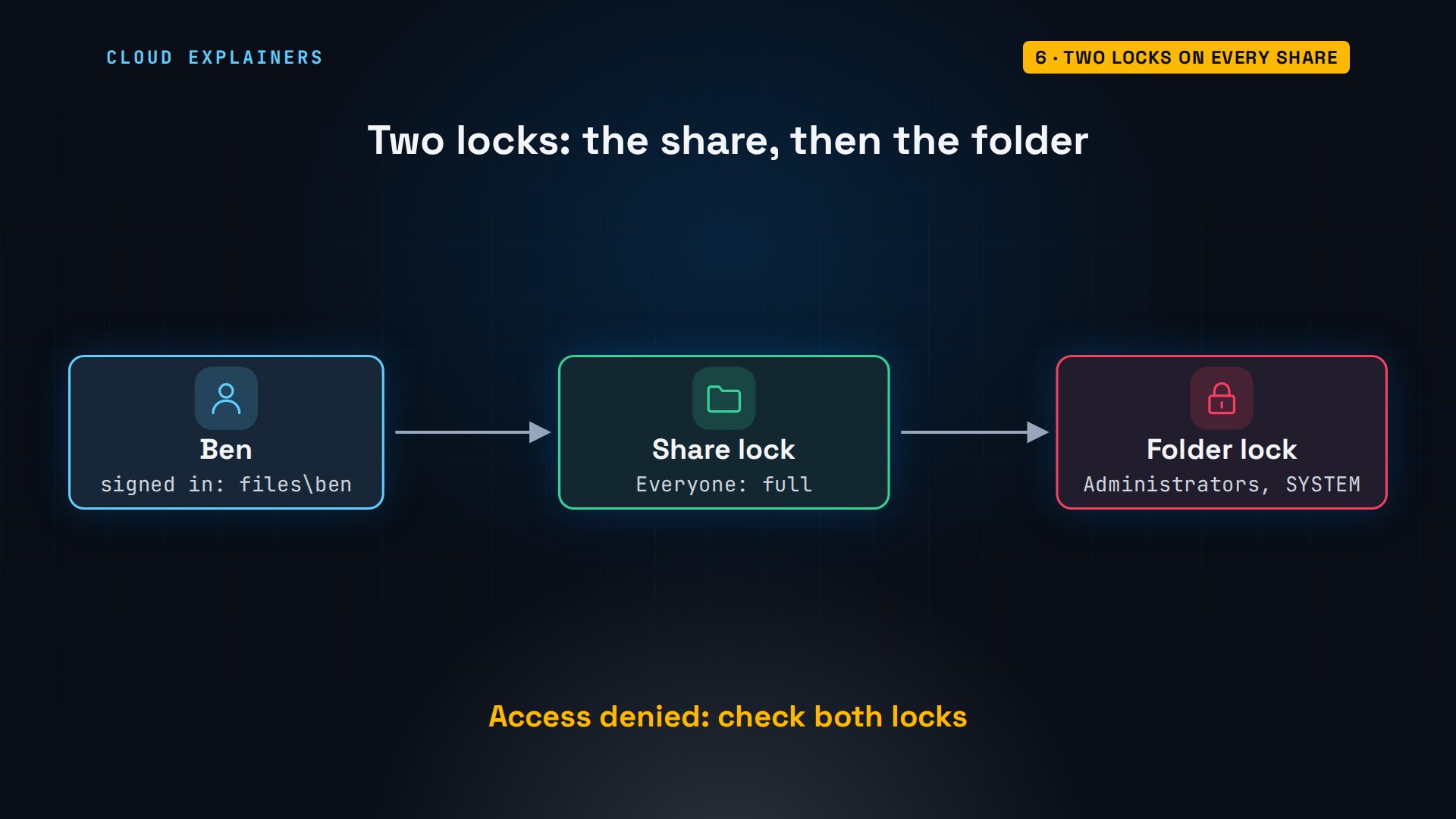
Back on the server: every share has two locks. The share's own permissions: for orders, Everyone, full control. And the folder's permissions, which the icacls command lists: only the system and the Administrators group. Ben is neither.
Over the network, Windows checks both locks, and the stricter one wins. The share lets everyone through, but the folder lets in only admins, so Ben is stopped at the second lock. Error 5, access denied, means: check both.
If Ben should read orders, fix the folder lock, not the share. icacls with grant gives the Shop Staff group read access, and Ben is in that group.
Back on Ben's PC, the same dir now lists the orders file, with nothing changed on his side.
One account per server
Now Ana sits down at Ben's PC, to open orders with her own account. Ben is still connected to shop. Different person, different share. Will it work? Refused: system error 1219, multiple connections to a server by the same user, using more than one user name.
PS C:\Work> net use \\files\orders /user:files\anaSystem error 1219 has occurred.

Multiple connections to a server or shared resource by the same user, using more than one user name, are not allowed. Disconnect all previous connections to the server or shared resource and try again.
Windows signs in to a server once, and every share on that server uses that sign-in. Ben's account already holds the connection, so a second account to the same server is turned away, even for a different share.
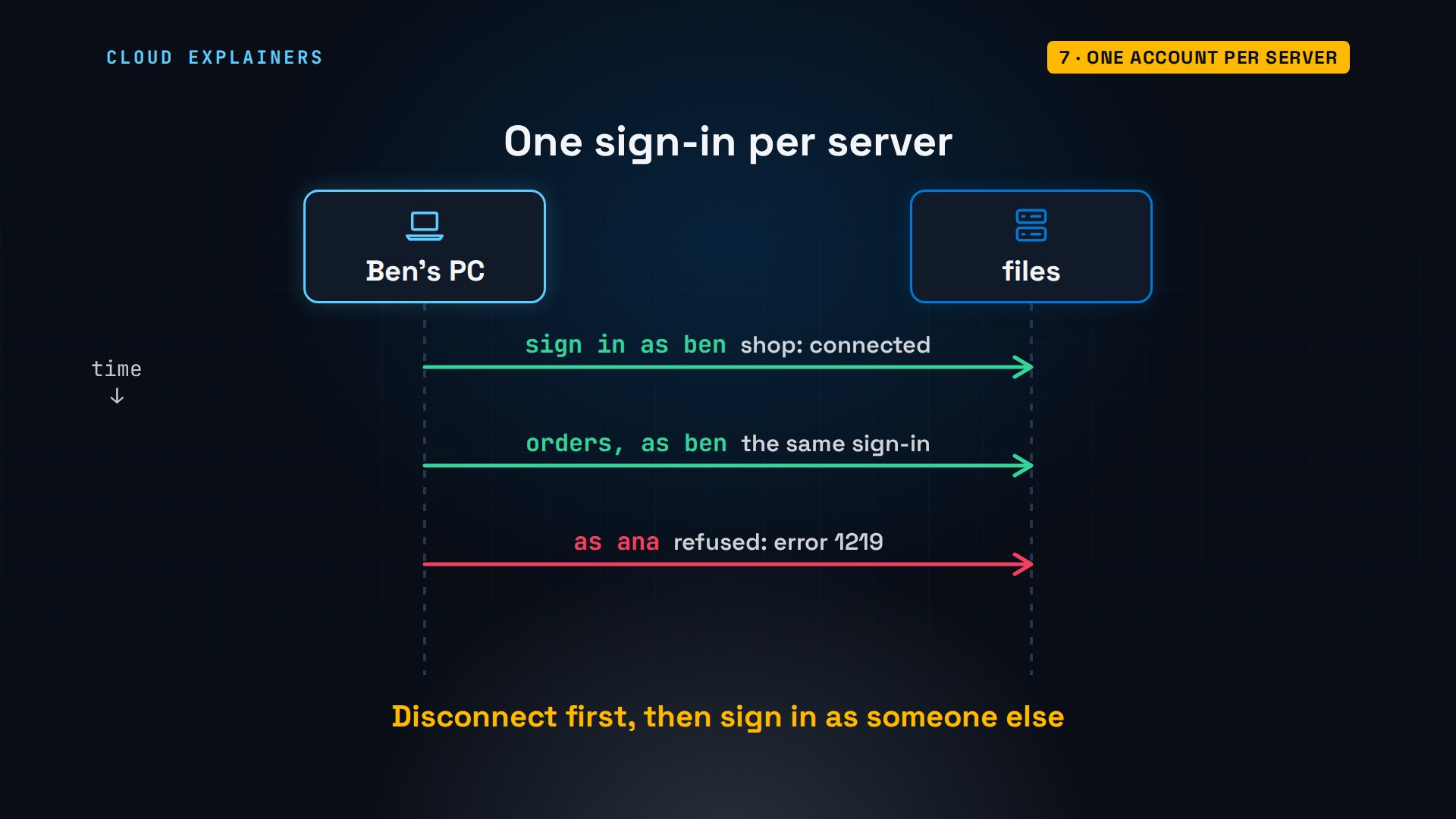
So disconnect first. net use, on its own, lists what's open: Ben's connection to shop. net use star, slash delete, closes every connection, so close any open files first. Then Ana's sign-in goes through, with her own password.
PS C:\Work> net useNew connections will be remembered.


Status       Local     Remote                    Network

-------------------------------------------------------------------------------
OK                     \\files\shop              Microsoft Windows Network
The command completed successfully.
PS C:\Work> net use * /delete /yYou have these remote connections:

                    \\files\shop
Continuing will cancel the connections.

The command completed successfully.
PS C:\Work> net use \\files\orders /user:files\anaThe password is invalid for \\files\orders.

Enter the password for 'files\ana' to connect to 'files':
The command completed successfully.
Fixes to avoid
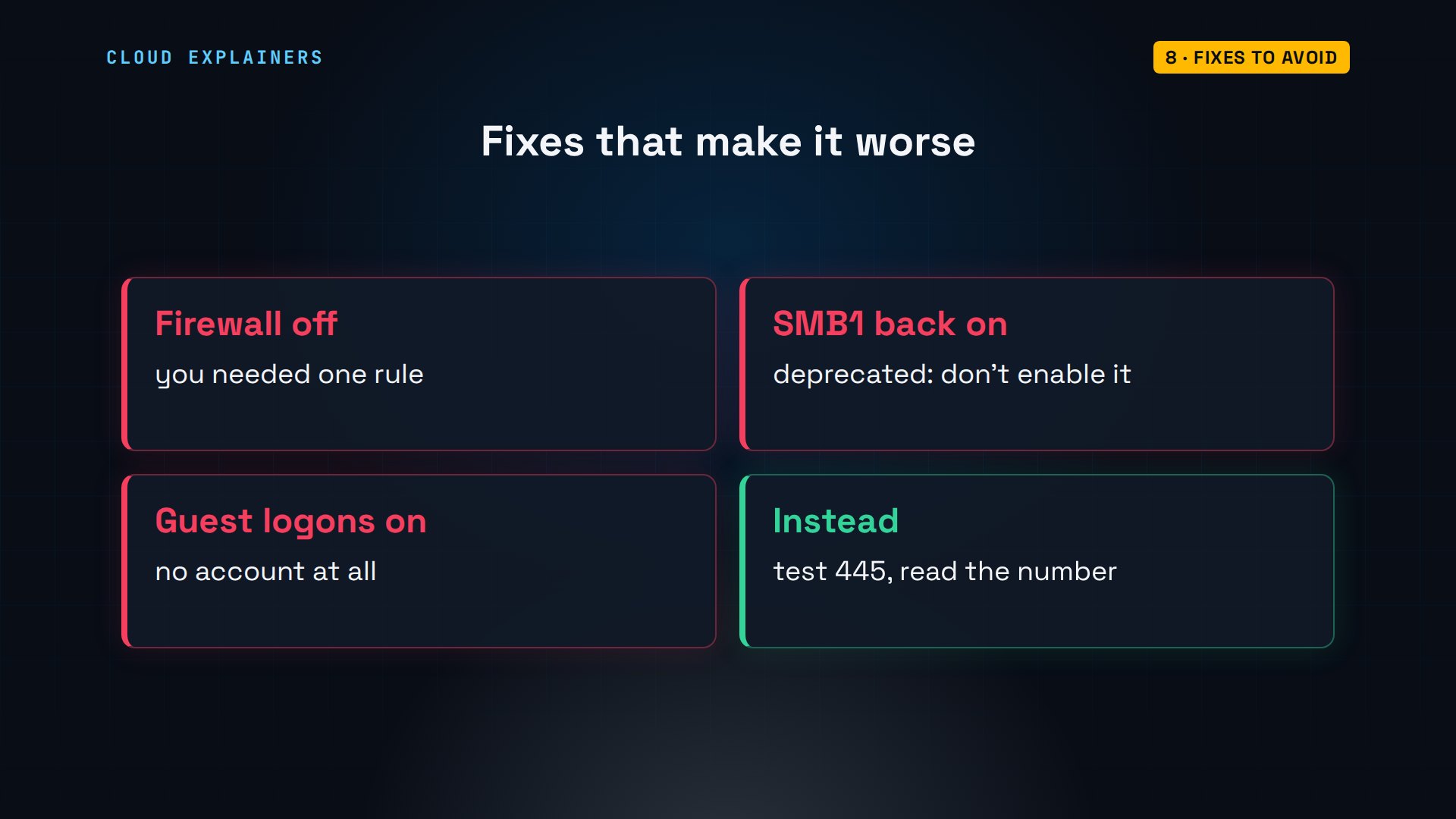
Some fixes you'll find online make things worse. Turning the whole firewall off: you needed one rule. Turning SMB1 back on: Microsoft says it's deprecated and shouldn't be enabled. And allowing insecure guest logons, connections with no account at all. Fix the real cause instead.
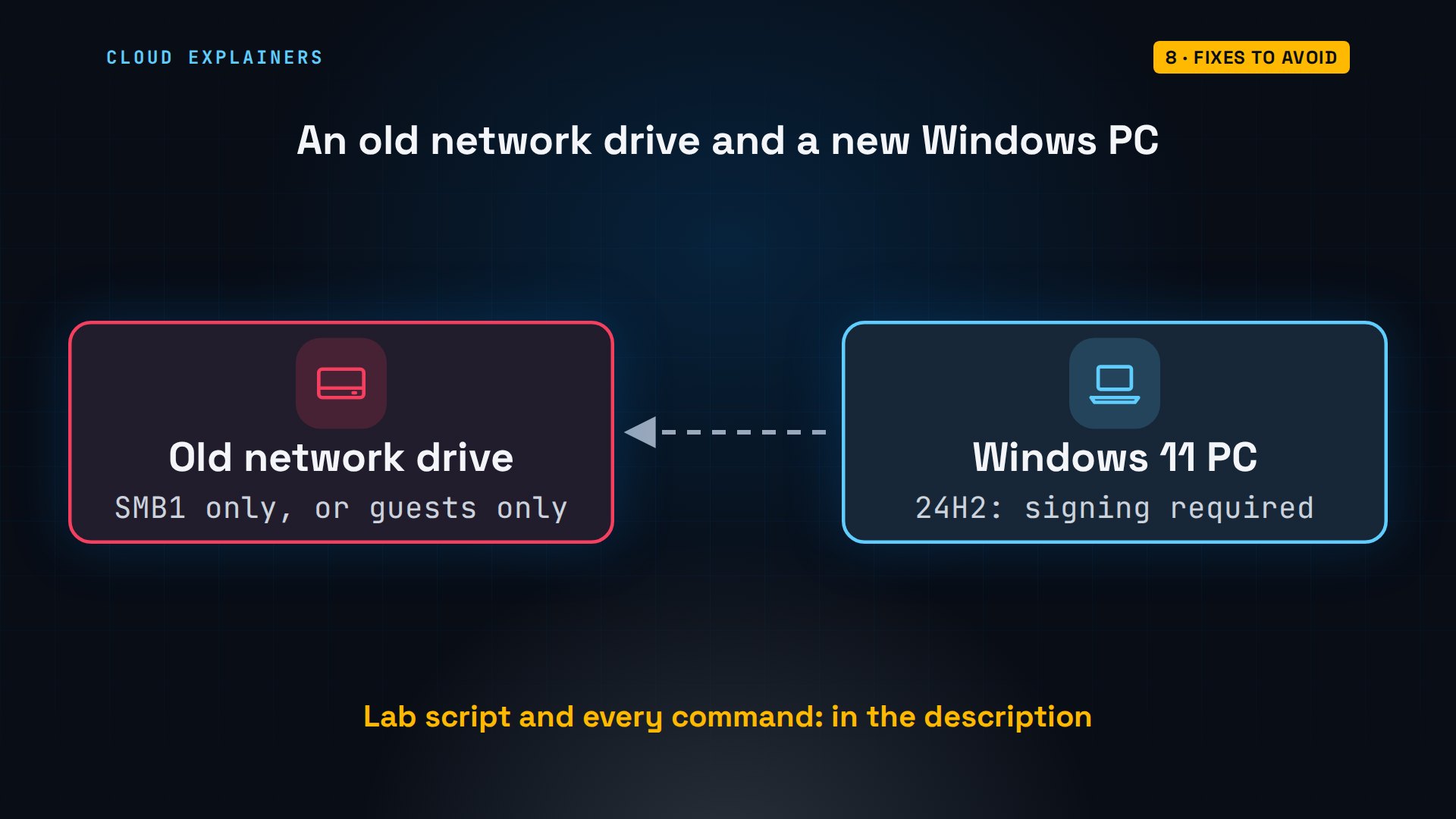
Ana's file server is set up right: SMB1 off, SMB2 on. But if an old network drive only speaks SMB1, or only allows guests, Microsoft's advice is to update or replace the device. And since Windows 11 version 24H2, signing, a check that each message really came from the device, is required by default, which breaks guest access when the device can't sign. The lab script and every command are linked in the description.
Recap
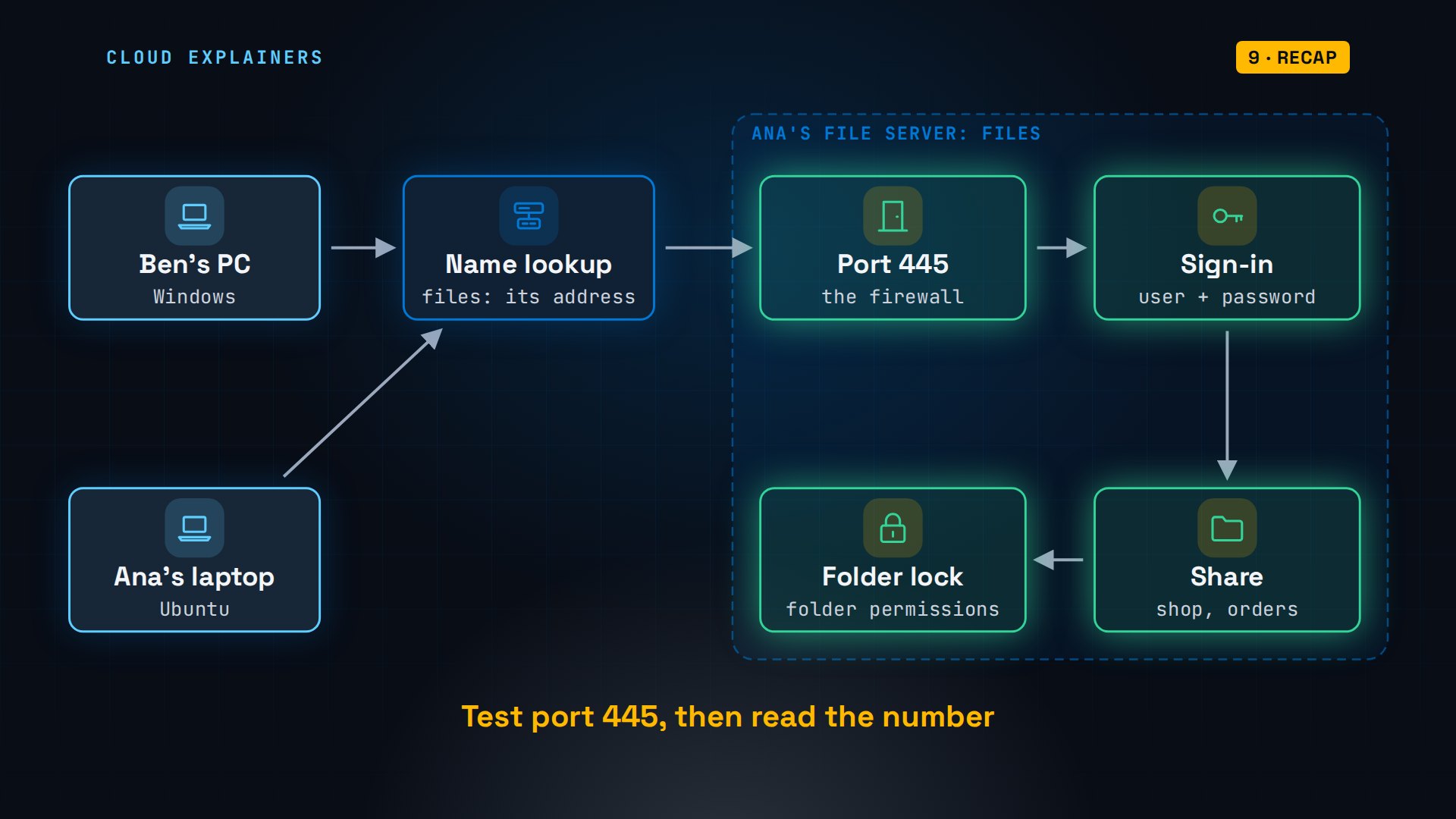
So: test port 445 first. Then read the number: password, access denied, or 1219. And when it's 53 with the port open, check the share's name.
If your share opens now, subscribing helps the next person stuck on error 53 find this.
Every command here ran for real, on Windows Server and Ubuntu in our own lab. Thanks for watching Cloud Explainers.
Sources
- Microsoft Learn, Troubleshoot Azure Files SMB connectivity (System error 53 or 67 when port 445 is blocked; Test-NetConnection -Port 445)
- Microsoft Learn, System error codes 0-499 (ERROR_BAD_NETPATH 53, 0x35; ERROR_BAD_NET_NAME 67, 0x43)
- Microsoft Learn, Structure of COM error codes (FACILITY_WIN32 is 7)
- Microsoft Learn, Cannot use different credentials for a network share (multiple connections error)
- Microsoft Learn, SMBv1 is not installed by default (SMB1 is deprecated and should not be installed nor enabled)
- Microsoft Learn, Insecure guest logons in SMB2 and SMB3 (upgrade or replace devices that only support guest authentication; signing required by default from Windows 11 24H2)
- Microsoft Learn, Test-NetConnection
- Super User, 'Shares not accessible by other computers if Windows 10 firewall is ON' (question 1062208, 79,391 views on 2026-11-08)
Demos: two Windows Server 2022 machines and an Ubuntu container in our own lab network; the lab users and shares were made for the video and removed afterwards; the tea shop is made up. Watch the full video on YouTube.
More videos

Linux Makefiles Will Finally Make Sense After This

SAML vs OAuth vs OpenID Connect: What's the Difference?
How to Fix Python cron Jobs That Never Run

Linux Bash Scripting: Full Tutorial for Beginners
How PXE Network Boot Works
How Active Directory Works
How to Fix a Linux systemd Service That Won't Start
Linux Logs: syslog vs journald
JWT vs Session Cookies: Which One Should You Use?
Docker vs Docker Compose: Which One Should You Use?
How to Fix Docker Compose Containers That Can't Talk to Each Other

Django Full Tutorial for Beginners

How Linux systemd Works
REST vs gRPC: Which One Should You Use?
How to Fix SSL Certificate Chain Errors (Missing Intermediate)

Every Python Concept for Beginners in 10 Minutes

Every SQL Join Type in 10 Minutes

Why OpenRouter Free Models Hit Their Limit So Fast
Why Your Gemini API Free Tier Runs Out So Fast

OpenRouter Will Finally Make Sense After This
How Redis Caching Works

Gemini API vs Vertex AI: Which One Should You Use?
How to Fix a Leaked Gemini API Key

Why Golang Uses Goroutines Instead of Threads
How to Fix Gemini API Error 429: Resource Exhausted

Claude Token Pricing Will Finally Make Sense After This
Why Python Web Scraping Returns Nothing (and the Fix)
Python uv vs pip: Which One Should You Use?

Python Automation: Full Tutorial for Beginners
How OAuth Login Works

Google AI Studio Will Finally Make Sense After This
What Happens When You Run a Docker Container

How to Fix Claude Code Billing Your API Key Instead of Your Plan
Why Passkeys Can't Be Phished Like Passwords
PowerShell vs Bash: Which One Should You Learn?

The Linux Roadmap for Beginners

Django vs FastAPI: Which One Should You Use?
Why SQLite Is the Most Used Database in the World
How a NoSQL Database Like MongoDB Works
How to Fix Python pip error: externally-managed-environment
How to Fix MySQL Too Many Connections Database Errors
Golang Concurrency Will Finally Make Sense After This
How Amazon S3 Works
How Kubernetes Works
How Git Works
How to Fix Docker Port Already Allocated Errors
How PostgreSQL Works
How to Fix Git Merge Conflicts
How to Fix No Space Left on Device in Linux
How the Internet Works
SQL vs NoSQL: When Each One Wins
How to Fix JWT Token Expired Errors (401 Unauthorized)
Claude API vs Claude Pro: Why Your Subscription Doesn't Include It

Why AI Agent Skills Beat Giant Prompts

Linux Cron Jobs Will Finally Make Sense After This

Security Logs Will Finally Make Sense After This
How to Fix a Security Leak: An API Key Pushed to GitHub
DNS Will Finally Make Sense After This
Never Ignore a Security Update
Two-Factor Authentication Will Finally Make Sense
Never Expose a Database to the Internet
SSH Keys vs Passwords: Which Is Safer for Security?
The 5 Levels of Linux Boot: From Power On to Login
The 5 Levels of Network Firewalls
Password Security: Why Hackers Crack Weak Passwords
Why Your Linux Server Runs Out of Memory
HTTP vs HTTPS: What Actually Changes on Your Network

Every Linux File Permission You Need to Know
Linux Processes vs Threads: When Each One Wins

The OSI Model Will Finally Make Sense After This

The 7 Levels of Git
Every Network Troubleshooting Command You Need
Hashing vs Encryption in Cybersecurity: When Each One Wins
Why the Internet Ran Out of IP Addresses

Linux Package Managers: apt vs Snap vs Flatpak

Why Python Is Slow (and When It Doesn't Matter)
TCP vs UDP: When Each One Wins

Stop Running Linux as Root (Do This Instead)
Linux Users and Groups Will Finally Make Sense

Why Phishing Beats Good Security (and How to Spot It)

The 7 Levels of Docker

AI Agents Will Finally Make Sense After This
Stop Using git push --force (Use This Instead)
Agent Skills vs MCP: When Each One Wins

Networking Will Finally Make Sense After This

Every Linux Command You Actually Need
The 7 Levels of Cybersecurity

Every System Design Concept You Need, in One Diagram