What Happens When You Run a Docker Container
What happens when you run a Docker container, step by step on a real Linux laptop: the docker command asks the Docker daemon over a socket, containerd and runc build the container, the image's layers are pulled and stacked into one overlay folder, and the kernel's namespaces and control groups turn an ordinary process into a container with its own view, a memory limit, an address and a port.
One command, four seconds
You type docker run, press Enter, and a few seconds later a web server is answering. Here it is on Ana's laptop: eight pieces downloaded, a long ID, done in 3.9 seconds. But nobody tells you what actually started.
time docker run -d --name shop -p 8080:80 --memory 256m nginx:alpineUnable to find image 'nginx:alpine' locally
alpine: Pulling from library/nginx
8801fee91458: Download complete
e011f124249b: Pull complete
1abafee971b9: Pull complete
69d81d552257: Pull complete
da90db506dd5: Pull complete
a746bd1dc828: Pull complete
881fc932939e: Pull complete
c7dfd64eeb02: Pull complete
b9c6ee6a30f8: Pull complete
4c900eca9c64: Download complete
Digest: sha256:713fc2ebfd92e8217db451477182ee91944b123d2b1ee9fd5a8c6e91ca6c3a11
Status: Downloaded newer image for nginx:alpine
6edf9f5a27ed8ebd8b1685f95e75ae59df28317b6e308741245cf36e7173d4c5

real    0m3.856s
user    0m0.009s
sys     0m0.016s
By the end, you'll know every part that one command sets in motion, and you'll find the web server running on the laptop itself. And one puzzle to hold on to: run the very same command a second time, and it finishes over ten times faster. Why? We'll see near the end.
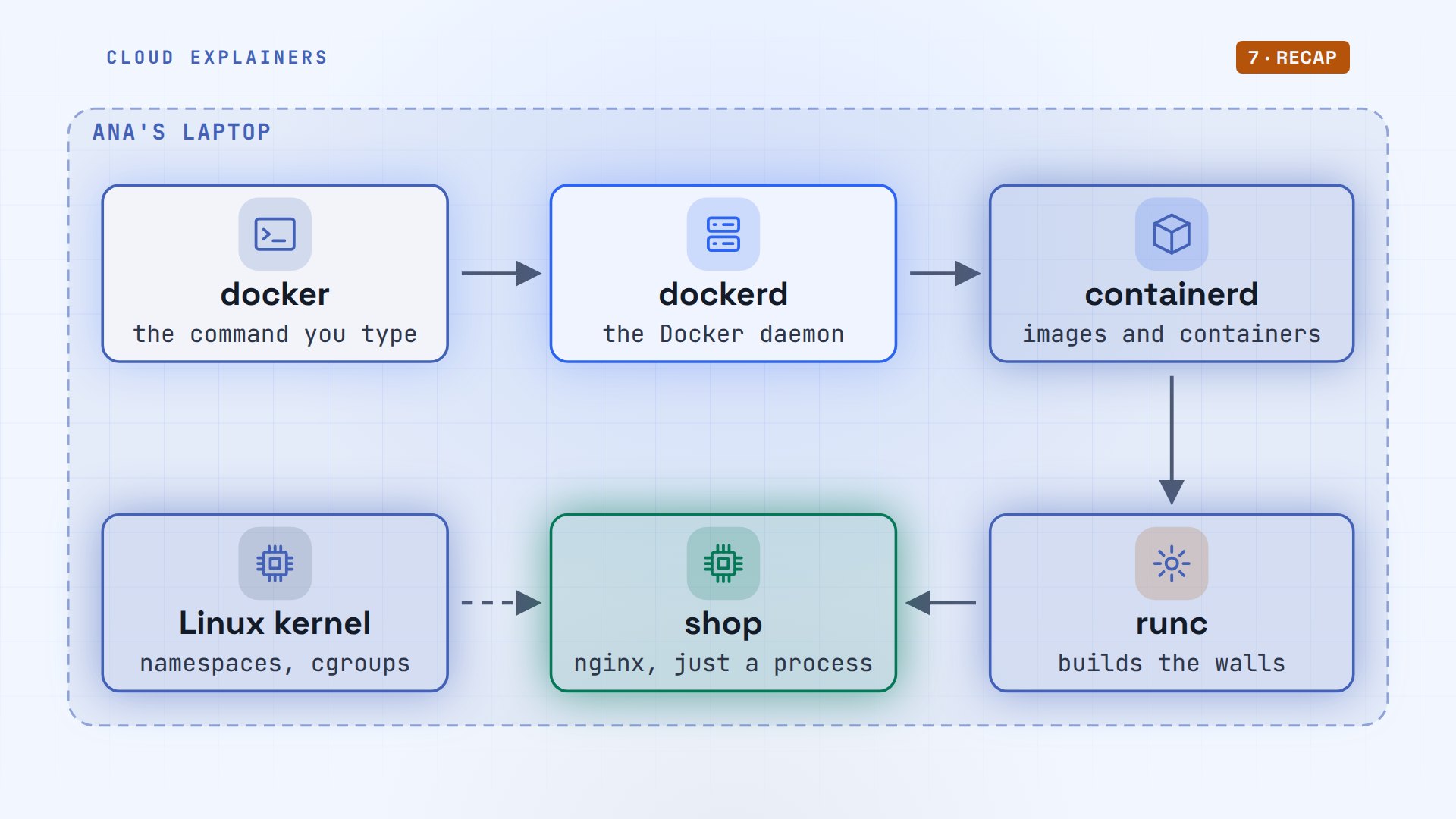
It's one of the most-read Docker questions on Stack Overflow, asked in 2014: what's the difference between an image and a container? Watching one docker run answers it.
Who does the work
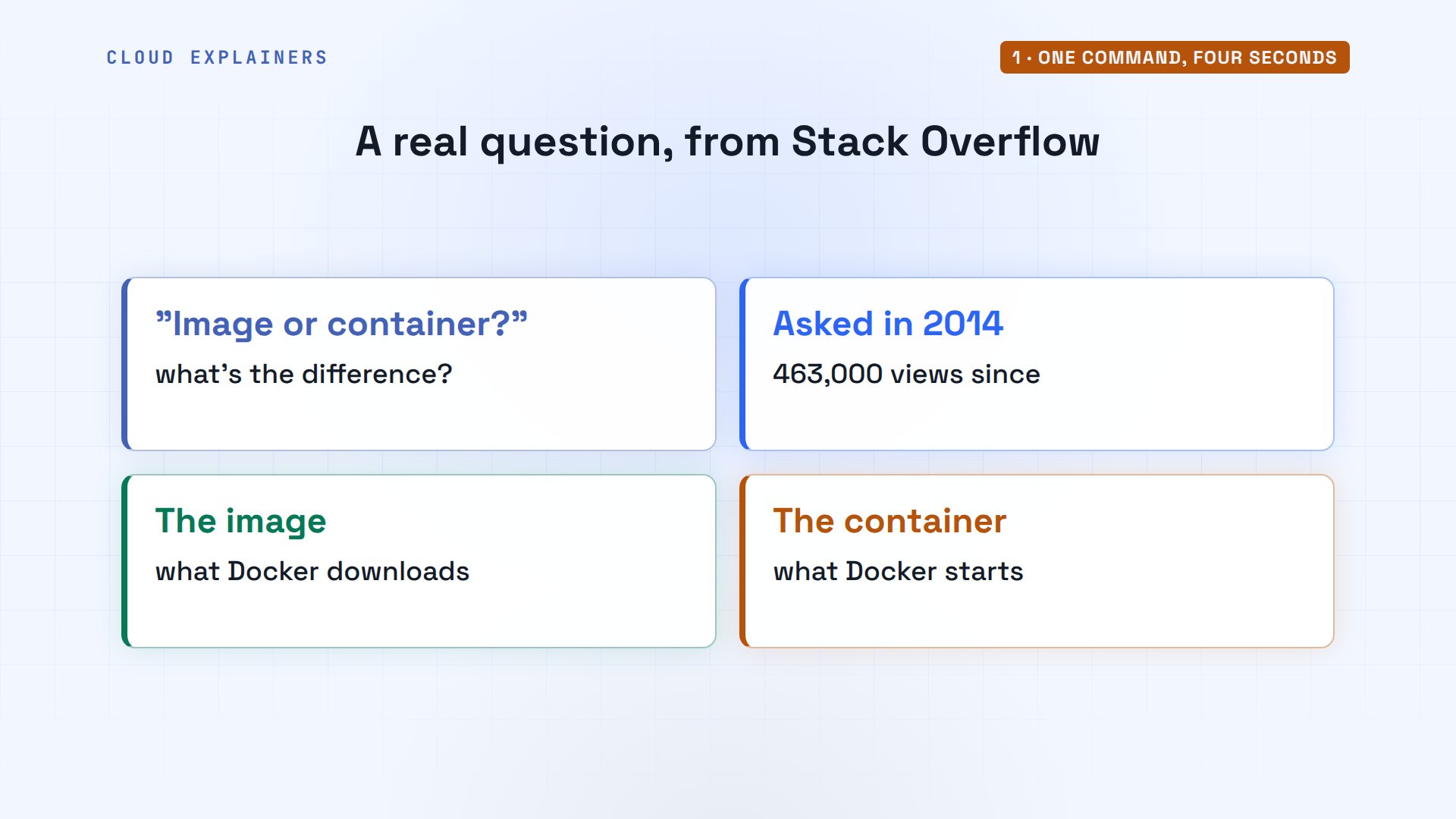
Start with what Ana asked for. Docker run, in the background, named shop. Then three requests: the laptop's port 8080 forwarded to the container's port 80, at most 256 megabytes of memory, and the image: nginx, tag alpine. Each part of this video is one part of that line.
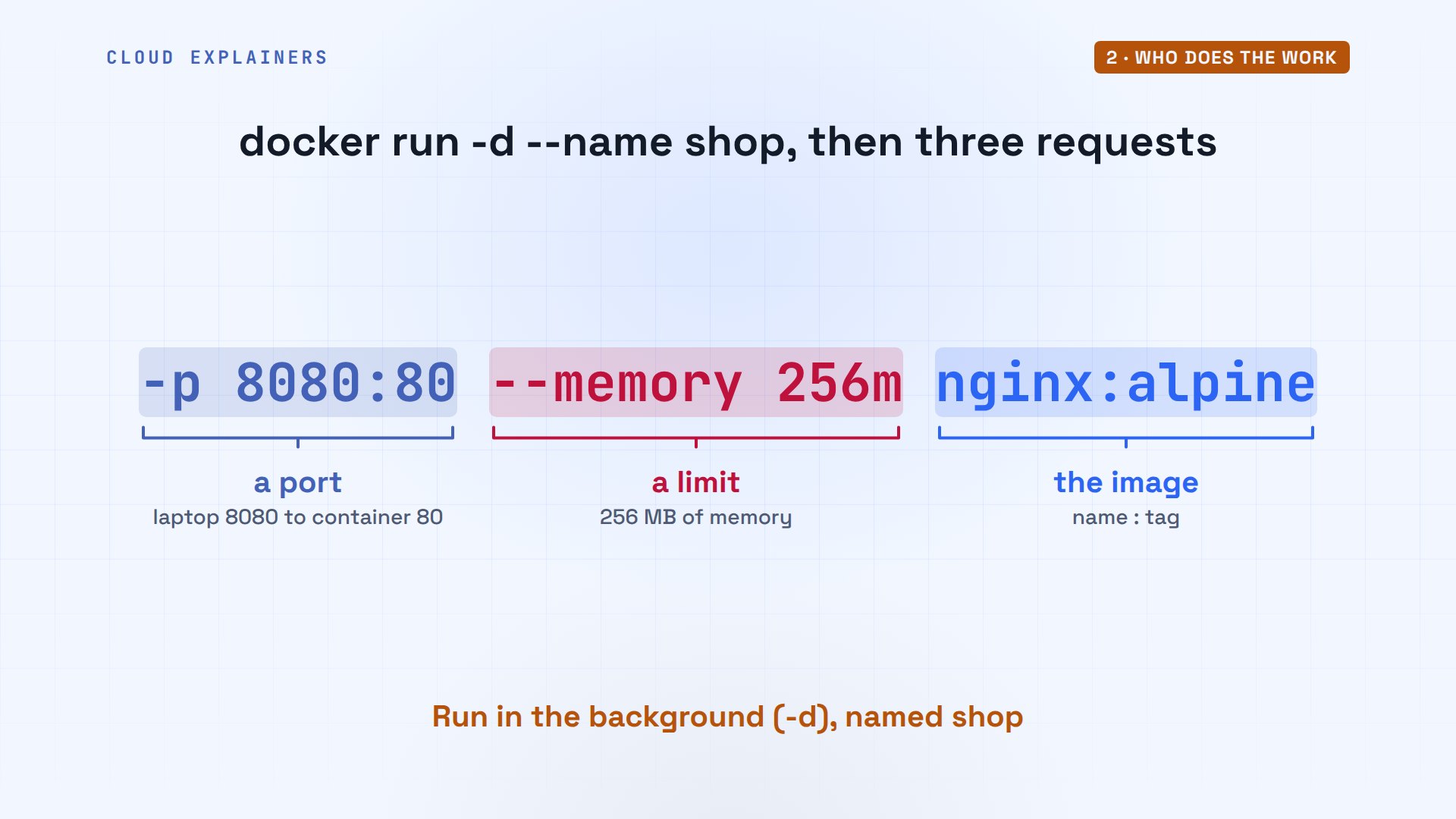
Here's the first surprise: the docker command doesn't run containers. It's a client, talking to a background program, the Docker daemon, dockerd. They talk through a socket, a special file programs use to talk, that only root, and members of the docker group, may use. And it's a plain web API: curl can ask the daemon what docker ps asks, and gets the shop container back, running.
docker version --format 'client {{.Client.Version}}, server {{.Server.Version}}'client 29.1.3, server 29.1.3
ls -l /var/run/docker.socksrw-rw---- 1 root docker 0 Nov 6 12:26 /var/run/docker.sock
curl -s --unix-socket /var/run/docker.sock http://localhost/containers/json | jq '.[0] | {Names, Image, State}'{
  "Names": [
    "/shop"
  ],
  "Image": "nginx:alpine",
  "State": "running"
}
So what happens after that request? dockerd hands it to containerd, which keeps the images and looks after containers. containerd starts a small helper, a shim, which runs runc, and runc asks the Linux kernel, the core of the operating system, to build the container. Then runc steps away, and the shim stays behind as the container's parent, so containerd itself can restart without stopping the container.
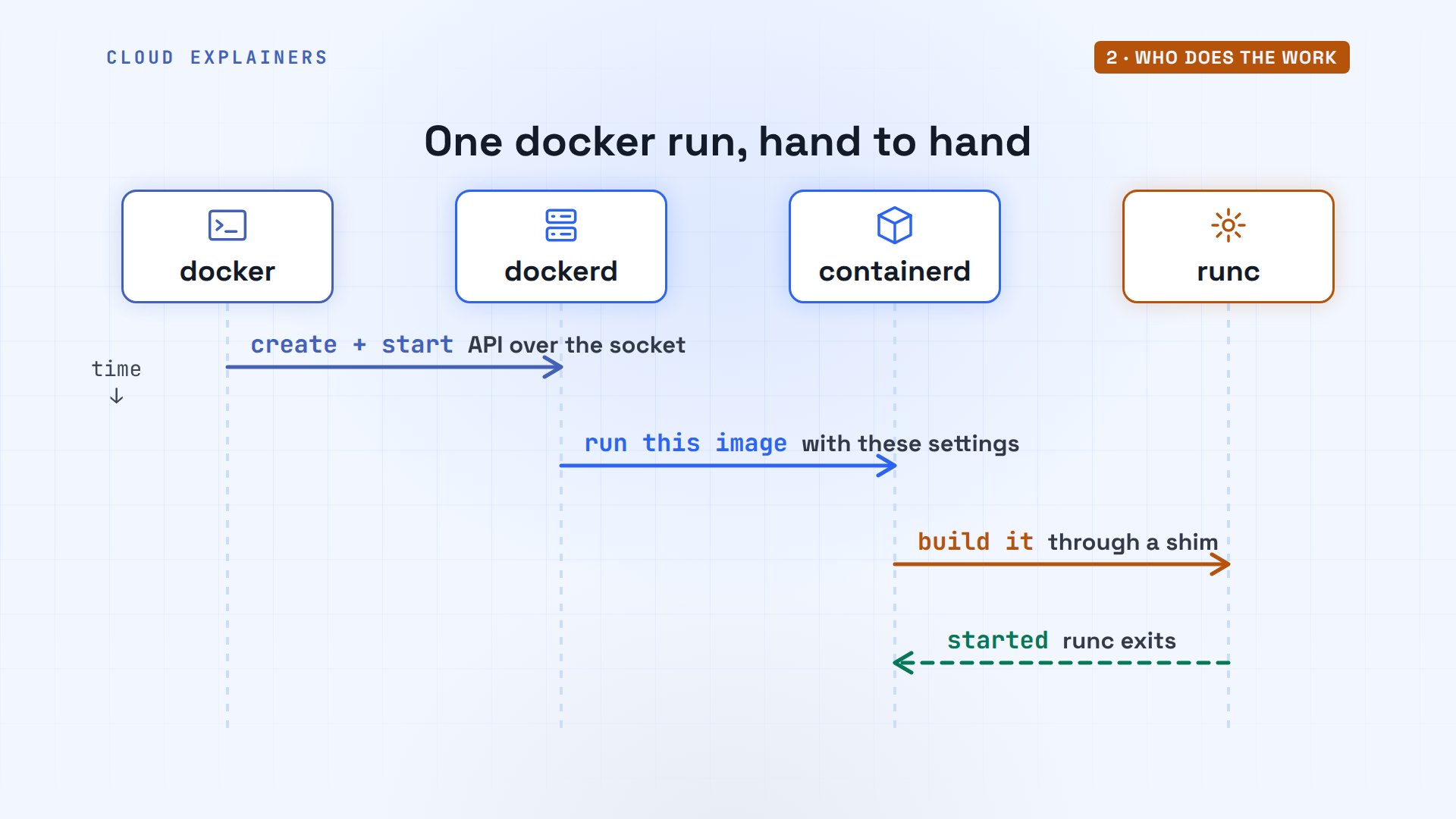
On Ana's laptop that's four programs in a row: the command, the daemon, containerd, and runc. The walls themselves come from the kernel, the same kernel running everything else.
The image: layers on disk
Where did the web server's files come from? Ana had no images at all. So Docker pulled nginx from Docker Hub, the public image registry: eight layers, each one a compressed folder of files.
docker image lsi Info → U In Use IMAGE ID DISK USAGE CONTENT SIZE EXTRA
How does a pull work? Docker asks Docker Hub what nginx colon alpine means today. The answer is a manifest: a list of layers, each named by a fingerprint of its contents, called a digest. It downloads only the layers it doesn't have yet, checks each fingerprint, and unpacks them.
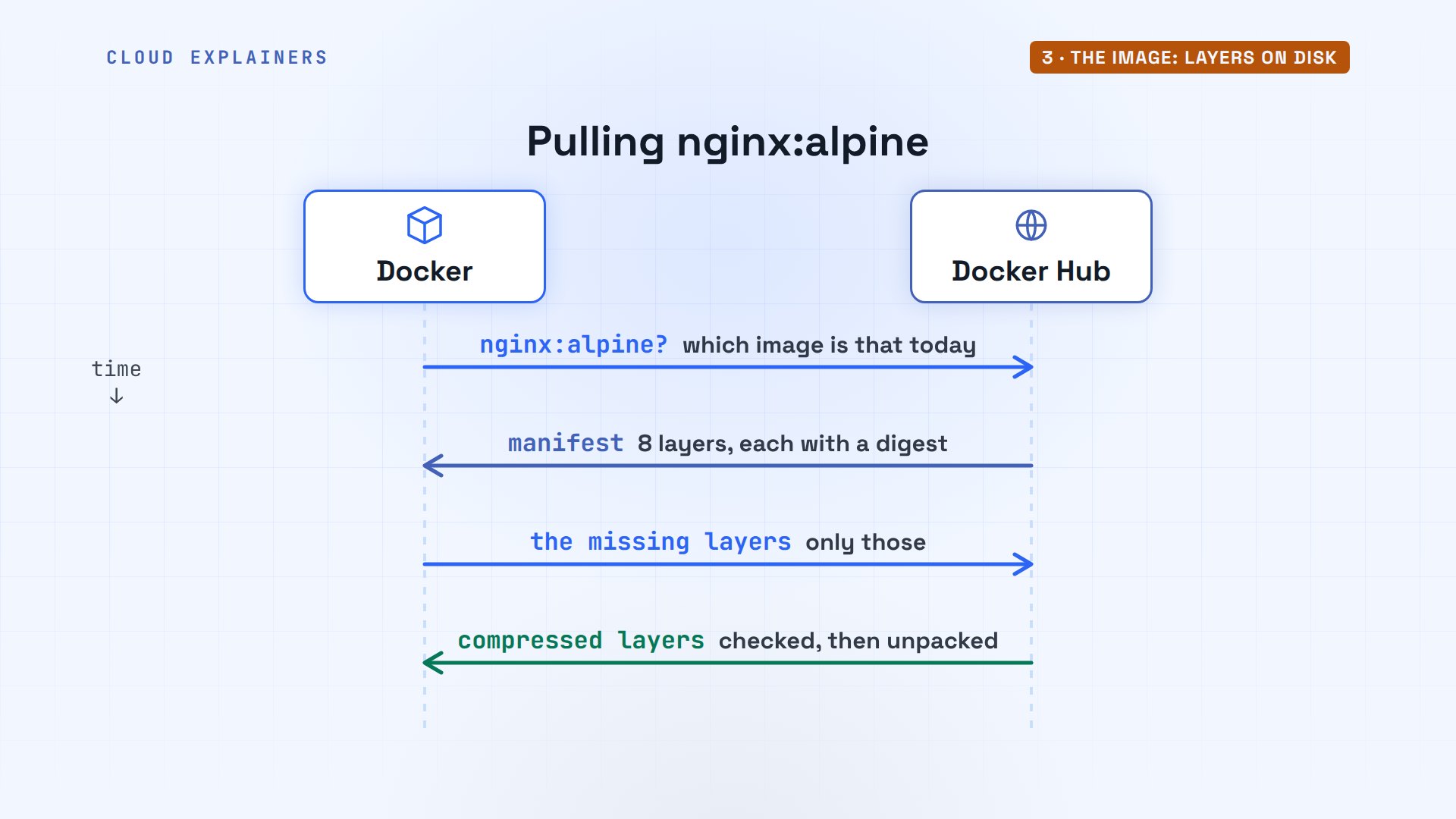
Now the image is on disk: 27.3MB downloaded, 94.5MB unpacked. And Docker counts the eight layers.
docker image lsi Info → U In Use IMAGE ID DISK USAGE CONTENT SIZE EXTRA nginx:alpine 713fc2ebfd92 94.5MB 27.3MB U
docker image inspect nginx:alpine --format '{{len .RootFS.Layers}} layers'8 layers
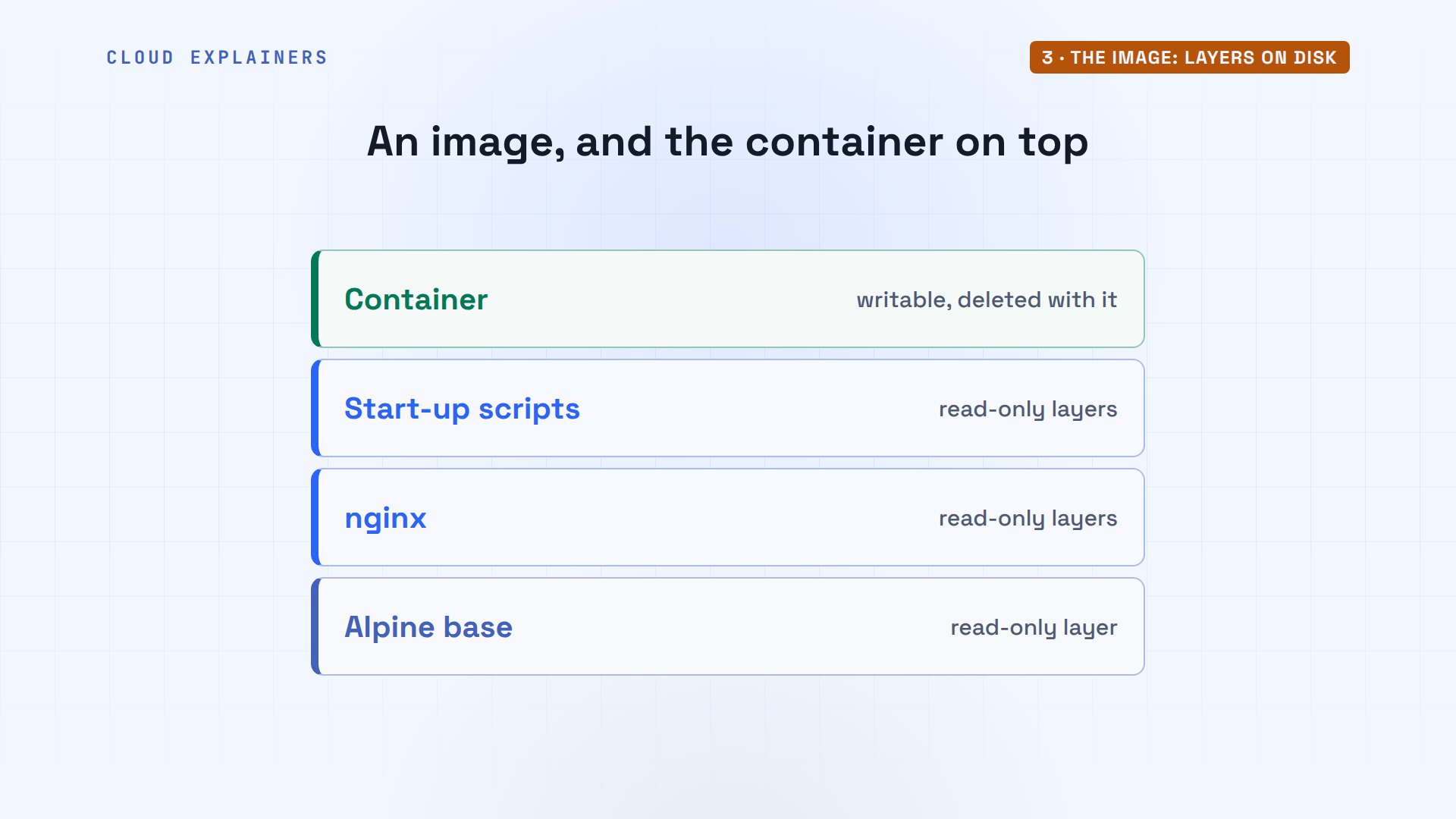
Here's the answer to that Stack Overflow question. A container is the layer on top: thin, and writable. Under it, the image's layers, read-only: the start-up scripts, nginx, and a small Linux base. Delete the container, and only the top layer goes.
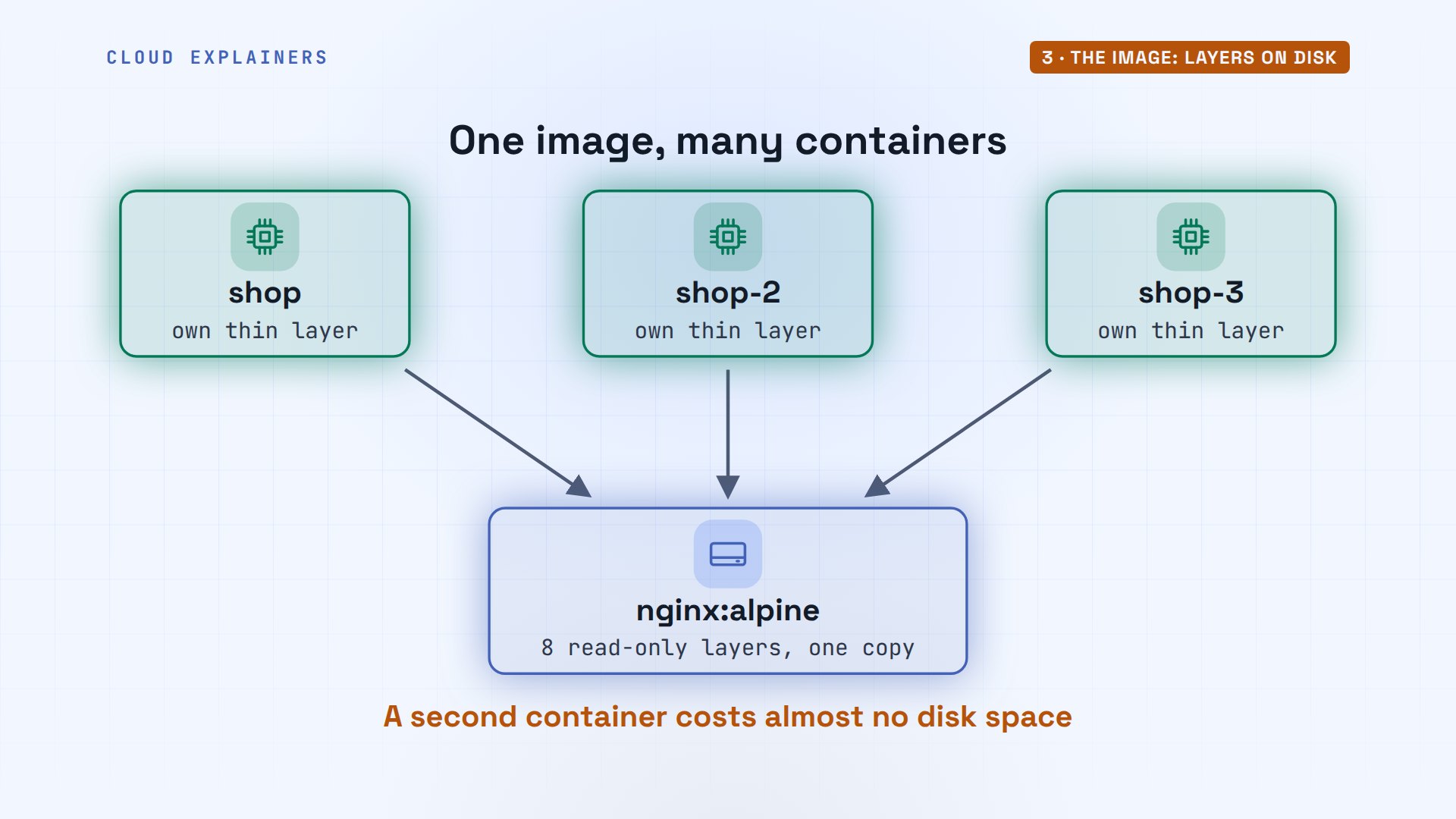
Because the image layers never change, ten containers from the same image share one copy of them on disk. Each container gets only its own thin layer. That's why a second container costs almost no space.
The kernel shows those layers as one folder, with a feature called overlay. Inside the container, the whole disk is that overlay. And look at the system inside: Alpine Linux v3.24, while the laptop runs Ubuntu 24.04.5 LTS.
docker info --format '{{.Driver}}'overlayfs
docker exec shop df -h /Filesystem                Size      Used Available Use% Mounted on
overlay                 192.7G     78.2G    114.5G  41% /
docker exec shop grep PRETTY /etc/os-releasePRETTY_NAME="Alpine Linux v3.24"
grep PRETTY /etc/os-releasePRETTY_NAME="Ubuntu 24.04.5 LTS"
So does the container have its own kernel, the core of the operating system? Take a guess. One kernel, the same version on both lines. The container brings its own files, never its own kernel.
uname -r; docker exec shop uname -r6.8.0-147-generic
6.8.0-147-generic
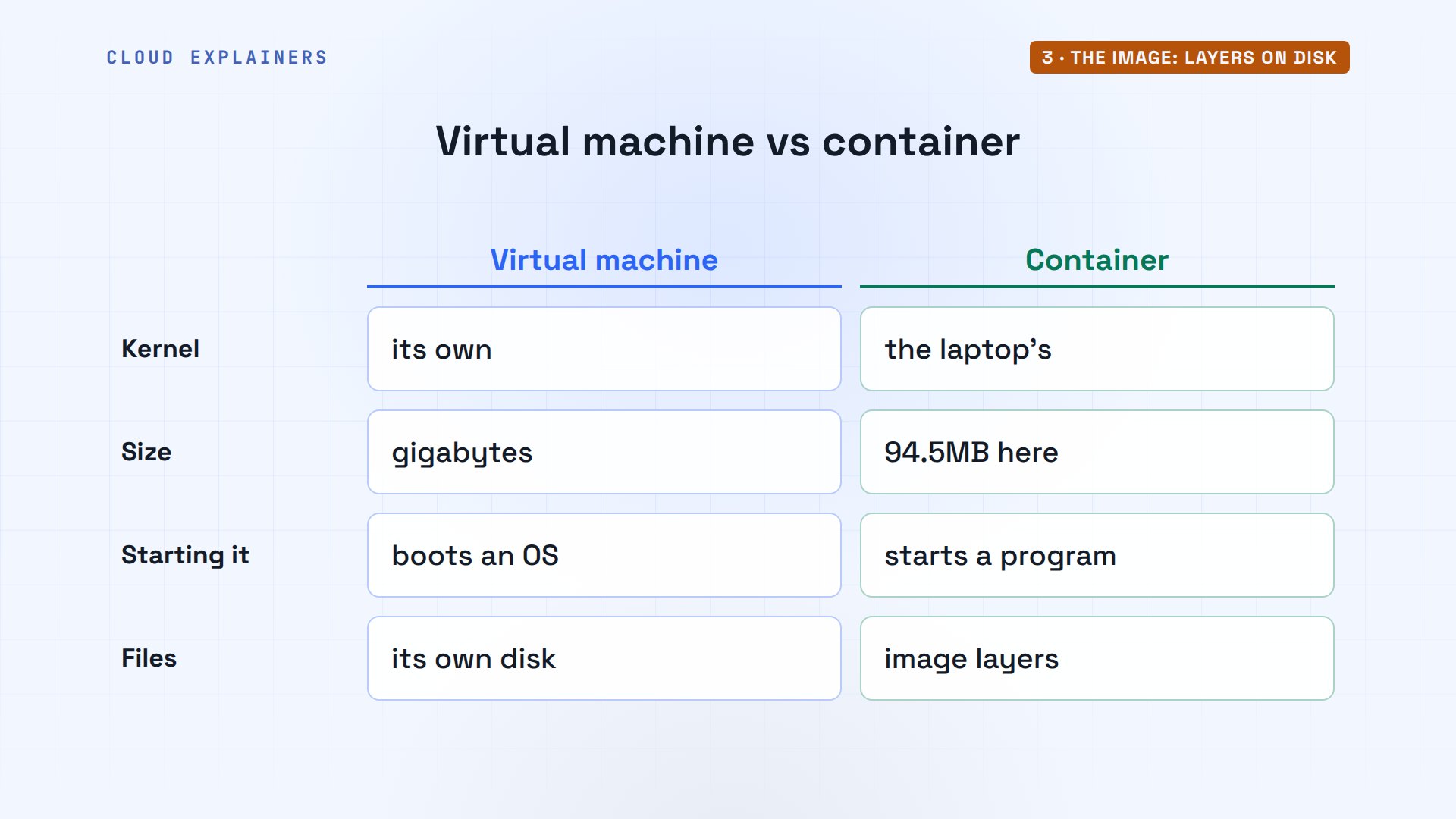
That's the big difference from a virtual machine. A virtual machine boots a whole operating system, kernel included, which takes a while and gigabytes. A container just starts a program, on the kernel the laptop already runs.
A container is a process
Back to our question: where is the web server running? Docker knows its process number on the laptop: 445. And the laptop's own ps command finds it: nginx, running as root, like any other program.
PID=$(docker inspect --format '{{.State.Pid}}' shop); echo $PID445
ps -o pid,user,cmd -p $PIDPID USER CMD 445 root nginx: master process nginx -g daemon off;
So the answer is: right on the laptop. No hidden machine. Its family tree shows the shim from earlier as its parent, and nginx's own worker processes below it.
pstree -s -p $PIDsystemd(1)───containerd-shim(422)───nginx(445)─┬─nginx(505)
                                               ├─nginx(506)
                                               ├─nginx(507)
                                               ├─nginx(508)
                                               ├─nginx(509)
                                               ├─nginx(510)
                                               ├─nginx(511)
                                               ├─nginx(512)
                                               ├─nginx(513)
                                               └─nginx(514)
So on the map, the shop container is a process, started by runc, watched by the shim, and running on the laptop's own kernel. What makes it a container is the walls around it.
Now ask from inside the container. The same nginx says it's process number one. Below it, only its own worker processes, and the ps we just ran. Nothing else on the laptop is visible. Its computer name is the container's ID, not laptop.
docker exec shop ps -o pid,user,argsPID   USER     COMMAND
    1 root     nginx: master process nginx -g daemon off;
   30 nginx    nginx: worker process
   31 nginx    nginx: worker process
   32 nginx    nginx: worker process
   33 nginx    nginx: worker process
   34 nginx    nginx: worker process
   35 nginx    nginx: worker process
   36 nginx    nginx: worker process
   37 nginx    nginx: worker process
   38 nginx    nginx: worker process
   39 nginx    nginx: worker process
   58 root     ps -o pid,user,args
docker exec shop hostname6edf9f5a27ed
One process, two views. From the laptop, it's process 445, on a machine called laptop. From inside, it's process one, on a machine named after its ID, alone in its own little world.
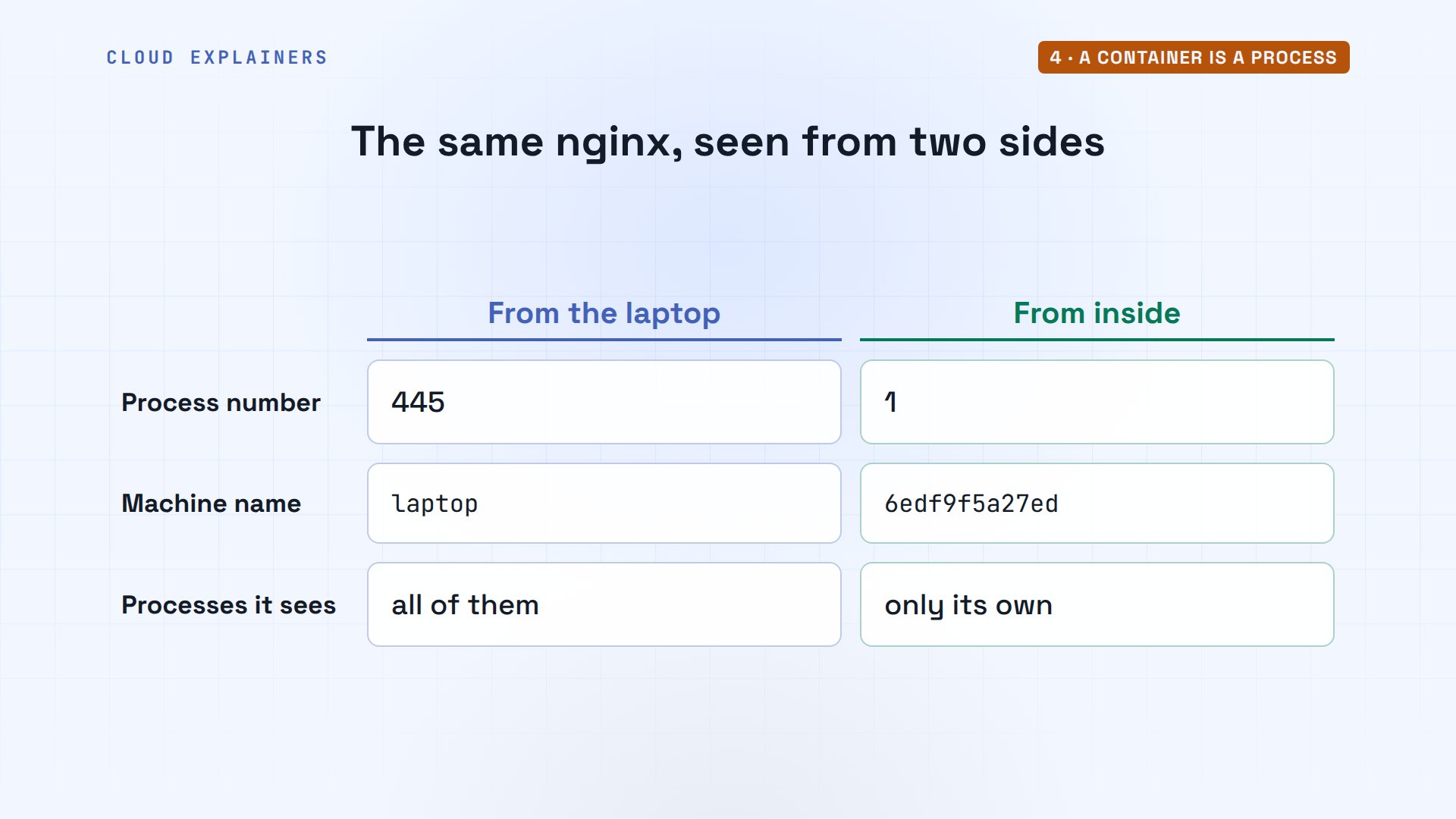
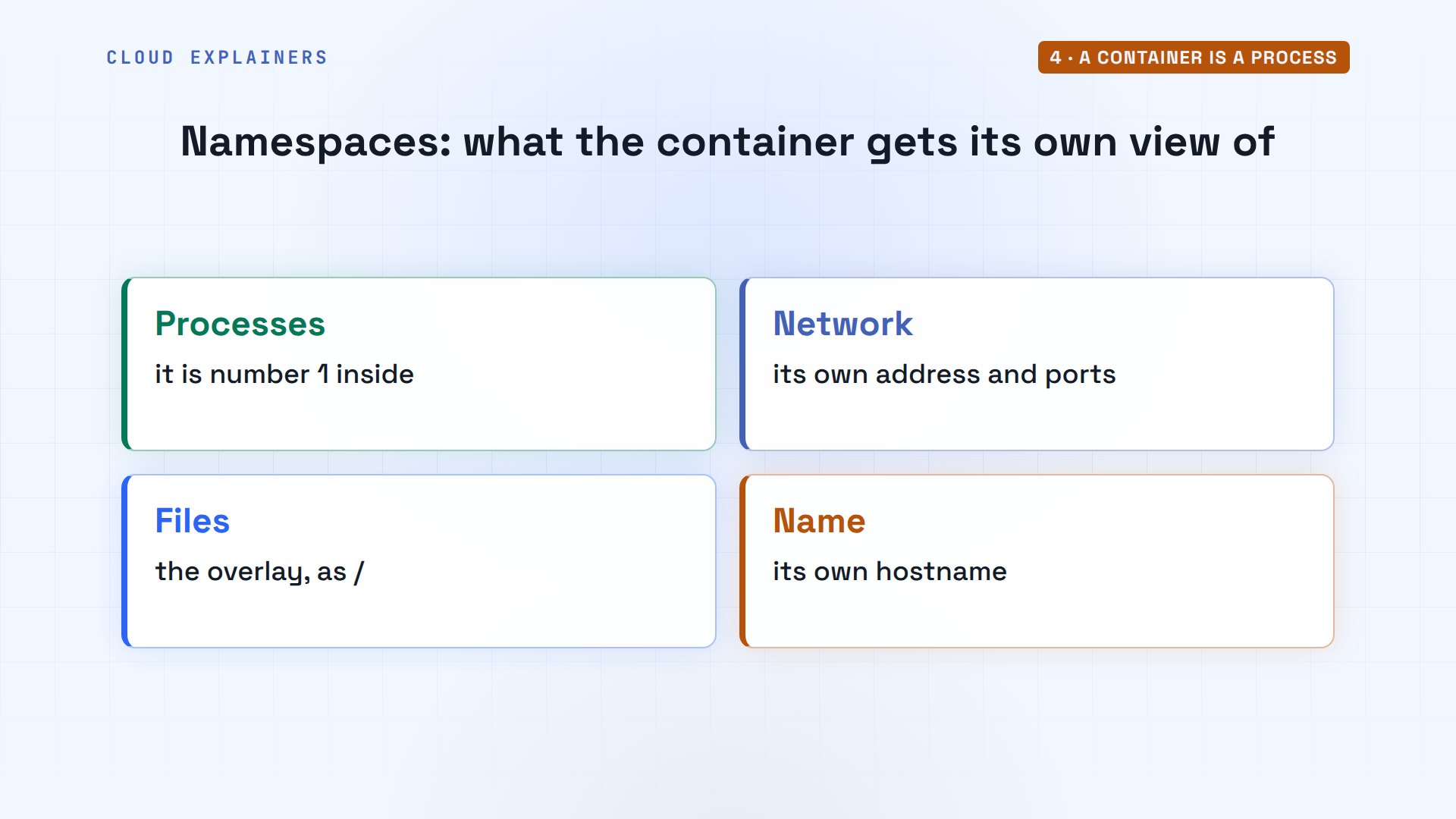
How can one process have two numbers? Namespaces. The kernel gives the container its own view of a few things: its own process list, its own network, its own files, and its own name.
You can see the namespaces as numbers. Ana's shell and the container point to different process namespaces, and different network ones. Different numbers mean different views.
sudo readlink /proc/$$/ns/pid /proc/$PID/ns/pid /proc/$$/ns/net /proc/$PID/ns/net[sudo] password for ana:
pid:[4026532744]
pid:[4026532808]
net:[4026532747]
net:[4026532810]
Limits and a network cable
Namespaces decide what a container can see. Control groups decide how much it can use. Ana asked for 256 megabytes of memory. The kernel keeps the container's processes in their own control group, a folder for each container.
cat /proc/$PID/cgroup0::/system.slice/docker-6edf9f5a27ed8ebd8b1685f95e75ae59df28317b6e308741245cf36e7173d4c5.scope
Inside that folder: memory max, 268435456 bytes, exactly 256 megabytes. nginx is using 9.0 megabytes. If it ever needs more than the limit, the kernel ends it, not the laptop.
CG=/sys/fs/cgroup/system.slice/docker-$(docker inspect --format '{{.Id}}' shop).scope
cat $CG/memory.max $CG/memory.current268435456
9449472
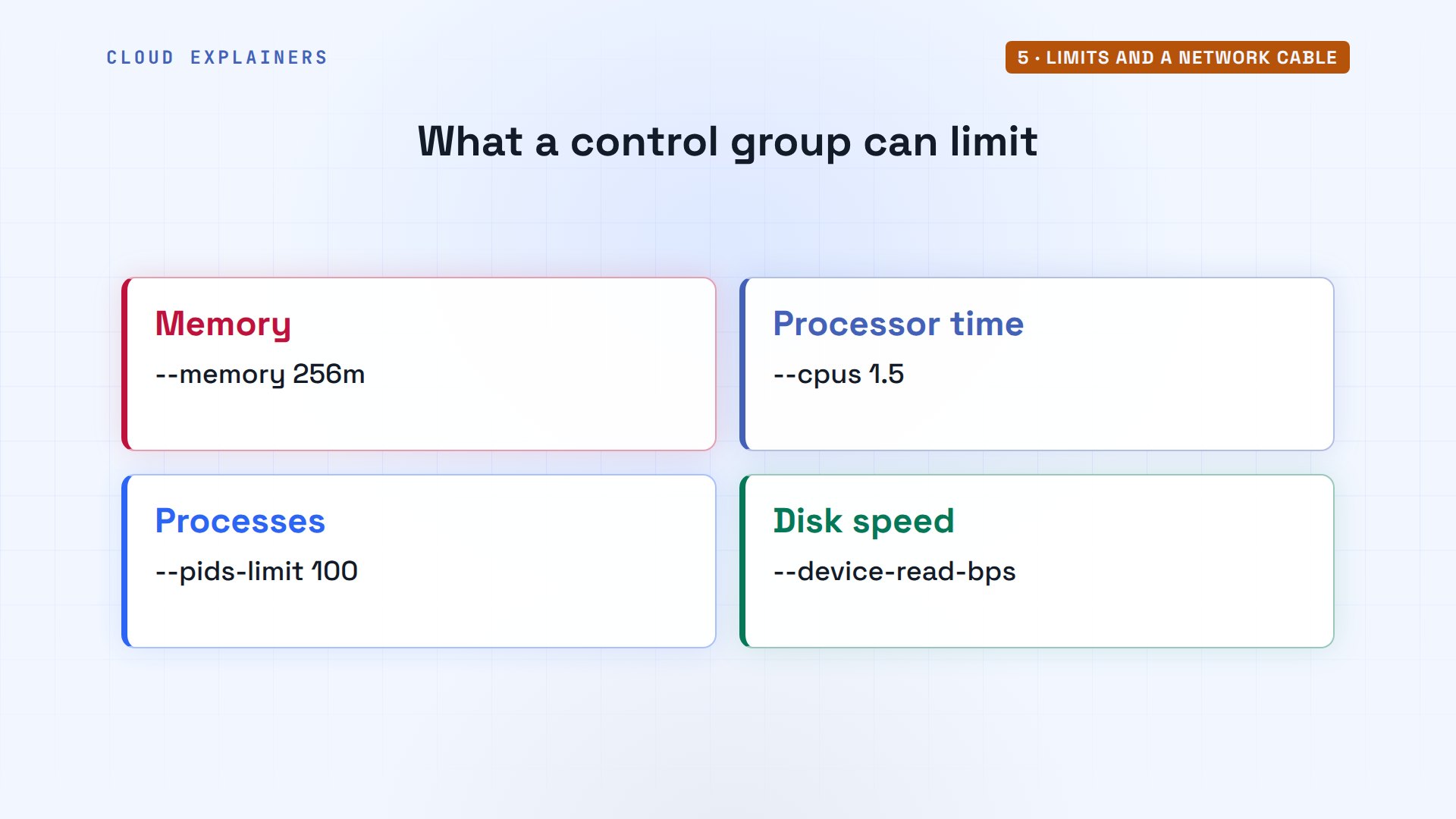
Control groups count more than memory. They can cap how much processor time a container gets, how many processes it may start, and how fast it reads the disk. So one busy container can't starve the rest of the laptop.
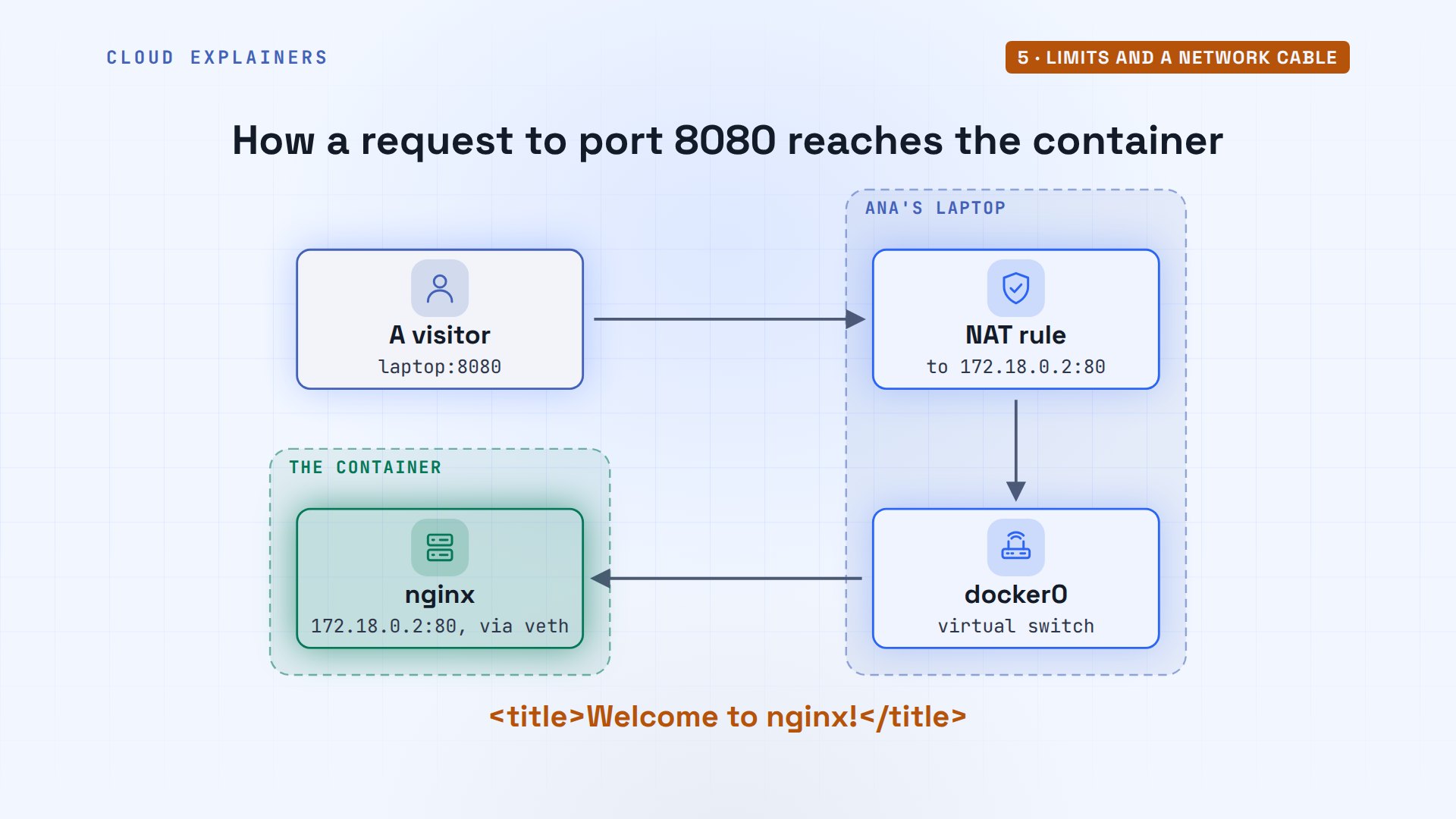
The container also got its own network. Its address is 172.18.0.2. Docker made a virtual switch on the laptop, docker zero, and plugged the container into it with a virtual cable, a veth pair: one end here, one inside.
docker inspect --format '{{.NetworkSettings.Networks.bridge.IPAddress}}' shop172.18.0.2
ip -br addr show docker0docker0 UP 172.18.0.1/16 fe80::1408:3eff:fe3d:c0f7/64
ip -br link | grep vethveth93ceb7a@if2 UP 9a:c1:de:be:94:1b <BROADCAST,MULTICAST,UP,LOWER_UP>
And dash p 8080 colon 80? That's one firewall rule, a NAT rule, which rewrites addresses. Traffic that reaches the laptop's port 8080 from the network gets its destination rewritten, to the container's address, port 80.
sudo iptables -t nat -S DOCKER | grep 8080-A DOCKER ! -i docker0 -p tcp -m tcp --dport 8080 -j DNAT --to-destination 172.18.0.2:80
Put together: a visitor's request to the laptop's port 8080 meets the rule, crosses docker zero and the virtual cable, and reaches nginx on port 80, which answers: welcome to nginx.
Stop it, run it again
What does docker stop really stop? That process. Afterwards, the laptop can't find it any more: ps prints only its empty header, then no such process. Then docker rm deletes the container and its thin writable layer. The image stays.
docker stop shopshop
ps -p $PID || echo 'no such process'PID TTY TIME CMD no such process
docker rm shopshop
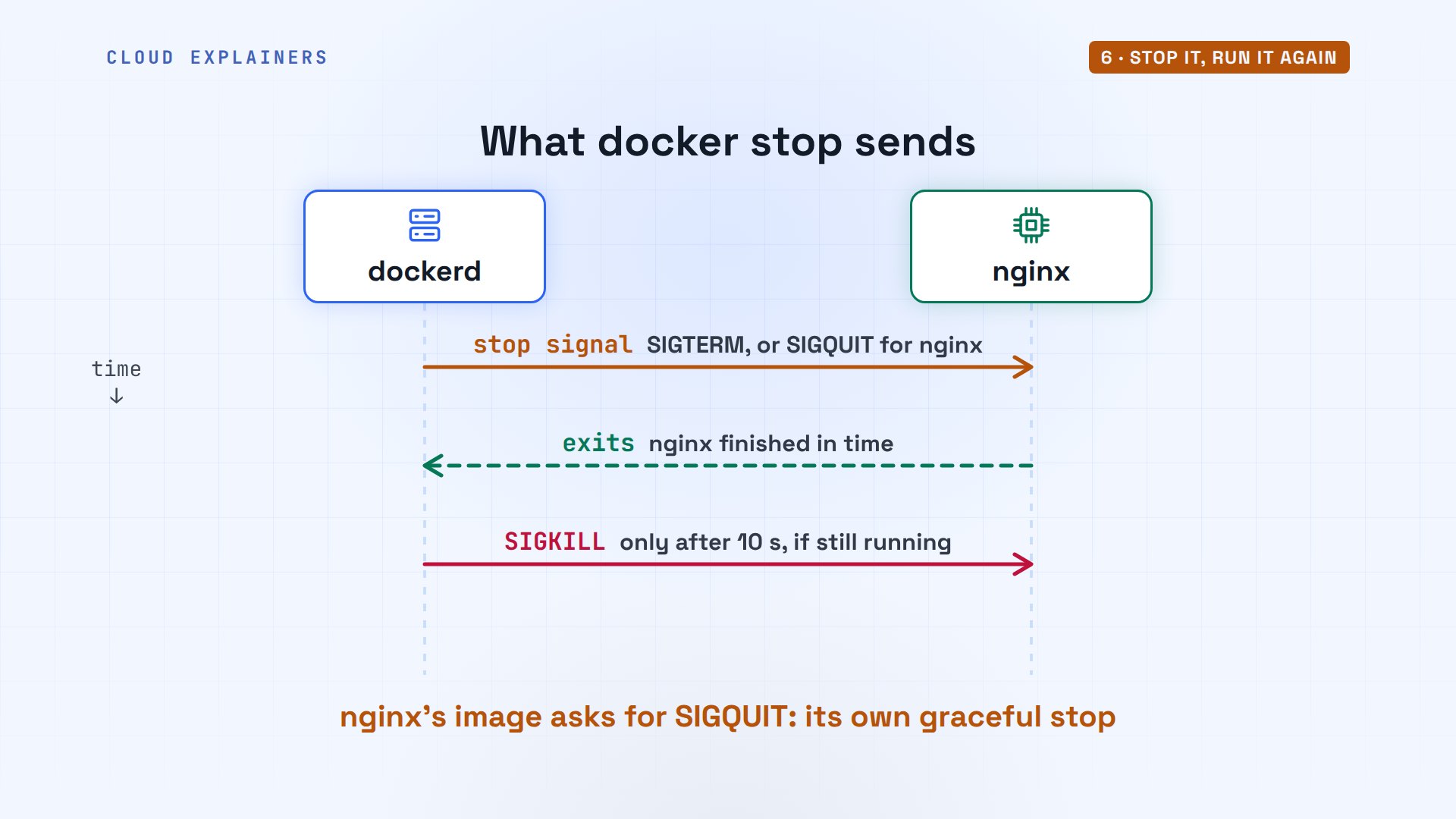
Stopping is polite at first. Docker sends the main process a stop signal that asks it to finish: usually SIGTERM, though the nginx image asks for SIGQUIT, its own graceful stop. It waits up to ten seconds. If the process is still there, SIGKILL ends it at once.
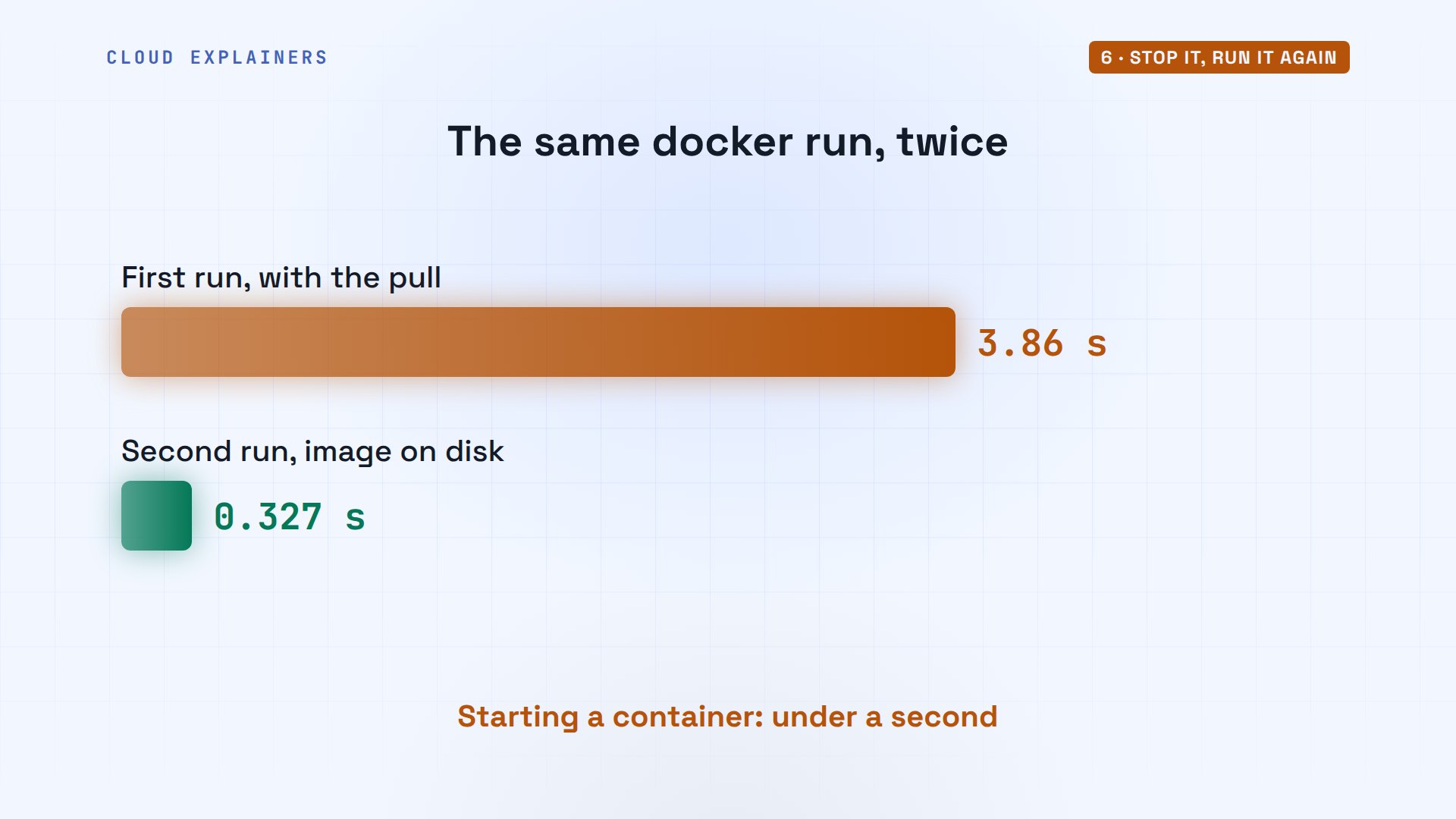
Now our puzzle. Ana runs the exact same command again. The first time took 3.9 seconds. Guess how long now. 0.3 seconds. No download this time: the layers were already on disk, so all that's left is building the walls.
time docker run -d --name shop -p 8080:80 --memory 256m nginx:alpine0d1aa082ab606604a5a4edfb084f7229a3857514eb5852dec3da8afa85ca4586

real    0m0.327s
user    0m0.006s
sys     0m0.014s
Most of a first run is the download. Building the walls, the namespaces, the control group, the overlay, and the virtual cable, takes a fraction of a second.
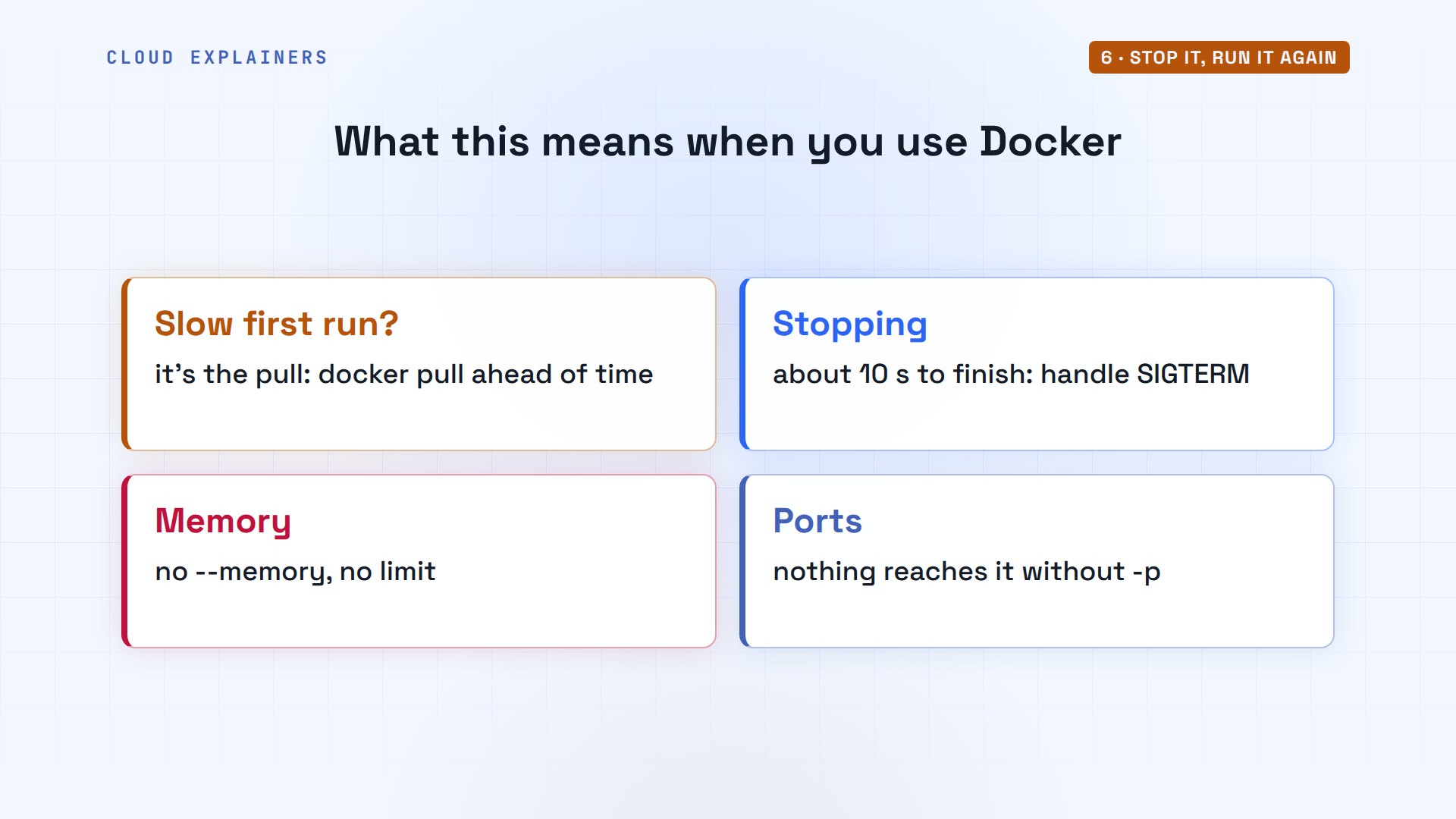
What does this change for you? A slow first run is the download, so pull images ahead of time. Your app gets about ten seconds to finish when you stop it, so let it handle SIGTERM. Set memory limits, or a container can use all of it. And a port only works if you publish it with dash p.
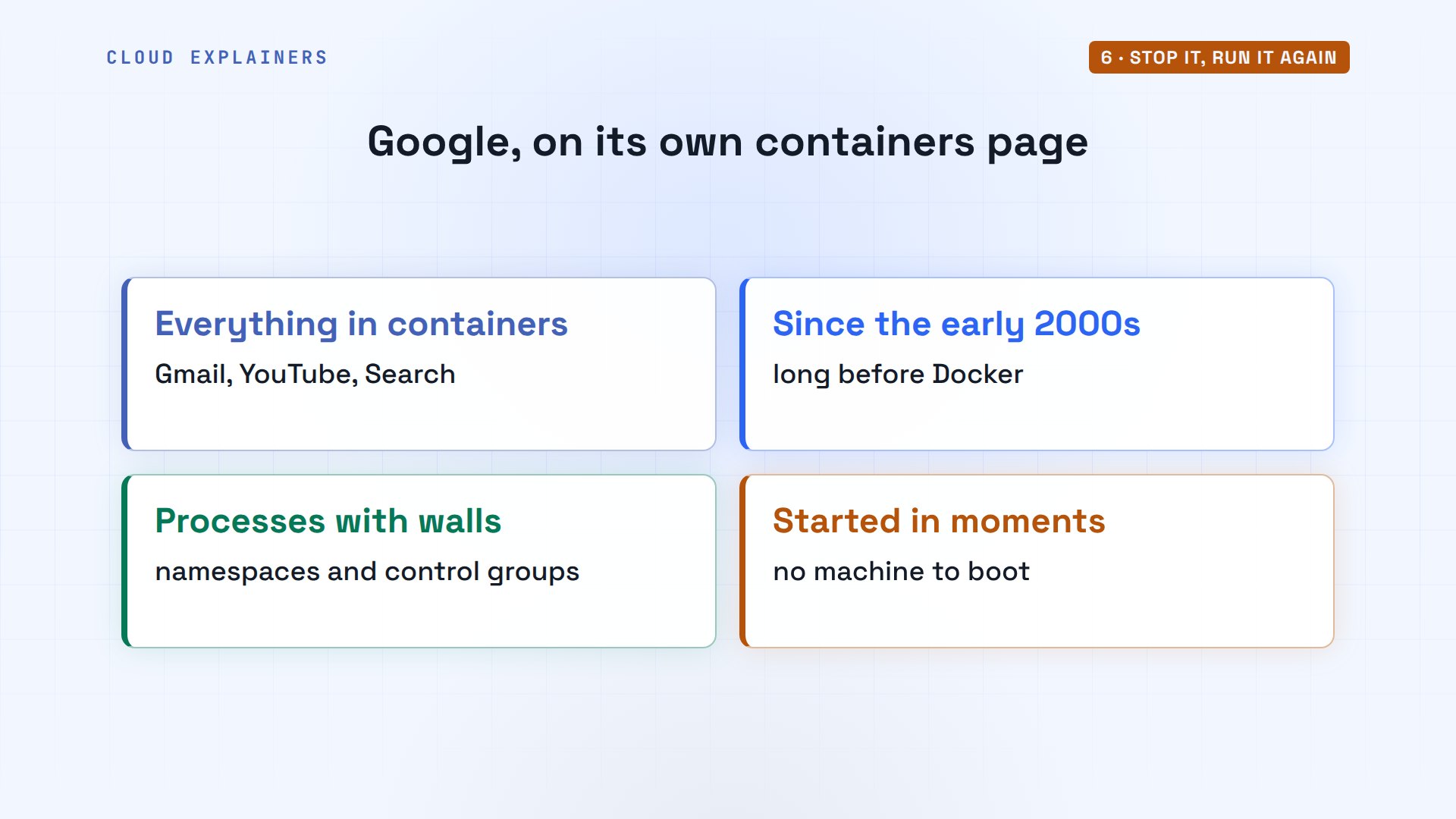
This is why containers took over. Google says everything it runs operates in containers, from Gmail to YouTube and Search, and has used them since the early 2000s. Same idea: processes with walls, started in moments.
Every command from this video, and the laptop we ran it on, is linked in the description, so you can look inside your own containers.
Recap
So: docker asks the daemon, containerd and runc build it, the image's layers become its files, and the kernel's walls make an ordinary process a container.
If finding the container's process on the laptop made Docker click, subscribing brings the next look under the hood your way.
Every command here ran for real, on Ubuntu 24.04 with Docker 29.1.3. Thanks for watching Cloud Explainers.
Sources
- Docker overview (the client talks to the Docker daemon through a REST API over UNIX sockets)
- containerd image store (the default storage backend for Docker Engine 29.0 and later on fresh installs)
- Linux namespaces
- Linux control groups v2
- Overlay filesystem
- runc
- docker container stop (stop signal, 10 s default timeout, then SIGKILL)
- nginx official image Dockerfile (STOPSIGNAL SIGQUIT)
- Google Cloud, Containers at Google ("everything at Google operates in containers")
- Stack Overflow, What is the difference between a Docker image and a container? (asked 2014)
Demos: one container on our own lab machine standing in for Ana's laptop, with its own Docker; nothing outside it is touched. Watch the full video on YouTube.
More videos

Google AI Studio Will Finally Make Sense After This

How to Fix Claude Code Billing Your API Key Instead of Your Plan
Why Passkeys Can't Be Phished Like Passwords
PowerShell vs Bash: Which One Should You Learn?
The Linux Roadmap for Beginners
Django vs FastAPI: Which One Should You Use?

Why SQLite Is the Most Used Database in the World
How a NoSQL Database Like MongoDB Works

How to Fix Python pip error: externally-managed-environment
How to Fix MySQL Too Many Connections Database Errors
Golang Concurrency Will Finally Make Sense After This
How Amazon S3 Works
How Kubernetes Works

How Git Works
How to Fix Docker Port Already Allocated Errors
How PostgreSQL Works
How to Fix Git Merge Conflicts

How to Fix No Space Left on Device in Linux
How the Internet Works
SQL vs NoSQL: When Each One Wins
How to Fix JWT Token Expired Errors (401 Unauthorized)
Claude API vs Claude Pro: Why Your Subscription Doesn't Include It

Why AI Agent Skills Beat Giant Prompts

Linux Cron Jobs Will Finally Make Sense After This

Security Logs Will Finally Make Sense After This

How to Fix a Security Leak: An API Key Pushed to GitHub
DNS Will Finally Make Sense After This
Never Ignore a Security Update
Two-Factor Authentication Will Finally Make Sense
Never Expose a Database to the Internet
SSH Keys vs Passwords: Which Is Safer for Security?
The 5 Levels of Linux Boot: From Power On to Login
The 5 Levels of Network Firewalls
Password Security: Why Hackers Crack Weak Passwords
Why Your Linux Server Runs Out of Memory
HTTP vs HTTPS: What Actually Changes on Your Network

Every Linux File Permission You Need to Know
Linux Processes vs Threads: When Each One Wins

The OSI Model Will Finally Make Sense After This

The 7 Levels of Git
Every Network Troubleshooting Command You Need
Hashing vs Encryption in Cybersecurity: When Each One Wins
Why the Internet Ran Out of IP Addresses
Linux Package Managers: apt vs Snap vs Flatpak

Why Python Is Slow (and When It Doesn't Matter)
TCP vs UDP: When Each One Wins

Stop Running Linux as Root (Do This Instead)

Linux Users and Groups Will Finally Make Sense

Why Phishing Beats Good Security (and How to Spot It)
The 7 Levels of Docker

AI Agents Will Finally Make Sense After This

Stop Using git push --force (Use This Instead)
Agent Skills vs MCP: When Each One Wins

Networking Will Finally Make Sense After This

Every Linux Command You Actually Need

The 7 Levels of Cybersecurity
Every System Design Concept You Need, in One Diagram