
How to Fix a Linux systemd Service That Won't Start
Your systemd service won't start: systemctl start prints nothing, but the app isn't running. In our own lab (systemd 255 on Ubuntu 24.04) we break and fix the usual causes for real: 203/EXEC from a wrong program path, an edit that needs daemon-reload, an app that works by hand but can't see your shell's environment variable as a service, a port that's already taken, and 'start request repeated too quickly', which blocks your start even after the fix.
Started, but not running
You start your systemd service and get no error, but it isn't running. Nothing answers, and systemctl says failed. Ana's tea shop server is stuck right there, and her start command printed nothing at all.
sudo systemctl start teashop
curl -sS localhost:8080curl: (7) Failed to connect to localhost port 8080 after 0 ms: Couldn't connect to server
systemctl is-active teashopfailed
When a service won't start, the reason is always written down. Two commands read it, and today Ana's shop hits the most common causes, one after another: a wrong program path, an app that runs fine by hand, and a port that's already taken. Along the way you'll meet a message that sounds like a crash: start request repeated too quickly. By the end you'll know what it really means.
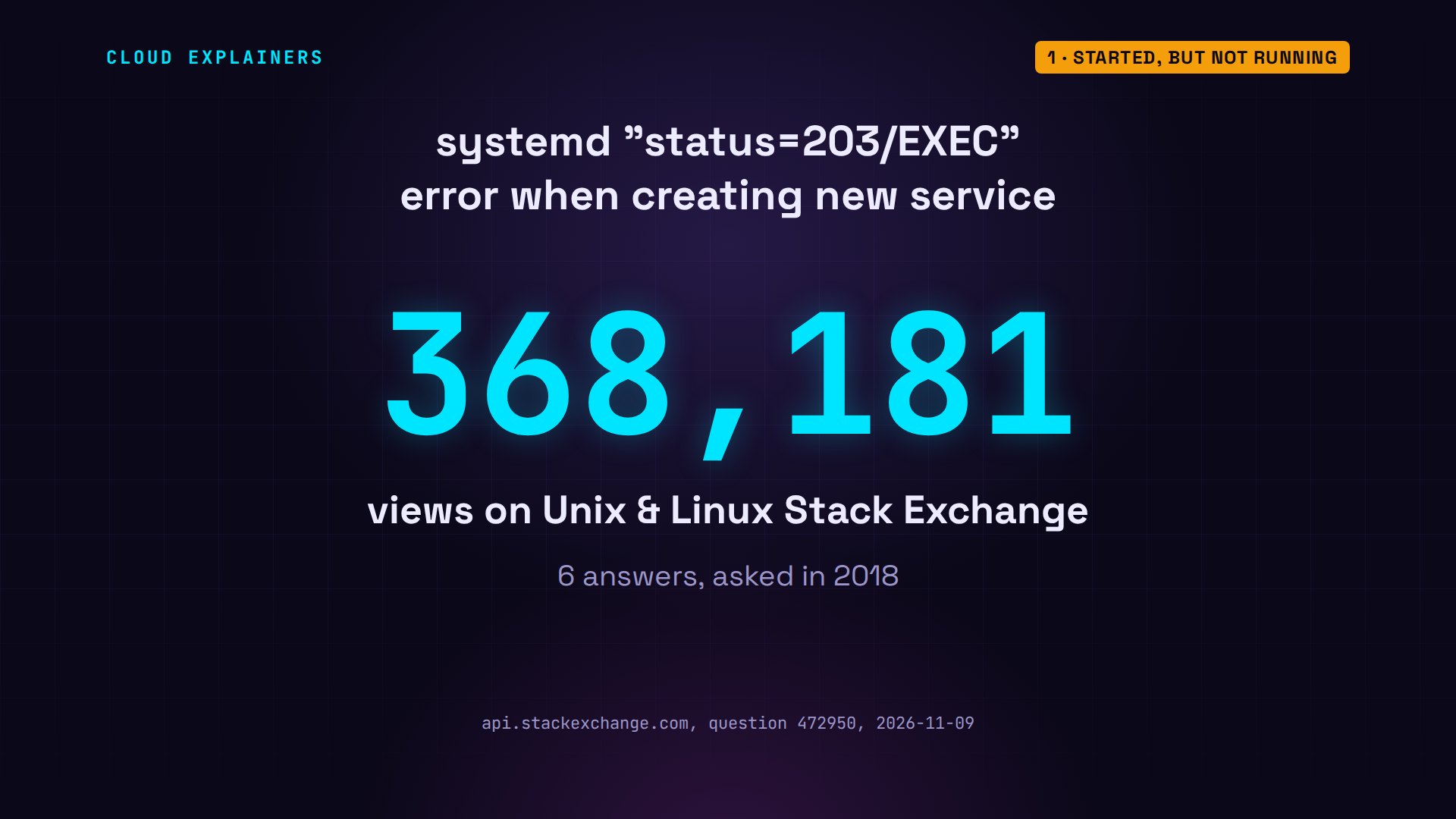
You're in good company. On Unix and Linux Stack Exchange, the question about a new service failing with status 203/EXEC has over 360,000 views. That's exactly where Ana starts.
The usual fix: read the reason
The usual fix starts with reading, not guessing. Command one: systemctl status teashop. The two extra options only print it all at once, without log lines. The cross and the word failed say it's dead. And the Main PID line, the app's process ID, says how it ended: code exited, status 203/EXEC.
systemctl status teashop --no-pager -n 0× teashop.service - Ana's tea shop
     Loaded: loaded (/etc/systemd/system/teashop.service; disabled; preset: enabled)
     Active: failed (Result: exit-code) since Mon 2026-11-09 18:47:24 UTC; 850ms ago
   Duration: 1ms
    Process: 161 ExecStart=/usr/bin/python app.py (code=exited, status=203/EXEC)
   Main PID: 161 (code=exited, status=203/EXEC)
        CPU: 949us
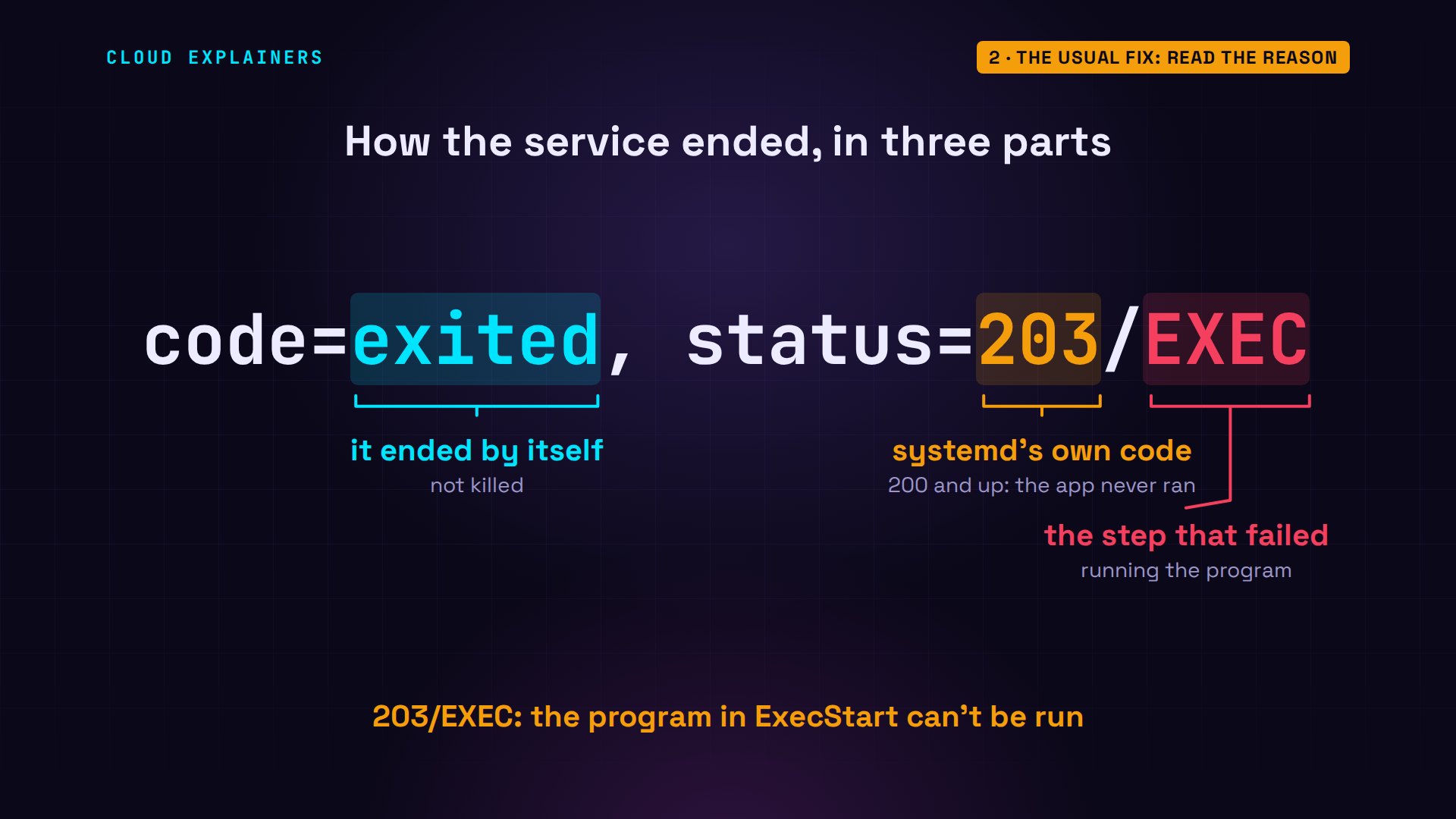
Read that in three parts. Exited: the process ended by itself. 203: codes of 200 and up come from systemd itself, while it was still setting up, so the app never ran. And EXEC names the step that failed: running the program. systemd's manual says it's most likely a missing program file.
So Ana checks the program in her unit file: /usr/bin/python. But Ubuntu 24.04 only has python3. She fixes the line with sed, a tool that swaps text in a file: any editor, like nano, works too. And she checks again: python3.
grep -n ExecStart /etc/systemd/system/teashop.service8:ExecStart=/usr/bin/python app.py
ls /usr/bin/python*/usr/bin/python3 /usr/bin/python3.12
sudo sed -i 's|/usr/bin/python |/usr/bin/python3 |' /etc/systemd/system/teashop.service
grep -n ExecStart /etc/systemd/system/teashop.service8:ExecStart=/usr/bin/python3 app.py
Then she restarts the service, and looks at its status. Guess first: what happens now? Same error. systemctl warns that the unit file changed on disk, and status still shows 203, from running plain python: the old line, not the one she just fixed.
sudo systemctl restart teashopWarning: The unit file, source configuration file or drop-ins of teashop.service changed on disk. Run 'systemctl daemon-reload' to reload units.
systemctl status teashop --no-pager -n 0× teashop.service - Ana's tea shop
     Loaded: loaded (/etc/systemd/system/teashop.service; disabled; preset: enabled)
     Active: failed (Result: exit-code) since Mon 2026-11-09 18:47:37 UTC; 872ms ago
   Duration: 1ms
    Process: 184 ExecStart=/usr/bin/python app.py (code=exited, status=203/EXEC)
   Main PID: 184 (code=exited, status=203/EXEC)
        CPU: 834us
Warning: The unit file, source configuration file or drop-ins of teashop.service changed on disk. Run 'systemctl daemon-reload' to reload units.
Why? systemd doesn't read unit files each time you start something. It loads them into memory, and keeps using that copy. Ana's file on disk says python3, but the copy in memory still says python. daemon-reload tells systemd to read every unit file again.
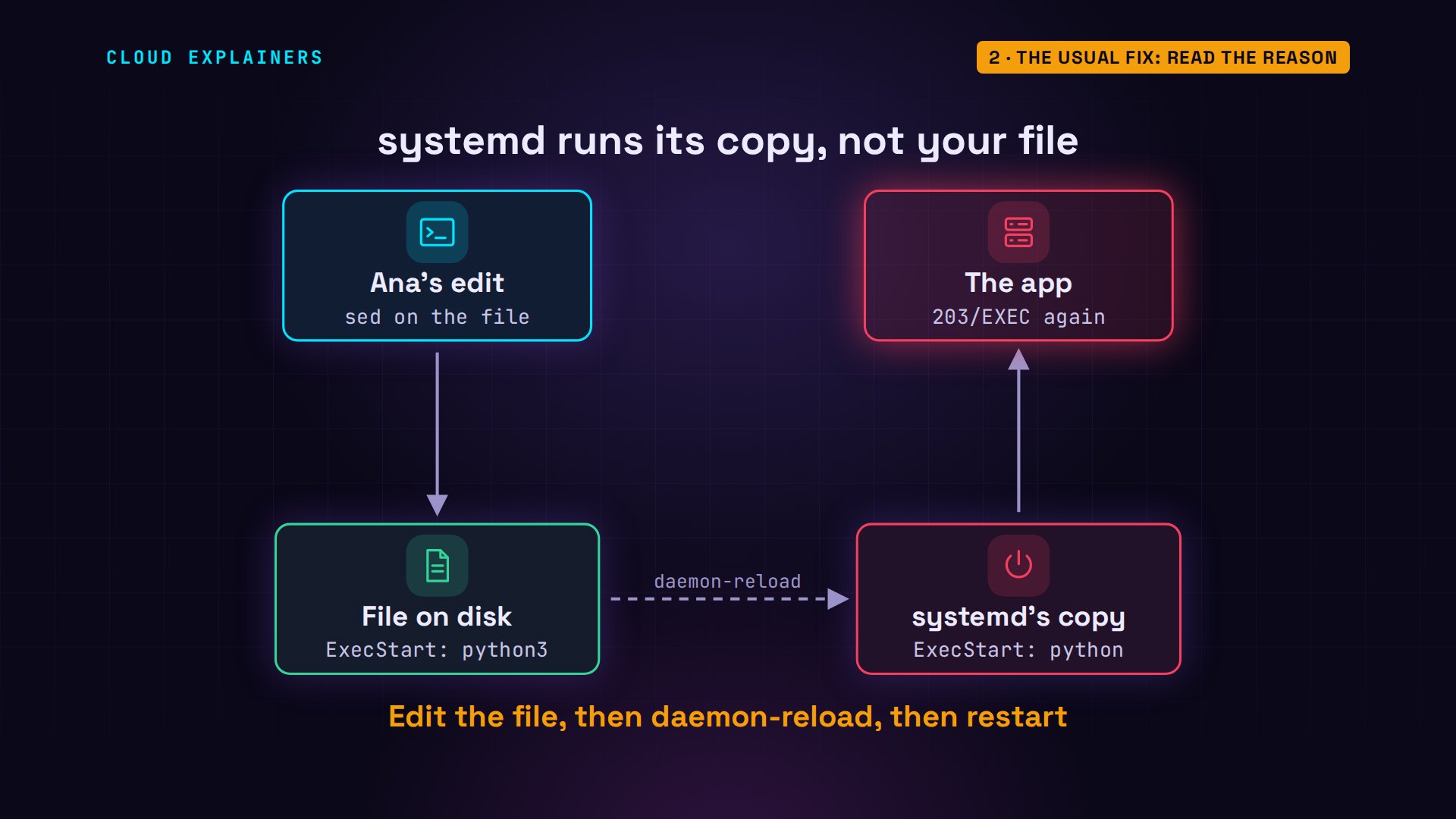
So: daemon-reload, restart, and status: active, running, with python3 as its main process. The shop answers: 12 teas in stock. That's the usual fix: read the status, fix the file, reload, restart.
sudo systemctl daemon-reload
sudo systemctl restart teashop
systemctl status teashop --no-pager -n 0● teashop.service - Ana's tea shop
     Loaded: loaded (/etc/systemd/system/teashop.service; disabled; preset: enabled)
     Active: active (running) since Mon 2026-11-09 18:47:49 UTC; 2s ago
   Main PID: 209 (python3)
      Tasks: 1 (limit: 9563)
     Memory: 8.8M (peak: 9.0M)
        CPU: 46ms
     CGroup: /system.slice/teashop.service
             └─209 /usr/bin/python3 app.py
curl -s localhost:8080Ana's Tea Shop: 12 teas in stock
Why start printed nothing
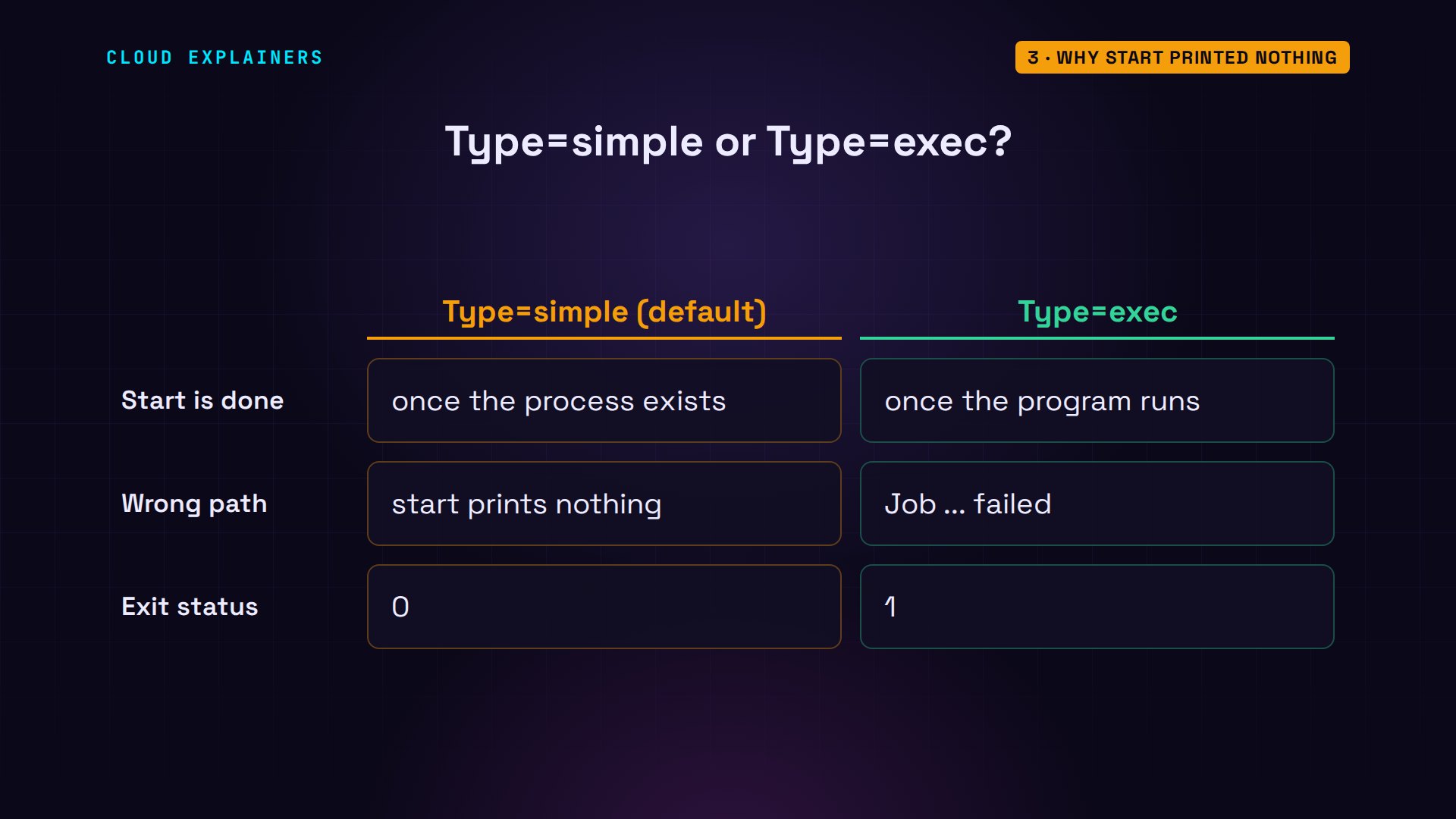
So why did start print nothing at the very beginning? By default, a service is Type simple. systemd creates the new process, and counts the start as done right there, before the program has even tried to run. systemd's own manual warns about it: start reports success even when the program file is missing.
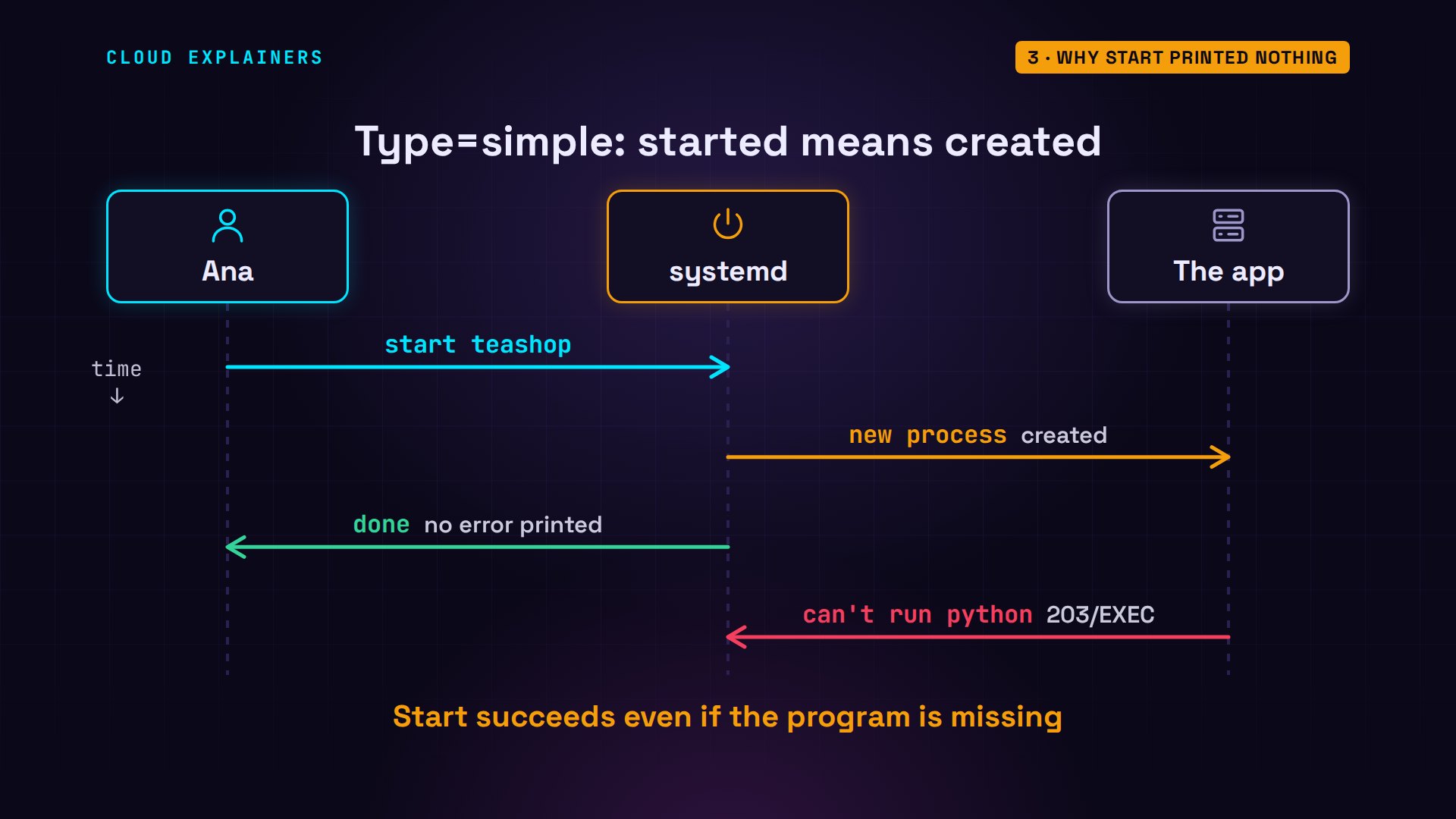
One line in the unit file changes that: Type=exec. Then systemd waits until the program really runs. We tried Ana's first draft with that one line added. Same wrong path, but now start fails out loud: job failed, with an exit status of 1.
What the exit code tells you
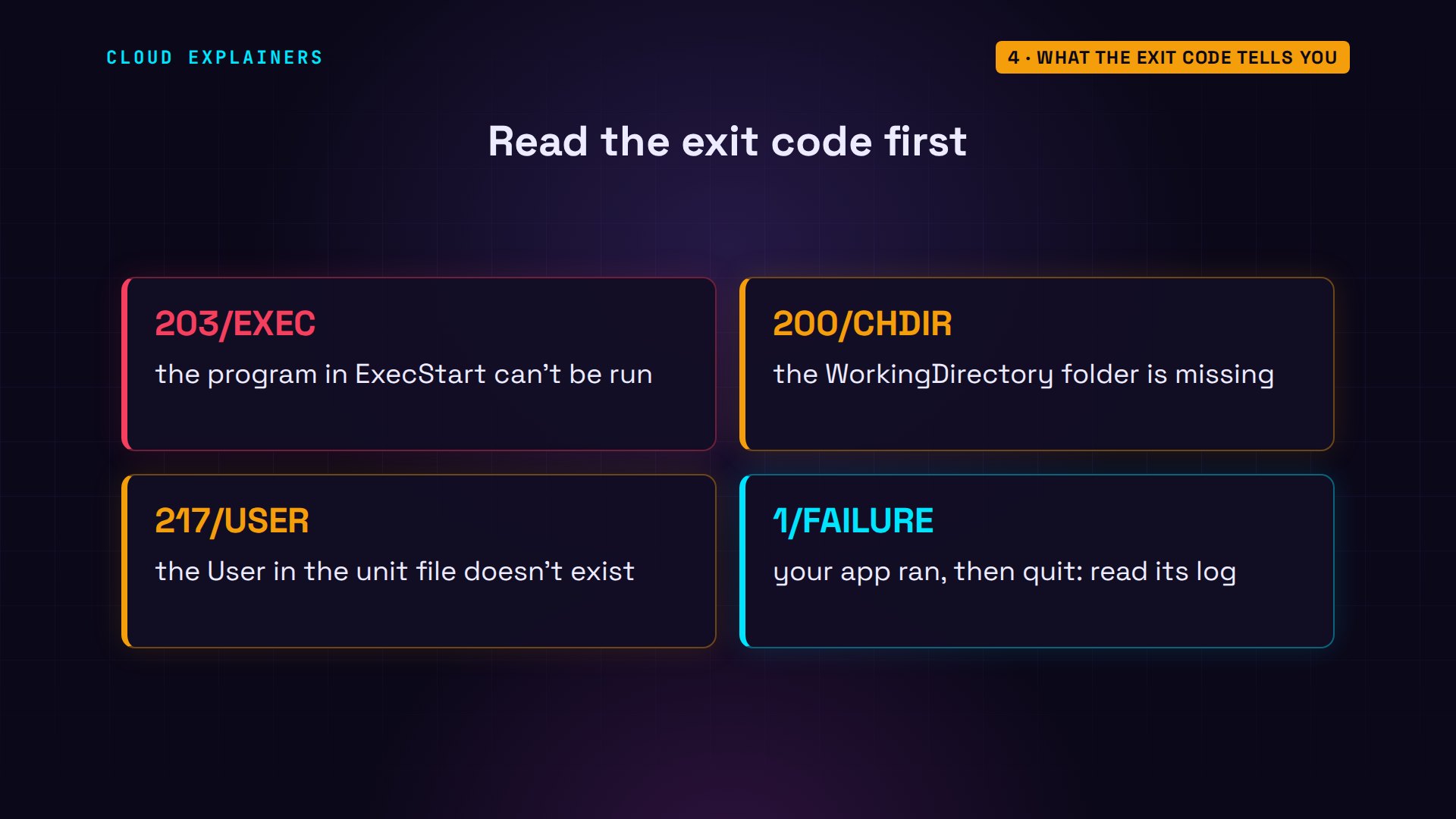
The exit code is your first clue. 203/EXEC: the program can't be run. 200/CHDIR: the WorkingDirectory folder doesn't exist. 217/USER: the User in the unit file doesn't exist. We caused each one on Ana's server. And a small number, like 1/FAILURE, means the app did start, then quit with an error of its own. For those, you need the app's own words.
Works by hand, fails as a service
Ana's next version of the app reads its stock file's path from an environment variable, TEA_STOCK. She set it in her bashrc, and her terminal has it. She stops the service, and tests the new app by hand. nohup and the ampersand at the end keep it running in the background, with its output in a log file. 12 teas. It works.
cd teashop
grep -n TEA_STOCK app.py5:# TEA_STOCK is set in Ana's ~/.bashrc
6:stock_file = os.environ["TEA_STOCK"]
echo $TEA_STOCK/home/ana/teashop/stock.txt
sudo systemctl stop teashop
nohup python3 app.py > test.log 2>&1 &[1] 224
curl -s localhost:8080Ana's Tea Shop: 12 teas in stock
Then she restarts the service on the new version. This time she runs status with sudo and without the dash n zero, so it also shows the last log lines. Failed again, but now with status 1/FAILURE: the app ran, and quit. And those last lines are all about restarting it. The reason itself scrolled away.
sudo systemctl restart teashop
sudo systemctl status teashop --no-pager× teashop.service - Ana's tea shop
     Loaded: loaded (/etc/systemd/system/teashop.service; disabled; preset: enabled)
     Active: failed (Result: exit-code) since Mon 2026-11-09 18:47:54 UTC; 1s ago
   Duration: 46ms
    Process: 238 ExecStart=/usr/bin/python3 app.py (code=exited, status=1/FAILURE)
   Main PID: 238 (code=exited, status=1/FAILURE)
        CPU: 45ms

Nov 09 18:47:54 shop systemd[1]: teashop.service: Scheduled restart job, restart counter … at 5.
Nov 09 18:47:54 shop systemd[1]: teashop.service: Start request repeated too quickly.
Nov 09 18:47:54 shop systemd[1]: teashop.service: Failed with result 'exit-code'.
Nov 09 18:47:54 shop systemd[1]: Failed to start teashop.service - Ana's tea shop.
Hint: Some lines were ellipsized, use -l to show in full.
So keep the two commands straight. Status tells you the state, and how it ended. journalctl tells you why, in the app's own words: every line, not just the last ten.
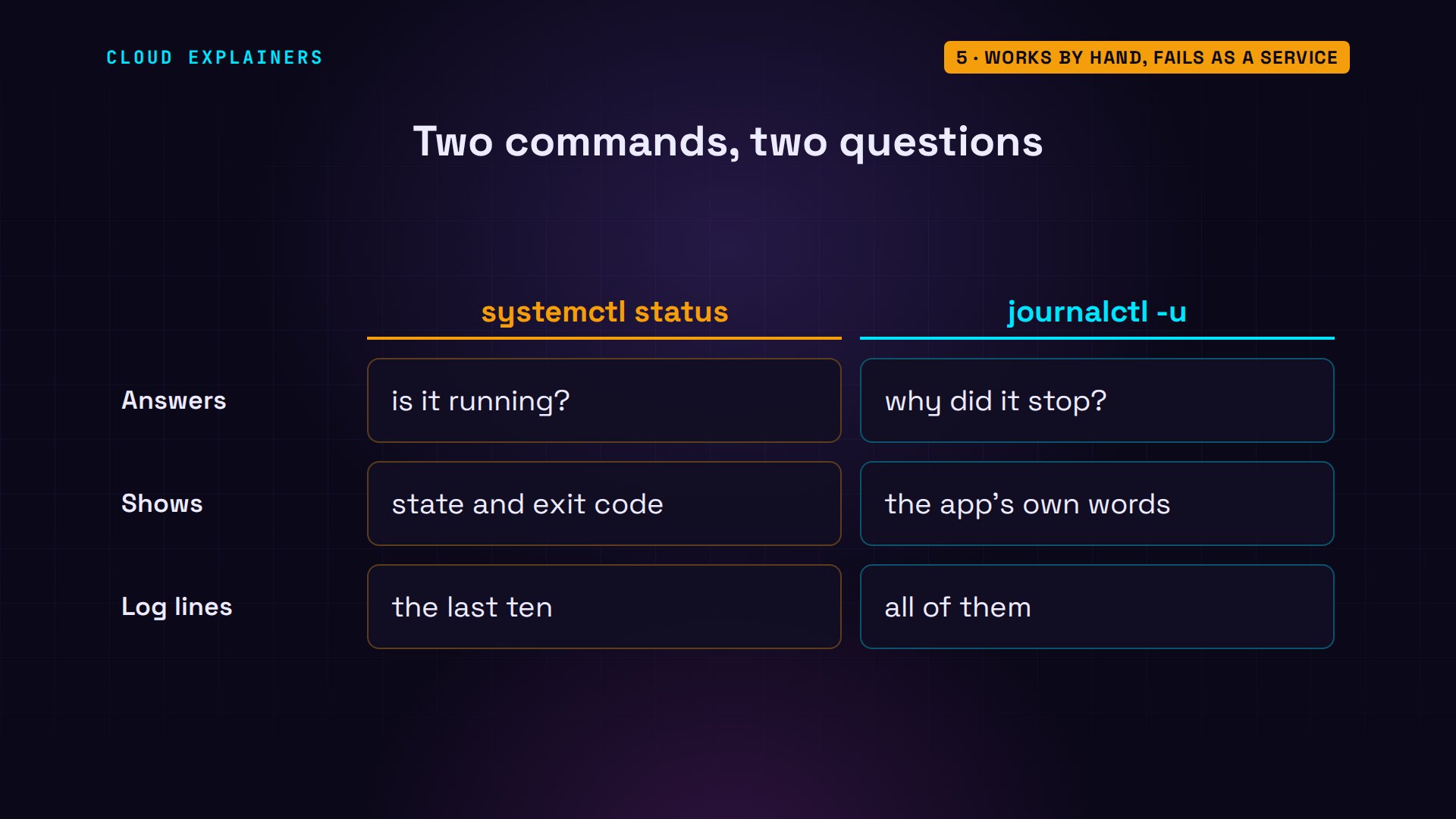
That's what command two is for: journalctl -u teashop, every line this service printed. Read up from the bottom, past the restart lines, to the first error: KeyError, TEA_STOCK. The app asked for the variable, and it wasn't there.
sudo journalctl -u teashop --no-pager -n 14 -o catteashop.service: Scheduled restart job, restart counter is at 4.
Started teashop.service - Ana's tea shop.
Traceback (most recent call last):
  File "/home/ana/teashop/app.py", line 6, in <module>
    stock_file = os.environ["TEA_STOCK"]
                 ~~~~~~~~~~^^^^^^^^^^^^^
  File "<frozen os>", line 685, in __getitem__
KeyError: 'TEA_STOCK'
teashop.service: Main process exited, code=exited, status=1/FAILURE
teashop.service: Failed with result 'exit-code'.
teashop.service: Scheduled restart job, restart counter is at 5.
teashop.service: Start request repeated too quickly.
teashop.service: Failed with result 'exit-code'.
Failed to start teashop.service - Ana's tea shop.
How did the app's error get into the journal? A service has no terminal to print to. systemd catches everything the app prints, normal lines and errors, and files it in the journal under the unit's name. That's what dash u picks: the lines of one unit.
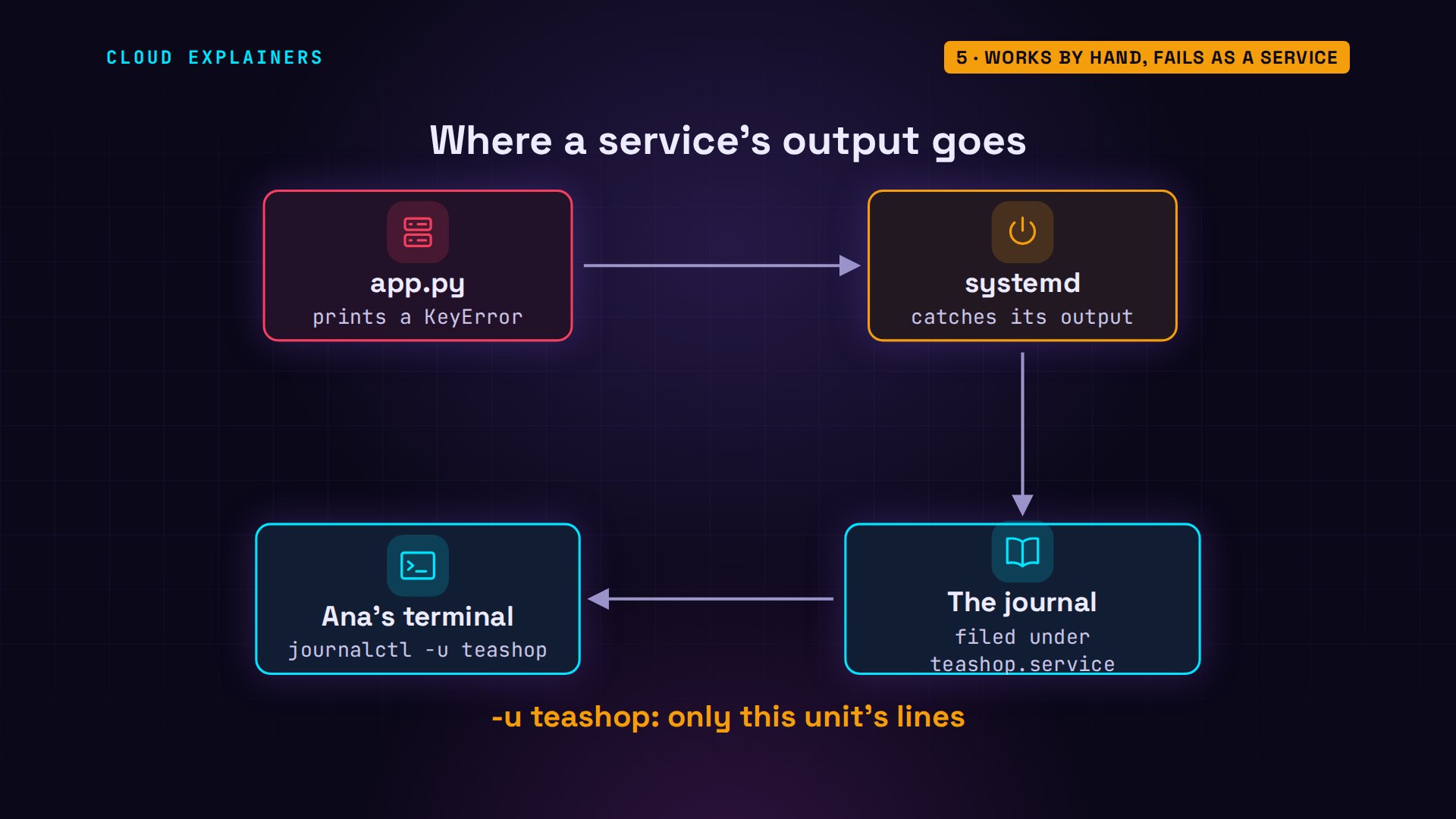
But why was TEA_STOCK missing? Ana's terminal runs a shell that reads her bashrc when it starts, so every program she starts from it gets TEA_STOCK. A service doesn't come from her terminal. systemd starts it directly, with only what the unit file says. Her bashrc is never read.
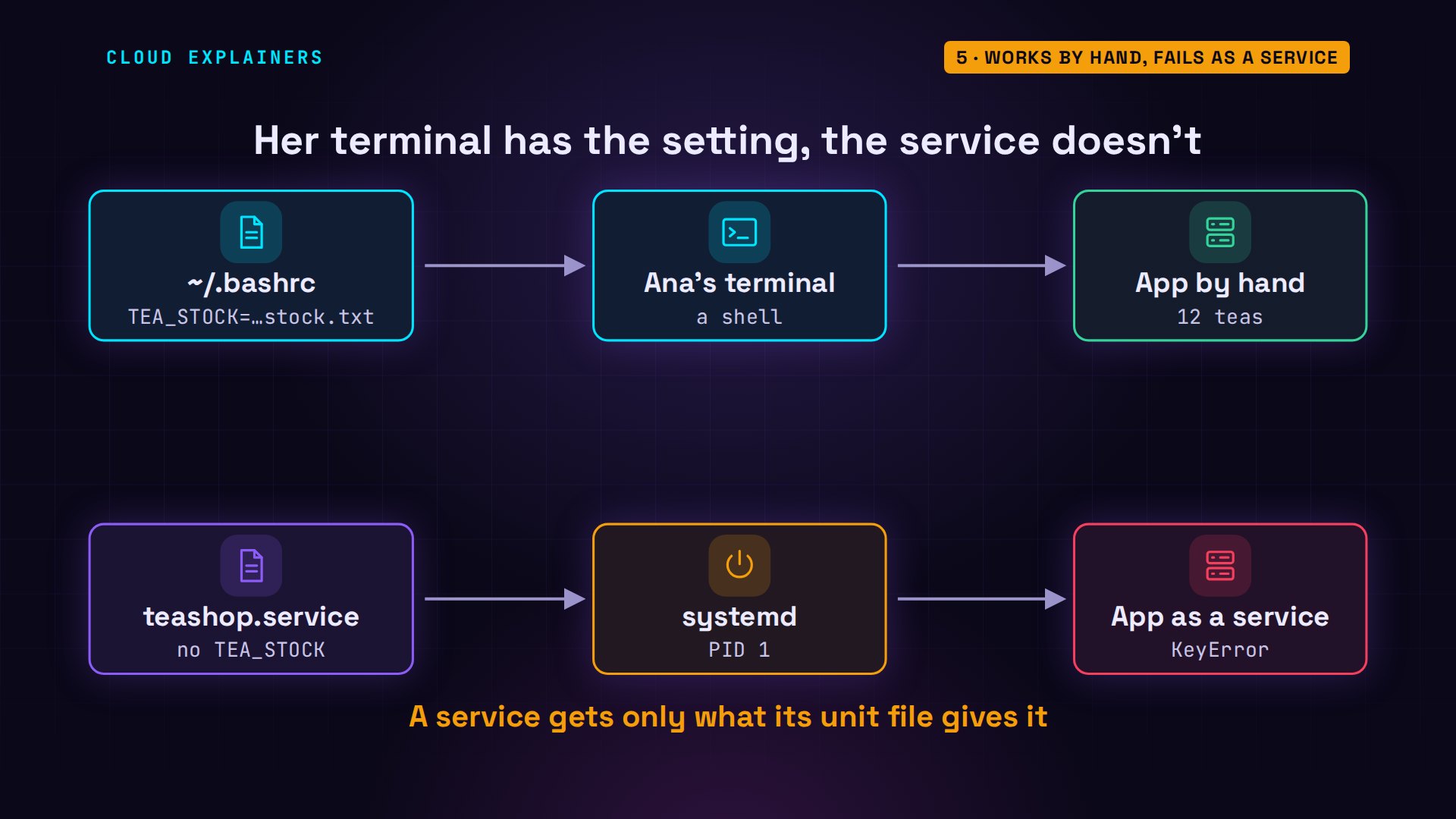
The fix: put the setting in the unit file itself. One Environment line in the Service section, added here with sed, though any editor works. Then, as after every edit, daemon-reload, and restart. And it's failed again.
sudo sed -i '/^WorkingDirectory=/a Environment=TEA_STOCK=/home/ana/teashop/stock.txt' /etc/systemd/system/teashop.service
cat /etc/systemd/system/teashop.service[Unit]
Description=Ana's tea shop
After=network.target

[Service]
User=ana
WorkingDirectory=/home/ana/teashop
Environment=TEA_STOCK=/home/ana/teashop/stock.txt
ExecStart=/usr/bin/python3 app.py
Restart=on-failure

[Install]
WantedBy=multi-user.target
sudo systemctl daemon-reload
sudo systemctl restart teashop
systemctl is-active teashopfailed
The port is already taken
Back to the journal, for the newest error. OSError: Address already in use. Something else already holds port 8080. And at the bottom, that message again: start request repeated too quickly.
sudo journalctl -u teashop --no-pager -n 9 -o catFile "/usr/lib/python3.12/socketserver.py", line 473, in server_bind self.socket.bind(self.server_address) OSError: [Errno 98] Address already in use teashop.service: Main process exited, code=exited, status=1/FAILURE teashop.service: Failed with result 'exit-code'. teashop.service: Scheduled restart job, restart counter is at 5. teashop.service: Start request repeated too quickly. teashop.service: Failed with result 'exit-code'. Failed to start teashop.service - Ana's tea shop.
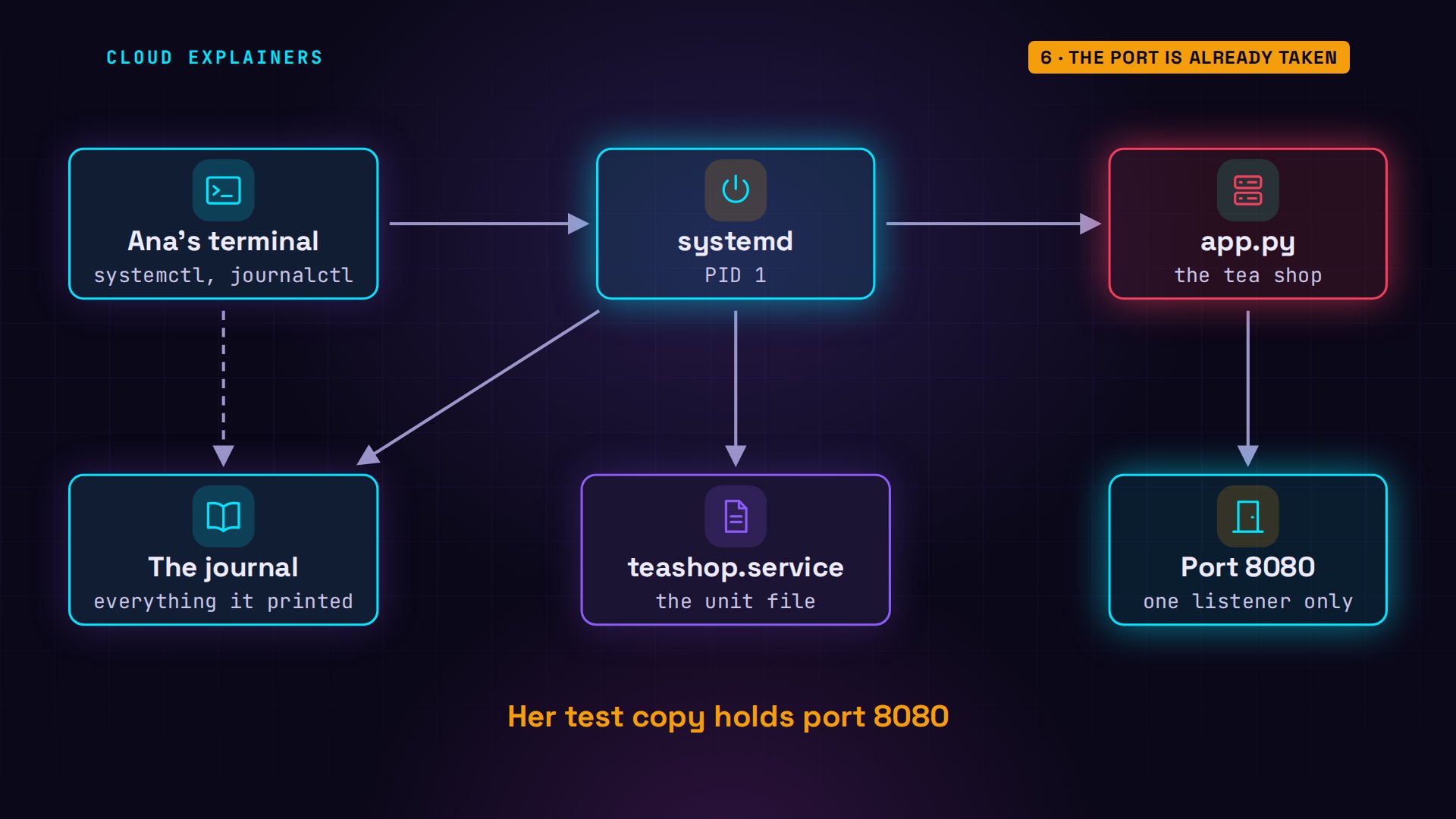
Who has the port? ss lists listening ports, and with sudo, the program behind each one: python3, process 224. ps says whose it is: Ana's, running app.py. It's her own test copy, the one she started by hand.
sudo ss -ltnp 'sport = :8080'State      Recv-Q     Send-Q         Local Address:Port         Peer Address:Port    Process
LISTEN     0          5                    0.0.0.0:8080              0.0.0.0:*        users:(("python3",pid=224,fd=3))
ps -o pid,user,etime,args -p 224PID USER ELAPSED COMMAND 224 ana 00:17 python3 app.py
One port, one listener. Her test copy took 8080 first, so each time systemd started the service, it reached for the same port, got address already in use, and quit.
Start request repeated too quickly
So she stops her test copy with kill. Nothing holds the port now, and she starts the service right away. Guess first: does it start? No. Job failed. The Terminated line is only her shell, confirming the kill. And the journal gives just one reason, with no app error at all: start request repeated too quickly.
kill 224
sudo systemctl start teashopJob for teashop.service failed because the control process exited with error code.
See "systemctl status teashop.service" and "journalctl -xeu teashop.service" for details.
[1]+  Terminated              nohup python3 app.py > test.log 2>&1
sudo journalctl -u teashop --no-pager -n 3 -o catteashop.service: Start request repeated too quickly.
teashop.service: Failed with result 'exit-code'.
Failed to start teashop.service - Ana's tea shop.
That message isn't a crash. It's a safety limit. With Restart on-failure, systemd started the app again after every crash. By default it allows five starts in ten seconds. One more, and it stops trying, so a broken service can't spin forever. And until those ten seconds are up, it refuses your start too.
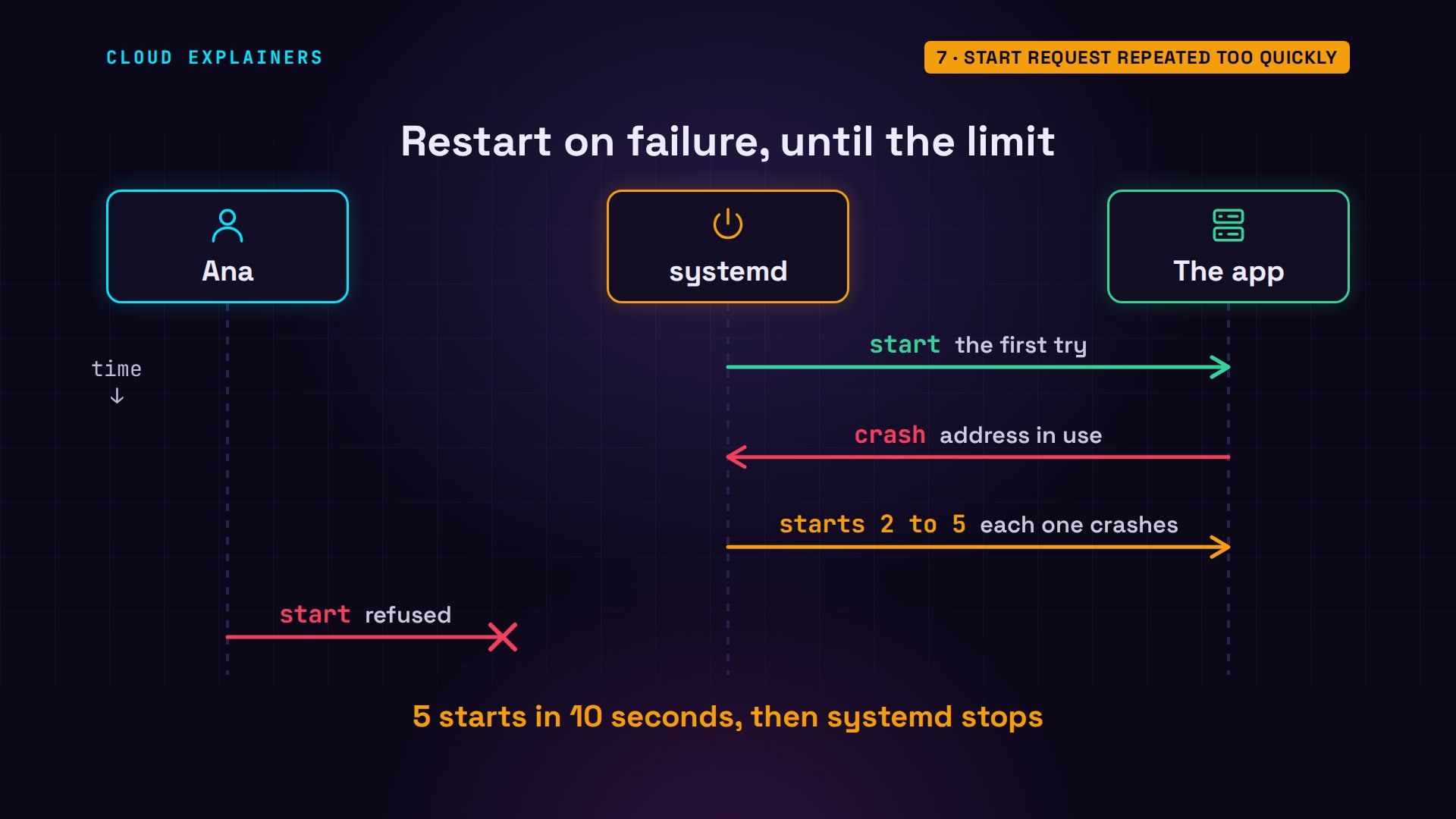
systemctl show prints the two limits: a burst of five starts, in ten seconds. So there are two ways out: wait the ten seconds, or run reset-failed, which makes systemd forget the failures. Ana resets, starts, and it's active, running. 12 teas, from the service this time.
systemctl show teashop -p StartLimitBurst -p StartLimitIntervalUSecStartLimitIntervalUSec=10s
StartLimitBurst=5
sudo systemctl reset-failed teashop
sudo systemctl start teashop
systemctl status teashop --no-pager -n 0● teashop.service - Ana's tea shop
     Loaded: loaded (/etc/systemd/system/teashop.service; disabled; preset: enabled)
     Active: active (running) since Mon 2026-11-09 18:48:09 UTC; 2s ago
   Main PID: 305 (python3)
      Tasks: 1 (limit: 9563)
     Memory: 8.6M (peak: 8.7M)
        CPU: 20ms
     CGroup: /system.slice/teashop.service
             └─305 /usr/bin/python3 app.py
curl -s localhost:8080Ana's Tea Shop: 12 teas in stock
Catch it before you start
Some of this you can catch before you ever start. systemd-analyze verify reads a unit file and checks it. Ana's first draft: /usr/bin/python is not executable. A draft with a typo, ExecStar: an unknown key, so the service has no ExecStart at all, and systemd refuses it. A good file prints nothing, so for her final file an echo adds a line when the check passes: no problems found.
cd ~/drafts
systemd-analyze verify teashop.serviceteashop.service: Command /usr/bin/python is not executable: No such file or directory
systemd-analyze verify teashop2.service/home/ana/drafts/teashop2.service:8: Unknown key name 'ExecStar' in section 'Service', ignoring.
teashop2.service: Service has no ExecStart=, ExecStop=, or SuccessAction=. Refusing.
Unit teashop2.service has a bad unit file setting.
systemd-analyze verify /etc/systemd/system/teashop.service && echo no problems foundno problems found
verify reads the file, not the running machine. It catches a wrong program path, and typos in the keys, but it can't see a variable your terminal has, or a port somebody else is holding. Those still need the journal.

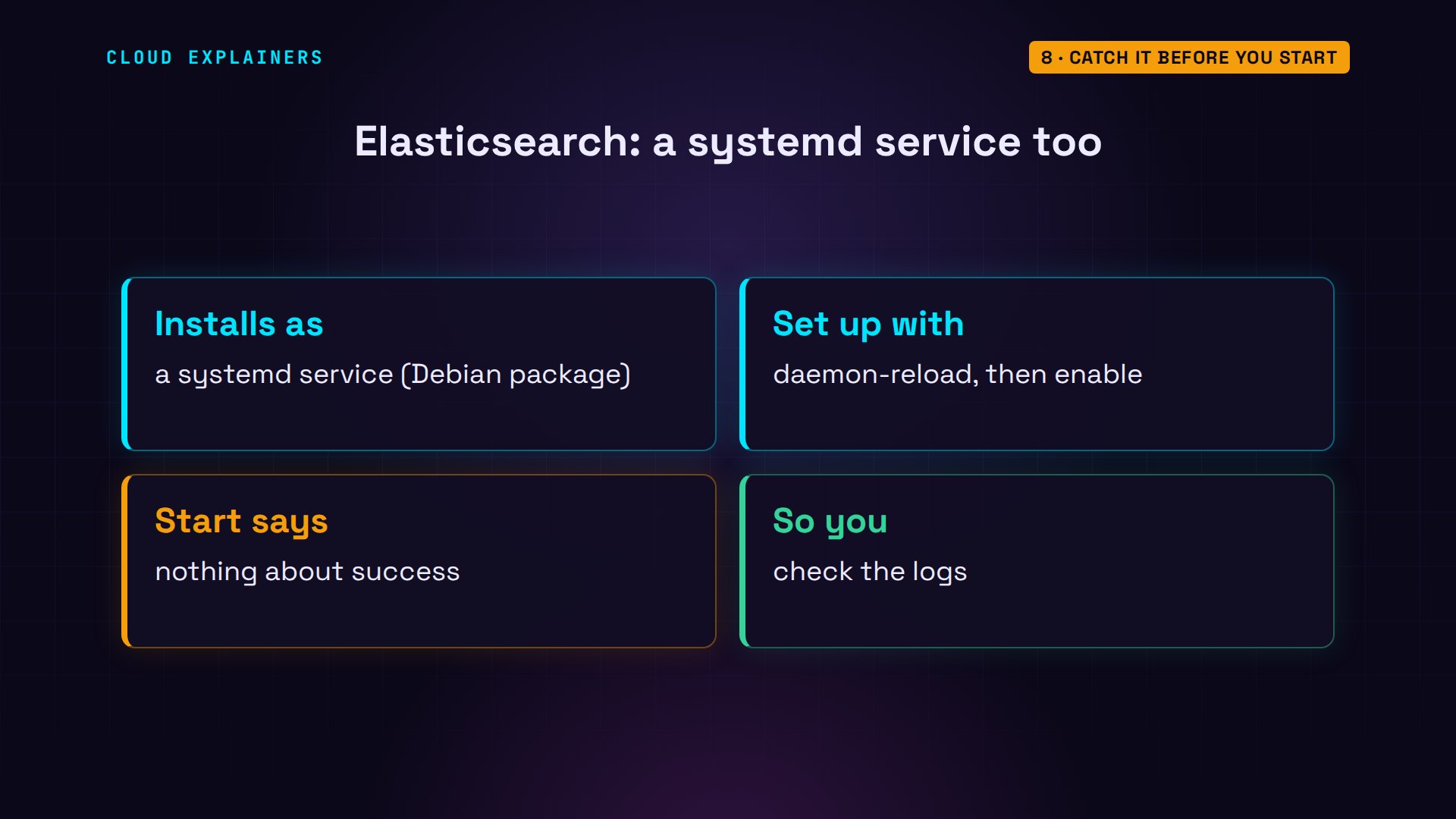
Real software ships exactly this way. Elasticsearch, from Elastic, installs on Debian and Ubuntu as a systemd service, set up with daemon-reload and enable. And its docs warn about what fooled Ana at the start: the start command gives no feedback about whether it worked. You check the logs.
Check these five
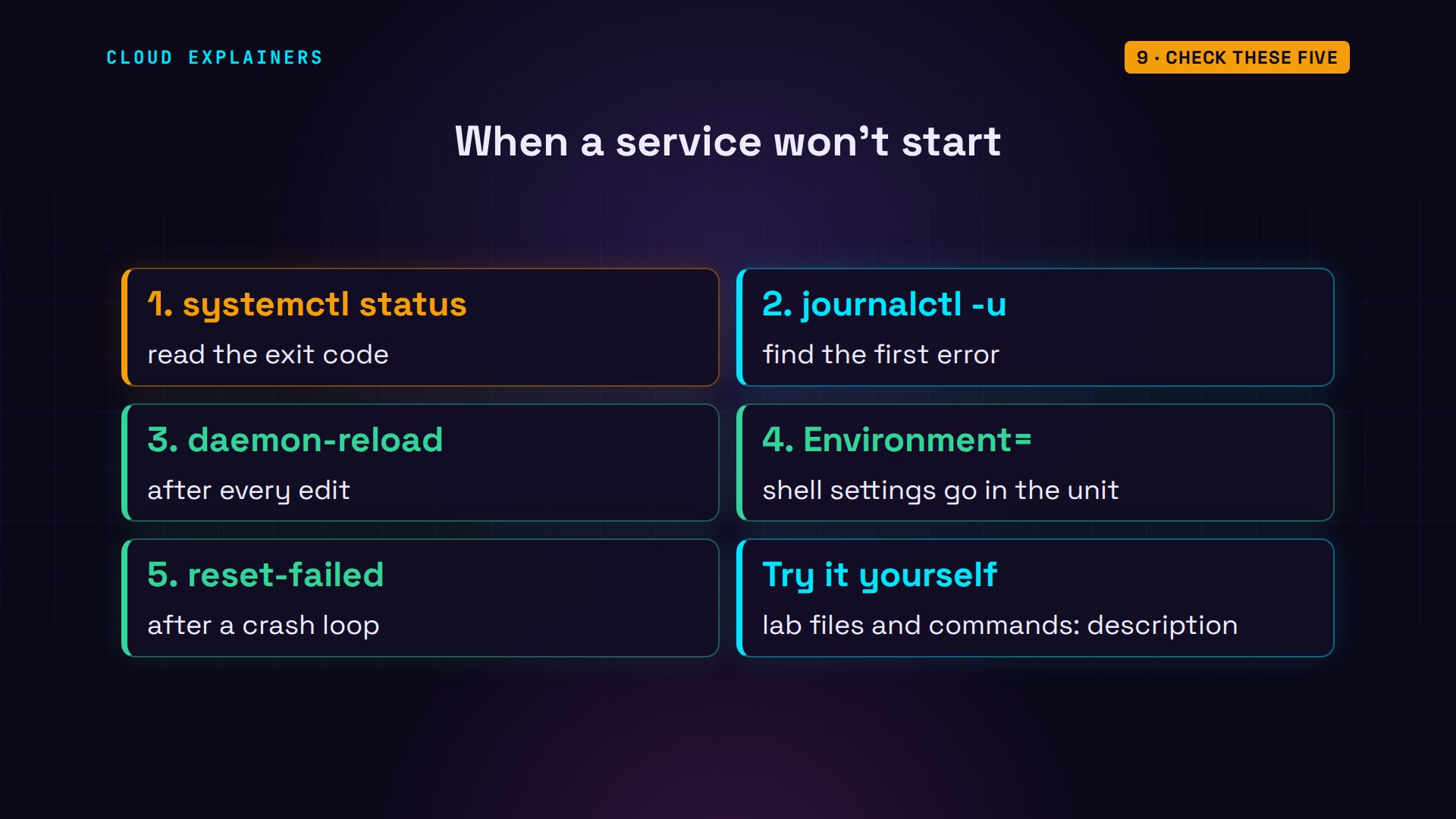
So when a service won't start, check these five. Status, for the exit code. journalctl -u, for the app's own words. After every edit, daemon-reload. Settings from your shell go in the unit file. And after a crash loop, reset-failed. Every command and the lab files are linked in the description, so you can break Ana's shop yourself.
Recap
If this got your service running again, subscribe, and the next Linux fix comes to you.
Every error in this video happened for real, on our own lab server. Thanks for watching Cloud Explainers.
Sources
- systemd.exec(5), process exit codes (200 EXIT_CHDIR, 203 EXIT_EXEC, 217 EXIT_USER)
- systemd.unit(5), StartLimitIntervalSec= and StartLimitBurst= (systemctl reset-failed flushes the restart rate counter)
- systemctl(1), daemon-reload and reset-failed
- systemd.service(5), Type=simple (start reports success even if the binary can't be run) and Type=exec
- Elastic, Install Elasticsearch with a Debian package (runs as a systemd service; start and stop give no feedback, check the logs)
- Unix & Linux Stack Exchange, 'systemd "status=203/EXEC" error when creating new service' (question 472950, over 360,000 views on 2026-11-09)
Demos: one Ubuntu server container with systemd, on our own machine; the tea shop is made up. Watch the full video on YouTube.
More videos

Linux Makefiles Will Finally Make Sense After This

SAML vs OAuth vs OpenID Connect: What's the Difference?

How to Fix Python cron Jobs That Never Run

Linux Bash Scripting: Full Tutorial for Beginners

How PXE Network Boot Works

How Active Directory Works

Linux Logs: syslog vs journald

JWT vs Session Cookies: Which One Should You Use?

Docker vs Docker Compose: Which One Should You Use?
How to Fix Docker Compose Containers That Can't Talk to Each Other

Django Full Tutorial for Beginners

How Linux systemd Works

How to Fix 'Windows Cannot Access' Network Share Errors (SMB)

REST vs gRPC: Which One Should You Use?

How to Fix SSL Certificate Chain Errors (Missing Intermediate)

Every Python Concept for Beginners in 10 Minutes

Every SQL Join Type in 10 Minutes

Why OpenRouter Free Models Hit Their Limit So Fast

Why Your Gemini API Free Tier Runs Out So Fast

OpenRouter Will Finally Make Sense After This
How Redis Caching Works

Gemini API vs Vertex AI: Which One Should You Use?
How to Fix a Leaked Gemini API Key

Why Golang Uses Goroutines Instead of Threads

How to Fix Gemini API Error 429: Resource Exhausted

Claude Token Pricing Will Finally Make Sense After This
Why Python Web Scraping Returns Nothing (and the Fix)

Python uv vs pip: Which One Should You Use?

Python Automation: Full Tutorial for Beginners

How OAuth Login Works

Google AI Studio Will Finally Make Sense After This
What Happens When You Run a Docker Container

How to Fix Claude Code Billing Your API Key Instead of Your Plan
Why Passkeys Can't Be Phished Like Passwords
PowerShell vs Bash: Which One Should You Learn?

The Linux Roadmap for Beginners
Django vs FastAPI: Which One Should You Use?

Why SQLite Is the Most Used Database in the World
How a NoSQL Database Like MongoDB Works

How to Fix Python pip error: externally-managed-environment
How to Fix MySQL Too Many Connections Database Errors

Golang Concurrency Will Finally Make Sense After This
How Amazon S3 Works
How Kubernetes Works

How Git Works

How to Fix Docker Port Already Allocated Errors
How PostgreSQL Works

How to Fix Git Merge Conflicts

How to Fix No Space Left on Device in Linux
How the Internet Works
SQL vs NoSQL: When Each One Wins

How to Fix JWT Token Expired Errors (401 Unauthorized)

Claude API vs Claude Pro: Why Your Subscription Doesn't Include It

Why AI Agent Skills Beat Giant Prompts

Linux Cron Jobs Will Finally Make Sense After This

Security Logs Will Finally Make Sense After This

How to Fix a Security Leak: An API Key Pushed to GitHub
DNS Will Finally Make Sense After This
Never Ignore a Security Update

Two-Factor Authentication Will Finally Make Sense

Never Expose a Database to the Internet
SSH Keys vs Passwords: Which Is Safer for Security?

The 5 Levels of Linux Boot: From Power On to Login

The 5 Levels of Network Firewalls

Password Security: Why Hackers Crack Weak Passwords
Why Your Linux Server Runs Out of Memory

HTTP vs HTTPS: What Actually Changes on Your Network

Every Linux File Permission You Need to Know

Linux Processes vs Threads: When Each One Wins

The OSI Model Will Finally Make Sense After This

The 7 Levels of Git
Every Network Troubleshooting Command You Need

Hashing vs Encryption in Cybersecurity: When Each One Wins

Why the Internet Ran Out of IP Addresses

Linux Package Managers: apt vs Snap vs Flatpak

Why Python Is Slow (and When It Doesn't Matter)

TCP vs UDP: When Each One Wins

Stop Running Linux as Root (Do This Instead)

Linux Users and Groups Will Finally Make Sense

Why Phishing Beats Good Security (and How to Spot It)

The 7 Levels of Docker

AI Agents Will Finally Make Sense After This

Stop Using git push --force (Use This Instead)

Agent Skills vs MCP: When Each One Wins

Networking Will Finally Make Sense After This

Every Linux Command You Actually Need

The 7 Levels of Cybersecurity

Every System Design Concept You Need, in One Diagram