Two-Factor Authentication Will Finally Make Sense
Two-factor authentication (2FA), for complete beginners, on four real Linux machines in our lab: Ana's shop server, her laptop, a stand-in for her phone, and a thief who has her password from a leaked list. With only a password, the thief logs straight in. We set up an authenticator, see how a phone with no network makes exactly the same six-digit code as the server (TOTP: a shared secret plus the time), turn two-factor on for SSH, and watch the same leaked password fail, even with a code the thief saw seconds ago. Then: text messages vs app codes vs push vs security keys and passkeys, and what to do if you lose your phone.
A leaked password
Your password can leak without you doing anything wrong, and then a stranger can log in as you. Two-factor authentication is what makes that leak not enough. We'll watch a thief walk in with a leaked password, turn two-factor on, and see exactly why the same password stops working.
Everything runs for real on four small Linux machines in our lab: the server behind Ana's online tea shop, her laptop, a stand-in for her phone, and a thief's computer. They sit on a private lab network, so nobody real is attacked.
The thief has a list from a website that was hacked last year. Ana once signed up there, and reused the password she uses for her shop's server. So the thief simply tries it. SSH, the tool for logging in to a server, asks for the password, and the thief is in: the command ran on the shop.
cat leak.txtemail                 password
ana@teashop.example   Tea-shop-2019
ssh ana@shop hostnameana@shop's password:
shop
On the server, Ana's login log looks perfectly normal: accepted password for ana. Only the address gives it away. It's the thief's machine, not her laptop. As far as the server knows, whoever has the password is Ana.
sudo journalctl -u ssh -o cat | grep Accepted[sudo] password for ana:
Accepted password for ana from 10.236.135.128 port 41630 ssh2
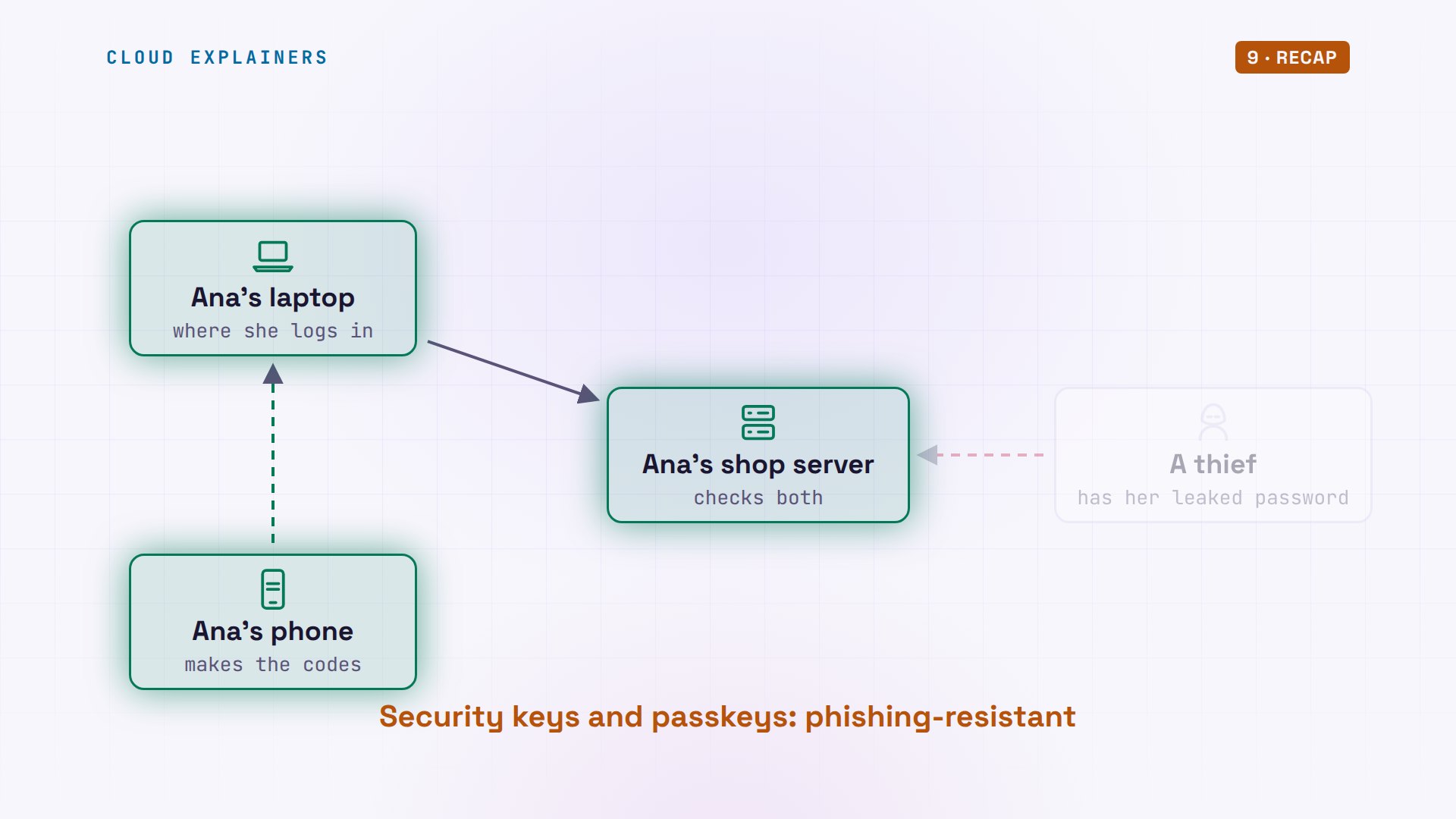
That's the weakness of a password. It can leak from another site, get typed into a fake login page, or simply be guessed. It's a secret you know, so anyone who learns it can use it, and the server can't tell them apart from you.
What two-factor means
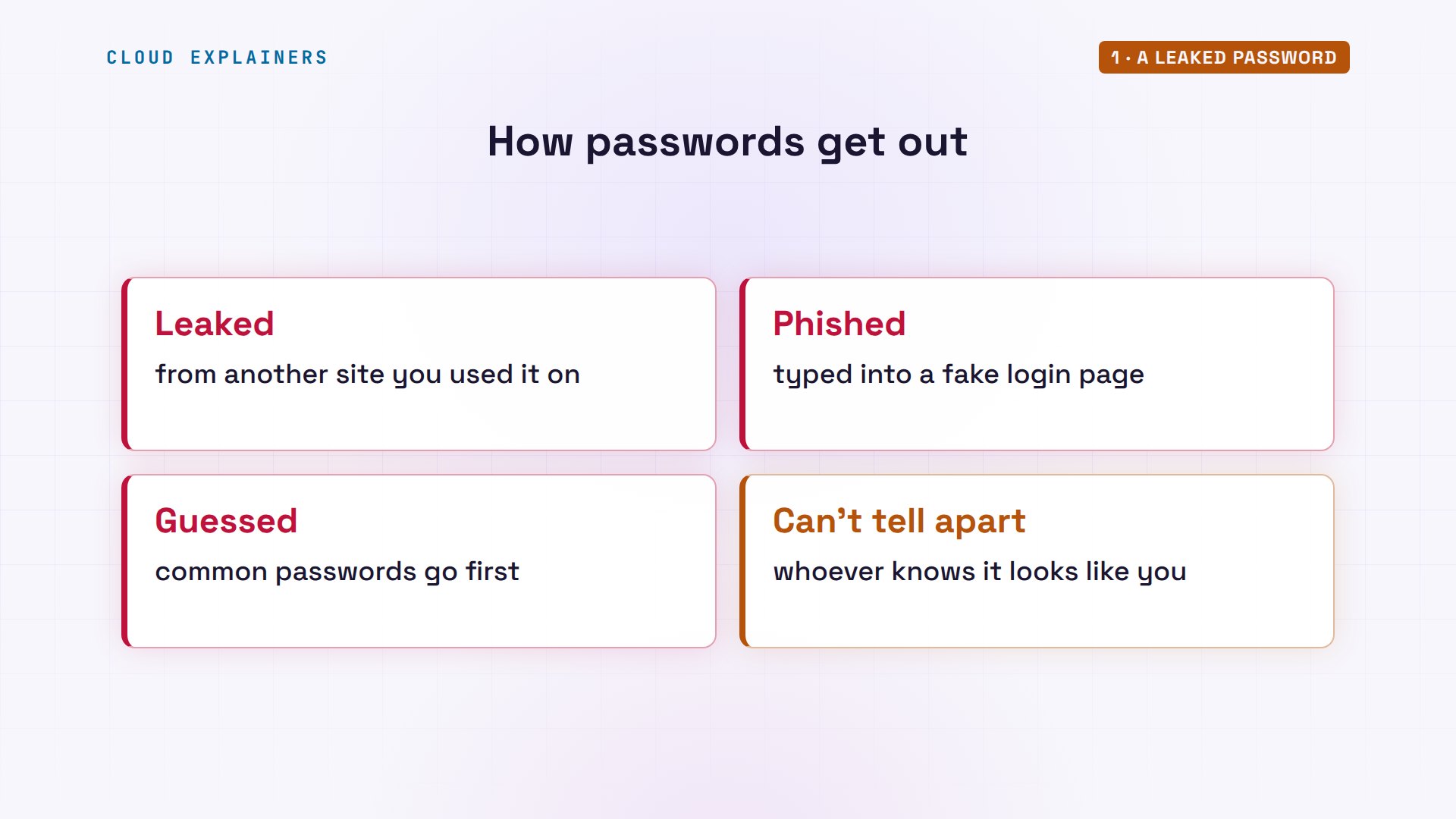
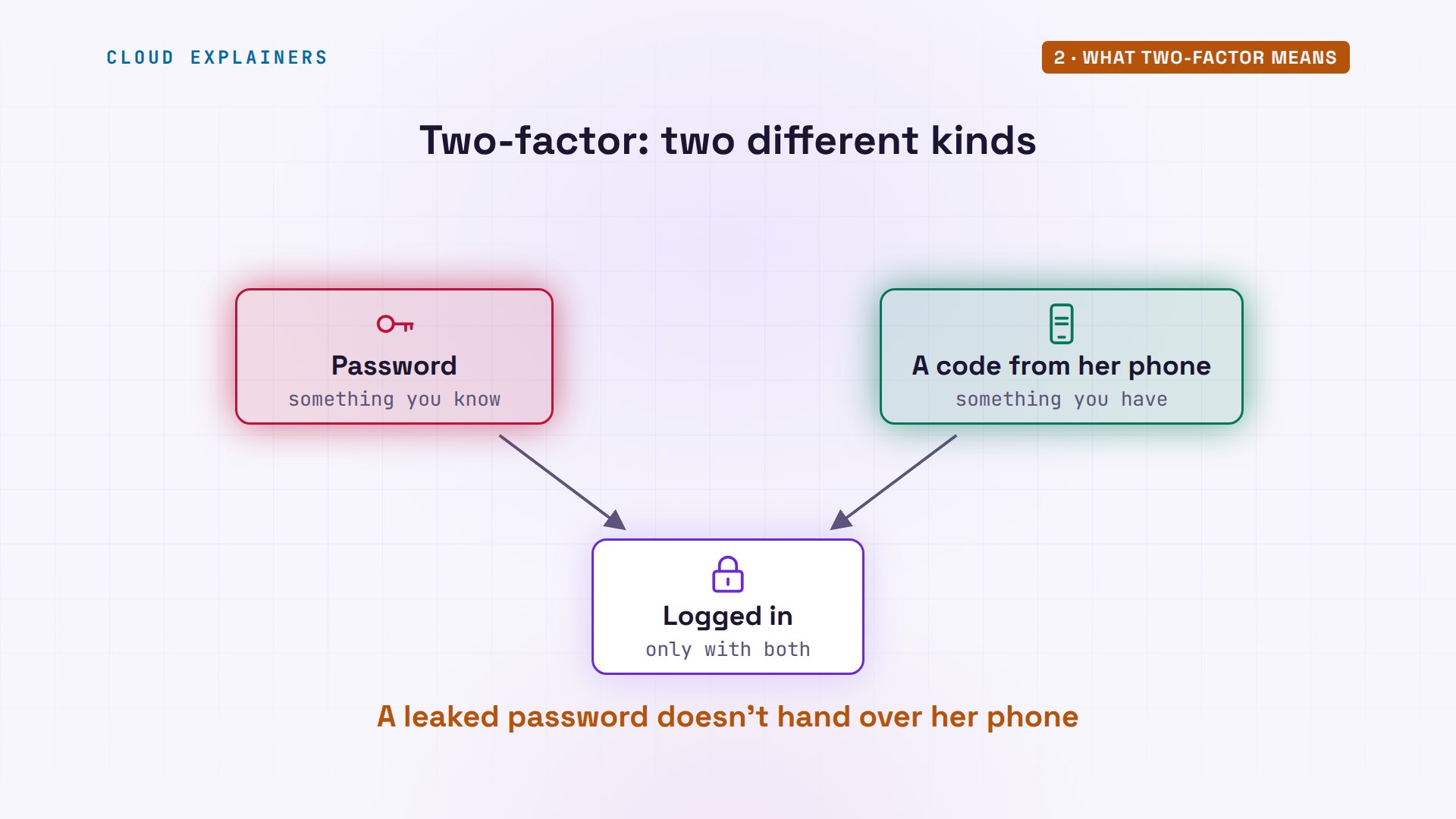
A factor is one kind of proof that you're you. There are three kinds. Something you know, like a password. Something you have, like your phone. And something you are, like a fingerprint.
Two-factor authentication, often written 2FA, means a login needs two different kinds. Usually the password, plus something you have. Two passwords would still be one kind: a thief who reads one list can read both. A leaked password doesn't put Ana's phone in the thief's hand.
Setting up an authenticator
Ana sets it up on her server with google-authenticator, a free tool that works with any authenticator app. Its options answer the setup questions, such as at most three tries every thirty seconds. It makes a new secret key, just for Ana and this server.
google-authenticator -t -d -f -r 3 -R 30 -w 3 -Q NONEYour new secret key is: A6AAE4QRKLWH7M5LDCO5HNVMN4
Enter code from app (-1 to skip): 097752
Code confirmed
Your emergency scratch codes are:
  87436447
  40135811
  26302733
  99448073
  50487069
Normally it also shows that secret as a QR code. Ana points her phone's authenticator app at it, once, and the phone saves the secret. From then on, the server and the phone each keep their own copy, and never need to talk again.
Our stand-in phone is a small Linux machine, so its authenticator app is a command: oathtool, which prints the current code. It keeps the secret in a file only Ana can read. Ana types that code into the server's setup, and the server confirms it: both sides agree.
ls -l shop.key-rw------- 1 ana ana 27 Oct 30 21:53 shop.key
oathtool --totp -b "$(cat shop.key)"097752
google-authenticator -t -d -f -r 3 -R 30 -w 3 -Q NONEYour new secret key is: A6AAE4QRKLWH7M5LDCO5HNVMN4
Enter code from app (-1 to skip): 097752
Code confirmed
Your emergency scratch codes are:
  87436447
  40135811
  26302733
  99448073
  50487069
On the server, Ana's copy of the secret sits in a file in her home folder. Only she can read it: other ordinary users on the server can't.
ls -l ~/.google_authenticator-r-------- 1 ana ana 135 Oct 30 21:53 /home/ana/.google_authenticator
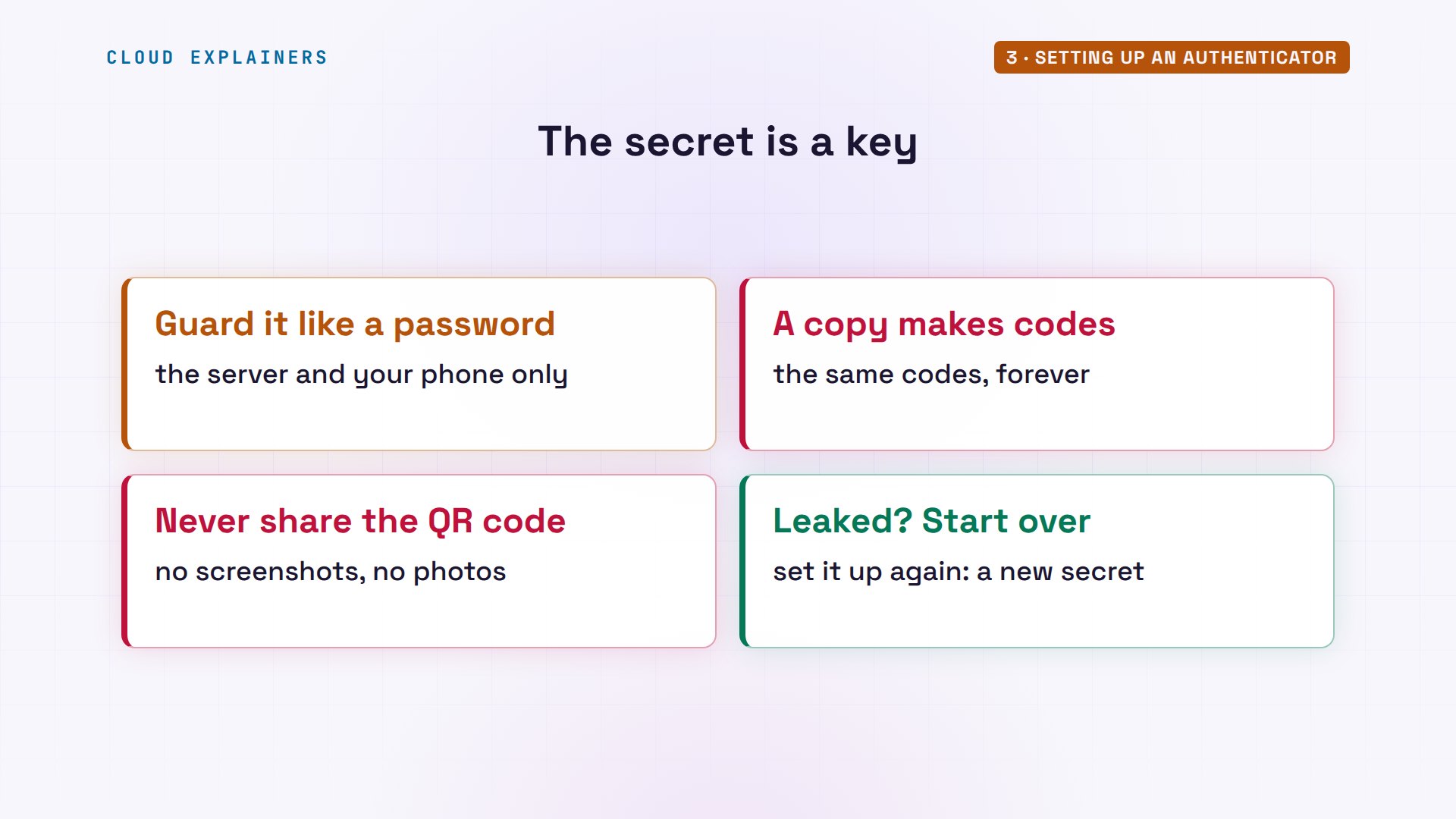
Guard that secret like a password. Anyone who copies it, or takes a photo of the QR code, can make the same codes forever. So never post a screenshot of a QR code, and if one ever leaks, set two-factor up again to get a new secret.
How the code is made
So how can the phone know the right code without asking the server? Our phone isn't even online. It can't reach the shop at all.
ping -c 1 -W 2 shopping: connect: Network is unreachable
Both sides use the same recipe, called TOTP: a time-based one-time password. Take the shared secret, and the current time, measured in thirty-second steps. Mix them with a standard one-way function called HMAC, and keep six digits. Same secret, same time, so the same code, on both sides.
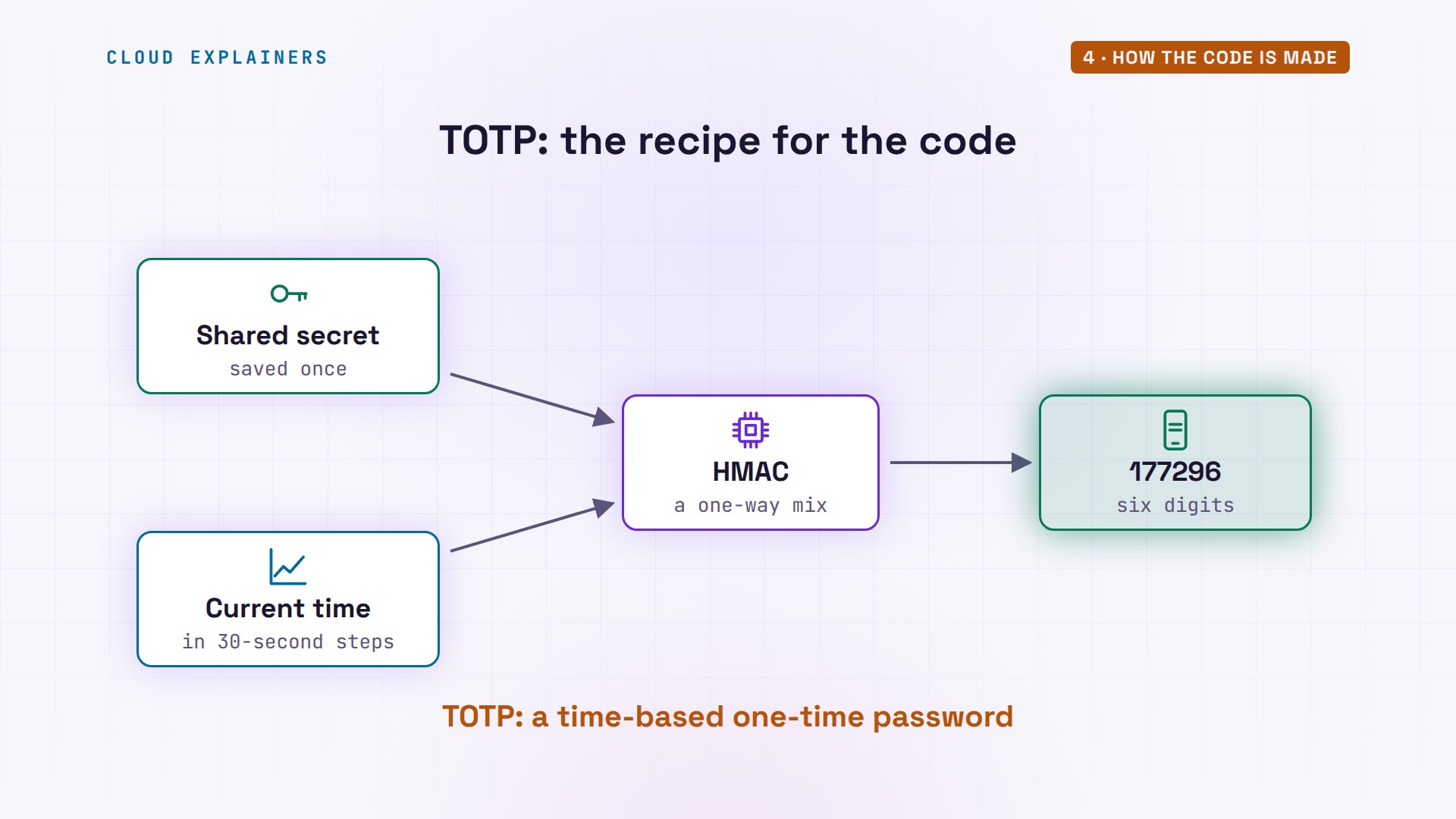
Here's the phone's clock, counted in seconds since 1970. Divided by thirty, that's time step 59779908, the same number on any clock that's set right. The phone's code, and the server's own code, worked out separately: identical.
date +%s1793397240
echo $(( $(date +%s) / 30 ))59779908
oathtool --totp -b "$(cat shop.key)"177296
oathtool --totp -b "$(head -1 ~/.google_authenticator)"177296
Every thirty seconds the step moves on, and the code changes. Here the phone prints the time and the code, three times, thirty seconds apart: three different codes. A code is only good for about thirty seconds either side of its step.
for i in 1 2 3; do date +%T; oathtool --totp -b "$(cat shop.key)"; sleep 30; done21:54:00
177296
21:54:30
708497
21:55:00
084969
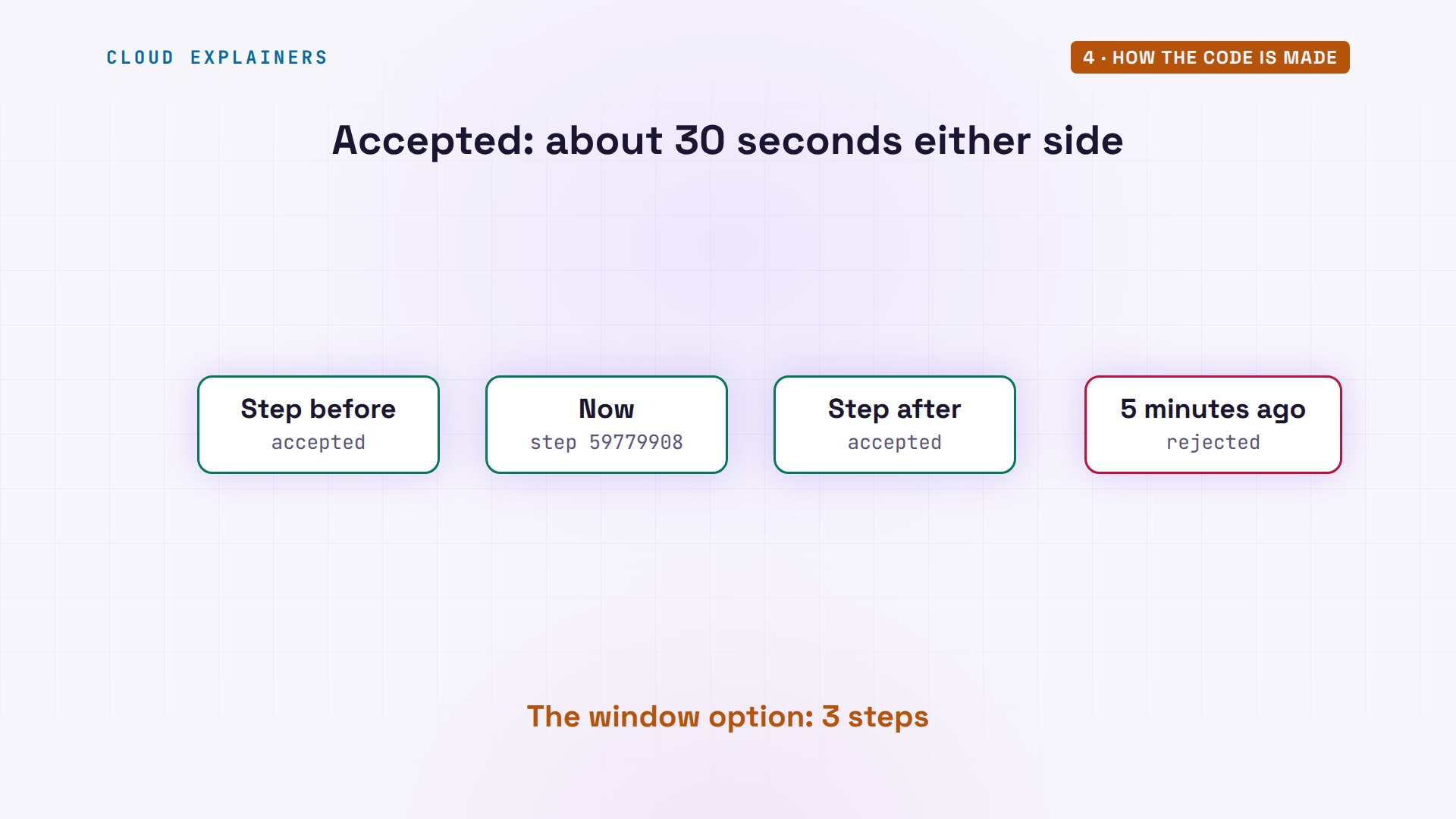
Our server accepts the codes for the step before, now, and the step after, in case the two clocks drift a little. That's the window option we set: three steps. A code from five minutes ago is worthless.
Turning it on
This part is for whoever runs the server; on a website, the site does it for you. Ana tells SSH to ask for the code. Linux checks logins through PAM, a list of checks for each service. With sed, a find-and-replace command, she adds the authenticator check right after the password check.
sudo sed -i '/@include common-auth/a auth required pam_google_authenticator.so' /etc/pam.d/sshd
grep -n -A1 'common-auth' /etc/pam.d/sshd4:@include common-auth
5-auth required pam_google_authenticator.so
Then two settings for sshd, the SSH server program, in a file of their own: ask questions one at a time, and make that the only way in. sshd -t checks for mistakes, she reloads SSH, and sshd -T shows the settings it really uses.
printf 'KbdInteractiveAuthentication yes\nAuthenticationMethods keyboard-interactive\n' | sudo tee /etc/ssh/sshd_config.d/00-two-factor.confKbdInteractiveAuthentication yes
AuthenticationMethods keyboard-interactive
sudo sshd -t && echo config OKconfig OK
sudo systemctl reload ssh
sudo sshd -T | grep -E '^(kbdinteractive|authenticationmethods)'kbdinteractiveauthentication yes
authenticationmethods keyboard-interactive
The thief tries again
The thief tries the leaked password again. It's still right, but now the server asks one more question: verification code. Without Ana's phone, the thief can only guess. Three wrong codes, and permission denied.
ssh ana@shop hostname(ana@shop) Password:
(ana@shop) Verification code:
(ana@shop) Password:
(ana@shop) Verification code:
(ana@shop) Password:
(ana@shop) Verification code:
ana@shop: Permission denied (keyboard-interactive).
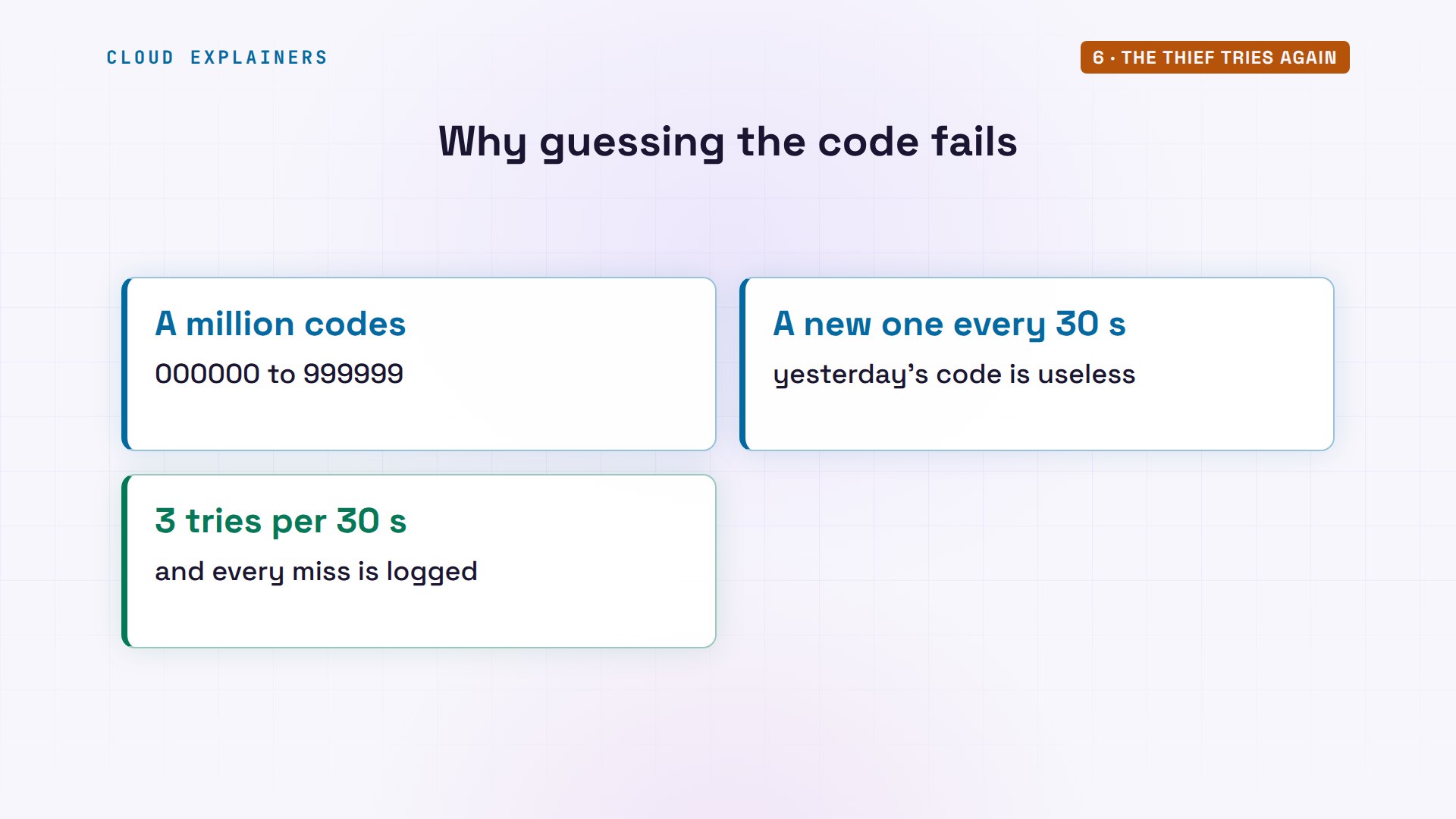
Couldn't a bot just guess six digits? There are a million possible codes, and a new one every thirty seconds. With only three tries per thirty seconds, guessing crawls, and every miss lands in the server's log for Ana to see.
Now Ana herself. Her phone shows the current code. She logs in from her laptop with her password, and types the code where SSH asks for it. She's in.
oathtool --totp -b "$(cat shop.key)"509923
ssh shop hostname(ana@shop) Password:
(ana@shop) Verification code:
shop
Suppose the thief also saw that code, over her shoulder. Seconds later, password plus the same code: denied. The server's log says why: that code was already used, and google-authenticator warns it might mean an attack.
ssh ana@shop hostname(ana@shop) Password:
(ana@shop) Verification code:
(ana@shop) Password:
(ana@shop) Verification code:
(ana@shop) Password:
ana@shop: Permission denied (keyboard-interactive).
sudo journalctl -u ssh -o cat | grep -iE 'google|Accepted keyboard'Trying to reuse a previously used time-based code. ("/home/ana/.google_authenticator")Retry again in 30 seconds. Warning! This might mean, you are currently subject to a man-in-the-middle attack.
Which second factor?
An authenticator app is one kind of second factor, and the most common kinds work differently. A code by text message, an app code, like the ones Ana uses, a push notification you tap to approve, and a security key or passkey.
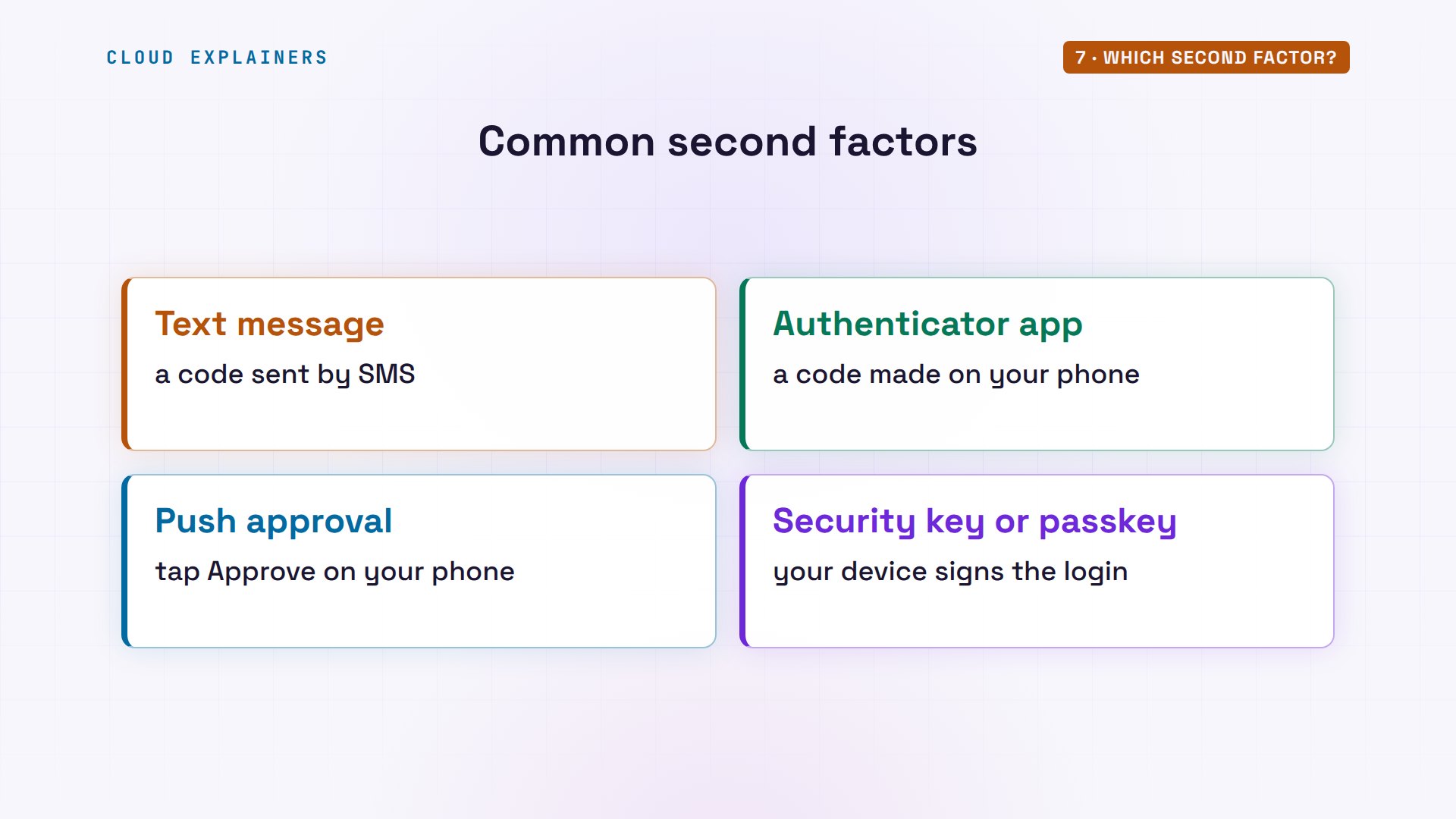
Text messages are the weakest. The code travels over the phone network, and a scammer can talk a phone company into moving your number to their SIM card. That's called a SIM swap. It still beats no second factor at all.
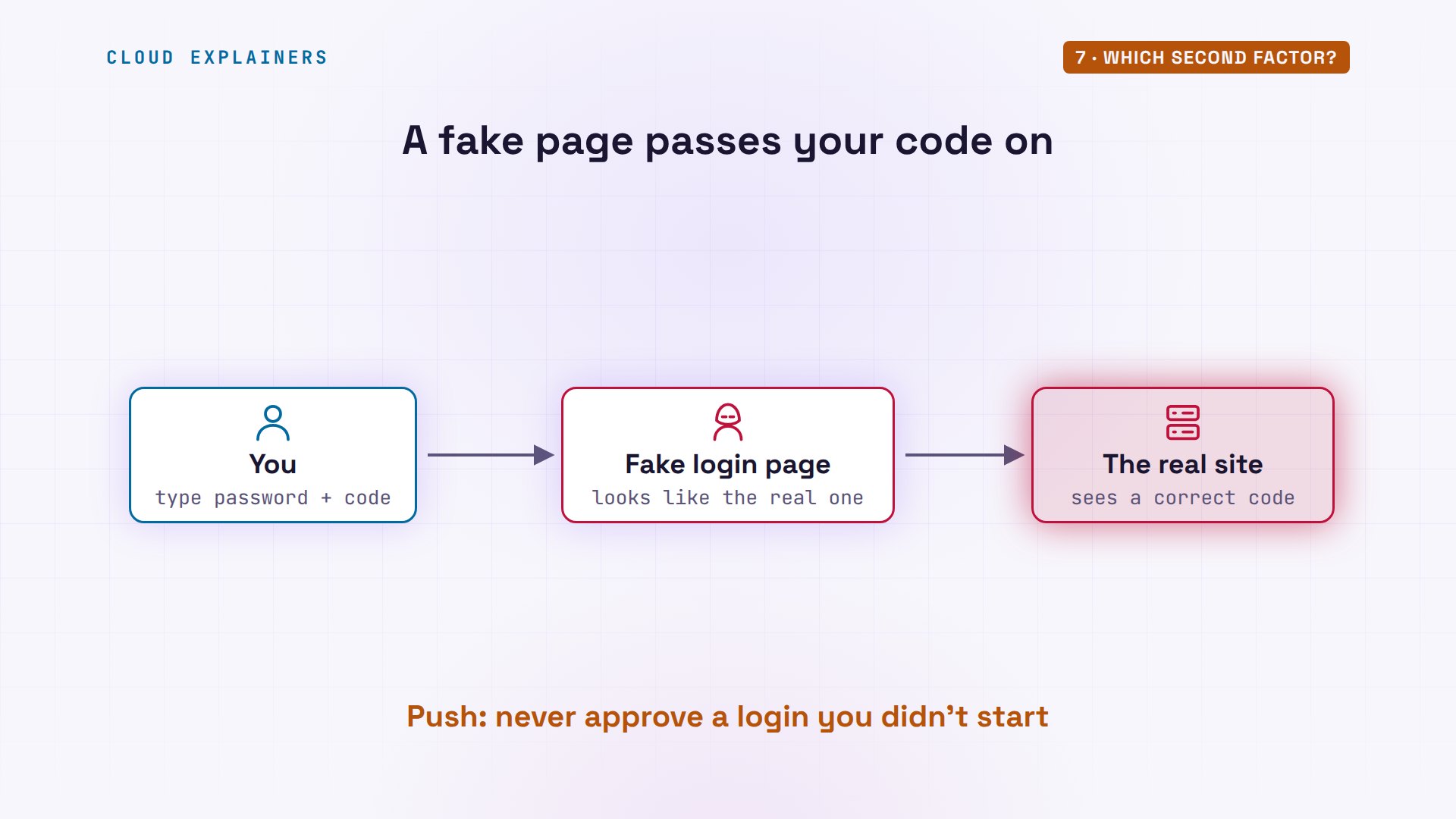
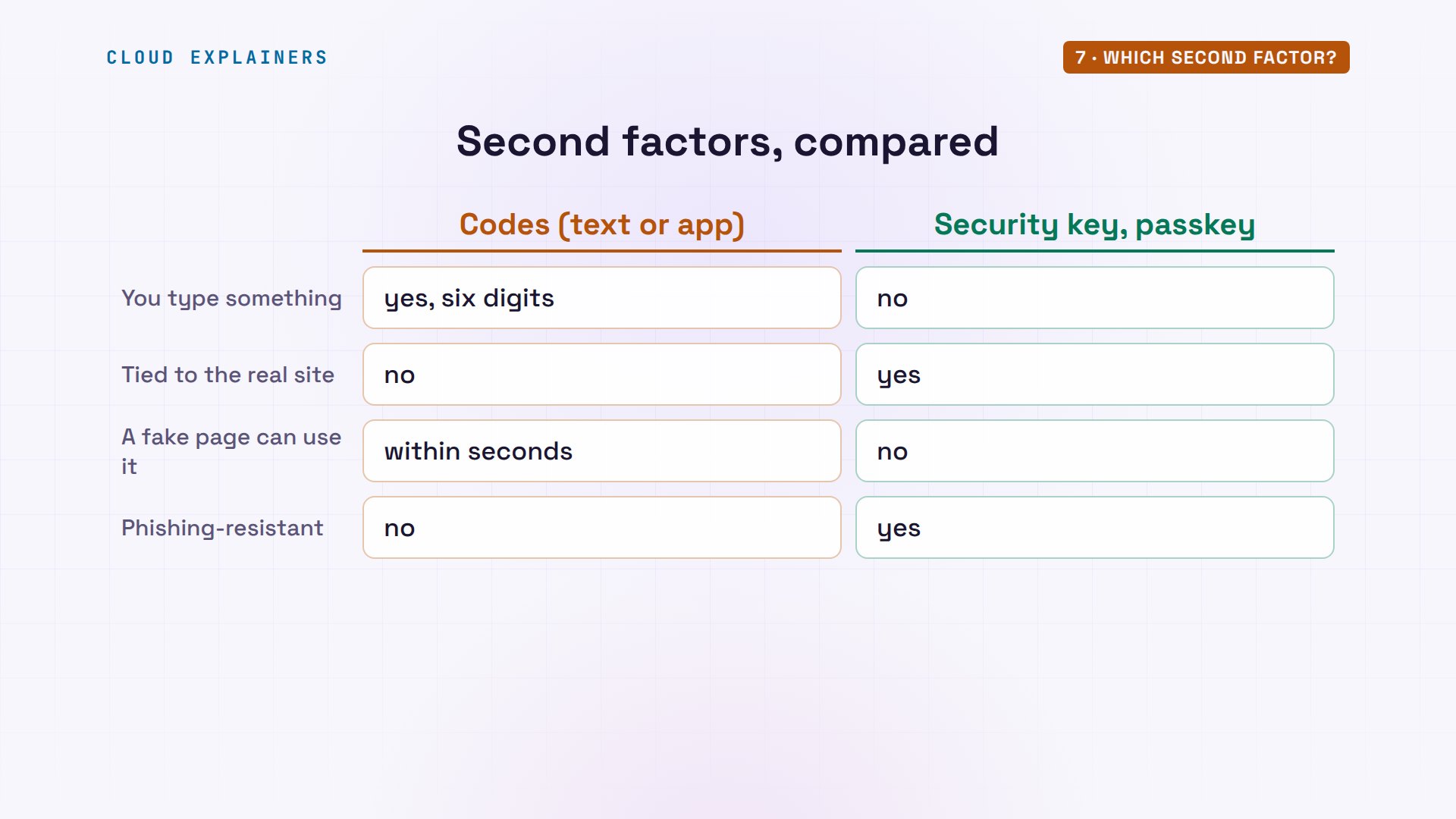
Codes share one weak spot: a fake login page. It looks like the real site, asks for your password and your code, and passes them on to the real site within seconds, before the code runs out. Push approvals can be tricked the same way, when you tap Approve on a login you didn't start.
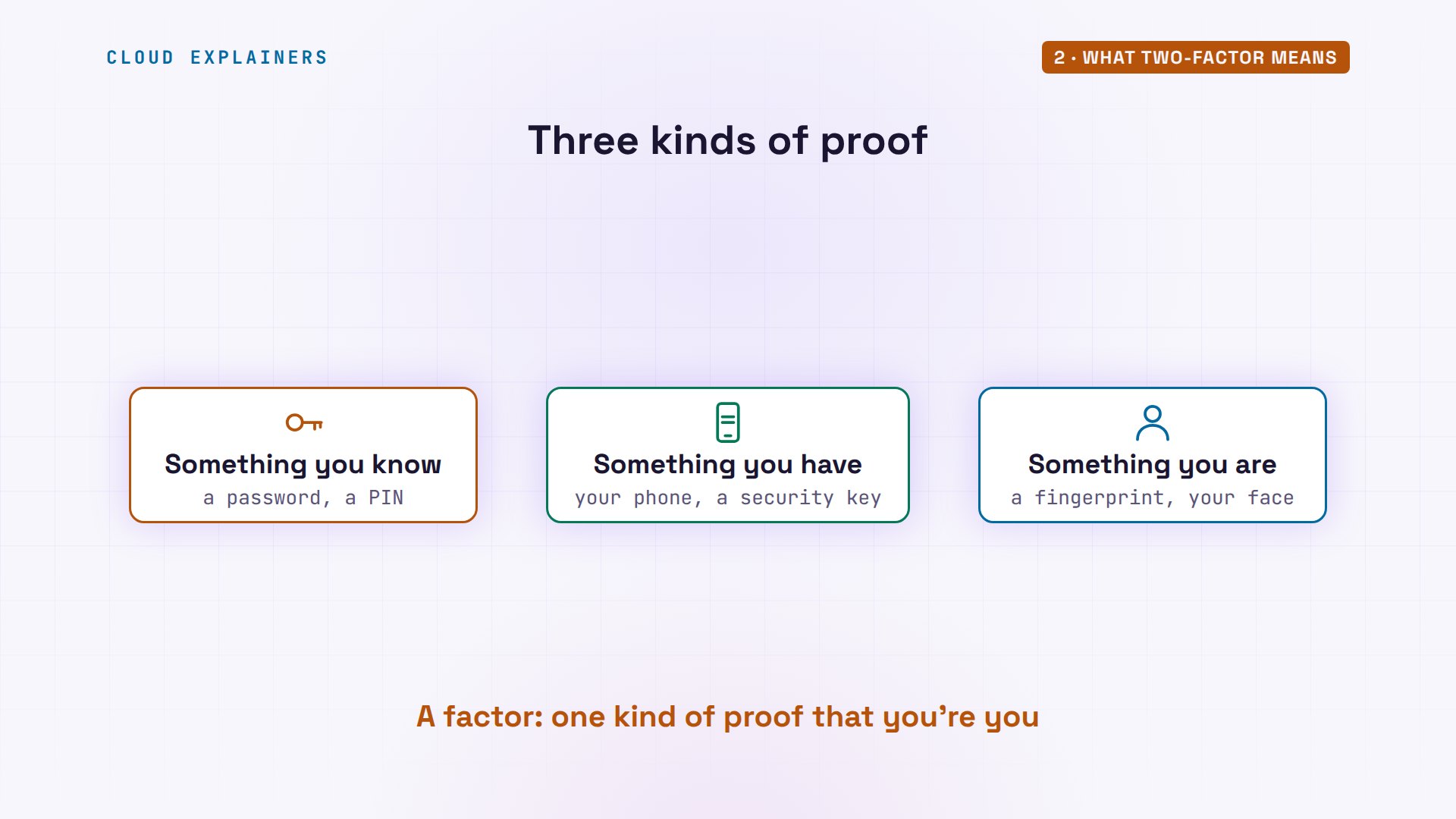
Security keys and passkeys close that gap. There's no code to type. Your device signs the login, and the signature only works for the real site's address. A fake page gets nothing it can use. That's why security agencies call them phishing-resistant.
Lost phones and limits
What if Ana loses her phone? Setup also printed five emergency scratch codes: backup codes that each work once. She types one where SSH asks for the code, and she's in. That one is used up now: four are left.
google-authenticator -t -d -f -r 3 -R 30 -w 3 -Q NONEYour new secret key is: A6AAE4QRKLWH7M5LDCO5HNVMN4
Enter code from app (-1 to skip): 097752
Code confirmed
Your emergency scratch codes are:
  87436447
  40135811
  26302733
  99448073
  50487069
ssh shop hostname(ana@shop) Password:
(ana@shop) Verification code:
shop
grep -c -E '^[0-9]{8}$' ~/.google_authenticator4
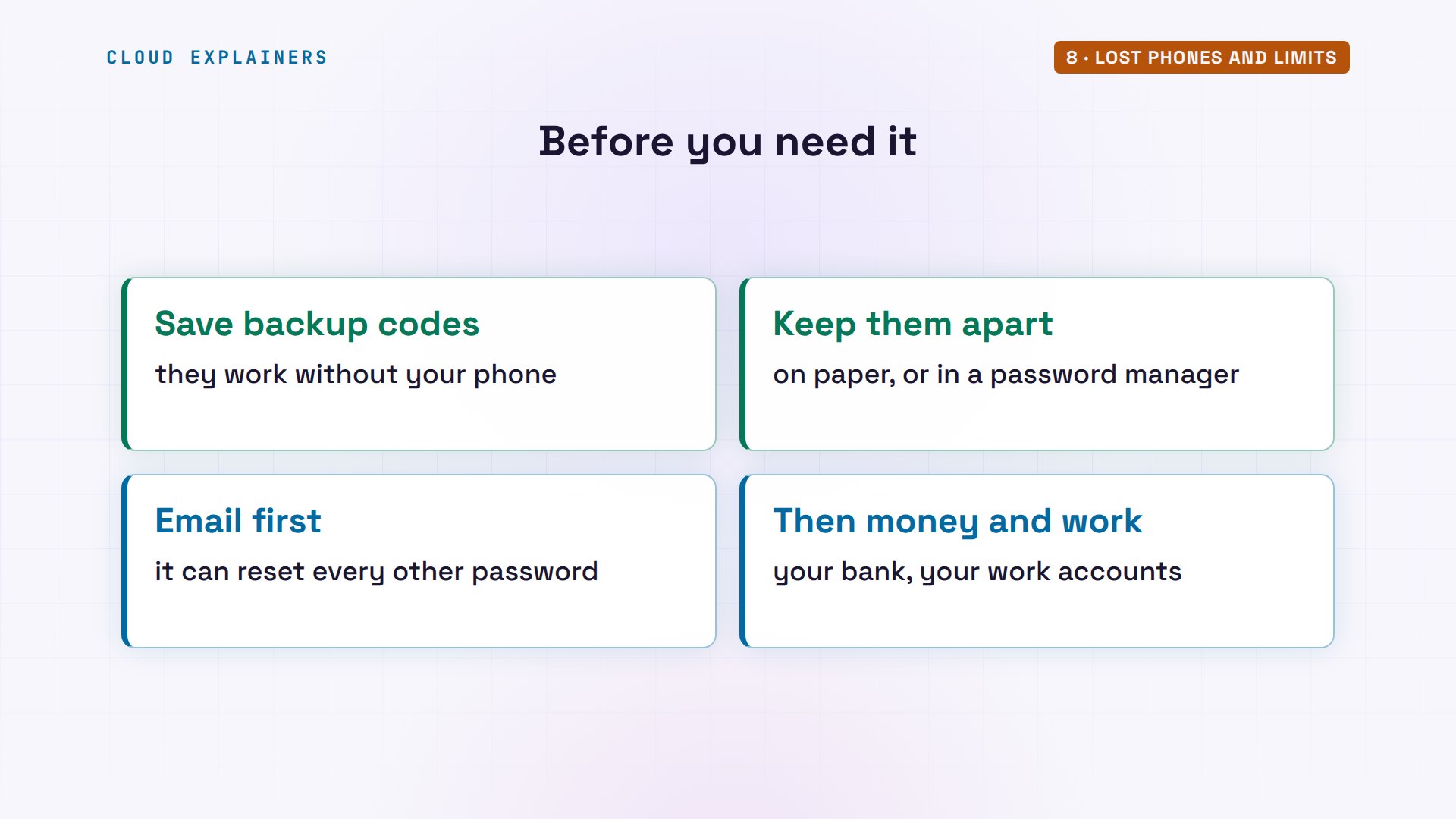
So keep your backup codes somewhere safe that isn't your phone: on paper, or in a password manager. And turn two-factor on first where it matters most: your email, which can reset every other password, then your bank and your work accounts.
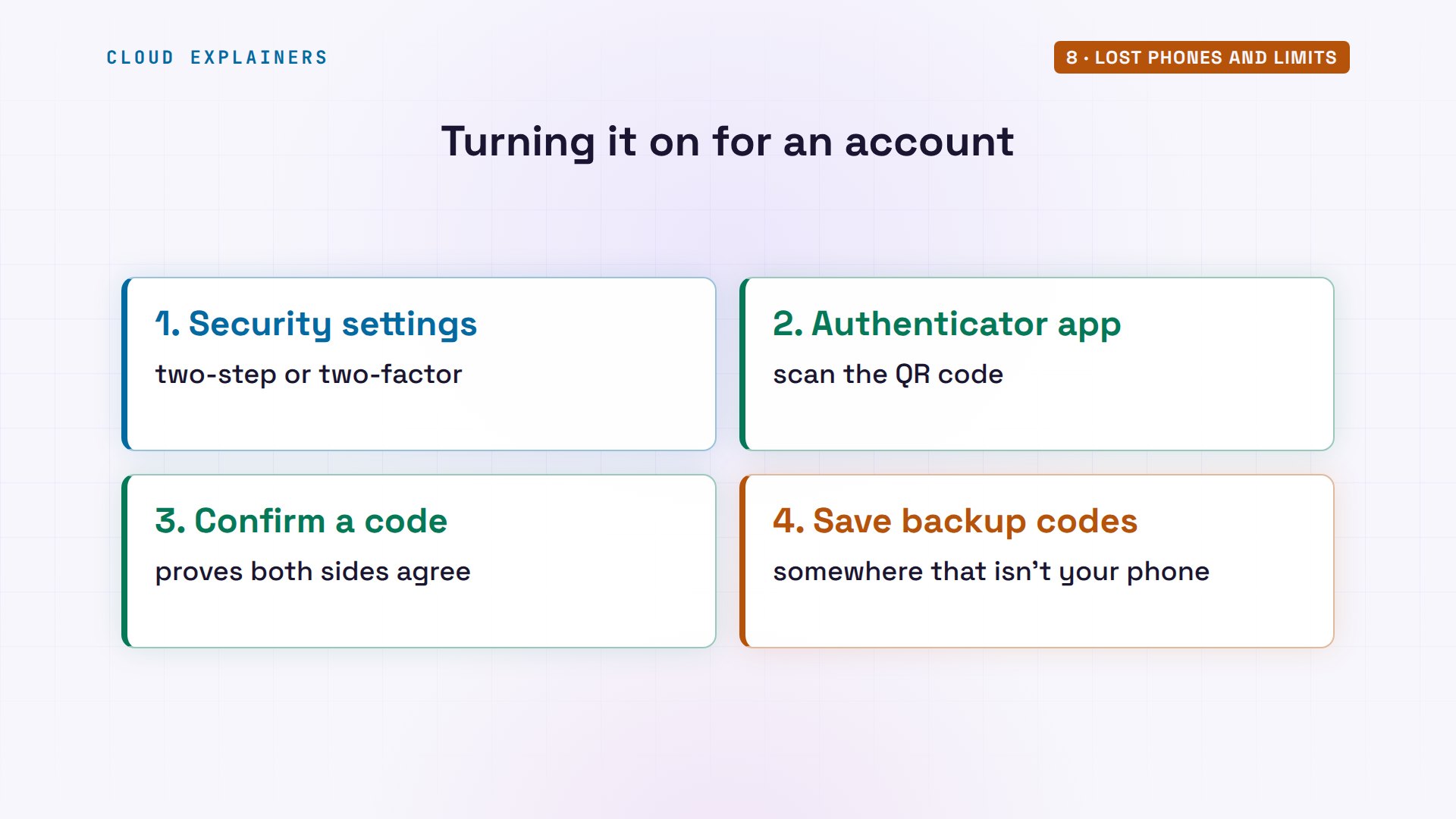
On a website, turning it on works much like it did for Ana. In the account's security settings, choose two-step verification, or two-factor. Pick an authenticator app, scan the QR code, and type the first code to confirm. Then save the backup codes.
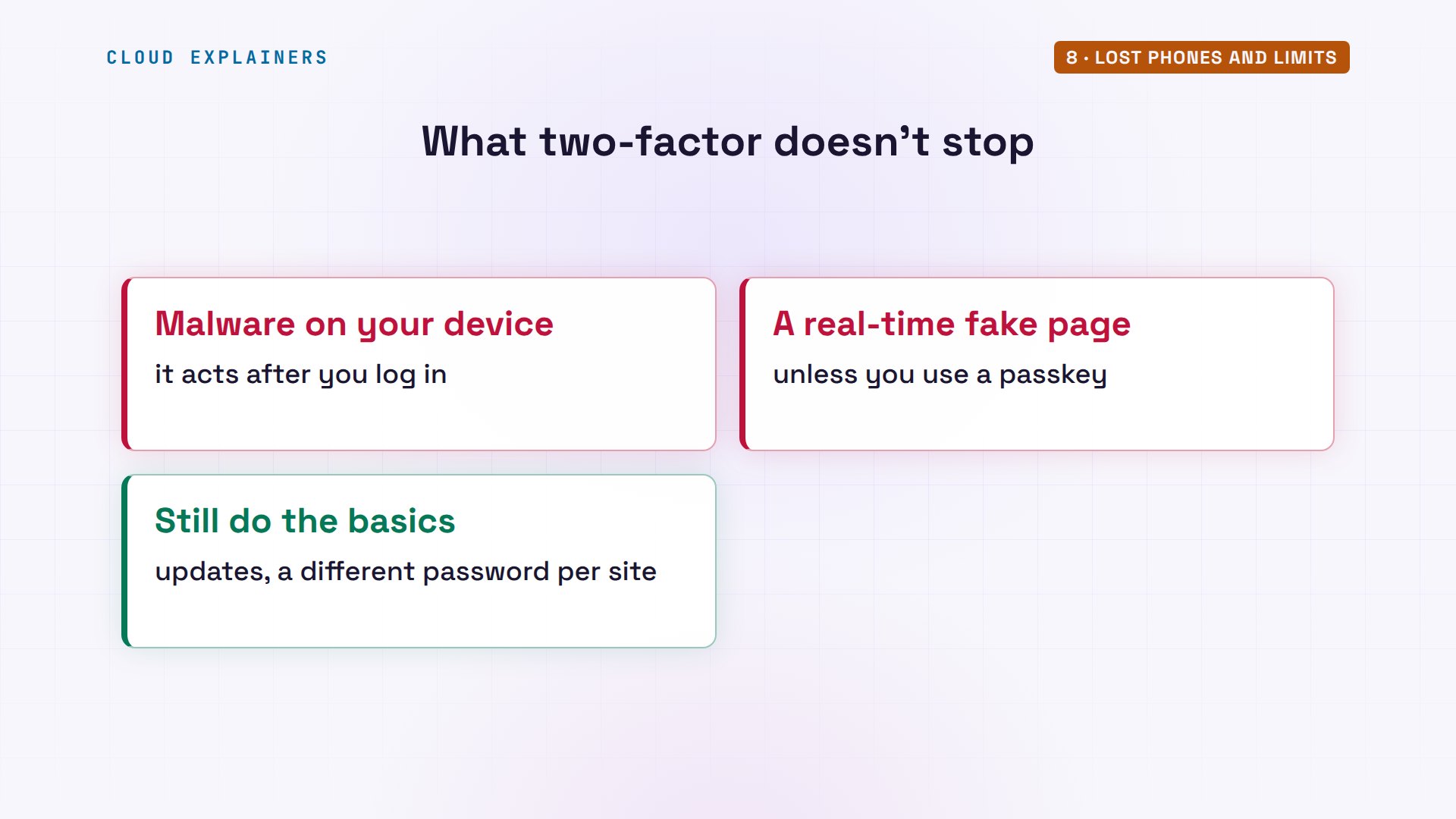
Two-factor isn't magic, though. It protects the login. Malware, harmful software already running on your computer can act after you've logged in, and a fake page can still pass a code on in real time. So keep your devices updated, and use a different password on every site anyway.
Recap
Back to Ana's shop. With only a password, a leak from another site was enough to get in. Her phone and her server now share a secret, and both turn it and the time into the same six digits. So her password alone opens nothing, and a used code is spent. Where you can, a security key or passkey goes one step further.
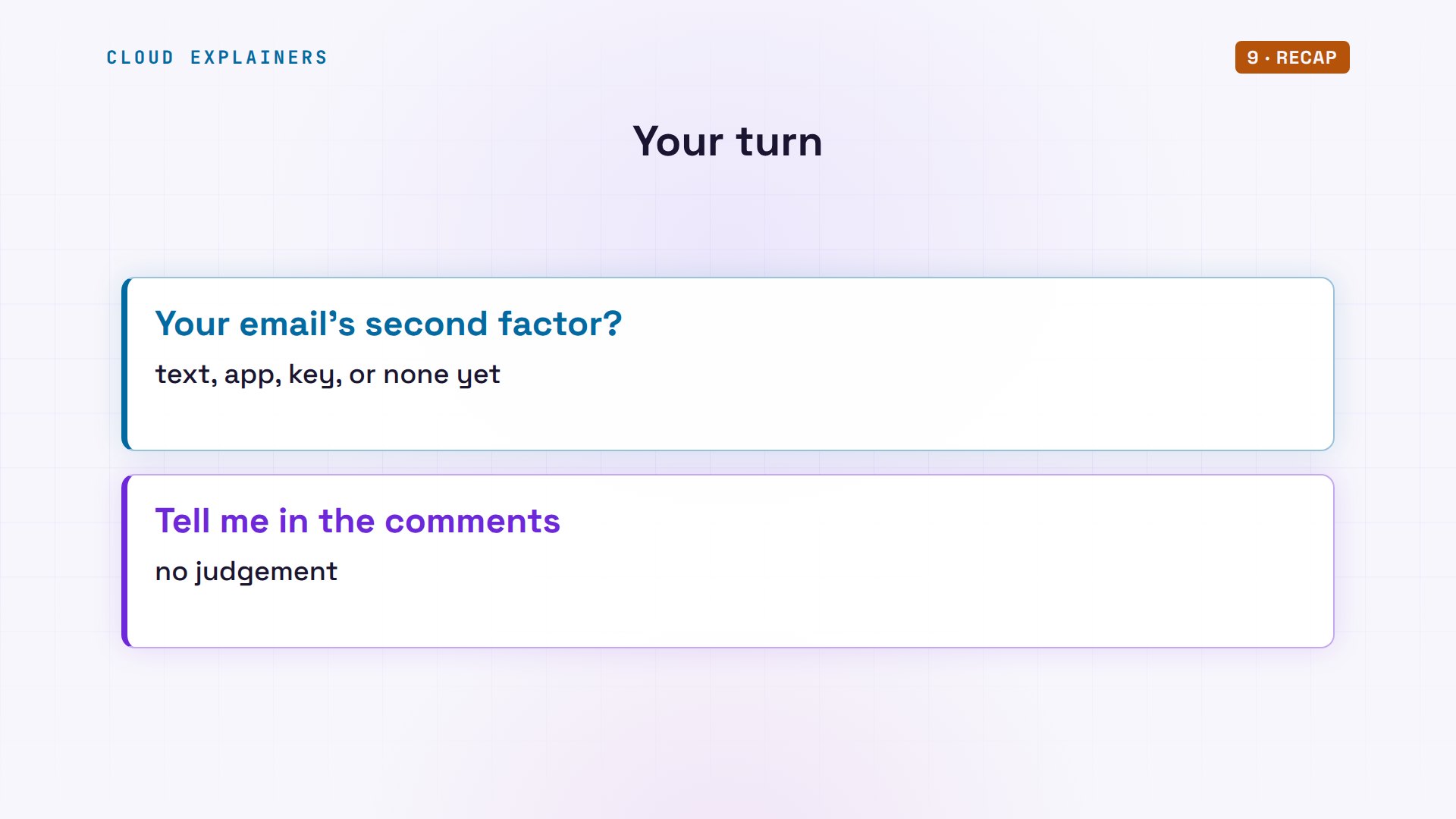
A question for the comments: which second factor do you use for your email today? A text message, an app, a security key, or nothing yet?
Every command and log line in this video came from a real run in our lab. Thanks for watching Cloud Explainers.
Sources
- RFC 6238, TOTP: Time-Based One-Time Password Algorithm
- RFC 4226, HOTP: An HMAC-Based One-Time Password Algorithm
- google-authenticator-libpam (options, scratch codes)
- OpenBSD manual, sshd_config(5) (AuthenticationMethods, KbdInteractiveAuthentication)
- NIST SP 800-63B, Digital Identity Guidelines: Authentication
- CISA, Implementing Phishing-Resistant MFA (fact sheet)
- FIDO Alliance, Passkeys
Demos: real output from four Ubuntu containers on a private network on our own machine. The leaked password, secret and codes shown are throwaway lab values, and the login attempts ran only against our own lab server. Watch the full video on YouTube.
More videos
Never Expose a Database to the Internet
SSH Keys vs Passwords: Which Is Safer for Security?
The 5 Levels of Linux Boot: From Power On to Login
The 5 Levels of Network Firewalls
Password Security: Why Hackers Crack Weak Passwords
Why Your Linux Server Runs Out of Memory
HTTP vs HTTPS: What Actually Changes on Your Network

Every Linux File Permission You Need to Know
Linux Processes vs Threads: When Each One Wins
The OSI Model Will Finally Make Sense After This
The 7 Levels of Git
Every Network Troubleshooting Command You Need
Hashing vs Encryption in Cybersecurity: When Each One Wins
Why the Internet Ran Out of IP Addresses
Linux Package Managers: apt vs Snap vs Flatpak
Why Python Is Slow (and When It Doesn't Matter)
TCP vs UDP: When Each One Wins
Stop Running Linux as Root (Do This Instead)
Linux Users and Groups Will Finally Make Sense
Why Phishing Beats Good Security (and How to Spot It)

The 7 Levels of Docker

AI Agents Will Finally Make Sense After This
Stop Using git push --force (Use This Instead)
Agent Skills vs MCP: When Each One Wins
Networking Will Finally Make Sense After This

Every Linux Command You Actually Need
The 7 Levels of Cybersecurity

Every System Design Concept You Need, in One Diagram