SSH Keys vs Passwords: Which Is Safer for Security?
SSH keys vs passwords, for complete beginners, on three real Linux machines in our lab: Ana's laptop, her shop's server, and a bot that tries common usernames and passwords. With password login on, the bot gets into a forgotten test account on its fifth try. Then we make an ed25519 key pair, copy the public key to the server, log in with it, and see why a key can't be guessed, never reaches the server, and is useless to a fake or stolen server. Finally we turn password login off, hit the classic Ubuntu cloud trap (50-cloud-init.conf is read first and keeps passwords on), fix it, check it with sshd -T, and watch every guess get denied.
Two ways in
If your server lets people log in with a password, anyone on the internet can try to guess it, all day long. SSH is how you log in to a Linux server from your own computer, and it offers two common ways in: a password, or a key. We'll set up both on a real server, let a bot that guesses passwords loose on it, and see which one holds, and why.
Everything here runs for real on three small Linux machines in our lab: Ana's laptop, the server behind her online tea shop, and a thief's machine that guesses passwords the way bots do. They sit on a private lab network, so nothing is attacked outside it.
How SSH logs you in
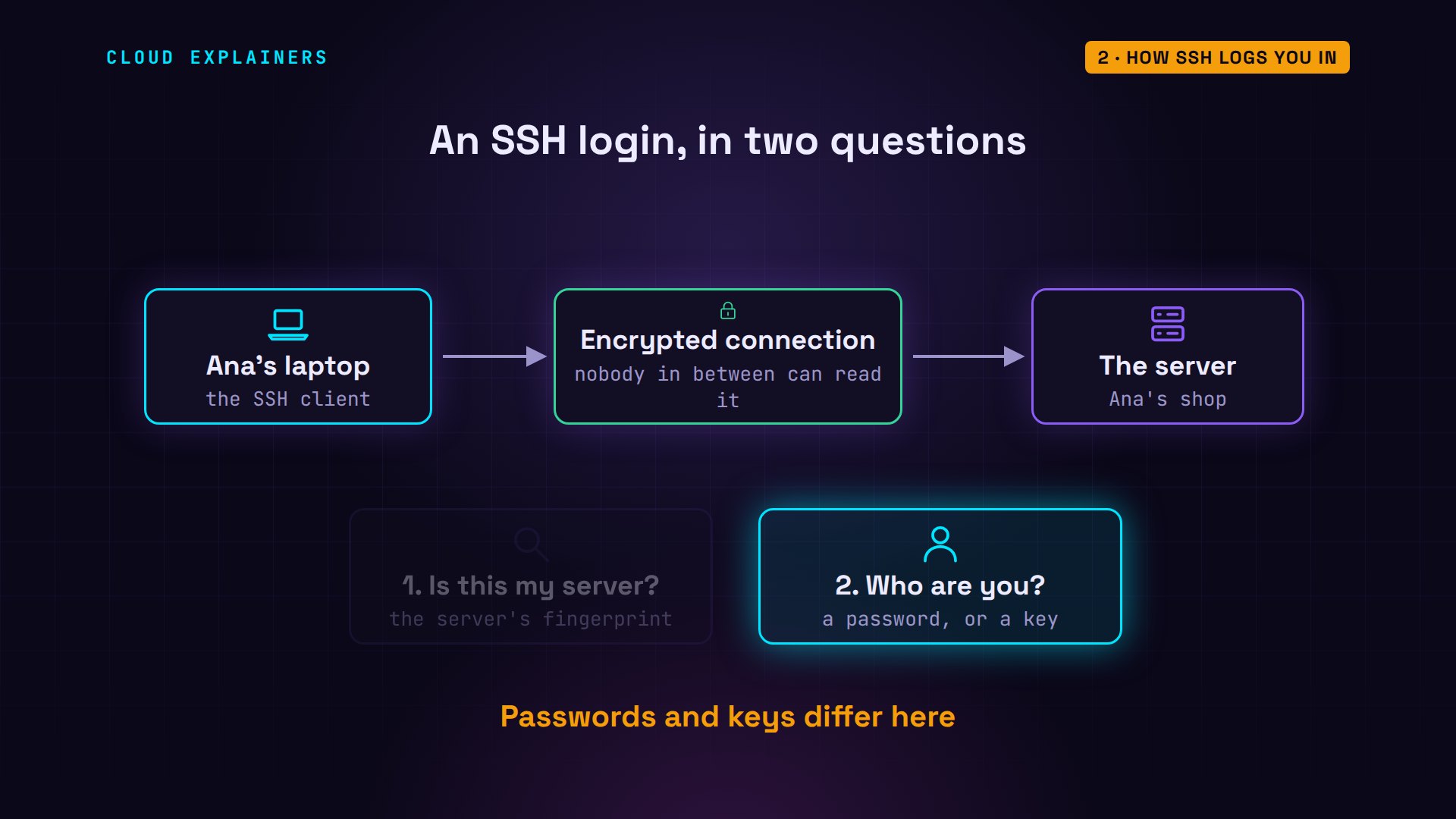
First, what SSH does. Your computer opens an encrypted connection to the server, so nobody in between can read it. Then two questions get answered. Is this really my server? And who are you? That second answer is where passwords and keys differ.
Ana logs in with her password. The first time, SSH shows the server's fingerprint, a short code that identifies the server, and asks whether this is the right machine. She types yes, then her password, which never appears on screen. Now the prompt says shop: her commands run on the server.
ssh shopThe authenticity of host 'shop (10.236.135.84)' can't be established.
ED25519 key fingerprint is SHA256:fA1/x8MS3V2AY3IE5ll7frnb2bFiov30AVKAejCxY58.
This key is not known by any other names.
Are you sure you want to continue connecting (yes/no/[fingerprint])? yes
Warning: Permanently added 'shop' (ED25519) to the list of known hosts.
ana@shop's password:
hostnameshop
That fingerprint belongs to the server's own key. On the server, Ana prints it, and it matches, so nobody is pretending to be her shop. On a real cloud server, you'd get it from your provider's console before connecting. SSH remembers it from now on, and warns her loudly if it ever changes.
ssh-keygen -lf /etc/ssh/ssh_host_ed25519_key.pub256 SHA256:fA1/x8MS3V2AY3IE5ll7frnb2bFiov30AVKAejCxY58 root@shop (ED25519)
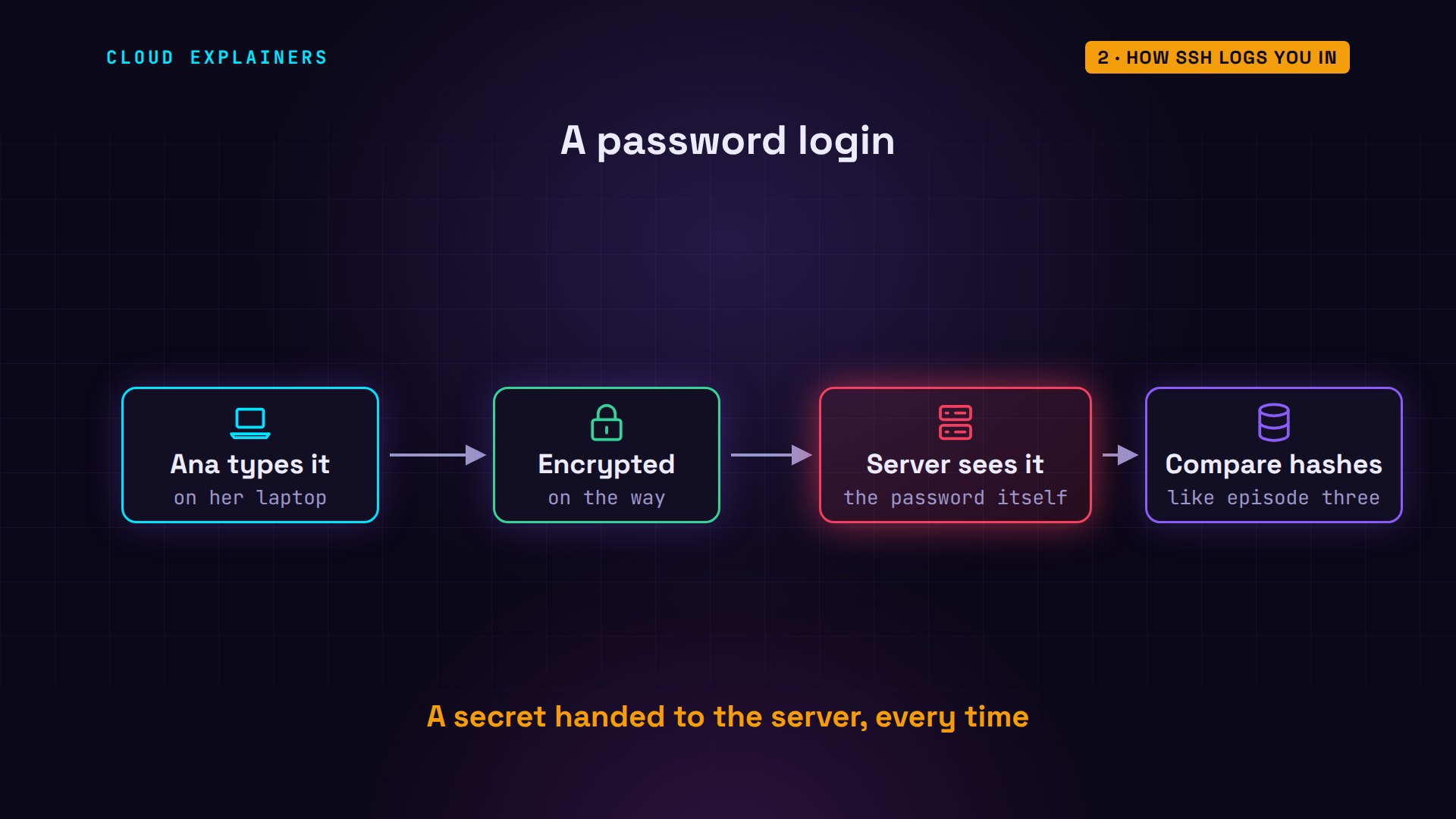
So what happens to her password? It travels inside the encrypted connection, but the server unlocks it and sees it. Then the server hashes it and compares it with the hash it stores, as in episode three. A password is a secret you hand to the server, every single time.
Anyone can try a password
Now the thief. Bots scan the internet for servers with SSH open, and try usernames and passwords that people commonly use. Our bot has a list of five. Root, admin, ubuntu, and ana: wrong password. Then test, with test123. Logged in.
cat common-logins.txtroot 123456
admin admin
ubuntu ubuntu
ana password
test test123
guess shop common-logins.txtroot    123456    wrong password
admin   admin     wrong password
ubuntu  ubuntu    wrong password
ana     password  wrong password
test    test123   LOGGED IN
Who is test? An account someone made months ago to try something out, and then forgot. Ana's own password is strong, and the bot didn't get it. But while the server accepts passwords, every account is a door, and one forgotten weak one is enough.
The server's log saw all of it. At the top, Ana's own login from her laptop. Then 4 failed passwords from the thief's address, and one accepted, for test.
sudo journalctl -u ssh -o cat | grep -E 'Failed|Accepted'[sudo] password for ana:
Accepted password for ana from 10.236.135.14 port 39282 ssh2
Failed password for root from 10.236.135.182 port 58194 ssh2
Failed password for invalid user admin from 10.236.135.182 port 49166 ssh2
Failed password for ubuntu from 10.236.135.182 port 49174 ssh2
Failed password for ana from 10.236.135.182 port 49180 ssh2
Accepted password for test from 10.236.135.182 port 49184 ssh2
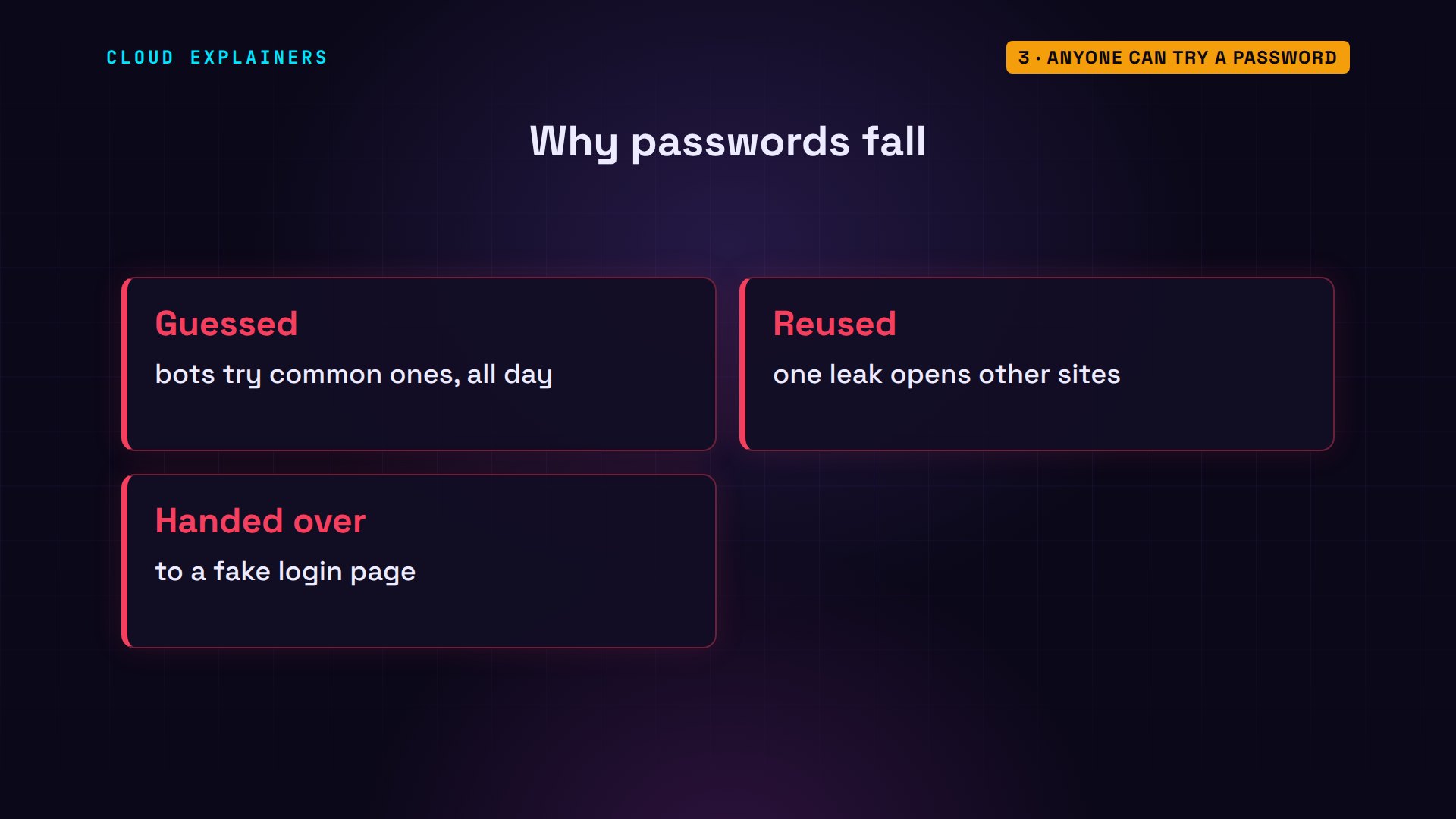
A server can slow guessing down, with a tool like fail2ban from episode one. But bots never get tired, and a password is something a person chose. So it can be guessed, reused on another site, or handed to a fake login page.
How SSH keys work
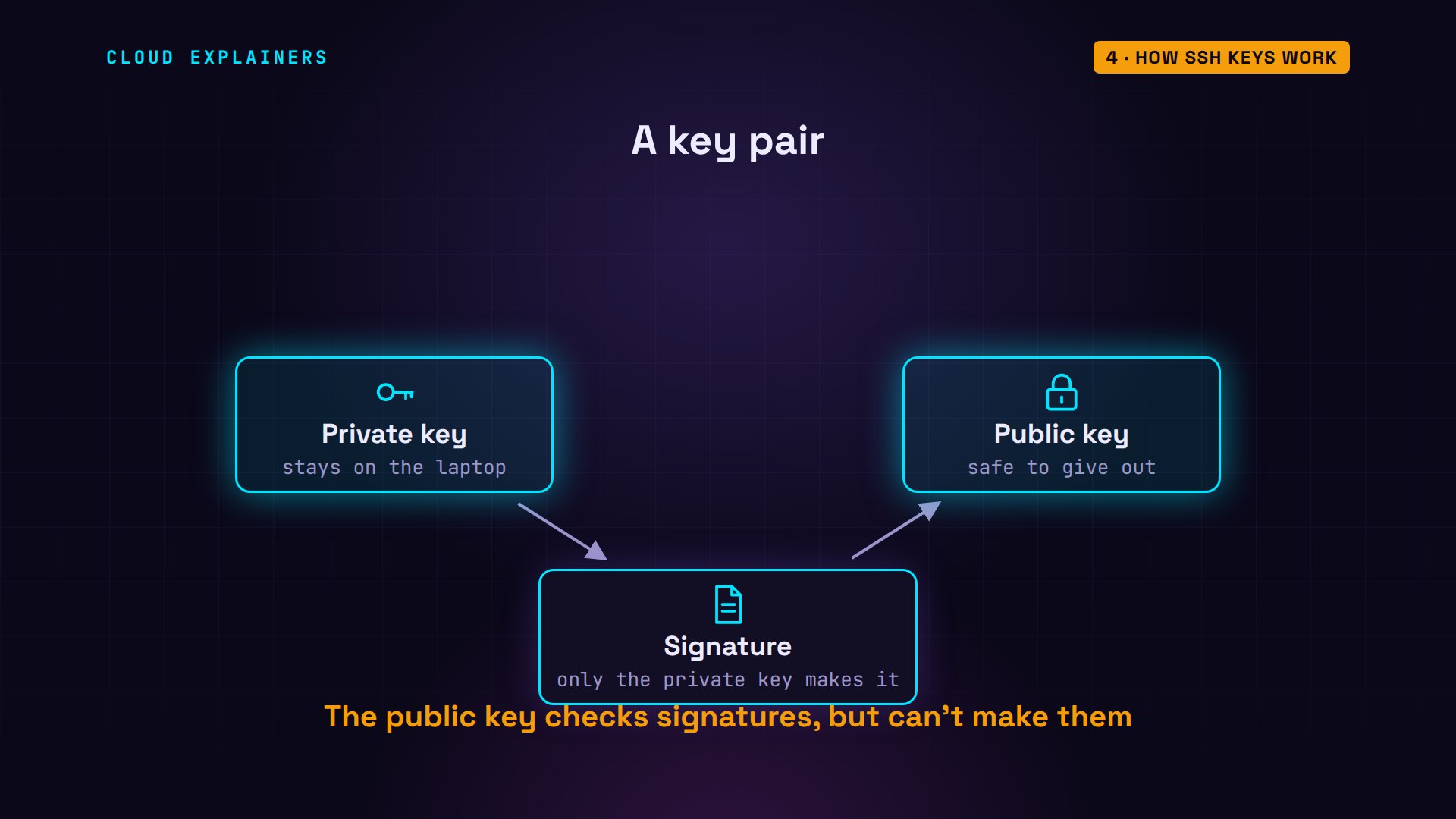
A key works differently. It's a pair. The private key stays on Ana's laptop and never leaves it. The public key can go to any server. Whatever the private key signs, the public key can check, but it can't make signatures itself.
Ana makes her pair with ssh-keygen, type ed25519, a modern kind of key. She keeps the usual file name, and protects the private key with a passphrase. Two files are saved: the private key, and the public one, ending in dot pub.
ssh-keygen -t ed25519Generating public/private ed25519 key pair.
Enter file in which to save the key (/home/ana/.ssh/id_ed25519):
Enter passphrase (empty for no passphrase):
Enter same passphrase again:
Your identification has been saved in /home/ana/.ssh/id_ed25519
Your public key has been saved in /home/ana/.ssh/id_ed25519.pub
The key fingerprint is:
SHA256:mTResB0phEDWpO1irld+Pu55+kNx8NGLYmp80qiYgqk ana@laptop
The key's randomart image is:
+--[ED25519 256]--+
|   .++.oo .. .   |
|   . oo .+o.. .  |
|    . . +.oo o . |
|     . o =+ + .  |
|    o ..S= +     |
|   o .. * +      |
| o  .= o +       |
|o ..+ o o.o      |
|E .o   =*=..     |
+----[SHA256]-----+
The public key is one line of text, safe to share. ssh-copy-id logs in with Ana's password one last time, and adds that line to a file on the server called authorized_keys. Any key listed there may log in as ana.
cat ~/.ssh/id_ed25519.pubssh-ed25519 AAAAC3NzaC1lZDI1NTE5AAAAIMzbhByk5868ffXcb8Xs1oKsEFY8ZpM41W9GWQ/v6hHR ana@laptop
ssh-copy-id shop/usr/bin/ssh-copy-id: INFO: Source of key(s) to be installed: "/home/ana/.ssh/id_ed25519.pub"
/usr/bin/ssh-copy-id: INFO: attempting to log in with the new key(s), to filter out any that are already installed
/usr/bin/ssh-copy-id: INFO: 1 key(s) remain to be installed -- if you are prompted now it is to install the new keys
ana@shop's password:

Number of key(s) added: 1

Now try logging into the machine, with:   "ssh 'shop'"
and check to make sure that only the key(s) you wanted were added.
On the server, there it is: the same line, in Ana's authorized_keys file.
cat ~/.ssh/authorized_keysssh-ed25519 AAAAC3NzaC1lZDI1NTE5AAAAIMzbhByk5868ffXcb8Xs1oKsEFY8ZpM41W9GWQ/v6hHR ana@laptop
Here's what happens at login. The server asks for no secret. Instead, Ana's laptop signs data unique to this one connection, using the private key. The server checks that signature with the public key from authorized_keys. It matches, so she's in, and the private key never crossed the network.
Ana logs in again. This time, on her own laptop, SSH asks for her key's passphrase. That passphrase only unlocks the key file on her laptop; it's never sent anywhere. The server doesn't ask for any password.
ssh shopEnter passphrase for key '/home/ana/.ssh/id_ed25519':
To avoid typing the passphrase every time, she starts ssh-agent, a small helper that holds the unlocked key in memory, and adds her key once. Now SSH logs in without asking, and its detailed output shows how. The server would accept a key or a password. It accepts Ana's key, and she's authenticated using publickey.
eval "$(ssh-agent)"Agent pid 780
ssh-addEnter passphrase for /home/ana/.ssh/id_ed25519:
Identity added: /home/ana/.ssh/id_ed25519 (ana@laptop)
ssh -v shop true 2>&1 | grep -E 'can continue|accepts key|Authenticated to'debug1: Authentications that can continue: publickey,password
debug1: Server accepts key: /home/ana/.ssh/id_ed25519 ED25519 SHA256:mTResB0phEDWpO1irld+Pu55+kNx8NGLYmp80qiYgqk agent
Authenticated to shop ([10.236.135.84]:22) using "publickey".
Why keys are safer
So why is a key safer? First, guessing. Ana's private key is 256 random bits, so there are this many possible keys: a number with 78 digits. Even the best known shortcuts leave a job far beyond every computer on Earth. A bot's list of common passwords is useless against it.
python3 -c 'print(2**256)'115792089237316195423570985008687907853269984665640564039457584007913129639936
Second, a fake server. If someone tricks you into logging in to their machine, a password login hands them your password, and they can use it on the real server. A key login gives them only a signature for that one connection, which is worthless anywhere else.
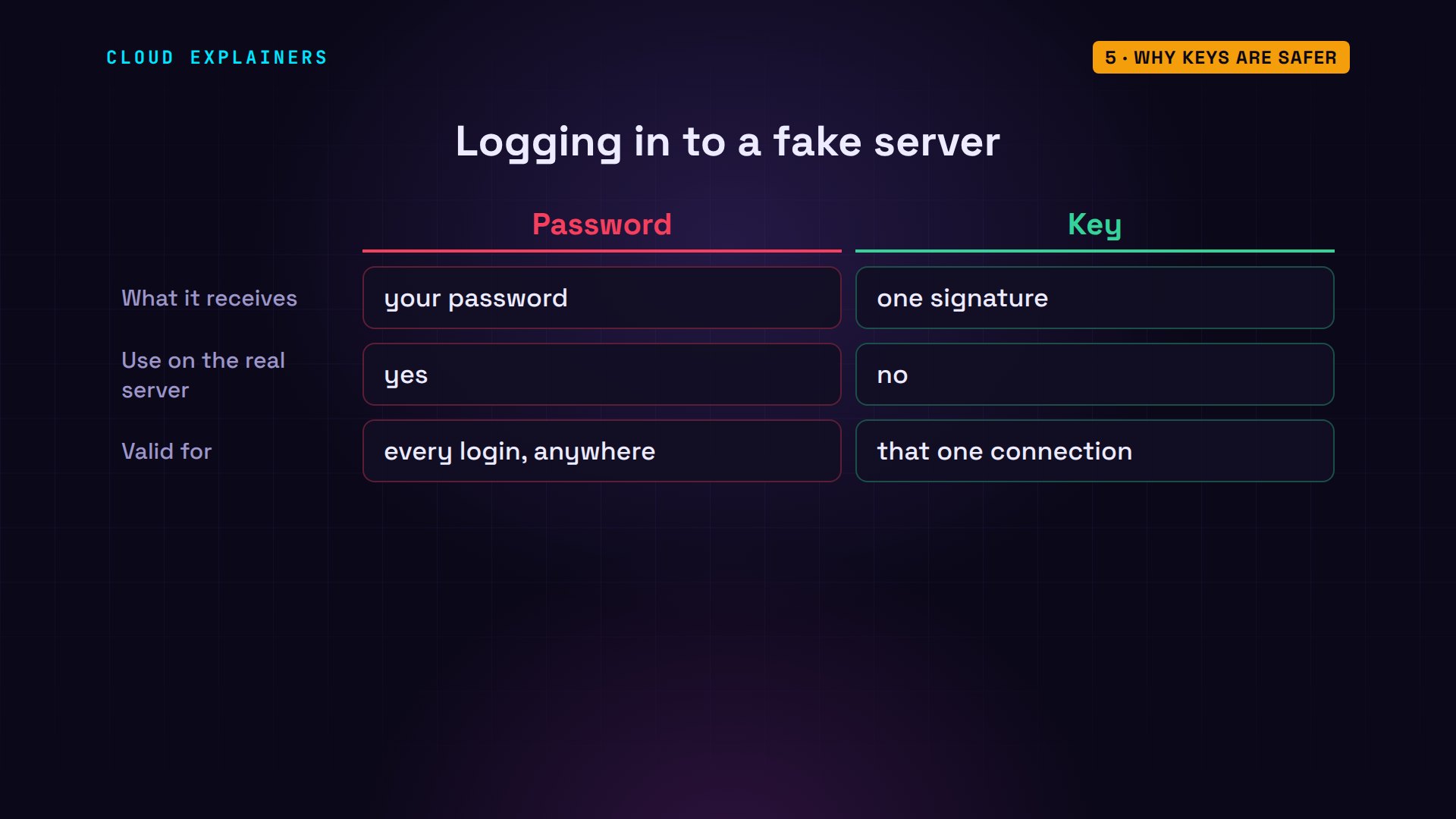
Third, a stolen server. A thief who copies a server's files gets password hashes, which they can try to crack offline, as in episode four. With keys, they get authorized_keys: public keys, which were never secret.
Turn password login off
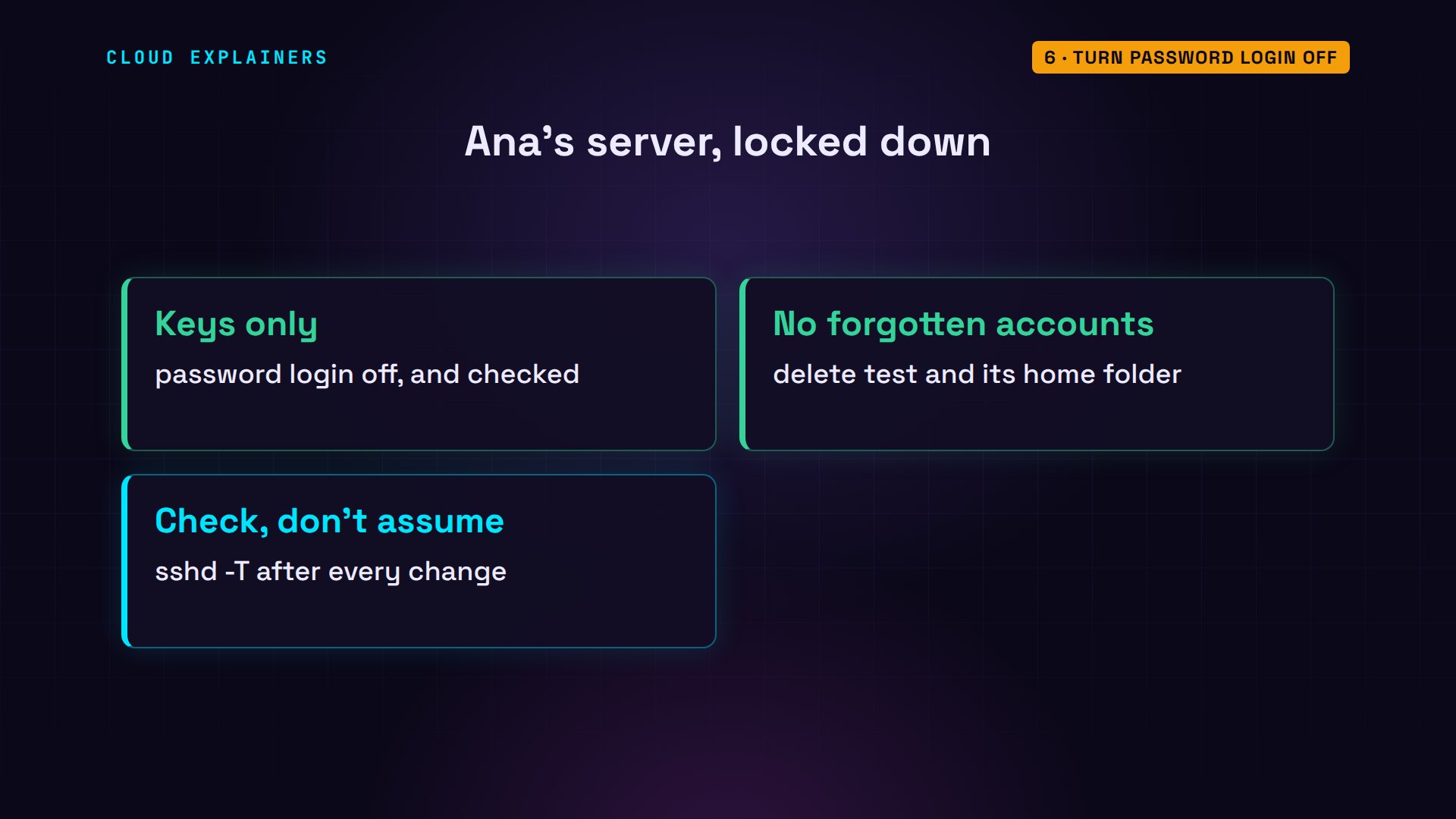
But adding a key doesn't close the other door. The server still accepts passwords, so the bot can still get in as test. Ana has to turn password login off. One rule first: keep a working SSH session open while you change these settings, so a mistake can't lock you out.
sshd is the SSH server program, and sshd -T prints the settings it really uses: password authentication, yes. Ana changes the main config file, sshd_config, with sed, a find-and-replace command, so it says no. She checks the line, and reloads SSH. She checks again. Still yes.
sudo sshd -T | grep passwordauthenticationpasswordauthentication yes
sudo sed -i 's/^#PasswordAuthentication yes/PasswordAuthentication no/' /etc/ssh/sshd_config
grep -n '^PasswordAuthentication' /etc/ssh/sshd_config66:PasswordAuthentication no
sudo systemctl reload ssh
sudo sshd -T | grep passwordauthenticationpasswordauthentication yes
And the bot still gets in as test.
guess shop common-logins.txtroot    123456    wrong password
admin   admin     wrong password
ubuntu  ubuntu    wrong password
ana     password  wrong password
test    test123   LOGGED IN
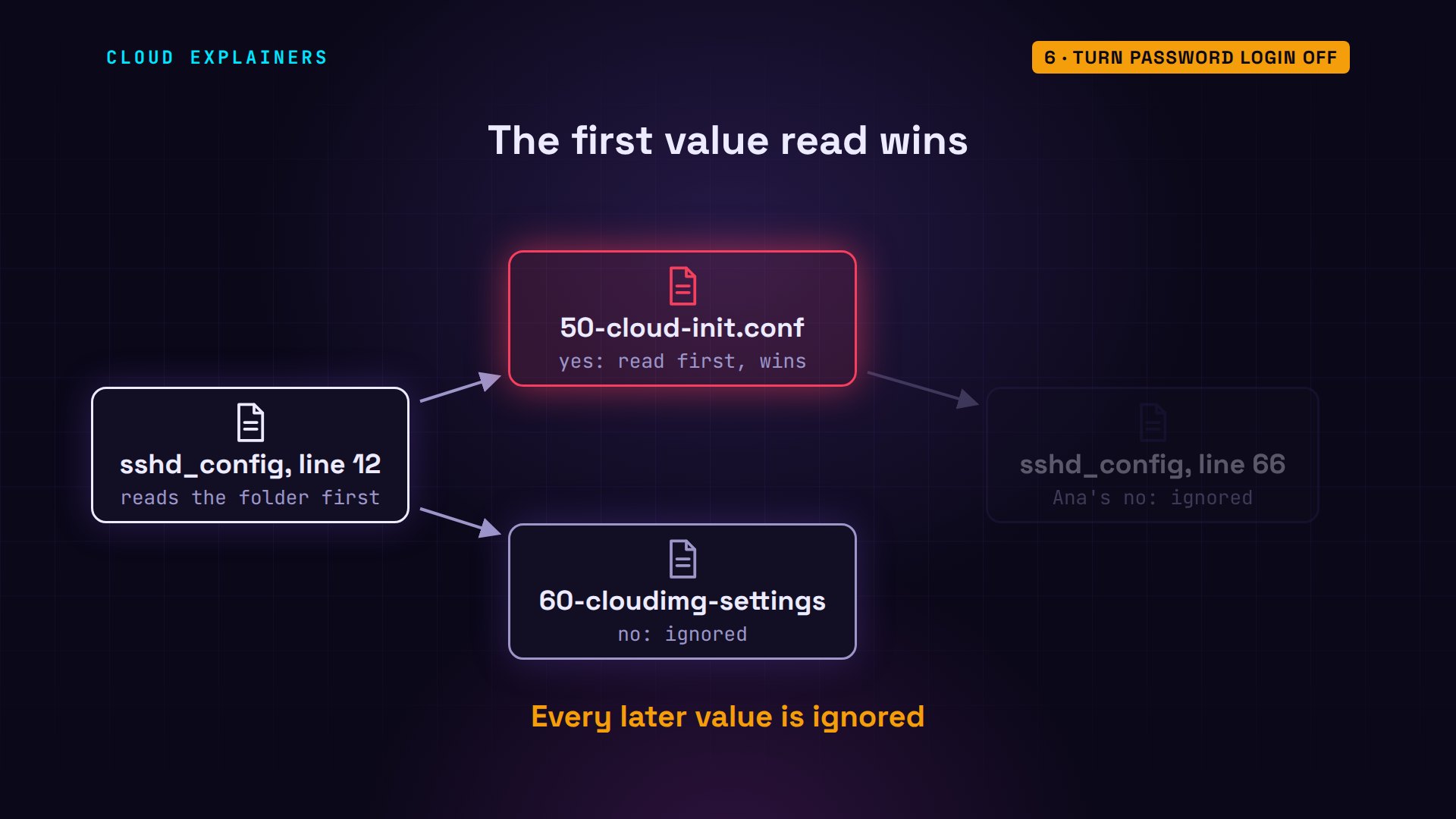
Why? Line 12 of the main file pulls in every file in the sshd_config.d folder, long before Ana's change on line 66. In that folder, 50-cloud-init.conf, written by cloud-init, the tool that sets up a cloud server on its first boot, says yes. Another file says no. grep happened to list it first, but the server reads these files in name order, so fifty comes first.
grep -n Include /etc/ssh/sshd_config12:Include /etc/ssh/sshd_config.d/*.conf
sudo grep -rn PasswordAuthentication /etc/ssh/sshd_config.d//etc/ssh/sshd_config.d/60-cloudimg-settings.conf:1:PasswordAuthentication no
/etc/ssh/sshd_config.d/50-cloud-init.conf:1:PasswordAuthentication yes
For most SSH settings, the first value the server reads wins. The folder's files are read in name order, all before the rest of the main file. So fifty's yes beats sixty's no, and beats Ana's no as well.
So Ana puts her setting in a file of its own, 00-keys-only.conf, which is read before all the others. sudo tee writes it, because only the admin may change that folder. sshd -t checks the config for mistakes: OK. She reloads, and checks once more. Password authentication, no.
echo 'PasswordAuthentication no' | sudo tee /etc/ssh/sshd_config.d/00-keys-only.confPasswordAuthentication no
sudo sshd -t && echo config OKconfig OK
sudo systemctl reload ssh
sudo sshd -T | grep passwordauthenticationpasswordauthentication no
The bot tries again. Permission denied, publickey, for every account, test included. The server doesn't even ask for a password. And Ana, with her key, still gets in.
guess shop common-logins.txtroot    123456    Permission denied (publickey).
admin   admin     Permission denied (publickey).
ubuntu  ubuntu    Permission denied (publickey).
ana     password  Permission denied (publickey).
test    test123   Permission denied (publickey).
ssh shop hostnameshop
Two more habits help. Delete accounts nobody uses, like test. And after any change to SSH settings, check what the server really uses with sshd -T, not just what a file says.
Keep your key safe
A key has one weak spot: the file itself. Anyone who copies a private key with no passphrase can log in as its owner. That's why she gave it a passphrase: the file is locked. This command tries to unlock it. With a wrong passphrase, SSH can't even load it.
ssh-keygen -y -f ~/.ssh/id_ed25519Enter passphrase:
Load key "/home/ana/.ssh/id_ed25519": incorrect passphrase supplied to decrypt private key
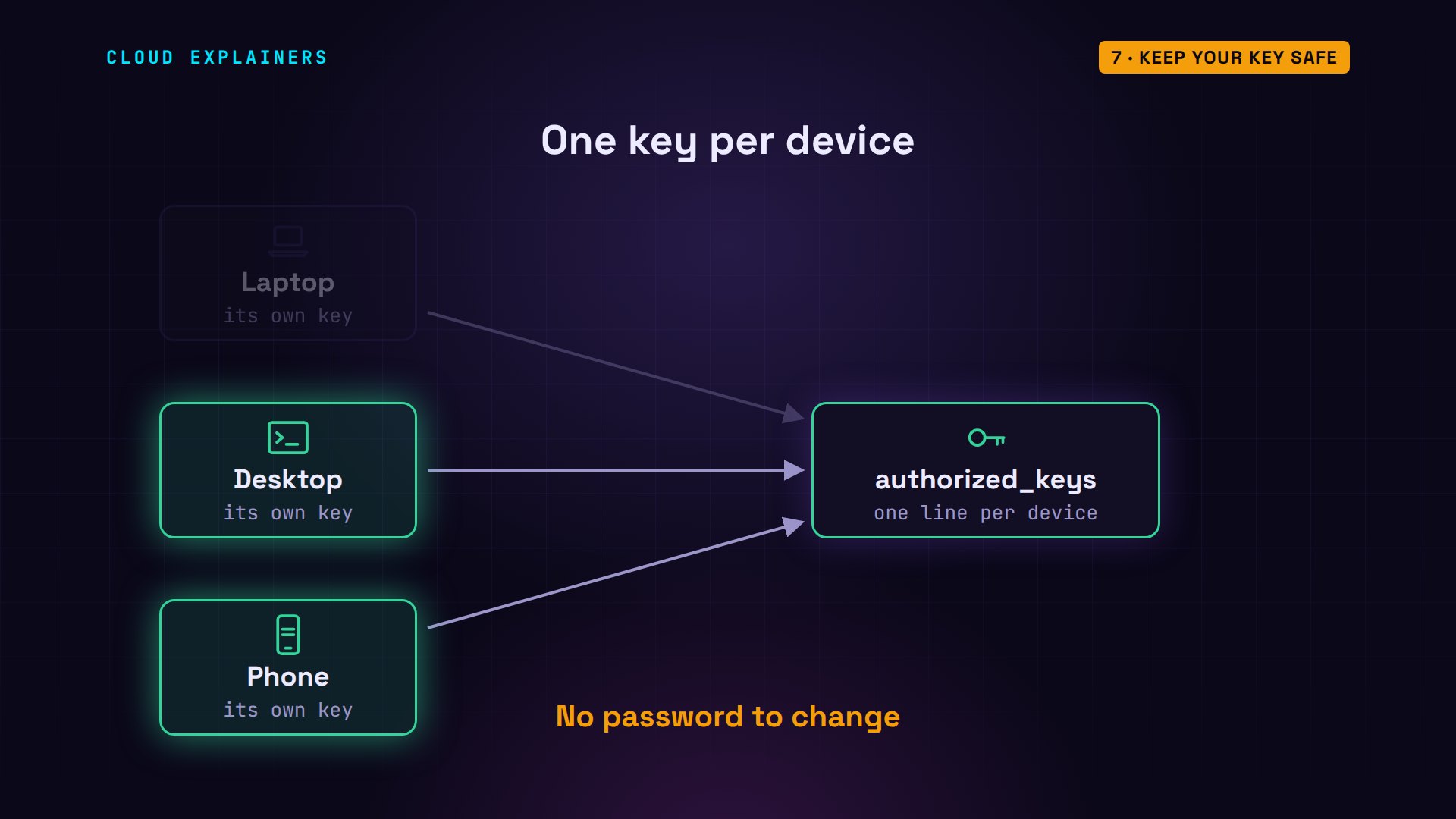
And if a laptop is lost? Give every device its own key pair. Then Ana deletes the lost laptop's line from authorized_keys on her servers, and that key stops working, with no password to change.
The verdict
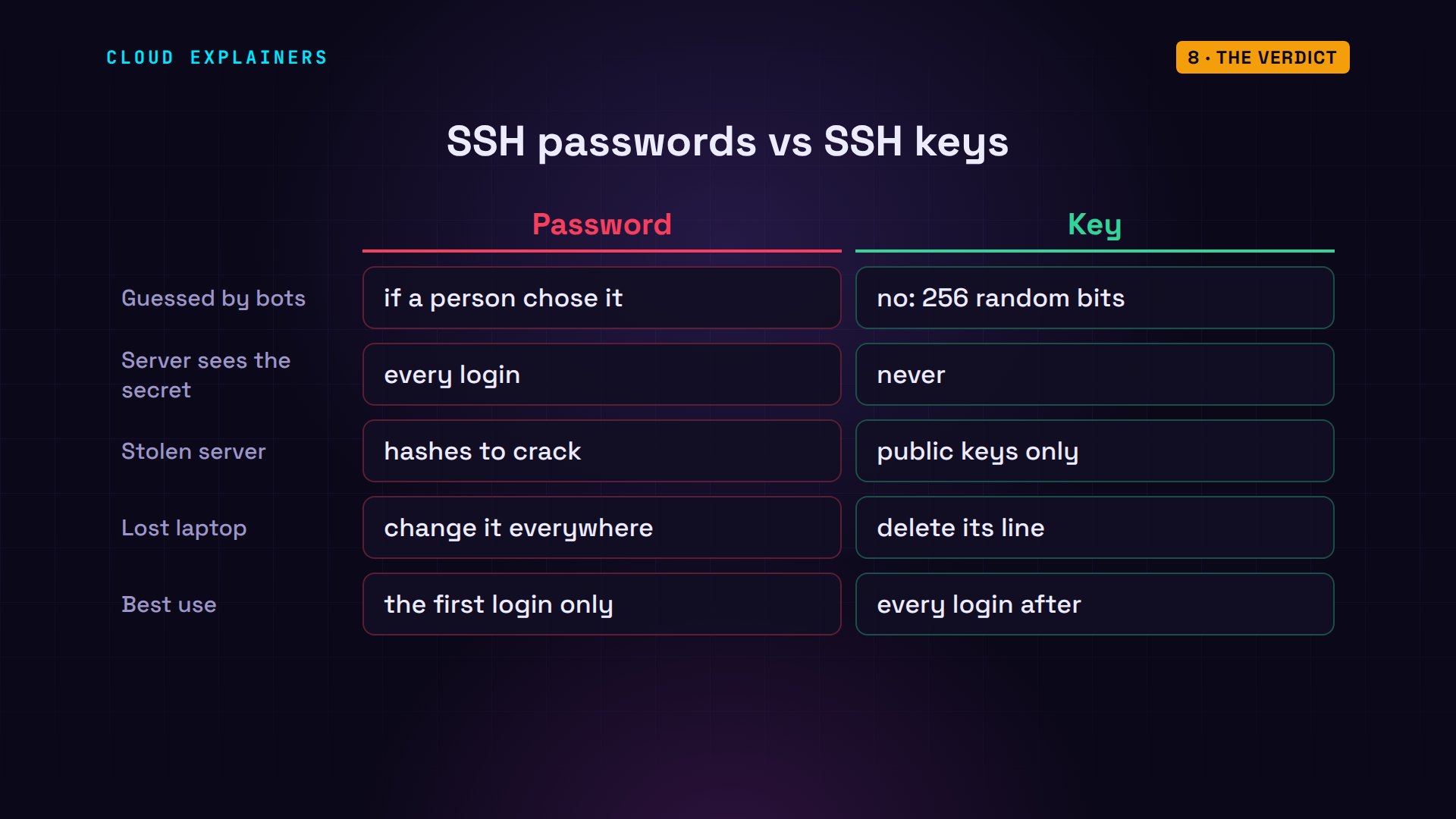
So which is safer? Keys, clearly. They can't be guessed, the server never sees the secret, a stolen server gives nothing away, and a lost laptop costs one line per server. A password is fine for that first login, to copy your key. After that, keys only, and passwords off.
Recap
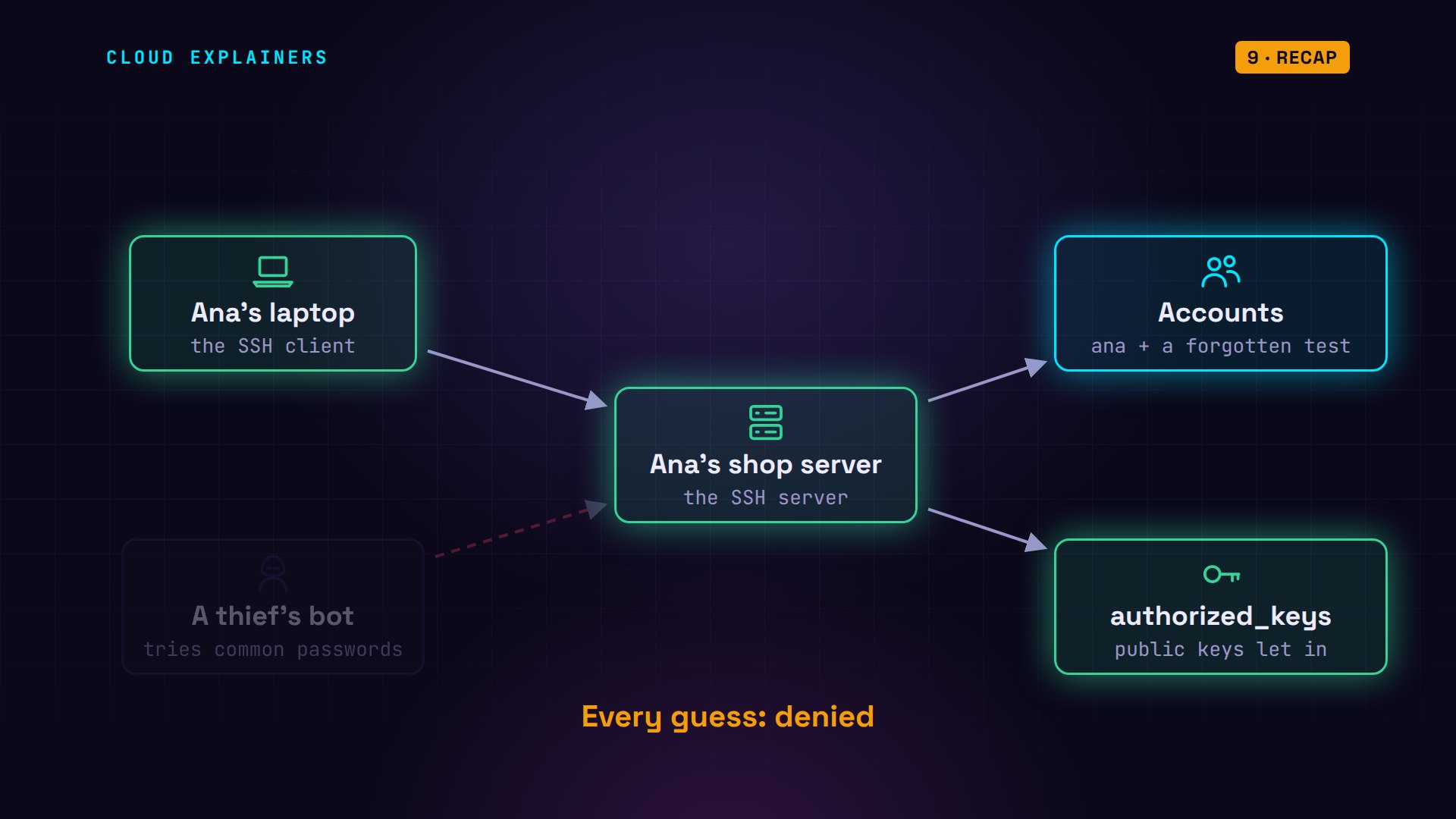
Back to Ana's shop. With password login on, a bot found the one weak account on its fifth try. A key pair keeps the secret on her laptop, and the server checks a signature instead. And she turned passwords off in a file that's read first, then checked it with sshd -T. Now every guess is denied.
A question for the comments: do you still log in to any server with a password? And if you do, what's stopped you from switching to keys?
Every command and log line in this video came from a real run in our lab. This was episode five of Cybersecurity for Beginners.
Sources
- OpenBSD manual, sshd_config(5) (first obtained value wins, Include, PasswordAuthentication)
- OpenBSD manual, sshd(8) (-T and -t)
- OpenBSD manual, ssh-keygen(1)
- RFC 4252, The SSH Authentication Protocol (public key method)
- RFC 8709, Ed25519 and Ed448 public key algorithms for SSH
- Ubuntu Server documentation, OpenSSH server
- cloud-init documentation, ssh_pwauth
Demos: real output from three Ubuntu containers on a private network on our own machine. The password guessing ran only against our own lab server; the passwords and keys shown are throwaway lab values. Watch the full video on YouTube.
More videos
The 5 Levels of Linux Boot: From Power On to Login
The 5 Levels of Network Firewalls
Password Security: Why Hackers Crack Weak Passwords
Why Your Linux Server Runs Out of Memory
HTTP vs HTTPS: What Actually Changes on Your Network

Every Linux File Permission You Need to Know
Linux Processes vs Threads: When Each One Wins

The OSI Model Will Finally Make Sense After This

The 7 Levels of Git
Every Network Troubleshooting Command You Need
Hashing vs Encryption in Cybersecurity: When Each One Wins
Why the Internet Ran Out of IP Addresses
Linux Package Managers: apt vs Snap vs Flatpak
Why Python Is Slow (and When It Doesn't Matter)
TCP vs UDP: When Each One Wins
Stop Running Linux as Root (Do This Instead)
Linux Users and Groups Will Finally Make Sense
Why Phishing Beats Good Security (and How to Spot It)

The 7 Levels of Docker

AI Agents Will Finally Make Sense After This
Stop Using git push --force (Use This Instead)
Agent Skills vs MCP: When Each One Wins

Networking Will Finally Make Sense After This

Every Linux Command You Actually Need
The 7 Levels of Cybersecurity

Every System Design Concept You Need, in One Diagram