How Git Works
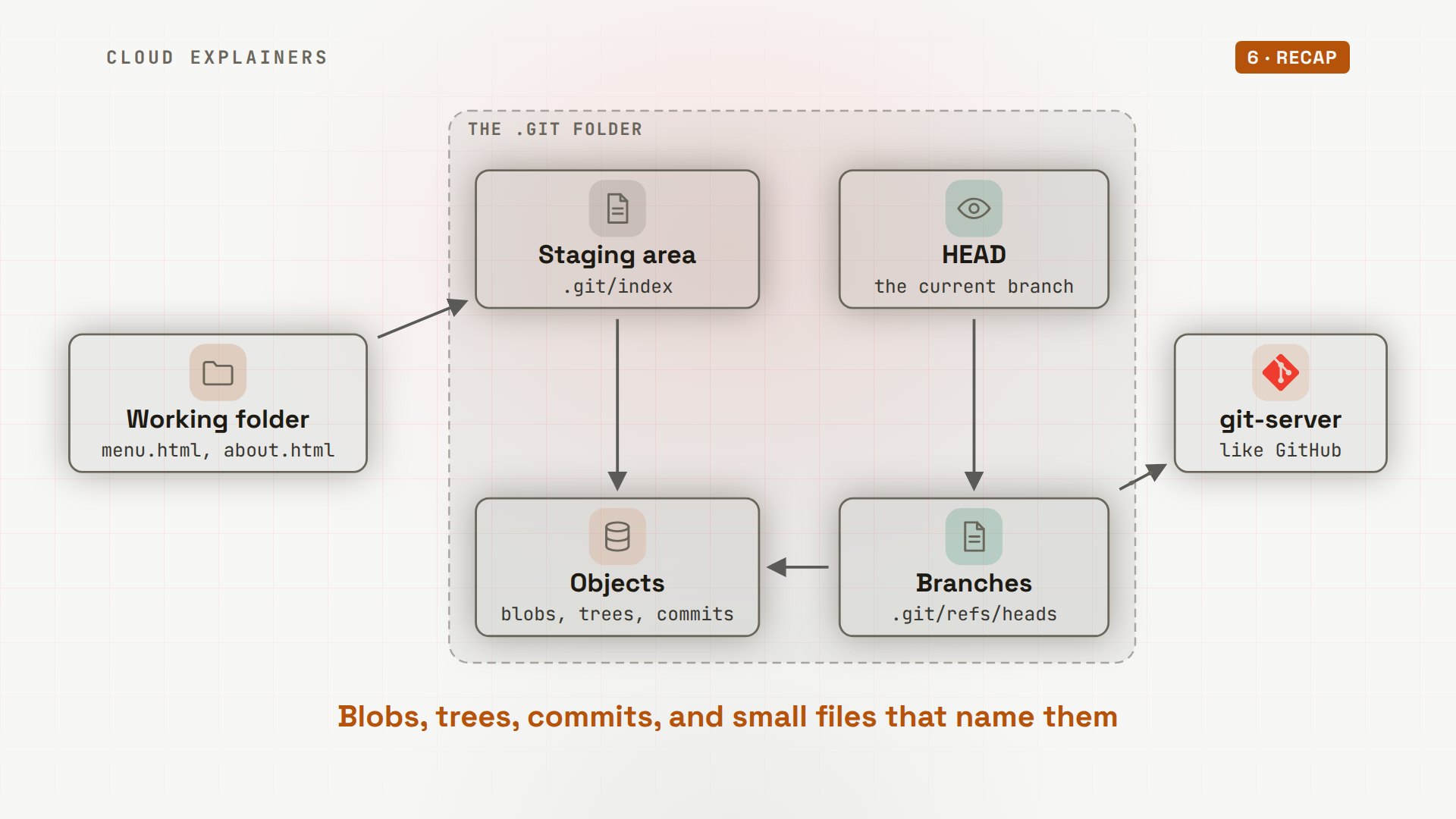
How Git works, for beginners: we open the hidden .git folder of a real repository and read every file Git writes. git add saves each file's content as a blob named by its SHA-1 hash, and lists it in the index (the staging area); git commit saves a tree (a snapshot of the folder) and a commit that points to it and to its parent; a branch is a 41-byte file holding a commit's ID, and HEAD names the branch you're on; a push sends only the objects the server is missing, then moves the server's branch.
Opening
Git commands like commit, branch and push can feel like magic, until you see the files Git really writes. Here's Ana's tea shop website: two pages, and no Git yet. She runs git init, and Git makes one hidden folder, called.git.
ls -a. .. about.html menu.html
git initInitialized empty Git repository in /home/ana/shop/.git/
ls .gitHEAD branches config description hooks info objects refs
By the end, you'll open that folder and read exactly what a commit, a branch and a push are. Three parts of it do the real work. The objects hold every version of every file Ana adds. The branches are tiny files that give names to her commits. And the staging area is where the next commit is put together.
Blobs: content gets a name
Right now, the objects folder is empty: zero files. Ana runs git add on both pages, and two files appear in it. Each one has a strange name: forty letters and digits.
find .git/objects -type f | wc -l0
git add menu.html about.html
find .git/objects -type f.git/objects/20/d4a29beb97cea29da9fc26087f865061fe21fc
.git/objects/18/7dce47b49de57a157d495a10fb9536f0a3ed18
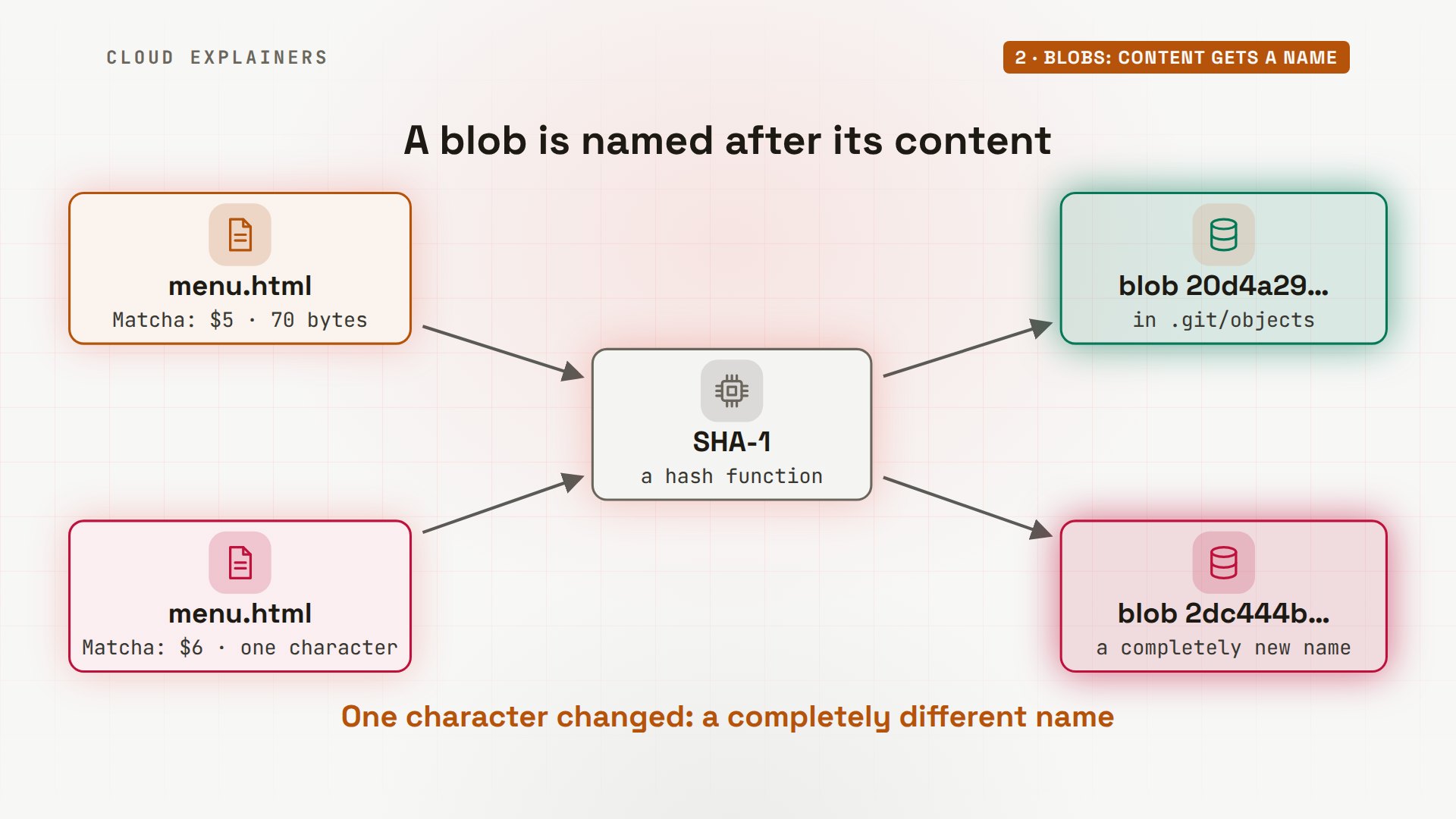
Each of those files is a blob: Git's copy of one file's content. Git names it by running the content through a hash function called SHA-1, which turns any data into forty characters. The same content always gives the same name. Change a single character, and the name is completely different.
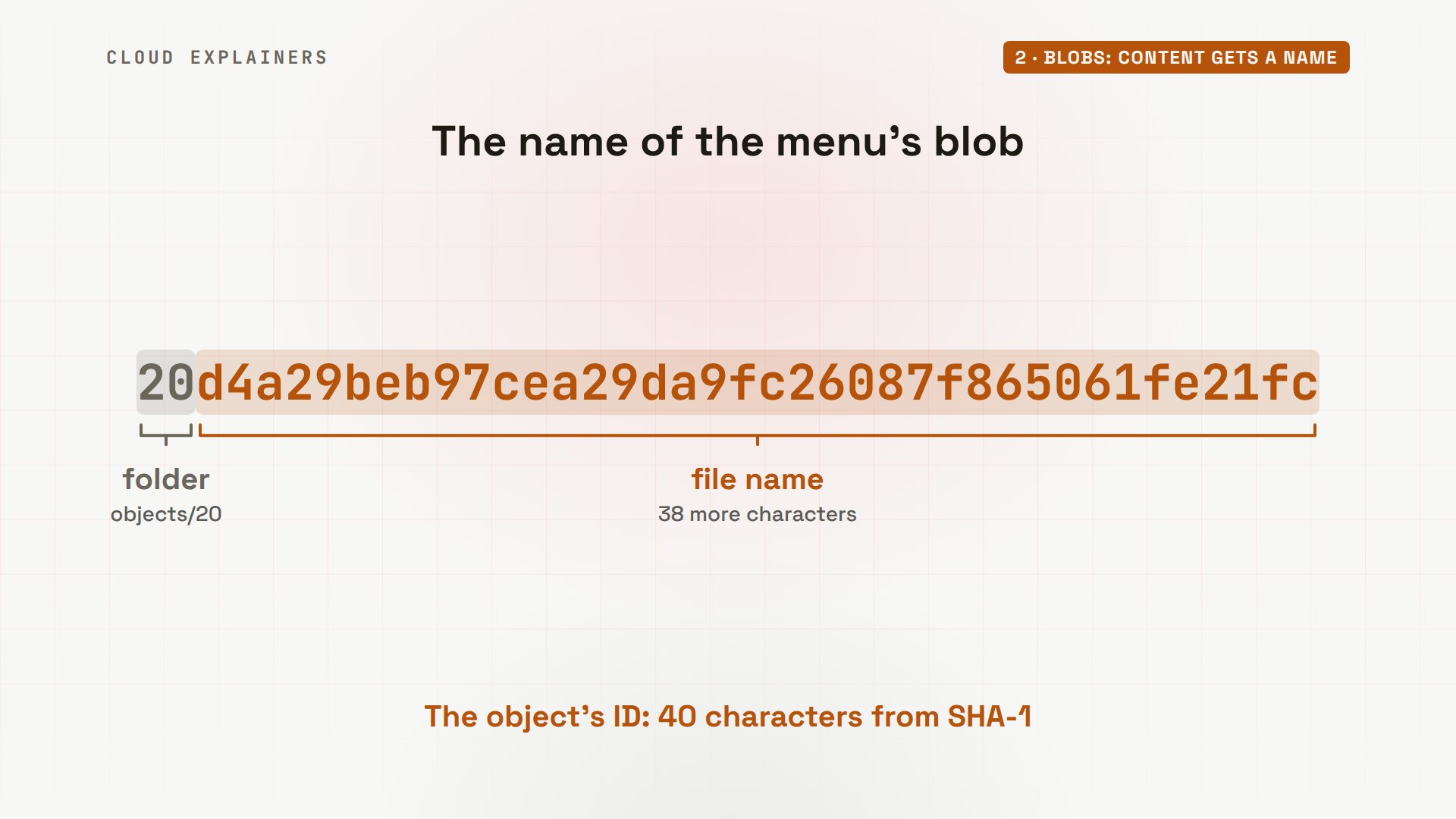
Here's one of those names. Git uses the first two characters as a folder name, and the other thirty-eight as the file name inside it, so no single folder ever holds too many files. Git calls this name the object's ID. The file itself is compressed, so we read objects with Git's own tools.
We can check that. git hash-object computes the name for any file: the same ID. cat-file dash t asks Git for an object's type: blob. And dash p prints it: the menu, exactly as Ana saved it.
git hash-object menu.html20d4a29beb97cea29da9fc26087f865061fe21fc
git cat-file -t 20d4a29beb97cea29da9fc26087f865061fe21fcblob
git cat-file -p 20d4a29beb97cea29da9fc26087f865061fe21fc<h1>Tea menu</h1>
<p>Sencha: $4</p>
<p>Matcha: $5</p>
<p>Chai: $4</p>
And there's no secret in the name. Git writes the word blob, a space, the content's size in bytes, and a zero byte, then the content itself. The SHA-1 of all that is the ID.
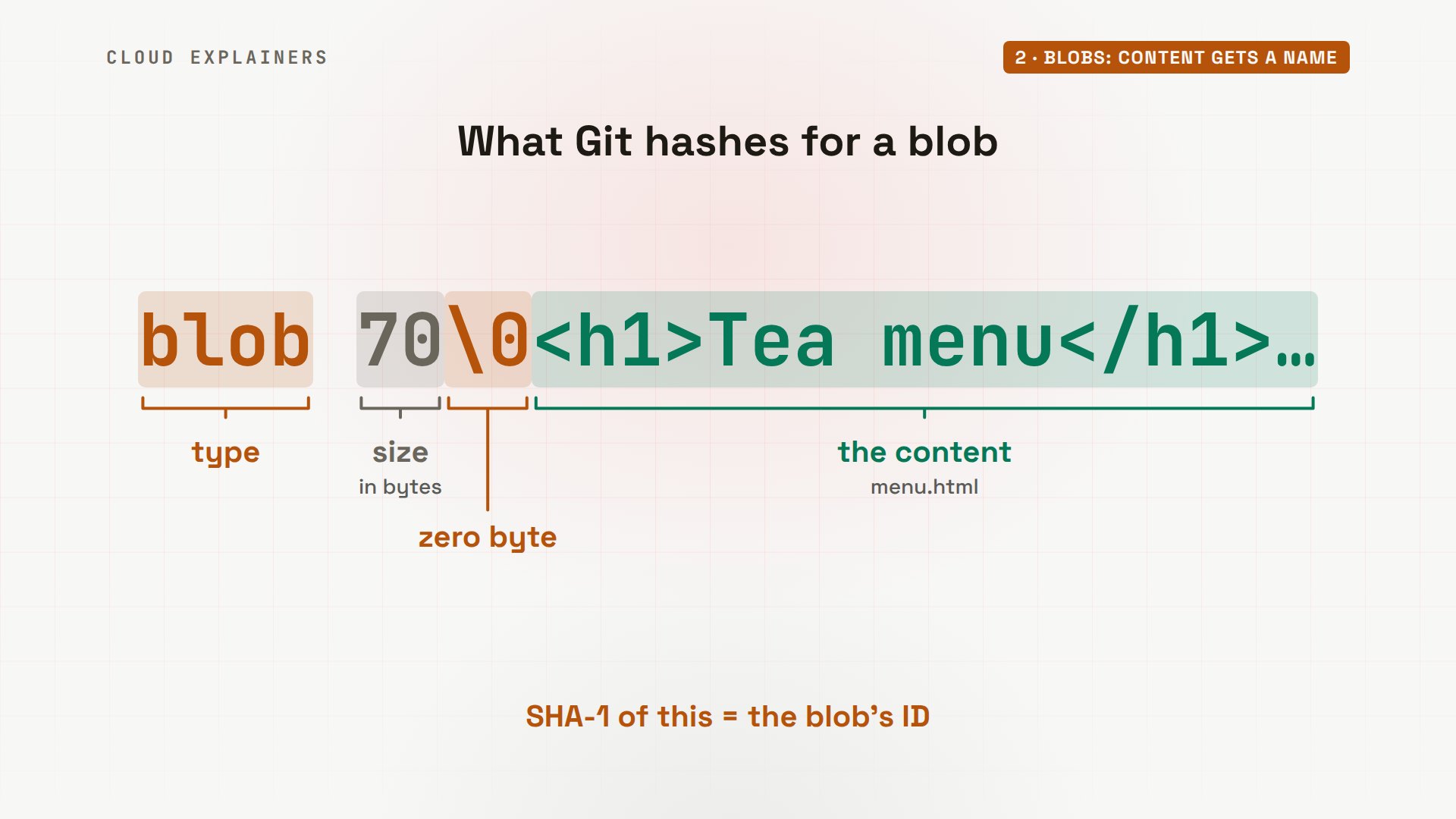
The menu is 70 bytes. Build exactly that, and give it to sha1sum, a tool that knows nothing about Git: the same forty characters.
wc -c menu.html70 menu.html
(printf 'blob %d\0' $(wc -c < menu.html); cat menu.html) | sha1sum20d4a29beb97cea29da9fc26087f865061fe21fc -
And the staging area? It's one file too:.git/index. git ls-files dash dash stage reads it: each file's name, next to the ID of the blob that holds its content.
git ls-files --stage100644 187dce47b49de57a157d495a10fb9536f0a3ed18 0	about.html
100644 20d4a29beb97cea29da9fc26087f865061fe21fc 0	menu.html
So git add does two things. It saves each file's content as a blob in the objects, and it writes each blob's ID into the index, next to the file's name. The index is the list of what the next commit will contain.
Trees and commits
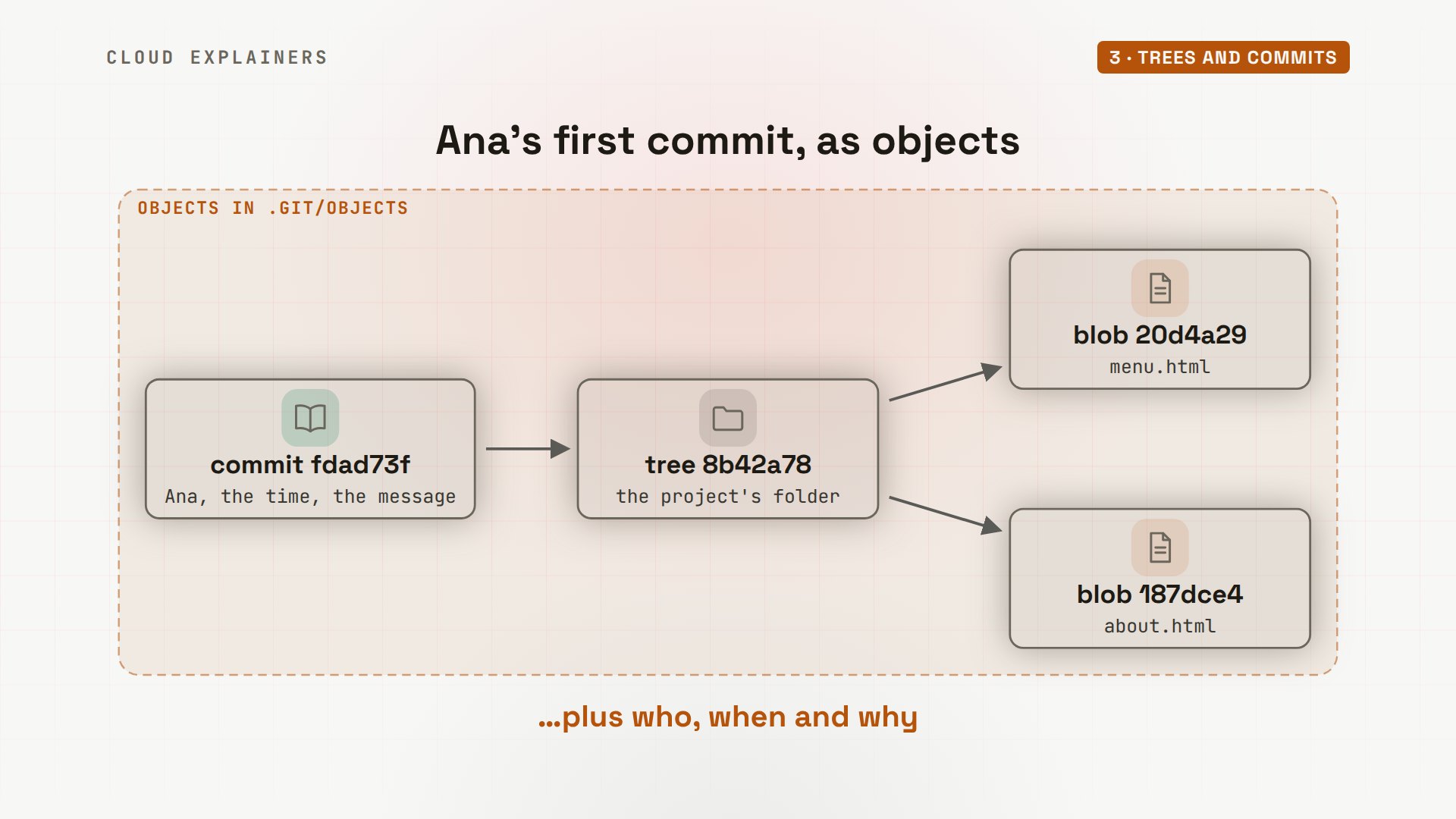
Ana commits. Now there are four objects: the two blobs, and two new ones. cat-file dash p on HEAD, her newest commit, prints it as plain text: the ID of a tree, her name and the time, and her message.
git commit -m 'Add the menu and about pages'[main (root-commit) fdad73f] Add the menu and about pages
 2 files changed, 6 insertions(+)
 create mode 100644 about.html
 create mode 100644 menu.html
find .git/objects -type f.git/objects/20/d4a29beb97cea29da9fc26087f865061fe21fc
.git/objects/8b/42a788aaff669bb08c15d3f01add3db9e5009d
.git/objects/fd/ad73f30574dcafcfe4d7558090cdf4f0572616
.git/objects/18/7dce47b49de57a157d495a10fb9536f0a3ed18
git cat-file -p HEADtree 8b42a788aaff669bb08c15d3f01add3db9e5009d
author Ana <ana@example.com> 1793724350 +0000
committer Ana <ana@example.com> 1793724350 +0000

Add the menu and about pages
And the tree? HEAD, a caret, and tree in braces asks for that commit's tree. It's a list: each file's name, and the blob that holds it. It's the index, saved as an object.
git cat-file -p HEAD^{tree}100644 blob 187dce47b49de57a157d495a10fb9536f0a3ed18	about.html
100644 blob 20d4a29beb97cea29da9fc26087f865061fe21fc	menu.html
That's the whole model. A blob holds one file's content. A tree holds a folder: names that point to blobs, and to other trees for folders inside it. A commit points to one tree, a snapshot of the whole project, plus who made it, when, and why.
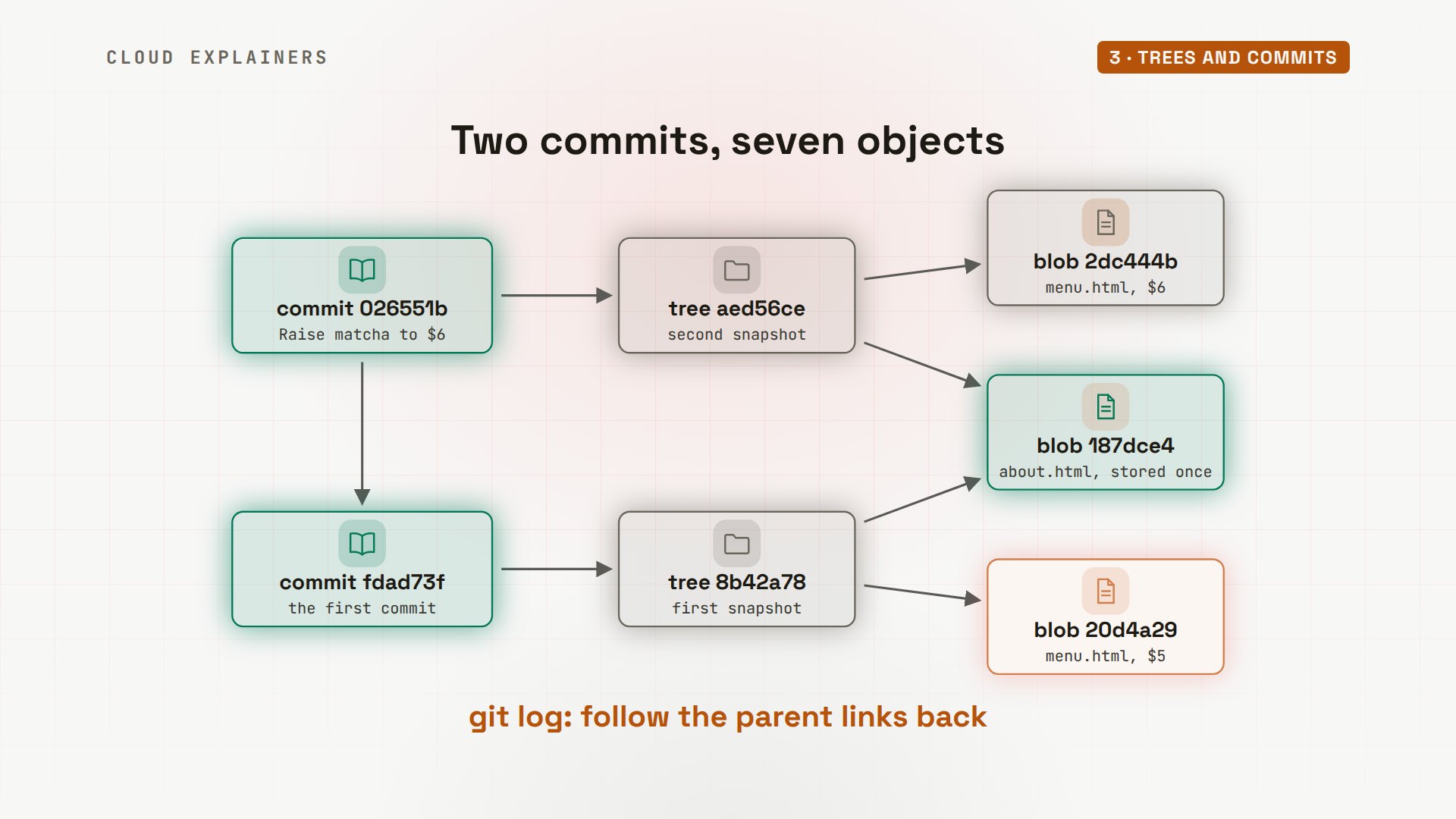
Next, Ana raises matcha to six dollars, and commits again: dash a adds changed files for her, so she can skip git add. This commit has one new line: parent, the ID of her first commit. Its tree still lists both files, but only the menu has a new blob.
git commit -am 'Raise matcha to $6'[main 026551b] Raise matcha to $6
 1 file changed, 1 insertion(+), 1 deletion(-)
git cat-file -p HEADtree aed56ce7ed56077beef83b782f15ce4f48a7daac
parent fdad73f30574dcafcfe4d7558090cdf4f0572616
author Ana <ana@example.com> 1793724350 +0000
committer Ana <ana@example.com> 1793724350 +0000

Raise matcha to $6
git cat-file -p HEAD^{tree}100644 blob 187dce47b49de57a157d495a10fb9536f0a3ed18	about.html
100644 blob 2dc444b61f069205d4c365a0cfbd15920aa7b831	menu.html
Every commit is a full snapshot, not a list of changes. But a file that didn't change keeps its blob, so both trees point to the same about page, stored once. The second commit added just three objects: a blob, a tree and a commit. Seven in all. And git log just follows the parent links, from the newest commit back.
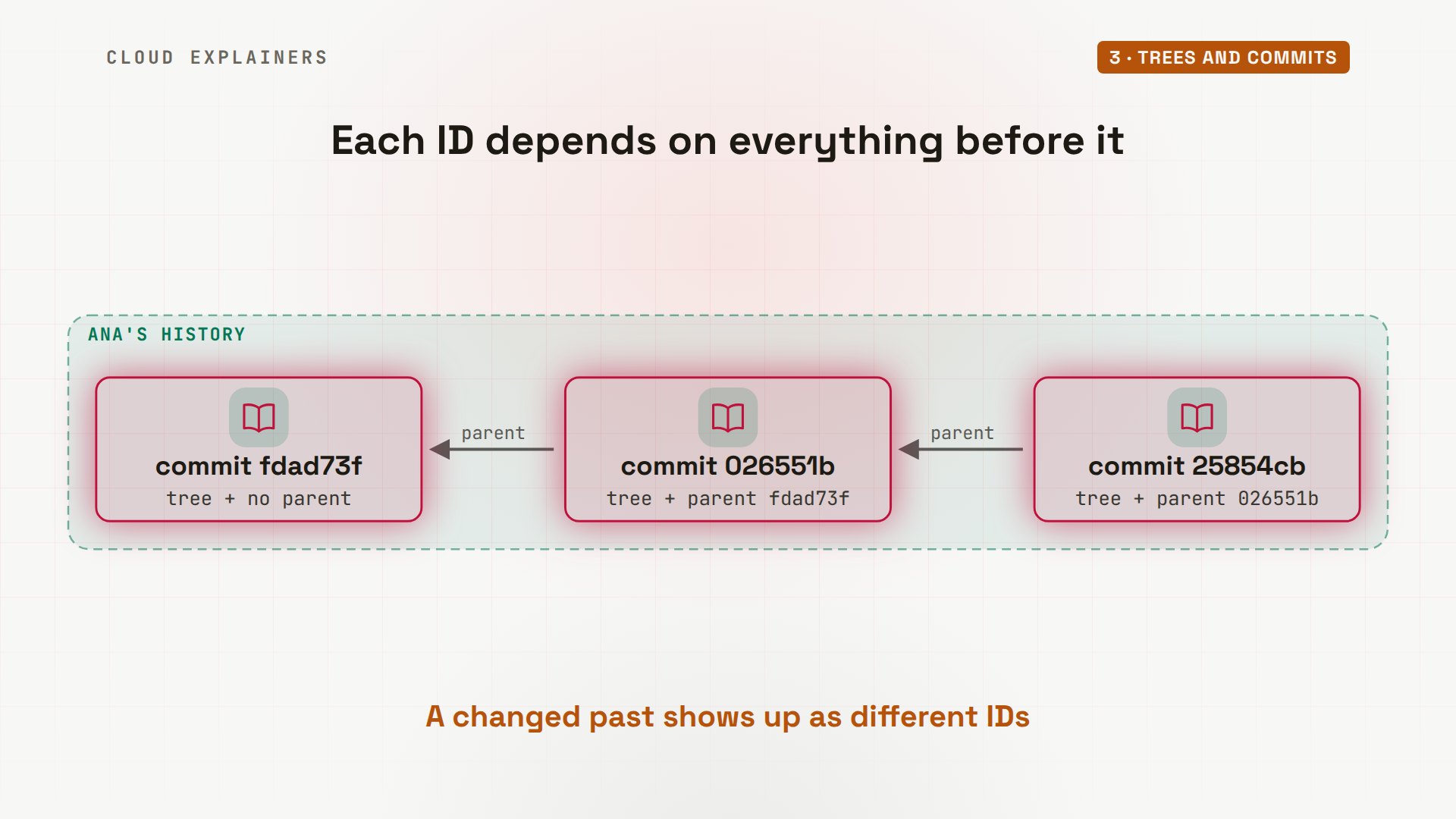
There's one more thing hidden in those IDs. A commit's ID is the SHA-1 of its text, and that text includes its tree and its parent. So if anyone changed one old file, its blob, its tree and its commit would all get new IDs, and so would every commit after it. History can't be quietly edited: a changed past shows up as different IDs.
Branches
So what's a branch? Look at.git/HEAD: ref, refs/heads/main. That file holds one thing: the full ID of Ana's newest commit. Now she makes a branch, spring-menu: a new file, with the same ID, 41 bytes long.
cat .git/HEADref: refs/heads/main
cat .git/refs/heads/main026551ba8b2dcb87891f41100acffcd41b5f80af
git branch spring-menu
cat .git/refs/heads/spring-menu026551ba8b2dcb87891f41100acffcd41b5f80af
wc -c .git/refs/heads/spring-menu41 .git/refs/heads/spring-menu
That's all a branch is: a name, in a small file that holds a commit's ID: forty characters and a line break. Creating one writes those forty characters, however big the project is. And HEAD is how Git knows which branch you're on: it names a branch, and the branch names a commit.
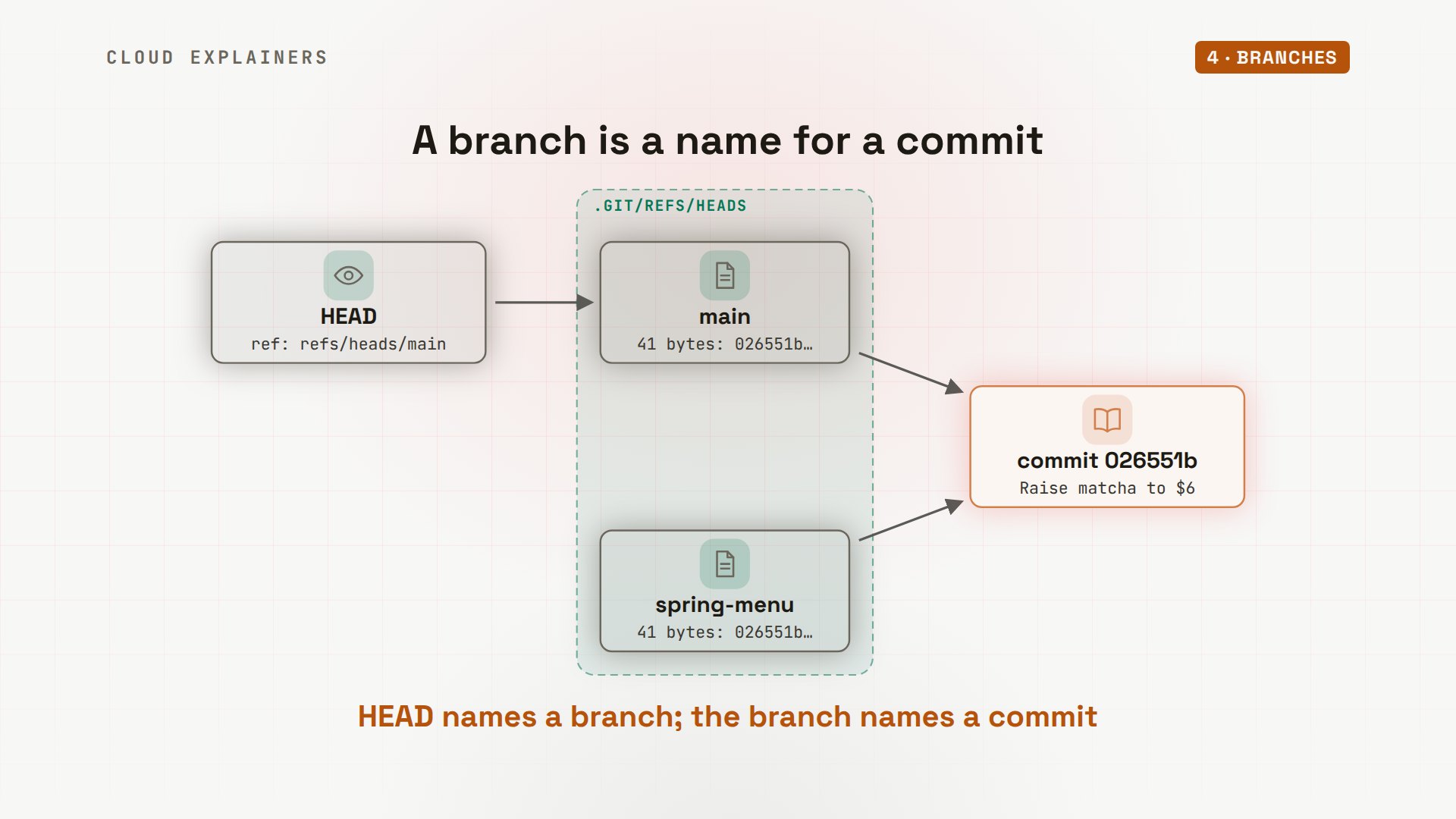
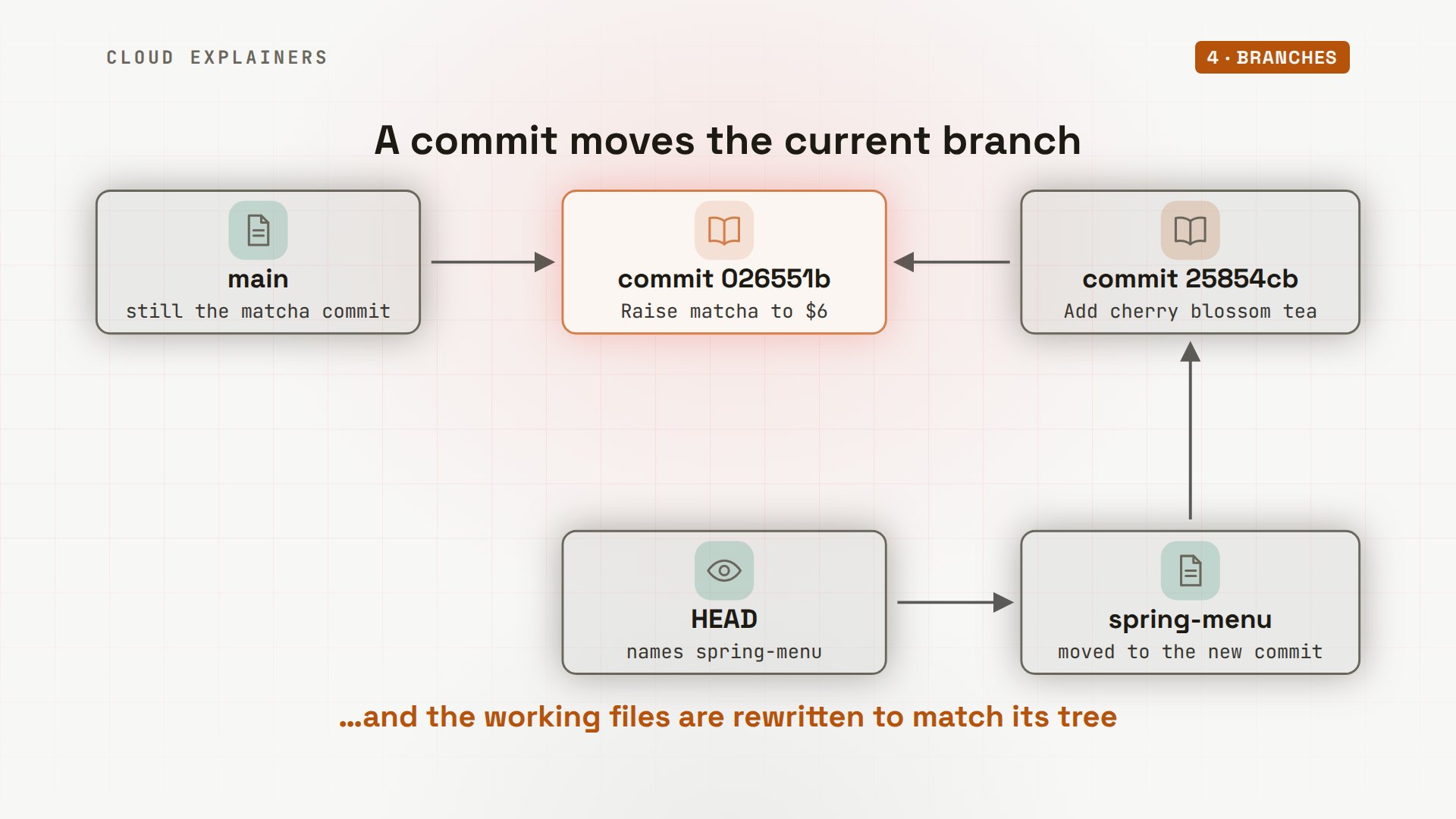
git switch rewrites HEAD to point at the new branch. Ana adds cherry blossom tea, and commits. Now the branch files differ: main holds the old ID, spring-menu the new commit's.
git switch spring-menuSwitched to branch 'spring-menu'
cat .git/HEADref: refs/heads/spring-menu
git commit -am 'Add cherry blossom tea'[spring-menu 25854cb] Add cherry blossom tea
 1 file changed, 1 insertion(+)
cat .git/refs/heads/main .git/refs/heads/spring-menu026551ba8b2dcb87891f41100acffcd41b5f80af
25854cbbbf74cc15c402948e1f268fe8e904a9a8
So a commit does two things: it writes new objects, then moves the branch that HEAD names to the new commit. Nothing else changes. main stays where it was, on the matcha commit. And when you switch to a branch that holds a different commit, Git also rewrites your working files from that commit's tree, so the folder matches it.
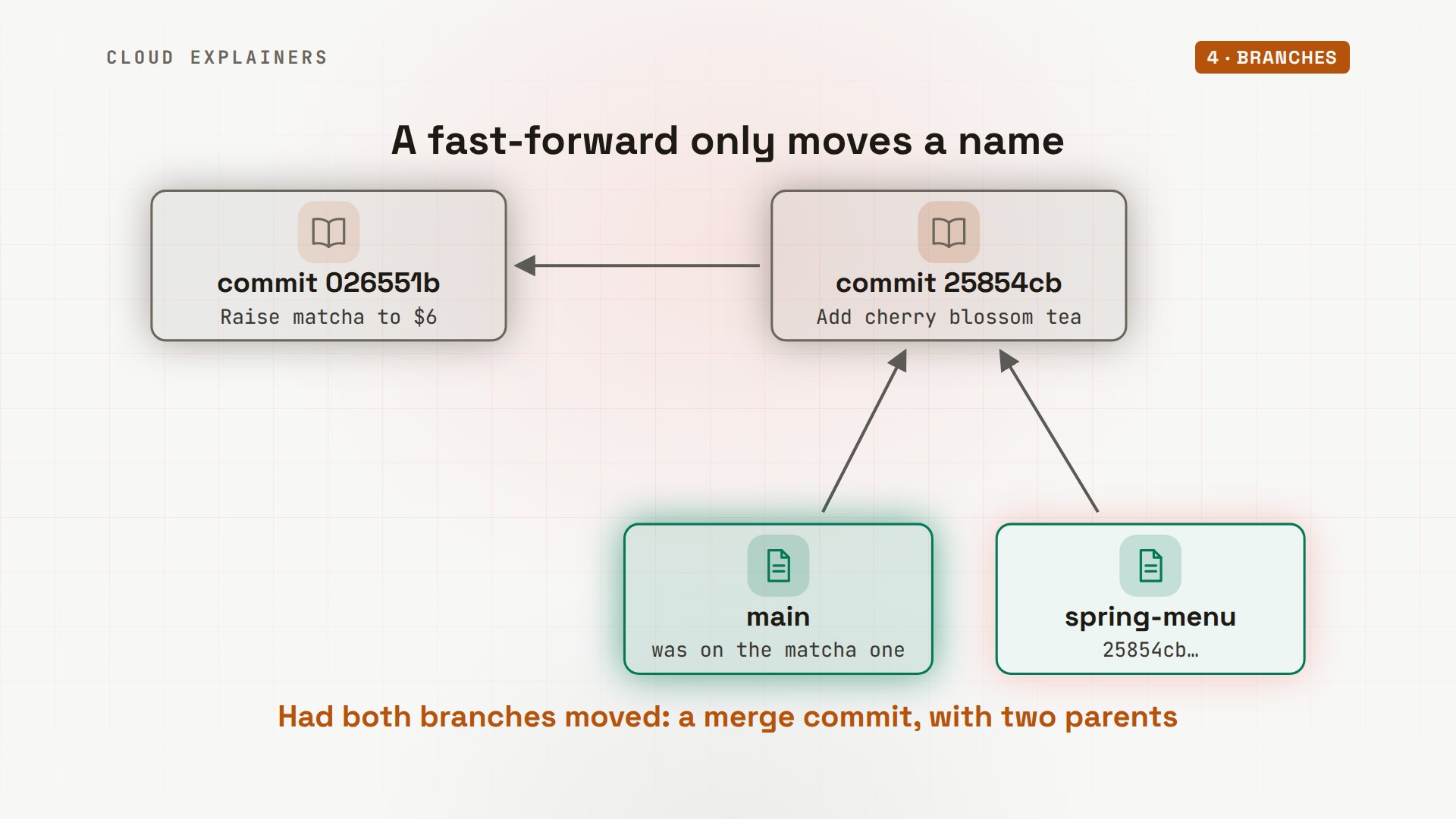
Back on main, Ana merges spring-menu. Fast-forward: main had nothing new of its own, so Git didn't build anything. It just wrote spring-menu's commit ID into main's file.
git switch mainSwitched to branch 'main'
git merge spring-menuUpdating 026551b..25854cb
Fast-forward
 menu.html | 1 +
 1 file changed, 1 insertion(+)
cat .git/refs/heads/main25854cbbbf74cc15c402948e1f268fe8e904a9a8
Here's that merge as a picture. main pointed at the matcha commit, and the cherry blossom commit already has it as its parent. So Git only had to move main forward. If both branches had new commits of their own, Git would write a merge commit instead: a commit with two parents.
Push
So far, all of this lives in Ana's.git folder. If her laptop dies, it's gone. Our lab has a Git server, standing in for GitHub. A push copies two things to it: the objects it doesn't have yet, and the new value of a branch.
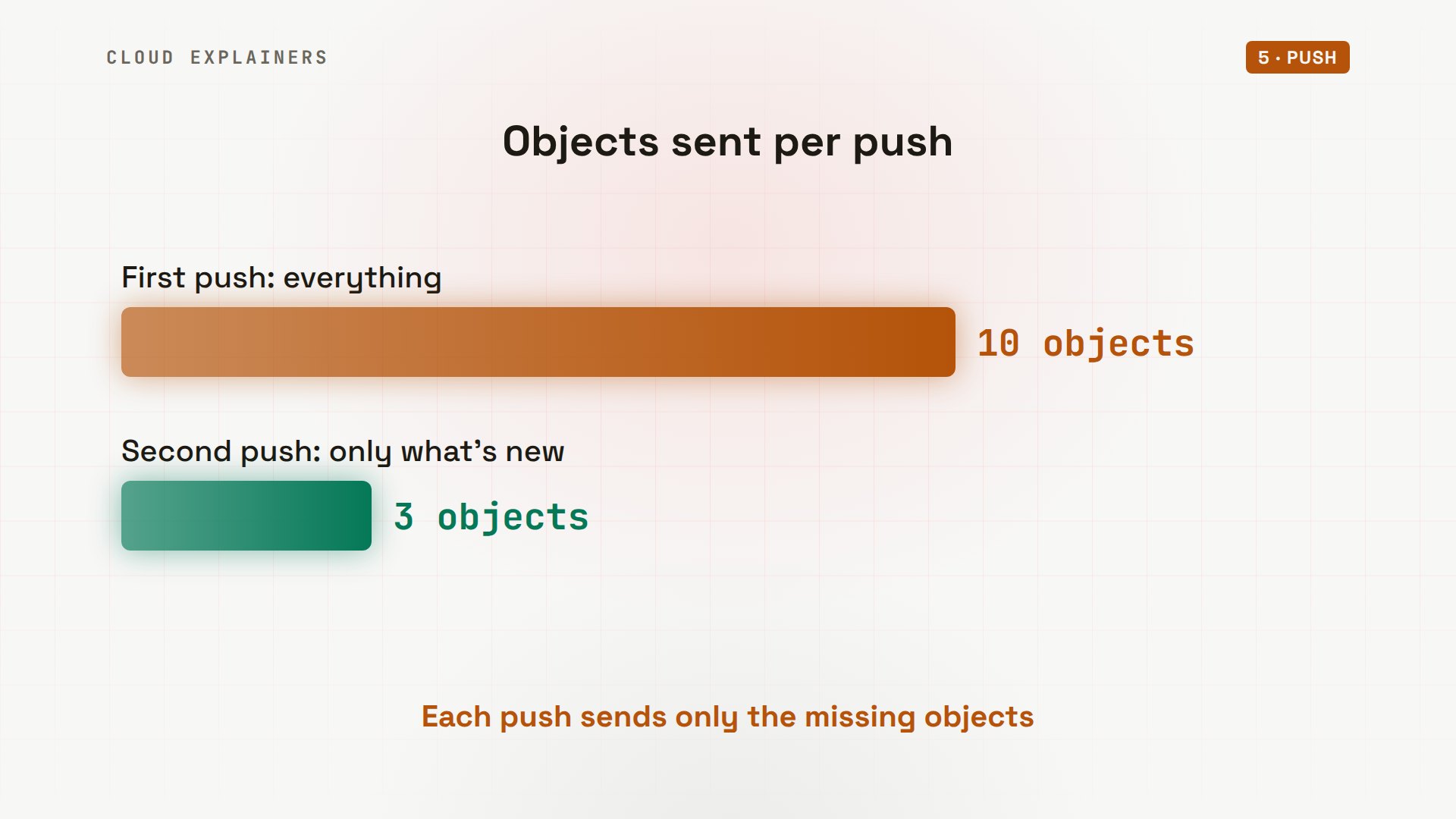
She adds the server under the usual name, origin, and pushes main. The server has nothing yet, so Git writes all 10 objects: four blobs, three trees and three commits.
git remote add origin git@git-server:shop.git
git push -u origin mainEnumerating objects: 10, done.
Counting objects: 100% (10/10), done.
Delta compression using up to 10 threads
Compressing objects: 100% (10/10), done.
Writing objects: 100% (10/10), 908 bytes | 908.00 KiB/s, done.
Total 10 (delta 1), reused 0 (delta 0), pack-reused 0
To git-server:shop.git
 * [new branch]      main -> main
branch 'main' set up to track 'origin/main'.
Ana adds oolong tea, commits, and pushes again. This time: 3 objects. One blob, one tree, one commit: only what's new. Delta one: Git sent one of them as just its difference from an object the server already had.
git commit -am 'Add oolong tea'[main 0d4b325] Add oolong tea
 1 file changed, 1 insertion(+)
git pushEnumerating objects: 5, done.
Counting objects: 100% (5/5), done.
Delta compression using up to 10 threads
Compressing objects: 100% (3/3), done.
Writing objects: 100% (3/3), 310 bytes | 310.00 KiB/s, done.
Total 3 (delta 1), reused 0 (delta 0), pack-reused 0
To git-server:shop.git
   25854cb..0d4b325  main -> main
On the server, the repository is a bare one: just the inside of a.git folder, with no working files. Its main branch file now holds Ana's newest commit ID, and cat-file says that object is a commit.
lsHEAD branches config description hooks info objects refs
cat refs/heads/main0d4b325b80d6ce898e9f0331d3c10fe6462a72fd
git cat-file -t 0d4b325b80d6ce898e9f0331d3c10fe6462a72fdcommit
Here's that second push, step by step. The server tells Ana's Git which commit its main branch holds. Then Ana's Git asks it to move main to the new commit, and sends only the objects the server is missing, packed together. Once it has them, the server moves main, and confirms.
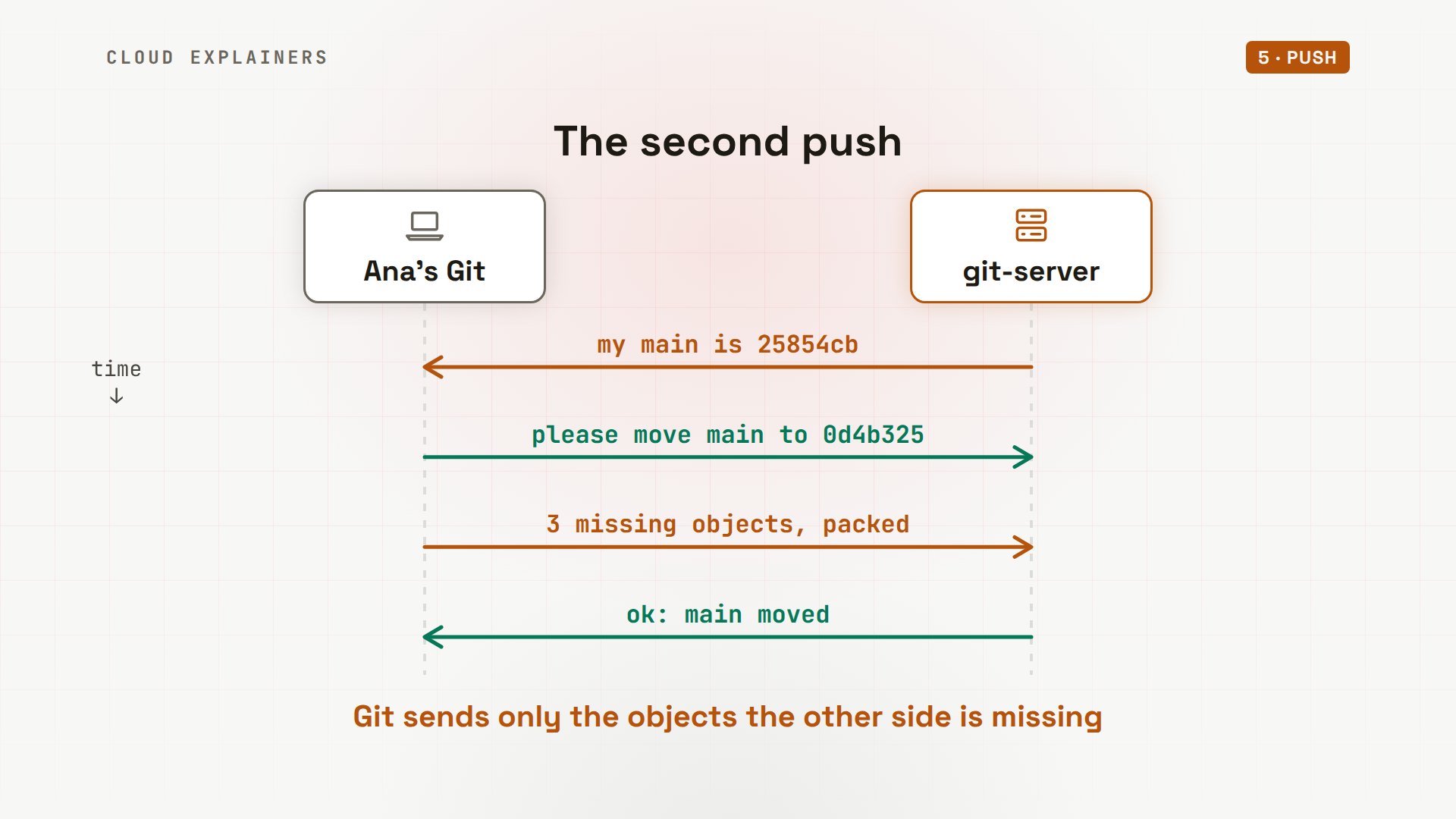
That's why a push is fast, even on a big project. The first push sent 10 objects, the second just 3. On a big project, Git also packs objects into one file, storing similar ones as differences. But every commit still reads back as a full snapshot.
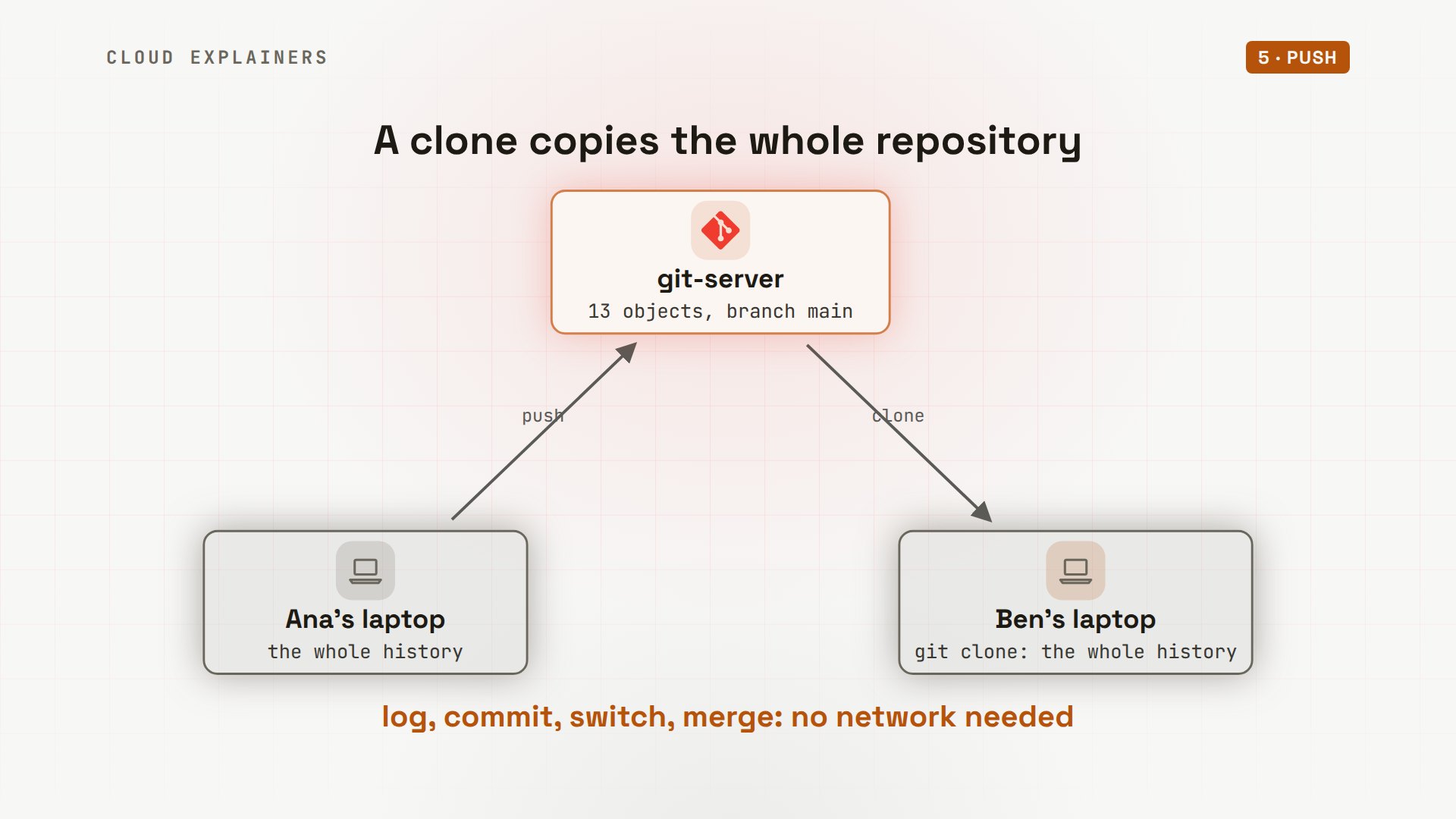
And when a teammate, Ben, clones the project, the server sends him every object and every branch. His laptop gets the whole history, not just today's files. That's why every Git copy is a full backup, and why most commands work with no network at all.
Recap
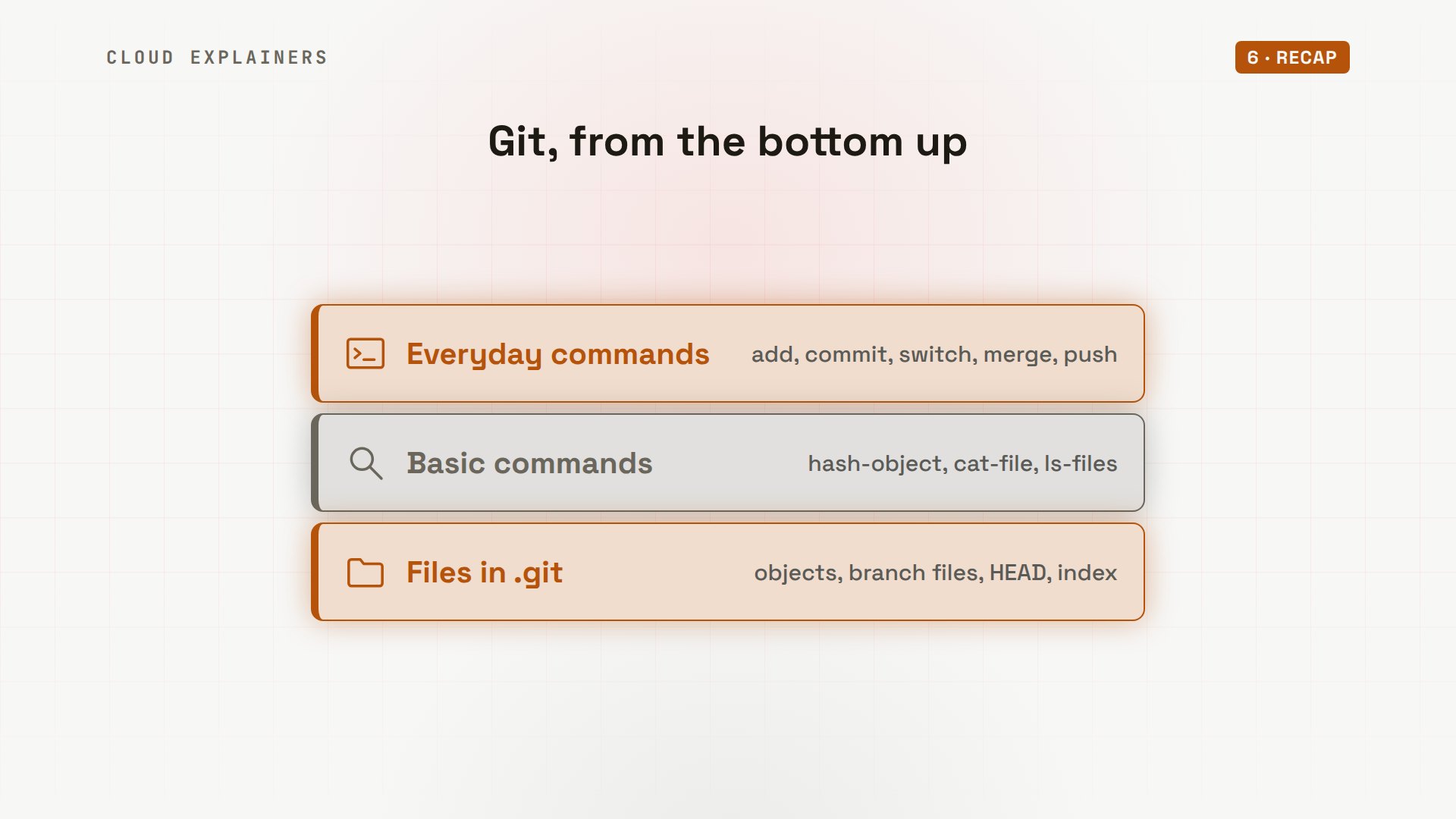
The everyday commands you type, add, commit, switch, merge and push, are built from the same few pieces. Under them sit basic commands that read or write one piece, like hash-object and cat-file. And at the bottom, files in.git: objects, small branch files, HEAD and the index.
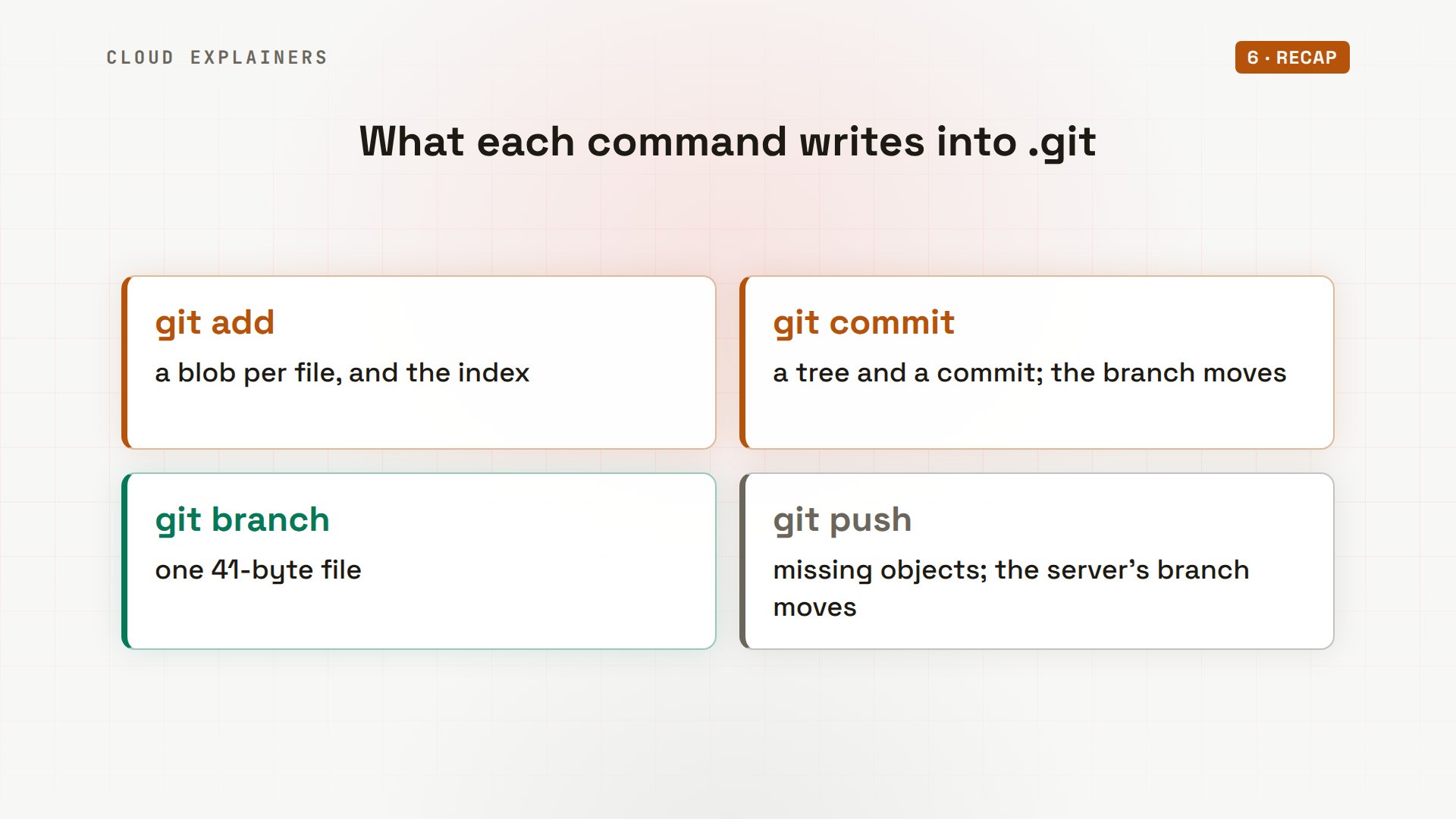
So here's how Git works. git add saves each file's content as a blob, named by its SHA-1, and lists it in the index. git commit saves a tree and a commit, and moves the current branch. A branch is a file holding one commit's ID, and HEAD names the branch you're on. And a push sends the missing objects, then moves the server's branch.
Next time a Git command surprises you, ask what it wrote into.git: which objects, and which branch file moved.
If opening the.git folder made Git feel less like magic, subscribing helps this small channel reach more beginners.
Every command and ID in this video came from a real run of Git 2.43.0, on our own lab machine. Thanks for watching Cloud Explainers.
Sources
Demos: real output from a small Git lab on our own machine: Ana's laptop and a Git server standing in for GitHub, in Docker containers. File edits were made in an editor off-screen; every Git command is shown as typed. Watch the full video on YouTube.
More videos
Why SQLite Is the Most Used Database in the World
How a NoSQL Database Like MongoDB Works
How to Fix Python pip error: externally-managed-environment
How to Fix MySQL Too Many Connections Database Errors
Golang Concurrency Will Finally Make Sense After This
How Amazon S3 Works
How Kubernetes Works
How to Fix Docker Port Already Allocated Errors
How PostgreSQL Works
How to Fix Git Merge Conflicts
How to Fix No Space Left on Device in Linux
How the Internet Works
SQL vs NoSQL: When Each One Wins
How to Fix JWT Token Expired Errors (401 Unauthorized)
Claude API vs Claude Pro: Why Your Subscription Doesn't Include It
Why AI Agent Skills Beat Giant Prompts
Linux Cron Jobs Will Finally Make Sense After This
Security Logs Will Finally Make Sense After This
How to Fix a Security Leak: An API Key Pushed to GitHub
DNS Will Finally Make Sense After This
Never Ignore a Security Update
Two-Factor Authentication Will Finally Make Sense
Never Expose a Database to the Internet
SSH Keys vs Passwords: Which Is Safer for Security?
The 5 Levels of Linux Boot: From Power On to Login
The 5 Levels of Network Firewalls
Password Security: Why Hackers Crack Weak Passwords
Why Your Linux Server Runs Out of Memory
HTTP vs HTTPS: What Actually Changes on Your Network

Every Linux File Permission You Need to Know
Linux Processes vs Threads: When Each One Wins
The OSI Model Will Finally Make Sense After This
The 7 Levels of Git
Every Network Troubleshooting Command You Need
Hashing vs Encryption in Cybersecurity: When Each One Wins
Why the Internet Ran Out of IP Addresses
Linux Package Managers: apt vs Snap vs Flatpak
Why Python Is Slow (and When It Doesn't Matter)
TCP vs UDP: When Each One Wins
Stop Running Linux as Root (Do This Instead)

Linux Users and Groups Will Finally Make Sense

Why Phishing Beats Good Security (and How to Spot It)

The 7 Levels of Docker

AI Agents Will Finally Make Sense After This
Stop Using git push --force (Use This Instead)
Agent Skills vs MCP: When Each One Wins
Networking Will Finally Make Sense After This

Every Linux Command You Actually Need
The 7 Levels of Cybersecurity

Every System Design Concept You Need, in One Diagram