What Happens When You Install Docker on Ubuntu
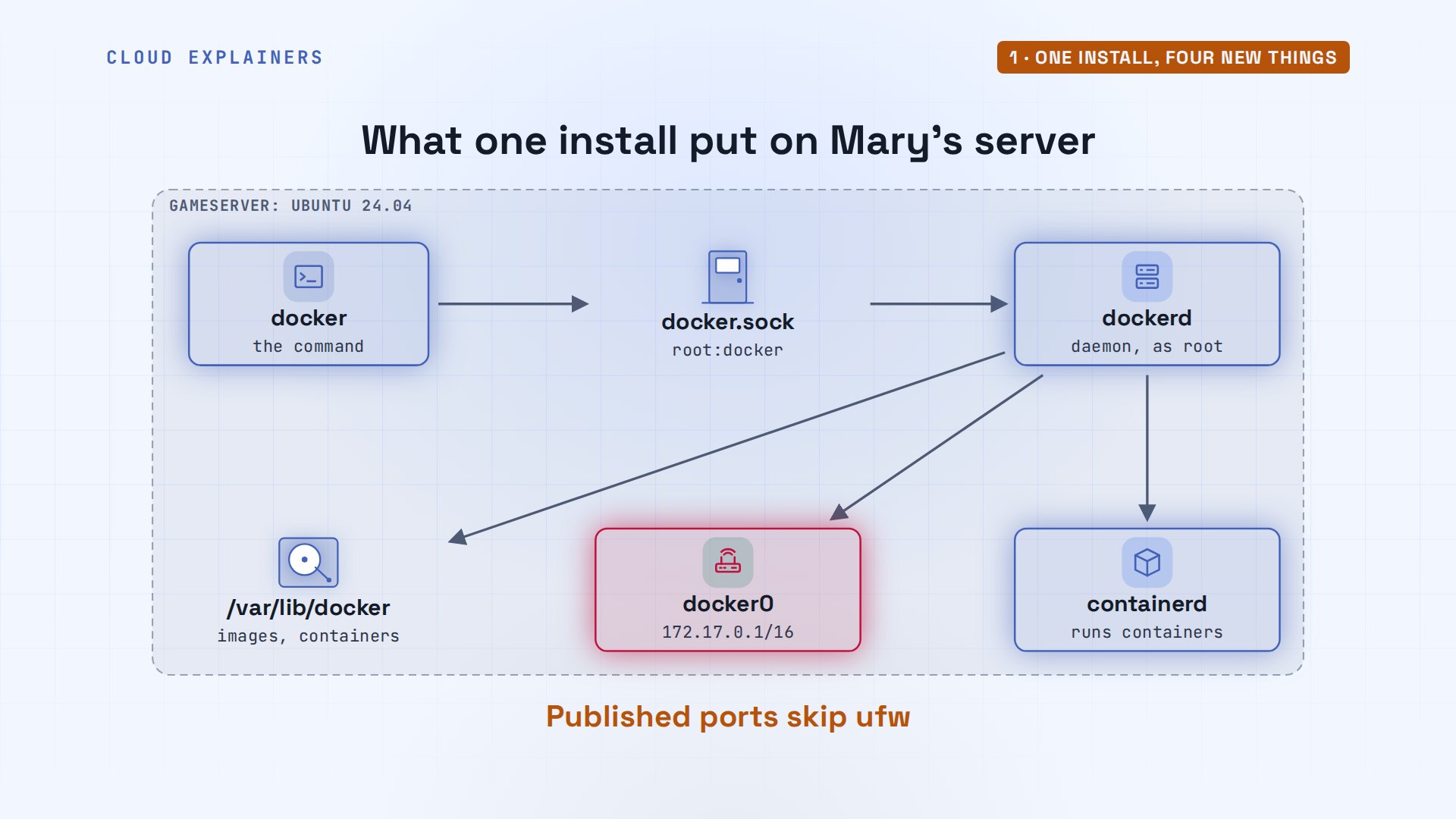
One apt command installs Docker on Ubuntu, and it adds more than you might think. On a real Ubuntu 24.04 server we install Docker 29.10.1 from Docker's own repository, exactly as the docs say, and look at everything it added: a daemon running as root and enabled at boot, a socket only the docker group can use (why you get permission denied), the docker0 network, and published ports that walk straight past ufw.
One install, four new things
You installed Docker on Ubuntu, and it works. But what did that one command put on your server? A daemon running as root, a socket, a new network, and a folder for all your images. And any port you publish walks straight past your firewall.
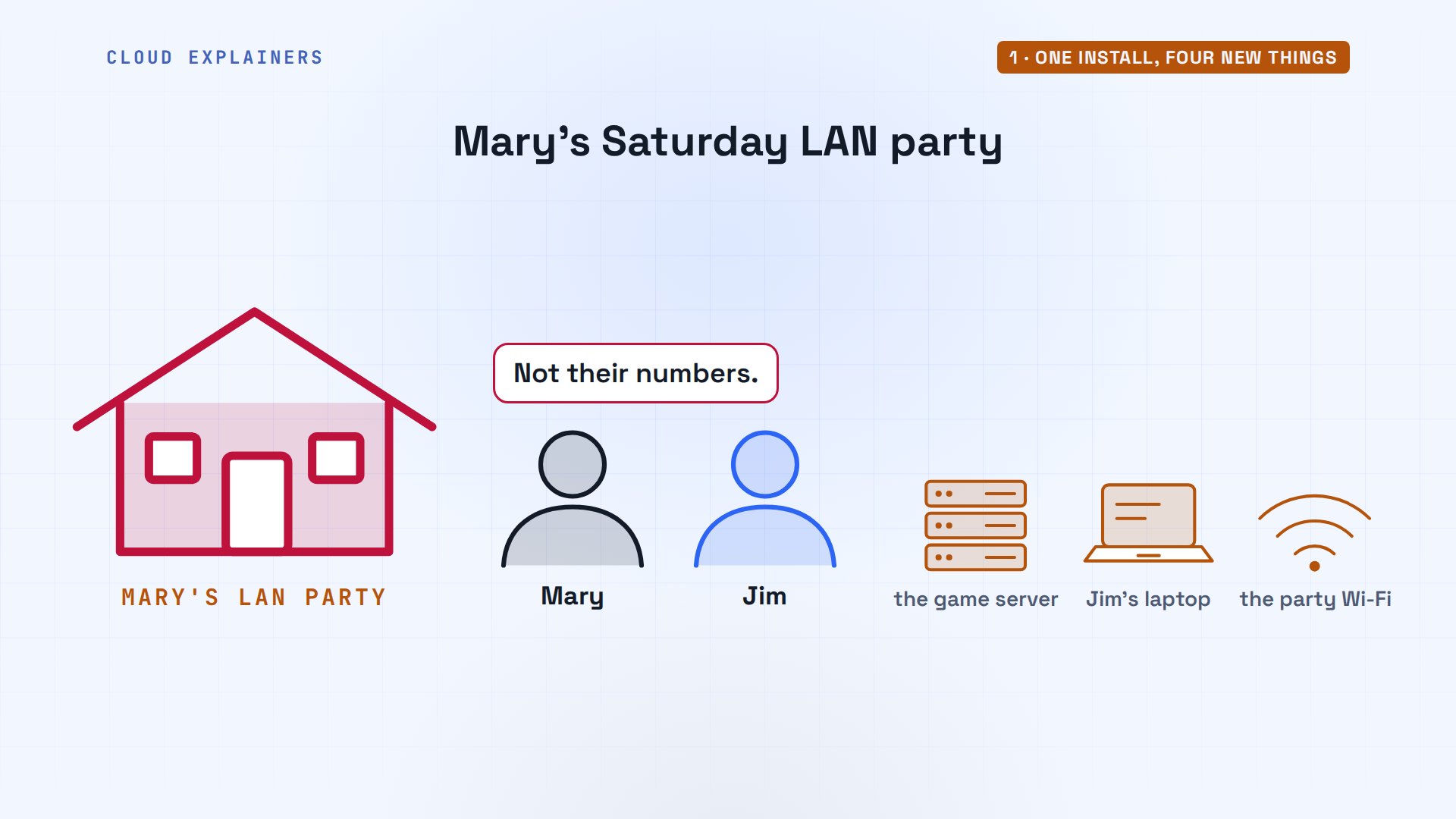
Mary types docker on the small server that runs her LAN party's sign-up page. Ubuntu suggests a snap, or two different apt packages. Docker's own guide suggests another. Nobody suggests reading what it does. Her sign-up page holds every player's name and phone number, so before trusting Docker with it, let's read what the install does.
docker --versionCommand 'docker' not found, but can be installed with:
sudo snap install docker         # version 29.10.0, or
sudo snap install docker         # version 29.8.0
sudo apt  install docker.io      # version 29.1.3-0ubuntu3~24.04.2
sudo apt  install podman-docker  # version 4.9.3+ds1-1ubuntu0.2
See 'snap info <snapname>' for additional versions.
Jim, her teammate, checks it from his laptop on the party Wi-Fi, the same Wi-Fi thirty guests use. So Mary wants two things: the page running in Docker, and nobody on the Wi-Fi reading those numbers.
Docker's own repository
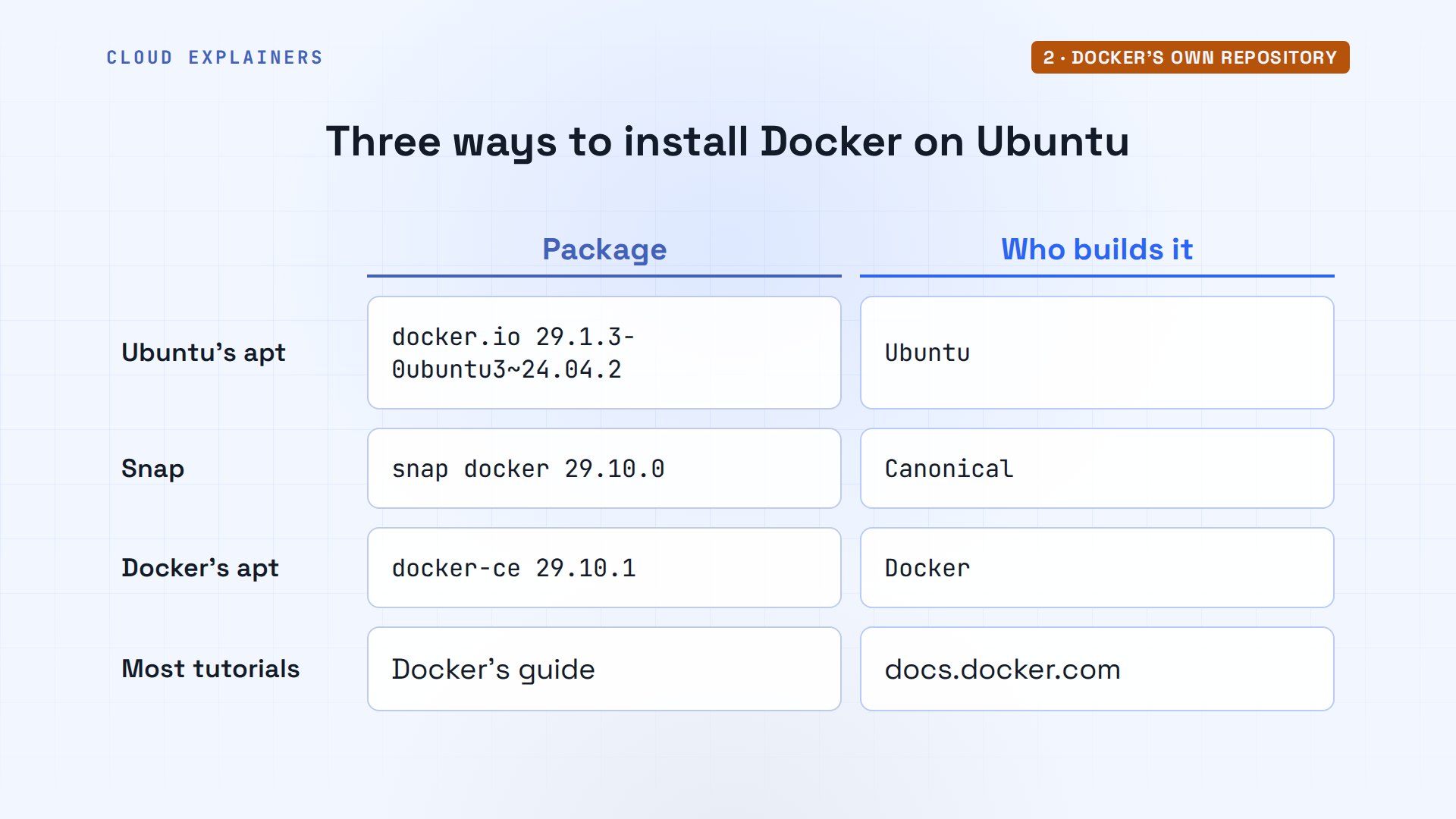
So which Docker should Mary install? There are three, and they're not the same. Ubuntu's own package, docker dot I O, built by Ubuntu. The snap, packaged by Canonical. And Docker's own repository: the newest version, straight from Docker, with Compose and the build plugin. Mary follows Docker's guide, which is what most tutorials assume.
Step one teaches apt to trust Docker. apt only installs packages signed by a key it knows, so Mary makes a keyrings folder, downloads Docker's public key into it, and makes it readable. It's just a plain block of text, and from now on apt checks every Docker download against it.
sudo install -m 0755 -d /etc/apt/keyrings
sudo curl -fsSL https://download.docker.com/linux/ubuntu/gpg -o /etc/apt/keyrings/docker.asc
sudo chmod a+r /etc/apt/keyrings/docker.asc
head -3 /etc/apt/keyrings/docker.asc-----BEGIN PGP PUBLIC KEY BLOCK-----

mQINBFit2ioBEADhWpZ8/wvZ6hUTiXOwQHXMAlaFHcPH9hAtr4F1y2+OYdbtMuth
Step two tells apt where Docker's packages are. One command writes a small file. It holds Docker's address, this Ubuntu's code name, noble, and the key to check. Then apt update reads that file. Now download dot docker dot com is one of apt's sources, and apt offers docker C E, the free Community Edition.
sudo tee /etc/apt/sources.list.d/docker.sources <<EOF
Types: deb
URIs: https://download.docker.com/linux/ubuntu
Suites: $(. /etc/os-release && echo "${UBUNTU_CODENAME:-$VERSION_CODENAME}")
Components: stable
Architectures: $(dpkg --print-architecture)
Signed-By: /etc/apt/keyrings/docker.asc
EOFTypes: deb
URIs: https://download.docker.com/linux/ubuntu
Suites: noble
Components: stable
Architectures: amd64
Signed-By: /etc/apt/keyrings/docker.asc
sudo apt updateGet:1 https://download.docker.com/linux/ubuntu noble InRelease [48.5 kB]
Get:2 https://download.docker.com/linux/ubuntu noble/stable amd64 Packages [75.7 kB]
Hit:3 http://archive.ubuntu.com/ubuntu noble InRelease
Hit:4 http://security.ubuntu.com/ubuntu noble-security InRelease
Hit:5 http://archive.ubuntu.com/ubuntu noble-updates InRelease
Hit:6 http://archive.ubuntu.com/ubuntu noble-backports InRelease
Fetched 124 kB in 1s (234 kB/s)
Reading package lists... Done
Building dependency tree... Done
Reading state information... Done
64 packages can be upgraded. Run 'apt list --upgradable' to see them.
apt-cache policy docker-ce | head -4docker-ce:
  Installed: (none)
  Candidate: 5:29.10.1-1~ubuntu.24.04~noble
  Version table:
The install
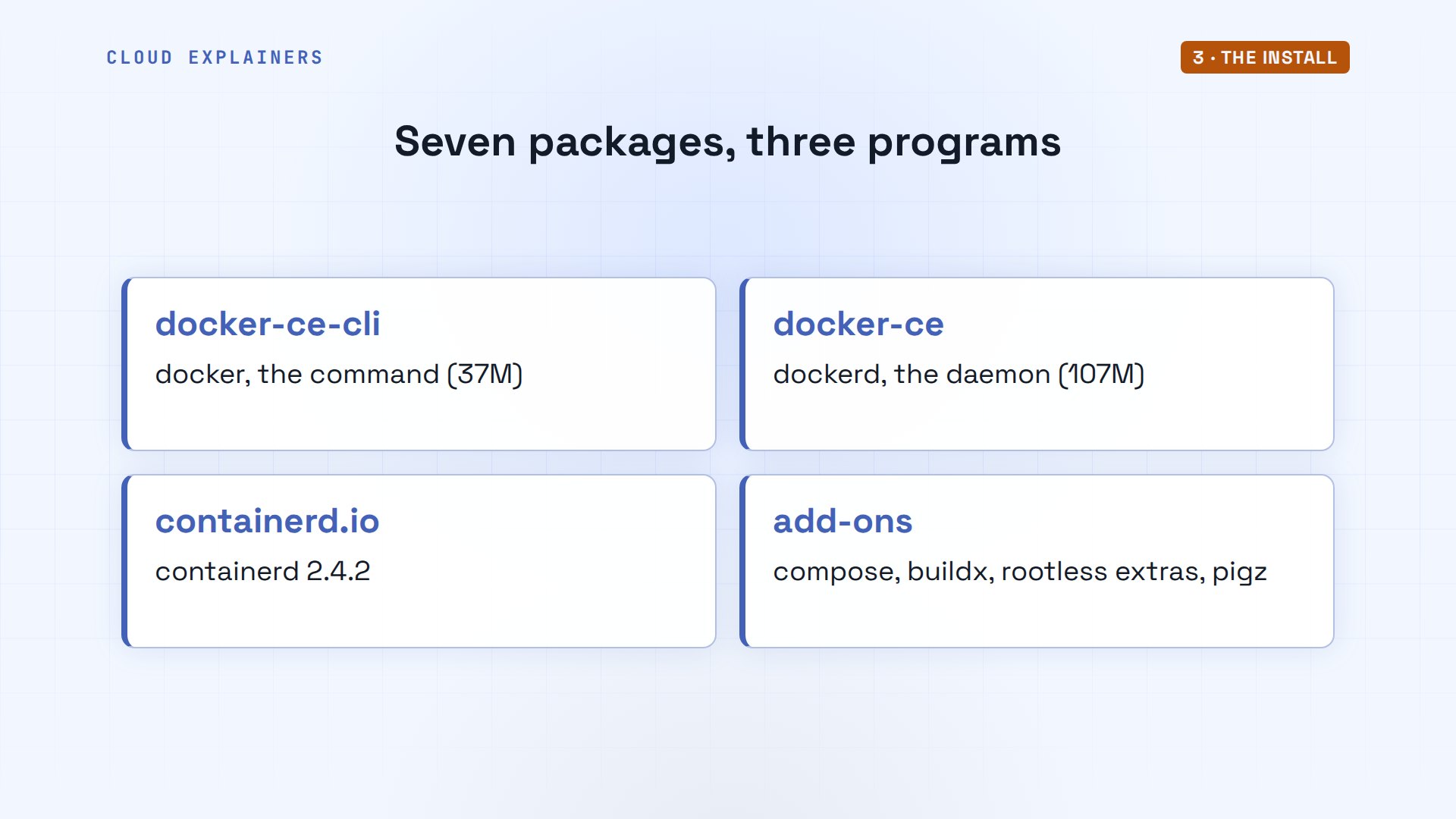
Now the install itself: five package names. apt adds two more that they need, so seven new packages, 94.2 megabytes to download. Guess first: how much disk will it take? 379 megabytes, and that's before a single image, the package a container runs from. Near the end, look for two lines that start with created symlink. They tell the server to start Docker on every boot.
sudo apt install docker-ce docker-ce-cli containerd.io docker-buildx-plugin docker-compose-plugindocker-ce-rootless-extras pigz cgroupfs-mount | cgroup-lite docker-model-plugin The following NEW packages will be installed: containerd.io docker-buildx-plugin docker-ce docker-ce-cli docker-ce-rootless-extras docker-compose-plugin pigz 0 upgraded, 7 newly installed, 0 to remove and 64 not upgraded. Need to get 94.2 MB of archives.
After this operation, 379 MB of additional disk space will be used.
Created symlink /etc/systemd/system/multi-user.target.wants/containerd.service → /usr/lib/systemd/system/containerd.service.
Created symlink /etc/systemd/system/multi-user.target.wants/docker.service → /usr/lib/systemd/system/docker.service.
Created symlink /etc/systemd/system/sockets.target.wants/docker.socket → /usr/lib/systemd/system/docker.socket.
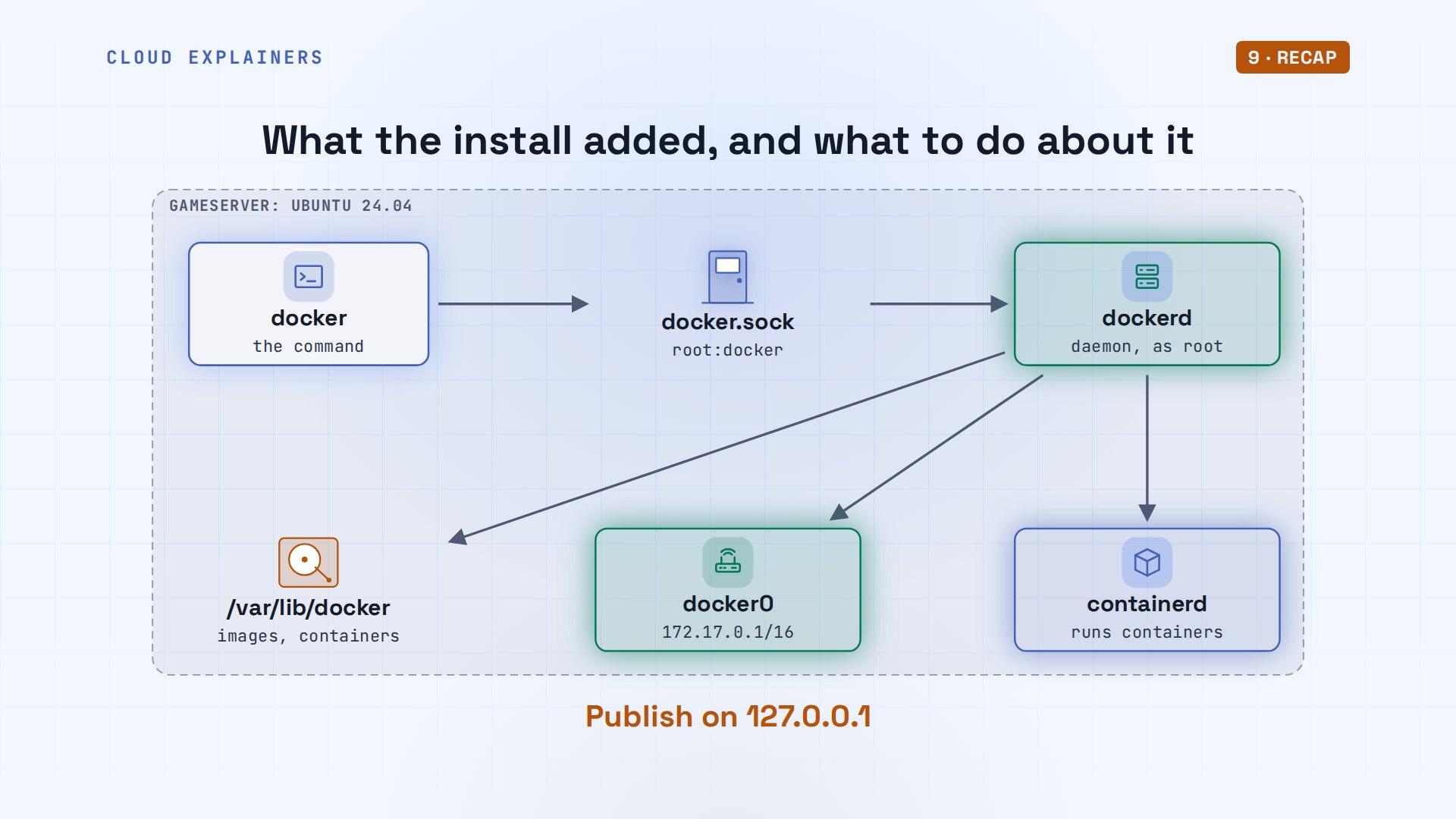
Seven packages, but really three programs. docker is the command you type. dockerd is the daemon, a background service that handles your requests, images and networks. And containerd is what actually starts and stops the containers, the running apps, for it. The rest are add-ons: compose, for apps made of several containers, buildx, for building images, and pigz, a faster unzip.
What it added
Guess first: Mary hasn't started anything yet. Is Docker running? Yes. system control, Ubuntu's service manager, says it started itself the moment the install finished, and it's enabled, so it starts on every boot. ps, which lists running programs, shows the two that stay up: containerd, and dockerd, both as root, the server's all-powerful administrator.
systemctl status docker --no-pager --lines=0● docker.service - Docker Application Container Engine
     Loaded: loaded (/usr/lib/systemd/system/docker.service; enabled; preset: enabled)
     Active: active (running) since Fri 2026-11-27 03:18:37 UTC; 2s ago
TriggeredBy: ● docker.socket
       Docs: https://docs.docker.com
   Main PID: 7033 (dockerd)
      Tasks: 15
     Memory: 28.2M (peak: 29.9M)
        CPU: 405ms
     CGroup: /system.slice/docker.service
             └─7033 /usr/bin/dockerd -H fd:// --containerd=/run/containerd/cont…
systemctl is-enabled docker.service docker.socket containerd.serviceenabled
enabled
enabled
ps -eo user,pid,cmd | grep -E 'dockerd|containerd' | grep -v greproot        6908 /usr/bin/containerd
root        7033 /usr/bin/dockerd -H fd:// --containerd=/run/containerd/containerd.sock
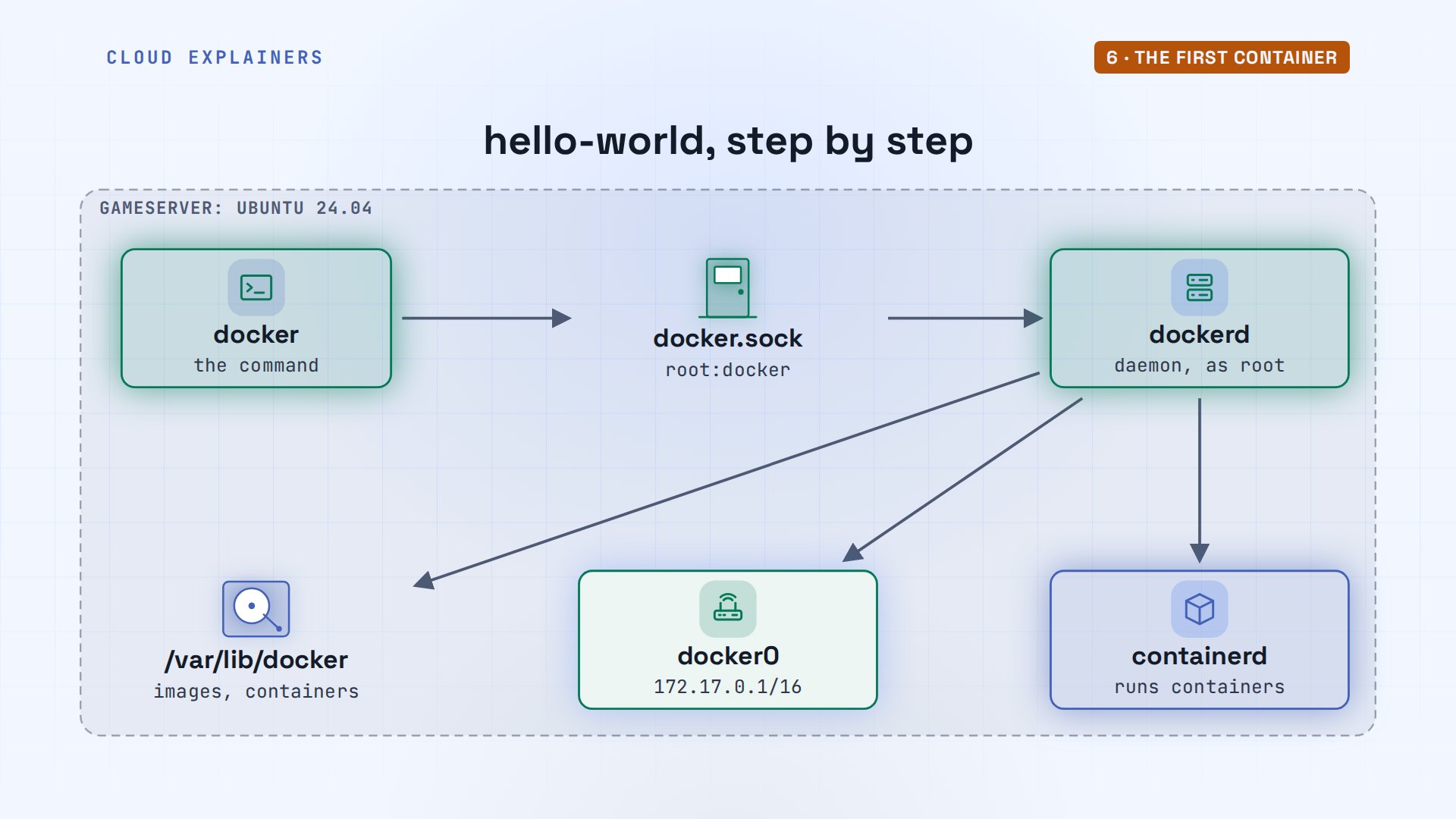
So how does the docker command talk to a daemon that runs as root? Through a socket: a file at var run docker dot sock. Think of it as the counter window of a kitchen: you pass your order through, and the cook does the work. Its owner is root, and its group is docker, a new group the install created. And the group is empty.
ls -l /var/run/docker.socksrw-rw---- 1 root docker 0 Nov 27 03:18 /var/run/docker.sock
getent group dockerdocker:x:988:
Three more things appeared. A new virtual network card called docker zero, with its own private address: the network containers will plug into. It says down, because nothing is plugged in yet. Docker also changed a firewall setting on its own: forwarding, set to drop. If this box runs virtual machines, check they still connect. And var lib docker, where images and containers will live: 212 kilobytes today.
ip -br addr show docker0docker0 DOWN 172.17.0.1/16
sudo iptables -S FORWARD | head -2-P FORWARD DROP
-A FORWARD -j DOCKER-USER
sudo ls /var/lib/dockerbuildkit    engine-id  network	runtimes  tmp
containers  image      plugins	swarm	  volumes
sudo du -sh /var/lib/docker /usr/bin/dockerd /usr/bin/containerd /usr/bin/docker212K	/var/lib/docker
107M	/usr/bin/dockerd
43M	/usr/bin/containerd
37M	/usr/bin/docker
Permission denied
And now the moment almost everyone hits. Mary runs her first container, hello world, and Docker refuses: permission denied, connecting to the socket. The window is there, but Mary isn't in the docker group, so it won't take her order.
docker run hello-worldpermission denied while trying to connect to the docker API at unix:///var/run/docker.sock
Docker's guide says it plainly: the docker group exists, but contains no users. So you either type sudo every time, or you add yourself to the group.
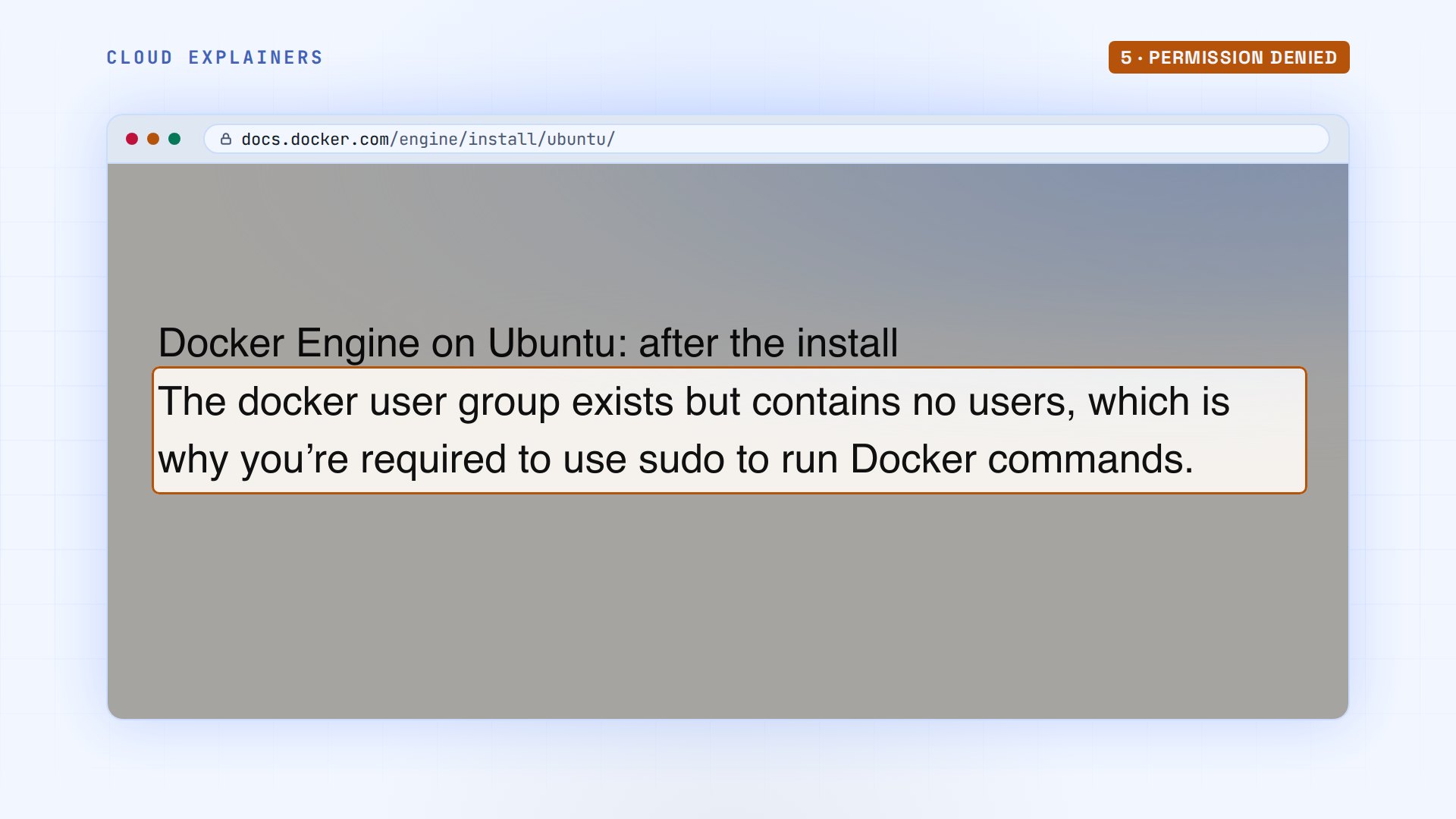
Mary adds herself to the group with user mod. But when she checks with the groups command, it still lists only mary and sudo: a group change only reaches a new login. She logs out and back in, and now docker is there. One warning from Docker's own guide: the docker group is as powerful as root, because the daemon it talks to runs as root. Only add people you'd give sudo: the right to run commands as root.
sudo usermod -aG docker mary
groupsmary sudo
groupsmary sudo docker
The first container
Now hello world runs, and it explains itself. The docker command contacted the daemon. The daemon pulled the image from Docker Hub, Docker's online library of images. It created a container, a running copy of that image, and streamed what it printed back to Mary's terminal. Four steps, through the parts we just met.
Next, the real thing. Mary starts the sign-up page in an engine X container, a small web server, pointed at her signups folder, read only. She publishes it on port eighty eighty, which means Docker opens that port on the server and passes visitors through to the container. Docker pulls the image first, and var lib docker grows to 167 megabytes. curl fetches the page: twenty four players signed up. And docker zero is up now, with the container plugged in.
docker run -d --name signups --restart unless-stopped -p 8080:80 -v ~/signups:/usr/share/nginx/html:ro nginxUnable to find image 'nginx:latest' locally
Status: Downloaded newer image for nginx:latest
da6e9c46dfbb24321c19ea2ad07a6689985179f01ed85ea70d62b8461ae83340
sudo du -sh /var/lib/docker[sudo] password for mary:
167M	/var/lib/docker
curl -s localhost:8080 | grep Signed<p id="count">Signed up: 24 players, 6 teams</p>
ip -br link | grep -E 'docker0|veth'docker0          UP             8e:2a:4e:72:a9:8e <BROADCAST,MULTICAST,UP,LOWER_UP>
veth5df949b@if2  UP             a6:5c:c9:5a:29:14 <BROADCAST,MULTICAST,UP,LOWER_UP>
The firewall surprise
And this is where it surprises people. Before Docker, Mary had switched on U F W, Ubuntu's firewall, allowing only S S H in. To check it, she starts a plain test server on port eight thousand, outside Docker, and tries it from Jim's laptop: no answer. The firewall works. Guess first: can Jim reach the sign-up page on port eighty eighty? Yes. Every name and phone number, for anyone on the party Wi-Fi.
sudo ufw status[sudo] password for mary:
Status: active

To                         Action      From
--                         ------      ----
OpenSSH                    ALLOW       Anywhere
OpenSSH (v6)               ALLOW       Anywhere (v6)
curl -s -m 3 gameserver:8000 || echo 'no answer'no answer
curl -s -m 3 gameserver:8080 | grep Signed<p id="count">Signed up: 24 players, 6 teams</p>
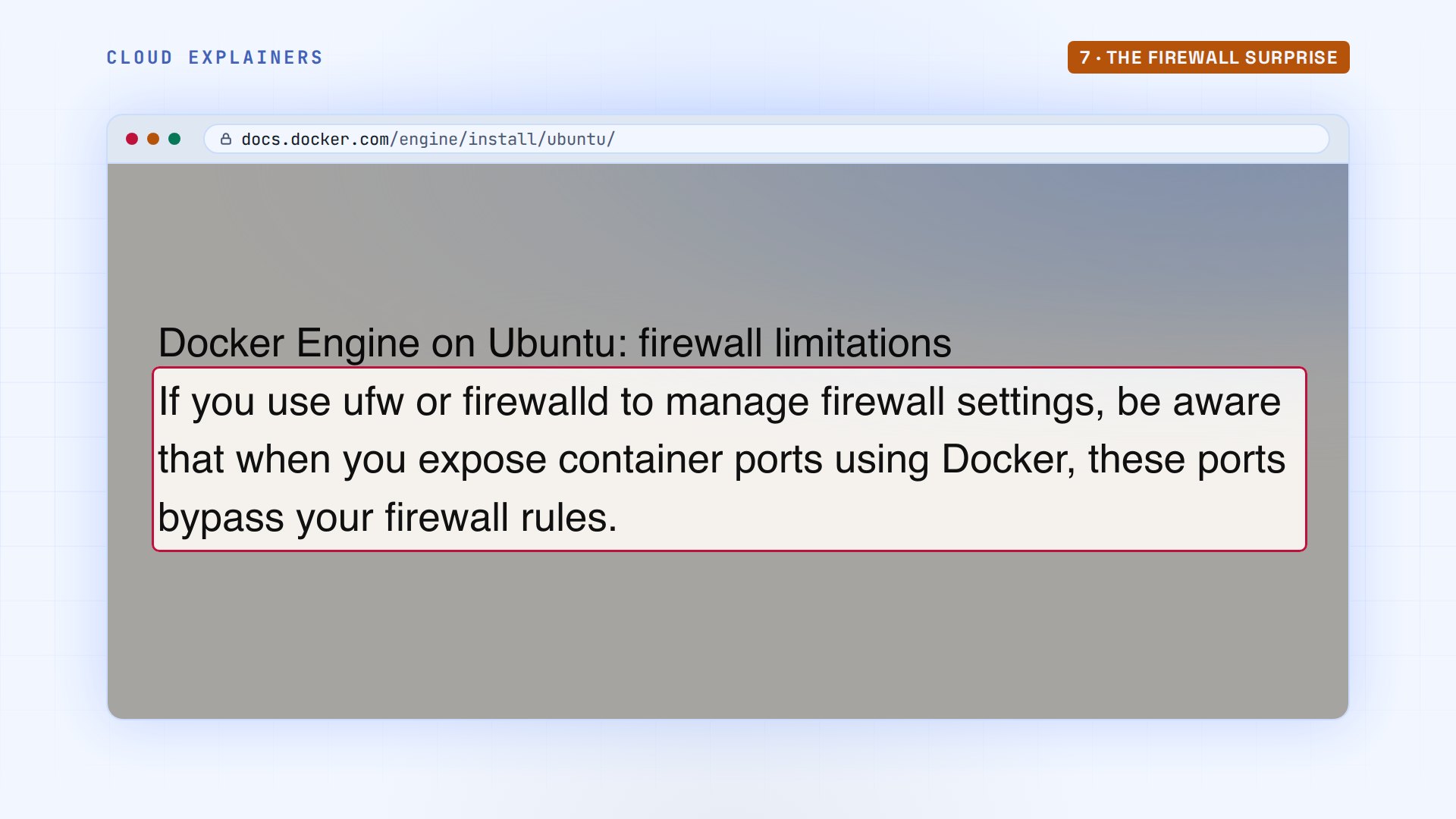
Why? When Docker publishes a port, it adds its own rule to Linux's traffic rules, one that redirects traffic for port eighty eighty straight to the container, before U F W ever gets a look at it. So U F W never even sees that traffic.
sudo iptables -t nat -S DOCKER-N DOCKER
-A DOCKER ! -i docker0 -p tcp -m tcp --dport 8080 -j DNAT --to-destination 172.17.0.2:80
It's in Docker's own install guide, under firewall limitations: ports you expose with Docker bypass your firewall rules.
The fix is one change to the port. A container's ports can't be changed later, so Mary removes it, and starts it again with one two seven dot zero dot zero dot one, also called localhost, in front, which means: only on this server itself. Jim's laptop: no answer. On the server, the page still loads. Mary and Jim can still reach it by connecting over S S H, which the firewall allows, and passing the page through that connection: an S S H tunnel. The guests can't.
docker rm -f signupssignups
docker run -d --name signups --restart unless-stopped -p 127.0.0.1:8080:80 -v ~/signups:/usr/share/nginx/html:ro nginx5439d701038eb6a6790f4ce80ea69f21994f98f0677b51b3ad77ebe5a8eb3577
curl -s -m 3 gameserver:8080 || echo 'no answer'no answer
curl -s localhost:8080 | grep Signed<p id="count">Signed up: 24 players, 6 teams</p>
After a restart
Last question: what happens when the server restarts? Mary reboots it. Uptime: up zero minutes. And docker ps, which lists running containers, shows the sign-up page up again, 7 seconds old, still only on localhost. The service the install enabled started Docker, and restart unless stopped brought the container back, with nobody touching it.
uptime -pup 0 minutes
docker ps --format 'table {{.Names}}\t{{.Status}}\t{{.Ports}}'NAMES     STATUS         PORTS
signups   Up 7 seconds   127.0.0.1:8080->80/tcp
curl -s localhost:8080 | grep Signed<p id="count">Signed up: 24 players, 6 teams</p>
Recap
So, installing Docker on Ubuntu gives you three things. A root daemon that starts on every boot. A socket only the docker group can use, so join it and log in again. And published ports that skip your firewall, so publish on localhost unless you mean everyone.
If your server makes a bit more sense now, a like helps YouTube show this to more beginners, and subscribing brings the next one, run on a real machine.
Every command and line of output in this video came from a real Ubuntu server, and the lab files are linked in the description. Thanks for watching Cloud Explainers.
Sources
Demos: two containers on our own lab server standing in for a LAN party's game server and a laptop on its Wi-Fi; the party and its people are made up. Every command and line of output was real. Watch the full video on YouTube.
More videos
Every PostgreSQL Setting to Change After You Install It

How to Fix Python 'Address Already in Use' Errors
Golang Interfaces and Mocks in 5 Minutes

How to Fix Git 'Detached HEAD' State
Linux Firewall with ufw: Full Tutorial for Beginners
Golang defer Statements in 5 Minutes
How to Fix OAuth 'invalid_grant' Errors

The SQL Roadmap for Beginners
Golang make() for Slices and Maps in 5 Minutes
How to Fix Network 'No Route to Host' Errors on Linux

How to Fix Linux 'Too Many Open Files' Errors

Every Django Concept a Beginner Needs to Know
SSH on Linux: Full Tutorial for Beginners

Golang for range Loops in 5 Minutes
SQL Databases: SQLite vs PostgreSQL
The Django Roadmap for Beginners

Golang Structs in 5 Minutes
Redis: Full Tutorial for Beginners

Golang context.Context in 5 Minutes
How to Fix MySQL Database Error 1045: Access Denied for User
Golang Method Receivers in 5 Minutes
How to Fix Python SSL: CERTIFICATE_VERIFY_FAILED Errors

How to Fix Django Static Files Not Loading in Production
OpenRouter vs Direct API Keys: Which One Should You Use?
Golang if err != nil Checks in 5 Minutes

How to Fix Golang 'go.mod File Not Found' Errors

MCP Servers: Full Tutorial for Beginners

Golang Error Return Values in 5 Minutes

How to Fix Python ModuleNotFoundError: No Module Named
Golang Pointers in 5 Minutes
How to Fix a Kubernetes Pod Stuck in CrashLoopBackOff
How to Fix a Homelab ESXi Host Not Responding
PostgreSQL: Full Tutorial for Beginners
How a Load Balancer Works with HAProxy

How Python Virtual Environments Work
How to Fix Cloudflare Tunnel Errors in a Homelab
How to Fix API CORS Errors: No 'Access-Control-Allow-Origin'

How Authenticator App Login Codes Work (TOTP)
Git and GitHub: Full Tutorial for Beginners
How a Homelab Hypervisor Works (VMware ESXi)
How to Fix Kubernetes ImagePullBackOff Errors

How to Fix DNS 'Temporary Failure in Name Resolution' on Linux
How to Fix AWS CLI 'Unable to Locate Credentials'
Proxmox vs ESXi for Your Homelab: When Each One Wins
PostgreSQL UUID vs Auto Increment: Which Primary Key Should You Use?
Kubernetes: Full Tutorial for Beginners

How TCP Sockets Work

How to Fix PostgreSQL 'Could Not Connect to Server'
Claude Code Hooks Will Finally Make Sense After This
DevOps with Ansible Will Finally Make Sense After This
How SNMP Network Monitoring Works
How to Fix GitHub 'Permission Denied (publickey)' Errors
Docker: Full Tutorial for Beginners
How to Fix PostgreSQL 'Password Authentication Failed'
Why One Linux Server Handles More Users Than You Think
How to Fix Network 'Connection Refused' Errors
DevOps Pipelines: Jenkins vs GitHub Actions
Linux Nginx Reverse Proxy: Full Tutorial for Beginners
Every Networking Term a Beginner Needs in 12 Minutes
How to Fix Docker 'Permission Denied' on docker.sock
How to Fix Git 'Updates Were Rejected' When You Push
How to Fix nginx 502 Bad Gateway Errors on Linux
How to Fix Linux apt 'Could Not Get Lock' Errors (Ubuntu)

How Email Works on the Internet (SMTP) in 10 Minutes
The Python Roadmap for Beginners

Golang REST API with Gin: Full Tutorial for Beginners
How a WireGuard VPN Network Works

Linux Makefiles Will Finally Make Sense After This

SAML vs OAuth vs OpenID Connect: What's the Difference?
How to Fix Python cron Jobs That Never Run
Linux Bash Scripting: Full Tutorial for Beginners
How PXE Network Boot Works
How Active Directory Works

How to Fix a Linux systemd Service That Won't Start
Linux Logs: syslog vs journald
JWT vs Session Cookies: Which One Should You Use?
Docker vs Docker Compose: Which One Should You Use?
How to Fix Docker Compose Containers That Can't Talk to Each Other
Django Full Tutorial for Beginners
How Linux systemd Works

How to Fix 'Windows Cannot Access' Network Share Errors (SMB)
REST vs gRPC: Which One Should You Use?
How to Fix SSL Certificate Chain Errors (Missing Intermediate)
Every Python Concept for Beginners in 10 Minutes
Every SQL Join Type in 10 Minutes
Why OpenRouter Free Models Hit Their Limit So Fast
Why Your Gemini API Free Tier Runs Out So Fast

OpenRouter Will Finally Make Sense After This
How Redis Caching Works
Gemini API vs Vertex AI: Which One Should You Use?
How to Fix a Leaked Gemini API Key
Why Golang Uses Goroutines Instead of Threads
How to Fix Gemini API Error 429: Resource Exhausted

Claude Token Pricing Will Finally Make Sense After This
Why Python Web Scraping Returns Nothing (and the Fix)
Python uv vs pip: Which One Should You Use?
Python Automation: Full Tutorial for Beginners
How OAuth Login Works

Google AI Studio Will Finally Make Sense After This
What Happens When You Run a Docker Container
How to Fix Claude Code Billing Your API Key Instead of Your Plan
Why Passkeys Can't Be Phished Like Passwords
PowerShell vs Bash: Which One Should You Learn?
The Linux Roadmap for Beginners
Django vs FastAPI: Which One Should You Use?
Why SQLite Is the Most Used Database in the World
How a NoSQL Database Like MongoDB Works
How to Fix Python pip error: externally-managed-environment
How to Fix MySQL Too Many Connections Database Errors
Golang Concurrency Will Finally Make Sense After This
How Amazon S3 Works
How Kubernetes Works

How Git Works
How to Fix Docker Port Already Allocated Errors
How PostgreSQL Works
How to Fix Git Merge Conflicts

How to Fix No Space Left on Device in Linux
How the Internet Works
SQL vs NoSQL: When Each One Wins
How to Fix JWT Token Expired Errors (401 Unauthorized)
Claude API vs Claude Pro: Why Your Subscription Doesn't Include It
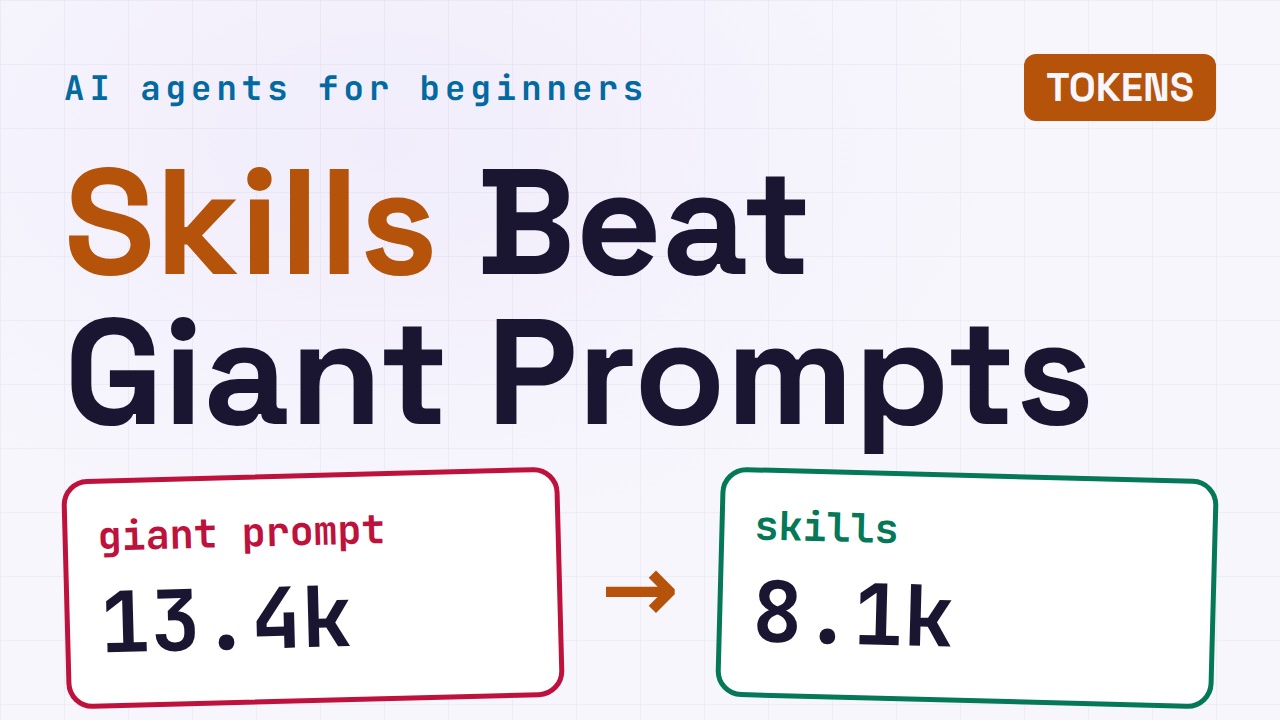
Why AI Agent Skills Beat Giant Prompts

Linux Cron Jobs Will Finally Make Sense After This

Security Logs Will Finally Make Sense After This
How to Fix a Security Leak: An API Key Pushed to GitHub
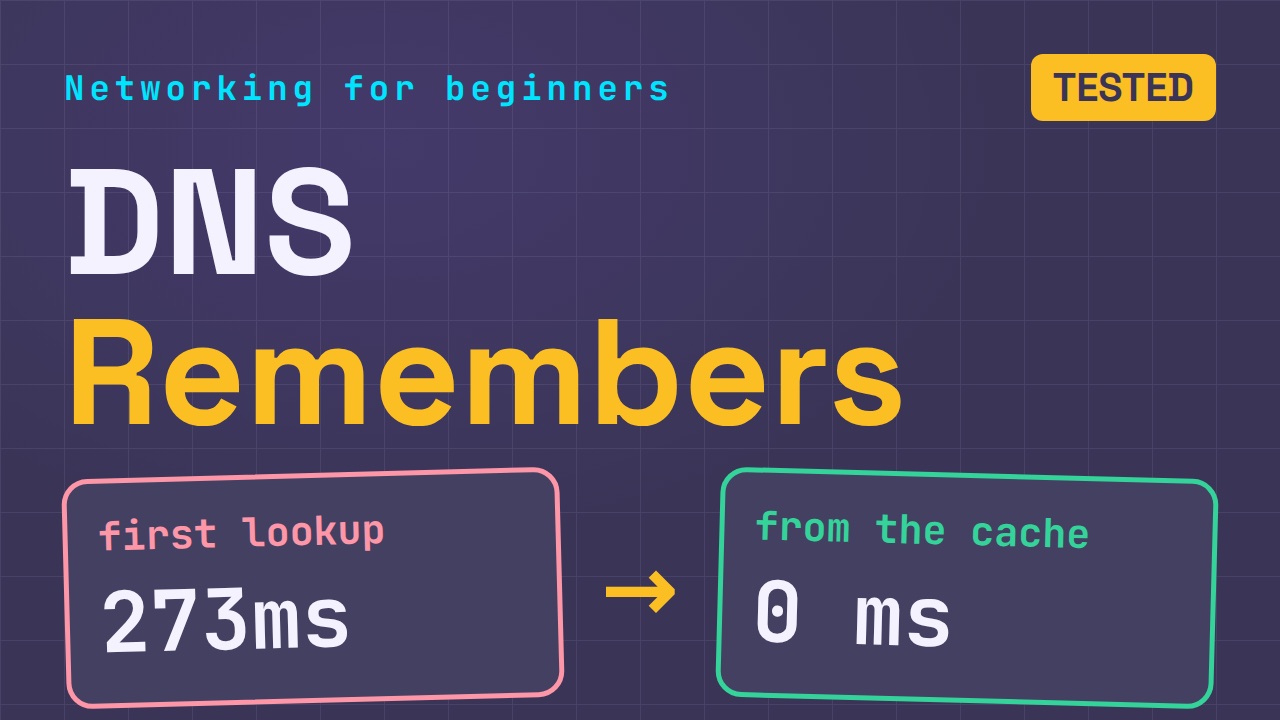
DNS Will Finally Make Sense After This
Never Ignore a Security Update
Two-Factor Authentication Will Finally Make Sense
Never Expose a Database to the Internet
SSH Keys vs Passwords: Which Is Safer for Security?
The 5 Levels of Linux Boot: From Power On to Login
The 5 Levels of Network Firewalls
Password Security: Why Hackers Crack Weak Passwords
Why Your Linux Server Runs Out of Memory
HTTP vs HTTPS: What Actually Changes on Your Network

Every Linux File Permission You Need to Know
Linux Processes vs Threads: When Each One Wins
The OSI Model Will Finally Make Sense After This

The 7 Levels of Git
Every Network Troubleshooting Command You Need
Hashing vs Encryption in Cybersecurity: When Each One Wins
Why the Internet Ran Out of IP Addresses
Linux Package Managers: apt vs Snap vs Flatpak

Why Python Is Slow (and When It Doesn't Matter)
TCP vs UDP: When Each One Wins
Stop Running Linux as Root (Do This Instead)
Linux Users and Groups Will Finally Make Sense

Why Phishing Beats Good Security (and How to Spot It)
The 7 Levels of Docker

AI Agents Will Finally Make Sense After This

Stop Using git push --force (Use This Instead)
Agent Skills vs MCP: When Each One Wins
Networking Will Finally Make Sense After This
Every Linux Command You Actually Need
The 7 Levels of Cybersecurity
Every System Design Concept You Need, in One Diagram