Git and GitHub: Full Tutorial for Beginners
A full Git and GitHub tutorial for beginners, on two real Ubuntu laptops and a real GitHub repository. We make a first repository, stage and commit changes, read git status and git diff, keep files out with .gitignore, undo mistakes with git restore and git revert, work on branches, solve a real merge conflict, push to GitHub, clone it on a second laptop, recover from a rejected push, and merge a pull request.
Three classes, gone
You changed a file, part of your page vanished, and you can't remember what it said before. Ana keeps the website for Clay Corner, a pottery class. One careless edit, and three of its five classes are gone. Git doesn't judge the edit. It just remembers what came before. Because this folder is a Git repository, the old version is still there.
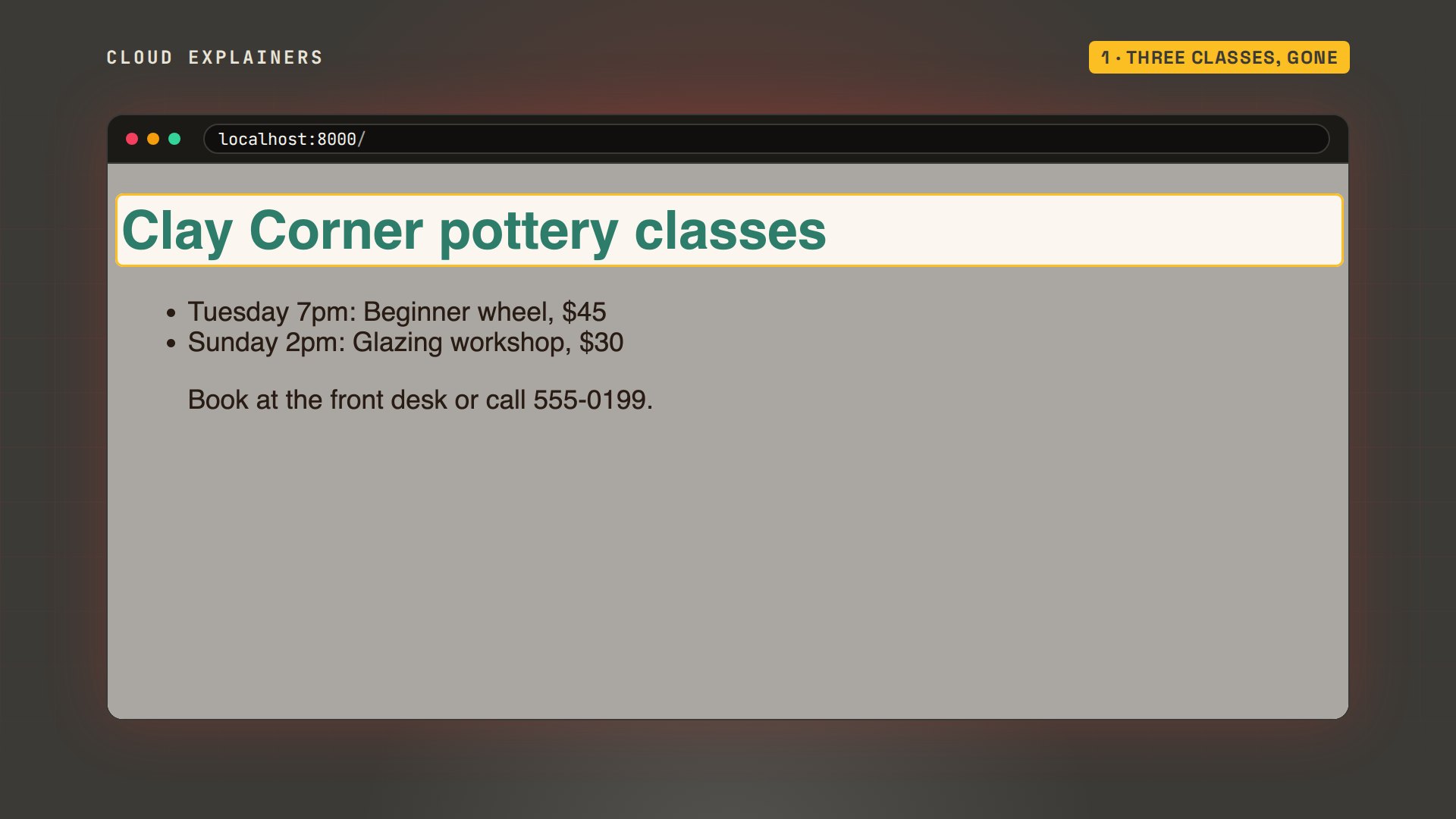
git diff shows exactly what changed: four lines removed, in red. git restore puts the file back the way it was at the last save point, and git status says there's nothing left to commit. Thirty seconds, no guessing.
git diffdiff --git a/index.html b/index.html
index 39e066a..bdd17ec 100644
--- a/index.html
+++ b/index.html
@@ -8,11 +8,7 @@
   <h1>Clay Corner pottery classes</h1>
   <ul>
     <li>Tuesday 7pm: Beginner wheel, $45</li>
-    <li>Thursday 6pm: Hand building, $35</li>
-    <li>Friday 7pm: Date night wheel, $65</li>
-    <li>Saturday 10am: Family clay day, $25</li>
     <li>Sunday 2pm: Glazing workshop, $30</li>
-  </ul>
   <p>Book at the front desk or call 555-0199.</p>
 </body>
 </html>
git restore index.html
git statusOn branch main
Your branch is up to date with 'origin/main'.

nothing to commit, working tree clean
All five classes are back. In this tutorial you'll build that safety net yourself, from an empty folder to a shared project on GitHub. And later, two people push at almost the same moment. Whose work survives? We'll see.
What Git and GitHub are
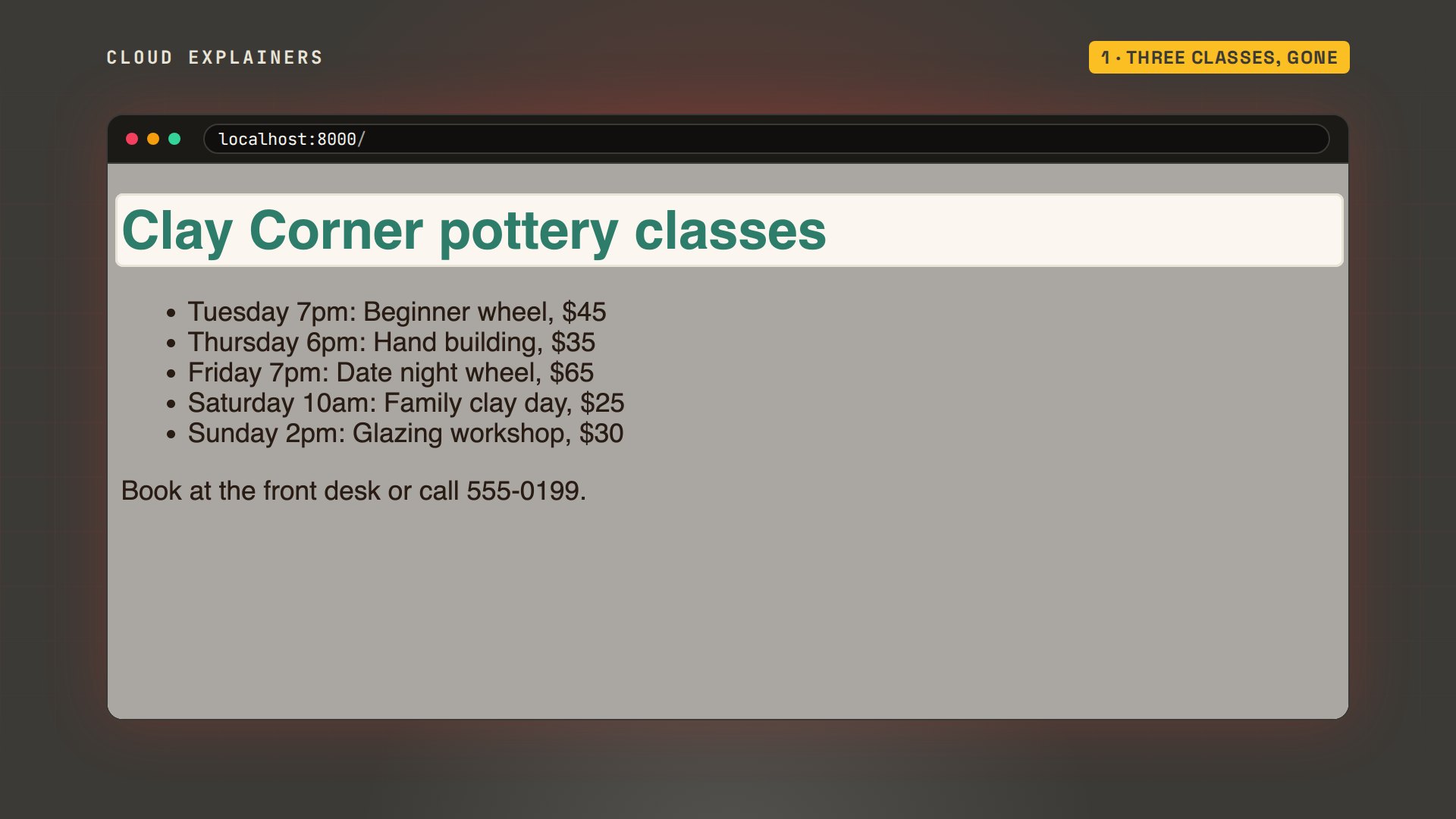
First, two names people mix up. Git is a program on your own computer. It records versions of the files in a folder, and it works with no internet at all. Tools like this are called version control. GitHub is a website that keeps a copy of that history online, so other people can get it, add to it and review changes. Git is the tool; GitHub is one place to share what it records.
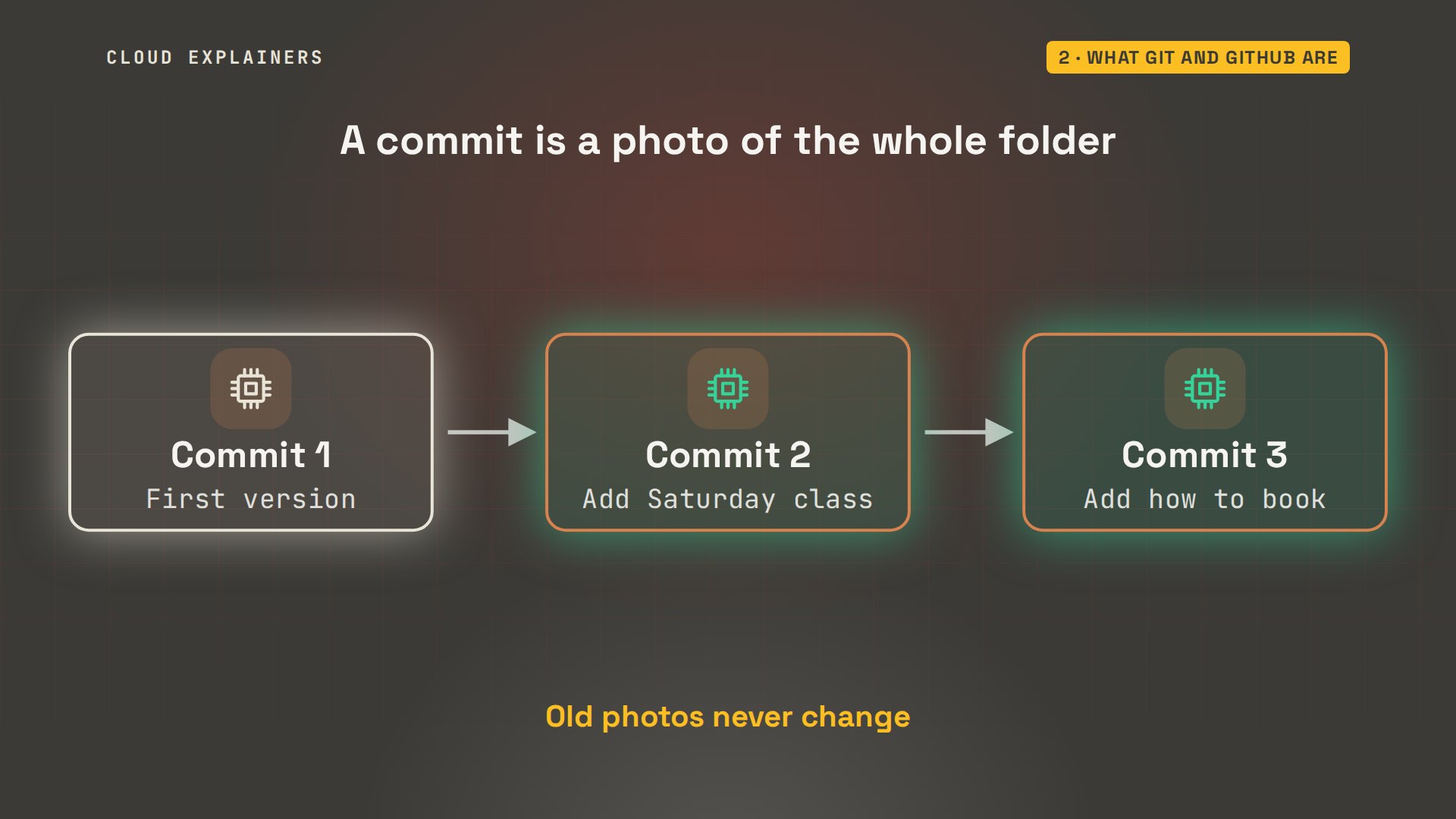
Here's the idea behind it. Think of a photo album. Each time you're happy with your work, Git takes a photo of the whole folder, and you write a caption under it. That photo is a commit. The album, every photo in order, is the history. You can look back at any page, and taking a new photo never changes the old ones.
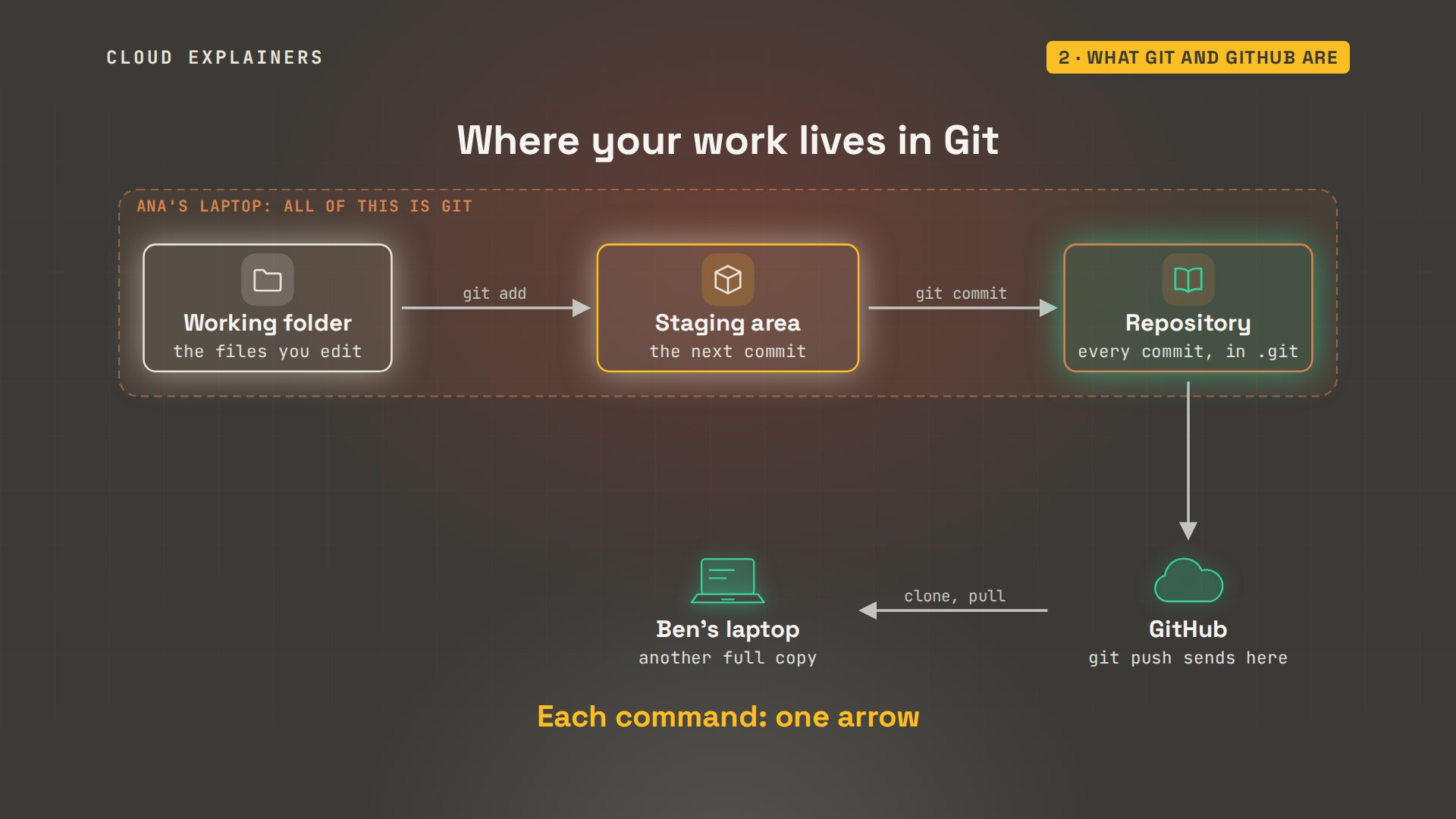
Your work moves through four places, plus your teammates' laptops. You edit files in your working folder. git add puts the changes you choose into the staging area, the next photo's frame. git commit saves that snapshot into the repository, a hidden folder of every commit, on your laptop. git push sends your commits to GitHub. Ben gets them on his laptop with clone and pull. Don't try to remember all of this yet: every command in this tutorial moves work along one of these arrows.
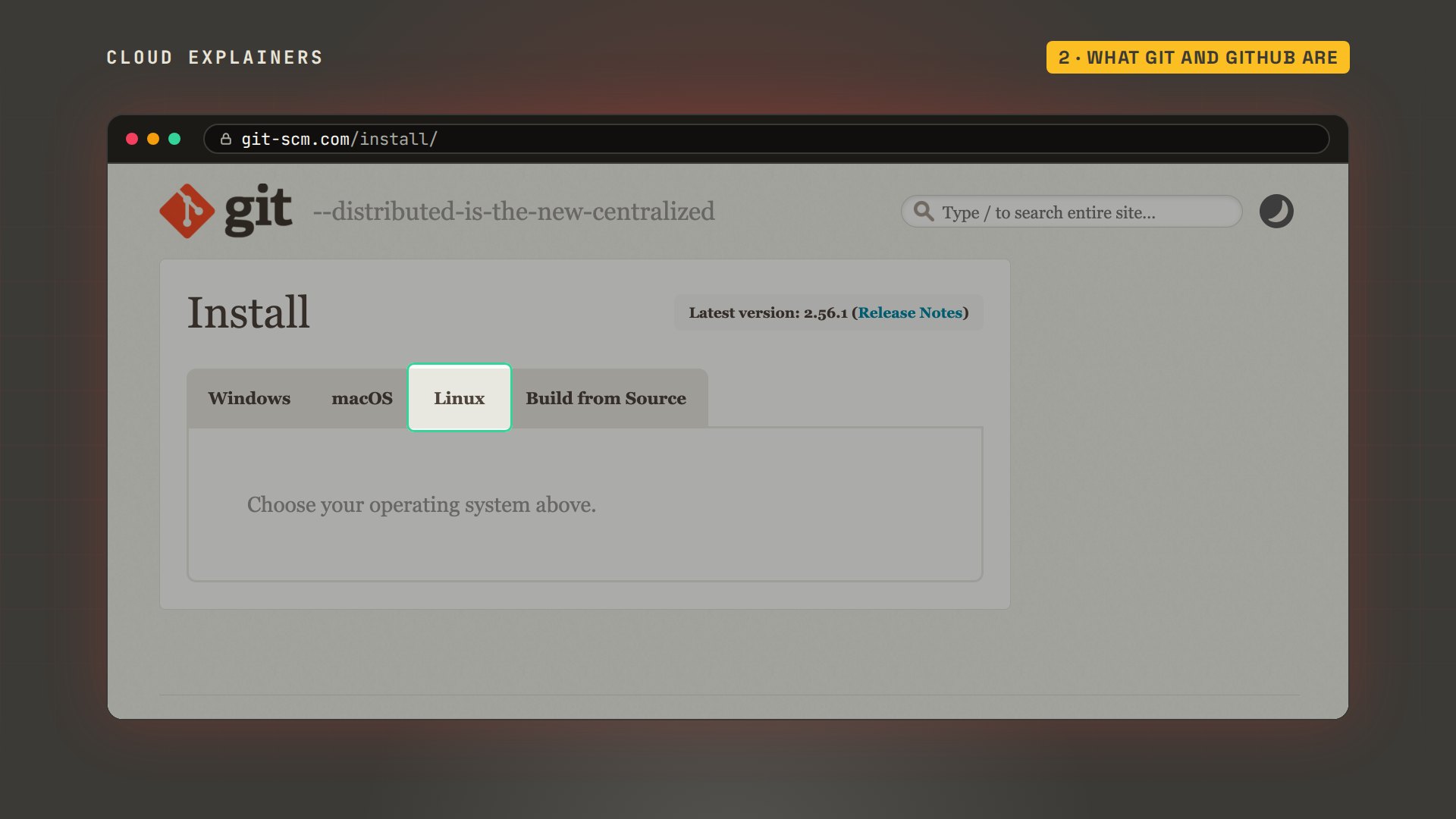
To install Git, git-scm.com has a page for Windows, macOS and Linux. On Windows the installer also gives you Git Bash, a terminal where every command in this video works as shown. On a Mac, typing git in the Terminal app the first time offers to install it. Ana's laptop runs Ubuntu, where it's one package.
Is it there? git dash dash version answers: version 2.43.0, the one Ubuntu ships. If you see a version number, you're ready, and any recent version works for everything we'll do.
git --versiongit version 2.43.0
Your first repository
Ana makes a folder, pottery-site, and saves two files into it from her editor: the page, index.html, and its colours, style.css. Ask Git about it, and it says this is not a git repository. A folder is only a repository once you tell Git to watch it.
mkdir pottery-site && cd pottery-site
lsindex.html style.css
git statusfatal: not a git repository (or any of the parent directories): .git
git init does that. It prints a long hint first, about branches. A branch is a separate line of work; we'll build one later. For now, Git names the first one master. GitHub and most teams now use main. So Ana renames this one with git branch dash M main, and sets main as the default for every new repository on this laptop.
git inithint: Using 'master' as the name for the initial branch. This default branch name
hint: is subject to change. To configure the initial branch name to use in all
hint: of your new repositories, which will suppress this warning, call:
hint:
hint: 	git config --global init.defaultBranch <name>
hint:
hint: Names commonly chosen instead of 'master' are 'main', 'trunk' and
hint: 'development'. The just-created branch can be renamed via this command:
hint:
hint: 	git branch -m <name>
Initialized empty Git repository in /home/ana/pottery-site/.git/
git branch -m main
git config --global init.defaultBranch main
Where is the repository? ls -a shows hidden files too, and there it is: a folder called.git. Every commit Ana ever makes will live in there. Never edit it by hand. And if you ever end up deleting it, the whole history goes with it, though your files stay.
ls -a. .. .git index.html style.css
git status is the command you'll type most. It tells you where things stand. No commits yet, and two untracked files: Git can see them, but it isn't keeping versions of them. Not until she adds them.
git statusOn branch main

No commits yet

Untracked files:
  (use "git add <file>..." to include in what will be committed)
	index.html
	style.css

nothing added to commit but untracked files present (use "git add" to track)
Your first commit
git add index.html puts that one file into the staging area. Now status shows it under changes to be committed, while style.css is still untracked. So you choose exactly what goes into each commit, one file at a time if you like.
git add index.html
git statusOn branch main

No commits yet

Changes to be committed:
  (use "git rm --cached <file>..." to unstage)
	new file:   index.html

Untracked files:
  (use "git add <file>..." to include in what will be committed)
	style.css
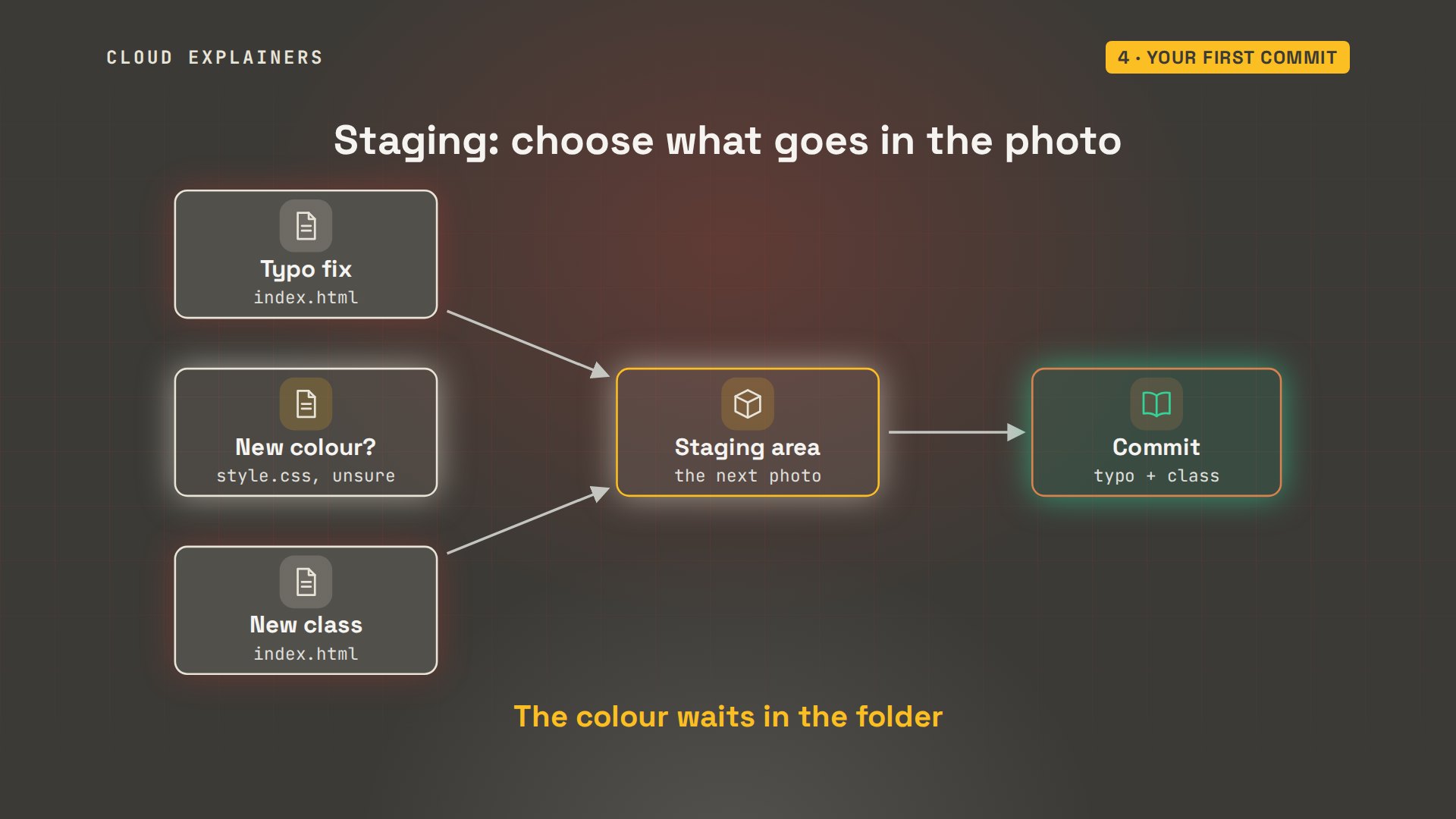
Why does Git have this extra step at all? Picture a busy afternoon: you fix a typo on the page, try a new colour you're not sure about, and add a class. The typo fix and the class belong in the history. The colour doesn't, yet. Staging lets you put just those two in the photo, and leave the experiment in your folder for later.
git add with a dot adds everything in the folder. Then git commit, with dash M and a message. And Git refuses. Author identity unknown: please tell me who you are. Every commit records who made it, and Git doesn't know Ana's name yet.
git add .
git commit -m 'First version of the class page'Author identity unknown

*** Please tell me who you are.

Run

  git config --global user.email "you@example.com"
  git config --global user.name "Your Name"

to set your account's default identity.
Omit --global to set the identity only in this repository.

fatal: unable to auto-detect email address (got 'ana@ana-laptop.(none)')
Two settings, once per computer. git config dash dash global user.name, and user.email. Global means for every repository on this laptop. Use the email you'll use on GitHub, so it can link your commits to you.
git config --global user.name 'Ana'
git config --global user.email ana@example.com
Now the same commit works. Two files changed, sixteen lines added. That's the first photo in the album. git log shows it: a long ID, Ana as the author, the date, and her message.
git commit -m 'First version of the class page'[main (root-commit) 367e254] First version of the class page
 2 files changed, 16 insertions(+)
 create mode 100644 index.html
 create mode 100644 style.css
git logcommit 367e254a16ea894aea303e1598aca8ea9440fdae (HEAD -> main)
Author: Ana <ana@example.com>
Date:   Fri Nov 20 01:17:42 2026 +0000

    First version of the class page
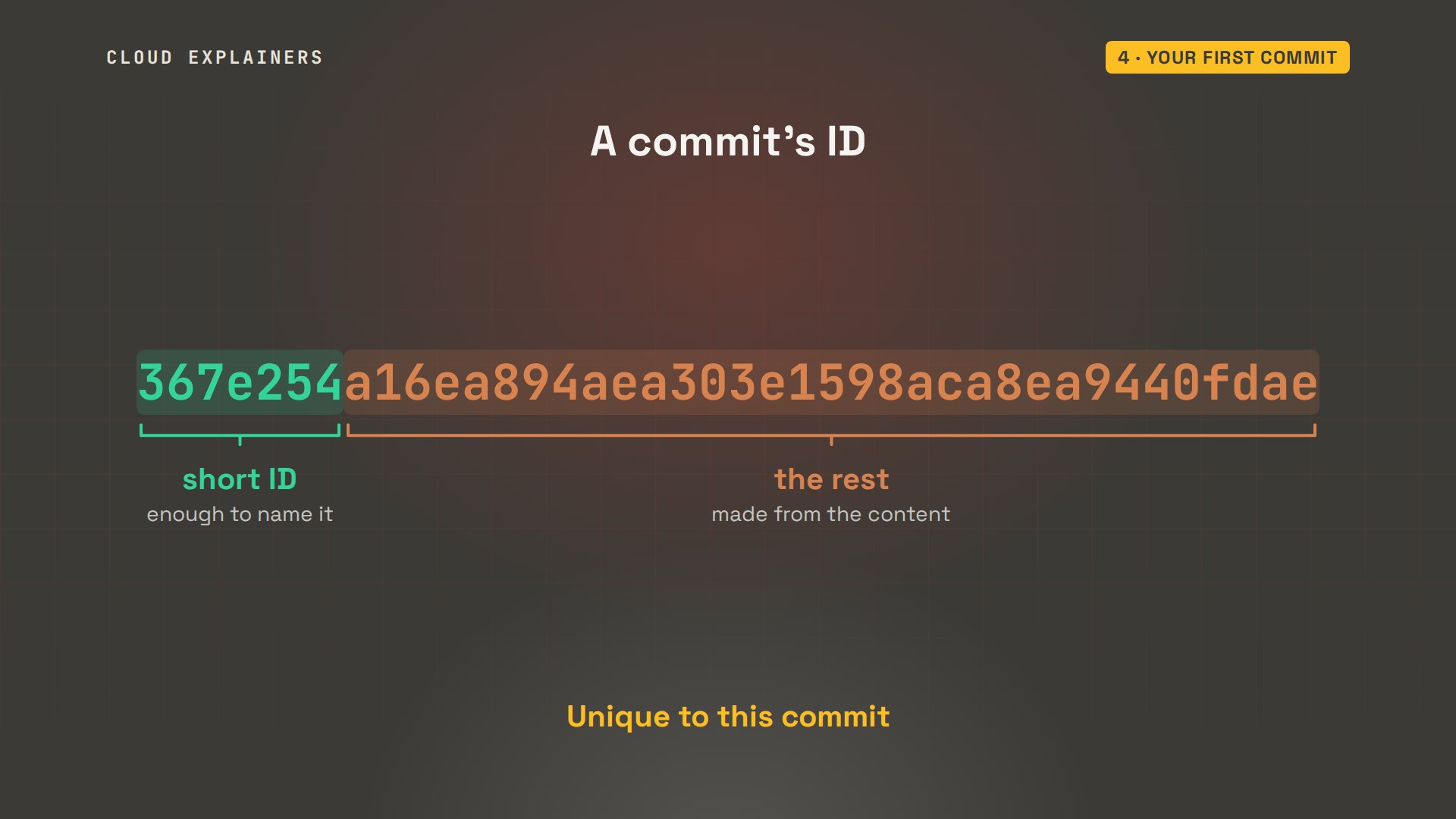
That ID is how Git names a commit. It's forty characters, calculated from the commit's content, so no two commits share one. You only ever need the first seven, the short ID Git printed when she committed. Each commit also points back to the one before it: that chain is the history.
git status again: nothing to commit, working tree clean. The working tree is your folder, and clean means it matches the last commit exactly. That's the state you want before you walk away.
git statusOn branch main
nothing to commit, working tree clean
Saving each change
The class adds a Saturday family session, so Ana edits the page. Status now says modified: index.html. And git diff shows the change itself: one line with a plus, the new class, with a few unchanged lines around it for context.
git statusOn branch main
Changes not staged for commit:
  (use "git add <file>..." to update what will be committed)
  (use "git restore <file>..." to discard changes in working directory)
	modified:   index.html

no changes added to commit (use "git add" and/or "git commit -a")
git diffdiff --git a/index.html b/index.html
index 12e4849..9ea572c 100644
--- a/index.html
+++ b/index.html
@@ -9,6 +9,7 @@
   <ul>
     <li>Tuesday 6pm: Beginner wheel, $40</li>
     <li>Thursday 6pm: Hand building, $35</li>
+    <li>Saturday 10am: Family clay day, $25</li>
   </ul>
 </body>
 </html>
She stages it with git add. Now, if she runs plain git diff again, what does it show? Nothing. Plain diff compares her folder with the staging area, and they match. To see what's staged, what the next commit will hold, add dash dash staged, and the Saturday line is back. Two diffs, two questions: what haven't I staged, and what am I about to commit?
git add index.html
git diff
git diff --stageddiff --git a/index.html b/index.html
index 12e4849..9ea572c 100644
--- a/index.html
+++ b/index.html
@@ -9,6 +9,7 @@
   <ul>
     <li>Tuesday 6pm: Beginner wheel, $40</li>
     <li>Thursday 6pm: Hand building, $35</li>
+    <li>Saturday 10am: Family clay day, $25</li>
   </ul>
 </body>
 </html>
She commits it, and notices a typo in the message: famly, with no I. git commit --amend replaces the last commit with a corrected one. The short ID changes, because amend makes a brand new commit in place of the old one. Only amend a commit nobody else has yet: once it's pushed and shared, changing it causes trouble.
git commit -m 'Add the Saturday famly class'[main 9eceba5] Add the Saturday famly class
 1 file changed, 1 insertion(+)
git commit --amend -m 'Add the Saturday family class'[main f2e5e38] Add the Saturday family class
 Date: Fri Nov 20 01:17:42 2026 +0000
 1 file changed, 1 insertion(+)
git log dash dash one line shows one line per commit: the short ID and the message, newest at the top. Write messages for the person reading this list in a year. Add the Saturday family class tells them something. Update doesn't.
git log --onelinef2e5e38 (HEAD -> main) Add the Saturday family class
367e254 First version of the class page
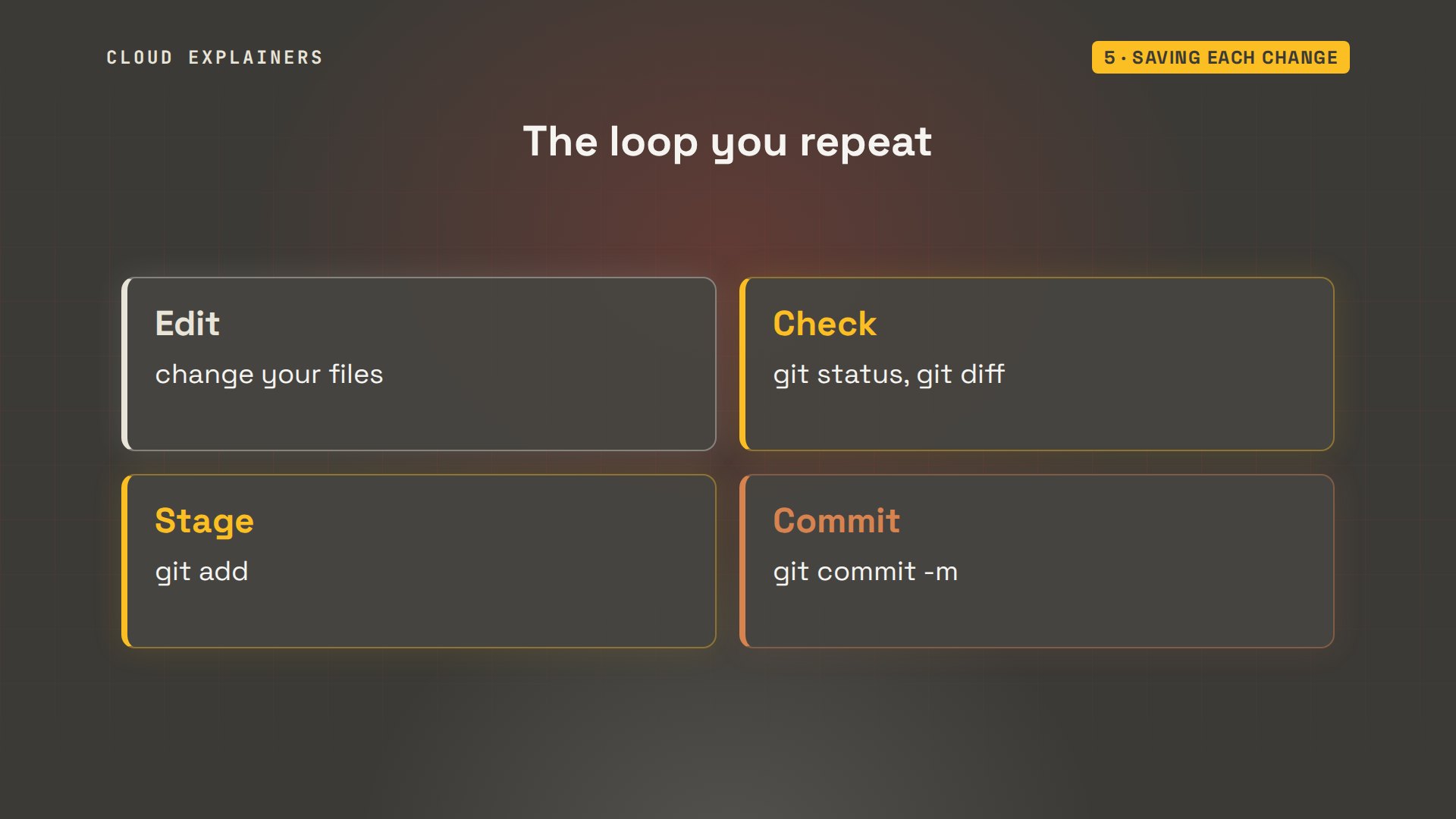
That's the whole loop you'll repeat all day. Edit. Check with git status and git diff. Stage with git add. Save with git commit. Small commits that each do one thing are easier to read, review and undo.
Files Git should skip
Ana keeps price ideas in a drafts folder. They're notes, not part of the website, but status keeps listing drafts as untracked. One stray git add with a dot, which adds everything, and her notes are in the history for good.
git statusOn branch main
Untracked files:
  (use "git add <file>..." to include in what will be committed)
	drafts/

nothing added to commit but untracked files present (use "git add" to track)
The fix is a file called.gitignore, which she saves from her editor. Each line names something Git should skip; hers holds one, drafts slash. Status stops mentioning drafts and shows only the new.gitignore, which she commits, so everyone who gets the project skips the same things.
cat .gitignoredrafts/
git statusOn branch main
Untracked files:
  (use "git add <file>..." to include in what will be committed)
	.gitignore

nothing added to commit but untracked files present (use "git add" to track)
git add .gitignore
git commit -m 'Keep drafts out of Git'[main 6cad19a] Keep drafts out of Git
 1 file changed, 1 insertion(+)
 create mode 100644 .gitignore
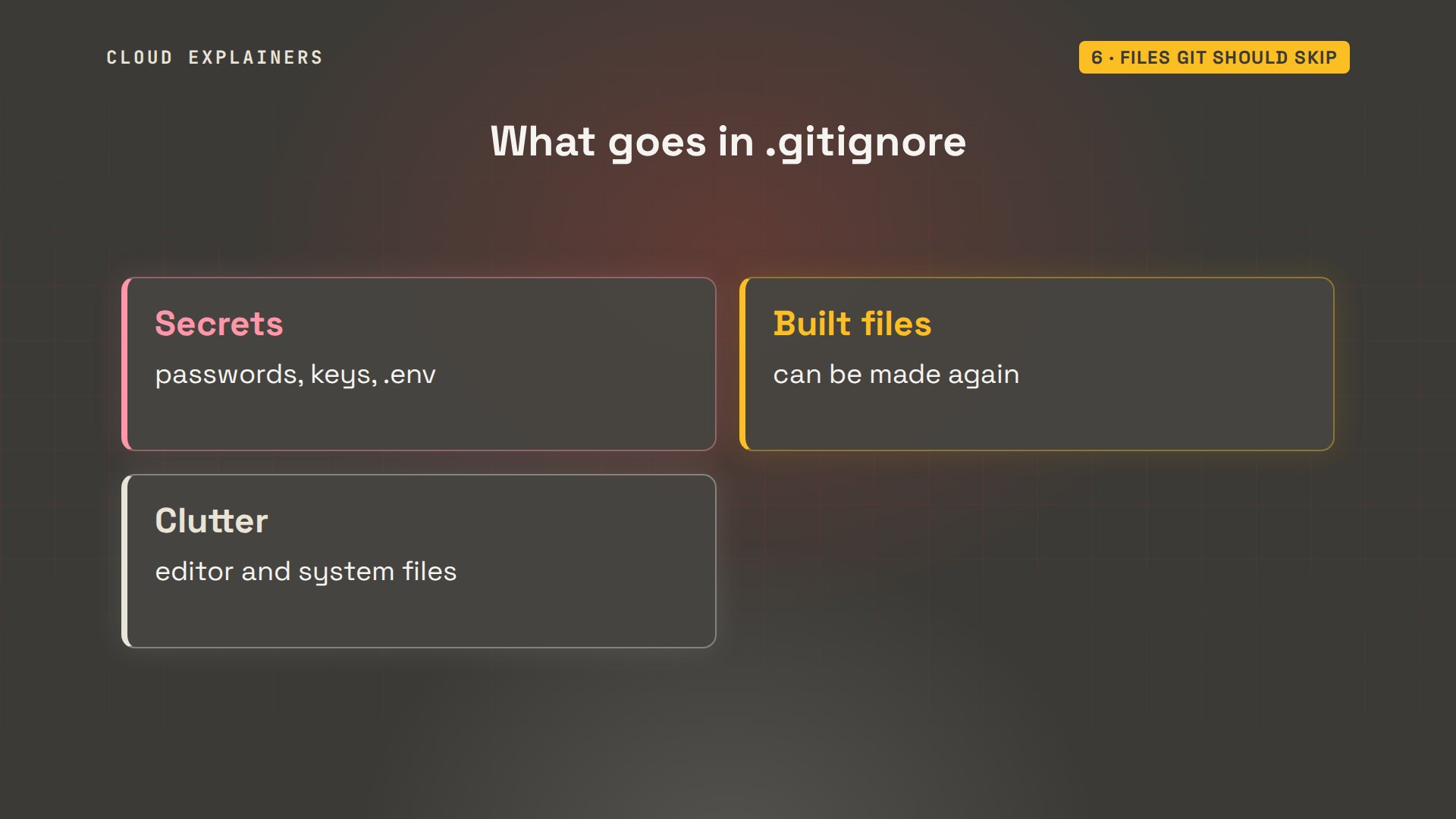
What usually goes in it? Secrets, like files of passwords or keys: once pushed, assume someone has copied them. Files your tools build or download, which anyone can make again. And the clutter your editor or operating system leaves behind.
Undoing a mistake
Mistakes come in three sizes, and each has its own undo. An edit you haven't staged: git restore, which we used at the start. A change you staged by mistake: git restore dash dash staged takes it out of the frame. And a commit you've already made: git revert.
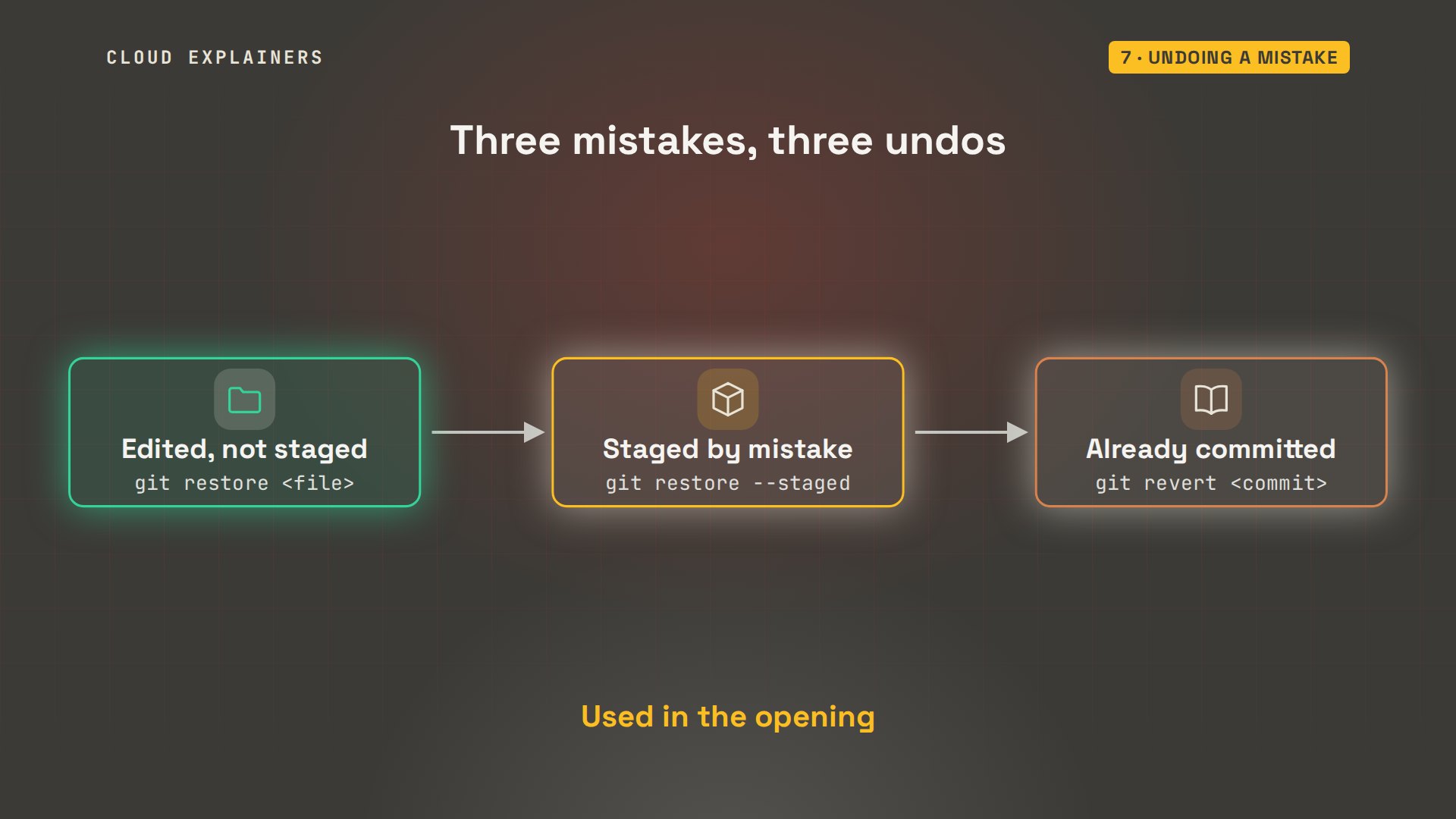
The middle one first. Ana had a scratch file, test.html, for trying out a layout, and git add dot staged it along with everything else. git restore dash dash staged test.html takes it back out of the frame. The file itself is untouched, just untracked again, so she deletes it.
git add .
git statusOn branch main
Changes to be committed:
  (use "git restore --staged <file>..." to unstage)
	new file:   test.html
git restore --staged test.html
git statusOn branch main
Untracked files:
  (use "git add <file>..." to include in what will be committed)
	test.html

nothing added to commit but untracked files present (use "git add" to track)
rm test.html
Ana commits a price update with git commit dash A M. Dash A stages every file Git already tracks, so it's add and commit in one step. git show HEAD displays what the latest commit changed; HEAD is Git's name for it, more on that in a moment. Hand building went from 35 dollars to 350. One extra zero, and it's already in the history.
git commit -am 'Update hand building price'[main 84c4cb6] Update hand building price
 1 file changed, 1 insertion(+), 1 deletion(-)
git show --oneline HEAD84c4cb6 (HEAD -> main) Update hand building price
diff --git a/index.html b/index.html
index 9ea572c..e3f3339 100644
--- a/index.html
+++ b/index.html
@@ -8,7 +8,7 @@
   <h1>Clay Corner pottery classes</h1>
   <ul>
     <li>Tuesday 6pm: Beginner wheel, $40</li>
-    <li>Thursday 6pm: Hand building, $35</li>
+    <li>Thursday 6pm: Hand building, $350</li>
     <li>Saturday 10am: Family clay day, $25</li>
   </ul>
 </body>
To undo it, you need one more word: HEAD. HEAD is Git's name for where you are right now, usually the newest commit on your current branch. HEAD with a tilde and a 1 means the commit before it, tilde 2 the one before that. So you can name a commit without copying its ID.
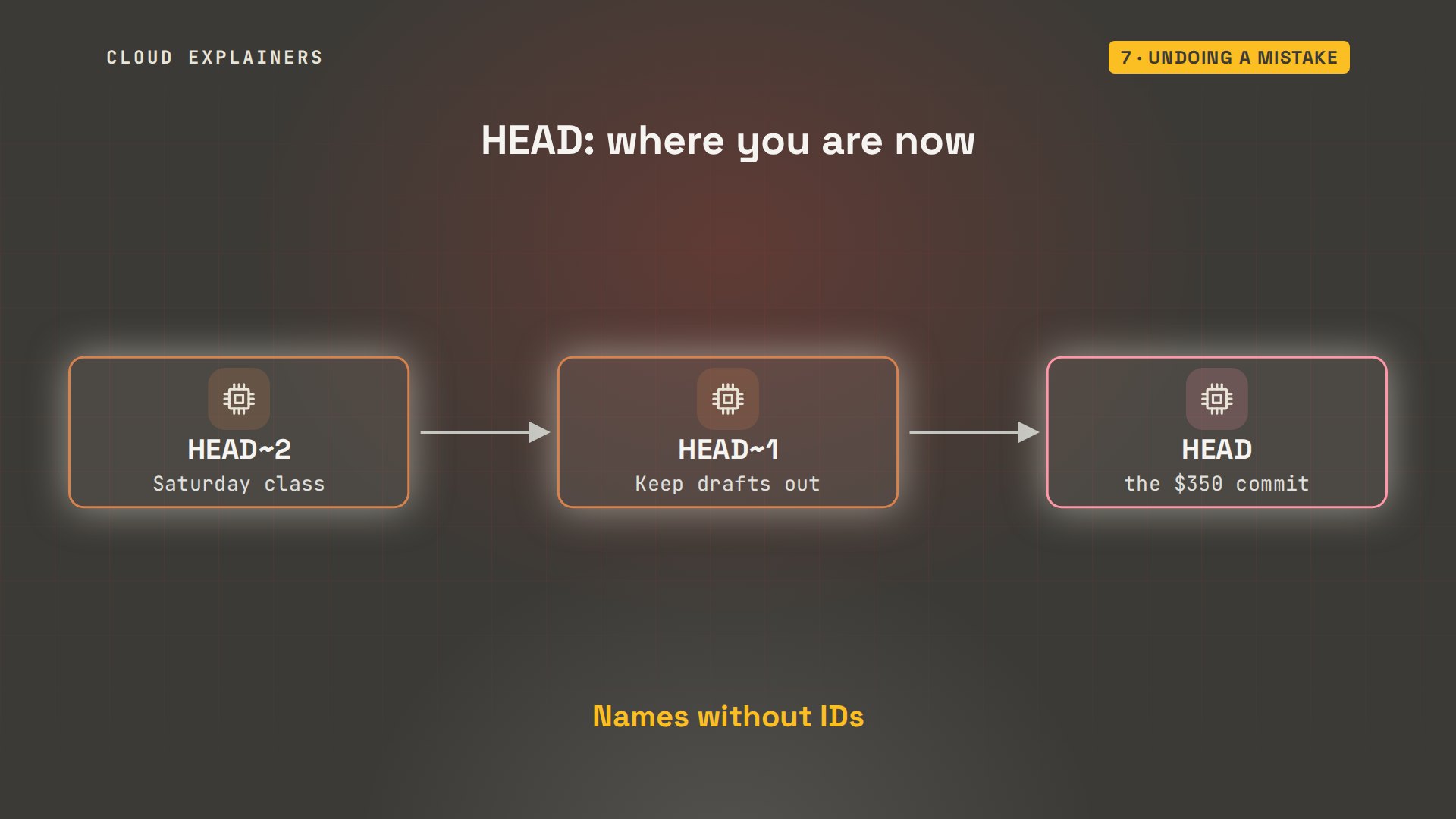
git revert undoes a commit by adding a new commit that does the opposite. Dash dash no edit keeps the message Git suggests instead of opening an editor. The log shows both, the mistake and its undo. grep, a standard tool that prints the lines containing a word, finds the price is 35 again. Because history only grows, revert is safe even after others have the commit.
git revert --no-edit HEAD[main 0aa805d] Revert "Update hand building price"
 Date: Fri Nov 20 01:17:42 2026 +0000
 1 file changed, 1 insertion(+), 1 deletion(-)
git log --oneline0aa805d (HEAD -> main) Revert "Update hand building price"
84c4cb6 Update hand building price
6cad19a Keep drafts out of Git
f2e5e38 Add the Saturday family class
367e254 First version of the class page
grep Thursday index.html<li>Thursday 6pm: Hand building, $35</li>
Remember the photo album? Any old page is still there. git show takes a commit's short ID, a colon and a file name. It prints that file exactly as it was in that commit, and grep keeps just the class lines. Here's the very first version of the class list: two classes, Tuesday at 6pm for 40 dollars. Nothing in her folder changed; she only looked.
git show 367e254:index.html | grep '<li>'<li>Tuesday 6pm: Beginner wheel, $40</li> <li>Thursday 6pm: Hand building, $35</li>
Branches
Ana wants to try a Sunday glazing workshop without touching the live page. That's what a branch is for. A branch is just a name that points at a commit. main points at the newest one. A new branch starts at the same commit, and moves forward on its own as you commit on it.
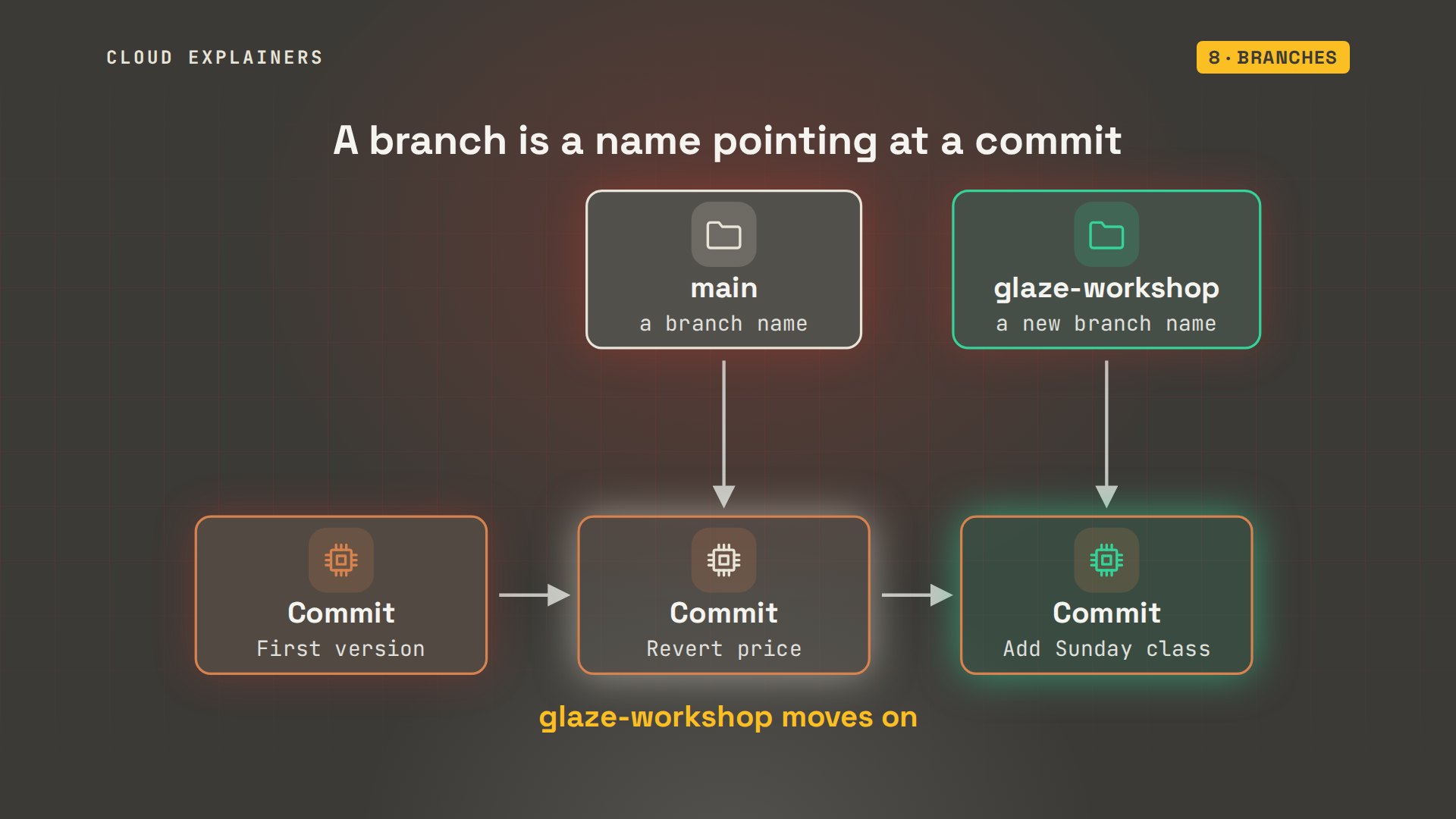
git branch lists branches; the star marks the one you're on. git switch dash C makes a new branch and moves onto it. She adds the Sunday class and commits, on glaze-workshop. git log with dash dash graph draws the branches as lines, and it shows her branch one commit ahead of main.
git branch* main
git switch -c glaze-workshopSwitched to a new branch 'glaze-workshop'
git commit -am 'Add the Sunday glazing workshop'[glaze-workshop 34a2a5e] Add the Sunday glazing workshop
 1 file changed, 1 insertion(+)
git log --oneline --graph --all* 34a2a5e (HEAD -> glaze-workshop) Add the Sunday glazing workshop
* 0aa805d (main) Revert "Update hand building price"
* 84c4cb6 Update hand building price
* 6cad19a Keep drafts out of Git
* f2e5e38 Add the Saturday family class
* 367e254 First version of the class page
Now she switches back to main. Is the Sunday class still in index.html? No. grep counts zero lines with Sunday. Switching branches changes the files in your folder to match that branch. The class is safe on glaze-workshop.
git switch mainSwitched to branch 'main'
grep -c Sunday index.html0
Happy with it, she merges the branch into main. Fast-forward: main had nothing new of its own, so Git just moved the main name forward to her commit. The Sunday line is there now, and git branch dash D deletes the branch name. The commit stays.
git merge glaze-workshopUpdating 0aa805d..34a2a5e
Fast-forward
 index.html | 1 +
 1 file changed, 1 insertion(+)
grep -c Sunday index.html1
git branch -d glaze-workshopDeleted branch glaze-workshop (was 34a2a5e).
When two changes collide
What if two branches change the same line? On a new branch called spring-prices, Ana raises the Tuesday wheel class to 45 dollars, and commits. Then she switches back to main, where the class will move from 6pm to 7pm. Same line, two different changes.
git switch -c spring-pricesSwitched to a new branch 'spring-prices'
git commit -am 'Spring price for the wheel class'[spring-prices d726558] Spring price for the wheel class
 1 file changed, 1 insertion(+), 1 deletion(-)
git switch mainSwitched to branch 'main'
A quick detour, because this happens all the time. Halfway through the 7pm edit, she wants to check the spring price again, and git switch refuses: her uncommitted change to index.html would be overwritten. git stash puts the half-done change on a shelf and cleans the folder. Now she can switch, read the line, 45 dollars, and come back. git stash pop puts her change back where it was.
git switch spring-priceserror: Your local changes to the following files would be overwritten by checkout:
	index.html
Please commit your changes or stash them before you switch branches.
Aborting
git stashSaved working directory and index state WIP on main: 34a2a5e Add the Sunday glazing workshop
git switch spring-pricesSwitched to branch 'spring-prices'
grep Tuesday index.html<li>Tuesday 6pm: Beginner wheel, $45</li>
git switch mainSwitched to branch 'main'
git stash popOn branch main
Changes not staged for commit:
  (use "git add <file>..." to update what will be committed)
  (use "git restore <file>..." to discard changes in working directory)
	modified:   index.html

no changes added to commit (use "git add" and/or "git commit -a")
Dropped refs/stash@{0} (a9aecd8c76200fffaa4b9c70ed380bba68cf0908)
She commits the 7pm move on main, and merges spring-prices in. This time Git can't do it alone: CONFLICT, merge conflict in index.html. Both branches changed the same line, and Git won't guess which one is right. It stops, and status lists the file as both modified, waiting for her.
git commit -am 'Move the wheel class to 7pm'[main cc4ea8b] Move the wheel class to 7pm
 1 file changed, 1 insertion(+), 1 deletion(-)
git merge spring-pricesAuto-merging index.html
CONFLICT (content): Merge conflict in index.html
Automatic merge failed; fix conflicts and then commit the result.
git statusOn branch main
You have unmerged paths.
  (fix conflicts and run "git commit")
  (use "git merge --abort" to abort the merge)

Unmerged paths:
  (use "git add <file>..." to mark resolution)
	both modified:   index.html

no changes added to commit (use "git add" and/or "git commit -a")
Inside the file, Git has written both versions between markers. From the arrows marked HEAD, where she is now, to the equals signs: main's version, 7pm. From there to the closing arrows: spring-prices, 45 dollars. Fixing it means editing this into the line you actually want, and deleting all three marker lines.
cat index.html<!doctype html>
<html>
<head>
  <title>Clay Corner</title>
  <link rel="stylesheet" href="style.css">
</head>
<body>
  <h1>Clay Corner pottery classes</h1>
  <ul>
<<<<<<< HEAD
    <li>Tuesday 7pm: Beginner wheel, $40</li>
=======
    <li>Tuesday 6pm: Beginner wheel, $45</li>
>>>>>>> spring-prices
    <li>Thursday 6pm: Hand building, $35</li>
    <li>Saturday 10am: Family clay day, $25</li>
    <li>Sunday 2pm: Glazing workshop, $30</li>
  </ul>
</body>
</html>
She wants both: 7pm, at 45 dollars. She saves that one line, runs git add to mark the conflict solved, and commits, keeping the merge message Git has ready. The graph shows the two lines of work joining in a merge commit, a commit with two parents.
grep Tuesday index.html<li>Tuesday 7pm: Beginner wheel, $45</li>
git add index.html
git commit --no-edit[main fd94942] Merge branch 'spring-prices'
git log --oneline --graph -6*   fd94942 (HEAD -> main) Merge branch 'spring-prices'
|\
| * d726558 (spring-prices) Spring price for the wheel class
* | cc4ea8b Move the wheel class to 7pm
|/
* 34a2a5e Add the Sunday glazing workshop
* 0aa805d Revert "Update hand building price"
* 84c4cb6 Update hand building price
Putting it on GitHub
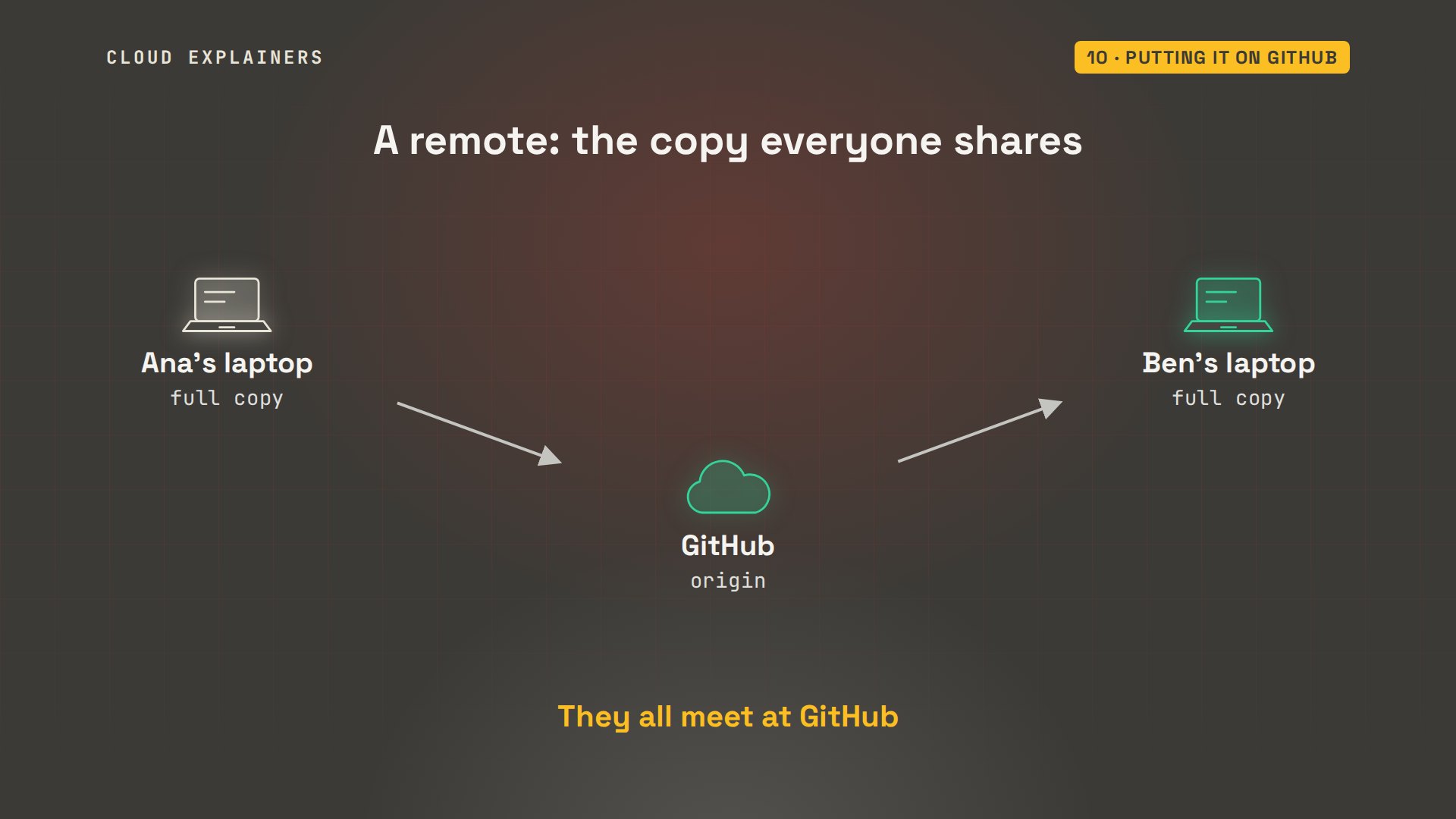
So far everything lives on Ana's laptop. If it breaks, the history goes with it, and Ben, who helps with the site, can't work on it. The answer is a remote: another copy of the repository, here on GitHub. Each laptop keeps a full copy, and GitHub is the one they all meet at.
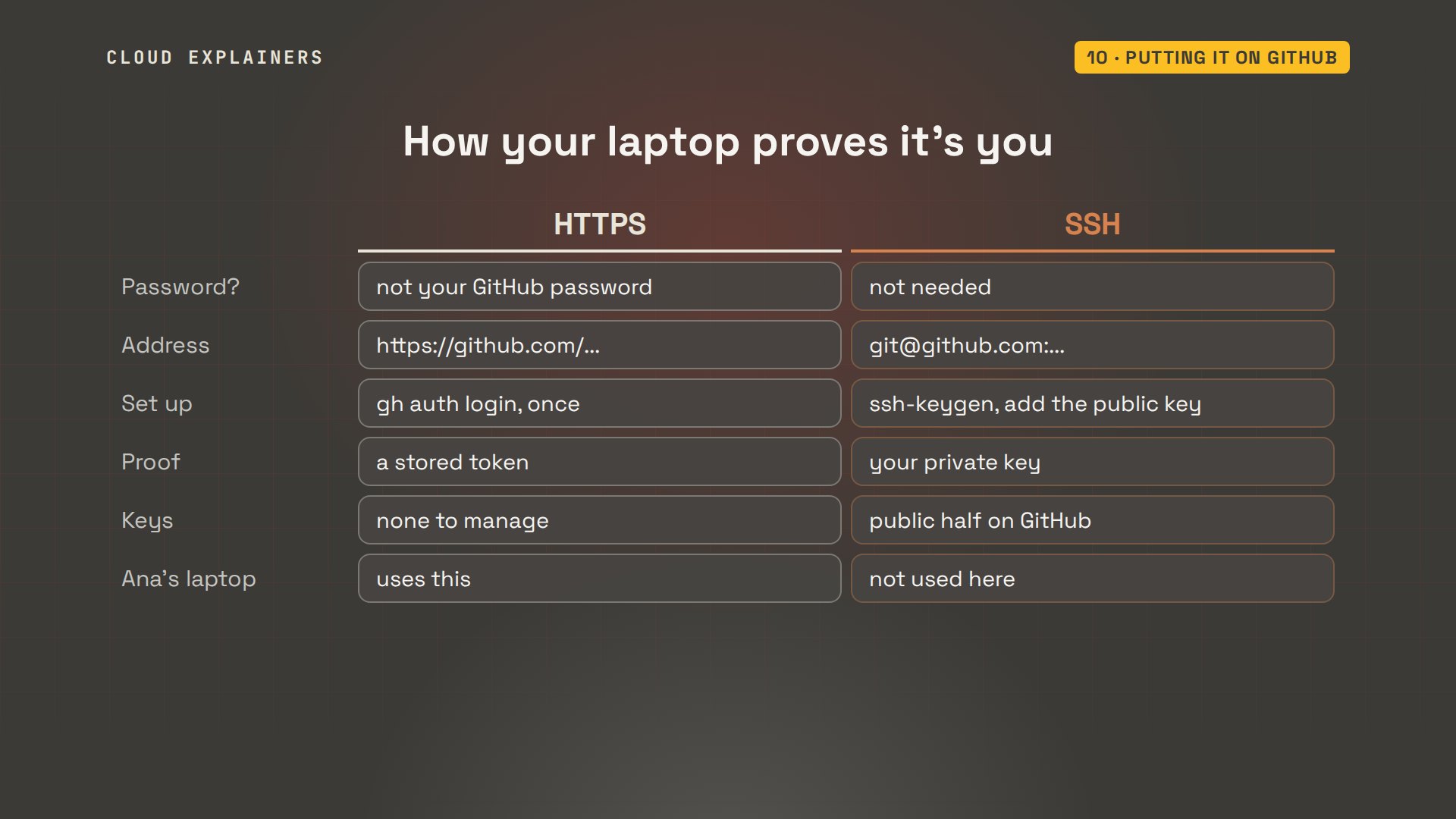
One thing first: GitHub has to know it's really you before it accepts a push, an upload of your commits. Your GitHub password won't work from the terminal. There are two usual ways. Over HTTPS, you sign in once. GitHub's own command line tool, gh, does it with gh auth login, and stores a token for you. Or over SSH, with a key pair: the public half goes on GitHub, the private half never leaves your laptop. Ana's laptop uses HTTPS, signed in before we started.
First, an empty repository on GitHub. On the website it's the New repository button. Ana does it from the terminal with gh repo create: the account, a slash, and a name. It creates a private repository, so only people she gives access can see it, and prints its address.
gh repo create cloudexplainers/pottery-class-site --private✓ Created repository cloudexplainers/pottery-class-site on GitHub
  https://github.com/cloudexplainers/pottery-class-site
git remote add origin, then that address with dot git on the end, tells her repository where GitHub's copy is. origin is just a nickname, the usual one for the main remote. git remote dash V lists it: the same address for fetching and pushing.
git remote add origin https://github.com/cloudexplainers/pottery-class-site.git
git remote -vorigin	https://github.com/cloudexplainers/pottery-class-site.git (fetch)
origin	https://github.com/cloudexplainers/pottery-class-site.git (push)
git push dash U origin main sends her commits up. New branch, main to main. Dash U links her main to GitHub's, so from now on plain git push and git pull know where to go. Status agrees: up to date with origin slash main.
git push -u origin mainEnumerating objects: 26, done.
Counting objects: 100% (26/26), done.
Delta compression using up to 10 threads
Compressing objects: 100% (25/25), done.
Writing objects: 100% (26/26), 2.67 KiB | 2.67 MiB/s, done.
Total 26 (delta 8), reused 0 (delta 0), pack-reused 0
remote: Resolving deltas: 100% (8/8), done.
To https://github.com/cloudexplainers/pottery-class-site.git
 * [new branch]      main -> main
branch 'main' set up to track 'origin/main'.
git statusOn branch main
Your branch is up to date with 'origin/main'.

nothing to commit, working tree clean
On Ben's laptop, also signed in to GitHub with access to the repository: git clone and the address. It makes a pottery-class-site folder with the files and the whole history. He sets his own name and email, and his log shows Ana's merge commit at the top. He has everything she has.
git clone https://github.com/cloudexplainers/pottery-class-site.gitCloning into 'pottery-class-site'...
remote: Enumerating objects: 26, done.
remote: Counting objects: 100% (26/26), done.
remote: Compressing objects: 100% (17/17), done.
remote: Total 26 (delta 8), reused 26 (delta 8), pack-reused 0 (from 0)
Receiving objects: 100% (26/26), done.
Resolving deltas: 100% (8/8), done.
cd pottery-class-site
git config --global user.name 'Ben' && git config --global user.email ben@example.com
git log --oneline -3fd94942 (HEAD -> main, origin/main, origin/HEAD) Merge branch 'spring-prices'
cc4ea8b Move the wheel class to 7pm
d726558 Spring price for the wheel class
Working with someone else
Ben adds how to book a class, commits, and pushes. GitHub is now one commit ahead of Ana. She runs git pull: it fetches his commit, and fast-forwards her main to it. Pull first when you sit down, and you start from everyone's latest work.
git commit -am 'Add how to book'[main d222a0a] Add how to book
 1 file changed, 1 insertion(+)
git pushEnumerating objects: 5, done.
Counting objects: 100% (5/5), done.
Delta compression using up to 10 threads
Compressing objects: 100% (3/3), done.
Writing objects: 100% (3/3), 399 bytes | 399.00 KiB/s, done.
Total 3 (delta 1), reused 0 (delta 0), pack-reused 0
remote: Resolving deltas: 100% (1/1), completed with 1 local object.
To https://github.com/cloudexplainers/pottery-class-site.git
   fd94942..d222a0a  main -> main
git pullremote: Enumerating objects: 5, done.
remote: Counting objects: 100% (5/5), done.
remote: Compressing objects: 100% (2/2), done.
remote: Total 3 (delta 1), reused 3 (delta 1), pack-reused 0 (from 0)
Unpacking objects: 100% (3/3), 379 bytes | 379.00 KiB/s, done.
From https://github.com/cloudexplainers/pottery-class-site
   fd94942..d222a0a  main       -> origin/main
Updating fd94942..d222a0a
Fast-forward
 index.html | 1 +
 1 file changed, 1 insertion(+)
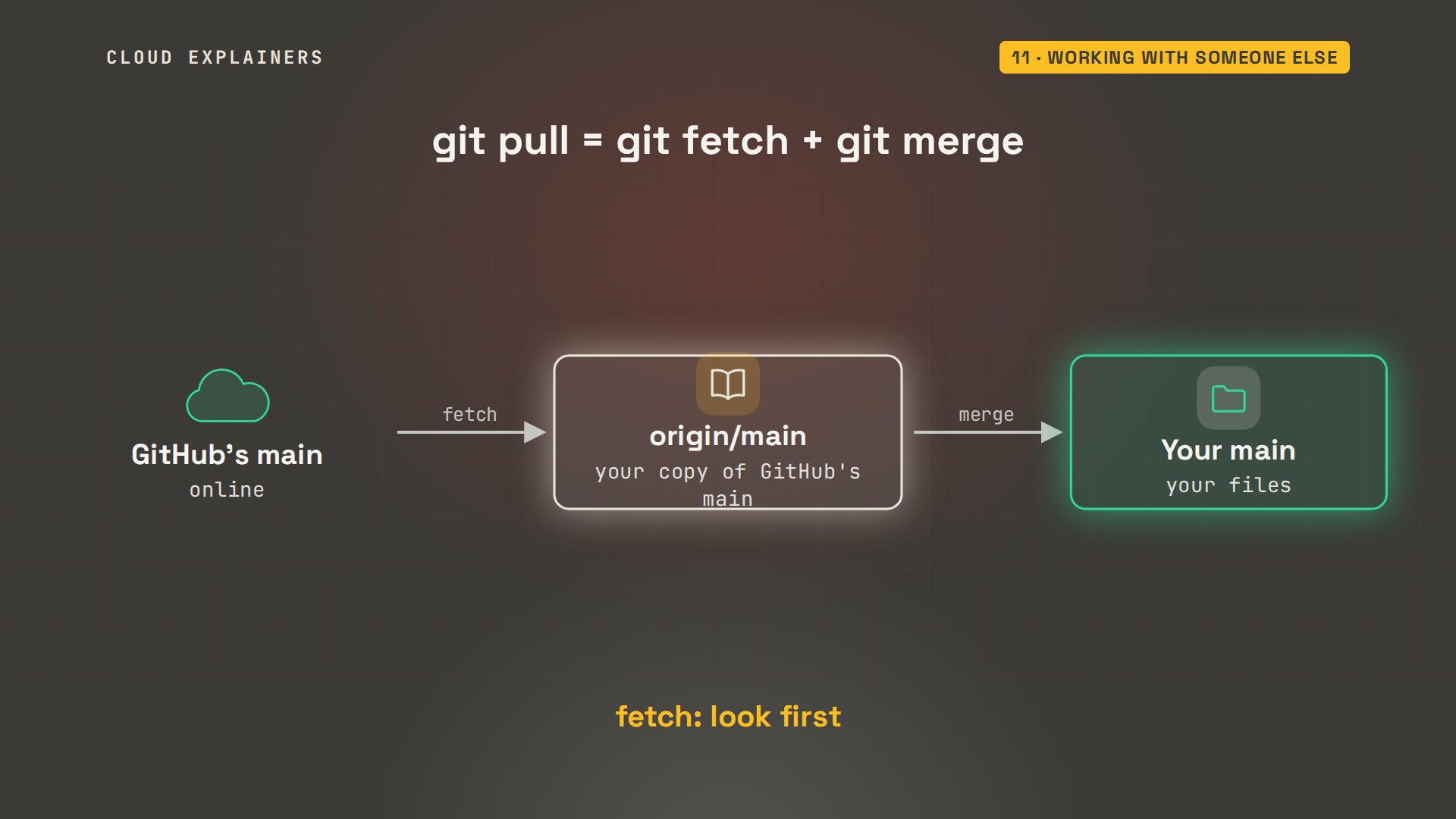
What did git pull actually do? Two things. First a fetch: it downloads new commits from GitHub into origin slash main, Git's copy of where GitHub's main is. Your files don't change yet. Then a merge: it brings those commits into your own main. git fetch alone lets you look before you merge.
Now the race we asked about at the start. Ana commits a new heading colour. At the same time Ben commits a new phone number and pushes first. Ana pushes, and GitHub rejects it: fetch first. Nobody's work is lost. GitHub just won't let her push overwrite a commit she hasn't seen.
git commit -am 'Green heading'[main 0343e47] Green heading
 1 file changed, 1 insertion(+), 1 deletion(-)
git commit -am 'New phone number'[main 402c829] New phone number
 1 file changed, 1 insertion(+), 1 deletion(-)
git pushEnumerating objects: 5, done.
Counting objects: 100% (5/5), done.
Delta compression using up to 10 threads
Compressing objects: 100% (3/3), done.
Writing objects: 100% (3/3), 359 bytes | 359.00 KiB/s, done.
Total 3 (delta 1), reused 0 (delta 0), pack-reused 0
remote: Resolving deltas: 100% (1/1), completed with 1 local object.
To https://github.com/cloudexplainers/pottery-class-site.git
   d222a0a..402c829  main -> main
git pushTo https://github.com/cloudexplainers/pottery-class-site.git
 ! [rejected]        main -> main (fetch first)
error: failed to push some refs to 'https://github.com/cloudexplainers/pottery-class-site.git'
hint: Updates were rejected because the remote contains work that you do not
hint: have locally. This is usually caused by another repository pushing to
hint: the same ref. If you want to integrate the remote changes, use
hint: 'git pull' before pushing again.
hint: See the 'Note about fast-forwards' in 'git push --help' for details.
So she pulls. And Git 2.43 stops again, with a hint: the branches have diverged, each side has a commit the other lacks, and it wants to know how to combine them. Merge is the simplest answer, the same kind of merge we did with branches. Rebase is another way, which we won't use, so she sets pull.rebase to false: don't rebase, merge. Once.
git pullremote: Enumerating objects: 5, done.
remote: Counting objects: 100% (5/5), done.
remote: Compressing objects: 100% (2/2), done.
remote: Total 3 (delta 1), reused 3 (delta 1), pack-reused 0 (from 0)
Unpacking objects: 100% (3/3), 339 bytes | 339.00 KiB/s, done.
From https://github.com/cloudexplainers/pottery-class-site
   d222a0a..402c829  main       -> origin/main
hint: You have divergent branches and need to specify how to reconcile them.
hint: You can do so by running one of the following commands sometime before
hint: your next pull:
hint:
hint:   git config pull.rebase false  # merge
hint:   git config pull.rebase true   # rebase
hint:   git config pull.ff only       # fast-forward only
hint:
hint: You can replace "git config" with "git config --global" to set a default
hint: preference for all repositories. You can also pass --rebase, --no-rebase,
hint: or --ff-only on the command line to override the configured default per
hint: invocation.
fatal: Need to specify how to reconcile divergent branches.
git config --global pull.rebase false
Now git pull merges Ben's commit with hers, different files, so no conflict, and her push goes through. So whose work survives the race? Both. Whoever pushes second pulls, merges, then pushes.
git pullMerge made by the 'ort' strategy.
 index.html | 2 +-
 1 file changed, 1 insertion(+), 1 deletion(-)
git pushEnumerating objects: 9, done.
Counting objects: 100% (8/8), done.
Delta compression using up to 10 threads
Compressing objects: 100% (5/5), done.
Writing objects: 100% (5/5), 556 bytes | 556.00 KiB/s, done.
Total 5 (delta 3), reused 0 (delta 0), pack-reused 0
remote: Resolving deltas: 100% (3/3), completed with 3 local objects.
To https://github.com/cloudexplainers/pottery-class-site.git
   402c829..c3337ce  main -> main
Pull requests
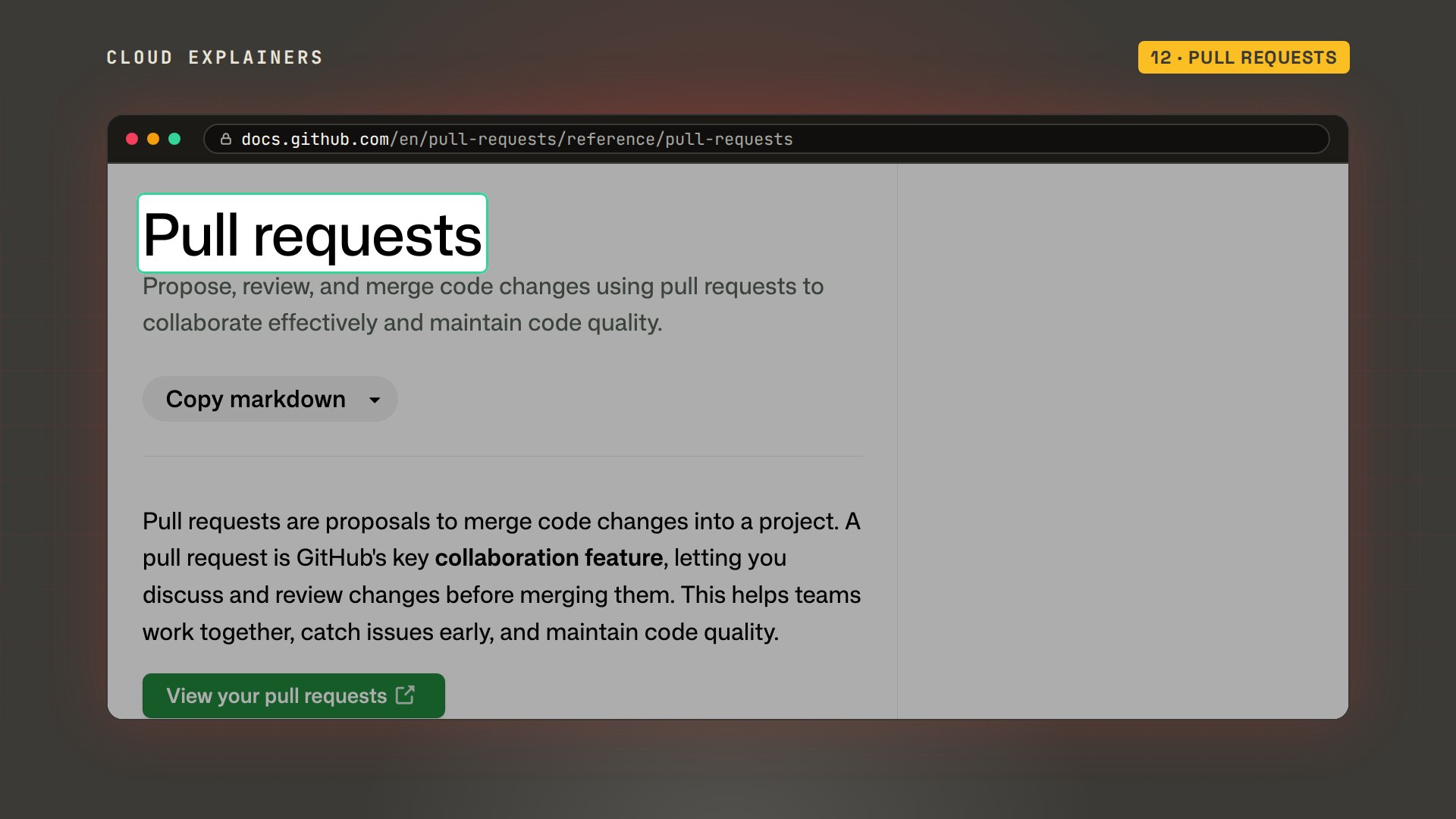
So far, anything Ben pushes lands on main before Ana ever sees it. One wrong price, and it's on the site. Teams fix that with pull requests. GitHub's own docs call a pull request a proposal to merge changes into a project, where people can discuss and review them first. You push a branch, open a pull request, someone reviews it, and it's merged on GitHub.
Ben wants to add a Friday date night class. He pulls, makes a branch called friday-class, adds the line and commits. Then git push dash U origin friday-class pushes the branch, not main, and links it to GitHub's, as before. GitHub even prints a link to open a pull request for it.
git pullremote: Enumerating objects: 9, done.
remote: Counting objects: 100% (8/8), done.
remote: Compressing objects: 100% (2/2), done.
remote: Total 5 (delta 3), reused 5 (delta 3), pack-reused 0 (from 0)
Unpacking objects: 100% (5/5), 536 bytes | 268.00 KiB/s, done.
From https://github.com/cloudexplainers/pottery-class-site
   402c829..c3337ce  main       -> origin/main
Updating 402c829..c3337ce
Fast-forward
 style.css | 2 +-
 1 file changed, 1 insertion(+), 1 deletion(-)
git switch -c friday-classSwitched to a new branch 'friday-class'
git commit -am 'Add the Friday date night class'[friday-class 2b7f75b] Add the Friday date night class
 1 file changed, 1 insertion(+)
git push -u origin friday-classEnumerating objects: 5, done.
Counting objects: 100% (5/5), done.
Delta compression using up to 10 threads
Compressing objects: 100% (3/3), done.
Writing objects: 100% (3/3), 382 bytes | 382.00 KiB/s, done.
Total 3 (delta 1), reused 0 (delta 0), pack-reused 0
remote: Resolving deltas: 100% (1/1), completed with 1 local object.
remote:
remote: Create a pull request for 'friday-class' on GitHub by visiting:
remote:      https://github.com/cloudexplainers/pottery-class-site/pull/new/friday-class
remote:
To https://github.com/cloudexplainers/pottery-class-site.git
 * [new branch]      friday-class -> friday-class
branch 'friday-class' set up to track 'origin/friday-class'.
He could click that link. Instead, gh pr create, with a title and a note asking Ana to check the price. It answers with the pull request's address: number 1.
gh pr create --title 'Add the Friday date night class' --body 'Ana: can you check the price?'https://github.com/cloudexplainers/pottery-class-site/pull/1
On her laptop, Ana lists the open pull requests, and reads exactly what Ben's would change: one added line, Friday at 7pm, 70 dollars. On the website the same diff sits on the pull request's Files changed tab, where she could leave comments line by line.
gh pr listShowing 1 of 1 open pull request in cloudexplainers/pottery-class-site

ID  TITLE                            BRANCH        CREATED AT
#1  Add the Friday date night class  friday-class  less than a minute ago
gh pr diff 1diff --git a/index.html b/index.html
index 303fc39..21663ed 100644
--- a/index.html
+++ b/index.html
@@ -9,6 +9,7 @@ <h1>Clay Corner pottery classes</h1>
   <ul>
     <li>Tuesday 7pm: Beginner wheel, $45</li>
     <li>Thursday 6pm: Hand building, $35</li>
+    <li>Friday 7pm: Date night wheel, $70</li>
     <li>Saturday 10am: Family clay day, $25</li>
     <li>Sunday 2pm: Glazing workshop, $30</li>
   </ul>
Ana thinks 70 dollars is too much, so she leaves a comment on the pull request: can we make it 65? Ben changes the price on his branch, commits and pushes again. He doesn't open anything new: the pull request follows his branch, so when Ana looks at the diff again it already says 65.
gh pr comment 1 --body 'Looks good. Can we make it $65?'https://github.com/cloudexplainers/pottery-class-site/pull/1#issuecomment-7027333163
git commit -am 'Date night: $65'[friday-class b929e9e] Date night: $65
 1 file changed, 1 insertion(+), 1 deletion(-)
git pushEnumerating objects: 5, done.
Counting objects: 100% (5/5), done.
Delta compression using up to 10 threads
Compressing objects: 100% (3/3), done.
Writing objects: 100% (3/3), 342 bytes | 342.00 KiB/s, done.
Total 3 (delta 1), reused 0 (delta 0), pack-reused 0
remote: Resolving deltas: 100% (1/1), completed with 1 local object.
To https://github.com/cloudexplainers/pottery-class-site.git
   2b7f75b..b929e9e  friday-class -> friday-class
gh pr diff 1diff --git a/index.html b/index.html
index 303fc39..39e066a 100644
--- a/index.html
+++ b/index.html
@@ -9,6 +9,7 @@ <h1>Clay Corner pottery classes</h1>
   <ul>
     <li>Tuesday 7pm: Beginner wheel, $45</li>
     <li>Thursday 6pm: Hand building, $35</li>
+    <li>Friday 7pm: Date night wheel, $65</li>
     <li>Saturday 10am: Family clay day, $25</li>
     <li>Sunday 2pm: Glazing workshop, $30</li>
   </ul>
The price is right, so she merges it: merged pull request 1. Dash dash merge keeps it as a merge commit, and the branch on GitHub is deleted. The merge happened on GitHub, so her laptop doesn't have it yet. One git pull, and the graph shows Ben's commit joining main in the pull request's merge.
gh pr merge 1 --merge --delete-branch✓ Merged pull request #1 (Add the Friday date night class)
✓ Deleted remote branch friday-class
git pullremote: Enumerating objects: 9, done.
remote: Counting objects: 100% (9/9), done.
remote: Compressing objects: 100% (5/5), done.
remote: Total 7 (delta 2), reused 6 (delta 2), pack-reused 0 (from 0)
Unpacking objects: 100% (7/7), 1.51 KiB | 517.00 KiB/s, done.
From https://github.com/cloudexplainers/pottery-class-site
   c3337ce..913c9ae  main       -> origin/main
Updating c3337ce..913c9ae
Fast-forward
 index.html | 1 +
 1 file changed, 1 insertion(+)
git log --oneline --graph -6*   913c9ae (HEAD -> main, origin/main) Merge pull request #1 from cloudexplainers/friday-class
|\
| * b929e9e Date night: $65
| * 2b7f75b Add the Friday date night class
|/
*   c3337ce Merge branch 'main' of https://github.com/cloudexplainers/pottery-class-site
|\
| * 402c829 New phone number
* | 0343e47 Green heading
|/
The everyday loop
One more command you'll be glad of in a team. git blame shows, for every line of a file, the commit that last changed it, who made it and when; the date option keeps dates short. The Friday class and the phone number are Ben's; the rest is Ana's. When a line looks wrong, that tells you which commit to read and who to ask.
git blame --date=short index.html^367e254 (Ana 2026-11-20  1) <!doctype html>
^367e254 (Ana 2026-11-20  2) <html>
^367e254 (Ana 2026-11-20  3) <head>
^367e254 (Ana 2026-11-20  4)   <title>Clay Corner</title>
^367e254 (Ana 2026-11-20  5)   <link rel="stylesheet" href="style.css">
^367e254 (Ana 2026-11-20  6) </head>
^367e254 (Ana 2026-11-20  7) <body>
^367e254 (Ana 2026-11-20  8)   <h1>Clay Corner pottery classes</h1>
^367e254 (Ana 2026-11-20  9)   <ul>
fd949429 (Ana 2026-11-20 10)     <li>Tuesday 7pm: Beginner wheel, $45</li>
0aa805d4 (Ana 2026-11-20 11)     <li>Thursday 6pm: Hand building, $35</li>
b929e9eb (Ben 2026-11-20 12)     <li>Friday 7pm: Date night wheel, $65</li>
f2e5e388 (Ana 2026-11-20 13)     <li>Saturday 10am: Family clay day, $25</li>
34a2a5eb (Ana 2026-11-20 14)     <li>Sunday 2pm: Glazing workshop, $30</li>
^367e254 (Ana 2026-11-20 15)   </ul>
402c829b (Ben 2026-11-20 16)   <p>Book at the front desk or call 555-0199.</p>
^367e254 (Ana 2026-11-20 17) </body>
^367e254 (Ana 2026-11-20 18) </html>
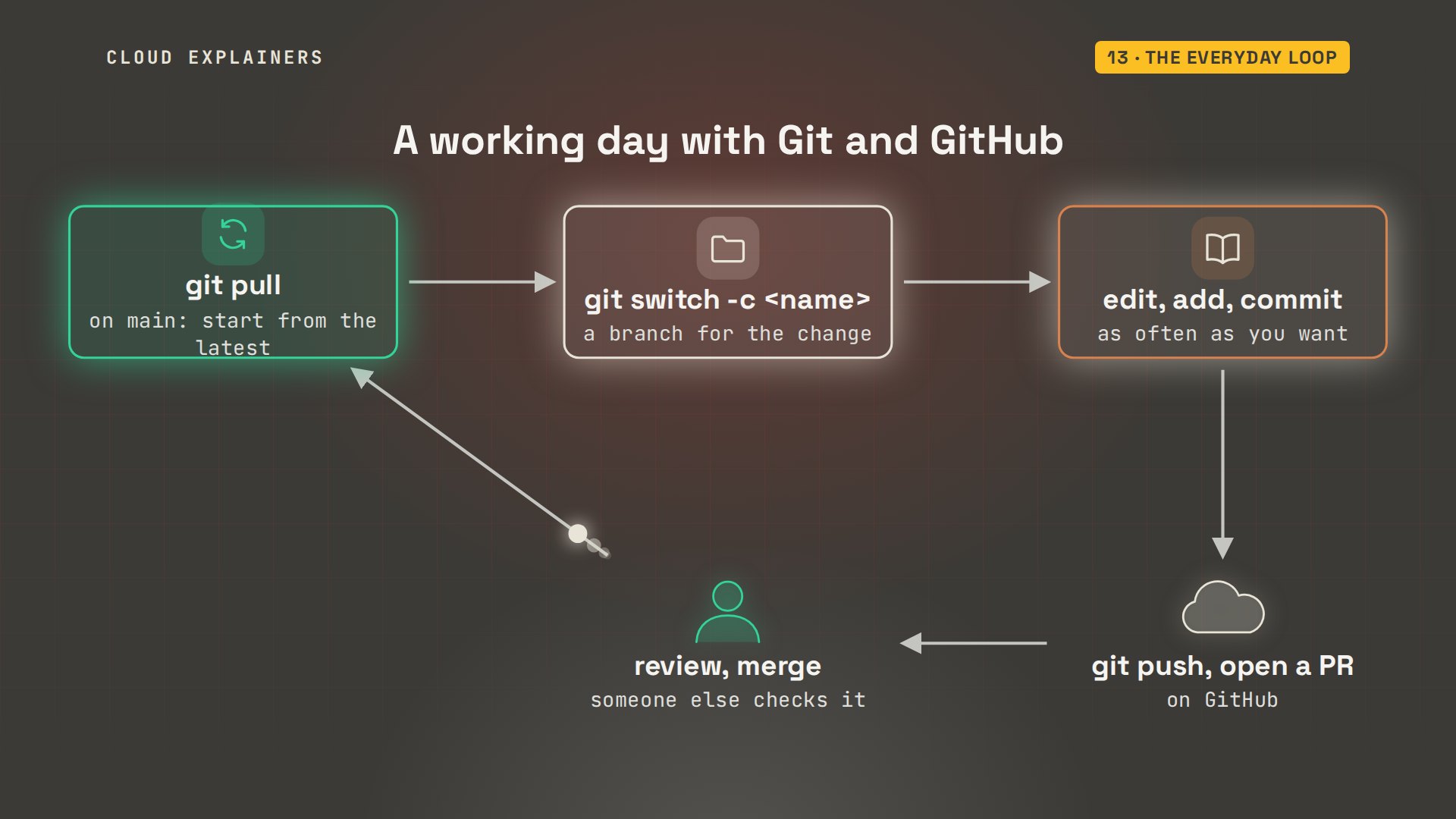
Put all of it together, and here is a normal working day. Pull to start from the latest. Switch to a new branch. Edit, add, commit, as often as you want. Push the branch, open a pull request, merge it after review, then switch back to main and pull again.
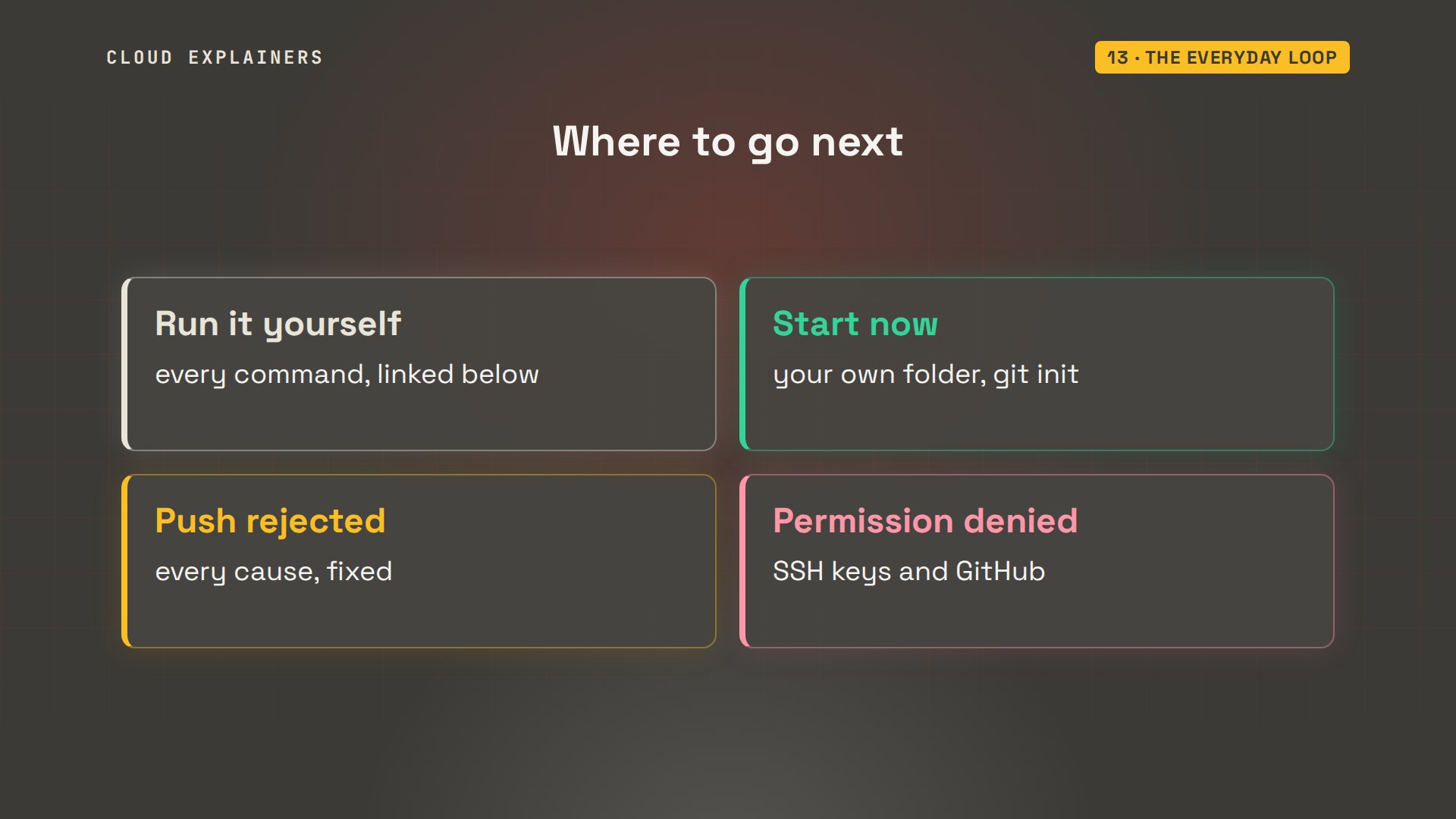
Every command and the lab files are linked in the description, so you can run this whole tutorial yourself. Start with your own folder and git init. Next, if a push of yours is ever rejected, or GitHub says permission denied, we have a video that fixes each one.
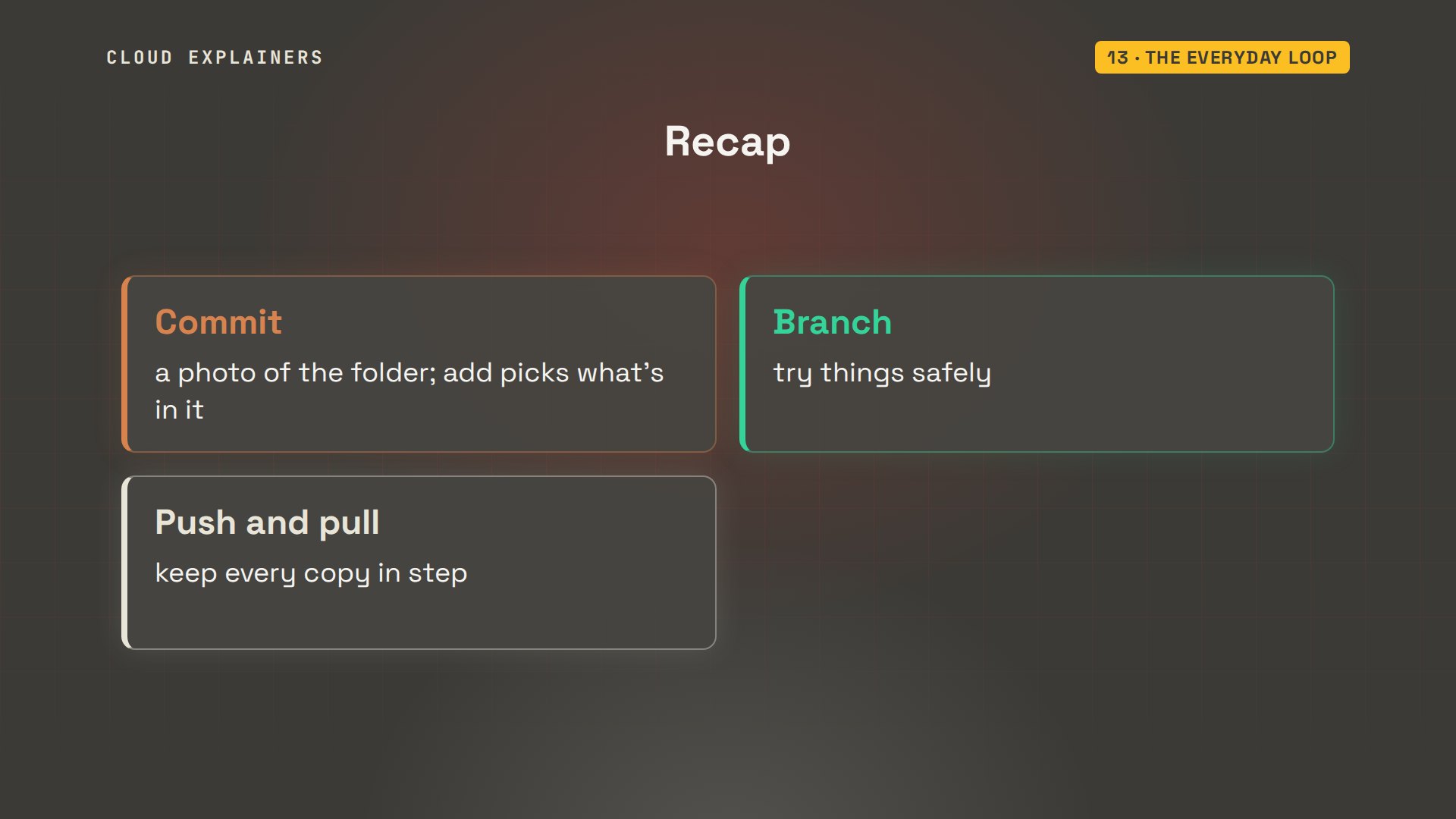
To recap: a commit is a photo of your whole folder, and add chooses what's in it. Branches let you try things safely, and conflicts are Git asking you to choose. Push and pull keep GitHub's copy and yours in step.
If this got your first repository going, subscribing helps more beginners find it. Thanks for watching Cloud Explainers.
Sources
- Git, Install (Windows, macOS, Linux)
- Pro Git, Recording Changes to the Repository (untracked, staged, committed; git status, git diff --staged)
- Pro Git, First-Time Git Setup (user.name, user.email, init.defaultBranch)
- Pro Git, Branches in a Nutshell (a branch is a movable pointer to a commit)
- Pro Git, Basic Branching and Merging (fast-forward, merge conflicts and their markers)
- Pro Git, Working with Remotes (origin, git push, git pull)
- git revert (a new commit that undoes an earlier one)
- git restore (discard working-tree changes, --staged to unstage)
- gitignore
- GitHub Docs, About pull requests
- GitHub CLI manual (gh repo create, gh pr create, gh pr merge)
Demos: two containers on our own Mac standing in for two volunteers' laptops; the pottery class, its prices and its phone numbers are made up. The GitHub repository is a private lab repository of ours. Every command and output was real. Watch the full video on YouTube.
More videos
How to Fix Python ModuleNotFoundError: No Module Named
Golang Pointers in 5 Minutes
How to Fix a Kubernetes Pod Stuck in CrashLoopBackOff
How to Fix a Homelab ESXi Host Not Responding
PostgreSQL: Full Tutorial for Beginners
How a Load Balancer Works with HAProxy
How Python Virtual Environments Work
How to Fix Cloudflare Tunnel Errors in a Homelab
How to Fix API CORS Errors: No 'Access-Control-Allow-Origin'
How Authenticator App Login Codes Work (TOTP)
How a Homelab Hypervisor Works (VMware ESXi)
How to Fix Kubernetes ImagePullBackOff Errors
How to Fix DNS 'Temporary Failure in Name Resolution' on Linux
How to Fix AWS CLI 'Unable to Locate Credentials'
Proxmox vs ESXi for Your Homelab: When Each One Wins
PostgreSQL UUID vs Auto Increment: Which Primary Key Should You Use?
Kubernetes: Full Tutorial for Beginners
How TCP Sockets Work
How to Fix PostgreSQL 'Could Not Connect to Server'
Claude Code Hooks Will Finally Make Sense After This
DevOps with Ansible Will Finally Make Sense After This
How SNMP Network Monitoring Works
How to Fix GitHub 'Permission Denied (publickey)' Errors
Docker: Full Tutorial for Beginners
How to Fix PostgreSQL 'Password Authentication Failed'
Why One Linux Server Handles More Users Than You Think
How to Fix Network 'Connection Refused' Errors
DevOps Pipelines: Jenkins vs GitHub Actions
Linux Nginx Reverse Proxy: Full Tutorial for Beginners
Every Networking Term a Beginner Needs in 12 Minutes
How to Fix Docker 'Permission Denied' on docker.sock
How to Fix Git 'Updates Were Rejected' When You Push
How to Fix nginx 502 Bad Gateway Errors on Linux
How to Fix Linux apt 'Could Not Get Lock' Errors (Ubuntu)

How Email Works on the Internet (SMTP) in 10 Minutes
The Python Roadmap for Beginners

Golang REST API with Gin: Full Tutorial for Beginners
How a WireGuard VPN Network Works
Linux Makefiles Will Finally Make Sense After This

SAML vs OAuth vs OpenID Connect: What's the Difference?
How to Fix Python cron Jobs That Never Run
Linux Bash Scripting: Full Tutorial for Beginners
How PXE Network Boot Works
How Active Directory Works
How to Fix a Linux systemd Service That Won't Start
Linux Logs: syslog vs journald
JWT vs Session Cookies: Which One Should You Use?
Docker vs Docker Compose: Which One Should You Use?
How to Fix Docker Compose Containers That Can't Talk to Each Other

Django Full Tutorial for Beginners
How Linux systemd Works

How to Fix 'Windows Cannot Access' Network Share Errors (SMB)
REST vs gRPC: Which One Should You Use?

How to Fix SSL Certificate Chain Errors (Missing Intermediate)
Every Python Concept for Beginners in 10 Minutes
Every SQL Join Type in 10 Minutes
Why OpenRouter Free Models Hit Their Limit So Fast
Why Your Gemini API Free Tier Runs Out So Fast
OpenRouter Will Finally Make Sense After This
How Redis Caching Works
Gemini API vs Vertex AI: Which One Should You Use?
How to Fix a Leaked Gemini API Key
Why Golang Uses Goroutines Instead of Threads
How to Fix Gemini API Error 429: Resource Exhausted
Claude Token Pricing Will Finally Make Sense After This
Why Python Web Scraping Returns Nothing (and the Fix)
Python uv vs pip: Which One Should You Use?
Python Automation: Full Tutorial for Beginners
How OAuth Login Works
Google AI Studio Will Finally Make Sense After This
What Happens When You Run a Docker Container
How to Fix Claude Code Billing Your API Key Instead of Your Plan
Why Passkeys Can't Be Phished Like Passwords
PowerShell vs Bash: Which One Should You Learn?
The Linux Roadmap for Beginners
Django vs FastAPI: Which One Should You Use?

Why SQLite Is the Most Used Database in the World
How a NoSQL Database Like MongoDB Works
How to Fix Python pip error: externally-managed-environment
How to Fix MySQL Too Many Connections Database Errors
Golang Concurrency Will Finally Make Sense After This
How Amazon S3 Works
How Kubernetes Works
How Git Works
How to Fix Docker Port Already Allocated Errors
How PostgreSQL Works
How to Fix Git Merge Conflicts
How to Fix No Space Left on Device in Linux
How the Internet Works
SQL vs NoSQL: When Each One Wins
How to Fix JWT Token Expired Errors (401 Unauthorized)
Claude API vs Claude Pro: Why Your Subscription Doesn't Include It
Why AI Agent Skills Beat Giant Prompts
Linux Cron Jobs Will Finally Make Sense After This
Security Logs Will Finally Make Sense After This
How to Fix a Security Leak: An API Key Pushed to GitHub
DNS Will Finally Make Sense After This
Never Ignore a Security Update
Two-Factor Authentication Will Finally Make Sense
Never Expose a Database to the Internet
SSH Keys vs Passwords: Which Is Safer for Security?
The 5 Levels of Linux Boot: From Power On to Login
The 5 Levels of Network Firewalls
Password Security: Why Hackers Crack Weak Passwords
Why Your Linux Server Runs Out of Memory
HTTP vs HTTPS: What Actually Changes on Your Network

Every Linux File Permission You Need to Know
Linux Processes vs Threads: When Each One Wins
The OSI Model Will Finally Make Sense After This
The 7 Levels of Git
Every Network Troubleshooting Command You Need
Hashing vs Encryption in Cybersecurity: When Each One Wins
Why the Internet Ran Out of IP Addresses
Linux Package Managers: apt vs Snap vs Flatpak
Why Python Is Slow (and When It Doesn't Matter)
TCP vs UDP: When Each One Wins
Stop Running Linux as Root (Do This Instead)
Linux Users and Groups Will Finally Make Sense

Why Phishing Beats Good Security (and How to Spot It)

The 7 Levels of Docker

AI Agents Will Finally Make Sense After This
Stop Using git push --force (Use This Instead)
Agent Skills vs MCP: When Each One Wins
Networking Will Finally Make Sense After This

Every Linux Command You Actually Need
The 7 Levels of Cybersecurity
Every System Design Concept You Need, in One Diagram