HTTP vs HTTPS: What Actually Changes on Your Network
HTTP vs HTTPS, measured on a real network instead of explained in the abstract. Ana logs in to a shop over café Wi-Fi while the café's router records every packet: over HTTP it reads her password and session cookie in plain text; over HTTPS it sees only the site's name (DNS and SNI), addresses, sizes and encrypted bytes. Then what TLS adds (encryption, integrity, identity), how a certificate stops a fake shop on the same Wi-Fi, what HTTPS costs (one round trip, measured), and how sites force HTTPS with a redirect and HSTS.
Your password on café Wi-Fi
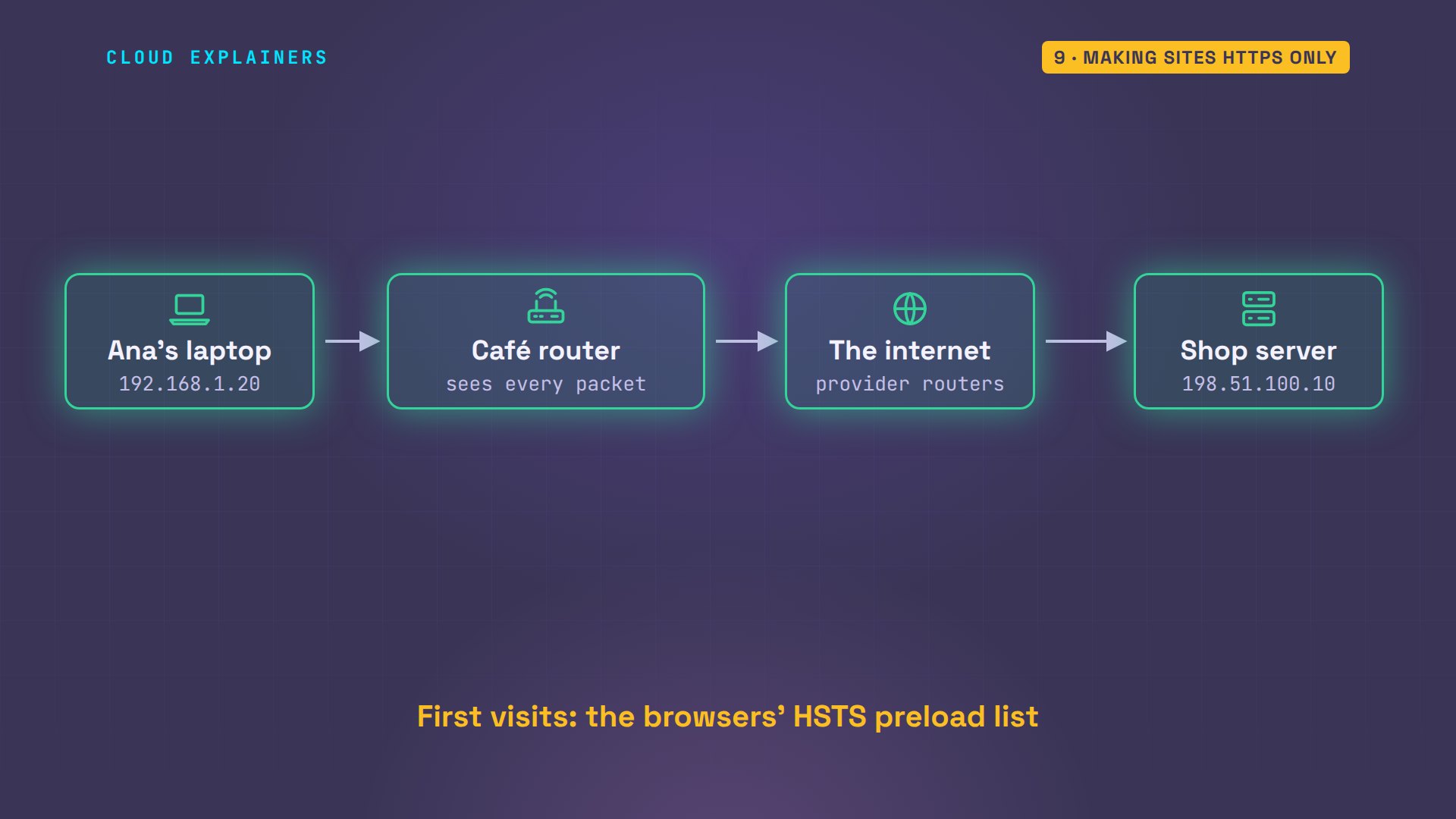
You log in to a shop's website, on the Wi-Fi in a café. Can the router running that Wi-Fi see your password? With HTTP, yes, every character. With HTTPS, no. But it still sees more than most people think.
Ana will do exactly that, in a real lab: the same login, first over HTTP, then over HTTPS, while the café router records every packet. We'll see what changes and what doesn't, what a fake shop can do, what HTTPS costs in time, and how a site makes sure you never use plain HTTP.
What HTTP is
HTTP, the Hypertext Transfer Protocol, is how a browser talks to a website. The browser sends a request: a few lines of plain text, like, send this form to /login. The server sends back a response, also plain text. By default, it uses port 80. Plain text means anyone who carries those packets can read them, and on Ana's trip, the first one carrying them is the café router.
HTTP on the wire
On the café router, tcpdump starts recording everything on port 80 that crosses its Wi-Fi side. On her laptop, Ana logs in with curl, sending her user name and password. The shop answers: welcome back, ana. We stop the recording: 12 packets.
sudo tcpdump -i wifi -w http.pcap port 80tcpdump: listening on wifi, link-type EN10MB (Ethernet), snapshot length 262144 bytes
12 packets captured
12 packets received by filter
0 packets dropped by kernel
curl -d 'user=ana&password=Blue-Kettle-42' http://shop.example/loginWelcome back, ana
Now the café router reads its recording. tshark lists the request: from Ana's laptop, to shop.example, a POST to /login. And grep, searching the raw recording for words, finds her password, the session cookie the shop gave her, a pass that keeps her logged in, and the page she got back. With that cookie, anyone can act as Ana on the shop, without even knowing the password.
tshark -r http.pcap -Y http.request -T fields -E header=y -e ip.src -e http.host -e http.request.method -e http.request.uri | column -tip.src        http.host     http.request.method  http.request.uri
192.168.1.20  shop.example  POST                 /login
grep -aoE 'password=[A-Za-z0-9-]+|session=[0-9a-f]+|Welcome back, [a-z]+' http.pcappassword=Blue-Kettle-42
session=7f3a9c2e41d8
Welcome back, ana
So on plain HTTP, every device on the path can read all of it: the café router, the internet providers, and every router after them. And any of them could change it too, for example, by adding an ad to the page, and neither Ana nor the shop would know.
What HTTPS adds
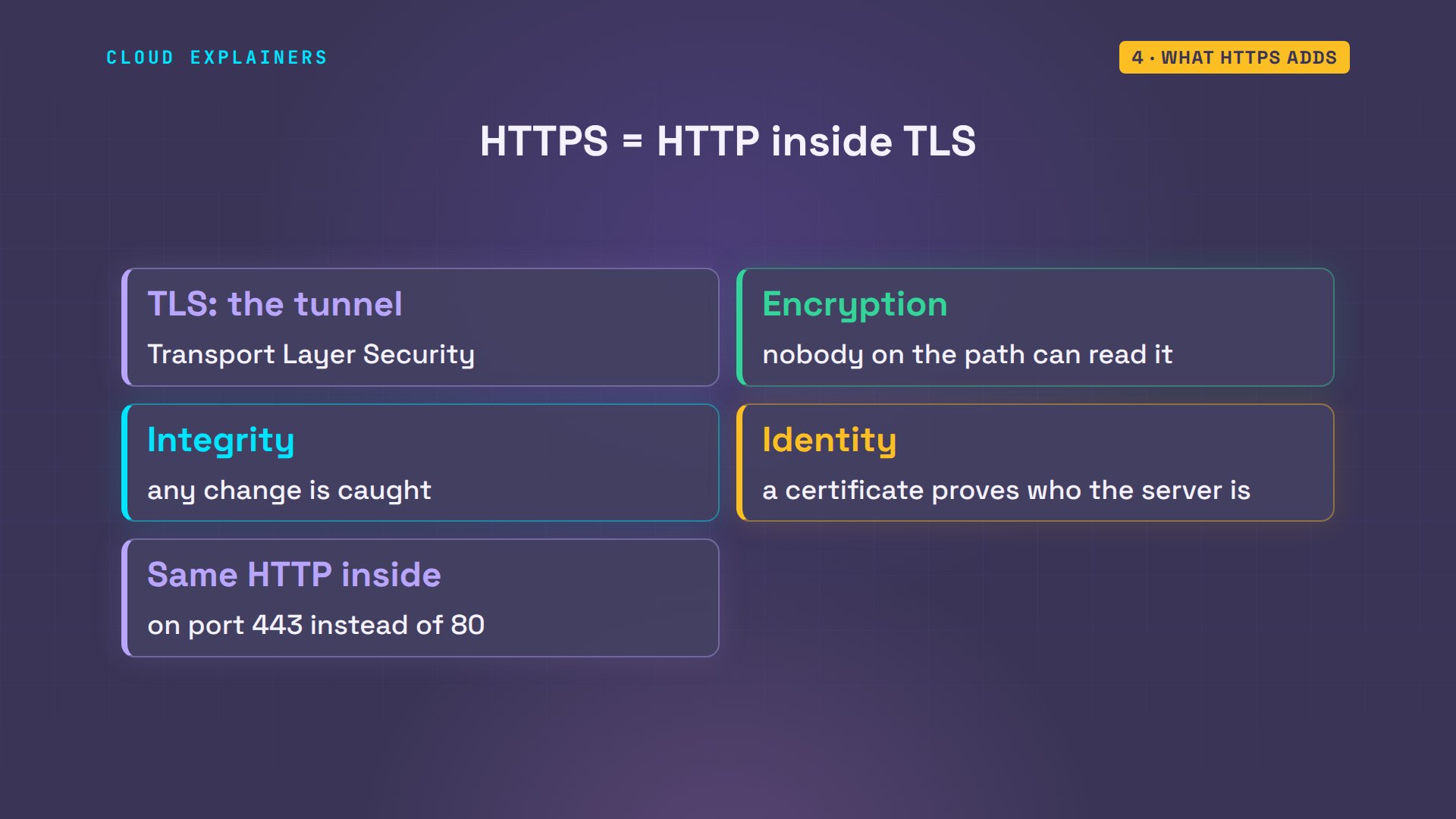
HTTPS is the same HTTP, inside a protected tunnel made by a protocol called TLS, Transport Layer Security. It adds three things. Encryption: nobody on the path can read the data. Integrity: nobody can change it without being caught. And identity: a certificate proves the server really is shop.example. The HTTP inside doesn't change. It just travels on port 443.
Before any HTTP, the two sides do a TLS handshake. First, Ana's laptop says hello, and lists the encryption methods it supports. The server answers with its choice, and its certificate. Each side also sends one half of a key exchange, and both work out the same secret key, without that key ever crossing the network. With TLS 1.3, all of this takes one round trip.
HTTPS on the wire
Now the same login over HTTPS. The café router records port 443, and port 53, for name lookups. Ana runs the same command, with https. Welcome back, ana: for her, nothing changed. This time, 24 packets.
sudo tcpdump -i wifi -w https.pcap port 443 or port 53tcpdump: listening on wifi, link-type EN10MB (Ethernet), snapshot length 262144 bytes
24 packets captured
24 packets received by filter
0 packets dropped by kernel
curl -d 'user=ana&password=Blue-Kettle-42' https://shop.example/loginWelcome back, ana
Here's what the router recorded. First, the laptop asks the café router where shop.example is. Then the TCP handshake, on port 443. Then the TLS hello, the server's answer, and after that, only application data: encrypted bytes.
tshark -r https.pcap1 0.000000 192.168.1.20 → 192.168.1.1 DNS 72 Standard query 0x9672 A shop.example 2 0.000018 192.168.1.20 → 192.168.1.1 DNS 72 Standard query 0xfc6c AAAA shop.example 3 0.040198 192.168.1.1 → 192.168.1.20 DNS 88 Standard query response 0x9672 A shop.example A 198.51.100.10 4 0.040224 192.168.1.1 → 192.168.1.20 DNS 72 Standard query response 0xfc6c Refused AAAA shop.example 5 0.040305 192.168.1.20 → 198.51.100.10 TCP 74 42962 → 443 [SYN] Seq=0 Win=64240 Len=0 MSS=1460 SACK_PERM TSval=2214521137 TSecr=0 WS=128 6 0.080385 198.51.100.10 → 192.168.1.20 TCP 74 443 → 42962 [SYN, ACK] Seq=0 Ack=1 Win=65160 Len=0 MSS=1460 SACK_PERM TSval=1319418099 TSecr=2214521137 WS=128 7 0.080399 192.168.1.20 → 198.51.100.10 TCP 66 42962 → 443 [ACK] Seq=1 Ack=1 Win=64256 Len=0 TSval=2214521177 TSecr=1319418099 8 0.081823 192.168.1.20 → 198.51.100.10 TLSv1 583 Client Hello (SNI=shop.example) 9 0.121889 198.51.100.10 → 192.168.1.20 TCP 66 443 → 42962 [ACK] Seq=1 Ack=518 Win=64768 Len=0 TSval=1319418140 TSecr=2214521178 10 0.122958 198.51.100.10 → 192.168.1.20 TLSv1.3 1416 Server Hello, Change Cipher Spec, Application Data, Application Data, Application Data, Application Data 11 0.122968 192.168.1.20 → 198.51.100.10 TCP 66 42962 → 443 [ACK] Seq=518 Ack=1351 Win=67200 Len=0 TSval=2214521219 TSecr=1319418141 12 0.123523 192.168.1.20 → 198.51.100.10 TLSv1.3 146 Change Cipher Spec, Application Data 13 0.123583 192.168.1.20 → 198.51.100.10 TLSv1.3 270 Application Data 14 0.163671 198.51.100.10 → 192.168.1.20 TLSv1.3 321 Application Data 15 0.163822 198.51.100.10 → 192.168.1.20 TLSv1.3 321 Application Data 16 0.163848 192.168.1.20 → 198.51.100.10 TCP 66 42962 → 443 [ACK] Seq=802 Ack=1861 Win=72960 Len=0 TSval=2214521260 TSecr=1319418182 17 0.164031 198.51.100.10 → 192.168.1.20 TLSv1.3 243 Application Data 18 0.164047 198.51.100.10 → 192.168.1.20 TLSv1.3 106 Application Data 19 0.164065 192.168.1.20 → 198.51.100.10 TCP 66 42962 → 443 [ACK] Seq=802 Ack=2078 Win=75648 Len=0 TSval=2214521260 TSecr=1319418182 20 0.164136 192.168.1.20 → 198.51.100.10 TLSv1.3 90 Application Data 21 0.164494 192.168.1.20 → 198.51.100.10 TCP 66 42962 → 443 [FIN, ACK] Seq=826 Ack=2078 Win=75648 Len=0 TSval=2214521261 TSecr=1319418182 22 0.204238 198.51.100.10 → 192.168.1.20 TCP 66 443 → 42962 [FIN, ACK] Seq=2078 Ack=826 Win=64512 Len=0 TSval=1319418223 TSecr=2214521261 23 0.204248 192.168.1.20 → 198.51.100.10 TCP 66 42962 → 443 [ACK] Seq=827 Ack=2079 Win=75648 Len=0 TSval=2214521301 TSecr=1319418223 24 0.204520 198.51.100.10 → 192.168.1.20 TCP 66 443 → 42962 [ACK] Seq=2079 Ack=827 Win=64512 Len=0 TSval=1319418223 TSecr=2214521261
Now the same search as before. grep finds the password, the cookie and the welcome page zero times. And tshark can't find a single HTTP message. The password is in that recording, but encrypted, and without the key, it's noise.
grep -acE 'password|session|Welcome' https.pcap0
tshark -r https.pcap -Y http | wc -l0
So with HTTPS, the café router still carries every packet, but it can't read them, and it can't change them: a changed byte fails the integrity check, and the connection stops.
What the café still sees
But HTTPS doesn't hide everything. The name lookup went out in plain text: shop.example, and its address. The TLS hello carries the site's name too, in a field called SNI, Server Name Indication, because one server can host many sites, and it needs to know which certificate to send. And the addresses and the port are on every packet.
tshark -r https.pcap -Y dns.a -T fields -E header=y -e dns.qry.name -e dns.a | column -tdns.qry.name  dns.a
shop.example  198.51.100.10
tshark -r https.pcap -Y 'tls.handshake.type == 1' -T fields -E header=y -e ip.dst -e tcp.dstport -e tls.handshake.extensions_server_name | column -tip.dst         tcp.dstport  tls.handshake.extensions_server_name
198.51.100.10  443          shop.example
It also sees the size and timing of every encrypted packet: 1,416 bytes from the shop, then Ana's smaller ones. Patterns like these can hint at which page someone opens, but they can't be read.
tshark -r https.pcap -Y 'tls.app_data' -T fields -E header=y -e ip.src -e frame.len | column -tip.src         frame.len
198.51.100.10  1416
192.168.1.20   146
192.168.1.20   270
198.51.100.10  321
198.51.100.10  321
198.51.100.10  243
198.51.100.10  106
192.168.1.20   90
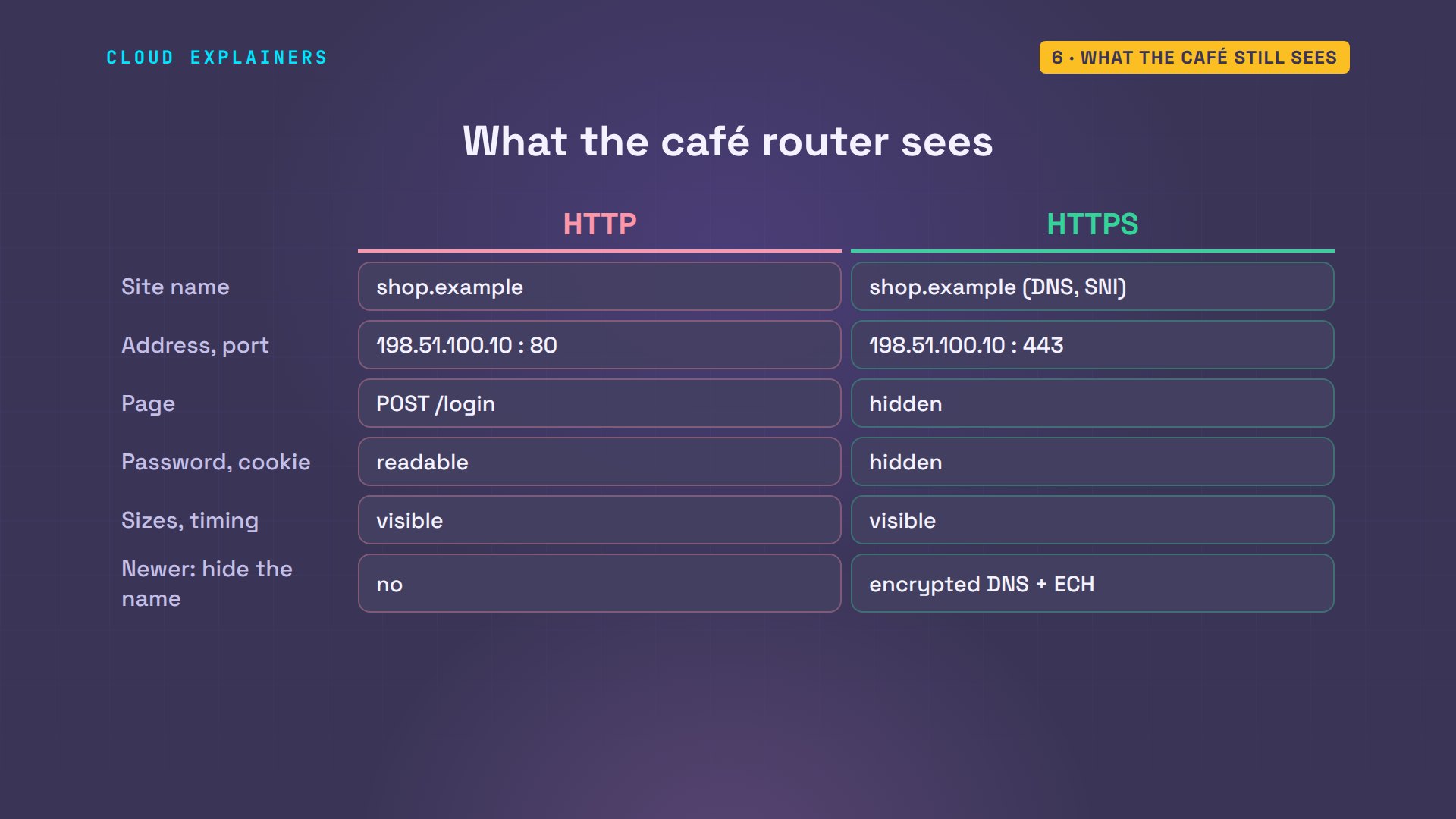
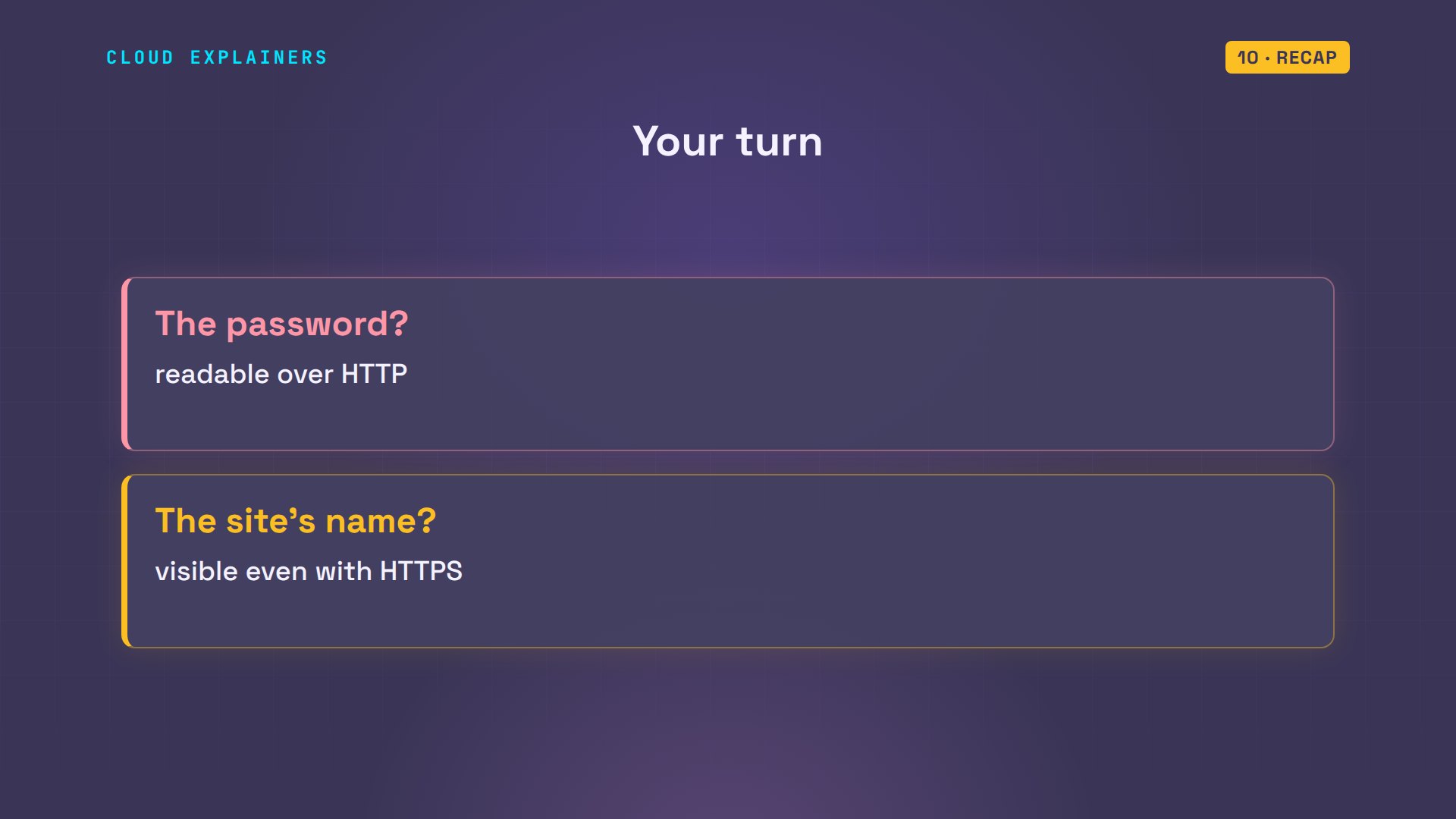
Here's the full picture, from the café router's seat. The site's name: visible either way. The addresses and port: visible either way. The page, /login: only with HTTP. The password and cookie: only with HTTP. Sizes and timing: both. Newer features can hide the name too: encrypted DNS for the lookup, and Encrypted Client Hello for the TLS hello, wherever both sides have it.
Certificates and impostors
Encryption alone isn't enough. You also need to know who's on the other end. Otherwise an impostor could make its own encrypted connection with you, and read everything anyway. That's the job of the certificate.
Ana's laptop checks the shop's certificate on every connection. curl shows it: TLS 1.3, a certificate for shop.example, signed by a certificate authority, and verified. A certificate authority checks who controls a name before it signs. Ana's laptop trusts 121 of them: the list that ships with Ubuntu, plus our lab's own, which we added, standing in for a public authority such as Let's Encrypt.
curl -sv https://shop.example/ -o /dev/null 2>&1 | grep -E 'SSL connection|subject:|issuer:|expire date|verify ok'* SSL connection using TLSv1.3 / TLS_AES_256_GCM_SHA384 / X25519 / RSASSA-PSS
*  subject: CN=shop.example
*  expire date: Jan 27 13:50:42 2027 GMT
*  issuer: CN=Lab Root CA
*  SSL certificate verify ok.
grep -c 'BEGIN CERTIFICATE' /etc/ssl/certs/ca-certificates.crt121
Now let's attack Ana, on purpose. We put a fake shop on the café Wi-Fi, and make the café router's name lookups send shop.example to it. In a real café, a fake hotspot with the same network name can do exactly this.
Ana's laptop now gets the impostor's address. Over HTTP she logs in, and sees welcome back, ana. Nothing looks wrong. But the fake shop saved her password. Over HTTPS, curl stops before sending anything: the certificate isn't signed by anyone her laptop trusts. The impostor's file still holds only the password from the HTTP attempt.
dig +short shop.example192.168.1.66
curl -d 'user=ana&password=Blue-Kettle-42' http://shop.example/loginWelcome back, ana
cat stolen.txtuser=ana&password=Blue-Kettle-42
curl -d 'user=ana&password=Blue-Kettle-42' https://shop.example/logincurl: (60) SSL certificate problem: self-signed certificate
More details here: https://curl.se/docs/sslcerts.html

curl failed to verify the legitimacy of the server and therefore could not
establish a secure connection to it. To learn more about this situation and
how to fix it, please visit the web page mentioned above.
cat stolen.txtuser=ana&password=Blue-Kettle-42
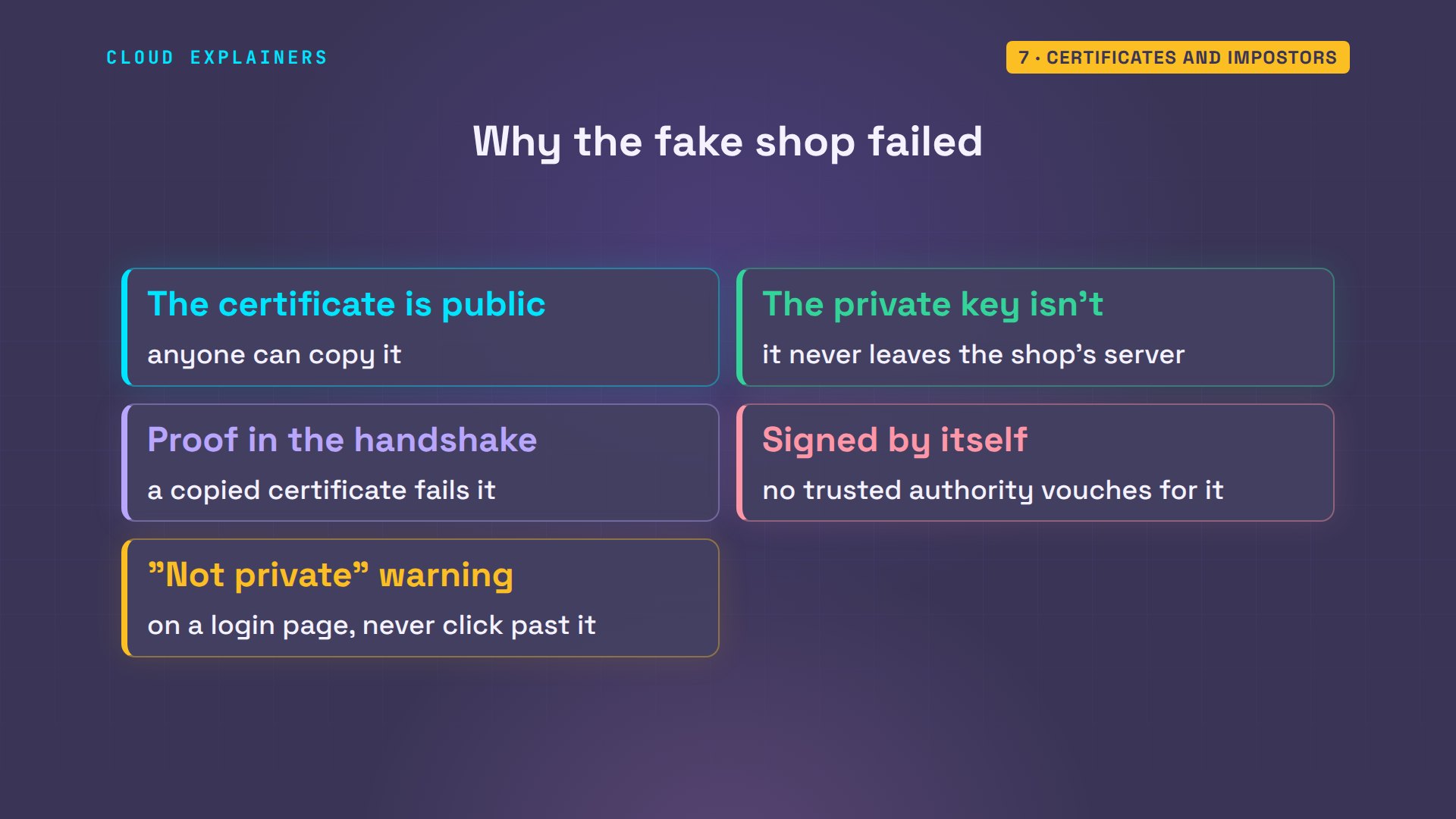
Why can't the impostor just copy the real certificate? It can: a certificate is public. But it only works together with a secret file, the private key, which never leaves the shop's server, and in the handshake the server must prove it holds that key. A copied certificate fails that proof. So the fake shop can only show a certificate it signed itself. In a browser, that's the full-page warning: your connection is not private. On a login page, never click past it.
What HTTPS costs
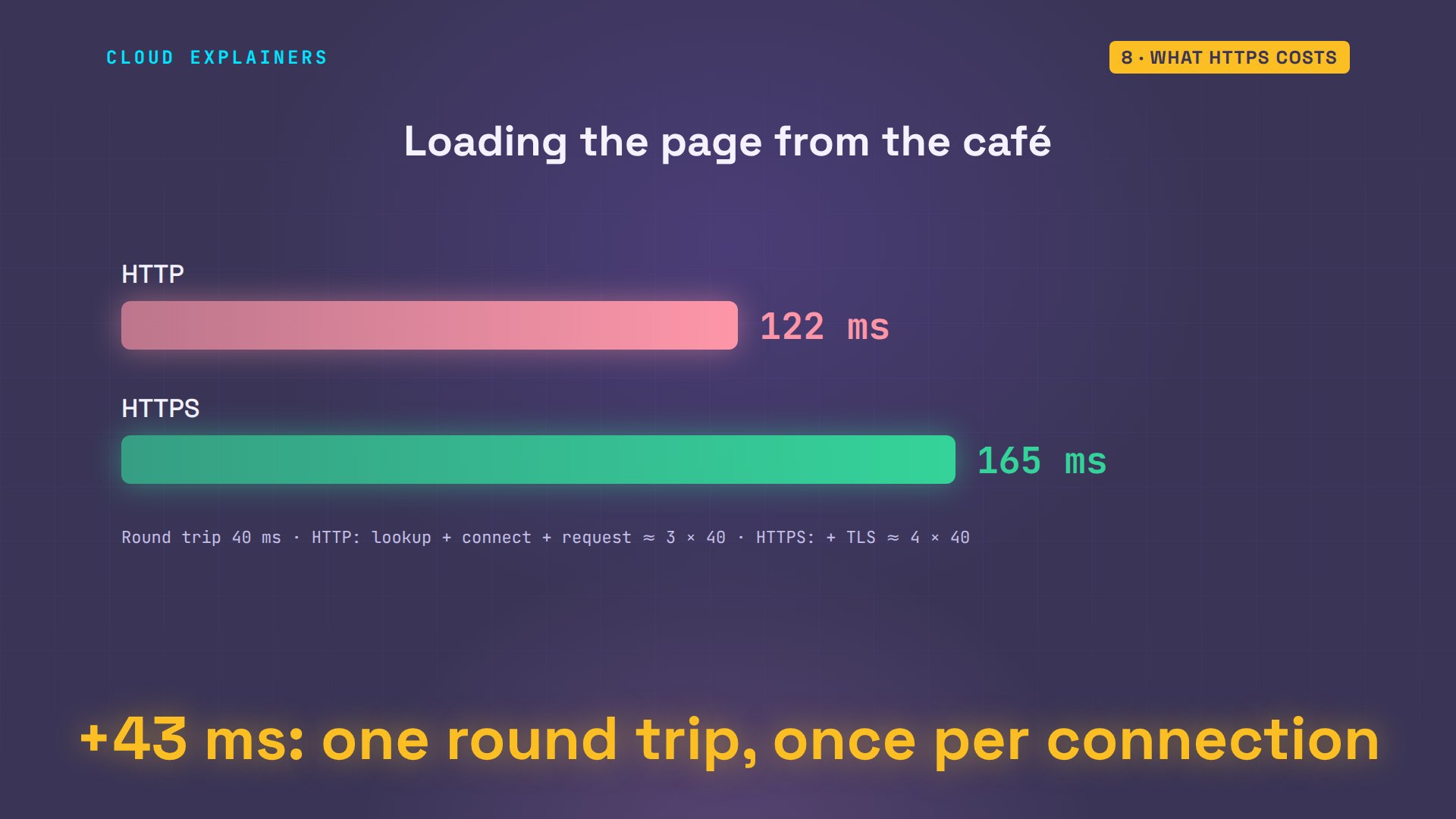
So what does HTTPS cost? Ana's round trip to the shop is 40 milliseconds. Over HTTP, the page takes 122 milliseconds: a name lookup, the TCP handshake and the request, three round trips. Over HTTPS, 165: the TLS handshake added 44 milliseconds, one more round trip.
ping -c 3 -q shop.examplePING shop.example (198.51.100.10) 56(84) bytes of data.

--- shop.example ping statistics ---
3 packets transmitted, 3 received, 0% packet loss, time 2003ms
rtt min/avg/max/mdev = 40.291/40.351/40.443/0.065 ms
curl -so /dev/null -w 'dns %{time_namelookup} connect %{time_connect} tls %{time_appconnect} total %{time_total}\n' http://shop.example/dns 0.040793 connect 0.081120 tls 0.000000 total 0.121711
curl -so /dev/null -w 'dns %{time_namelookup} connect %{time_connect} tls %{time_appconnect} total %{time_total}\n' https://shop.example/dns 0.040699 connect 0.080981 tls 0.124544 total 0.165133
As a picture: 43 milliseconds more. And only once per connection, because the browser keeps the connection open, and reuses it for the rest of the page.
And the encryption itself is cheap. Here, openssl encrypts with AES, the encryption method HTTPS used here, 5.3 million kilobytes in one second, on one core: about 5 gigabytes a second. Far more than any home connection carries. The real cost of HTTPS is that one round trip, not the math.
openssl speed -seconds 1 -bytes 16384 -evp aes-256-gcm 2>/dev/null | tail -2type          16384 bytes
AES-256-GCM    5266604.03k
curl -so /dev/null -w 'dns %{time_namelookup} connect %{time_connect} tls %{time_appconnect} total %{time_total}\n' https://shop.example/dns 0.040699 connect 0.080981 tls 0.124544 total 0.165133
Making sites HTTPS only
Last question: if a site works both ways, how does it make sure you use HTTPS? Type shop.example without https, and many browsers and apps still try plain HTTP first. So the shop does two things.
First, a redirect. Ask for the HTTP page, and the shop answers 301, moved permanently, to the https address. Second, a header called Strict-Transport-Security, or HSTS. It tells the browser: for the next year, only ever use HTTPS for this site. curl doesn't remember that header, but curl -L follows the redirect, and lands on the secure page.
curl -sI http://shop.example/ | grep -E 'HTTP/|Location'HTTP/1.1 301 Moved Permanently
Location: https://shop.example/
curl -sI https://shop.example/ | grep -E 'HTTP/|Strict'HTTP/1.1 200 OK
Strict-Transport-Security: max-age=31536000
curl -sL http://shop.example/Welcome to shop.example
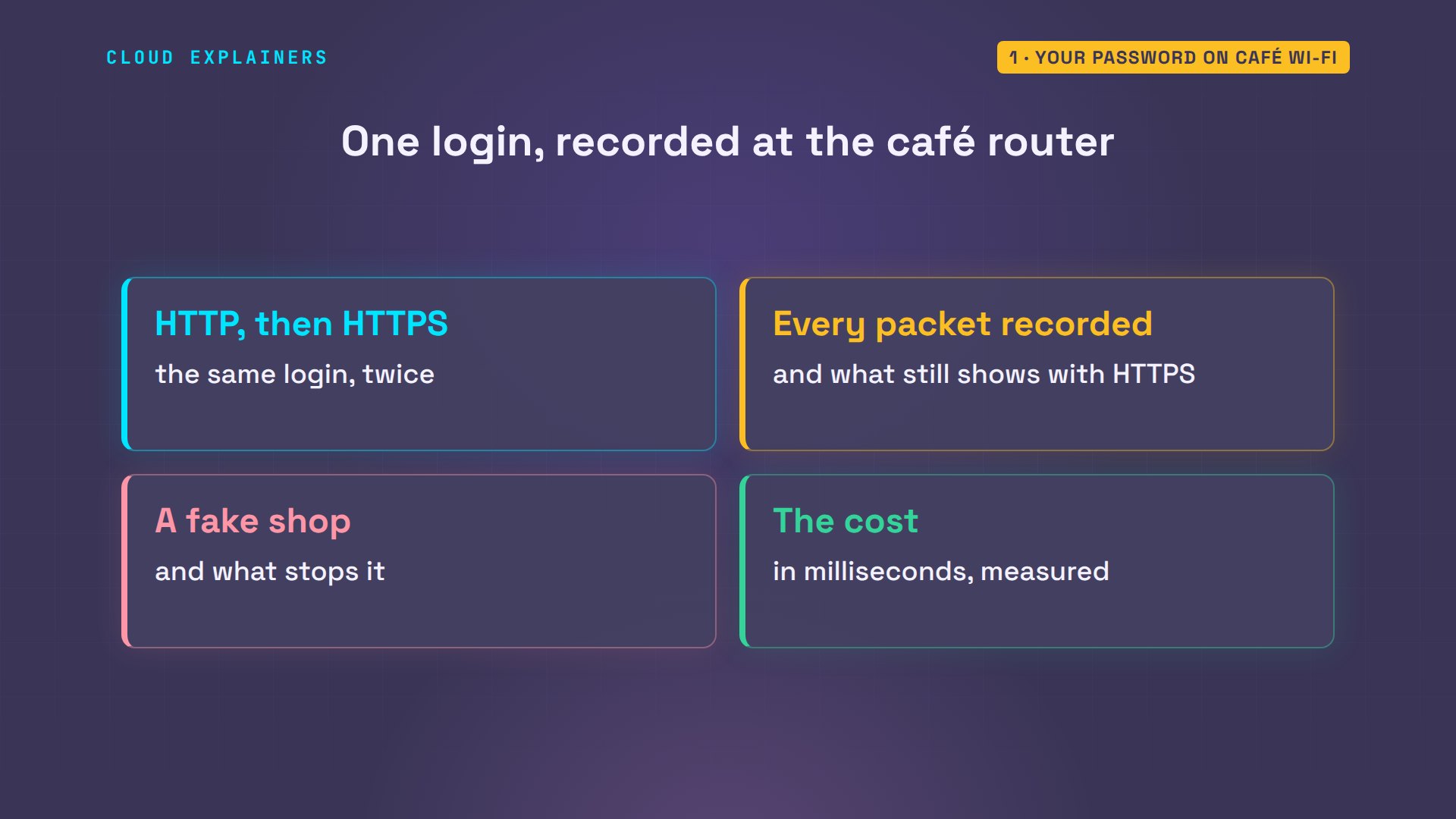
The redirect alone leaves a gap: that very first request still crosses the café in plain text, where it can be read or changed. HSTS closes it for every later visit: the browser switches to HTTPS itself, before anything leaves the laptop. And for first visits, browsers ship a preload list of sites that are HTTPS only.
Recap
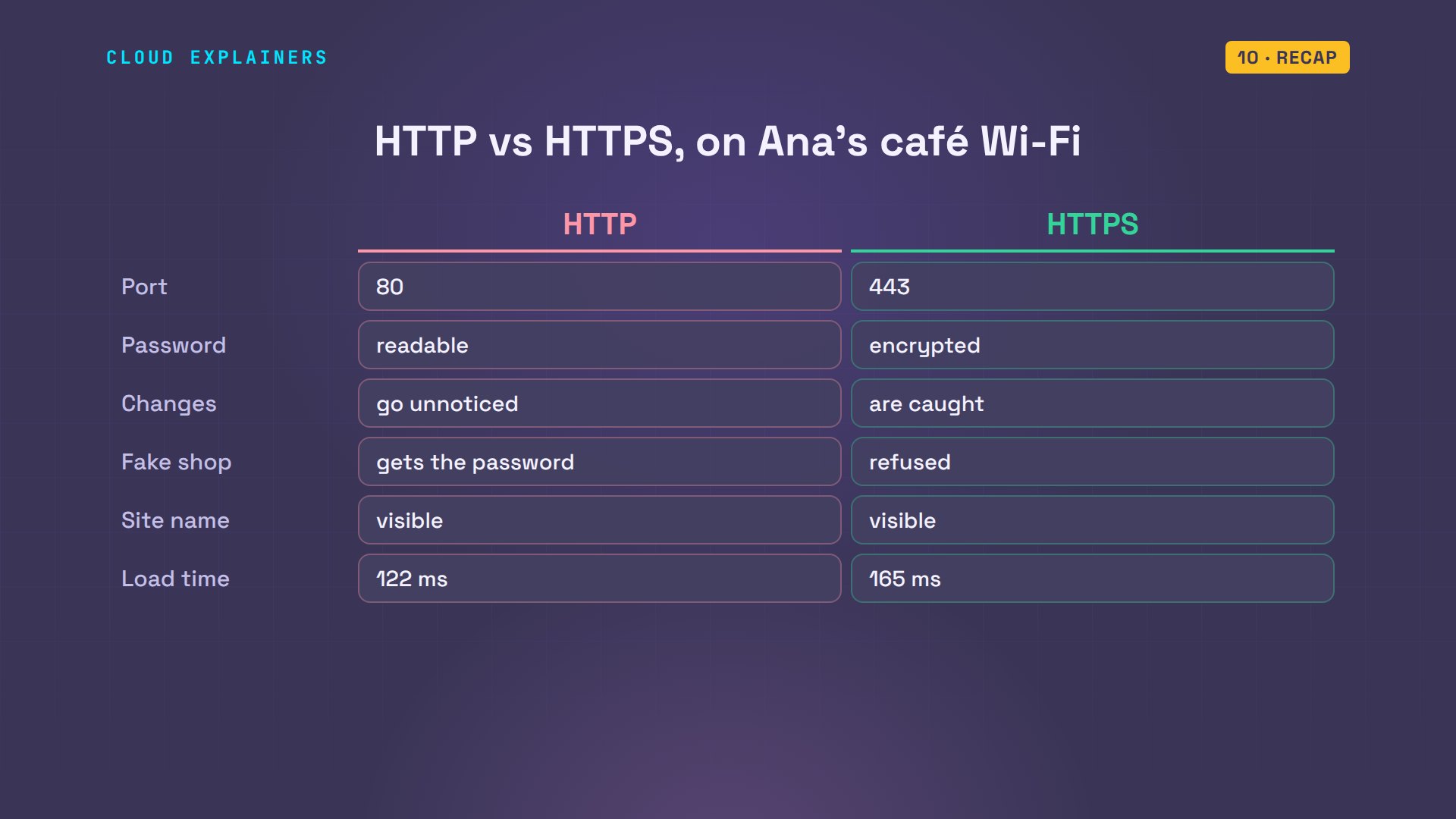
So, HTTP versus HTTPS. HTTP is plain text on port 80: anyone on the path can read it and change it. HTTPS wraps the same HTTP in TLS on port 443: encrypted, tamper-proof, and a certificate proves who you're talking to. The café still sees the site's name, the addresses, sizes and timing. And it costs one round trip per connection.
A question for the comments: which surprised you more, that the café router could read the password over HTTP, or that HTTPS still shows the site's name? Tell me in the comments.
Every result in this video came from a real run of a small lab network. This was episode six of Networking for Beginners.
Sources
Demos: real output from a small lab network built with Docker containers on one machine, using only private and reserved test addresses (192.168.1.x, 203.0.113.x and 198.51.100.x) and a lab certificate authority. The lab has no route to the real internet. The fake shop and the password are part of the lab, attacked on purpose. Watch the full video on YouTube.
More videos

Every Linux File Permission You Need to Know
Linux Processes vs Threads: When Each One Wins

The OSI Model Will Finally Make Sense After This

The 7 Levels of Git
Every Network Troubleshooting Command You Need
Hashing vs Encryption in Cybersecurity: When Each One Wins
Why the Internet Ran Out of IP Addresses
Linux Package Managers: apt vs Snap vs Flatpak

Why Python Is Slow (and When It Doesn't Matter)
TCP vs UDP: When Each One Wins
Stop Running Linux as Root (Do This Instead)
Linux Users and Groups Will Finally Make Sense
Why Phishing Beats Good Security (and How to Spot It)

The 7 Levels of Docker

AI Agents Will Finally Make Sense After This

Stop Using git push --force (Use This Instead)
Agent Skills vs MCP: When Each One Wins

Networking Will Finally Make Sense After This

Every Linux Command You Actually Need
The 7 Levels of Cybersecurity

Every System Design Concept You Need, in One Diagram