How to Fix Docker Port Already Allocated Errors
How to fix Docker's 'port is already allocated' error, for beginners, on a real laptop: Ana's tea shop website, version 2, won't start because version 1 still holds port 8080. We explain what a port is and what -p 8080:80 means (host port : container port), find the container holding the port with docker ps and its publish filter, stop it, remove the leftover container a failed docker run leaves behind, and look at the docker-proxy behind every published port. Then the other message, 'address already in use', when a program that isn't a container holds the port, found with ss and lsof; the same fix in Docker Compose; and how to keep ports from clashing.
Port already allocated
Docker says port is already allocated, and your container won't start. Ana built version 2 of her tea shop's website, and ran it on port 8080, the same way as always. Docker made the container, then refused to start it. Binding port 8080 failed: the port is already allocated.
docker run -d --name shop-v2 -p 8080:80 shop:v2f8506cfa9707a4b7fdf09336099e479714562f28de963b09405469f529032b0e
docker: Error response from daemon: failed to set up container networking: driver failed programming external connectivity on endpoint shop-v2 (8c221ac272e83fd69b8d315c1bfa62d1076454e0133086349dfcf1e944763957): Bind for 0.0.0.0:8080 failed: port is already allocated

Run 'docker run --help' for more information
By the end, you'll find what's holding a port, free it or choose another one, fix the same error in Docker Compose, and stop it from coming back.
What a port is
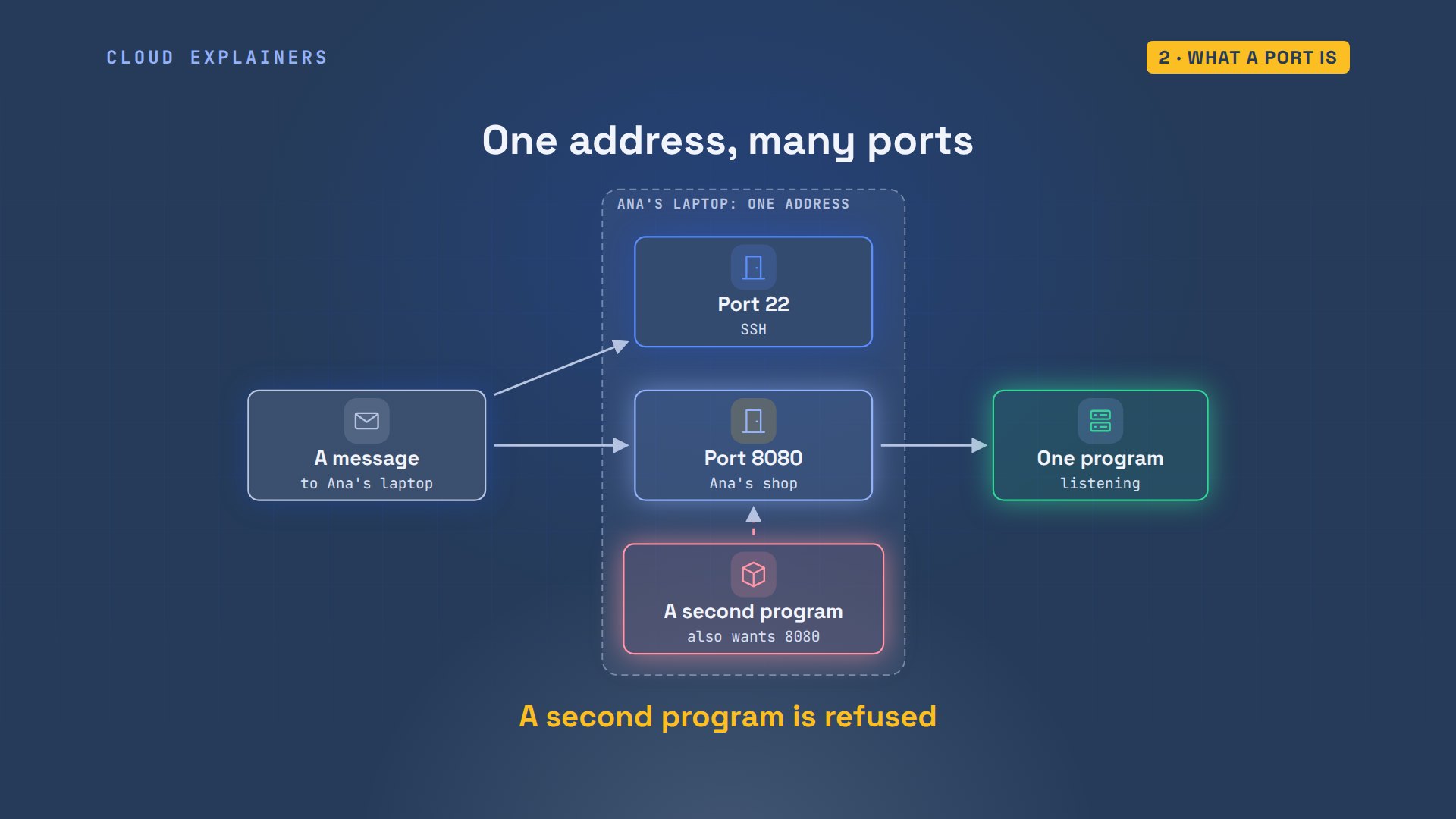
First, what's a port? Ana's laptop has one address on the network, but many programs that want to receive messages. A port is a number that says which program a message is for. SSH, the remote login service, usually listens on port 22, and Ana's shop is on port 8080. The rule behind today's error: one port, one listener. When a second program asks for a port that's taken, it's refused.
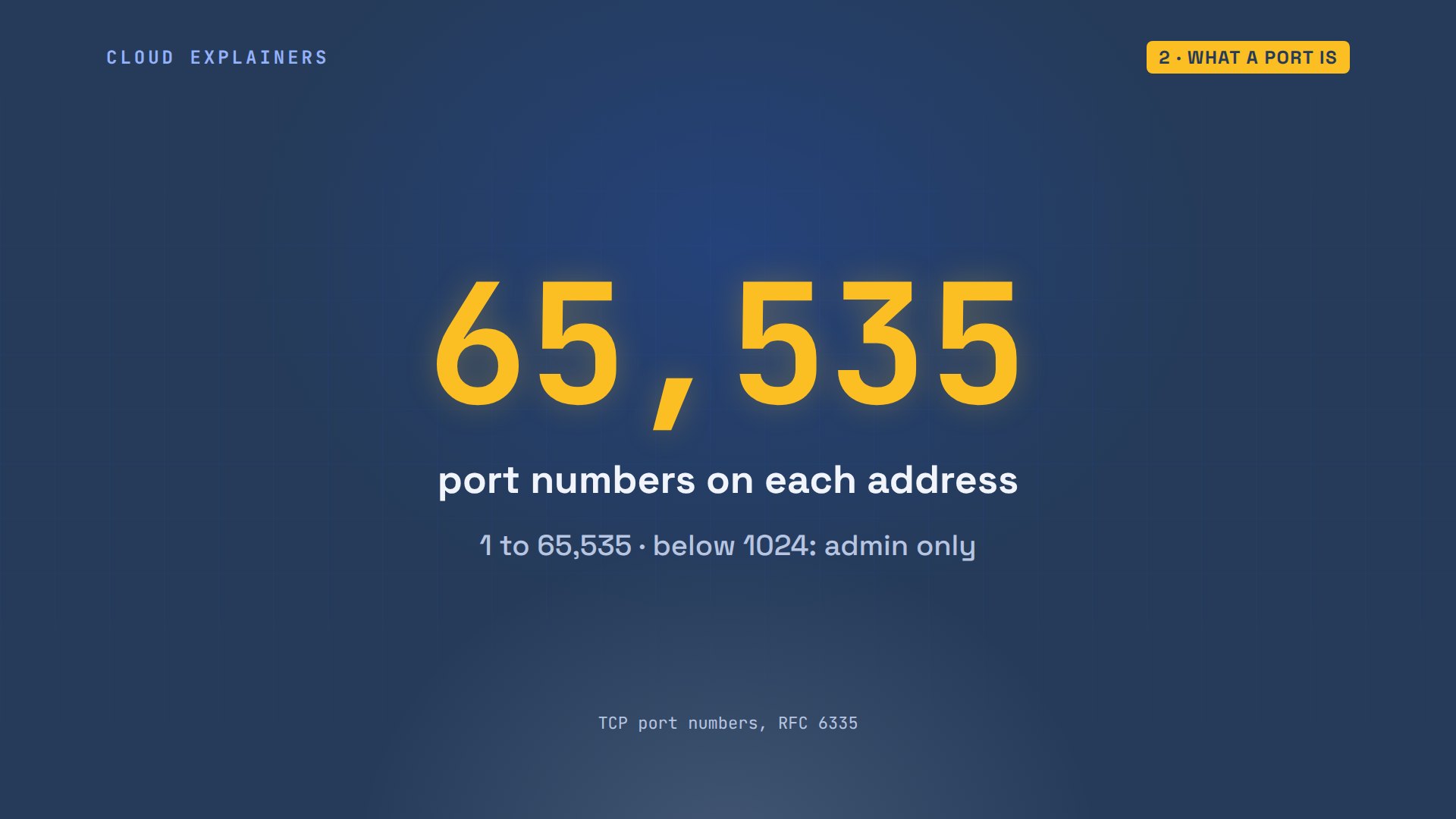
There are 65,535 port numbers on each address, so a free one is never far away. On Linux, ports below 1024 need admin rights by default, which is why apps you're testing often use ports like 8080.
Now, the -p 8080:80 in Ana's command. The number on the right is the port inside the container: nginx, her web server, listens on 80. The number on the left is a port on the laptop itself, the host. Docker claims that host port, and passes whatever arrives there into the container.
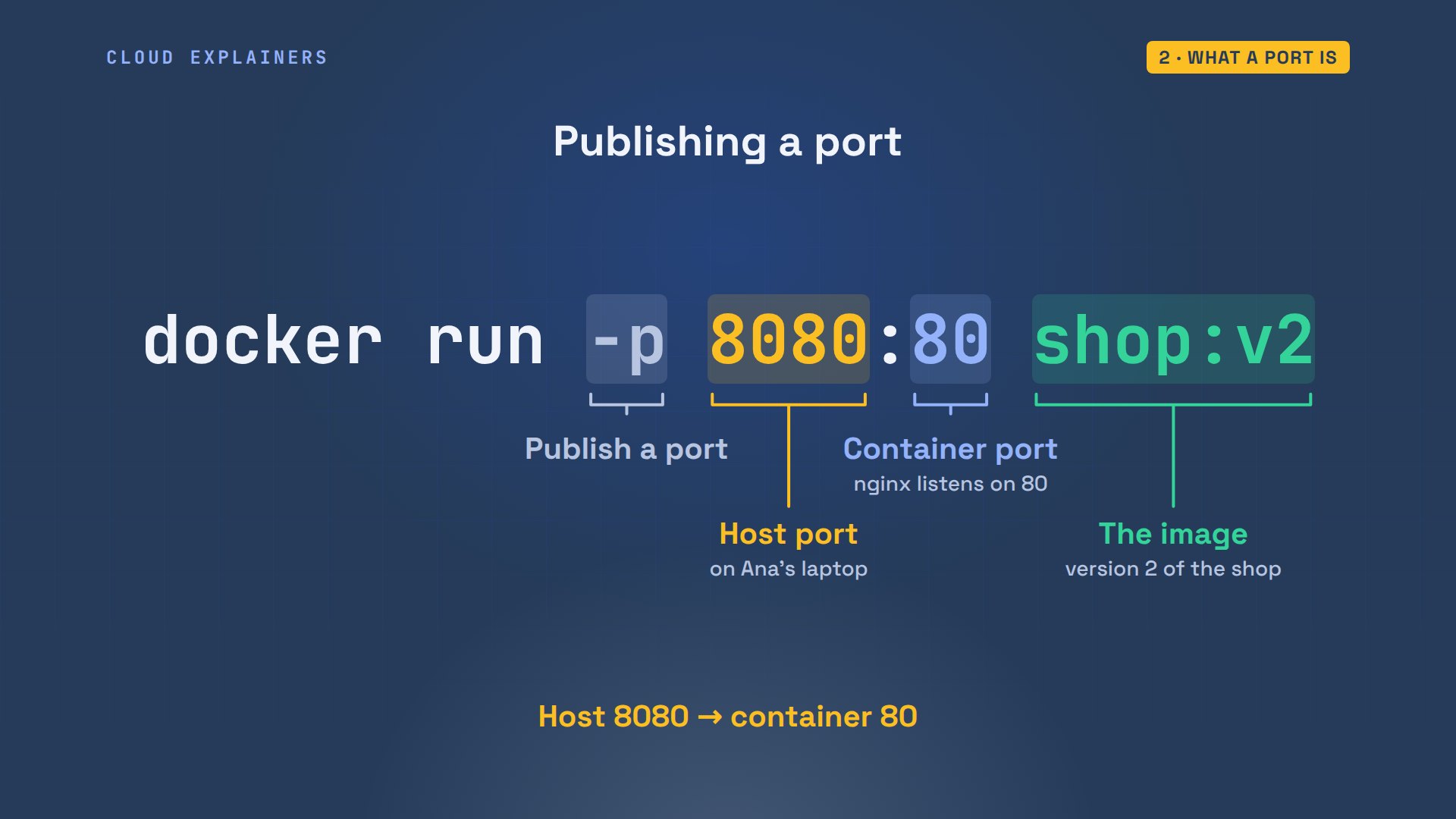
Every container has its own port 80, so containers never clash inside. They clash on the left side: the laptop has only one port 8080. And 0.0.0.0 in the message means every address the laptop has. So, something already holds 8080. What?
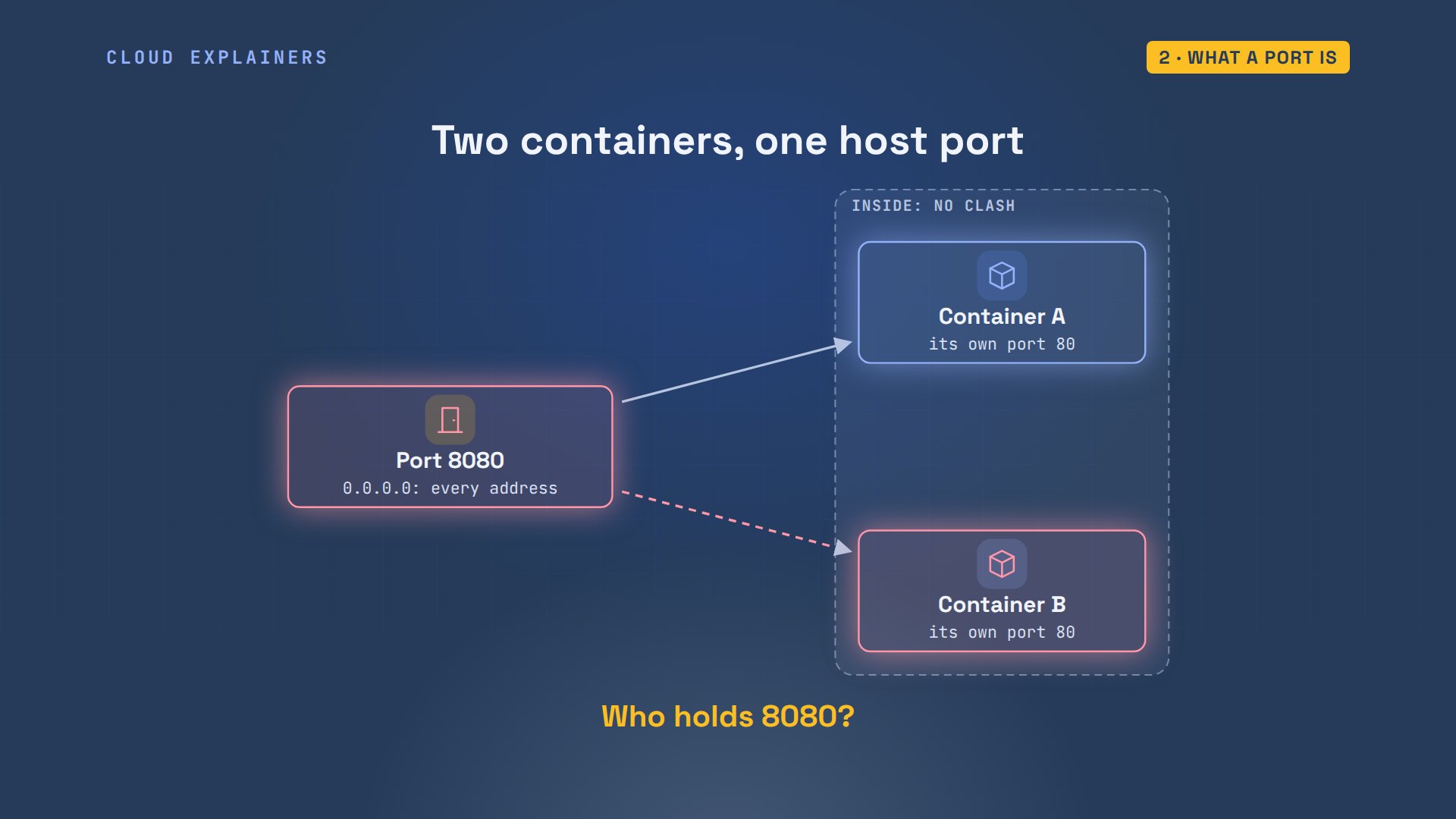
Who has the port?
Ask Docker first. docker ps lists the running containers, and the ports they publish. The format option only keeps three columns, so it fits the screen. There it is: shop-v1, Ana's first version, started a little while ago and still running on 8080. With many containers, filter by port: publish=8080 names just the one holding it. And the site still answers, with version 1.
docker ps --format 'table {{.Names}}\t{{.Status}}\t{{.Ports}}'NAMES     STATUS         PORTS
shop-v1   Up 2 minutes   0.0.0.0:8080->80/tcp, [::]:8080->80/tcp
docker ps --filter publish=8080 --format '{{.Names}}'shop-v1
curl -s localhost:8080<h1>Ana's tea shop</h1>
<p>Version 1</p>
Here's why. Docker keeps a list of the ports it has handed out. Port 8080 went to shop-v1 first. So when shop-v2 asked for it, Docker checked its list, and said the port is already allocated. It doesn't matter that shop-v2 is a newer version of the same site: to Docker, it's just another container asking for the same port.
Free the port
Now there are two good fixes. If the old container should go, stop it, and the port is free. If both should run, give the new one a different host port, like 8081. Ana wants version 2 to replace version 1, so she stops the old one.
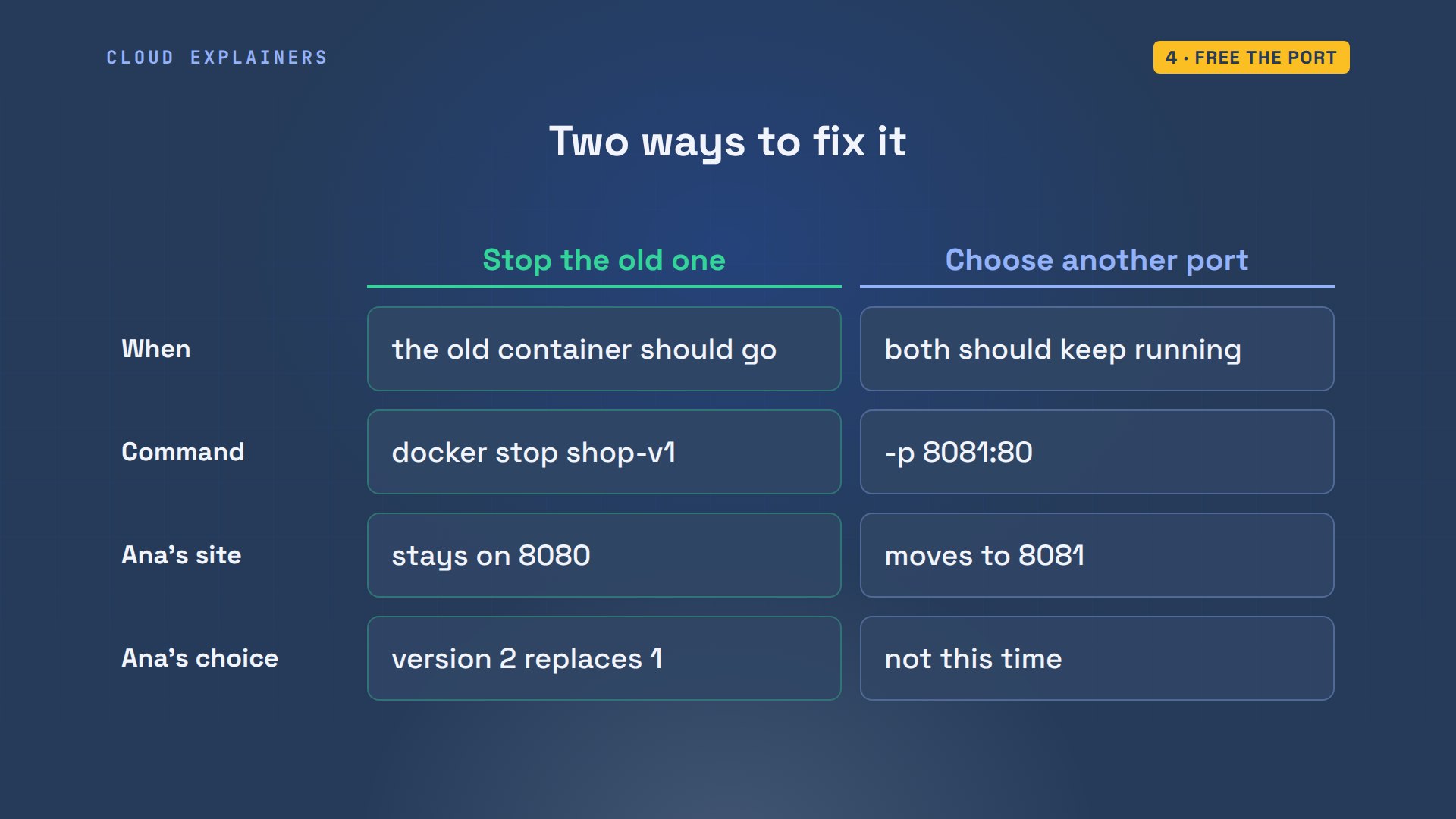
She stops shop-v1, and runs the same command again. A new error: the name shop-v2 is already in use. docker ps -a, which also lists stopped containers, shows why: the failed run left shop-v2 behind, created but never started.
docker stop shop-v1shop-v1
docker run -d --name shop-v2 -p 8080:80 shop:v2docker: Error response from daemon: Conflict. The container name "/shop-v2" is already in use by container "f8506cfa9707a4b7fdf09336099e479714562f28de963b09405469f529032b0e". You have to remove (or rename) that container to be able to reuse that name.

Run 'docker run --help' for more information
docker ps -a --format 'table {{.Names}}\t{{.Status}}'NAMES     STATUS
shop-v2   Created
shop-v1   Exited (0) Less than a second ago
That's because docker run does two things. First it creates the container, which claims its name. Then it starts it, which claims the port. The start failed, but the container and its name were left behind. So remove the leftover, then run again.
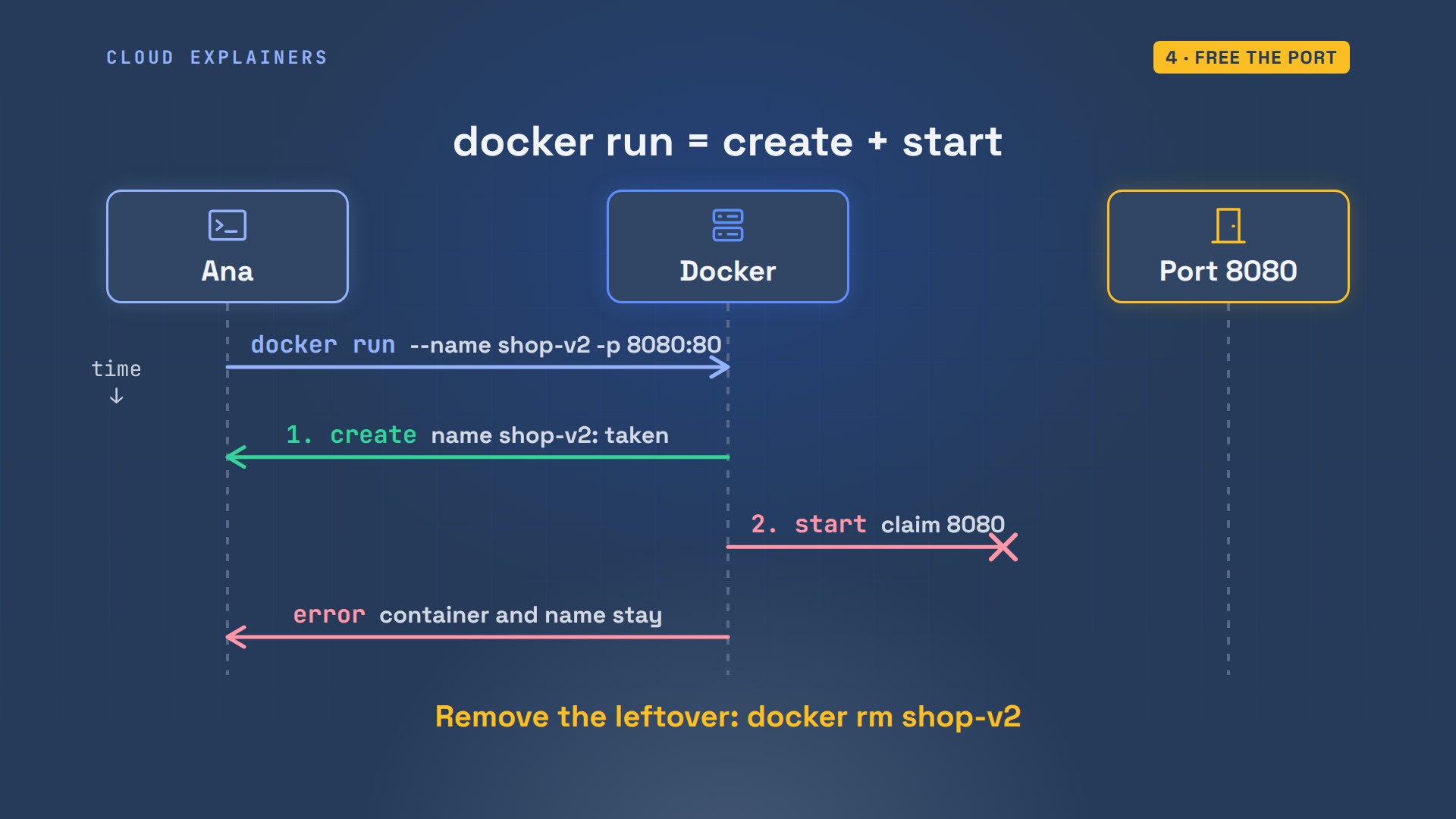
docker rm shop-v2 removes it. The same docker run now works, and the site answers with version 2. Once she's sure, Ana removes the old container too.
docker rm shop-v2shop-v2
docker run -d --name shop-v2 -p 8080:80 shop:v275ae14556820da083db2062bd7c81b5425221d10eada8d17236a916651f599f0
curl -s localhost:8080<h1>Ana's tea shop</h1>
<p>Version 2</p>
docker rm shop-v1shop-v1
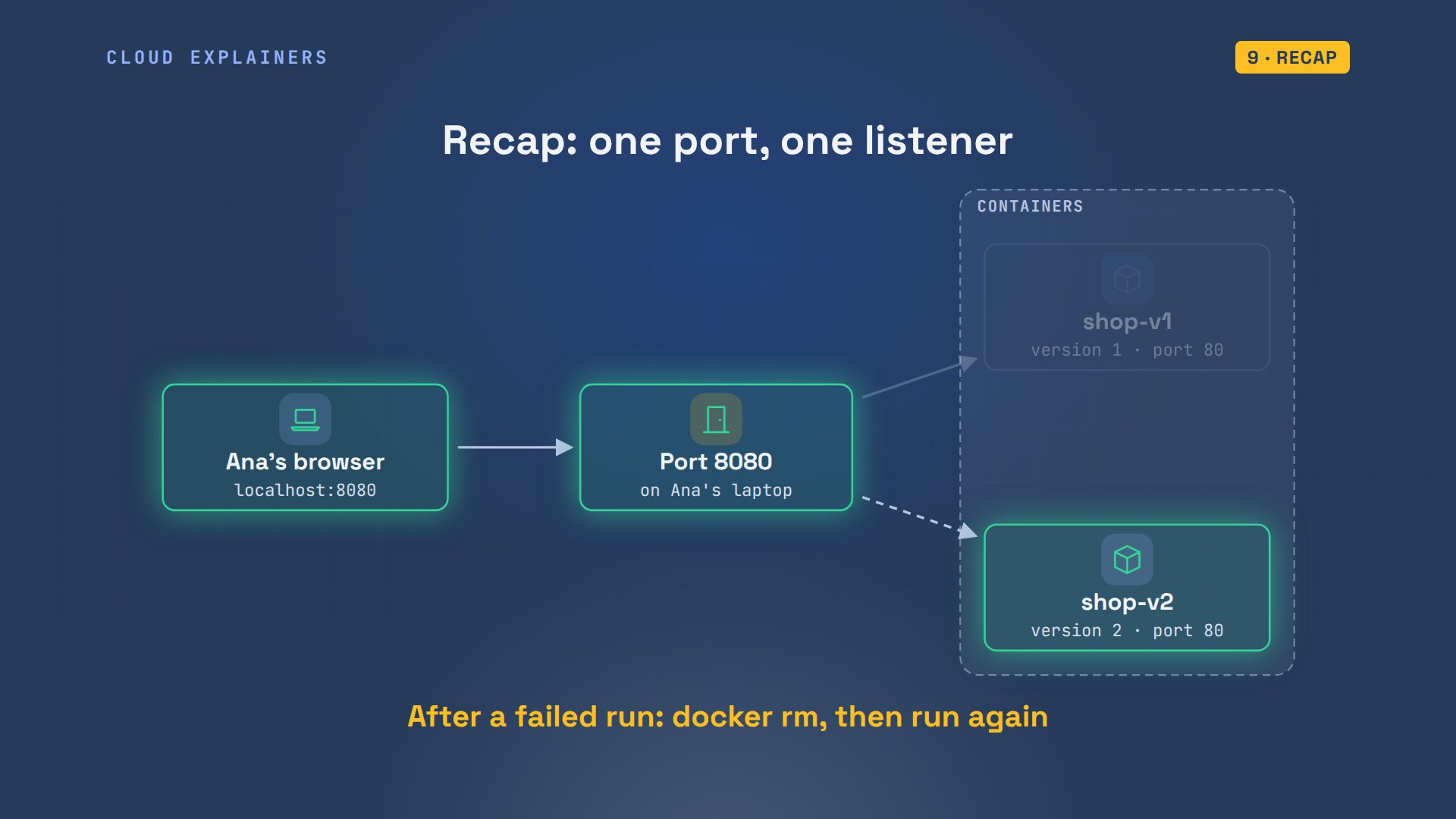
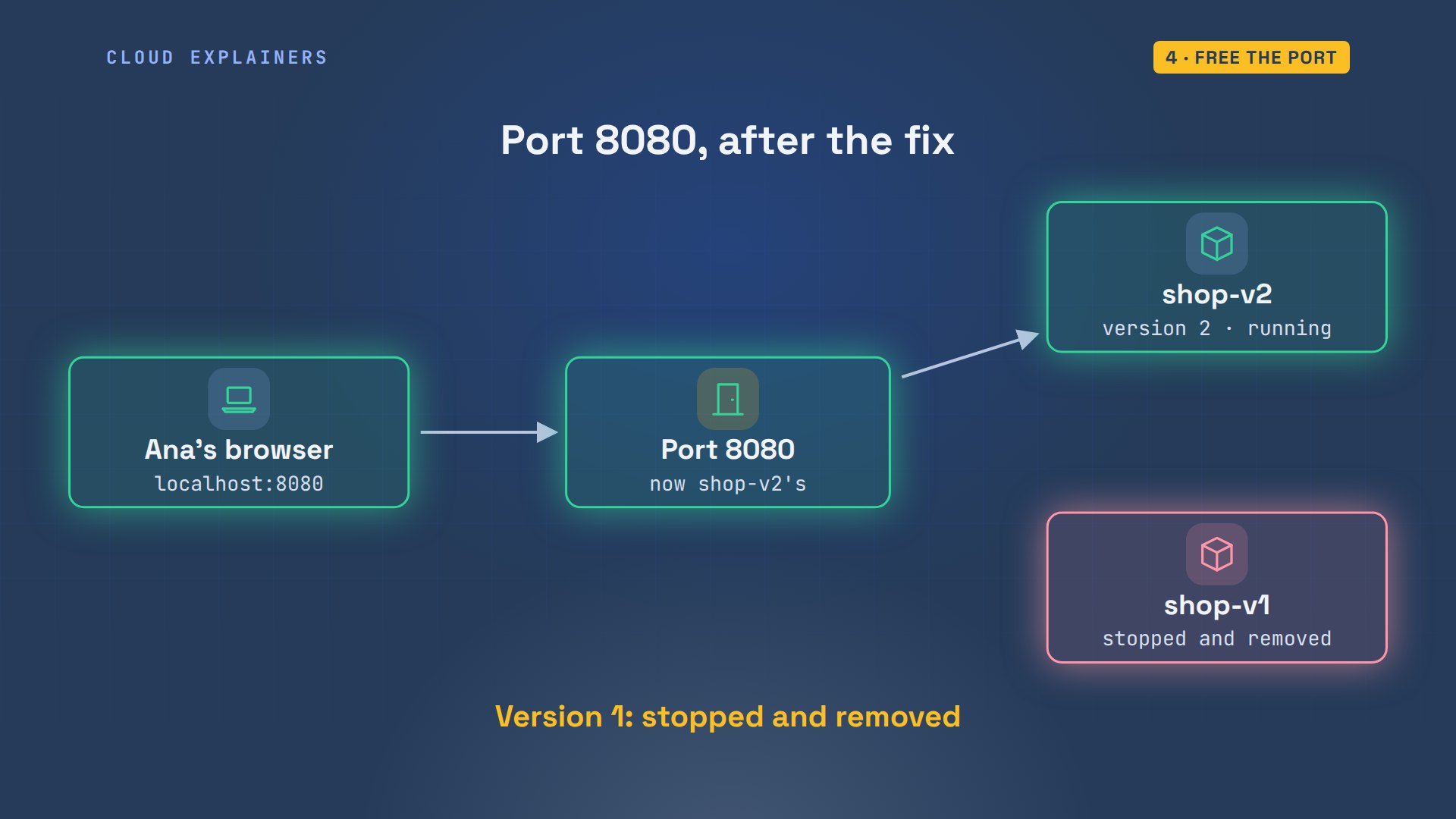
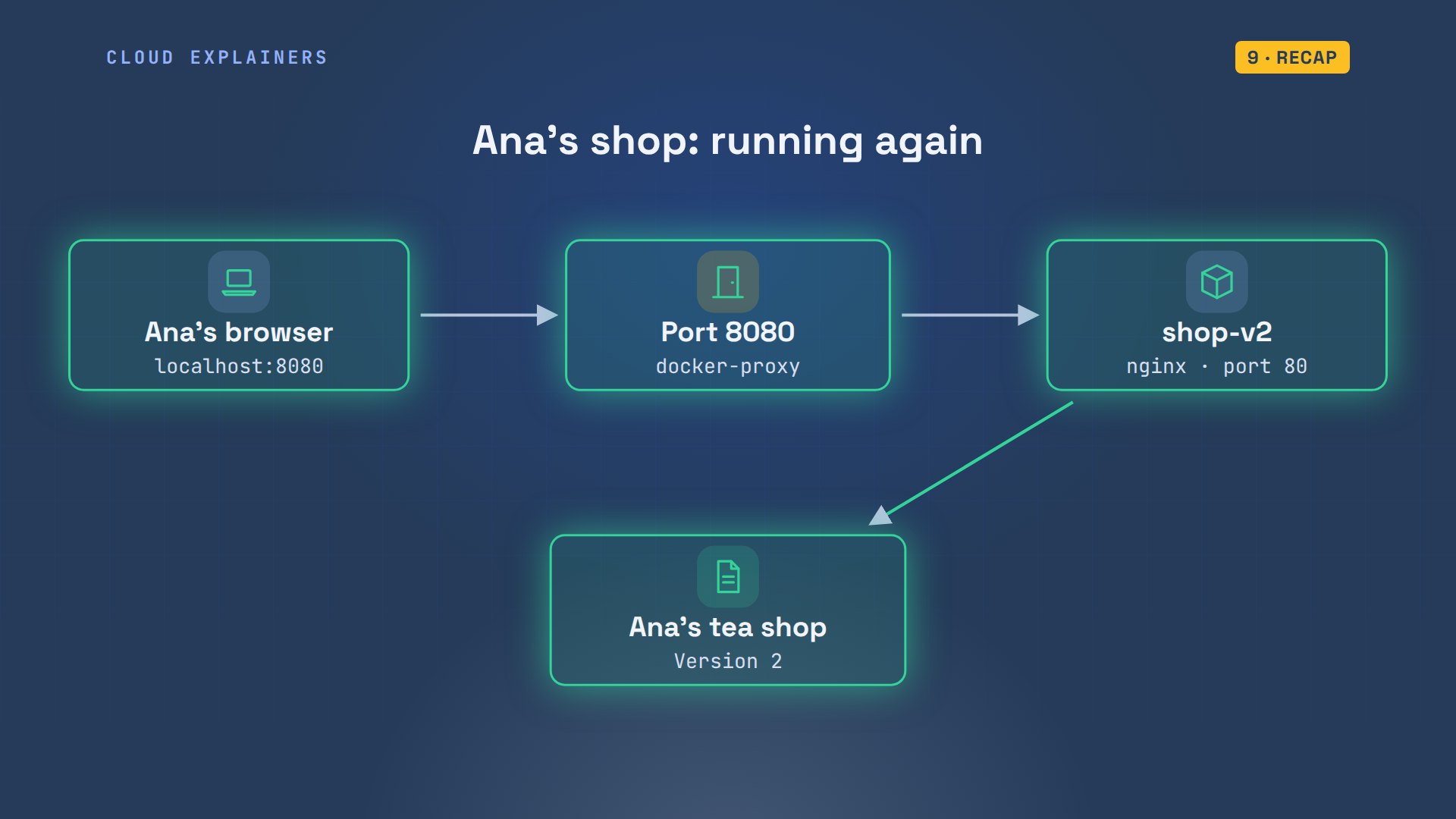
Now the picture is simple again. Port 8080 leads to shop-v2, and version 1 is gone, with its container.
Behind the port
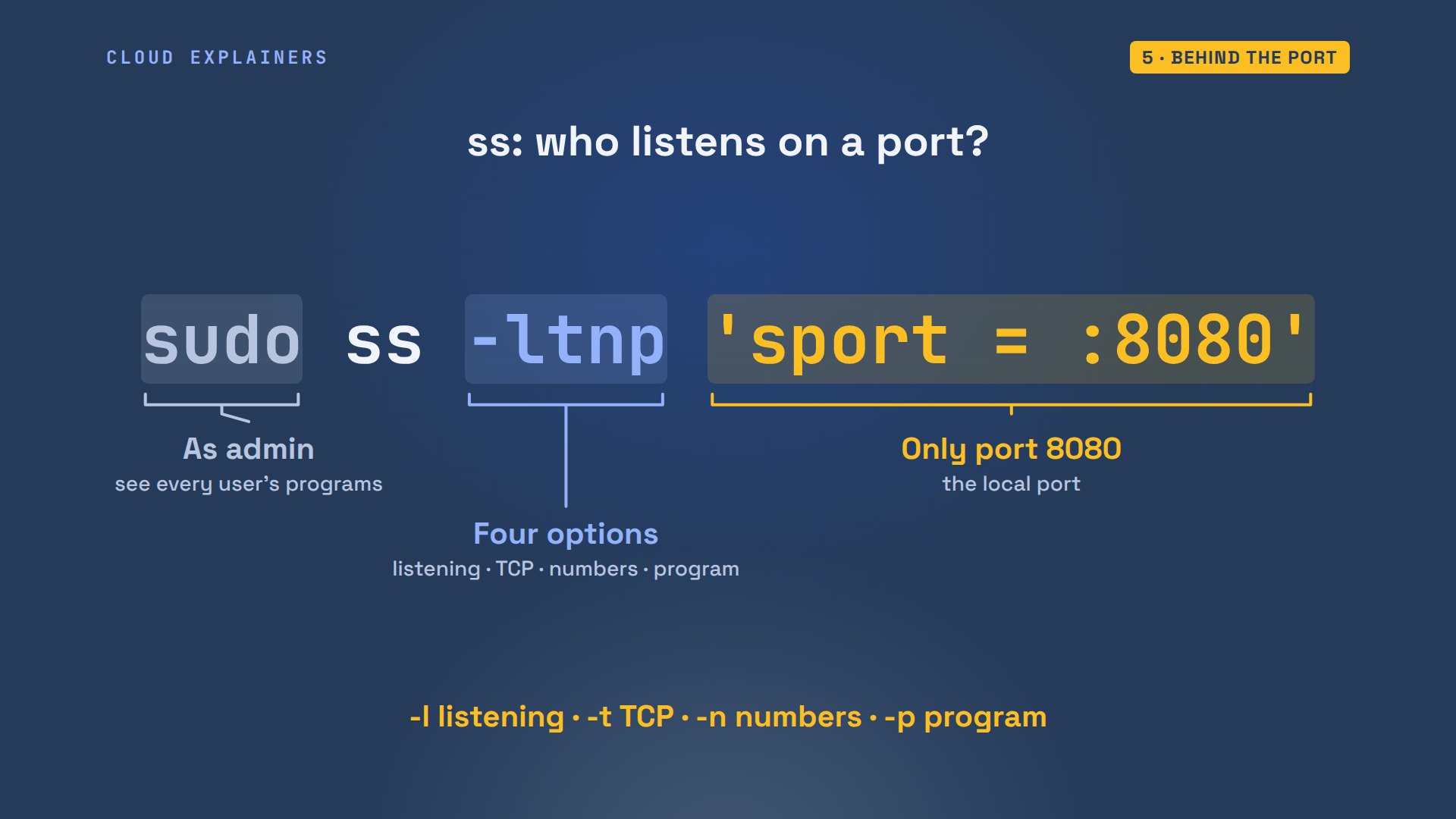
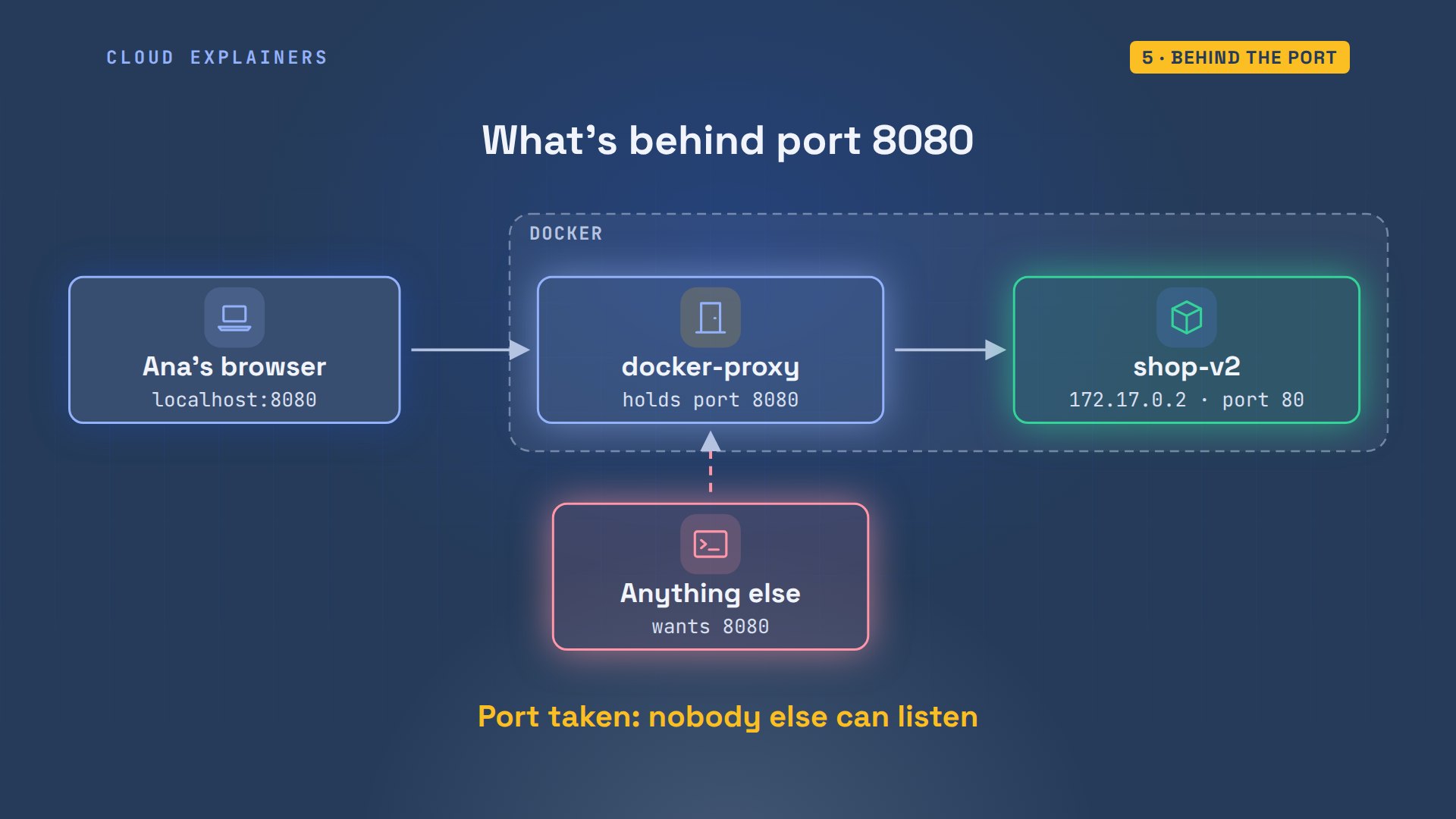
But what actually holds the port on the laptop? ss lists listening ports, and with sudo, the program behind each one. Port 8080 belongs to docker-proxy: one for IPv4, and one for IPv6, the two kinds of network address. pgrep shows its settings: host port 8080, to the container's address, port 80.
sudo ss -ltnp 'sport = :8080'[sudo] password for ana:
State     Recv-Q    Send-Q       Local Address:Port        Peer Address:Port    Process
LISTEN    0         4096               0.0.0.0:8080             0.0.0.0:*        users:(("docker-proxy",pid=2290,fd=7))
LISTEN    0         4096                  [::]:8080                [::]:*        users:(("docker-proxy",pid=2296,fd=7))
pgrep -a docker-proxy2290 /usr/bin/docker-proxy -proto tcp -host-ip 0.0.0.0 -host-port 8080 -container-ip 172.17.0.2 -container-port 80 -use-listen-fd
2296 /usr/bin/docker-proxy -proto tcp -host-ip :: -host-port 8080 -container-ip 172.17.0.2 -container-port 80 -use-listen-fd
Here's that ss command, piece by piece. sudo lets it name programs that other users started, like Docker's. Dash l means listening ports, t means TCP, n shows numbers instead of names, and p shows the program. The filter at the end keeps only port 8080.
So the picture is this. For every published port, Docker starts a docker-proxy. It holds the host port open, and, with Docker's firewall rules, gets each connection to the container. While it runs, nothing else on the laptop can listen on 8080, whether it's a container, or not.
When it isn't a container
Sometimes the holder isn't a container at all. In a second window, Ana starts a quick preview server with Python, on port 8081.
python3 -m http.server 8081Serving HTTP on 0.0.0.0 port 8081 (http://0.0.0.0:8081/) ...
Then she runs a test copy of the shop on 8081. This time the message is different: address already in use. And docker ps, filtered on 8081, prints nothing.
docker run -d --name shop-test -p 8081:80 shop:v2b4ea828677b60d757a09e7160966b25d58f39e276ce9062d6fc9e288f97818da
docker: Error response from daemon: failed to set up container networking: driver failed programming external connectivity on endpoint shop-test (29687093d61122a91e8ce939ca0e9d63a362b5257cdc8423d3ec2d157af1d51a): failed to bind host port 0.0.0.0:8081/tcp: address already in use

Run 'docker run --help' for more information
docker ps --filter publish=8081 --format '{{.Names}}'
Here's what happened underneath. Python asked the laptop's system to listen on 8081, and got it. Then Docker asked for the same port. Its own list was empty, so it went ahead. But the system checks every program, not just containers, and it refused: address already in use.
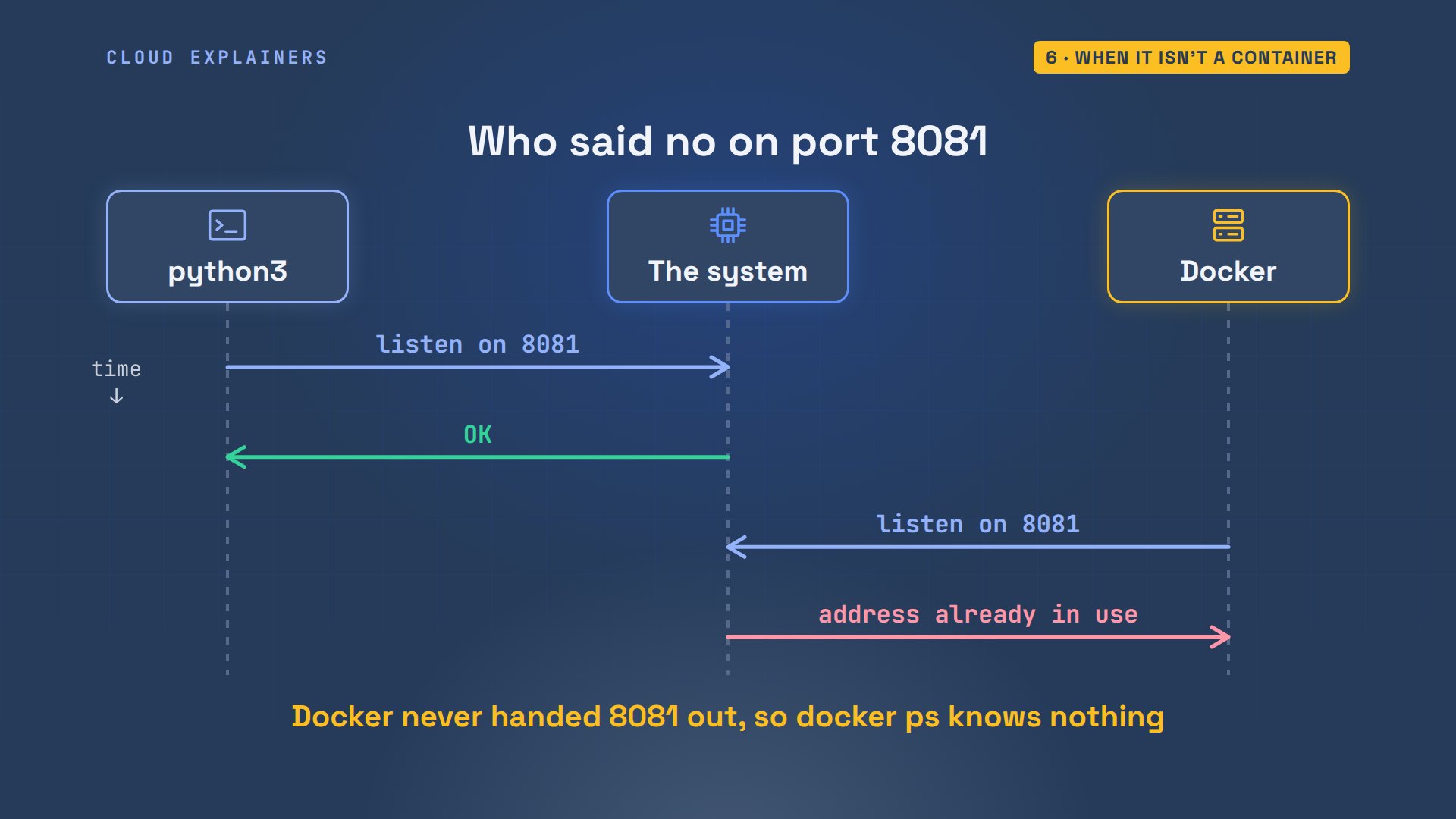
So the two messages point to different places. Port is already allocated: another container has it, and docker ps finds it. Address already in use: some other program has it, and the laptop's own tools find it.
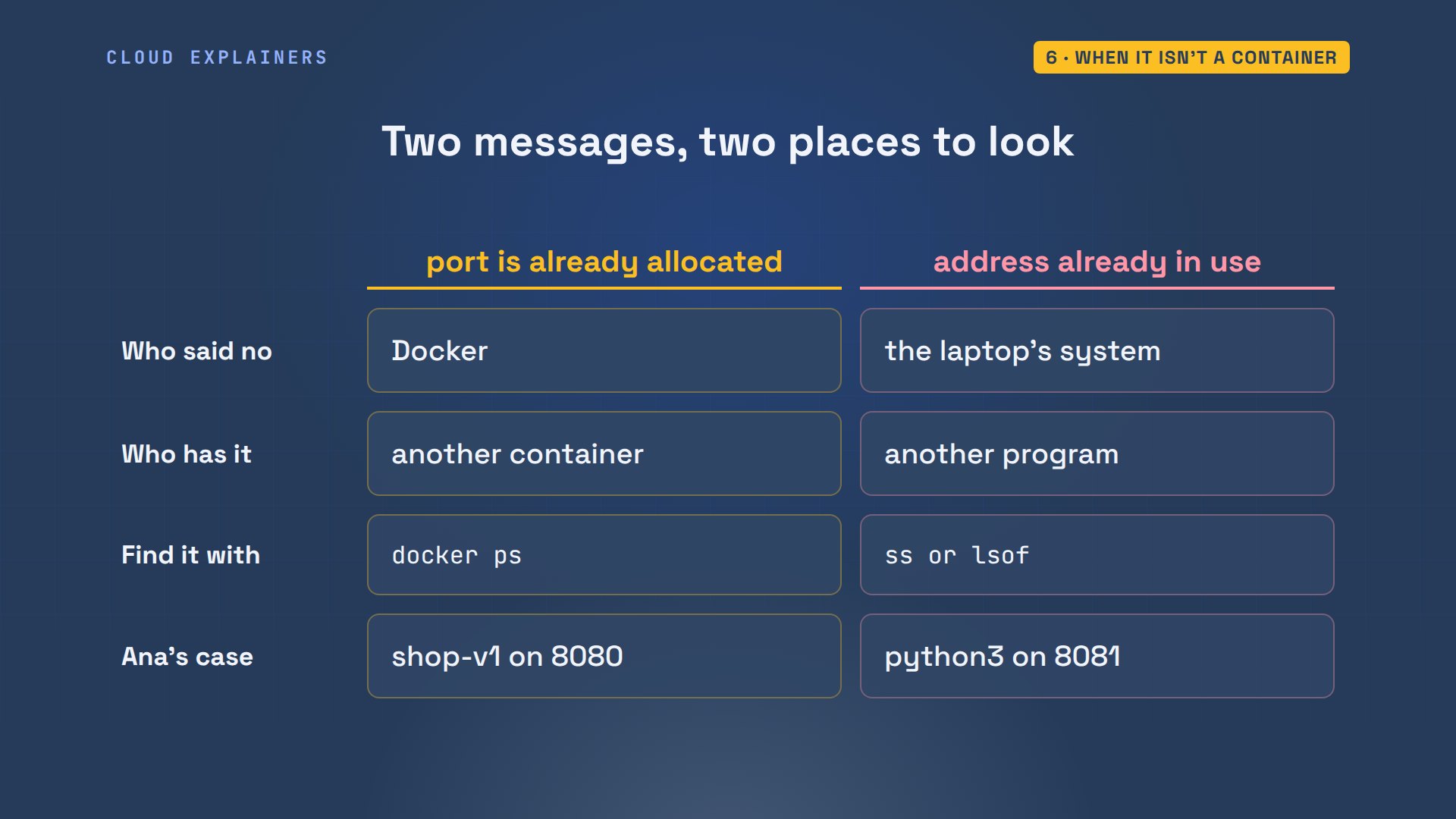
Those tools are ss and lsof. sudo ss for port 8081 shows python3. lsof shows it too, with its user: Ana. It's her own program, so no sudo needed.
sudo ss -ltnp 'sport = :8081'State    Recv-Q   Send-Q     Local Address:Port     Peer Address:Port  Process
LISTEN   0        5                0.0.0.0:8081          0.0.0.0:*      users:(("python3",pid=2372,fd=3))
lsof -nP -i :8081COMMAND  PID USER   FD   TYPE   DEVICE SIZE/OFF NODE NAME
python3 2372  ana    3u  IPv4 10858684      0t0  TCP *:8081 (LISTEN)
The end of the ss line names the holder. First the program, python3. Then its process ID, the number the system gives every running program. With it, you can stop the program, or look it up with ps, if you don't know what it is.
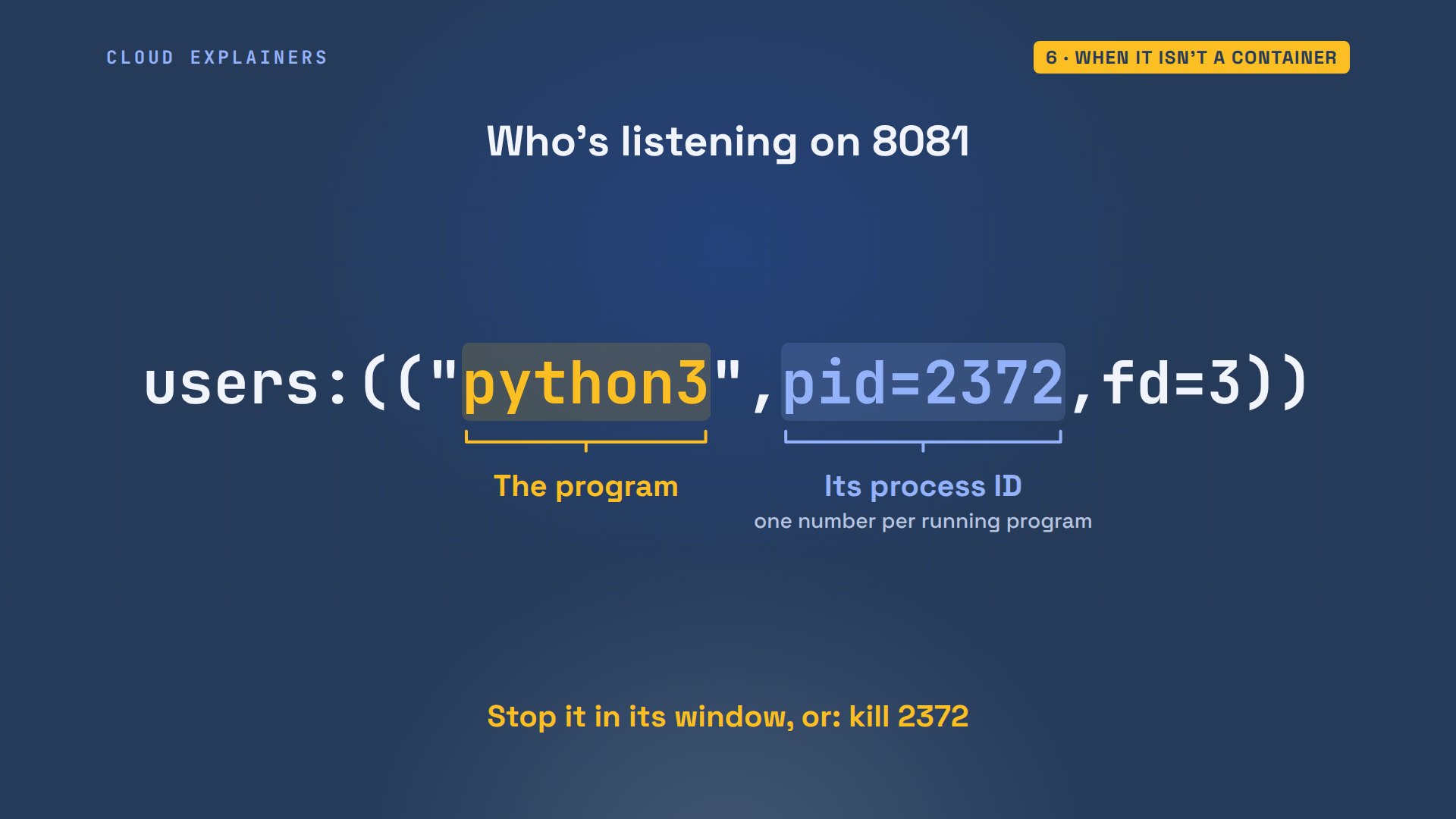
Ana doesn't need the preview any more, so she stops it with Control C, in its window.
python3 -m http.server 8081Serving HTTP on 0.0.0.0 port 8081 (http://0.0.0.0:8081/) ...
Keyboard interrupt received, exiting.
Then she removes the test container the failed run left behind, runs it again, and docker ps lists shop-test on 8081, next to shop-v2 on 8080.
docker rm shop-testshop-test
docker run -d --name shop-test -p 8081:80 shop:v2cfdb76a62ef9e12998957d52b29cb1b06474ead2f2430a03a31bfc9cb6371381
docker ps --format 'table {{.Names}}\t{{.Ports}}'NAMES       PORTS
shop-test   0.0.0.0:8081->80/tcp, [::]:8081->80/tcp
shop-v2     0.0.0.0:8080->80/tcp, [::]:8080->80/tcp
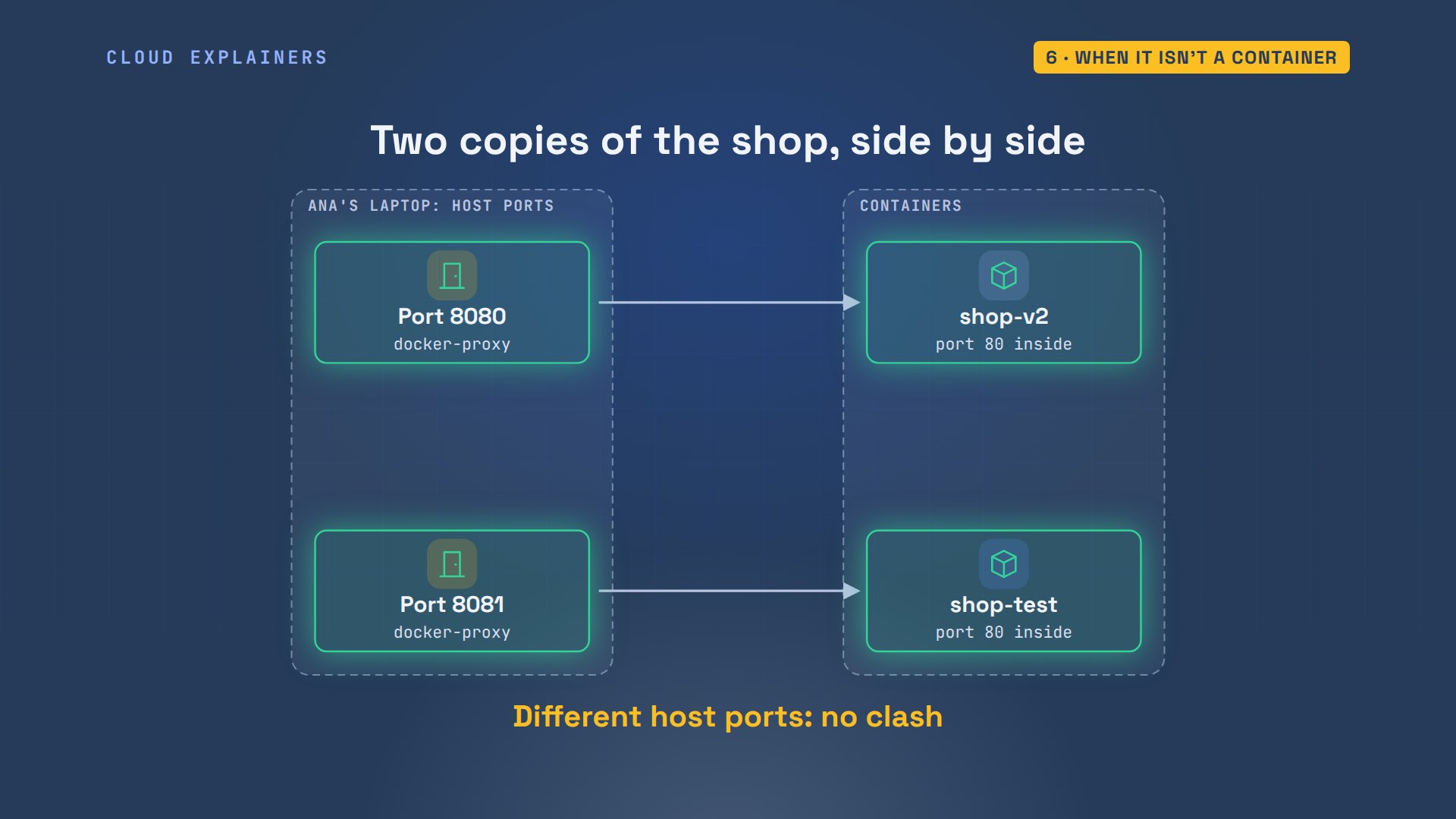
Two copies, two host ports. Port 8080 leads to shop-v2, port 8081 to shop-test, and inside, each container listens on its own port 80. No clash.
The same fix in Compose
Docker Compose reads the same settings from a file. compose.yaml lists the services, and under ports, 8080:80 means exactly what -p 8080:80 means. docker compose up creates and starts the containers for you, so it can hit the same error.
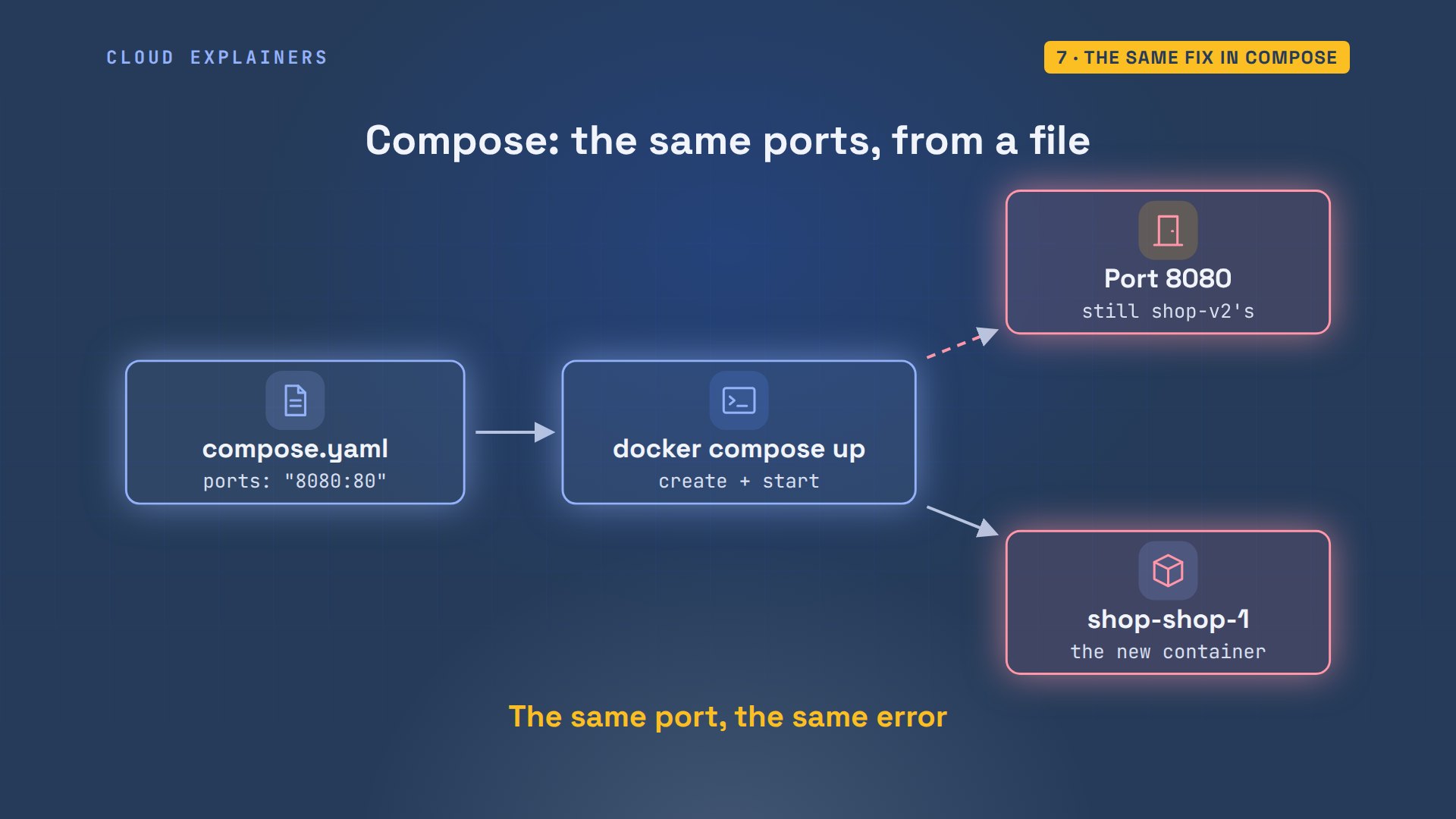
Ana's file publishes host port 8080, to container port 80. docker compose up -d creates the container, then fails: port 8080 is still shop-v2's.
cat compose.yamlservices:
  shop:
    image: shop:v2
    ports:
      - "8080:80"
docker compose up -dNetwork shop_default Creating Network shop_default Created Container shop-shop-1 Creating Container shop-shop-1 Created Container shop-shop-1 Starting Error response from daemon: failed to set up container networking: driver failed programming external connectivity on endpoint shop-shop-1 (f9e32c4ee5c2725f0f0589ec057750c2da32a4d08678f825ad07d864708b6c32): Bind for 0.0.0.0:8080 failed: port is already allocated
The left number is the one to change. It's the host port, shared by everything on the laptop. The right one belongs to the container, and stays what the app listens on.
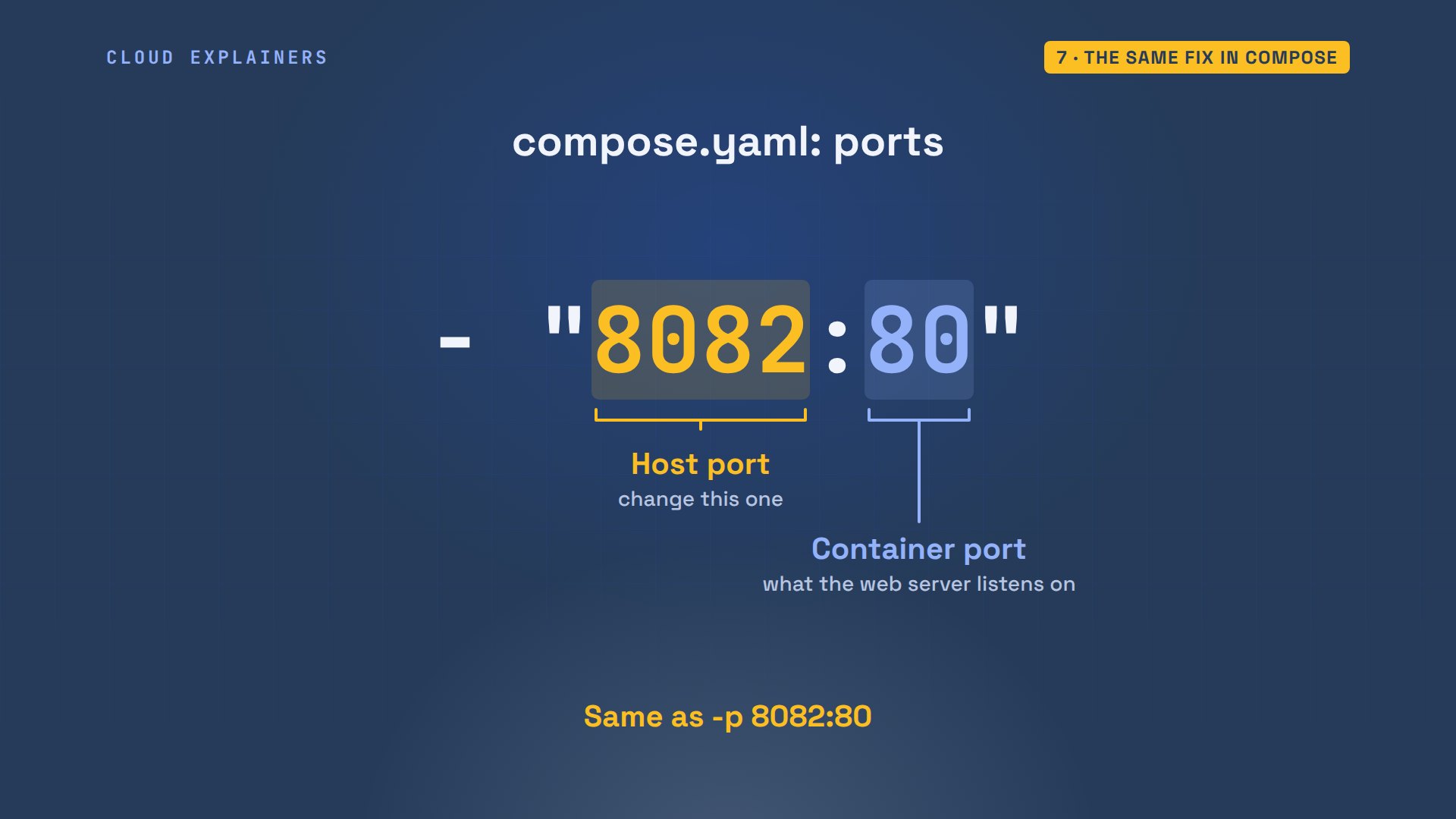
So she changes the host side to 8082. Up again: Compose recreates the container, and it starts. docker compose ps shows 8082, and the site answers there.
cat compose.yamlservices:
  shop:
    image: shop:v2
    ports:
      - "8082:80"
docker compose up -dContainer shop-shop-1 Recreate Container shop-shop-1 Recreated Container shop-shop-1 Starting Container shop-shop-1 Started
docker compose ps --format 'table {{.Name}}\t{{.Ports}}'NAME          PORTS
shop-shop-1   0.0.0.0:8082->80/tcp, [::]:8082->80/tcp
curl -s localhost:8082<h1>Ana's tea shop</h1>
<p>Version 2</p>
When she's done, docker compose down stops and removes it. ss shows nothing on 8082 any more: the port is free.
docker compose downContainer shop-shop-1 Stopping Container shop-shop-1 Stopped Container shop-shop-1 Removing Container shop-shop-1 Removed Network shop_default Removing Network shop_default Removed
ss -ltn 'sport = :8082'State Recv-Q Send-Q Local Address:Port Peer Address:Port Process
Never again
So whenever you see either message, the same three steps fix it. Read the port number in the message. Find what holds it: docker ps for a container, ss for anything else. Then stop the holder, or pick another host port. And if a run failed, remove its leftover container first.
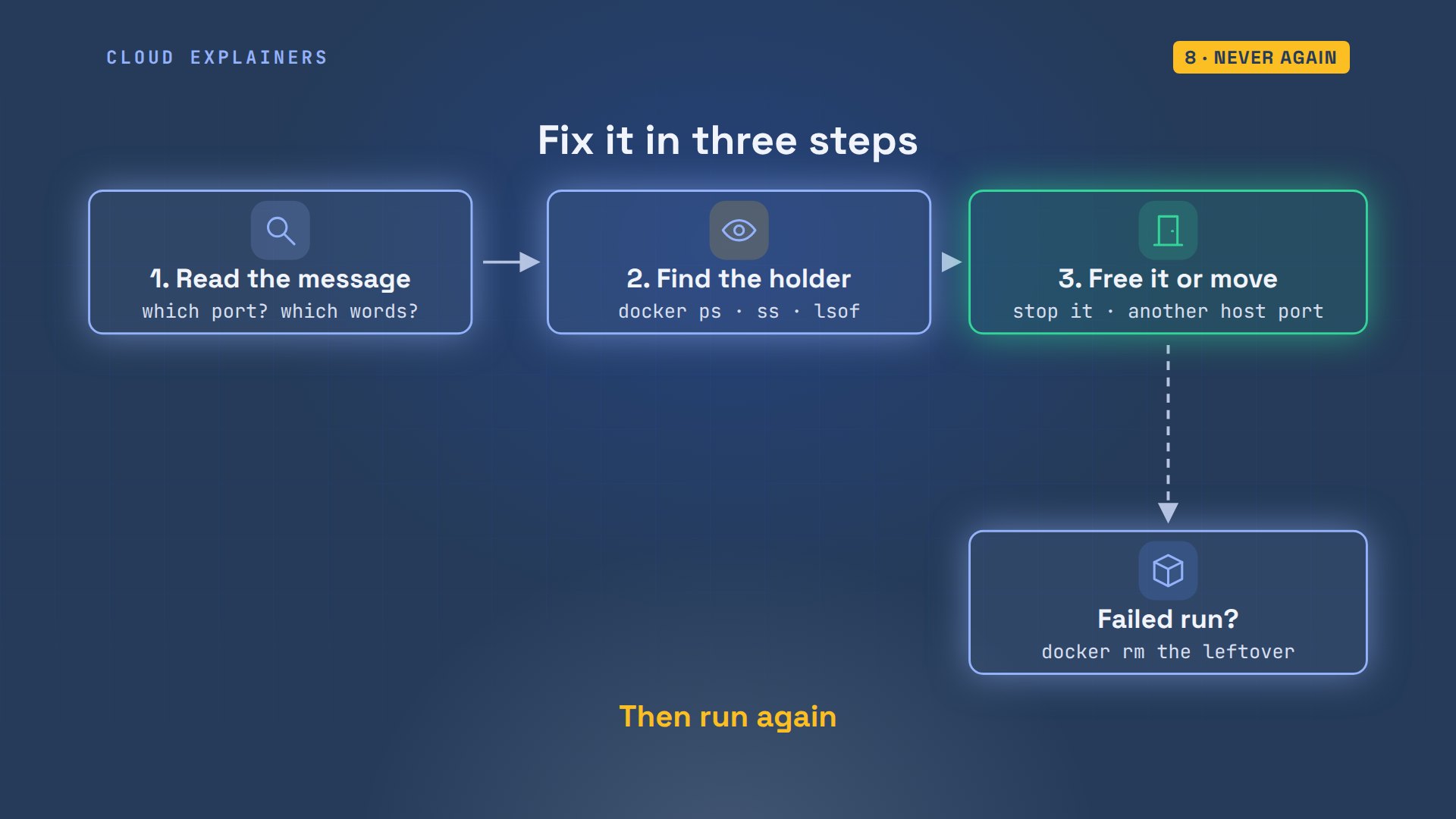
To avoid the error, you can let Docker choose for quick tests. Give only the container port: -p 80. docker port shows what it picked: 32768, a free, high-numbered port. Docker only hands out ports that no one is using.
docker run -d --name shop-try -p 80 shop:v2515197ac4f65e54f796bc31e9fc293d137ed0ec2942d1e5c692bd88bab459b01
docker port shop-try80/tcp -> 0.0.0.0:32768
80/tcp -> [::]:32768
curl -s localhost:32768<h1>Ana's tea shop</h1>
<p>Version 2</p>
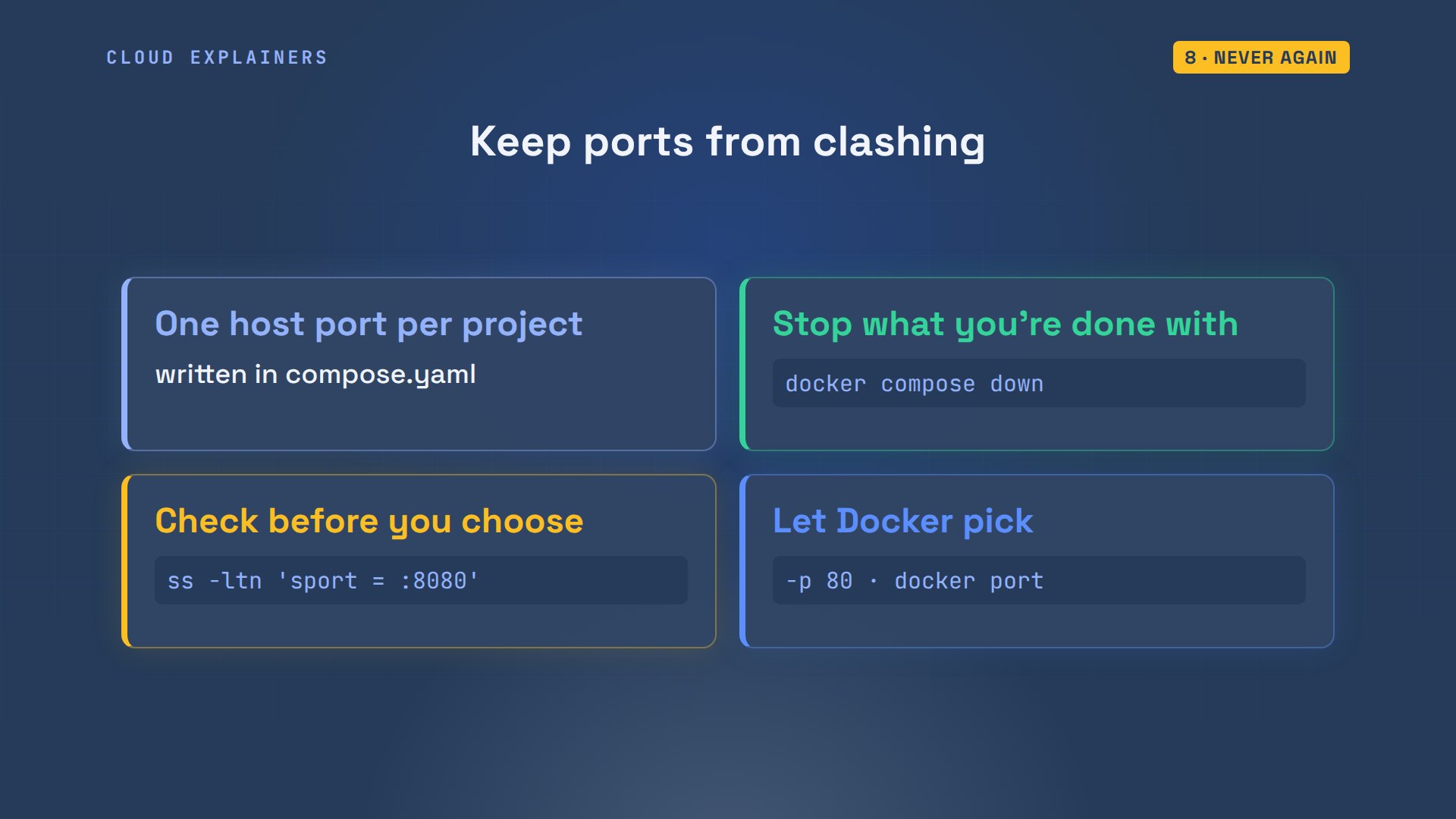
And four habits keep this error away. Give each project its own host port, written down in its Compose file. Stop what you're done with: docker compose down, or docker stop. Before choosing a port, check it with ss. And for throwaway tests, let Docker pick.
Recap
Let's recap. One host port, one listener. Port is already allocated means a container has it: find it with docker ps. Address already in use means another program: find it with ss or lsof. Then stop the old one, or choose another host port. And after a failed run, remove the leftover before you run again.
If this got your container running again, subscribing helps this small channel make more real demos for beginners.
Every command and output in this video came from a real run in our lab. Thanks for watching Cloud Explainers.
Sources
Demos: real output from a small lab on our own machine: Ana's laptop is an Ubuntu 24.04 system container with Docker installed from Ubuntu's archive, and her tea shop site is a tiny nginx image built for the video. Every command is shown as typed. Watch the full video on YouTube.
More videos
How PostgreSQL Works
How to Fix Git Merge Conflicts

How to Fix No Space Left on Device in Linux
How the Internet Works
SQL vs NoSQL: When Each One Wins
How to Fix JWT Token Expired Errors (401 Unauthorized)
Claude API vs Claude Pro: Why Your Subscription Doesn't Include It

Why AI Agent Skills Beat Giant Prompts

Linux Cron Jobs Will Finally Make Sense After This

Security Logs Will Finally Make Sense After This

How to Fix a Security Leak: An API Key Pushed to GitHub
DNS Will Finally Make Sense After This
Never Ignore a Security Update

Two-Factor Authentication Will Finally Make Sense
Never Expose a Database to the Internet
SSH Keys vs Passwords: Which Is Safer for Security?
The 5 Levels of Linux Boot: From Power On to Login
The 5 Levels of Network Firewalls
Password Security: Why Hackers Crack Weak Passwords
Why Your Linux Server Runs Out of Memory
HTTP vs HTTPS: What Actually Changes on Your Network

Every Linux File Permission You Need to Know
Linux Processes vs Threads: When Each One Wins

The OSI Model Will Finally Make Sense After This

The 7 Levels of Git
Every Network Troubleshooting Command You Need
Hashing vs Encryption in Cybersecurity: When Each One Wins
Why the Internet Ran Out of IP Addresses
Linux Package Managers: apt vs Snap vs Flatpak

Why Python Is Slow (and When It Doesn't Matter)
TCP vs UDP: When Each One Wins
Stop Running Linux as Root (Do This Instead)

Linux Users and Groups Will Finally Make Sense

Why Phishing Beats Good Security (and How to Spot It)

The 7 Levels of Docker

AI Agents Will Finally Make Sense After This

Stop Using git push --force (Use This Instead)
Agent Skills vs MCP: When Each One Wins

Networking Will Finally Make Sense After This

Every Linux Command You Actually Need
The 7 Levels of Cybersecurity
Every System Design Concept You Need, in One Diagram